
G218a1 - Monitor AOC - Free user manual and instructions
Find the device manual for free G218a1 AOC in PDF.


| Product Type | LCD Monitor |
| Brand | AOC |
| Model | G218a1 |
| Screen Size | 22 inches (55.9 cm) |
| Maximum Resolution | WSXGA 1680 x 1050 @ 60 Hz |
| Panel Type | TFT LCD |
| Input Connectors | 1x D-Sub (VGA), 1x DVI (with HDCP), 1x Audio jack |
| Built-in Speakers | Yes, 2 x 2W |
| Power Supply | 100-240 V AC, 50/60 Hz (external adapter) |
| Standby Consumption | Less than 1 W (ENERGY STAR compliant) |
| Tilt | 0° (forward) to 20° (backward) |
| Dimensions (with stand) | Approx. 510 x 390 x 190 mm (estimated) |
| Weight (with stand) | Approx. 5.0 kg (estimated) |
| Safety Standards | cULus, CE, FCC-B, ISO13406-2 |
| Main Features | Auto image adjustment, OSD menu, input selection, color adjustment (sRGB, 9300K, 6500K, 5400K, custom), OSD and power lock |
| Maintenance and Cleaning | Unplug before cleaning; use a dry, clean cloth; avoid ammonia-based cleaners; do not apply liquid directly to the screen |
| Safety | Do not open the casing (internal high voltage); use only the specified power source; disconnect if smoke or abnormal odor occurs |
| Spare Parts and Repairability | VESA 100 mm wall mount (not included); repair by qualified technician only |
| General Information | User manual downloadable in PDF; user questions available online |
Frequently Asked Questions - G218a1 AOC
User questions about G218a1 AOC
0 question about this device. Answer the ones you know or ask your own.
Ask a new question about this device
Download the instructions for your Monitor in PDF format for free! Find your manual G218a1 - AOC and take your electronic device back in hand. On this page are published all the documents necessary for the use of your device. G218a1 by AOC.
USER MANUAL G218a1 AOC
Operation Instructions
Thank you for purchasing this monitor, a high-resolution multi-scan color monitor.
Please read this guide thoroughly before installation.
FCC RADIO FREQUENCY INTERFERENCE STATEMENT WARNING: (FOR FCC CERTIFIED MODELS)
This monitor has been tested and found compliant with the limits for a Class B digital device, pursuant to part 15 of the FCC Rules. These limits are designed to provide proper protection against harmful interference to a residential installation. This monitor generates, uses, and can radiate radio frequency energy. Harmful interference to radio communication may be led as a result if it's not properly installed and used. However, there is no guarantee that interference will not occur in a particular installation. If this monitor does cause serious interference to radio or television reception, resetting the monitor may determine it. Moreover, users are encouraged to correct interference by doing one or more of the following:
● Reorient or relocate the receiving antenna.
- Move the monitor and the receiver further away from each other.
- Connect the monitor into an outlet on a circuit different from that to which the receiver is connected.
- Consult your local dealer or an qualified technician
FCC Warning:
To assure a continued FCC compliance, a user must use a grounded power supply cord and the provided shielded video interface cable with bonded ferrite cores. Also, any unauthorized changes or modifications to this monitor would void the user's authority to operate this device.
Note: If necessary, shielded interface cables and AC power cord must be used to meet the emission level limits.
Content
Safety Precautions....1
First Setup 2
Quick Installation....2-5
Rear View of the Product 6
Front View of the Product 6
Using On Screen Display (OSD) Functions 7-9
Supporting Timing Modes....10
Technical Information....11
Care and Maintenance....12
Troubleshooting 12
Safety Precautions
This monitor is manufactured and tested on a ground principle that a user's safety comes first. However, improper use or installation may result danger to the monitor as well as to the user. Carefully go over the following WARNINGS before installation and keep this guide handy.
WARNINGS:
This monitor should be operated only at the correct power sources indicated on the label on the rear end of the monitor. If you're unsure of the power supply in your residence, consult your local dealer or power company.
Do not try to repair the monitor yourself as it contains no user-serviceable parts. The monitor should only be repaired by a qualified technician.
Do not remove the monitor cabinet. There is high-voltage parts inside that may cause electric shock to human bodies, even when the power cord is disconnected.
◆ Stop using the monitor if the cabinet is damaged. Have it checked by a service technician.
◆ Put your monitor only in a clean, dry environment. Unplug the monitor immediately if gets wet and consult your service technician.
◆ Always unplug the monitor before cleaning it. Clean the cabinet with a clean, dry cloth. Apply non-ammonia based cleaner onto the cloth, not directly onto the glass screen.
◆ Keep the monitor away from magnetic objects, motors, TV sets, and transformer.
◆ Do not place heavy objects on the cable or power cord.
◆ For PLUG CABLE EQUIPMENT, the Socket-outlet shall be installed near the equipment and shall be easily accessible.
First Setup
Congratulation for purchasing this monitor of high performance! This monitor comes with the following accessories:
- Power Cable
• D-Sub Cable (15 pin)
• DVI Cable (24 pin) - Audio Cable
- User's Guide
- Quick Start Guide
● Warranty Documents
Quick Installation
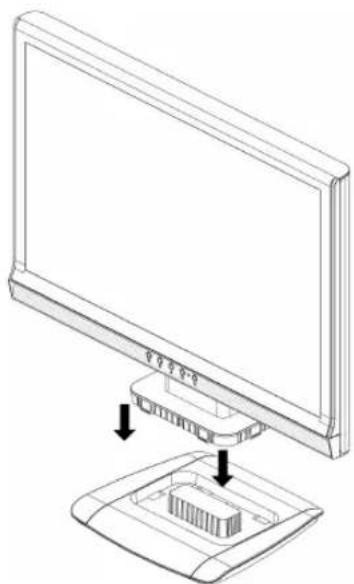
Installing & Removing the Base Install
Remove
natural_image
Line drawing of a computer monitor with an open lid and two arrows pointing to its base (no text or symbols present)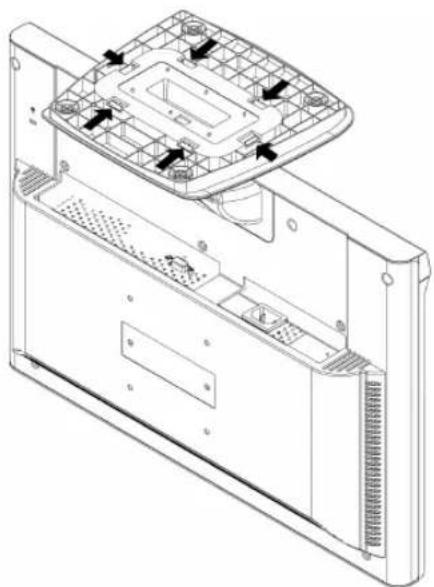
natural_image
Technical line drawing of a computer case with internal components and mounting holes (no text or symbols)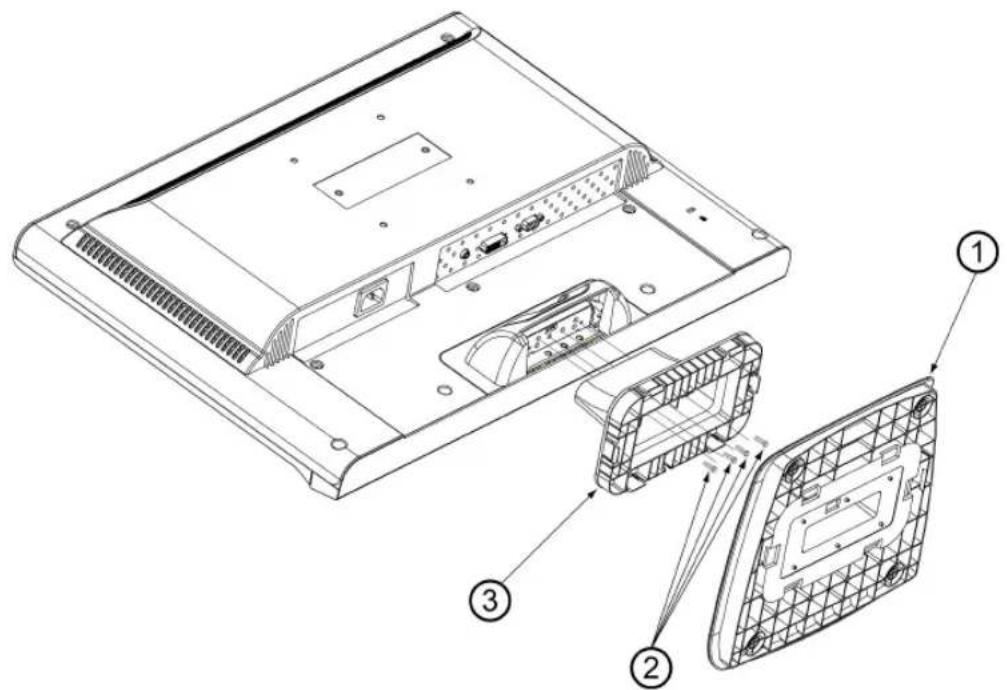
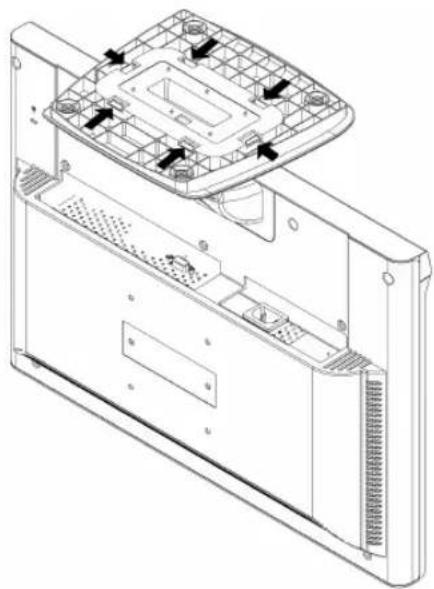
This monitor can be attached to a wall mounting arm you can purchase separately. Turn the power OFF then dis-connect the cables from the monitor before performing the procedure below. Lay the monitor face down on a soft surface.
- Remove the base. It is attached to the stand by hooks.
- Remove the 4 screws holding the stand to the hinge.
- Remove the stand.
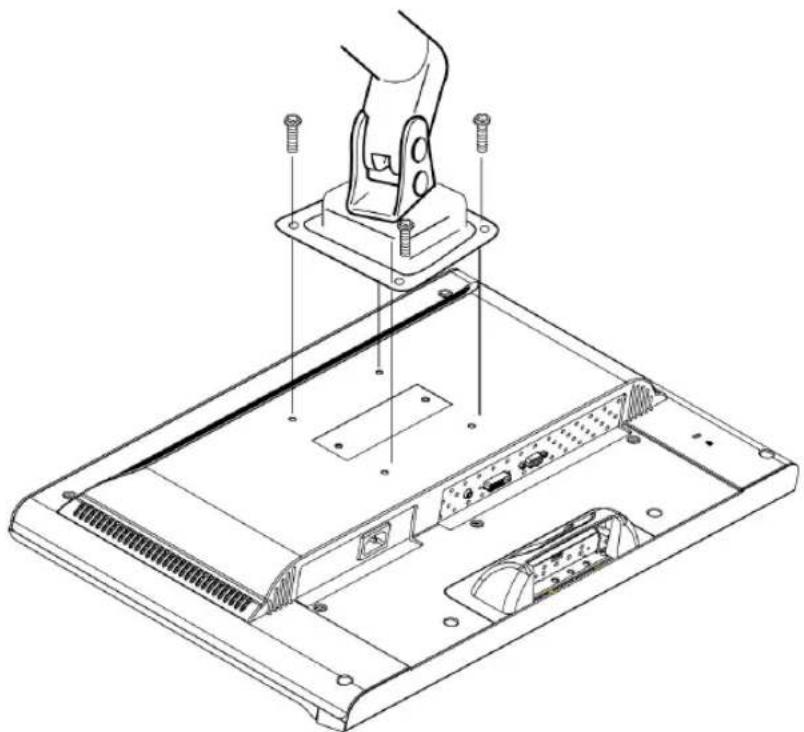
Attaching The Optional Wall Mount Arm (not supplied)
natural_image
Technical line drawing of a device chassis with labeled components (no text or symbols)Follow these steps to finish installing the wall mounting arm:
- Place the wall mounting arm onto the back of the monitor. Line up the holes of the arm with the holes in the back of the monitor.
- Insert the 4 screws into the holes and tighten.
- Reconnect the cables. Refer to the user's manual that came with the optional wall mounting arm for instructions on attaching it to the wall.
NOTE
The ENVISION G218a1 is in compliance with the most current revision of the VESA 100mm Flat Panel Monitor Physical Mounting Interface (FPMPMI standard).
Connecting the Monitor
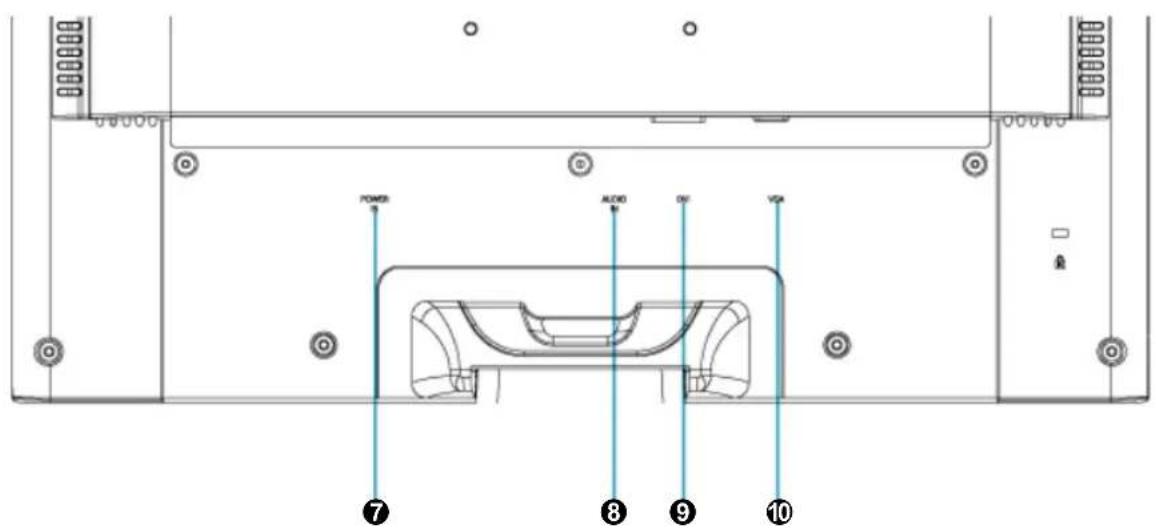
1. Connect Power Cable
Connect the power cable to the back of the monitor. Plug the power cable to a nearby power outlet.
2. Connect Analog video cable (D-Sub cable)
Make sure both monitor and computer are powered OFF. Connect the video cable (D-Sub cable) to the computer, then to the monitor.
3. Connect DVI cable (Optional)
Connect the DVI cable from DVI output of computer to the DVI input of the monitor.
4. Connect audio cable
Connect one end of the audio cable to the back of the monitor and connect the other end to the computer's audio out port.
5. Power-ON computer and monitor
Power-ON the computer, then Power-ON the monitor.
6. Windows users: Setting the Timing Mode (Resolution and Refresh Rate)
Example: 1680 x 1050 @ 60 Hz (Recommended Resolution)
Resolution Right-click on the Windows desktop > Properties > Settings > "Desktop Area". Set the resolution.
Refresh Rate (vertical frequency) See your graphic card's user guide for instructions.
Connection Diagram:
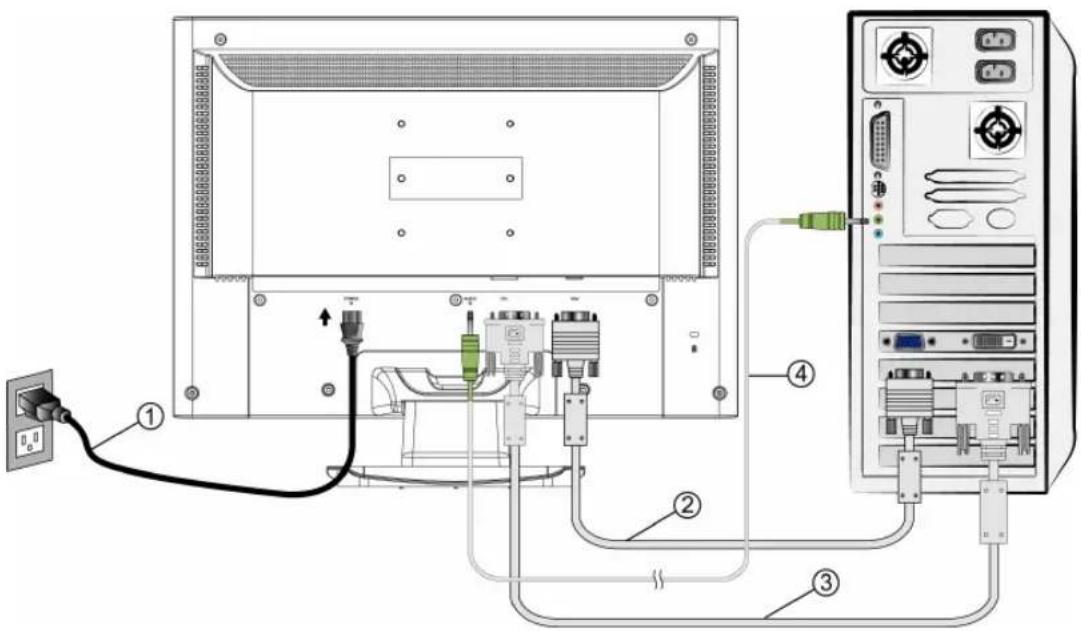
Rear View of the Product
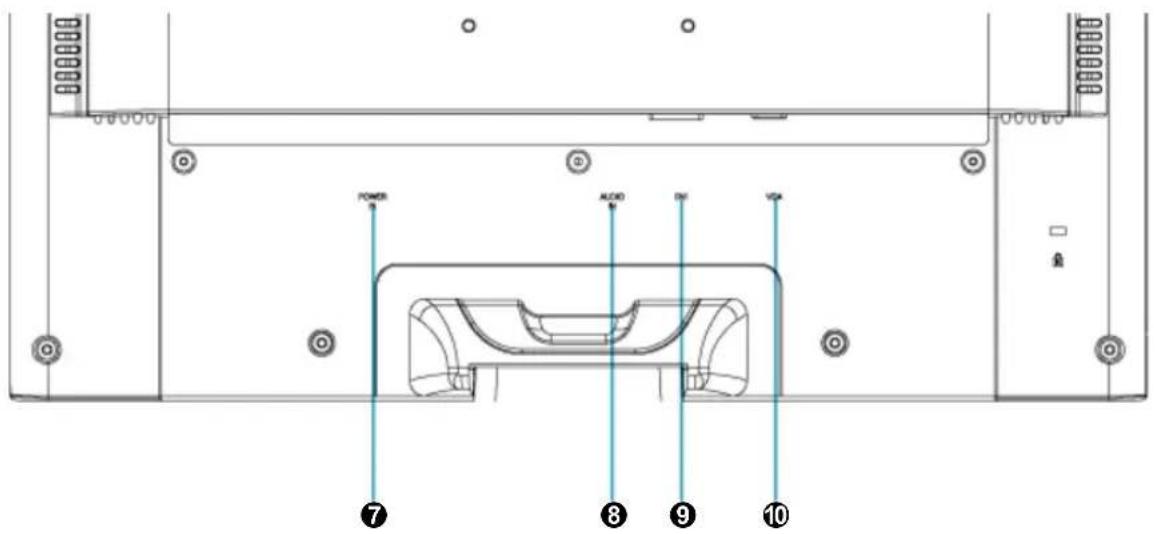
⑦ POWER INPUT
⑨ DVI INPUT (DVI 24 PIN)
⑧ AUDIO INPUT
⑩ VGA INPUT (D-SUB 15 PIN)
Front View of the Product
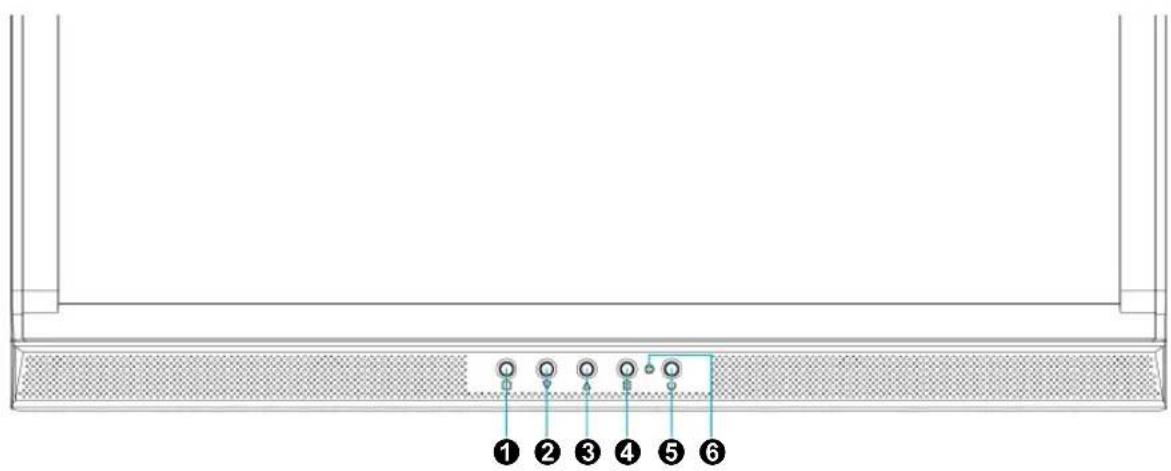
① OSD TURN ON/OFF ④ CONFIRM SELECTION
② SCROLL DOWN/DECREASE ⑤ POWER ON/OFF
③ SCROLL UP/INCREASE ⑥ LED INDICATOR
Using On Screen Display (OSD) Functions
| Display main menu. 1 | |
| Exit from OSD menu. | |
| Auto adjust the image when not in main menu. 2 | |
| Confirm the selection. | |
| ▲ or ▼ | Select the desired item when in OSD menu. |
| When not in OSD menu, it is to immediately activate Contrast/ Brightness. It should be changed to Contrast/ Brightness by pressing button ▲ or ▼. | |
| ▼ + ▲ | Recall both of Contrast and Brightness. |
| 1 + ▼ | Power Lock (when not in OSD menu) |
| 1 + ▲ | OSD Lock (when not in OSD menu) |
Main Menu
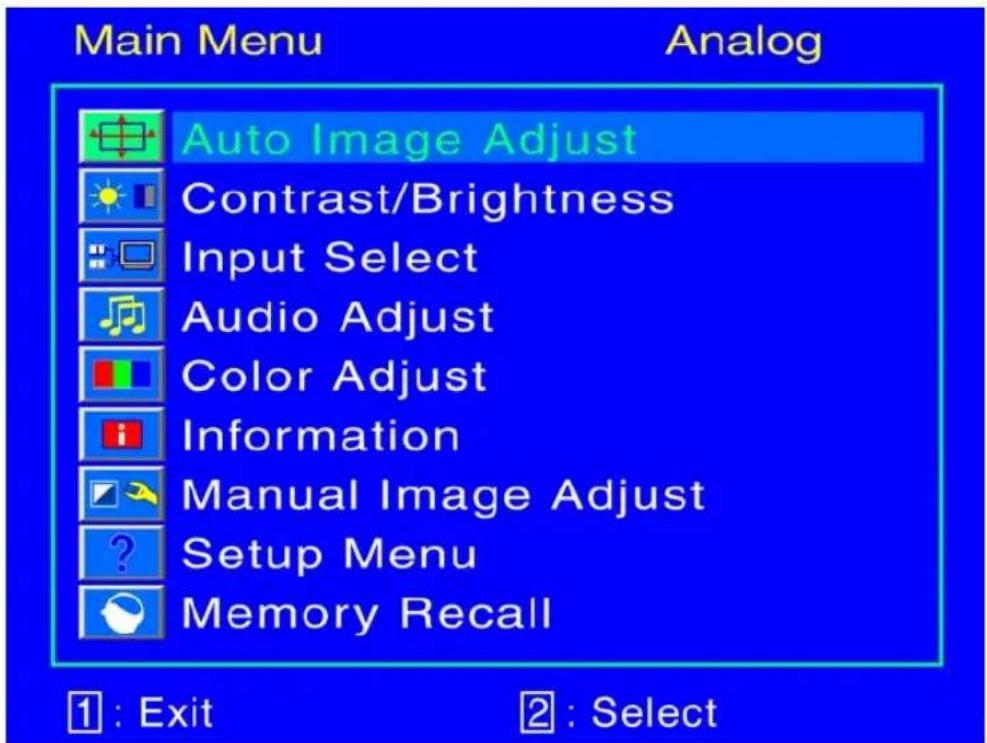
OSD Functions

Auto Image Adjust : Auto adjust Horizontal Position, Vertical Position, Phase (Fine Tune) and Clock (H. Size) of the screen. Available in Analog mode only.

Contrast : Adjust the foreground white level of screen image.
▲ : increase contrast, ▼: decrease contrast.

Brightness : Adjust the luminance of the video.
▲ : increase brightness, ▼ : decrease brightness.

Input Select : Select Analog (D-sub) or Digital (DVI) Input

Audio Adjust : Adjust the audio functions.
Volume : Adjust the volume of speaker output.
Mute : Turn the Mute ON/OFF.
Color Adjust : Select the color temperature between sRGB, 9300K, 6500K, 5400K and User Color to meet user's preference.
sRGB : This is quickly becoming the industry standard for color management, with support being included in many of the latest applications. Enabling this setting allows the LCD display to more accurately display colors the way they were originally intended. Enabling the sRGB setting will cause the Contrast and Brightness adjustments to be disabled.
9300K: Adds blue to screen image for cooler white.
6500K : Adds red to screen image for warmer white and richer red.
5400K : Adds green to screen image for a darker color.
User Color : Individual adjustments for red (R), green (G), blue (B).
-
Press button 2 to select the desired color.
-
Press ▼ or ▲ button to adjust selected color.

Information : Display the information regarding the current input signal coming from the graphic card in your computer.
Note: See your graphic card user guide for more information about changing the resolution and refresh rate.
Horizontal Size : Adjust the width of the screen image.
▼ : decrease the width of screen image, ▲ : increase the width of screen image.
H./V. Position : Adjust the horizontal and vertical position of the video.
H. Position : ▲ : move screen to the right, ▼ : move screen to the left.
V. Position : ▲ : move screen up, ▼ : move screen down.

Fine Tune : Adjust the delay time of data and clock.
Press ▼ or ▲ to adjust to your preference.
Sharpness : Adjust the clarity of a non-WSXGA (1680x1050) signal with
▼ or ▲ button.

Setup Menu : Set up Language Select, Resolution Notice, OSD Position,
OSD Time Out, and OSD Background.

Setup Menu>Language Select : Allow users to choose from available
languages.

Setup Menu>Resolution Notice: Resolution Notice is to remind the user to set the resolution to 1680x1050 for best image quality when the resolution setting is not at 1680 x 1050.
- Choose "Enable": Every 30 seconds, it will show a window "For best picture quality change resolution to 1680 x 1050" to remind the user to set the resolution to 1680x1050 for best image quality.
- Choose "Disable": It will not show a window to remind the user to set the resolution to 1680 x 1050.

Setup Menu>OSD Position : Press 2 button to select between
horizontal and vertical OSD Position adjustment.
Horizontal OSD Position : Adjust the OSD position horizontally.
▲ : move OSD to the right, ▼ : move OSD to the left.
Vertical OSD Position : Adjust the OSD position vertically.
▲ : move OSD up, ▼ : move OSD down.

Setup Menu>OSD Time Out : Automatically turn off On Screen
Display(OSD)after a preset period of time.

Setup Menu>OSD Background : Allows the user to turn the OSD
background On or Off.

Memory Recall : Recall factory settings for Video & Audio controls.
Press button 2 to select the Memory Recall menu option.
Supported Timing Modes
| VGA 720 x 400 @ 70Hz |
| VGA 640 x 480 @ 60Hz |
| MAC 640 x 480 @ 67Hz |
| VESA 640 x 480 @ 75Hz |
| VESA 800 x 600 @ 56Hz |
| VESA 800 x 600 @ 60Hz |
| VESA 800 x 600 @ 72Hz |
| VESA 800 x 600 @ 75Hz |
| MAC 832 x 624 @ 75Hz |
| VESA 848 x 480 @ 60Hz |
| VESA 1024 x 768 @ 60Hz |
| VESA 1024 x 768 @ 70Hz |
| VESA 1024 x 768 @ 75Hz |
| VESA 1152 x 864 @ 75Hz |
| VESA 1280 x 720 @ 60Hz |
| VESA 1280 x 960 @ 60Hz |
| VESA 1280 x 768 @ 60Hz |
| VESA 1280 x 768 @ 75Hz |
| VESA 1280 x 1024 @ 60Hz |
| VESA 1280 x 1024 @ 75Hz |
| VESA 1440 x 900 @ 60Hz |
| VESA 1440 x 900 @ 75Hz |
| VESA 1680 x 1050 @ 60Hz |
Warning : Do not set the graphic card in your computer to exceed these maximum refresh rates. Doing so may result in permanent damage to your monitor.
Technical Information
Technical Specification
| LCD Panel 22" Widescreen TFT | |
| Power Management | EPA ENERGY STAR® Off Mode: <1W |
| Displayable Resolution | WSXGA 1680 x 1050 max. Vertical Frequency 60Hz max. |
| Input Signal Analog (D-sub) & Digital (DVI) with HDCP | |
| Pixel Dimension 0.282 x 0.282 mm | |
| LCD Display Color 16.7M | |
| Tilt 0°~20° | |
| Active Display Area 473.76 mm x 296.1 mm | |
| Temperature Operating: 0°C ~ +40°CStorage: -20°C ~ +60°C | |
| Compliance cULus, CE, FCC-B, EPA ENERGY STAR®, ISO13406-2 | |
| Power Input Voltage AC100-240 V | |
| Speakers 2W x 2 | |
| DVI-HDCP Mode Compatibility | 480i, 480p, 720p, 1080i |
Note: Product Specifications are subject to change without notice.
Care and Maintenance
Care
- Avoid exposing your monitor directly to sunlight or other heat source. Place your monitor away from the sun to reduce glare.
● Put your monitor in a well ventilated area. - Do not place any heavy objects on top of your monitor.
● Make certain your monitor is installed in a clean and moisture-free area. - Keep your monitor away from magnets, motors, transformers, speakers, and TV sets.
Safety Tips
- If smoke, abnormal noise or odor came out from your monitor, caution you should remove the power cord immediately and call your service center.
- Never remove the rear cover of your monitor cabinet. The display unit inside contains high-voltage parts and may cause electric shock to human bodies.
- Never try to repair your monitor yourself. Always call your service center or a qualified technician to fix it.
Troubleshooting
No power
- Make sure A/C power cord is securely connected to the power adapter and the power supply is firmly connected to the monitor.
- Plug another electrical device into the power outlet to verify that the outlet is supplying proper voltage.
● Make sure all signal cables are installed.
Power on but no screen image
Make sure the video cable supplied with the monitor is tightly secured to the video output port on back of the computer. If not, tightly secure it. Adjust brightness.
Wrong or abnormal colors
- If any colors (red, green, blue) are missing, check the video cable to make sure it is securely connected. Loose or broken pins in the cable connector could cause an improper connection.
- Connect the monitor to another computer.
natural_image
Line drawing of a computer monitor with an open base and two arrows indicating assembly or insertion (no text or symbols present)Retirer
natural_image
Technical line drawing of a computer chassis showing internal components and mounting holes (no text or symbols)natural_image
Technical line drawing of a device chassis with labeled components (no text or symbols)Produit vu de dos
⑦ ENTREE DU CA
⑨ ENTREE DVI (DVI 24 BROCHES)
⑧ ENTREE AUDIO
⑩ ENTREE VGA (D-SUB 15 BROCHES)
⑤ SOUS TENSION/ HORS TENSION
③ DEFILER VERS LE HAUT/AUGMENTER
⑥ INDICATEUR DEL
Supported des modes minutage
| VGA | 720 x 40 | 0 @ 70Hz |
| VGA | 640 x 48 | 0 @ 60Hz |
| MAC | 640 x 48 | 0 @ 67Hz |
| VESA | 640 x 4 | 80 @ 75Hz |
| VESA | 800 x 6 | 00 @ 56Hz |
| VESA | 800 x 6 | 00 @ 60Hz |
| VESA | 800 x 6 | 00 @ 72Hz |
| VESA | 800 x 6 | 00 @ 75Hz |
| MAC | 832 x 624 | @ 75Hz |
| VESA | 848 x 4 | 80 @ 60Hz |
| VESA | 1024 x | 768 @ 60Hz |
| VESA | 1024 x | 768 @ 70Hz |
| VESA | 1024 x | 768 @ 75Hz |
| VESA | 1152 x | 864 @ 75Hz |
| VESA | 1280 x | 720 @ 60Hz |
| VESA | 1280 x | 960 @ 60Hz |
| VESA | 1280 x | 768 @ 60Hz |
| VESA | 1280 x | 768 @ 75Hz |
| VESA | 1280 x | 1024 @ 60Hz |
| VESA | 1280 x | 1024 @ 75Hz |
| VESA | 1440 x | 900 @ 60Hz |
| VESA | 1440 x | 900 @ 75Hz |
| VESA | 1680 x | 1050 @ 60Hz |
natural_image
Line drawing of a computer monitor with an open lid and base, showing no text or symbols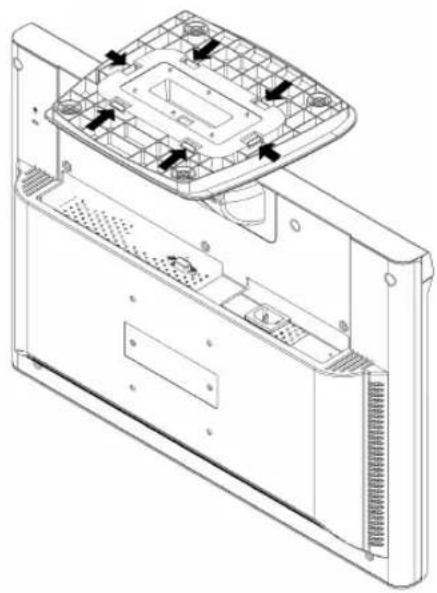
natural_image
Technical line drawing of a computer chassis showing internal components and mounting holes (no text or symbols)natural_image
Technical line drawing of an electronic device chassis with labeled components (no text or symbols)- Operation Instructions
- FCC RADIO FREQUENCY INTERFERENCE STATEMENT WARNING: (FOR FCC CERTIFIED MODELS)
- FCC Warning:
- Content
- Safety Precautions
- WARNINGS:
- First Setup
- Quick Installation
- Attaching The Optional Wall Mount Arm (not supplied)
- NOTE
- Connecting the Monitor
- Connect Power Cable
- Connect Analog video cable (D-Sub cable)
- Connect DVI cable (Optional)
- Connect audio cable
- Power-ON computer and monitor
- Windows users: Setting the Timing Mode (Resolution and Refresh Rate)
- Using On Screen Display (OSD) Functions
- Main Menu
- OSD Functions
- Technical Information
- Technical Specification
- Care and Maintenance
- Care
- Safety Tips
- Troubleshooting
- No power
- Power on but no screen image
- Wrong or abnormal colors
- Produit vu de dos
- Supported des modes minutage
Brand : AOC
Model : G218a1
Category : Monitor