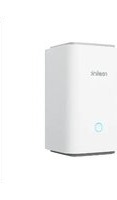
Home Hub - Smart Home REOLINK - Free user manual and instructions
Find the device manual for free Home Hub REOLINK in PDF.


| Product Type | Smart home hub for Reolink cameras |
| Brand | Reolink |
| Model | Home Hub |
| Dimensions (L x W x H) | 95 x 95 x 161.8 mm |
| Weight | 441 g |
| Power Supply | AC adapter (DC input, included) |
| Operating Temperature | -10 °C to 45 °C |
| Network Connectivity | WAN Ethernet port, 2.4/5 GHz Wi-Fi |
| Local Storage | microSD card slot (not included) |
| LED Indicator | Blue LED light (connection status) |
| Built-in Speaker | Yes |
| Camera Management | Add via UID scan or local network (Reolink app) |
| Compatible with | Reolink cameras (with or without prior setup) |
| Mobile App | Reolink (iOS and Android) |
| Limited Warranty | 2 years (purchase from official store or authorized reseller) |
| Box Contents | Home Hub, AC adapter, 1 m Ethernet cable, quick start guide |
| Certifications | FCC, ISED, CE (Directives 2014/53/EU and 2014/30/EU) |
| Safety and Compliance | Minimum distance of 20 cm (RF exposure) |
Frequently Asked Questions - Home Hub REOLINK
User questions about Home Hub REOLINK
0 question about this device. Answer the ones you know or ask your own.
Ask a new question about this device
Download the instructions for your Smart Home in PDF format for free! Find your manual Home Hub - REOLINK and take your electronic device back in hand. On this page are published all the documents necessary for the use of your device. Home Hub by REOLINK.
USER MANUAL Home Hub REOLINK
If you need any technical help, please visit our official support site and contact our support team before returning the products: https://support.reolink.com.
EC REP CET PRODUCT SERVICE SP. Z O.O.
Ul. Dluga 33 102 Zgierz, Polen
UK REP CET PRODUCT SERVICE LTD.
Beacon House Stokenchurch Business Park, Ibstone Rd, Stokenchurch High Wycombe, HP14 3FE, UK
April 2024
QSG1_A
58.03.006.0125

EN/DE/FR/IT/ES
Item No.: Hub 1
Quick Start Guide
Apply to: Reolink Home Hub
@ReolinkTech https://reolink.com
EN
Contents
What's in the Box 2
Device Overview 3
Connection Diagram 4
Access Reollink Home Hub via Smartphone 5
Connect Devices to Reollink Home Hub 7
Specifications 8
Notification of Compliance 8
What's in the Box
Quick
Start Guide
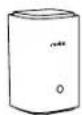
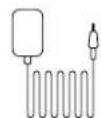
Power Adapter Home Hub
Device Overview

① Vent
② Button
③ Indicator Light
④ Speaker
⑤ WAN Port
⑥ MicroSD Card Slot
⑦ DC Input Port
⑧ Vent
Connection Diagram
Set up the Camera Using a Smartphone
Step 1:
Plug in the Reolink Home Hub and connect it to your home router using the Ethernet cable provided.
Step 2:
Connect your phone to the same router that the Home Hub is connected to.
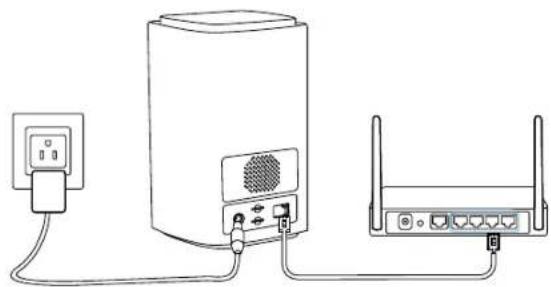
natural_image
Line drawing of a router connected to a power outlet via cables (no text or symbols)Access Reolink Home Hub via Smartphone
Step 1:
Scan to download the Reolink App from the App Store or Google Play store

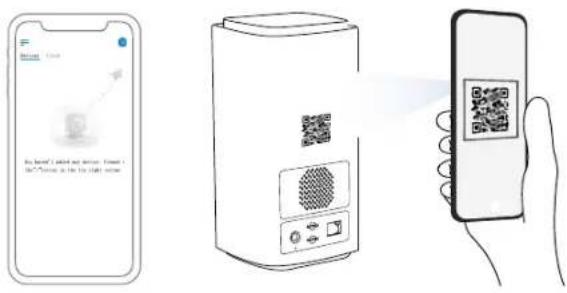
Step 2:
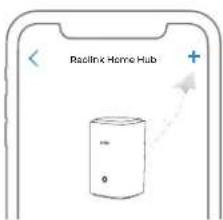
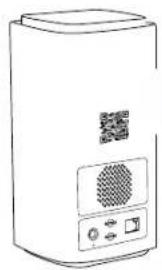
Launch the Reolink App, click “+” at the top right, and scan the QR code on your Home Hub to add it.
Step 3 :
Once the setup is complete, the LED indicator light will turn blue.
Connect Devices to Reolink Home Hub
There are two ways to add Reolink devices to your Home Hub:
- If your device is already set up, click the " + " button at the top right and choose to "add from device list" or "add from LAN."
- If your device is not set up yet, click the “+” button at the top right and choose to “scan UID code.”
*You can also directly add devices to the Hub while adding devices to the app.
Attention: When inserting the SD card into the slot, make sure the side with the numbers is facing up and push it gently inward until it clicks into place.
EnglishEnglish7 8
Specifications
Operating Temperature: -10°C\~+45°C(14°F to 113°F) Size: 95*95*161.8mm
Weight: 441g
For more specifications, please visit https://reolink.com/.
Notification of Compliance
FCC Compliance Statements
This device complies with Part 15 of the FCC Rules. Operation is subject to the following two conditions: (1) this device may not cause harmful interference, and (2) this device must accept any interference received, including interference that may cause undesired operation.
Note: This equipment has been tested and found to comply with the limits for a Class B digital device, pursuant to Part 15 of the FCC Rules. These limits are designed to provide reasonable protection against harmful interference in a residential installation. This equipment generates, uses and can radiate radio frequency energy and, if not installed and used in accordance with the instructions, may cause harmful interference to radio communications. However, there is no guarantee that interference will not occur in a particular installation. If this equipment does cause harmful interference to radio or television reception, which can be determined by turning the equipment off and on, the user is encouraged to try to correct the interference by one or more of the following measures:
- Reorient or relocate the receiving antenna.
- Increase the separation between the equipment and receiver.
- Connect the equipment into an outlet on a circuit different from that to which the receiver is connected.
- Consult the dealer or an experienced radio/TV technician for help.
Caution: Changes or modifications not expressly approved by the party responsible for compliance could void the user's authority to operate the equipment.
FCC Radiation Exposure statement
This equipment complies with FCC radiation exposure limits set forth for an uncontrolled environment. This equipment should be installed and operated with minimum distance 20cm between the radiator and your body.
ISED Compliance Statements
This device contains licence-exempt transmitter(s)/receiver(s) that comply with Innovation, Science and Economic Development Canada's licence-exempt RSS(s). Operation is subject to the following two conditions:
(1) This device may not cause interference.
(2) This device must accept any interference, including interference that may cause undesired operation of the device.
L'émetteur/récepteur exempt de licence contenu dans le présent
EnglishEnglish9 10
ISED Radiation Exposure statement
This equipment complies with IC RSS-102 radiation exposure limits set forth for an uncontrolled environment. This equipment should be installed and operated with minimum distance 20 cm between the radiator and your body.
CE Simplified EU Declaration of Conformity
Reolink declares that this device is in compliance with the essential requirements and other relevant provisions of Directive 2014/53/EU and Directive 2014/30/EU.
WiFi Operating Frequency
The functions of Wireless Access Systems including Radio Local Area Networks(WAS/RLANs) within the band 5150-5350 MHz for this device are restricted to indoor use only within all European
Union countries (BE/BG/CZ/DK/DE/EE/IE/EL/ES/FR/HR/IT/CY/LV/LT/LU/HU/MT/NL/AT/PL/PT/RO/SI/SK/FI/SE/TR/N O/CH/IS/LI/UK(NI)

Correct Disposal of This Product
This marking indicates that this product should not be disposed with other household wastes. throughout the EU. To prevent possible harm to the environment or human health from uncontrolled waste disposal, recycle it responsibly to promote the sustainable reuse of material resources. To return your used device, please use the return and collection systems or contact the retailer where the product was purchased. They can take this product for environmentally safe recycling.
Limited Warranty
This product comes with a 2-year limited warranty that is valid only if purchased from Reolink Official Store or a Reolink authorized reseller. Learn more: https://reolink.com/warranty-and-return/.
EnglishEnglish11 12
Terms and Privacy
Use of the product is subject to your agreement to the Terms of Service and Privacy Policy at reolink.com. Keep out of reach of children.
End User License Agreement
By using the Product Software that is embedded on the Reolink product, you agree to the terms of this End User License Agreement("EULA") between you and Reolink. Learnmore: https://reolink.com/eula/.
Technical Support
If you need any technical help, please visit our official support site and contact our support team before returning the products, https://support.reolink.com.
DE
Katalog
Lieferumfang 14
Geräteübersicht 15
natural_image
Line drawing of a router connected to a power outlet via cables (no text or symbols)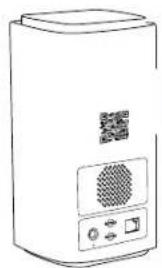
natural_image
Line drawing of a rectangular electronic device with a speaker grille and control buttons (no text or symbols)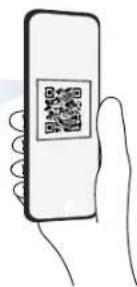
Schritt 3:
natural_image
Line drawing of a router connected to a power outlet via cables (no text or symbols)
Étape 2 :
Étape 3 :
ISED Radiation Exposure statement
Assistance Technique
natural_image
Line drawing of a server connected to two wireless devices (no text or symbols)Accedere a Reolink Home Hub tramite Smartphone
Step 1:
natural_image
Line drawing of a portable electronic device with a QR code and control panel (no text or symbols)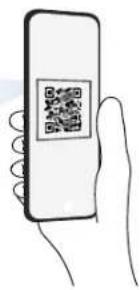
Step 3 :
WiFi Operating Frequency
OPERATING FREQUENCY:
2.4 GHz EIRP < 20dBm 5 GHz EIRP < 20dBm 5.8GHz EIRP < 14dBm

natural_image
Line drawing of a server connected to two wireless devices (no text or symbols)Acceder a Reolink Home Hub a través del Smartphone
Paso 1:
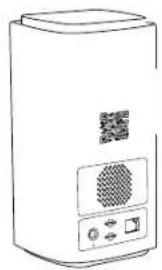
natural_image
Line drawing of a white electronic device with a square sensor and control panel (no text or symbols)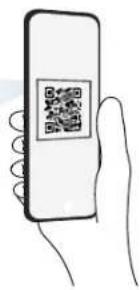
Paso 3 :
- Quick Start Guide
- Contents
- What's in the Box
- Connection Diagram
- Set up the Camera Using a Smartphone
- Access Reolink Home Hub via Smartphone
- Connect Devices to Reolink Home Hub
- Specifications
- Notification of Compliance
- FCC Compliance Statements
- FCC Radiation Exposure statement
- ISED Compliance Statements
- ISED Radiation Exposure statement
- CE Simplified EU Declaration of Conformity
- WiFi Operating Frequency
- Correct Disposal of This Product
- Limited Warranty
- Terms and Privacy
- End User License Agreement
- Technical Support
- Katalog
- Assistance Technique
- Accedere a Reolink Home Hub tramite Smartphone
- Acceder a Reolink Home Hub a través del Smartphone
Brand : REOLINK
Model : Home Hub
Category : Smart Home