
UA-KIN52E - Air purifier SHARP - Free user manual and instructions
Find the device manual for free UA-KIN52E SHARP in PDF.
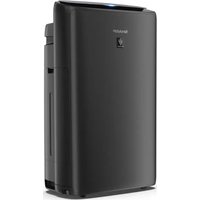


| Product Type | Air purifier with humidification and Plasmacluster technology |
| Brand | Sharp |
| Model | UA-KIN52E |
| Dimensions (W × D × H) | 384 × 230 × 619 mm |
| Weight | Approx. 8.2 kg |
| Power Supply | 220-240 V ~ 50-60 Hz |
| Power Consumption (MAX / MED / LOW) | Purification: 51 / 17 / 5.5 W; Purification + humidification: 32 / 22 / 6.7 W |
| Purification Capacity (MAX / MED / LOW) | 306 / 168 / 60 m³/h |
| Humidification Capacity (MAX / MED / LOW) | 600 / 480 / 200 mL/h |
| Water Tank Capacity | Approx. 2.7 L |
| Sensors | Fine dust (PM2.5), odor, light, temperature and humidity |
| Filters | Pre-filter, Deodorizing filter, HEPA filter (99.97% of particles ≥0.3 µm), Humidification filter |
| Ionization Technology | Plasmacluster High Density 25000 ions/cm³ |
| Number of Speeds | 3 (LOW, MED, MAX) + AUTO, POLLEN, SLEEP, ION SHOWER modes |
| Noise Level (MAX / MED / LOW) | Purification: 51 / 40 / 17 dBA; Purification + humidification: 47 / 43 / 20 dBA |
| Recommended Room Area (purification) | ~38 m² |
| Recommended Room Area (high density ions) | ~21 m² |
| Connectivity | Wi-Fi 2.4 GHz IEEE 802.11b/g/n, Sharp Life Air app (Android 8+, iOS 12+) |
| Special Features | Automatic restart after power outage, child lock, weekly scheduler (via app), voice control via assistant (not included) |
| Maintenance | Regular cleaning of pre-filter, HEPA and deodorizing filters not washable; replace HEPA/deodorizing filter every 10 years (depending on usage) |
| Replacement Parts (filters) | HEPA: UZ-HD4HF; Deodorizing: UZ-HG4DF; Humidification: UZ-KIL8MF; Ion generator: UZ-C90M |
| Safety | Automatic shutdown in case of failure, child lock, empty tank detection, overheat protection |
Frequently Asked Questions - UA-KIN52E SHARP
User questions about UA-KIN52E SHARP
0 question about this device. Answer the ones you know or ask your own.
Ask a new question about this device
Download the instructions for your Air purifier in PDF format for free! Find your manual UA-KIN52E - SHARP and take your electronic device back in hand. On this page are published all the documents necessary for the use of your device. UA-KIN52E by SHARP.
USER MANUAL UA-KIN52E SHARP
Operation Manual
UA-KIN52E, UA-KIN42E
Smart Air Purifier with Humidifying Function
DEENESFRITNLPL
ENGLISH
Thank you for purchasing this Sharp Air Purifier.
Please read this manual carefully before using the product.
This manual should be kept in a safe place for handy reference.
CONTENTS
IMPORTANT SAFETY INSTRUCTIONS....1
OPERATION PRINCIPLE....5
PART NAMES....6
BEFORE FIRST USE....9
OPERATION 10
HOW TO CHANGE VARIOUS SETTINGS....14
CARE AND MAINTENANCE....18
TROUBLESHOOTING....24
SPECIFICATIONS......27
Please Read Before Operating Your Air Purifier
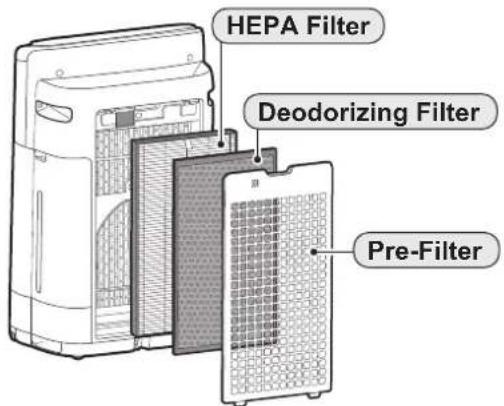
The air purifier draws in room air through the air inlet, circulates it through a Pre-Filter, a Deodorizing Filter and a HEPA Filter inside the product, and then discharges it through the air outlet. The HEPA Filter can remove 99.97% of dust particles as small as 0.3 microns that pass through the filter and also helps absorb odours.
The Deodorizing Filter gradually absorbs odours as they pass through the filter.
Some odours absorbed by the filters will break down over time, causing additional odours. Depending on usage conditions, and especially if the product is used in environments significantly more severe than a normal household, these odours may become noticeable sooner than expected. If these odours persist, replace the filters.
When minerals in tap water adhere to the filters and become hard and white, they absorb odours in the room that can cause the emission of an unpleasant odour when the Humidifying Filter is dry. (Varies depending on water quality and other environmental factors)
If this occurs, perform the Humidifying Filter maintenance. (Page 20)
NOTE
- The air purifier is designed to remove air-suspended dust and the odours.
The air purifier is not designed to remove harmful gases such as carbon monoxide contained in cigarette smoke.
The air purifier may not completely remove an odour if the source of the odour is still present.
READ AND SAVE THESE INSTRUCTIONS before using this product.
When using electrical appliances, basic safety precautions should always be followed to reduce the risk of fire, electric shock, and injury to persons, including the following:
WARNING
- Read all instructions before using the product.
- Use the product only for intended household use as described in this manual. Any other use not recommended by the manufacturer may cause fire, electric shock, or injury to persons.
- This appliance can be used by children aged from 8 years and above and persons with reduced physical, sensory or mental capabilities or lack of experience and knowledge if they have been given supervision or instruction concerning use of the appliance in a safe way and understand the hazards involved. Children shall not play with the appliance. Cleaning and user maintenance shall not be made by children without supervision.
- Never operate the product if the power cord or plug is damaged or the product is malfunctioning or damaged.
- If the power cord or plug is damaged, it must be replaced by the manufacturer, its service agent, a Sharp authorized Service Centre or similarly qualified persons in order to avoid a hazard. Contact the nearest Service Centre for any problems, adjustments, or repairs.
- Do not repair or disassemble the product yourself.
- Follow the instructions below for the power cord or plug. It may cause short circuit, excessive heat, electric shock or fire. a. Use only AC 220-240 volt outlet. b. Do not use the product if the power cord or plug is damaged or the connection to the wall outlet is loose or damaged. c. Always turn off the product before unplugging the power plug.
d. Always unplug the product in the following cases. • Before moving the product. - When replacing the filter. (Even when opening the Back Panel) - When refilling water. - Before maintenance of the product. - When the product is not in use. e. Be sure to pull the power plug and not the power cord. f. Do not touch the power plug with wet hands when inserting or unplugging from the wall outlet. g. Periodically remove dust from the power plug. h. Always observe the following as to not damage the power cord. - Do not damage cord with Caster Wheels when moving the product. - Do not run cord under carpeting. Do not cover the power cord with throw rugs, runners, or similar coverings. - Do not put heavy things on the power cord or pinch it. - Do not run the power cord under furniture or other appliances. - Run the power cord away from traffic area and where it will not be tripped over.
- Do not use this product near gas appliances, fire places, candle fire, incense or sparks from lit cigarettes. When the product is operated with gas appliances in the same room, Ventilate a room periodically, otherwise it may cause carbon monoxide poisoning.
- Do not operate the product in a room with flammable gas, such as oily residue or chemical fumes.
- Do not expose the product to rain, or use near water, in a bathroom, laundry area or other damp location.
- Do not insert fingers or foreign objects into the air inlets or air outlets.
- Do not look into the air outlets.
- Do not drink the water in the Water Tank or Humidifying Tray.
- Replace the water in the Water Tank daily with fresh tap water, and regularly clean the Water Tank and Humidifying Tray.
When the product is not in use, dispose
of the water in the Water Tank and Humidifying Tray. Leaving water in the Water Tank or Humidifying Tray can cause mold, bacteria, and bad odours. In rare cases, such bacteria can be a health hazard.
NOTE
- Radio or TV Interference -
If the product causes interference to radio or television reception, try to correct the interference by one or more of the following measures:
- Reorient or relocate the receiving antenna.
- Increase the separation between the product and the radio/TV receiver.
- Connect the product into an outlet on a circuit different from that to which the receiver is connected.
- Consult the dealer or an experienced radio/TV technician for help.
CAUTIONS CONCERNING INSTALLATION
- Place the product on a level and stable surface with sufficient air circulation. Strong wind or dust through the window may prevent the product's air purifying performance and efficacy. When placed on heavy carpet, the product may vibrate slightly. Place the product on a level surface to avoid water leakage from the Water Tank and Humidifying Tray.
- Avoid a location where the sensors are exposed to direct breeze or draft if the product has sensors. The product may not operate properly.
- Avoid use in locations where furniture, fabrics, or other items may come in contact with and restrict the air inlets and/or outlets.
- Avoid locations exposed to direct sunlight. It may cause the product to change shape or color.
- Avoid locations where the product is exposed to condensation or drastic changes in temperature. Use under appropriate conditions between 0 °C – 35 °C.
- Avoid use in locations where greasy or oily smoke is generated (such as in a kitchen, etc.). The Main Body surface may crack and the sensors may malfunction as a result.
- The dust collecting ability of the product is effective even when the product is up to 3 cm from the wall, but the surrounding walls or floor may get dirty. Please place the product at a distance from the wall. The wall directly behind the air outlets and the floor or rug on which the product is placed may become dirty over time. When using the product for an extended period of time at the same location, periodically clean the walls, the floor, or the rug.
- Do not place the product near or on hot objects, such as stoves or heaters, or where it may come into contact with steam.
CAUTIONS CONCERNING FILTER
- Follow the instructions in this manual for filter installation and maintenance. (Pages 9, 22)
- Take out the filters from the plastic bag before placing the filter in the Main Body.
- Do not operate the product without the filters properly installed.
- Do not wash and reuse the HEPA Filter and the Deodorizing Filter. Washing will not improve filter performance and can also cause electric shock or operating malfunctions.
- Do not operate the product in a room where aerosol insecticides are present. It may cause the odour of insecticide to remain in the product and be emitted from the air outlets.
CAUTIONS CONCERNING OPERATION
- Do not block the air inlets or air outlets.
- Always operate the product in an upright position.
- When carrying the product, first remove the Water Tank and Humidifying Tray to avoid spilling water, and then hold the
product by the handles on both sides.
- Always lift up the product when moving it on easily damaged flooring, an uneven surface, or carpet.
- Do not change the direction of the product while moving using the Caster Wheels.
- When moving the product by its Caster Wheels, move it slowly and in a horizontal direction.
- Do not operate the product without the Water Tank or Humidifying Tray properly installed.
- Be careful not to catch your fingers when removing or installing the Water Tank.
- When refilling the Water Tank, make sure no water leaks from the Water Tank.
- Be sure to wipe off any excess water on the outside of the Water Tank.
- Do not use hot water (40 °C or more), chemical agents, aromatic substances, dirty water, or other damaging substances. Doing so can deform the product or cause it to malfunction.
- Use only fresh tap water. Using other water sources risks the growth of molds, fungi, or bacteria.
- Do not shake the Water Tank while holding the Tank Handle.
CAUTIONS CONCERNING MAINTENANCE
- Follow the instructions in this manual for maintenance. (Page 18 - 23)
- Clean the exterior with a soft cloth only.
- Do not use detergents other than what is mentioned in this manual (Page 19, 21). Do not use volatile fluids and/or detergents. The Main Body surface may be damaged or cracked with strong corrosive cleansers, benzine, paint thinner, polishing powder or grease. The Humidifying Tray may cause deformation, tarnishing, cracking (water leakage). In addition, the sensors may malfunction as a result if the product has sensors.
- Do not scrub the Back Panel (Pre-Filter)
hard during its maintenance.
- The frequency of descaling maintenance will depend on the hardness of and the impurities in the water that you use; the harder the water the more often descaling will be necessary.
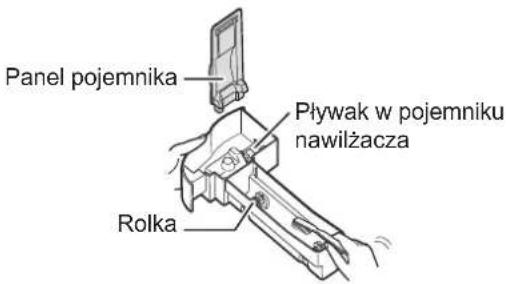
- Do not remove the Humidifier Float and the Roller. If the Humidifier Float and the Roller comes off, refer to page 21.
- When replacing filters or any accessories, use specified parts in this manual.
SAFETY / PRECAUTIONS OF THE Wi-Fi FUNCTION
WARNING
When remotely controlling the air purifier
In case of remote operation from outside, you may not be able to check the air purifier's current condition or the area around it and the situation concerning anyone possibly staying there, so please adequately confirm safety before use.
- Make sure the electric plug is fully inserted into a power socket, and there is no dust on the plug or in the socket hole. (It may cause heat, combustion, fire, etc., due to poor contact or contact failure)
- Make sure beforehand to check the ambient environment of the product, because the air flow from the product may cause unexpected phenomena (such as falling unstable items), and resulting in fires, wounds, or defacement of house belongings.
CAUTION FOR USE
- Agreement with "Terms of Service" is required to use the App.
- Ensure that the App is up to date.
- Screens and illustrations in this book are for explanation; there are some differences from the actual product.
- In the case of a bad connection, the App may not be able to control the air purifier. The current operation of the air purifier may not be accurately reflected on the App.
- Locking the smart device display is recommended to avoid incorrect operation.
- Communication charges will occur by the download and use of the App.
CAUTION FOR Wi-Fi
Caution for usage about electrical wave
- Usage of the application is not guaranteed under the following environments: a. Near Bluetooth® wireless communications devices using the
same frequency (2.4GHz) as this product.
* The Bluetooth® word mark is a registered trademark owned by Bluetooth SIG, Inc.
b. Near products that emit magnetic fields (e.g., microwave ovens). c. Near places with static electricity. d. Near places where radio disturbance occurs. e. Near other wireless communications devices.
- Wireless connection and performance cannot be guaranteed for all routers or environmental conditions.
At the following places, Wi-Fi connection might be unstable:
a. Inside buildings made with concrete, reinforcing steel, or metal. b. Near obstructions. c. Near wireless communications devices using the same frequency.
- Wi-Fi of this product corresponds to channels 1-13. It is not available to communicate with routers set up on other channels.
Caution for personal information (related to Security)
- Using Wi-Fi devices has the possibility of interception regardless of secret code settings.
- Make sure to use the network under your management.
- Initialize the device when sold, disposed of, or handed over to/from a third person. See page 16 on how to initialize.
FEATURES
Unique Combination of Air Treatment Technologies
Plasmacluster
Plasmacluster treats the air similar to the way nature cleans the environment by emitting a balance of positive and negative ions.
"Plasmacluster" and "Device of a cluster of grapes" are trademarks of Sharp Corporation.
* The number in this technology mark indicates an approximate number of ions supplied into air of 1 cm 3 , which is measured around the centre of a room applicable floor area (at 1.2 m height above the floor) when the product is placed close to a wall at the MED mode setting.
Triple Filteration System + Humidification
Pre-Filter
Pre-filter traps dust larger than approx. 240 micron particles.
Deodorizing Filter
Deodorizing filter absorbs many common household odours.
HEPA Filter
HEPA filter traps 99.97% of particles as small as 0.3 microns.
Humidifying Function
Comfortable Humidity Indoors Keeps Your Skin and Throat Moisturized and Healthy.
• The illustration in this instruction manual is UA-KIN42E.
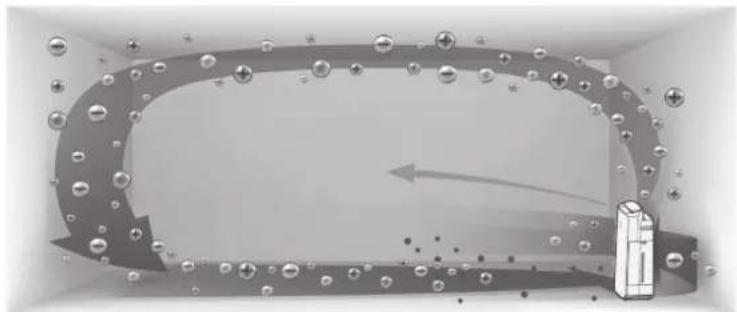
Unique Airflow
Powerful air suction and unique airflow quickly and efficiently collect dust and other particles.
Faster airflow at a 20° angle collects dust at lower levels in the room for more effective cleaning.
Plasmacluster can remove static electricity and can thus prevent dust from attaching to walls and other surfaces.
Wi-Fi Function
- Confirm that the condition of air quality of the room and the air has become clean visually. • Control the product through smart devices as remote control.
- Propose optimal timing for filter exchange.
Product information and accessories
Scan the QR code for more information about the Sharp Air Purifiers.
UA-KIN52E

OPERATION PANEL
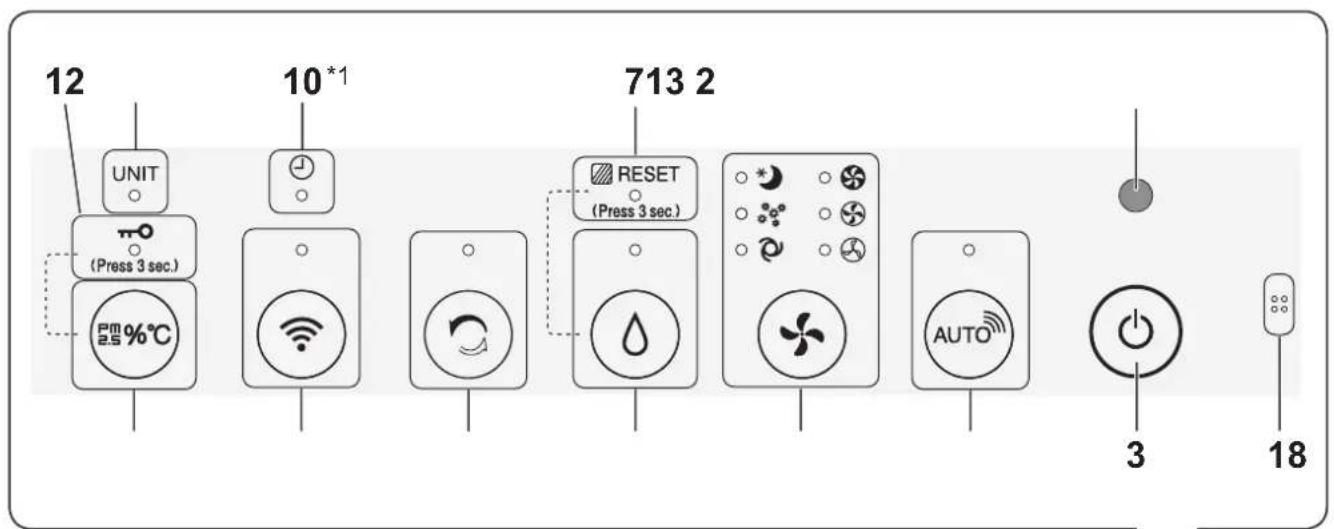
DISPLAY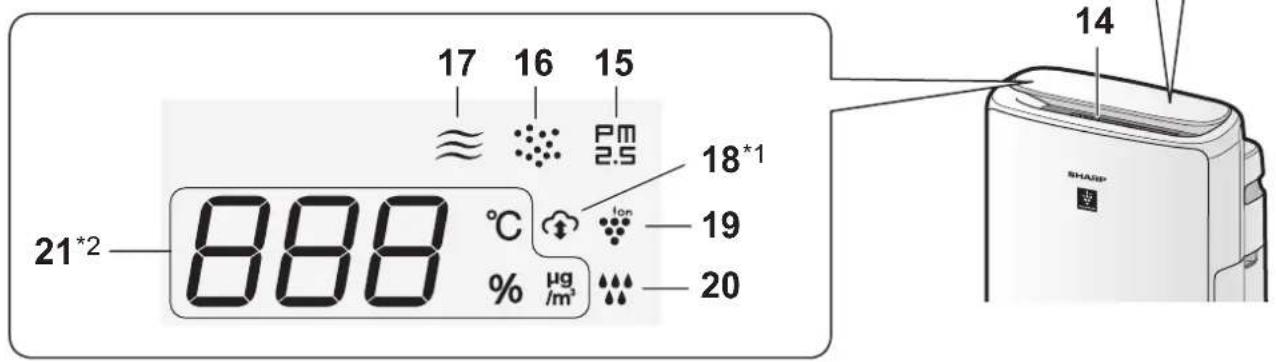
LIGHT SENSOR
When the Light Control (Display Brightness) is set to "Auto", the Display and Cleanliness Indicator will automatically switch ON or OFF based on room brightness. (Page 15)
NOTE
Detection range of Light sensor
Do not install the product in the following places. The Light Sensor may not sense correctly.
Directly under a light fixture.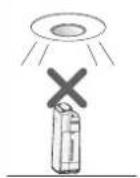
In shadow.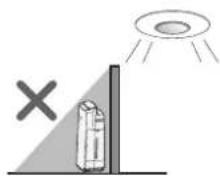
| 1 | Sensor (Internal)Odour / Temperature / Humidity |
| 2 | Light Sensor |
| 3 | Power ON/OFF Button |
| 4 | SHARP LIFE AIR Button, Lamp (White) |
| 5 | Mode Button, Lamps (White) |
| 6 | Humidify ON/OFF Button, Lamp (White) |
| Filter Reset Button (Press 3 sec.) *3 | |
| 7 | Filter Maintenance Lamp (Orange) |
| 8 | Clean Ion Shower Button, Lamp (White) |
| 9 | Wi-Fi Button, Lamp (White)Illuminates when air purifier is connected to a router. |
| 10 | Timer Lamp (White) *1 |
| 11 | Switching Display Button |
| Child-Lock Button (Press 3 sec.) *3 | |
| 12 | Child-Lock Lamp (White) |
| 13 | Unit Replacement Lamp (Red) |
| 14 | Cleanliness IndicatorIndicates the air purity of the room in 5 levels with colour changes.Clean BlueYellow (Flashing)Impure Red (Flashing fast) |
| 15 | PM2.5 Indicator (White)Indicates the Sensitive Dust Sensor detects microscopic dust. |
| 16 | Dust Indicator (White)Indicates the Sensitive Dust Sensor detects usual dust. |
| 17 | Odour Indicator (White)Indicates the Odour Sensor detects odours. |
| 18 | Cloud Service Indicator (White) *1Illuminates when air purifier is connected to Sharp's cloud service. |
| 19 | Plasmacluster Ion Indicator (Blue) |
| 20 | Humidifying Indicator |
| White: Humidify ONOFF: Humidify OFFRed (Flashing): the product needs water | |
| 21 | Display *2 |
| • TemperatureTemperature 0 °C to 50 °C is displayed.-1°C or less Lo °C ↔ 25 °C ↔ H, °C 51°C or more | |
| • HumidityHumidity 25 % to 75 % is displayed.24% or less Lo % ↔ 55 % ↔ H, % 76% or more | |
| • PM2.5 Concentration *4PM2.5 1 μg/m3 (micrograms per cubic metre air) to 499 μg/m3 is displayed.less than 1 μg/m3 Lo μg ↔ 34 μg ↔ H, μg 500 μg/m3 or more |
*1: The lamps of No.10 and 18 light up only when using the App. *2: The displayed numbers are approximate. *3: Press and hold 3 seconds or longer. *4: Particulate matter, particles with diameter of size 2.5 micrometres or less.
MAIN BODY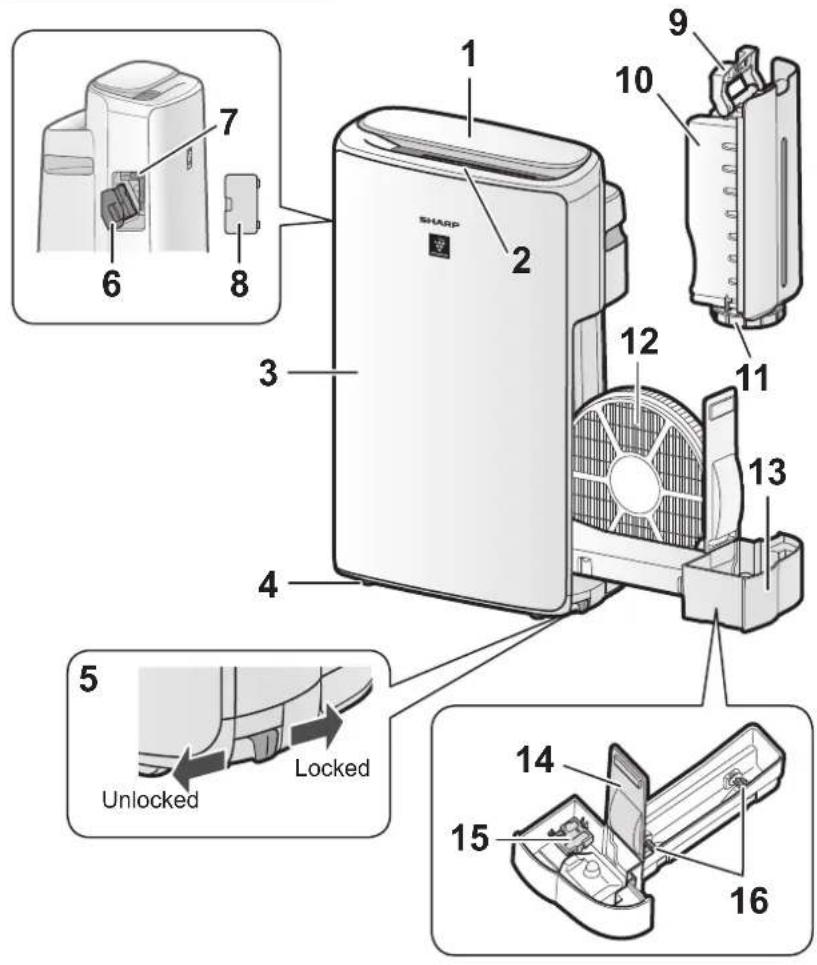
• The illustration in this instruction manual is UA-KIN42E.
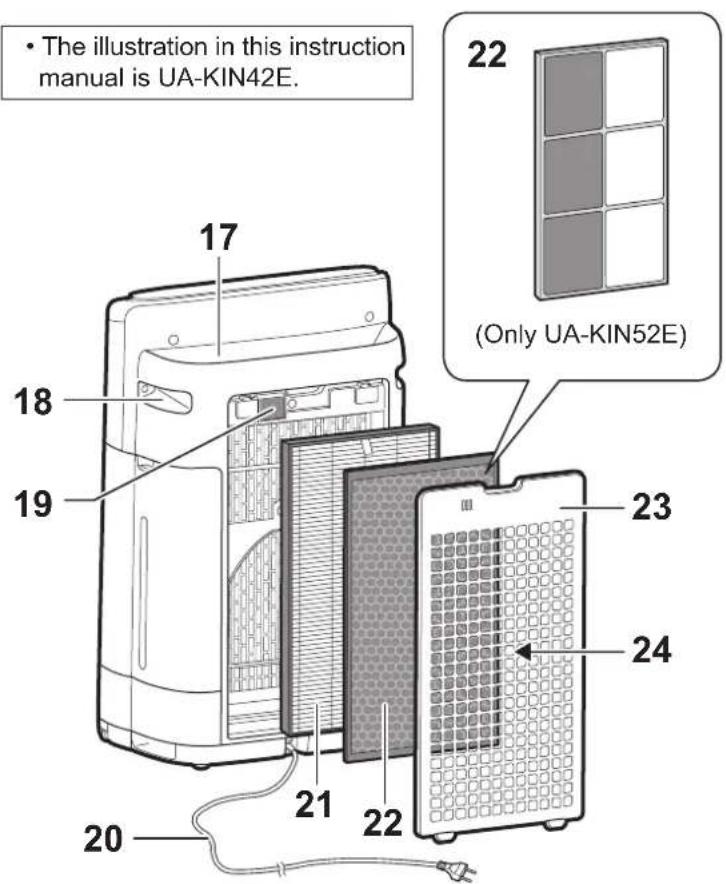
| 1 | Operation Panel / Display |
| 2 | Air Outlet (Front) |
| 3 | Main Body |
| 4 | Caster Wheels (4 Locations) |
| 5 | Caster Stopper (Right & Left) |
| 6 | Unit* Holder(Plasmacluster Ion Generating Unit) |
| 7 | Unit* Cleaning Brush |
| 8 | Unit* Cover |
| 9 | Tank Handle |
| 10 | Water Tank |
| 11 | Tank Cap |
| 12 | Humidifying Filter |
| 13 | Humidifying Tray |
| 14 | Tray Panel |
| 15 | Humidifier Float |
| 16 | Roller |
| 17 | Air Outlet (Back) |
| 18 | Handle (2 Locations) |
| 19 | Sensor Filter / Sensor (Internal)Sensitive Dust |
| 20 | Power Cord, Power Plug |
| 21 | HEPA Filter |
| 22 | Deodorizing Filter |
| 23 | Back Panel |
| 24 | Air Inlet |
* The Unit refers to Plasmacluster Ion Generating Unit. (The same as below.)
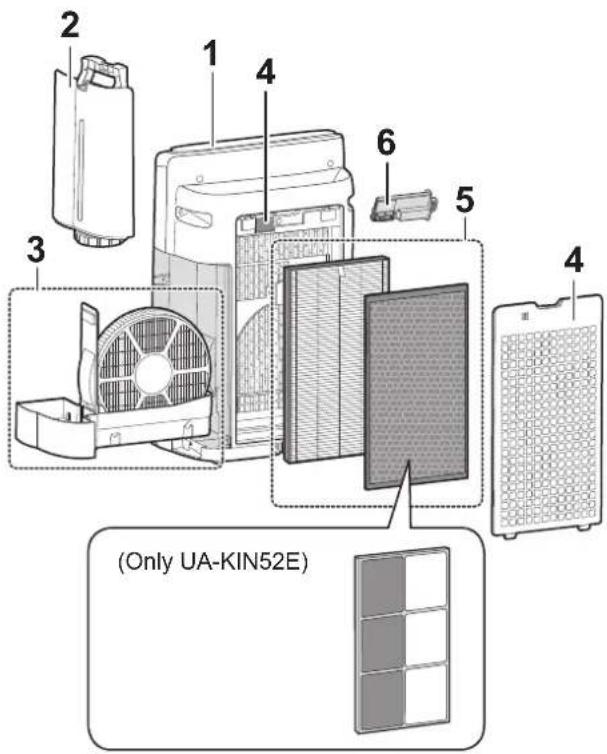
- To maintain the quality of the filter, it is installed in the product and packaged in a plastic bag.
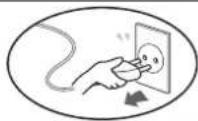
- Be sure to stop operation and unplug the product before filter installation or replacement.
FILTER INSTALLATION
- Remove the Back Panel.
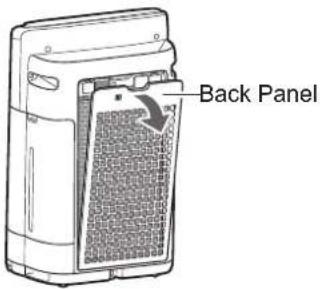
- Take out the filters from the plastic bag.
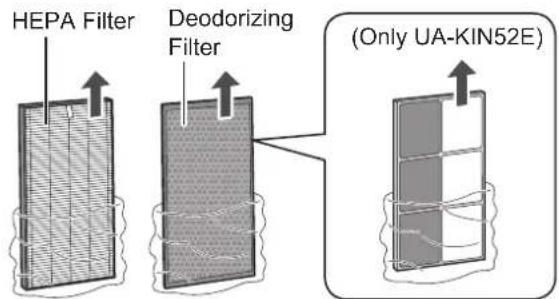
- Install the filters in the correct order as shown.
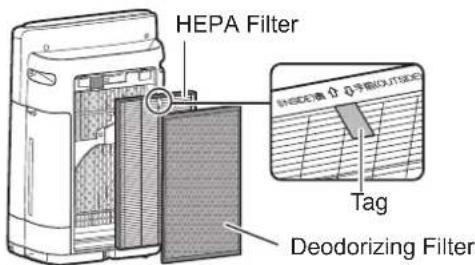
- Install the Back Panel.
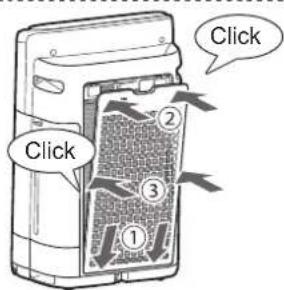
NOTE
- When replacing the filters, making a memo of the start of use date is recommended.
- Do not operate the product without the filters.
REFILLING THE WATER TANK
- Remove the Water Tank.
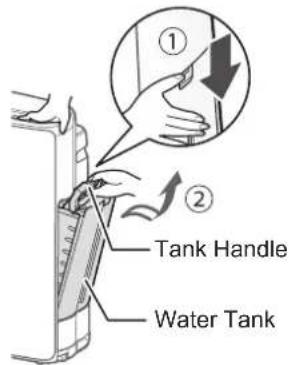
- Fill the Water Tank with the tap water.
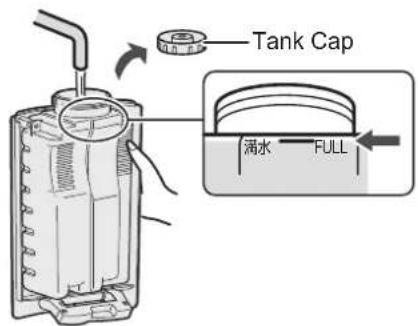
- To prevent leaks, securely tighten the Tank Cap.
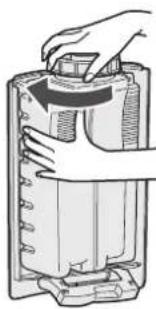
- Install the Water Tank.
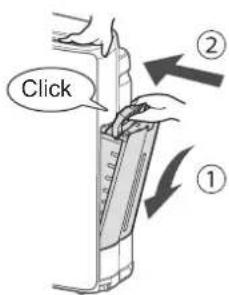
WI-FI SETTINGS
BEFORE YOU BEGIN
By connecting your air purifier with your smart device, you can use the air purifier more conveniently.
Ensure your smart device is connected to a 2.4 GHz Wi-Fi Network.
Wi-Fi Protected Setup (WPS) Access Point (Router)
• The recommended encryption method is WPA2 (AES).
Ensure your smart device meets minimum software requirements (as of January 2024):
• Smartphones / tablets of Android 8 or later - iPhones, iPod touch, iPads of iOS 12 or later
Product Wi-Fi specifications
• Wireless LAN: IEEE802.11b/g/n • Frequency range: 2.4GHz frequency band
Trademarks
- "Wi-Fi®" is a registered trademark of Wi-Fi Alliance®.
- "Android" is the trademark of Google Inc.
- "iPhone", "iPod touch", "iPad" are the registered trademarks or trademarks of Apple Inc.
- The other company names, corporate names, product names mentioned in the handling instructions are trademarks and registered trademarks of each company.
INITIAL SET UP
NOTE
- When pairing the smart device to the air purifier, please ensure they are both connected to the same Wi-Fi network.
① DOWNLOAD & SIGN UP
- Install the designated App "Sharp Life Air" to your smart device.
• Available to download from the Apple Store or Google Play. - Scan the QR code on page 5 for product information.
- Connect your smart device to the router and launch the App. Follow instructions on the App.
i. Review the “Privacy and Data Utilization Policy” and “Terms of Use”. ii. Enter Your Date of Birth. iii. Sign in using your Sharp account (SHARP ID). - If you do not have a SHARP ID, please register to create a SHARP ID. iv. Enter a name for your smart device.
② CONNECTION OF THE AIR PURIFIER AND A ROUTER
NOTE
- If you have stealth settings or MAC filtering settings on the router, please cancel them.
- The product network ID is displayed as "AP-SHARP-XX" (where XX is a 2-digit number below the product MAC address).
- Tap "≡" at the upper left part of the "Home" screen, and select "Pairing" → "Connection with a router".
![graph TD A["Home"] --> B["Manage"] B --> C["Pairing"] B --> D["Update"] C --> E["Connection with a router"]](/content/2026/04/686012/images/8903f82c57db5dac3c1eca69f4864b5fb3e1e742e8453dc377e1b533eb616763.jpg)
2. Follow instructions on the App.
- If the Wi-Fi Lamp lights up after the notification sound, the connection is successfully completed.
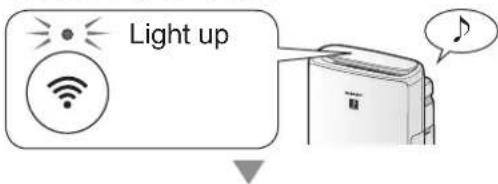
Tap "NEXT".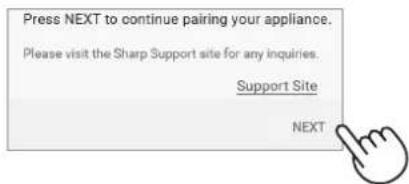
③ CONNECTION BETWEEN THE AIR PURIFIER AND A SMART DEVICE
1. Tap "Pair" for the air purifier you would like to pair.
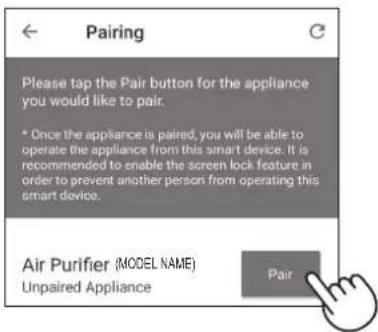
- If you do not see the screen above, tap "≡" at the "Home" screen, and select "Pairing" → "Already connected with a router".
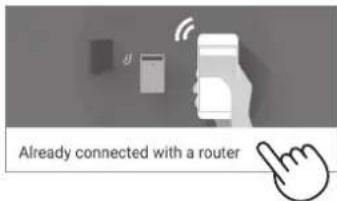
2. Follow instructions in the App.
- If the Wi-Fi Lamp lights up after the notification sound, the connection is successfully completed.
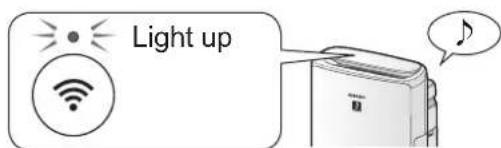
The INITIAL SET UP is completed.
How to set Wi-Fi ON / OFF after completing the INITIAL SET UP
If you would like to turn the Wi-Fi OFF:
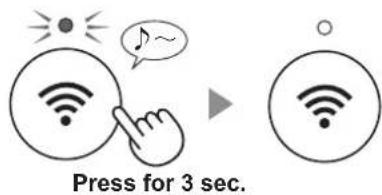
NOTE
- Turning the Wi-Fi off will result in not being able to control the air purifier with the designated App.
If you would like to turn the Wi-Fi ON again:
(How to restore the Wi-Fi connection to the original network.)
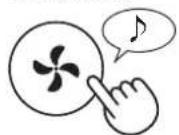
Press for 3 sec.
The Wi-Fi Lamp will flash after you press the Wi-Fi Button. And within about 3 minutes, you will hear four short beeps. Some time after this beep sounds, the Wi-Fi Lamp lights up and the Wi-Fi connection will be restored to the original network. The designated App can now be used again to control the Air Purifier.
NOTE
- Wi-Fi ON / OFF can also be set from "R Wi-Fi adapter ON/OFF". (Page 14, 16) In this case, Wi-Fi connection with the router will be automatically restored.
- Reconnection to the Wireless Router may take a few minutes to complete, after turning Wi-Fi on again.
START/STOP
START STOP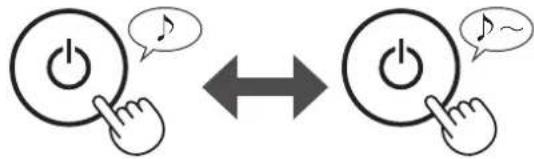
NOTE
- When the product starts operation, it operates in the mode it was last used in.
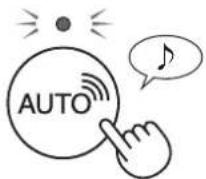
SHARP AIR LIFE MODE
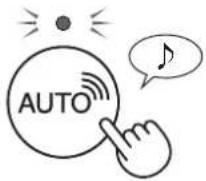
When the product is connected to Sharp Cloud
Sharp Cloud will analyze and set the optimal operation for your room based on information retrieved from sensors on the product and your usage records.
When the product is not connected to Sharp Cloud
The fan speed and humidification ON/OFF are automatically controlled depending on the six detections (PM2.5, usual dust, odor, temperature, humidity, light).
NOTE
- If you press the Humidify ON/OFF button, the operation mode will change to AUTO.
SELECT AIR VOLUME AND MODE
![graph TD A["Hand with fan icon"] --> B["Directional feedback"] B --> C["AUTO"] B --> D["POLLEN"] B --> E["SLEEP"] B --> F["LOW"] B --> G["MED"] B --> H["MAX"]](/content/2026/04/686012/images/fee359f2d0a3dea6ecab6d5c3bef245d60892b09cdabaa8d6d2c116bac033680.jpg)
AUTO:

The fan speed is automatically switched depending on the amount of impurities in the air. You can select humidification ON/OFF.
POLLEN:
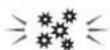
The Sensitive Dust Sensor sensitivity is automatically increased, and the sensor quickly detects impurities such as dust and pollen and cleans the air powerfully.
SLEEP:

The product will operate quietly, and the fan speed will automatically switch depending on the amount of impurities in the air and room brightness. When the Light Control is set to "Auto", the Display and Cleanliness Indicator will automatically turn off.
CLEAN ION SHOWER MODE
The product releases Plasmacluster ions with strong airflow and collects dusts while decreasing static electricity for 10 minutes. After that, the Sensitive Dust Sensor sensitivity is automatically increased and quickly detects impurities and clean the air powerfully for 50 minutes.
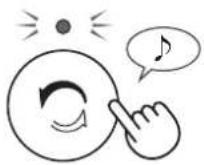
NOTE
- When the operation finishes after 60 minutes, the product will return to the prior operation mode. It is able to change to other modes during this operation.
- The Plasmacluster ion cannot be turned "OFF".
HUMIDIFICATION SETTING
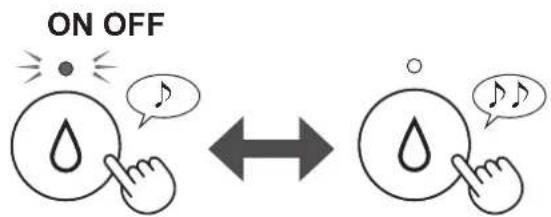
NOTE
- When operating with Humidification ON in the modes in the table below, the product automatically controls humidity by sensing temperature and humidity. (When the air volume is set to LOW, MED or MAX the product continues to humidify regardless of room conditions.)
| Temperature (T) | Humidity |
| T<18°C 65% / 65%* | |
| 18°C ≦ T <24°C 60% / 65%* | |
| 24°C ≦ T <28°C 55% / 60%* | |
| 28°C ≦ T 45% / 50%* |
* SLEEP Mode
SWITCH DISPLAY
![graph TD A["PM 2.5 %°C"] --> B["55 % Humidity"] A --> C["25 °C Temperature"] A --> D["34 µm PM2.5 Concentration"]](/content/2026/04/686012/images/b62faf1220dcbe36a2bdbb299839a56c2744c630ca38fba6f95c8cca3606835a.jpg)
CHILD LOCK
The operation panel will be locked.
(with the product ON or OFF)
ON CANCELLATION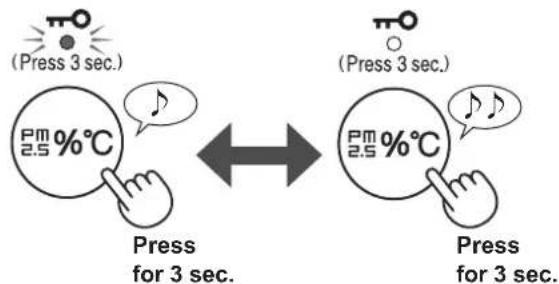
NOTE
- It is possible to turn Wi-Fi off while in Child Lock Mode.
WEEKLY SCHEDULER: APP ONLY
ON TIMER (or OFF TIMER)
You can set a weekly scheduler for the air purifier to start a specific mode (or to stop operation) on a specific day and time. The Timer Lamp will turn on while there is a schedule set.


- You can change the product and Wi-Fi functions on pages 15-18.
1. Turn the product OFF.
2.
Press for 3 sec.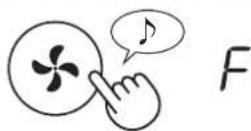
When Wi-Fi setting, change "F" to "A".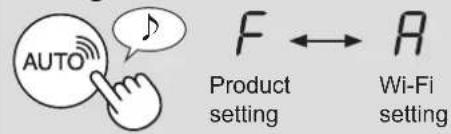
Product setting F1, Wi-Fi setting RI
3. Select "Function number (F1-F7 or A1-A8)" on pages 15-18.
Go Forward or
Go Back
Product setting![graph LR A["F1"] --> B["F2"] B --> C["..."] C --> D["F7"] D --> E["End"]](/content/2026/04/686012/images/7cacb925e6a0bc13fd9aa8e47dab35e991f4c4bfe494f498aecfcd4ef370e5a8.jpg)
Wi-Fi setting
Set
4.
When Wi-Fi setting: Refer to page 16-18 for the details of each function. When Product setting: Select "Setting number (01-03)" on page 15. Go Forward or
Go Back

Set
5. Finish the setting.
Goes off
PRODUCT FUNCTIONS (F1-F7)
| Function Setting | |
| F1Light ControlYou can select the brightness of the Display and Cleanliness Indicator. | 01 OFFWhen set to “OFF”, the “Dim” light illuminates for 8 seconds after operation starts and then the light goes off.However, some indicators that need notification will remain dim.02 Dim03 Auto (default)Light automatically switches ON or OFF based on room brightness.• Room is bright: light is ON• Room is dark: light is OFFEven though room is bright, the light will turn off when operating in sleep mode. |
| F2Plasmacluster Ion ON/OFF | 01 OFF02 ON (default) |
| F3Auto RestartIf the product is unplugged or if there is a power failure, the product will resume operation with the previous settings after power is restored. | 01 Cancellation02 ON (default) |
| Adjusting sensor sensitivity (F4 - F6)F4 Light Sensor Low | 01 |
| F5 Sensitive Dust Sensor Standard | 02 (default) |
| F6 Odour Sensor High | 03 |
| F7Sound Indicator SettingYou can set the product to make a beeping sound when the Water Tank is empty. | 01 Cancellation (default)02 ON |
WI-FI FUNCTIONS (A1-A8)
| Function Setting | |
| A1Wi-Fi adapterON/OFF | 1. Select “A” by following Steps 1 - 3 on page 14.2. Press "SHARP LIFE AIR" Button to select Setting “0” or “.”.0201 Wi-Fi OFF ▼02 Wi-Fi ON3. CompleteNOTE ▼02 Wi-Fi ON3. CompleteNOTE ·When Setting number (“0” or “”) is changed, the square rotates on the display until the setting is completed. When setting is completed, “A2” is displayed. ·When Setting number (“0” or “”) is changed, the square rotates on the display until the setting is completed. When setting is completed, “A2” is displayed. |
| A2Wi-Fi connectionwith a router(with the WPSButton) | 1. Select “A2” by following Steps 1 - 3 on page 14.2. After “BPs displayed, press the WPS (Wi-Fi Protected Setup) Button of the router.BlinkBlinkG28KOnce connected, receiver level will be displayed.A connection error is occurring if “B” is displayed. Please confirm that the router is operating correctly and try again.3. Complete |
| A4Initialization ofWi-Fi function | 1. Select “A4” by following Steps 1 - 3 on page 14.2. After “A” is displayed press “Mode” Button.An error is occurring if “d” is displayed. Please try again.  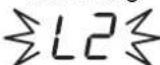 ▶L2 Blink3. CompleteNOTE ▶L2 Blink3. CompleteNOTE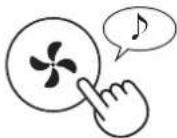 ·Please delete the device registration from the App when initializing the air purifier which is already connected to the Wi-Fi. ·Please delete the device registration from the App when initializing the air purifier which is already connected to the Wi-Fi. |
NOTE
NOTE
| Function Setting | |
| R6Confirmation ofMAC address | 1. Select “ by following Steps 1 - 3 on page 14.2. Press “SHARP LIFE AIR” Button to display MAC address.For example:In case MAC address is “12:34:56:AB:CD:EF”.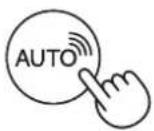  3. Complete 3. Complete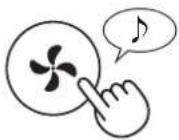 |
| R7Display Wi-Finetwork status | 1. Select “ by following Steps 1 - 3 on page 14.2. After displaying “ _”for a few seconds, network status of Wi-Fi adapter will be displayed.CO Connection is stableAO Wi-Fi adapter is off→ Please turn on Wi-Fi adapter.BU Router is not registered→ Please perform the Wi-Fi connection with the router.CU Link settings with the App is not performed→ Please perform the link setting with the smart device.AE Wi-Fi adapter network error→ Please turn off Wi-Fi adapter and turn on again after a while.BE Network error between the air purifier and the router→ Please confirm the network status of the router.CE Network service error→ Please turn off the air purifier and confirm the internet status, then try again.3. Complete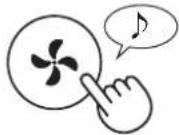 |
| CO | Connection is stable |
| AO | Wi-Fi adapter is off⇒ Please turn on Wi-Fi adapter. |
| bU | Router is not registered⇒ Please perform the Wi-Fi connection with the router. |
| CU | Link settings with the App is not performed⇒ Please perform the link setting with the smart device. |
| AE | Wi-Fi adapter network error⇒ Please turn off Wi-Fi adapter and turn on again after a while. |
| bE | Network error between the air purifier and the router⇒ Please confirm the network status of the router. |
| CE | Network service error⇒ Please turn off the air purifier and confirm the internet status, then try again. |
| Function Setting | |
| ABWi-Fi connectionwith a router(without the WPS Button)- AP (Access Point) mode - | 1. Select “ R8 by following the Steps 1 - 3 on page 14.2. Perform Wi-Fi connection of the air purifier and the router based on the App screen.Refer to the App for further operations.Blink 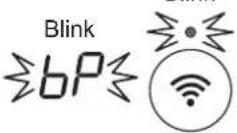 ▶ ▶ 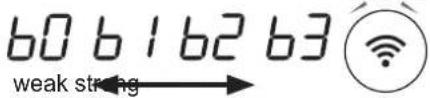 Display while setting the connection between the product and the router.Once connected, receiver level will be displayed.A connection error is occurring if “ bE ” is displayed. Please confirm the router and try again. Display while setting the connection between the product and the router.Once connected, receiver level will be displayed.A connection error is occurring if “ bE ” is displayed. Please confirm the router and try again. |
CARE AND MAINTENANCE
CARE
- To maintain optimum performance of this air purifier, please clean the product including the filter periodically.
- Be sure to stop operation and unplug the product before any maintenance or replacing accessories.
| Place Page | ||
| 1 | Main Body 19 | |
| 2 | Water Tank 19 | |
| 3 | Humidifying Filter / Humidifying Tray 20 | |
| 4 | Back Panel / Sensors 19 | |
| 5 | HEPA Filter / Deodorizing Filter 22 | |
| 6 | Plasmacluster Ion Generating Unit 23 | |
FILTER MAINTENANCE LAMP
When the cumulative operation period or the water containing period is more than approximately 720 hours, the Filter Maintenance Lamp will turn on.
- It will not calculate the time when the product is unplugged. • 30 days × 24 hours = 720 hours
This is a reminder to perform the maintenance described in the sections for Humidifying Filter and Tray, Main Body, Back Panel, and Sensors.
After maintenance, connect the power plug to the wall outlet and press the Power ON/OFF Button, then press and hold the Filter Reset Button for 3 seconds to reset the Filter Maintenance Lamp.
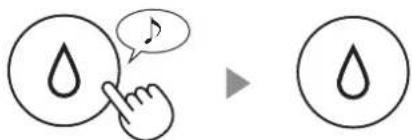
Press for 3 sec.
WATER TANK
Rinse the inside with water.
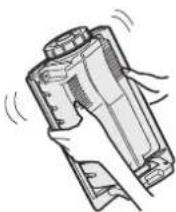
NOTE: How to clean hard-to-remove dirt.
Clean the inside of the Water Tank with a soft sponge and the Tank Cap with a cotton swab or toothbrush.
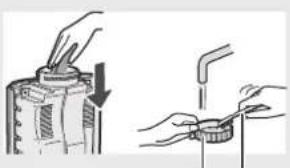
Tank Cap Toothbrush
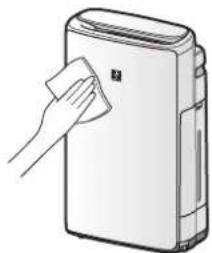
MAIN BODY / BACK PANEL / SENSORS
Wipe with a dry, soft cloth.
Remove the dust gently with a cleaning tool such as a vacuum cleaner.
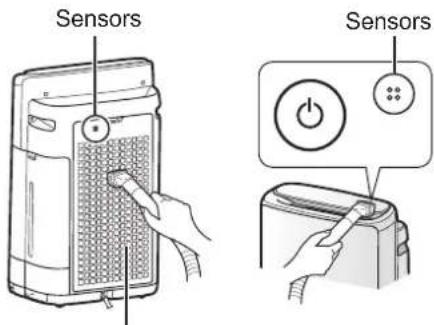
Back Panel (Pre-Filter)
NOTE
- Do not apply excessive pressure when scrubbing the Back Panel.
NOTE
How to Clean Hard-to-Remove Dirt.
Back Panel
- Add a small amount of mild kitchen detergent to water and soak for about 10 minutes.
- Rinse off the mild kitchen detergent with clean water.
- Completely dry the filter in a well-ventilated area.
Sensor Filter
- Remove the Back Panel.
- Remove the Sensor Filter.
- If the Sensor Filter is very dirty, wash it with water and dry it thoroughly.
Back Panel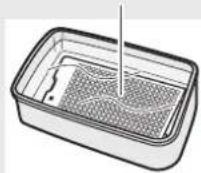
Sensor Filter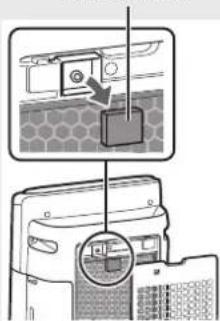
REPLACEMENT AND MAINTENANCE CYCLE
| Parts Name Maintenance Cycle Max Service Life Replacement Filter Model | |||
| Humidifying Filter | When odour emanates from the air outlet, or once a month. | 10 years*1 | UZ-KIL8MF |
*1: Designated App notifies when each replacement part should be replaced according to usage.
MAINTENANCE
- Remove the Humidifying Filter and Tray.
![graph LR A["File"] --> B["Step ①: Screen opening"] B --> C["Step ②: Insert or press"] C --> D["Step ③: Insert or press"] D --> E["Step ④: Cover or outlet"] E --> F["Step ⑤: Outlet or fan installation"]](/content/2026/04/686012/images/d494872ea441590d1558044d8c04da5c4289985c03b9a8f4ee6192f6af8c247a.jpg)
- Rinse with plenty of water.
- Do not remove the Humidifier Float. If it comes off, refer to page 21. • Refer to page 21 for how to clean the Humidifying Filter when it is very dirty.
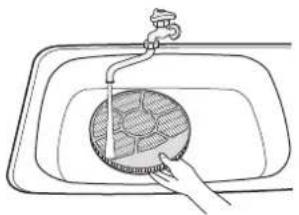
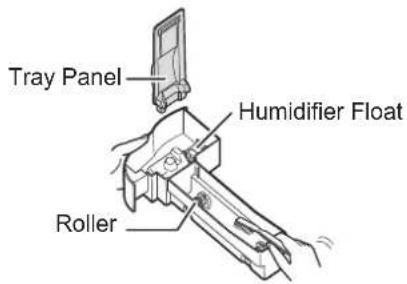
- Attach the Humidifying Filter and Tray.
• After maintenance, correctly reattach the parts.
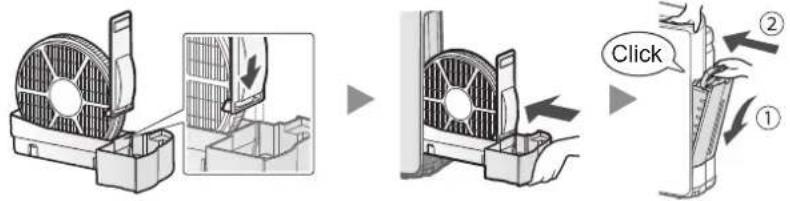
REPLACEMENT
See this page for directions on how to install the filter when replacing.
- Please consult your dealer for purchase of replacement filter.
- Use only filter designed for this product.
- Scan the QR code on page 5 for product information and accessories.
When replacing the filter, making a memo of the start of use date is recommended.
Disposal of Filters
Please dispose of the replaced filter according to the local disposal laws and regulations.
Humidifying Filter materials: Polyester, Rayon
UZ-KIL8MF (1 unit) Humidifying Filter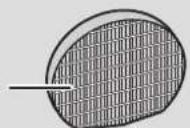
Filter Frame - Do not dispose the Filter Frame.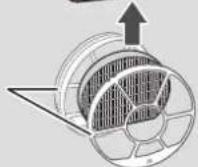
NOTE
How to Clean Hard-to-Remove Dirt.
| Mild Kitchen Detergent(only Humidifying tray) | Citric Acid(available at some drugstores) | 100% Bottled Lemon Juice with No Pulp | ||
| 1 | Fill the tray half-way with water.Add a small amount of mild kitchen detergent. | 2 1/2 cups of water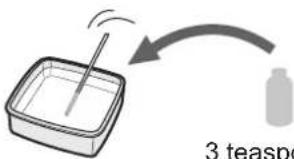 | 3 cups of water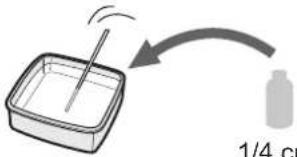 | |
| 2 | Soak for 30 minutes.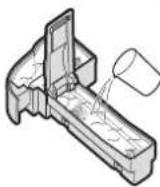 | 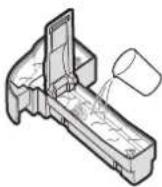 | 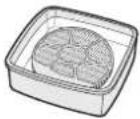 | Soak for 30 minutes.(When using lemon juice as your descaling solution, allow for more soak time.) |
| 3 | Rinse off the mild kitchen detergent or the descaling solution with clean water. | |||
NOTE
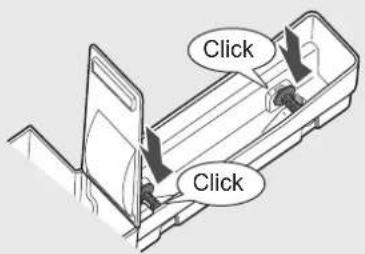
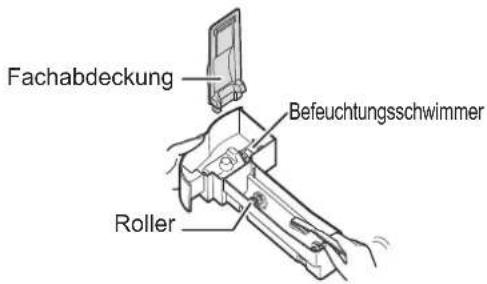
How to install the Humidifier Float.
Humidifier Float Roller
- Insert the tab on the other side of the Humidifier Float into the hole.
- Insert the tab of the Humidifier Float into the hole.
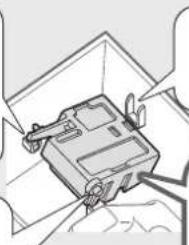
- Insert the Humidifier Float under this tab.
Humidifier Float
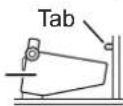
Cross-Section view
HEPA FILTER / DEODORIZING FILTER
REPLACEMENT AND MAINTENANCE CYCLE
| Filter Name Maintenance Cycle Max Service Life | Replacement Filter Model | ||
| HEPA Filter | Whenever dust accumulates, when odour emanates from the air outlet, or once a month. | 10 years*1,2 | UZ-HD4HF |
| Deodorizing Filter | UZ-HD4DF (Only UA-KIN42E)UZ-HG4DF (Only UA-KIN52E) | ||
*1: According to Japan Electric Manufacture's Association JEM 1467, the Max service life is based on the equivalent condition of the smoke from 5 cigarettes per day whereby the dust collection/deodorization power is reduced by half compared with that of new filter. It is recommended to replace the filter more frequently under more severe conditions. *2: Designated App notifies when each replacement part should be replaced according to usage.
Filter life varies depending on the room environment, usage conditions, and location of the product. We recommend replacing the filter more frequently if the product is used in conditions significantly more severe (PM2.5 etc.) than a normal household.
MAINTENANCE
Remove the dust on the filters.
NOTE
- Do not wash the filters. Do not expose to sunlight (Otherwise these filters may lose efficacy.)
HEPA FILTER
Maintain and clean only the tagged surface. Do not clean up the opposite surface.
The filter is fragile, so be careful not to apply too much pressure.

DEODORIZING FILTER
Both surfaces can be maintained and cleaned.
The filter is fragile, so be careful not to apply too much pressure.
(UA-KIN42E)
(UA-KIN52E)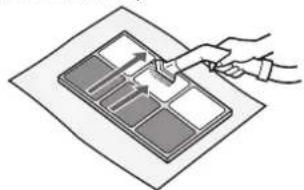
Some odours absorbed by the filters will break down over time, causing additional odours. Depending on usage conditions, and especially if the product is used in environments significantly more severe than a normal household, these odours may become noticeable sooner than expected.
Replace the filter in those cases or if dust is unable to be removed after maintenance.
REPLACEMENT
See page 9 for directions on how to install the filter when replacing.
- Please consult your dealer for purchase of replacement filter.
- Use only filter designed for this product.
- Scan the QR code on page 5 for product information and accessories.
When replacing the filters, making a memo of the start of use date is recommended.
UZ-HD4HF (1 unit)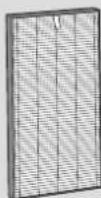
UZ-HD4DF (1 unit)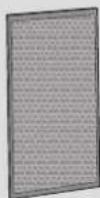
UZ-HG4DF (1 unit)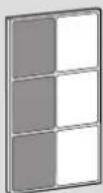
Disposal of Filters
Please dispose of the replaced filter according to the local disposal laws and regulations.
HEPA Filter materials:
Polypropylene, Polyethylene
Deodorizing Filter materials:
(Only UA-KIN42E)
Polypropylene, Polyester, Activated carbon
(Only UA-KIN52E)
Paper, ABS resin
NOTE
- Do not wash and reuse replaced filter.
PLASMACLUSTER ION GENERATING UNIT (Electrode Section)
REPLACEMENT AND MAINTENANCE CYCLE
| Parts Name Maintenance Cycle Max Service Life Replacement Model | |||
| Plasmacluster Ion Generating Unit*1 | Every 6 months or more often if necessary | 19,000 hours*2,3 | UZ-C90M |
*1: In the following, "Plasmacluster Ion Generating Unit" is abbreviated as "Unit". *2: The replacement time will be announced by the Unit Replacement lamp. *3: Designated App notifies when each replacement part should be replaced according to usage.
MAINTENANCE
1. Remove the Unit Cover, and pull out the Unit Holder.
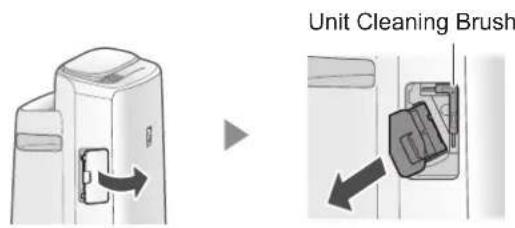
2. Remove dusts from the Electrode Section.
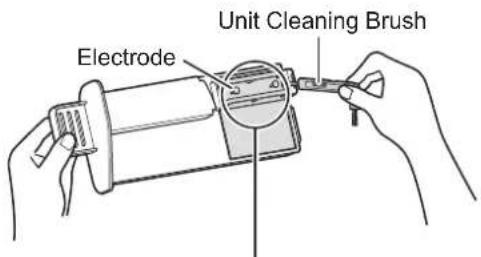
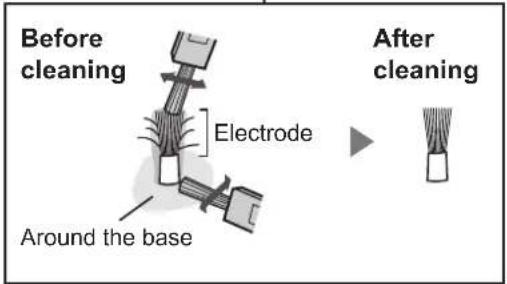
3. Insert the Unit Holder in the product, and install the Unit Cover.
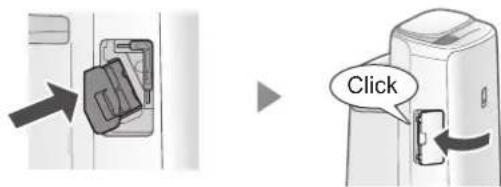
NOTE
- Do not clean with anything other than the Unit Cleaning Brush. Doing so could lead to failures in the Unit.
- A bent electrode could be cut off and dropped during the cleaning process, but it will not change the performance.
- Do not touch the electrode directly. Doing so could lead to pain / itching.
- Do not transform the Electrode Section. Doing so can damage it.
- Do not touch the Connection Terminals. Doing so can damage them.

REPLACEMENT
Unit Replacement lamp
When the total operation time exceeds 17,500 hours, the Unit Replacement Lamp will flash to indicate that the Unit needs replacement.
| Operating time Explanation | |
s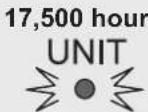 Flash slowly Flash slowly | Replace the Unit |
s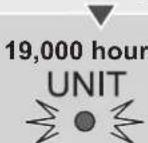 Flash quickly Flash quickly | No Plasmacluster ions will be released by the Unit. |
* The replacement time is not related to the selected operation mode.
How to replace the Unit
- Please consult your dealer for purchase of a replacement Unit.
- Use only the Unit designed for this product.
UZ-C90M (1 unit)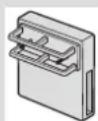
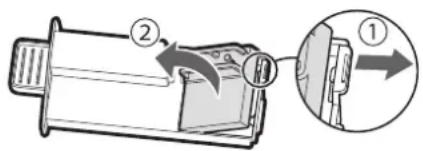
1. Remove the claw of Unit Holder (①), and remove the Unit (②).
2. Attach the New Unit.
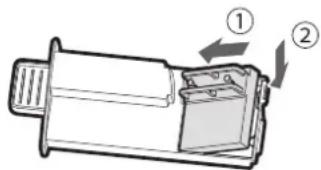
- When the Unit has been replaced with a new part, the timer will be reset and return to 19,000 hours.
Disposal of the Unit
Please dispose of the used Unit according to the local disposal laws and regulations.
Materials:
Polybutylene Terephthalate, electronic parts
TROUBLESHOOTING
- Before calling for service, please review the Troubleshooting list below, since the problem may not be the product malfunction.
ABOUT THE PRODUCT
Odour and smoke persists.
- Check the filters. If they appear to be extremely dirty, clean or replace them.
Air discharged from the product has an odour.
- Check to see if the filters are extremely dirty.
- Clean or replace the filters.
- Use only fresh tap water. Using other water sources risks the growth of mold, fungi, or bacteria.
The product does not operate when cigarette smoke is in the air.
- Make sure the product is installed in a location where the sensors can detect cigarette smoke.
- Check if the Sensitive Dust Sensor openings are blocked or clogged. If they are, clean the Sensor Filter or the Back Panel.
Smell from a new product and/or filter.
- Immediately after removing the plastic bag, a slight odor may occur. This odor is not harmful to filter performance or human exposure.
The product makes a clicking or ticking sound.
- The product may make clicking or ticking sounds when it is generating ions.
The Cleanliness Indicator is blue even when the air is not clean.
- The air may have been dirty when the product was plugged in. Unplug the product, wait one minute, and then plug it in again.
The Cleanliness Indicator is red even when the air is clean.
- Dirty or clogged Sensitive Dust Sensor openings interfere with sensor operation. Gently clean the Sensor Filter or the Back Panel.
The Cleanliness Indicator changes color frequently.
- The Cleanliness Indicator automatically changes color when the Sensitive Dust Sensor and Odour Sensor detect impurities. If you are concerned about the change, you can adjust sensor sensitivity. (Page 14, 15)
Filter Maintenance Lamp is on.
- After performing maintenance or replacing the Humidifying Filter, connect the power cord to an outlet and then press the Filter Reset Button for more than 3 seconds. (Page 19)
The Display goes off.
- When the Light Control is set to "Auto", the light automatically turns off when the room is dark or operating in sleep mode. Moreover, when the Light Control is set to "OFF", the light is always off. If you do not want the light to be off, set the Light Control to the "Dim" setting. (Page 14, 15)
The Display does not match weather report or another hygrometre or thermometre in the room.
- Outdoor and indoor as well as the home environment (the volume of traffic nearby, number of stories in home, etc.) may cause a reading different than those data. - There is a difference in the level within the same room.
The Humidify Indicator on the Display does not light up when the Water Tank is empty.
- The room has reached the appropriate level of humidity and has stopped humidifying. - Check the Humidifier Float for impurities. Clean the Humidifying Tray. Make sure that the product is on a level surface.
The water level in the Water Tank does not decrease or decreases slowly.
- Check to see if the Humidifying Tray and Water Tank are correctly installed. - Check the Humidifying Filter. If the filter is extremely dirty, clean or replace it.
E2 is displayed.
- Make sure that the Humidifying Filter, Humidifying Tray and Roller are properly installed, and then turn the power to ON again.
E9 is displayed.
- Make sure the Plasmacluster Ion Generating Unit inserted properly. Pull out the Plasmacluster Ion Generating Unit and insert it to the end again, and then carry out the operation again.
One of the following is displayed.

- Unplug the product, wait one minute, and then plug the product in again.
ABOUT THE Wi-Fi FUNCTION
Wi-Fi connection of the air purifier and the router cannot be performed.
- Check the specifications of the router in use. - Adjust the router and antenna direction, move the router and antenna closer, and so on. After that, reswitch to turn on the router and perform the INITIAL SET UP again.
The connection between the air purifier and your smart device cannot be established.
- Are the air purifier and your smart device connecting to the same router? → Connect the air purifier and your smart device to the same router. If you still can't connect, try connecting your smart device to the 2.4GHz band of the router.
- Is the total number of smart devices being in use exceeding the maximum number for registration on one air purifier? → The maximum number of smart devices that can be registered on one air purifier is 10.
- Is the total number of products (air conditioners, air purifiers, etc.) to be registered with one smart device exceeding the maximum designated number? → The maximum number of products to be registered with one smart device is 30.
Remote operation from a smart device cannot be performed.
• Is the Wi-Fi Lamp of the air purifier on? If the Wi-Fi Lamp is off, please perform "A1: Wi-Fi adapter ON/OFF" to turn on the product Wi-Fi. (Page 16) - Have the connection between the air purifier and your smart device been completed? Set up the connection between the air purifier and your smart device. (Page 11)
When changing the router.
- It is necessary to reconnect the air purifier to the router.
- Hold down the "Wi-Fi" Button for 3 seconds to stop the Wi-Fi function.
- Perform "INITIAL SET UP: ② Connection of the air purifier and a router". (Page 10)
When changing the smart device.
- Perform the following steps.
- Delete the registration of the old smart device from designated App.
- Use the new smart device to perform "INITIAL SET UP":
① Download & Sign up, and ③ Connection between the air purifier and a smart device. (Page 10, 11)
If disposing or changing ownership of the air purifier:
- Perform the following steps to prevent leak of personal information.
- Delete the registration of the air purifier from the designated App.
- Perform "A4: Initialization of Wi-Fi function". (Page 16)
In case of being handed over from a third party:
- To prevent unauthorized access from a third party, perform "A4: Initialization of Wi-Fi function". (Page 16)
Wi-Fi Lamp blinks slowly.
- It is one of the following statuses:
A. The Wi-Fi connection of the air purifier and a router is in setup. B. The connection of the air purifier and a smart device is in setup. C. The software for the Wi-Fi function in the air purifier is being updated.
Wi-Fi Lamp blinks fast.
- Network error. Please confirm the Wi-Fi network status from "A7: Display Wi-Fi network status". (Page 17)
Wi-Fi Lamp goes off.
- The air purifier cannot connect to the router. Check the following.
A. Is the power plug correctly connected? B. Has the Wi-Fi function been stopped? Confirm the Wi-Fi network status from "A7: Display Wi-Fi network status". (Page 17)
One of "A2" to "A6" cannot be selected in the Wi-Fi setting mode.
(Page 16 - 17)
- If the Wi-Fi adapter is off, one of "A2" to "A6" may not be selectable.
INTELLECTUAL PROPERTY RIGHTS FOR THIS PRODUCT
Software structure
- Software installed in this product is structured with multiple independent software components, each of them has our or third-party's copyright.
Software of our development and free software
- Among the software components of this product, for software we developed or created and incidental documents has our copyright. And they are protected by copyright law, international regulation and other related laws.
Also this product uses software components distributed as free software with third-party's copyright.
Obligation of license indication
- Some software components installed in this product are required to indicate the license by those copyright holders.
License indications of such software components can be found at the following URL: https://www.sharpconsumer.com/intellectual-property/
| Model UA-KIN52E UA-KIN42E | |||||||
| Power supply 220-240 V ~ 50-60 Hz | |||||||
| Fan Speed Adjustment MAX MED LOW MAX MED LOW | |||||||
| CLEAN AIR | Fan Speed (m3/hour) 306 | 168 | 60 | 240 | 150 | 60 | |
| Rated Power (W) 51 | 17 | 5 | 29 | 14 | 5.5 | ||
| Noise Level (dBA)*1 | 51 | 40 | 17 | 46 | 38 | 17 | |
| CLEAN AIR & HUMIDIFY | Fan Speed (m3/hour) 252 | 186 | 66 | 174 | 138 | 60 | |
| Rated Power (W) 32 | 22 | 6 | 7 | 17 | 15 | 6.5 | |
| Noise Level (dBA)*1 | 47 | 43 | 20 | 38 | 35 | 19 | |
| Humidification (mL / hour)*2 | 600 | 480 | 200 | 440 | 370 | 190 | |
| Standby power (W) | 1.7 (When Wi-Fi adapter is ON.)1.3 (When Wi-Fi adapter is OFF.) | ||||||
| Recommended Room Size (m2)*3 | ~38~28 | ||||||
| High density Plasmacluster ion recommended room size (m2)*4 | ~21~17 | ||||||
| Water Tank Capacity (L) | Approx. 2.7 | ||||||
| Sensors | Sensitive Dust / Odour / Light / Temperature / Humidity | ||||||
| Filter Type | HEPA*5/ Deodorizing / Humidifying | ||||||
| Cord Length (m) | 2.0 | ||||||
| Dimensions (mm) | 384 (W) × 230 (D) × 619 (H) | ||||||
| Weight (kg) | Approx. 8.2 | ||||||
| Wi-Fi specifications supported by this product | Frequency: 2.4GHz band (IEEE802.11b/g/n)Channel: 1-13Max transmitted power: 100 mW at 2.412 GHz - 2.472 GHz | ||||||
*1 • Noise level is measured based on the JEM1467 standard of the Japan Electrical Manufacturers' Association. *2 • The amount of humidification changes in accordance with indoor and outdoor temperature and humidity.
The amount of humidification increases as temperatures rises or humidity decreases.
The amount of humidification decreases as temperatures decrease or humidity rises.
Measurement conditions: 20 °C, 30% humidity (according to JEM1426).
*3 The recommended room size is appropriate for operating the product at maximum fan speed. The recommended room size is an area in which a given amount of dust particles can be removed in 30 minutes (according to JEM1467). *4 Room size in which approximately 25000 ions per cubic centimetre can be measured in the centre of the room at a height of approximately 1.2 metres from the floor when the product is placed next to a wall and is running at MED mode settings. *5 The filter removes more than 99.97% of particles at least 0.3 microns in size (according to JEM1467).
Standby Power
When the product's power plug is inserted in a wall outlet, it consumes standby power in order to operate electrical circuits.
To conserve energy, unplug the power cord when the product is not in use.

Attention: Your product is marked with this symbol. It means that used electrical and electronic products should not be mixed with general household waste. There is a separate collection system for these products.
A. Information on Disposal for Users (private households)
1. In the European Union
IF YOU WISH TO DISPOSE OF THIS EQUIPMENT, DO NOT USE THE ORDINARY WASTE BIN, AND DO NOT PUT THEM INTO A FIREPLACE!
Used electrical and electronic equipment should always be collected and treated SEPARATELY in accordance with local law.
Separate collection promotes an environment-friendly treatment, recycling of materials, and minimizing final disposal of waste. IMPROPER DISPOSAL can be harmful to human health and the environment due to certain substances! Take USED EQUIPMENT to a local, usually municipal, collection facility, where available.
If in doubt about disposal, contact your local authorities or dealer and ask for the correct method of disposal.
ONLY FOR USERS IN THE EUROPEAN UNION, AND SOME OTHER COUNTRIES; FOR INSTANCE NORWAY AND SWITZERLAND: Your participation in separate collection is requested by law.
The symbol shown above appears on electrical and electronic equipment (or the packaging) to remind the users of this.
Users from PRIVATE HOUSEHOLDS are requested to use existing return facilities for used equipment. Return is free of charge.
If the equipment has been used for BUSINESS PURPOSES, please contact your SHARP dealer who will inform you about take-back. You might be charged for the costs arising from take-back. Small equipment (and small quantities) might be taken back by your local collection facility. For Spain: Please contact the established collection system or your local authority for take-back of your used products.
2. In other Countries outside the EU
If you wish to discard this product, please contact your local authorities and ask for the correct method of disposal.
For Switzerland: Used electrical or electronic equipment can be returned free of charge to the dealer, even if you don't purchase a new product. Further collection facilities are listed on the homepage of www.swico.ch or www.sens.ch.
B. Information on Disposal for Business Users.
1. In the European Union
If the product is used for business purposes and you want to discard it:
Please contact your SHARP dealer who will inform you about the take-back of the product. You might be charged for the costs arising from take-back and recycling.
Small products (and small amounts) might be taken back by your local collection facilities.
For Spain: Please contact the established collection system or your local authority for take-back of your used products.
2. In other Countries outside the EU
If you wish to discard of this product, please contact your local authorities and ask for the correct method of disposal.
Hereby, Sharp declares that this equipment is in compliance with the essential requirements and other relevant provisions of RED Directive 2014/53/EU.
The full text of the EU declaration of conformity is available by following the link
www.sharpconsumer.com/documents-of-conformity/
GERMAN
Wi-Fi function
NOTE
NOTE
Setting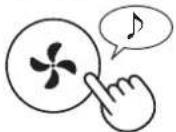
4.
Tank lid toothbrush
MAIN BODY / REAR COVER / SENSORS
REPLACEMENT
(UA-KIN52E)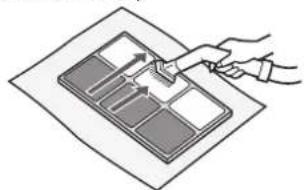
"Plasmacluster" and "Device of a cluster of grapes" are trademarks of Sharp Corporation.
Wi-Fi function
(Only UA-KIN52E)
NOTE
NOTE
Set
4.
Press and hold for three seconds
WATER TANK
Tray panel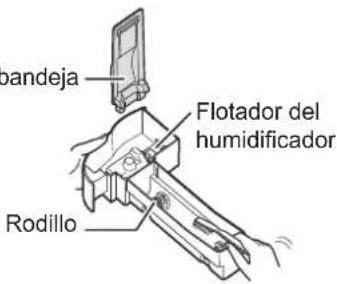
HEPA FILTER / DEODORIZING FILTER
(UA-KIN52E)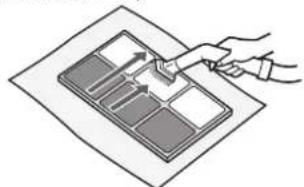
Wi-Fi Function
NOTE
③ CONNECTION BETWEEN THE AIR PURIFIER AND A SMART DEVICE
NOTE
NOTE
NOTE
ON / CANCEL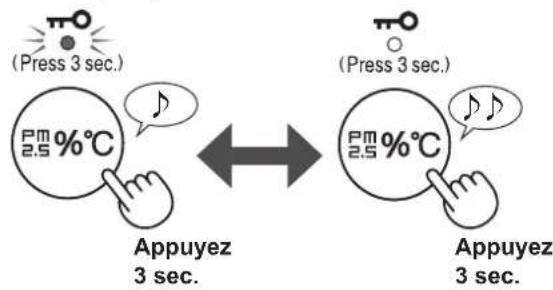
NOTE
PRODUCT FUNCTIONS (F1-F7)
FILTER AND HUMIDIFICATION TANK
REPLACEMENT AND MAINTENANCE CYCLE
Panel of the tub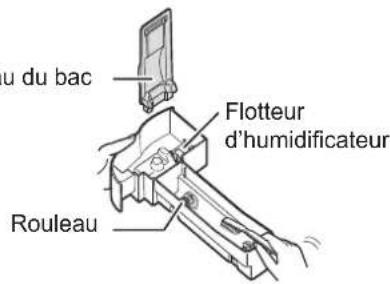
REPLACEMENT
HEPA FILTER / DEODORIZER
REPLACEMENT AND MAINTENANCE CYCLE
(UA-KIN52E)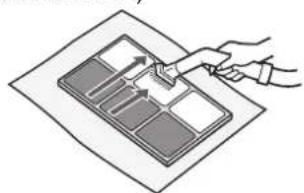
(UA-KIN42E only)
COMPONENT NAMES....6
BEFORE FIRST USE 9
USE 10
Wi-Fi function
NOTE
Wi-Fi button
BEFORE STARTING
③ CONNECTING THE AIR PURIFIER AND THE ROUTER
Press for 3 sec.
NOTE
NOTE
SHARP LIFE AIR MODE
NOTE
Set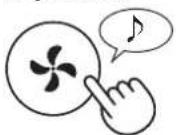
4.
HUMIDIFIER FILTER / HUMIDIFIER TRAY
REPLACEMENT
(UA-KIN52E)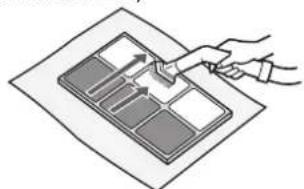
TROUBLESHOOTING 24
SPECIFICATIONS....27
NOTES......29
Wi-Fi function
③ ESTABLISHING A CONNECTION
BETWEEN THE AIR PURIFIER AND A SMART DEVICE
NOTE
NOTE
Setting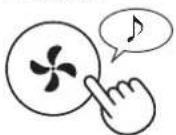
4.
PRODUCT FUNCTIONS (F1-F7)
Tank cap Toothbrush
HOUSING/REAR PANEL/SENSORS
HUMIDIFICATION FILTER / TANK
REPLACEMENT AND MAINTENANCE CYCLE
REPLACEMENT
(UA-KIN52E)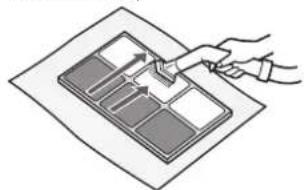
Polypropylene, polyethylene
Odor filter materials:
(Only UA-KIN42E)
www.sharpconsumer.com/documents-of-conformity/
POLISH
Wi-Fi function
③ CONNECTING THE AIR PURIFIER TO A SMART DEVICE
NOTE
AUTO mode:
Wi-Fi FUNCTIONS (A1–A8)
(UA-KIN52E)
www.sharpconsumer.com/documents-of-conformity/
CE
Sharp Consumer Electronics Poland sp. z o.o.
Ostaszewo 57B, 87-148 Łysomice, Poland
SHARP CORPORATION
OSAKA, JAPAN
SDA/MAN/0314 V4
www.sharpconsumer.eu

- OPERATION MANUAL
- ENGLISH
- CONTENTS
- PLEASE READ BEFORE OPERATING YOUR AIR PURIFIER
- NOTE
- READ AND SAVE THESE INSTRUCTIONS BEFORE USING THIS PRODUCT
- WARNING
- CAUTIONS CONCERNING INSTALLATION
- CAUTIONS CONCERNING FILTER
- CAUTIONS CONCERNING OPERATION
- CAUTIONS CONCERNING MAINTENANCE
- SAFETY / PRECAUTIONS OF THE WI-FI FUNCTION
- WHEN REMOTELY CONTROLLING THE AIR PURIFIER
- CAUTION FOR USE
- CAUTION FOR WI-FI
- CAUTION FOR USAGE ABOUT ELECTRICAL WAVE
- CAUTION FOR PERSONAL INFORMATION (RELATED TO SECURITY)
- FEATURES
- PLASMACLUSTER
- TRIPLE FILTERATION SYSTEM + HUMIDIFICATION
- PRE-FILTER
- DEODORIZING FILTER
- HEPA FILTER
- HUMIDIFYING FUNCTION
- UNIQUE AIRFLOW
- WI-FI FUNCTION
- PRODUCT INFORMATION AND ACCESSORIES
- OPERATION PANEL
- LIGHT SENSOR
- DETECTION RANGE OF LIGHT SENSOR
- FILTER INSTALLATION
- REFILLING THE WATER TANK
- WI-FI SETTINGS
- BEFORE YOU BEGIN
- TRADEMARKS
- INITIAL SET UP
- ① DOWNLOAD & SIGN UP
- ② CONNECTION OF THE AIR PURIFIER AND A ROUTER
- FOLLOW INSTRUCTIONS ON THE APP
- ③ CONNECTION BETWEEN THE AIR PURIFIER AND A SMART DEVICE
- TAP "PAIR" FOR THE AIR PURIFIER YOU WOULD LIKE TO PAIR
- FOLLOW INSTRUCTIONS IN THE APP
- HOW TO SET WI-FI ON / OFF AFTER COMPLETING THE INITIAL SET UP
- IF YOU WOULD LIKE TO TURN THE WI-FI OFF
- IF YOU WOULD LIKE TO TURN THE WI-FI ON AGAIN
- START/STOP
- SHARP AIR LIFE MODE
- WHEN THE PRODUCT IS CONNECTED TO SHARP CLOUD
- WHEN THE PRODUCT IS NOT CONNECTED TO SHARP CLOUD
- SELECT AIR VOLUME AND MODE
- AUTO
- POLLEN
- SLEEP
- CLEAN ION SHOWER MODE
- HUMIDIFICATION SETTING
- SWITCH DISPLAY
- CHILD LOCK
- WEEKLY SCHEDULER: APP ONLY
- ON TIMER (OR OFF TIMER)
- TURN THE PRODUCT OFF
- SELECT "FUNCTION NUMBER (F1-F7 OR A1-A8)" ON PAGES
- FINISH THE SETTING
- PRODUCT FUNCTIONS (F1-F7)
- WI-FI FUNCTIONS (A1-A8)
- CARE AND MAINTENANCE
- CARE
- FILTER MAINTENANCE LAMP
- WATER TANK
- NOTE: HOW TO CLEAN HARD-TO-REMOVE DIRT
- MAIN BODY / BACK PANEL / SENSORS
- BACK PANEL
- SENSOR FILTER
- REPLACEMENT AND MAINTENANCE CYCLE
- MAINTENANCE
- REPLACEMENT
- HOW TO CLEAN HARD-TO-REMOVE DIRT
- HOW TO INSTALL THE HUMIDIFIER FLOAT
- HUMIDIFIER FLOAT ROLLER
- HEPA FILTER / DEODORIZING FILTER
- REMOVE THE DUST ON THE FILTERS
- SEE PAGE 9 FOR DIRECTIONS ON HOW TO INSTALL THE FILTER WHEN REPLACING
- WHEN REPLACING THE FILTERS, MAKING A MEMO OF THE START OF USE DATE IS RECOMMENDED
- DISPOSAL OF FILTERS
- HEPA FILTER MATERIALS
- DEODORIZING FILTER MATERIALS
- PLASMACLUSTER ION GENERATING UNIT (ELECTRODE SECTION)
- REMOVE THE UNIT COVER, AND PULL OUT THE UNIT HOLDER
- REMOVE DUSTS FROM THE ELECTRODE SECTION
- INSERT THE UNIT HOLDER IN THE PRODUCT, AND INSTALL THE UNIT COVER
- UNIT REPLACEMENT LAMP
- HOW TO REPLACE THE UNIT
- REMOVE THE CLAW OF UNIT HOLDER (①), AND REMOVE THE UNIT (②)
- ATTACH THE NEW UNIT
- DISPOSAL OF THE UNIT
- MATERIALS
- TROUBLESHOOTING
- ABOUT THE PRODUCT
- ODOUR AND SMOKE PERSISTS
- AIR DISCHARGED FROM THE PRODUCT HAS AN ODOUR
- THE PRODUCT DOES NOT OPERATE WHEN CIGARETTE SMOKE IS IN THE AIR
- SMELL FROM A NEW PRODUCT AND/OR FILTER
- THE PRODUCT MAKES A CLICKING OR TICKING SOUND
- THE CLEANLINESS INDICATOR IS BLUE EVEN WHEN THE AIR IS NOT CLEAN
- THE CLEANLINESS INDICATOR IS RED EVEN WHEN THE AIR IS CLEAN
- THE CLEANLINESS INDICATOR CHANGES COLOR FREQUENTLY
- FILTER MAINTENANCE LAMP IS ON
- THE DISPLAY GOES OFF
- THE DISPLAY DOES NOT MATCH WEATHER REPORT OR ANOTHER HYGROMETRE OR THERMOMETRE IN THE ROOM
- THE HUMIDIFY INDICATOR ON THE DISPLAY DOES NOT LIGHT UP WHEN THE WATER TANK IS EMPTY
- THE WATER LEVEL IN THE WATER TANK DOES NOT DECREASE OR DECREASES SLOWLY
- E2 IS DISPLAYED
- E9 IS DISPLAYED
- ONE OF THE FOLLOWING IS DISPLAYED
- ABOUT THE WI-FI FUNCTION
- WI-FI CONNECTION OF THE AIR PURIFIER AND THE ROUTER CANNOT BE PERFORMED
- THE CONNECTION BETWEEN THE AIR PURIFIER AND YOUR SMART DEVICE CANNOT BE ESTABLISHED
- REMOTE OPERATION FROM A SMART DEVICE CANNOT BE PERFORMED
- WHEN CHANGING THE ROUTER
- WHEN CHANGING THE SMART DEVICE
- IF DISPOSING OR CHANGING OWNERSHIP OF THE AIR PURIFIER
- IN CASE OF BEING HANDED OVER FROM A THIRD PARTY
- WI-FI LAMP BLINKS SLOWLY
- WI-FI LAMP BLINKS FAST
- WI-FI LAMP GOES OFF
- ONE OF "A2" TO "A6" CANNOT BE SELECTED IN THE WI-FI SETTING MODE
- (PAGE 16 - 17)
- INTELLECTUAL PROPERTY RIGHTS FOR THIS PRODUCT
- SOFTWARE STRUCTURE
- SOFTWARE OF OUR DEVELOPMENT AND FREE SOFTWARE
- OBLIGATION OF LICENSE INDICATION
- STANDBY POWER
- INFORMATION ON DISPOSAL FOR USERS (PRIVATE HOUSEHOLDS)
- IN THE EUROPEAN UNION
- IN OTHER COUNTRIES OUTSIDE THE EU
- INFORMATION ON DISPOSAL FOR BUSINESS USERS
- GERMAN
- MAIN BODY / REAR COVER / SENSORS
- FILTER AND HUMIDIFICATION TANK
- HEPA FILTER / DEODORIZER
- WI-FI BUTTON
- BEFORE STARTING
- ③ CONNECTING THE AIR PURIFIER AND THE ROUTER
- SHARP LIFE AIR MODE
- HUMIDIFIER FILTER / HUMIDIFIER TRAY
- ③ ESTABLISHING A CONNECTION
- BETWEEN THE AIR PURIFIER AND A SMART DEVICE
- HOUSING/REAR PANEL/SENSORS
- HUMIDIFICATION FILTER / TANK
- ODOR FILTER MATERIALS
- POLISH
- ③ CONNECTING THE AIR PURIFIER TO A SMART DEVICE
- AUTO MODE
- WI-FI FUNCTIONS (A1–A8)
Brand : SHARP
Model : UA-KIN52E
Category : Air purifier