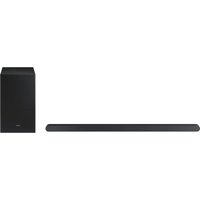
HW-S700D - Soundbar SAMSUNG - Free user manual and instructions
Find the device manual for free HW-S700D SAMSUNG in PDF.


User questions about HW-S700D SAMSUNG
0 question about this device. Answer the ones you know or ask your own.
Ask a new question about this device
Download the instructions for your Soundbar in PDF format for free! Find your manual HW-S700D - SAMSUNG and take your electronic device back in hand. On this page are published all the documents necessary for the use of your device. HW-S700D by SAMSUNG.
USER MANUAL HW-S700D SAMSUNG
Thank you for purchasing this Samsung product.
To receive more complete service, please register your product at
www.samsung.com
Figures and illustrations in this User Guide are provided for reference only and may differ from actual product appearance.
CONTENTS
01 Checking the Components 3
02 Product Overview 4
Top Panel of the Soundbar....4
Rear Panel of the Soundbar....5
03 Using the Soundbar Remote Control 6
How to Use the Remote Control....6
Setting the 🎨 (Sound Control)....8
Using the Hidden Buttons (Buttons with more than one function)....9
Output specifications for the different sound effect modes....9
Adjusting the Soundbar volume with a TV remote control .... 10
04 Connecting the Soundbar 11
Connecting the power and units 11
- Manually connecting the Subwoofer 12
- LED Indicator Lights on the Rear of Subwoofer 13
Connecting an Samsung Wireless Rear Speaker Kit (Sold Separately) to your Soundbar 13
05 Connecting to a TV 14
Connecting the TV that supports HDMI ARC (Audio Return Channel)....14
Connecting via Bluetooth 15
Connecting via Wi-Fi 16
Connecting to a TV that supports Dolby Atmos....17
Using the Q-Symphony Function 18
Using the Spacefit sound .... 19
06 Connecting a Mobile Device 20
Method 1. Connecting via Bluetooth .....20
Method 2. Connecting via Wi-Fi (Wireless Network)....22
Using Group Play 22
Connecting via Apple AirPlay ....23
Using the Tap Sound....23
07 Installing the Wall Mount 24
Installation Precautions....24
Wallmount Components 24
08 Installing the Soundbar in front of TV 25
09 Software Update 26
Auto Update 26
USB Update....26
Reset....26
Security updates information 26
10 Troubleshooting 27
11 License 28
01 CHECKING THE COMPONENTS
text_image
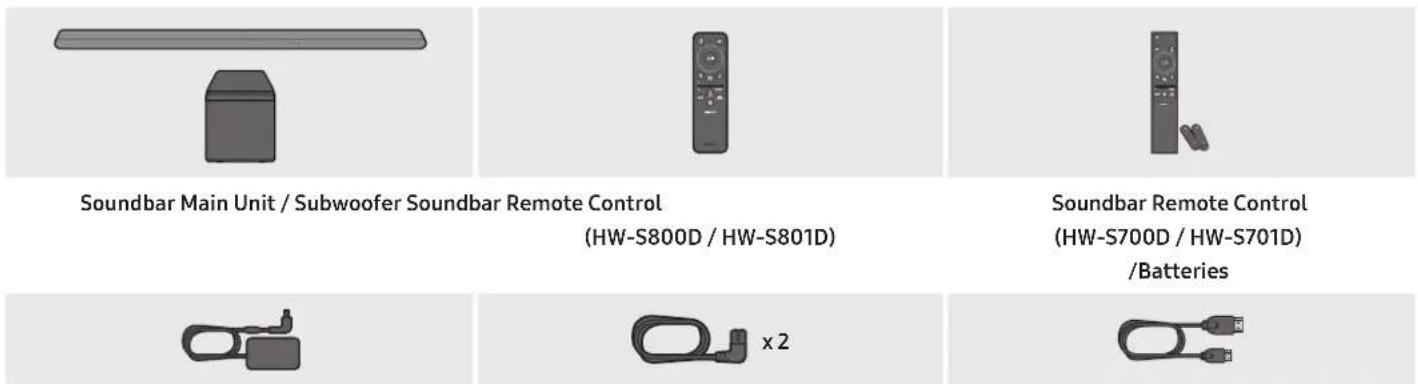
Soundbar Main Unit / Subwoofer Soundbar Remote Control (HW-S800D / HW-S801D) Soundbar Remote Control (HW-S700D / HW-S701D) /Batteries x2AC/DC Adapter (Soundbar) Power Cord (Subwoofer, Soundbar) HDMI to Micro HDMI Cable

natural_image
Three technical diagrams showing a toolbar, a 3D mechanical part with cross-sectional view, and a bolt head (no text or symbols)Wall Mount Guide Bracket-Wall Mount Holder-Screw

natural_image
Two 3D-rendered nail samples labeled (M5 X L55) with a dimension annotation 'x 4' (no other text or symbols)Screw Screw Anchor
- For more information about the power supply and power consumption, refer to the label attached to the product. (Label: Rear of the Soundbar Main Unit)
• To purchase additional components or optional cables, contact a Samsung Service Center or Samsung Customer Care. - For more information about the wallmount or rubber-foot, see pages 24\~25.
- Design, specifications, and App screen are subject to change without prior notice.
- The appearance of the accessories may differ slightly from the illustrations above.
02 PRODUCT OVERVIEW
Top Panel of the Soundbar
HW-S80*D HW-S70*D
text_image
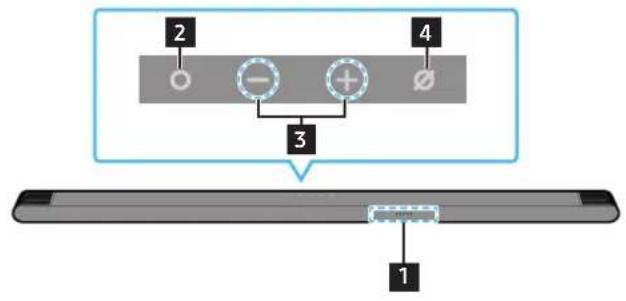
2 - + 4 3 1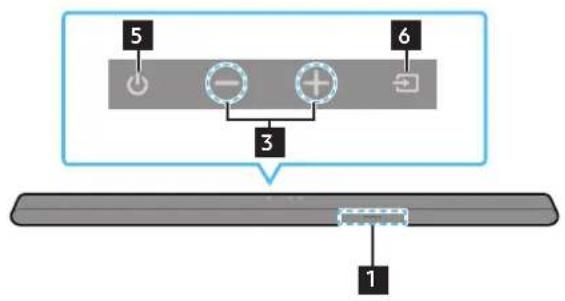
flowchart
graph TD
    A["1"] --> B["3"]
    B --> C["5"]
    C --> D["6"]
    style A fill:#f9f,stroke:#333
    style B fill:#ccf,stroke:#333
    style C fill:#cfc,stroke:#333
    style D fill:#fcc,stroke:#333
1 LED indicator
The LED Indicator flashes, glows, or changes color depending on the Soundbar's current mode or status. The color of the LED indicator and the number of lights indicate the active mode as described below.
| WWhite LED | WWhite LED | MMulticolor LED | WWhite LED | WWhite LED |
- The Multicolor LED changes to White, Cyan, Green, Red, and Blue depending on the mode or status.
2 ○ (Multi Function) Button
- In standby mode, press the Ⓐ (Multi Function) button to turn on the Soundbar.
- Press the O (Multi Function) button to change the mode. Each time you change the mode, the LED lights in white and then turns off.
| LED indicator |  | 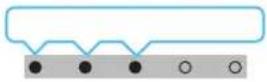 | |
| TV ARC or eARC Wi-Fi Bluetooth | |||
3 - +(Volume) Button
Adjusts the volume.
4 (Mic On/Off) Button
Press the button to turn the microphone on or off.
When the microphone is off, the LED indicator will light red.
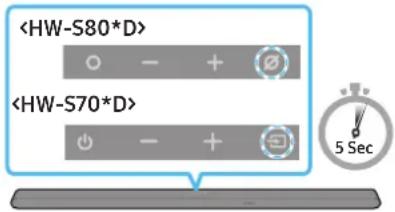
To switch to Bluetooth Pairing state in "Bluetooth" mode, press and hold the ☑ (Mic On/Off) button on the top of the Soundbar for more than 5 seconds.
| LED indicator |  | |
| Mic Off Mic On | ||
(Power) Button
Turns the power on and off.
6 → (Source) Button
Press the → (Source) button to change the input source.
- When you plug in the AC cord, the power button will begin working in 4 to 6 seconds.
- When you turn on this unit, there will be a 4 to 5 second delay before it produces sound.
• If you hear sounds from both the TV and Soundbar, go to the Settings menu for the TV audio and change the TV speaker to External Speaker. - You can turn on and off audio feedback by using SmartThings app. To learn about using the SmartThings app, refer to "Method 2. Connecting via Wi-Fi (Wireless Network)".
Rear Panel of the Soundbar
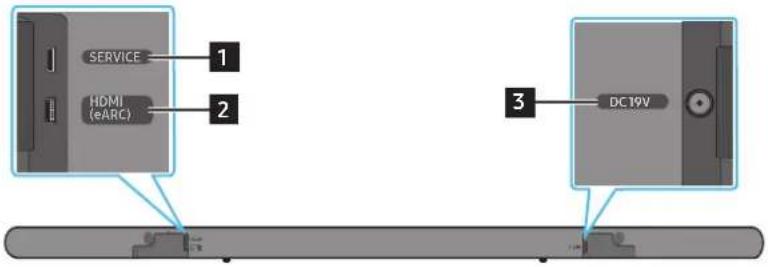
text_image
SERVICE HDMI (eARC) 1 2 3 DC19V1 SERVICE
Connect a USB storage device to upgrade the product's software.
2 HDMI (eARC)
Connect to the HDMI (eARC) port on a TV. (See page 14)
3 DC19V
Connect the AC/DC power adapter. (Power Supply In) (See page 11)
- When disconnecting the power cable of the AC/DC power adaptor from a wall outlet, pull the plug. Do not pull the cable.
- Do not connect this unit or other components to an AC outlet until all connections between components are complete.
03 USING THE SOUNDBAR REMOTE CONTROL
How to Use the Remote Control
HW-S80*D HW-S70*D
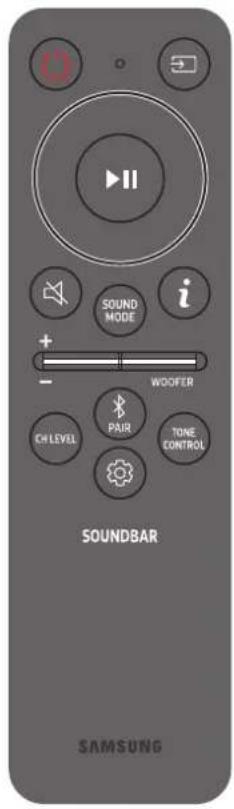
text_image
SOUNDBAR SAMSUNGUSB port (C-type) for charging
- Use the Remote less than 6 m from the product. The usable distance may vary with the wireless environmental conditions.
- When the remote control does not work due to low battery, charge it by using the USB-C type port.
• The illustration differs with the respective Remote Control model.

Fire or explosion may occur, resulting in damage to the remote control or personal injury.
- Do not apply shock to the remote control.
- Be careful not to let foreign substances such as metal, liquid, or dust come in contact with the charging terminal of the remote control.
- When the remote control is damaged or you smell smoke or burning fumes, immediately stop operation and then repair it at the Samsung service center.
- Do not arbitrarily disassemble the remote control.
- Be careful not to let infants or pets suck or bite the remote control. Fire or explosion may occur, resulting in damage to the remote control or personal injury.
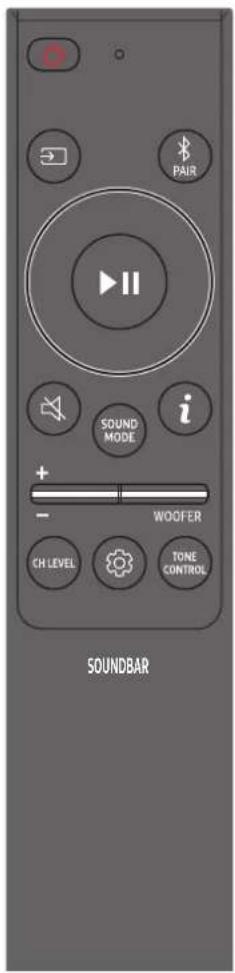
text_image
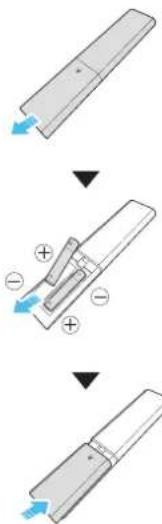
PAIR SOUND MODE i WOOFER CH. LEVEL TONE CONTROL SOUNDBARInserting Batteries before using the Remote Control (AAA batteries X 2) Slide the back cover in the direction of the arrow until it is completely removed. Insert 2 AAA batteries (1.5V) oriented so that their polarity is correct. Slide the battery cover back into position.
text_image
Diagram illustrating three-step assembly or process of a mechanical component with directional arrows and polarity indicators. Power Power | Turns the Soundbar on and off. | ||
| LED indicator | 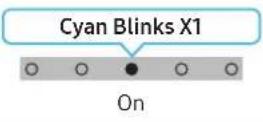 | 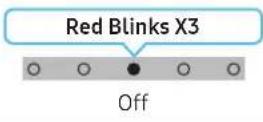 | |
| • Auto Power Down FunctionThe unit turns off automatically in the following situations:• In TV ARC or eARC / Wi-Fi / Bluetooth mode if there is no audio signal for 18 minutes. | |||
 Source Source | Press to select a source connected to the Soundbar.• Audio Feedback On/OffYou can turn on or off the Audio Feedback. Press and hold the→(Source) button on the remote control for 5 seconds while the Soundbar is off (Standby mode). | ||
| LED indicator | 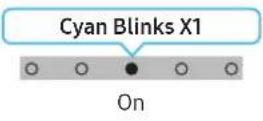 | 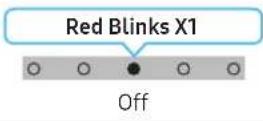 | |
 Up/Down/Left/Right Up/Down/Left/Right | 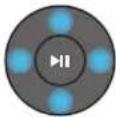 Press the indicated areas to select Up/Down/Left/Right.Press Up/Down/Left/Right on the button to select or set functions.• Music SkipPress the Right button to select the next music file. Press the Left button to select the previous music file.• ID SETPress and hold the Up button for 5 seconds to complete ID SET (when connecting to a wireless subwoofer or wireless rear speakers). Press the indicated areas to select Up/Down/Left/Right.Press Up/Down/Left/Right on the button to select or set functions.• Music SkipPress the Right button to select the next music file. Press the Left button to select the previous music file.• ID SETPress and hold the Up button for 5 seconds to complete ID SET (when connecting to a wireless subwoofer or wireless rear speakers). | ||
 Play / Pause Play / Pause | You can also play or pause music by pressing the button. | ||
 Mute Mute | Press the (Mute) button to mute the sound.Press it again to unmute the sound. | ||
| LED indicator | 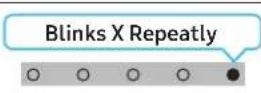 | ||
 Info Info | Press the button to display information about the current function. (See page 4)When connected to Dolby Atmos®, the LED indicator blinks cyan 3 times. | ||
 SOUND MODE SOUND MODE | By pressing the button, you can select the desired audio mode. Each time the mode changes, the Multicolor LED blinks in white. | ||
| LED indicator | 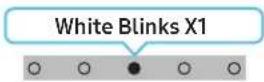 | ||
| Surround → Game → Standard → Adaptive Sound → DTS Virtual:X | |||
| • Surround : Provides a wider sound field than standard.• Game : Provides stereoscopic sound to immerse you in the action while gaming.• Standard : Outputs the original sound.• Adaptive Sound : Analyzes the content in real time and automatically provides the optimal sound field based on the characteristics of the content.• DTS Virtual:X : Immersive 3D sound from any content. | |||
 VOLUME VOLUME | Push the button up or down to adjust the volume. | ||
| LED indicator | 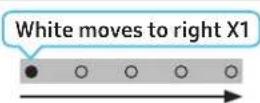 Volume Up Volume Up | 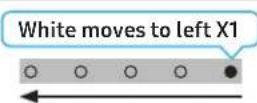 Volume Down Volume Down | |
 WOOFER (BASS)LEVEL WOOFER (BASS)LEVEL | Push the button up or down to adjust the level of the woofer (bass) to -12 or between -6 to +6. To set the woofer (bass) volume level to 0 (Default), press the button. | ||
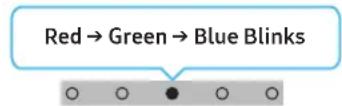
 Bluetooth PAIR Bluetooth PAIR | Switch the Soundbar to Bluetooth pairing mode.When you press the button, the LED display changes as shown below.• Until pairing is complete, the Multicolor LED changes as Red → Green → Blue in turn. | ||
| LED indicator | 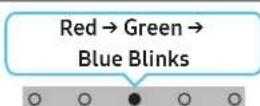 Pairing Pairing | 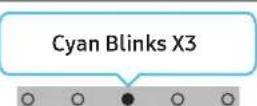 Connection is complete Connection is complete | |
| Ready to connect via Bluetooth. | |||
 CH LEVEL CH LEVEL | By pressing the button, you can adjust the volume of the each speaker.To control the volume of the each speaker select "Center Level" or "Front Top Level" in Sound Settings, and then adjust the volume between -6~+6 by using theUp/Downbuttons.If the Rear Speakers (sold separately) are connected, the setting "Rear Level" and "Rear Top Level" is supported. To adjust the volume of the "Rear Level" and "Rear Top Level" between -6 to +6 by using theUp/Downbuttons.- The Front Top Level and Rear Top Level functions are supported by HW-S80*D model only. | ||
| LED indicator | White Blinks X1 | ||
| Center Level → Front Top Level | |||
| TONE CONTROL | By pressing the button, you can adjust the volume of the treble or bass sound. The defired item can be adjusted using theUp/Downbuttons. This function is enabled in Sound mode excluding inStandardmode.To control the volume of the treble or bass sound, select "Treble" or "Bass" in Sound Settings, and then adjust the volume between -6~+6 by using theUp/Downbuttons.Once the bass level is changed, the woofer level will be also adjusted accordingly. | ||
| LED indicator | White Blinks X1 | ||
| Treble → Bass | |||
| Sound Control | By pressing the button, you can set the audio function. The desired item can be adjusted using theUp/Downbuttons. Each time the mode changes, the Multicolor LED blinks in white. | ||
| LED indicator | White Blinks X1 | ||
| SpaceFit Sound → Active Voice Amplifier → Voice enhancement →Night Mode → Sync → Virtual | |||
| Press and hold the(Sound Control)button for about 5 seconds to adjust the sound for each frequency band.150Hz, 300Hz, 600Hz, 1.2kHz, 2.5kHz, 5kHz, and 10kHz are selectable using theLeft/Rightbuttons and each can be adjusted to a setting between -6 to +6 using theUp/Downbuttons.(Make sure the Sound mode is set to "STANDARD")TheSpaceFit SoundandActive Voice Amplifierfunctions are not supported by HW-S70*D model.If the Rear Speakers (sold separately) are connected, the setting "Sound Grouping" and "Private Rear Sound" is supported. | |||
Setting the Sound Control)
- SpaceFit Sound: This function analyzes the user's listening space with the Soundbar's microphone and provides optimal sound for the space. For more information, refer to page 19.
- Active Voice Amplifier : Analyzes external noise in real time while soundbar is playing so that voice audio can always be heard clearly.
- No data is saved during the analysis.
• Voice enhancement makes it easier to hear spoken dialog in movies and TV. - Night mode is optimized for night time with the settings adjusted to bring the volume down but keep the dialog clear.
-
Sound Grouping : The Soundbar main unit and the Surround Speakers play the entire sound instead of surround sound, making it ideal for large groups of people listening to music in a large space.
-
This menu is initially activated when the Surround Speakers are connected, and then the menu remains activated regardless of the connection of the Surround Speakers.
- If you enable the Sound Grouping, there are no differences in sounds between the Sound modes.
- Sound does not come out from all speaker units of the Soundbar main unit and the Surround speakers, but only from certain predetermined units, which varies by model.
- Private Rear Sound : This mode sets the sound to come out from the Surround Speakers only, allowing you to listen without being disturbed by others.
- If you enable this mode, sound does not come out from the Soundbar main unit and the subwoofer. Sound only comes out from the front channel of the Surround Speakers.
- If you enable the Private Rear Sound, there are no differences in sounds between the Sound modes.
- The function turns off when the power turns off or the Surround Speakers connection is lost.
- The menu is activated only when the Surround Speakers are connected.
- This mode is automatically turned off and becomes unavailable when the Q-symphony function turns on.
- If the video on the TV and audio from the Soundbar are not synchronized, select "Sync" in Sound Control, and then set the audio delay between 0\~300 milliseconds by using the Up/Down buttons.
- Sync is only supported for some functions.
- The Virtual function can be turned On/Off by using the Up/Down buttons.
Using the Hidden Buttons (Buttons with more than one function)
| Hidden Button | Reference page | |
| Remote Control Button Function | ||
| WOOFER (Up) TV remote control | On/Off (Standby) page 10 | |
| Up ID SET page 7 | ||
| (Sound Control) | 7 Band EQ page 8 | |
| (Source) | Audio Feedback On/Off (Standby) page 6 | |
Output specifications for the different sound effect modes
| Effect Input | Output (HW-S80*D) Output (HW-S70*D) | ||||
| With Subwoofer Only | With Subwoofer & Wireless Rear Speaker Kit | With Subwoofer Only | With Subwoofer & Wireless Rear Speaker Kit | ||
| Surround | 2.0 ch 3.1.2 ch | 5.1.4 ch 3.1 ch | 5.1 ch | ||
| 5.1 ch | 3.1.2 ch 5.1.4 ch | 3.1 ch | 5.1 ch | ||
| Dolby Atmos® | 3.1.2 ch | 5.1.4 ch | 3.1 ch | 5.1 ch | |
| Game | 2.0 ch | 3.1.2 ch | 5.1.4 ch | 3.1 ch | 5.1.ch |
| 5.1 ch | 3.1.2 ch 5.1.4 ch | 3.1 ch | 5.1 ch | ||
| Dolby Atmos® | 3.1.2 ch | 5.1.4 ch | 3.1 ch | 5.1 ch | |
| Standard | 2.0 ch | 2.1 ch | 2.1 ch | 2.1 ch | 2.1 ch |
| 5.1 ch | 3.1 ch | 5.1 ch | 3.1 ch | 5.1 ch | |
| Dolby Atmos® | 3.1.2 ch | 5.1.4 ch | 3.1 ch | 5.1 ch | |
| Adaptive Sound | 2.0 ch 3.1.2 ch | 5.1.4 ch 3.1 ch | 5.1 ch | ||
| 5.1 ch | 3.1.2 ch 5.1.4 ch | 3.1 ch | 5.1 ch | ||
| Dolby Atmos® | 3.1.2 ch | 5.1.4 ch | 3.1 ch | 5.1 ch | |
| 2.0 ch 3.1.2 ch | 5.1.4 ch 3.1 ch | 5.1 ch | |||
| DTS Virtual:X | 5.1 ch | 3.1.2 ch 5.1.4 ch | 3.1 ch | 5.1 ch | |
| Dolby Atmos® | 3.1.2 ch | 5.1.4 ch | 3.1 ch | 5.1 ch | |
- The Samsung Wireless Rear Speaker Kit can be purchased separately. To purchase a Kit, contact the vendor you purchases the Soundbar from.
- The Surround Speakers will not produce sounds for 2 channel output while STANDARD mode is in use. To enable sound for the Surround Speakers, change the effect mode to SURROUND.
Adjusting the Soundbar volume with a TV remote control
Adjust the Soundbar volume using the TV's remote control.
- This function can be used with IR remote controls only. Bluetooth remote controls (remote controls that require pairing) are not supported.
-
Set the TV speaker to External Speaker to use this function.
• Manufacturers supporting this function:
Samsung, VIZIO, LG, Sony, Sharp, PHILIPS, PANASONIC, TOSHIBA, Hisense, RCA -
Turn Off the Soundbar.
- Push up and hold the WOOFER button for 5 seconds.
Each time you push the WOOFER button up and hold it for 5 seconds, the mode switches in the following order: "OFF-TV REMOTE" (Default mode), "SAMSUNG-TV REMOTE", "ALL-TV REMOTE".
| Remote Control Button LED Indicator Status | |||
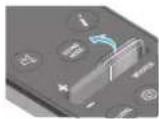 |  | (Default mode)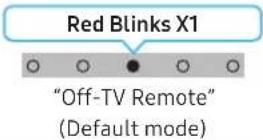 | Disable the TV remote control. |
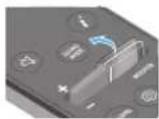 |  | 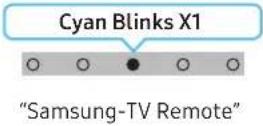 | Enable a Samsung TV's IR remote control. |
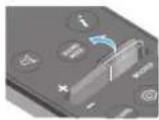 |  | 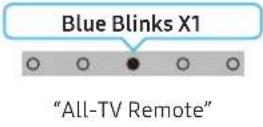 | Enable a third-party TV's IR remote control. |
04 CONNECTING THE SOUNDBAR
Connecting the power and units
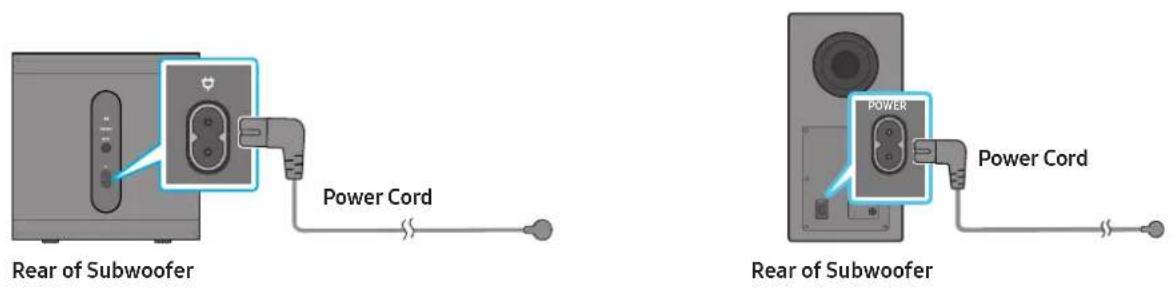
Use the Power cord to connect the Subwoofer and Soundbar to an electrical outlet in the following order:
- For more information about the required electrical power and power consumption, refer to the label attached to the product. (Label: Bottom of the Soundbar Main Unit)
- Connect the Power cord to the Subwoofer.
HW-S80*D HW-S70*D
- Connect the Power cord to the Soundbar.
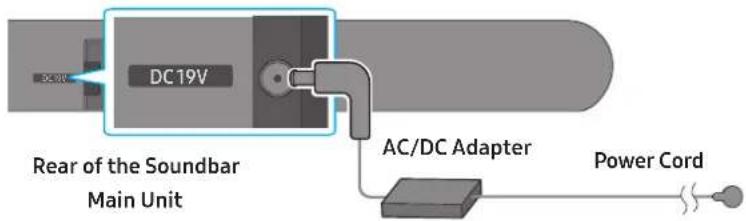
text_image
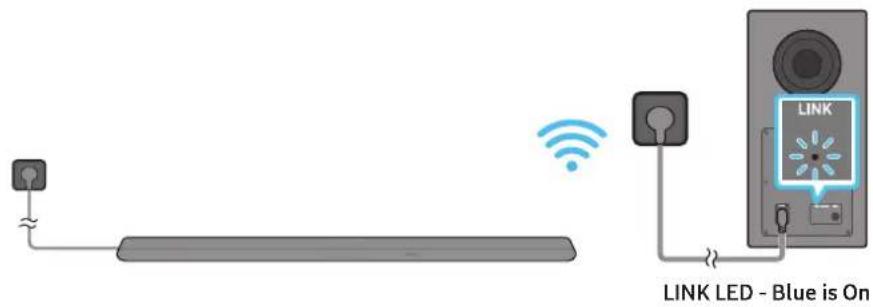
DC 19V Rear of the Soundbar Main Unit AC/DC Adapter Power Cord- Connect power to the Soundbar and Subwoofer. The Subwoofer is automatically connected when the Soundbar is turned on.
text_image
LINK LED - Blue is OnNOTE
- Connect the Subwoofer power before connecting to the Soundbar. The Subwoofer will be automatically connected when turning on the Soundbar.
- If you unplug and reconnect the power cord when the product is turned on, the Soundbar turns on automatically.
Before performing the manual connection procedure below:
-
Check whether the power cables for the Soundbar and subwoofer is connected properly.
• Make sure that the Soundbar is turned off. -
Turn off the Soundbar main.
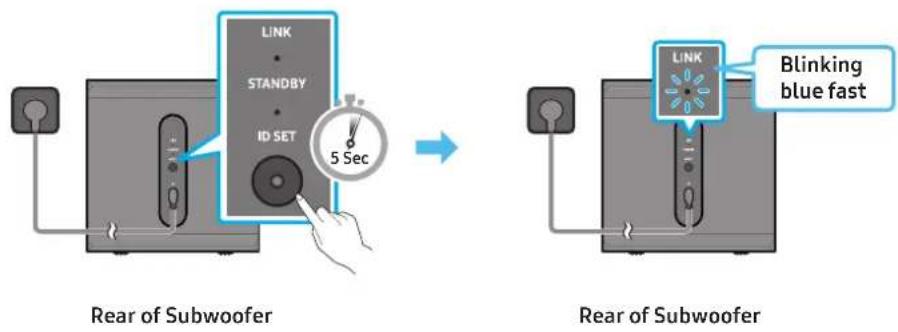
- Press and hold ID SET on the rear of the subwoofer for at least 5 seconds.
- The red indicator at the rear of each speaker turns off and the blue indicator blinks.
HW-S80*D
HW-S70*D

text_image
LINK STANDBY ID SET 5 Sec LINK Blinking blue fastRear of Subwoofer Rear of Subwoofer
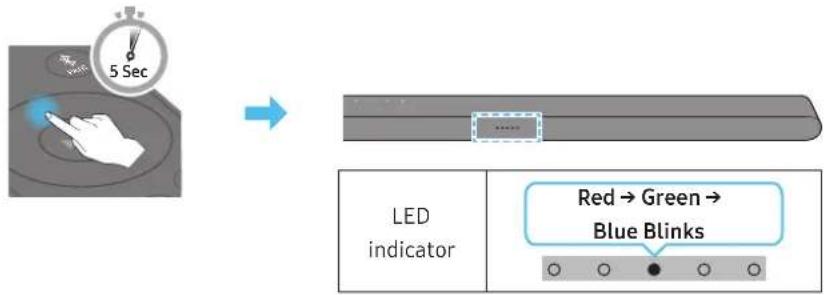
- Press the Up button on the remote control for 5 seconds.
- The Soundbar will automatically power on when ID SET is complete.
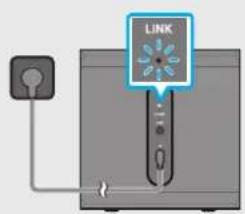
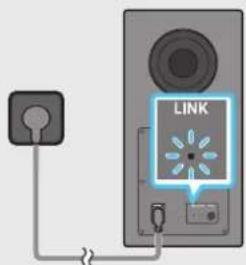
- Check if the LINK LED is solid blue (connection complete).
HW-S80*D
text_image
LINKLINK LED - Blue is On
HW-S70*D
text_image
LINKLINK LED - Blue is On
The LINK LED indicator stops blinking and glows a solid blue when a connection is established between the Soundbar and the Wireless Subwoofer.
| LED Status Description Resolution | |||
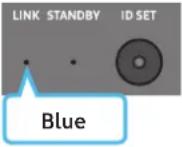 | On | Successfully connected (normal operation) | - |
| Blinking Recovering the connection | Check if the power cable attached to the main Soundbar unit is connected properly or wait about 5 minutes. If blinking persists, try manually connecting the subwoofer. See page 12. | ||
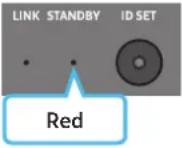 | On | Standby (with the Soundbar main unit turned off) | Check if the power cable attached to the main Soundbar unit is connected properly. |
| Connection failed | Connect again. See the instructions for manual connection on page 12. | ||
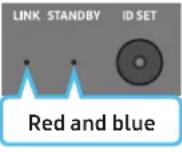 | Blinking Malfunction | See the contact information for the Samsung Service Center in this manual. | |
NOTE
- If the main unit is powered off, the wireless subwoofer will go into stand-by mode and the STANDBY LED on the rear of the sub-woofer will turn red after blinking in blue several times.
- If you use a device that uses the same frequency as the Soundbar near the Soundbar, interference may cause some sound interruption.
- The maximum transmission distance of the main unit's wireless signal is about 32.8 ft (10 m), but may vary depending on your operating environment. If a steel-concrete or metallic wall is between the main unit and the wireless subwoofer, the system may not operate at all because the wireless signal cannot penetrate metal.
- The illustration differs with the respective model.
CAUTION
- Wireless receiving antennas are built into the wireless subwoofer. Keep the unit away from water and moisture.
- For optimal listening performance, make sure that the area around the wireless subwoofer is clear of any obstructions.
Connecting an Samsung Wireless Rear Speaker Kit (Sold Separately) to your Soundbar
Expand to true wireless surround sound by connecting the Samsung Wireless Rear Speaker Kit(sold separately) to your Soundbar.
- For HW-S80*D : SWA-9500S / For HW-S70*D : SWA-9200S
For detailed information on connections, see the Samsung Wireless Rear Speaker Kit manual.
05 CONNECTING TO A TV
Connecting the TV that supports HDMI ARC (Audio Return Channel)

CAUTION
- When using an HDMI to Micro HDMI cable, take caution not to break the cable terminal.
- When the HDMI cable is connected, the HDMI signal is received first.
- The recommended cable is an HDMI cable certified by HDMI.org.
- To connect the HDMI cable between the TV and Soundbar, be sure to connect the terminals marked ARC. Otherwise, the TV sound may not be output.
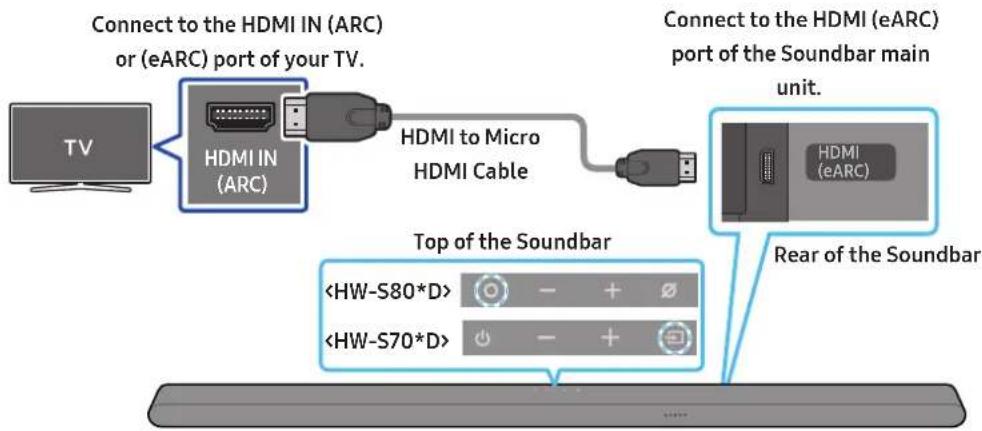
flowchart
graph TD
    A["TV"] --> B["HDMI IN (ARC)"]
    B --> C["HDMI to Micro HDMI Cable"]
    C --> D["Top of the Soundbar"]
    D --> E["Rear of the Soundbar"]
    B --> F["Connect to the HDMI IN (ARC) or (eARC) port of your TV."]
    D --> G["Connect to the HDMI (eARC) port of the Soundbar main unit."]
| LED indicator | White On → Off |
| TV ARC or eARC |
- With the Soundbar and TV turned off, connect the HDMI cable as shown in the figure.
- Turn on the Soundbar and TV.
-
Your TV will output sound via the Soundbar.
-
When the TV sound is not output, press the ○ (Multi Function) / → (Source) button at the top of the Soundbar or the → (Source) button on the remote control to select the "TV ARC" mode.
- To connect with eARC, the eARC function in the TV menu should be set to On. Refer to the TV user manual for details on setting. (e.g. Samsung TV: Home ( Ⓜ ) → Menu → Settings ( ⚙ ) → All Settings ( ⏱ ) → Sound → Expert Settings → HDMI-eARC Mode (Auto))
- When the sound is not output, check the HDMI cable connection again.
- Use the volume buttons on the TV's remote control to change the volume on the Soundbar.
NOTE
- We recommend you use a coreless HDMI cable if possible. If you use a cored HDMI cable, use one whose diameter is less than 0.55 inches (14 mm).
- This function is not available if the HDMI cable does not support ARC.
- When the audio in a broadcast is encoded in Dolby Digital and the "Digital Output Audio Format" on your TV is set to PCM, we recommend that you change the setting to Dolby Digital. When the setting on the TV is changed, you will experience better sound quality. (The TV menu may use different words for Dolby Digital and PCM depending on the TV manufacturer.)
Connecting via Bluetooth
When a Samsung TV is connected using Bluetooth, you can hear stereo sound without the hassle of cabling.
- Only one Samsung TV can be connected at a time.
- Samsung TV that supports Bluetooth can be connected. Check the specifications of your TV.
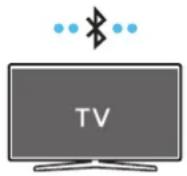
The initial connection
1.
Bluetooth Pairing button LED Indicator
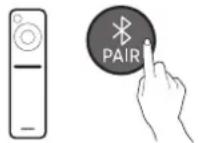
(OR)
When in "Bluetooth" mode
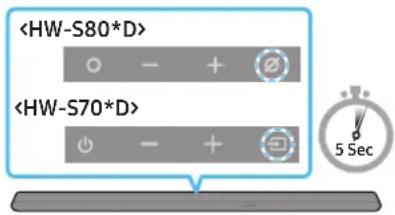
text_image
Pairing

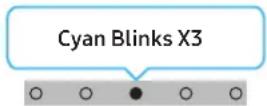
Connection is complete
- Until pairing is complete, the Multicolor LED changes as Red → Green → Blue in turn.

Ready to connect via Bluetooth.
- Select Bluetooth mode on the Samsung TV.
(e.g. Home (💡) → Menu → Settings (💡) → All Settings (💡) → Sound → Sound Output → Bluetooth Speaker List → Ultra Slim Soundbar (Bluetooth))
- Select "Ultra Slim Soundbar" from the list on TV's screen.
An available Soundbar is indicated with "Need Pairing" or "Paired" on the TV's Bluetooth device list. To connect the Samsung TV to the Soundbar, select the message, and then establish a connection.
- You can now hear Samsung TV sound from the Soundbar.
If the device fails to connect
- If you have an existing Soundbar (e.g., Ultra Slim Soundbar) on the list of speakers on the Samsung TV, delete it.
- Then repeat steps 1 through 3.
Disconnecting the Soundbar from the Samsung TV
Press the ⬤ (Multi Function) / → (Source) button at the top of the Soundbar or the → (Source) button on the remote control to select the mode other than "Bluetooth".
- Disconnecting takes time because the Samsung TV must receive a response from the Soundbar.
(The time required may differ, depending on the Samsung TV model.)
What is the difference between BT READY and BT PAIRING?
- BTREADY: In this mode, you can reconnect any Samsung TV or mobile device that was connected before.
- BTPAIRING: In this mode, you can connect a new device to the Soundbar.
(Press the ✦PAIR button on the Soundbar remote control or press and hold the ⭕(Mic On/Off) / →(Source) button on the top of the Soundbar for more than 5 seconds while the Soundbar is in "BT" mode.)
Notes on Bluetooth connection
- Locate a new device within 3.28 ft (1 m) to connect via Bluetooth communication.
- If asked for a PIN code when connecting a Bluetooth device, enter <0000>.
- The Soundbar automatically turns off after 18 minutes in the Ready state.
- The Soundbar may not perform Bluetooth search or connection correctly under the following circumstances:
- If there is an electronic equipment or electric apparatus that can cause wireless interference around the Soundbar
- If several Bluetooth devices are simultaneously paired with the Soundbar.
- If the Bluetooth device is turned off, not in place, or malfunctions.
- Electronic devices may cause radio interference. Devices that generate electromagnetic waves must be kept away from the Soundbar main unit - e.g., microwaves, wireless LAN devices, etc.
- Precaution: The Soundbar will restart automatically if you turn on/turn off Bluetooth.
- Bluetooth Port deactivation method : Press the TONE CONTROL button on the remote control of the Soundbar for 30 seconds to turn Bluetooth On/Off.
Connecting via Wi-Fi
Pre-connection Checklist
• Wi-Fi connection is available only on Samsung TV.
- Check whether the wireless router (Wi-Fi) is turned on and the TV is connected to the router.
- The TV and Soundbar must be connected to the same wireless network (Wi-Fi).
- If your wireless router (Wi-Fi) uses a DFS channel, you will not be able to establish a Wi-Fi connection between the TV and Soundbar. Contact your Internet service provider for details.
- Because the menus may differ depending on the year of manufacture, refer to your TV manual.
- To connect the TV to the Soundbar via Wi-Fi, connect the Soundbar to the wireless router first. See page 22, for details on how to establish a Wi-Fi connection.
-
For more information about Wi-Fi connection to the Soundbar, see page 22, "Method 2. Connecting via Wi-Fi (Wireless Network)".
-
Change the input source of the TV by using the Audio menu to Soundbar.
• Samsung TVs released in 2017 or later
Home (💡) → Menu → Settings (💡) → All Settings (💡) → Sound → Sound Output → Ultra Slim Soundbar (Wi-Fi)
NOTE
The Wi-Fi Dolby Atmos connection is available in some Samsung TVs and some Soundbar models.
Precaution : The Soundbar will restart automatically if you turn on/turn off Wi-Fi.
- Wi-Fi Port deactivation method : Press the CH LEVEL button on the remote control of the Soundbar for 30 seconds to turn Wi-Fi On/Off.
Connecting to a TV that supports Dolby Atmos
Pre-connection Checklist
- Dolby Atmos® is supported in "TV ARC" or "Wi-Fi" mode.
- Make sure that the content supports Dolby Atmos®.
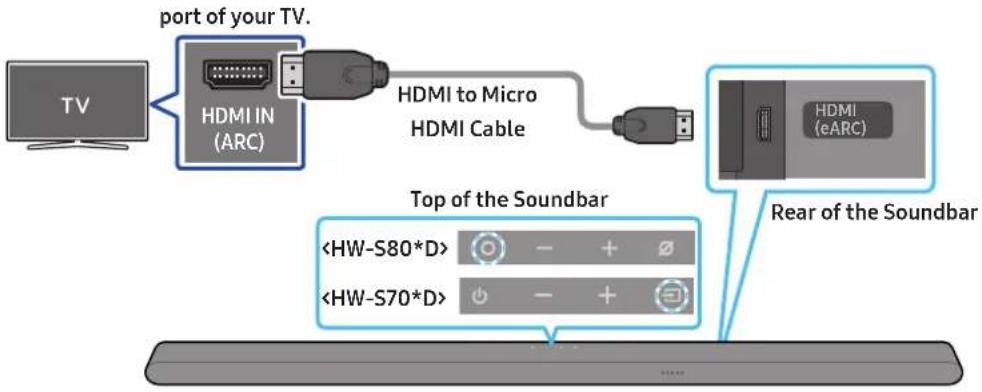
Connect to the HDMI IN (ARC)
flowchart
graph TD
    A["TV"] --> B["port of your TV."]
    B --> C["HDMI IN (ARC)"]
    C --> D["HDMI to Micro HDMI Cable"]
    D --> E["HDMI (eARC)"]
    F["Top of the Soundbar"] --> G["<HW-S80*D> - + Ø"]
    F --> H["<HW-S70*D> - + 3"]
| LED indicator | 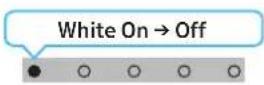 |
 | TV ARC or eARC |
- With the Soundbar and TV turned off, connect the HDMI cable as shown in the figure.
- Turn on the Soundbar and TV.
- TV sound is output from the Soundbar.
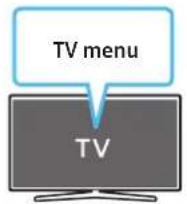
Wi-Fi


| LED indicator | White On → Off |
 | Wi-Fi |
- Connect the Soundbar and TV to the same wireless network (Wi-Fi).
- For sound output of the TV, select Soundbar.
- TV sound is output from the Soundbar.
NOTE
- When you use Dolby Atmos®: If the input source is Dolby Atmos®, refer to "Output specifications for the different sound effect modes" on page 9.
- Configuring Dolby Atmos® on your BD player or other device connected to the TV.
Open the audio output options on the settings menu of your BD player or other device and make sure that "No Encoding" is selected for Bitstream. For example, on a Samsung BD Player, go to Home Menu → Sound → Digital Output and then select Bitstream (unprocessed).
- This function is available in some Samsung TVs and some Soundbar models.
Using the Q-Symphony Function
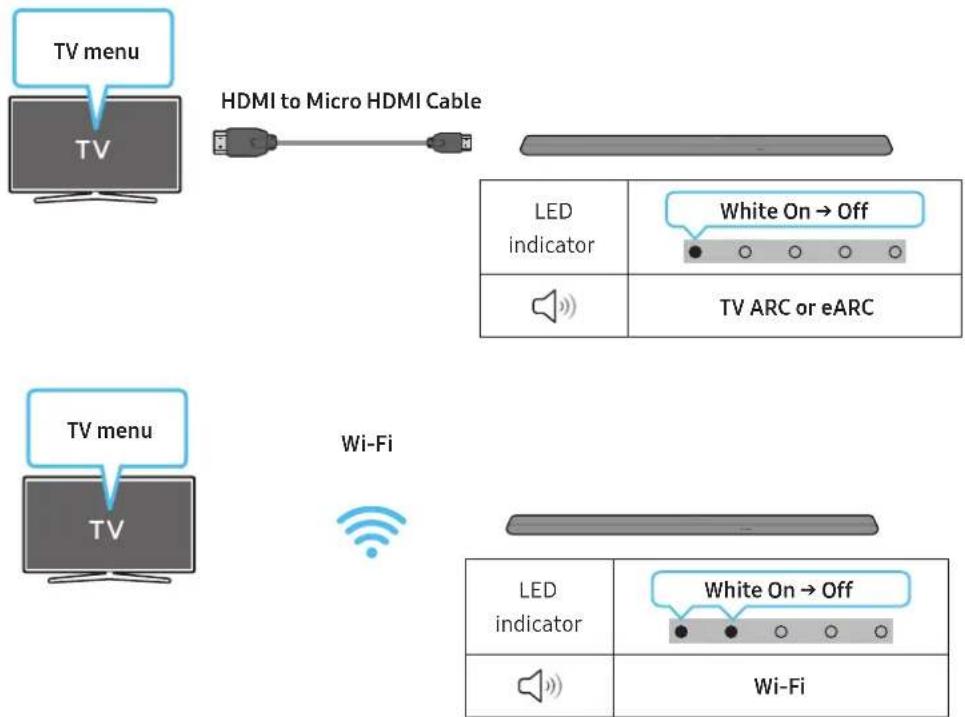
- When the Soundbar connects to a Samsung TV that supports the Q-Symphony function you can play the sound simultaneously through the Soundbar and the TV. If you use the Q-Symphony function, the surround sound played on the TV allows you to enjoy a richer, more three-dimensional surround sound effect.
- When the Soundbar is connected "Q-Symphony" menu appears on the TV.
Settings ( Ⓞ → All Settings ( Ⓞ → Sound → Sound Output
• TV menu example: Q-Symphony
flowchart
graph TD
    A["TV menu"] --> B["HDMI to Micro HDMI Cable"]
    B --> C["LED indicator"]
    C --> D["White On → Off"]
    C --> E["TV ARC or eARC"]
    F["TV menu"] --> G["Wi-Fi"]
    G --> H["LED indicator"]
    H --> I["White On → Off"]
    H --> J["Wi-Fi"]
NOTE
- This function is operated according to the Codec supported by TV.
- This function is supported only when the HDMI Cable or Wi-Fi is connected.
- Ensure that your TV and Soundbar are connected to the same wireless router/frequency.
- This function is available in some Samsung TVs and some Soundbar models.
Using the Spacefit sound
Provides optimized sound quality by analyzing the listening spaces.
Method 1. Connecting via Soundbar
To enable this function, turn on the SpaceFit Sound mode with the remote control of the Soundbar.
(Sound Control) → "SpaceFit Sound Off" → ▲ (Up) → "SpaceFit Sound On")
• This is available in all Sound modes.
Method 2. Connecting via TV
To enable this function, turn on the Adaptive Sound+ mode on your Samsung TV menu.
(Home ( home ) → Menu → Settings ( else ) → All Settings ( else ) → General → Intelligent Mode Settings → Adaptive Sound+)
• The sound mode on your Soundbar will automatically change to Adaptive Sound+ if you enable the Adaptive Sound+ mode on your TV.
NOTE
- This function works when the Soundbar connects to some of the Samsung TVs.
- HW-S70*D models support only the method of "Connecting via TV".
06 CONNECTING A MOBILE DEVICE
Method 1. Connecting via Bluetooth
When a mobile device is connected using Bluetooth, you can hear stereo sound without the hassle of cabling.
- When you connect a paired Bluetooth device with the Soundbar off, the Soundbar automatically turns on.
The initial connection
When connecting to a new Bluetooth device, make sure the device is within 3.28 ft (1 m) distance.
1.
Bluetooth Pairing button LED Indicator

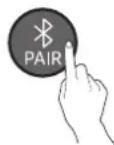
(OR)
When in "Bluetooth" mode
text_image
Red → Green → Blue Blinks

Pairing

Cyan Blinks X3

Connection is complete
- Until pairing is complete, the Multicolor LED changes as Red → Green → Blue in turn.

Ready to connect via Bluetooth.
- On your device, select "Ultra Slim Soundbar" from the list that appears.
- Play music files from the device connected via Bluetooth through the Soundbar.
If the device fails to connect
- If you have an existing Soundbar (e.g., "Ultra Slim Soundbar") in the list of speakers on the Mobile device, delete it.
- Repeat steps 1 and 2.
Notes on Bluetooth connection
- Locate a new device within 3.28 ft (1 m) to connect via Bluetooth communication.
- If asked for a PIN code when connecting a Bluetooth device, enter <0000>.
- The Soundbar automatically turns off after 18 minutes in the Ready state.
-
The Soundbar may not perform Bluetooth search or connection correctly under the following circumstances:
-
If there is a strong electrical field around the Soundbar.
- If several Bluetooth devices are simultaneously paired with the Soundbar.
-
If the Bluetooth device is turned off, not in place, or malfunctions.
-
Electronic devices may cause radio interference. Devices that generate electromagnetic waves must be kept away from the Soundbar main unit - e.g., microwaves, wireless LAN devices, etc.
• The Soundbar supports SBC data (44.1kHz, 48kHz). - Connect only to a Bluetooth device that supports the A2DP (AV) function.
- You cannot connect the Soundbar to a Bluetooth device that supports only the HF (Hands Free) function.
- When connecting the Soundbar to a Bluetooth device, place them as close to each other as possible.
- The farther the Soundbar and Bluetooth device are from each other, the lower the sound quality will become.
The Bluetooth connection may break when the devices are out of the effective range.
- The Bluetooth connection may not function as intended in areas with poor reception.
- A Bluetooth device may experience noise or malfunction under in the following conditions:
- When the body is in contact with the signal transceiver on the Bluetooth device or Soundbar
- In corners or when there is an obstacle in proximity, such as a wall or partition, where electrical changes may occur.
- When exposed to radio interferences by other products operating on the same frequency ranges, such as medical equipment, microwave ovens, and wireless LAN devices.
- Obstacles such as doors and walls may still impact the sound quality even when the devices are within the effective range.
- Note that your Soundbar cannot be paired with other Bluetooth devices while using the Bluetooth option.
- This wireless device may cause electrical interference during operation.
Disconnecting the Bluetooth device from a Soundbar
You can disconnect a Bluetooth device from the Soundbar. For instructions, see the Bluetooth device's user manual.
• The Soundbar will be disconnected.
- If the Soundbar is disconnected from the Bluetooth device, the multicolor LED indicator on the Soundbar blinks "Red" three times.
Disconnecting the Soundbar from the Bluetooth device
Press the ⬤ (Multi Function) / → (Source) button on the top of the Soundbar or the → (Source) button on the remote control to switch the mode from "Bluetooth".
- Disconnecting takes time because the Bluetooth device must receive a response from the Soundbar. (Disconnection time may differ, depending on the Bluetooth device)
Method 2. Connecting via Wi-Fi (Wireless Network)
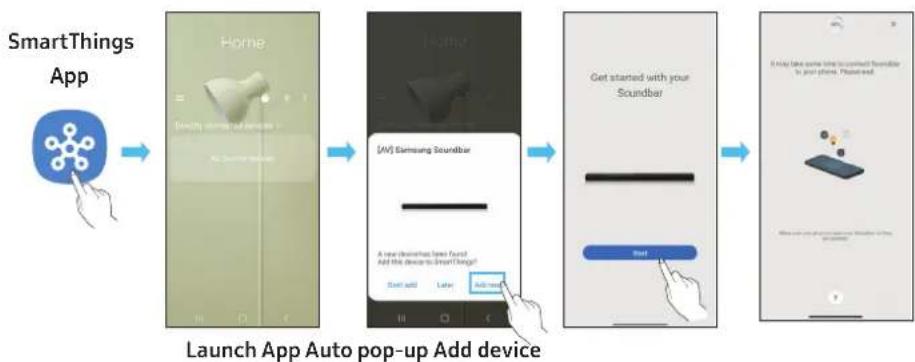
To connect a Soundbar to a mobile device via a wireless network (Wi-Fi), the SmartThings app is required.
The initial connection
- Install and launch the SmartThings app from your mobile device (smartphone or tablet).
- On the app, follow the screen instructions to add the Soundbar.
- The automatic pop-up (the second screenshot below) may not show on some devices.
If the pop-up window does not appear, press “+” on the Home screen. The Soundbar is added to the app.
• The illustration below may differ with the app version.
flowchart
graph LR
    A["SmartThings App"] --> B["Home"]
    B --> C["14-Same"]
    C --> D["Get started with your Soundbar"]
    D --> E["Add device to Smart Things?"]
    E --> F["Start add Later Add mode"]
    F --> G["Launch App Auto pop-up Add device"]
To change your Wi-Fi connection
- Launch the SmartThings app from your mobile device (smartphone or tablet).
- On the app, delete the registered Soundbar, and then add it again.
Using Group Play
• To benefit from this feature, add your Soundbar to the SmartThings app.
• To enable this, connect at least two audio devices to the same Wi-Fi network at 5 GHz.
- This is available on Samsung Sound devices that support Wi-Fi released year 2024 or later.
• This feature does not support TV sound.
Configuring Group Play
- Run the SmartThings app on your mobile device.
-
Add the Soundbar in the SmartThings app according to the instructions in the "Method 2. Connecting via Wi-Fi (Wireless Network) > The initial connection" section.
-
Tap the Soundbar's card.
-
On your mobile device, tap Create Group under the audio device icon.
-
Create Group button appears only when Soundbar is in Wi-Fi mode.
-
If the Soundbar is playing the TV sound, the connection to the TV is disconnected when creating a group.
-
Enable Group Play.
-
Select a desired device in the list, and tap Apply.
-
You can add a maximum of 4 devices.
- With Group Play, the audio will be output through the host device alone.
- When a device connected to the host device switches to a different source, the device will be deleted from the group automatically.
- When the host device is connected to a TV, the generated group will be deleted automatically.
Disabling Group Play
- Tap the audio device's card.
- On your mobile device, tap Edit Group under the audio device icon.
- Disable Group Play.
• To disable an individual device, uncheck the device from the list and tap Apply.
Connecting via Apple AirPlay
• This feature may not be available in some countries.
- This Samsung Soundbar supports AirPlay® and requires iOS 13.4 or later.
- To enable AirPlay in your Soundbar, you must first register the device with the Samsung Smart Things app by agreeing with the app's terms and conditions.
- Make sure the Soundbar is powered on and connected to the same Wi-Fi network as your Apple® device.
With AirPlay, you can stream music, podcasts, and other audio from your Apple devices to the Samsung Soundbar.
- Select from an AirPlay-supported app or Control Center on your iPhone®, iPad®, or Mac®.
- Select the Soundbar from the list of available devices to play the current audio to.
Using the Tap Sound
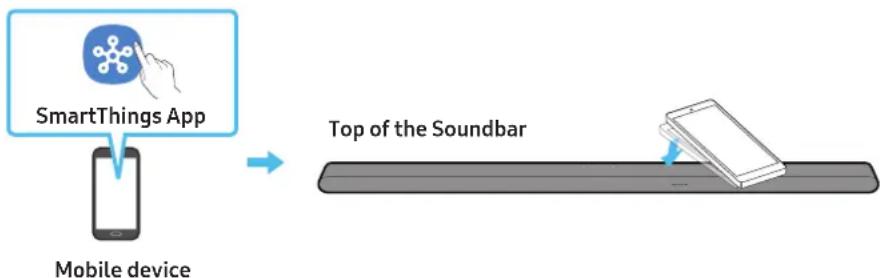
Tap the Soundbar with your mobile device to play the sound of content on the mobile device through the Soundbar.
- This function may not be supported depending on the mobile device.
- This function is only compatible with Samsung mobile devices with Android 8.1 or later.
flowchart
graph LR
    A["SmartThings App"] --> B["Mobile device"]
    B --> C["Top of the Soundbar"]
- Turn on the Tap Sound function on your mobile device.
- For details on how to turn on the function, refer to "Setting the Tap Sound function" below.
- Tap the Soundbar with the mobile device. Select "Start now" in the displayed message window.
A connection is established between the mobile device and Soundbar via Bluetooth. -
Play the sound of content on the mobile device through the Soundbar.
-
This function connects a mobile device to the Soundbar via Bluetooth by detecting vibration that occurs when the device touches the Soundbar.
- Make sure the mobile device does not tap a sharp corner of the Soundbar. The Soundbar or mobile device may become scratched or damaged.
- It is recommended that the mobile device be covered with a case. Lightly tap the wide area in the upper portion of the Soundbar, without using excessive force.
• To use this function, update the SmartThings app to the latest version.
The function may not be supported, depending on the app version.
Setting the Tap Sound function
Use the SmartThings app to turn on the Tap View, Tap Sound function.
- On the mobile device, run the SmartThings app.
- Select (≡→_) in the SmartThings app screen displayed on the mobile device.
- Set "Tap View, Tap Sound" to On to allow the function to work when a mobile device moves close to the Soundbar. The function is turned on.
NOTE
- When the mobile device is in power-saving mode, the Tap Sound function does not work.
- The Tap Sound function may not work if there are devices near the Soundbar that cause radio interference such as electric devices. Make sure devices that may cause radio interference are placed at a sufficient distance away from the Soundbar.
07 INSTALLING THE WALL MOUNT
Installation Precautions
• Install on a vertical wall only.
- Do not install in a place with high temperature or humidity.
- Verify whether the wall is strong enough to support the product's weight. If not, reinforce the wall or choose another installation point.
- Connect cables from the unit to external devices before you install the Soundbar on the wall.
- Make sure the unit is turned off and unplugged before you install it. Otherwise, it may cause an electric shock.
Wallmount Components

Wall Mount Guide

x2

(M5 X L55)
Holder-Screw Screw

x2
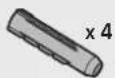
Bracket-Wall Mount Screw Anchor
- Place the Wall Mount Guide against the wall surface.
• The Wall Mount Guide must be leveled.
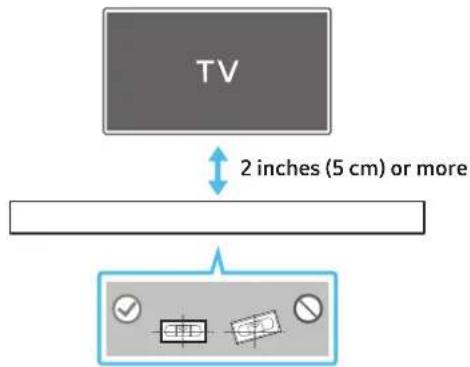
- If your TV is mounted on the wall, install the Soundbar at least 2 inches (5 cm) below the TV.
text_image
TV 2 inches (5 cm) or more- Align the Wall Mount Guide's Center Line with the center of your TV (if you are mounting the Soundbar below your TV), and then fix the Wall Mount Guide to the wall using tape.
- If you are not mounting below a TV, place the Center Line in the center of the installation area.
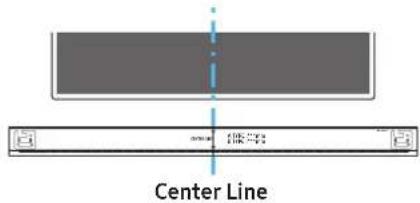
text_image
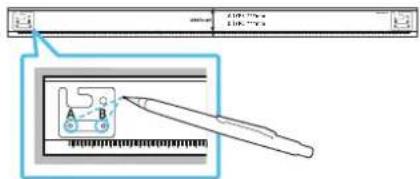
Center Line- Push a pen tip or sharpened pencil tip through the center of the A-TYPE and B-TYPE images on each end of the Guide to mark the holes for the supporting screws, and then remove the Wall Mount Guide.
text_image
A B- Using an appropriately sized drill bit, drill a hole in the wall at each marking.
- If the markings do not correspond to the positions of studs, make sure you insert appropriate anchors or mollies into the holes before you insert the support screws. If you use anchors or mollies, make sure the holes you drill are large enough for the anchors or mollies you use.
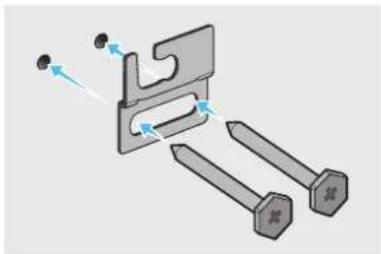
- Push the screw (not supplied) through each Screw, and then screw each screw firmly into a support screw hole.
natural_image
3D diagram of a mechanical component with two bolts and a bracket, showing directional arrows (no text or symbols)- Install the 2 Bracket-Wall Mounts in the correct orientation on the rear of the Soundbar using 2 Holder-screws.
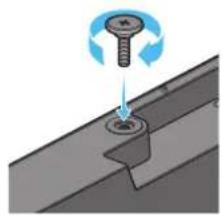
natural_image
Diagram showing a screw being inserted into a component, with no text or symbols present.- When assembling, make sure the hanger part of the Bracket-Wall Mounts are located behind the rear of the Soundbar.
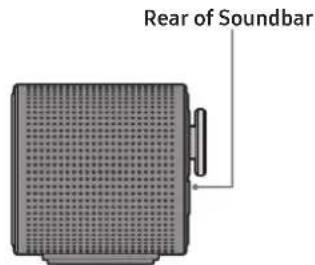
text_image
Rear of SoundbarRight end of Soundbar
- Install the Soundbar with the attached Bracket-Wall Mounts by hanging the Bracket-Wall Mounts on the Holder-Screws on the wall.
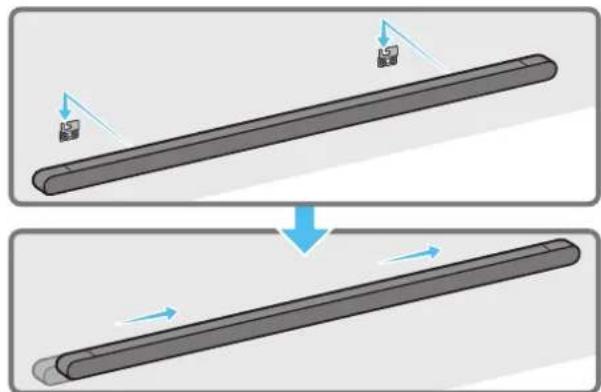
natural_image
Diagram showing two stages of a cylindrical object with directional arrows indicating motion (no text or symbols)- Slide the Soundbar down as shown below so that the Bracket-Wall Mounts rest securely on the Holder-Screws.
- Insert the Holder-Screws into the wide (rear) part of the Bracket-Wall Mounts, and then slide the Bracket-Wall Mounts down so that the Bracket-Wall Mounts rest securely on the Holder-Screws.
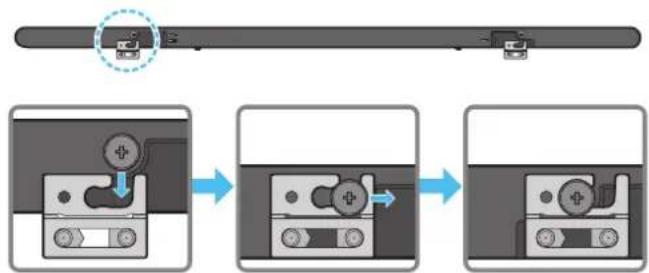
flowchart
graph TD
    A["Top: Component with highlighted section"] --> B["Step 1: Inserted part with plus symbol"]
    B --> C["Step 2: Assembly with circular component"]
    C --> D["Step 3: Final assembly with plus symbol"]
08 INSTALLING THE SOUNDBAR IN FRONT OF TV
text_image
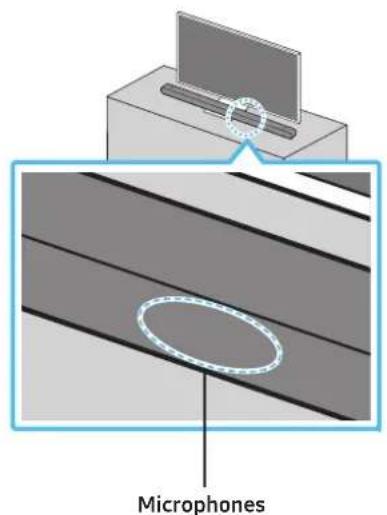
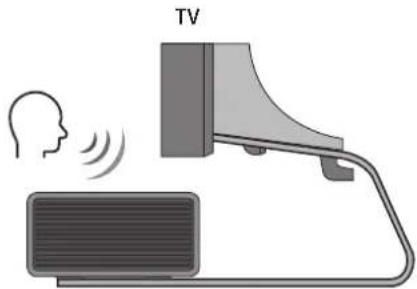
MicrophonesAs illustrated in the image, align the center of the Soundbar with the center of the TV, and carefully place the Soundbar onto the TV stand. At this time, place the microphones at the front of the stand not to interfere with voice recognition.
text_image
TVRight end of Soundbar
NOTE
- Make sure the Soundbar is placed on a flat and solid surface.
- Insufficient gap from the TV may cause voice recognition and acoustic problems.
- The illustration above differs with the respective model.
09 SOFTWARE UPDATE
Auto Update
When the Soundbar is connected to the Internet, software updates automatically occur even when the Soundbar is turned off.
- To use the Auto Update function, the Soundbar must be connected to the Internet.
The Wi-Fi connection to the Soundbar will be terminated if the Soundbar's power cord is disconnected or the power is cut off. If the power is cut off, when the power comes back on or you reconnect the power cord, turn on the Soundbar, and then reconnect it to the Internet.
USB Update
text_image
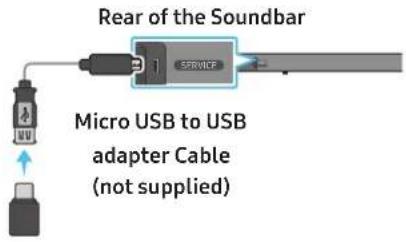
Rear of the Soundbar SERVICE Micro USB to USB adapter Cable (not supplied)Samsung may offer updates for the Soundbar's system firmware in the future.
When an update is available, you can update the Soundbar by connecting the USB drive that contains the update firmware to the SERVICE port of the Soundbar.
- Go to (www.samsung.com) → search for the model name from the customer support menu option.
- For more information about update, refer to Upgrade Guide.
- Download the upgrade file (USB type).
- Unzip the file to create a folder with the file name.
- Store the created folder in a USB and then connect it to the Soundbar.
- Turn on the Soundbar. Then the product is updated within 3 minutes.
| LED indicator | 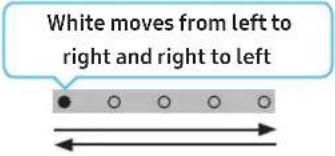 |
- During update, do not turn it off or remove the USB.
- If the yellow LED is on after the software update is completed, this means that an additional update is in progress. When this happens, don't turn off the power or remove the USB.
- If update does not proceed, reconnect the Soundbar power cord.
- When the latest version is installed, no update is performed.
- Depending on the USB type, update may not be supported.
- If there is no update file available, the indicator blinks red 3 times.
| LED indicator | 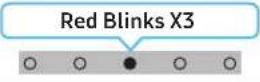 |
- If the update file is in the same or lower version than the existing, the indicator blinks cyan 3 times.
| LED indicator | 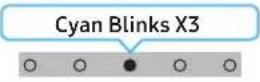 |
Reset
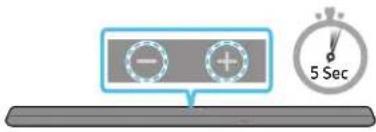
text_image
- + 5 SecWith the Soundbar on, press the (Volume) buttons on the body at the same time for at least 5 seconds. The LED display changes as shown below and then the Soundbar is reset.
| LED indicator |

CAUTION
- All the settings of the Soundbar are reset. Be sure to perform this only when a reset is required.
Security updates information
Security updates are provided to strengthen the security of your device and protect your personal information. For more information on security updates, visit https://security.samsungtv.com.
- The website supports only some languages.
10 TROUBLESHOOTING
Before seeking assistance, check the following.
Soundbar does not turn on.
- Check whether the power cord of the Soundbar is correctly inserted into the outlet.
Soundbar works erratically.
• After removing the power cord, insert it again.
• Power cycle the external device and try again.
- If there is no signal, the Soundbar automatically turns off after a certain period of time. Turn on the power. (See page 6.)
Remote control does not work
- Point the remote directly at the soundbar.
- HW-S80*D : recharge the remote control.
- HW-S70*D : Replace the batteries with new ones.
The Soundbar indicator turns solid red. (HW-S80\*D model only)
- The microphone is turned off. Turn on the microphone. (See page 4.)
Sound is not output from the soundbar.
- The volume of the Soundbar is too low or muted. Adjust the volume.
- When any external device (STB, Bluetooth device, mobile device, etc.) is connected, adjust the volume of the external device.
- For sound output of the TV, select Soundbar. (Samsung TV: Home ( ) → Menu → Settings ( → All Settings ( → Sound → Sound Output → Select Soundbar)
- The cable connection to the Soundbar may not be loose. Remove the cable and connect again.
- Remove the power cord completely, reconnect, and turn the power on.
- Reset the product and try again. (See page 26.)
Sound is not output from the subwoofer.
- Check whether the LED indicator on the rear of the Subwoofer is on in blue. Reconnect the Soundbar and Subwoofer if the indicator is blinking in blue or turned red. (See page 12.)
- You may experience an issue if there is an obstacle between the Soundbar and Subwoofer. Move devices to an area away from obstacles.
- Other devices sending radio frequency signals in proximity may interrupt the connection. Keep your speaker away from such devices.
- Remove and reconnect the power plug.
In case there is sound jitter, delays, or noise from the Subwoofer
- If there are any objects between the Soundbar and Subwoofer, this could cause a problem. Please reposition these to a place without such an object.
- There may be sound jitter or delays when the Subwoofer is far from the Soundbar. Please place them near the Soundbar.
- There may be sound jitter or delays when the Soundbar is near an instrument or electrical device that can cause radio interference. Place the Soundbar far from such devices that can cause radio interference. (E.g., wireless router)
- Change the TV network connection status from wireless to wired.
The Subwoofer volume is too low
- The original volume of the content you are playing may be low. Try adjusting the Subwoofer level. (See page 7.)
- Bring the Subwoofer speaker closer to you.
If the TV is not connected via HDMI (eARC).
- Check whether the HDMI cable is correctly connected to the ARC terminal. (See page 14.)
- Connection may not be possible due to the connected external device (set-top box, game console, etc.). Directly connect the Soundbar.
- HDMI-CEC may not be activated on the TV. Turn on the CEC on the TV menu. (Samsung TV: Home (n) → Menu → Settings (②) → All Settings (③) → Connection → External Device Manager → Anynet+ (HDMI-CEC) ON)
There is no sound in when connecting to the TV in HDMI (eARC) mode
- Your device is unable to play the input signal. Change the TV's audio output to PCM or Dolby Digital. (For a Samsung TV: Home ( [n] ) → Menu → Settings ( ⚙️ → All Settings ( ⚗️ → Sound → Expert Settings → Digital Output Audio Format)
Soundbar will not connect via Bluetooth.
- When connecting a new device, switch to "Bluetooth Pairing" for connection. (Press the ✝PAIR button on the remote control or press the ⏻(Mic On/Off) / →(Source) button on the body for at least 5 seconds.)
- If the Soundbar is connected to another device, disconnect that device first to switch the device.
- Reconnect it after removing the Bluetooth speaker list on the device to connect. (Samsung TV: Home ( → Menu → Settings ( → All Settings ( → Sound → Sound Output → Bluetooth Speaker List)
- Remove and reconnect the power plug, then try again.
- Reset the product and try again. (For more information, refer to "Reset".)
Sound drops out when connected via Bluetooth.
- Some devices can cause radio interference if they are located too close to the Soundbar. e. g. microwaves, wireless routers, etc.
- If your device that is connected via Bluetooth moves too far away from the soundbar, it may cause the sound to drop out. Move the device closer to the soundbar.
- If a part of your body is in contact with the Bluetooth transceiver or the product is installed on metal furniture, the sound may drop out. Check the installation environment and conditions for use.
Soundbar will not connect to Wi-Fi.
- Check whether your wireless router is on.
- Turn off the router, turn it back on, and then try again.
- The soundbar will not connect if the wireless signal is too weak. Try moving the router closer to the soundbar, or eliminating any obstacles that are between the soundbar and the router, if possible.
- If your wireless router is new, you will need to reconfigure the speaker's network settings.
• Soundbar does not support Wi-Fi 6.
The soundbar does not turn on automatically with the TV.
- When you turn off the Soundbar while watching TV, power synchronization with the TV is disabled. First turn off the TV.
The AVA function is not available in the following cases. (HW-S80\*D model only)
- The AVA function will not be available using Q-symphony function.
- The AVA function will not be available when the microphone is turned off.
After connecting the TV to the Soundbar, I switched the Soundbar mode. Then no sound is output from the TV.
- If you connect your Soundbar to a mobile device while the Soundbar is connected to the TV, the Soundbar outputs sound from the mobile device while keeping the TV connection. So the TV sound will not be delivered anywhere.
- Disconnect the mobile device, and the TV sound will be output from the Soundbar again.
Group Play is not enabled
- Check if the audio devices are newer models released year 2024 or later.
- Check if the host device is connected to a Wi-Fi network as source.
- Make sure that all audio devices are connected to the same Wi-Fi network (at 5 GHz).
11 LICENSE
DOLBY ATMOS
Dolby, Dolby Atmos, and the double-D symbol are registered trademarks of Dolby Laboratories Licensing Corporation. Manufactured under license from Dolby Laboratories. Confidential unpublished works. Copyright © 2012-2021 Dolby Laboratories. All rights reserved.

For DTS patents, see http://patents.dts.com. Manufactured under license from DTS, Inc. or DTS Licensing Limited. DTS, Digital Surround, Virtual:X, and the DTS logo are registered trademarks or trademarks of DTS, Inc. in the United States and other countries. © 2021 DTS, Inc. ALL RIGHTS RESERVED.

The terms HDMI, HDMI High-Definition Multimedia Interface, HDMI Trade dress and the HDMI Logos are trademarks or registered trademarks of HDMI Licensing Administrator, Inc.

Apple, AirPlay, iPad, iPhone, and Mac are trademarks of Apple Inc., registered in the U.S. and other countries and regions.

- Use your phone, tablet or computer as a remote control for Spotify. Go to spotify.com/connect to learn how
- The Spotify Software is subject to third party licenses found here: https://www.spotify.com/connect/third-party-licenses.
roon TESTED
Being Roon Tested means that Samsung and Roon have collaborated to ensure you have the best experience using Roon software and Samsung equipment together, so you can just enjoy the music.
Open Source License Notice
Open Source used in this product can be found on the following webpage (http://opensource.samsung.com).
Guide d'utilisation
HW-S80*D / HW-S70*D
5 Bouton (Alimentation)
Ready to connect via Bluetooth.
Ready to connect via Bluetooth.
natural_image
Pure diagram of two rectangular blocks with a vertical dashed line and control buttons, no text or symbols present.Ligne centrale
text_image
Diagram showing a device with labeled components A and B, connected to a pen, with interface buttons visible.natural_image
3D diagram of a mechanical component with two screws and a bracket, showing alignment arrows (no text or symbols)natural_image
Diagram showing a screw being inserted into a component, with no text or symbols present.natural_image
Diagram showing two stages of a cylindrical object with arrows indicating motion, no text or symbols presentDolby, Dolby Atmos, and the double-D symbol are registered trademarks of Dolby Laboratories Licensing Corporation. Manufactured under license from Dolby Laboratories. Confidential unpublished works. Copyright © 2012-2021 Dolby Laboratories. All rights reserved.

For DTS patents, see http://patents.dts.com. Manufactured under license from DTS, Inc. or DTS Licensing Limited. DTS, Digital Surround, Virtual:X, and the DTS logo are registered trademarks or trademarks of DTS, Inc. in the United States and other countries. © 2021 DTS, Inc. ALL RIGHTS RESERVED.

The terms HDMI, HDMI High-Definition Multimedia Interface, HDMI Trade dress and the HDMI Logos are trademarks or registered trademarks of HDMI Licensing Administrator, Inc.

Being Roon Tested means that Samsung and Roon have collaborated to ensure you have the best experience using Roon software and Samsung equipment together, so you can just enjoy the music.