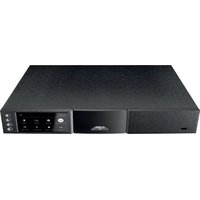
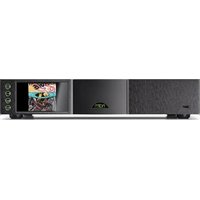
ND 555 - Music receiver NAIM - Free user manual and instructions
Find the device manual for free ND 555 NAIM in PDF.


| Product Type | Network Music Receiver |
| Brand | Naim |
| Model | ND 555 |
| Power Supply | External power supply CD555 PS (not included) |
| Network Connectivity | Ethernet, dual-antenna Wi-Fi, Bluetooth |
| Digital Inputs | 4 x S/PDIF up to 24-bit / 192 kHz |
| Audio Outputs | 1 x Hi-Line DIN 5-pin (analog), 2 x Burndy (digital and analog) |
| Streaming Services | Spotify Connect, Internet radio, Naim server, multiroom |
| Mobile App | Naim for iOS and Android |
| Remote Control | Yes, with home button pairing |
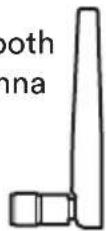
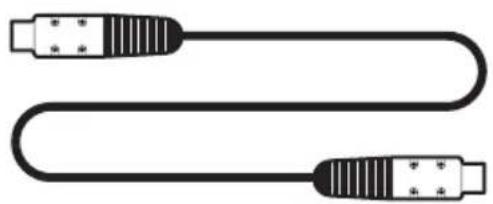
| Package Contents | ND 555, documentation, cleaning cloth, remote control, 4 AAA batteries, BNC-RCA adapter, Bluetooth antenna, 2 Wi-Fi antennas, Hi-Line cable (DIN 5-pin), 2 Burndy cables |
| Removing Transport Screws | 4 screws under the device to be removed before use |
| Maintenance | Clean with the provided soft cloth |
| Phone Support | +44 (0) 333 321 9923 (UK), +1 800 961 5681 (US and Canada) |
| Website | www.naim.com |
Frequently Asked Questions - ND 555 NAIM
User questions about ND 555 NAIM
0 question about this device. Answer the ones you know or ask your own.
Ask a new question about this device
Download the instructions for your Music receiver in PDF format for free! Find your manual ND 555 - NAIM and take your electronic device back in hand. On this page are published all the documents necessary for the use of your device. ND 555 by NAIM.
USER MANUAL ND 555 NAIM
natural_image
Line drawing of a microwave oven with labeled unit 'noim' and part number '1x' (no text or symbols on the device itself)ND 555
Document pack
natural_image
Solid dark gray rectangle with a dotted border (no text or symbols)Cleaning cloth
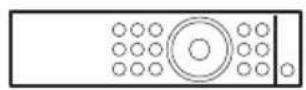
1x Remote handset
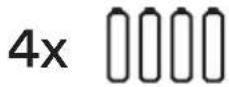
AAA batteries

BNC to RCA adaptor
1x 2 _x-5pin DIN Hi-Line lead
1x
Bluetooth
antenna
2x
Wi-Fi
antenna
Burndy leads
natural_image
Pure diagram of two USB connectors with no text or symbols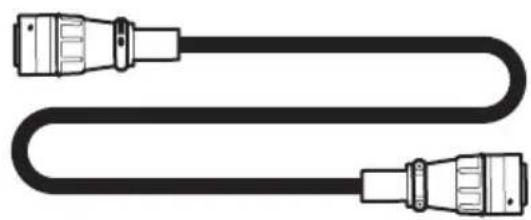
natural_image
Pure diagram of a U-shaped cable with two connectors (no text or symbols)2
Get to know your streamer
These front and back diagrams show the operational features and sockets of your new ND 555.
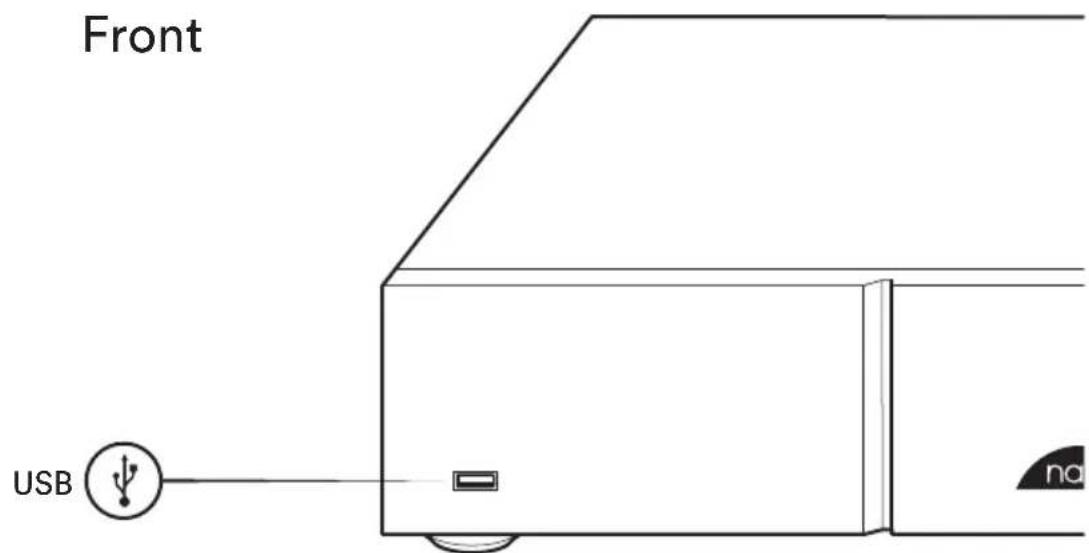
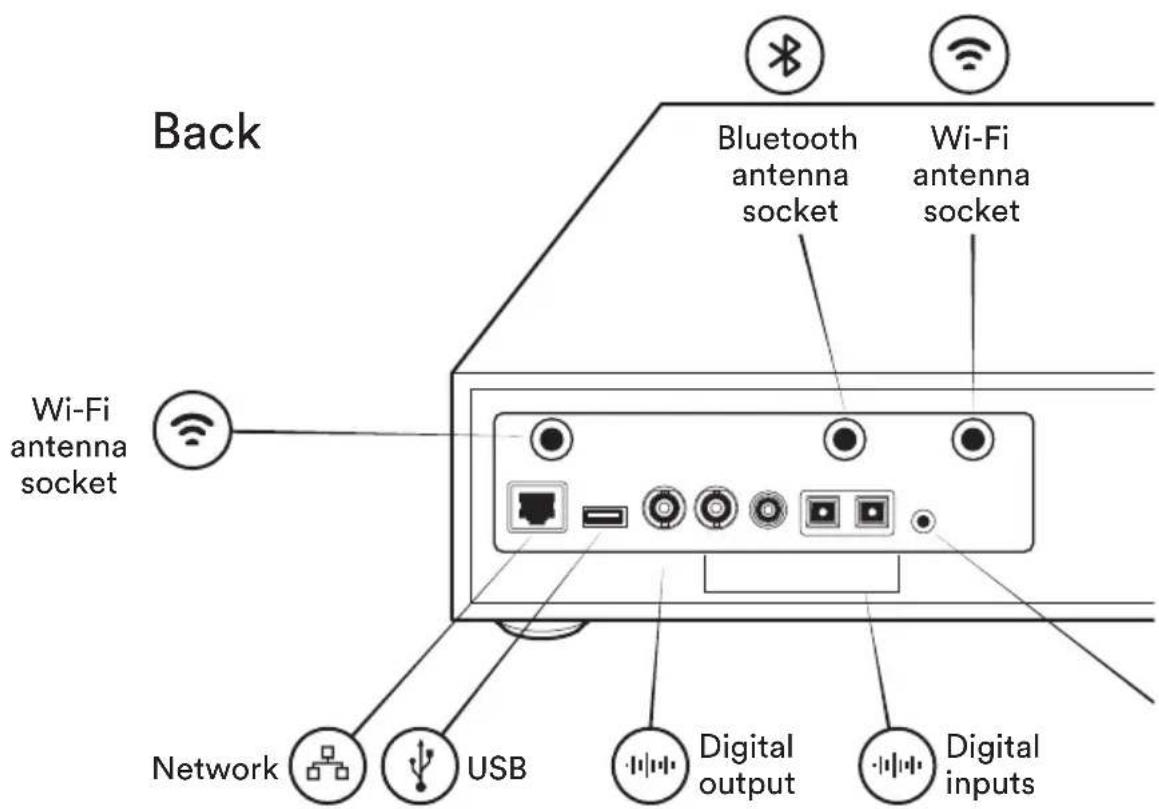
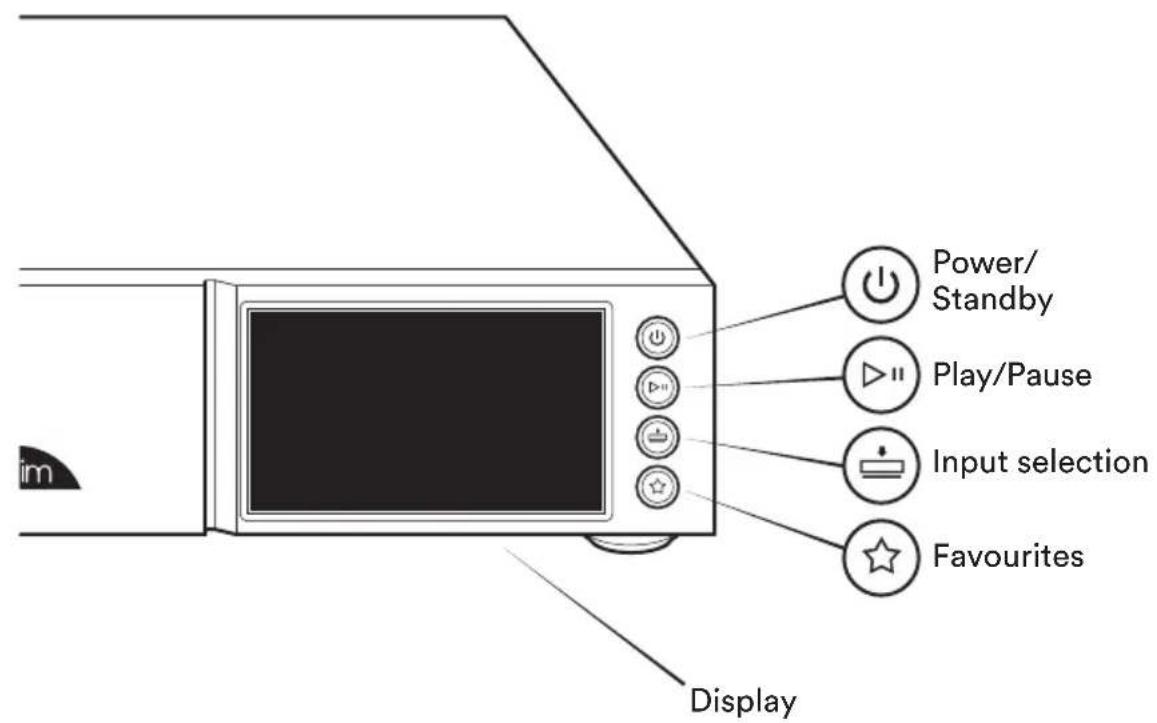
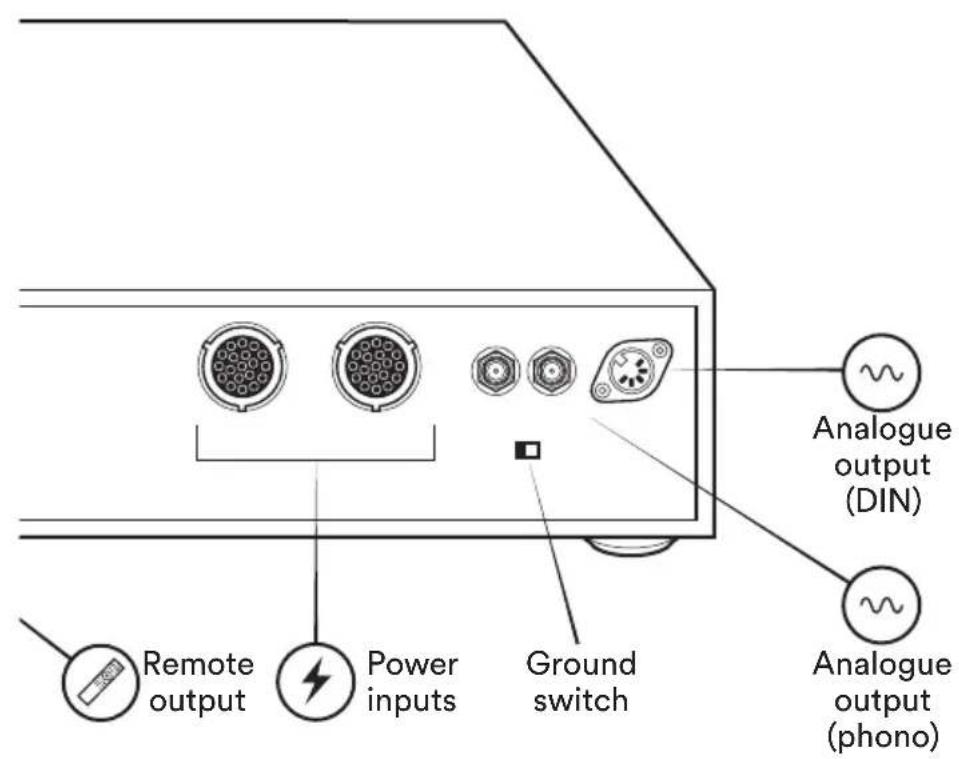
The remote
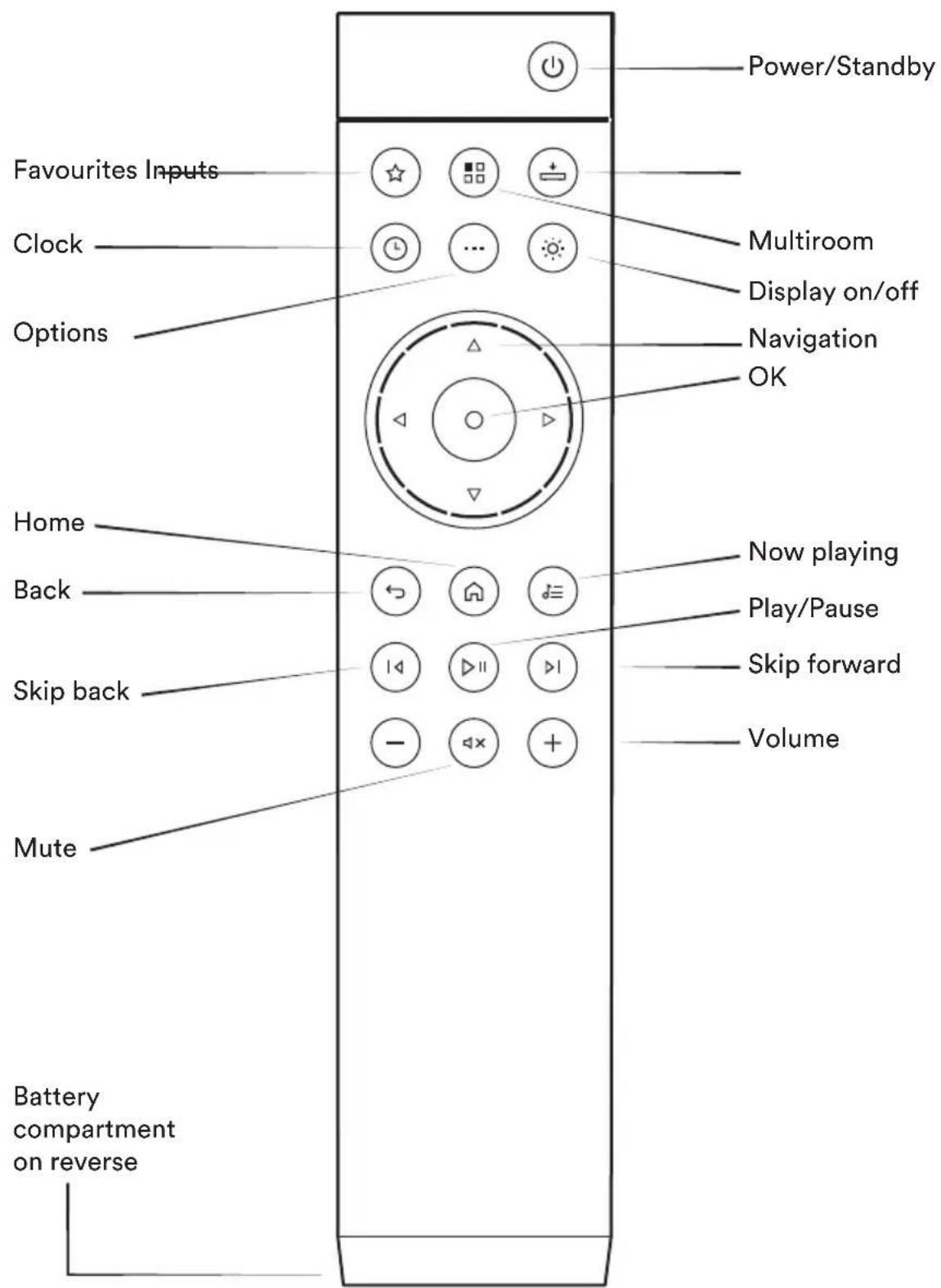
4
Simple set up
You will need a hi-fi system, a router with Wi-Fi connected to the internet and a smart phone or tablet. You will also need a network cable, digital and analogue Burndy cables and CD555 PS power supply unit.
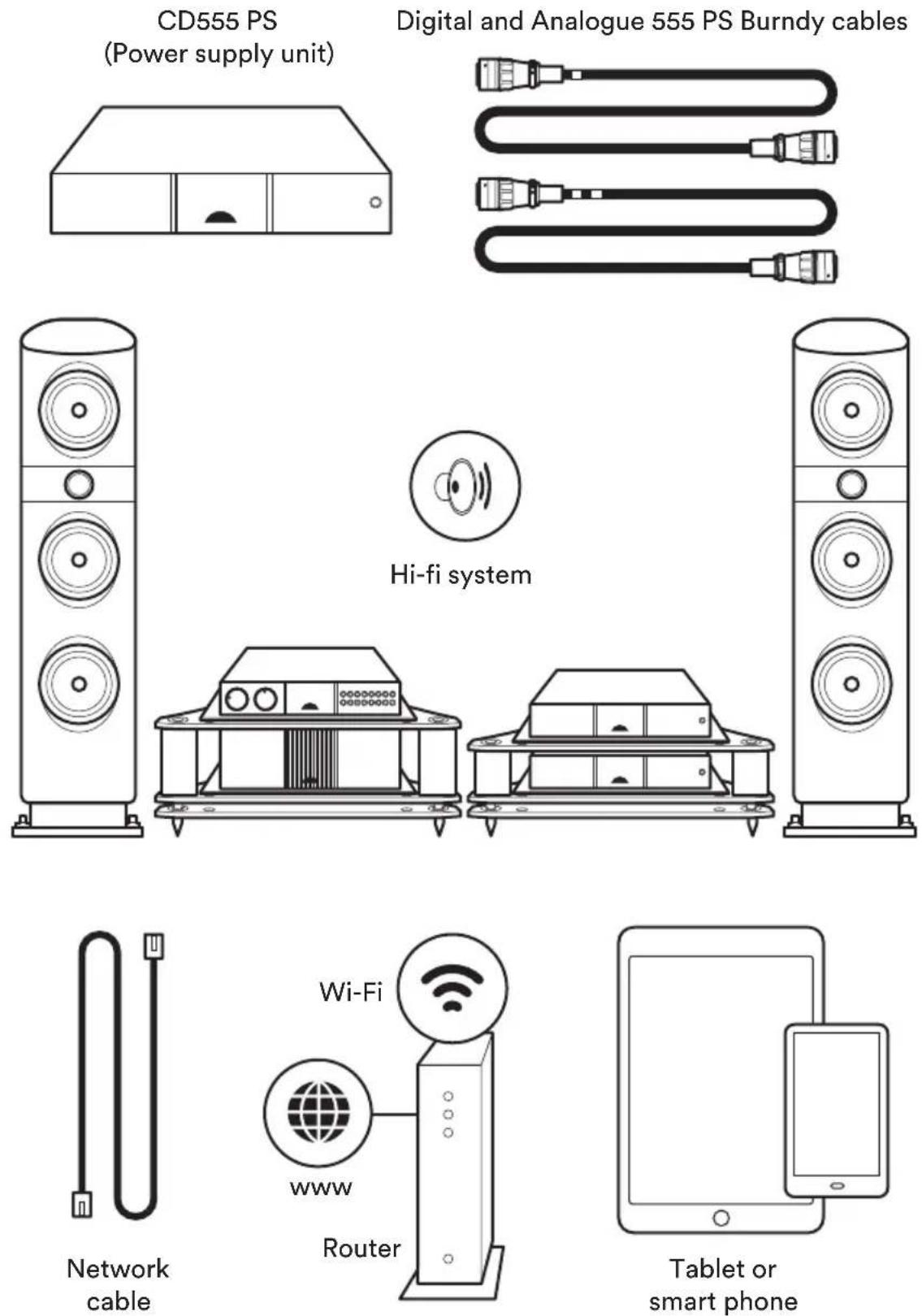
5
Remove transit screws
On the underside of your ND 555 you will find four transit screws. These need to be removed before installation into your hi-fi system. Unscrew anti-clockwise.
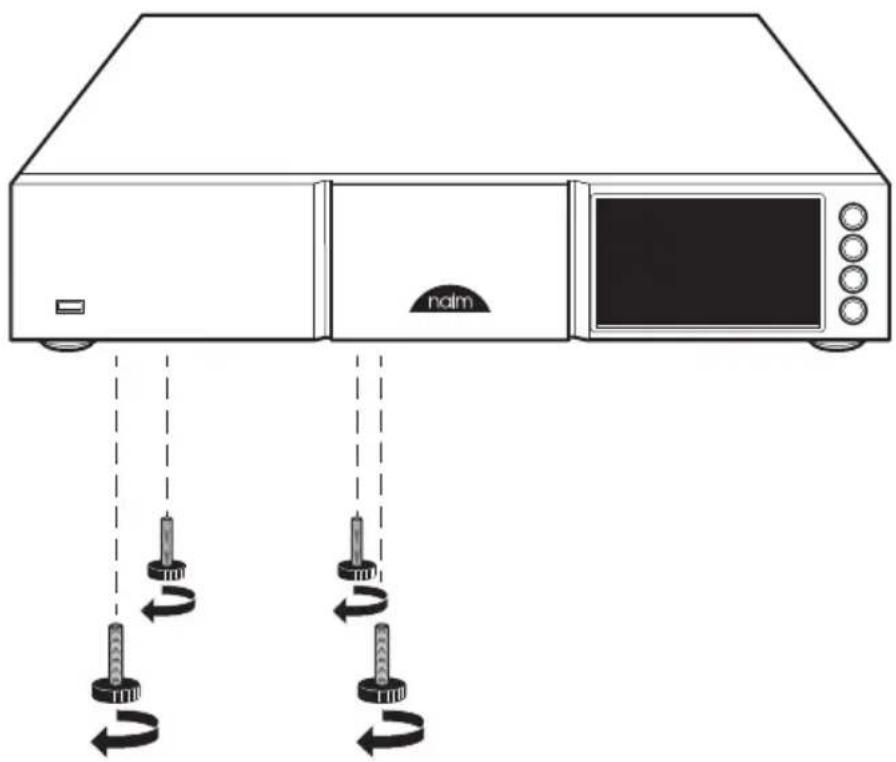
natural_image
Line drawing of a microwave oven with two hanging control knobs and one mounted on the front panel (no text or symbols)
WARNING: the player must not be inverted either during or after transit screw removal
Make sure you keep the transit screws safe as they will need to be replaced if the player is to be carried any distance, packed or shipped in the future.
6
Connection and power
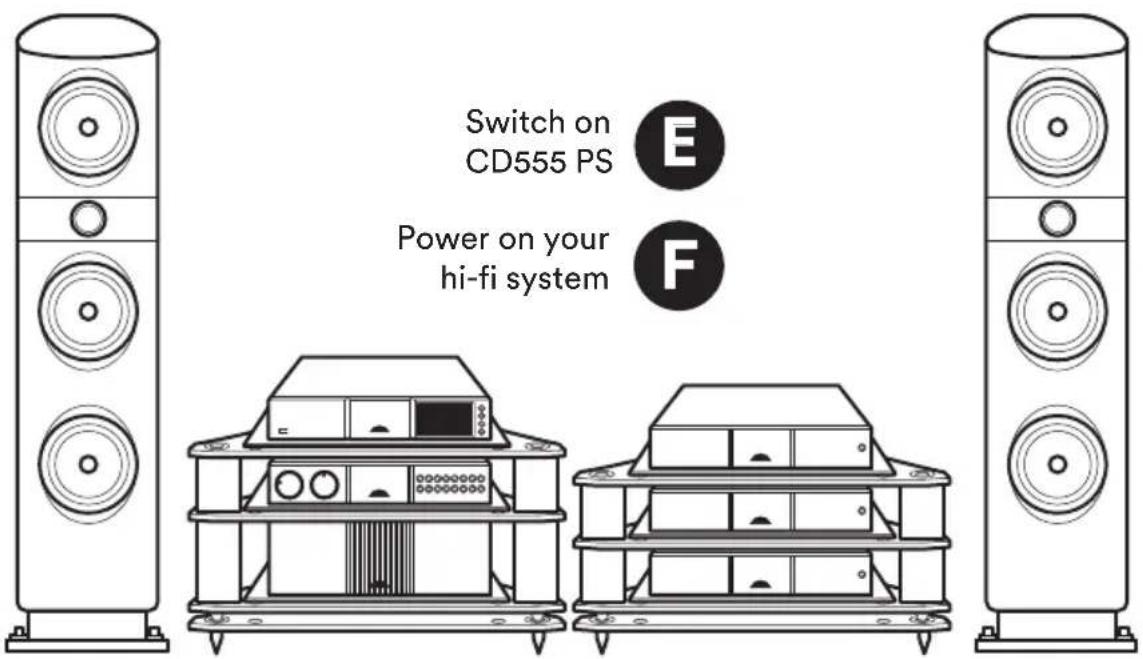
(A) Firstly turn off your hi-fi system. (B) Connect the Ethernet network cable from router to ND 555 (if unavailable connect 2 x Wi-Fi antennae instead) and 1 x Bluetooth antenna to the rear of the ND 555. (C) Connect the ND 555 to the CD555 PS using both Burndy leads. (D) Use the Hi-Line lead (5-5pin DIN) to connect to the pre-amplifier of your hi-fi system. (E) Switch on the ND 555 by pressing the power button on the front of the CD555 PS. (F) Turn your hi-fi system back on.
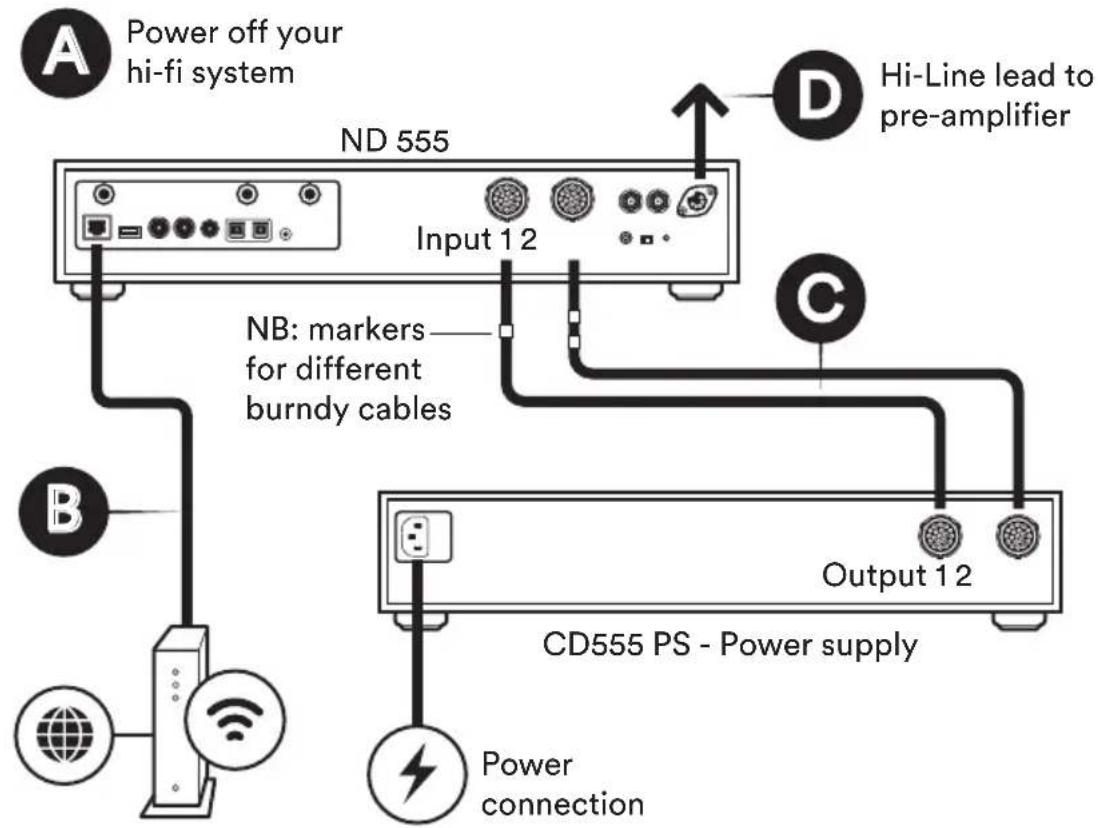
flowchart
graph TD
    A["Power off your hi-fi system"] --> B["ND 555"]
    B --> C["Input 12"]
    C --> D["Hi-Line lead to pre-amplifier"]
    B --> E["NB: markers for different burndy cables"]
    E --> F["Output 12"]
    F --> G["CD555 PS - Power supply"]
    G --> H["Power connection"]
    style A fill:#f9f,stroke:#333
    style B fill:#ccf,stroke:#333
    style C fill:#cfc,stroke:#333
    style D fill:#fcc,stroke:#333
    style E fill:#ffc,stroke:#333
    style F fill:#fcc,stroke:#333
    style G fill:#fff,stroke:#333
    style H fill:#fff,stroke:#333
7
Pairing the remote
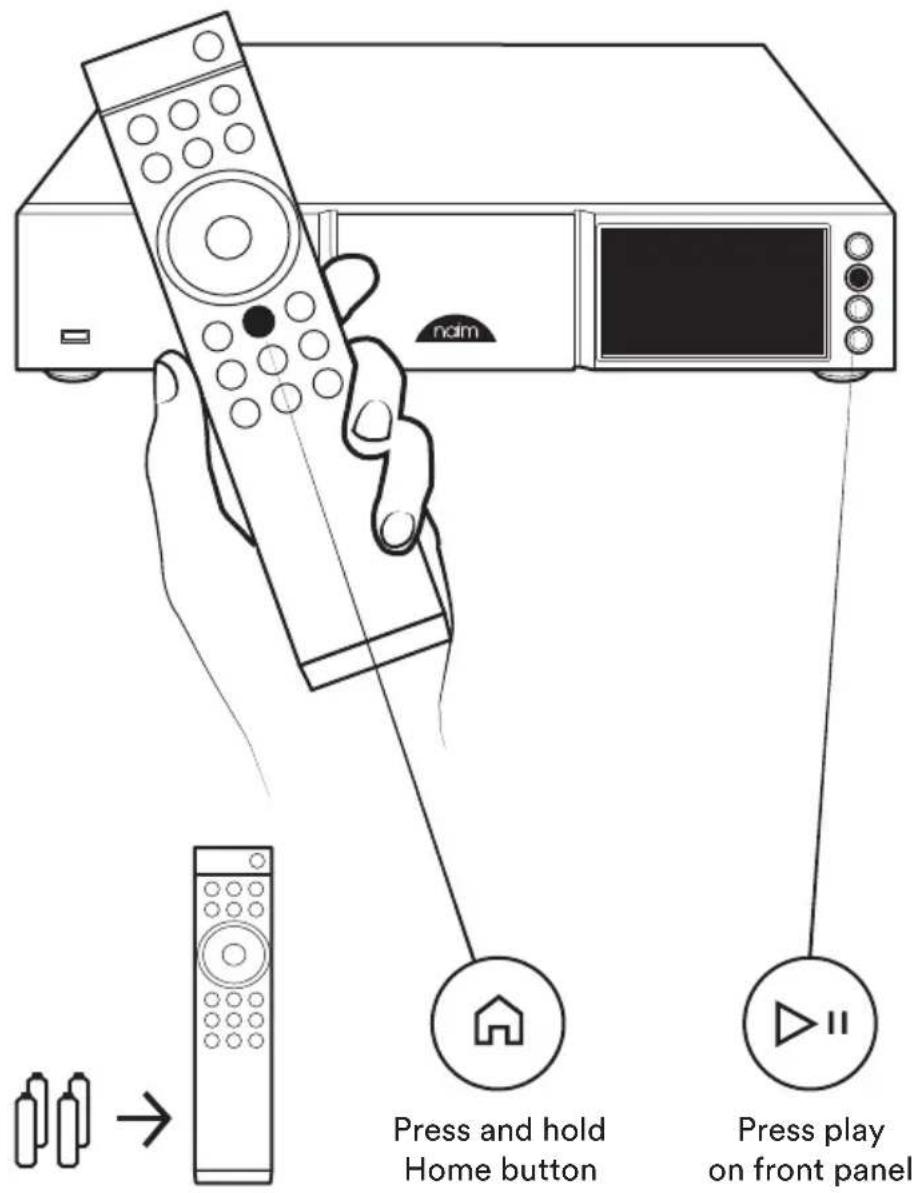
Once your unit is powered and on, you will need to pair the remote. To do this, press the play button on the front panel, then press and hold the remote control home button for 3 seconds. The remote is now paired to the unit and ready to use.
Download Naim app
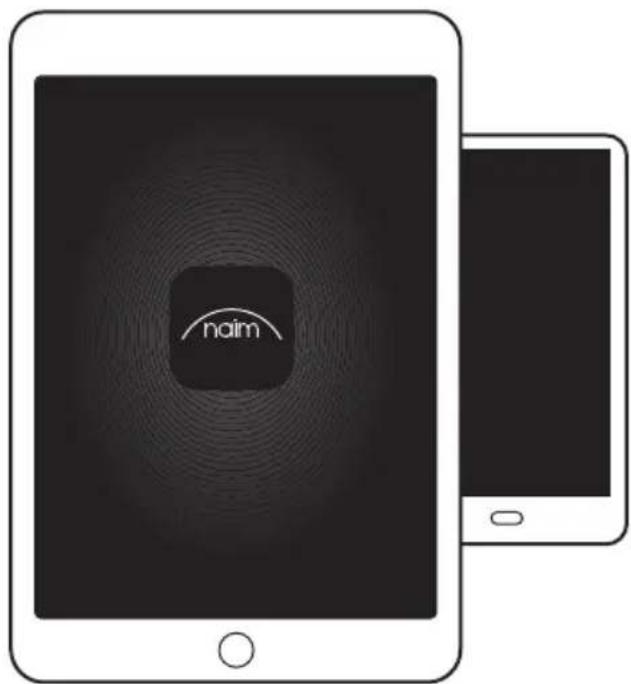
Download and install the Naim app for your iOS or Android device.
Launch the Naim app and follow the setup instructions to configure the product.

Download on the
App Store

GET IT ON
Google Play


Playing music
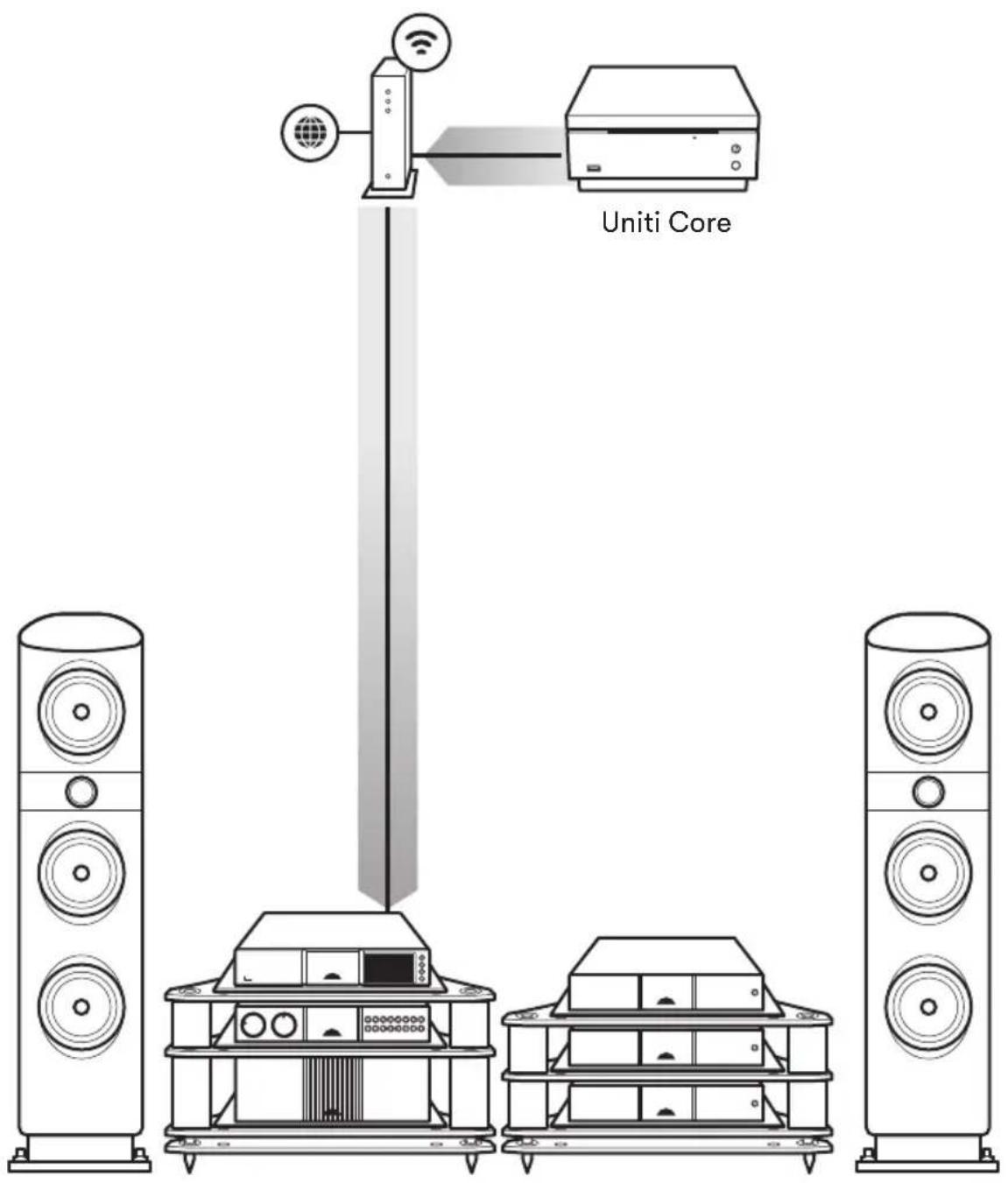
Access your favourite streaming services and Internet radio stations, play your stored music from a Naim server (such as a Uniti Core) and be the source for your multiroom system. Your streamer unit also includes digital connections so you can connect your external sources.

Online streaming services

flowchart
graph TD
    A["Chromecast built-in"] --> B["AirPlay"]
    B --> C["iRadio"]
    C --> D["TIDAL"]
    D --> E["Spotify"]
    F["Server 1"] --> G["Server 2"]
    H["Server 3"] --> I["Server 4"]

Spotify Connect
Use your phone, tablet or computer as a remote control for Spotify.
Go to spotify.com/connect to learn how
Playing music

Streaming from a music server

Servers
Playing music

Music server for multiroom streaming

Multiroom
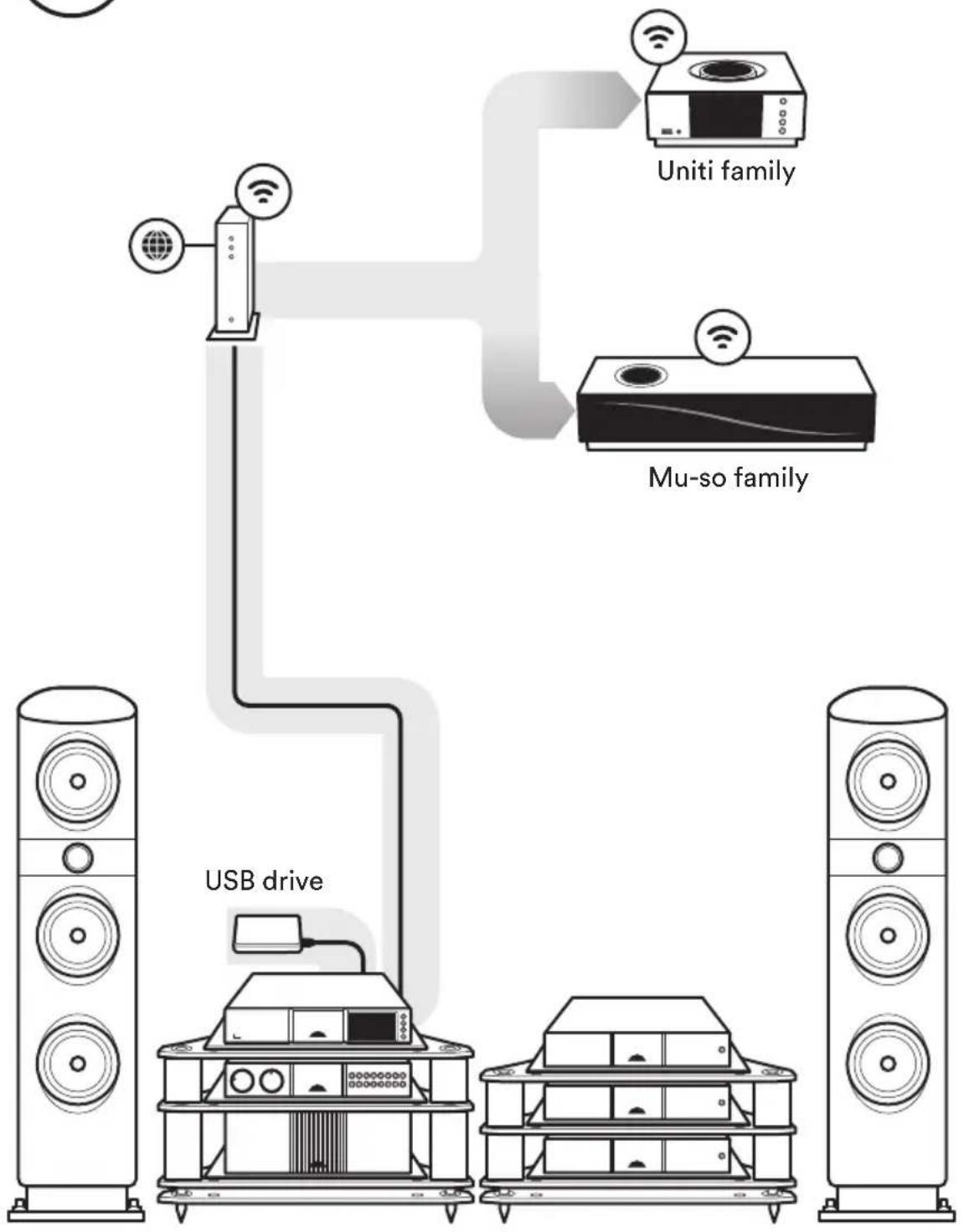
flowchart
graph TD
    A["USB drive"] --> B["Unit family"]
    B --> C["Mu-so family"]
    A --> D["TV tower"]
    B --> E["TV tower"]
    C --> F["TV tower"]

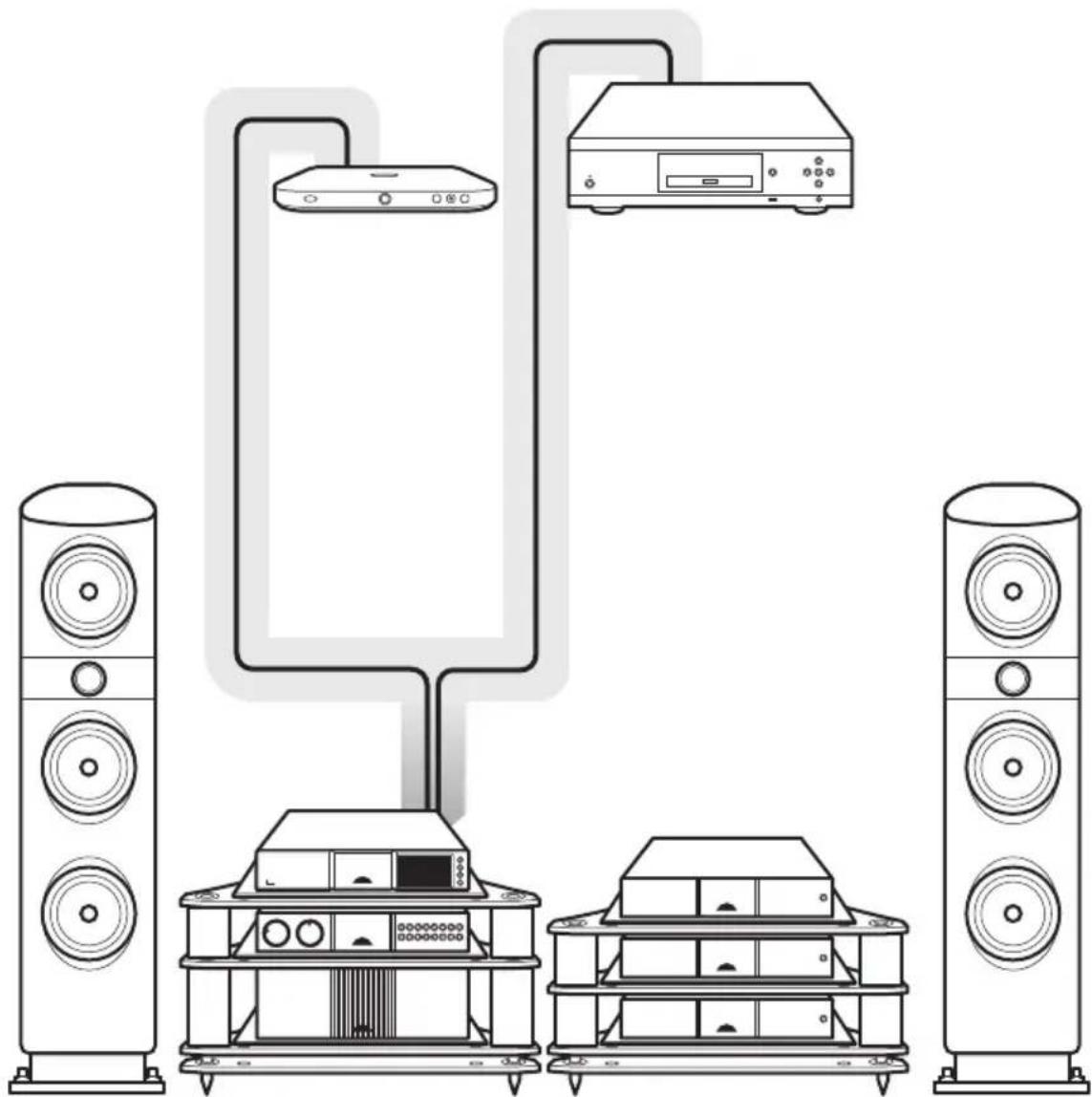
Playing External Sources

Digital inputs
Four 24bit/192kHz capable digital inputs (S/PDIF) to support optimum connection to external sources
natural_image
Line drawing of a multi-tiered audio equipment setup with speakers, monitors, and a central TV unit (no text or symbols)Further help and FAQs
Visit the Naim website for further support, interactive setup and support guides.
www.naimaudio.com/customer-support

Contact
streamer-support@naimaudio.com
Support helpline: +44 (0) 333 321 9923 (UK) +1 800 961 5681 (USA and Canada)
Acknowledgements

Works with Apple AirPlay
Use of the Works with Apple badge means that an accessory has been designed to work specifically with the technology identified in the badge and has been certified by the developer to meet Apple performance standards.
Apple, AirPlay, iPad and iPhone are trademarks of Apple Inc., registered in the U.S. and other countries. The trademark "iPhone" is used in Japan with a license from Aiphone K.K.
Chromecast built-in
Stream the entertainment you love from your phone, tablet or laptop to your TV. Chromecast is a trademark of Google Inc.

Spotify

The Spotify software is subject to third party licenses found here: www.spotify.com/connect/third-party-licenses.

TIDAL
HIGH FIDELITY MUSIC STREAMING

qobuz
Bluetooth®
The Bluetooth® word mark and logos are registered trademarks owned by Bluetooth SIG, Inc. and any use of such marks by Naim Audio Ltd. is under licence. Other trademarks and trade names are those of their respective owners.
Qualcomm® aptX™

Qualcomm is a trademark of Qualcomm Incorporated, registered in the United States and other countries, used with permission. aptX is a trademark of Qualcomm Technologies International, Ltd., registered in the United States and other countries, used with permission. Qualcomm aptX is a product of Qualcomm Technologies International, Ltd.
UPnP
UPnP ^TM is a trademark of the UPnP ^TM Forum.
WiFi ^*
CERTIFIED
Wi-Fi® logo is a registered trademark of Wi-Fi Alliance.
roon ready
The music player for music lovers
中文
1 盒子里有什么
www.naimaudio.com/customer-support
联系方式
streamer-support@naimaudio.com
支持热线:
+44 (0) 333 321 9923 (英国)
www.naimaudio.com/customer-support
Kontakt
streamer-support@naimaudio.com
Hilfe per Telefon:
www.naimaudio.com/customer-support
Contacto
streamer-support@naimaudio.com
www.naimaudio.com/customer-support
Contact
streamer-support@naimaudio.com
www.naimaudio.com/customer-support
Contatti
streamer-support@naimaudio.com
www.naimaudio.com/customer-support
お問い合わせ先streamer-support@naimaudio.com
サポートヘルプライン:
+44 (0) 333 321 9923 (英国)
www.na.maudio.com/customer-support
연락처streamer-support@naimaudio.com
지원 전화:
8 Naim-app downloaden
www.naimaudio.com/customer-support
Contactgegevens
streamer-support@naimaudio.com
Hulplijn:
www.naimaudio.com/customer-support
Kontakt
streamer-support@naimaudio.com
www.naimaudio.com/customer-support
Contacto
streamer-support@naimaudio.com
Linha de apoio:
www.naimaudio.com/customer-support
Контактыstreamer-support@naimaudio.com
Служба поддержки:
- 2
- Get to know your streamer
- The remote
- 4
- Simple set up
- 5
- Remove transit screws
- 6
- Connection and power
- 7
- Pairing the remote
- Download Naim app
- Playing music
- Online streaming services
- Spotify Connect
- Playing External Sources
- Digital inputs
- Further help and FAQs
- Contact
- Acknowledgements
- Works with Apple AirPlay
- Chromecast built-in
- Spotify
- TIDAL
- qobuz
- Bluetooth®
- Qualcomm® aptX™
- UPnP
- WiFi *
- CERTIFIED
- roon ready
- 中文
- 盒子里有什么
- 联系方式
- 支持热线:
- Kontakt
- Hilfe per Telefon:
- Contacto
- Contatti
- 지원 전화:
- Naim-app downloaden
- Contactgegevens
- Hulplijn:
- Linha de apoio:
- Служба поддержки:
Brand : NAIM
Model : ND 555
Category : Music receiver