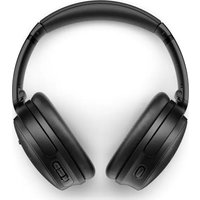
QuietComfort SC Headphones - Earphones BOSE - Free user manual and instructions
Find the device manual for free QuietComfort SC Headphones BOSE in PDF.



| Product type | Wireless over-ear headphone with active noise cancellation |
| Brand | Bose |
| Model | QuietComfort SC Headphones |
| Reference | 437310 |
| Power supply | 5 V = 0.5 A, built-in rechargeable lithium-ion battery |
| Battery life | Up to 24 hours (with active noise cancellation) |
| Full charge time | Approximately 2 hours 30 minutes |
| Active noise cancellation | Yes, with Quiet, Aware, and customizable modes (up to 2 modes) |
| Wireless connectivity | Bluetooth (max range 9 m), multipoint (2 simultaneous devices) |
| Wired connectivity | 2.5 mm audio jack (cable with microphone included) |
| Companion app | Bose (available on iOS and Android) |
| Main functions | Play/pause, track skip, volume, phone calls, voice commands, shortcuts (Spotify, battery), SimpleSync |
| Compatible devices | Smartphones, tablets, computers, compatible Bose speakers and soundbars |
| Charging temperature range | 0 °C to 45 °C |
| Operating temperature range | -20 °C to 60 °C |
| Maintenance | Wipe with a soft, dry cloth, protect the interior from moisture |
| Safety | Use at moderate volume, do not expose to water, do not use near implanted medical devices, etc. Consult the manual. |
| Warranty | Limited warranty – see worldwide.Bose.com/Warranty |
| Spare parts | Available at support.Bose.com/QCSC or from Bose customer service |
| Package contents | Headphones, carrying case, 2.5 mm to 3.5 mm audio cable with microphone, USB-C to USB-A cable |
Frequently Asked Questions - QuietComfort SC Headphones BOSE
User questions about QuietComfort SC Headphones BOSE
0 question about this device. Answer the ones you know or ask your own.
Ask a new question about this device
Download the instructions for your Earphones in PDF format for free! Find your manual QuietComfort SC Headphones - BOSE and take your electronic device back in hand. On this page are published all the documents necessary for the use of your device. QuietComfort SC Headphones by BOSE.
USER MANUAL QuietComfort SC Headphones BOSE
Please read and keep all safety and use instructions.

Bose Corporation hereby declares that this product is in compliance with the essential requirements and other relevant provisions of Directive 2014/53/EU and all other applicable EU directive requirements. The complete declaration of conformity can be found at: ____ www.Bose.cc

This product conforms to all applicable Electromagnetic Compatibility Regulations 2016 and all other applicable UK regulations. The complete declaration of conformity can be found at: ____ www.Bose.com/compliance
Bose Corporation hereby declares that this product is in compliance with the essential requirements per Radio Equipment Regulations 2017 and all other applicable UK regulations. The complete declaration of conformity can be found at: ____ www.Bose.com/compliance
Important Safety Instructions
Do not use this apparatus near water.
Clean only with a dry cloth.
Refer all servicing to qualified personnel. Servicing is required when the apparatus has been damaged in any way, such as power-supply cord or plug is damaged, liquid has been spilled or objects have fallen into the apparatus, the apparatus has been exposed to rain or moisture, does not operate normally, or has been dropped.
WARNINGS/CAUTIONS
- To avoid hearing damage, do not use your headphones at a high volume. Turn the volume down on your product before placing the headphones in/on your ears, then turn the volume up gradually until you reach a comfortable, moderate listening level.
- Use of these headphones while operating a vehicle is not recommended and may be prohibited by law in some locations. Use caution and follow applicable laws regarding headphone use while operating a vehicle. Stop using your headphones immediately if they interfere with your ability to remain attentive or if they interfere with your ability to hear surrounding sounds, including alarms and warning signals, while operating a vehicle.
- Use caution if using these headphones while performing any activity that requires your attention. Do not use the headphones when the inability to clearly hear surrounding sounds may present a danger to yourself or others, for example while riding a bicycle or walking in or near traffic, a construction site, railroad, etc.
- Do NOT use the headphones if they emit any loud unusual noise. If this happens, turn the headphones off and contact Bose customer service.
- Remove product immediately if you notice heat coming from the product.

Contains small parts which may be a choking hazard. Not suitable for children under age 3.

This product contains magnetic material. Consult your physician on whether this might affect your implantable medical device.
- To reduce the risk of fire or electrical shock, do NOT expose this product to rain, dripping, splashing, or moisture and do not place liquid filled objects such as vases, on or near the product.
- Keep the product away from fire and heat sources. Do NOT place naked flame sources, such as lighted candles, on or near the product.
- Use this product only with an agency approved LPS power supply which meets local regulatory requirements (e.g., UL, CSA, VDE, CCC).
- Do NOT make unauthorized alterations to this product.
- If the battery leaks, do not allow the liquid to come in contact with the skin or eyes. If contact is made, seek medical advice.
- Do not expose products containing batteries to excessive heat (e.g. from storage in direct sunlight, fire or the like).
- Do NOT wear while charging.
NOTE: This equipment has been tested and found to comply with the limits for a Class B digital device, pursuant to Part 15 of the FCC Rules. These limits are designed to provide reasonable protection against harmful interference in a residential installation. This equipment generates, uses, and can radiate radio frequency energy and, if not installed and used in accordance with the instructions, may cause harmful interference to radio communications. However, there is no guarantee that interference will not occur in a particular installation. If this equipment does cause harmful interference to radio or television reception, which can be determined by turning the equipment off and on, the user is encouraged to try to correct the interference by one or more of the following measures:
- Reorient or relocate the receiving product or antenna.
- Increase the separation between the equipment and receiver.
- Connect the equipment into an outlet on a circuit different from that to which the receiver is connected.
- Consult the dealer or an experienced radio/TV technician for help.
Changes or modifications not expressly approved by Bose Corporation could void the user's authority to operate this equipment.
This device complies with part 15 of the FCC Rules and with ISED Canada license-exempt RSS standard(s). Operation is subject to the following two conditions: (1) This device may not cause harmful interference, and (2) this device must accept any interference received, including interference that may cause undesired operation.
This device complies with FCC and ISED Canada radiation exposure limits set forth for general population. This transmitter must not be co-located or operating in conjunction with any other antenna or transmitter.
Meets IMDA Requirements.
FCC ID: A94437310 | IC: 3232A-437310
CAN ICES-3(B)/NMB-3(B)
For Europe: Frequency band of operation 2400 to 2483.5 MHz. I Maximum transmit power less than 20 dBm EIRP.

This symbol means the product must not be discarded as household waste, and should be delivered to an appropriate collection facility for recycling. Proper disposal and recycling helps protect natural resources, human health and the environment. For more information on disposal and recycling of this product, contact your local municipality, disposal service, or the shop where you bought this product.
Low-power Radio-frequency Devices Technical Regulations
Without permission granted by the NCC, any company, enterprise, or user is not allowed to change frequency, enhance transmitting power or alter original characteristic as well as performance to a approved low power radio-frequency devices. The low power radio-frequency devices shall not influence aircraft security and interfere legal communications; If found, the user shall cease operating immediately until no interference is achieved. The said legal communications means radio communications is operated in compliance with the Telecommunications Management Act. The low power radio-frequency devices must be susceptible with the interference from legal communications or ISM radio wave radiated devices.
DON'T attempt to remove the rechargeable lithium-ion battery from this product. Contact your local Bose retailer or other qualified professional for removal.
Removal of the rechargeable lithium-ion battery in this product should be conducted only by a qualified professional. Please contact your local Bose retailer or see products.bose.com/static/compliance/index.html for further information.

Please dispose of used batteries properly, following local regulations. Do not incinerate.


| Names and Contents of Toxic or Hazardous Substances or Elements | ||||||
| Toxic or Hazardous Substances and Elements | ||||||
| Part Name | Lead (Pb) | Mercury (Hg) | Cadmium (Cd) | Hexavalent (CR(VI)) | Polybrominated Biphenyl (PBB) | Polybrominated diphenylether (PBDE) |
| PCBs X O O O O O | ||||||
| Metal Parts X O O O O O | ||||||
| Plastic Parts O O O O O O O | ||||||
| Speakers X O O O O O O | ||||||
| Cables X O O O O O O | ||||||
| This table is prepared in accordance with the provisions of SJ/T 11364.O: Indicates that this toxic or hazardous substance contained in all of the homogeneous materials for this part is below the limit requirement of GB/T 26572. |  | |||||
| X: Indicates that this toxic or hazardous substance contained in at least one of the homogeneous materials used for this part is above the limit requirement of GB/T 26572. | ||||||
| Equipment name: Bose QuietComfort SC Type designation: 442395 | ||||||
| Restricted substances and its chemical symbols | ||||||
| Unit | Lead (Pb) | Mercury (Hg) | Cadmium (Cd) | Hexavalent chromium (Cr+6) | Polybrominated biphenyls (PBB) | Polybrominated diphenylethers (PBDE) |
| PCBs - | ○ | ○ | ○ | ○ | ○ | |
| Metal Parts | - | ○ | ○ | ○ | ○ | ○ |
| Plastic Parts | ○ | ○ | ○ | ○ | ○ | ○ |
| Speakers | - | ○ | ○ | ○ | ○ | ○ |
| Cables | - | ○ | ○ | ○ | ○ | ○ |
| Note 1: "○" indicates that the percentage content of the restricted substance does not exceed the percentage of reference value of presence.Note 2: The “-” indicates that the restricted substance corresponds to the exemption. | ||||||
Date of Manufacture: The eighth digit in the serial number indicates the year of manufacture; “3” is 2013 or 2023.
Importers: Bose Electronics (Shanghai) Company Limited, Level 6, Tower D, No. 2337 Gudai Rd. Minhang District, Shanghai 201100 | Bose Products B.V., Gorslaan 60, 1441 RG Purmerend, The Netherlands | Bose de México S. de R.L. de C.V., Avenida Prado Sur #150, Piso 2, Interior 222 y 223, Colonia Lomas de Chapultepec V Sección, Miguel Hidalgo, Ciudad de México, C.P. 11000 Phone Number: +5255 (5202) 3545 | Bose Limited (H.K.), 9F., No.10, Sec. 3, Minsheng E. Road, Zhongshan Dist. Taipei City 10480, Phone Number: +886-2-2514 7676 | Bose Limited, Bose House, Quayside Chatham Maritime, Chatham, Kent, ME4 4QZ, United Kingdom
Input Rating: 5V = 0.5A | Charging Temperature Range: 32°F to 113°F (0°C to 45°C) | Discharging Temperature Range: -4°F to 140°F (-20°C to 60°C)
The CMIIT ID is located inside the earcup under the scrim.
License Disclosures: To view the license disclosures that apply to the third-party software packages included as components of the Bose QuietComfort Headphones, use the Bose app. You can access this information from the Settings menu.
Apple, the Apple logo, iPad, iPhone, and macOS are trademarks of Apple Inc., registered in the U.S. and other countries. App Store is a service mark of Apple Inc. The trademark "iPhone" is used in Japan with a license from Aiphone K.K.
Use of the Made for Apple badge means that an accessory has been designed to connect specifically to the Apple product(s) identified in the badge, and has been certified by the developer to meet Apple performance standards. Apple is not responsible for the operation of this device or its compliance with safety and regulatory standards.
The Bluetooth ^® word mark and logos are registered trademarks owned by Bluetooth SIG, Inc. and any use of such marks by Bose Corporation is under license.
Google Play is a trademark of Google LLC.
Microsoft Teams is a trademark of the Microsoft group of companies.
This product incorporates Spotify software which is subject to third-party licenses found here: ____ www.spotify.com/connect/third-party-licenses
Spotify is a registered trademark of Spotify AB.
USB Type-C ^® and USB-C ^® are registered trademarks of USB Implementers Forum.
Bose, the B logo, and QuietComfort are trademarks of Bose Corporation. | Bose Corporation Headquarters: 1-877-230-5639 | ©2024 Bose Corporation. No part of this work may be reproduced, modified, distributed, or otherwise used without prior written permission.
Please complete and retain for your records
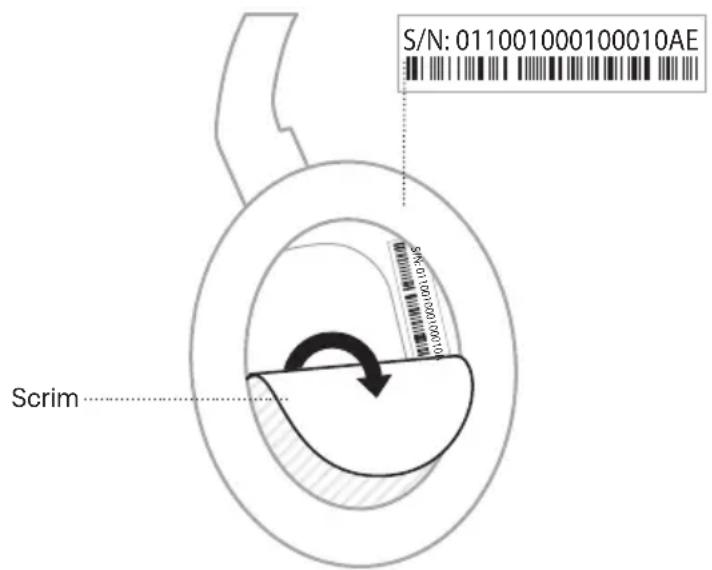
The serial and model numbers are located inside the earcup under the scrim.
Serial number: ____
Model number: 437310
Please keep your receipt. Now is a good time to register your Bose product. You can easily do this by going to ____ worldwide.Bose.com/ProductRegistration
WHAT'S IN THE BOX
Contents.... 10
BOSE APP
Download the Bose app.... 11
HEADPHONE CONTROLS
Power on 13
Power off....14
Auto-off 14
Media playback and volume 15
Phone calls.... 16
Noise cancellation 17
Mobile device voice control.... 18
SHORTCUTS
Use your shortcut.... 19
Change or disable your shortcut 19
NOISE CANCELLATION
Noise cancelling modes 20
Change the noise cancelling mode.... 21
Noise cancellation while on a call 21
Use noise cancellation only 22
BLUETOOTH® CONNECTIONS
Connect using the Bose app.... 23
Connect using the Bluetooth menu on your mobile device 23
Disconnect a mobile device 25
Reconnect a mobile device 25
Connect another mobile device 25
Identify connected mobile devices.... 25
Switch between two connected mobile devices 26
Reconnect a previously connected device.... 26
Clear the headphone device list.... 26
BATTERY
Charge the headphones.... 27
Charging time 27
Hear the battery level.... 27
HEADPHONE STATUS
Bluetooth status 28
Battery status 28
Charging status 29
Update and error status 29
WIRED CONNECTION
Connect the audio cable and microphone 30
CONNECT BOSE PRODUCTS
Connect a Bose Smart Speaker or Soundbar 31
Benefits 31
Compatible products.... 31
Connect using the Bose app.... 32
Connect using the product controls.... 33
Reconnect to a Bose Smart Speaker or Soundbar 34
CARE AND MAINTENANCE
Store the headphones 35
Clean the headphones.... 37
Replacement parts and accessories 37
Limited warranty.... 37
Serial number location.... 37
TROUBLESHOOTING
Try these solutions first.... 38
Other solutions.... 38
Reset the headphones.... 43
Restore the headphones to factory settings.... 44
CONTENTS
Confirm that the following parts are included:
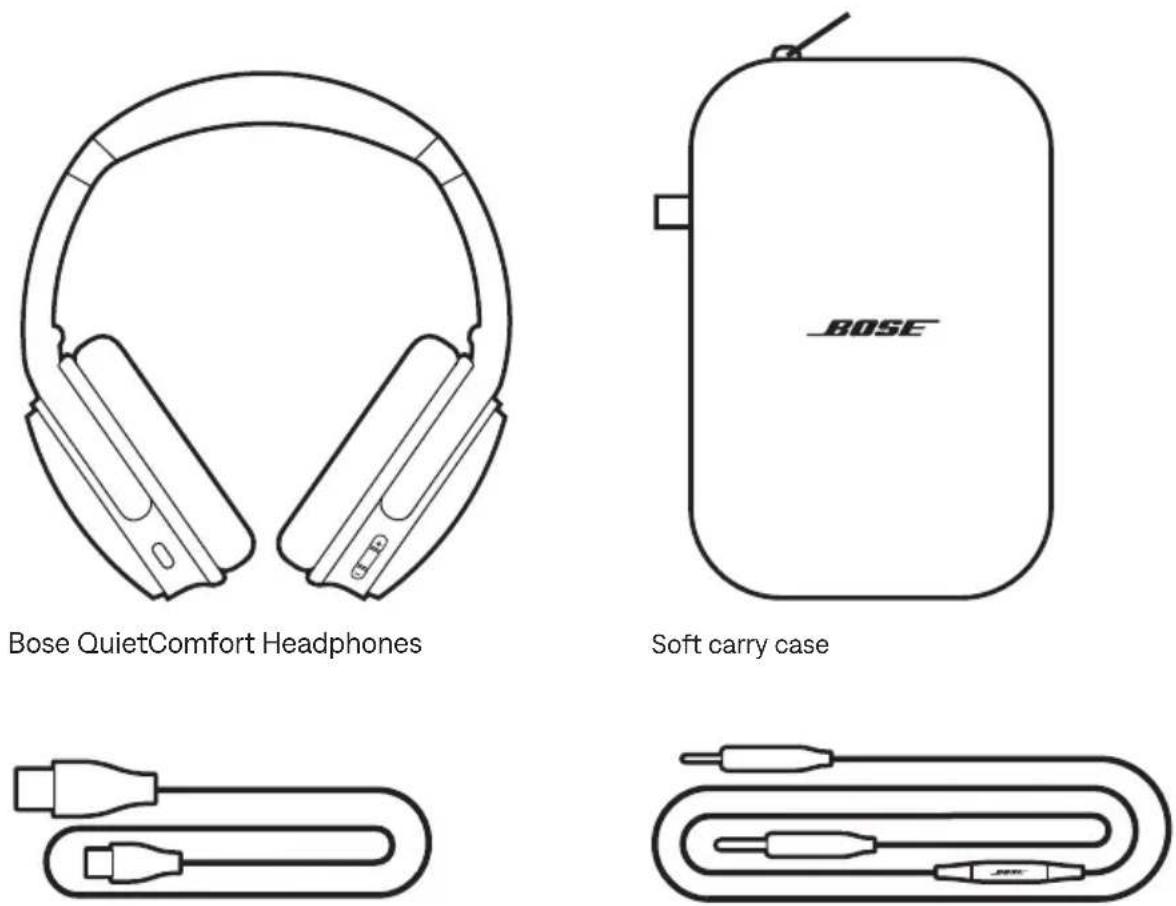
USB Type-A to USB Type-C ^® cable 3.5 mm to 2.5 mm audio cable with microphone
NOTE: If any part of your product appears to be missing or damaged, don't use it. Visit support.Bose.com/QCSC for troubleshooting articles, videos, and product repair or replacement.
The Bose app lets you set up and control the headphones from any mobile device, such as a smartphone or tablet.
Using the app, you can manage Bluetooth connections, manage headphone settings, choose your voice prompt language, and get any future updates and new features made available by Bose.
NOTE: If you've already downloaded the Bose app for another Bose product, you can add the headphones from the product list screen.
DOWNLOAD THE BOSE APP
- On your mobile device, download the Bose app.

- Follow the app instructions.
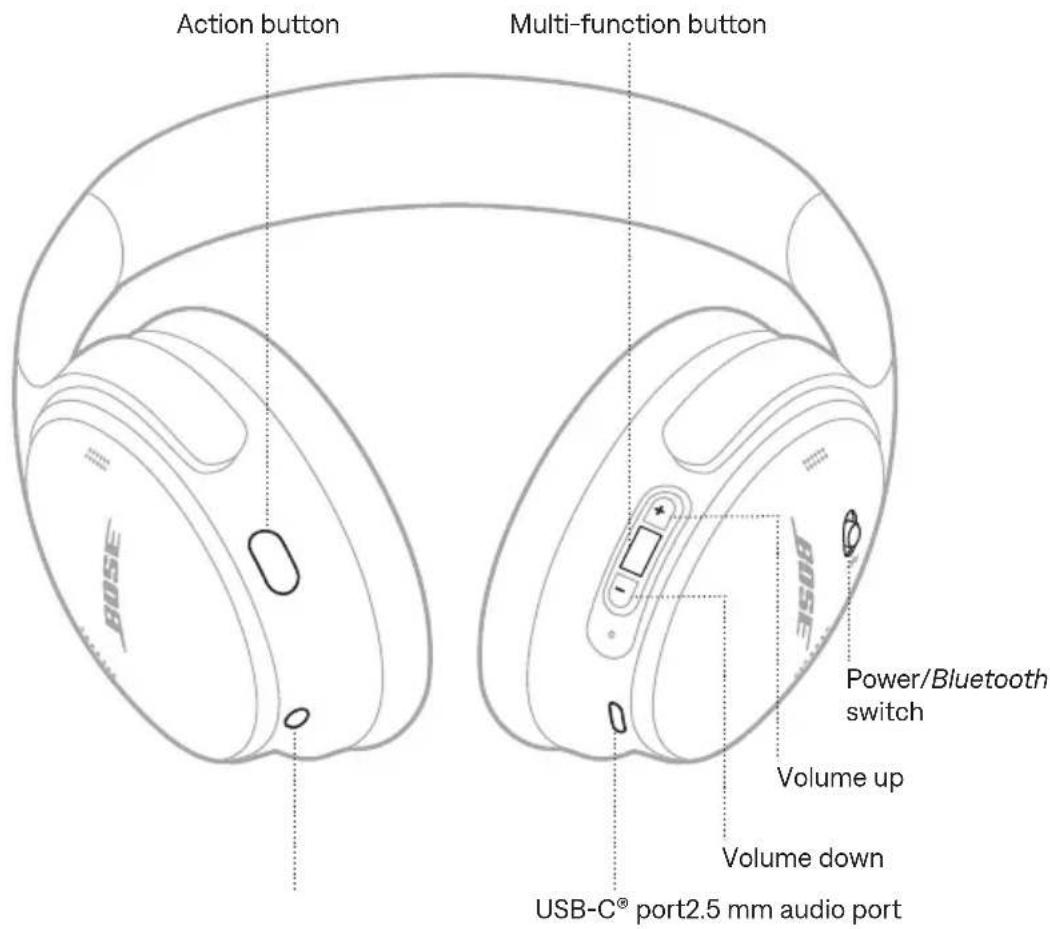
The headphone controls are located on the back of the earcups.
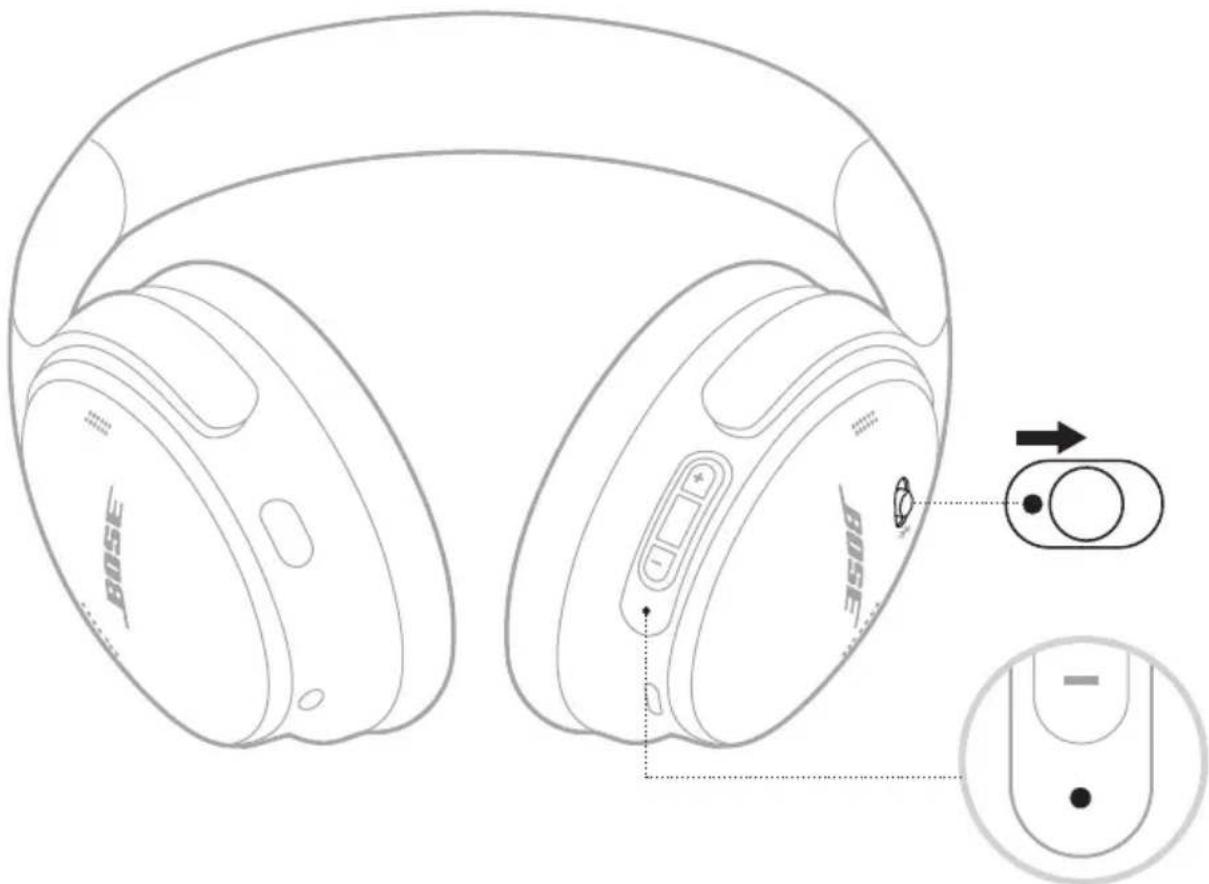
POWER ON
Slide the Power/Bluetooth switch to the right ✝.
A voice prompt announces the battery level, and the status light glows according to the current charge level (see page 28).
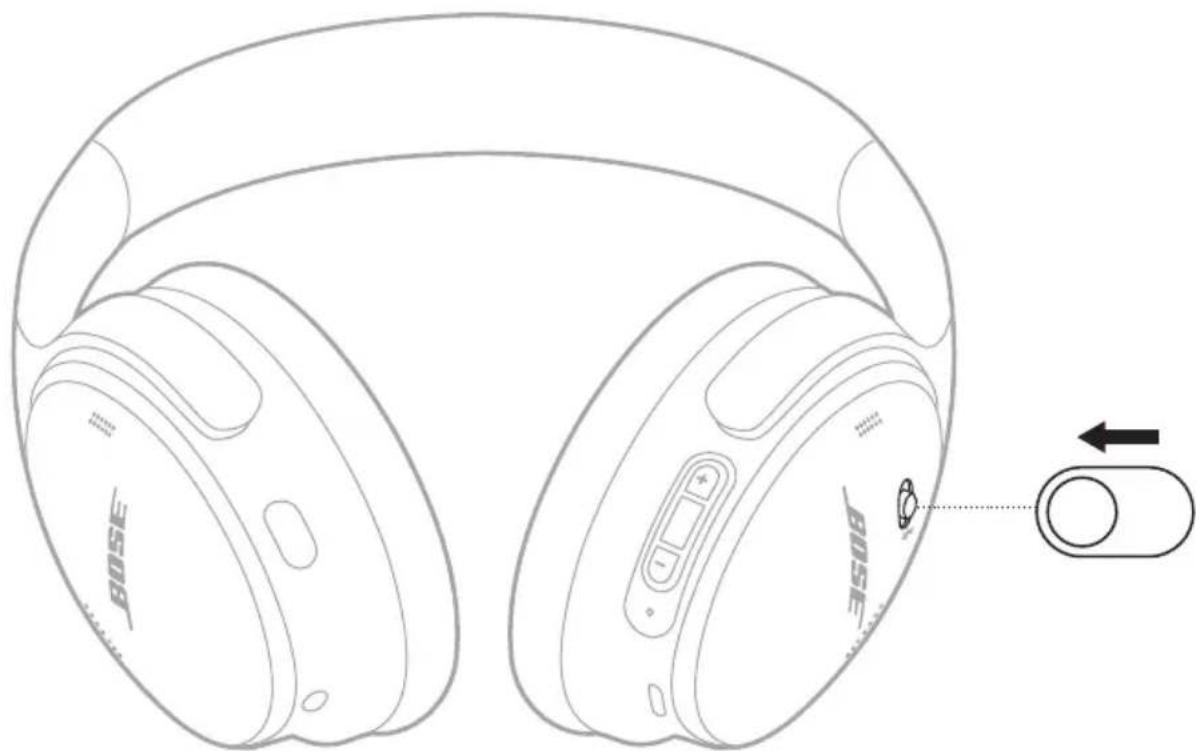
POWER OFF
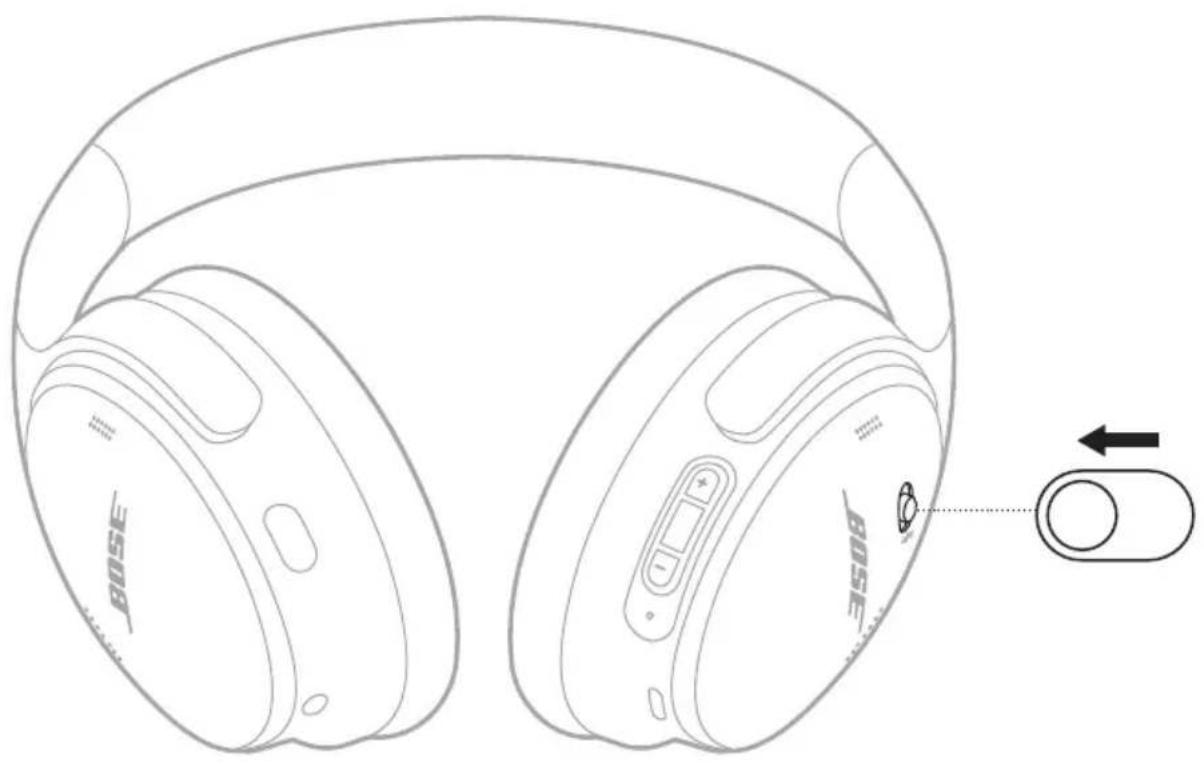
Slide the Power/Bluetooth switch to the left.
natural_image
Line drawing of a pair of Bose headphones with a control knob and scroll icon (no text or symbols on the devices themselves)NOTE: When the headphones are powered off, noise cancellation is disabled.
Auto-off
Auto-off conserves the headphone battery when they aren't in use.
To enable and customize the auto-off feature, use the Bose app. You can access this option from the Settings menu.
MEDIA PLAYBACK AND VOLUME
The Multi-function button and volume buttons control media playback and volume.
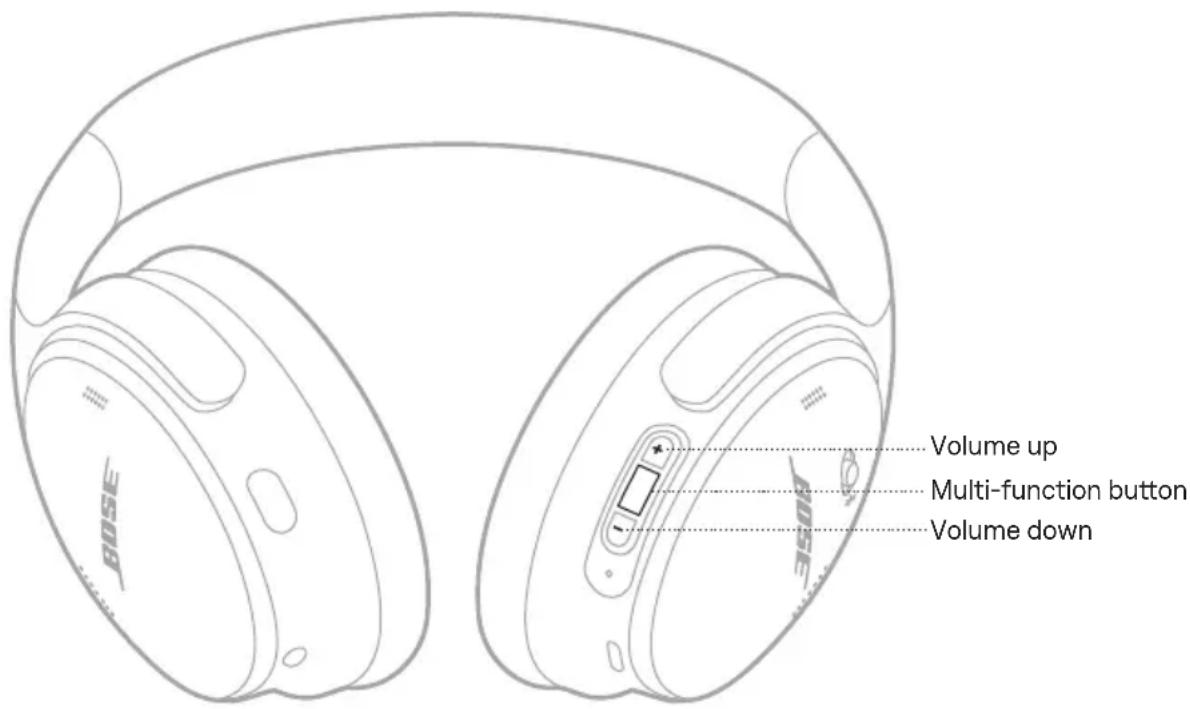
FUNCTION WHAT TO DO
| Play/Pause Press the Multi-function button. |
| Skip forward Double-press the Multi-function button. |
| Skip backward Triple-press the Multi-function button. |
| Volume up Press +. |
| Volume down Press —. |
NOTES:
- To quickly increase the volume, press and hold +.
- To quickly decrease the volume, press and hold —.
PHONE CALLS
The Multi-function button controls phone calls. The Action button enables you to mute the audio while on a call.
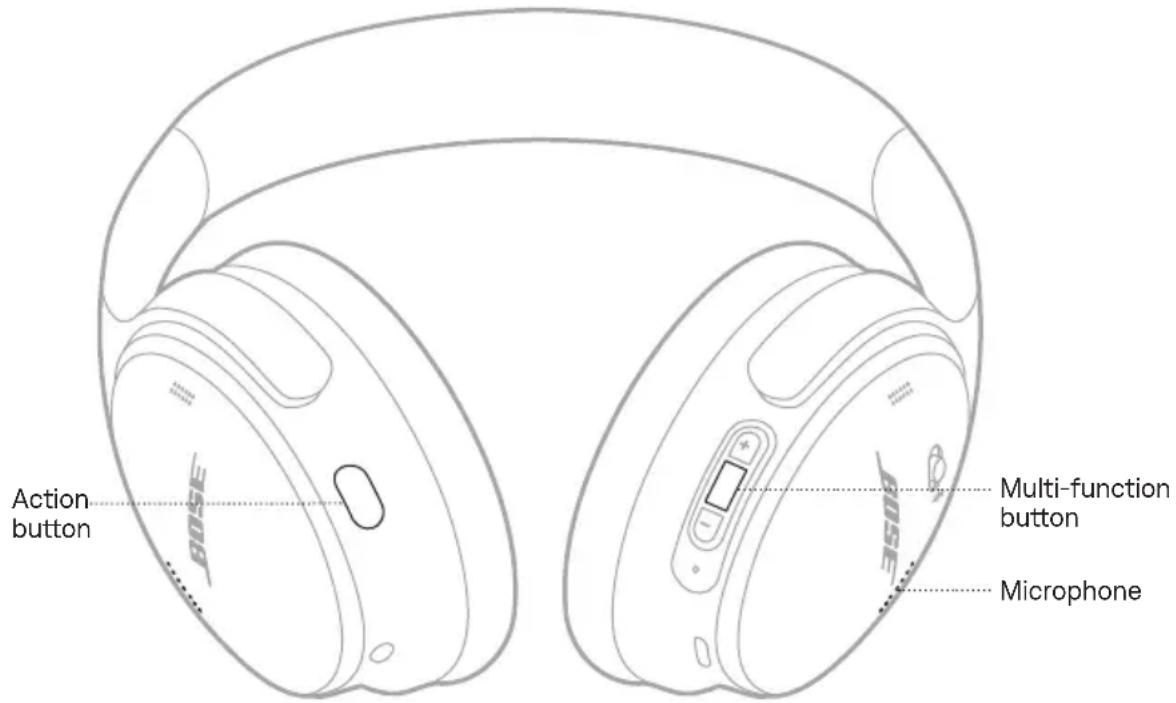
FUNCTION WHAT TO DO
| Answer/End a call Press the Multi-function button. | |
| Decline an incoming call | Press and hold the Multi-function button for 1 second. |
| Answer a second incoming call and put the current call on hold | While on a call and a second incoming call is ringing, press the Multi-function button. |
| Decline a second incoming call and stay on current call | While on a call and a second incoming call is ringing, press and hold the Multi-function button for 1 second. |
| Switch between two calls | While two calls are active, double-press the Multi-function button. |
| Create a conference call | While two calls are active, press and hold the Multi-function button for 3 seconds. |
| Mute/Unmute a call While on a call, double-press the Action button. | |
NOISE CANCELLATION
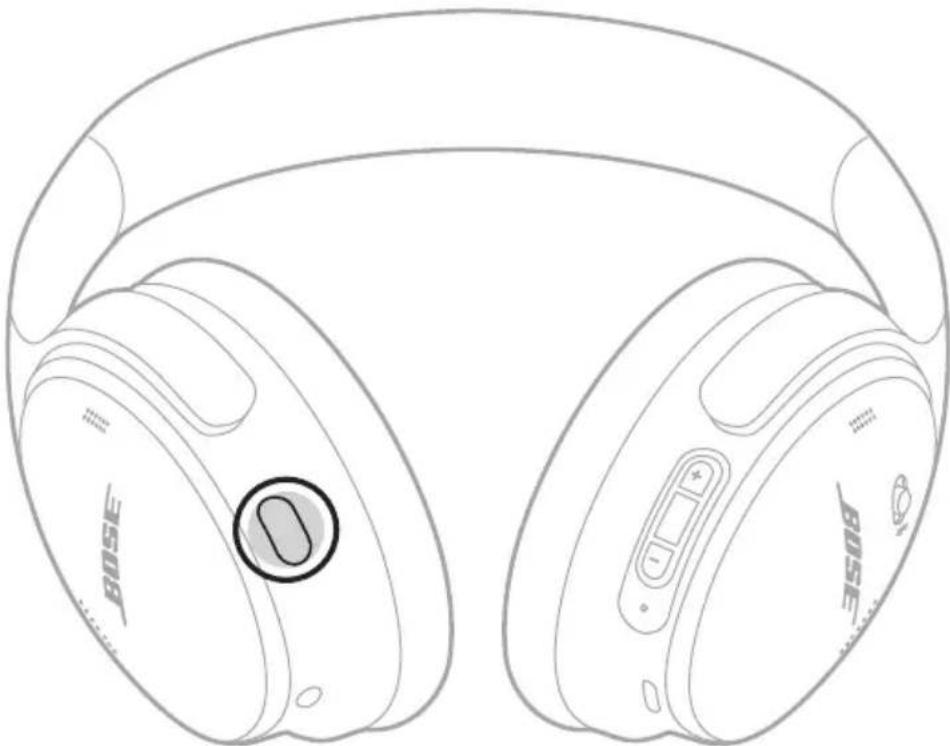
The Action button allows you to quickly and easily switch between noise cancelling modes.
For information about noise cancelling modes, see page 20.
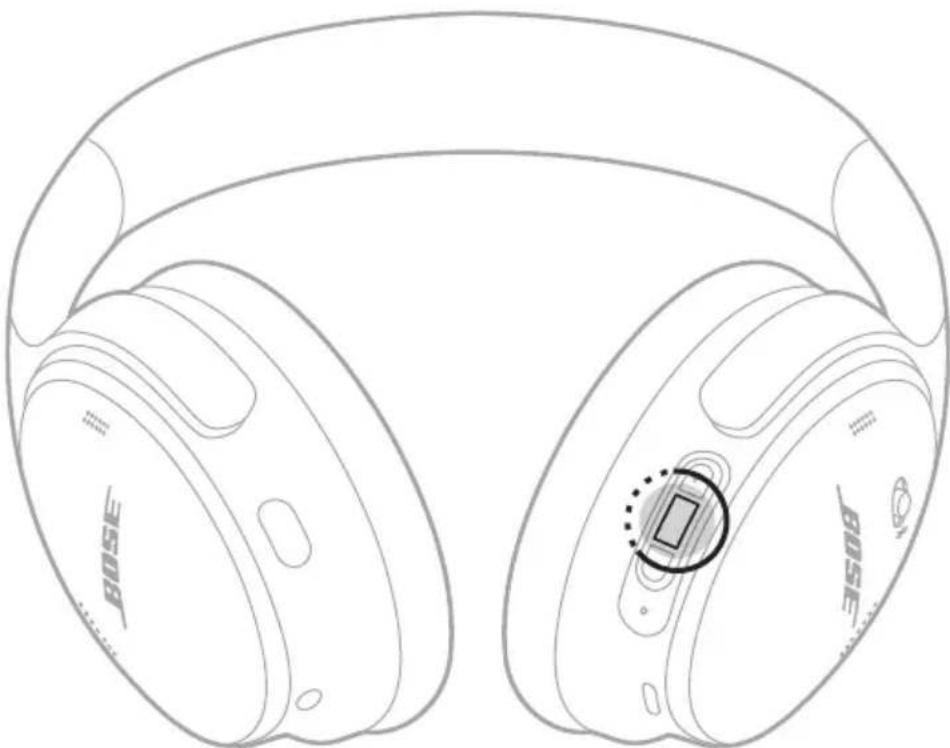
MOBILE DEVICE VOICE CONTROL
You can use the headphones to access voice control on your mobile device.
Press and hold the Multi-function button.
natural_image
Line drawing of two Bose headphones with a highlighted sensor or sensor area (no text or symbols present)NOTE: You can't access voice control while on a call.
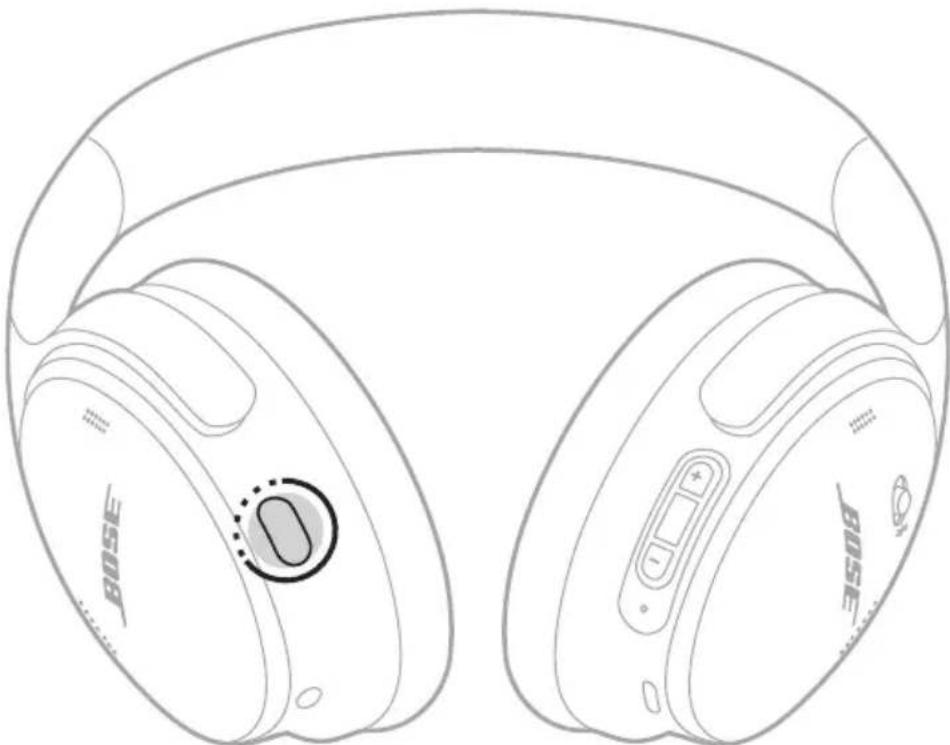
A shortcut enables you to quickly and easily access one of the following functions:
- Access Spotify
- Access battery level
NOTE: By default, accessing battery level is enabled.
USE YOUR SHORTCUT
Press and hold the Action button.
natural_image
Line drawing of two Bose headphones with a circular earbell on the front (no text or symbols)CHANGE OR DISABLE YOUR SHORTCUT
To change or disable your shortcut, use the Bose app. You can access this option from the main screen.
Noise cancelling reduces unwanted noise, providing a clearer, more lifelike audio performance.
You can choose between two pre-configured noise cancelling modes — Quiet or Aware — or create up to two of your own custom modes.
Choose your noise cancelling mode based on your listening preferences and environment.
NOISE CANCELLING MODES
MODE DESCRIPTION
| Quiet | Full noise cancellation with Bose-optimized audio. Allows you to block out distractions using the highest level of noise cancellation. |
| Aware | Full transparency with Bose-optimized audio. Allows you to hear your surroundings while enjoying your audio. |
| Custom | Custom noise control (noise cancellation or wind block) based on your listening preferences and environment.NOTE: You can create up to two custom modes using the Bose app. To access this option, tap Modes on the main screen. |
NOTE: By default, the headphones power on in Quiet Mode. To set the headphones to power on with the last mode used, use the Bose app. You can access this option from the Settings menu.
CHANGE THE NOISE CANCELLING MODE
Press the Action button.
natural_image
Line drawing of two BoSE headphones with a circular button on the left (no text or symbols beyond branding)A voice prompt announces the selected mode.
TIP: You can also change the mode using the Bose app. To access this option, tap Modes on the main screen.
NOISE CANCELLATION WHILE ON A CALL
When you make or receive a call, the headphones remain at the current noise cancellation setting and self voice is activated. Self voice helps you hear yourself speak more naturally.
To adjust noise cancellation while on a call, change the mode (see "Change the noise cancelling mode").
NOTE: To adjust self voice, use the Bose app. You can access this option from the Settings menu.
USE NOISE CANCELLATION ONLY
You can use noise cancellation only, without audio or interruptions from phone calls.
-
Do one of the following:
-
Disconnect your mobile device (see page 25).
-
Turn the Bluetooth feature off on your mobile device.
-
Press the Action button to change the mode (see page 21).
NOTE: To reconnect your mobile device, select the headphones from the Bluetooth list on your device.
You can store up to eight devices in the headphone device list, and the headphones can be actively connected to up to two devices at a time (multi-point connection). You can play audio from only one device at a time.
NOTE: For the best experience, use the Bose app to set up and connect your mobile device (see page 11).
CONNECT USING THE BOSE APP
To connect the headphones and manage Bluetooth settings using the Bose app, see page 11.
CONNECT USING THE BLUETOOTH MENU ON YOUR MOBILE DEVICE
- Slide the Power/Bluetooth switch to the right & and hold for 3 seconds until you hear "Ready to connect" and the status light blinks blue.
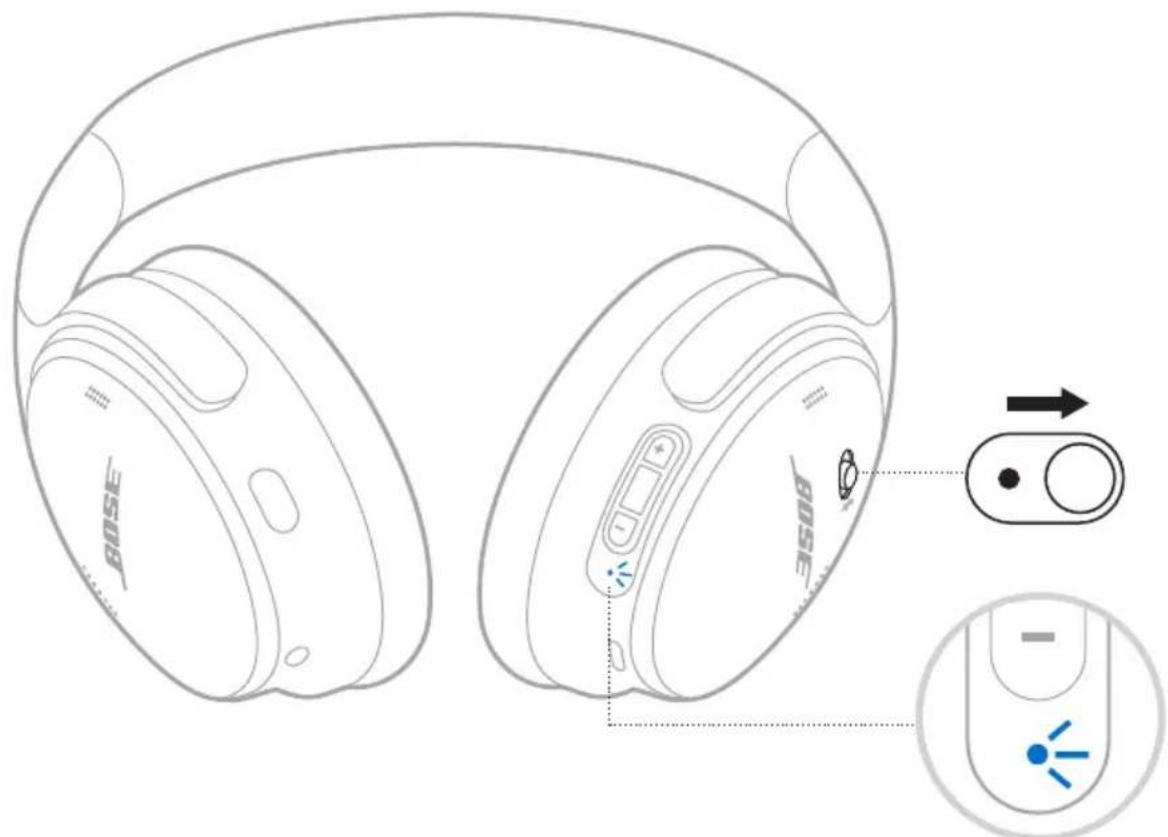
- On your device, enable the Bluetooth feature.
NOTE: The Bluetooth feature is usually found in the Settings menu.
- Select your headphones from the device list.
NOTE: Look for the name you entered for your headphones in the Bose app. If you didn't name your headphones, the default name appears.
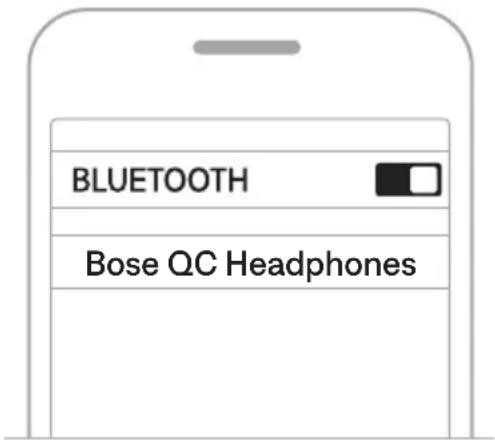
Once connected, you hear "Connected to
DISCONNECT A MOBILE DEVICE
To disconnect your mobile device, use the Bose app.
TIP: You can also use Bluetooth settings on your mobile device to disconnect your device. Disabling the Bluetooth feature disconnects all other devices.
RECONNECT A MOBILE DEVICE
When powered on, the headphones try to reconnect with the two most recently-connected devices.
NOTES:
- The devices must be within range (30 ft or 9 m) and powered on.
- Make sure the Bluetooth feature is enabled on your mobile device.
- If the multi-point connection feature is disabled, the headphones try to reconnect with the most recently-connected device.
CONNECT ANOTHER MOBILE DEVICE
The headphones can be actively connected to up to two devices at a time (multi-point connection).
To connect another device, download the Bose app (see page 11) or use the Bluetooth menu on your mobile device (see page 23).
NOTES:
- You can only play audio from one device at a time.
- To manage or disable the multi-point connection feature, use the Bose app. You can access this option from the Settings menu.
- Disabling the multi-point connection feature disconnects the second connected device.
IDENTIFY CONNECTED MOBILE DEVICES
Slide the Power/Bluetooth switch to the right ✝ and release to hear which devices are currently connected.
SWITCH BETWEEN TWO CONNECTED MOBILE DEVICES
- Pause audio on your first mobile device.
- Play audio on your second mobile device.
NOTES:
- Your headphones receive phone calls from both devices, regardless of which device is playing audio.
- You can also switch between two devices using the Bose app. You can access this option from the Settings menu.
RECONNECT A PREVIOUSLY CONNECTED DEVICE
- Slide the Power/Bluetooth switch to the right ✗ and release to hear which devices are connected.
- Within 2 seconds, slide the Power/Bluetooth switch to the right ✝ and release again to hear the name of the next device in the headphone device list.
- Repeat until you hear the correct device name.
You hear a tone that indicates when the device is connected. - Play audio on the connected mobile device.
NOTE: If two devices are already connected to the headphones, the newly-connected device replaces the second device that was previously connected.
CLEAR THE HEADPHONE DEVICE LIST
- Slide the Power/Bluetooth switch to the right ✗ and hold for 15 seconds until you hear "Bluetooth device list cleared. Ready to connect."
- Delete your headphones from the Bluetooth list on your mobile device.
All devices are cleared and the headphones are ready to connect.
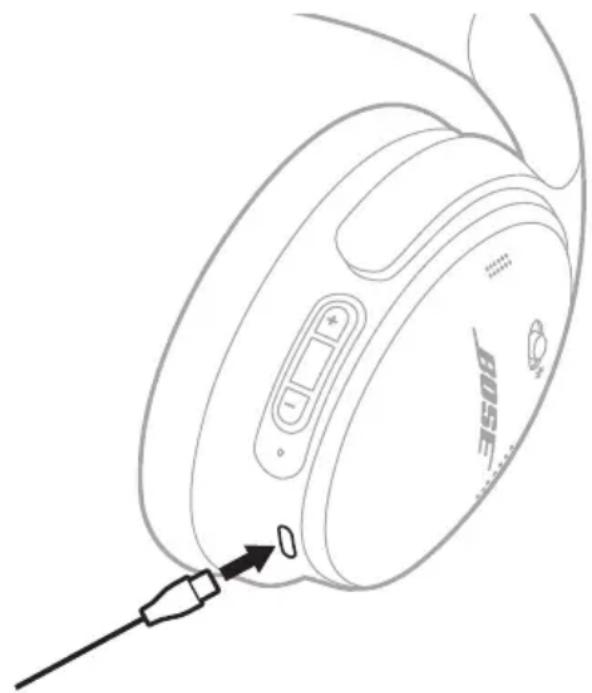
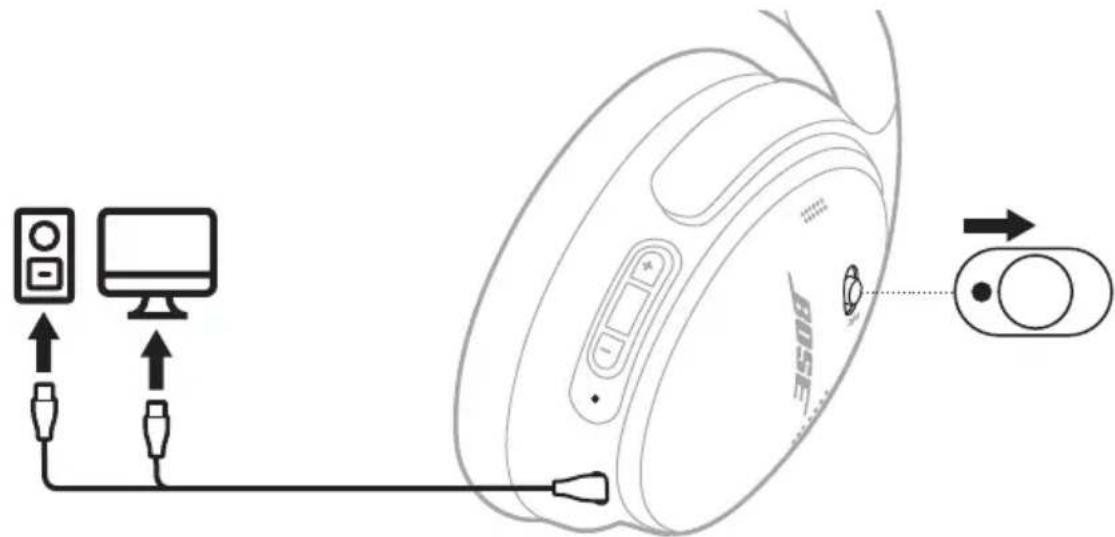
- Connect the small end of the USB cable into the USB-C port on the right earcup.
- Connect the other end into a USB-A power source such as a computer or wall charger.
natural_image
Line drawing of a Bose brand head with a connector inserted, showing no text or symbols on the device itself.The headphones begin charging, and the status light blinks white for 10 seconds. When the headphones are fully charged, the status light glows solid white.
NOTE: The headphones don't play and aren't available in the Bose app while charging.
Charging time
Allow up to 2.5 hours to fully charge the headphones.
A full charge powers the headphones for up to 24 hours.
Hear the battery level
Each time you power on the headphones, a voice prompt announces the battery level. When the headphone battery is low, you hear "Battery low."
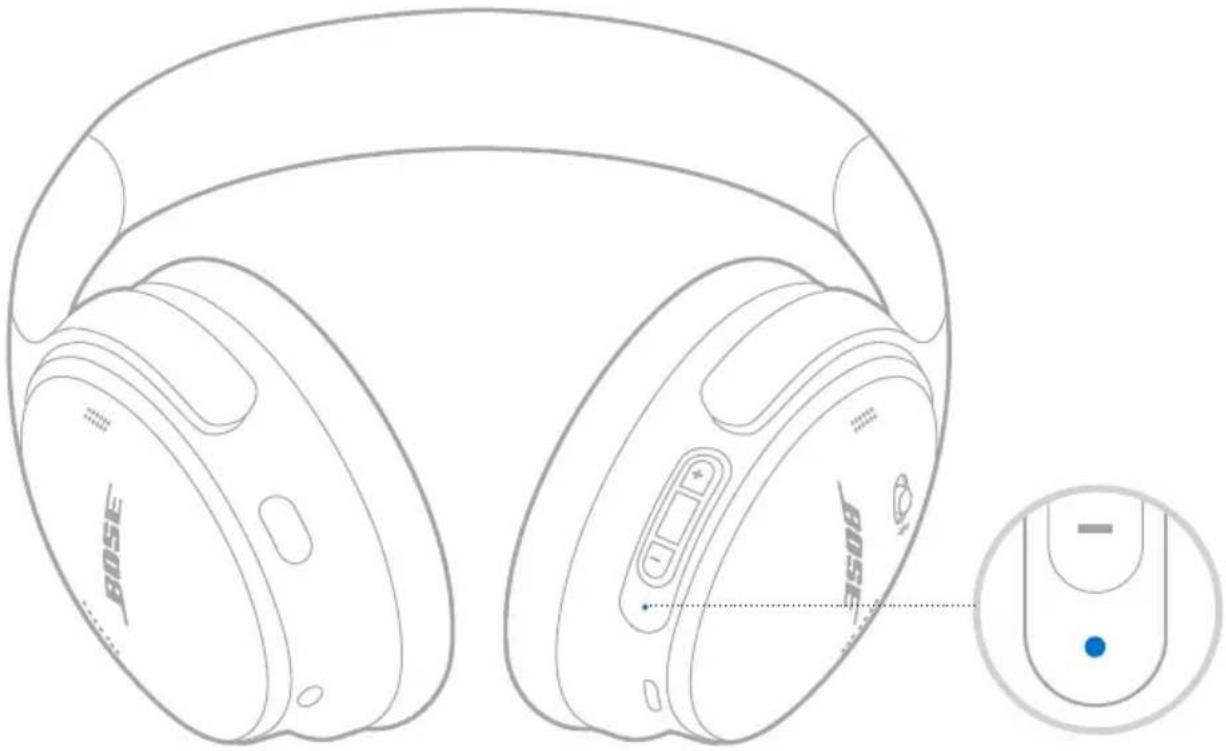
NOTE: To visually check the battery, see the status light I located on the right earcup. For more information, see "Battery status" on page 28.
TIP: You can also hear the battery level using a shortcut. The battery level must be set as a shortcut using the Bose app (see page 19).
The status light is located on the right earcup.
natural_image
Line drawing of a pair of Bose headphones with a close-up inset showing the speaker's head and control knob (no text or symbols on the devices themselves)BLUETOOTH STATUS
Shows the Bluetooth connection status.
LIGHT ACTIVITY SYSTEM STATE
| Blinking blue Ready to connect | |
| Solid blue (10 seconds) Connected |
BATTERY STATUS
Shows the battery level.
LIGHT ACTIVITY SYSTEM STATE
| Solid white Medium to full charge | |
| Solid amber Low charge |
TIP: You can also check the battery level using the Bose app or hear the battery level using a shortcut. The battery level must be set as a shortcut using the Bose app (see page 19).
CHARGING STATUS
Shows the charging status.
LIGHT ACTIVITY SYSTEM STATE
| Blinks white 2 times Charging begins | |
| Solid amber Charging | |
| Solid white Full charge |
UPDATE AND ERROR STATUS
Shows the update or error status.
LIGHT ACTIVITY SYSTEM STATE
| Fast blinking white (10 seconds) Updating software (via USB) |
| Slow blinking white (30 to 60 seconds) Updating software (wirelessly) |
| Blinking amber and white Error - contact Bose customer service |
CONNECT THE AUDIO CABLE AND MICROPHONE
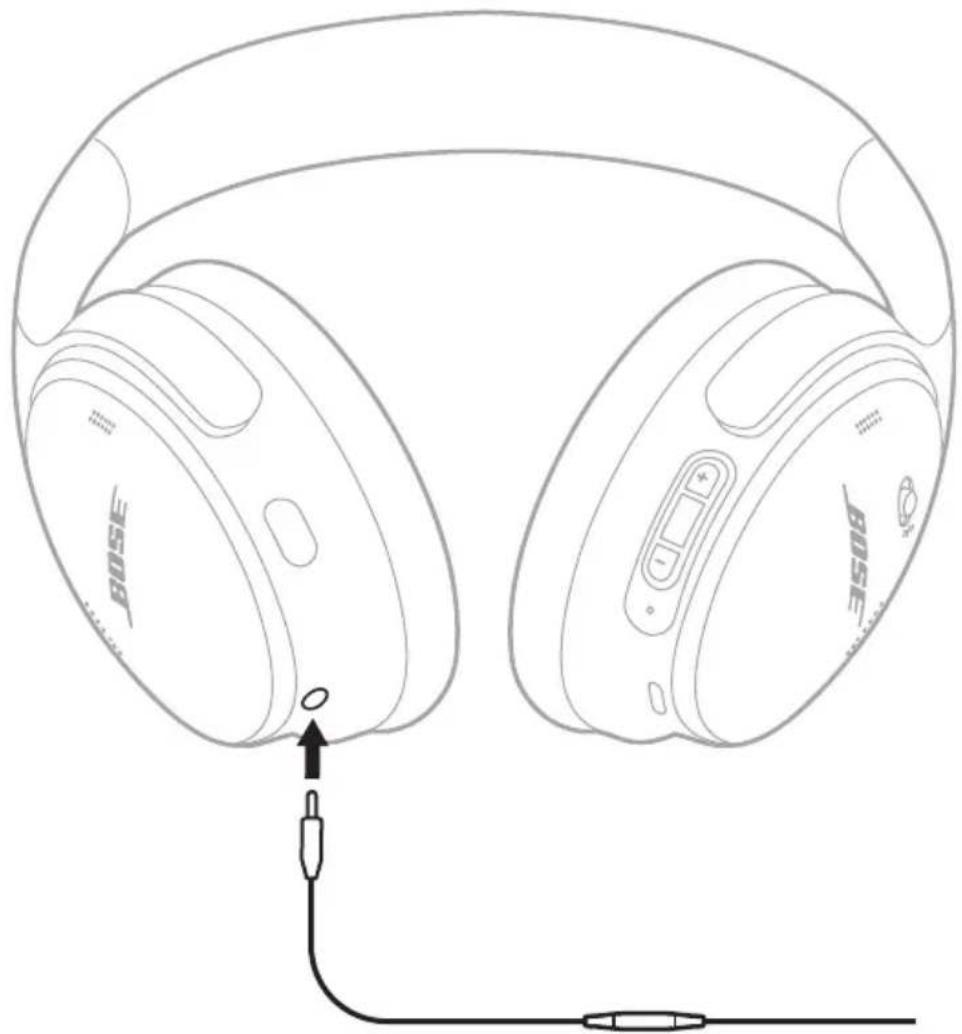
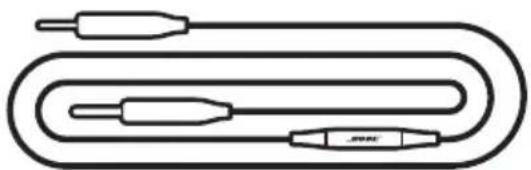
The 2.5 mm to 3.5 mm audio cable has a built-in microphone. You can use the audio cable for phone calls or listening to audio on your source device when a Bluetooth connection isn't available, the headphone battery is depleted, or the headphones are powered off.
NOTES:
- When the audio cable is connected, Bluetooth connection and the microphone voice pick-up on the earcups are disabled.
- When the audio cable is connected and the headphone battery is depleted or the headphones are powered off, the headphone controls are disabled. Phone calls and media playback must be controlled on your source device.
-
For the best experience, a Bluetooth connection is recommended.
-
Connect the cable to the 2.5 mm port on the left earcup.
natural_image
Line drawing of a pair of BOSE headphones connected to a cable, showing ear and ear positioning (no text or symbols)- Connect the other end of the cable to the 3.5 mm port on your source device.
CONNECT A BOSE SMART SPEAKER OR SOUNDBAR
Using SimpleSync technology, you can connect the headphones to a Bose Smart Soundbar or Bose Smart Speaker for a personal listening experience.
Benefits
- Use independent volume controls on each product to lower or mute your Bose Smart Soundbar while keeping the headphones as loud as you like.
- Hear your music clearly from the next room by connecting the headphones to your Bose Smart Speaker.
NOTE: SimpleSync technology has a Bluetooth range of up to 30 ft (9 m). Walls and construction materials can affect reception.
Compatible products
You can connect the headphones to any Bose Smart Speaker or Bose Smart Soundbar.
Popular compatible products include:
- Bose Smart Soundbar 900
- Bose Smart Soundbar 700/Bose Soundbar 700
- Bose Smart Soundbar 600
- Bose Smart Speaker 500/Bose Home Speaker 500
- Bose Home Speaker 300
- Bose Portable Smart Speaker/Bose Portable Home Speaker
New products are added periodically. For a complete list and more information, visit: ____support.Bose.com/Groups
Connect using the Bose app
- Slide the Power/Bluetooth switch to the right ✝ and hold for 3 seconds until you hear "Ready to connect another device" and the status light blinks blue.
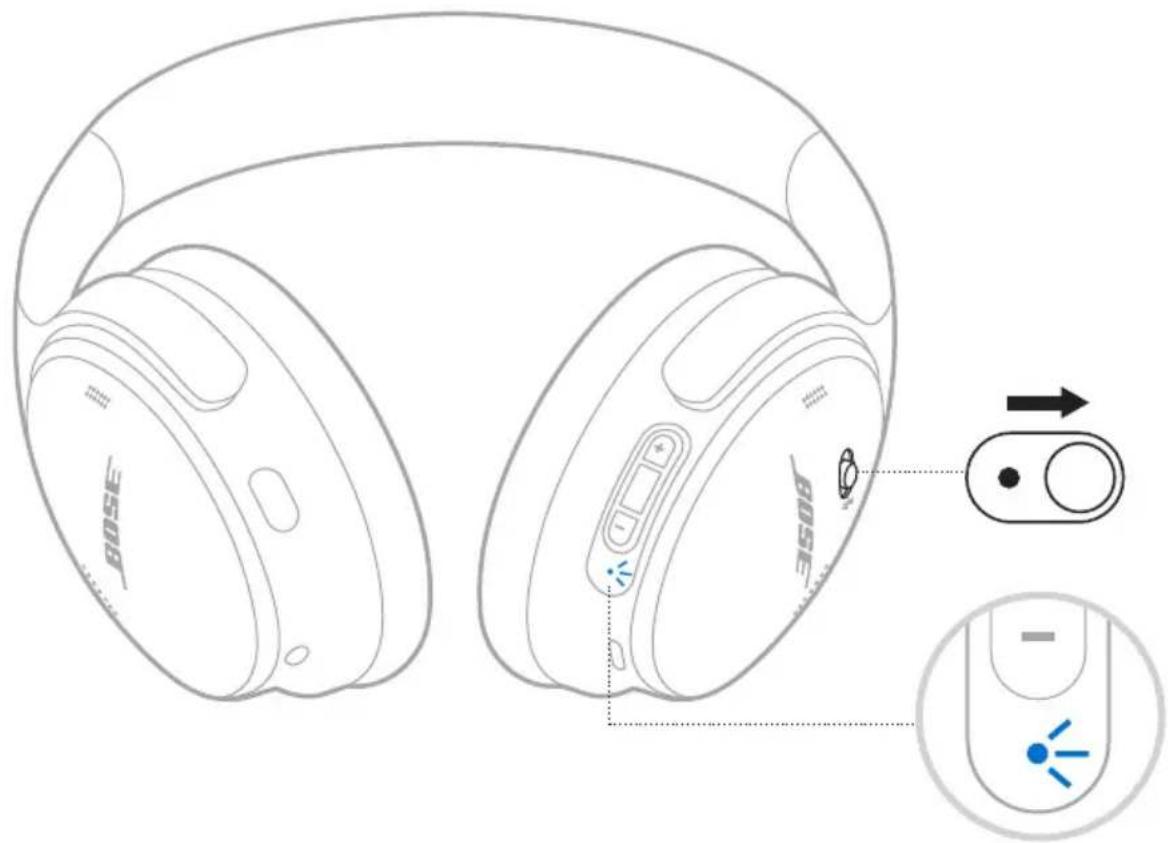
- Use the Bose app to connect the headphones to a compatible Bose product. For more information, visit: support.Bose.com/Groups
NOTES:
• Make sure that the headphones are within 30 ft (9 m) of your soundbar or speaker.
- You can connect the headphones to only one product at a time.
Connect using the product controls
- Slide the Power/Bluetooth switch to the right ✝ and hold for 3 seconds until you hear "Ready to connect another device" and the status light blinks blue.
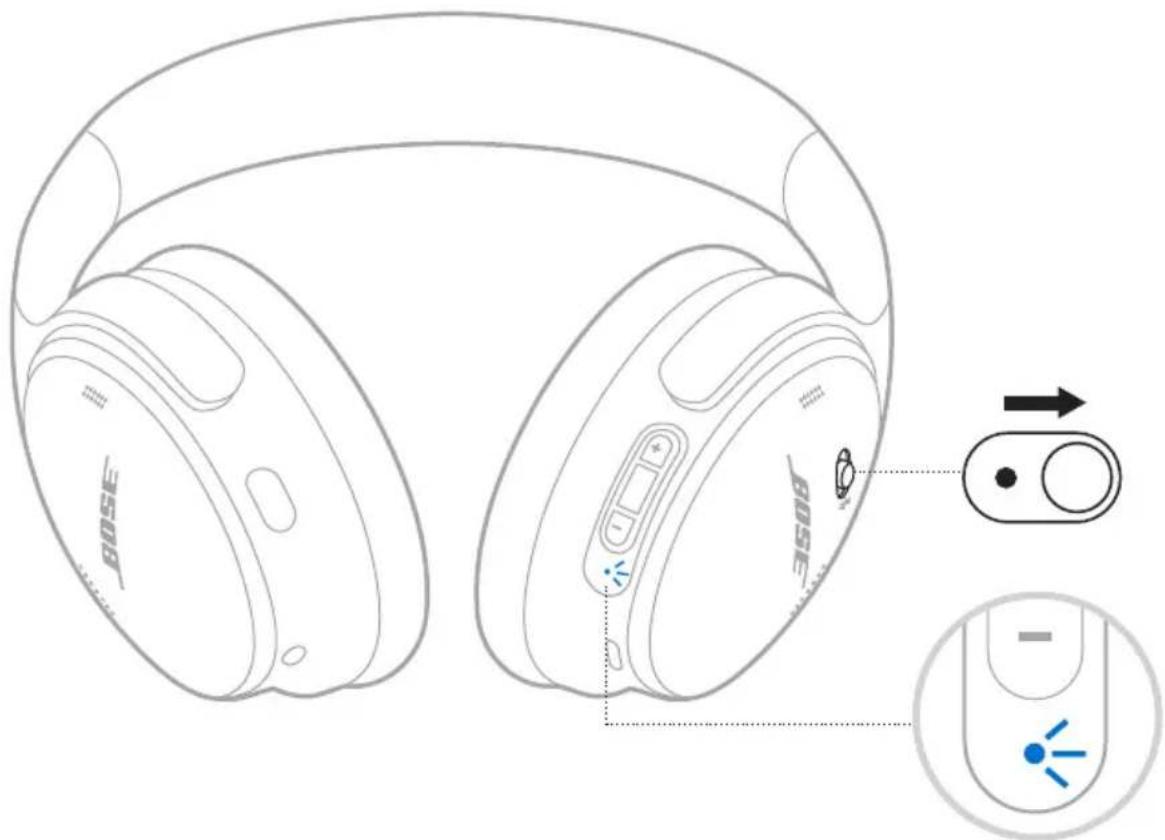
- On your soundbar remote or the top of your speaker, press and hold the Bluetooth button until the light bar or light ring pulses blue.
The headphones connect to your soundbar or speaker, and you hear the same audio through both devices.
NOTES:
• Make sure that the headphones are within 30 ft (9 m) of your soundbar or speaker.
- You can connect the headphones to only one product at a time.
RECONNECT TO A BOSE SMART SPEAKER OR SOUNDBAR
Use the Bose app to reconnect the headphones to a previously-connected compatible Bose product. For more information, visit: ____ support.Bose.
NOTES:
- Your soundbar or speaker must be within range (30 ft or 9 m) and powered on.
- If the headphones don't reconnect, see "Headphones don't reconnect to a previously-connected Bose Smart Soundbar or Speaker" on page 42.
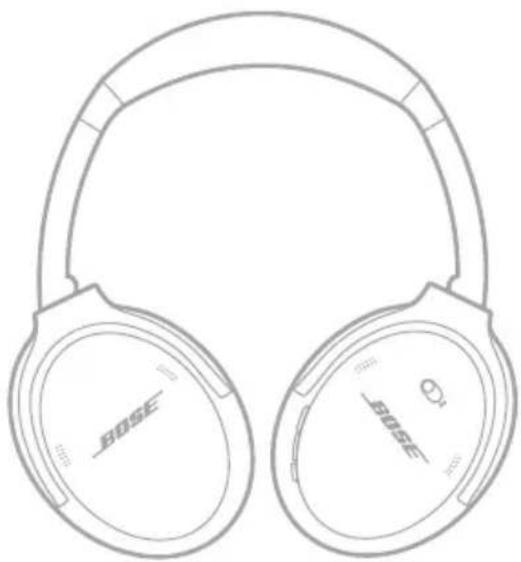
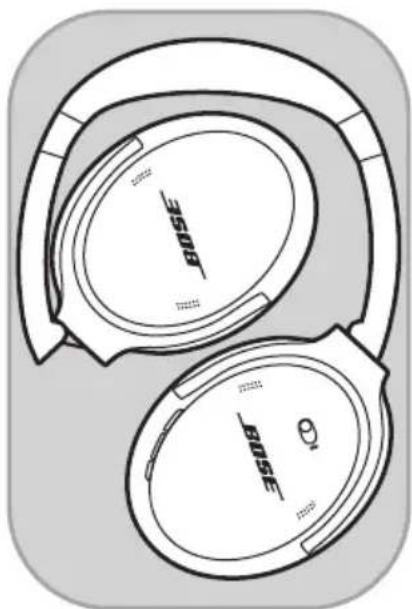
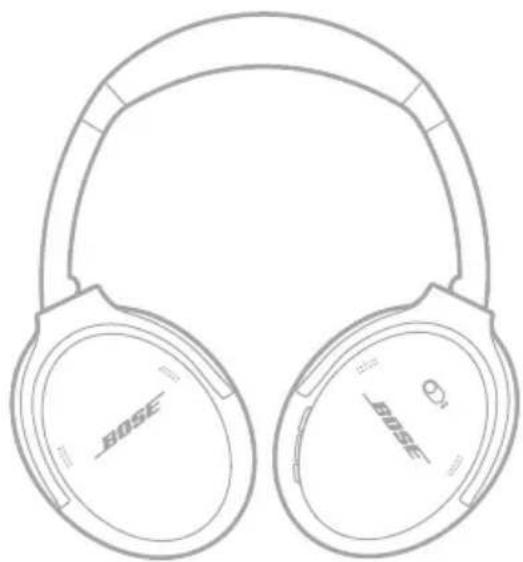
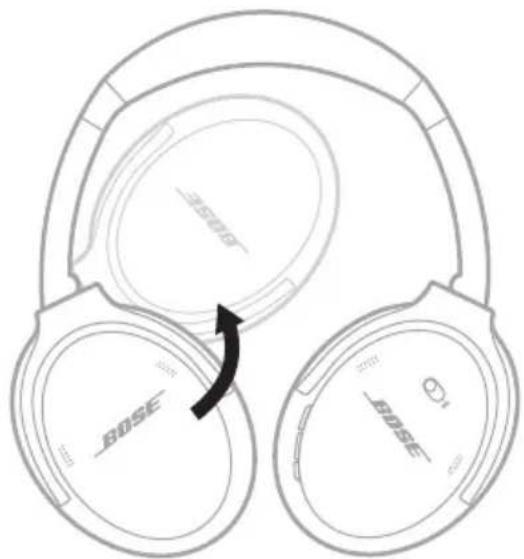
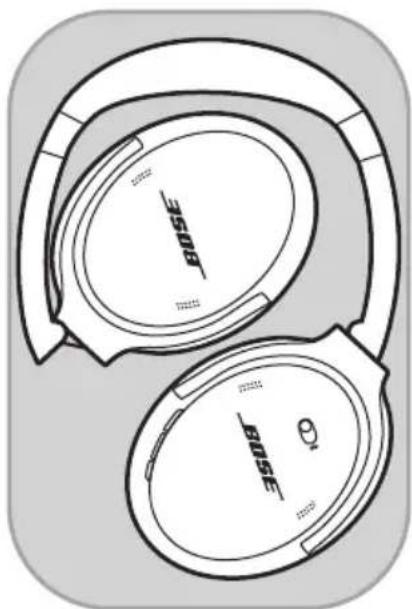
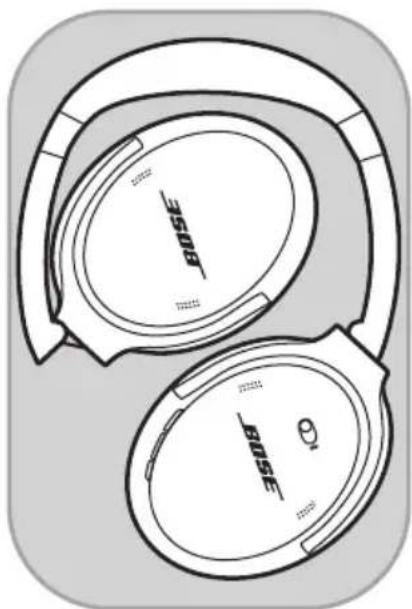
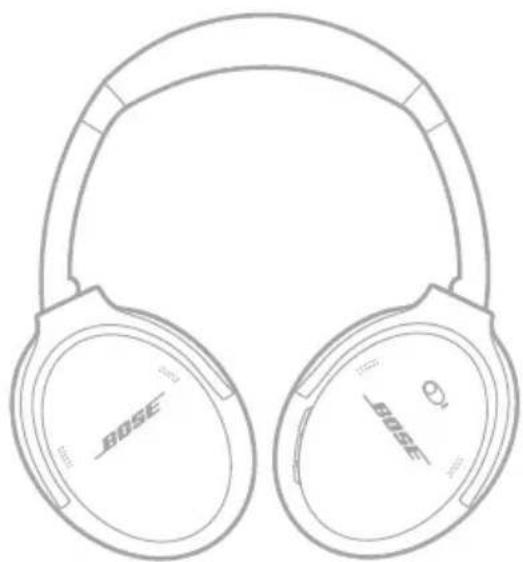
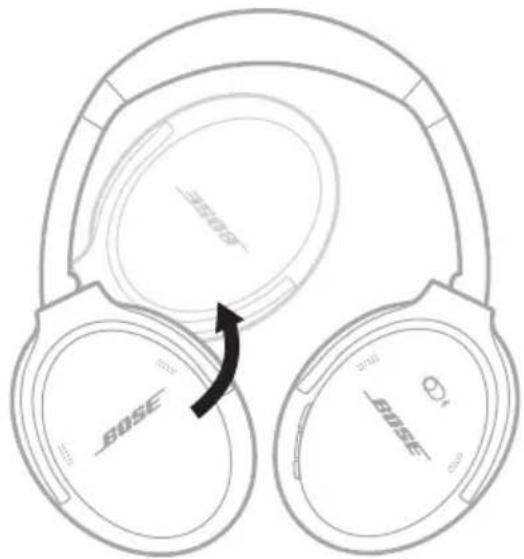
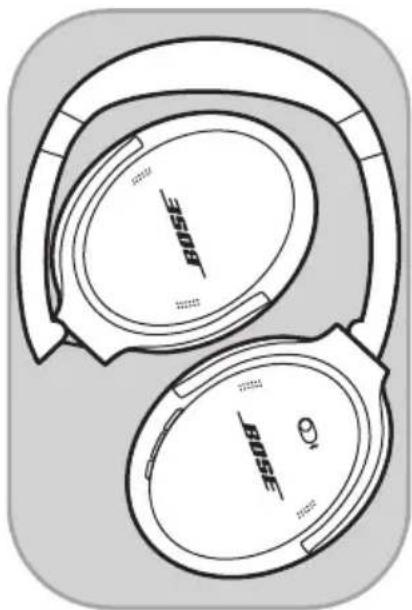
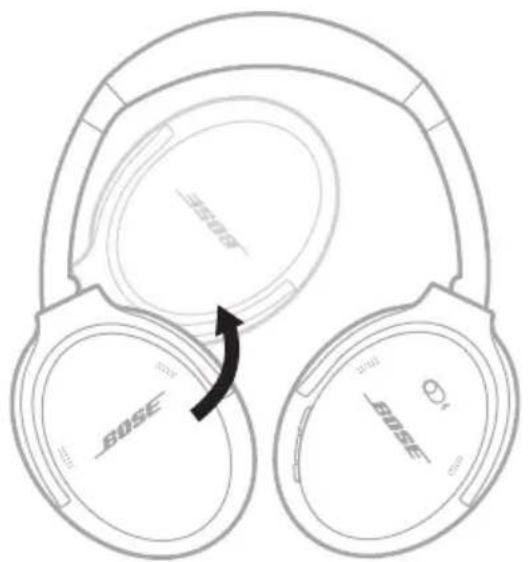
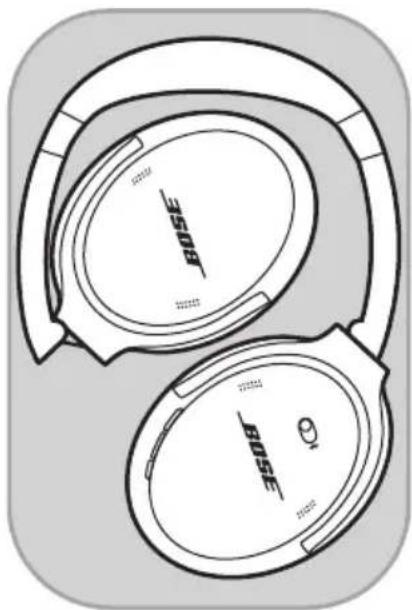
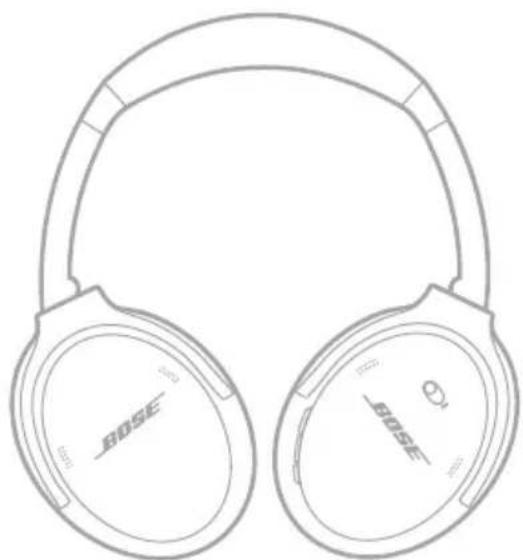
The earcups rotate for easy, convenient storage. Place the headphones flat into the case.
- Rotate both earcups inward so they lay flat.
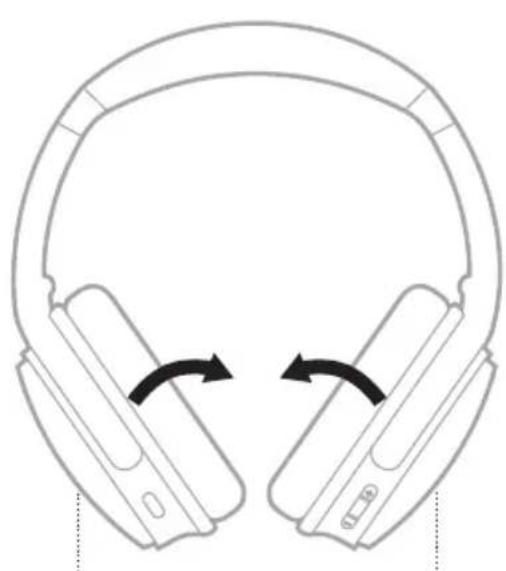
natural_image
Diagram of a pair of headphones with bidirectional arrows indicating rotation (no text or symbols)Left earcup Right earcup
natural_image
Line drawing of two beige high-heeled headphones with 'BOSE' branding and a small logo on the front (no text or symbols on the ear itself)- Fold the left earcup up toward the headband.
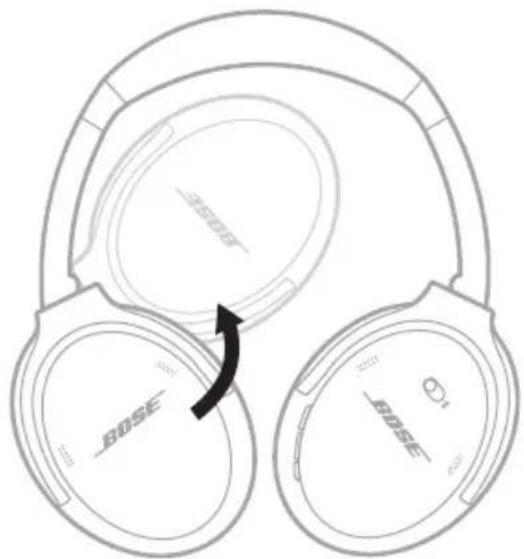
- Place the headphones flat in the case.
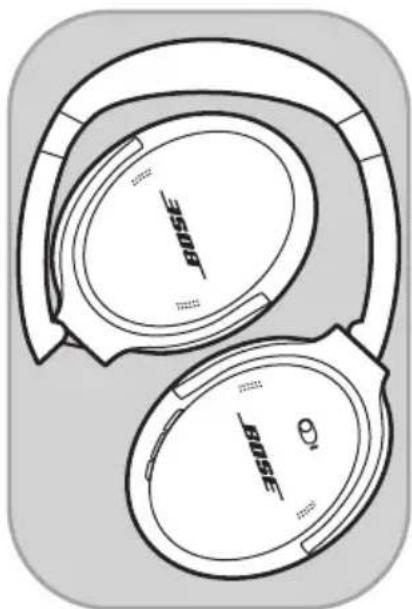
natural_image
Technical line drawing of two SBE-branded headphones with no visible text or symbolsNOTES:
• Make sure to power off the headphones when not in use.
- Before storing the headphones for more than a few months, make sure the battery is fully charged.
CLEAN THE HEADPHONES
Wipe the outside surfaces with a soft, dry cloth.
Don't allow moisture to get inside the earcups.
REPLACEMENT PARTS AND ACCESSORIES
Replacement parts and accessories can be ordered through Bose customer service.
Visit: ____ support.Bose.com/QCSC
LIMITED WARRANTY
Your headphones are covered by a limited warranty. Visit our website at ____ worldwide.Bose.com/Warranty for details of the limited warrant
To register your product, visitworldwide.Bose.com/ProductRegistration for instructions. Failure to register will not affect your limited warranty rights.
SERIAL NUMBER LOCATION
The serial number is located inside the right earcup under the scrim. The scrim is the inner screen that covers and protects the components inside the earcup.
To view the serial number, grab the scrim at the top edge and gently peel it away.
CAUTION: Be careful not to press down on or remove any other components inside the earcup as this could damage the headphones.
TRY THESE SOLUTIONS FIRST
If you experience problems with your headphones:
- Charge the headphones (see page 27).
• Power on the headphones (see page 13). - Check the headphones status light (see page 28).
• Make sure your mobile device supports Bluetooth connections (see page 23). - Move your mobile device closer to the headphones (30 ft or 9 m) and away from any interference or obstructions.
- Increase the volume on your headphones, mobile device, and music app.
- Connect another mobile device (see page 25).
If you couldn't resolve your issue, see the table below to identify symptoms and solutions to common problems. You can also access troubleshooting articles, videos, and other resources at: ____support.Bose.com/QCSC
If you are unable to resolve your issue, contact Bose customer service.
Visit: ____ worldwide.Bose.com/contact
OTHER SOLUTIONS
SYMPTOM SOLUTION
| Headphones don’t power on | Slide the Power/Bluetooth switch to the right ♂ (see page 13). |
| Headphones don’t connect with mobile device | Power off the headphones, then power on again.Disconnect the audio cable.Disconnect the USB charging cable.On your mobile device:Disable the Bluetooth feature and then re-enable.Delete your Bose QuietComfort Headphones from the Bluetooth list on your device. Connect again.Connect using the Bluetooth menu on your mobile device (see page 23).Clear the headphone device list (see page 26). Delete the headphones from the Bluetooth list on your mobile device, including any duplicate listings labeled LE (Low Energy).Connect again (see page 23).Visit ____support.Bose.com/QCSC to see how-to video |
SYMPTOM SOLUTION
| Headphones don't respond during app setup | Uninstall the Bose app on your mobile device. Reinstall the app (see page 11).Make sure you're using the Bose app for setup (see page 11).Make sure you have given the Bose app access to Bluetooth connections in your mobile device Settings menu.Make sure the Bluetooth feature is on in your mobile device Settings menu. |
| Bose app can't find headphones | Uninstall the Bose app on your mobile device. Reinstall the app (see page 11).Make sure you have given the Bose app access to Bluetooth connections in your mobile device Settings menu.Connect using the Bluetooth menu on your mobile device (see page 23).Clear the headphone device list (see page 26). Delete the headphones from the Bluetooth list on your mobile device, including any duplicate listings labeled LE (Low Energy).Connect again (see page 23). |
| Bose app doesn't work on mobile device | Make sure your mobile device is compatible with the Bose app and meets minimum system requirements. For more information, refer to the app store on your mobile device.Uninstall the Bose app on your mobile device. Reinstall the app (see page 11). |
| Headphones don't charge | Make sure both ends of the USB cable are securely connected into the ports (see page 27).Try a different USB-A wall charger, USB cable, or AC (mains) power source.If your headphones have been exposed to high or low temperatures, let the headphones return to room temperature and try charging again. |
SYMPTOM SOLUTION
| No sound | Make sure the volume is turned up (see page 15).Slide the Power/Bluetooth switch to the right § and release to hear the connected device. Make sure you are using the correct device.Press play on your mobile device to make sure audio is playing.Play audio from a different application or music service.Play audio from content stored directly on your device.If two mobile devices are connected, pause your other device first.Restart your mobile device.Reset the headphones (see page 43). |
| Poor sound quality | If in a windy environment, create a custom mode with wind blocking enabled in the Bose app. To access this option, tap Modes on the main screen (see page 20).Make sure you're using the Bose app for setup (see page 11).Clear the headphone device list (see page 26). Delete the headphones from the Bluetooth list on your mobile device, including any duplicate listings labeled LE (Low Energy).Connect again (see page 23).Play audio from a different application or music service.Play audio from content stored directly on your device.If two mobile devices are connected, disconnect the second device.Turn off any audio enhancement features on the device or music app.Visit ____support.Bose.com/QCSC to see how-to videoReset the headphones (see page 43). |
| No sound from a device connected by the audio cable | Make sure both ends of the audio cable are securely connected into the ports (see page 30).Press play on your source device to make sure audio is playing.Play audio from a different application or music service.Play audio from content stored directly on your source device.Increase the volume on the headphones, then increase the volume on your source device.Restart your source device. |
SYMPTOM SOLUTION
| Poor sound quality from a device connected by audio cable | Make sure both ends of the audio cable are securely connected into the ports (see page 30). Restart your source device. |
| Audio cable microphone doesn’t work | Make sure your mobile device is compatible with the audio cable (CTIA standard pin connection). Refer to your source device owner’s guide. |
| Action button doesn’t change the noise cancellingmode | If the audio cable is connected, disconnect the cable.Use the Bose app to change the mode. To access this option, tap Modes on the main screen. |
| Headphones don’t respond | Reset the headphones (see page 43). |
| Poor noise cancellation Check the mode (see page 20). | |
| Difficulty hearing a caller while on a phone call | Increase the volume using your mobile device.Try a different mode (see page 20). |
| Voice prompt language isn’t correct | Change the voice prompt language using the Bose app. You can access this option from the Settings menu. |
| Not receiving call notifications | Make sure you have given the headphones access to your contacts in your mobile device Bluetooth menu. |
| Headphones don’t connect to a Bose Smart Soundbar or Speaker | Make sure you’re connecting using the Bose app (see page 32).Make sure you’re connecting to a compatible Bose product. For a complete list visit: support.Bose.com/GroupsSlide the Power/Bluetooth switch to the right & and hold for 3 seconds until you hear “Ready to connect another device” and the Bluetooth light blinks blue.Make sure that the headphones are within 30 ft (9 m) of your soundbar or speaker. |
SYMPTOM SOLUTION
| Headphones don’t reconnect to a previously-connected Bose Smart Soundbar or Speaker | On the headphones, slide the Power/Bluetooth switch to the right & and hold for 3 seconds until you hear “Ready to connect” and the status light blinks blue. Use the Bose app to connect the headphones to a compatible Bose product. For more information, visit: support.Bose.com/Groups |
| Delayed audio when connected to a Bose Smart Soundbar or Speaker | Download the Bose app and run available software updates. |
If the headphones are unresponsive, you can reset them.
Resetting the headphones resets the product controls and reboots the headphones. It doesn't clear any device settings.
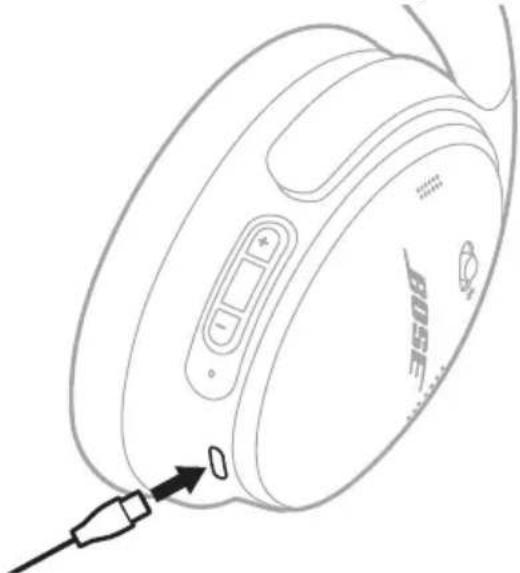
- Connect the small end of the USB cable to the USB-C port on the left earcup.
natural_image
Line drawing of a BOSE ear device with connector and cable (no text or symbols)- Slide the Power/Bluetooth switch to the right ✝. At the same time, connect the other end of the USB to a USB-A power source such as a computer or wall charger.
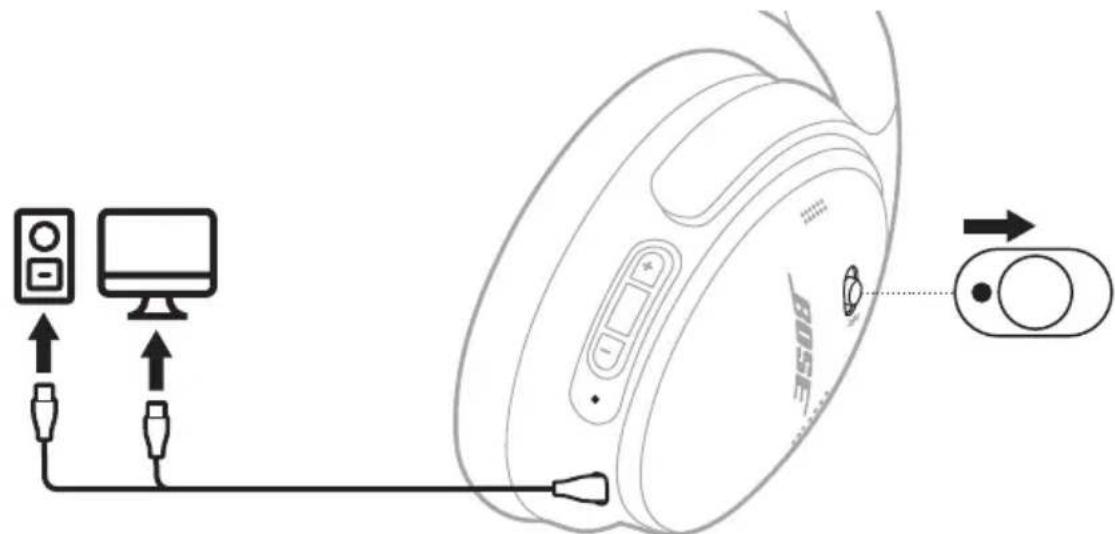
When the reset is complete, the status light glows according to the current charge level (see page 28).
NOTE: If you're unable to resolve your issue, additional troubleshooting and support is available at: ____support.Bose.com/QCSC
RESTORE THE HEADPHONES TO FACTORY SETTINGS
A restore to factory settings can clear all settings and return the headphones to their original out-of-box state. After, the headphones can be configured as if they were being set up for the first time.
Restoring to factory settings is only recommended if you are having issues with the headphones, or you have been instructed to do so by Bose customer service.
- Remove the headphones from the Bluetooth list on your device.
- Remove the headphones from your Bose account using the Bose app.
NOTE: For more information about how to remove the headphones from your Bose account using the Bose app, visit: ____support.Bose.com
- Slide the Power/Bluetooth switch to the right ✝ and hold. At the same time, press and hold the Action button for 30 seconds.
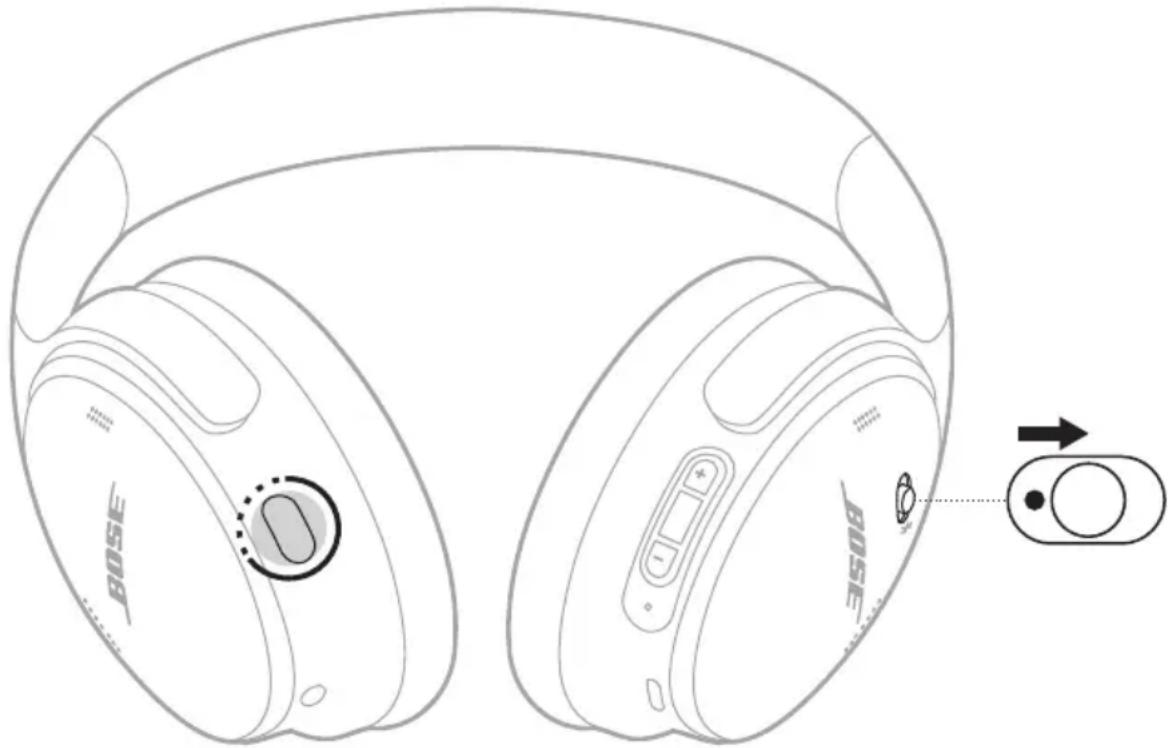
The status light blinks white. After 30 seconds, the status light blinks amber to indicate factory settings are being restored (2 to 3 seconds).
When the reset is complete, the status light slowly blinks blue. The headphones are now in their original out-of-box state.
NOTE: If you're unable to resolve your issue, additional troubleshooting and support is available at: ____support.Bose.com/QCSC
TILSLUT PRODUKTER FRA BOSE
Opret forbindelse til en Bose Smart Speaker eller Soundbar.... 31
Fordele 31
Kompatible produkter 31
SLUK
natural_image
Line drawing of a pair of Bose headphones with a circular button, showing front and back views (no text or symbols on the devices themselves)natural_image
Line drawing of two Bose headphones with a highlighted sensor or sensor area on the front (no text or symbols present)natural_image
Line drawing of two Bose headphones with a circular button highlighting the front ear (no text or symbols on the devices themselves)SKIFT ELLER DEAKTIVER DIN GENVEJ
natural_image
Line drawing of two Bose headphones with a circular button on the left (no text or symbols on the headphones themselves)TILSLUT VED HJÆLP AF BOSE-APPEN
natural_image
Line drawing of a BOSE ear with a cable inserted, showing the head and ear details (no text or symbols)natural_image
Line drawing of a pair of Bose headphones with a close-up of the front panel showing the speaker grille and control knob (no text or symbols on the devices themselves)BLUETOOTH-STATUS
Viser status for Bluetooth-forbindelsen.
LYSAKTIVITET SYSTEMTILSTAND
| Blinker blåt Klar til tilslutning |
| Lyser konstant blåt (10 sekunder) Tilsluttet |
BATTERISTATUS
Viser batteriniveauet.
LYSAKTIVITET SYSTEMTILSTAND
natural_image
Line drawing of a pair of BOSE headphones connected to a cable, showing ear and ear positioning (no text or symbols)natural_image
Line drawing of a pair of headphones with bidirectional arrows indicating rotation (no text or symbols)natural_image
Line drawing of two Bose headphones with ear labels (no additional text or symbols)- Placer hovedtelefonerne fladt i etuiet.
natural_image
Technical line drawing of two SBE headphones with no visible text or symbolsBEMAERKNINGER:
natural_image
Line drawing of a BOSE ear device with connector and cable (no text or symbols)AUSSCHALTEN
natural_image
Line drawing of a pair of Bose headphones with a circular button indicator (no text or symbols on the headphones themselves)natural_image
Line drawing of two Bose headphones with a highlighted sensor or sensor area (no text or symbols present)natural_image
Line drawing of two Bose headphones with a circular button on the front (no text or symbols)ENTFERNEN ODER ÄNDERN IHRES SHORTCUTS
natural_image
Line drawing of two BoSE headphones with a circular button on the left (no text or symbols on the headphones themselves)natural_image
Line drawing of a pair of Bose headphones with a close-up inset showing the speaker's head and control knob (no text or symbols on the devices themselves)BLUETOOTH-STATUS
natural_image
Line drawing of a pair of BOUSE headphones connected to a cable (no text or symbols)natural_image
Line drawing of a pair of headphones with bidirectional arrow indicating rotation (no text or symbols)natural_image
Line drawing of two Bose headphones with ear labels (no additional text or symbols)natural_image
Technical line drawing of two BUSE headphones with no visible text or symbolsHINWEISE:
natural_image
Line drawing of a Bose-branded electronic device with a cable inserted (no text or symbols)UITSCHAKELEN
natural_image
Line drawing of a pair of Bose headphones with a circular button indicator (no text or symbols on the headphones themselves)natural_image
Line drawing of two Bose headphones with a highlighted sensor or sensor area on the front (no text or symbols present)natural_image
Line drawing of two BoSE headphones with a circular button highlighting the front ear (no text or symbols on the devices themselves)natural_image
Line drawing of two Bose headphones with a circular button on the left (no text or symbols on the headphones themselves)natural_image
Line drawing of a black-and-white photo of a BOSSE ear device with a cable inserted, showing no text or symbols on the device itself.natural_image
Line drawing of a pair of Bose headphones with a close-up of the front panel showing the speaker grille and control knob (no text or symbols on the devices themselves)BLUETOOTH-STATUS
Toont de Bluetooth-verbindingsstatus.
ACTIVITEIT VAN HET LAMPJE SYSTEEMSTATUS
natural_image
Line drawing of a pair of BOSSE headphones connected to a cable (no text or symbols)natural_image
Line drawing of a pair of headphones with bidirectional arrow indicating rotation (no text or symbols)Linkeroorschelp Rechteroorschelp
natural_image
Line drawing of two Bose headphones with ear labels (no additional text or symbols)natural_image
Technical line drawing of two SBE-branded headphones with no visible text or symbolsOPMERKINGEN:
natural_image
Line drawing of a Bose-branded electronic device with a cable inserted (no text or symbols)APAGAR
natural_image
Line drawing of a pair of Bose headphones with a circular button indicator (no text or symbols on the headphones themselves)natural_image
Line drawing of two Bose headphones with a highlighted sensor or sensor area on the front (no text or symbols present)natural_image
Line drawing of two Bose headphones with a circular earbell highlighting the front lobe (no text or symbols on the devices themselves)CAMBIAR O DESACTIVAR EL ACCESO DIRECTO
natural_image
Line drawing of two BoSE headphones with a circular button on the left (no text or symbols beyond branding)natural_image
Line drawing of a BOSE ear device with a cable inserted, showing no text or symbols on the device itself.natural_image
Line drawing of a pair of Bose headphones with a close-up of the front panel showing the speaker grille (no text or symbols on the devices themselves)ESTADO DE BLUETOOTH
natural_image
Line drawing of a pair of BOSE headphones connected to a cable, showing ear and ear positioning (no text or symbols)natural_image
Line drawing of a pair of headphones with bidirectional arrow indicating rotation (no text or symbols)natural_image
Line drawing of two Bose headphones with ear labels (no additional text or symbols)natural_image
Technical line drawing of two SBE headphones with no visible text or symbolsNOTAS:
Visite: ____ support.Bose.com/QCSC
GARANTÍA LIMITADA
Visite: ____ worldwide.Bose.com/contact
OTRAS SOLUCIONES
SÍNTOMA SOLUCIÓN
natural_image
Line drawing of a BOSE ear device with connector and cable (no text or symbols)VIRRAN KATKAISEMINEN
natural_image
Line drawing of a pair of Bose headphones with a circular button indicator (no text or symbols on the headphones themselves)natural_image
Line drawing of two Bose headphones with a highlighted sensor or sensor area on the front (no text or symbols present)natural_image
Line drawing of two Bose headphones with a circular earbell highlighting the front lobe (no text or symbols on the devices themselves)PIKAVALINNAN VAIHTAMINEN TAI POISTAMINEN KÄYTÖSTÄ
natural_image
Line drawing of two BoSE headphones with a circular button on the left (no text or symbols beyond branding)natural_image
Line drawing of a black-and-white photo of a BOISE ear device with a cable inserted, showing no text or symbols on the device itself.natural_image
Line drawing of a pair of Bose headphones with a close-up of the front panel showing the speaker grille (no text or symbols on the devices themselves)BLUETOOTH-TILA
natural_image
Line drawing of a pair of BOSE headphones connected to a cable, showing ear and antenna (no text or symbols)natural_image
Line drawing of a pair of headphones with bidirectional arrow indicating rotation (no text or symbols)natural_image
Line drawing of two Bose headphones with no text or symbols on the ear (pure technical lines)natural_image
Technical line drawing of two SBE-branded headphones with no visible text or symbolsHUOMAUTUKSIA:
natural_image
Line drawing of a BOISE ear device with connector and cable (no text or symbols)CONNEXION DES PRODUITS BOSE
MISE HORS TENSION
natural_image
Line drawing of a pair of Bose headphones with a control knob and scroll icon (no text or symbols on the devices themselves)natural_image
Line drawing of two Bose headphones with a highlighted sensor or sensor area (no text or symbols present)natural_image
Line drawing of two Bose headphones with a circular button on the front (no text or symbols)MODIFICATION OU DÉSACTIVATION D'UN RACCOURCI
natural_image
Line drawing of two BoSE headphones with a circular button on the left (no text or symbols beyond branding)natural_image
Line drawing of a pair of Bose headphones with a close-up of the front panel showing the speaker grille (no text or symbols on the devices themselves)ÉTAT BLUETOOTH
natural_image
Line drawing of a pair of Boise headphones connected to a cable (no text or symbols)natural_image
Line drawing of a pair of headphones with bidirectional arrows indicating rotation (no text or symbols)natural_image
Line drawing of two Bose-branded headphones with earthenule covers (no text or symbols on the devices themselves)natural_image
Technical line drawing of two SBE headphones with no visible text or symbolsREMARQUES :
natural_image
Line drawing of a Bose ear device with connector and cable (no text or symbols)natural_image
Line drawing of a pair of Bose headphones with adjustment knobs and a control knob (no text or symbols)SPEGNIMENTO
natural_image
Line drawing of a pair of Bose headphones with a circular button indicator (no text or symbols on the headphones themselves)natural_image
Line drawing of two Bose headphones with a highlighted sensor or sensor area (no text or symbols present)natural_image
Line drawing of two Bose headphones with a circular button on the front (no text or symbols)CAMBIARE O DISABILITARE LA SCELTA RAPIDA
natural_image
Line drawing of two Bose headphones with a circular button on the front (no text or symbols beyond branding)natural_image
Line drawing of a Bose brand ear with connector and cable insertion point (no text or symbols)natural_image
Line drawing of a pair of Bose headphones with a close-up of the front panel showing the speaker grille and control buttons (no text or symbols on the devices themselves)STATO BLUETOOTH
natural_image
Line drawing of a pair of BOSE headphones connected to a cable, showing ear and ear positioning (no text or symbols)natural_image
Line drawings of two different headsets with earbuds, showing front and side views (no text or symbols)natural_image
Technical line drawing of two BUSE headphones with no visible text or symbolsNOTE:
Visitare: ____ worldwide.Bose.com/contact
ALTRE SOLUZIONI
SINTOMO SOLUZIONE
natural_image
Line drawing of a Bosch 80SE ear device with connector and cable insertion point (no text or symbols)natural_image
Line drawing of a pair of Bose headphones with a circular adjustment knob on the front (no text or symbols)KIKAPCSOLÁS
natural_image
Line drawing of a pair of Bose headphones with a circular button indicator (no text or symbols on the headphones themselves)natural_image
Line drawing of two Bose headphones with a highlighted sensor or sensor area on the front (no text or symbols present)natural_image
Line drawing of two Bose headphones with a circular button on the front (no text or symbols)A GYORSFUNKCIÓ MÓDOSÍTÁSA VAGY LETILTÁSA
natural_image
Line drawing of two Bose headphones with a circular button on the front (no text or symbols beyond branding)natural_image
Line drawing of a BOSE ear with attached cable, showing ear and connector (no text or symbols)natural_image
Line drawing of a pair of Bose headphones with a close-up of the front panel showing the speaker grille (no text or symbols on the devices themselves)BLUETOOTH-ÁLLAPOT
natural_image
Line drawing of a pair of Bose headphones connected to a cable (no text or symbols)natural_image
Line drawing of a pair of headphones with bidirectional arrow indicating rotation (no text or symbols)natural_image
Line drawing of two Bose headphones with ear labels (no additional text or symbols)natural_image
Technical line drawing of two BUSE headphones with no visible text or symbolsMEGJEGYZÉSEK:
natural_image
Line drawing of a BOSE ear device with connector and cable (no text or symbols)KOBLE TIL BOSE-PRODUKTER
Koble til Bose Smart Speaker eller Soundbar.... 31
Fordeler.... 31
Kompatible produkter 31
Koble til med Bose-appen 32
STELL OG VEDLIKEHOLD
SLÅ AV
natural_image
Line drawing of a pair of Bose headphones with a circular button indicator (no text or symbols on the headphones themselves)natural_image
Line drawing of two Bose headphones with a highlighted sensor or sensor area on the front (no text or symbols present)natural_image
Line drawing of two Bose headphones with a circular earbell on the front (no text or symbols)ENDRE ELLER DEAKTIVERE SNARVEIEN
natural_image
Line drawing of two BoSE headphones with a circular button on the left (no text or symbols beyond branding)KOBLE TIL MED BOSE-APPEN
Når de er koblet til, hører du «Connected to
KOBLE FRA MOBILENHETER
KOBLE TIL MOBILENHETER PÅ NYTT
natural_image
Line drawing of a Bose brand ear with a connector inserted, showing no text or symbols on the device itself.natural_image
Line drawing of a pair of Bose headphones with a close-up inset showing the speaker's head and control knob (no text or symbols on the devices themselves)BLUETOOTH-STATUS
Viser statusen for Bluetooth-tilkoblingen.
LAMPEAKTIVITET SYSTEMSTATUS
natural_image
Line drawing of a pair of BOSE headphones connected to a cable, showing ear and antenna (no text or symbols)- Koble den andre enden av kabelen til 3,5 mm-porten på kildeenheten.
KOBLE TIL BOSE SMART SPEAKER ELLER SOUNDBAR
Med SimpleSync-teknologi kan du koble hodetelefonene til en Bose Smart Soundbar eller en Bose Smart Speaker for å få en personlig lytteopplevelse.
Fordeler
KOBLE TIL EN BOSE SMART SPEAKER ELLER SOUNDBAR PÅ NYTT
natural_image
Line drawing of a pair of headphones with bidirectional arrows indicating rotation (no text or symbols)natural_image
Line drawing of two Bose headphones with ear labels (no additional text or symbols)- Brett den venstre øreklokken opp mot hodebøylen.
- Plasser hodetelefonene flatt i esken.
natural_image
Technical line drawing of two SBE-branded headphones with no visible text or symbolsMERKNADER:
natural_image
Line drawing of a BOSE ear device with connector and cable (no text or symbols)- Skyv på/av-/Bluetooth-bryteren mot høyre ♦. Koble samtidig den andre enden av USB-en til en USB-A-strømkilde, som en datamaskin eller en vegglader.
WYŁĄCZANIE ZASILANIA
natural_image
Line drawing of a pair of Bose headphones with a circular button indicator (no text or symbols on the headphones themselves)natural_image
Line drawing of two Bose headphones with a highlighted sensor or sensor area on the front (no text or symbols present)natural_image
Line drawing of a pair of Bose headphones with a circular earbell highlighting the front lobe (no text or symbols on the headphones themselves)ZMIANA LUB WYŁĄCZENIE SKRÓTU
natural_image
Line drawing of two Bose headphones with a circular button on the left (no text or symbols on the headphones themselves)natural_image
Line drawing of a pair of Boose headphones with a cable inserted, showing no text or symbols on the device itself.natural_image
Line drawing of a pair of Bose headphones with a close-up of the front panel showing the speaker grille (no text or symbols on the devices themselves)STAN BLUETOOTH
natural_image
Line drawing of a pair of BOSE headphones connected to a cable, showing ear and ear positioning (no text or symbols)natural_image
Line drawings of two different headsets with earbuds, showing front and side views (no text or symbols)natural_image
Technical line drawing of two BUSE headphones with no visible text or symbolsUWAGI:
worldwide.Bose.com/Warranty.
natural_image
Line drawing of a Bosch ear device with connector and cable insertion point (no text or symbols)Brusreducing under samtal 21
ANSLUTA BOSE-PRODUKTER
Ansluta en Bose Smart Speaker eller soundbarhögtalare 31
Fördelar.... 31
Kompatibla produkter 31
STÄNGA AV
natural_image
Line drawing of a pair of Bose headphones with a control knob and scroll icon (no text or symbols on the devices themselves)natural_image
Line drawing of two Bose headphones with a highlighted sensor or sensor area on the front (no text or symbols present)natural_image
Line drawing of two Bose headphones with a circular earbell on the front (no text or symbols)BYT ELLER INAKTIVERA GENVÄGEN
natural_image
Line drawing of two Bose headphones with a circular button on the left (no text or symbols on the headphones themselves)- Aktivera Bluetooth-funktionen på din enhet.
natural_image
Line drawing of a BOSE ear device with a cable inserted, showing no text or symbols on the device itself.natural_image
Line drawing of a pair of Bose headphones with a close-up of the front panel showing the speaker and control buttons (no text or symbols on the devices themselves)BLUETOOTH-STATUS
Visar Bluetooth-anslutningarnas status.
LAMPANS UPPFÖRANDE SYSTEMLÄGE
UPPDATERING OCH FELSTATUS
natural_image
Line drawing of a pair of BOSE headphones connected to a cable, showing ear and ear positioning (no text or symbols)natural_image
Line drawing of a pair of headphones with bidirectional arrows indicating rotation (no text or symbols)natural_image
Line drawing of two Bose headphones with no text or symbols on the ear (pure technical lines)- Placera hörlurarna platt i fodralet.
natural_image
Technical line drawing of two BUSE headphones with no visible text or symbolsTÄNK PÅ FÖLJANDE:
natural_image
Line drawing of a BOSE ear device with connector and cable (no text or symbols)전원 끌기
natural_image
Line drawing of a pair of Bose headphones with labeled buttons and a scroll icon (no text or symbols beyond branding)natural_image
Line drawing of two Bose headphones with a highlighted sensor or sensor area (no text or symbols present)natural_image
Line drawing of a pair of Bose headphones with a circular dial indicator on the front (no text or symbols beyond branding)바로 가기 변경 또는 사용 해제
natural_image
Line drawing of two Bose headphones with a circular button on the front (no text or symbols beyond branding)natural_image
Line drawing of a Bose headphones with a cable inserted, showing no text or symbols on the device itself.natural_image
Line drawing of a Bose brand headband with front and back views, showing earbuds and control buttons (no text or symbols)BLUETOOTH상태
natural_image
Line drawing of a pair of Boise headphones connected to a cable, showing ear and cable connector (no text or symbols)natural_image
Diagram of a pair of headphones with bidirectional arrow indicating rotation (no text or symbols)왼쪽 이어컵 오른쪽 이어컵
natural_image
Line drawing of two Bose-branded headphones with ear labels (no additional text or symbols)natural_image
Technical line drawing of two Bose-branded headphones with no visible text or symbols참고:
natural_image
Line drawing of a Bose-branded electronic device with a cable inserted (no text or symbols)关闭电源
将电源/Bluetooth开关滑动到左侧。
natural_image
Line drawing of a pair of Bose headphones with labeled buttons and a scroll icon (no text or symbols beyond branding)注意:关闭耳机电源后,将禁用消噪。
自动关机
natural_image
Line drawing of two Bose headphones with a highlighted sensor or sensor area on the front (no text or symbols present)注意:通话时无法访问语音控件。
natural_image
Line drawing of a pair of Bose headphones with a circular dial indicator on the front (no text or symbols beyond branding)更改或禁用快捷方式
natural_image
Line drawing of a pair of BoSE headphones with a circular button on the left (no text or symbols beyond branding)语音提示功能将播报选择的模式。
natural_image
Line drawing of a Bose-branded electronic headset with a cable inserted, showing no text or symbols on the device itself.natural_image
Line drawing of a Bose headphones with earbuds and control buttons, shown with an inset close-up of the speaker's dial (no text or symbols on the devices themselves)BLUETOOTH状态
显示 Bluetooth 连接状态。
指示灯活动 系统状态
natural_image
Line drawing of a pair of BOSE headphones connected to a cable (no text or symbols)natural_image
Line drawing of two Bose headphones with brand logo (no text or symbols on the ear itself)- 将左耳罩向上向头带方向折。
- 将耳机平放入盒中。
natural_image
Technical line drawing of two Bose-branded earcoats with no text or symbols注意:
natural_image
Line drawing of a Bose-branded electronic device with a cable inserted (no text or symbols)natural_image
Line drawing of a pair of Bose headphones with a circular adjustment knob on the front (no text or symbols)關閉電源
natural_image
Line drawing of a pair of Bose headphones with labeled buttons and a scroll icon (no text or symbols beyond branding)注意:關閉耳機電源後,將停用消噪。
自動關閉
natural_image
Line drawing of two Bose headphones with a highlighted sensor or sensor area (no text or symbols present)注意:通話時無法使用語音控制項。
natural_image
Line drawing of a pair of Bose headphones with earbuds and control buttons (no text or symbols)變更或禁用捷徑
natural_image
Line drawing of a pair of Bose headphones with a circular button on the left (no text or symbols on the headphones themselves)語音提示播報選定的模式。
natural_image
Line drawing of a Bose ear with a cable inserted, showing the head and ear details (no text or symbols)natural_image
Line drawing of a Bose headphones with earbuds and control buttons, shown with an inset close-up of the speaker's dial (no text or symbols on the devices themselves)BLUETOOTH狀態
顯示 Bluetooth 連接狀態。
指示燈活動 系統狀態
natural_image
Line drawing of a pair of BOSE headphones connected to a cable (no text or symbols)natural_image
Line drawing of two beige high-heeled headphones with 'BOSE' branding and a small male symbol on the ear (no text or symbols beyond branding)- 將左耳罩向上向頭帶方向摺疊。
- 將耳機平放入盒中。
natural_image
Technical line drawing of two Bose-branded earcoats with no text or symbols注意:
natural_image
Line drawing of a Bose-branded electronic device with a cable inserted (no text or symbols)support.Bose.com/QCSC
將耳機還原為出廠設定
natural_image
Line drawing of a pair of Bose headphones with a circular adjustment knob on the front (no text or symbols)電源オフ
natural_image
Line drawing of a pair of Bose headphones with labeled buttons and a scroll icon (no text or symbols beyond branding)natural_image
Line drawing of two Bose headphones with a highlighted sensor or sensor area (no text or symbols present)natural_image
Line drawing of a pair of Bose headphones with a circular button on the front (no text or symbols)ショートカットを変更する、無効にする
natural_image
Line drawing of two BoSE headphones with a circular button on the front (no text or symbols)natural_image
Line drawing of a pair of Bose headphones with a close-up of the front panel showing the speaker grille (no text or symbols on the headphones themselves)BLUETOOTH接続の状態
natural_image
Line drawing of a pair of BoSE headphones connected to a cable, showing ear and ear positioning (no text or symbols)natural_image
Diagram of a pair of headphones with bidirectional arrows indicating rotation (no text or symbols)左イヤーカップ 右イヤーカップ
natural_image
Line drawing of two beige high-heeled headphones with 'BOSE' branding and 'Q2' logo (no text or symbols on the ear itself)natural_image
Technical line drawing of two Bose-branded earcoats with no text or symbols注:
natural_image
Line drawing of a Bosch ear device with connector and cable (no text or symbols)www.Bose.com/compliance

المطابقة Capital الموقع الثاني : www.Bose.com/compliance 2016olum 2017 وجنيع لوauth Projects Managed Policy Management Policy Management Policy Management Policy Management Policy Management Policy Management Policy Management Policy Management Policy Management Policy Management Policy Management Policy Management Policy Management Policy Management Policy Management Policy Management Policy Management Policy Management Policy Management Policy Management Policy Management Policy Management Policy Management Policy Management Policy Management Policy Management Policy Management Policy Management Policy Management Policy Management Policy Management Policy Management Policy Management Policy Management Policy Management Policy Management Policy Management Policy Management Policy Management Policy Management Policy Management Policy Management Policy Management Policy Management Policy Management Policy Management Policy Management Policy Management Policy Management Policy Management Policy Integration Policy Management Policy Management Policy Management Policy Management Policy Management Policy Management Policy Management Policy Management Policy Management Policy Management Policy Management Policy Management Policy Management Policy Management Policy Management Policy Management Policy Management Policy Management Policy Management Policy Management Policy Management Policy Management Policy Management Policy Management Policy Management Policy Management Policy Management Policy Management Policy Management Policy Management Policy Management Policy Management Policy Management Policy Management Policy Management Policy Management Policy Management Policy Management Policy Management Policy Management Policy Management Policy Management Policy Management Policy Management Policy Management Policy Management Policy Management Policy Management Policy Management Policy Production and Procurement of the International Economic Development Program (IEF) 2015.

natural_image
Line drawing of a pair of headphones with earbuds and buttons (no text or symbols)Bose QuietComfort Headphones
natural_image
Pure diagram of a U-shaped tube with internal connectors, no text or symbols presentnatural_image
Simple line drawing of a U-shaped cable with two connectors (no text or symbols)إيقاف الطاقة
natural_image
Line drawing of a pair of Bose headphones with a circular button and indicator lights, no text or symbols present.اء الضضاء. ملاحظة:
الإيقاف التلقائي
natural_image
Line drawing of a pair of Bose headphones with a highlighted sensor or sensor area (no text or symbols present)natural_image
Line drawing of a pair of Bose headphones with a circular button highlighting the front ear (no text or symbols on the headphones themselves)natural_image
Line drawing of two Bose headphones with a circular button on the front (no text or symbols on the headphones themselves)natural_image
Line drawing of a black-and-white photo of a BOSE ear with a cable inserted, showing no text or symbols on the device itself.natural_image
Line drawing of a Bose headphones with earbuds and control buttons, shown with an inset close-up of the speaker's head (no text or symbols on the device itself)BLUETOOTHحالة
natural_image
Line drawing of a pair of Bose headphones connected to a cable, showing ear and head labels (no text beyond branding)Bose Portable Smart Speaker/Bose Portable Home Speaker ·
natural_image
Line drawing of two Bose headphones with no text or symbols on the earbuds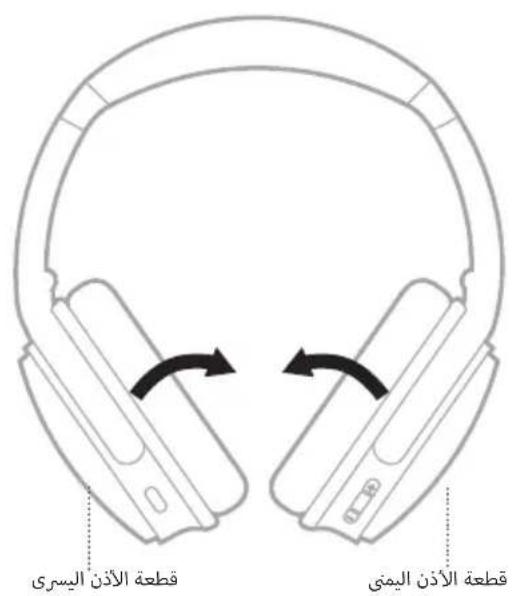
natural_image
Technical line drawing of two BOSSE headphones with no visible text or symbolsملاحظات:
natural_image
Line drawing of a beige electronic device with a connector and earplifier (no text or symbols)
- Please read and keep all safety and use instructions.
- Important Safety Instructions
- WARNINGS/CAUTIONS
- Low-power Radio-frequency Devices Technical Regulations
- Please complete and retain for your records
- WHAT'S IN THE BOX
- BOSE APP
- HEADPHONE CONTROLS
- SHORTCUTS
- NOISE CANCELLATION
- BLUETOOTH® CONNECTIONS
- BATTERY
- HEADPHONE STATUS
- WIRED CONNECTION
- CONNECT BOSE PRODUCTS
- CARE AND MAINTENANCE
- TROUBLESHOOTING
- CONTENTS
- DOWNLOAD THE BOSE APP
- POWER ON
- POWER OFF
- Auto-off
- MEDIA PLAYBACK AND VOLUME
- NOTES:
- PHONE CALLS
- MOBILE DEVICE VOICE CONTROL
- USE YOUR SHORTCUT
- CHANGE OR DISABLE YOUR SHORTCUT
- NOISE CANCELLING MODES
- CHANGE THE NOISE CANCELLING MODE
- NOISE CANCELLATION WHILE ON A CALL
- USE NOISE CANCELLATION ONLY
- CONNECT USING THE BOSE APP
- CONNECT USING THE BLUETOOTH MENU ON YOUR MOBILE DEVICE
- DISCONNECT A MOBILE DEVICE
- RECONNECT A MOBILE DEVICE
- CONNECT ANOTHER MOBILE DEVICE
- IDENTIFY CONNECTED MOBILE DEVICES
- SWITCH BETWEEN TWO CONNECTED MOBILE DEVICES
- RECONNECT A PREVIOUSLY CONNECTED DEVICE
- CLEAR THE HEADPHONE DEVICE LIST
- Charging time
- Hear the battery level
- BLUETOOTH STATUS
- BATTERY STATUS
- CHARGING STATUS
- UPDATE AND ERROR STATUS
- CONNECT THE AUDIO CABLE AND MICROPHONE
- CONNECT A BOSE SMART SPEAKER OR SOUNDBAR
- Benefits
- Compatible products
- Connect using the product controls
- RECONNECT TO A BOSE SMART SPEAKER OR SOUNDBAR
- CLEAN THE HEADPHONES
- REPLACEMENT PARTS AND ACCESSORIES
- LIMITED WARRANTY
- SERIAL NUMBER LOCATION
- TRY THESE SOLUTIONS FIRST
- OTHER SOLUTIONS
- RESTORE THE HEADPHONES TO FACTORY SETTINGS
- TILSLUT PRODUKTER FRA BOSE
- SLUK
- SKIFT ELLER DEAKTIVER DIN GENVEJ
- TILSLUT VED HJÆLP AF BOSE-APPEN
- BLUETOOTH-STATUS
- BATTERISTATUS
- BEMAERKNINGER:
- AUSSCHALTEN
- ENTFERNEN ODER ÄNDERN IHRES SHORTCUTS
- HINWEISE:
- UITSCHAKELEN
- OPMERKINGEN:
- APAGAR
- CAMBIAR O DESACTIVAR EL ACCESO DIRECTO
- ESTADO DE BLUETOOTH
- NOTAS:
- GARANTÍA LIMITADA
- OTRAS SOLUCIONES
- VIRRAN KATKAISEMINEN
- PIKAVALINNAN VAIHTAMINEN TAI POISTAMINEN KÄYTÖSTÄ
- BLUETOOTH-TILA
- HUOMAUTUKSIA:
- CONNEXION DES PRODUITS BOSE
- MISE HORS TENSION
- MODIFICATION OU DÉSACTIVATION D'UN RACCOURCI
- ÉTAT BLUETOOTH
- REMARQUES :
- SPEGNIMENTO
- CAMBIARE O DISABILITARE LA SCELTA RAPIDA
- STATO BLUETOOTH
- NOTE:
- ALTRE SOLUZIONI
- KIKAPCSOLÁS
- A GYORSFUNKCIÓ MÓDOSÍTÁSA VAGY LETILTÁSA
- BLUETOOTH-ÁLLAPOT
- MEGJEGYZÉSEK:
- KOBLE TIL BOSE-PRODUKTER
- STELL OG VEDLIKEHOLD
- SLÅ AV
- ENDRE ELLER DEAKTIVERE SNARVEIEN
- KOBLE TIL MED BOSE-APPEN
- KOBLE FRA MOBILENHETER
- KOBLE TIL MOBILENHETER PÅ NYTT
- KOBLE TIL BOSE SMART SPEAKER ELLER SOUNDBAR
- Fordeler
- KOBLE TIL EN BOSE SMART SPEAKER ELLER SOUNDBAR PÅ NYTT
- MERKNADER:
- WYŁĄCZANIE ZASILANIA
- ZMIANA LUB WYŁĄCZENIE SKRÓTU
- STAN BLUETOOTH
- UWAGI:
- ANSLUTA BOSE-PRODUKTER
- STÄNGA AV
- BYT ELLER INAKTIVERA GENVÄGEN
- UPPDATERING OCH FELSTATUS
- TÄNK PÅ FÖLJANDE:
- 전원 끌기
- 바로 가기 변경 또는 사용 해제
- BLUETOOTH상태
- 참고:
- 关闭电源
- 自动关机
- 更改或禁用快捷方式
- BLUETOOTH状态
- 注意:
- 關閉電源
- 自動關閉
- 變更或禁用捷徑
- BLUETOOTH狀態
- 將耳機還原為出廠設定
- 電源オフ
- ショートカットを変更する、無効にする
- BLUETOOTH接続の状態
- 注:
- BLUETOOTHحالة
Brand : BOSE
Model : QuietComfort SC Headphones
Category : Earphones