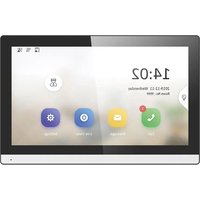
EDS150 - Intercom EtiamPro - Free user manual and instructions
Find the device manual for free EDS150 EtiamPro in PDF.


| Product type | Indoor video intercom |
| Brand | EtiamPro |
| Model | EDS150 |
| Screen | Integrated touch screen |
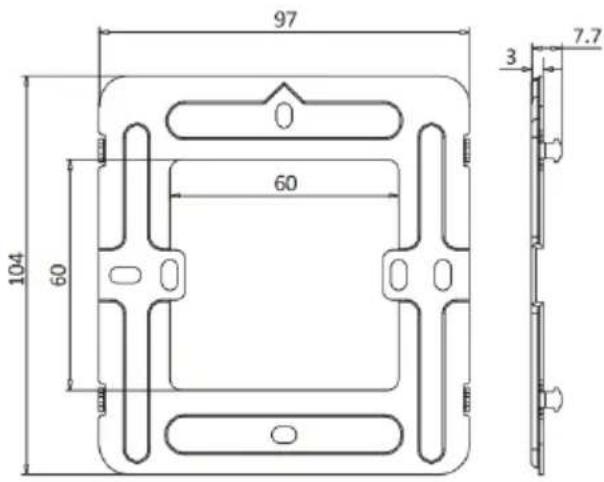
| Dimensions (mounting plate) | 97 x 104 x 3 mm |
| Power supply | PoE (Power over Ethernet) or 12 Vdc |
| Network connectivity | Ethernet, Guarding Vision support |
| Main functions | Video communication with outdoor door station, touch screen, configuration via Guarding Vision, connection with indoor extensions |
| Input/Output ports | RS-485 (reserved), alarm input terminal, alarm output terminal |
| Storage | TF card slot (microSD) |
| Available languages | French, English, Dutch, and other languages via download |
| Security | Administrator password, registration password, security questions, email reset |
| Maintenance and cleaning | Clean with a soft dry cloth; do not use abrasive products |
| Spare parts and repairability | Contact reseller or Velleman for parts; repairs under warranty |
| General information | Compliant with environmental standards; recycling via specialized channel; 24-month warranty in the EU |
Frequently Asked Questions - EDS150 EtiamPro
User questions about EDS150 EtiamPro
0 question about this device. Answer the ones you know or ask your own.
Ask a new question about this device
Download the instructions for your Intercom in PDF format for free! Find your manual EDS150 - EtiamPro and take your electronic device back in hand. On this page are published all the documents necessary for the use of your device. EDS150 by EtiamPro.
USER MANUAL EDS150 EtiamPro
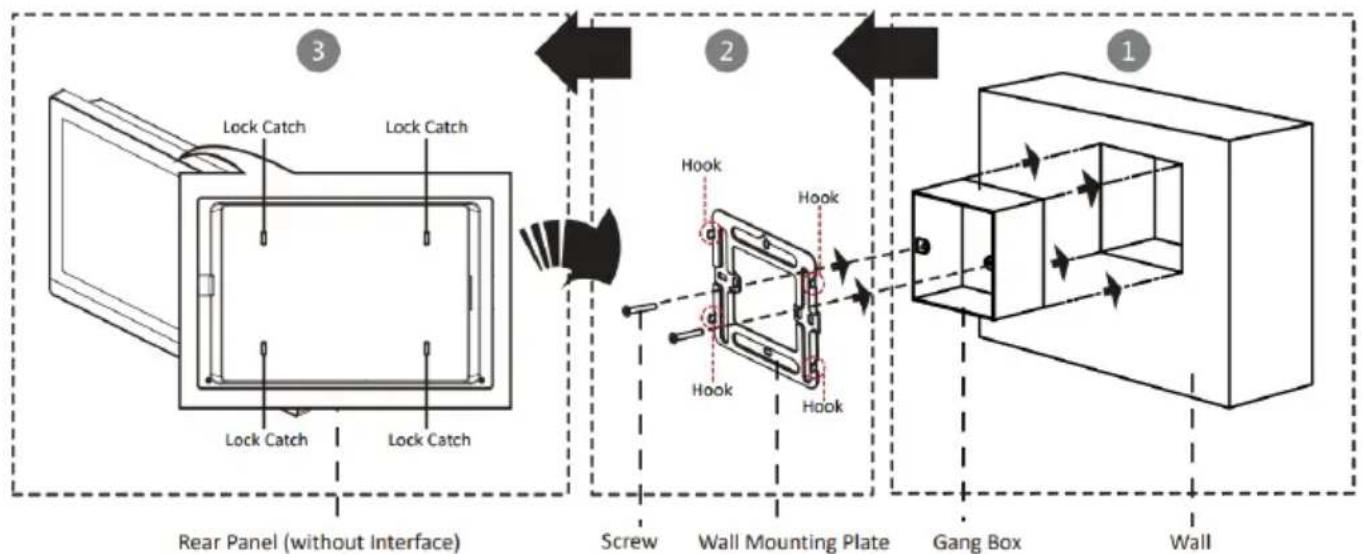
flowchart
graph LR
    A["Wall"] --> B["Gang Box"]
    B --> C["Screw"]
    C --> D["Rear Panel (without Interface)"]
    D --> E["Lock Catch"]
    D --> F["Lock Catch"]
    D --> G["Lock Catch"]
    H["Hook"] --> I["Hook"]
    I --> J["Hook"]
    J --> K["Hook"]
    style A fill:#f9f,stroke:#333
    style B fill:#ccf,stroke:#333
    style C fill:#cfc,stroke:#333
    style D fill:#fcc,stroke:#333
    style E fill:#ffc,stroke:#333
    style F fill:#ffc,stroke:#333
    style G fill:#ffc,stroke:#333
    style H fill:#fff,stroke:#333
    style I fill:#fff,stroke:#333
    style J fill:#fff,stroke:#333
    style K fill:#fff,stroke:#333
USER MANUAL
1. Introduction
To all residents of the European Union
Important environmental information about this product

This symbol on the device or the package indicates that disposal of the device after its lifecycle could harm the environment. Do not dispose of the unit (or batteries) as unsorted municipal waste; it should be taken to a specialized company for recycling. This device should be returned to your distributor or to a local recycling service. Respect the local environmental rules.

If in doubt, contact your local waste disposal authorities.
Thank you for choosing Velleman! Please read the manual thoroughly before bringing this device into service. If the device was damaged in transit, don't install or use it and contact your dealer.
2. General Guidelines
Refer to the Velleman® Service and Quality Warranty on the last pages of this manual.
3. General Description
Product overview
1 Screen
2 Microphone
3 Network Interface including power supply via Power Over Ethernet (POE)
4 RS-485 (Reserved) & Alarm Output Terminal
5 Alarm Input Terminal
6 TF Card Slot
7 Debugging Port
8 Loudspeaker
9 Power Supply Terminal (only use if no POE connection is available)
4. Operation
4.1 Mounting
The wall mounting plate and junction box are required to install the indoor station onto the wall. There are two sizes of junction boxes adapted to the device.
Size 1: 75 mm (width) × 75 mm (length) × 50 mm (depth).
Size 2: 55 mm (width) × 101 mm (length) × 38.5 mm (depth).
The dimension of mounting plate is 97 mm (width) × 104 mm (length) × 3 mm (depth).
See schematic page 2
Before you start
- Make sure the device in the package is in good condition and all the assembly parts are included.
- The indoor station supports Power Over Ethernet (PoE) (recommended) or 12 VDC power supply. Please make sure your power supply matches your indoor station.
- Make sure all related equipment are power-off during the installation.
- Check the product specification for the installation environment.
4.2 Configuration
Startup the device:
Connect the network cable to a POE switch or injector and in turn connect it to the Internet router. After a few minutes, the indoor touchscreen station will be automatically connected to the Internet.
- Create a password and confirm it. Tap OK.
EDS150
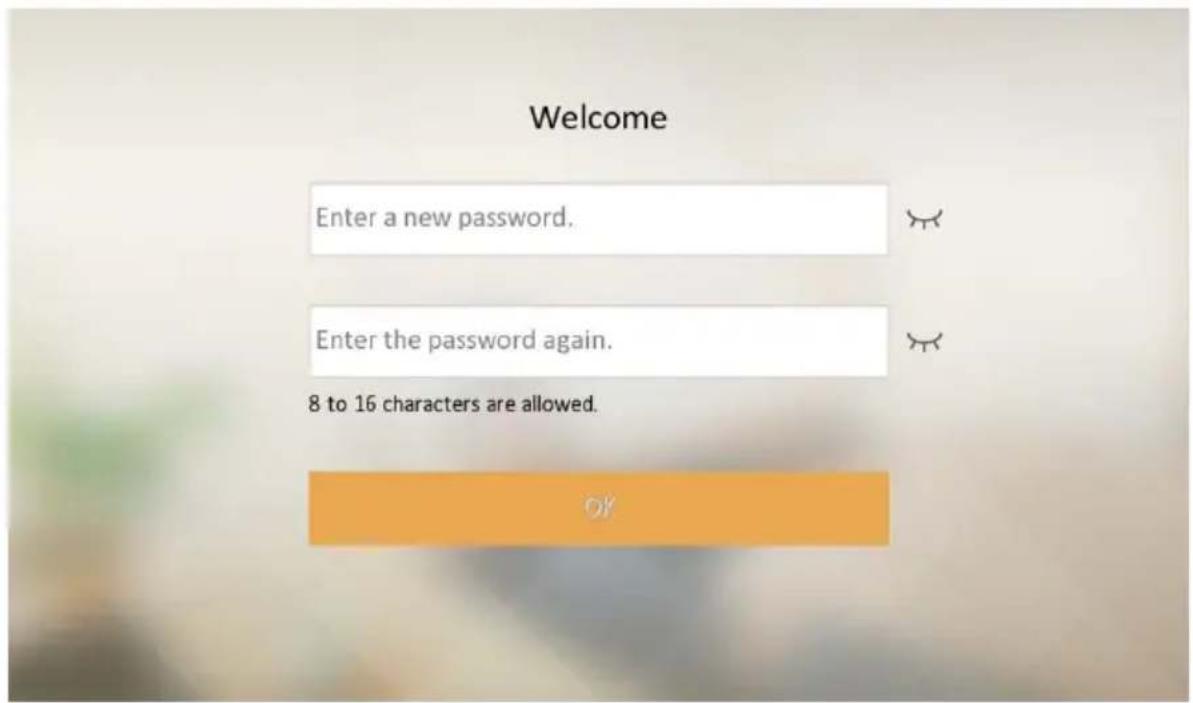
Figure 2-1 Activate
- Choose language and tap Next.
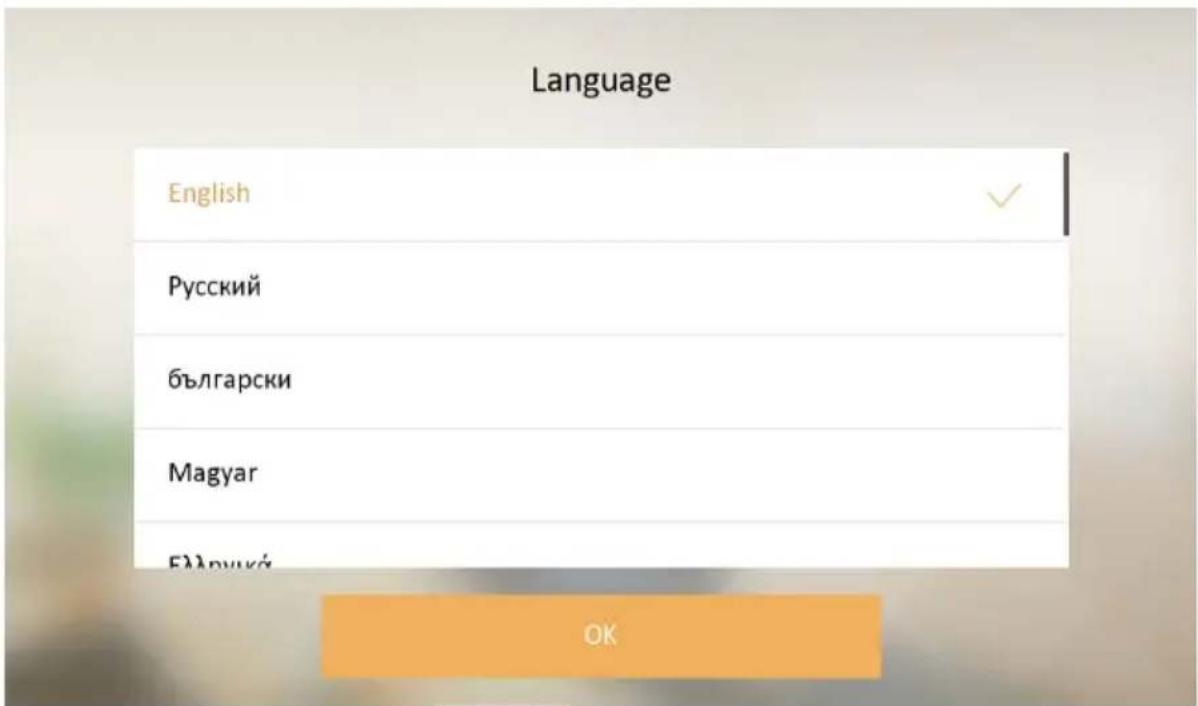
Figure 2-2 Language Settings
- Set password reset methods and tap Next.
WARNING: It's crucial to provide a correct email address here. This will allow you to reset the device if you forget the password. If this isn't done correctly, you won't be able to reset the device anymore.
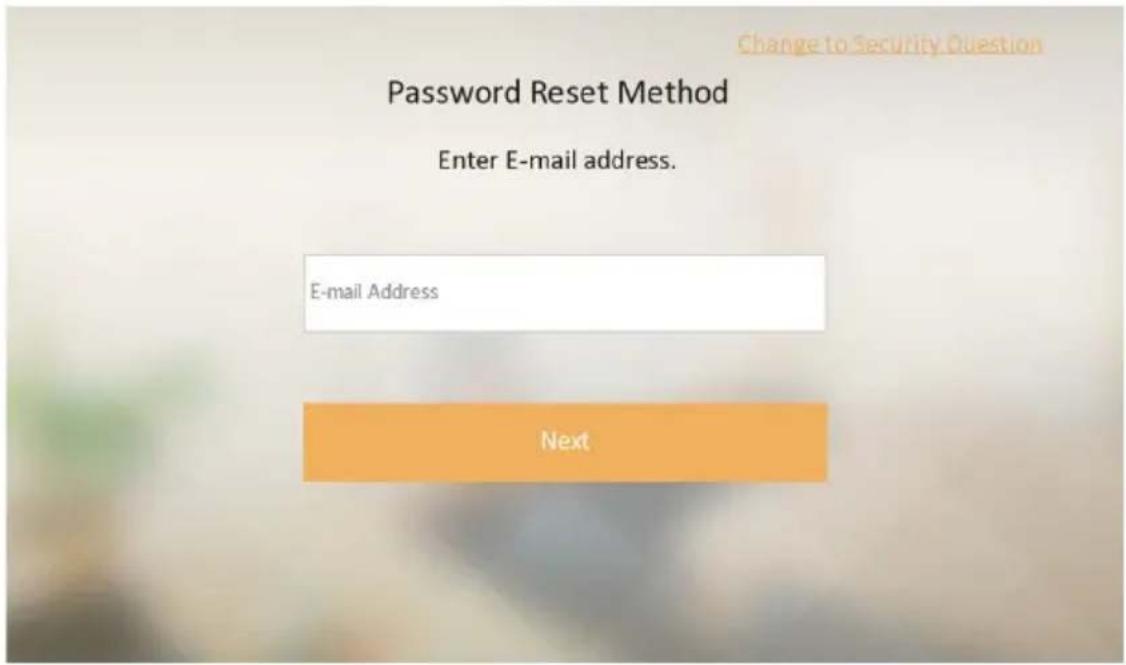
Figure 2-3 Password Reset Page
- Bind an email address. If you forget your admin password (activation password), you can change the password via the reserved email address.
- (Optional) Tap Change to Security Question to select security questions and enter the answers. If you forget your admin password (activation password), you can change the password via answering the questions.
4. Set network parameters and tap Next.
- Enable Auto Get IP address, the device will get network parameters automatically. Activate the switch. After receiving the ip-address, it will automatically be disabled again.
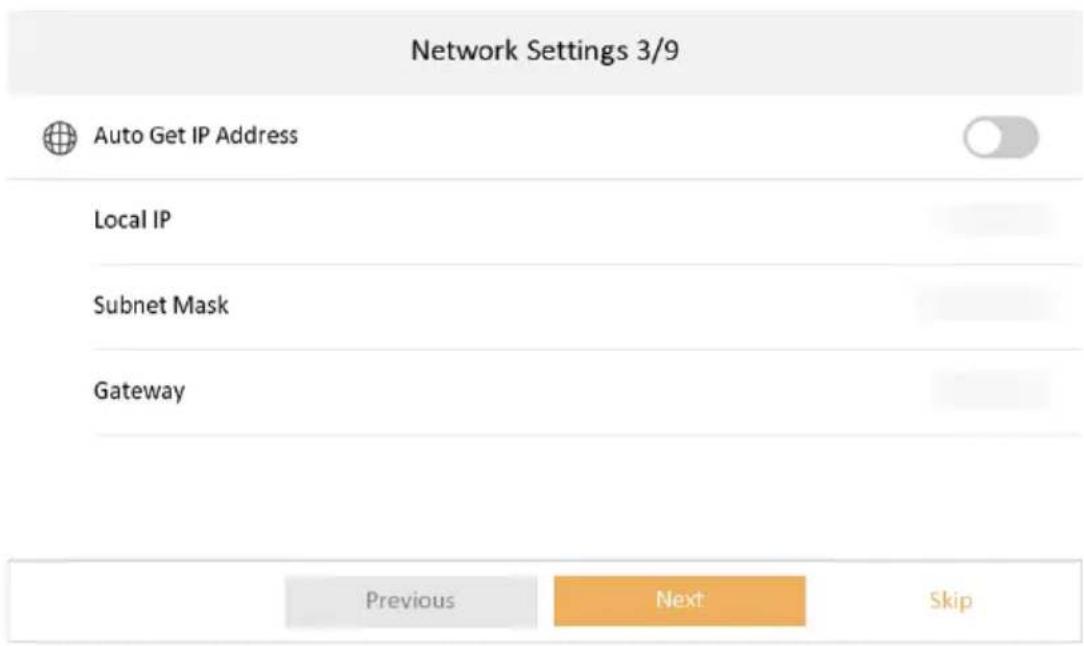
Figure 2-9 Network Parameters
4. Configure the indoor station.
1) Select Device Type as Indoor Station or Indoor Extension.
2) Set Floor No..
3) Set Room No..
4) Configure advanced settings. Set Comminity No., Building No. and Unit No.
5) Set Registration Password. You can choose "same as the admin password" which is the easiest configuration.
EDS150
6) Tap Next.
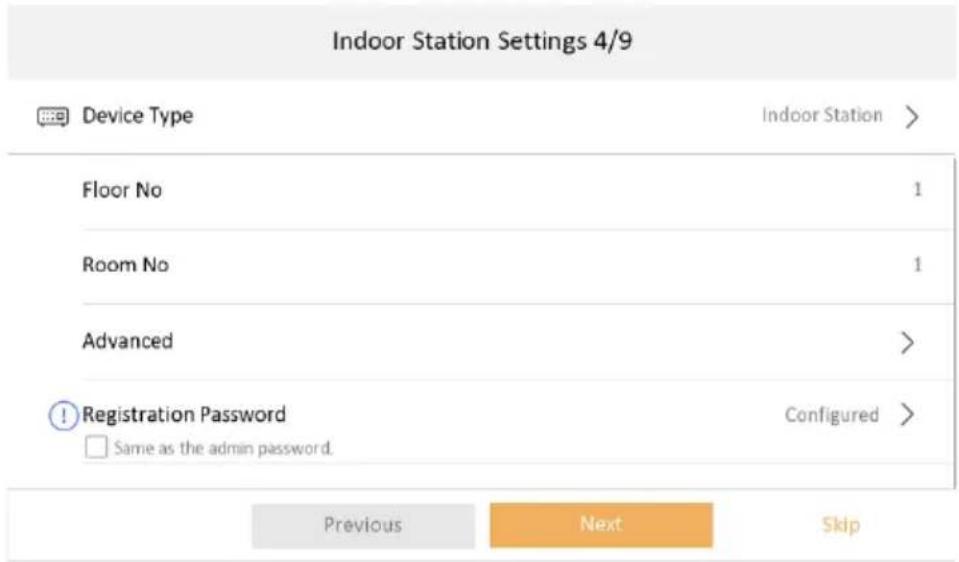
Figure 2-10 Indoor Station Settings
5. Set time and tap Next.
1) Select the Time Zone.
2) Tap Date Format and Time Format to set the time format.
3) Tap Time to set time manually.
4) Enable DST.Set the DST start time, end time and bias time.
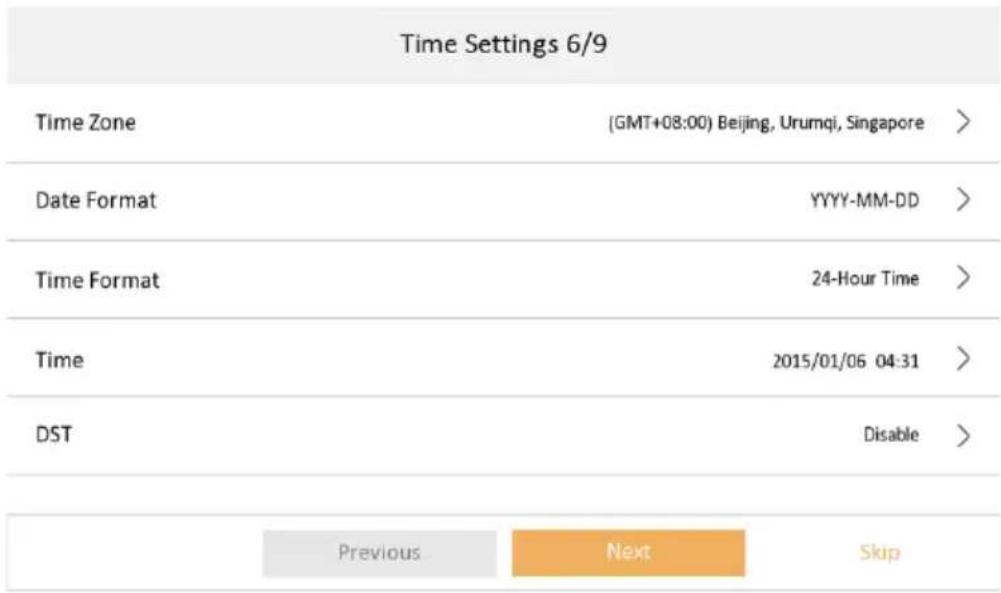
Figure 2-12 Time Settings
- OPTIONAL: If you typically use a standard setup, you'll only need to connect your outdoor video door phone, either the EDS101B or EDS101S, to your Guarding Vision account. Adding the touchscreen indoor station isn't required in this scenario.
However, if you do wish to include the indoor station, you can adjust the Guarding Vision service settings as outlined below.1) Enable Guarding Vision service.
2) Edit verification code or use the activation password by default.
3) View Guarding Vision Server Status.
4) Scan the first QR Code to download the APP of Guarding Vision. Scan the second QR Code to add your device to the APP. After adding the device to the APP, you can configure the device remotely.
5) Tap Next.
EDS150
- Link extra outdoor video door phones and tap Next. If the device and the indoor station are in the same LAN, the device will be displayed in the list. Tap the device or enter the serial No. to link.
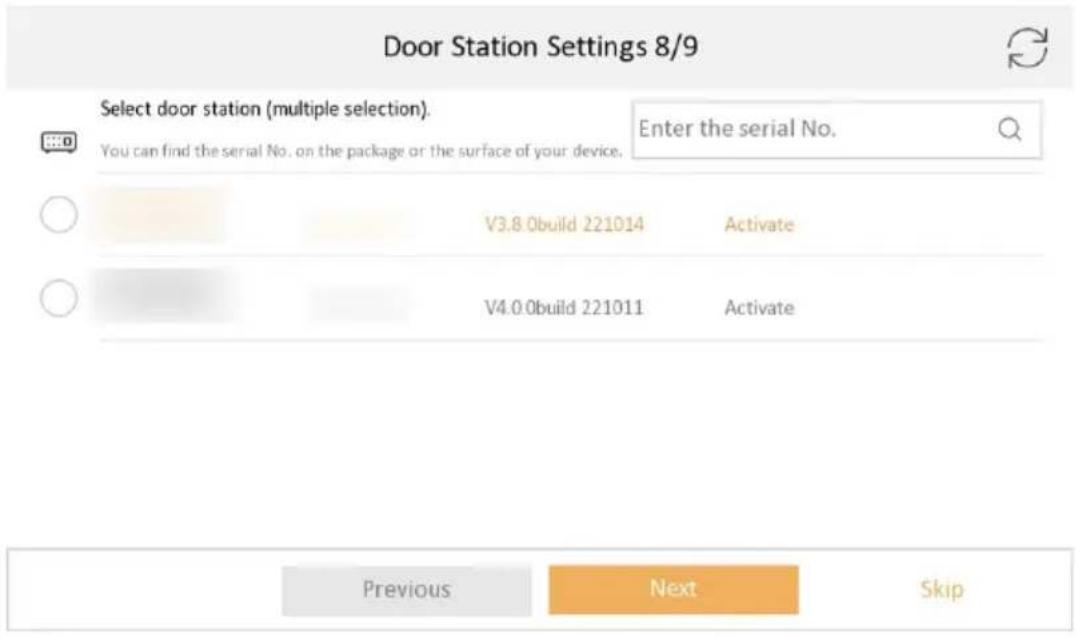
Figure 2-13 Related Device
1) Tap the door station in the list to link.
2) Tap Next.
3) Insert the password from the outdoor video door phone (instructions see user manual outdoor video door phone) to connect it with the indoor touch screen station.
- OPTIONAL: Enable Indoor Station and link related indoor extension devices. Tap Finish. If the indoor extension and the indoor station are in the same LAN, the device will be displayed in the list. Tap the device or enter the serial No. to link.
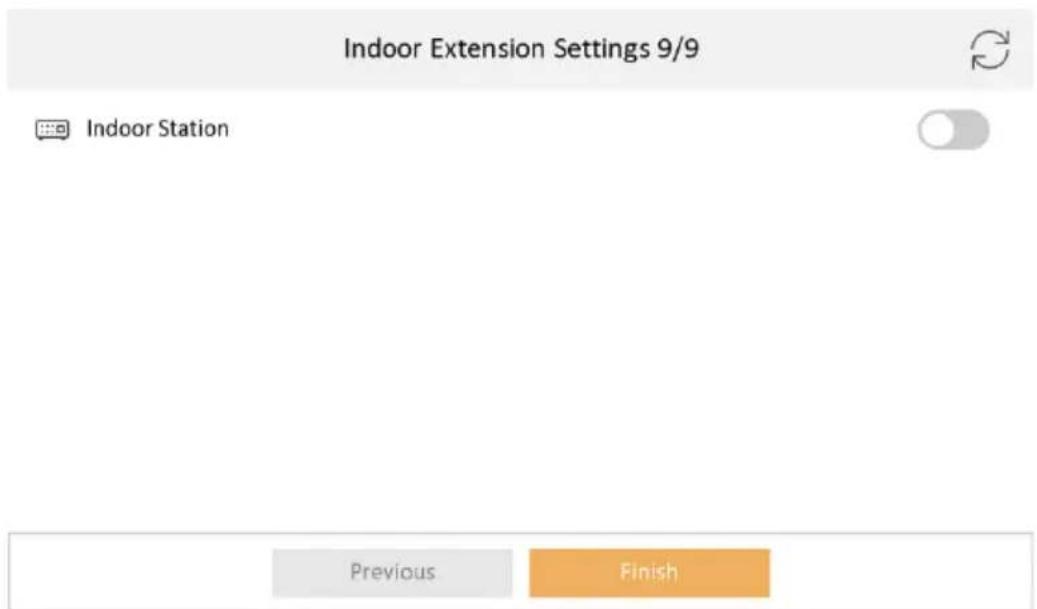
Figure 2-14 Related Device
1) Tap the indoor extension in the list to link.

If the indoor extension is inactive, the system will pop up the dialog to activate the device.
EDS150
2) Edit the network parameters of the indoor extension manually.
- Tap Finish to save the settings.
• Android-app: Guarding Vision

• iOS-app: Guarding Vision

Advanced configuration can be performed through the software for windows or ios computers:
• Windows-software: Guarding Vision

• iOS-software: Guarding Vision

VIEW OUR FULL MANUAL AND INSTRUCTIONAL VIDEOS AT WWW.VELLEMAN.EU
DIRECT LINK VIA QR-CODE:

Use this device with original accessories only. Velleman nv cannot be held responsible in the event of damage or injury resulting from (incorrect) use of this device.
For more info concerning this product and the latest version of this manual, please visit our website www.velleman.eu.
The information in this manual is subject to change without prior notice.
© COPYRIGHT NOTICE
The copyright to this manual is owned by Velleman nv. All worldwide rights reserved. No part of this manual may be copied, reproduced, translated or reduced to any electronic medium or otherwise without the prior written consent of the copyright holder.
GEBRUIKERSHANDLEIDING
1. Inleiding
Figuur 2-10 Instellingen binnenstation
Figuur 2-13 Verwant apparaat
Figuur 2-14 Verwant apparaat
• iOS-app: Vision bewaken

• iOS-software: Vision bewaken

BEKIIK ONZE VOLLEDIGE HANDLEIDING EN INSTRUCTIEVIDEO'S OP WWW.VELLEMAN.EU
RECHTSTREEKSE LINK VIA QR-CODE:

Figure 2-1 Activer
EDS150
CONSULTEZ NOTRE MANUEL COMPLET ET NOS VIDÉOS D'INSTRUCTION SUR LE SITE WWW.VELLEMAN.EU LIEN DIRECT PAR QR-CODE :

Velleman® Service and Quality Warranty
Since its foundation in 1972, Velleman® acquired extensive experience in the electronics world and currently distributes its products in over 85 countries.
All our products fulfil strict quality requirements and legal stipulations in the EU. In order to ensure the quality, our products regularly go through an extra quality check, both by an internal quality department and by specialized external organisations. If, all precautionary measures notwithstanding, problems should occur, please make appeal to our warranty (see guarantee conditions).
General Warranty Conditions Concerning Consumer Products (for EU):
- All consumer products are subject to a 24-month warranty on production flaws and defective material as from the original date of purchase.
- Velleman® can decide to replace an article with an equivalent article, or to refund the retail value totally or partially when the complaint is valid and a free repair or replacement of the article is impossible, or if the expenses are out of proportion.
You will be delivered a replacing article or a refund at the value of 100% of the purchase price in case of a flaw occurred in the first year after the date of purchase and delivery, or a replacing article at 50% of the purchase price or a refund at the value of 50% of the retail value in case of a flaw occurred in the second year after the date of purchase and delivery.
• Not covered by warranty:
- all direct or indirect damage caused after delivery to the article (e.g. by oxidation, shocks, falls, dust, dirt, humidity...), and by the article, as well as its contents (e.g. data loss), compensation for loss of profits;
- consumable goods, parts or accessories that are subject to an aging process during normal use, such as batteries (rechargeable, non-rechargeable, built-in or replaceable), lamps, rubber parts, drive belts... (unlimited list);
- flaws resulting from fire, water damage, lightning, accident, natural disaster, etc....;
- flaws caused deliberately, negligently or resulting from improper handling, negligent maintenance, abusive use or use contrary to the manufacturer's instructions;
- damage caused by a commercial, professional or collective use of the article (the warranty validity will be reduced to six (6) months when the article is used professionally);
- damage resulting from an inappropriate packing and shipping of the article;
- all damage caused by modification, repair or alteration performed by a third party without written permission by Velleman®.
- Articles to be repaired must be delivered to your Velleman® dealer, solidly packed (preferably in the original packaging), and be completed with the original receipt of purchase and a clear flaw description.
- Hint: In order to save on cost and time, please reread the manual and check if the flaw is caused by obvious causes prior to presenting the article for repair. Note that returning a non-defective article can also involve handling costs.
• Repairs occurring after warranty expiration are subject to shipping costs.
- The above conditions are without prejudice to all commercial warranties.
The above enumeration is subject to modification according to the article (see article's manual).
NL

- USER MANUAL
- Introduction
- To all residents of the European Union
- Important environmental information about this product
- General Guidelines
- General Description
- Product overview
- Operation
- Mounting
- See schematic page 2
- Before you start
- Configuration
- Startup the device:
- EDS150
- Set network parameters and tap Next.
- Configure the indoor station.
- 6) Tap Next.
- Set time and tap Next.
- © COPYRIGHT NOTICE
- GEBRUIKERSHANDLEIDING
- Inleiding
- Velleman® Service and Quality Warranty
- General Warranty Conditions Concerning Consumer Products (for EU):
- • Not covered by warranty:
- NL
Brand : EtiamPro
Model : EDS150
Category : Intercom