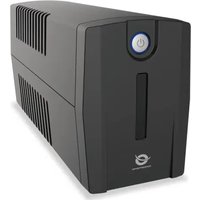
ZEUS02E - Uninterruptible power supply CONCEPTRONIC - Free user manual and instructions
Find the device manual for free ZEUS02E CONCEPTRONIC in PDF.


| Brand | Conceptronic |
| Model | ZEUS02E |
| Product type | Uninterruptible Power Supply (UPS) |
| Capacity | 850 VA / 480 W |
| Input voltage | 230 V AC |
| Input frequency | 50/60 Hz |
| Battery backup outlets | Yes, with surge protection |
| Communication protection | Internet/modem/LAN protection ports |
| USB port | Yes, for computer communication |
| Circuit breaker | Yes, overload protection |
| Display | LED indicators (power, alarm) |
| Management software | Power Master+ (downloadable from powermonitor.software) |
| Recommended initial charge | At least 8 hours before first use |
| Maintenance recharge | Every 3 months for prolonged storage |
| Audible alarm | Deactivatable by pressing the power button twice |
| Safety instructions | Install in a dry, temperate indoor location; do not cover vents; do not connect high-power devices |
Frequently Asked Questions - ZEUS02E CONCEPTRONIC
User questions about ZEUS02E CONCEPTRONIC
0 question about this device. Answer the ones you know or ask your own.
Ask a new question about this device
Download the instructions for your Uninterruptible power supply in PDF format for free! Find your manual ZEUS02E - CONCEPTRONIC and take your electronic device back in hand. On this page are published all the documents necessary for the use of your device. ZEUS02E by CONCEPTRONIC.
USER MANUAL ZEUS02E CONCEPTRONIC
Press the switch for 2 seconds to turn the UPS ON or OFF.
- Led Indicator
This LED is illuminated when the UPS is working.
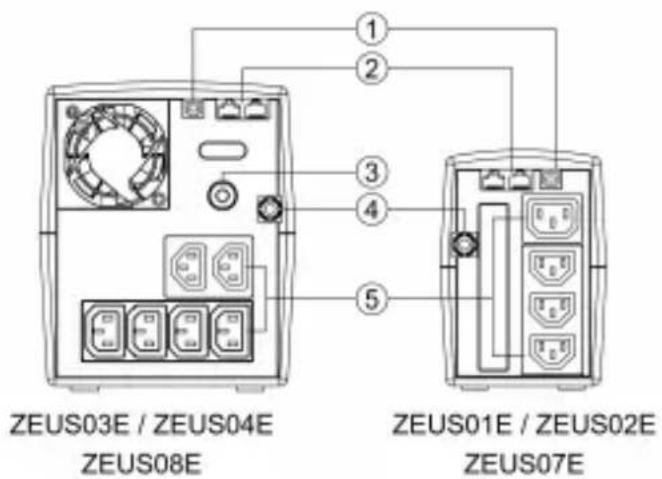
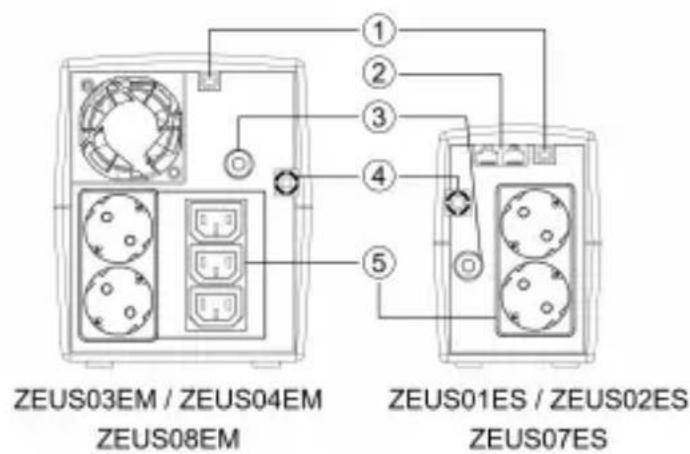
- USB port
This port allows connection and communication from the USB port on the computer to the UPS unit.
- Modem/LAN Internet Protection
(ZEUS01E/01ES/02E/02ES/03E/04E/07E/07ES/08E)
Communication protection ports will protect any standard modem, fax, telephone line, or network cable
- Input Circuit Breaker
The circuit breaker provides optimal overload protection.
-
Input power cord
-
Battery Backup & Surge Protected Outlets
Provide battery backup and surge protection. They ensure power is provided to connected equipment over a period of time during a power failure.
ZEUS01 / ZEUS02 / ZEUS07
Definitions for alarm
| LED Status | Alarm | |
| Normal | LED lighting | off |
| Battery Discharge | Flash once every 30 sec | Beep once every 30 sec |
| Battery Low | Flash once every 2 sec | Beep once every 2 sec |
| Overload | Flash once every 0.5 sec | Beep once every 0.5 sec |
| Off charging mode | LED off | off |
| Fault | LED off | Continuous alarm |
Mute setting: The audible alarm can be turned OFF or ON by quickly pressing the power button twice. The default setting is for the Alarm On. You will hear two short beeps when the Alarm is turned off.
ZEUS03 / ZEUS04 / ZEUS08
Definitions for illuminated lcd indicators
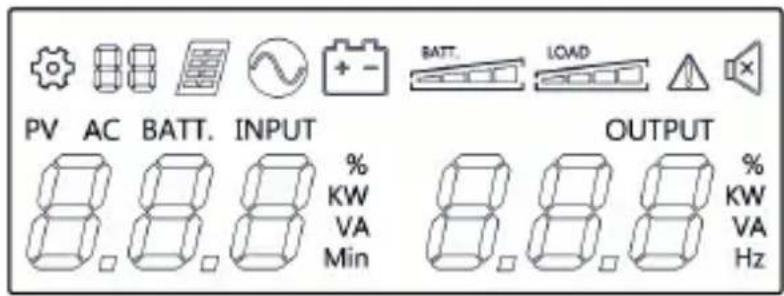
| Setting Item | Line mode | ||
 | PV mode |  | Bat-mode |
 | Fault |  | Sound disable |
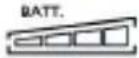 | Bat mode: battery capacityLine mode:1. Battery charging: cycle lighting2. Battery full charged: lighting3. Line mode without charger:battery capacity |  | Load capacity |
3. Installation & usage
Hardware installation guide
- Your new UPS may be used immediately upon receipt. However, recharging the battery for at least 8 hours is recommended to ensure that the battery's maximum charge capacity is achieved. Charge loss may occur during shipping and storage. To recharge the battery, simply leave the unit plugged into an AC outlet. The unit will charge in both the on and off position.
- With the UPS unit off and unplugged, connect the computer, monitor, and any externally powered data storage device (Zip drive, Jazz drive, Tape drive), etc. into the battery power supplied outlets. DO NOT plug a laser printer, copier, space heater, vacuum, paper shredder or other large electrical device into the battery power supplied outlets. The power demands of these devices will overload and possibly damage the unit.
- Plug the UPS into a 2 pole, 3 wire grounded receptacle (wall outlet). Make sure the wall branch outlet is protected by a fuse or circuit breaker and does not service equipment with large electrical demands (e.g. air conditioner, refrigerator, copier, etc. Avoid using extension cords.
- Press the power switch to turn the unit on. The power on indicator light will illuminate and the unit will "beep".
- If an overload is detected, an audible alarm will sound and the unit will emit one long beep. To correct this, turn the UPS off and unplug at least one piece of equipment from the battery power supplied outlets. Wait 10 seconds. Make sure the circuit breaker / fuse is normal and then turns the UPS on.
- To maintain optimal battery charge, leave the UPS plugged into an AC outlet at all times.
- To store your UPS for an extended period, cover it and store with the battery fully charged. Recharge the battery every three months to ensure battery life.
Software Installation on your PC
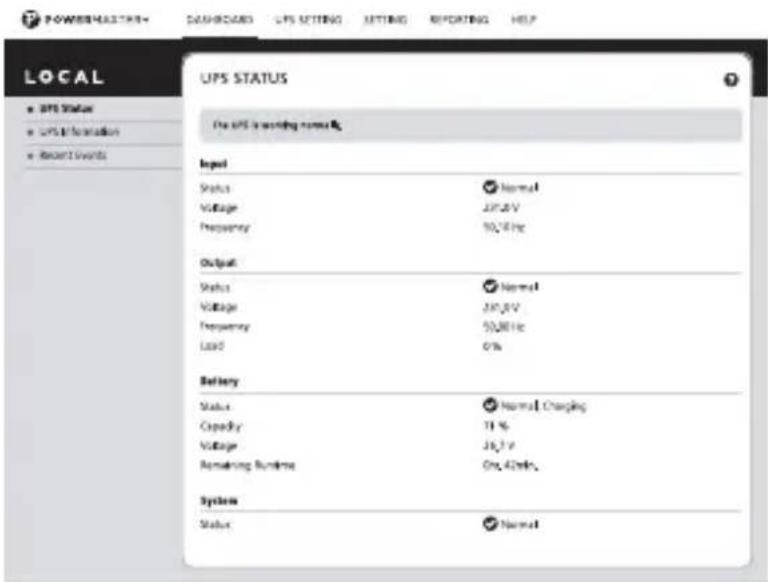
Power Master management software provides a user-friendly interface for your power systems. The graphic user-interface is intuitive and displays essential power information at a glance. Please follow procedure below to install the software.
Installation procedure:
- Download Power Master+ from the website: https://www.powermonitor.software/
- Double-click the file and follow the installation steps. When your computer restarts, the Power Master software will appear as a blue icon located in the system tray.
Trouble shooting
| Problem | Possible Cause | Solution |
| The UPS does not perform expected runtime | Batteries are not fully charged. | Recharge the battery by leaving the UPS plugged in. |
| The UPS will not turn on | The on/off switch is designed to prevent damage by rapidly turning it off and on. | Turn the UPS off. Wait 10 seconds and then turn the UPS on. |
| The unit is not connected to an AC outlet. | The unit must be connected to a 230Vac 50/60Hz outlet. | |
| Outlets do not provide power to equipment | Circuit breaker is tripped due to overload | Turn the UPS off and unplug at least one piece connected equipment. Unplug the power cord of the UPS then press the circuit breaker knob. |
| Batteries are discharged | Allow the unit to recharge for at least 4 hours. |
Caution:
- To prevent the risk of fire or electric shock, install in a temperature and humidity controlled indoor area, free of conductive contaminants.
- Risk of electric shock, do not remove the cover. No user serviceable parts. Refer servicing to qualified service personnel.
- Risk of electric shock, hazardous live parts inside this UPS can be energized from the battery supply even when the input AC power is disconnected.
- Risk of electric shock, Battery Circuit is not isolated from AC input, hazardous voltage may exist between battery terminals and ground. Test before touching.
- Use the power supply only in a socket that is installed as close as possible to the device and easily accessible and easy to unplug.
- To prevent the risk of fire or electric shock, install in a temperature and humidity controlled indoor area free of conductive contaminants. (See the specifications for the acceptable temperature and humidity range.)
- To reduce the risk of overheating the UPS, do not cover the UPS' cooling vents and avoid exposing the unit to direct sunlight or installing the unit near heat emitting appliances such as space heaters or furnaces.
- Do not attach non-computer-related items, such as medical equipment, life-support equipment, microwave ovens, or vacuum cleaners to UPS.
- Do not plug the UPS input into its own output.
- Do not allow liquids or any foreign object to enter the UPS. Do not place beverages or any other liquid-containing vessels on or near the unit.
- In the event of an emergency, press the OFF button and disconnect the power cord from the AC power supply to properly disable the UPS.
- Do not attach a power strip or surge suppressor to the UPS.
- Unplug the UPS prior to cleaning and do not use liquid or spray detergent.
- Servicing of batteries should be performed or supervised by personnel knowledgeable of batteries and the required precautions. Keep unauthorized personnel away from batteries.
- The battery supply should be therefore disconnected in the plus and minus pole at the quick connectors of the battery when maintenance or service work inside the UPS is necessary.
- When replacing the batteries, use the same number and type of batteries.
- Do not dispose of batteries in a fire. The battery may explode. Do not open or mutilate the battery or batteries. Released electrolyte is harmful to the skin and eyes.
- Do not plug the power supply in a socket that is hidden behind of any furniture.
- Do not cover the power supply connected into the socket.
- Use the product only in dry indoor rooms and protect it from moisture.
- If in doubt or if the power adapter malfunctions, discontinue use and contact our customer support or an authorized service center.
- Discontinue use immediately if the power adapter shows visible damage, emits unusual odors, or becomes excessively hot.
Note:
This manual contains important safety instructions. Please follow all instructions carefully during installation. Read this manual thoroughly before attempting to unpack, install or operate.
Note:
The UPS is designed to be for use with computer loads only.
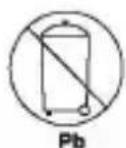
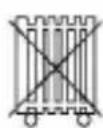
Disposal of waste electrical equipment and batteries: Do not dispose of waste electrical equipment and batteries with household waste. Please hand them to your local recycling point. Batteries should be fully discharged when disposed of. Incorrect storage/disposal can harm the environment and/or cause injury.

CE marking: Conceptronic declares that this product complies with the directives listed in the section 'Declaration of Conformity'.



Conceptronic UPS
1. Kapazität
ZEUS01E / ZEUS01ES (650VA 360W), ZEUS02E / ZEUS02ES (850VA 480W), ZEUS03E / ZEUS03EM (1200VA 720W), ZEUS04E / ZEUS04EM (2200VA 1320W), ZEUS07E / ZEUS07ES (1000VA 600W), ZEUS08E / ZEUS08EM (1500VA 900W)
https://www.powermonitor.software/
https://www.powermonitor.software/
https://www.powermonitor.software/
Problémaelemzés
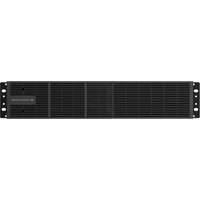
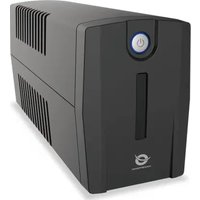
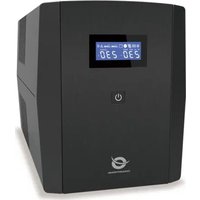
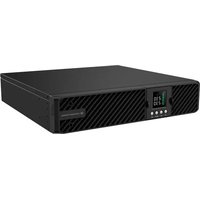
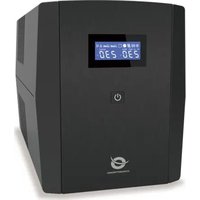
Brand : CONCEPTRONIC
Model : ZEUS02E
Category : Uninterruptible power supply