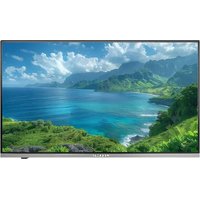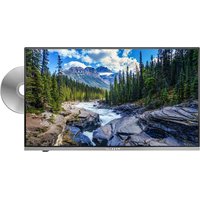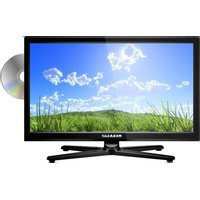
Royal Line II 22 - TV MEGASAT - Free user manual and instructions
Find the device manual for free Royal Line II 22 MEGASAT in PDF.


| Product type | HD LED TV |
| Brand | Megasat |
| Model | Royal Line II 22 |
| Screen size | 21.5 inches (54.6 cm) |
| Resolution | 1920 x 1080 pixels (Full HD) |
| Contrast ratio | 1000:1 |
| Brightness | 200 cd/m² |
| Viewing angle | 178° horizontal / 178° vertical |
| Built-in tuner | DVB-S/S2, DVB-C/C2, DVB-T/T2 |
| Connections | 2x HDMI, 2x USB, 1x SCART, 1x VGA, 1x digital audio output (SPDIF), 1x headphone output, 1x PC audio input, 1x YPbPr input, 1x AV input (adapter), 1x Common Interface (CI+) |
| DVD player | Yes (built-in) |
| USB playback formats | Photo: JPG, BMP, PNG; Audio: MP3, WMA, M4A, AAC; Video: MPG, AVI, TS, MOV, MKV, VOB, RM, RMVB |
| Power supply | AC 100-240 V, 50/60 Hz / DC 12 V, 3 A (9-36 V stabilized) |
| Power consumption (operation) | 21 W |
| Power consumption (standby) | < 0.5 W |
| Energy class | A |
| Weight (with stand) | 3.3 kg |
| Dimensions (with stand) | 517 x 360 x 180 mm |
| Dimensions (without stand) | 517 x 320 x 48.5 mm |
| VESA standard | 100 x 100 mm |
| Additional features | EPG (program guide), teletext, parental lock, hotel mode, software update via USB |
Frequently Asked Questions - Royal Line II 22 MEGASAT
User questions about Royal Line II 22 MEGASAT
0 question about this device. Answer the ones you know or ask your own.
Ask a new question about this device
Download the instructions for your TV in PDF format for free! Find your manual Royal Line II 22 - MEGASAT and take your electronic device back in hand. On this page are published all the documents necessary for the use of your device. Royal Line II 22 by MEGASAT.
USER MANUAL Royal Line II 22 MEGASAT
natural_image
Black MEGASAT TV monitor displaying a scenic green field under a blue sky with clouds, next to a CD (no text or symbols on the screen)Royal Line II (19 / 22 / 24)
Bedienungsanleitung
Inhaltsverzeichnis
text_image
Technical diagram of a computer monitor with labeled ports and an arrow indicating orientation or assembly.natural_image
Diagram of a mechanical assembly with four bolts and a central cross-shaped component (no text or symbols)- WARNUNG

natural_image
Diagram of a mechanical or electrical component with symmetrical arms and central hub, shown with red arrows indicating rotation (no text or symbols)text_image
DVB-S Manual Tuning Satellite (L/59Ku_EUTELSAT W1) TransFonder (0/0)0 H 0 Unicable On Network Scan Off Scan Mode Scramble Service Type All Search Quality Strength Select Adjust Return7. Das Hauptmenü
text_image
Tune Type ATV Portugal Serbia Sweden Romania Slovenia Switzerland Russian Spain UK Select Search Return| Tune Type | ATV | |
| Portugal | Serbia | Sweden |
| Romania | Slovenia | Switzerland |
| Russian | Spain | UK |
natural_image
Hand inserting a H0+ Modul into a device (no visible text or symbols)Hinweis:
natural_image
Modern flat-screen TV displaying a scenic landscape with green grass and blue sky, next to a CD (no text or symbols visible on screen)Royal Line II (19 / 22 / 24)
User manual
ContentContent
-
Safety instructions....03
-
Delivery 03
-
Stand assembly 04
4. Designations
4.1 Front and side view 06
4.2 Connections....07
4.3 Remote control 08
- First installation 09
6. Basic functions
6.1 Select input source....10
6.2 Navigation in the main menu....10
7. The Main Menu
7.1 Channel....11
7.1.1 Auto search (Satellite) 11
7.1.2 Manual Search (Satellite) 11
7.1.3 ATV manual search (analogue channel search) 12
7.1.4 Edit channels 13
7.1.5 Edit Satellite 14
7.1.6 Signal informations....15
7.1.7 CI Informations....16
7.1.8 5V antenna power 16
7.1.9 Software-Update (USB) 16
7.1.10 Automatic Search (Terrestrial) 17
7.1.11 Manual Search (Terrestrial) 17
7.1.12 Automatic Serach (Cable) 18
7.1.13 Manual Search (Cable) 18
7.2 Picture 19
7.3 Sound 20
7.4 Clock 21
7.5 Protection 22
7.6 Configuration....23
8. Multimedia operation (USB)
8.1 Photos 24
8.2 Music 25
8.3 Movies 26
-
EPG Menu (Programm Guide) 27
-
Cl+ slot for pay TV expansion 28
-
Troubleshooting 29
-
Specifications....30
1. Safety instructions
Please read the manual thoroughly before operating the equipment. In case of incorrect or improper handling, the warranty becomes void.
Power supply: Before start please check the correct operation voltage of the power point. The operating voltage of this device is AC 100\~240 V, 50/60Hz, DC 9\~36 V.
Overload: Do not overload a wall outlet, extension cord or adapter, neither use damaged power cord or touch it with wet hand as this may result in electric shock.
Liquid: The device shall not be exposed to dripping or splashing water, and that no objects filled with liquids, such as base, shall be placed on the apparatus.
Ventilation: Keep the slots on top of the device uncover to allow sufficient airflow to the unit. Do not expose the device to direct light or do not place it near a heater or in humid conditions.
Risk of suffocation: Do not let children play with films or other packaging components, there is a risk of suffocation.
Cleaning: Plug out the device from the wall outlet before cleaning. Clean the device by a soft cloth or mild solution of washing-up liquid (no solvents).
Location: Put the device indoor in order to avoid lightening, raining or sunlight.
Uncover: Do not remove the cover, to reduce the risk of electric shock. Contact qualified and licensed service personnel to repair the device, or contact your dealer.
2. Delivery
Please check whether the following items are included in the package. If any items are missing or damaged, please contact your dealer.
- TV
- AV adapter
- Stand incl. screw 6. YUV adapter
- Remote Control 7. User manual
- Batteries
3. Stand assembly
- For the assembly you need the following parts

text_image
Television 4x Screws StandNote:
Before installing the stand, please check that you have all of the parts and that there is no visible damage. If a part is missing or appears damaged, please contact customer service.
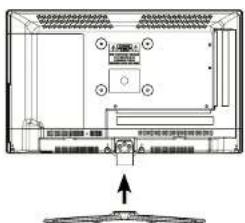
2. How to mount the stand
Place the TV face down on a soft and flat surface (blanket, foam, cloth, etc.) to prevent any damage to the TV.
text_image
Technical diagram of a computer monitor with labeled ports and an arrow indicating orientation or assembly.Insert the stand as shown on the TV.

Note:
- Before you put on the stand, please make sure the direction is correct as shown below.
- When you are putting on the stand, please make sure the neck of the TV set is in the correct position and attached tightly.
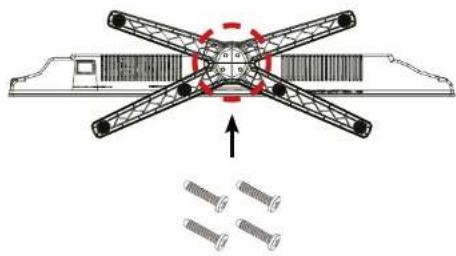
3. Stand assembly
Use a suitable screwdriver and attach the base with the screws provided. Make sure that the screws are properly tightened.
natural_image
Technical diagram of a mechanical assembly with four bolts and a central cross-shaped component (no text or symbols)- WARNING

text_image
It can not be tilted to the front or back as shown below. Doing so may damage the stand. It can not be tilted to the left or right as shown below. Doing so may damage the stand.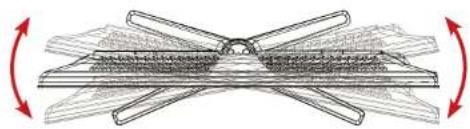
natural_image
Diagram of a mechanical or electrical component with symmetrical arms and central hub, shown with red arrows indicating rotation (no text or symbols)4.1 Front view and view from above
Front view Side view

text_image
Infrared sensor Receiver for the remote control signals. LED light Press the power button to switch on or off the TV. RED - Standby / BLUE - Power on Power switchThe functions of the buttons on the housing side:

INPUT: Press to display the input source menu.
MENU: Press to display the OSD menu, press again to exit the menu.
CH +/-: Press to scan through channels.
VOL +/-: Press to adjust the volume.
PLAY: Play/Pause the programm.
EJECT: Eject the disc.
POWER: Turn on/off the TV set.
Note:
Press INPUT repeatedly to select the desired source. After a short wait, the TV switches to the desired signal source.
4. Designations 4. Designations
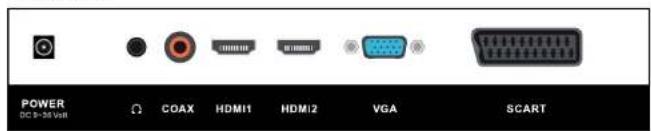
4.2 Connections
Bottom view
text_image
POWER DC 0-36 Volt Ω COAX HDMI1 HDMI2 VGA SCARTPOWER Connection for 230 Volt power supply (DC 9\~36 Volt)
Headphones Output for Headphones with 3.5 mm jack
COAX Digital Audio output (coaxial)
HDMI 1 HDMI input
HDMI 2 HDMI input
VGA Video input for VGA from PC
SCART Scarl port
Side view

text_image
ANTIN 1 ANTIN 2 max. 300mA DC 65V Common Interface min/VPbPr min AV PC Audio in USB/VI/SR2 FV:200mAANT IN 1 Input for Satellite antenne (13/18V max. 500 mA)
ANT IN 2 Port for DVB-T antenna or Cable TV
Common Interface Slot for CI/CI+ module
Mini YPbPr Component input with adapter cable
Mini AV AV input (FBAS/Audio) with adapter cable
PC Audio in Audio input for sound from PC
USB 1 / USB 2 USB 2.0 port for media playback or to
record / timeshift function (optional)
4. Designations
4.3 Remote control

text_image
MEGASATPOWER turn the V on / off (Standby)
MUTE Muting the sound
PICTURE Switch to picture presets
ASPHC1 Switch aspect ratio
S1 HFP Setting Automatic shutdown
SOUND Switch to Sound preferences
FAV Show favorites
NUMMERC BUTTONS Enter numbers
RETURN Returns to the last channel position
INFO Show informations
INPUT Select source
MHNU Opens the main menu
EXI: the respective menu
ARROW KEYS for navigation in the main menu and DVD menu.
for program changes and volume control
To confirm a selection / program list
Volume control
C1+/- Change channels
EPC Electronic Program Guide
IV/RADIO Switch between IV and radio stations
C I.LIST Opens the channel list
TV/TXT Show and close Teletext
EJECT Ejects the DVD (only in DVD mode only)
REC Starts recording (optional):
REC.IST Displays the recording list (optional)
SUBTITLE /D/PRO Show / hide subtitles (if available)
DPRO edit the play list in DVD mode
CANCEL / DREP Switch between Teletex / TV
D.REP repeat mode in DVD mode
REVAL/D.GOTO Displays hidden information in Teletext
D.GOTO playing your favorite title/ chapters
NICAM/A2 / D.SLOW Switch to Nicam/A2
DSLOW plays DVDs in slow motion
INDEX Cets the index page in the DVD menu
HOLD Holds the bottom change in teletext
SIZE / D.ZOOM Zoom in on the top and bottom of the teletext
D.ZOOM selects an image in the DVD mode
SUBPAGE/DITLE Subpages in teletext Call up/Cancel
D. TITLE shows the DVD title in DVD menu
◀◀/▶▶
Forward / Fewind backward
▶II Start / Pause
Stop
DSET
DVD System settings
DMSALL
Show DVD menu
D. M. L. 4 D. S. U. R.
Show DVD-subtitles
D.LAN: Switch languages / audio tracks in DVD mode
5. First installation
- Connect the TV to the power supply and turn on the power switch at the bottom of the housing. The TV is now in standby mode (LED is RED).
- Then press the Power button on the remote control (LED is BLUE).
-
After the TV is started, the First Installation menu appears. You can now make the following settings:
-
OSD language: Choose your language. To change, use the ◀▶ buttons.
- Country: Choose the country. To change, use the ◀▶ buttons.
Press OK to confirm the entries or MENU to cancel.
• TV connection: Use the ◀▶ buttons to choose the type of reception (satellite, antenna or cable)
- Tuner mode: Choose between DTV (Digital) or ATV (Analog)
Press OK to confirm the entries or MLNU to cancel.

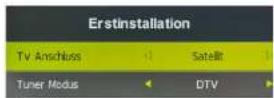
Example in satellite mode
Note: If you are using the TV in satellite mode, you can confirm all setting points with OK during the initial installation!
- Load standard program list: The preinstalled channel list is loaded.
- Fast Scan Mode: Searches the satellite for predefined programs (selectable by provider).
- Standard program search: In satellite mode, the preinstalled channel list is loaded. Here are other settings e.g. Unicable can be set.
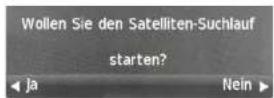
Confirm your chosen search function with OK. Now press the ▶ button (Yes) to start the search. Use the ▶ button (No) to cancel the search.

6. Basic Functions
6.1 Select input source 7.1 Channel
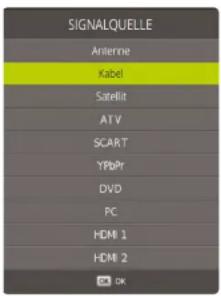
Press the INPUT button on the remote control to select the input source. Use the ▲/▼ buttons or the buttons on the TV to select a source. Press OK to confirm, or wait a few seconds.
Note:
Before you select the source, make sure that the source is ready, otherwise no signal is transmitted.
text_image
SIGNALQUELLE Antenna Kabel Satellite AT V SCART YRbPr DVD PC HDMI 3 HDMI 2 OK6.2 Navigation in Main Menu
Press the MENU button to enter the main menu. It consists of further submenus:
- Channel
- Image
- Sound
- Clock
- Options
- Lock

Navigate through the individual submenus using the ◀▶ keys. Press the OK key to enter the respective submenu. Press MENU to go back one step, or press EXIT to exit the menu completely.
7. The Main Menu
In the menu Channel you can search for new channels, edit channels or set configurations at your reception mode.
Note:
The submenu of Channel Search differ depending on what kind of a reception mode you have set during the first installation (satellite, cable or terrestrial).
7.1.1 Auto search (Satellite)
Before you start a channel search make sure you are on the correct input source. Press the INPUT button on the remote control and select "Satellite".
Note: The automatic station search contains the same search functions as with the first installation (see page 9).
Satellite
Select the desired Satellites for receiving
Channel Type
Choose between all channels or FTA (free to air only, that are not encrypted)
Service Type
Choose between All, DTV (TV programs) or Radio (only radio)
Search mode
Choose between standard, Blind search or network search
Unicable
If you operate your satellite system with Unicable, you can configure the settings
for the reception here. Check these according to the specifications of the Unicable system or Unicable LNB.
Search
Press OK to start the auto search.

Select the desired Satellites for receiving.
Transponder
Select the transponder you want to search.
Unicable
If you operate your satellite system with Unicable, you can configure the settings for the reception here. Check these according to the specifications of the Unicable system or Unicable LNB.
Network Scan
Choose between On (full search on the satellite) or Off (Search on the programmed transponder list)
Channel Type
Choose between free, encrypted or all channels.
Service Type
Choose between All, DTV (TV programs) or Radio (only radio)
Search
Press OK to start the manual search.

text_image
DVB-S Manual Tuning Satellite (L/59Ku_EUTELSAT W1) TransFonder (0/0)0 H 0 Unicable On Network Scan Off Scan Mode Scramble Service Type All Search Quality Strength Select Adjust WM Return7.1.3 ATV manual search (analogue channel search)
In this menu item you switch to the manual search of the analogue channels for DVB-T and DVB-C.
7. The Main Menu
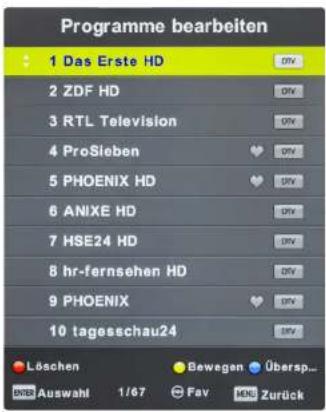
7.1.4 Edit channels
Delete (RED button)
Use the arrow keys to choose a channel, then press to RED button to delete it.
Move (YELLOW button)
Use the arrow buttons to select a program and press the YELLOW button to highlight it. Use the arrow keys to move the program to the desired program location. Press Enter or YELLOW key to confirm.
If you have selected a program and press a number on the remote control, the respective programs will be exchanged.
Skip (BLUE button)
Use the arrow keys to choose a channel, then press the BLUE button to highlight it. When you "scroll" the channel list, this program will be skipped in the future.
Favorites (FAV button)
Use the arrow keys to choose a channel, then press the FAV button to highlight it as a favorite (identified by a heart symbol). If you press from now on in normal TV mode the FAV button on the remote control, only the programs you see that you have marked as favorite.
In this menu, you can make fundamental changes to your satellite system, edit or add transponders and satellites.
Add / Delete Satellite
Delete (RED button)
Deletes the selected satellite. This process is irrevocable.
Add (YELLOW button)
Add a new satellite. Enter the name and orbit position of the new satellite.
| Satellite | ||
| (01/59) Ku_ASTRA 1M,1KR,1L,6hIL | 019.2 E | |
| (02/59) Ku_ASTRA 2A,2B,2D | 028.2 E | |
| (03/59) Ku_ASTRA 1E,1G,3A | 023.5 E | |
| (04/59) Ku_NLESAT 101, 10 | 007.0 W | |
| (05/59) Ku_EUTELSAT W3A | 007.0 E | |
| (06/59) Ku_EUTELSAT W1 | 010.0 E | |
| (07/59) Ku_BADR-2,3,4/EURO | 026.0 E | |
| (08/59) Ku_EUTELSAT SESAT | 036.0 E | |
| (09/59) Ku_EUTELSAT W2 | 016.0 E | |
| (10/59) Ku_EXPRESS AML | 040.0 E | |
| Delete Satellite Add Satellite Select OK Return | ||
Edit Satellite
Select a satellite and press the OK button to make further settings.
You can make the following settings here:
LNB Type
Change the LNB type here
DiSEqC 1.0
Choose between None, LNB 1 to LNB 4
DiSEqC 1.1
Choose between None, LNB 1 to LNB 16
22 KHz
Set the 22 KHz setting to On or Off.
Transponder
Opens the transponder list. Use the RED button to delete the selected transponder. Use the YELLOW button to add a transponder.
| Satellite | |
| Satellite Name | ASTRA 1H1KR... |
| Orbit Position | 019.2 E |
| LNB Type | Universal |
| DSEqC1.0 | Off |
| DSEqC1.1 | Off |
| Tone 22K+R | AUTO |
| TransPonder | |
| Unicable Setting | On |
| Mxtor | DISEqC1.2 |
7. The Main Menu
Note:
As new Channels are available, but these are not located in your TV list, proceed as follows:
- Find out the frequency of the new channel (e.g. on, www.satindex.de").
- Go to the main menu Channel -> Edit Satellite.
- Select the satellite (e.g. Astra 19.2E) and confirm with OK.
- Now open the transponder list.
- Press the YELLOW button to add a transponder.
- Enter the appropriate data (eg: 12.188 H 27.500)
- Press the MENU button to save the new transponder.
- Search manually for new channels.
- See point 7.1.2 Manual search (satellite)
Unicable settings
If you are using the TV with a Unicable system, you can enter the corresponding data here.
Motor
Choose between Off, DiSEqC 1.2 or 1.3 (USALS)
Band
Choose between KU and C band.
Note: Usually you have to make no changes in the antenna settings. It is recommended that only experienced users change settings.
7.1.6 Signal informations
In this menu you can see various information about the respective transponder or channel. Signal quality and level can be read here.

text_image
Signalinformation ASTRA 1H,1KR,1L,1M 11494 H 22000 Qualität 47 Signal 1007. The Main Menu
7.1.7 CI Informations
This menu provides information about the inserted CI module, or about the smart card (if available).

The CI information is only active when a CI module is plugged in.
7.1.8 5V antenna power
If you use a DVB-T antenna, you can switch the 5V voltage on or off here.
ON = If you are using an active DVB-T antenna without a separate power supply. OFF = If you have an active DVB-T antenna with its own power supply or use a passive DVB-T antenna.
7.1.9 Software-Update (USB)
If there is a new firmware for the TV, you can this update here. You can find the latest firmware always on our homepage www.megasat.tv
- Copy the firmware to the root directory to a formatted USB drive (without subfolders).
- Plug the USB drive into the USB slot of the TV.
- Now press the OK button on Software Update (USB). You will be asked whether you really want to update. Select "Yes" or "No" to cancel.
- Once the firmware has been updated, the TV restarts and starts the initial installation. Note: If the TV does not restart automatically, please turn it off and on at the power switch.
7. The Main Menu
7.1.10 Automatic Search (Terrestrial)
Before starting a station search, make sure you are on the correct input source. To do this, press the INPUT button on the remote control and select the item "Antenna".
Note:
Make sure that a suitable DVB-T antenna is connected.

text_image
Tune Type ATV Portugal Serbia Sweden Romania Slovenia Switzerland Russian Spain UK Select Search Return- Select the country you are in (eg Germany) and press the OK button.
- Subsequently, the automatic transmitter starts.

text_image
Channel Tuning TV : 0 Program(s) DTV : 0 Program(s) Radio : 0 Program(s) Data : 0 Program(s) 6 % Freq: 93.25 MHz (TV)7.1.11 Manual Search (Terrestrial)
With the manual DVB-T search, you can search each frequency (channel) individually. Use the ◀▶ buttons to select the desired channel and press the OK button to start the search.

text_image
DTV Manual Tuning VHF CH 5 NO SIGNAL Bed 177 500Mbz Good7. The Main Menu
7.1.12 Automatic Serach (Cable)
Before starting a station search, make sure you are on the correct input source. To do this, press the INPUT button on the remote control and select the item „Cable“.
| DVB-C Scan Menu | |
| Scan Mode | Network Scan |
| Frequency | 770000 |
| Network ID | 65535 |
| Symbol(ks/s) | 6900 |
In the search mode, choose between "Full" or "Network Scan". When "Full" the default search is used, with "Network Scan" you can u.a. set the frequency or network ID.
Then press OK and select the country you are in (eg Germany).
Subsequently, the automatic transmitter starts.
| Tune Type | ATV | |
| Portugal | Serbia | Sweden |
| Romania | Slovenia | Switzerland |
| Russoin | Spain | UK |
7.1.13 Manual Search (Cable)
With the manual DVB-C search you can search each frequency (channel) individually. Select the desired frequency with the ◀▶ buttons. Press the OK button to search to start the search.
| Frequency | 770000 |
| Symbol(k/s) | 6900 |
| OAM Type | OAM 16 |
| Search | |
7. The Main Menu
7.2 Picture
In this menu you can set up basic settings for the TV picture. Use default settings or set your own values.
Image Mode Select a preset image setting
Contrast Adjust the contrast value
Brightness Adjust the Brightness value
Color Adjust the Color value
Color tone Adjust the Color tone value
Sharpness Adjust the Sharpness value
Color temp. Adjust the Color Temperature value
Image format Set the appropriate picture format.
Noise reduction Adjust the Noise reduction value
Dynamic CR Set the dynamic contrast ratio on or off.
Note:
The settings such as contrast, brightness, etc. can be edited only if you are in the picture mode „Personal“.
7. The Main Menu
In this menu you can set up basic settings for the TV sound. Use default settings or set your own values.

Sound mode Select a preset sound profile
120 Hz - 10 KHz Adjust the treble and bass.
Balance Adjust the balance between right and left channel
Auto. volume Set to ON to automatically adjust the volume during a quiet channels
Surround Sound Enable surround sound if you have connected the TV to an external surround system.
SPDIF Mode Activate the digital audio output.
AD switch This option is for visually impaired persons. When activated, scenes without sound are described by a speaker. (Depending on the transmitter or transmission)
Hearing imp. This option is only enabled if the AD selection has been turned on and controls the speaker's volume.
Note:
The settings such as Treble, Bass, etc. can be edited only if you are in the sound mode „Personal”.
7. The Main Menu
7.4 Clock7.3 Sound
In this menu you can set the time of the TV as well as various other automatic functions.

Clock Set the current time and date.
Switch-off time Set the time when the TV should turn off automatically.
Switch-on time Set the time when the TV should turn on automatically. Use the arrow keys to select when it should be: once, daily, Mon-Fri, Mon-Sat, Sat-Sun, Sunday
Sleep timer Set the minutes when the TV should turn off automatically. Choose between Off, 10, 20, 30, 60, 90, 120, 180 or 240 minutes. You can also access this function via the SLEEP button on the remote control (press the SLEEP button repeatedly to switch between times).
Auto standby Adjust the hours after the TV should switch off automatic table when no operation on the unit or on the remote control is carried out. Select between OFF, 3, 4 or 5 hours.
Time zone Select the time zone you are in.
OSD timer Adjust in seconds how long you want to displayed the on-screen menu. Select between OFF or 10-60 seconds.
7. The Main Menu
In the menu configuration, you can set up basic settings of the TV.

OSD language Select the language of the screen menus
Audio language Select the preferred audio language of TV channels
Subtitle lang. Select the preferred subtitle language of the TV channels
Hearing imp. This option is only enabled if the AD selection has been turned on and controls the speaker's volume.
Reset Sets the TV back in the factory setting. All data you have made will be lost.
First installation Start the first installation of the TV (see page 9)
ECO Mode Choose between Home Mode (low energy mode) or Shop Mode (higher power consumption)
Blue Screen Displays a blue screen background color
Software-Update If there is a new firmware for the TV, you can this update here. You can find the latest firmware always on our homepage
www.megasat.tv
- Copy the firmware to the root directory to a formatted USB drive (without subfolders).
- Plug the USB drive into the USB slot of the TV.
- Now press the OK button on Software Update (USB). You will be asked whether you really want to update. Select "Yes" or "No" to cancel.
- Once the firmware has been updated, the TV restarts and starts the initial installation.
7. The Main Menu
7.6 Lock7.5 Options
In this menu passwords can be assigned to Channel Lock, add a youth protection or configure a hotel mode.

System lock Select ON to enable the password lock. The default password is: 0000
Set password Change the default password. First enter the current password, then a new one. This must be repeated again.
Lock channels Select the channels you want to lock. Navigate with the arrow keys on the current channel and press the GREEN button to select a channel to lock.
Youth protection Select the age level from 4 to 18 years. If a program exceeding the age group, the password is needed to unlock the channel. Note: This feature is dependent on the broadcaster.
Keylock Enable or disable the key lock.
Hotel settings In the hotel setting you can configure the TV so that unauthorized persons do not have access to certain functions.
Source lock: Locks any input sources.
Start source: Select the source, with which the TV is to start.
Start channel: Select the channel, with which the TV is to start.
Volume: Select the volume level at which the TV is to start.
Max volume: Select the maximum adjustable volume.
Database import: Import a preset database.
Database export: Export the current database.
Reset lock: Deletes all Hotel settings.
8. Multimedia operation (USB)
With your TV you can play back multi-media files such as, photos, music, movies and eBooks. Insert a suitable USB drive or external hard drive into the USB port. Press INPUT on the remote control and switch to using the arrow keys on MEDIA.

text_image
USB 2.0 MENU MUSIC FILM TEXT8.1 Photos
Change to the menu "Photos", then the picture menu appears with the folder structure. Navigate with the OK button to the main folder
C, then displays all the photos from the USB drive. Navigate with the arrow keys to a desired photo. A small preview, and various data of the photos will be displayed directly in the center of the screen. To start a
slideshow, highlight with the OK button all images that you want to view. Do not mark any photos, all photos are played. Start the slide show with the ▶■ button.

Description of symbols in the playback mode
| II | Pauses the current playback. |
| Previous photo in the playlist. | |
| Next photo in the playlist. | |
| Stop the slideshow. | |
| Repeats the slideshow. | |
| Plays music to the slide show (provided that music on the USB stick is located). | |
| Displays the current playlist. | |
| Displays the play list. | |
| Rotates the image clockwise by 90°. | |
| Rotates the image anti clockwise by 90°. | |
| Enlarges the image. | |
| Reduces the image. | |
| Moves the image. Use the arrow keys on the remote control. |
8. Multimedia operation (USB)
8.2 Music
Change to the menu „Music“, then the music menu appears with the folder structure. Navigate with the OK button to the main folder C, then displays all the music from the USB drive.
Navigate with the arrow keys to a desired music file. A small preview as title or artist are displayed on the screen.
To start the playlist, highlight with the OK button all music files you want to hear. Do not mark any music files, all music files are played. Start the playlist with ▶ button.

Description of symbols in the playback mode
| || | Pauses the current playback. |
| ◀◀ | Rewinds the current track. |
| ▶▶ | Fast forwards the current track. |
| ◀◀◀ | Previous track in the playlist. |
| ▶◀◀ | Next track to the playlist. |
| ■ | Stops playback. |
| Repeats the playlist. | |
| Turns the volume on mute. | |
| Displays the current playlist. | |
| Displays information about the current song. | |
| Switch to a specific time of the current title. |
8. Multimedia operation (USB)
8.3 Movies
Change to the menu „Movies“, then the Movie menu appears with the folder structure. Navigate with the OK button to the main folder C, then displays all the movies from the USB drive.
Navigate with the arrow keys to a desired movie file. A small preview as well as information to be displayed on the screen.
To start the playlist, highlight with the OK button all movie files you want to hear. Do not mark any movie files, all movie files are played. Start the playlist with ▶■ button.

Description of symbols in the playback mode
| [ACTY] | Pauses the current playback. |
 | Rewinds the current movie. |
 | Fast forwards the current movie. |
 | Play previous movie in the playlist. |
| [2W6D] | Play next movie in the playlist. |
 | Stops playback. |
 | Change the font. |
| [AZDO] | Repeats the playlist. |
 | Set the A-B repeat. |
 | Displays the current playlist. |
 | Displays information about the current video. |
 | Plays the video in slow motion. |
 | Play the movie frame by frame (a keystroke = forward one frame). |
 | Switch to a specific time of the current video. |
 | Enlarges the video. |
 | Shrinks the video. |
 | Changes the video format. |
 | Moves the video. Use the arrow keys on the remote control. |
9. EPG menu (program guide)
In Electronic Programme Guide, you can see a 7-day preview of all channels (where the respective stations so provides). Use the arrow keys on the remote control to navigate between programs and broadcasts.
Press the INFO button on the remote control to get more information on the broadcast.
Declaration of color buttons
Programs a recording (optional)
● Shows more information about the currently selected program
- Shows the current schedule
Reminds of a program
Reminds a TV show
If you do not want to miss a broadcast, this feature is very helpful. Use the arrow keys to select the desired station and the program you want to be reminded of. Pressing the BLUE button opens another window with preset data. You can adjust these as you like. In addition, select whether you would like to be reminded once a day, daily or weekly.
Note:
It may happen that the program guide provides no or only partial information. It may take several minutes until the data has been updated.
10. Cl+ slot for pay-TV expansion
You can receive not only free to air (Free to Air) channels on the TV, but also encrypted channels unless you are in possession of a smart card and a CI module of the respective provider.
1. Inserting the smart card into the CI module:
Insert the smart card into the CI module. Make sure that the golden chip of the Smart Card is facing upward.

text_image
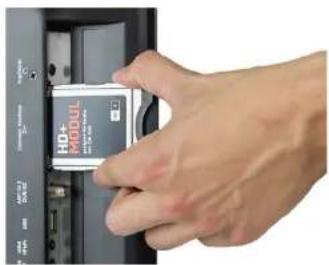
C1 module: Rule, Make sure ed2. Inserting the CI module:
The module must insert only 2-3 cm in the Cl+ slot. In order to the CAM module is properly seated, you need to press it a little harder at the end. You feel a slight resistance.
natural_image
Hand inserting a H0+ MODUL into a computer case (no visible text or symbols on the device itself)Note:
- The broadcaster can forbit or limit recording/Time Shift with a CI+ module.
- Recordings of programs using CI+ are saved encrypted on the USB devices. The recordings could not be viewed with another device.
- The limitation are designated by the broadcasters. The manufacturer does not have influence on this matter.
- A CI/CI+ module can generate screen messages. Please refer to the manual of your module.
11. Troubleshooting
Please read the following information to find out the possible cause of a problem before contacting customer service.
| No power • Check if the power | cord is fully plugged into the electrical outlet and the power adapter.• Check if the cable of the power adapter is properly connected to the TV unit.• The electronic circuit was possibly reset. Disconnect the power supply from the power source, wait 1 minute, and then connect the electrical connector. |
| No picture • Check if the antenna cable is properly connected.• Verify that the correct input is selected; Use the INPUT button.• Check the brightness and contrast settings in the Picture settings. | |
| No sound • Check if the sound is turned off or Mute is activated.• Carefully increase the volume.• Check if the audio cables are connected to the correct inputs. | |
| Bad picture quality • Check whether the correct input is selected; Use the INPUT button.• Check the connection to the TV.• Check the video settings. | |
| Image too large/small or distorted | • Use the ASPECT button to change the appearance of the image. |
| Remote control does not respond | • Change the batteries.• Use the remote control in the specified range (max. 5 meters and 30°)• Avoid direct exposure to light in the infrared sensor. |
12. Specifications Conformity information
| Royal Line II 19 Royal Line II 22 Royal Line II 24 | |||
| Display LED Display (pixel class I) | |||
| Screen size 18,5 inch (47 cm) 2 | 5 inch (≤4,6 cm) 23,6 inch (59,9 cm) | ||
| Resolution 1366 x 768 1970 x 10 | 90 1970 x 1080 | ||
| Contrast ratio 1000 : 1 1000 : 1 | 1000 : 1 | ||
| Brightness value | 200 cd/m2 | ||
| Viewing angle: | 178° (horizontal) / 178° (vertical) | ||
| lunar | DVB S / S7 / C / C7 / I / I7 (-HP65/-HVC) | ||
| Antenna impedance | 75 Ω | ||
| C + Slot (HD+ ready) | yes | ||
| Play formats Photos | JPG, JFHG, BMP, PNG | ||
| Play formats music | MP3, WMA, M4A, AAC | ||
| Play formats movies | MPG, AVI, TS, MOV, MKV, DAT, MP4, VOD, RM, RIV3 | ||
| DVD-Player | yes | ||
| Play formats DVD DVD / DVD-HR | HRW/DVD-R/RW/VCD/CD/CD-R/RW | ||
| PC port (10 Sub) | 1x | ||
| USB port | 2x | ||
| Audio output (S/PDIT) | 1x | ||
| Headphone output (3.5 mm jack) | 1x | ||
| PC audio input (3.5 mm jack) | 1x | ||
| HDMI port | 2x | ||
| Scart port | 1x | ||
| Video/Audio(3.5 mm jack) | 1x | ||
| YUV (3.5 mm jack) | 1x | ||
| Mechanical power switch | 1x | ||
| Speaker | 1x | ||
| VESA standard | 100 x 100 mm | ||
| Power supply | AC 100 - 240 Volt, 50/60 Hz / DC 12 Volt, 3 A(9~36 Volt stabilized) | ||
| Power in use | 17W | 21W | 24W |
| Power in standby | <0,5W | ||
| Energy efficiency class | A | ||
| Dimensions without stand(W/H/D) | 443 x 315 x 180 mm | 517 x 360 x 180 mm | 560 x 385 x 190 mm |
| Dimensions with stand (WH/D) | 443 x 276 x 45,5 mm | 517 x 320 x 48,5 mm | 560 x 345 x 46,5 mm |
| Weight (net/gross) | 3,0kg | 3,3kg | 4,2kg |
Note:
Weight and dimensions are not absolutely exact values. Technical details can be changed at any time without prior notice.
Hereby declare the company Megasat Werke GmbH that the following devices is in compliance with the essential requirements and other relevant provisions of Directive 2014/30/EU and 2014/35/EU and Radio Equipment Directive 2014/53/EU:
Megasat Royal Line II 19 (Art.-No. 240076)
Megasat Royal Line II 22 (Art.-No. 240077)
Megasat Royal Line II 24 (Art.-No. 2400/8)
The Declaration of Conformity for this product is located at the company: Megasat Werke GmbH, Industriestraße 4a, D-97618 Niederlauer
The declaration of conformity can be downloaded from our homepage: www.megasat.tv/downloads
text_image
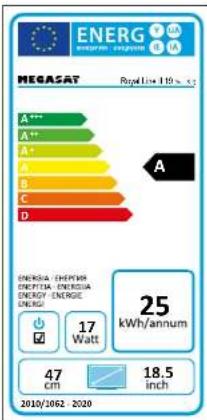
ENERG ENERG ENERG ENERG ENERG ENERG ENERG ENERG ENERG ENERG ENERG ENERG ENERG ENERG ENERG ENERG ENERG ENERG ENERG ENERG ENERG ENERG ENERG ENERG ENERG ENERG ENERG ENERG ENERG ENERG ENERG ENERG ENERG ENERG 17 Watt 47 cm 18.5 inch 2010/10/02 - 2020
text_image
ENERG ENERGY ENERG MEGASAT A*** A** A* B C D 31 kWh/annum 21 Watt 21.5 inch 54,6 cm 2020/10/02 2020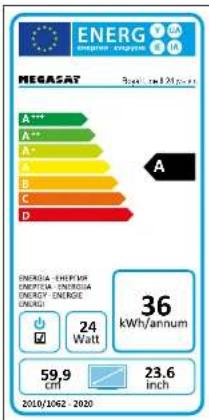
text_image
ENERG ENERGY ENERG MEGASAT A*** A** A* B C D A A** A B C D 36 kWh/annum 24 Watt 59.9 cm 23.6 inch 2010/10/02-2020PRODUCT REGISTRATION
Registering your Megasat product gives you access to our automatic e-mail notifications. If your product requires new firmware, you will be notified by e-mail.
For registration please visit our homepage www.megasat.tv
You can find the form in Support Product registration
Version 1.3 (February 2020) // Technical changes, misprints and errors reserved.
Megasat Werke GmbH | Industriestraße 4a D-976 8 Niederlauer | www.megasattv | info@megasattv
MEGASAT
natural_image
Black MEGA SAT monitor displaying a scenic landscape with green grass and blue sky (no text or symbols visible on screen)Royal Line II (19 / 22 / 24)
Mode d'emploi
Sommaire
4.2 Raccordements....07
4.3 Télécommande 08
text_image
Technical diagram of a computer monitor with labeled ports and an arrow indicating orientation or assembly.natural_image
Technical diagram of a mechanical assembly with four arms and three screws, no visible text or symbols- ATTENTION
natural_image
Diagram of a mechanical component with four blades and a central hub, shown with bidirectional red arrows indicating rotation (no text or symbols present)text_image
DVB-S Manual Tuning Satellite (L/59Ku_EUTELSAT W1) TransPonder (0/0)0 H 0 Unicable On Network Scan Off Scan Mode Scramble Service Type All Search Quality Strength Select Adjust ReturnType de chaînes
text_image
Tune Type ATV Portugal Serbia Sweden Romania Slovenia Switzerland Russian Spain UK Select Search Return| Tune Type | ATV | |
| Portugal | Serbia | Sweden |
| Romania | Slovenia | Switzerland |
| Russia | Spain | UK |