RF-WRC-300 - Remote control Renkforce - Free user manual and instructions
Find the device manual for free RF-WRC-300 Renkforce in PDF.


| Product type | Finger mouse / wireless remote control |
| Brand | Renkforce |
| Model | RF-WRC-300 |
| Order number | 2380005 |
| Intended use | Control of smartphones, tablets, smart TVs, laptops or desktop computers |
| Package contents | Mouse, iOS plug, USB-C connector, replacement silicone ring, magnetic charging cable, instruction manual |
| Power supply | Integrated rechargeable LiPo battery 80 mAh, 3.7 V; charging via magnetic cable 5 V/DC, 1 A |
| Operating time | 5 hours |
| Charging time | 90 minutes |
| Sensor type | Optical |
| Connection method | Bluetooth V4.0 |
| Frequency | 2402 – 2480 MHz |
| Transmission power | -0.98 dBm |
| Range | Up to 10 m |
| Compatible operating system | Windows 10, Mac OS X 10.1, Android 5.0, iOS 13.1, iPad OS or later |
| Main functions | On/off button, mouse wheel, page up/down buttons, right-click, center button, drag and drop, assistant menu, text reading |
| Operating conditions | 0 to +35 °C, 45 – 85% relative humidity (non-condensing) |
| Storage conditions | -10 to +45 °C |
| Maintenance and cleaning | Clean with a dry, lint-free cloth; avoid harsh chemicals |
| Safety | Do not expose to moisture, extreme temperatures, shocks; do not damage LiPo battery; keep out of reach of children; maintain distance from pacemakers |
| Spare parts and repairability | Replacement silicone ring included; built-in battery not replaceable; repairs by professional only |
| General information | Indoor use only; EU declaration of conformity available online; do not dispose with household waste |
Frequently Asked Questions - RF-WRC-300 Renkforce
User questions about RF-WRC-300 Renkforce
0 question about this device. Answer the ones you know or ask your own.
Ask a new question about this device
Download the instructions for your Remote control in PDF format for free! Find your manual RF-WRC-300 - Renkforce and take your electronic device back in hand. On this page are published all the documents necessary for the use of your device. RF-WRC-300 by Renkforce.
USER MANUAL RF-WRC-300 Renkforce
natural_image
Line drawing of a device control panel with buttons and a triangular pointer (no text or symbols)• Mac
natural_image
Line drawing of a camera with control buttons and a triangular pointer (no text or symbols)GB Operating Instructions
Wireless portable finger mouse
Item No. 2380005
Intended use
This finger mouse remote control features an ergonomic design that minimises wrist strain. It is suitable for use with smartphones, tablets, smart TVs, laptops and desktop computers.
It is intended for indoor use only. Do not use it outdoors. Contact with moisture, e.g. in bathrooms, must be avoided under all circumstances.
For safety and approval purposes, you must not rebuild and/or modify this product. If you use the product for purposes other than those described, the product may be damaged. In addition, improper use can result in short circuits, fires, electric shocks or other hazards. Read the instructions carefully and store them in a safe place. Make this product available to third parties only together with its operating instructions.
This product complies with the statutory national and European requirements. All company names and product names are trademarks of their respective owners. All rights reserved.
Delivery content
- Finger mouse with micro 5-pin connector
- iOS plug
- Spare silicone ring
- USB-C connector
- Magnetic charging cable
- Operating instructions
Up-to-date operating instructions
Download the latest operating instructions at www.conrad.com/downloads or scan the QR code shown. Follow the instructions on the website.
Explanation of symbols

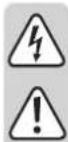
The symbol with the lightning in the triangle is used if there is a risk to your health, e.g. due to an electric shock.

The symbol with the exclamation mark in the triangle is used to indicate important information in these operating instructions. Always read this information carefully.

The arrow symbol indicates special information and advice on operation.
Safety instructions

Read the operating instructions carefully and especially observe the safety information. If you do not follow the safety instructions and information on proper handling in this manual, we assume no liability for any resulting personal injury or damage to property. Such cases will invalidate the warranty/guarantee.

a) General information
- The device is not a toy. Keep it out of the reach of children and pets.
- Do not leave the packaging material lying around carelessly. This may become dangerous playing material for children.
- Protect the appliance from extreme temperatures, direct sunlight, strong jolts, high humidity, moisture, flammable gases, steam, and solvents.
- Do not place the product under any mechanical stress.
-
If it is no longer possible to operate the product safely, take it out of operation and protect it from any accidental use. Safe operation can no longer be guaranteed if the product:
-
is visibly damaged,
- is no longer working properly,
- has been stored for extended periods in poor ambient conditions or
-
has been subjected to any serious transport-related stresses.
-
Please handle the product carefully. Jolts, impacts, or a fall, even from a low height, can cause damage to the product.
- Consult an expert when in doubt about the operation, safety, or connection of the appliance.
- Maintenance, modifications, and repairs must only be completed by a technician or an authorised repair centre.
- If you have questions that remain unanswered by these operating instructions, contact our technical support service or other technical personnel.

b) Connected devices
Also observe the safety and operating instructions of any other devices which are connected to the product.

c) LiPo battery
- The rechargeable battery is permanently built into the product and cannot be replaced.
- Never damage the rechargeable battery. Damaging the casing of the rechargeable battery might cause an explosion or a fire! Unlike conventional batteries/rechargeable batteries (e.g. AA or AAA type), the casing of the LiPo rechargeable battery does not consist of a thin sheet but rather a sensitive plastic film only.
- Never short-circuit the contacts of the rechargeable battery. Do not throw the battery or the product into fire. There is a danger of fire and explosion!
- Charge the rechargeable battery regularly, even if you do are not using the product. Due to the rechargeable battery technology being used, you do not need to discharge the rechargeable battery first.
- Never charge the rechargeable battery of the product unattended.
- When charging, place the product on a surface that is not heat-sensitive. It is normal that a certain amount of heat is generated during charging.
d) Operation
- Please read the following information carefully before using this product.
- Do not cause shock or damage to the product.
- Do not allow conductive materials (e.g. metal or liquids) to come into contact with the charger connector or connection terminal.
- Do not touch the product with wet hands or use it in a humid environment (e.g. toilet, swimming pool or next to water).
- Do not allow infants and pets to suck or bite the product.
- This product must be stored and used at a temperature of -10 °C to +45 °C and 0 °C to +35 °C respectively. Use at other temperatures may damage the product or shorten the battery life.
- Do not use the product in the following environments: Microwave oven, fireplace, sauna, electric pad, inside a hot vehicle, etc.
- Store the product in a dry place, free from moisture or humidity.
- Do not use the product outdoors during a thunderstorm.
- While driving, comply with all relevant laws or road safety regulations regarding the use of the product.
• Using the product may cause damage to peripheral devices and equipment.
- Do not use the product near vehicles, aircraft, hospital or medical devices which may be affected by Bluetooth communication frequency.
Electromagnetic waves from the product may affect medical devices or electronic navigation equipment.
- Do not use the product within 15 cm of a pacemaker, as electromagnetic waves from the product may affect the pacemaker when connecting to other devices using Bluetooth.
• Cleaning and maintenance precautions
- Do not use strong chemicals or detergents to clean the product, as this may cause the outside of the product to become discoloured or corroded.
- Gently clean the product with a soft cloth, and be careful not to scratch it.
- Discontinue use if the product is damaged.
- Do not discard the product in a fire or place the product near a heat source (fireplace, microwave, etc.), heating cooker, or high-pressure vessel.
-
Do not puncture the product (it may stop functioning or cause injury).
-
In case of failure to comply with the above precautions, the warranty service shall not be provided.
- The operating range may be affected by environmental factors and nearby sources of interference.
e) Charging cable
- Make sure the magnetic connection part of the charging cable does not come into contact with moisture, water or metal.
-
The following procedure should be followed when using this product. Failure to use this safety procedure may result in fire and serious injury.
-
Always use your device's original charger.
- Always unplug chargers and this product while not in use.
- Avoid using your device while it is charging.
- Always place your device on a hard surface before charging.
- Avoid placing the device on a soft surface, such as a bed or sofa.
- Unplug the cable and charger immediately if the cable, charger or your device are getting hot.
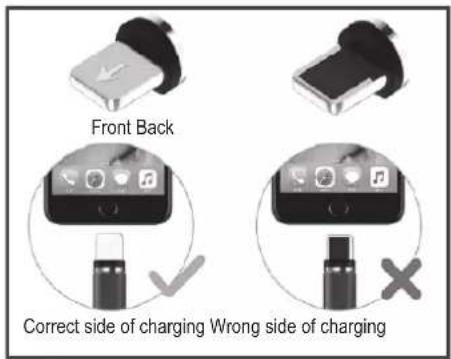
- CABLE, CHARGER OR YOUR DEVICE GETTING HOT: If you believe that this product is overheating, stop using the product immediately. - iPhone Users: Please make sure to use the correct side of adapter when charging iPhone devices, as shown below:
Operating elements
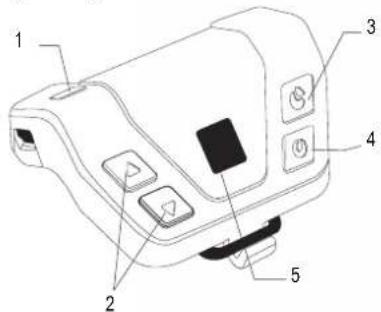
1 Power button
2 Mouse wheel
▲ /▼ page up/down button. Buttons work in the opposite direction for Apple products.
3 Right-click button
Simulates right mouse click/activates pop-up window.
4 Middle mouse button
Indicates four directional arrows (Windows OS)/moves the mouse cursor on the screen.
5 Central button
Coordinates sensing or left mouse click/activates drag and drop (press for two seconds)
Quick settings
a) Button action when connected to a smartphone
• Right-click button: 'Back key' function.
- Mouse wheel button: 'Home key' function (for Samsung and Apple smartphones/tablets).
b) Pointer speed and size adjustment (Android)
- Pointer speed: Settings > General management > Language and input > Adjust the sensitivity at 'Pointer Speed'.
- Pointer size: Settings > Accessibility > Visibility enhancements (Vision) > Activate 'Large mouse/touchpad pointer (cursor)'.
c) Applying Assistant menu
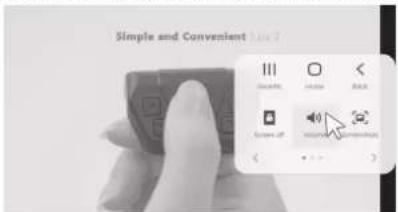
- Functions such as volume control and taking screenshots can be used remotely.
d) Reading mouse function
- Text is read aloud when the cursor moves over it.
Operation
a) Connecting to a device running Android 5.0 or later (smartphone/tablet)
- Connect to the unit
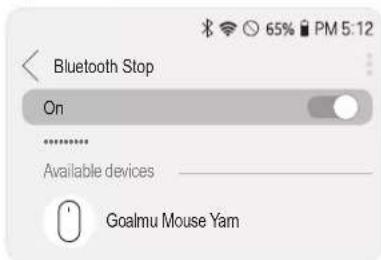
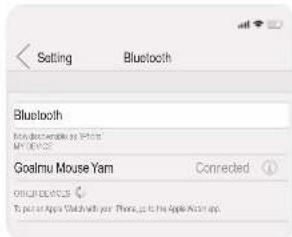
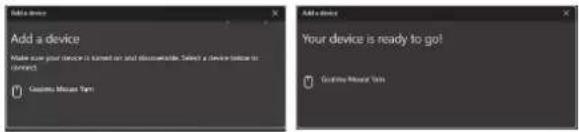
Turn on Bluetooth on your Android device and press the power button on the unit. Find and connect to 'Goalmu Mouse Yam'. Note that this connection method may vary depending on your device.
- Apply unit in Assistant menu
Go to Setting > Accessibility > Interaction and dexterity > Assistant menu > Create icon. This allows you to create icons for functions such as volume control and screenshots that can be controlled by the unit. Note that these functions may vary depending on your device.
- Text reading function
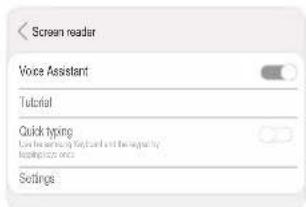
On Samsung smartphones, go to Settings > Accessibility > Screen reader > Voice Assistant On.
On other Android smartphones, go to Settings > Accessibility > Vision > TalkBack On.
Note that the language can be changed, and that the reading of text in images and videos is not supported.
b) Connecting to a device running iOS 13.1 or later (iPhone/iPad)
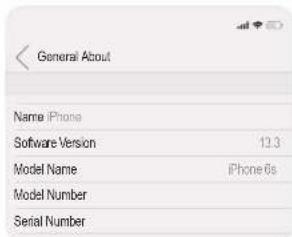
- Go to Settings > General > About and check that the OS version is iOS 13.1 or later.
- Go to Bluetooth Pairing Request > Pair. When connected, go to Settings > Accessibility > Touch > Toggle AssistiveTouch on > Create a Cursor.
- Adjust the speed of the pointer by adjusting the tracking speed.
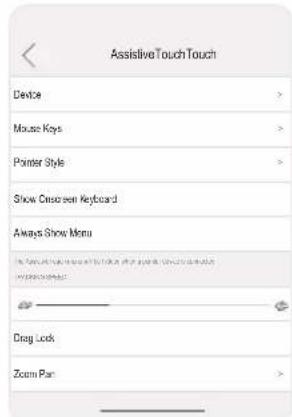
Tip 1: Go to Devices > Select 'Goalmu Mouse Yam' > Customise your buttons. The factory defaults are Single-tap (same as click) for Button 5, Open menu for Button 3 and Home for Button 4.
Tip 2: The pointer colour and size can be changed in the settings.
Tip 3: Buttons can be toggled by dragging and dropping them. Press the central button for two seconds to activate drag and drop.
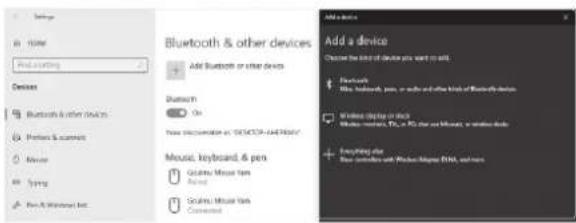
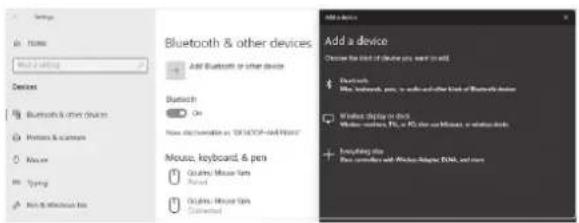
c) Connecting to a Windows 10 device
If the device is Bluetooth enabled:
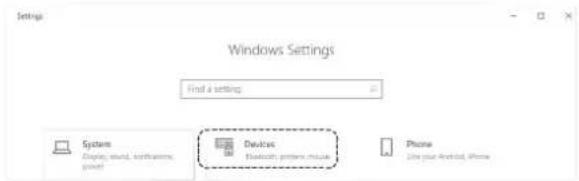
1 Press/click the Windows button/shortcut.
2 Click Settings
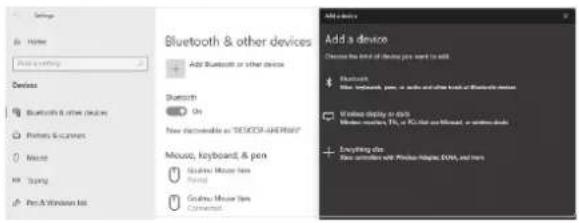
3 Go to Devices > Bluetooth & other devices.
4 Turn on the device's Bluetooth.
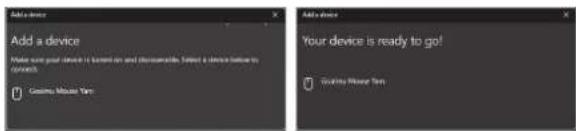
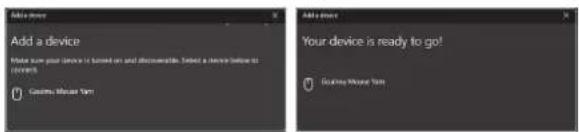
5 Click to connect to the unit.
6 Turn on the unit and connect to 'Goalmu Mouse Yam'.
If the device is not Bluetooth enabled:
Use a Bluetooth dongle to connect to the unit. With the dongle connected to a USB port, turn on the dongle if it has a switch and the Bluetooth icon should be displayed in the Windows status bar.
- If the dongle has been connected to another device, disconnect the device's Bluetooth and reboot the unit.
- Make sure that the device's Bluetooth connection is enabled.
- Note that connection methods may vary depending on your device.
Once connected, press the power button on the unit to automatically connect again.
Mouse options
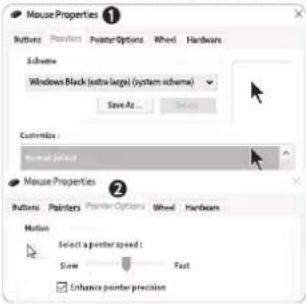
1 Go to Settings > Devices > Mouse > Additional mouse options.
2 The pointer size can be adjusted in Settings > Ease of Access > Cursor & pointer size.
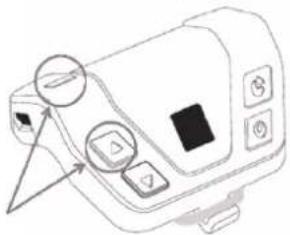
d) Reset for optimisation
- Windows/Android
Press the Power and Page up buttons at the same time for two seconds.
natural_image
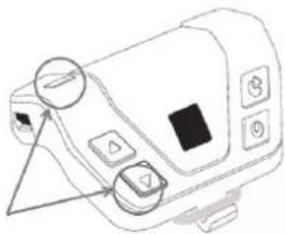
Line drawing of a device with control buttons and a triangular pointer (no text or symbols)• Mac
Press the Power and Page down buttons at the same time for two seconds.
natural_image
Line drawing of a camera with control buttons and a triangular pointer (no text or symbols)Care and cleaning
- Disconnect the product from the mains before cleaning.
- Do not use any aggressive cleaning agents, rubbing alcohol, or other chemical solutions as they can cause damage to the housing and functioning of the product.
- Clean the product with a dry, fibre-free cloth.
Declaration of Conformity (DOC)
Conrad Electronic SE, Klaus-Conrad-Straße 1, D-92240 Hirschau hereby declares that this product conforms to the 2014/53/EU directive.

Click on the following link to read the full text of the EU declaration of conformity: www.conrad.com/downloads
Enter the product item number in the search box. You can then download the EU declaration of conformity in the available languages.
Disposal

Electronic devices are recyclable waste and must not be disposed of in household waste. At the end of its service life, dispose of the product in accordance with applicable regulatory guidelines.
You thus fulfill your statutory obligations and contribute to the protection of the environment.
Technical data
Input voltage/current.....5 V/ DC, 1 A
Sensor type .... Optical
Battery type 80 mAh, 3.7 V built-in rechargeable LiPo
Operating duration....5 hours
Charging duration....90 minutes
Charger.....Magnetic cable and micro 5-pin connector
Connection method ...... Bluetooth V4.0
Frequency.....2402 - 2480 MHz
Transmission power....-0.98 dBm
Range....max. 10 m
System requirements.... Windows 10, Mac OS X 10.1, Android 5.0, iOS 13.1, iPad OS or later
Operating/storage conditions..... 0 to +35 °C (operating)
-10 to +45 °C (storage)
45 - 85 % RH (non-condensing)
Dimensions (W x D x H) 45 x 46 x 25 mm
Weight 16 g
This is a publication by Conrad Electronic SE, Klaus-Conrad-Str. 1, D-92240 Hirschau (www.conrad.com). All rights including translation reserved. Reproduction by any method, e.g. photocopy, microfilming, or the capture in electronic data processing systems require the prior written approval by the editor. Reprinting, also in part, is prohibited. This publication represents the technical status at the time of printing.
Copyright 2021 by Conrad Electronic SE.
*2380005_v3_1221_02_DS_m_4L_(1)
F Mode d'emploi
natural_image
Line drawing of a device with control buttons and a triangular indicator (no text or symbols)• Mac
natural_image
Line drawing of a camera with control buttons and a triangular pointer (no text or symbols)Dimensions (I x P x H)....45 x 46 x 25 mm
Poids....16 g
- Reserve siliconen-ring
- USB-C stekker
- Tekst leesfunctie
d) Ter optimalisatie resetten
- Windows/Android
natural_image
Line drawing of a device control panel with buttons and a triangular pointer (no text or symbols)• Mac
natural_image
Line drawing of a camera with control buttons and a triangular pointer (no text or symbols)



- GB Operating Instructions
- Wireless portable finger mouse
- Intended use
- Delivery content
- Up-to-date operating instructions
- Explanation of symbols
- Safety instructions
- a) General information
- b) Connected devices
- c) LiPo battery
- d) Operation
- e) Charging cable
- Quick settings
- Operation
- c) Connecting to a Windows 10 device
- Mouse options
- d) Reset for optimisation
- Care and cleaning
- Declaration of Conformity (DOC)
- Disposal
- Technical data
- F Mode d'emploi
- d) Ter optimalisatie resetten
Brand : Renkforce
Model : RF-WRC-300
Category : Remote control