
DEZL560LMT POIDS LOURDS/CAMPING-CARS - Truck GPS GARMIN - Free user manual and instructions
Find the device manual for free DEZL560LMT POIDS LOURDS/CAMPING-CARS GARMIN in PDF.


| Product Type | GPS for Trucks and Motorhomes |
| Brand | Garmin |
| Model | dēzl 560 LMT Heavy Vehicles/Motorhomes |
| Screen Size | 5 inches (12.7 cm) diagonal |
| Device Dimensions | Approximately 150 x 80 x 20 mm (unofficial) |
| Weight | Approximately 200 g (unofficial) |
| Power Supply | 12 V cigarette lighter cable with built-in lithium-ion battery |
| Battery Life | Up to 2 hours (estimated) |
| Main Functions | Navigation with truck/motorhome profiles, heavy vehicle POIs, services near exits, FM TMC traffic, Bluetooth, rearview camera (optional), free map update (nüMaps Guarantee) |
| Vehicle Profiles | Truck and motorhome with entry of height, weight, length, width and other restrictions |
| Software Update | Via Garmin Dashboard on computer (www.garmin.com/dashboard) |
| Map Update | Free within 60 days after acquiring satellite signals; afterwards via subscription or purchase |
| Connectivity | Bluetooth (hands-free calls), micro-USB port, video input for rearview camera |
| Traffic Receiver | Integrated into cigarette lighter cable: FM TMC, automatic subscription with no additional fee |
| Voice Assistance | Not specified (probably voice instructions) |
| Maintenance and Cleaning | Clean with a soft, dry cloth; do not use abrasive products |
| Reset | Press the Power button for 8 seconds |
| Safety | Warning: Do not expose to extreme heat; obey traffic signs despite GPS instructions |
| Spare Parts and Repairability | Accessories available at http://buy.garmin.com; Garmin product support for repairs |
| General Information | 24-page PDF user manual available online; includes quick start manual |
Frequently Asked Questions - DEZL560LMT POIDS LOURDS/CAMPING-CARS GARMIN
1. Connect the cigarette lighter cable to the cradle.
2. Attach the cradle to the mount.
3. Slide the locking lever to the unlocked position, insert the mount into the base until it clicks, then lock.
4. Place the device in the cradle and tilt it back until it snaps into place. Connect the cable to a 12 V socket.
User questions about DEZL560LMT POIDS LOURDS/CAMPING-CARS GARMIN
0 question about this device. Answer the ones you know or ask your own.
Ask a new question about this device
Download the instructions for your Truck GPS in PDF format for free! Find your manual DEZL560LMT POIDS LOURDS/CAMPING-CARS - GARMIN and take your electronic device back in hand. On this page are published all the documents necessary for the use of your device. DEZL560LMT POIDS LOURDS/CAMPING-CARS by GARMIN.
USER MANUAL DEZL560LMT POIDS LOURDS/CAMPING-CARS GARMIN
Getting Started

WARNING
See the Important Safety and Product Information guide in the product box for product warnings and other important information.
Before you use your device for the first time, you should complete these tasks.
- Mount the device (page 2).
- Register the device (page 4).
- Check for updates:
- Software updates (page 4).
• Free map update (page 5). - Download the full owner's manual (page 5).
- Enter a truck or RV profile (page 6).
Mounting the Device

WARNING
This product contains a lithium-ion battery. To prevent the possibility of personal injury or product damage caused by battery exposure to extreme heat, remove the device from the vehicle when exiting or store it out of direct sunlight.
Before you use your device on battery power, you should charge it.
- Plug the vehicle power cable ① into the mini-USB connector ② on the cradle ③.
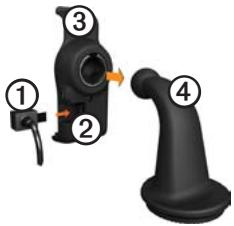
- Snap the cradle onto the arm ④.
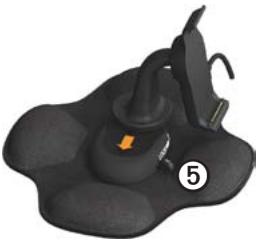
- Slide the locking lever ⑤ on the base to the unlocked position.
natural_image
Black mechanical component with a numbered label (5) and a small orange mark on its surface (no text or symbols on the object itself)- Slide the disk on the bottom of the arm into the base until it clicks.
- Slide the locking lever to the locked position.
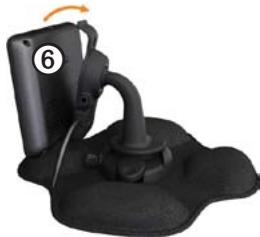
- Fit the bottom of the device into the cradle.
- Tilt the device ⑥ back until it snaps.
natural_image
Close-up of a black handheld device with a curved arm and base, no visible text or symbols- Plug the other end of the vehicle power cable into a power outlet in your vehicle.
After you have connected the device to vehicle power, the following occurs.
• The device turns on.
- The device acquires satellite signals. When at least one of the bars is green, your device has acquired satellite signals.
NOTE: The device may need a clear view of the sky to acquire satellite signals.
- The device charges as you drive. 📁 in the status bar indicates the status of the internal battery.
About myDashboard
Use myDashboard to register your device, check for software and map updates, access product manuals and support, and more.
Setting Up myDashboard
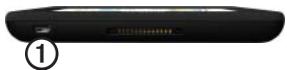
- Connect the USB cable to the micro-USB connector① on the device.
natural_image
Front view of a black electronic device with a small display and labeled section 1 (no visible text or symbols on body)-
Connect the USB cable to the USB port on your computer.
-
Go to www.garmin.com /dashboard.
- Follow the on-screen instructions.
Registering the Device
- From myDashboard, click Register Now.
- Follow the on-screen instructions.
- Keep the original sales receipt, or a photocopy, in a safe place.
Updating the Software
- Open myDashboard (page 4).
- If necessary, under Software Updates, click Update Now.
- Follow the on-screen instructions.
nüMaps Guarantee™
Your device is eligible for one free map update within 60 days of acquiring satellites while driving with your device. You are not eligible for the free map update if you register by phone or wait longer than 60 days after the first time you acquire satellites while driving with your device. For more information, go to www.garmin.com/numaps.
Updating Maps
- Open myDashboard (page 4).
- Register the device (page 4).
- If necessary, under Map Updates, click Update Now.
- Follow the on-screen instructions.
Downloading the Owner's Manual
The owner's manual for your device is available on the Garmin Web site. The owner's manual for the dēzl includes more information about the device features for semi-trailer trucks and RVs.
- Open myDashboard (page 4).
- Click Manuals.
- Click Download next to the manual you want.
- Click 📋 to save the file to your computer.
Entering a Truck or RV Profile
WARNING
Entering your vehicle profile does not guarantee that your vehicle's characteristics will be accounted for in all route suggestions. It is your responsibility to account for your vehicle's height, length, weight, and other relevant restrictions when driving. Always defer to all posted road signs and road conditions when making driving decisions.
Before you can operate in Truck or RV mode, you must enter your truck or RV profile.
Truck transportation mode is selected the first time you turn on your device. You can select Switch Mode to enter an RV profile.
-
When the warning screen appears, touch Agree.
-
Touch Yes to enter your truck profile.
- Follow the on-screen instructions.
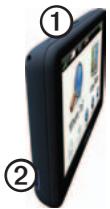
Device Overview
natural_image
Side view of a black mobile phone with app interface and screen (no visible text or symbols)| 1 | Power key |
| 2 | microSDTM card slot |
Resetting the Device
You can reset the device if it stops functioning.
-
Hold the Power key for 8 seconds, and release it. The device turns off.
-
Wait 1 second.
- If the device is using battery power, press and release the Power key.
Using the Main Menu
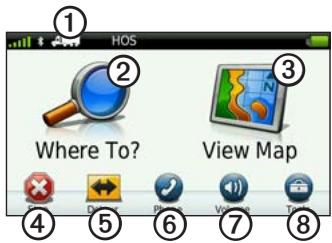
- Touch ① to select a transportation mode.
- Touch ② to find a destination.
- Touch ③ to view the map.
- Touch④ to stop a route.
- Touch ⑤ to detour a route.
- Touch ⑥ to make a call when connected to a compatible mobile
phone.
Go to www.garmin.com/bluetooth for information.
- Touch⑦ to adjust the volume.
- Touch⑧ to open the menu of tools and settings.
Finding Trucking Points of Interest
The detailed maps loaded in your device contain trucking points of interest, such as rest areas, truck stops, and weigh stations.
- From the main menu, touch Where To? > Points of Interest > Trucking.
- Select a category.
- If necessary, select a subcategory.
- Select a destination.
- Touch Go!.
Using Exit Services
You can find services such as fuel, food, lodging, rest areas, vehicle repair, truck stops, and weigh stations at upcoming highway exits. The device displays available services based on the usage mode. Exit service information is available only on controlled access roads, such as interstates.
NOTE: Exit services are not available for Pedestrian mode.
- While navigating a route, from the main menu, touch Where To? > Exit Services.
- Select an option.
Following Your Route
NOTICE
The speed limit icon feature is for information only and does not replace the driver's responsibility to abide by all posted speed limit signs and to use safe driving judgment at all times. Garmin will not be responsible for any traffic fines or citations that you may receive for failing to follow all applicable traffic laws and signs.
Your route is marked with a magenta line on the map. If you depart from the original route, your device recalculates the route. A speed limit icon could appear as you travel on major roadways.
When you are driving in Truck mode or RV mode, a tone may sound and 📋 may appear, indicating that truck suitability for this roadway is unknown. Always obey posted signs
and regulations.
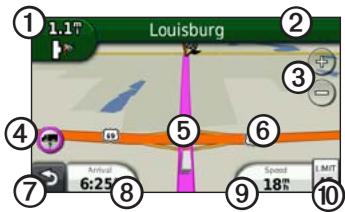
- Touch ① to view the next turn. The turn indicator also tells you which lane you should be in to prepare for your next maneuver, when available.
- Touch ② to view the turn list.
- Touch ③ to zoom in and zoom out.
-
Touch ④ to view warning information, when available (page 6).
-
Touch ⑤ to view information about the location.
- Touch and drag ⑥ to view a different area of the map.
- Touch⑦ to return to the main menu.
- Touch and hold ⑦ from any screen to return to the main menu.
- Touch ⑧ to display a different data field.
- Touch ⑨ to view trip information.
- Touch ⑩ to change the speed limit if the speed limit icon shown on the map is incorrect.
This icon displays an indicator for a truck speed limit.
Using a Backup Camera
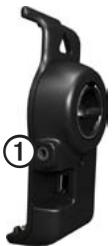
If a composite video backup camera has been installed in your vehicle, you can view the output of the camera on your device.
Connect the camera to the video-in jack ① on the cradle.
natural_image
Black plastic mechanical component with a numbered label (1) pointing to a small circular feature on the side (no text or symbols on the object itself)The camera output appears when a video signal is present.
About Traffic
CAUTION
If you choose to recalculate your route when you are navigating in Truck mode, the recalculated route might include roads that have not been verified for truck accessibility. You should use caution and good judgment and obey all posted signs and regulations.
NOTICE
Garmin is not responsible for the accuracy or timeliness of the traffic information. Traffic information is not available in all areas.
Your device can receive FM Traffic Message Channel (TMC) traffic content. The FM TMC traffic subscription is automatically enabled and does not require an additional subscription purchase to activate. The FM TMC traffic receiver is integrated
in the vehicle power cable included in the box.
For information about traffic receivers and coverage areas, go to www.garmin.com/traffic.
Pairing Your Phone
Before you can pair them, your phone and your device must be turned on and within 33 ft. (10 m) of each other.
- From the dēzl main menu, touch Tools > Settings > Bluetooth > Bluetooth > Enabled > Save.
- Enable the Bluetooth ^® component on your phone.
- Enable Find Me/Discoverable/Visible mode on your phone. NOTE: This might be in a menu called Settings, Bluetooth, Connections, or Hands-free.
-
On the dēzl, touch Add Phone > OK.
-
Select your phone from the list.
- Touch OK.
A prompt to pair the phone with your device appears on the phone.
- On your phone, accept the pairing.
- If necessary, enter the device Bluetooth PIN (1234) in your phone.
Getting More Information
You can find more information about this product on the Garmin Web site.
- Go to www.garmin.com /ontheroad.
- Go to http://buy.garmin.com to purchase accessories.
- Touch Tools > Help.
Contacting Garmin Product Support
Contact Garmin Product Support if you have any questions about this product:
- In the USA, go to www.garmin.com/support, or call Garmin USA at (800) 800.1020.
• In the UK, call Garmin (Europe) Ltd. at 0808 2380000. - In Europe, go to www.garmin.com/support and click Contact Support for in-country support information, or contact Garmin (Europe) Ltd. by phone at +44 (0) 870.8501241.
Garmin ^® and the Garmin logo are trademarks of Garmin Ltd. or its subsidiaries, registered in the USA and other countries. cityXplorer ^™ , dēzl ^™ , myTrends ^™ , and nüMaps Guarantee ^™ are trademarks of Garmin Ltd. or its subsidiaries. These trademarks may not be used without the express permission of Garmin. The Bluetooth ^® word mark and logos are owned by the Bluetooth SIG, Inc., and any use of such name by Garmin is under license. Mac ^® is a trademark of Apple Computer, Inc., registered in the U.S. and other countries. microSD ^™ is a trademark of SD-3C, LLC. Windows ^® is a registered trademark of Microsoft Corporation in the United States and other countries.
© 2010-2011 Garmin Ltd. or its subsidiaries
