BluePocket - Speaker PerfectPro - Free user manual and instructions
Find the device manual for free BluePocket PerfectPro in PDF.


User questions about BluePocket PerfectPro
0 question about this device. Answer the ones you know or ask your own.
Ask a new question about this device
Download the instructions for your Speaker in PDF format for free! Find your manual BluePocket - PerfectPro and take your electronic device back in hand. On this page are published all the documents necessary for the use of your device. BluePocket by PerfectPro.
USER MANUAL BluePocket PerfectPro
Operating Instruction
Mode d'emploi
Gebruiksaanwijzing
Bedienungsanleitung
GB
F
NI
D
BLUEPOCKET
BLUETOOTH SPEAKER - WITH
MULTI-FUNCTIONAL USER INTERFACE
ENCEINTE DE CHANTIER BLUETOOTH - MUNIE
D'UNE INTERFACE MULTI-FONCTIONS
BLUETOOTH-LUIDSPREKER-MET
MULTIFUNCTIONELE GEBRUIKERSINTERFACE
BLUETOOTH-LAUTSPRECHER - MIT
MULTIFUNKTIONALER BENUTZEROBERFLÄCHE
natural_image
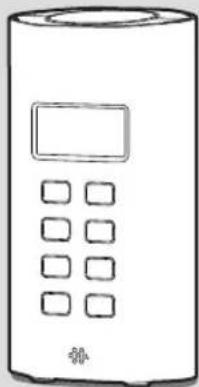
Simple line drawing of a cylindrical device with a display and control buttons (no text or symbols)WARNING!
WARRANTY BECOMES VOID ONCE THE DEVICE CABINET HAS BEEN OPENED OR ANY MODIFICATIONS OR ALTERATIONS TO THE ORIGINAL DEVICE HAVE BEEN MADE
Important safety instructions
- Read these instructions.
- Keep these instructions.
- Heed all warnings.
- Follow all instructions.
- Do not use this apparatus near water.
-
Clean only with dry cloth.
-
Do not install near any heat sources such as radiators, heat registers, stoves, or other apparatus (including amplifiers) that produce heat.
-
Do not defeat the safety purpose of the polarized or grounding-type plug. A polarized plug has two blades with one wider than the other. A grounding type plug has two blades and a third grounding prong. The wide blade or the third prong are provided for your safety. If the provided plug does not fit into your outlet. Consult an electrician for replacement of the obsolete outlet.
-
Protect the power cord from being walked on or pinched particularly at plugs, convenience receptacles, and the point where they exit from the apparatus.
-
Only use attachments/accessories specified by the manufacturer.
-
Use only with the cart, stand, tripod, bracket, or table specified by the manufacturer, or sold with the apparatus. When a cart is used, use caution when moving the cart/ apparatus combination to avoid injury from tip-over.
-
Unplug this apparatus during lightning storms or when unused for long periods of time.

- Refer all servicing to qualified service personnel. Servicing is required when the apparatus has been damaged in any way, such as power-supply cord or plug is damaged. liquid has been spilled or objects have fallen into the apparatus, the apparatus has been exposed to rain or moisture, does not operate normally, or has been dropped.
- To Reduce the Risk of Fire or Electric Shock, Do not Expose This Appliance To Rain or Moisture.
- The Shock Hazard Marking and Associated Graphical Symbol is provided on the rear of unit.
- Excessive sound pressure on ear- and headphones could impair the hearing ability. Higher setting that idle on the equalizer leads to higher signal voltages on the output for ear and headphones.
- The power plug should be close to the device, and easy to be approached that during the emergency, to disconnect the power from the device, just unplug the power plug from the AC power slot.
- Where the MAINS plug or an appliance coupler is used as the disconnect device, the disconnected device shall remain readily operable.
- This apparatus is provided with protection against splashing water and dust ingress (IP64).
- Use only the AC/DC adaptor which is provided by the manufacturer.
- The batteries shall not be exposed to excessive heat such as sunshine, fire or the like.
- Danger of explosion if battery is incorrectly replaced. Replace only with the same of equivalent type.
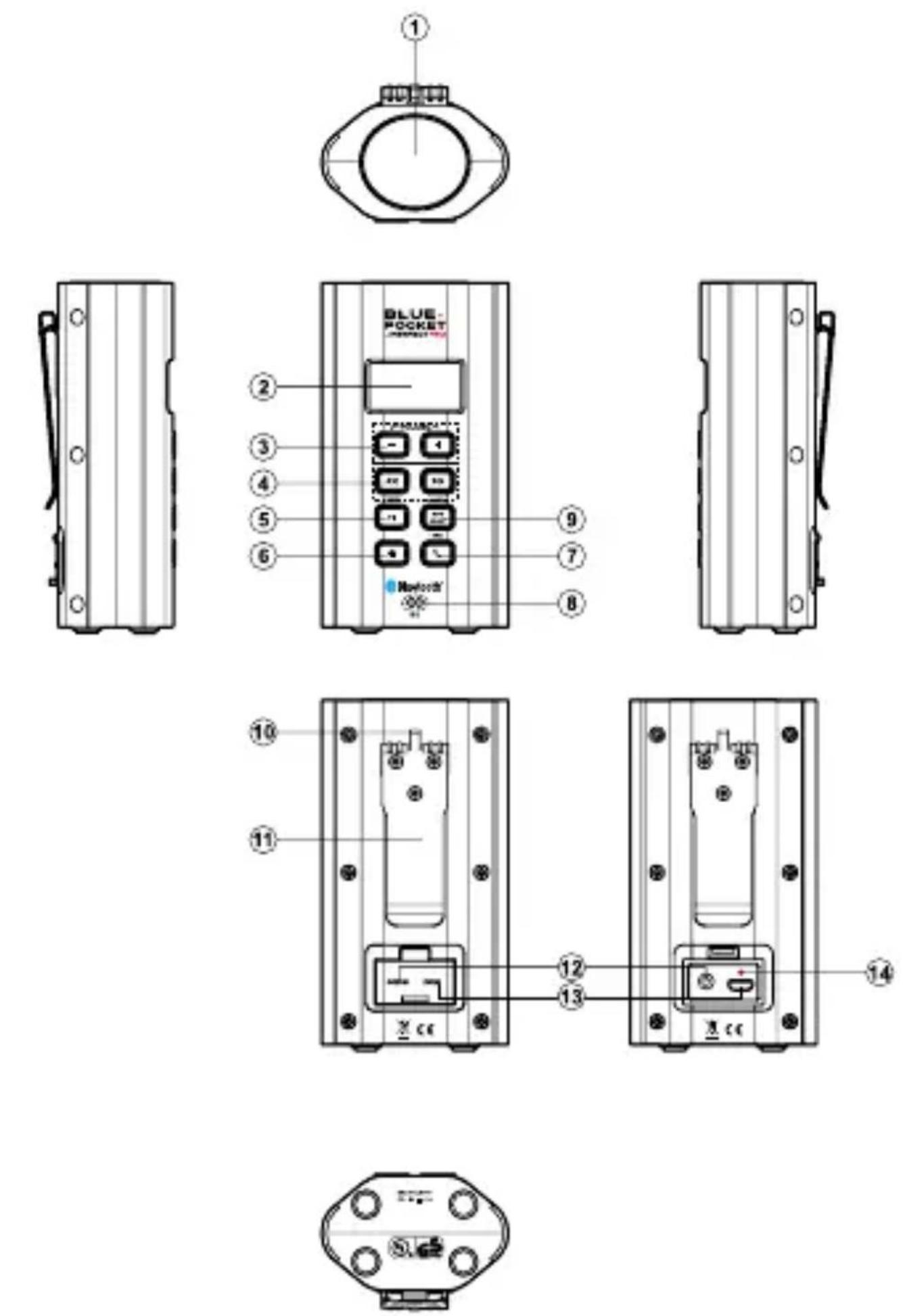
Controls
① Loudspeaker
\* 360 DEGREES SOUND
The unique Neodymium speaker located on top of the device provides a 360 degrees sound image.
Suggestion: If preferred, place the device in a corner or close to a wall for additional sound reflection.
② LCD display
③ Volume buttons
④ Previous/next buttons
⑤ Play/Pause button/Menu button
⑥ Power button (Standby mode/On)
⑦ Call answer/hang-up button/Aux in mode button
⑧ Microphone
⑨ Select button/Info button/Lock button
10 Strap holder
(Note: the strap holder on top of the clip is intended for a key ring/hook)
⑪ Clip
⑫ Aux in socket
⑬ DC in socket (micro-USB)
⑭ Upside indicator for the micro-USB plug
Charging your Bluepocket
The Bluepocket features a built in 2950mAh Lithium rechargeable battery.
Before operating the device for the first time please fully charge the battery with the supplied 5V/1A AC adaptor.
Carefully insert the micro-usb plug into the DC IN socket on the rear of your device. A red dot on the micro-usb plug indicates the upside of the micro-usb plug. This red dot is also indicated above the micro-usb socket. Plug the adaptor into a standard mains outlet and the unit will begin charging the built in battery.
The battery icon will be animated on the display showing charging in progress. The animation of the battery icon will stop when the battery is fully charged.
The device can best be charged in Standby mode (full charging level) but can also be charged when switched On (low charging level). Note: In On mode it will take a much longer time to achieve a full charge. Charging time when the device is in Standby mode (full charging level) is approx. 4-5 hours.
The battery life is approx. 8 to 14 hours*. Reduced power, distortion, ‘stuttering sounds’ or battery power indicator in “low” are all signs that the battery needs to be recharged.
NOTE:
When the device is in Standby mode, after 10 seconds the display will become blank and the backlight will go out. This in order to save battery power by lowering the energy consumption. When any key is pressed in Standby mode the display will light up again and show the clock (and alarm) information for 10 seconds.
IMPORTANT:
The mains adaptor is used as the means of connecting your GB
device to the mains supply. The mains socket used for your device must remain accessible during normal use. In order to disconnect the device from the mains completely, the mains adaptor should be removed from the mains socket outlet completely.
Safety Note: Never use charge or operate the device on AC mains power in rainy or moist conditions to prevent moist from entering the device. Always keep the rubber cover on the back well closed under these conditions.
* Note to battery life: This is a rough indication only as actual achieved battery life depends on many factors such as: selected volume, music type (bass heavy music consumes more energy), selected music source, selected EQ settings, temperature and age of the battery.
Battery status indicator
To check the current battery level, press the Power button to switch on your device and the battery icon will show the current battery level.
(☐) Battery is fully charged (more than 85% of battery capacity)
(☐) Battery is partially charged (more than 70% of battery capacity)
(☐) Battery is partially charged (between 50-60% of battery capacity)
(☐) Battery is partially charged (between 30-40% of battery capacity)
(i) Low battery and charging is needed (less than 25% of battery capacity) (ii) Battery life will be run out soon and charging is needed immediately.
Note:
The optimism working life from the built-in battery will be obtained if it is kept topped up by recharging after each use of the device, even if it is only partially discharged. The battery's working life will be reduced if the product is left in a discharged condition for a long period of time.
Listening music via Bluetooth streaming
You need to pair your Bluetooth source device with your Bluepocket before you can auto-link to play/stream Bluetooth music through your Bluepocket. Paring creates a `bond' so two devices can recognize each other.
Pairing and playing your Bluetooth source device for the first time
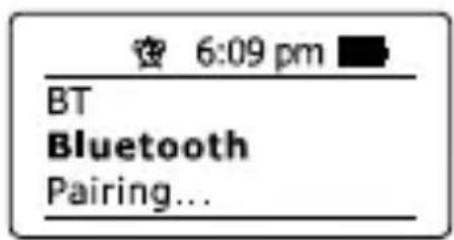
- Press and hold the Call answer-hangup button to select the Bluetooth mode if needed. The Bluetooth icon will flash on the display.
- Press and hold the Menu button to enter the Bluetooth menu list.
-
Press the Previous/next button to select 'BT Discoverable'. Then press the Select button to confirm the setting. Your Bluepocket is discoverable for pairing.
-
Activate Bluetooth on your Bluetooth source device (e.g. mobile phone, tablet etc.) according to the device's user manual to link to your Bluepocket. Locate the Bluetooth device list and select the device named 'Bluepocket'. With some mobiles (which are equipped with earlier versions than BT2.1 Bluetooth device), you may need to input the pass code "0000".
-
Once connected, there will be a confirmation tone and the Bluetooth icon will remain steady. The name of your Bluetooth source device will also appear on the display of the Bluepocket. You can then simply select and play any music from your Bluetooth source device. Volume control can be adjusted from your Bluetooth source device, or directly on your Bluepocket.
-
Use the navigate buttons on your Bluepocket or the controls on your Bluetooth source device to navigate your playlist.
(Note: If you press and hold the Menu button, it will enter Bluetooth setting menu.)
Notes:
1) Bluetooth connectivity performance may vary depending on the connected Bluetooth source devices. Please refer to the Bluetooth capabilities of your device before connecting to your Bluepocket. All features may not be supported on some paired Bluetooth source devices.
2) The effective operation range between the system and the paired device is approximately 10 meters (30 feet). Any obstacle between the system and the device can reduce the operational range.
3) Not all player applications or devices may respond to the navigation control buttons.
4) With some mobile phones, making/receiving calls, text messages, e-mails or any other activities unrelated to audio streaming may mute the Bluetooth audio streaming or even temporarily disconnect from your device. Such behavior is a function of the connected device and does not indicate a fault with your Bluepocket.
Display modes
Your Bluepocket has a range of display options when in Bluetooth mode. Note that the availability of information depends on the specific media format.
- Press the Info button to cycle through the different options.
a. Track name Displays the track information for the track currently playing
b. Artist Displays the artist information for the track currently playing
c. Album Displays the album information for the track currently playing
d. Date Displays the current date
Playing audio files in Bluetooth mode
When you have successfully connected your Bluepocket with the chosen Bluetooth source device you can start to play your music using the controls on your connected Bluetooth device.
- Once playing has started adjust the volume to the required setting using the Volume buttons on your Bluepocket or on your enabled Bluetooth source device.
- Use the controls on your Bluetooth source device to play/pause and navigate tracks. Alternatively, control the playback using Play/Pause (▶), Next track (>>), Previous track buttons (<<) on your Bluepocket.
- Press and hold the Fast-forward/Rewind button to move through the current track. Press the button again when the desired point is reached.
Playing a previously-paired Bluetooth source device
The Bluepocket can memorize up to 8 sets of paired Bluetooth source devices, when the memory exceeds this amount, the earliest paring device will be over written from the device
If your Bluetooth source device already paired with the Bluepocket previously, the unit will memorize your Bluetooth source device and it attempts to reconnect with a Bluetooth source device in memory which is last connected. If the last connected Bluetooth source device is not available, the Bluepocket will try to connect to the second last Bluetooth source device.
Alternatively, you can select your required Bluetooth source device in the memory.
-
Make sure Bluetooth of your previously-paired Bluetooth source device is turned on.
-
Press and hold the Menu button to enter the Bluetooth menu list.
- Press the Previous/next button to select 'Device List'. Then press the Select button to enter the setting menu.
- Press the Previous/next button to select your required Bluetooth source device and press the Select button to confirm the selection. Once connected, the name of your Bluetooth source device will appear on the display of the Bluepocket.
Disconnecting your Bluetooth device
Press and hold the Call answer-hangup button for 4 seconds to select Aux-in mode or turn off Bluetooth on your Bluetooth source device to disable the connection.
Menu functions- Bluetooth
Press and hold the Menu button to enter Bluetooth menu list. Then press the Tuning up/down button to scroll through the following options:
A) EQ setting:
The sound on your Bluepocket can be adjusted to suit your personal taste for the material that you are listening to. The Bluepocket has 5 preset equalizer modes. Alternatively, you may set the treble and bass levels to your own preferences.
Press the Previous/next button to cycle through the preset mode. Press the Select button to confirm your selection.
a) Normal: no tone modification is applied
b) Rock
c) Soul & Jazz
d) Classical
e) Spoken word
f) My EQ: select this mode and you can go to 'My EQ setting' to adjust the treble/bass tone.
My EQ setting: If you find the preset equalizer functions not to your liking, you may set up a custom treble and bass as following:
1) Follow the step above to enter" My EQ setting".
2) Press the Previous/next button to select Treble or Bass. Then press the Select button to enter the adjustment mode.
3) Press the Previous/next button to adjust the treble or bass level (-5 and +5). Press the Select button to confirm the setting.
Note:
To quickly cancel the effect of My EQ, press the Previous/next button until ‘Normal’ is highlighted on the display and press the Select button. The treble and bass settings will be memorized for the next time that you wish to use the My EQ setup.
B) Device List:
please refer to “Playing a previously- paired Bluetooth source device” in the previous section.
C) BT Discoverable:
please refer to “Pairing and playing your Bluetooth source device for the first time” in the previous section.
D) System:
press the Select button to select from the following settings
- Time/Date
Set Time/Date
1) Press the Previous/next button until 'Set Time/Date' is highlighted. Then press the Select button to enter the time setup. The day digits will flash.
2) Press the Previous/next button to select correct day. Press the Select button to confirm the setting. The month digits will flash.
3) Follow the same procedure above for the month/year/hour/minute setting.
Note: In Standby mode, if no operation for 10 seconds, both the screen and backlight will be turned off to minimize power consumption.
However, when any buttons (other than the Power button) is pressed in Standby mode, the display will light up again and show the clock (and alarm) information for 10 seconds.
Set format: The clock display can be set to 12 or 24 hour format.
1) Press the Previous/next button until 'Set Format' is highlighted on the display. Press the Select button to enter the clock format menu.
2) Press the Previous/next button to select either 12 or 24 format. Press the Select button to confirm your choice.
Set alarm: Your Bluepocket has 2 separate alarms which can be set to wake you up.
The alarms can only be set when the Bluepocket is on. In the event of a power interruption your Bluepocket has a built in memory chip that will maintain your alarm settings for when the power is restored.
-
When the Alarm icon flashes, press the Previous/next button to select on (Alarm icon shown)/off (Alarm icon disappeared) for the current alarm.
-
Press the Previous/next button to select your requested hour and minute, then press the Select button to confirm your setting.
-
Press the Previous/next button to select your requested volume, then press the Select button to confirm your setting.
-
Press the Previous/next button to select your requested alarm day option. Now your alarm setting is completed and the active alarm is shown on the display using the small Alarm icon on top of playing display and on the alarm menu. You can press the Menu button to exit.
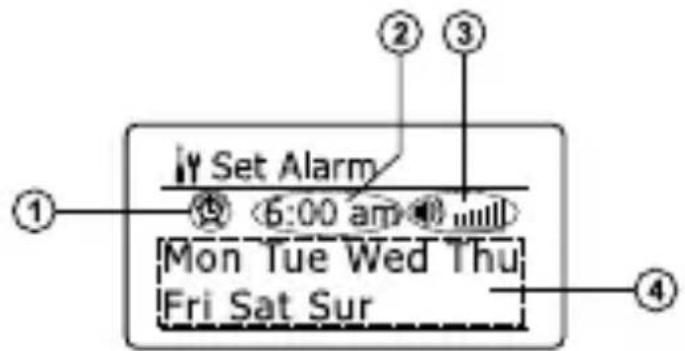
text_image
Set Alarm ① ② ③ 6:00 am Mon Tue Wed Thu Fri Sat Sur ④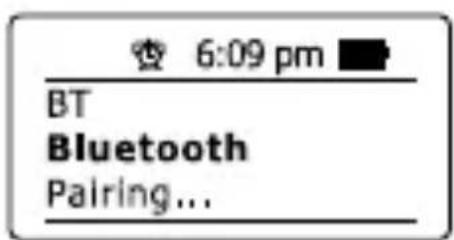
text_image
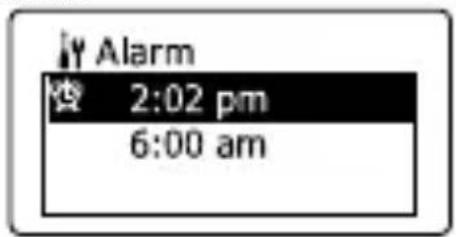
6:09 pm BT Bluetooth Pairing...To view the alarm settings: Press and hold the Menu button> System> Alarm
text_image
Alarm 2:02 pm 6:00 amWhen the alarm sounds: The Alarm icon will flash at the Standby mode display when an alarm is sounding. Press the Power button to cancel the sounding alarm. If buttons other than Power button are pressed, it will put the alarm to snooze and silence the alarm for 5 minutes. A snooze icon will flash on the display when the alarm is put to snooze mode.
当费
2:46PM
Note: Your setting alarms will sound even the Bluepocket is in use or while the music is playing. The moment the alarm starts, the Bluepocket goes into Standby mode.
- Contrast: the contrast of the display can be adjusted. Press the Previous/next button to adjust the contrast. The contrast level indication on the screen will change at the same time. When you find the setting that gives the best legibility for the location in which the device is used, press the Select button to save the setting.
- Language: your Bluepocket can be configured to a different language.
Press the Previous/next button until your required language is highlighted on the display. Press the Select button to confirm your choice.
- Factory reset: by performing a factory reset, all user entered settings will be erased.
Press the Previous/next button to select YES or NO. Select YES to erase all saved settings and all settings will revert to factory default.
- SW information: The software display cannot be altered and is just for your reference
Press the Select button to view the software version installed in the device. Press the Select button again to revert to the previous menu.
Playing music via auxiliary input socket
A 3.5mm Auxiliary input socket is provided on the rear of the device to permit an audio signal to be fed into the unit from any devices that features a headphone or audio output, such as an iPod, MP3 or CD player.
- Press and hold the Call answer-hangup button for 4 seconds to select Aux in mode.
- Connect a stereo or mono audio source (for example, iPod, MP3 or CD player) to the Auxiliary input socket (marked 'AUX IN').
- Adjust the Volume control on your iPod, MP3 or CD player to ensure an adequate signal and then adjust the volume on the speaker for comfortable listening.
- After use, disconnect your player in order to listen to your Bluepocket conventionally.
Safety Note:
Never use the Aux-In socket in rainy or moist conditions to prevent moist from entering the device. Always keep the rubber cover on the back well closed under these conditions.
Using the Bluepocket as a handsfree speaker phone
Your Bluepocket can be used as a handsfree speakerphone. When a phone call comes in to your mobile phone while the music is playing via the Bluepocket, it will pause the music automatically to allow you to answer the phone via the Bluepocket.
- Make sure your Bluepocket is put to Bluetooth mode.
- When you receive an incoming phone call, shortly press and release the Call answer/hang-up button to answer a phone call and press the button again to hang up your phone call.
- Press the Volume up/down buttons to adjust the volume to your liking.
Note: If you cannot answer/hang up your mobile phone via your Bluepocket, it may be necessary to check whether the ‘Phone audio’ setting is activated on your mobile phone.
Key lock
The key lock function is used to prevent unintentional operation of the device. When key lock is activated, all function keys will be disabled.
To activate the key lock function, press and hold the Select button for 4 seconds. “Keys Locked” will show on the display. To disabled the key lock function, press and hold the Select button for 4 seconds and “Keys Unlocked” will show on the display.

Safety information for internal rechargeable Lithium-ion battery
The internal rechargeable lithium-ion battery used in this device is able to supply power for a long period of time. However, even lithium-ion batteries reach a point where they cannot be recharged. If the battery does not recharge after several attempts, it may be drained (has a low charge), please contact service@perfectpro.eu for repair information.
However, if you do not want us to replace the battery, you will need to dispose of used batteries/device in accordance to the laws and regulations in your area. In addition, you can contact your local electronics retailers or recycling center for disposal.
User Safety Precautions
- Check the room temperature range is 0^ C - 45^ C (32° - 113° Fahrenheit) before charging the battery.
- Do not attempt to disassemble the plastic covering or any parts of the device, as the materials inside may be toxic and may damage skin and clothes.
- Do not puncture, crush, modify, throw or cause any unnecessary shock to your battery, as the battery used in this device may present a risk of fire, explosion, or chemical burn if mistreated.
- Do not leave, charge or use the battery in a car under direct sunlight, near fire or a heated source.
- Do not immerse, throw, wet the battery in water/seawater.
- Do not use or charge the battery if it appears to be abnormally hot, discoloration, deformation or abnormal conditions is detected during use, charge or storage.
- Do not leave a charging battery unattended. Keep the battery away from babies and children.
WARRANTY
This device has a 2 year limited warranty.
WARNING! Warranty becomes void once the device cabinet has been opened or any modifications or alterations to the device have been made!
The terms of the warranty of this device do not cover the following:
- Damage caused by misuse, abuse, neglect, alterations, accidents or unauthorized repair.
- Normal wear and tear.
Specification
Power Requirement:
Mains (via supplied AC adaptor)
AC 100-240 V, 50/60 Hz
DC 5V, 1A
Built-in Battery: 3.78V/2950 mAH
Speaker: 8 ohm
Bluetooth:
Bluetooth specification
Profile Support
Bluetooth Audio CODEC
Transmitting Power
Line of sight range
Bluetooth® Ver 4.1 EDR Compliant
A2DP, AVRCP,
SBC and AAC codec support
Specification Power Class 2
10 meters/30 feet
The company reserves the right to amend the specification without notice.
natural_image
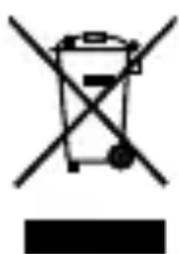
Symbol of a trash bin with crossed lines indicating no waste or discharge (no text or numbers present)If at any time in the future you should need to dispose of this product please note that: Waste electrical products should not be disposed of with household waste. Please recycle where facilities exist. Check with your Local Authority or retailer for recycling advice. (Waste Electrical and Electronic Equipment Directive)
F
ATTENTION!
LA GARANTIE PERD EFFET DÈS LORS QUE LE BOITIER DE L'APPAREIL A ÉTÉ OUVERT OU LORSQUE DES MODIFICATIONS OU ALTÉRATIONS ONT ÉTÉ FAITES SUR L'APPAREIL ORIGINAL.
text_image
Set Alarm ① ② ③ ⑤ 6:00 am wlll Mon Tue Wed Thu Fri Sat Sur ④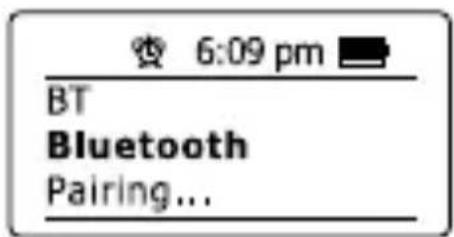
text_image
6:09 pm BT Bluetooth Pairing...text_image
Symbol of a trash bin crossed out by a diagonal line, indicating no waste or dischargetext_image
Set Alarm ① ② ③ 5:00 am Mon Tue Wed Thu Fri Sat Sur ④
text_image
密 6:09 pm BT Bluetooth Pairing...text_image
Symbol of a trash bin crossed out by a diagonal line, indicating no waste or dischargetext_image
Set Alarm 6:00 am Mon Tue Wed Thu Fri Sat Sur