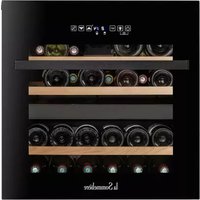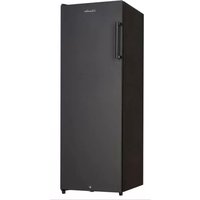
APOGEE150 - Wine cellar LA SOMMELIERE - Free user manual and instructions
Find the device manual for free APOGEE150 LA SOMMELIERE in PDF.


User questions about APOGEE150 LA SOMMELIERE
0 question about this device. Answer the ones you know or ask your own.
Ask a new question about this device
Download the instructions for your Wine cellar in PDF format for free! Find your manual APOGEE150 - LA SOMMELIERE and take your electronic device back in hand. On this page are published all the documents necessary for the use of your device. APOGEE150 by LA SOMMELIERE.
USER MANUAL APOGEE150 LA SOMMELIERE
natural_image
Symmetrical geometric pattern with four concentric circles arranged in a diamond shape (no text or symbols)La Sommelière
MANUEL D'INSTRUCTIONS - INSTRUCTION MANUAL GEBRAUCHSANWEISUNG – HANDLEIDING MANUAL DE INSTRUCCIONES - MANUALE D'ISTRUZIONE

natural_image
Black double-chamber refrigerator with shelves full of wine bottles, open lid showing 'Saradise' branding (no visible text on main subject)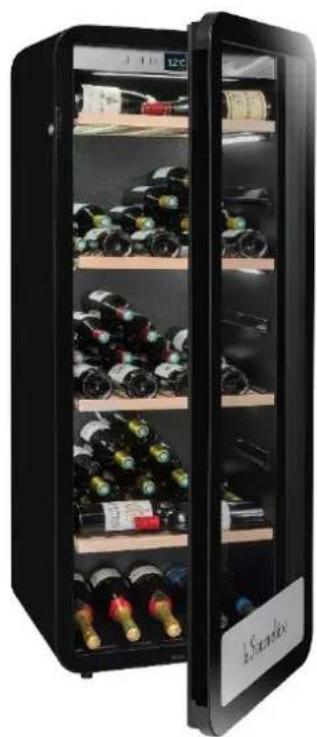
natural_image
Black double-chip refrigerator with shelves full of wine bottles, no visible text or symbols on the cabinet itself.CAVES DE VIEILLISSEMENT APOGEE
APOGEE150 - APOGEE150PV - APOGEE200 - APOGEE200 - APOGEE255 - APOGEE255PV APOGEE145DZ - APOGEE190DZ - APOGEE250DZ
AVANT UTILISATION, VEUILLEZ LIRE ET SUIVRE TOUTES LES REGLES DE SECURITE ET D'UTILISATION.
FR-MANUEL D'UTILISATION 2
ENG - INSTRUCTION MANUAL 33
text_image
Warning sign depicting a flame symbol in yellow and black on a white backgroundR600a
text_image
S N O P Q R 12°C A B C G H I J K L D E Ftext_image
S T N O P Q R 05 20 A B C G H I J K L D E Ftext_image
Grid of six icons representing smart home control and monitoring functions: lightbulb, Wi-Fi, bell, refresh, demo, and °C/F symbols.natural_image
Four simple line icons on a dark background: a group photo, a bottle, a bell, and a person silhouette (no text or symbols)Ma cave
Mes vins
Alertes
Profil
1.SAFETY INSTRUCTIONS
For your safety and for correct use of the device, before installing and using the device for the first time, carefully read this manual, including the warnings and useful tips it contains. In order to avoid damaging the device and / or injuring yourself unnecessarily, it is important that those who use this device are fully aware of its operation and its safety functions. Save these instructions for later and remember to store them next to the appliance so that they can be passed on with it in the event of a sale or move. This will ensure optimal operation of the system.
To avoid any risk of injury, keep this manual. The manufacturer cannot be held responsible in the event of incorrect handling of the system.
Safety of children and other vulnerable people
- This system can be used by children aged 8 and over and by people with reduced physical, sensory or mental capacities, or who have not learned to use the device, in the context where they are supervised. by an informed person who is aware of the risks involved. Children must not play with the device. Cleaning and user maintenance should not be made by children, unless they are over 8 years old and supervised.
- Keep all packaging out of the reach of children, as there is a risk of suffocation.
- If you decide to dispose of the appliance, unplug it from the wall outlet, cut the connection cable (as close to the appliance as you can) and remove the door to prevent children from playing with it. and being electrocuted or locked inside.
- If the appliance, fitted with a magnetic door seal, must be replaced by another appliance fitted with a latch on the door or on the seal, check that the latch is inoperable before proceeding. get rid of the old device. This will avoid turning this device into a trap for children.
- Keep the device and its cord out of the reach of children under 8 years old.
- Children should not load and unload bottles in the appliance.
General security
CAUTION - This appliance is designed to operate in a domestic household and in the following environments:
- kitchen rooms and equipment sold in commerce, work environments and offices;
- Bed and Breakfast type structures;
- farm buildings and hotels, motels and other organizations welcoming clients;
- industrial kitchen and other applications not intended for resale.
CAUTION - Never store flammable substances such as aerosols inside this appliance, as they may spill into it.
CAUTION - If the power cord is damaged, you must replace it immediately with your manufacturer, or a qualified dealer, to avoid any risk of electric shock.
CAUTION - Keep the vents fully open, and check that air can circulate through the openings.
CAUTION - Do not damage the refrigeration circuit.
CAUTION - Do not use electrical appliances inside the compartment, unless they are tolerated by the manufacturer.
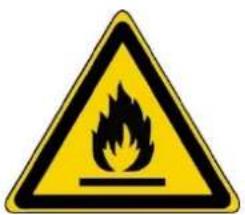
CAUTION - The refrigerant and insulating system contain flammable gases. When you dispose of the system, do so at an authorized collection point. Never expose the device to flame.
Refrigerating fluid
The refrigerating circuit in the appliance uses refrigerating isobutene (R600a), which is a highly inflammable natural gas and is therefore dangerous for the environment. When transporting or installing the appliance, ensure that no element of the refrigerating circuit is damaged. The refrigerating fluid (R600a) is inflammable.
Caution: risk of fire
If the refrigerant circuit should be damaged:
- Avoid opening flames and sources of ignition.
- Thoroughly ventilate the room in which the appliance is situated. It
is dangerous to alter the specifications or modify this product in any way.
Any damage to the cord may cause a short circuit, fire, and/or electric shock.
Electrical safety
• We decline any liability in respect of incidents caused by poor electrical installation.
- The power cord must not be lengthened. Do not use an extension cable, or adapter, or multi-way socket.
- Make sure that the power plug is not crushed or damaged. A crushed or damaged power plug may overheat and cause a fire.
- Make sure that you can access the main plug of the appliance.
- Do not pull the main cable.
- Ensure that the appliance is always electrically earthed.
• If the power plug socket is loose, do not insert the power plug. There is a risk of electric shock or fire.
- You must not operate the appliance without the interior lighting lamp cover.
- Disconnect the appliance before replacing the lighting bulb.
- The cellar is only applied with power supply of single phase alternating current of 220\~240V/50Hz.
- Do not attempt to replace a damaged power cable, contact your after-sales service.
- The power socket must be easily accessible but out of reach of children. In case of doubt, contact your installation technician.
- The device must not use an extension, adapter or multiple socket.
The device must be connected to an electrical outlet with a ground connection in accordance with the electrical standards in force.
Daily use
• This appliance is intended to be used exclusively for the storage of wine.
- Do not store flammable gas or liquids in the appliance. There is a risk of an explosion.
- Do not operate any electrical appliances in the appliance (electric ice cream makers, mixers etc.).
- When unplugging always pull the plug from the mains socket and do not pull on the cable.
• Do not place hot items near the plastic components of this appliance.
- The appliance manufactures storage recommendations should be strictly adhered to. Refer to relevant instructions for storage.
- Keep burning candles lamps and other items with naked flames away from the appliance so that do not set the appliance on fire.
- The appliance is intended for keeping beverages in normal household as explained in this instruction booklet.
• The appliance is heavy. Care should be taken when moving it. If your appliance is equipped with castors, remember that these are only designed to facilitate minor movements. Do not move the appliance over long distances. - Never use the shelves, drawers, doors etc. to stand on or as supports.
• To avoid items falling and causing injury or damage to the appliance, do not overload the shelves or put food into the appliance.
Caution: cleaning and servicing
- Before carrying out servicing, switch off the power supply and disconnect the appliance.
- When cleaning the appliance, do not use metal objects, steam systems, volatile fluids, organic solvents or abrasive substances.
- Never clean appliance parts with flammable fluids. The fumes can create a fire hazard or explosion.
- Do not use sharp or pointed objects to remove ice. Use a plastic scraper.
Important information about the installation!
- Warning! To prevent the wine cellar from tipping over, it is important to load the places located at the back of the cellar as a priority. The shelves must not be pulled out or left out at the same time. The weight of the bottles can cause the cellar to tip forwards, it is essential to distribute the weight of the bottles throughout the cellar and to handle it with care.
For the electrical connections to be correct, follow the instructions in this manual.
- Unpack the device and check that it is not visually damaged. Do not plug in the device if it is damaged. Report any damage to the point of sale where you purchased it. In this case, keep the packaging.
- It is recommended to wait at least 24 hours before connecting the appliance to the power supply, so that the compressor is supplied with oil.
- Good air circulation is necessary to avoid the risk of overheating. For sufficient ventilation, carefully follow the installation instructions provided. Warning ! This refrigeration appliance is not intended for use as built-in or integrated device.
- Avoid the appliance touching the walls and / or coming into contact with hot elements (compressor, condenser, radiators, cooking appliances, dryer, etc.) in order to avoid the risk of fire and overheating. of the device. Always follow the installation instructions carefully.
- Check that the outlets are accessible once the appliance is installed.
- Be careful not to trap or damage the power cord when setting up the appliance.
Trouble shooting and spareparts
Any electrical work should be carried out by a qualified and skilled technician.
The appliance should be repaired by an accredited repair centre, using only manufacturer's original spare parts.
Aesthetic and functional spare parts in accordance with REGULATION (EU) 2019/2019 (Annex II, point 3.), are made available to professional repairers and end users for a period of 7 years or 10 years (List in Annex II, point 3.a.1 and 3.a.2) from the time the last unit of the model is placed on the market. The list of spare parts and the procedure for ordering them (professional access / special access) are available on the following website: www.interfroidservices.fr or by post at the following address: FRIO - Interfroid Services, 143 Bd Pierre Lefaucheux - 72230 ARNAGE
For other functional spare parts not specified in EU regulation 2019/2019, they are available for a period of 10 years. The manufacturer's warranty is 1 year for functional parts.
text_image
Warning sign depicting a flame symbol in a yellow triangle with black borderR600a
Safety instructions

- Caution — Do not obstruct the ventilation grills on the appliance. Keep ventilation openings in the appliance enclosure or in the structure for building-in clear of obstruction.
- Caution — Do not store explosive substances, such as aerosol cans containing an inflammable propellant, in the appliance.
- Caution — Do not damage the refrigerating circuit in the appliance.
- Caution — The refrigerating units use isobutane (R600a), and should not be placed close to ignition sources (for example, electrical contacts that are exposed or open contacts that could be closed by the refrigerating fluid in the event of a leak). The refrigerating fluid type is specified on the rating plate of the appliance.
- Caution — Do not use electrical equipment in the compartments of the appliance, unless they are of the type recommended by the manufacturer.


This appliance meets the requirements of all applicable European directives and their amendments.
CE

text_image
FR + + + +2. RATING PLATE
The nameplate attached to the inside or rear of the appliance (depending on the model) includes the entire information specific to your appliance.
We recommend that you make a note of its serial number in this booklet prior to installation, so that you can refer to it later (technical work, request for assistance, etc.).

natural_image
Empty rectangular frame with no text, symbols, or content insideOnce the appliance is installed and loaded, access to it is not so easy.
CAUTION: no assistance can be provided without this information.
3. DESCRIPTION OF THE APPLIANCE
To find out more about your product, consult the online EPREL database. As defined in Commission Delegated Regulation (EU) 2019/2016, all information relating to this refrigeration appliance is available on the EPREL Base (European Product Database for energy labeling). This database enables you to consult the information and technical documentation of your refrigeration appliance. You can access the EPREL Database by scanning the QR code on the energy label of your appliance or by going directly to: www.ec.europa.eu and searching the reference of your refrigeration appliance.
text_image
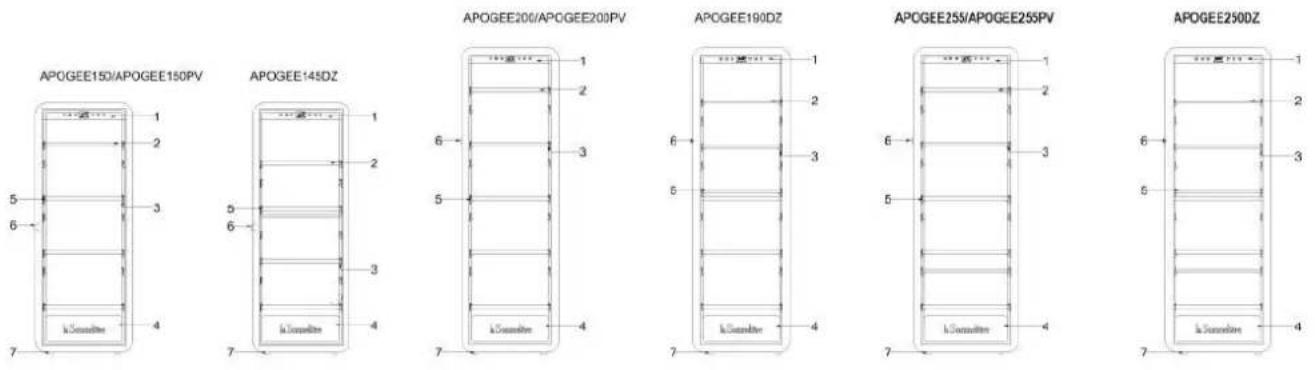
APOGEE150/APOGEE150PV APOGEE145DZ APOGEE200/APOGEE200PV APOGEE190DZ APOGEE255/APOGEE255PV APOGEE250DZ- Control panel
- Shelves with head to tail presentation
- Built-in lighting under the shelf
- Door
- Horizontal presentation shelves
- Lock
- Foot
Find all the information on the Apogee cabinets (APOGEE150, APOGEE150PV, APOGEE145DZ, APOGEE200, APOGEE200PV, APOGEE190DZ, APOGEE255, APOGEE255PV and APOGEE250DZ and their instructions can be downloaded from the website www.lasommeliere.com
Announced capacity
| REFERENCE | CAPACITY IN BOTTLES | NUMBER OF SHELVES | |
| APOGEE150 | 147 | 4 | |
| APOGEE150PV | 147 | 4 | |
| APOGEE145DZ | 143 | 4 | |
| APOGEE200 | 185 | 5 | |
| APOGEE200PV | 185 | 5 | |
| APOGEE190DZ | 181 | 5 | |
| APOGEE255 | 254 | 6 | |
| APOGEE255PV | 254 | 6 | |
| APOGEE250DZ | 247 | 6 | |
The advertised capacity is the maximum capacity calculated with the number of shelves sold with the cellar and 75 cl Bordeaux type bottles according to standard EN62552:2013; in a head-to-tail position.
The shelves of the Apogée cellars have been sized to accommodate several bottle formats, such as: Bordelaise, Champenoise, Bourgogne.
If you wish to age bottles of different formats, we recommend that you alternate a standard Bordeaux type bottle between your bottles of larger formats, this recommendation will allow you to avoid any storage problems.
It is indeed possible that the juxtaposition of atypical or imposing format bottles will force you to only partially use the spaces on your shelf. Alternating a standard bottle (Bordeaux 75cl) with an atypical or imposing bottle will allow you to use all the available slots on your shelf.
Layout recommendations
The initial layout of your appliance's equipment (shelves, etc.) is recommended so that the energy is used as rationally as possible by the refrigeration appliance. Any change to this layout may impact the energy consumption of the device.
4. INSTALLATION INSTRUCTIONS
Before using this appliance
- Remove the outer and inner packaging.
- Leave your device in an upright position at rest for about 24 hours before putting it into service. This will reduce the possibility of cooling system malfunction due to transportation.
- Clean the inside with a soft cloth and lukewarm water.
- When installing your device, please choose an authorized location.
- Place your device on a floor that is strong enough to support it when fully loaded.
- Place your cellar on a floor that is strong enough to support it when fully loaded.
- In order to ensure that the door closes properly, the cellar must be leveled, adjust the 4 adjustable feet if necessary. This inclination will also keeps the drawers or shelves in place despite the weight of the bottles. Adequate ventilation is necessary, do not obstruct any air outlet.
- This appliance is intended for freestanding installation. It must in no case be built-in or integrated. Good air circulation around your device must be observed.
- Connect the cellar to a single outlet, leave a space of 50mm between the back of the cellar and the wall and 100mm on each side and above your device. Make sure to wedge it perfectly and adjust the horizontality of your wine cellar (the use of a spirit level is recommended). Warning! your cellar should be tilted slightly backwards; this will prevent any movement due to instability, which generates noise and vibration, and will ensure the door is completely airtight.
- This device is only used for storing wines.
- This appliance uses flammable refrigerant gas, so please never damage the cooling pipe during transportation.
Attention
- Store wine in sealed bottles.
- Do not overload the cabinet.
- Do not open the door unless necessary.
- Do not cover shelves with aluminum foil or any other shelf material which may prevent air circulation.
- Should the wine cooler be left empty for long periods it is suggested that the appliance is unplugged, and after careful cleaning, leave the door ajar to allow air to circulate inside the cabinet in order to avoid possible condensation, mold or smell.
- CAUTION: please keep the appliance away from substance, which can cause ignition.
Wine cellar installation
Warning! To prevent the wine cellar from tipping over, it is important to load the rear bottle positions first. The shelves must not be pulled out or left out at the same time. The weight of the
bottles can cause the cellar to tip forwards, it is essential to distribute the weight of the bottles throughout the cellar and to handle it with care.
Power supply
Connect the wine cellar to a single, wall-mounted type E socket.
The cellar must be plugged into a single, easily accessible socket.
All questions relating to power and / or earthing must be handled by qualified personnel (electrician, authorized service).
Emplacement
- Warning ! The cellar must be placed in a clean environment (not dusty), frost-free, away from a heat source, type: radiator, oven, sunlight, etc ... it must not be installed outdoors.
- Place the cellar in a location strong enough to support the full load weight.
• To level it adjust the height of the adjustable feet below the cellar. - This device is suitable for operation in rooms with a very specific ambient temperature, this climatic class is indicated on the rating label.
- When selecting a location for your appliance you should make sure the floor is flat and firm, and the room is well ventilated. This device is suitable for operation in rooms with a very specific ambient temperature, this climatic class is indicated on the nameplate. The ambient temperature affects the interior temperature and humidity of your cellar. For optimal operation, your cellar settings are made for ambient temperatures of 23 °C to 25 °C.
The temperature of the device is adjustable between 5°C and 20°C; dual-zone cabinets (APOGEE145DZ, APOGEE190DZ and APOGEE250DZ) offer two compartments with independent adjustment, a first compartment adjustable between 5°C and 12°C and a second adjustable between 12°C and 20°C. Temperature regulation is carried out by a thermostat.
Changing the temperature generates higher energy consumption.
The device guarantees that the temperature is maintained as long as it is in operation and used under normal conditions of use. The temperature inside the appliance and its energy consumption can be influenced by many factors: ambient temperature, exposure to the sun, number of door openings and quantity stored... Slight changes in temperature are perfectly normal and correspond to the appliance cold cycles. But these variations in no way affect the storage temperature of the wines, these variations being too short for a heat exchange with the bottles.
It is recommended to load the bottles to be stored in several times in order to allow the internal temperature to stabilize. Once your cellar is fully charged, it takes between 24 and 48 hours to obtain the desired temperature. This duration is impacted by the initial temperature of the stored bottles, which must be brought to the desired temperature.
Wifi range
Warning ! The APOGEE cellars work with a Wifi connection.
Warning ! It is the user's responsibility to ensure that the wifi network is sufficient (signal speed / strength) for the proper functioning of the connected cellar.
- The use of a wifi amplifier/repeater may be required in the case of a low speed connection.
- The use of a separate 2.4ghz/5ghz network may be required in the event of pairing problems. In this case, contact your internet provider so that the internet network is disconnected. The cellar operating on the 2.4ghz network.
In the event of a power cut, the cellar cannot take any settings into account, and also loses the settings it would have while waiting for synchronization with the server. When restarting after a power outage, the last settings saved in the cloud will be used.
Scope of the cellar Bluetooth
Attention ! Apogee cabinets work with Bluetooth during the pairing phase of the cabinet to the WiFi network. During its daily use, the cellar communicates only through the WiFi network. The cellar's Bluetooth range is 1m maximum with the door closed.
5. OPERATING INSTRUCTIONS
Control panel
The APOGEE cabinets are equipped with an electronic control panel with LCD screen. The control panel is located inside the cellar on the upper part.
The control panel differs between single and dual temperature zone models
APOGEE150 - APOGEE150PV - APOGEE200 - APOGEE200 - APOGEE255 - APOGEE255PV
text_image
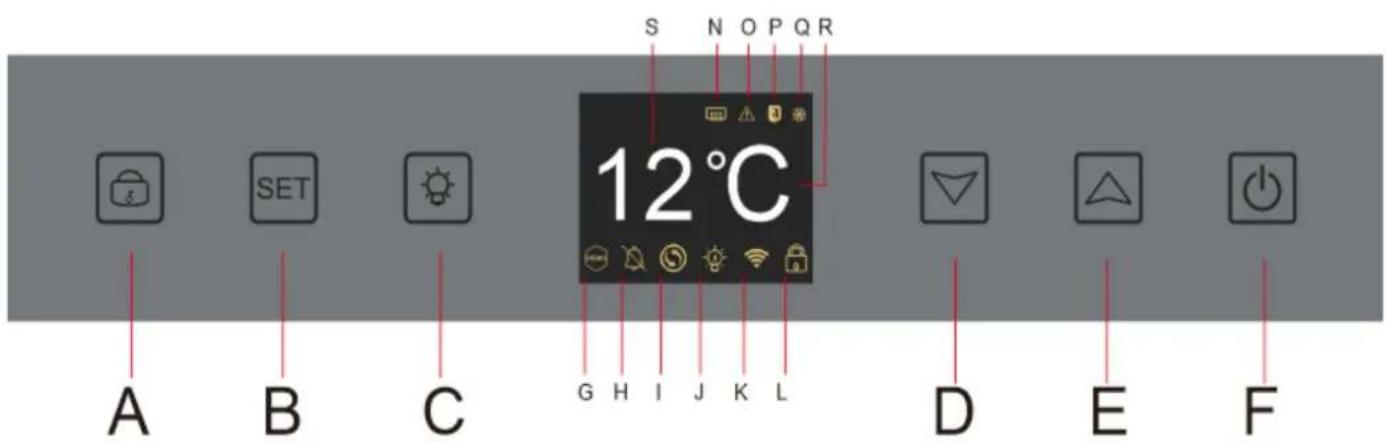
S N O P Q R 12°C A B C G H I J K L D E FA. Button to lock - unlock the device; when you press the "A" key or after 20 seconds of inactivity, the device is locked and a closed padlock icon appears on the LCD screen of the
control panel. To unlock the device, hold down the "A" key for 3 seconds, an open padlock icon appears on the control panel's LCD screen to indicate that the device is unlocked.
B. Temperature adjustment knob; when you press the "B" button the temperature display becomes flashing; it indicates that you can decrease or increase the set temperature using the "D" and "E" buttons. Without action after 3 seconds the temperature display becomes frozen again
C. Button to turn the lighting on or off
D. Button to decrease the set temperature by 1^ C
E. Button to increase the set temperature by 1^ C
F. Button to turn the device on or off; press and hold the key for 5 seconds to switch the device offline.
Note: Before any adjustment operation on the control panel, it must first be unlocked by pressing button A.
APOGEE145DZ - APOGEE190DZ - APOGEE250DZ
text_image
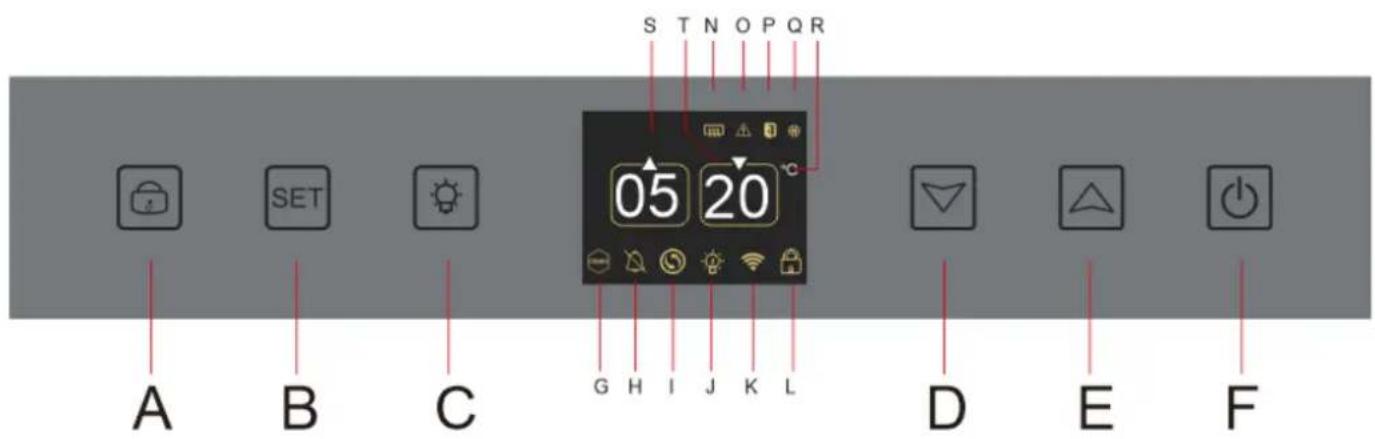
S T N O P Q R 05 20 A B C G H I J K L D E FA. Button to lock - unlock the device
B. Temperature adjustment knob; when you press the "B" button, the temperature display for the upper zone of your cellar flashes; it indicates that you can decrease or increase the set temperature, of the upper zone of your cellar, using the "D" and "E" keys. Press the "B" button again to adjust the temperature of the lower zone of your cellar; the temperature display for the lower zone of your cellar flashes; it indicates that you can decrease or increase the set temperature, from the lower area of your cellar, using the "D" and "E" keys. Without action after 3 seconds the temperature display becomes frozen again;
C. Button to turn the light on or off
D. Button to decrease the set temperature by 1°C
E. Button to increase the set temperature by 1^ C
F. Button to turn the device on or off; press and hold the key for 5 seconds to switch the device offline.
Note: Before any adjustment operation on the control panel, it must first be unlocked by pressing button A.
Icon mapping
Your control panel's LCD screen includes several icons. These icons appear depending on the status of the device; it is normal that your cellar does not necessarily display all these icons. Below are their meanings:
G. Demo mode: if the icon is present the demo mode is activated. During demo mode, the compressor, fans and alarms are stopped. When the demo mode is off the icon does not appear on the screen.
H. Audible alarm: if the icon is present the audible alarm is deactivated. When the alarm is active the icon does not appear on the screen.
I. Filter change: if the icon is present, the activated carbon filter must be changed. When the icon disappears, this means that the activated carbon filter is functional. To be effective, the activated carbon filter in your cellar must be changed every year.
J. Lighting: if the icon is present, the lighting in your cellar is on. When the icon disappears it means that the lighting is off. The design of the lighting icon varies according to the lighting mode chosen (door opening, automatic or permanent)
K. WIFI connection: if the icon is present, the WIFI function is on and the cabinet is connected to WIFI. When it flashes, it means that the WIFI function is on but the cellar cannot connect to the WIFI network; the cellar is therefore disconnected. When the icon disappears, it means that the WIFI function is off.
L. Unlocking - Locking: the icon indicates whether the cellar is locked (locked padlock icon) or unlocked (open padlock icon).
S. Display of temperature or error code: indicates the set temperature or an error code in the event of a malfunction of the appliance.
N. Winter mode: if the icon is present the winter system is activated; when the icon disappears, it means that the winter function is off. When the function is turned off, the fan continues to run for a few minutes after the function is turned off.
This function is completely automatic and does not require any action on your part. It is triggered according to the ambient temperature and the interior temperature to be reached by the device.
O. Visual alarm: in the event of an error, the icon is displayed and is accompanied by an audible alarm if the audible alarm function is active. To stop the audible alarm press the "D" button for 3 seconds or use the Vinotag connected application to deactivate the alarm function.
P. Door open: if the icon is present the door is open; when the door is closed the icon disappears. When the door is open for more than 3 minutes, the icon starts flashing and an audible alarm is activated if the audible alarm function is active. To stop the audible alarm close the door. Press 3 seconds "D" button to unlock door audible alarm system, if want to restore, you need to go to the sub-page or APP to restore the sound.
Q. Compressor: if the icon is present the compressor works when the compressor is off the icon disappears.
This function is completely automatic and does not require any action on your part. It depends on the cold cycles of the device.
R. Temperature unit: when the icon indicates “°C” the temperature is given in degrees Celsius; when the icon indicates “F” it is indicated in Fahrenheit.
Function settings
Unlock the control panel by pressing button A.
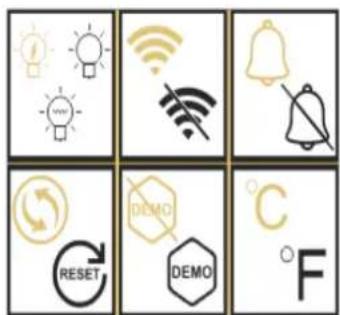
Press and hold the "B" key for 3 seconds to enter the control panel settings. The following screen is displayed with the different functions available.
text_image
Grid of six icons representing smart home control and weather management symbols, including lightbulb, Wi-Fi, alarm, refresh, demo, and ℃.After 20 seconds of inactivity or after pressing the "B" button for 5 seconds, you exit the settings mode.
In the Settings mode you have access to the follow
- Lighting
- Wireless
- Alarms
- Activated carbon filter
- Demo mode
- Temperature unit
text_image
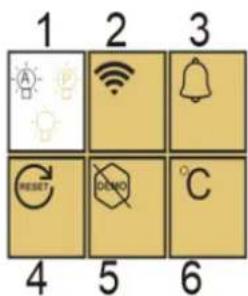
1 2 3 A W B RESET DEMO °C 4 5 6Once you enter the setting mode, a white background indicates the selected function. For multiple-choice features, the selected choice is displayed in black while the other, unselected choices are brown. Press "B" KEY to select the icon you need. The selected icon will change color from brown to black; Use the "D" and "E" keys to move to the next function; After entering each function (square), if no operation, it will be kept as the last setting.
The different lighting modes
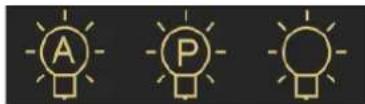
Your device has 3 different lighting modes that you can also control using your Vinotag application.

Door switch mode
The light turns on and off automatically when the door is opened and closed. This lighting mode cannot be controlled by the app.

Permanent mode
The light only turns on or off on command by pressing button C on the control panel or by using the switch in your Vinotag application.

Automatique mode
The light turns on automatically when the door is opened, and turns off automatically after a time delay of 15 minutes. This lighting mode cannot be controlled by the app.
To consult the actual temperature of your cellar; press and hold the "D" and "E" keys simultaneously for 3 seconds; the actual temperature is displayed flashing. The set temperature is displayed again when you release the buttons.
Energy saving
After 20 seconds without operation, the screen will enter power saving mode and become darker but still visible.
Connection to a WIFI network
Use your mobile phone to connect the cellar to a WIFI network.
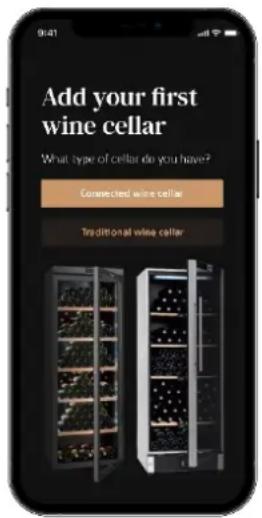
Open the Vinotag application and create a digital cellar by selecting: "Connected Cellar" and choose, from the list provided, the reference of your Apogée cellar.
If you already have a Vinotag account, go to the "MY ACCOUNT" space then click on "ADD A CELLAR" by selecting: "Connected Cellar" and choose, from the proposed list, the reference of your Apogée cellar.
text_image
Add your first wine cellar What type of cellar do you have? Connected wine cellar Traditional wine cellarThe application will connect to your physical cellar, which must be powered by a mains socket and be correctly installed (refer to the installation instructions for your cellar). Once your physical cellar has been detected by the application, the available WIFI networks are displayed, select the WIFI network of your choice, or indicate the name of your WIFI network if it is not displayed automatically and enter the password. access (network password) to connect your cellar to the network and adjust its settings remotely.
The "K" icon of the cellar is displayed fixed indicating that the WIFI function is on and the cellar is connected to WIFI.
If the "K" icon is flashing, it means the WIFI function is on but the cellar cannot connect to the WIFI network, please reset the wifi of the cellar.
Reset WIFI
To reset the WIFI in the event of a connection problem or a change of internet box, press the "A" and "B" keys simultaneously for 5 seconds. This process removes the original WIFI information and allows you to reconnect to the network of your choice. The "K" icon tells you that the WIFI function is off.
The Vinotag® app
Apogee cellars are compatible with the VINOTAG ^® wine cellar management application. To use your cellar in a connected way, it is necessary to have:
- A power source to power the cellar
- Have downloaded the VINOTAG ^® application from the App Store or Google Play Store and created a user account
- A stable internet connection (Wi-Fi) within range of the Apogée cellar
• An Apogee cellar model
VINOTAG app functions®
The VINOTAG ^® application allows you to:
- Create, customize and manage your wine cellars
- Consult your wine inventory (wine bottles present in your cellar) and create your own wine sheets. VINOTAG® partners with VIVINO®, as part of its Premium option, to allow you to export detailed wine sheets from the VIVINO® database.
- Create and consult your vinotheque. The exclusive VINOTAG® - VIVINO® partnership allows you to save and consult detailed wine sheets from the VIVINO® database
- Share the visualization of your cellar(s) with your loved ones
- Be alerted to the peak date of your wines, the need to change the filter in your cellar or a low stock level of your favorite wine
- Quickly identify specific bottle(s) in your cellar
- Identify the spaces available in your cellar
- Adjust the temperature of the cellar and remotely control the lighting mode (3 possible modes), start or stop the cellar, mute the audible alarm.
- Be alerted to a change of carbon filter or a malfunction in your cellar.
How to create a VINOTAG ^® account
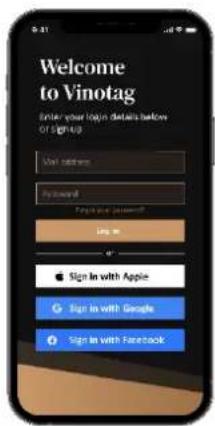
text_image
Welcome to Vinotag Enter your login details below OF SIGNAID Visit address Password Fax you password? Sign Sign In with Apple Sign In with Google Sign In with Facebook- Download the VINOTAG® application from the App Store or Google Play Store depending on your phone type.
- Create an account manually or via Facebook or via Apple / Google Play account
- Complete the mandatory fields: First name; Last name ; Date of Birth ; Country; region
- Check the box "I accept the general conditions of use"
- Click on "Finalize my registration"
You now have a VINOTAG ^® account, remember to save your username and password.
VINOTAG® Menus
When the application is open, the following menu is visible:

natural_image
Four simple icons on dark background: a group of people, a bottle, a bell, and a person silhouette (no text or symbols)My cellar
My wines
Alerts
Profile
• MY CELLAR: Allows you to view your wine cellar (s).
• MY WINES: Allows you to consult your wine library.
- ALERTS: Allows you to consult your cellar's alerts.
• PROFILE: Allows you to complete-view the information related to your account.
« MY CELLAR » page
text_image
ECELLARISA Track 100 words VINT/2.0 VINT/2.1 VINT/2.2 VINT/2.3 VINT/2.4 VINT/2.5 VINT/2.6 VINT/2.7 VINT/2.8 VINT/2.9 VINT/3.0 VINT/3.1 VINT/3.2 VINT/3.3 VINT/3.4 VINT/3.5 VINT/3.6 VINT/3.7 VINT/3.8 VINT/3.9 VINT/4.0 VINT/4.1 VINT/4.2 VINT/4.3 VINT/4.4 VINT/4.5 VINT/4.6 VINT/4.7 VINT/4.8 VINT/4.9 VINT/5.0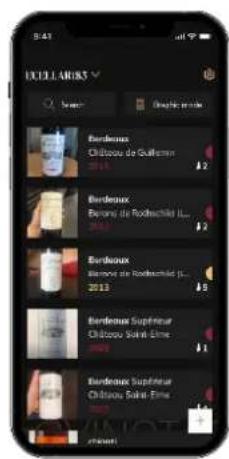
text_image
EXELARIS Bordeaux Chitzaux de Guillaume 2013 Bordeaux Belons de Rochetcheiro (L. 2013) Bordeaux Bordeaux de Rochetcheiro (L. 2013) Bordeaux Supérieur Chitzaux Sable-Erime Bordeaux Supérieur Chitzaux Sable-Erime cheliersThis page allows you to view the content of your wine cellar (s).
- Warning ! if your cellar is empty, you will not be able to view it; it is necessary to add bottles to access the view of your cellar.
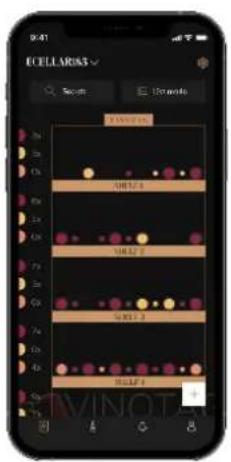
- The cellar can be visible in list mode or in graphic mode. The mode setting is accessible via the icon at the top right of your screen. This icon allows you to switch from one viewing mode to another. By default, the cellars in the “connected cellar” category are displayed in list mode.
Details of the cellar view icon:

List mode
or

hic mode
- The search icon 🔒 at the top left of your screen allows you to search for a bottle of wine in your cellar; all you need to do is write information about the bottle you are looking for (domain name, type of wine, year, etc)
- The icon at the bottom right of your screen allows you to add bottles of wine. (see the "Add a bottle of wine" section for more information)
- Warning! If you have more than one cellar, you can switch from one cellar to another using the name of your cellar located at the top left of your screen. When you click on the name of your cellar a pop-up asks you to select the cellar you want to view. Click in the list of your cellars on the model to view.
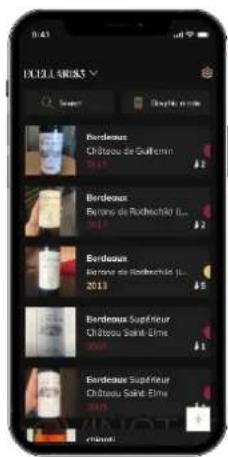
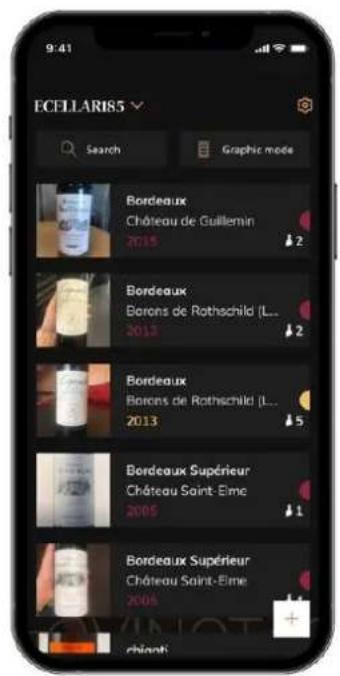
- Simplified display mode. A list allows you to consult the wines kept in your cellar. The wines are listed in alphabetical order.
- List mode indicates for each wine: the name of the wine, its domain, its date, its color, its type and finally the picture of the bottle.
- Pressing a wine allows you to access its wine sheet.
- An indicator is present on the right of your screen. It indicates for each wine the type of wine. The types of wine are identified by a colored icon. (Red disc: indicates a red wine / Yellow disc: indicates a white wine / Salmon disc: indicates a rosé wine).
text_image
ECELLARIS Search Orientation 10x 25x 35x 45x 55x 65x 75x 85x 95x 100x 10.0 10.0 10.0 10.0 10.0 10.0 10.0 10.0 10.0 10.0 10.0 10.0 10.0 10.0 10.0 10.0 10.0 10.0 10.0 10.0 10. 0 10. 1 10. 2 10. 3 10. 4 10. 5 10. 6 10. 7 10. 8 10. 9 10. 10 10. 11 10. 12 10. 13 10. 14 10. 15 10. 16 10. 17 10. 18 10. 19 10. 20 10. 21 10. 22 10. 23 10. 24 10. 25 10. 26 10. 27 10. 28 10. 29 10. 30 10. 31 10. 32 10. 33 10. 34 10. 35 10. 36 10. 37 10. 38 10. 39 10. 40 10. 41 10. 42 10. 43 10. 44 10. 45 10. 46 10. 47 10. 48 10. 49 10. 50 10. 51 10. 52 10. 53 10. 54 10. 55 10. 56 10. 57 10. 58 10. 59 10. 60 10. 61 10. 62 10. 63 10. 64 10. 65 10. 66 10. 67 10. 68 10. 69 10. 70 10. 71 10. 72 10. 73 10. 74 10. 75 10. 76 10. 77 10. 78 10. 79 10. 80 10. 81 10. 82 10. 83 10. 84 10. 85 10. 86 10. 87 10. 88 10. 89 10. 90 10. 91 10. 92 10. 93 10. 94 10. 95 10. 96 10. 97 10. 98 10. 99 25x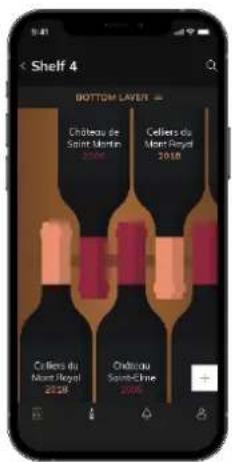
text_image
Shelf 4 BOTTOM LAYER = Château de Saint Martin 2018 Celliers du Moet Royal 2018 Celliers du Moet Royal 2018 Château Saint-Clance 2018Graphic mode:
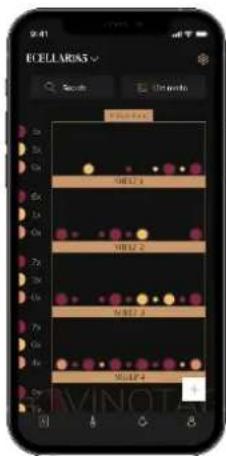
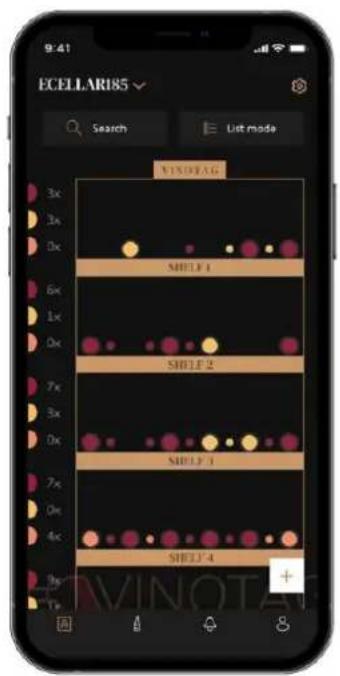
- A graphical view of the cellar makes it possible to visualize the filling of the cellar by indicating the stored bottles represented by colored rounds.
• The wines are classified by shelf.
- User can view bottles
- Press on a bottle to access its wine sheet
- An indicator is present on the left of your screen. It indicates for each shelf the number of bottles per type of wine. The types of wine are identified by a colored round.

Red dot: indicates a red wine
Yellow dot : indicates a white wine
Pink dot: indicates a rosé wine
« MY WINES » page
This page allows you to view your wine library. The wine library area allows you to:
- Consult your wines consumed, all wines added (still present or not) in your cellar are automatically added to your wine library area.
-
Create a wishlist; you can save wines tasted at friends or you want to buy. The wine library area allows you to create a wish list.
-
The search icon 🔒 at the top left of your screen allows you to search for a bottle of wine in your wine store; all you need to do is write information about the bottle you are looking for (domain name, type of wine, year, etc.)
- To add a bottle to your wine library, follow the “Add bottles” procedure and click on “add to my wine library”
- Press on a wine to consult its wine file (for more information, follow the procedure "consult a wine sheet")
"ALERTS" page
text_image
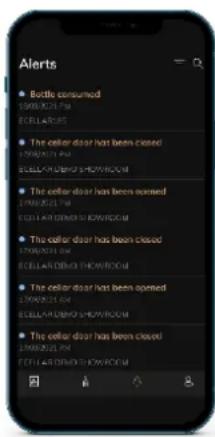
Alerts • Bottle consumed ECELLARIS • The cellar door has been closed ECELLARIS SHOWROOM • The cellar door has been opened ECELLARIS SHOWROOM • The cellar door has been closed ECELLARIS SHOWROOM • The cellar door has been opened ECELLARIS SHOWROOM • The cellar door has been closed ECELLARIS SHOWROOMThis page allows you to view the alerts related to your cellar; a red dot next to the icon indicates an unread alert. The alerts are classified chronologically. When you have several cellars, it is possible to filter by cellar (filter icon located at the top left of your screen). A search field allows you to filter your alerts to find a specific event.
Temperature alert / door open: your cellar alerts you when temperature movements should attract your attention.
Stock alert: you have the possibility to program stock alerts for a specific wine and according to a defined quantity. The application alerts you that the wine in question is about to run out. (the "rupture" quantity is defined by you, the alert can be set to a number of bottles.)
« PROFIL » page
This page allows you to view, complete or modify the information related to your VINOTAG® account:
Modify my information: to modify your registration information (last name, first name, birthday, country, department) or delete your account. To agree to receive news and other commercial information from VINOTAG.
I become premium: to subscribe to the premium option of VINOTAG® and benefit from recharging
scans. These scans allow you to directly save the VIVINO® files in your application and no longer have to complete the wine sheets manually (refer to the "premium account" process).
Add cellar: allows you to add new cellars.
Enter an invitation code: allows you to join cellars whose access has been shared with you. Entering an invitation code is mandatory to join a cellar, this access code is generated and distributed by the owner of the shared cellar.
Contact: allows you to contact VINOTAG® customer service a drop-down list allows you to select the subject of your request.
General Conditions of Use: allows you to consult the VINOTAG® General Conditions of Use
Legal notices: allows you to consult the VINOTAG® Legal notices
Disconnect: allows you to disconnect
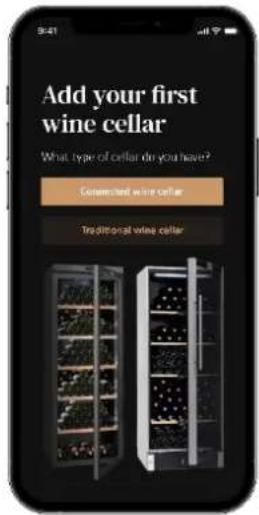
Add a cellar
text_image
Add your first wine cellar What type of cellar do you have? Connected wine cellar Traditional wine cellarYou now have a VINOTAG ^® account to add your first cellar or a new cellar (the application offers you the possibility of managing several cellars from a selection of models).
Warning ! Under no circumstances should you quit the application when adding a cellar.
- Adding a first cellar: the creation of your cellar is mandatory when creating your account, follow the different steps below.
- Adding a new cellar: you want to manage a new cellar from your application, go to the "profile" -> "my cellars" page and click on the "add a cellar" button; follow the different steps below.
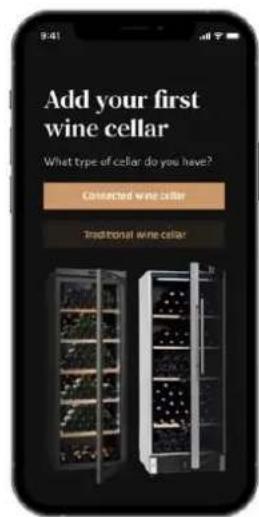
Add a « Connected wine cellar »
text_image
Add your first wine cellar What type of cellar do you have? Converted wine cellar Traditional wine cellar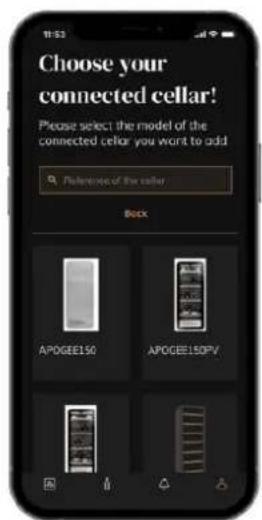
text_image
11:33 Choose your connected cellar! Please select the model of the connected cellar you want to add Options of the cellar Back APOGEE150 APOGEE15DPV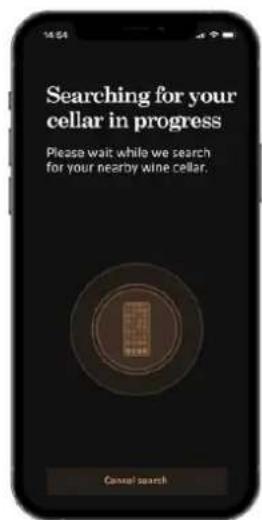
text_image
Searching for your cellar in progress Please wait while we search for your nearby wine cellar. Cancel search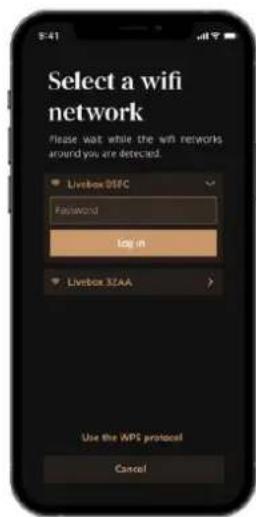
text_image
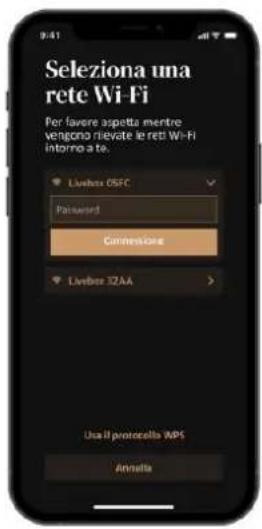
Select a wifi network Please wait while the wifi networks around you are detected. LivesBox 08FC Password log in LivesBox 32AA Use the WPS protocol Cancel- Define the type of cellar "connected cellar" or "not connected cellar". APOGEE models are part of the "connected cellar" category. Click on "connected cellar".
- The application asks you to activate Bluetooth; its activation is necessary to configure the cellar.
- Once your cellar is connected to Bluetooth, the application asks you to select a Wifi network. In the case of a Wi-Fi network, the password of the Wi-Fi router is requested. If the Wi-Fi connection fails, check the password and/or check the distance between your cellar and your Wi-Fi router. Too great a distance or too thick walls can block the connection. Bring the cellar closer to the Wi-Fi router to allow its connection or add a Wi-Fi repeater.
Managing my cellar
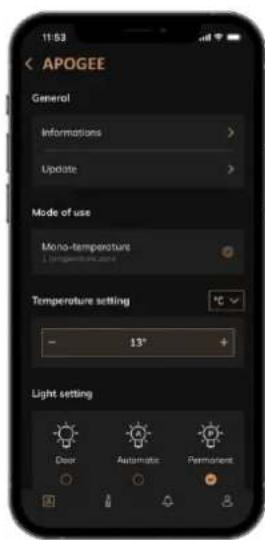
In the "Settings" mode you can control your cellar
- Adjust the temperature of your cellar
• Change measurement from Celsius to Fahrenheit - Choose a lighting mode
- Mute the audible alarm
- Reset the carbon filter when the
- change is needed
- Stop or start operation
- your cellar
- Reset the WiFi of your cellar
- Share your cellar
- Delete your cellar
text_image
11:53 APOGEE General Informations > Update > Mode of use Mono-temperature Temperature setting - 13° Light setting Clear Automatic Permanent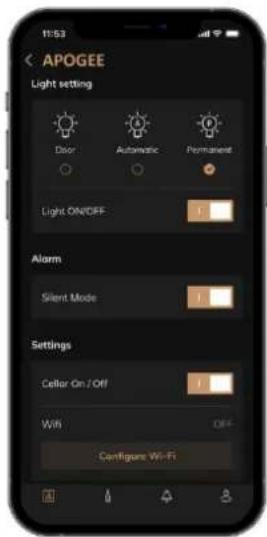
text_image
APOGEE Light setting Door Automatic Permanent Light ON/OFF Alarm Silent Mode Settings Cellar On / Off WIFI OFF- Configure Wi-Fi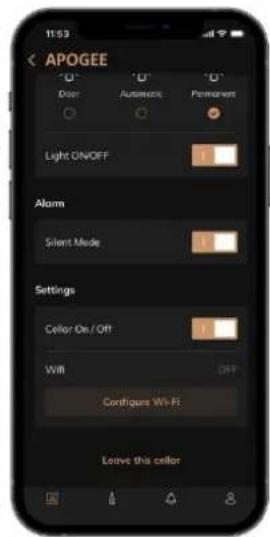
text_image
APOGEE 11:53 Door Automatic Permanent Light ON/OFF Alarm Silent Mode Settings Cellor On / Off Will Configure Wi-Fi Leave this cellorShare a cellar
As the owner of a cellar, you can invite other people to join your cellar. Consulting your cellar requires the guest to create a VINOTAG® account.
To invite someone:
- Go to your Cellar page and select the "Settings" icon at the top right
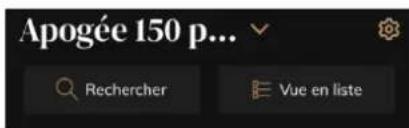
- At the bottom of the page select "Share my cellar"
- Then click on the "Create a code" button,
- You can transfer or communicate this code to the person(s) with whom you wish to share your cellar.
- You can create new access codes to share the contents of your cellar with other members.
When you share your cellar;
- The "Alerts" page tells you when a member has joined your cellar.
- You can remove this access at any time; in the "Share my cellar" tab the users with access are indicated, just click on the "trash can" icon next to the name of the member for whom you wish to remove access.
To access a cellar shared with you;
- When you are invited to join a cellar, go to the "my profile" page: "enter an invitation code". Enter the invitation code received and click on "join". You now have access to a shared cellar.
- You can leave a shared cellar at any time; select the cellar that you no longer wish to consult and click on the "Leave this cellar" button.
Delete a cellar
- You wish to delete one or more cellars.
- Go to the "my cellar" page
- The list of your cellars appears is accessible in the drop-down menu at the top left of the page
- Select the cellar you want to delete, go to "settings" located at the top right and select "Delete cellar".
- Repeat the operation on all the cellars you wish to delete.
Attention ! if the cellar has at least one bottle, a pop-up will appear asking you to confirm this action. Once the cellar is deleted, it is no longer possible to recover the related information.
Attention ! you cannot delete a cellar that does not belong to you. When a cellar is shared with you and therefore visible from the "my cellars" page; you can stop sharing. When you are not the owner, the "Delete" button is an "Exit" button. It allows you to leave the cellar. A pop-up appears to confirm the action.
Change the cellar configuration
You wish to modify the configuration of your cellar differently from its standard configuration. Go to your cabinet's "Settings" then Information/Shelves to delete or add shelves.
Add bottles
You have created your cellar in the VINOTAG® application; you can now add bottles.
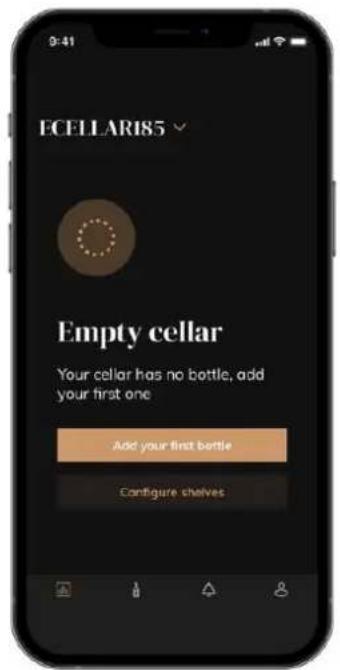
text_image
ECELLARI85 Empty cellar Your cellar has no bottle, add your first one Add your first bottle Configure shelvesCreate a cellar
text_image
ECELLAR185 9:41 Search List mode 3x 3x 0x 6x 1x 0x 7x 3x 0x 7x 0x 4x 9x 1x VINDIAG SHULF 1 SHULF 2 SHULF 3 SHULF 4List mode
- Click on "add my first bottle" in the case of a new cellar or "+" Take a picture of the label of the bottle you want to add to your cellar. A completed wine sheet appears; this sheet comes from the VIVINO® database. You can modify or complete this wine sheet.
Warning ! If the scanned bottle of wine is not available on the VIVINO® database or if you do not have a premium subscription, you will have to manually complete the wine sheet associated with your bottle. If you wish, it is possible not to take a photo of the label; in this case, you will not be able to access the VIVINO® database, so you will have to manually complete the wine sheet associated with your bottle.
When adding a bottle, you can complete / modify the associated wine sheet; enter a comment on the bottle of wine, save it as a favorite or give it a rating.
○ Wine name
○ Field
○ Appellation
○ Year
○ Country / region
○ Color
○ Quantity of bottles
- An "advanced" mode allows you to provide additional information such as;
○ Minimum guard (years)
○ Maximum guard (years)
○ Comment
- Switch to favorites
○ Rate the bottle (0 to 5)
○ Buying price
- Link to VIVINO® to find the complete sheet (Premium Option)
- Link to VIVINO® to buy this wine
The scanned bottle is not recognized: if the bottle is not recognized, the application offers to restart the scan, to manually search for the bottle (if no bottle corresponds to its search) or to fill manually the sheet.
It is mandatory to enter a minimum and maximum conservation time to receive peak date alerts. If the minimum and maximum conservation time fields are not completed, no peak date alert will be sent.
Once the bottles have been identified, the application allows you to keep a digital register of your wines. Report in your digital cellar the location of your real bottles to keep a register of your digital wines.
It is also possible to add a bottle via a wine file.
- Click on the button located at the bottom of the page "add one or more bottles"
- Enter the number of bottles to add.
- Place the bottle/s in your cellar on the desired location/s;
- Record these locations in VINOTAG®.
PLEASE NOTE: creating a VINOTAG® account allows you to benefit from "50 free scans". When adding a connected cellar, 50 scans are offered to you. These scans allow you to benefit from pre-completed wine sheets thanks to the VINOTAG® - VIVINO® partnership. In the event that all of the scans offered have been used; it is possible to continue to add bottles by manually completing their wine sheet or to subscribe to the premium option to benefit from a recharge of scans (refer to the paragraph "Premium account").
ESOMMELIER® function
When adding a bottle to a “connected cellar”; you can use the ESOMMELIER® function. This function recommends the ideal place to store your wine. When you scan a bottle, VINOTAG® identifies the type of wine; Depending on each type of wine, storage temperatures are recommended for optimal preservation.
Certain locations in your cellar are therefore more suitable depending on the type of wine.
The ESOMMELIER® function helps you keep your wine in the best conditions. By clicking on this button, the wine cellar offers you available slots suitable for the scanned bottle of wine; specific icons indicate these locations on the digital view of your cellar.
Premium account
VINOTAG ^® partners with VIVINO ^® to facilitate the user experience. When creating a VINOTAG ^® account, a number of "free scans" are offered.
These "free scans" refer to the act of taking a picture of a bottle to directly access a detailed wine sheet extracted from the VIVINO® database. Warning ! unrecognized bottles are compatibilized as a
“free scan” since the recognition request has been sent to VIVINO®. The photo capture must be of sufficient quality and sharpness for bottle recognition to be possible.
This wine sheet can be modified and saved directly in the digital version of your wine cellar, you no longer need to manually complete your wine sheet. A real time saver to fill your cellar and access a lot of information on your favorite wines.
In the event that all of the scans offered have been used; it is possible to continue to add bottles by manually completing their wine sheet or to subscribe to the premium option to benefit from a refill of scans. A pop-up alerts you when you have used up the “free scans”.
To switch to a premium account; the user must subscribe to the premium option which allows him to purchase scan refill.
- Refill 200 scans
- Refill 400 scans
- Refill 1000 scans
The “scans” purchased can be used without a time limit.
Subscription to the premium option and the pricing conditions are accessible via the VINOTAG® application in "my account" area by clicking on the "I become premium" button.
Remove bottles
You have created your cellar in the VINOTAG ^® application; you can now delete bottles from your cellar. The bottles will be kept in your vinotheque area.
When you consume a bottle you must delete its digital version in the application to keep an up-to-date wine register.
Consult a wine sheet
The consultation of wine sheets is accessible by your cellars or your wine library.
Consultation of wine sheet in my cellar - list mode or in my wine library
- Click on the bottle of your choice
- Consult the information related to your bottle
- For more details, you can go to the site of our partner Vivino by clicking on "See on Vivino"
Consultation of wine sheet in my cellar - graphic mode
- Click on the shelf of your choice
- Click on the bottle of your choice
- Consult the information related to your bottle
- For more details, you can go to the site of our partner Vivino by clicking on "See on Vivino"
Create peak date alerts
To create peak date alerts, it is mandatory to enter a minimum aging time (greater than 0) and a maximum aging time on the wine sheet. The conservation time is expressed in years. You will be sent an alert for the start and end of the peak date if your bottle has not been consumed. A wine from the year "X" with a minimum conservation time of 5 years and maximum of 10 years will alert you as follows:
- Year "X" + 5 years: Early peak date alert "Your bottle is ready to be tasted"
- Year "X" + 10 years: End of peak date alert "Your bottle is at the end of its peak date"
Create stock alerts
To better manage your cellar and your wines, VINOTAG® offers you to set up stock alerts:
- Via the view of your cellar on the application, click on the desired bottle to access the associated wine sheet
- Click on "schedule an alert"
- Indicate from how many bottles remaining you wish to receive a stock alert
- Click on validate. The stock alert is now activated.
To deactivate a stock alert, click on "modify alert"; decrease the number of desired bottles until "deactivate". Click on validate. The stock alert is now deactivated.
Visualize the location of your bottles in your cellar
• You are in sight of your cellar; Use the search icon located at the top left of your screen
- Indicate the name of the wine sought and / or domain and / or other information related to the bottle
- The wine file of the bottle sought is displayed
- Click on the button located at the bottom of the page "See my bottles" or on the "Position in the cellar" button located at the beginning of your wine file
6. CARE AND MAINTENANCE
Before cleaning your appliance (something that should be done regularly), disconnect it by removing the plug or by pulling the fuse on the circuit.
Before using your appliance for the first time and regularly after that, we recommend that you clean the inside and outside (front, side and top) with warm mixed with a gentle cleaning product. Rinse with clean water and allow drying before reconnecting. Do not use solvents or abrasives.
When the appliance is switched on for the first time, there may be a residual smell. In that case, runt the appliance empty for a few hours at the coldest possible temperature. The cold will kill any smell.
Automatic defrost
An automatic defrost is programmed on your cellar. There is no impact for wines stored in the cellar during the defrosting phase. During defrost; the compressor and the fans will be off.
Changing the carbon filter
Your wine cellar is equipped with a carbon filter, we advise you to replace it once a year. To replace it, all you have to do is pull it out from inside the cellar and replace it with a new filter.
If you go on vacation
- Short stays: let your cellar operate during your stay if it lasts less than 3 weeks.
- Long stays: if your device is not to be used for several months, remove all bottles and accessories, turn off and unplug the device from the power outlet. Clean and dry the inside and outside of the appliance thoroughly. Also leave the door open, blocking it if necessary, to prevent the formation of condensate, odors and mold.
If you need to move your wine cellar
- Unplug your cellar before any operation.
- Remove all bottles from the cellar and secure the moving parts.
• To avoid damaging the leg leveling screws, screw them all the way into their base. - Close the door completely.
- Move the device to a vertical position preferably or note from the inscriptions on the packaging, the direction in which the device can be laid. Also protect your device with a blanket or similar cloth.
7. IN THE EVENT OF A BREAKDOWN
Despite the care we take during production, a breakdown can never be totally excluded. Before contacting your retailer's after-sales department, please check that:
The appliance is properly plugged in
There is not a power cut in progress
The breakdown is not one of those described in the table at the end of this manual
IMPORTANT: if the power cable supplied is damaged, it must be replaced by the manufacturer, a service centre approved by the brand or the retailer. In all events, it must be replaced by qualified personnel in order to avoid any risk of injury.
IF THESE CHECKS REVEAL NOTHING, THEN CONTACT YOUR RETAILER'S AFTER-SALES DEPARTMENT.
CAUTION!
Unplug the appliance before carrying out any maintenance or repair work.
8. TROUBLE SHOOTING
Many problems can be solved easily, saving you the cost of a phone call to service. Try to resolve your problem by following the suggestions below before calling for service.
TROUBLESHOOTING SOLUTION GUIDE
| PROBLEM | POSSIBLE CAUSE |
| The cellar is not working | The device is not plugged in.The device is turned off.The circuit breaker has tripped or a fuse has blown. |
| The wine cellar is not cold enough | Check the set temperature.The outdoor environment may require a higher setting.The door is opened too frequently.The door is not closed properly.The door seal does not adhere completely. |
| The device turns on and off frequently | The ambient temperature is higher than normal.Many bottles have been added to the wine cellar.The door is opened too frequently.The door is not closed properly.The temperature is not set correctly.The door seal does not adhere completely. |
| Interior lighting does not work | The device is not plugged in.The circuit breaker has tripped or a fuse has blown.The indicator light is off.The lighting activation key is OFF |
| Vibrations | Check and make sure the cellar is level. |
| The wine cellar seems to make too much noise | The "clicking" noise may come from flowing refrigerant, which is normal.At the end of each cooling cycle you may hear "gurgling" noises due to the flow of refrigerant in your wine cellar.The contraction and expansion of the internal walls can cause popping and crackling noises.The wine cellar is not level.In "mono" mode the cellar fans are activated to circulate the air flow inside the cellar. |
| The door does not close properly | The wine cellar is not level.The gasket is dirty or damaged.Some of the contents prevent the door from closingThe door hinges are looseThe shelves are not in their place. |
| The label of the wine I am photographing is not recognized by the application | The photo taken via the application must be of good quality (not blurred),the photo must be taken so that the wine label fills the white frame of the application. If that still doesn't work, try taking a close-up photo of just the name of the wine. |
Error codes
The following error codes may appear on your screen or in your Vinotag application.
HH/ LL/ E1/ E2/ E3/ E4
In this case, stop and unplug your appliance and contact your dealer's After-Sales Service and tell them the code displayed on the screen.
If any other code is displayed on your screen, please also contact the after-sales service and provide them with the code displayed.
9. ENVIRONNMENT
This appliance is marked according to the European directive 2019/290/EU on Waste Electrical and Electronic Equipment (WEEE). By ensuring this product is disposed of correctly, you will help prevent potential negative consequences for the environment and human health, which could otherwise be caused by inappropriate waste handling of this product.
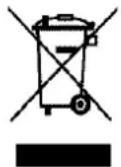
The symbol on the product, or on the documents accompanying the product, the Crossed Out Wheelie Bin, indicates that this appliance may not be treated as household waste. Instead it shall be handed over to the applicable collection point for the recycling of electrical and electronic equipment, or, if you are buying an equivalent product, to the retailer of the new product.
The user is responsible for taking the appliance to the appropriate collection center at the end of its useful life. Selective and appropriate collection for the recycling of no longer used appliances and their disposal and destruction in an environmentally friendly manner, helps to prevent potential negative effects on the environment and health, and encourages the recycling of materials used to make the product.
During disposal, or in the context of a resale, the user's personal data is protected, without action on his part. These data are not saved in the cellar but on an external server. No information transmitted during normal use of the cellar can be used after its disposal.
In the context of a resale of the device, the new user must scan the QR code of the master unit and follow the mandatory pairing procedure. This procedure overwrites data previously stored on the server. The new user will thus have a blank account. The former user will no longer be able to access or view their old information from the Vinotag application.
For more detailed information about treatment, recovery and recycling of this product, please contact your local authority, your household waste disposal service or the retailer where you purchased the product.
10. WARNING
As we continuously improve our products for the benefit of our customers, we reserve the right to modify technical characteristics without notice.
Warranties for LA SOMMELIERE brand products are offered exclusively by selected retailers. No part of these instructions may be considered as a supplementary guarantee.
FRIO ENTREPRISE cannot be held liable for errors or technical or editorial omissions in this document. Non-binding document.
text_image
Warning sign depicting a flame symbol with hazard symbol inside a yellow triangletext_image
S N O P Q R 12°C A B C G H I J K L D E Ftext_image
S T N O P Q R 05 20 A B C G H I J K L D E Ftext_image
Grid of six icons representing weather, Wi-Fi, alarm, refresh, demo, and temperature symbolsnatural_image
Four simple line icons on a dark background: a group icon, a bottle, a bell, and a person silhouette (no text or symbols)text_image
Mingli 1 Chinese Litter Sugar Minder 2008 Chinese Litter Sugar Minder 2008 Chinese Litter Sugar Minder 2008 Chinese Litter Sugar Minder 2008 Chinese Litter Sugar Minder 2008 Chinese Litter Sugar Minder 2008 Chinese Litter Sugar Minder 2008 Chinese Litter Sugar Minder 2008 Chinese Litter Sugar MinderGrafik-Modus:
text_image
1163 Choose your connected cellar! Please select the model of the connected cellar you want to add Reference of the cellar Back AP00EE150 AP00EE150PV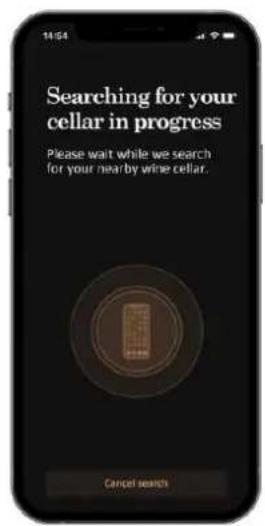
text_image
14:04 Searching for your cellar in progress Please wait while we search for your near by wine cellar. Cancel searches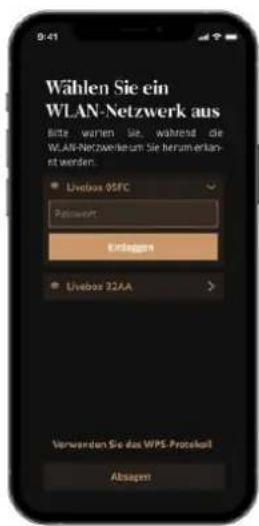
text_image
11:53 APOGEE General Informations > Update > Mode of use Mono-temperature Temperature setting - 13° + Light setting Door Automatic Permanent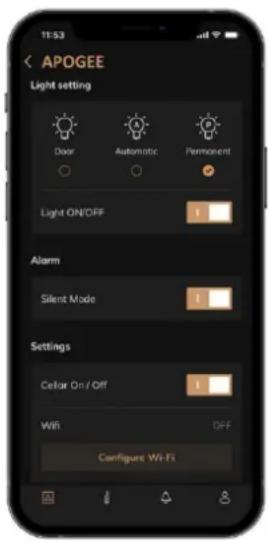
text_image
11:53 APOGEE Light setting Door Automatic Permanent Light ON/OFF Alarm Silent Mode Settings Cellar On / Off WIR OFF Configure Wi-Fi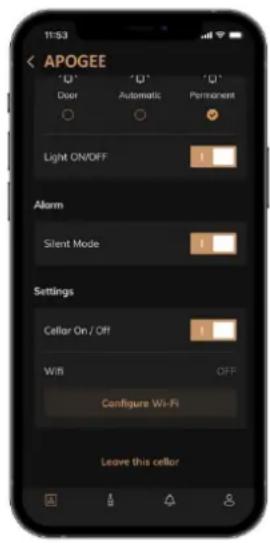
text_image
APOGEE Door Automatic Permanent Light ON/OFF Alarm Silent Mode Settings Cellar On / Off WIS OFF Configure Wi-Fi Leave this cellartext_image
Warning sign depicting a flame symbol with hazard symbol, commonly used in safety or hazard prevention.
text_image
S N O P Q R 12°C A B C G H I J K L D E Ftext_image
S T N O P Q R 05 20 A B C G H I J K L D E Ftext_image
Grid of six icons representing weather, Wi-Fi, alarm, refresh, demo, and temperature symbolsnatural_image
Four simple icons on a dark background: a group photo, a bottle, a bell, and a person silhouette (no text or symbols)text_image
YCELLARIAS Forschers Lahreschaff 3h 2h 1h 0h A B C D E F G H I J K L M N O P Q R S T U V W X Y Z 3h 2h 1h 0h A B C D E F G H I J K L M N O P Q R S T U V W X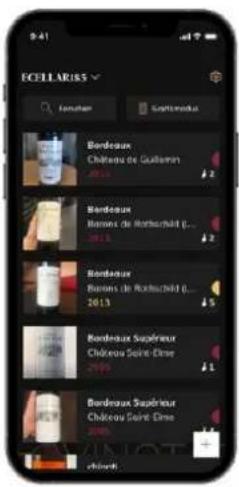
text_image
ECELLARIS Bordeaux Château de Guillenn 2013 Bordeaux Ramares de Rattachard 2013 Bordeaux Ramares de Rattachard 2013 Bordeaux Supérieur Château Saint-Elmes 2013 Bordeaux Supérieur Château Saint-Elmes 2013Pagina "WAARSCHUWINGEN"
text_image
Choose your connected cellar! Please select the model of the connected cellar you want to add Reference of the cellar Back APOGEE 150 APOGEE 150PY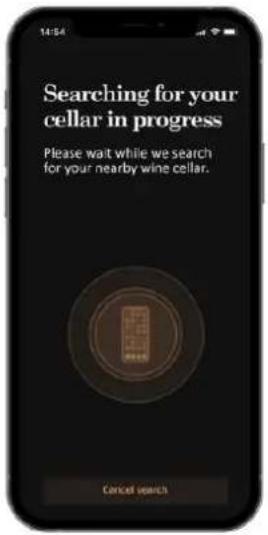
text_image
Searching for your cellar in progress Please wait while we search for your nearby wine cellar. Cancel search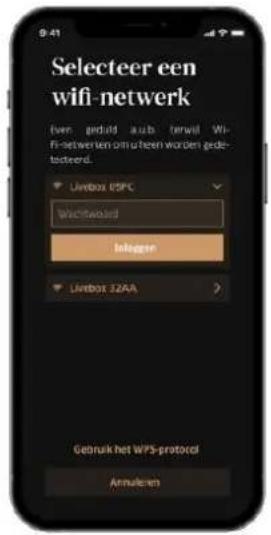
text_image
Warning sign depicting a flame symbol in a yellow triangle with black bordertext_image
S N O P Q R 12°C A B C G H I J K L D E Ftext_image
S T N O P Q R 05 20 A B C G H I J K L D E Ftext_image
Grid of six icons representing smart home control and monitoring symbols: lightbulb, Wi-Fi, bell, refresh, demo, and °C/F.natural_image
Four simple icons on a dark background: a group photo, a bottle, a bell, and a person silhouette (no text or symbols)Mi vinoteca
Mis vinos
Alertas
Perfil
text_image
Choose your connected cellar! Please select the model of the connected cellar you want to add Preference of the cellar Back APOGEE150 APOGEE150*V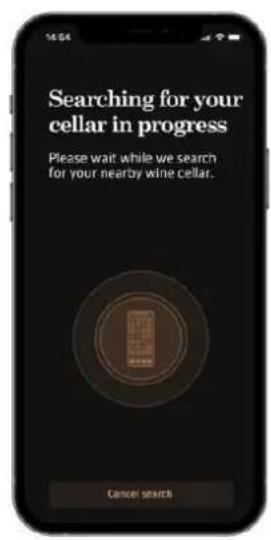
text_image
Searching for your cellar in progress Please wait while we search for your nearby wine cellar. Cancel search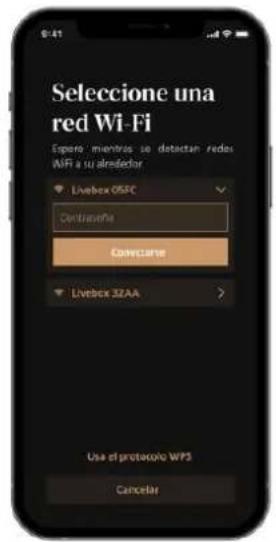
text_image
Warning sign depicting a flame symbol with hazard symbol, commonly used in safety or hazard prevention.text_image
S N O P Q R 12°C A B C G H I J K L D E Ftext_image
S T N O P Q R 05 20 A B C G H I J K L D E Ftext_image
Grid of six icons representing weather, Wi-Fi, alarm, refresh, demo, and C/F symbolsnatural_image
Four simple icons on a dark background: three square icons, two bottle and bell, and one person silhouette (no text or symbols)La mia cantina
I miei vini
Allerte
Profilo
text_image
Choose your connected cellar! Please select the model of the connected cellar you want to add Reference of the cellar Bank APOGEE150 APOGEE150PV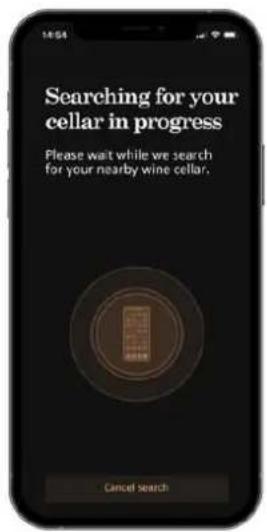
text_image
Searching for your cellar in progress Please wait while we search for your nearby wine cellar. Cancel search