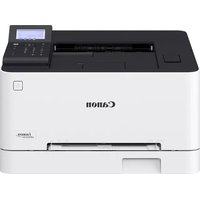
i-SENSYS LBP633Cdw - Printer CANON - Free user manual and instructions
Find the device manual for free i-SENSYS LBP633Cdw CANON in PDF.



User questions about i-SENSYS LBP633Cdw CANON
0 question about this device. Answer the ones you know or ask your own.
Ask a new question about this device
Download the instructions for your Printer in PDF format for free! Find your manual i-SENSYS LBP633Cdw - CANON and take your electronic device back in hand. On this page are published all the documents necessary for the use of your device. i-SENSYS LBP633Cdw by CANON.
USER MANUAL i-SENSYS LBP633Cdw CANON
• After you finish reading this guide, store it in a safe place for future reference.
- The information in this guide is subject to change without notice.
1 Important Safety Instructions Be sure to read these instructions before using the machine.
2 Setup Guide (this document)
3 User's Guide / FAQ
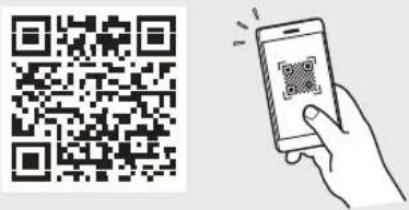
text_image
QR code with a hand holding a smartphone displaying a QR code, likely for mobile payment or scanning.https://oip.manual.canon/
Unless otherwise stated, illustrations used in this document are for the LBP633Cdw.
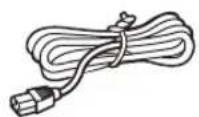
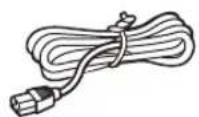
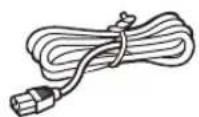
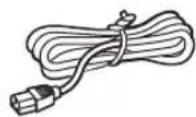
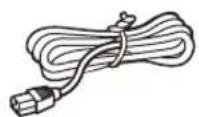
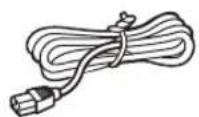
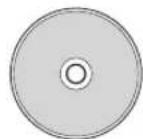
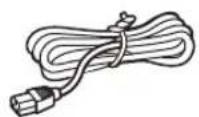
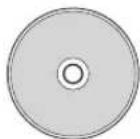
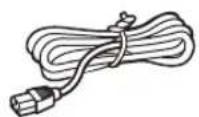
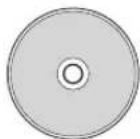
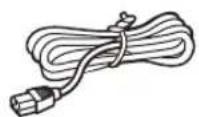
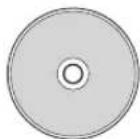
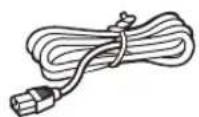
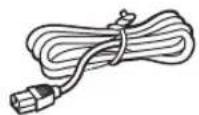
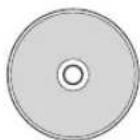
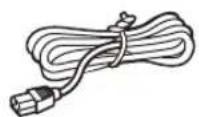
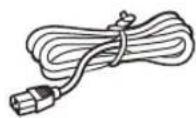
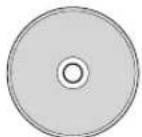
1 Checking the Items Included
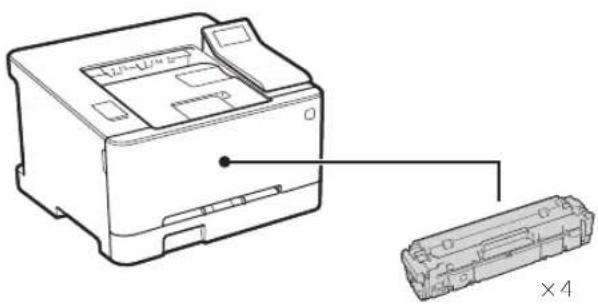
natural_image
Technical line drawing of a printer with a close-up view of its internal structure (no text or symbols)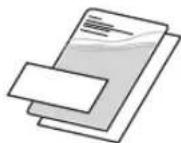
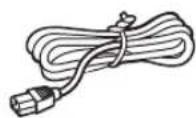
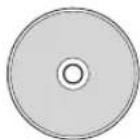
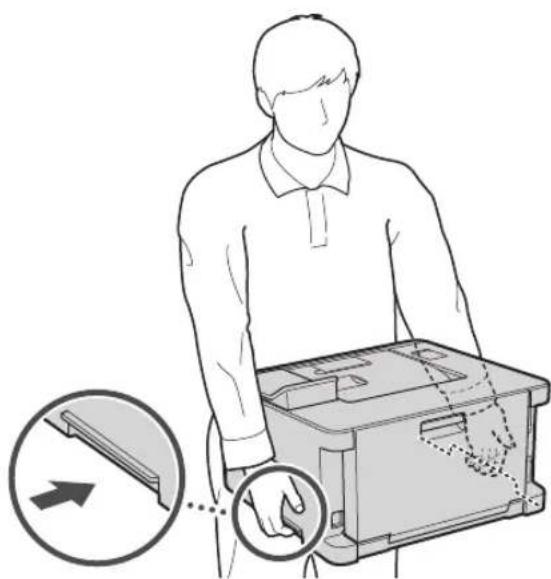
2 Removing the Packing Material
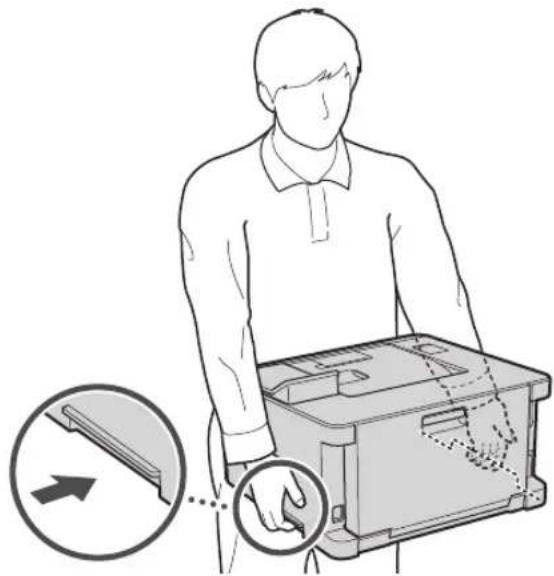
- Install the machine in the location where it will be used.
natural_image
Illustration of a person handling a device with a magnified inset showing the hand interacting with a device (no text or symbols present)- Remove all packing material.
Remove all of the tape.

Do not remove the sticker that covers the USB port until you actually use the USB port.
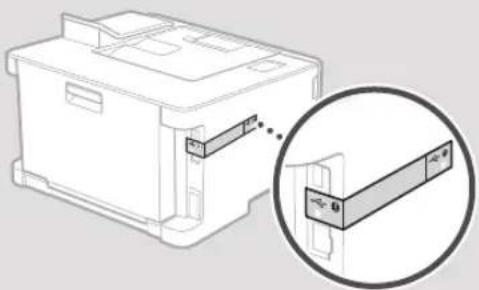
natural_image
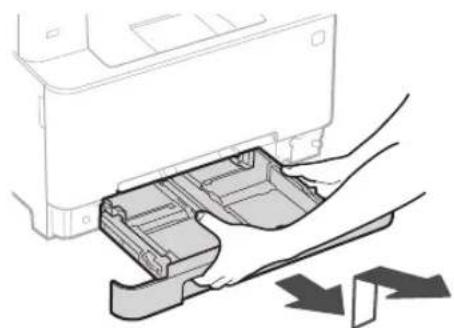
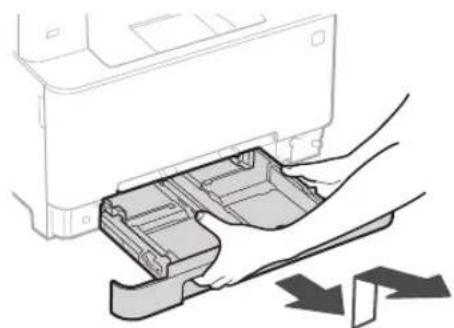
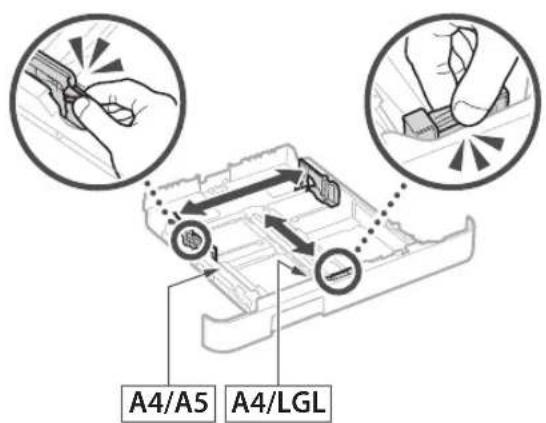
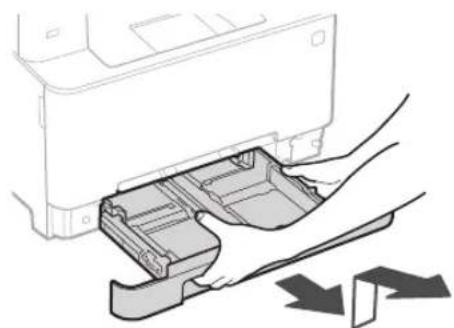
Technical line drawing of a printer with an inset close-up showing internal components (no text or symbols)3 Loading Paper
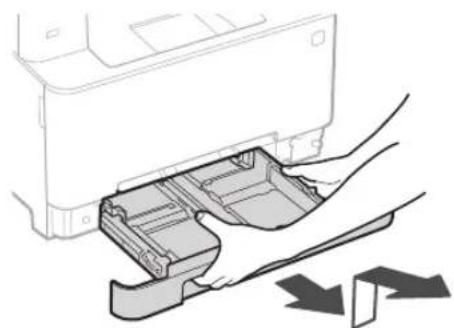
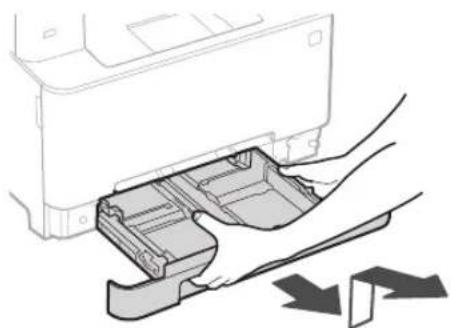
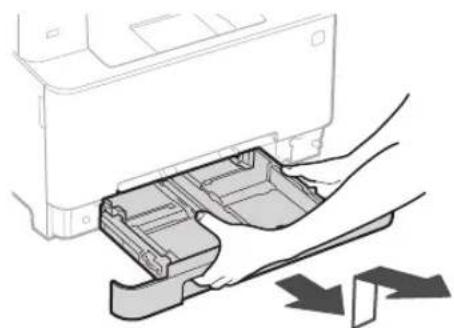
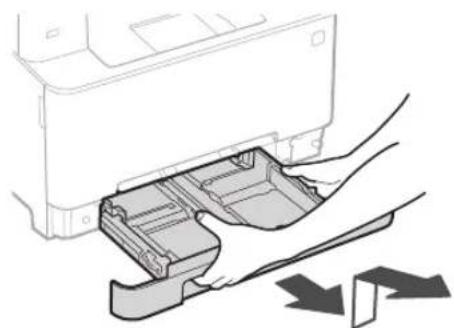
1.
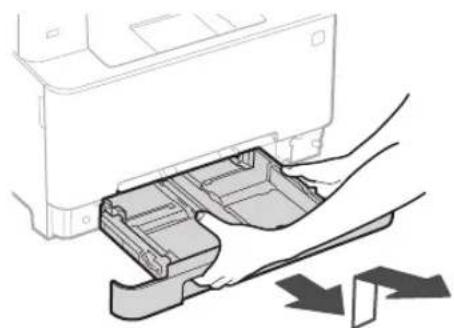
natural_image
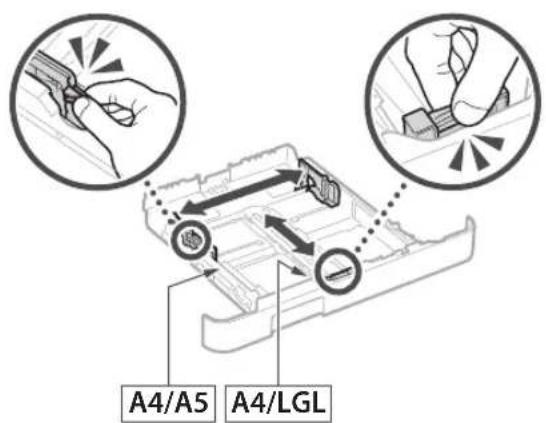
Illustration of a printer's internal structure being inserted into a plastic holder, with no visible text or symbols.2.
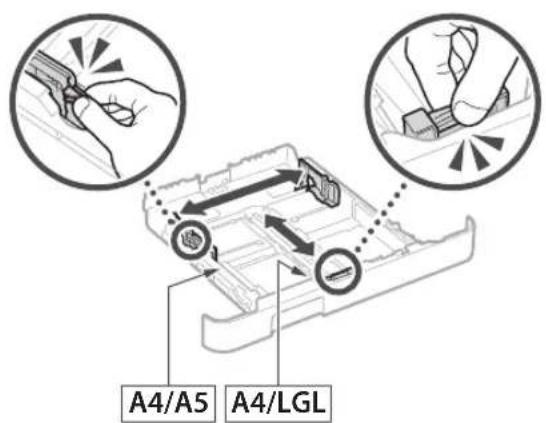
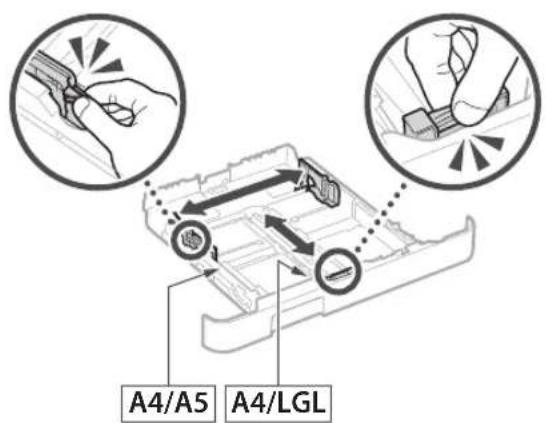
text_image
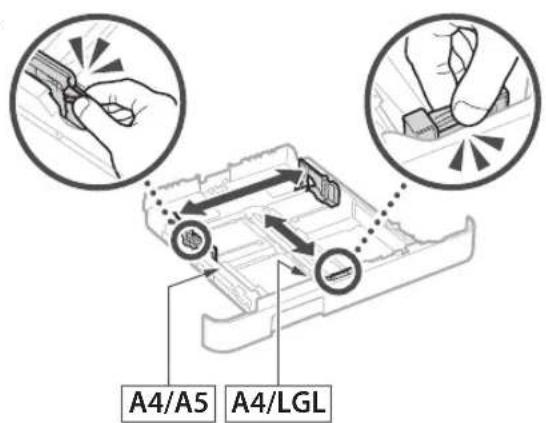
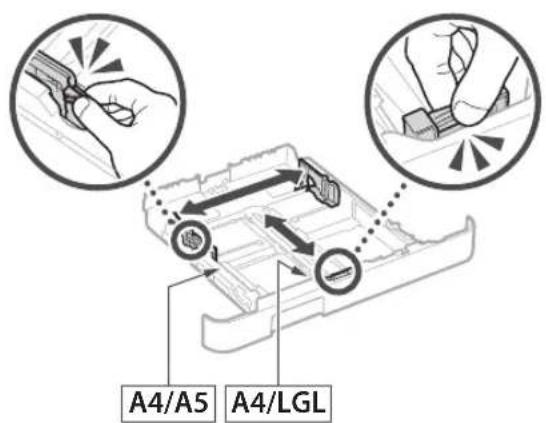
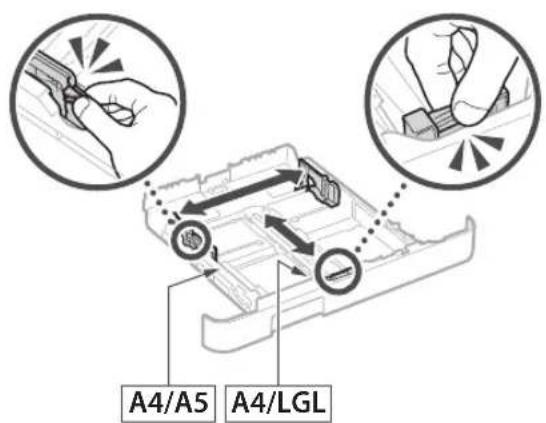
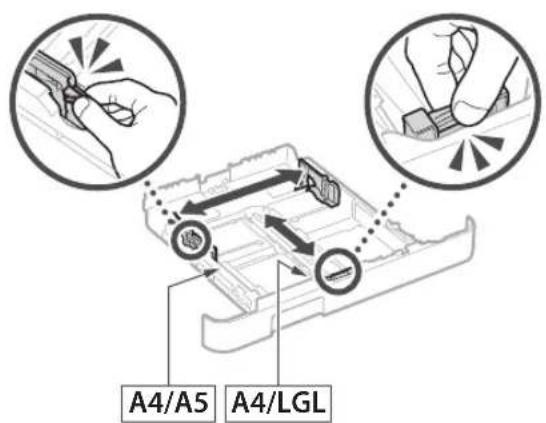
A4/A5 A4/LGL3.
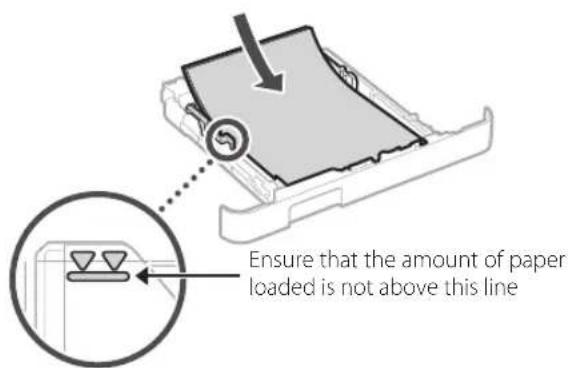
text_image
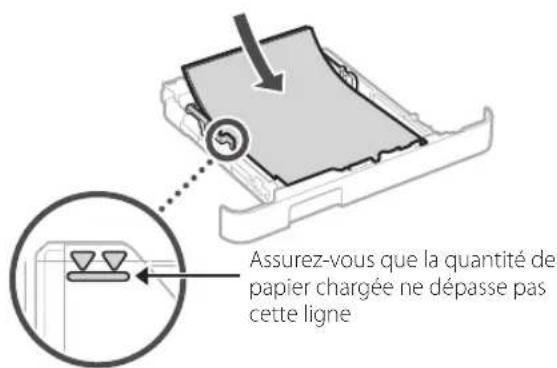
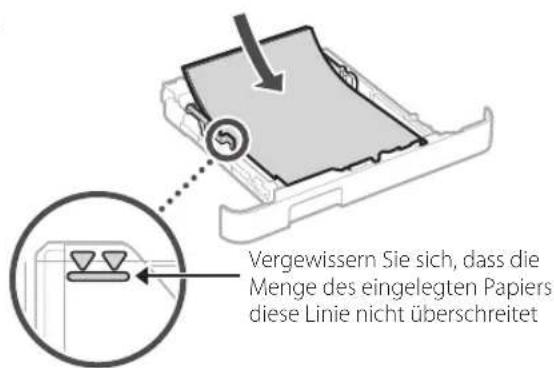
Ensure that the amount of paper loaded is not above this line4.
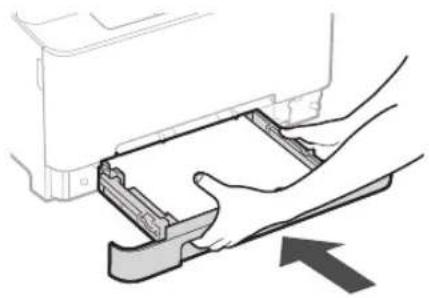
natural_image
Illustration of hands inserting a device into a printer (no text or symbols visible)4 Connecting the Power Cord
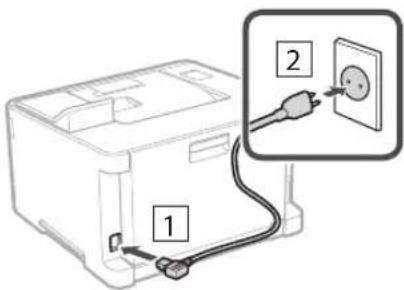
text_image
Diagram showing a device with labeled components and an electrical outlet, including parts 1 and 2.5 Specifying the Basic Settings
When you turn on the machine for the first time, the Setup Guide appears on the operation panel. Perform the initial machine setup by following the on-screen instructions.
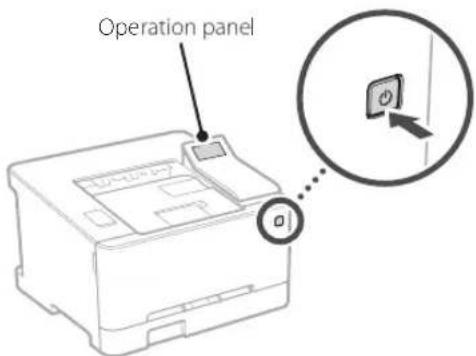
text_image
Operation panel-
Select the language, then the country/region and finally the time zone.
-
Set the current date/time.
6 Specifying the Security Settings
Specify the basic security settings to prevent unauthorized access to the machine.
- To use the Remote UI, select
.
To continue without using the Remote UI, select
-
Check the explanation for using General User mode and press OK
-
To use General User mode, select
. -
Set the PIN to be used by general users to access the Remote UI.
-
To continue without using General User mode, select
and proceed to step 7. -
Set the Remote UI Access PIN.
-
Enter any number and then select
. - Re-enter the same PIN on the next screen as confirmation and select
.
7 Specifying the Network Settings
Specify the settings for connecting the machine to a network. Before proceeding, check that the computer and router are correctly connected to the network.
Wireless LAN
- Check the router's "SSID" and "Network key."
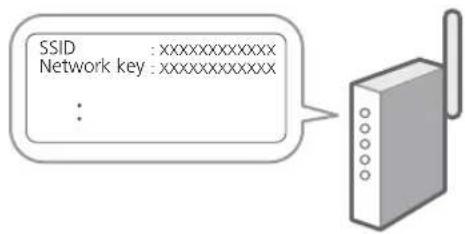
text_image
SSID :xxxxxxxxxxxx Network key :xxxxxxxxxxxx :- To configure the settings, select
on the operation panel. - Select the network with a matching SSID.
- Enter the password (network key) and select
. - Select
to connect using the selected settings.
Selectto return to the previous screen.
Wired LAN
Connect the router to the machine with a LAN cable and then select
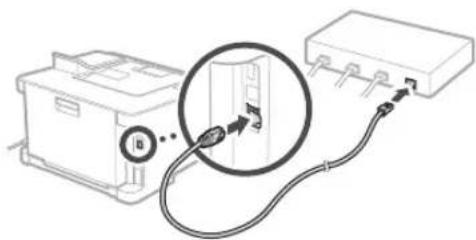
natural_image
Diagram showing a device connected to a rectangular electronic component via cable, with a magnified inset highlighting a detail (no text or symbols present)8 Installing the Software/Drivers
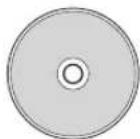
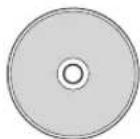
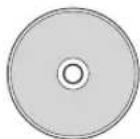
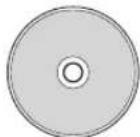
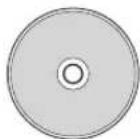
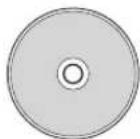
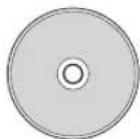
Install the software and drivers from the CD/DVD-ROM included, or visit the URL below and download them from the Canon website for your country/region. https://global.canon/en/support/
XXXXXXXX download

Example: LBP633Cdw download
Canon
LBP633Cdw
LBP631Cw
Guide de configuration
natural_image
Technical line drawing of a printer case with an attached close-up view (no text or symbols)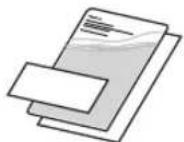
natural_image
Illustration of a person handling a device with a magnified inset showing hand positioning (no text or symbols)natural_image
Technical line drawing of a printer with a magnified inset showing internal components (no text or symbols)natural_image
Illustration of a printer's internal structure being inserted into a paper holder, with no visible text or symbols.2.
text_image
A4/A5 A4/LGL3.
natural_image
Illustration of hands inserting a device into a printer (no text or symbols visible)text_image
Diagram showing a device with labeled components and an electrical outlet, including parts numbered 1 and 2.5 Réglages de base
text_image
Diagram showing connection between a battery pack and an electronic device with a magnified cable and labeled connector (b)natural_image
Technical line drawing of a printer case with an attached close-up view (no text or symbols)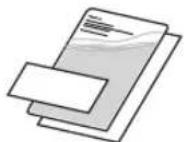
natural_image
Illustration of a person handling a device with an arrow indicating left-hand rule (no text or symbols present)natural_image
Technical line drawing of a printer with an inset close-up showing the internal structure (no text or symbols)natural_image
Illustration of a hand inserting a plastic into a device component (no text or symbols visible)2.
text_image
A4/A5 A4/LGL3.
natural_image
Illustration of hands inserting a device into a printer (no text or symbols visible)text_image
Diagram showing a device with labeled components and an electrical outlet, including parts numbered 1 and 2.natural_image
Diagram showing a device connected to a rectangular electronic component via a cable, with no visible text or symbols.natural_image
Technical line drawing of a printer with a close-up view of its internal structure (no text or symbols)
natural_image
Illustration of a person handling a device with a magnified inset showing hand placement (no text or symbols)natural_image
Technical line drawing of a printer with an inset close-up showing internal components (no text or symbols)3 Caricamento carta
1.

natural_image
Illustration of a printer's internal structure being inserted into a paper holder, with no visible text or symbols.2.
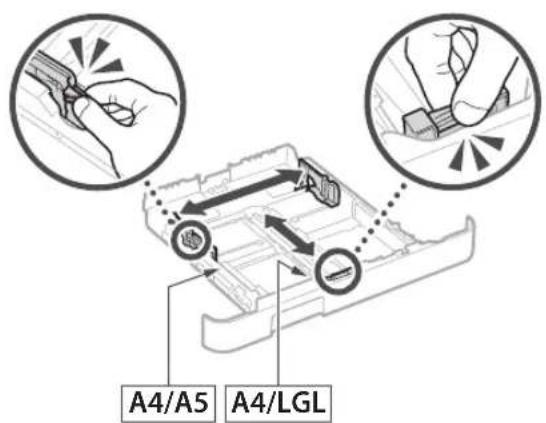
text_image
A4/A5 A4/LGL3.
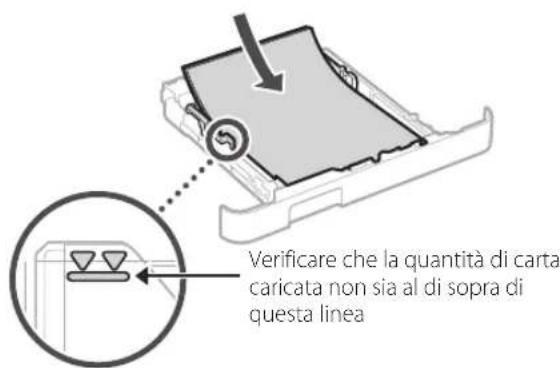
natural_image
Illustration of hands inserting a device into a printer (no text or symbols visible)4
text_image
Diagram showing a device with labeled components and an electrical outlet, including parts 1 and 2.5
natural_image
Diagram showing a device connected to a terminal block via cable, with a magnified inset highlighting a component detail (no text or symbols present)natural_image
Technical line drawing of a printer with an attached case and part number 4 (no text or symbols present)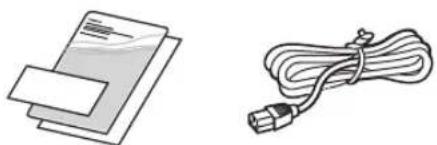
natural_image
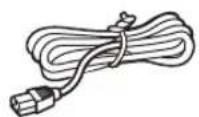
Illustration of two electronic components: a stack of documents and a cord with a plug (no text or symbols)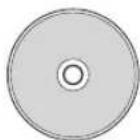
natural_image
Illustration of a person handling a device with a magnified inset showing hand positioning (no text or symbols)natural_image
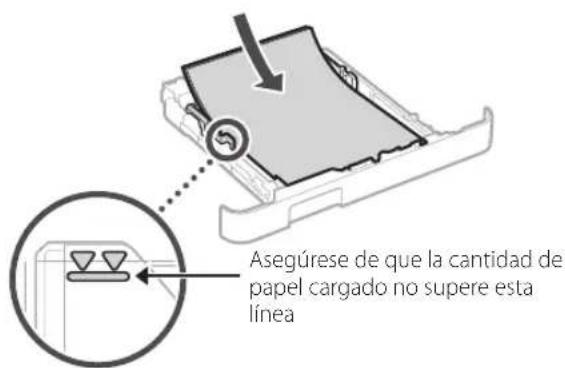
Technical line drawing of a mechanical component with an inset magnified view showing internal structure (no text or symbols)3 Cargar papel
1.
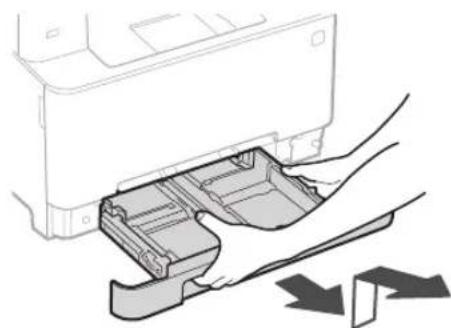
natural_image
Illustration of hands inserting a plastic into a printer case, with no visible text or symbols2.
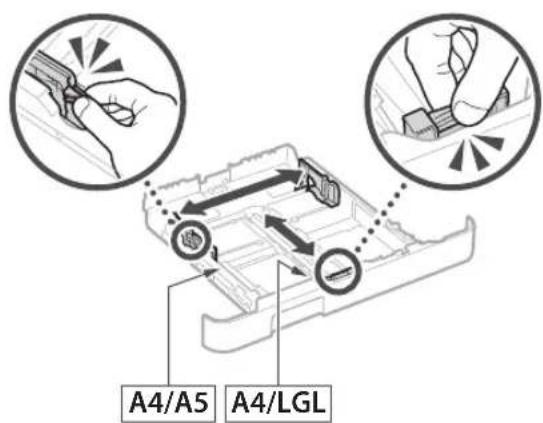
text_image
A4/A5 A4/LGL3.
natural_image
Illustration of hands inserting a device into a printer (no text or symbols visible)text_image
Diagram showing a device with labeled components and an electrical outlet, including parts numbered 1 and 2.natural_image
Diagram showing a device connected to an electronic component via a cable, with a magnified inset highlighting a detail (no text or symbols present)text_image
QR code with a hand holding a smartphone displaying a QR code, likely for mobile payment or scanning.https://oip.manual.canon/
natural_image
Technical line drawing of a printer with an attached case and part number 4 (no text or symbols present)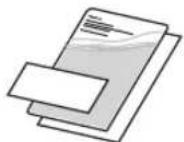
natural_image
Illustration of a person handling a device with an arrow indicating left-hand rule (no text or symbols present)natural_image
Technical line drawing of a printer with an inset close-up showing internal components (no text or symbols)3 Càrrega de paper
1.
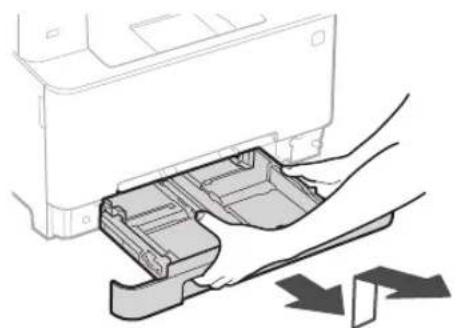
natural_image
Illustration of a printer's internal structure with hands inserting a clip into the case (no text or symbols)2.
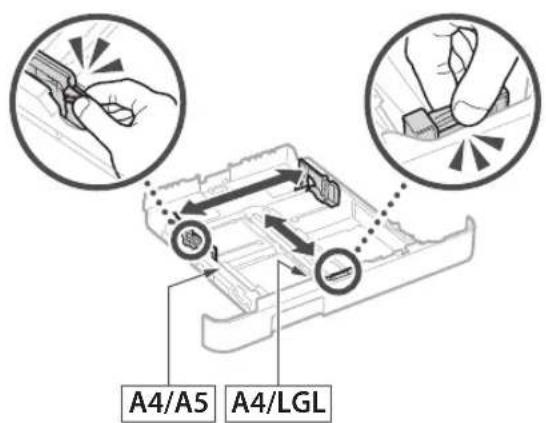
text_image
A4/A5 A4/LGL3.
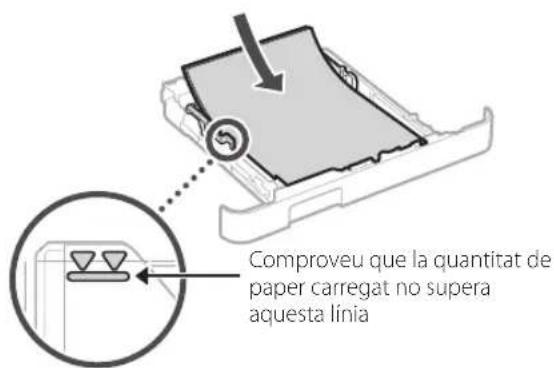
natural_image
Illustration of hands inserting a device into a printer (no text or symbols visible)4
text_image
Diagram showing a device with labeled components and an electrical outlet, including parts 1 and 2.5
natural_image
Diagram showing a device connected to an electronic component via a cable, with a magnified inset highlighting a detail (no text or symbols present)natural_image
Technical line drawing of a printer with an attached case (no text or symbols)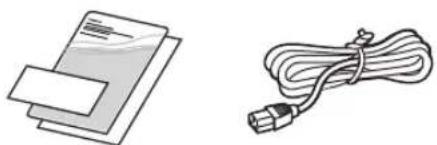
natural_image
Illustration of two electronic components: a stack of documents and a cord with a plug (no text or symbols)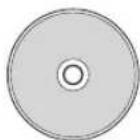
natural_image
Illustration of a person handling a device with an arrow indicating left-hand rule (no text or symbols present)natural_image
Technical line drawing of a printer with an inset close-up showing internal components (no text or symbols)3 Papera kargatzea
1.
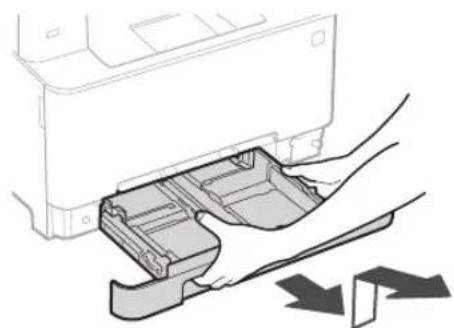
natural_image
Illustration of a printer's internal structure being inserted into a plastic holder, with no visible text or symbols.2.
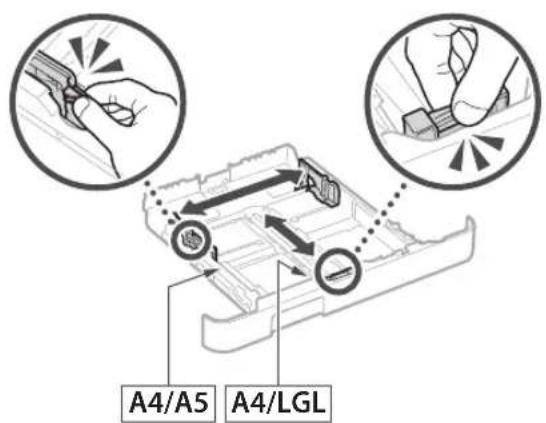
text_image
A4/A5 A4/LGL3.
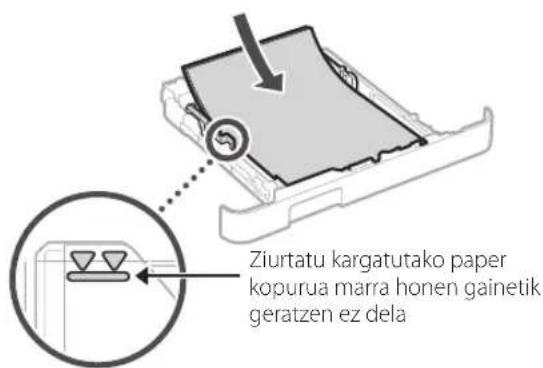
natural_image
Illustration of hands inserting a device into a printer (no text or symbols visible)text_image
Diagram showing a device with labeled components and an electrical outlet, including parts numbered 1 and 2.text_image
Operazio panelanatural_image
Diagram showing a device connected to a terminal block via cable, with a magnified inset highlighting a cable connection (no text or symbols present)natural_image
Illustration of a printer with an attached case and connected to a CD, showing components like paper, cable, and a separate CD (no text or symbols present)natural_image
Illustration of a person handling a device with a magnified inset showing hand positioning (no text or symbols)natural_image
Technical line drawing of a printer with a magnified inset showing internal components (no text or symbols)3 Colocar papel
1.
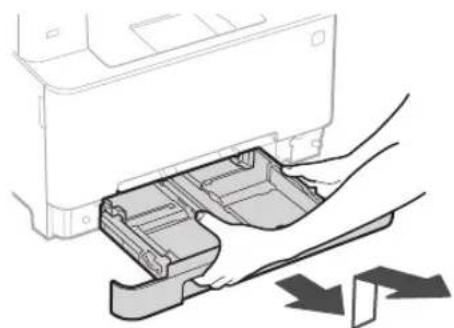
natural_image
Illustration of a printer's internal structure being inserted into a plastic tray, with no visible text or symbols.2.
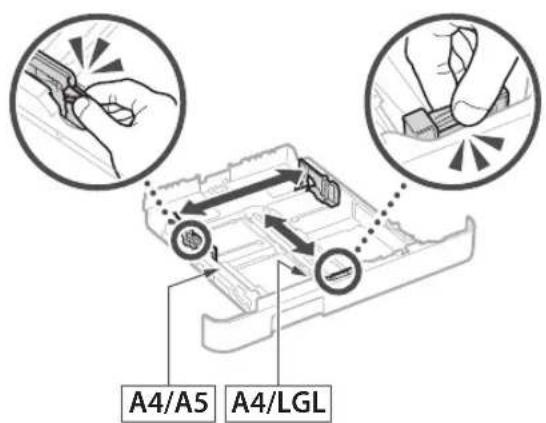
text_image
A4/A5 A4/LGL3.
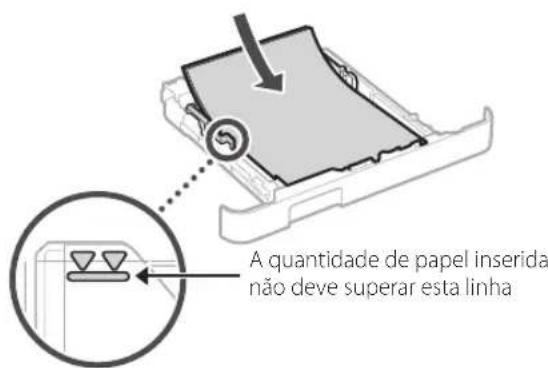
natural_image
Illustration of hands inserting a device into a printer (no text or symbols visible)text_image
Diagram showing a device with labeled components and an electrical outlet, including parts numbered 1 and 2.natural_image
Diagram showing a device connected to an electronic component via cable, with a magnified inset highlighting a detail (no text or symbols present)natural_image
Line drawing of a printer with an attached case and a cross-sectional view (no text or symbols)
natural_image
Illustration of a person handling a device with a magnified inset showing hand positioning (no text or symbols)natural_image
Technical line drawing of a mechanical device with an inset close-up showing a component detail (no text or symbols)natural_image
Illustration of a printer's internal compartment being inserted into a plastic holder, with no visible text or symbols.2.
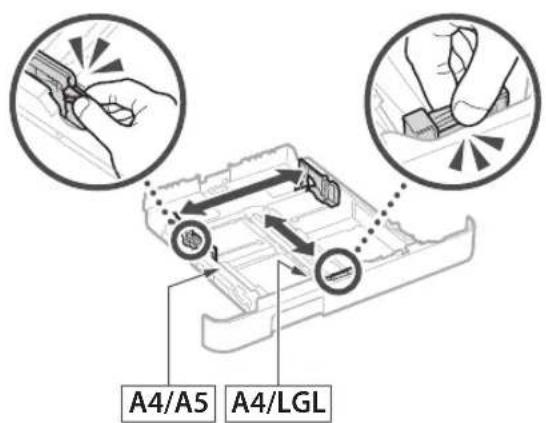
text_image
A4/A5 A4/LGL3.
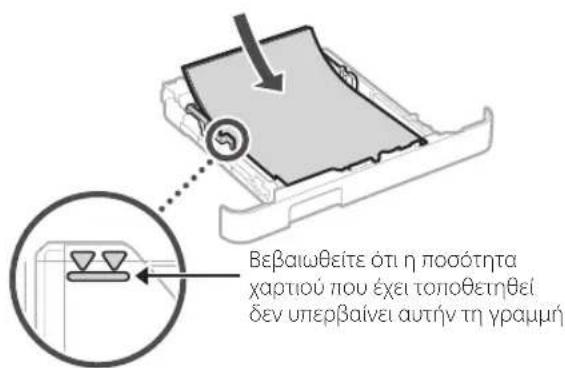
natural_image
Illustration of hands inserting a device into a printer (no text or symbols visible)text_image
Diagram showing a device with labeled components and an electrical outlet, including parts numbered 1 and 2.natural_image
Diagram showing a device connected to a rectangular electronic component via cable, with a magnified inset highlighting a connection point (no text or symbols present)natural_image
Technical line drawing of a printer case with an attached close-up view (no text or symbols)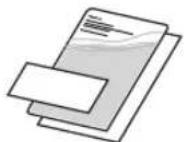
2 Fjernelse af emballagematerialer
natural_image
Illustration of a person handling a device with a magnified inset showing hand positioning (no text or symbols)- Fjern alle emballagematerialer.
Fjern al tape.

natural_image
Technical line drawing of a printer with an inset close-up showing internal components (no text or symbols)3 Ilægning af papir
1.
natural_image
Illustration of hands inserting a plastic into a printer case (no text or symbols visible)2.
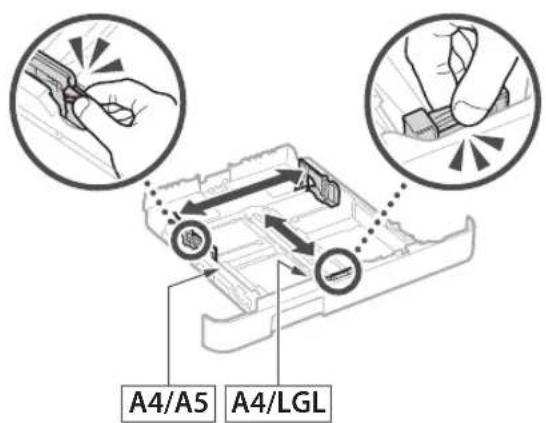
text_image
A4/A5 A4/LGL3.
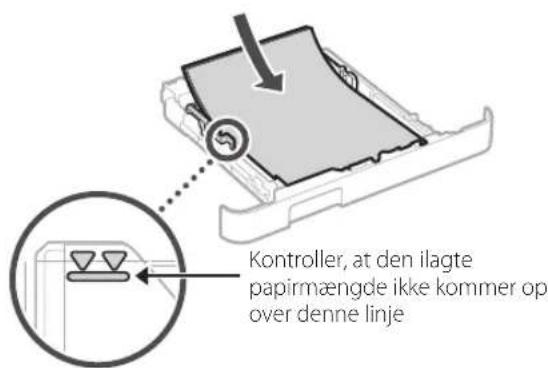
natural_image
Illustration of hands inserting a device into a printer (no text or symbols visible)4
text_image
Diagram showing a device with labeled components and an electrical outlet, including parts numbered 1 and 2.5
natural_image
Diagram showing a device connected to a rectangular electronic component via a cable, with an inset magnified view highlighting a connection point (no text or symbols present)8 Installation af software/ drivere
Installer software og drivere fra den medfølgende cd/dvd-rom, eller besøg nedenstående URL og download dem fra Canons websted for dit land/region. https://global.canon/en/support/
XXXXXXXX download

Eksempel: LBP633Cdw download
Canon
LBP633Cdw
LBP631Cw
natural_image
Technical line drawing of a printer with a close-up view of its internal structure (no text or symbols)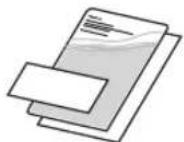
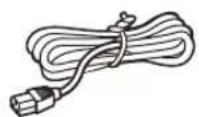
natural_image
Illustration of a person handling a device with a magnified inset showing hand positioning (no text or symbols)natural_image
Technical line drawing of a mechanical device with an inset close-up showing a component detail (no text or symbols)3 Papier laden
1.
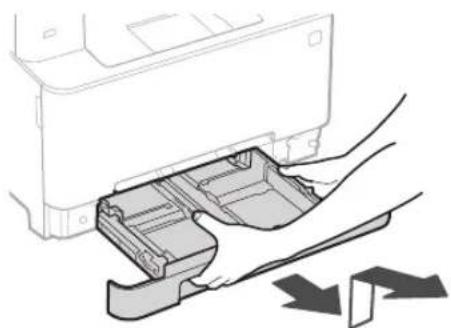
natural_image
Illustration of a printer's internal compartment being inserted into a paper holder, with no visible text or symbols.2.
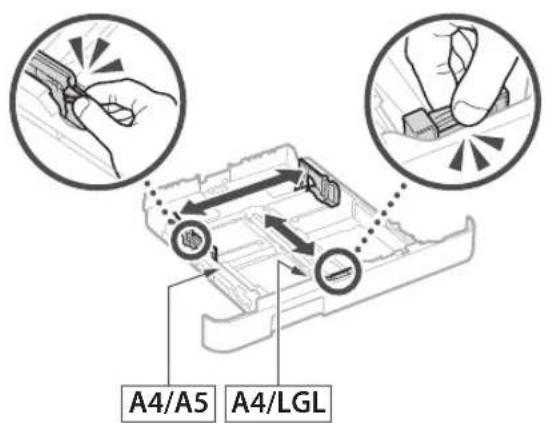
text_image
A4/A5 A4/LGL3.
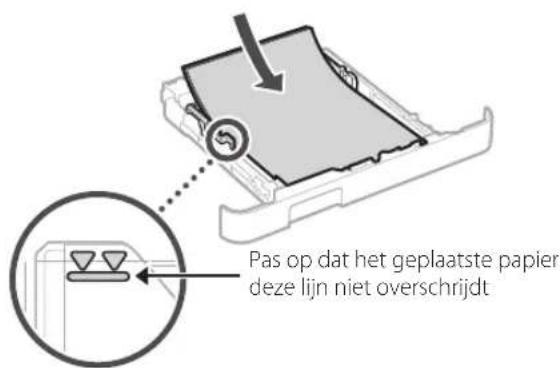
natural_image
Illustration of hands inserting a device into a printer (no text or symbols visible)4
text_image
Diagram showing a device with labeled components and an electrical outlet, including parts 1 and 2.5
natural_image
Diagram showing a device connected to a rectangular electronic component via a cable, with an inset magnified view highlighting a connector detail (no text or symbols present)natural_image
Technical line drawing of a printer case with an attached close-up view (no text or symbols)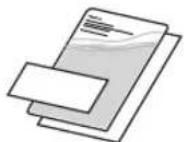
2 Fjerne emballasjemateriellet
natural_image
Illustration of a person handling a device with a magnified inset showing the hand interacting with a device (no text or symbols present)natural_image
Technical line drawing of a printer with an inset close-up showing the internal structure (no text or symbols)3 Legge i papir
1.
natural_image
Illustration of a printer's internal structure being inserted into a plastic holder, with no visible text or symbols.2.
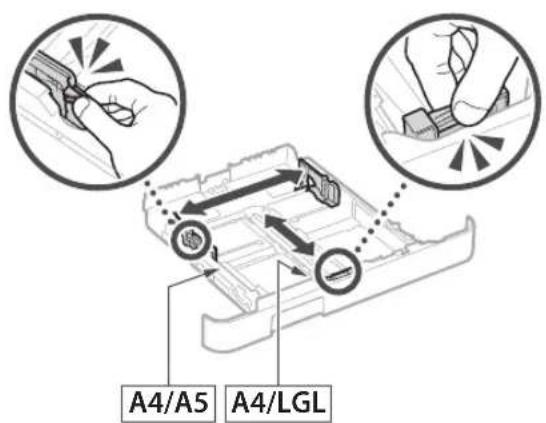
text_image
A4/A5 A4/LGL3.
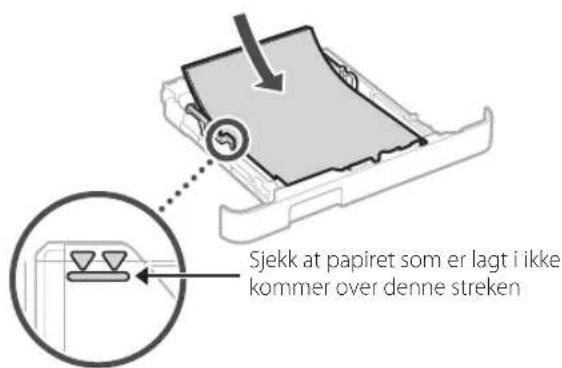
natural_image
Illustration of hands inserting a device into a printer (no text or symbols visible)text_image
Diagram showing a device with labeled components and an electrical outlet, including parts 1 and 2.natural_image
Diagram showing a device connected to a rectangular electronic component via cable, with a magnified inset highlighting a connector detail (no text or symbols present)8 Installere programvare/ drivere
text_image
QR code with a hand holding a smartphone displaying a QR code, likely for mobile payment or scanning.https://oip.manual.canon/
natural_image
Illustration of a printer with an attached circuit board and cable, plus a CD and a separate image (no text or symbols)natural_image
Illustration of a person handling a device with a magnified inset showing hand positioning (no text or symbols)natural_image
Technical line drawing of a printer with an inset close-up showing the internal structure (no text or symbols)3 Fylla på papper
1.
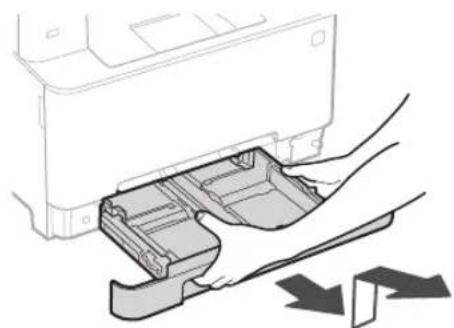
natural_image
Illustration of a printer's internal structure being inserted, showing hand placement and arrow indicating process (no text or symbols)2.
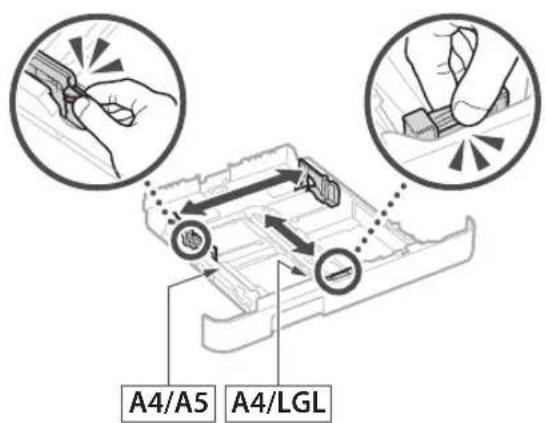
text_image
A4/A5 A4/LGL3.
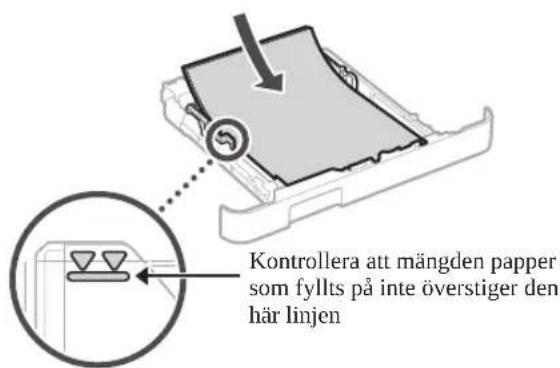
natural_image
Illustration of hands inserting a device into a printer (no text or symbols visible)4 Ansluta nätkabeln
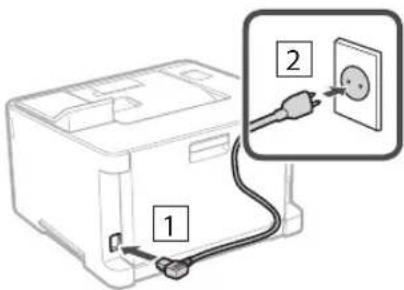
text_image
Diagram showing a device with labeled components and an electrical outlet, including parts 1 and 2.natural_image
Diagram showing a device connected to an electronic component via a cable, with a magnified inset highlighting a detail (no text or symbols present)8 Installera program/ drivrutiner
text_image
QR code with a hand holding a smartphone displaying a QR code, likely for mobile payment or scanning.https://oip.manual.canon/
natural_image
Technical line drawing of a printer with an attached case and part number 4 (no text or symbols present)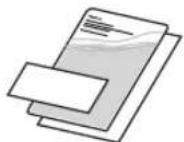
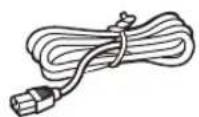
natural_image
Illustration of a person handling a device with a magnified inset showing hand positioning (no text or symbols)natural_image
Technical line drawing of a printer with an inset close-up showing the internal structure (no text or symbols)natural_image
Illustration of a printer's internal structure being inserted, showing paper feeding into a plastic sheet (no text or symbols)2.
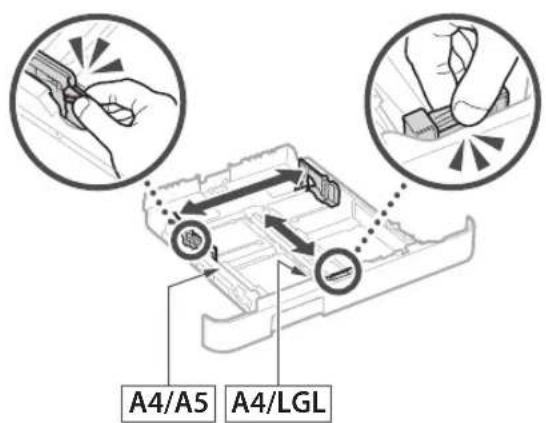
text_image
A4/A5 A4/LGL3.
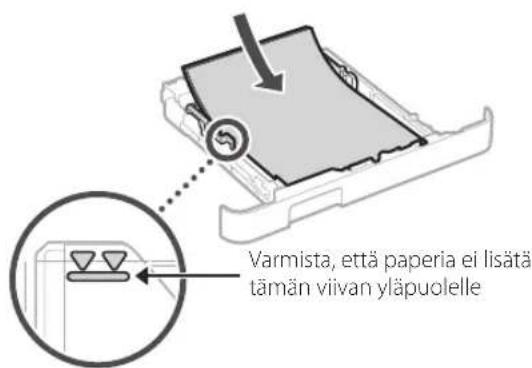
natural_image
Illustration of hands inserting a device into a printer (no text or symbols visible)text_image
Diagram showing a device with labeled components and an electrical outlet, including parts 1 and 2.natural_image
Diagram showing a device connected to a terminal block via cable, with a magnified inset highlighting a connector detail (no text or symbols present)natural_image
Technical line drawing of a printer case with an attached close-up view (no text or symbols)
natural_image
Illustration of a person handling a device with a magnified inset showing hand positioning (no text or symbols)natural_image
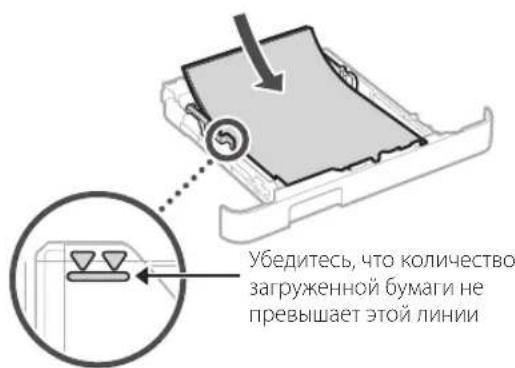
Technical line drawing of a printer with an inset close-up showing internal components (no text or symbols)3 Загрузка бумаги
1.
natural_image
Illustration of hands inserting a plastic into a printer case (no text or symbols visible)2.
text_image
A4/A5 A4/LGL3.
natural_image
Illustration of hands inserting a device into a printer (no text or symbols visible)4
text_image
Diagram showing a device with labeled components and an electrical outlet, including parts numbered 1 and 2.5
natural_image
Diagram showing a device connected to a rectangular electronic component via a cable, with no visible text or symbols.natural_image
Technical line drawing of a printer with an attached case and part number 4 (no text or symbols present)
natural_image
Illustration of a person handling a device with a magnified inset showing hand positioning (no text or symbols)natural_image
Technical line drawing of a printer or printer with an inset close-up showing the internal structure (no text or symbols)natural_image
Illustration of a printer's internal structure being inserted into a plastic holder, with no visible text or symbols.2.

text_image
A4/A5 A4/LGL3.
natural_image
Illustration of hands inserting a device into a printer (no text or symbols visible)4
text_image
Diagram showing a device with labeled components and an electrical outlet, including parts 1 and 2.5
natural_image
Diagram showing a device connected to a box via cable, with a magnified inset highlighting a detail (no text or symbols present)natural_image
Technical line drawing of a printer case with an attached close-up view (no text or symbols)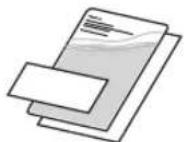
natural_image
Illustration of a person handling a device with a magnified inset showing hand placement (no text or symbols)natural_image
Technical line drawing of a printer with an inset close-up showing internal components (no text or symbols)natural_image
Illustration of a printer's internal structure being inserted into a paper holder, with no visible text or symbols.2.
text_image
A4/A5 A4/LGL3.
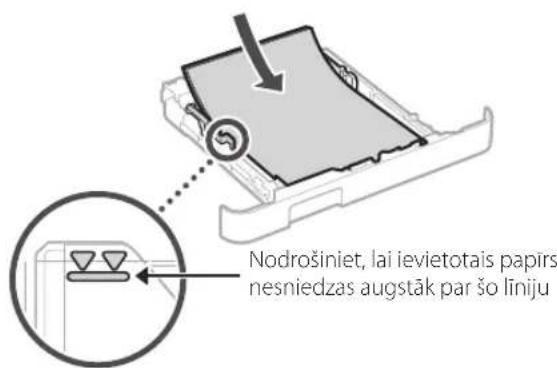
natural_image
Illustration of hands inserting a device into a printer (no text or symbols visible)text_image
Diagram showing a device with labeled components and an electrical outlet, including parts numbered 1 and 2.natural_image
Diagram showing a device connected to a rectangular electronic component via a cable, with an inset magnified view highlighting a connection point (no text or symbols present)natural_image
Illustration of hands inserting a device into a printer (no text or symbols visible)4 Maitinimo laido prijungimas
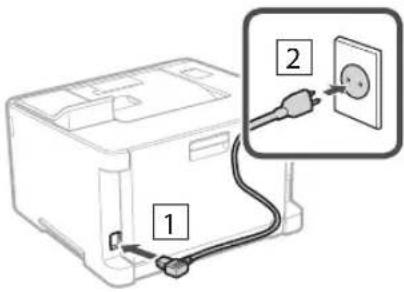
text_image
Diagram showing a device with labeled components and an electrical outlet, including parts numbered 1 and 2.natural_image
Diagram showing a device connected to a rectangular electronic component via a cable, with an inset magnified view highlighting a connection point (no text or symbols present)natural_image
Hand holding smartphone displaying a QR code (no text or symbols on device)https://oip.manual.canon/
natural_image
Technical line drawing of a printer case with an attached close-up view (no text or symbols)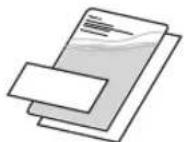
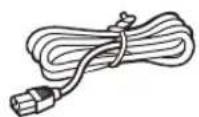
2 Pakkematerjali eemaldamine
natural_image
Illustration of a person handling a device with an arrow indicating left-hand rule (no text or symbols present)- Eemaldage köik pakkematerjalid.
Eemaldage kōik teibid.

natural_image
Technical line drawing of a mechanical device with an inset close-up showing a component detail (no text or symbols)3 Paberi asetamine
1.
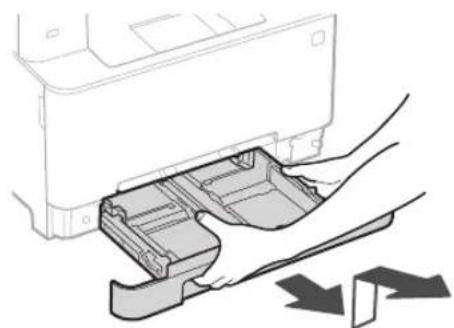
natural_image
Illustration of a printer's internal structure being inserted into a plastic holder, with no visible text or symbols.2.
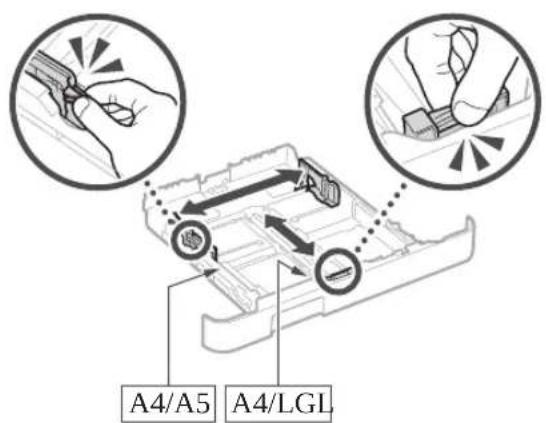
text_image
A4/A5 A4/LGL3.
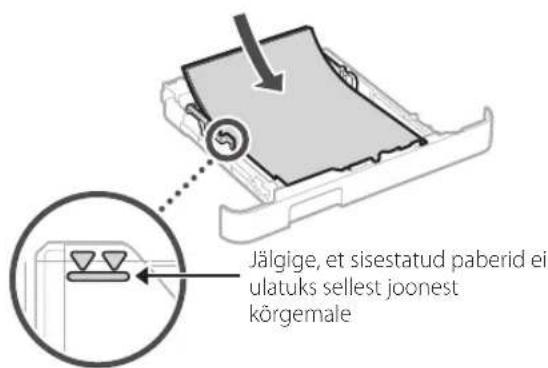
natural_image
Illustration of hands inserting a device into a printer (no text or symbols visible)text_image
Diagram showing a device with labeled components and an electrical outlet, including parts 1 and 2.natural_image
Diagram showing a device connected to a terminal block via cable, with a magnified inset highlighting a detail (no text or symbols present)8 Tarkvara/draiverite installimine
natural_image
Line drawing of a printer with a close-up view of its internal components (no text or symbols)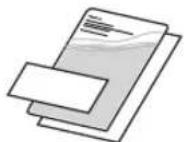
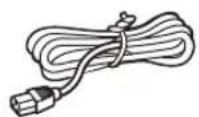
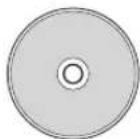
natural_image
Illustration of a person handling a device with a magnified inset showing hand positioning (no text or symbols)natural_image
Technical line drawing of a mechanical component with an inset magnified view showing a close-up detail (no text or symbols)3 Ładowanie papieru
1.
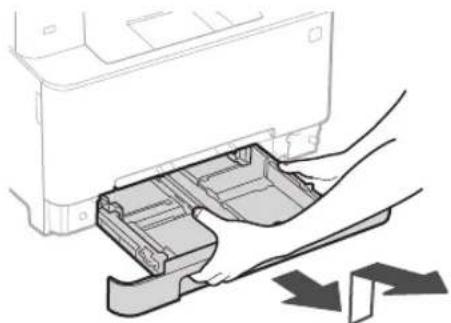
natural_image
Illustration of a printer's internal structure being inserted into a slot, with arrows indicating the process (no text or symbols present)2.
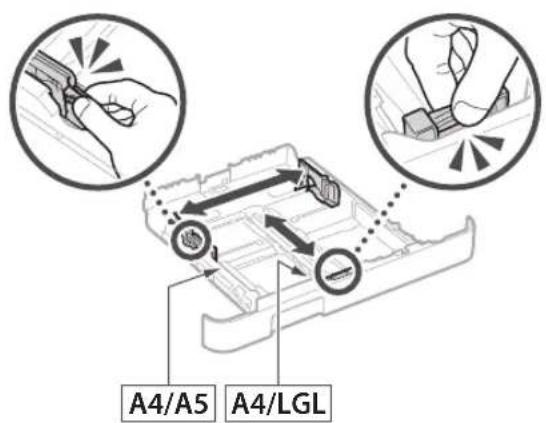
text_image
A4/A5 A4/LGL3.
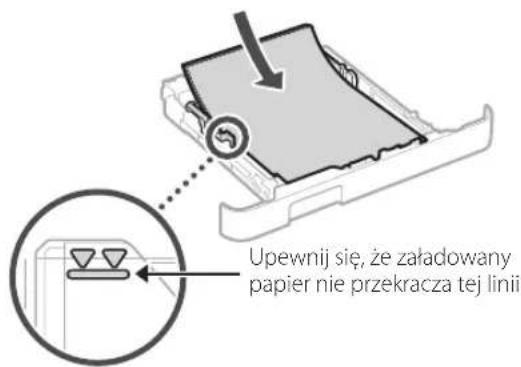
natural_image
Illustration of hands inserting a device into a printer (no text or symbols visible)4
text_image
Diagram showing a device with labeled components and an electrical outlet, including parts numbered 1 and 2.5
natural_image
Diagram showing a device connected to a cable with a magnified inset highlighting a component (no text or symbols present)natural_image
Technical line drawing of a printer case with an attached close-up view (no text or symbols)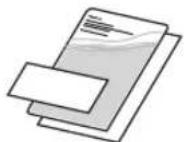
natural_image
Illustration of a person handling a device with an arrow indicating left-hand rule (no text or symbols present)natural_image
Technical line drawing of a printer or printer with an inset close-up showing the internal structure (no text or symbols)3 Vkládání papíru
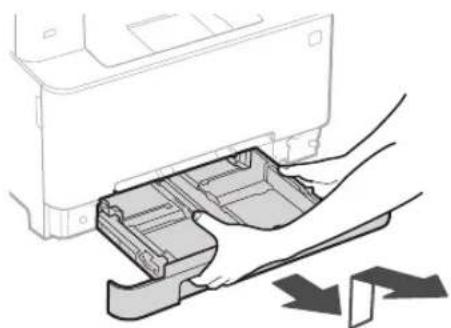
1.
natural_image
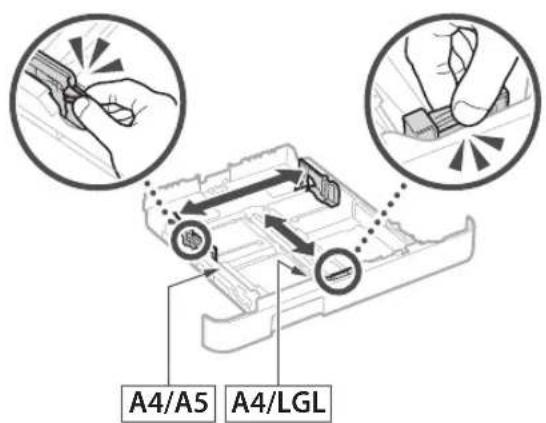
Illustration of a printer's internal compartment being inserted into a paper holder, with no visible text or symbols.2.
text_image
A4/A5 A4/LGL3.
natural_image
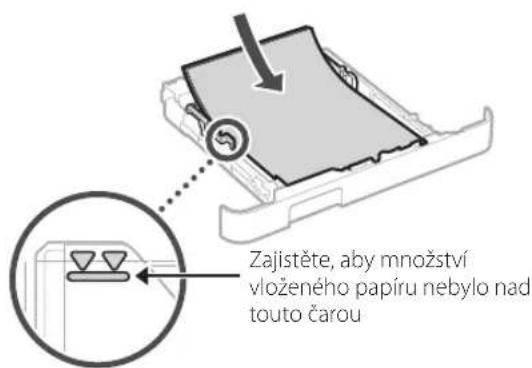
Illustration of hands inserting a device into a printer (no text or symbols visible)text_image
Diagram showing a device with labeled components and an electrical outlet, including parts numbered 1 and 2.natural_image
Diagram showing a device connected to an electronic component via a cable, with a magnified inset highlighting a connection point (no text or symbols present)natural_image
Technical line drawing of a printer case with an attached close-up view (no text or symbols)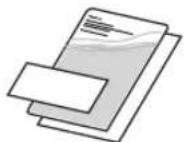
natural_image
Illustration of a person handling a device with a magnified inset showing hand placement (no text or symbols)natural_image
Technical line drawing of a mechanical device with an inset close-up showing a component detail (no text or symbols)3 Vkladanie papiera
1.
natural_image
Illustration of a printer's internal compartment being inserted into a paper holder, with no visible text or symbols.2.
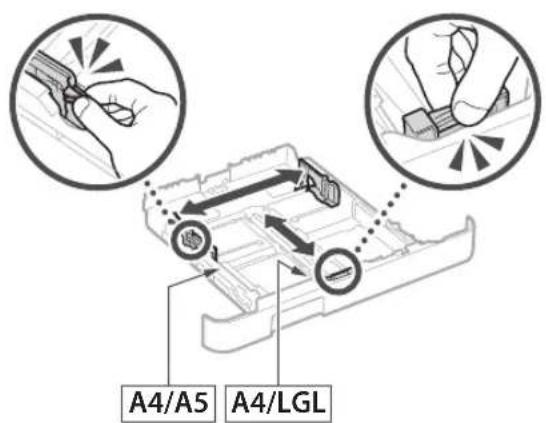
text_image
A4/A5 A4/LGL3.
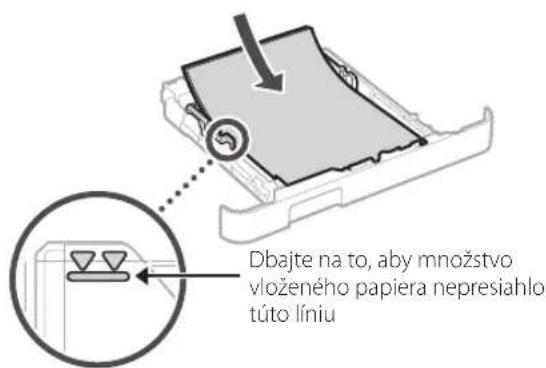
natural_image
Illustration of hands inserting a device into a printer (no text or symbols visible)text_image
Diagram showing a device with labeled components and an electrical outlet, including parts numbered 1 and 2.natural_image
Diagram showing a device connected to a rectangular block via cable, with a magnified inset highlighting a detail (no text or symbols present)natural_image
Technical line drawing of a printer case with an attached close-up view (no text or symbols)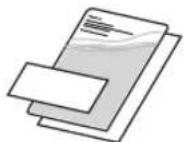
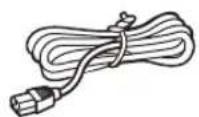
natural_image
Illustration of a person handling a device with a magnified inset showing a hand interacting with the device (no text or symbols present)2. Odstranite ves embalažni material.
Odstranite vse trakove.

natural_image
Technical line drawing of a mechanical device with an inset close-up showing a component detail (no text or symbols)natural_image
Illustration of a printer's internal compartment being inserted into a paper holder, with no visible text or symbols.2.
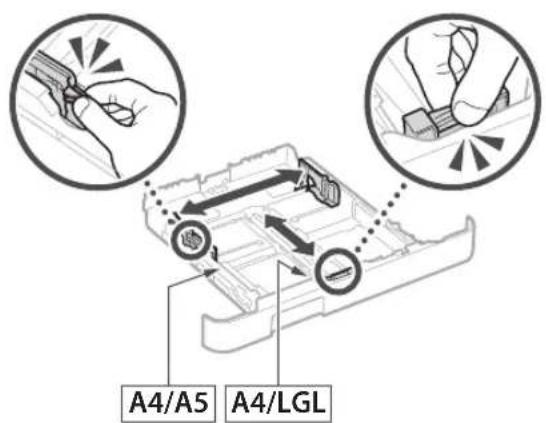
text_image
A4/A5 A4/LGL3.
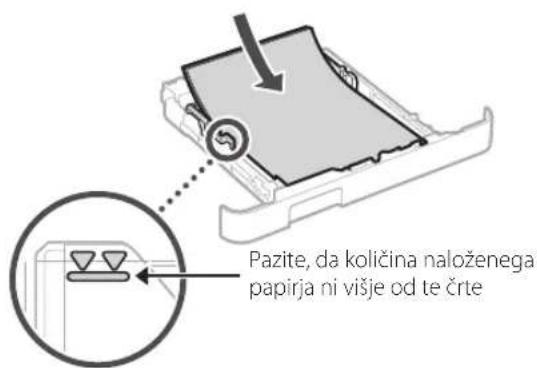
natural_image
Illustration of hands inserting a device into a printer (no text or symbols visible)text_image
Diagram showing a device with labeled components and an electrical outlet, including parts 1 and 2.5 Določanje osnovnih nastavitev
natural_image
Diagram showing a device connected to a terminal block via cable, with a magnified inset highlighting a connector detail (no text or symbols present)natural_image
Technical line drawing of a printer case with an attached close-up view (no text or symbols)
natural_image
Illustration of a person handling a device with a magnified inset showing hand positioning (no text or symbols)2. Uklonite svu ambalažu.
Uklonite svu traku.

natural_image
Technical line drawing of a printer with an inset close-up showing internal components (no text or symbols)3 Umetanje papira
1.
natural_image
Illustration of a printer's internal structure being inserted, showing paper feeding into a plastic container (no text or symbols)2.
text_image
A4/A5 A4/LGL3.
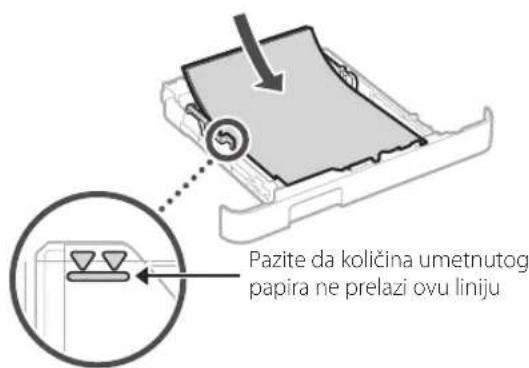
text_image
Pazite da količina umetnutog papira ne prelazi ovu liniju4.
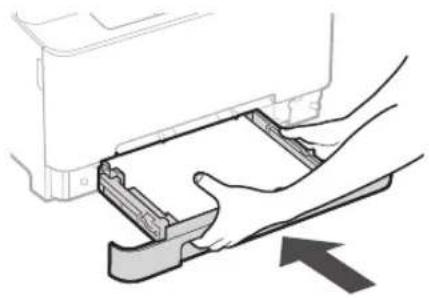
natural_image
Illustration of hands inserting a device into a printer (no text or symbols visible)text_image
Diagram showing a device with labeled components and an electrical outlet, including parts numbered 1 and 2.5 Određivanje osnovnih postavki
Vodič za postavljanje pojavljuje se na upravljačkoj ploči pri prvom uključivanju uređaja. Slijedeći upute na zaslonu, odradite početno postavljanje uređaja.
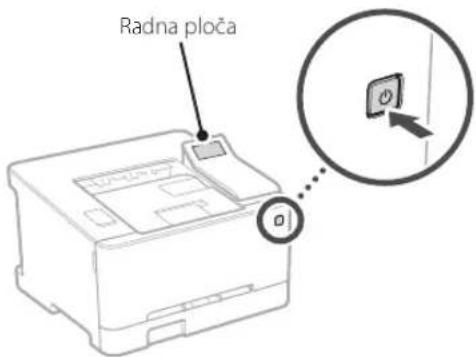
text_image
Radna pločanatural_image
Diagram showing a device connected to an electronic component via a cable, with no visible text or symbols.8 Instaliranje softvera / upravljačkih programa
natural_image
Technical line drawing of a printer with an attached case and part number 4 (no text or symbols present)
natural_image
Illustration of a person handling a device with an arrow indicating left-hand rule (no text or symbols present)natural_image
Technical line drawing of a printer with an inset close-up showing the internal structure (no text or symbols)3 Papír betöltése
1.
natural_image
Illustration of a printer's internal structure being inserted, showing paper feeding into a plastic holder (no text or symbols)2.
text_image
A4/A5 A4/LGL3.
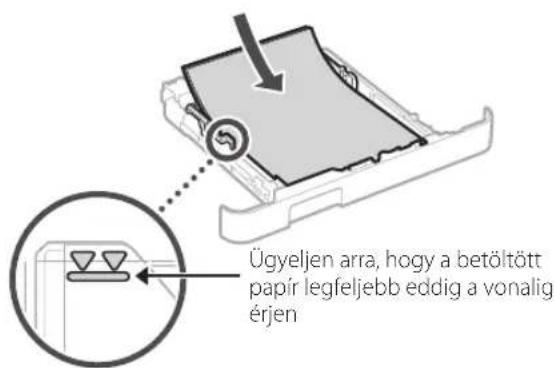
natural_image
Illustration of hands inserting a device into a printer (no text or symbols visible)4
text_image
Diagram showing a device with labeled components and an electrical outlet, including parts numbered 1 and 2.5
natural_image
Diagram showing a device connected to an electronic component via a cable, with no visible text or symbols.natural_image
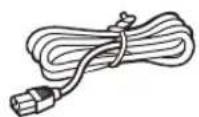
Technical line drawing of a printer with an attached case labeled 'x4' (no text or symbols on the diagram itself)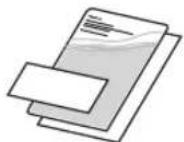
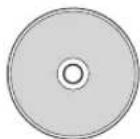
natural_image
Illustration of a person handling a device with an arrow indicating left-hand rule (no text or symbols present)natural_image
Technical line drawing of a mechanical device with an inset close-up showing a component detail (no text or symbols)natural_image
Illustration of a printer's internal structure being inserted into a plastic holder, with no visible text or symbols.2.
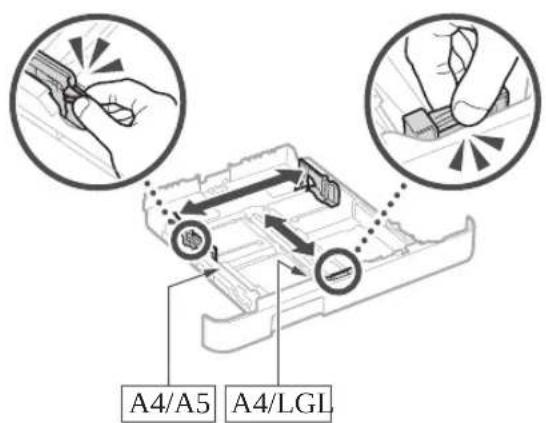
text_image
A4/A5 A4/LGL3.
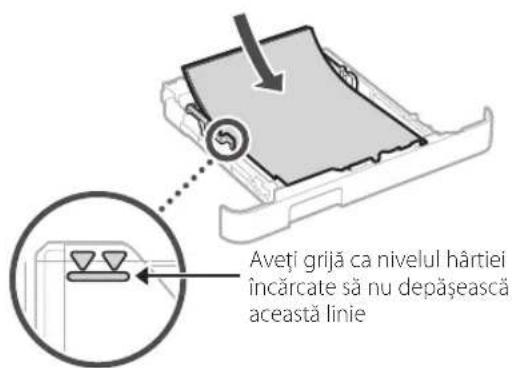
natural_image
Illustration of hands inserting a device into a printer (no text or symbols visible)text_image
Diagram showing a device with labeled components and an electrical outlet, including parts numbered 1 and 2.natural_image
Diagram showing a device connected to a terminal block via cable, with a magnified inset highlighting a detail (no text or symbols present)8 Instalarea software-ului/ driverelor
natural_image
Technical line drawing of a printer case with an attached close-up view (no text or symbols)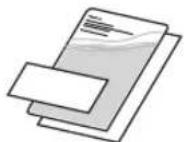
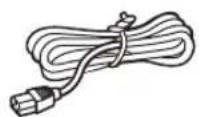
natural_image
Illustration of a person handling a device with a magnified inset showing hand placement (no text or symbols)natural_image
Technical line drawing of a mechanical device with an inset close-up showing a component detail (no text or symbols)natural_image
Illustration of a printer's internal compartment being inserted into a paper holder, with no visible text or symbols.2.
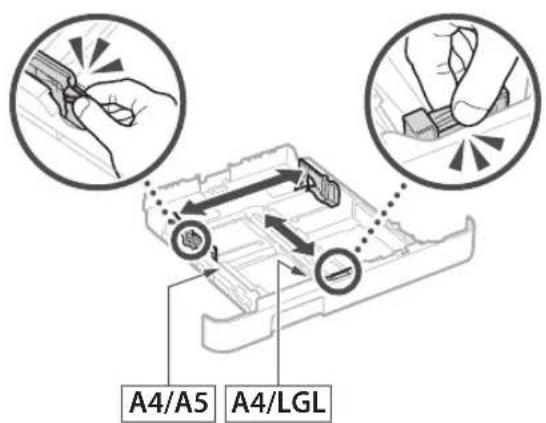
text_image
A4/A5 A4/LGL3.
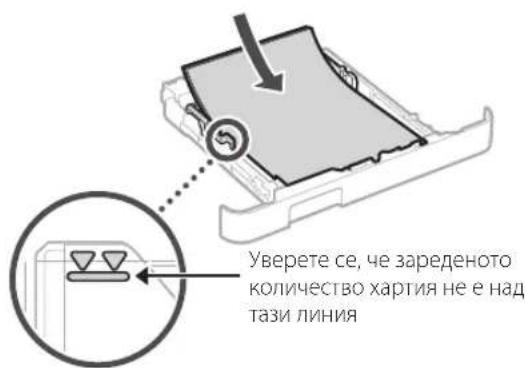
natural_image
Illustration of hands inserting a device into a printer (no text or symbols visible)4
text_image
Diagram showing a device with labeled components and an electrical outlet, including parts numbered 1 and 2.5
natural_image
Diagram showing a device connected to an electronic component via a cable, with no visible text or symbols.text_image
QR code with a hand holding a smartphone displaying a QR code, likely for mobile payment or scanning.https://oip.manual.canon/
natural_image
Technical line drawing of a printer with an attached case and part number 4 (no text or symbols present)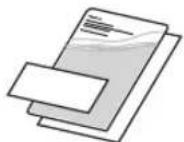
2 Ambalaj Malzemesini Çıkarma
natural_image
Illustration of a person handling a device with an arrow indicating left-hand rule (no text or symbols present)natural_image
Technical line drawing of a printer with an inset close-up showing the internal structure (no text or symbols)3 Kağıt Yükleme
1.
natural_image
Illustration of a printer's internal structure with a hand inserting a clip into the holder (no text or symbols)2.
text_image
A4/A5 A4/LGL3.
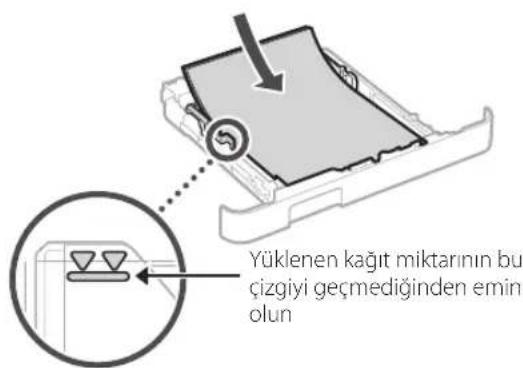
natural_image
Illustration of hands inserting a device into a printer (no text or symbols visible)text_image
Diagram showing a device with labeled components and an electrical outlet, including parts 1 and 2.natural_image
Diagram showing a device connected to a terminal block via cable, with a magnified inset highlighting a detail (no text or symbols present)natural_image
Technical line drawing of a mechanical component with an inset magnified view showing a close-up detail (no text or symbols)تحميل الورق
[NO TEXT]
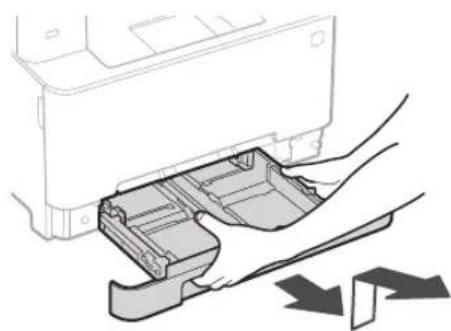
natural_image
Illustration of a printer's internal structure being inserted into a paper holder, with no visible text or symbols.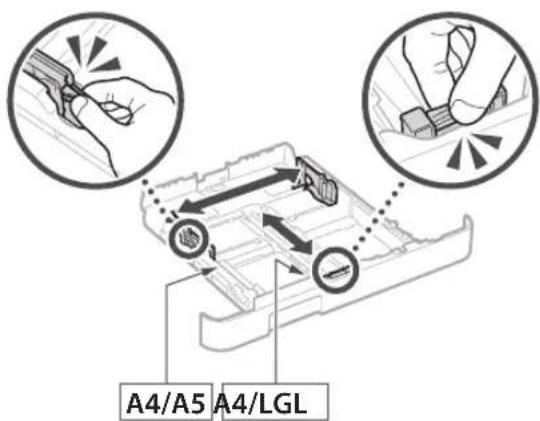
text_image
A4/A5 A4/LGL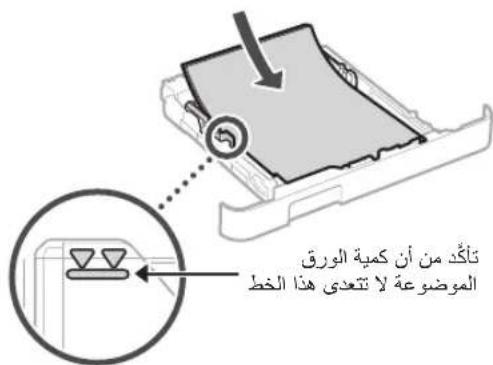
natural_image
Line drawing of a printer with an attached close-up view showing internal components (no text or symbols)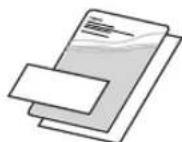
إزالة مواد التغليف
Y
۱ دامه فيه.
natural_image
Illustration of a person handling a device with a magnified inset showing hand positioning (no text or symbols)تحديد إعدادات الأمن

natural_image
Illustration of hands inserting a device into a printer (no text or symbols visible)3.
natural_image
Diagram showing a device connected to a rectangular electronic component via cable, with a magnified inset highlighting a detail (no text or symbols present)natural_image
Technical line drawing of a mechanical component with an inset magnified view showing a close-up detail (no text or symbols)بارگذاری کاغز
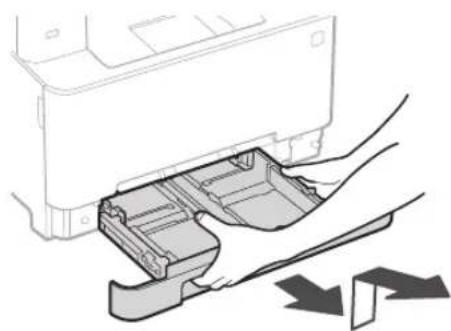
natural_image
Illustration of a printer's internal structure being inserted into a plastic holder, with no visible text or symbols.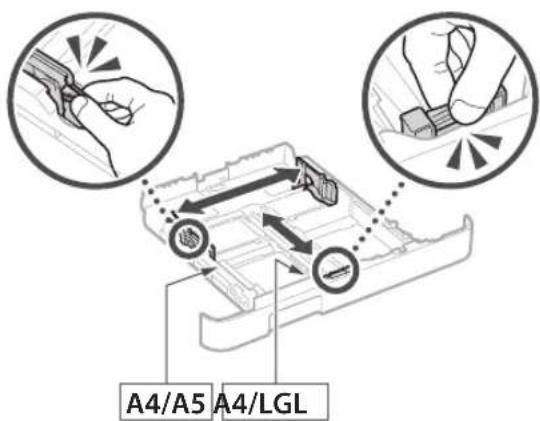
text_image
A4/A5 A4/LGL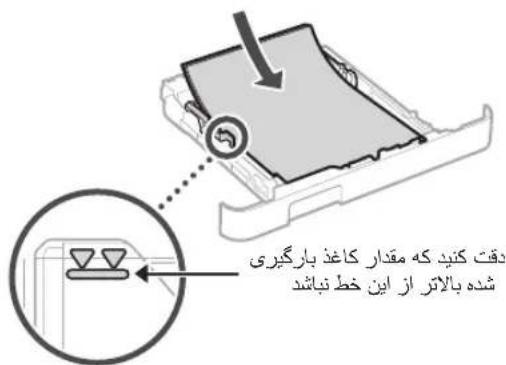
natural_image
Technical line drawing of a printer case with an attached close-up view (no text or symbols)
natural_image
Illustration of three electronic devices: a card, a CD, and a cable (no text or symbols)natural_image
Illustration of a person handling a device with an arrow indicating left-hand rule (no text or symbols present)
natural_image
Row of grayscale square icons with left-pointing and right-pointing arrows, no text or symbols presentتعین تنظیمات امنیتی

natural_image
Diagram showing a device connected to a device via cable, with a magnified inset highlighting a component detail (no text or symbols present)30-2, Shimomaruko 3-chome, Ohta-ku, Tokyo 146-8501, Japan
One Canon Park, Melville, NY 11747, U.S.A.
CANON EUROPA N.V.
Bovenkerkerweg 59, 1185 XB Amstelveen, The Netherlands
CANON SINGAPORE PTE LTD
1 Fusionopolis Place, #15-10, Galaxis, Singapore 138522
CANON AUSTRALIA PTY LTD
Building A, The Park Estate, 5 Talavera Road, Macquarie Park, NSW 2113, Australia
CANON GLOBAL WORLDWIDE SITES
https://global.canon/
text_image
Barcode image containing encoded digital informationFT6-2767-000