USER MANUAL Pure 500 ELECTROLUX
WARNING! Avoid fire hazard or electric shock. Do not use an extension cord or a wall adapter other than the one provided with the product or original spare part adapter. This appliance can be used in 50Hz or 60Hz power supply without any change.
Do not store or use gasoline or other flammable vapors and liquids in the vicinity of this or any other appliance. Read product labels for flammability and other warnings.
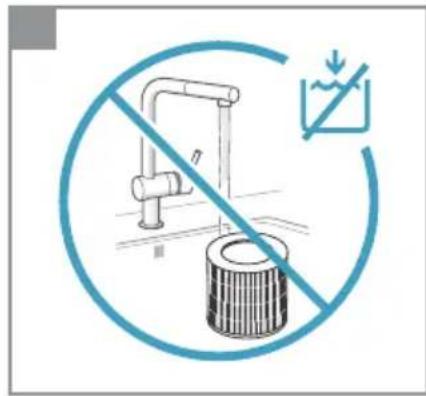
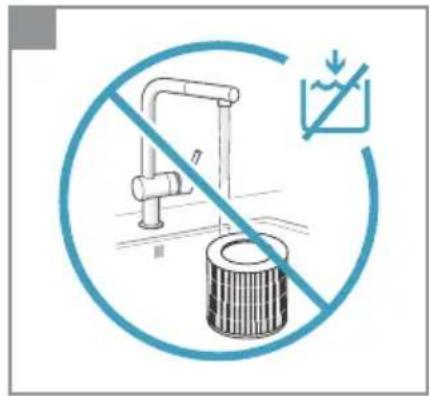
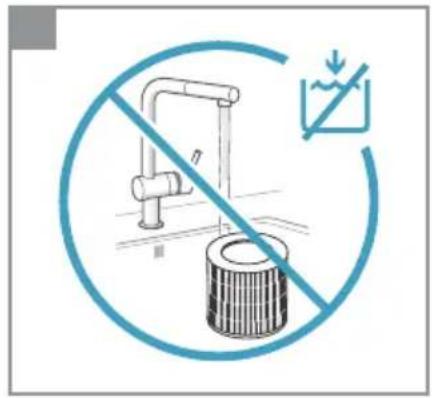
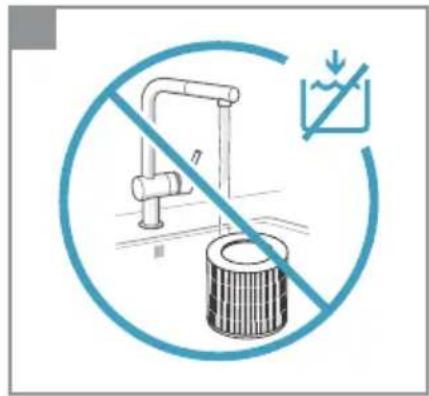
Do not let water or any other liquid or flammable detergent enter the appliance to avoid electric shock and/or a fire hazard.
CHILDREN AND VULNERABLE PEOPLE SAFETY
WARNING! Risk of suffocation, injury or permanent disability.
This appliance can be used by children aged from 8 years and above under supervision. The appliance can be used by persons with reduced physical, sensory or mental capabilities or lack of experience and knowledge if they have been given supervision or instruction concerning use of the appliance in a safe way and understand the hazards involved. Children should be supervised to ensure that they do not play with the appliance.
Cleaning and user maintenance shall not be made by children without supervision.
Children under 3 years of age should be kept away from the appliance unless continuously supervised.
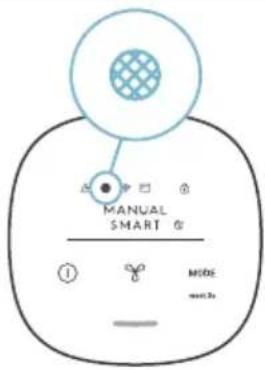
Keep all packaging away from children.
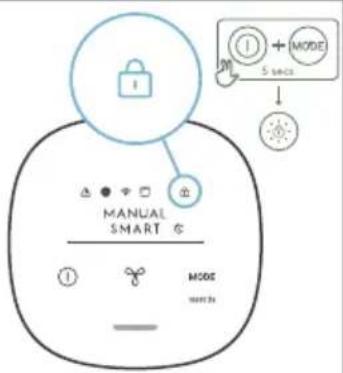
This product has a child lock function. We recommend you activate this function if there is a risk that children can come in contact with the appliance.
WARNING! Avoid fire hazard or electric shock.
If you are not sure the outlet is adequately grounded or protected by a time delay fuse or circuit breaker, have a qualified electrician install the proper outlet according to the National Electrical Code and applicable local codes and ordinances.
If the supplied power cord is cut or damaged, it should only be replaced by Electrolux, its service agent or similarly qualified persons. This unit contains no user serviceable parts. Always call an authorized Electrolux servicer for repairs.
Never unplug the unit by pulling on the power cord. Always grip the plug firmly and pull straight out from the receptacle.
Be sure to unplug the unit before cleaning or maintenance to prevent shock or fire hazards.
SAFETY PRECAUTIONS
CAUTION! Avoid Serious Injury or Death.
Do not insert or place fingers or objects into the air outlet grill of the unit.
In the event of a malfunction (sparks, burning smell, etc.), immediately stop the operation, disconnect the power supply, and call an authorized Electrolux servicer.
Do not operate the unit with wet hands.
CAUTION! Avoid Injury or damage to the unit or other property.
Do not direct airflow at fireplaces or other heat related sources as this could cause flare ups.
Do not climb on or place objects on the unit.
Do not hang objects off the unit.
Do not place containers with liquids on the unit.
Turn off the unit at the power source when it will not be used for an extended period of time.
Always operate the unit with air filter in place.
Do not block or cover the intake grille or the air outlet grill.
Ensure that any electrical/electronic equipment is 30cm away from the unit.
The appliance is only to be used with the accessories provided from the manufacturer and its service agent.
ENVIRONMENTAL CONCERNS
Recycle materials with the symbol 📋. Put the packaging in relevant containers to recycle it. Help protect the environment and human health by recycling waste of electrical and electronic appliances.
Do not dispose appliances marked with the symbol 📁 with the household waste. Return the product to your local recycling facility or contact your municipal office.
i For Switzerland:
Where should you take your old equipment?
Anywhere that sells new equipment or hand it in to official SENS collection points or official SENS recycling firms. The list of official SENS collection points can be found at www.erecycling.chseconds
BEFORE STARTING
- Read this instruction carefully.
- Check that all parts described are included.
- Pay special attention to the safety precautions!
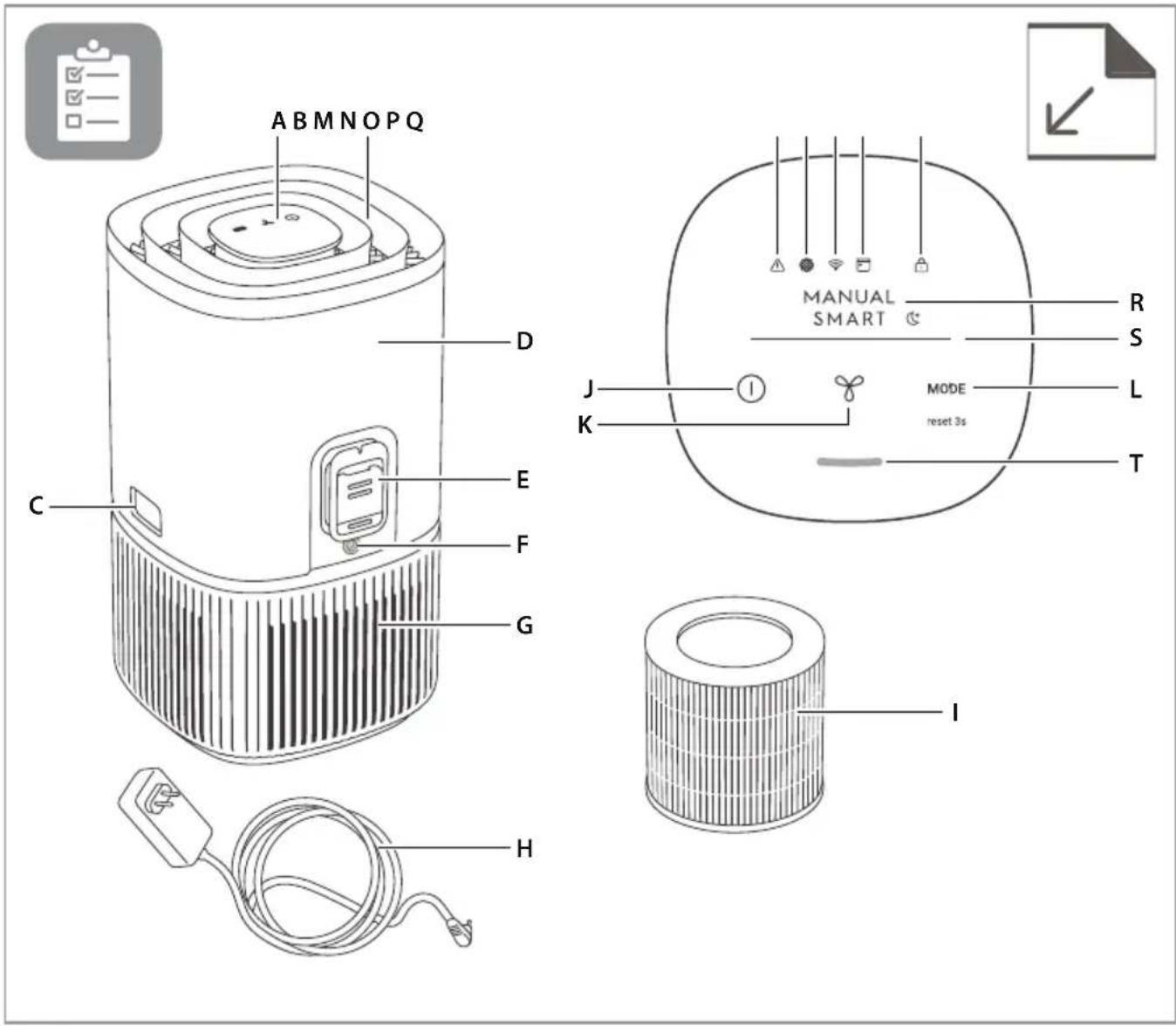
DESCRIPTION OF YOUR AIR PURIFIER
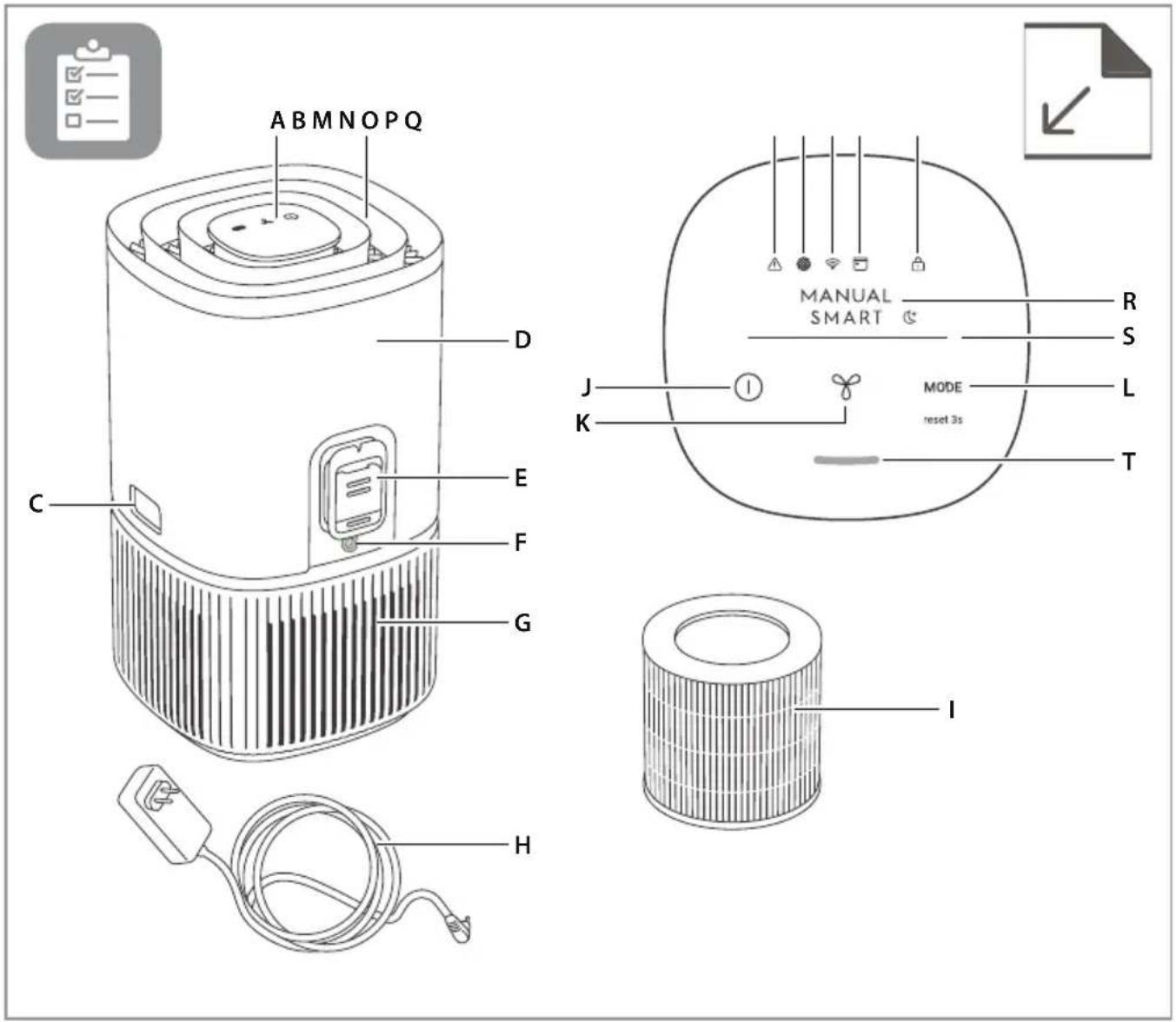
Appliance:
A. Control panel display
B. Air flow guide (Air outlet)
C. Release buttons
D. Main body (top)
E. Sensor box
F. Adapter jack
G. Main body (bottom)
H. Power cord
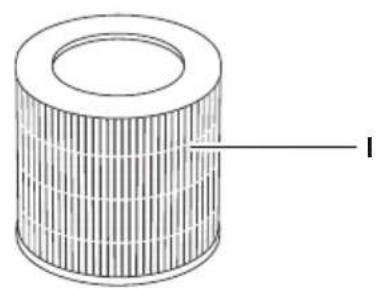
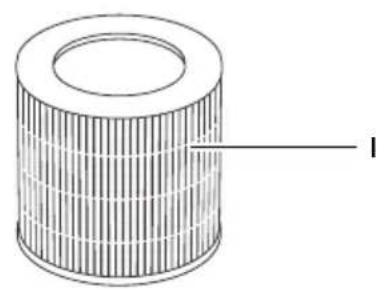
I. Filter (inside)
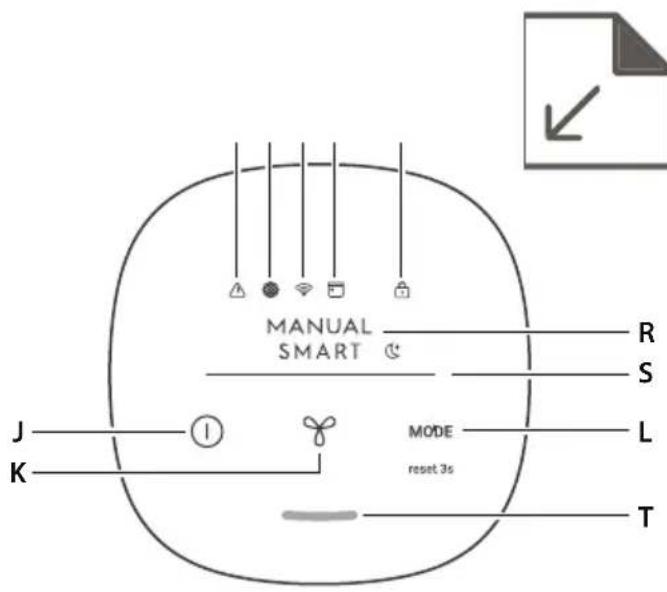
Control panel:
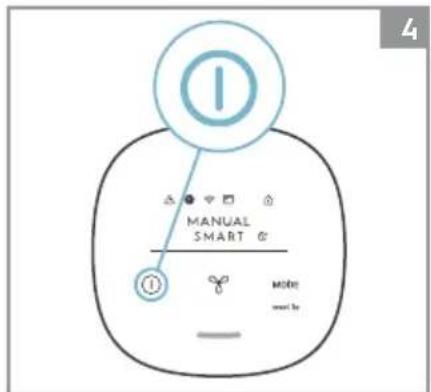
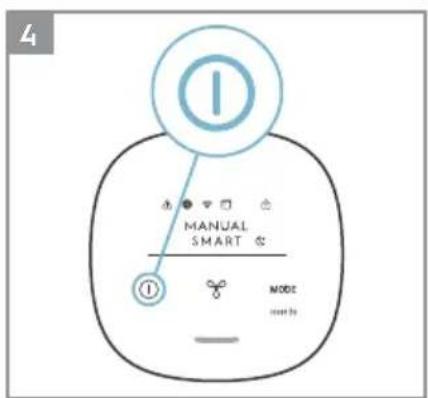
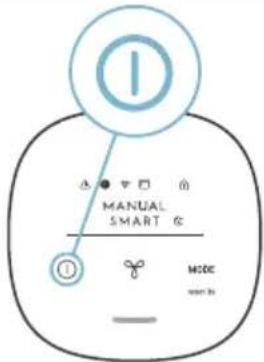
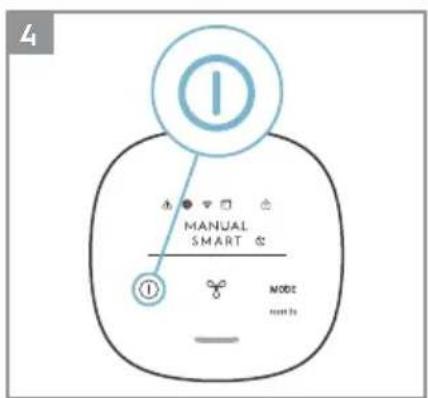
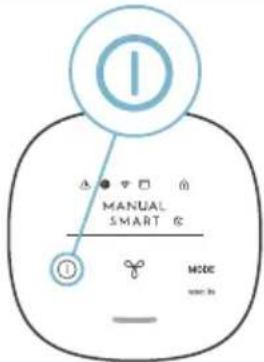
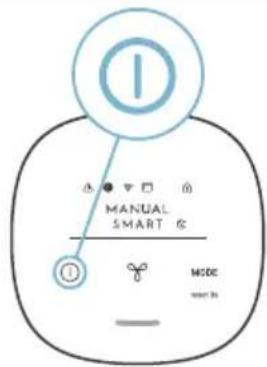
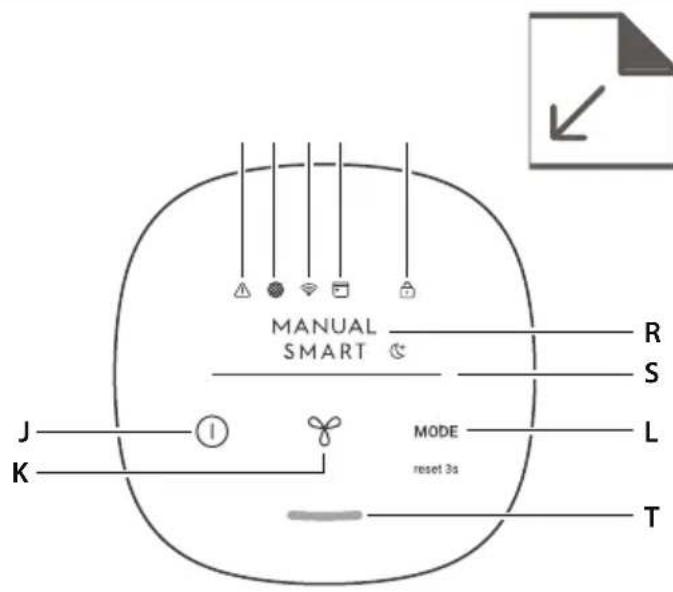
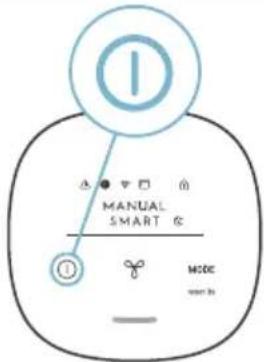
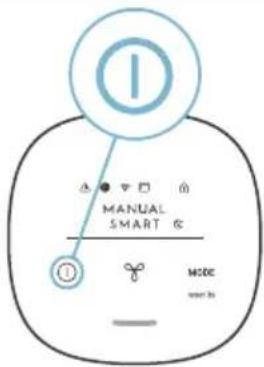
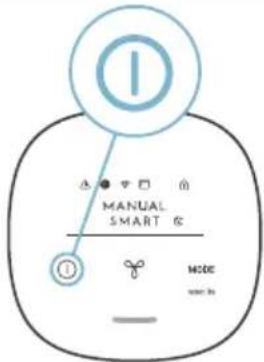
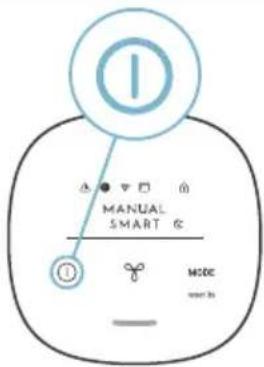
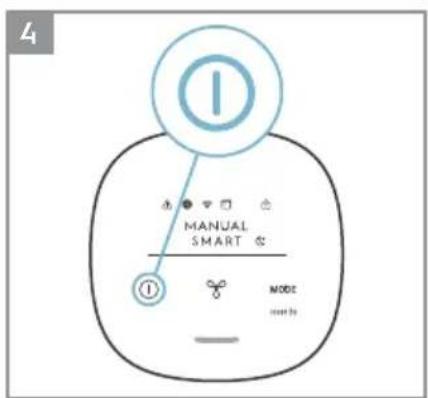
J. ON/OFF button
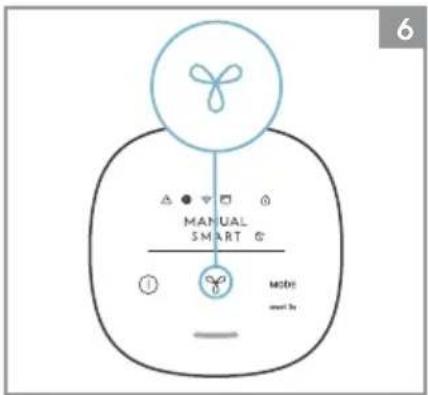
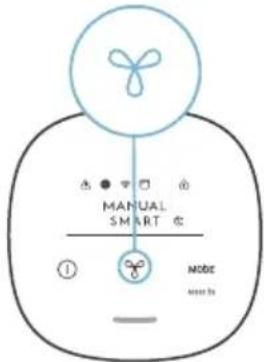
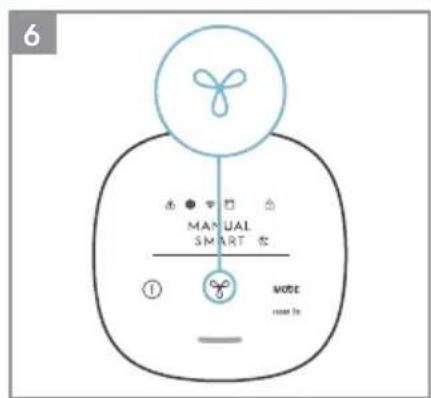
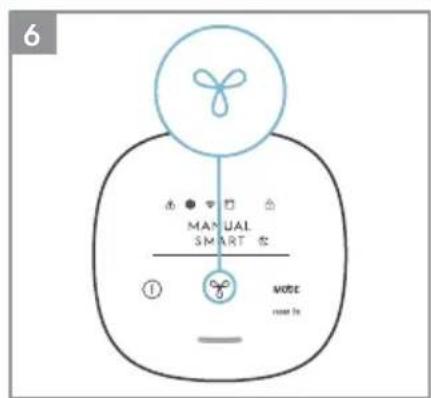
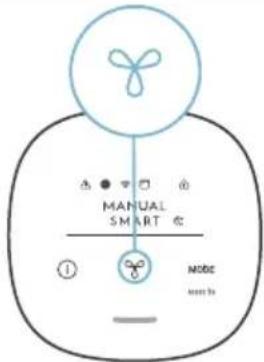
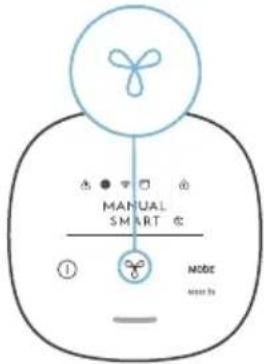
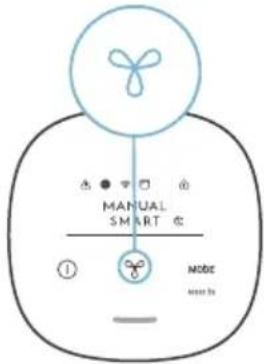
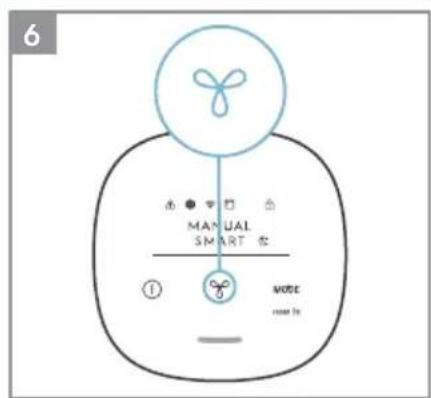
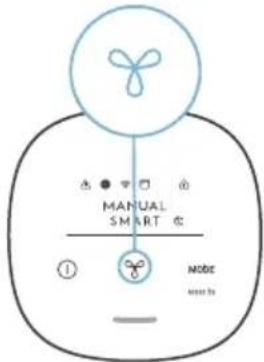
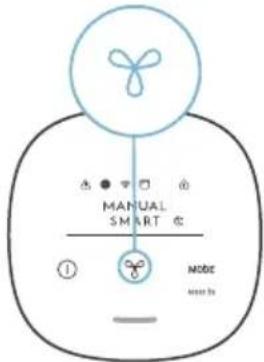
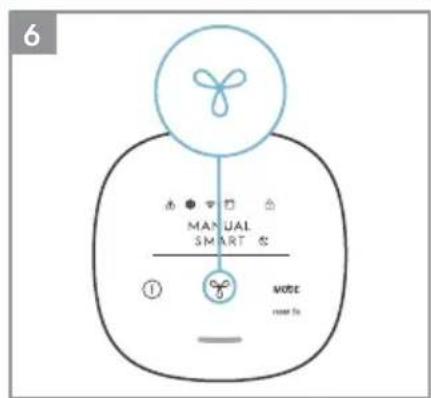
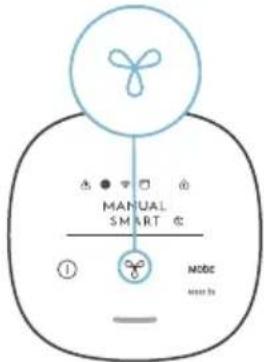
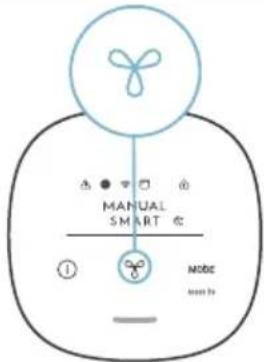
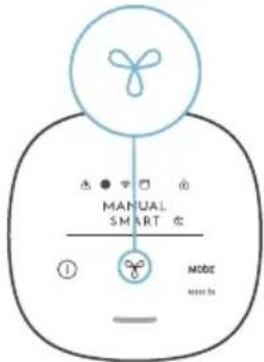
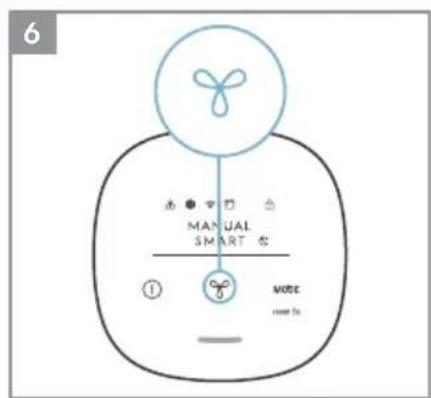
K. FAN button
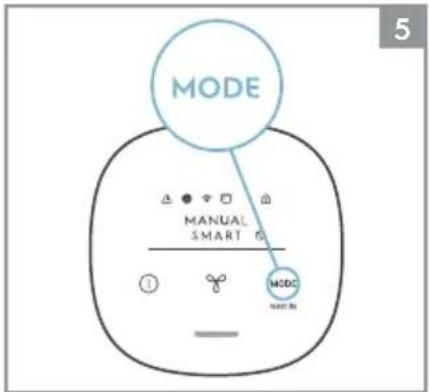
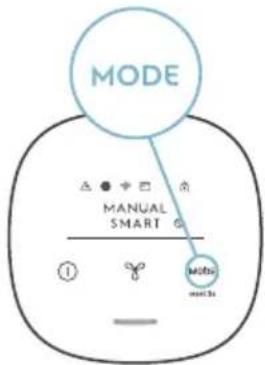
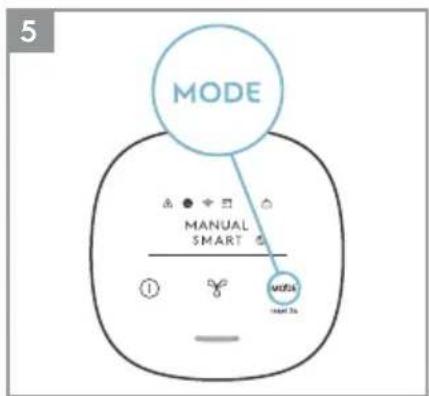
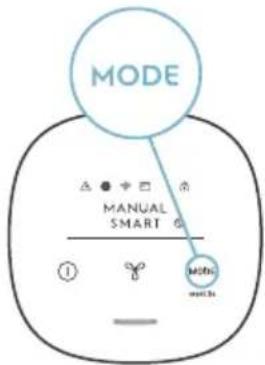
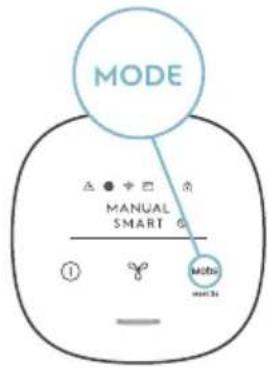
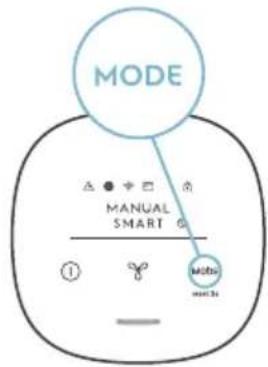
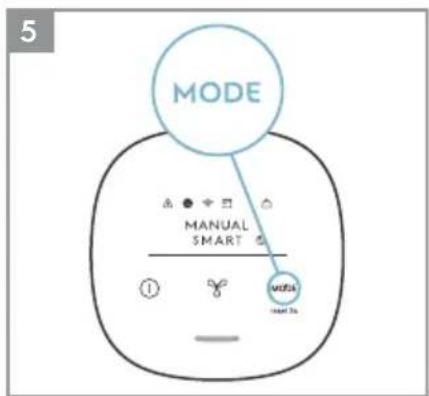
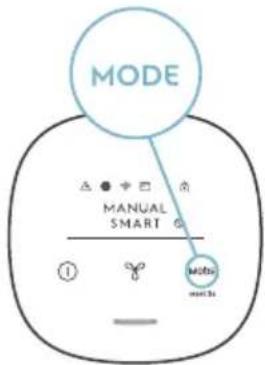
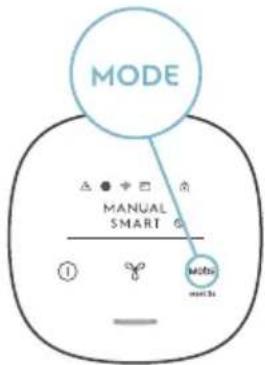
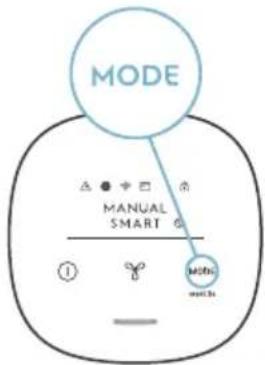
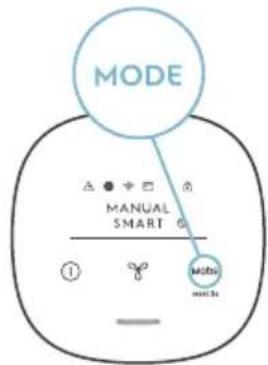
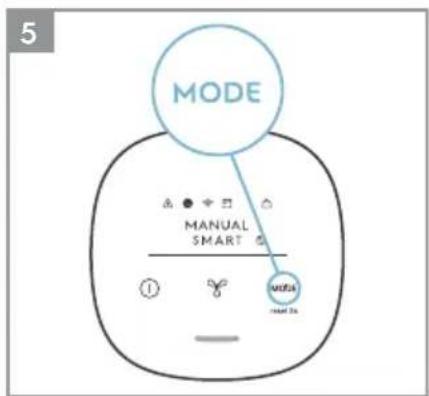
L. MODE button
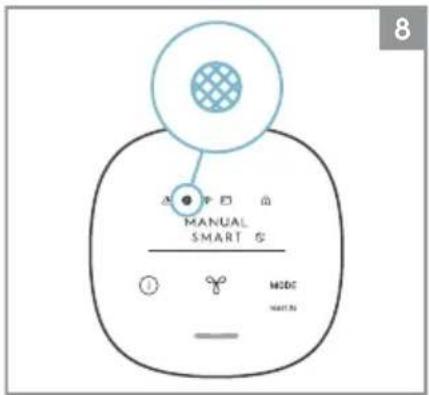
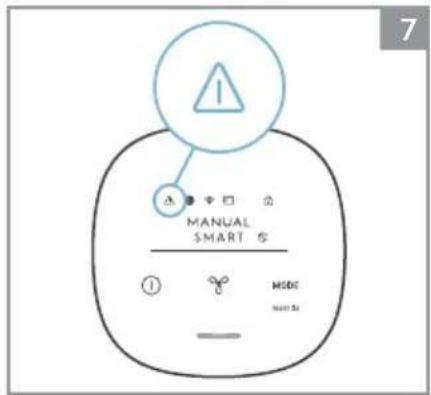
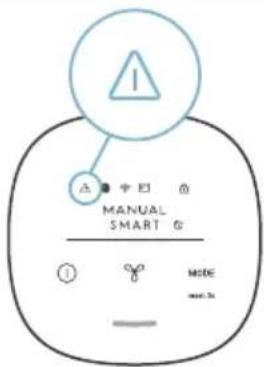
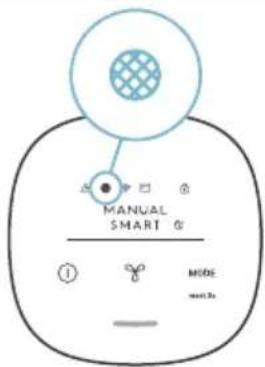
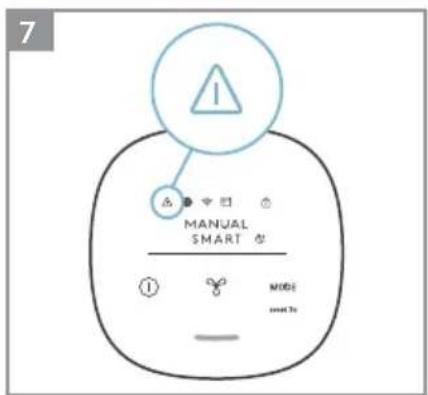
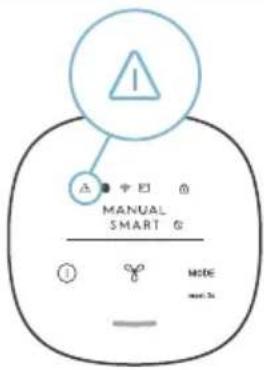
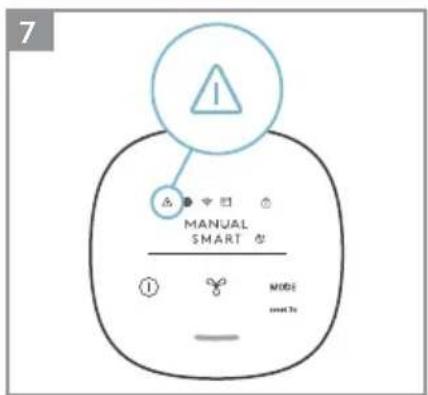
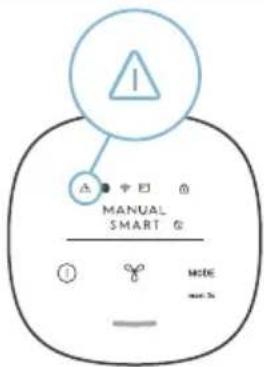
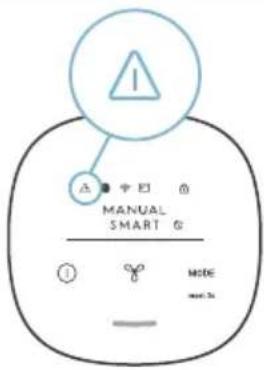
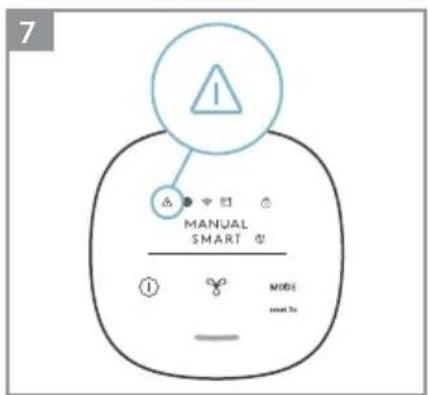
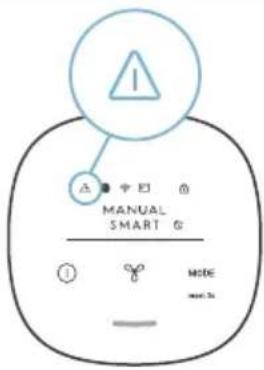
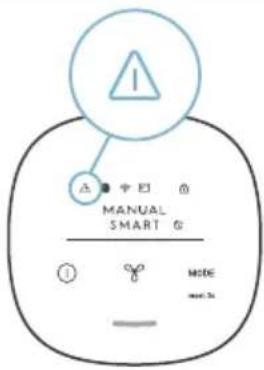
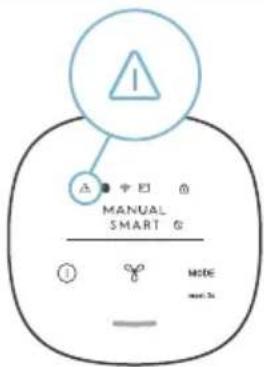
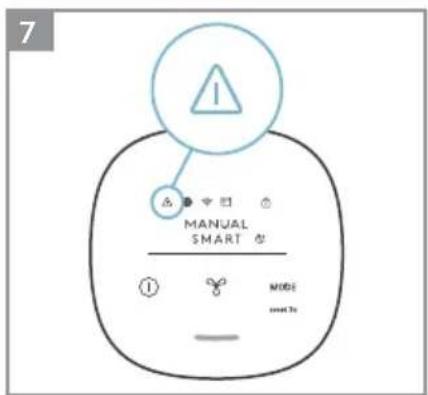
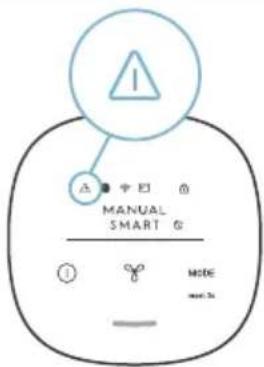
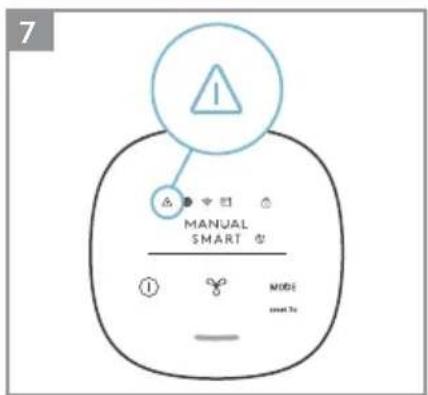
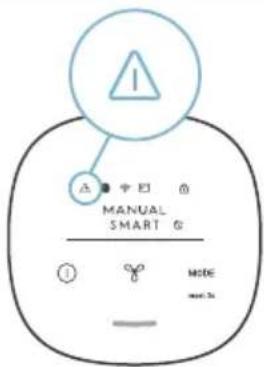
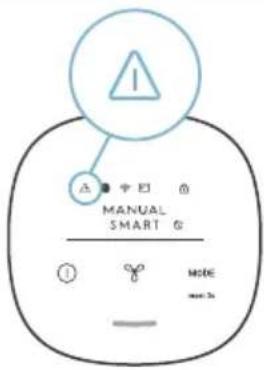
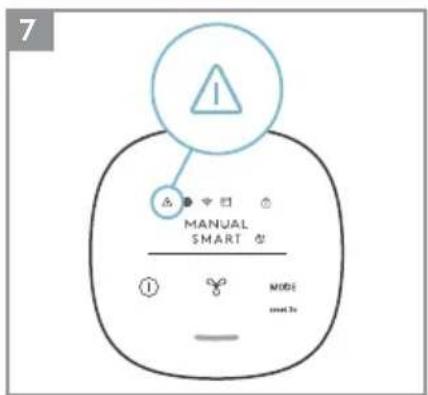
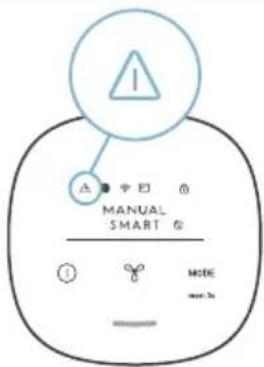
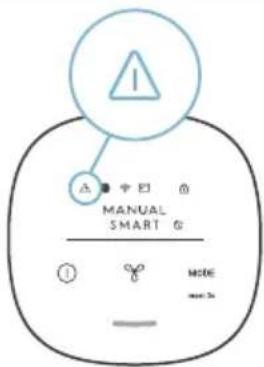
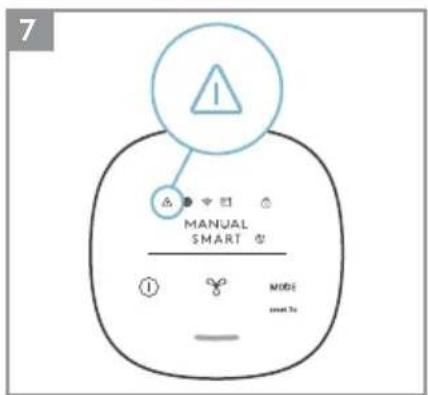
M. Warning alert icon
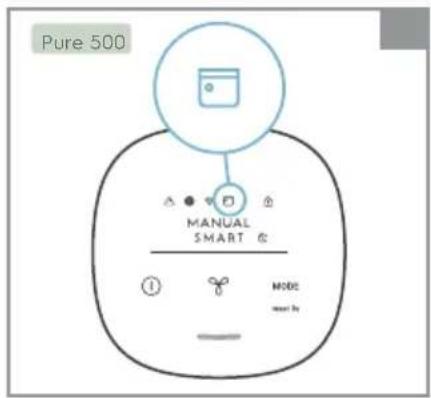
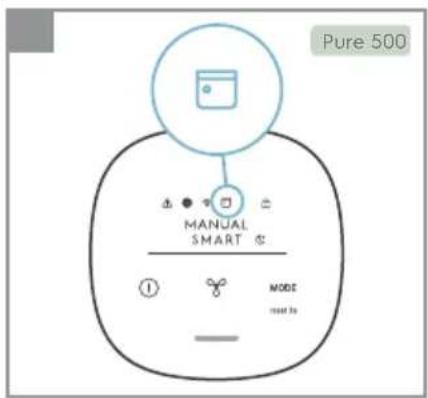
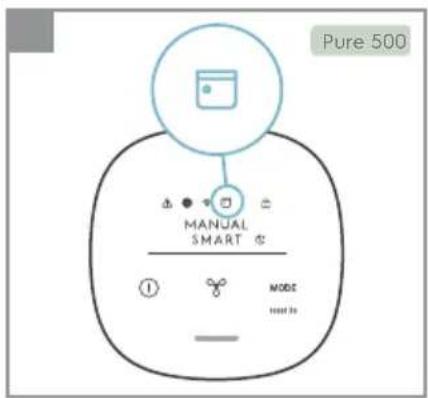
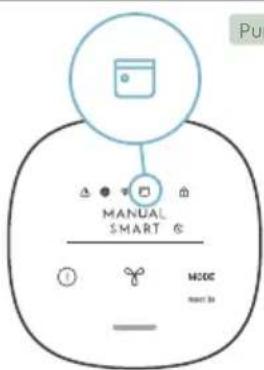
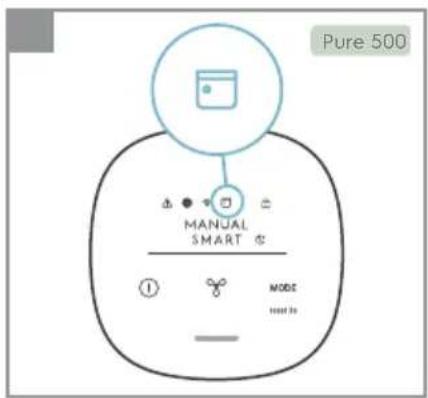
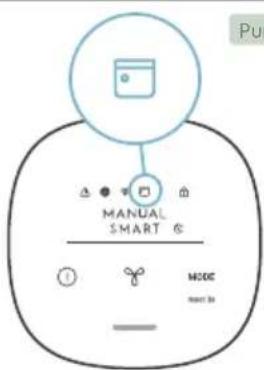
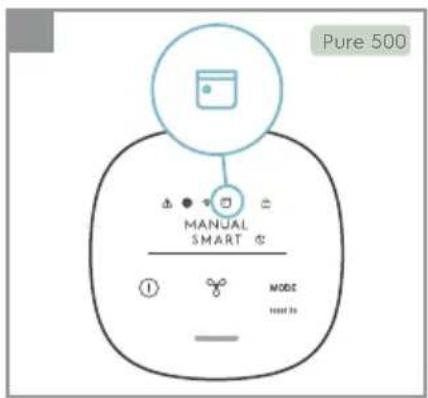
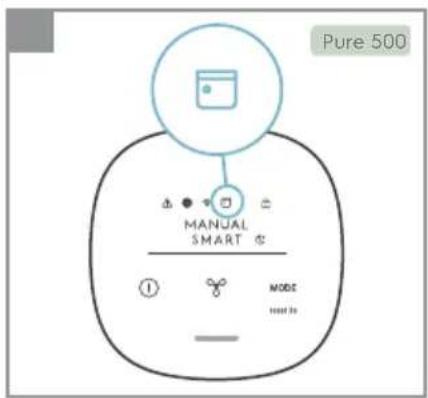
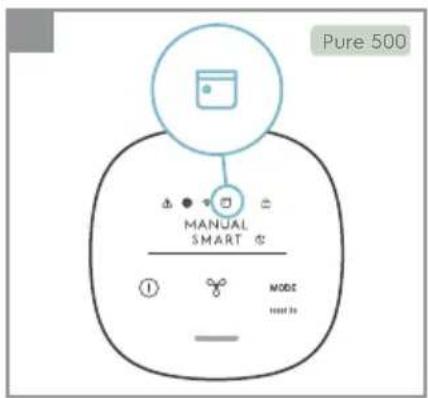
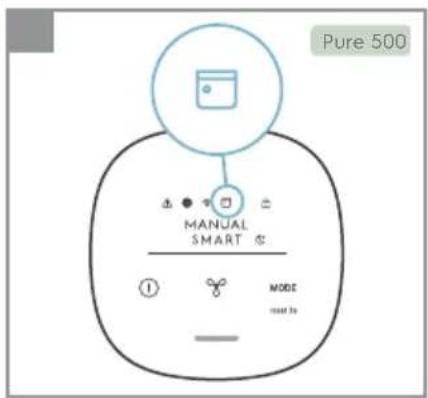
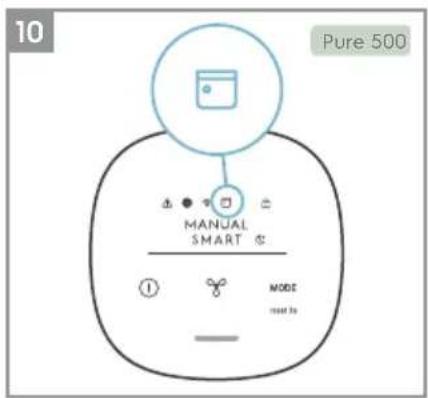
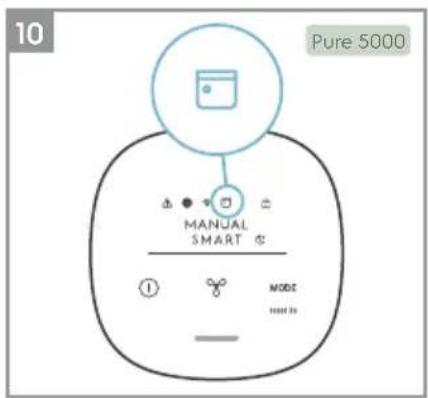
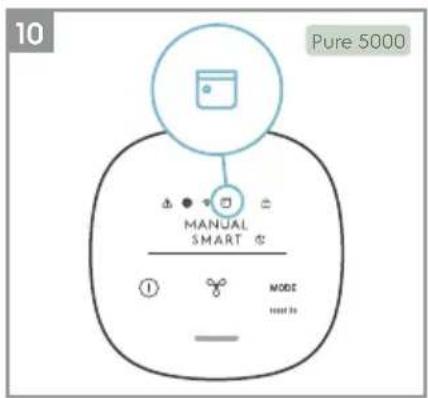
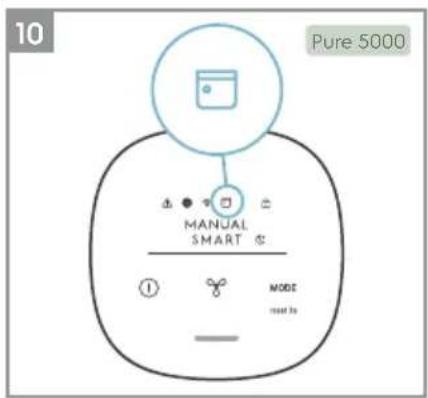
N. Filter change icon
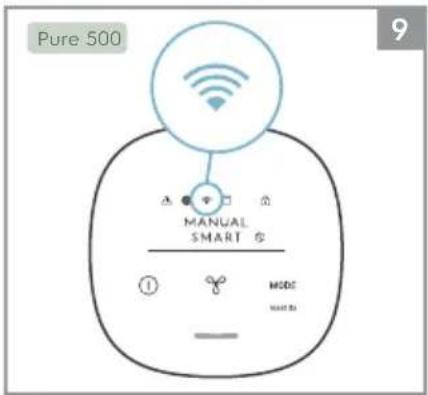
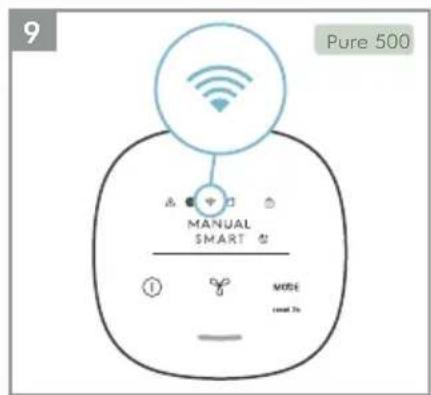
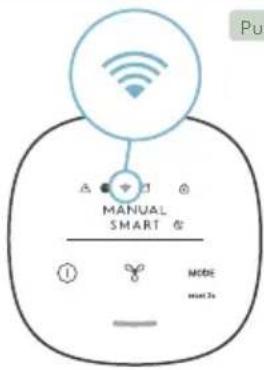
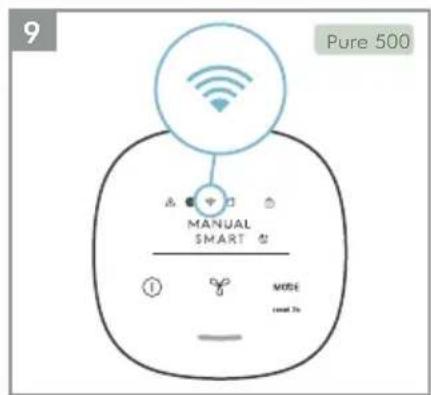
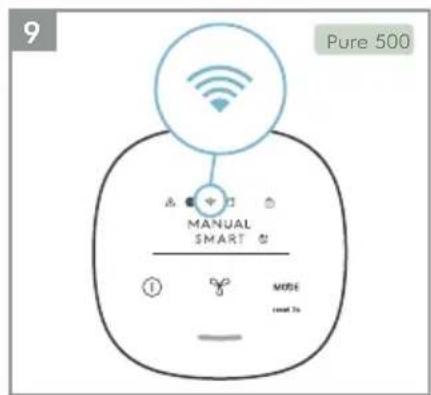
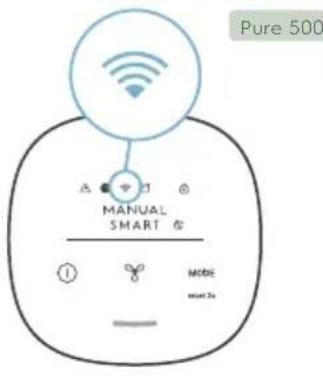
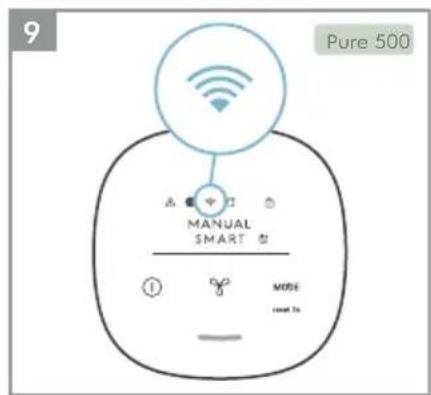
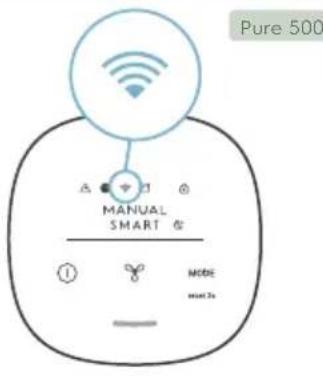
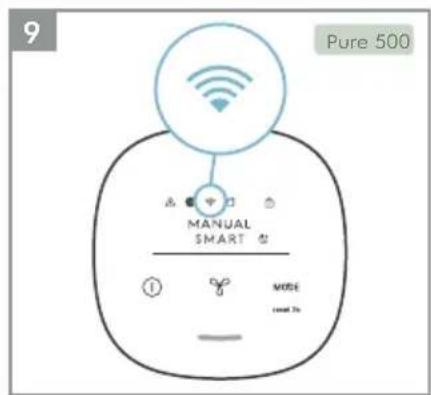
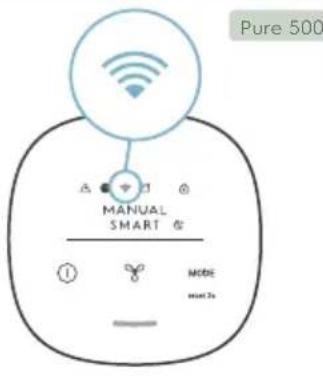
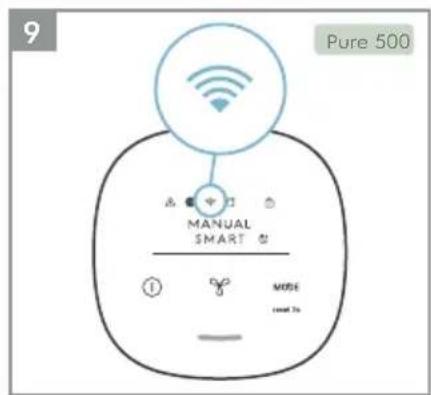
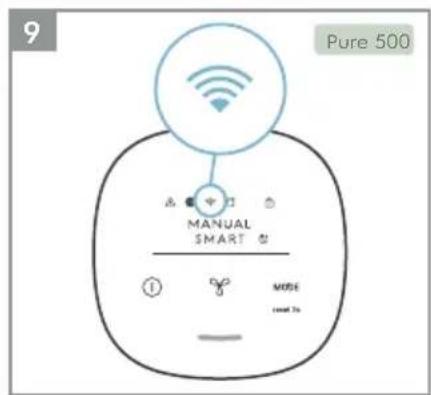
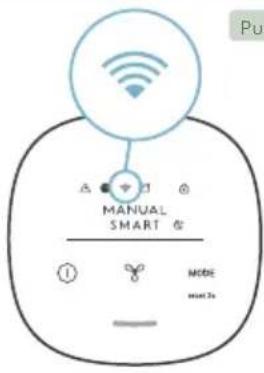
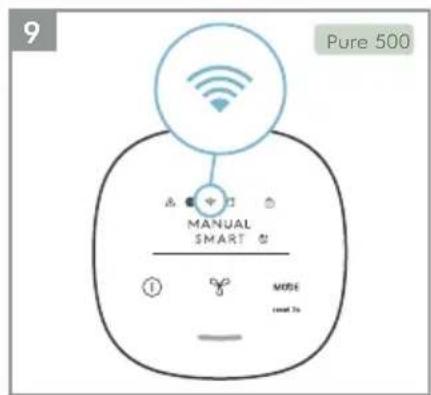
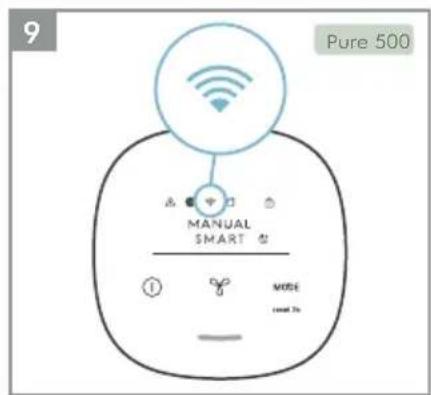
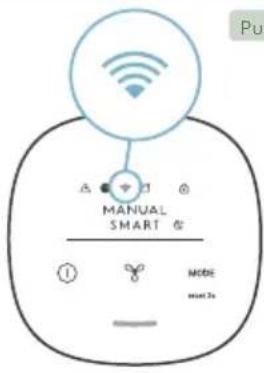
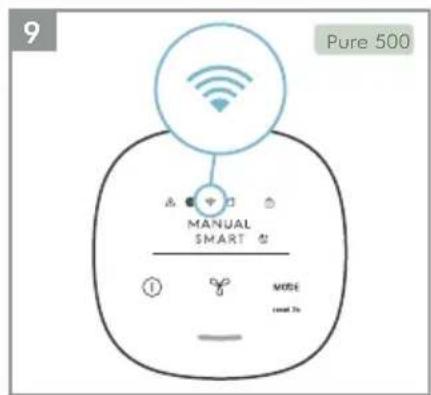
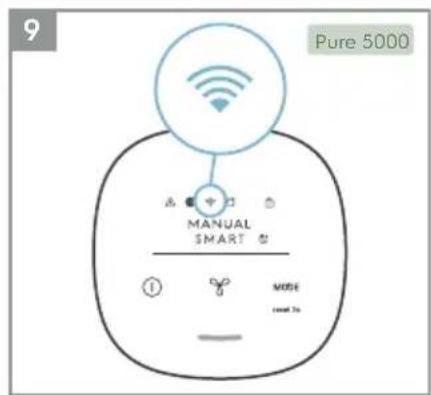
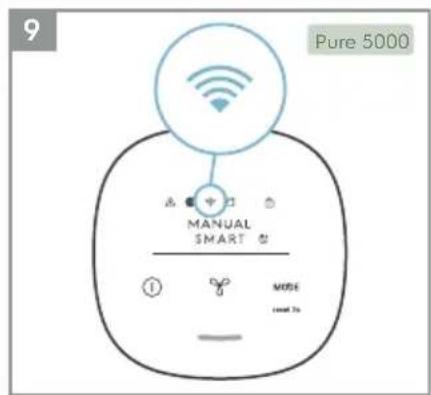
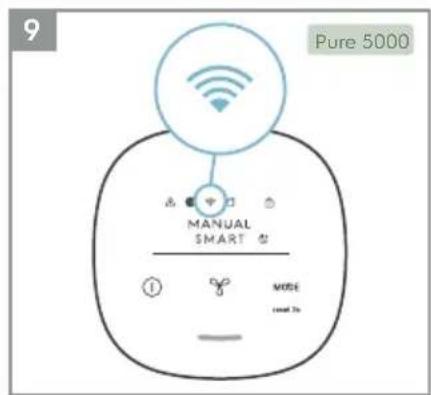
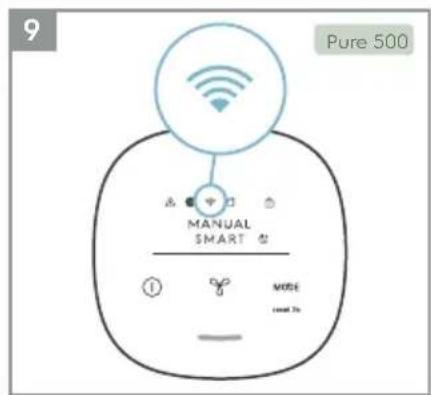
O. Wifi icon*
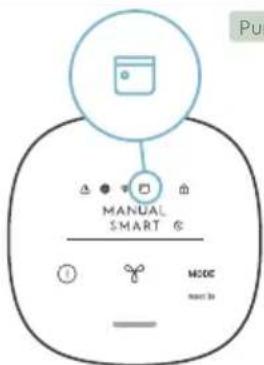
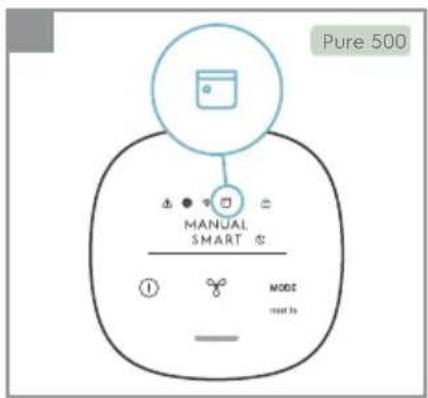
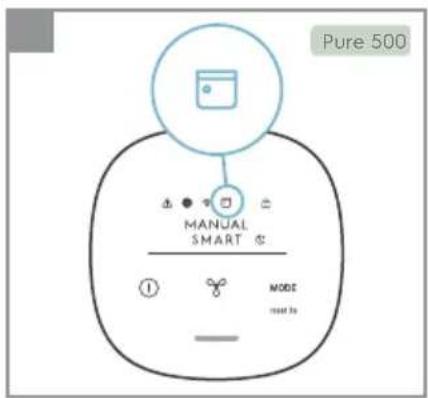
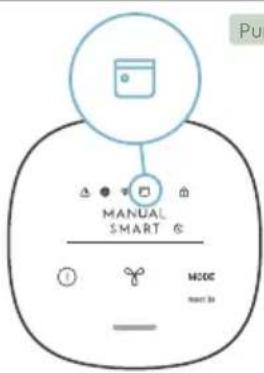
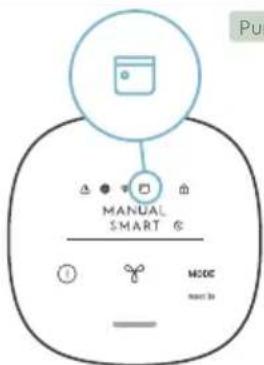
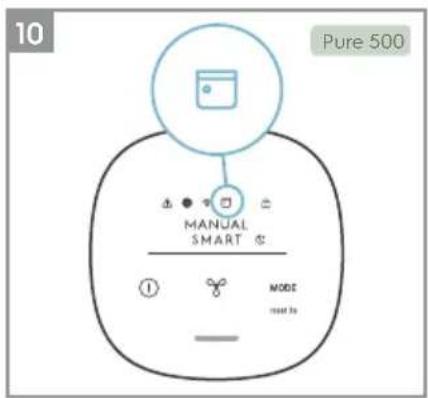
P. Scheduler icon*
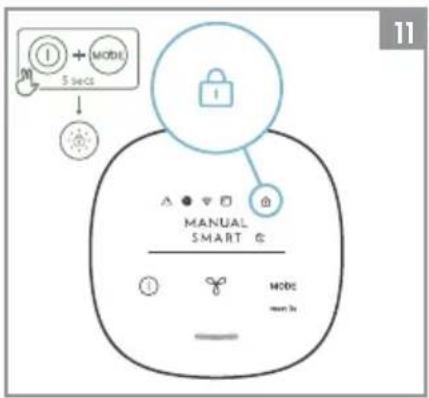
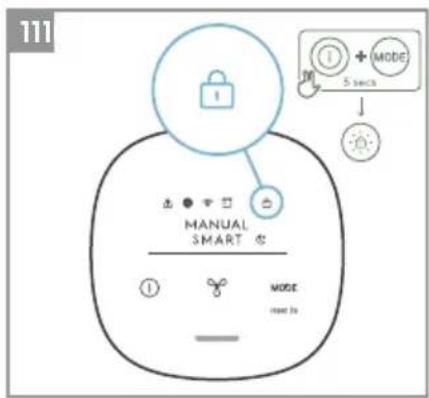
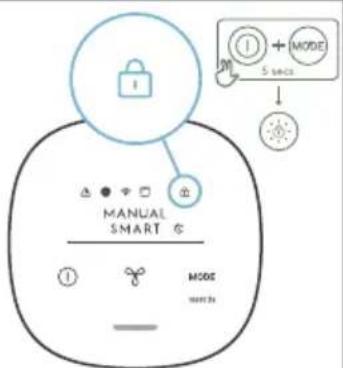
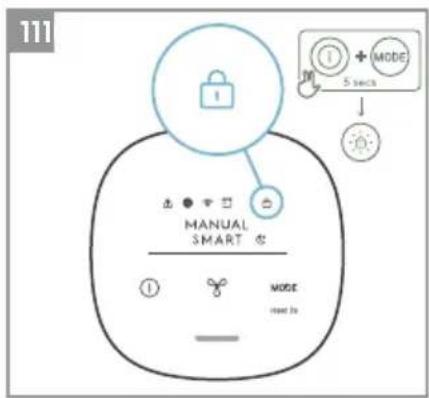
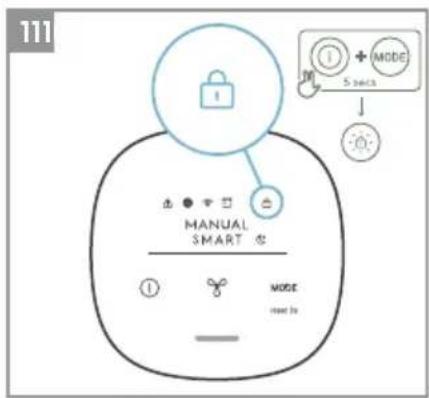
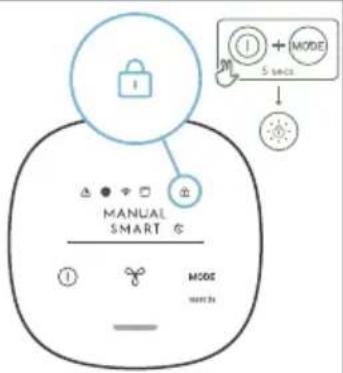
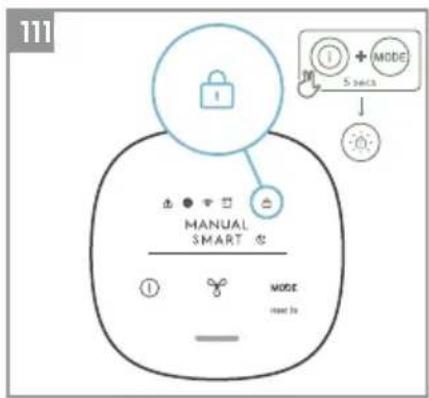
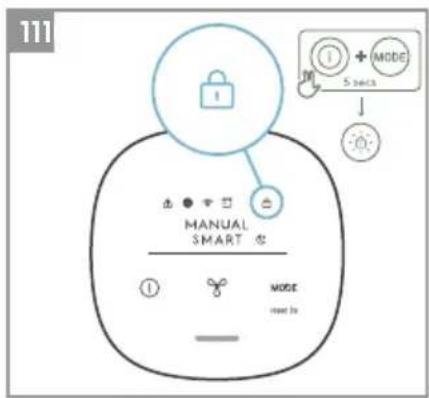
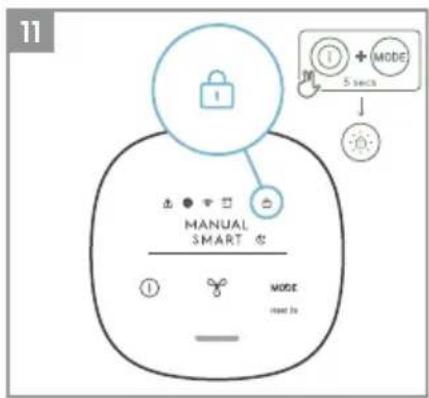
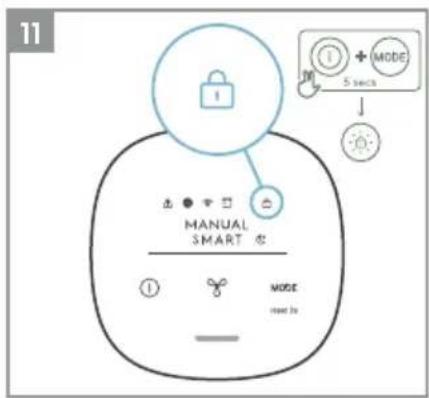
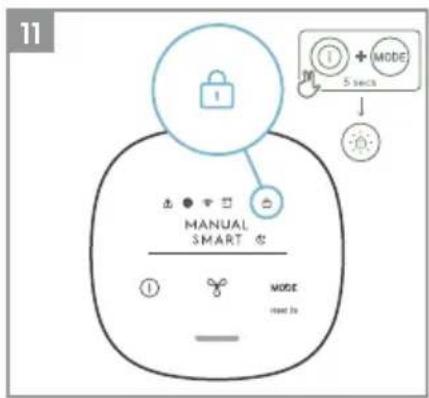
Q. Child lock icon
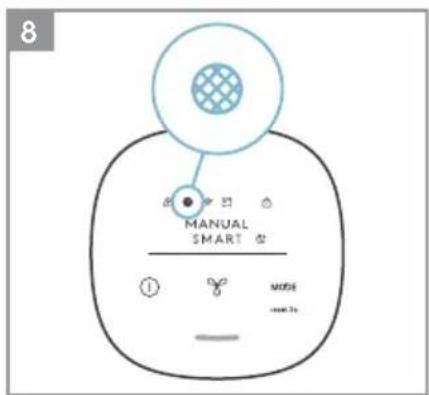
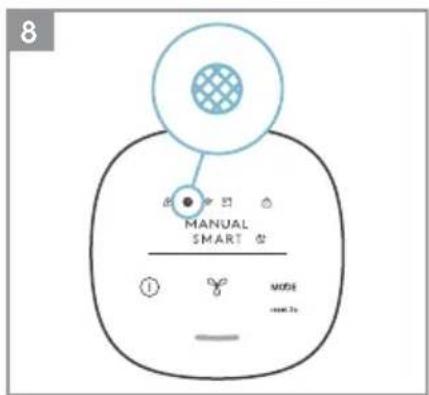
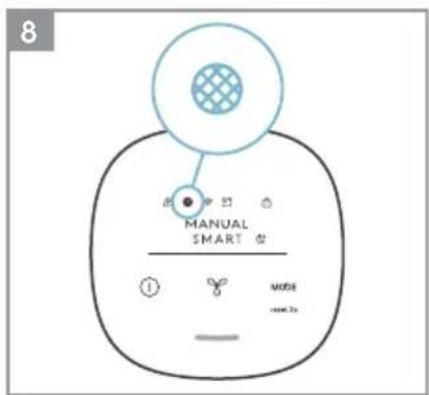
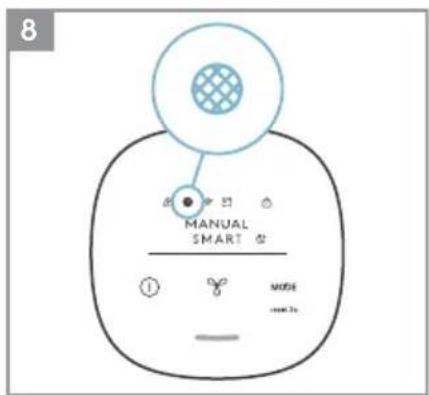
R. MODE indicator
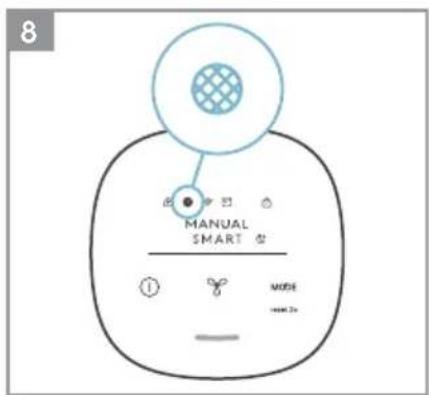
S. FAN SPEED indicator
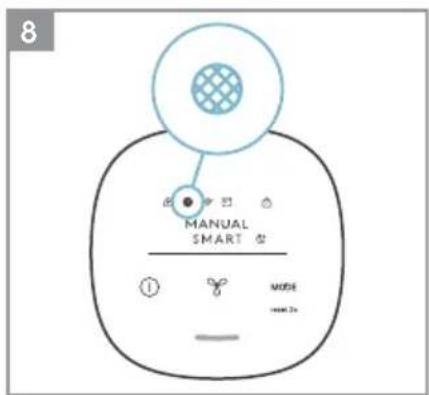
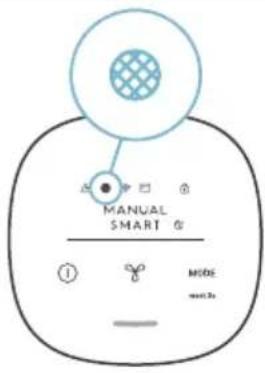
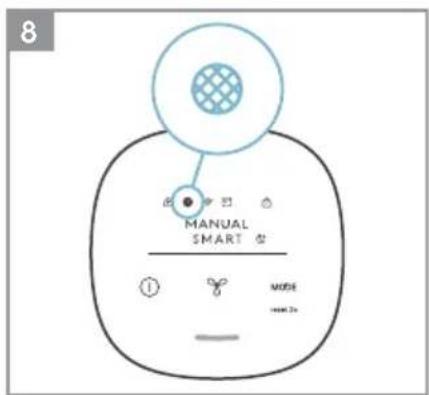
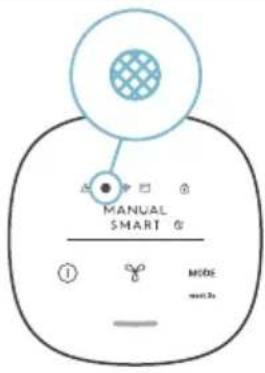
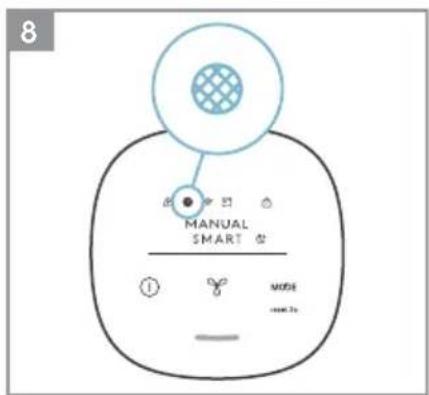
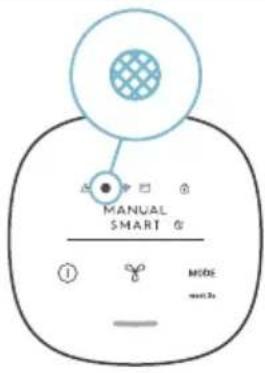
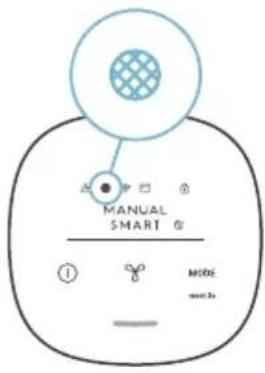
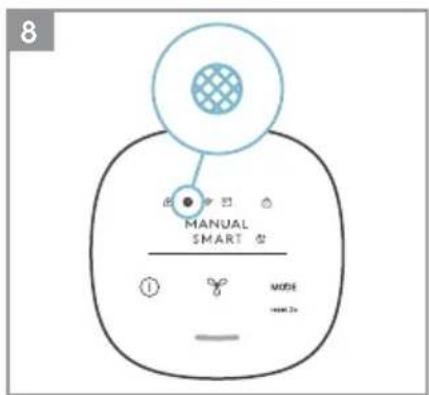
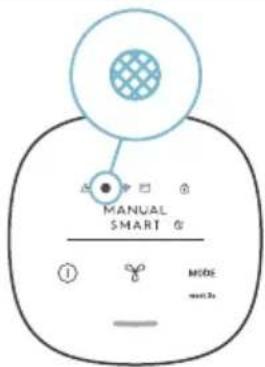
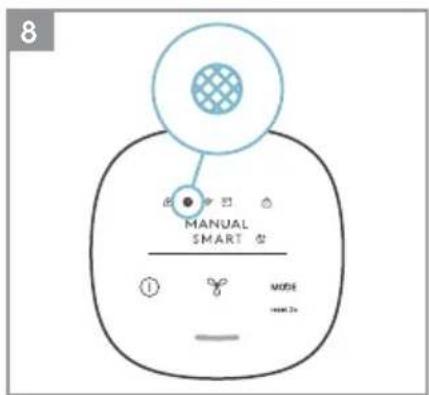
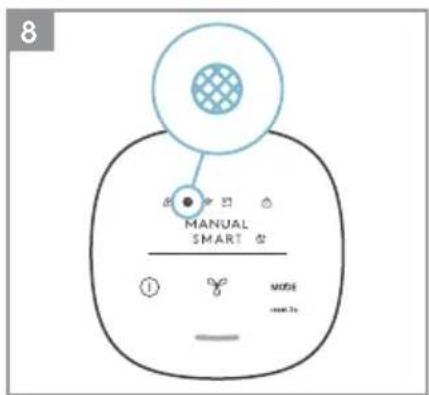
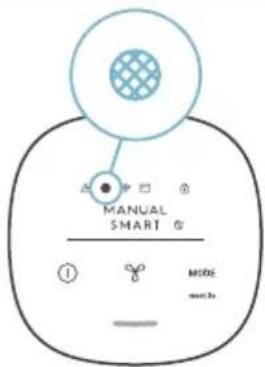
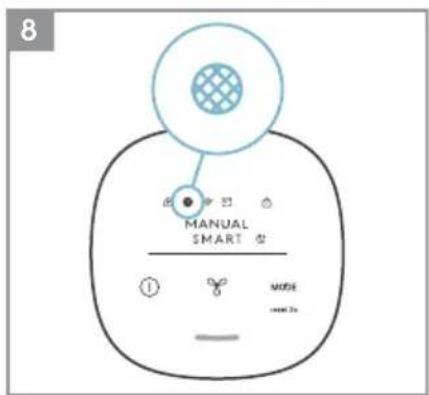
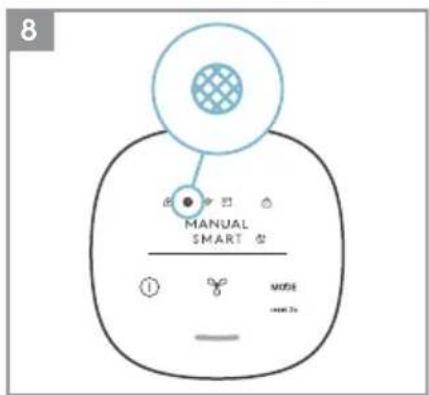
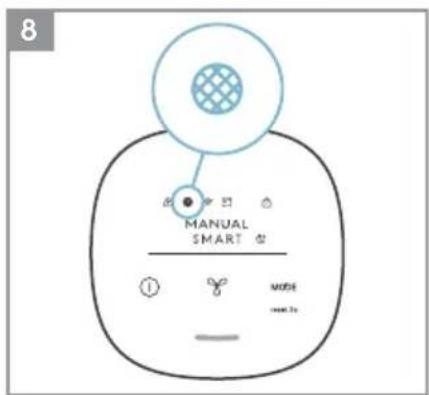
T. Air quality indicator
* The features only available for Pure 500 series.
NOTE: Your specific model may not have all the components and features listed within this USER MANUAL. Please check the product packaging OR the product specification page on our website for exact details of your model. Electrolux reserves the right to change information contained herein without notice.
12
![graph LR A["Receipt"] --> B["Storage"] B --> C["Recycle with 5% label"] C --> D["Recycle with battery icon"] D --> E["Recycle with recycling tray"] E --> F["Recycle with battery icon"] F --> G["Recycle with recycling tray"] G --> H["Recycle with battery icon"] H --> I["Recycle with battery icon"] I…](/content/2026/04/638710/images/10c802ac4cbd917fe00fbfd8445423b9ca4736e4700b134943bcfb923c6de461.jpg)
13
Refer to pages 7-9 for further details about the description of the images.
To enjoy peace of mind register your appliance today at www.electrolux.com.
Stay updated on better living services, safety notices and shop for accessories that match your appliance.
Features might be added or updated with new app releases.
SET UP
Note: Please remove the protective film on the control panel display for better usage.
Remove the plastic bag around the filter before using the product.
Always keep unit OFF when changing the filters.
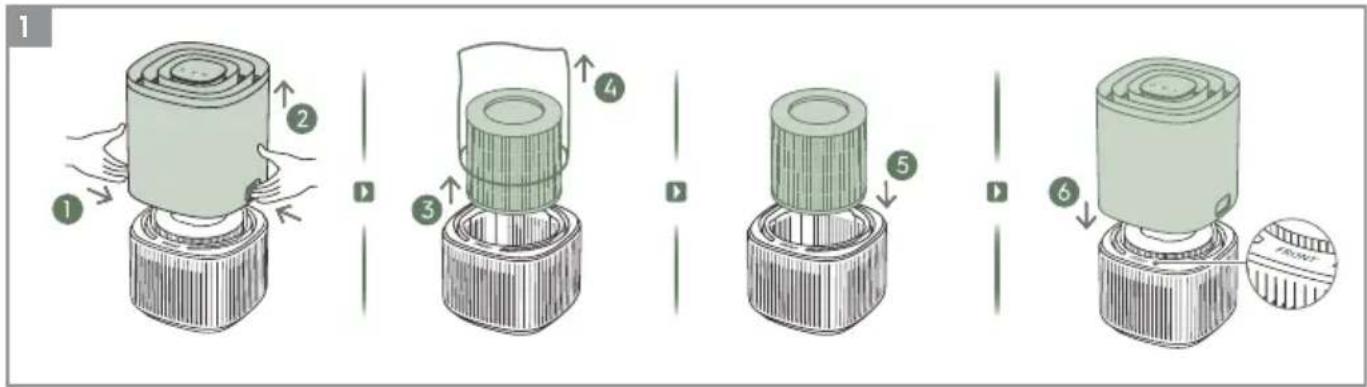
1 Open the main body of the unit
Open the product by pressing the release buttons on the sides of the unit, then lift up the top part of the main body. (ref. page 5, picture 1).
2 Take out the filter and remove the filter bag
Carefully remove the plastic bag around the filter and discard appropriately.
3 Install the filter
Carefully insert the filter back into the product (either end of the filter works). Make sure that the filter is placed in the center of the cavity.
4 Put back the top part of the main body
Put back the top part of the main body to close the product till it is securely in place. The mark "FRONT" should be facing the front side of the product.
OPERATION
Caution: After filter is installed correctly, please ensure product is placed on a leveled surface before proceeding further. Ensure there is enough free space over and around the product.
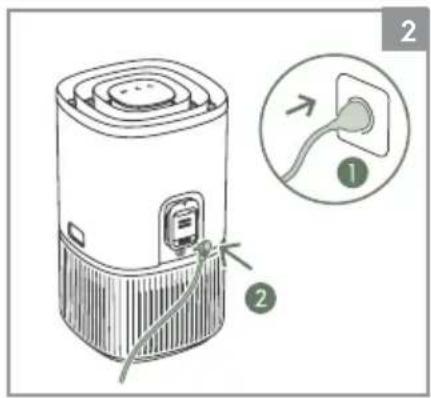
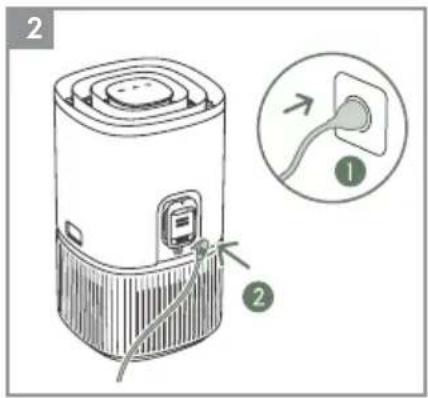
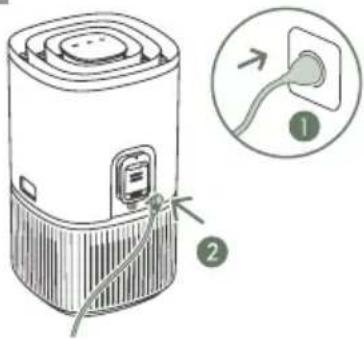
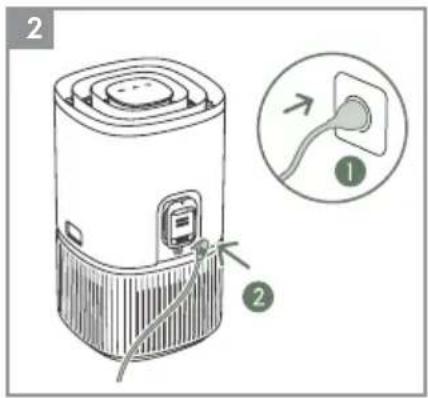
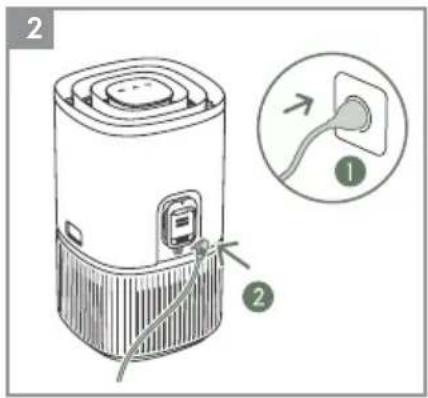
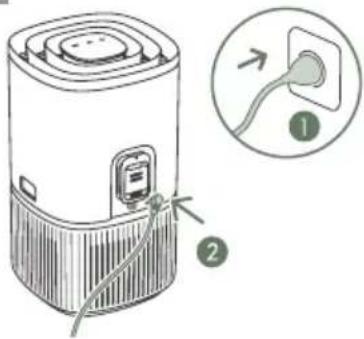
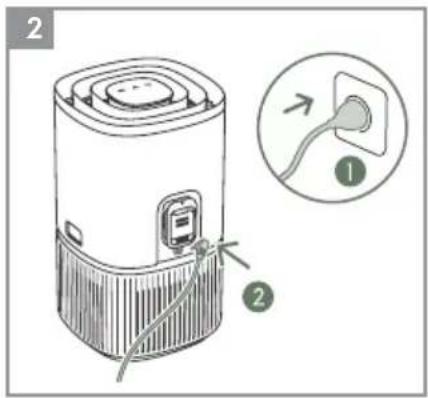
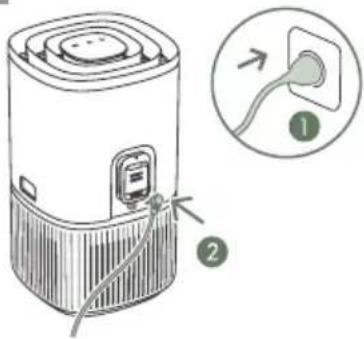
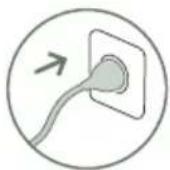
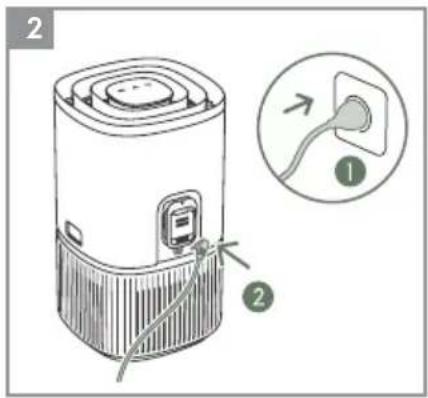
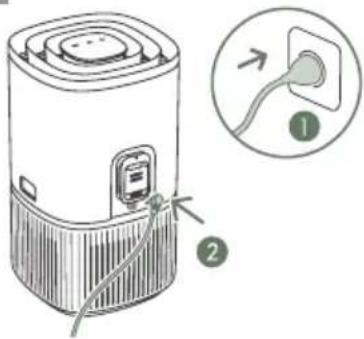
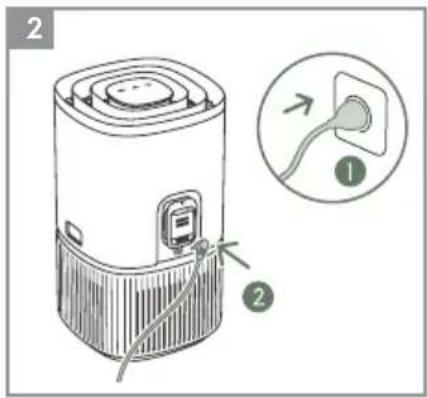
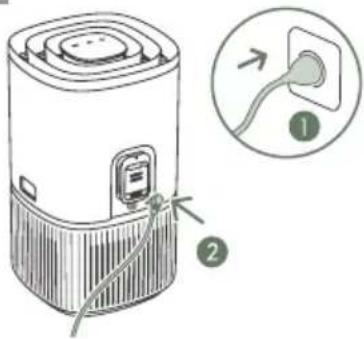
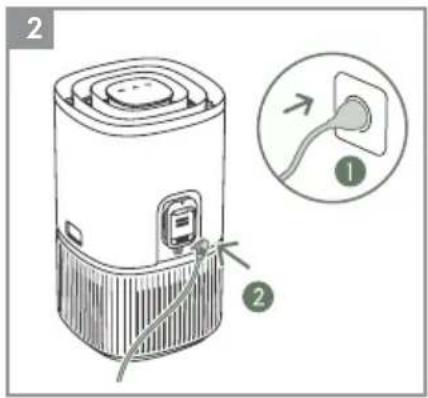
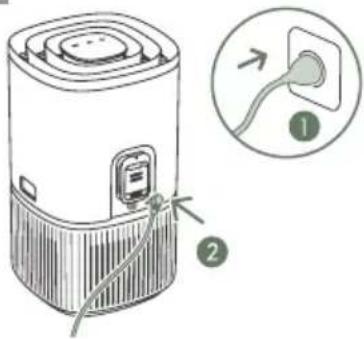
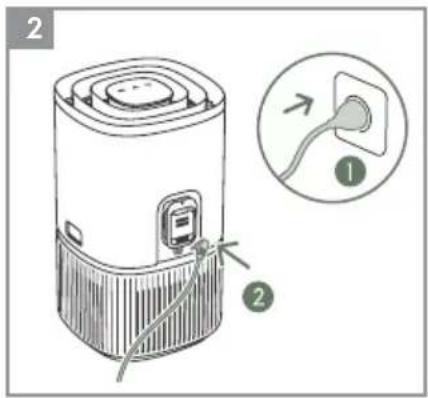
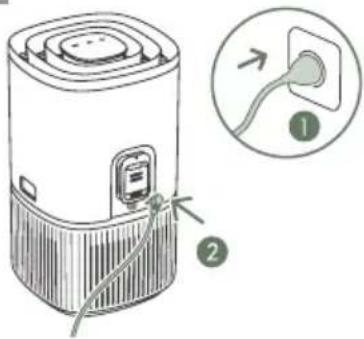
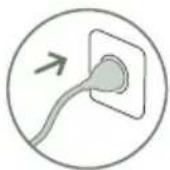
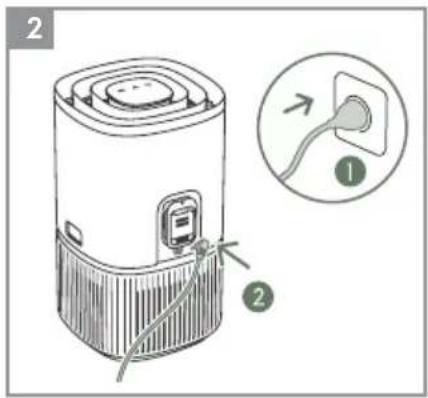
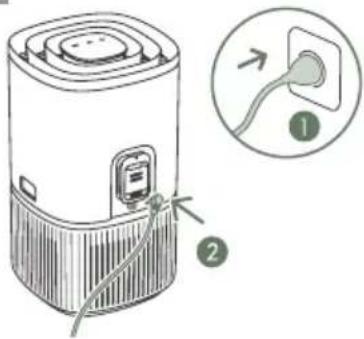
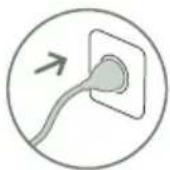
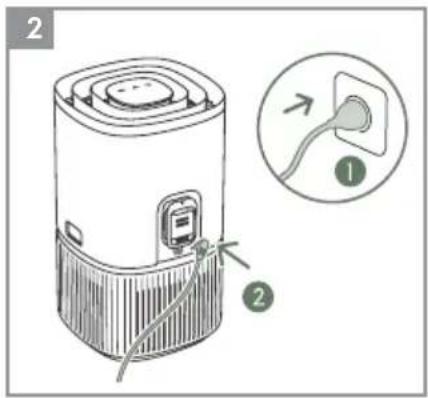
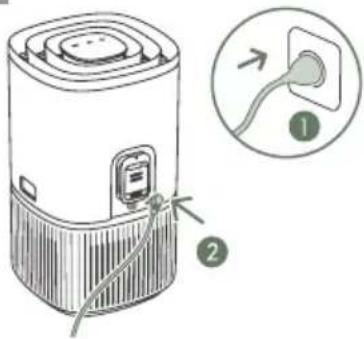
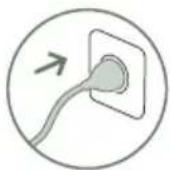
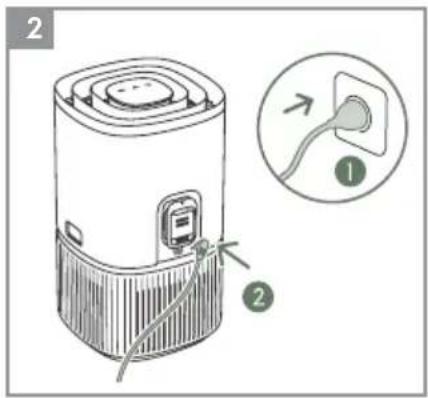
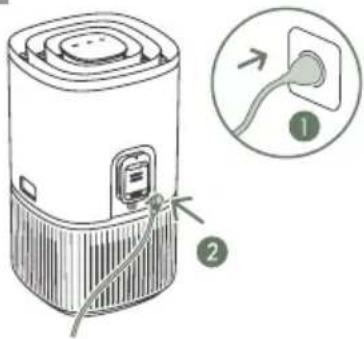
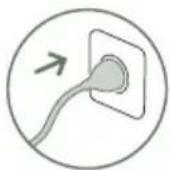
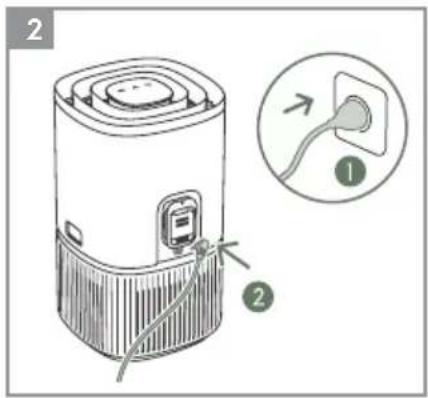
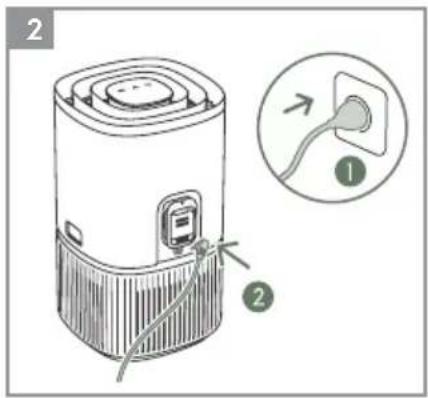
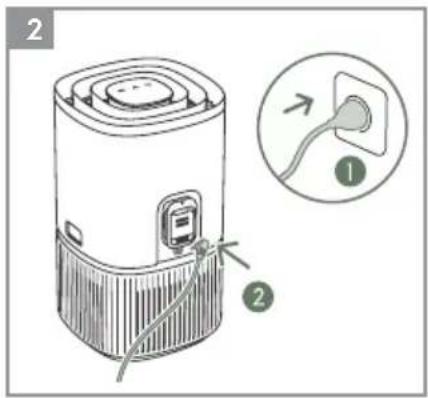
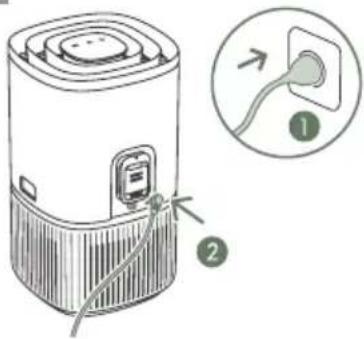
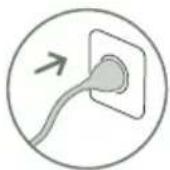
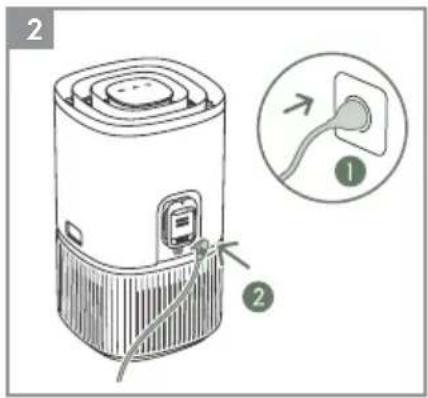
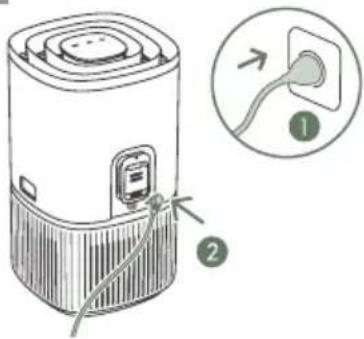
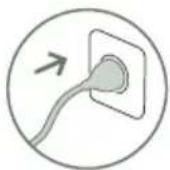
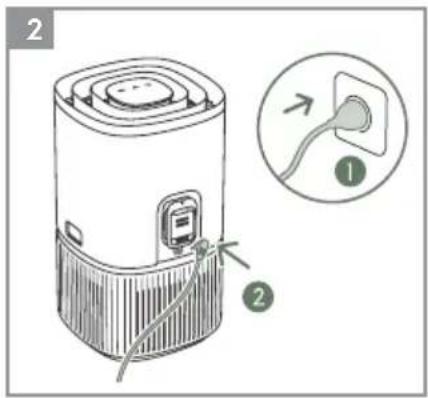
5 Connect the power plug.
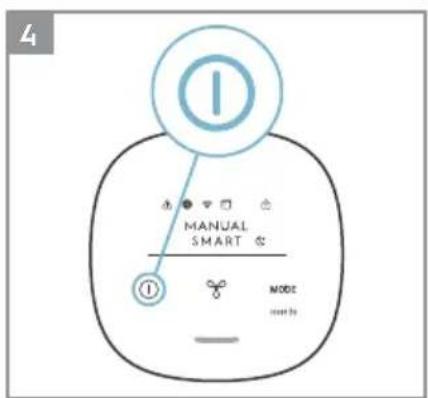
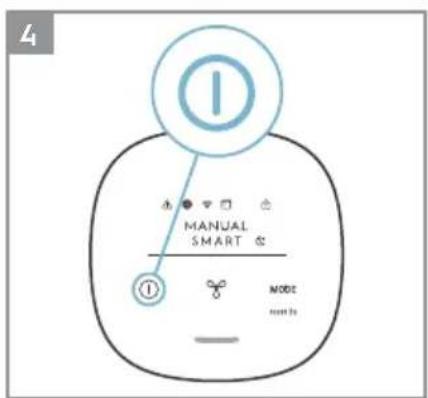
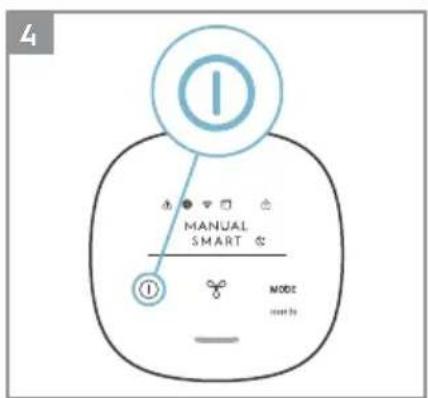
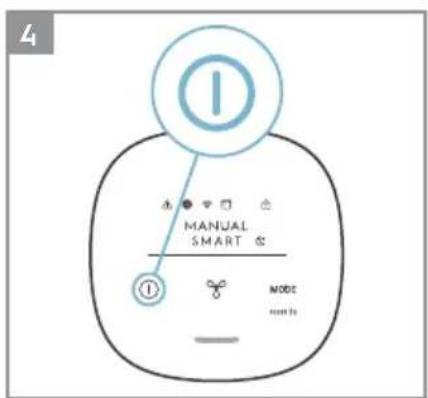
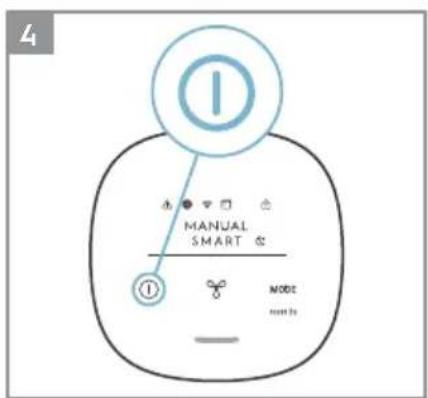
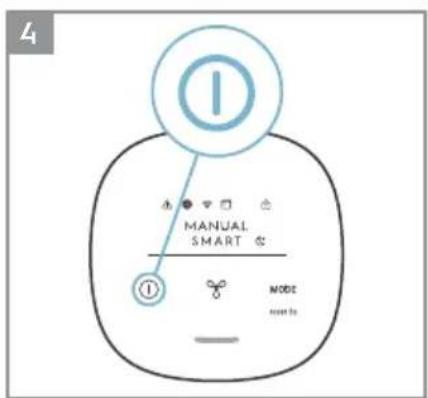
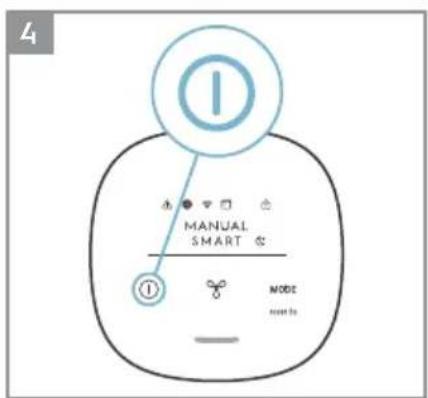
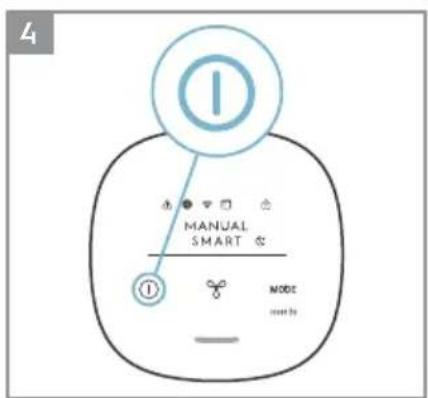
6 Power on
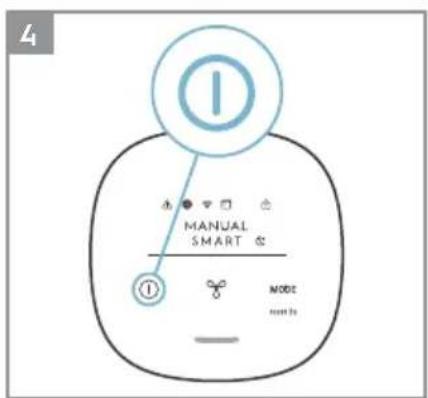
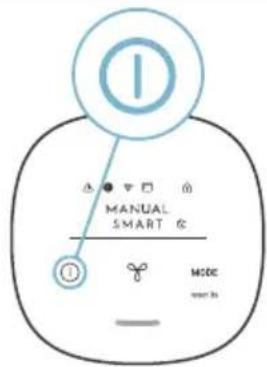
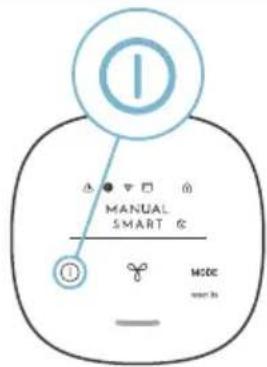
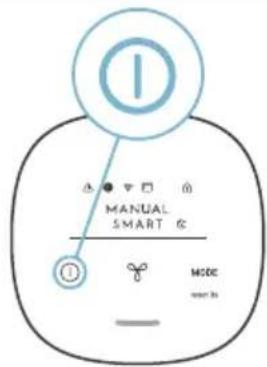
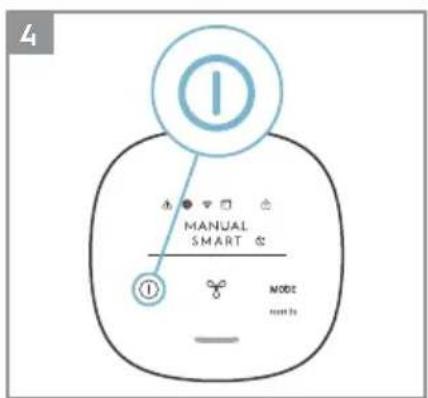
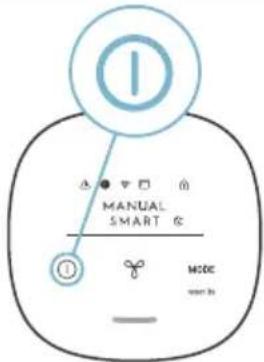
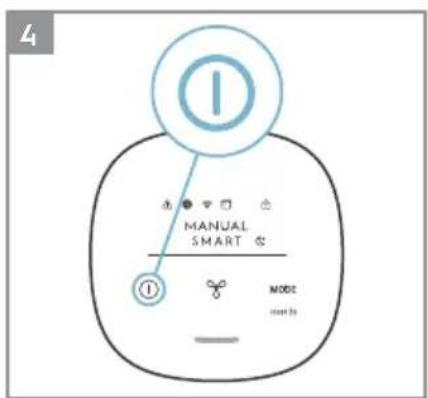
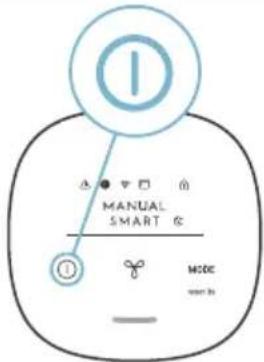
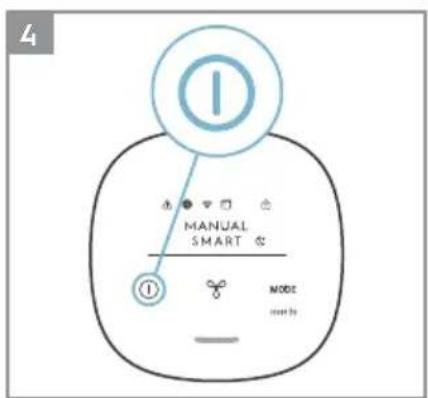
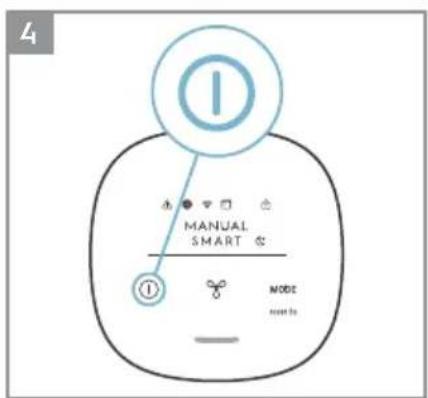
Press the ON/OFF button to turn ON the air purifier, the unit will run in default setting (SMART mode) when using the product the first time. Next time you start the unit it will resume the last settings you had before turning OFF the product.
NOTE: When turning ON the air purifier, it will take about 10 seconds for the sensors to calibrate and analyze the air quality. During this time, the air quality indicator will pulsate slowly in white.
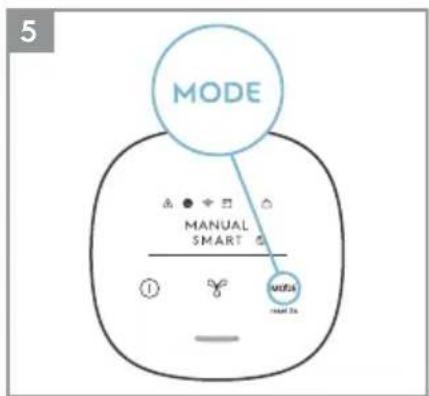
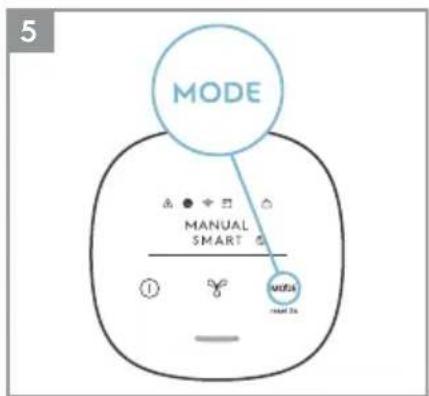
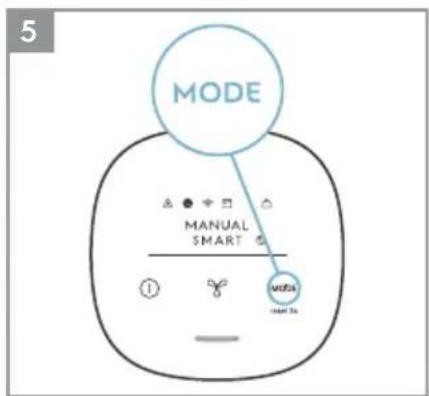
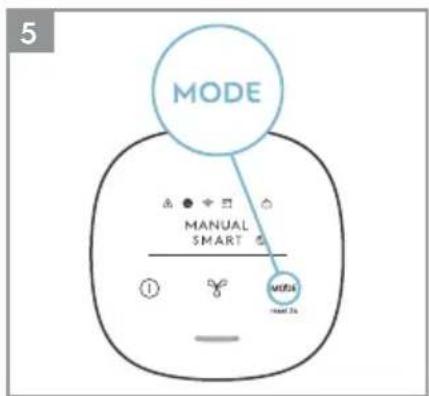
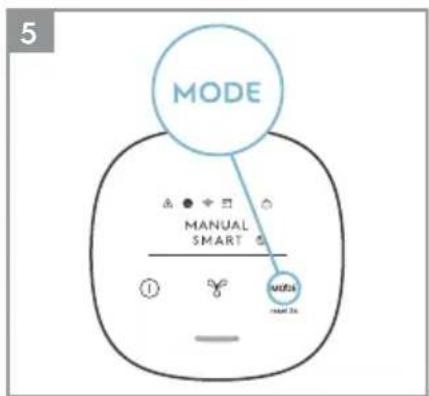
7 Mode selection
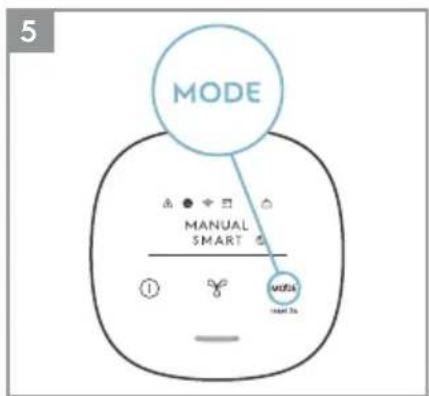
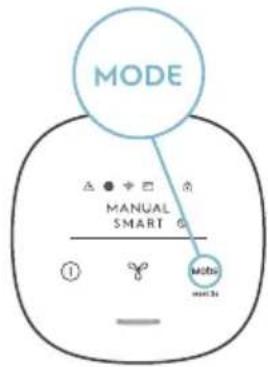
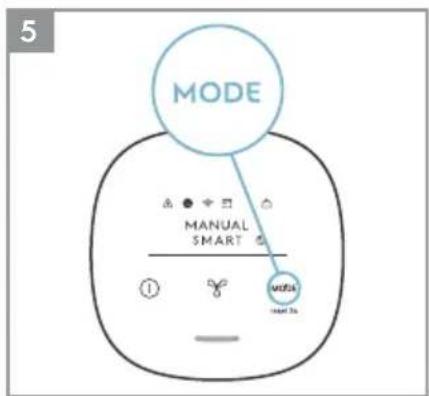
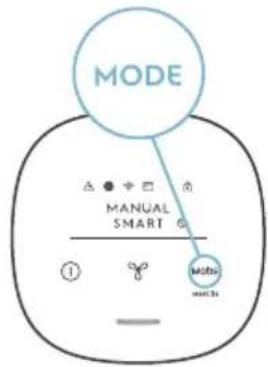
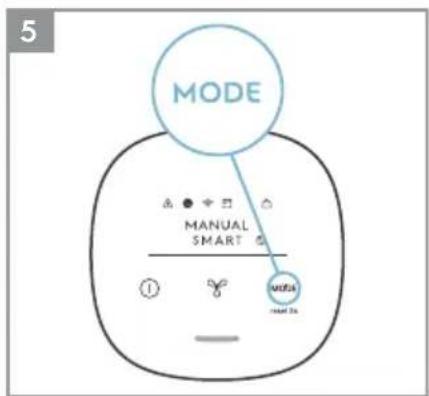
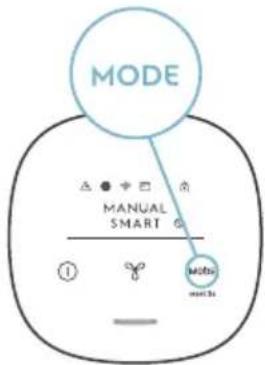
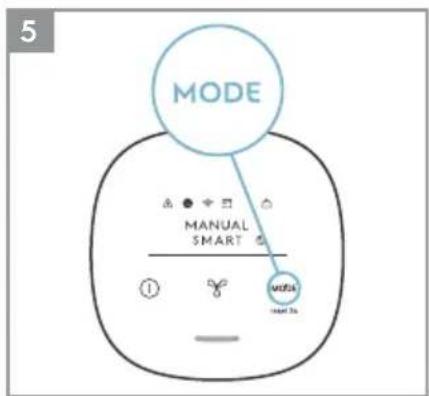
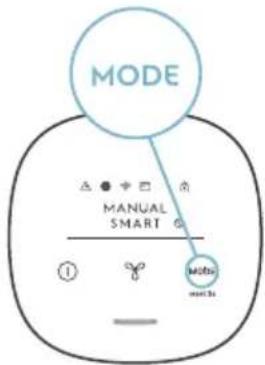
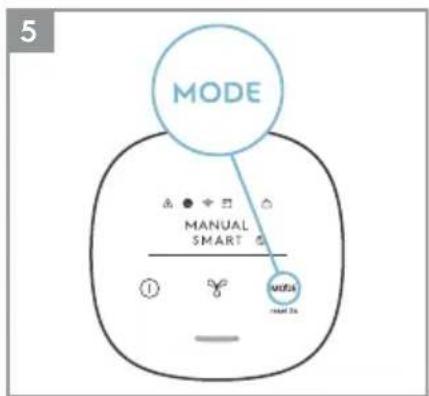
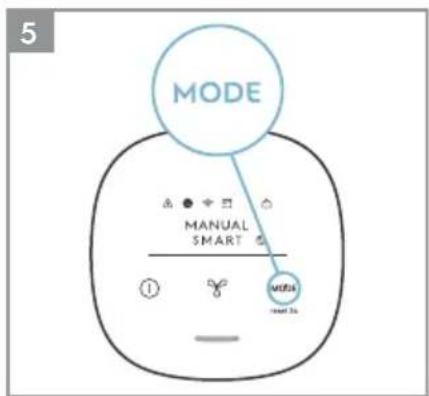
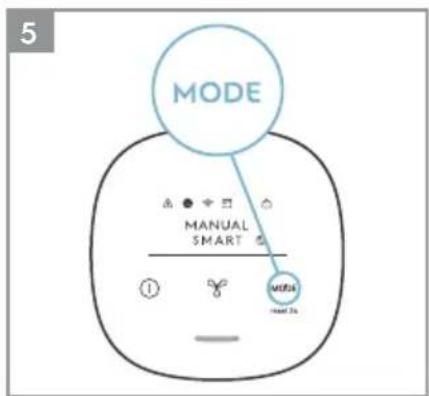
Press the MODE button once to toggle between the two modes: SMART and MANUAL
SMART: In the SMART mode, the unit will utilize the sensor data as input to decide on the appropriate fan speed, depending on the air quality in the room. The fan speed can not be adjusted by the user under this mode. Please see the AIR QUALITY INDICATOR section for more details.
SMART QUIET: In the SMART QUIET mode, the unit will run as quiet (control panel indicators dimmed & lower fan speed) as possible to allow for sleep.
MANUAL: In the MANUAL mode, the unit will utilize the sensor data as input only to show the air quality level via the air quality indicator but will not self-adjust the fan speed. This mode is best utilized for a quick burst of cleaning, especially when the user anticipates an increase in particulate matter in the room due to household chores (e.g. vacuuming).
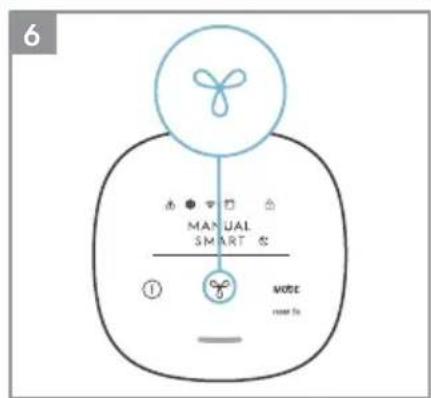
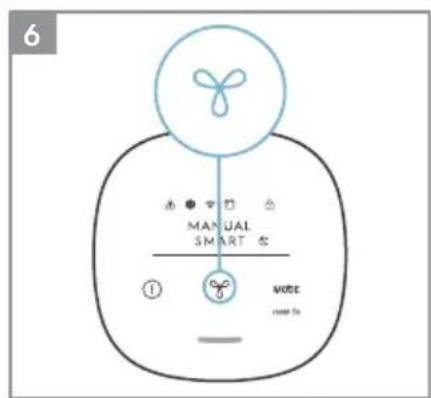
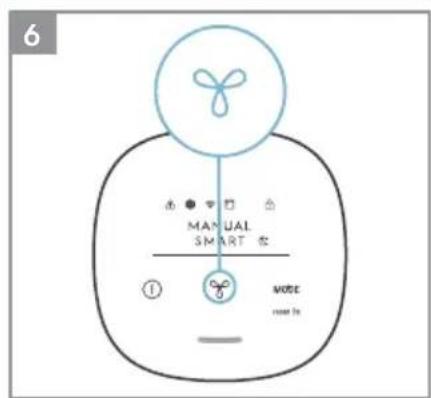
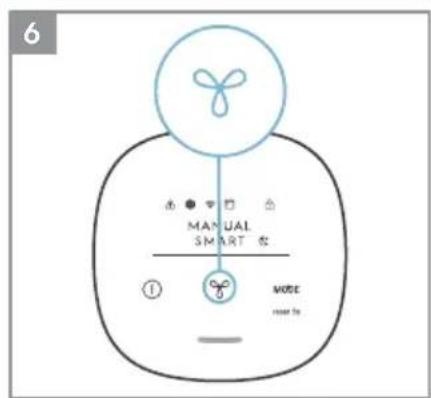
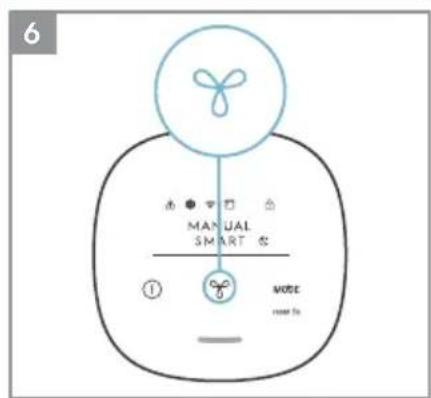
8 Air speed control
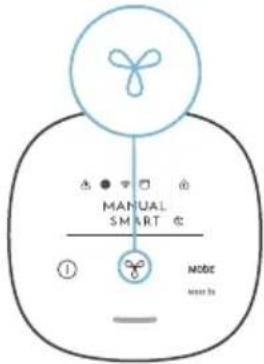
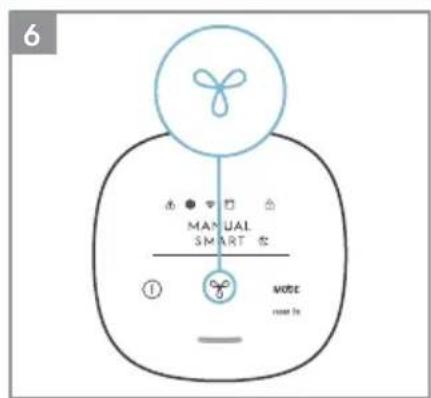
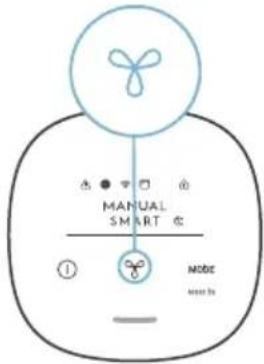
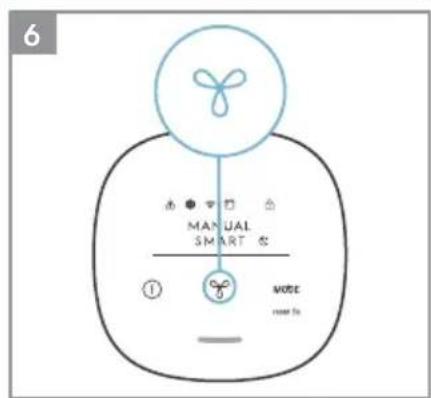
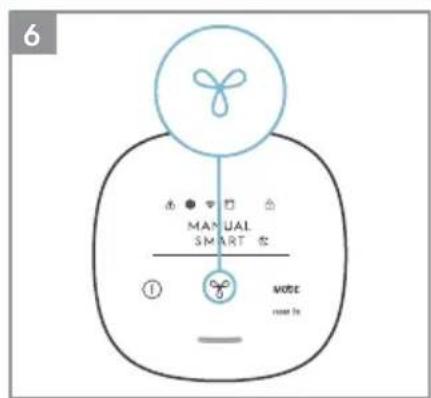
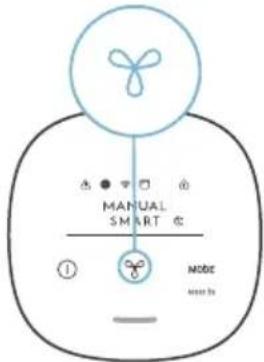
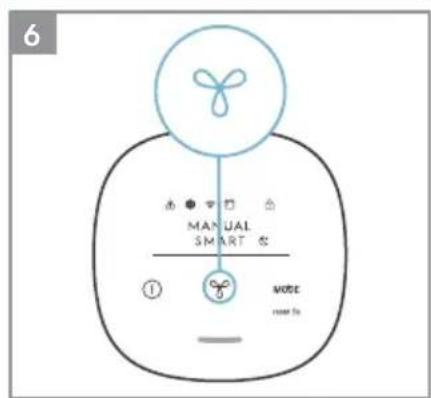
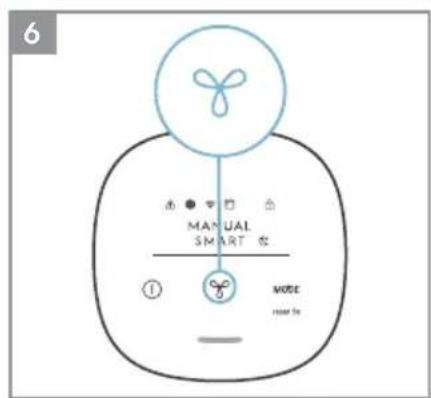
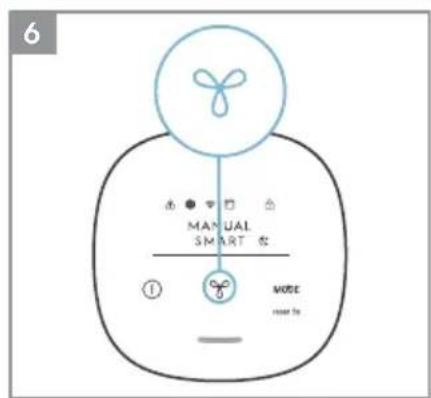
While in MANUAL mode, Press the FAN button to adjust the fan speed, the fan speed indicator will show the fan speed.
The unit has 5 levels fan speed.
NOTE: The unit will ramp up OR down to chosen speed setting gradually.
FEATURE ICONS AND INDICATORS
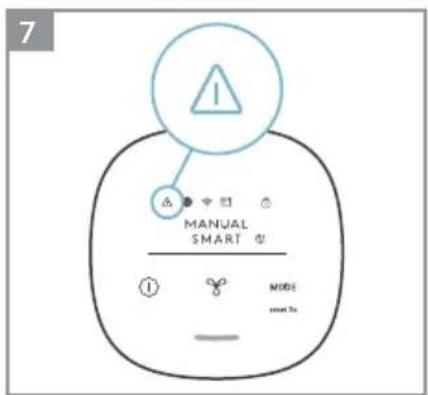
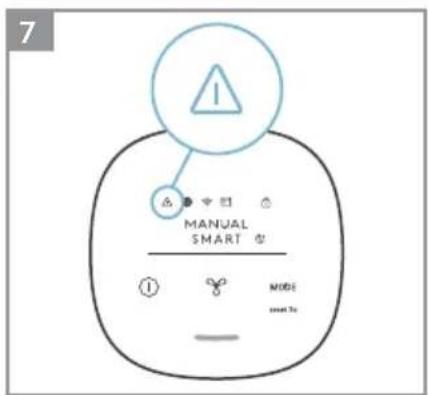
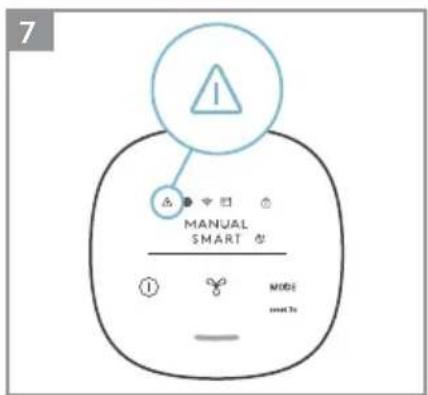
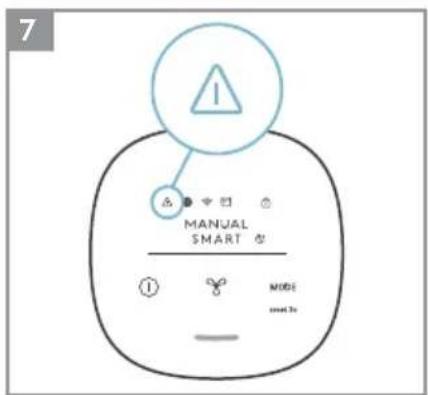
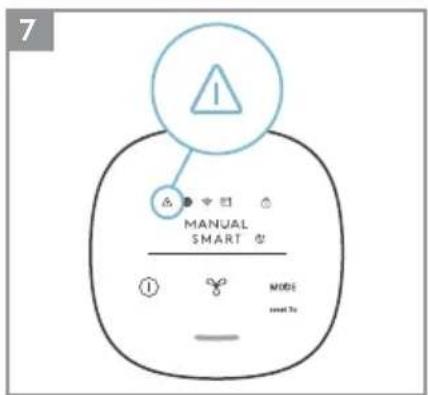
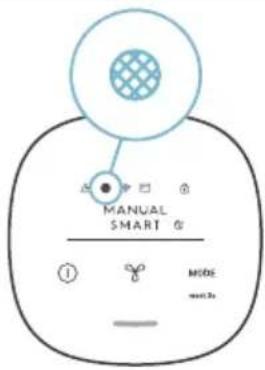
9 ALERT
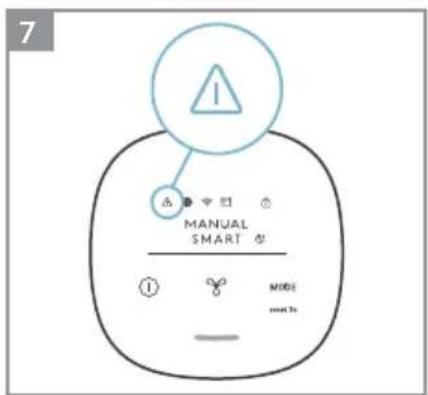
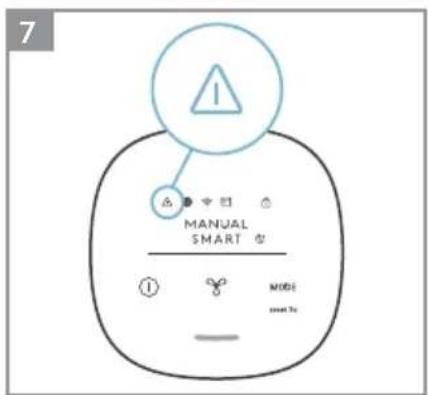
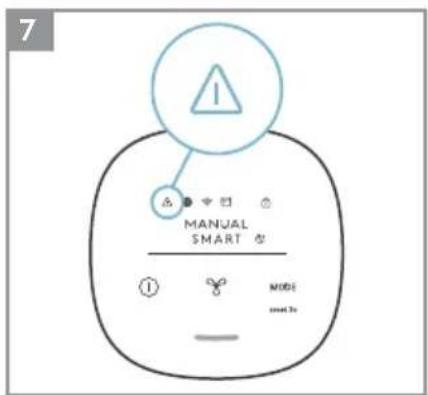
The alert icon will light up to alert you of a possible electrical or electronic error with your unit. Please refer to the App for details on the error type, component details and any mitigating actions. More details can also be found in the ERRORS & TROUBLESHOOTING section below.
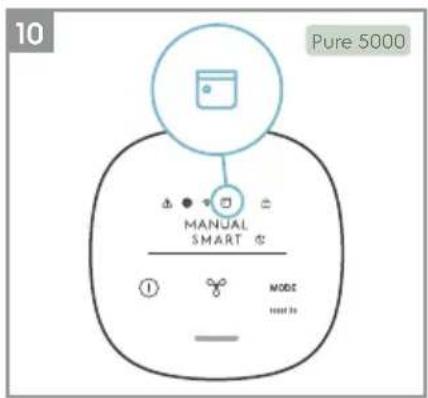
10 FILTER CHANGE and RESET
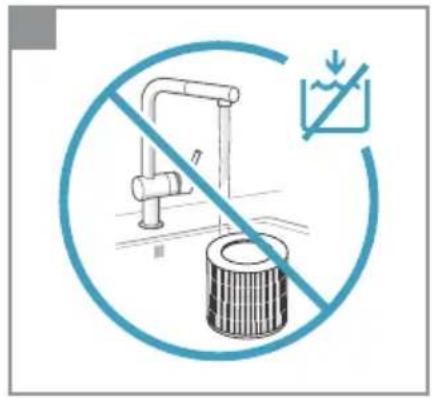
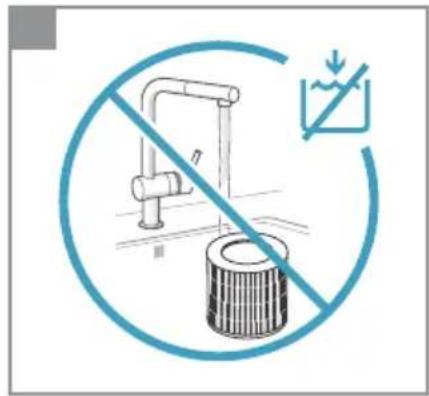
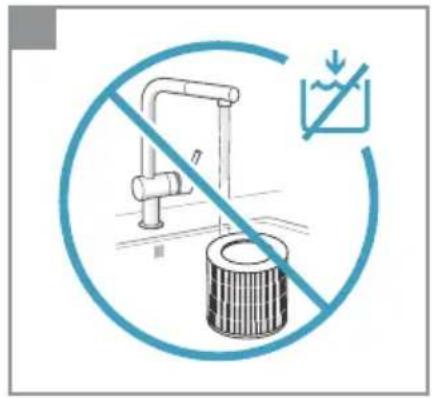
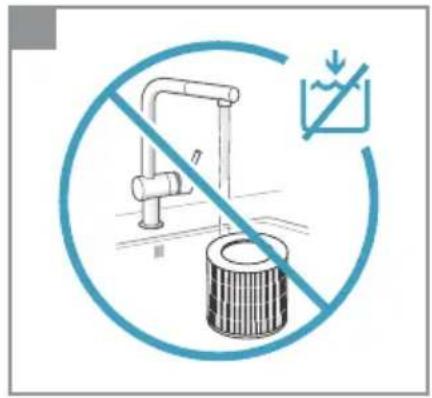
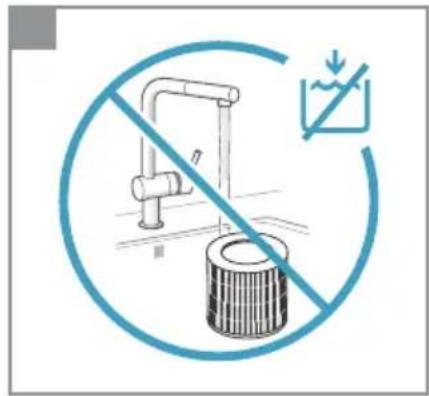
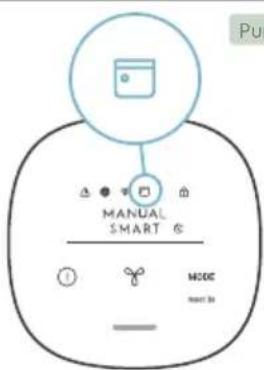
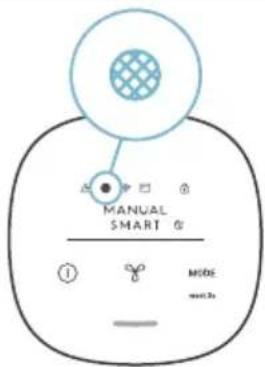
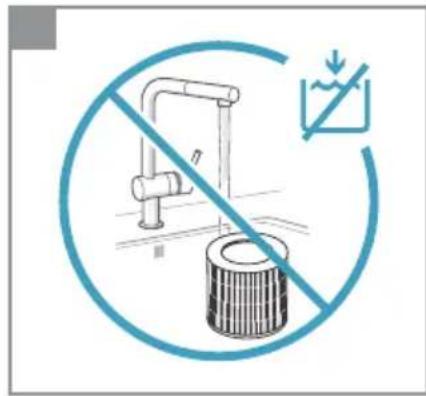
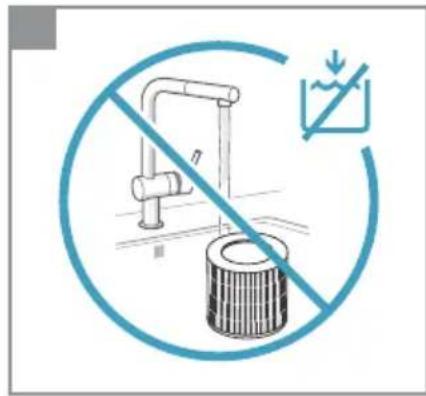
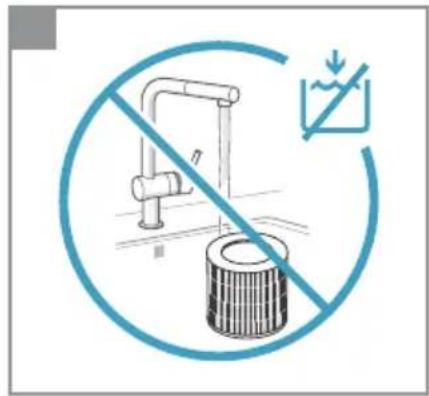
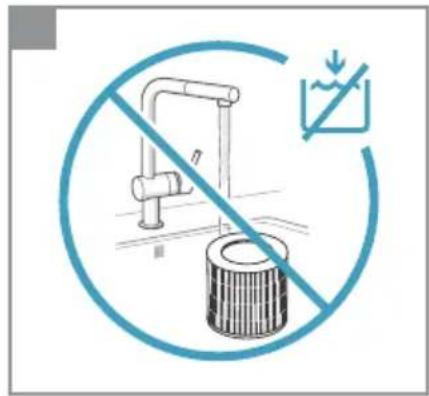
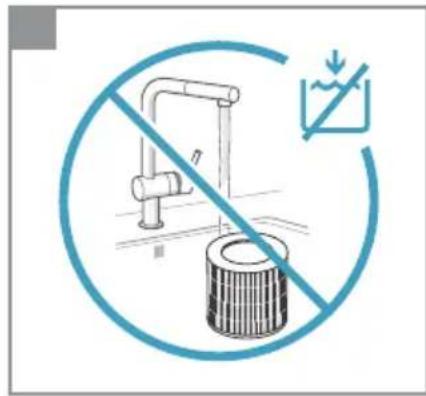
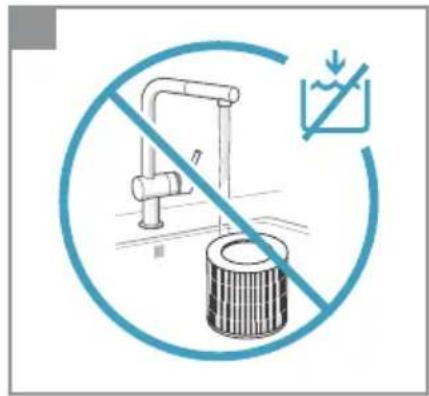
FILTER CHANGE: The filter in the unit cannot be washed, they can only be replaced. The filter change icon will light up to remind you to change your filter. Always ensure the plastic protective bag is removed before its use in the unit.
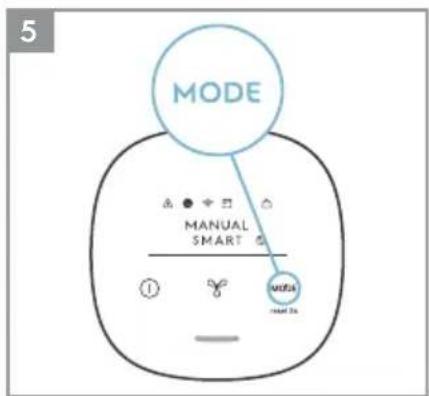
FILTER RESET: After the used filter is replaced, long press the MODE button 📋 for 3 seconds and filter change indicator will reset.
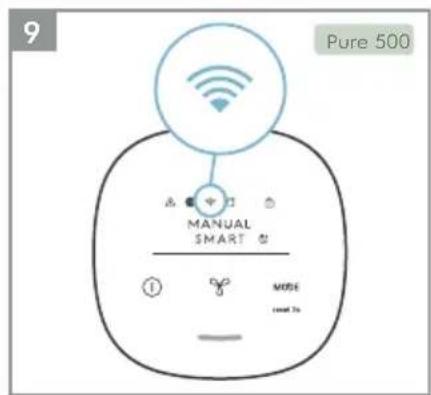
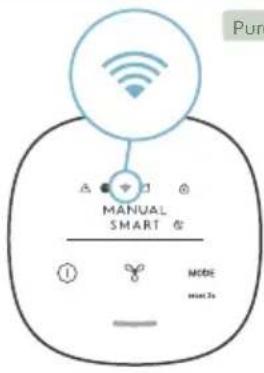
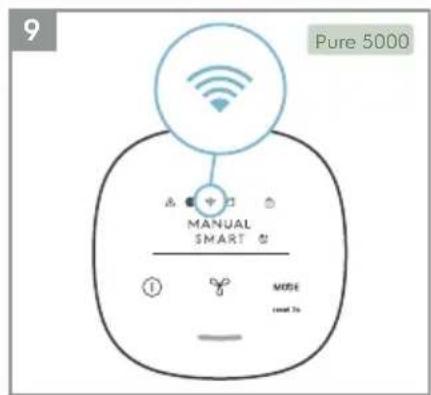
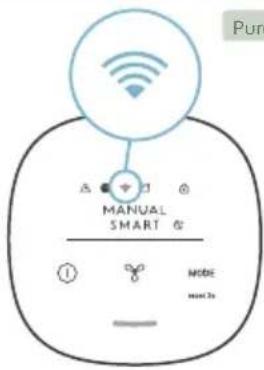
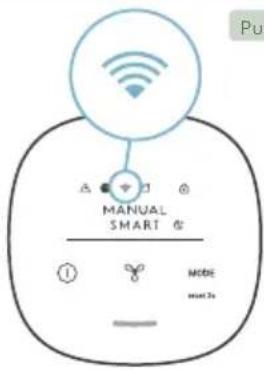
11 WIFI
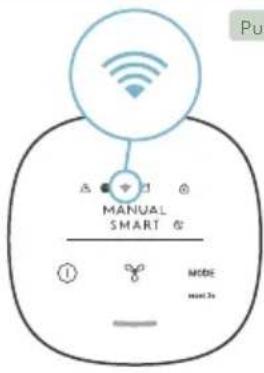
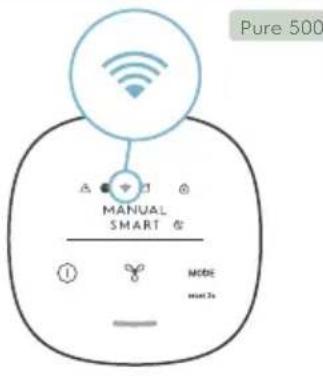
The unit is equipped with a WiFi module, which enables remote control and access to many more features including time-based tracking of your indoor air quality data. When the unit is connected to the home WiFi, this icon will light up. If the icon is blinking, it indicates a temporary loss of WiFi connectivity – please refer to the Electrolux App for more details.
Long press the ON/OFF button Ⓐ for 5 seconds to activate or deactivate wireless network.
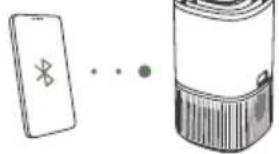
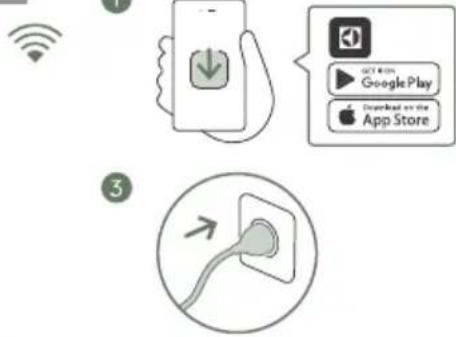
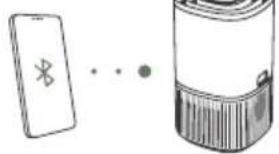
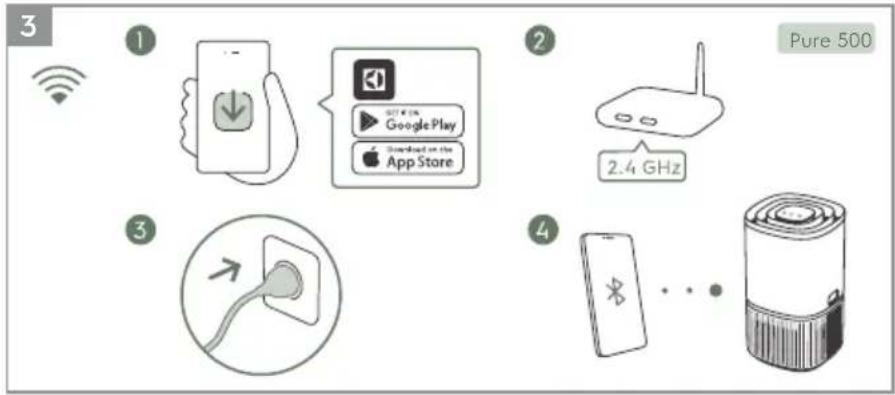
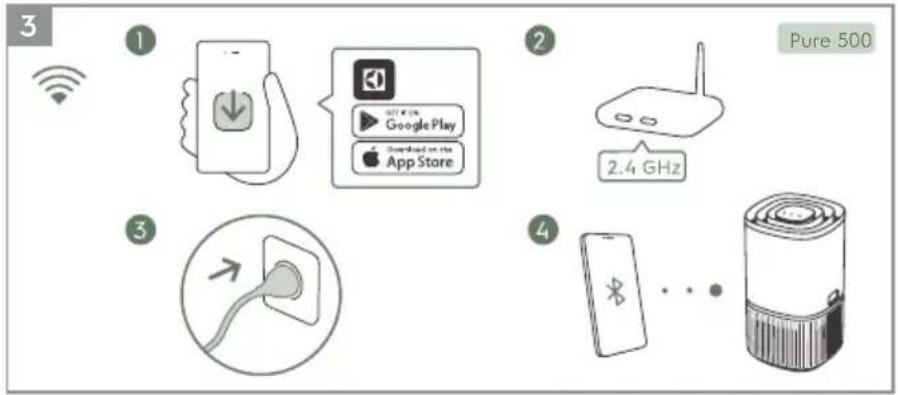
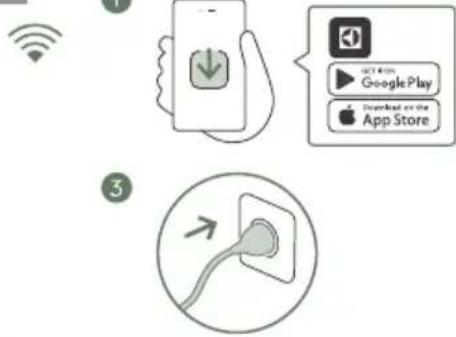
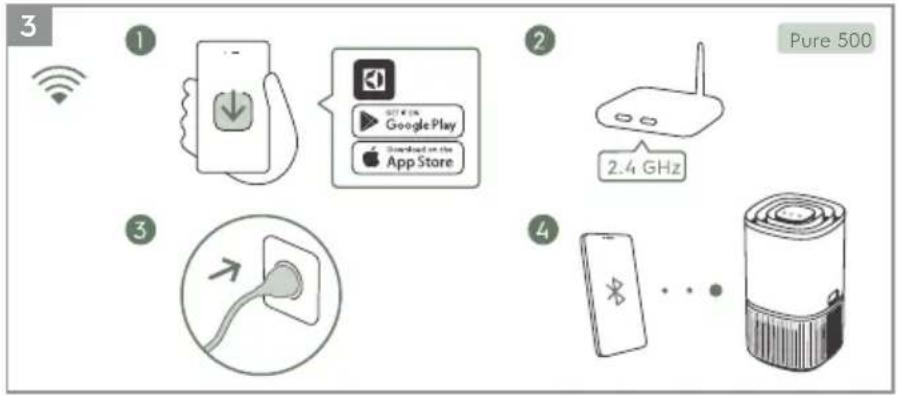
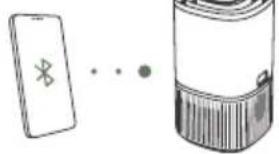
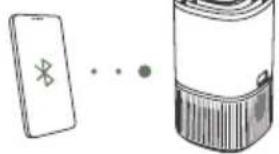
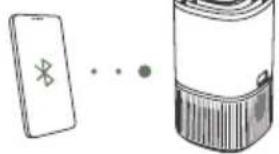
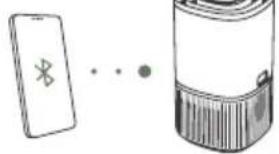
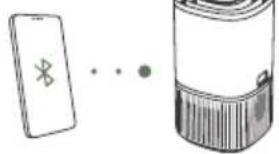
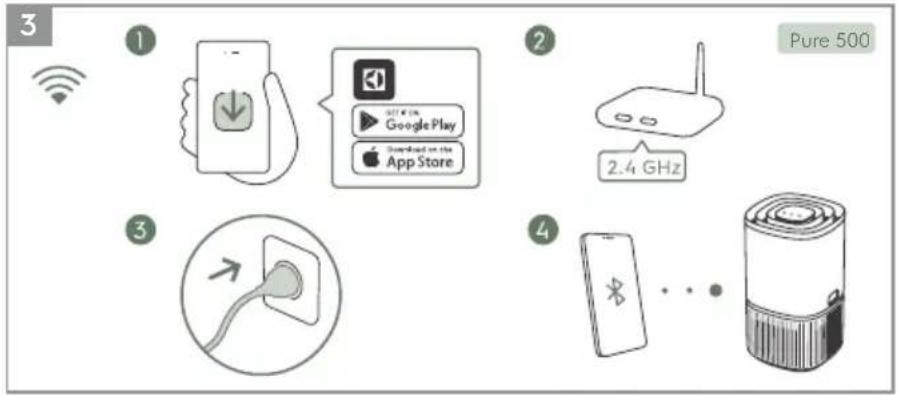
NOTE: Download our Electrolux App and follow the step-step onboarding instructions to bring the air purifier online.
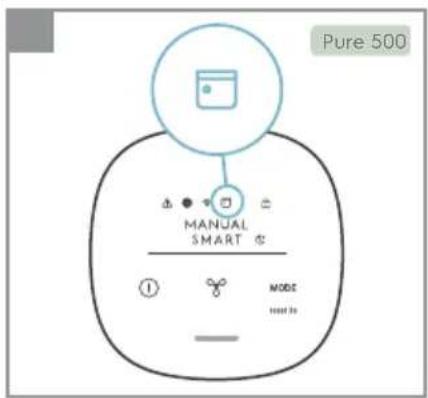
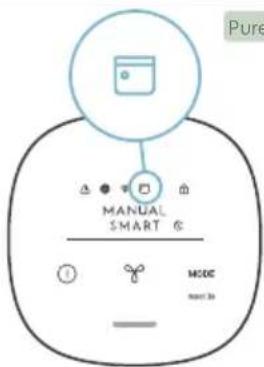
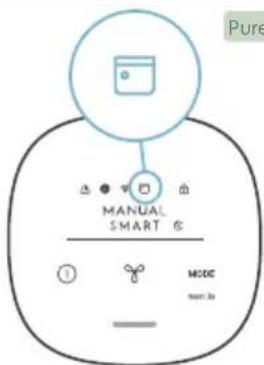
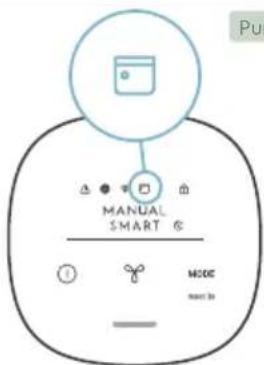
12 SCHEDULER
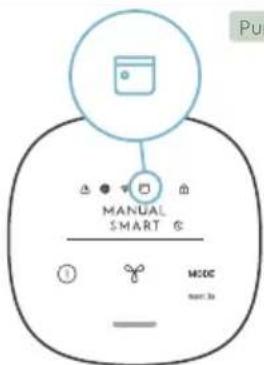
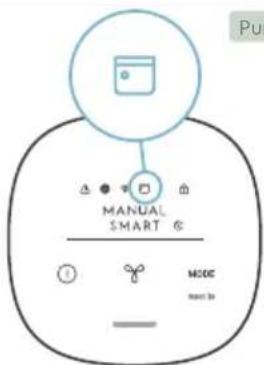
This icon 📋 indicates that a scheduled event from the app is running.
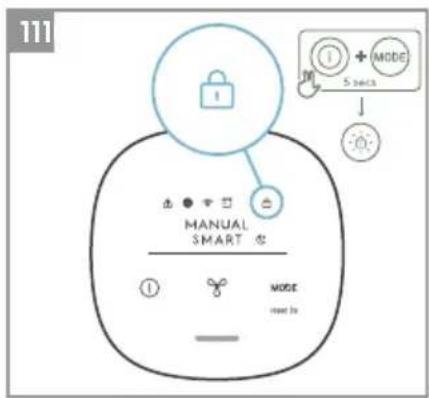
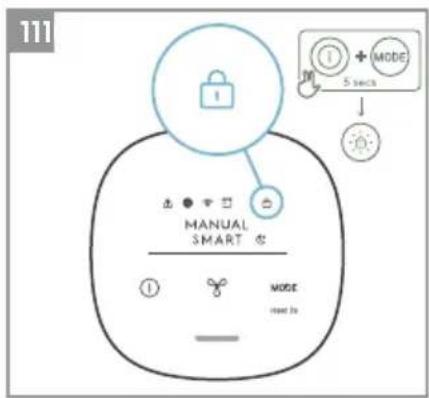
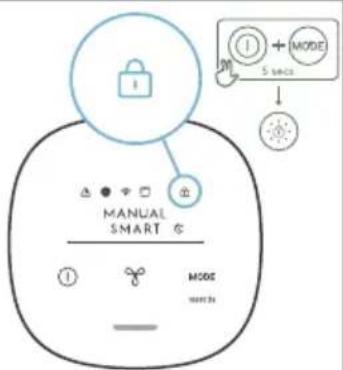
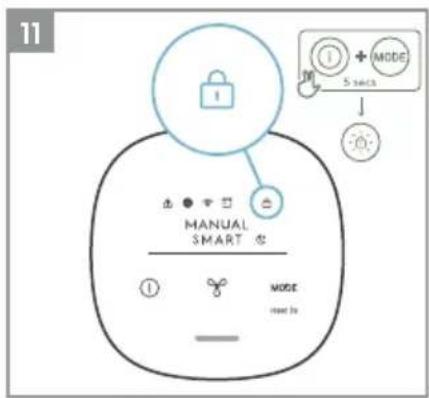
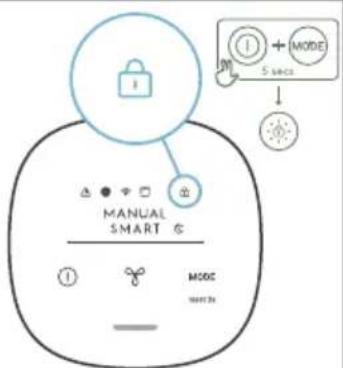
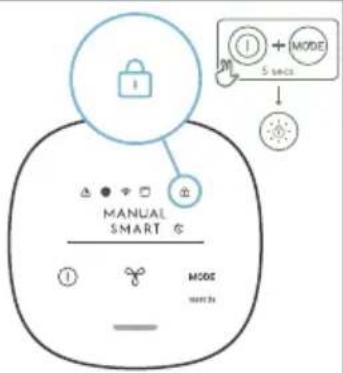
13 CHILD LOCK
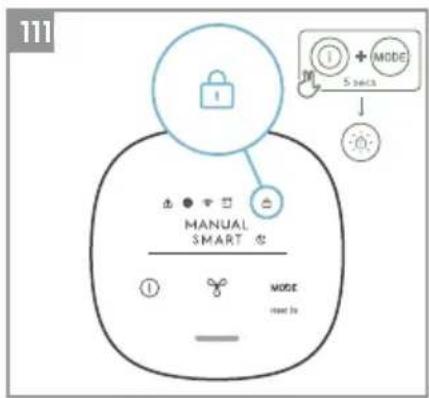
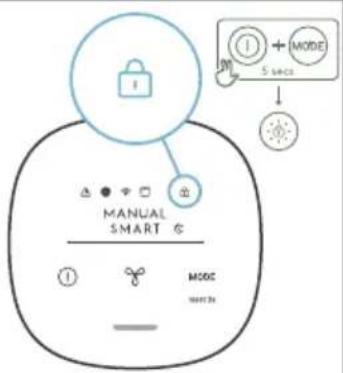
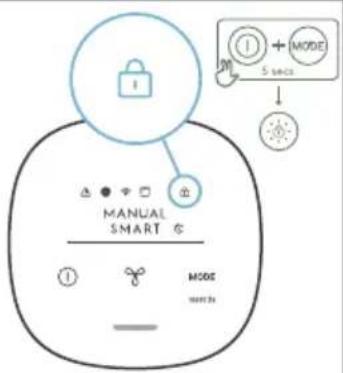
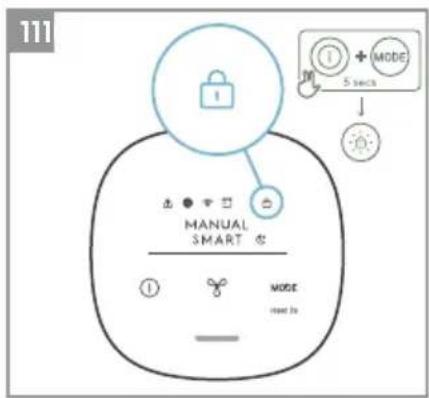
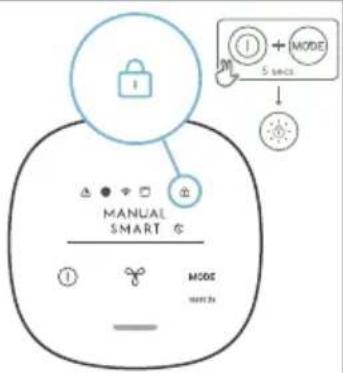
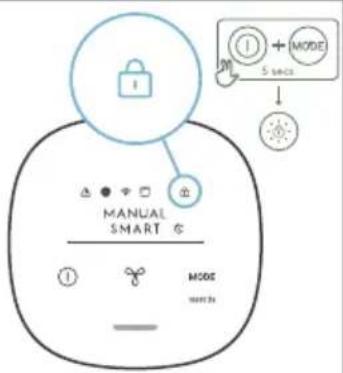
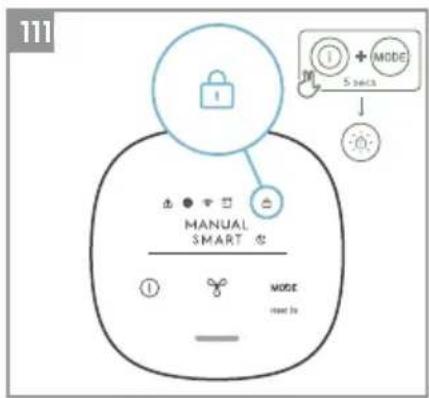
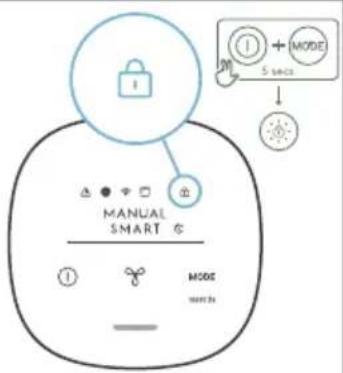
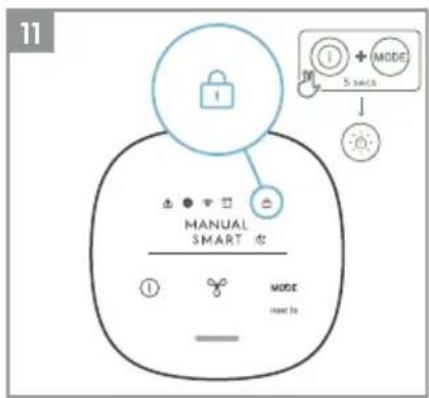
The unit is equipped with a safety lock feature to disable the product control panel to avoid unintended pressing. Press and hold MODE & POWER button simultaneously for 5 seconds to activate or deactivate the child lock feature. The child lock icon 📋 will light up when the feature is activated. When the control panel is locked, you can only make changes via App.
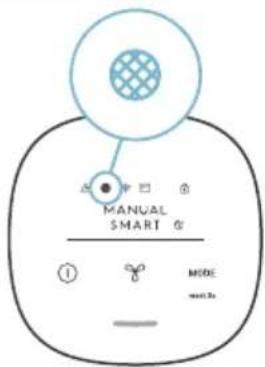
14 AIR QUALITY INDICATOR
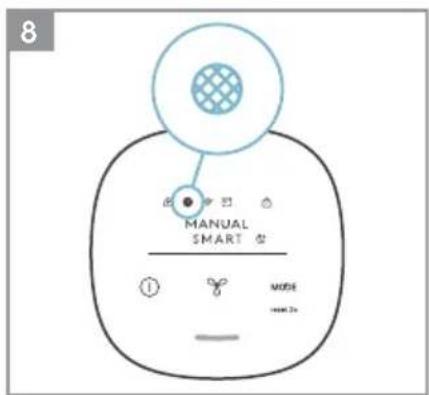
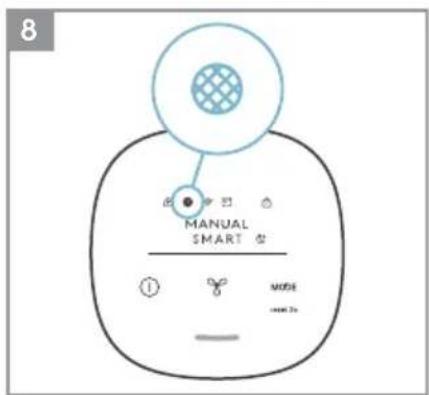
The appliance has an air quality sensor that analyzes the air quality.
The air quality light will show the real-time air quality through different colors of light. As shown below:
| LIGHT'S COLOR | PM 2.5 ( µg/m3 ) AIR QUALITY |
| Green | 0-12 Good | |
| Yellow | 13-35 Average | |
| Orange | 36-55 | Poor |
| Red >56 Very Poor | | |
NOTE: Please ensure regular cleaning of the sensor window to ensure it does not get clogged with dust and sensors keep performing accurately.
ONBOARDING
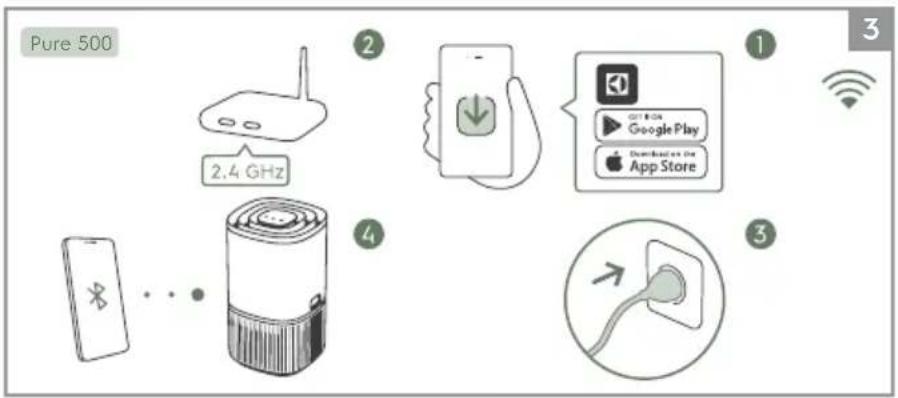
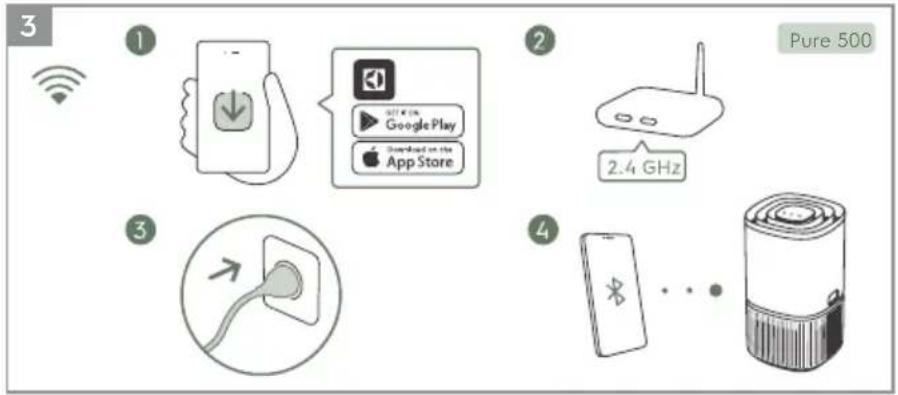
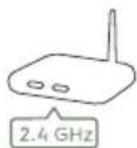
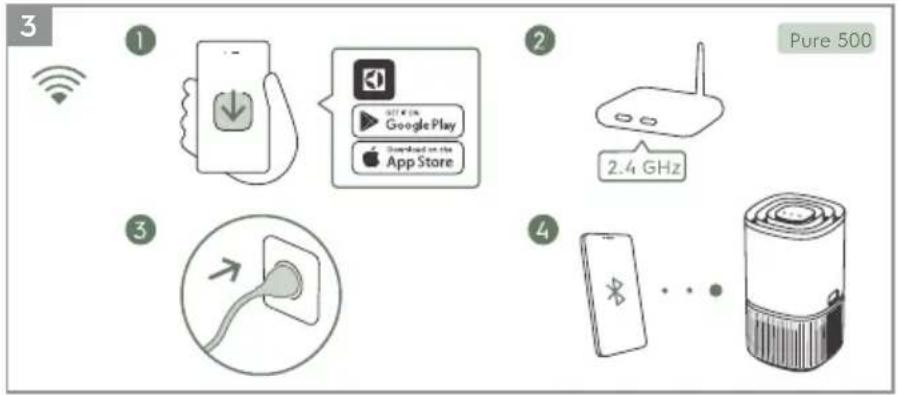
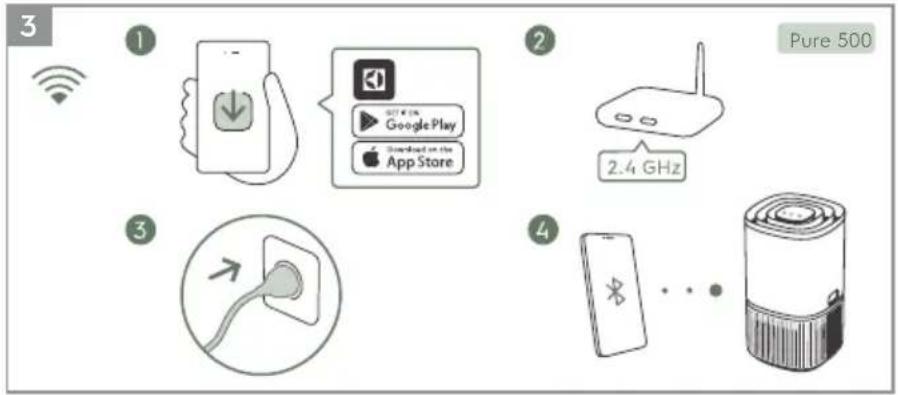
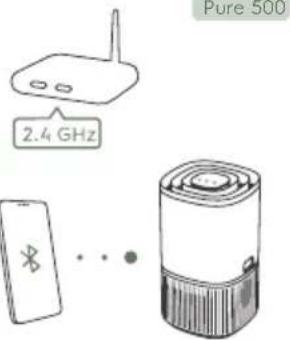
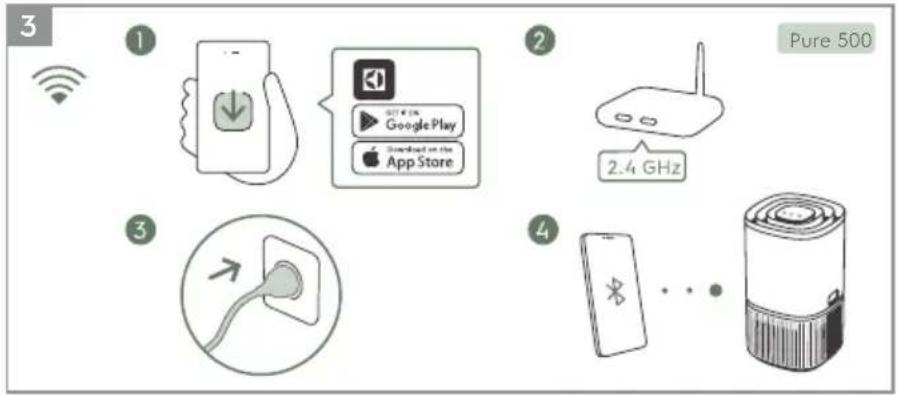
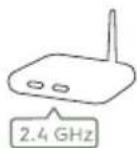
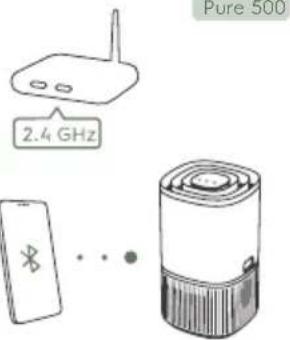
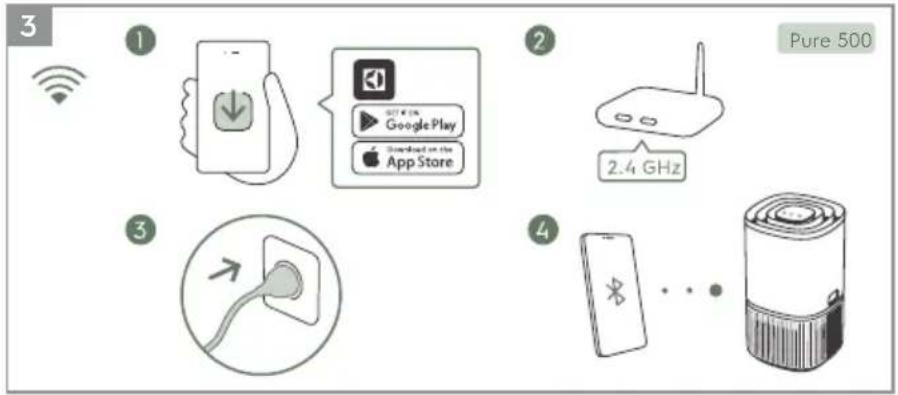
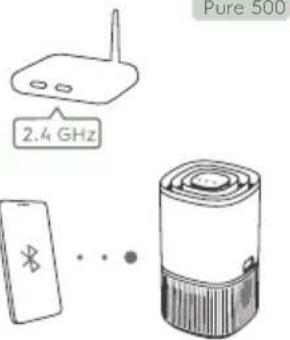
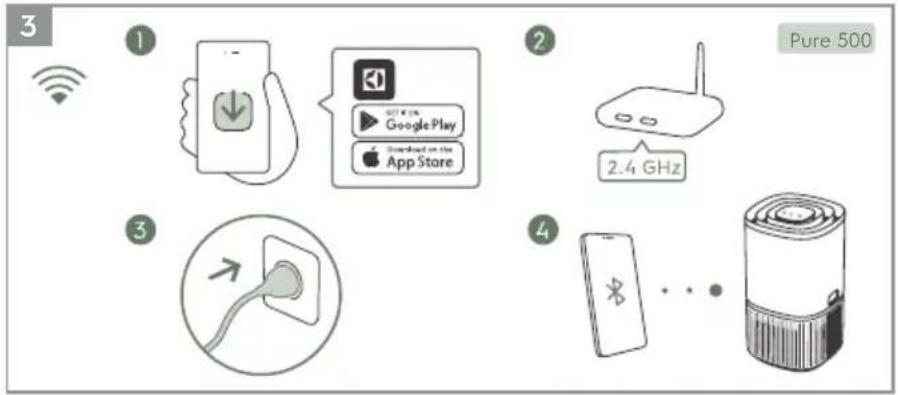
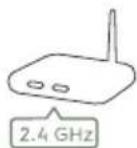
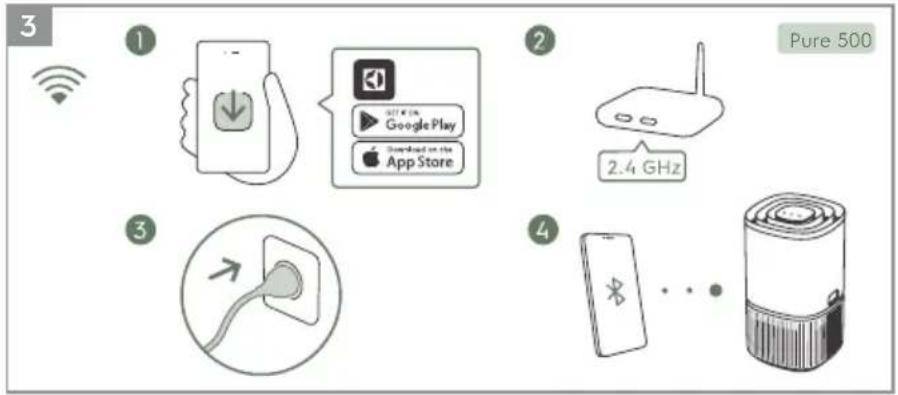
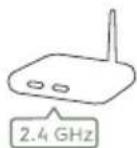
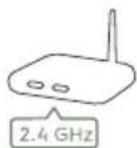
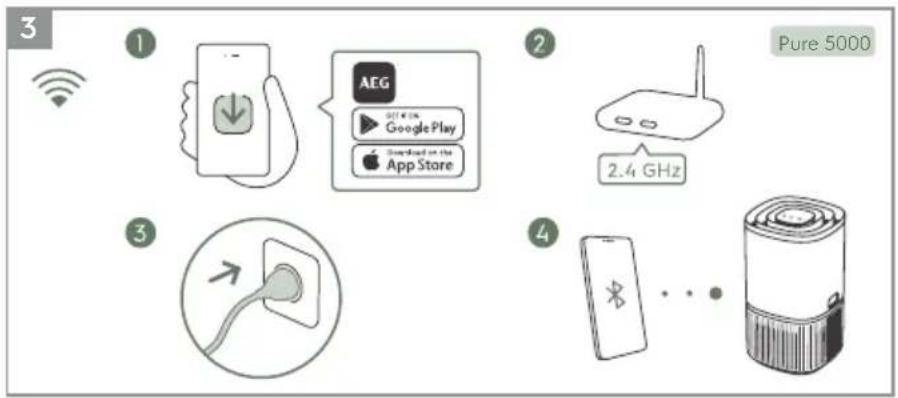
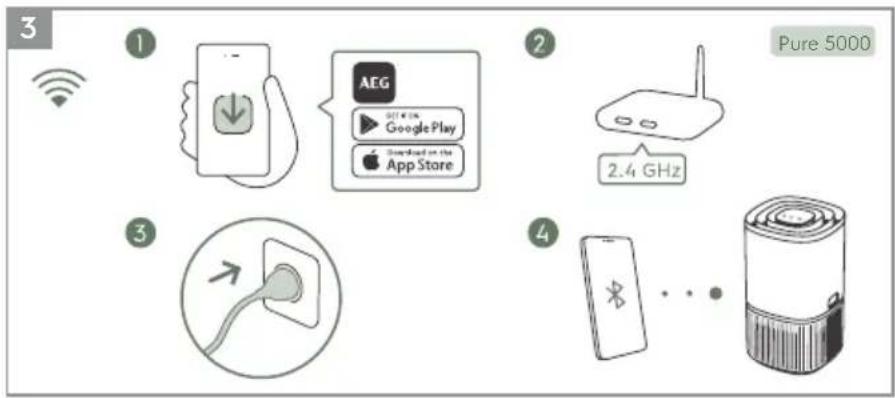
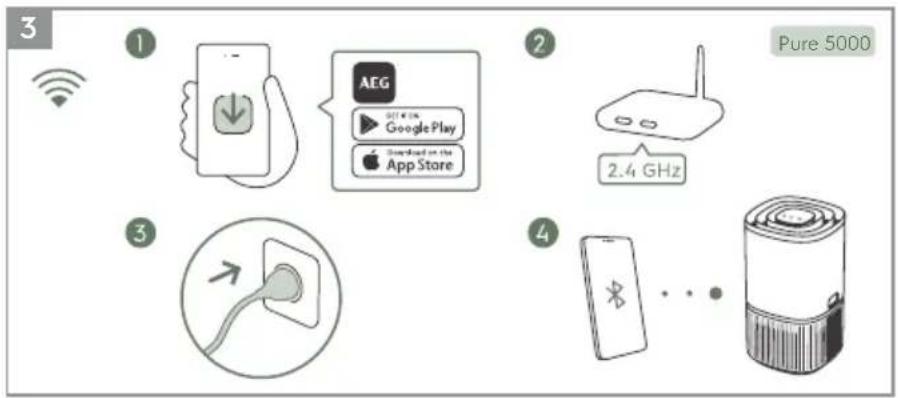
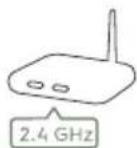
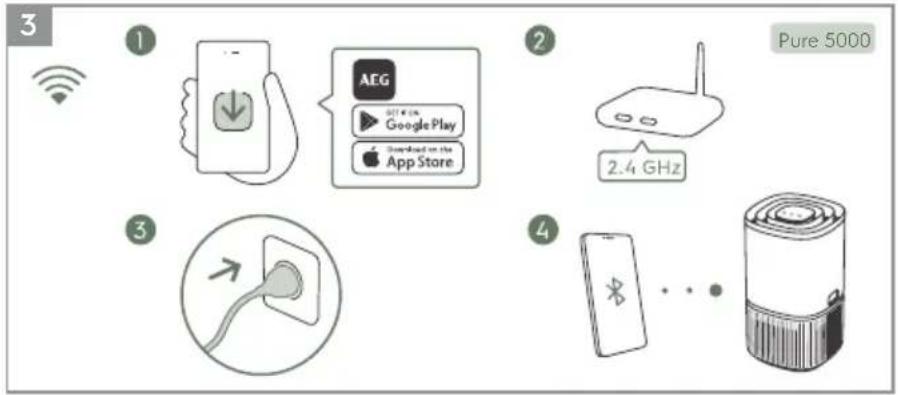
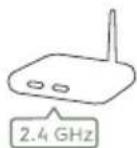
NOTE: Some steps in the onboarding flow may have changed, please follow step by step instructions in the latest version of the App as reference in case of discrepancy. Please ensure home WiFi is running on 2.4 GHz band, as the 5GHz band will not be recognized by the air purifier.
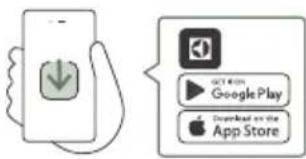
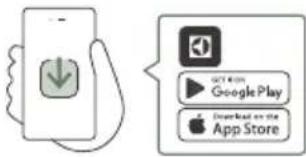
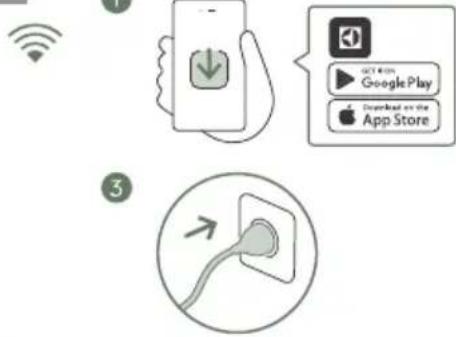
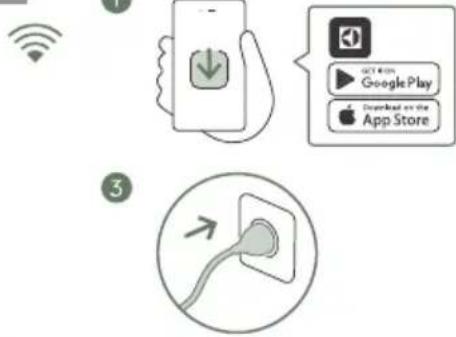
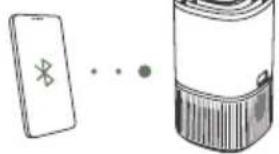
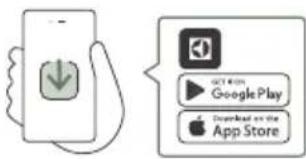
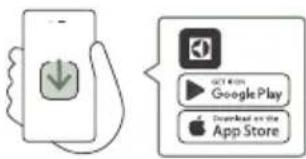
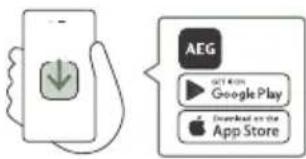
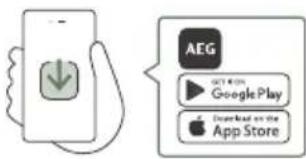
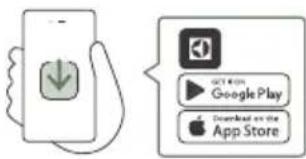
15 Please find the Electrolux App in the iOS App or Google Play store, download it, sign up and login to the App. Here you will be able to 'Add a device' in the App and follow the step by step instructions for onboarding the unit. (ref. page 5, picture 3).
REPLACING FILTER
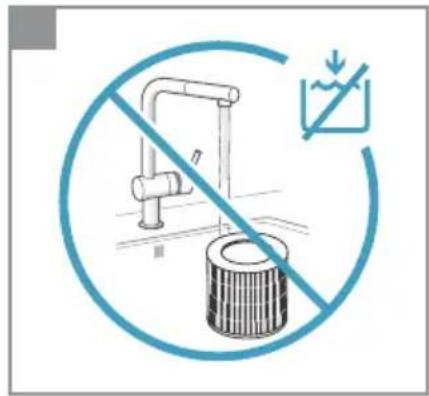
NOTE: The filter cannot be washed and must always be replaced when at end of life. The air purifier have a variety of filters to choose from, tailored to your lifestyle needs. Head over to the App or the product information page on our website for a guide on choosing the appropriate filter for your needs. Please visit your local website to order your replacement filter.
16 For the best experience and to secure an uninterrupted use of the air purifier, please monitor the filter's remaining lifetime in the App and order a replacement filter in due time before the remaining filter lifetime reaches 0%. If you have notifications enabled, the App will inform you when the filter life is close to end of life (e.g. at 5%).
17 When the filter is at end of life, the filter change icon will light up on the product control panel to indicate the need for replacement. When filter is at end of life, the unit's fan speed may be reduced in SMART mode.
18 The used filter might be heavily coated with dust and particulate matter so before opening the main unit, please ensure a disposable bag or packaging is at hand to place the used filter in.
19 Turn OFF the air purifier or unplug the unit before changing the filters. Remove the top part of the main body put it aside. Next remove the filter which is at end of life and place it in a disposable bag at hand. (ref. page 6, picture 12).
20 Next, please remove the plastic bag from the replacement filter and insert the filter in to the product. Reinsert back the top part of the main body and turn ON the unit. Reset the filter change icon on the product control panel by long pressing the MODE button for 3 seconds and the App will indicate the same, with a new filter lifetime reading.
NOTE: In case the change is only reflected on the product control panel and not the App, please restart the App and the unit, before further troubleshooting.
21 Discard the used filter as well as any plastic packaging according to local recycling guidelines.
CARE AND CLEANING
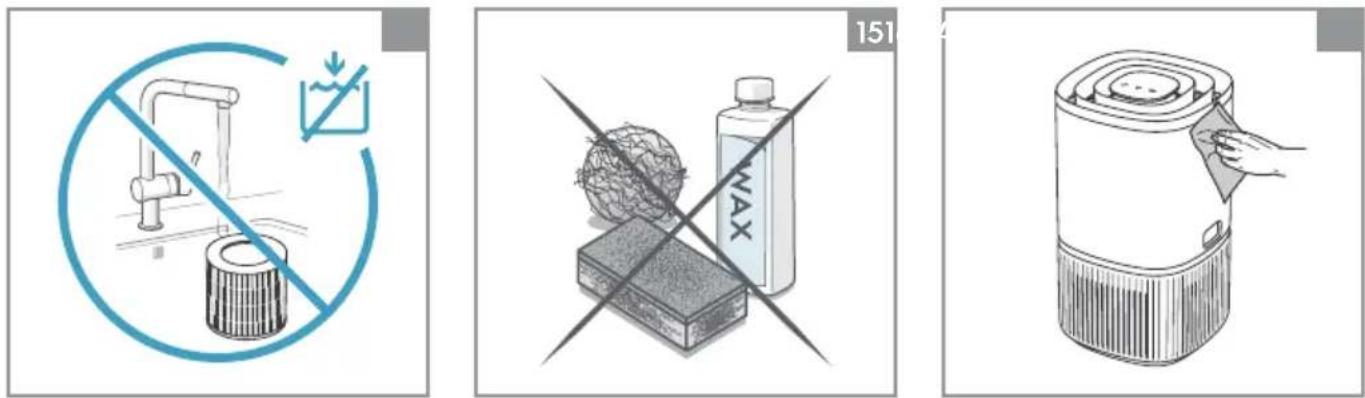
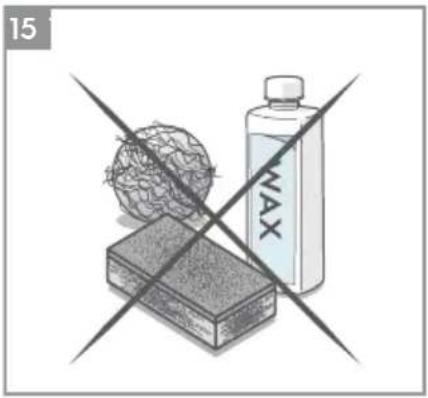
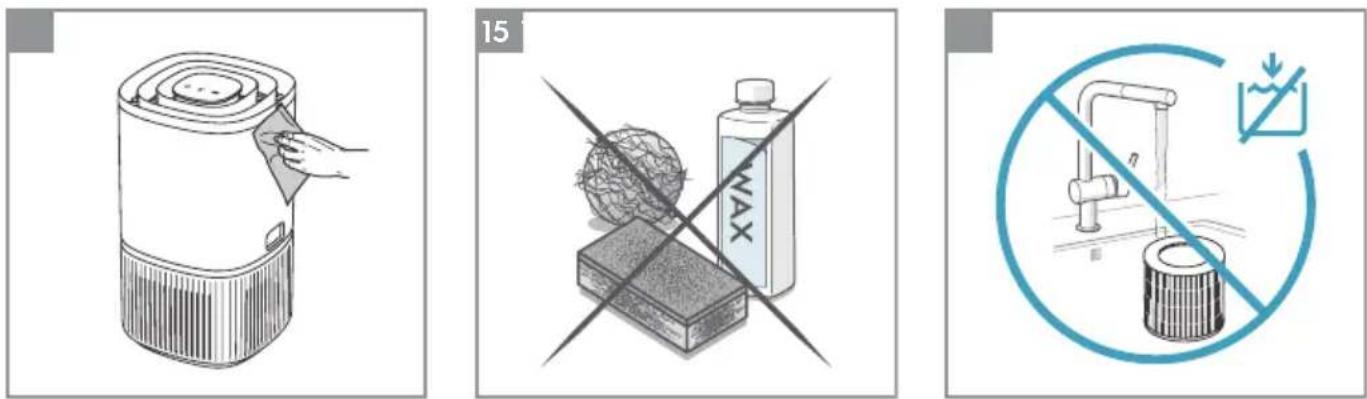
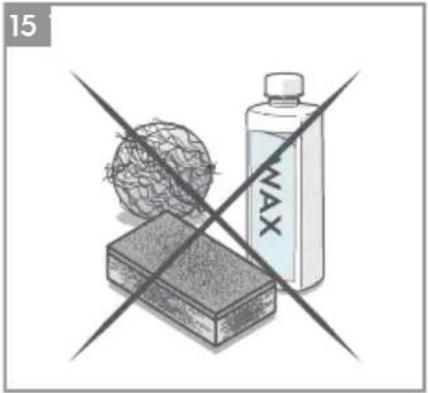
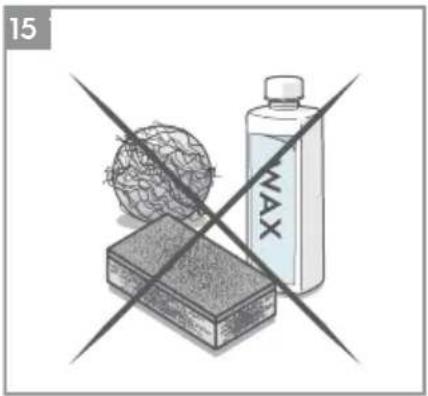
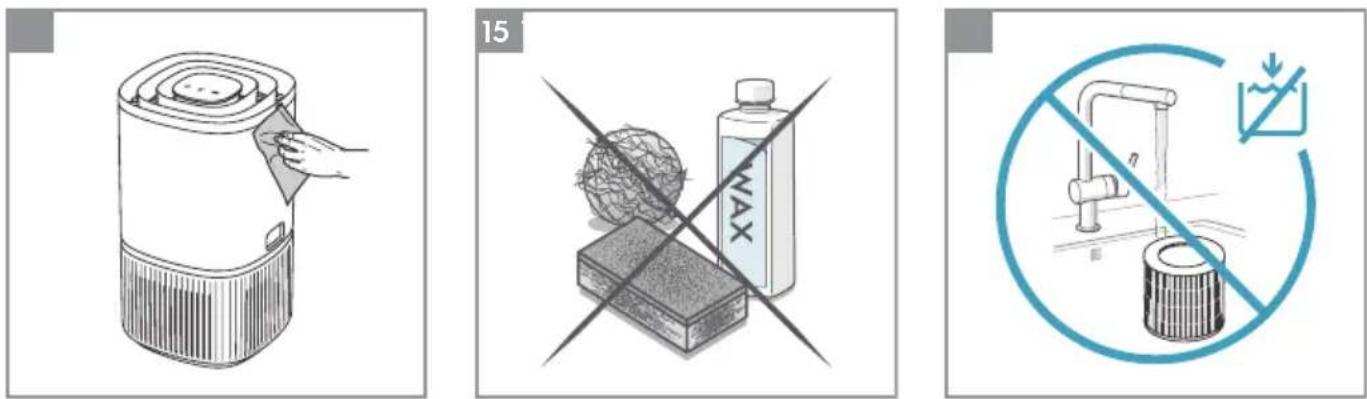
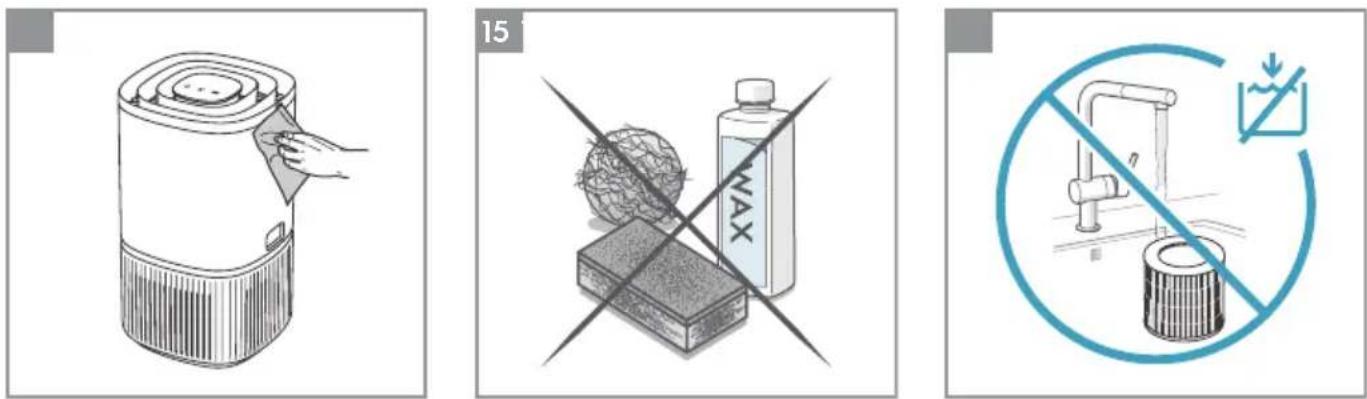
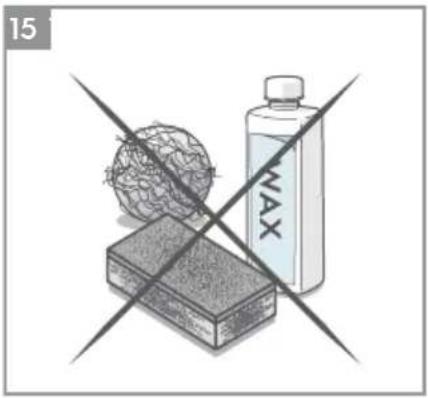
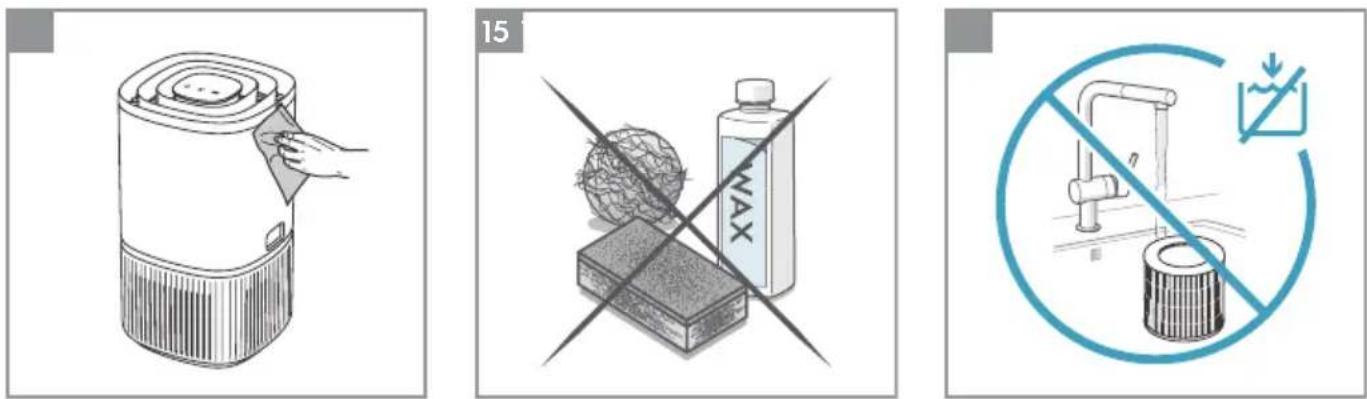
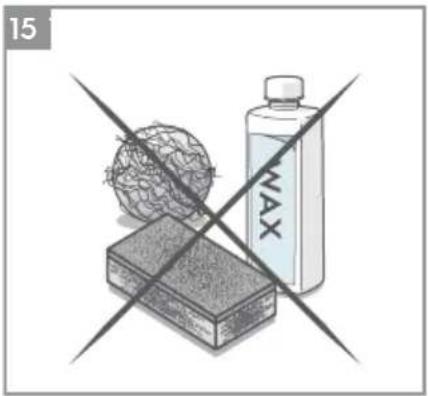
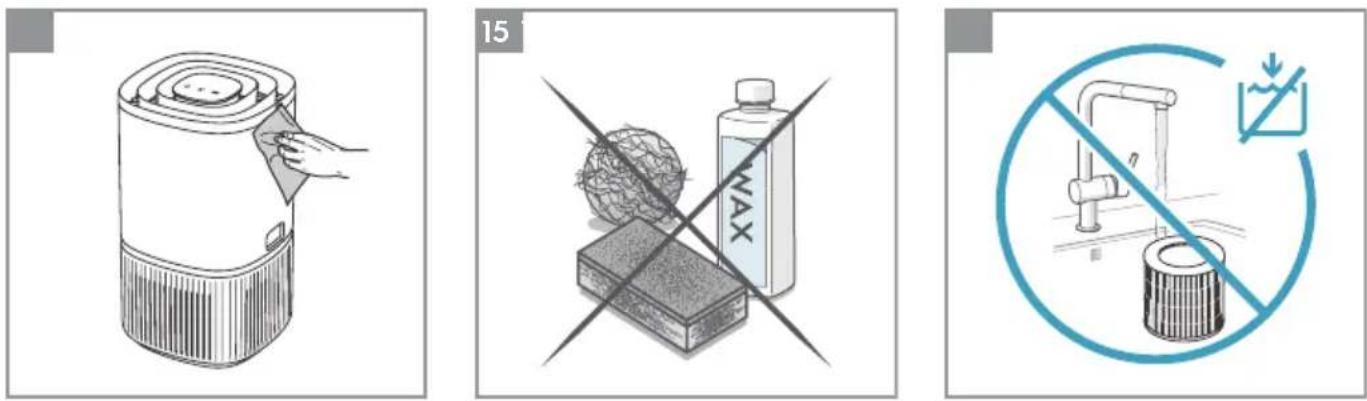
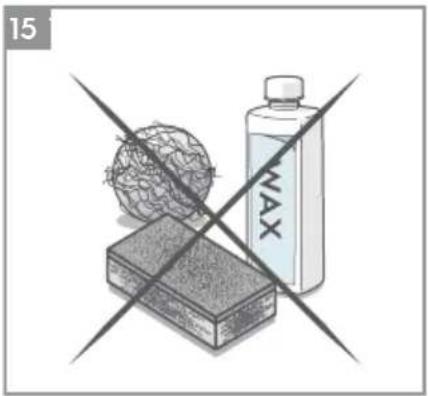
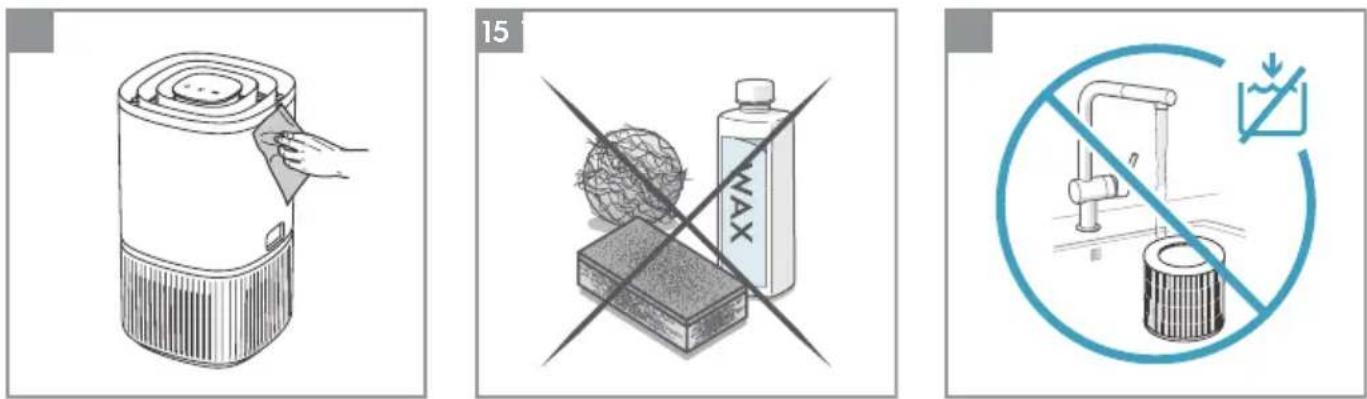
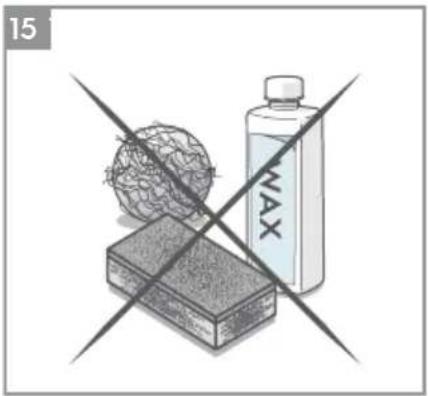
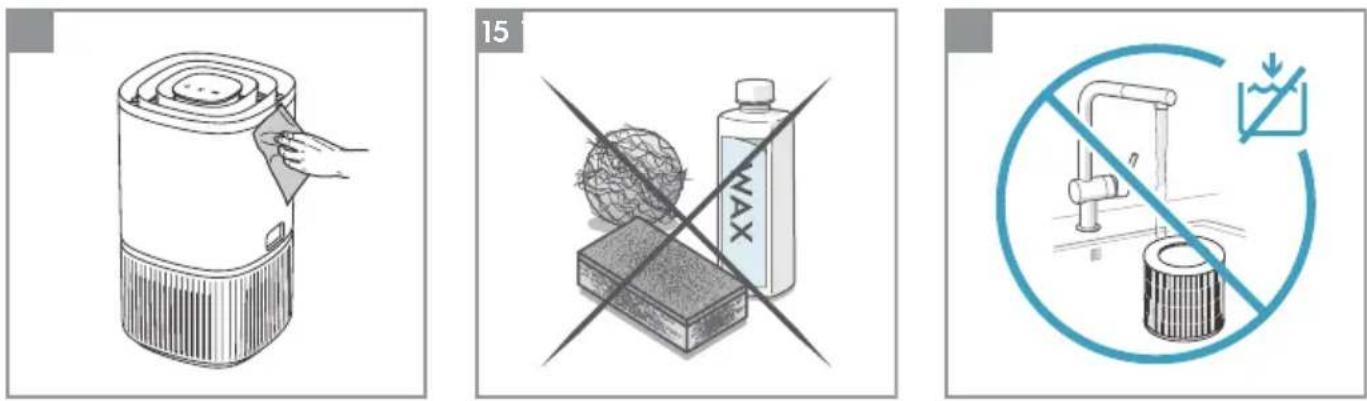
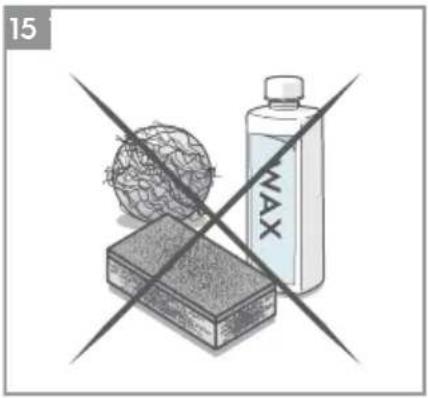
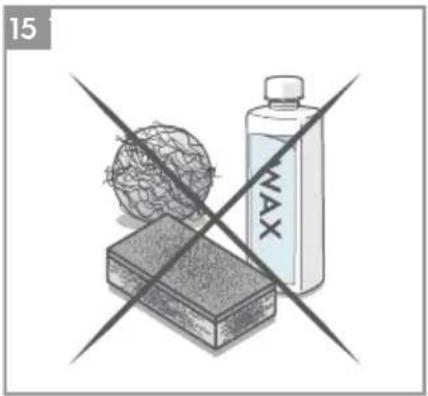
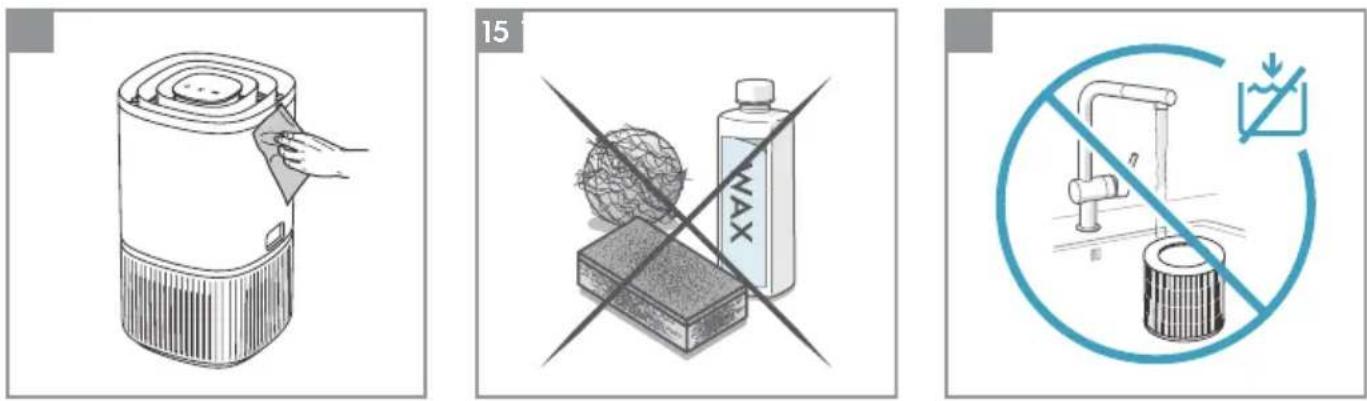
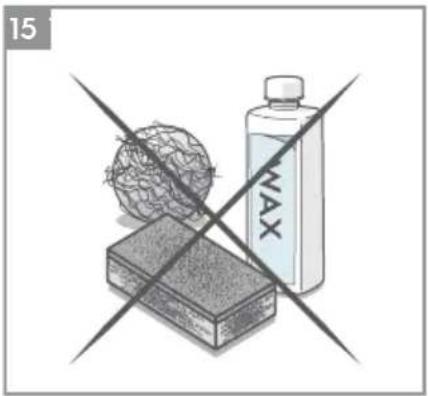
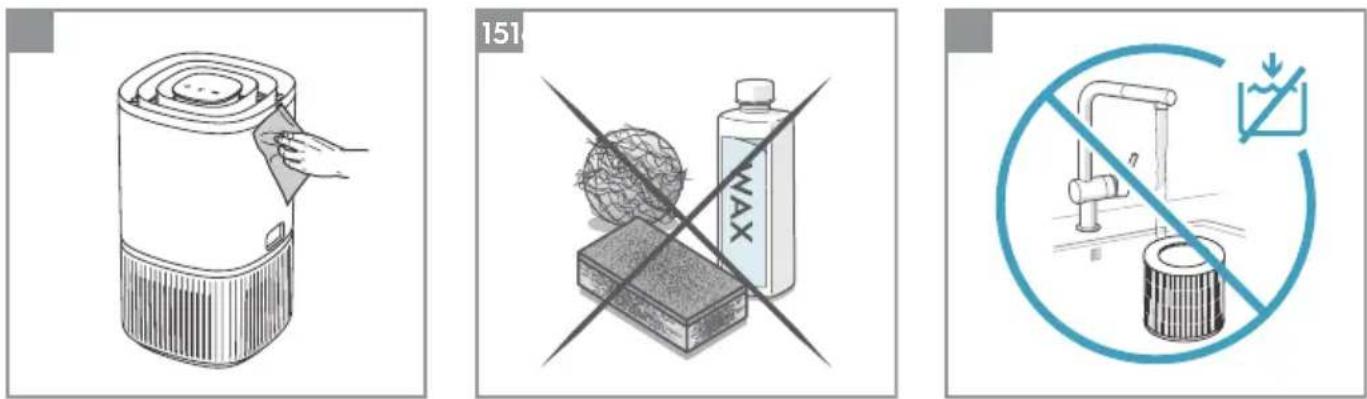
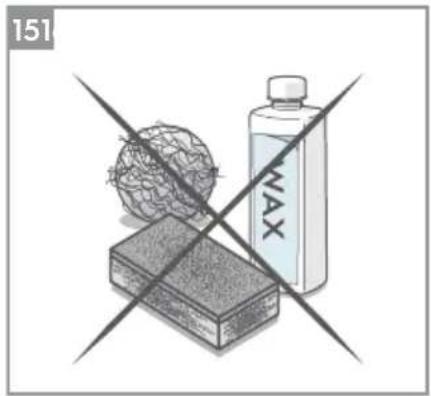
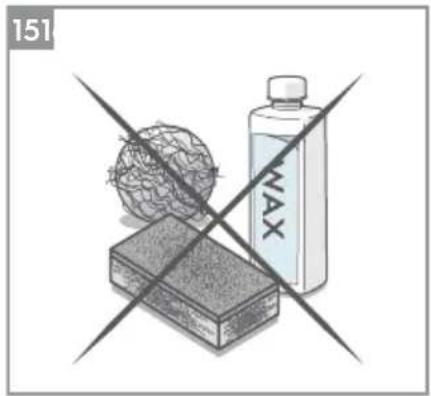
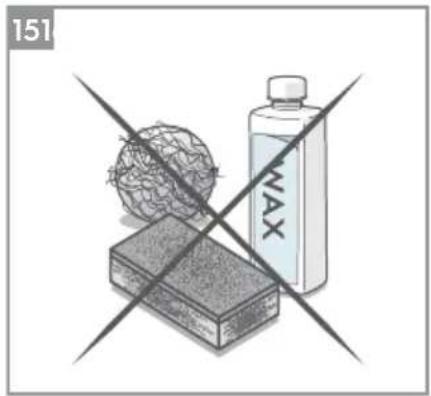
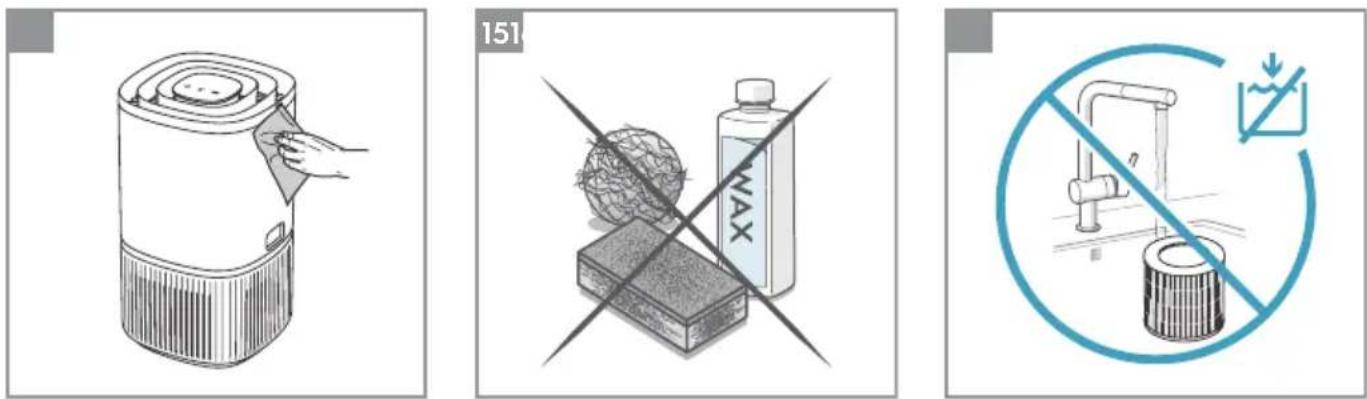
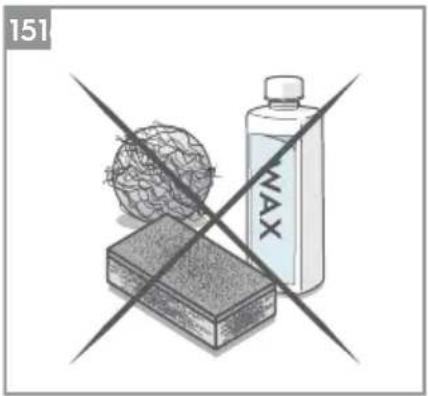
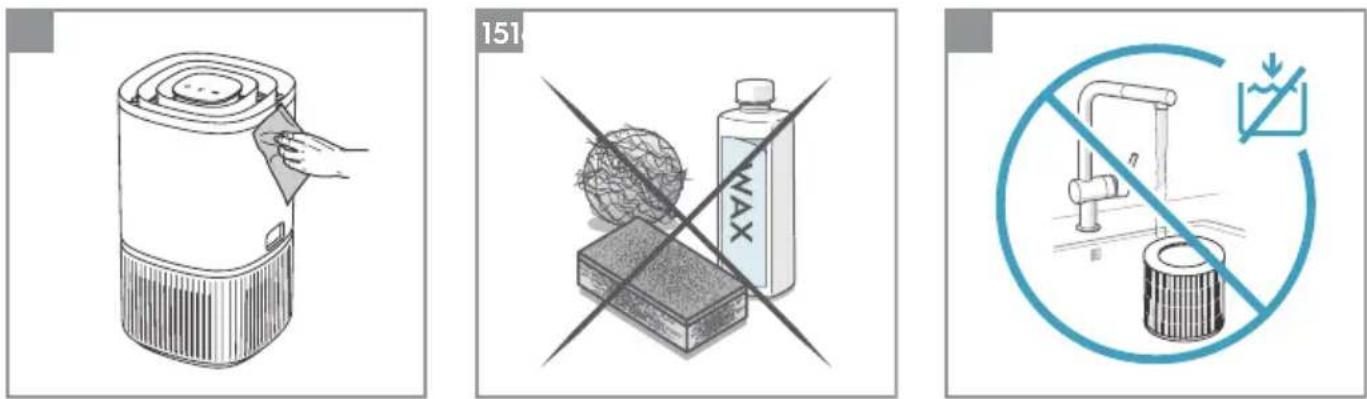
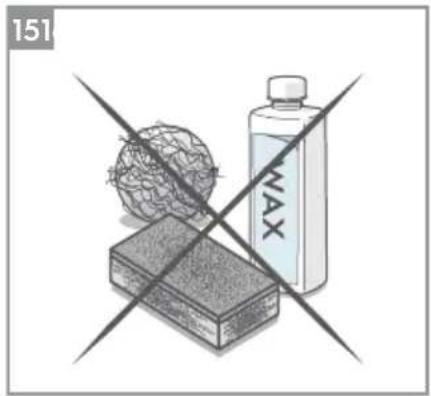
NOTE: Always unplug the air purifier before cleaning to prevent shock or fire hazards. Never use abrasive, harsh detergents OR wax for cleaning the unit. The high efficiency filters cannot be washed, they must always be replaced when at the end of life.
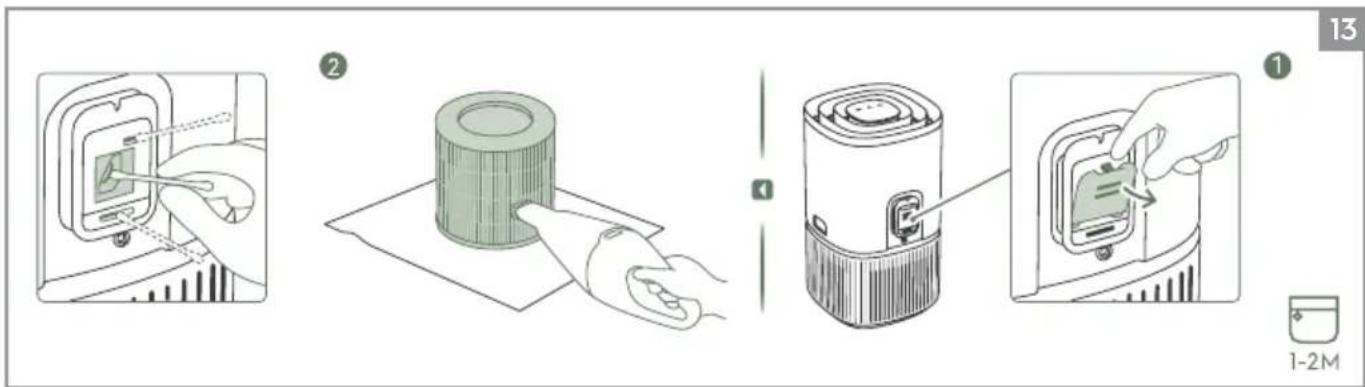
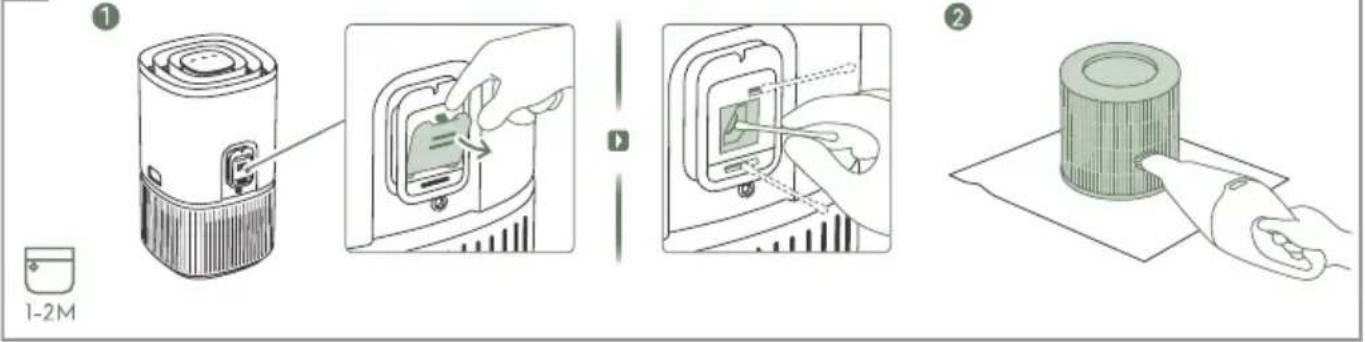
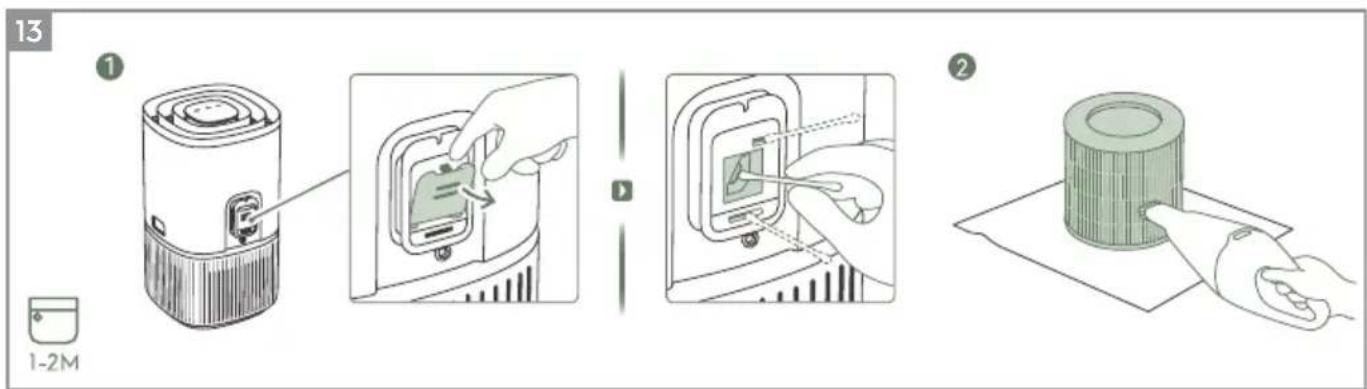
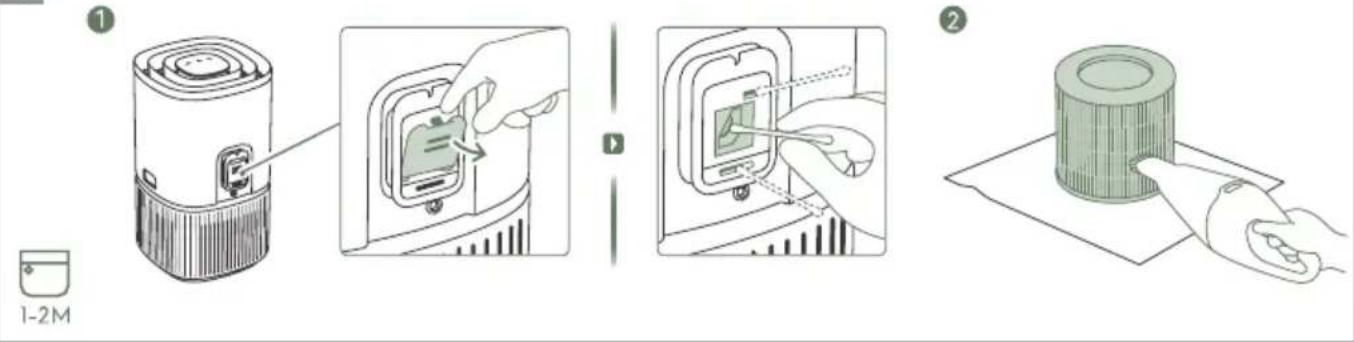
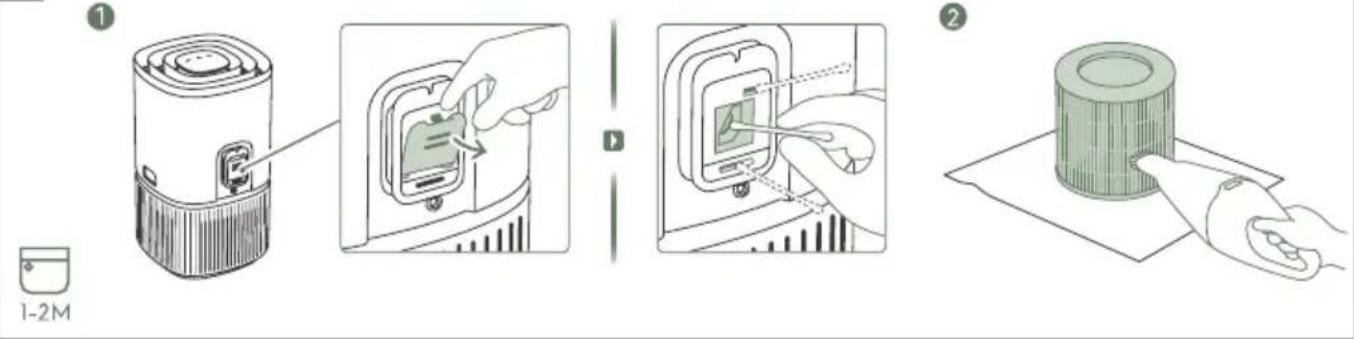
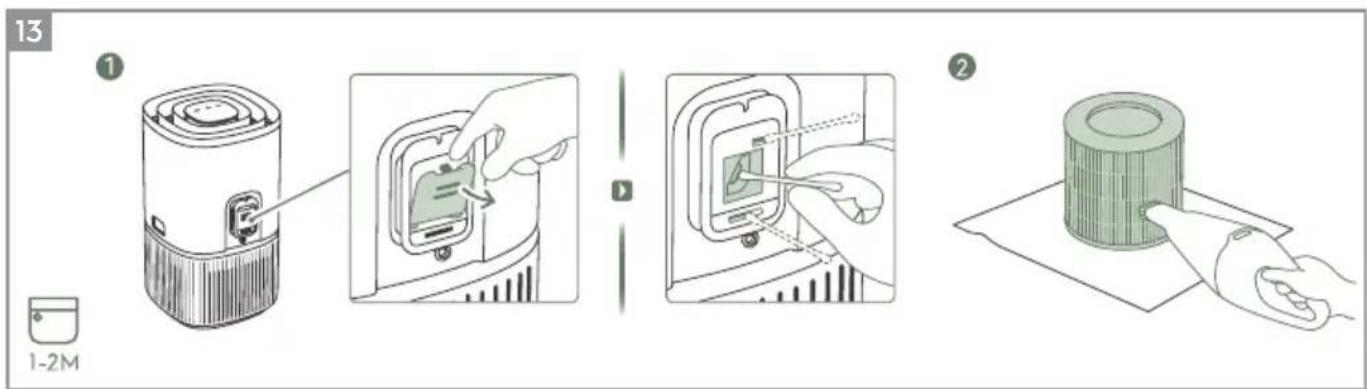
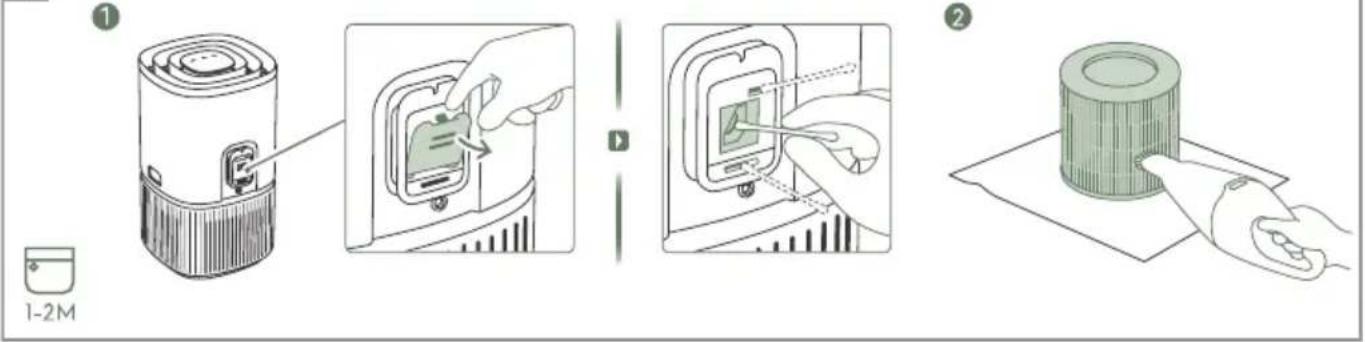
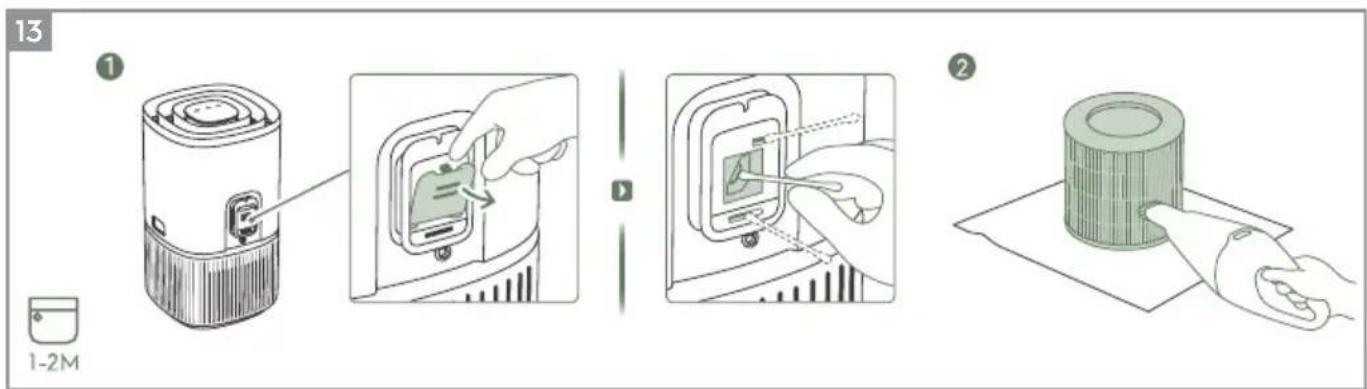
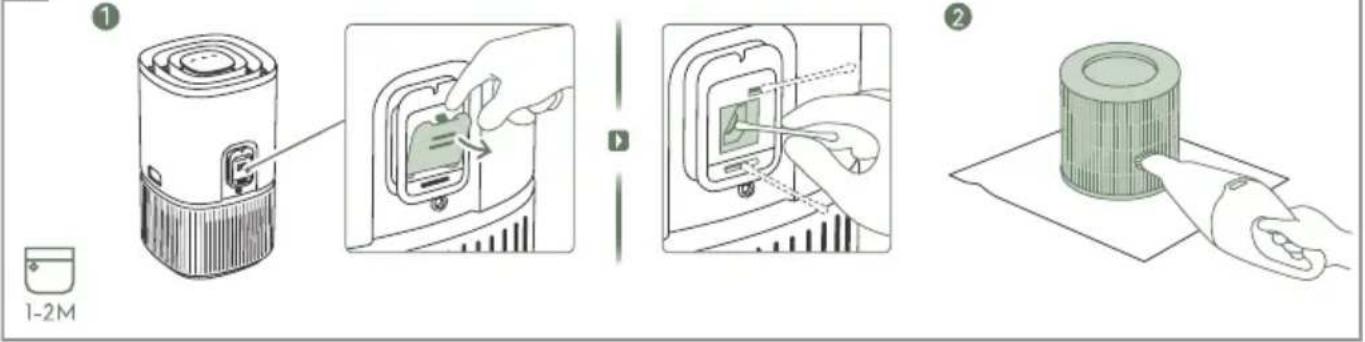
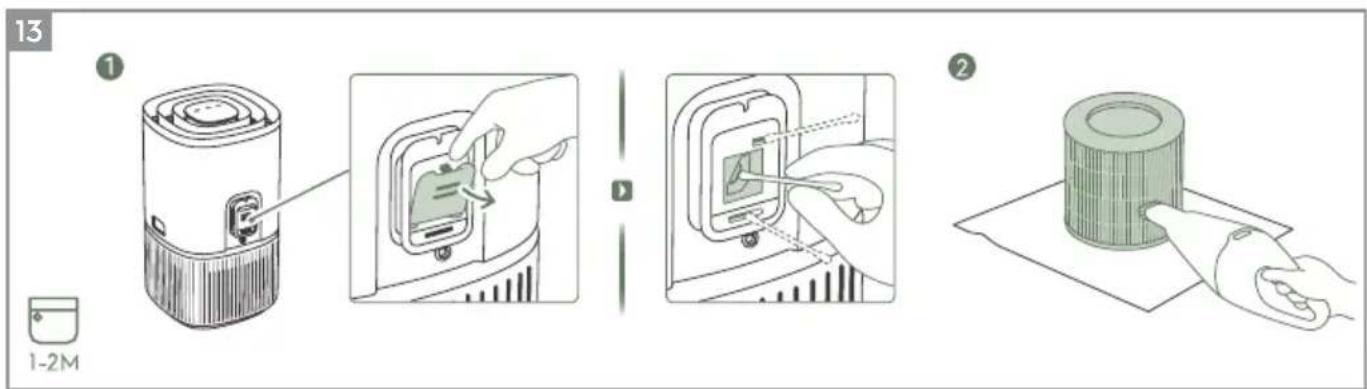
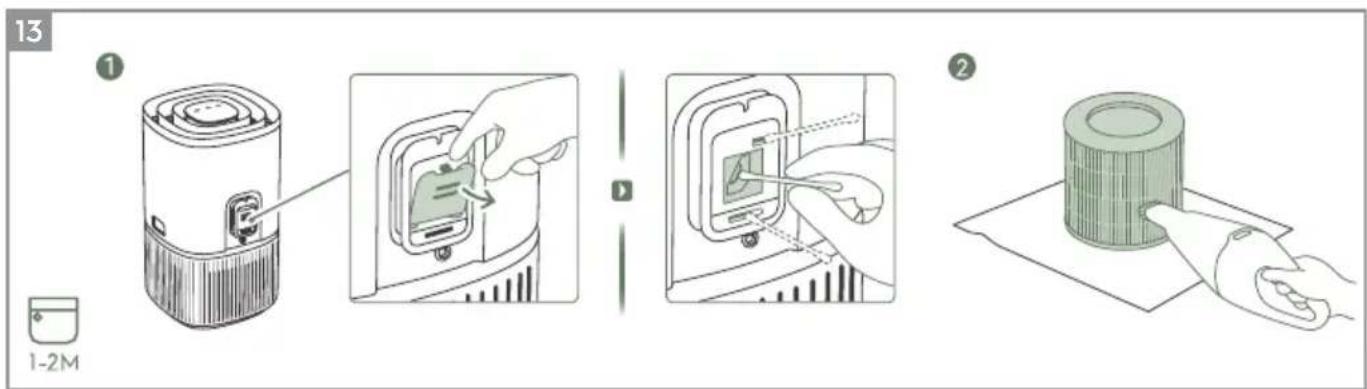
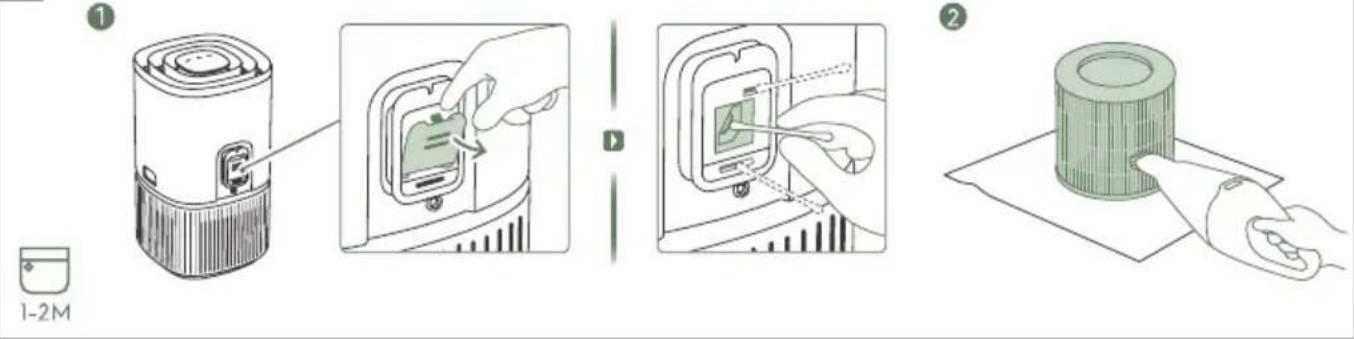
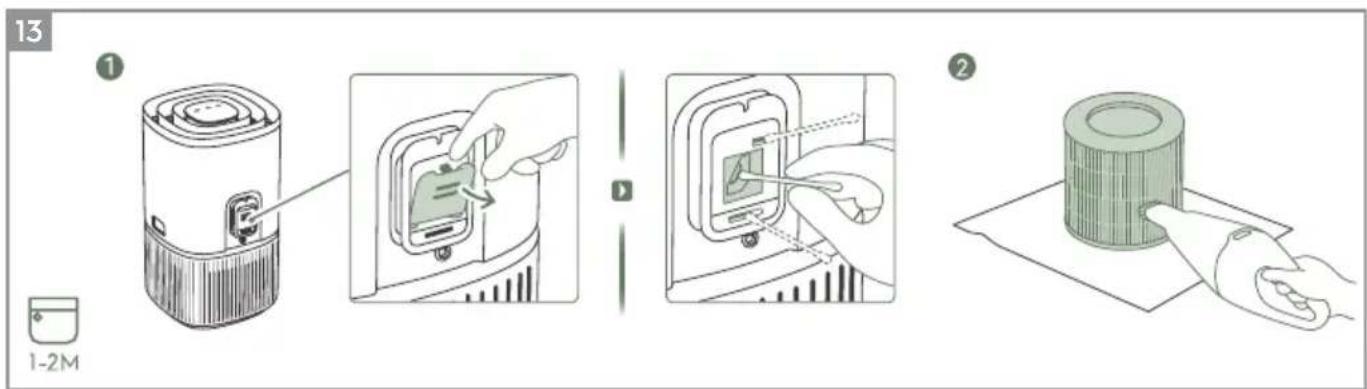
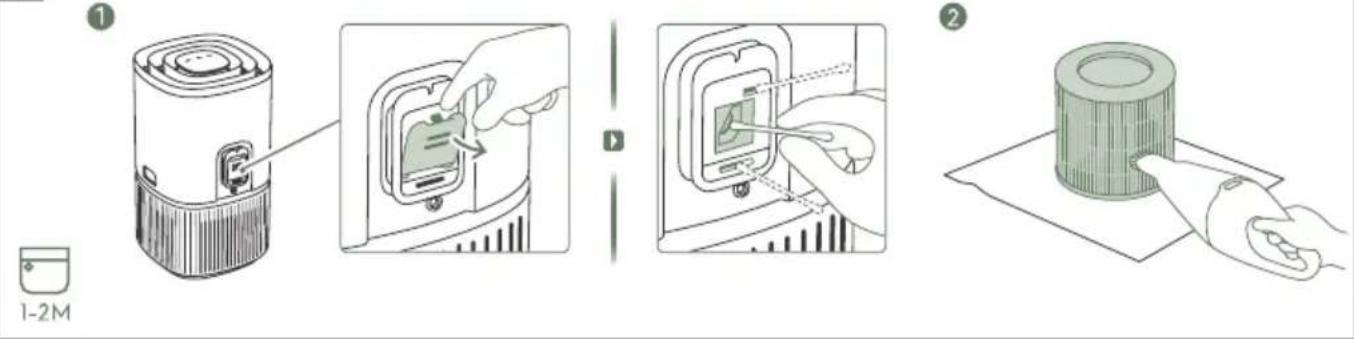
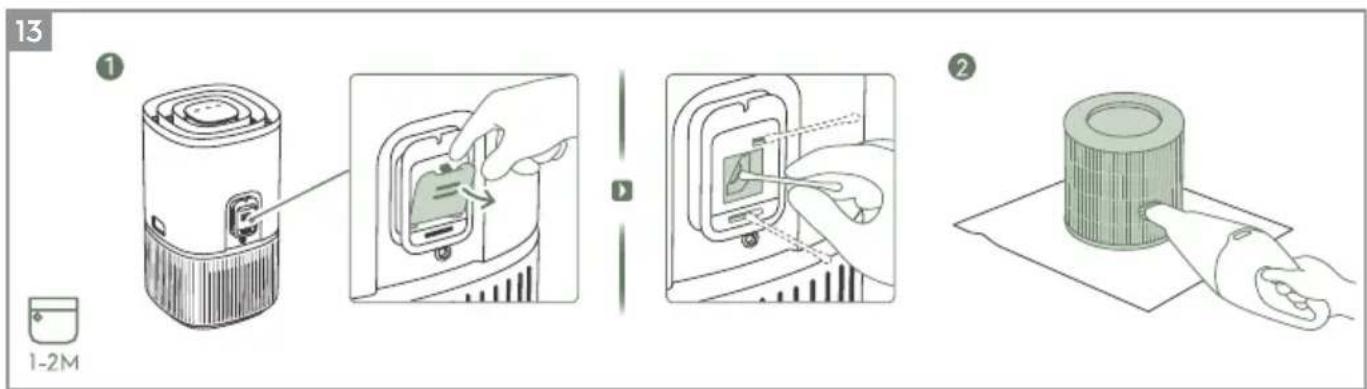
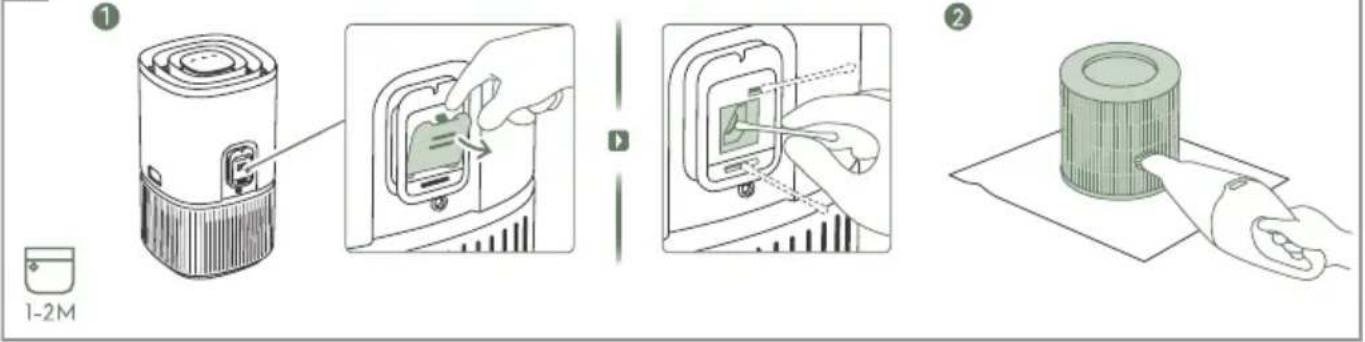
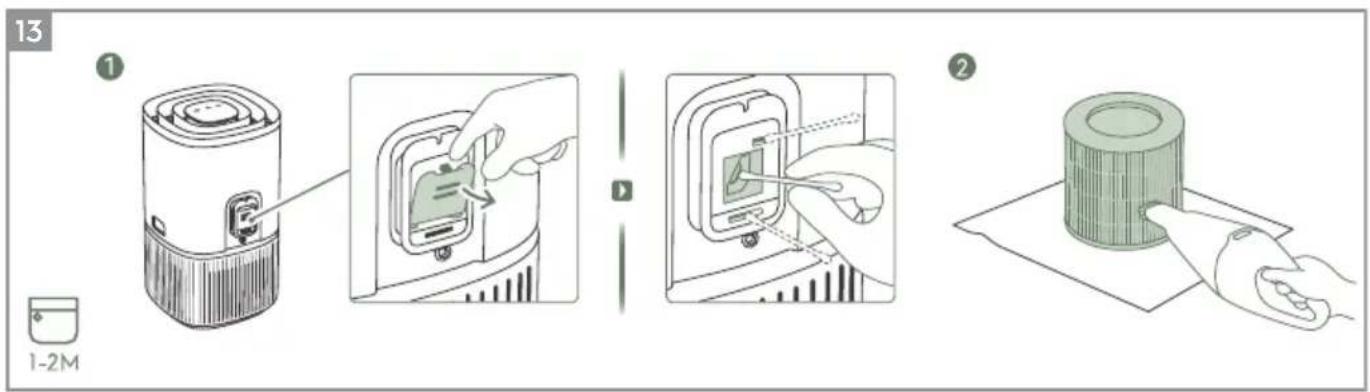
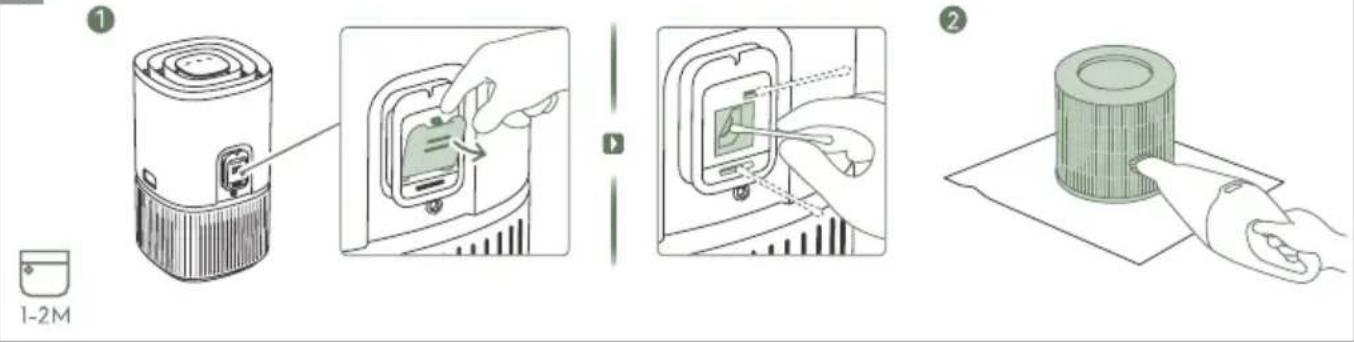
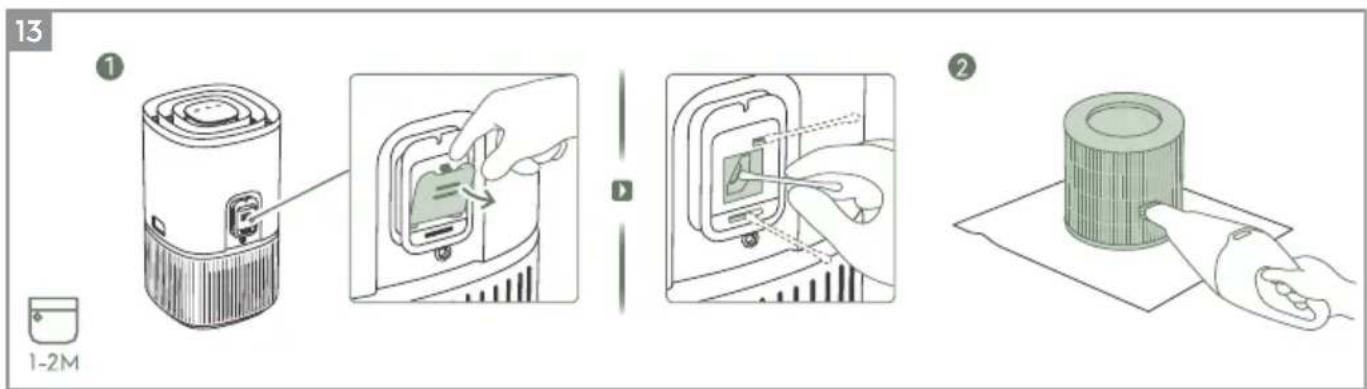
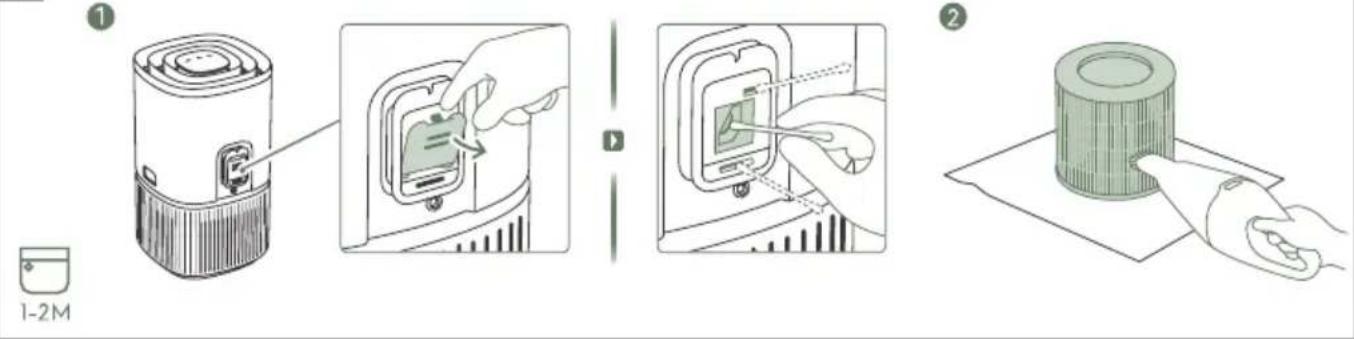
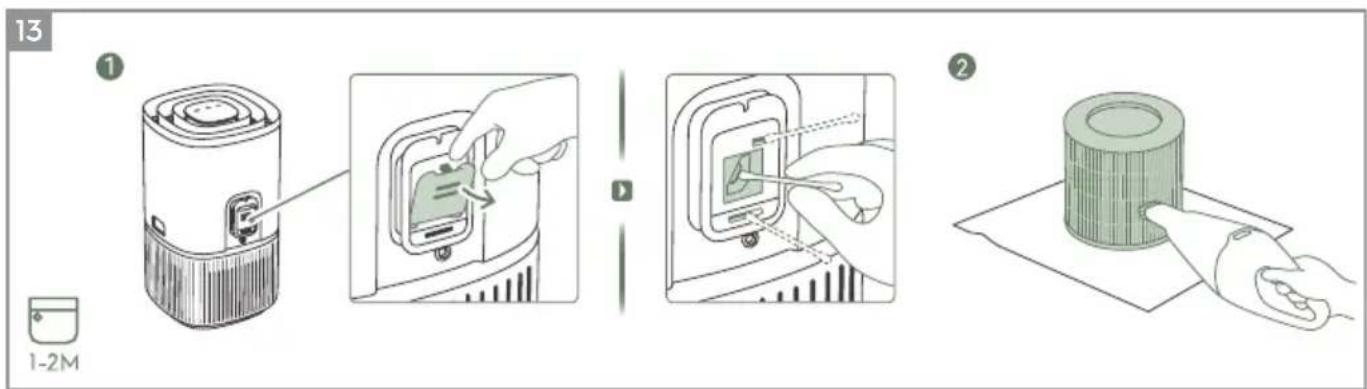
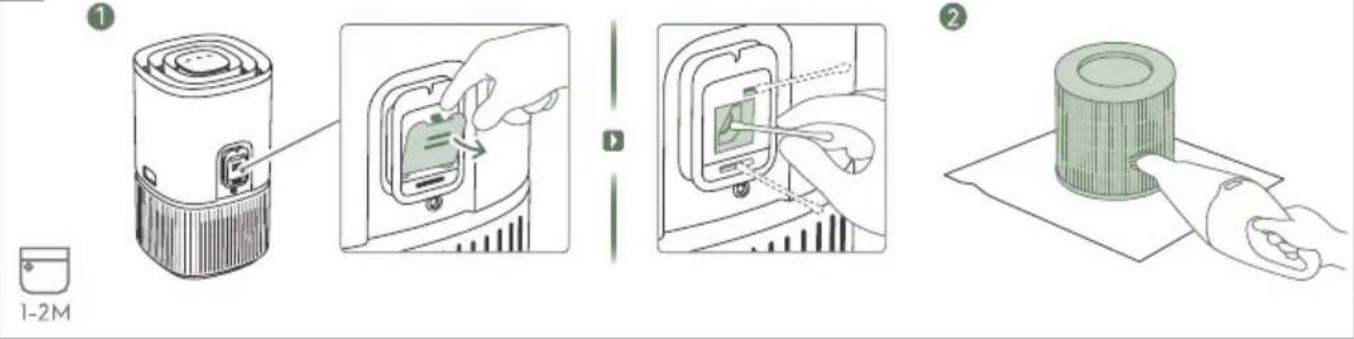
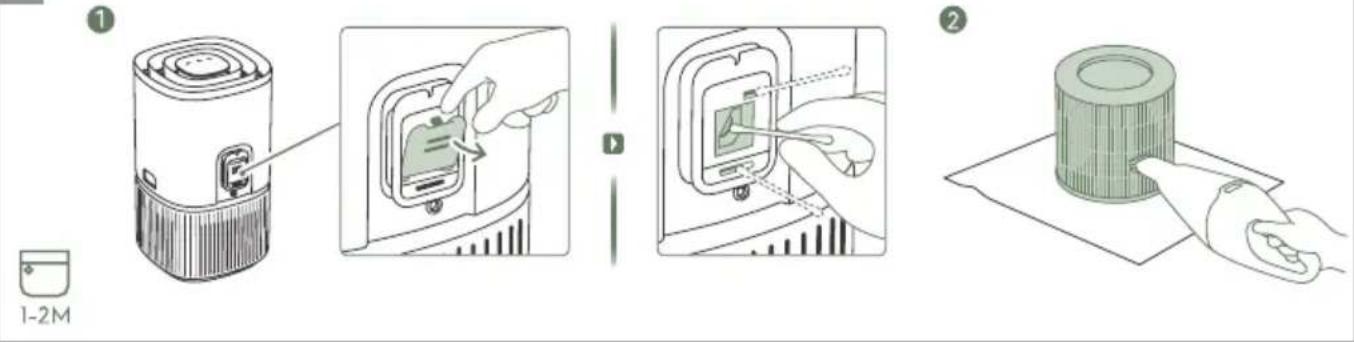
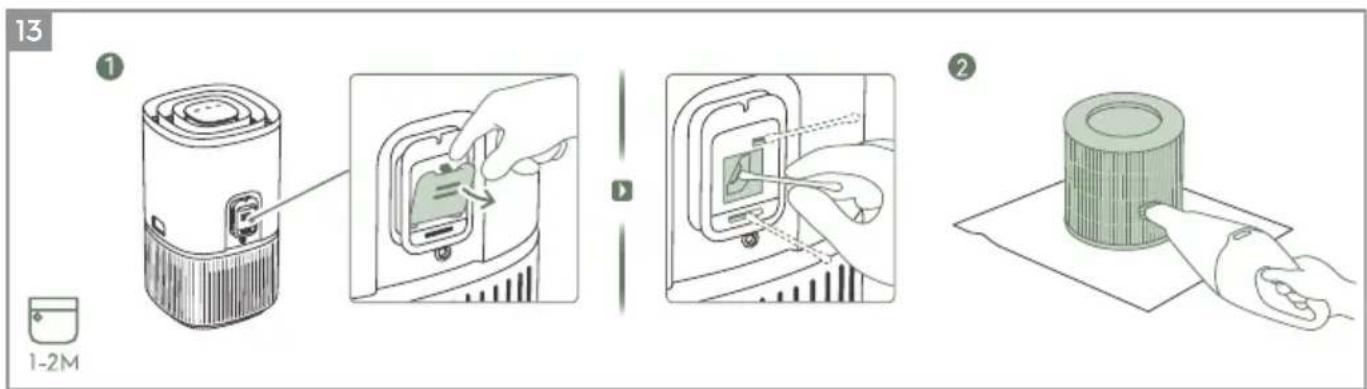
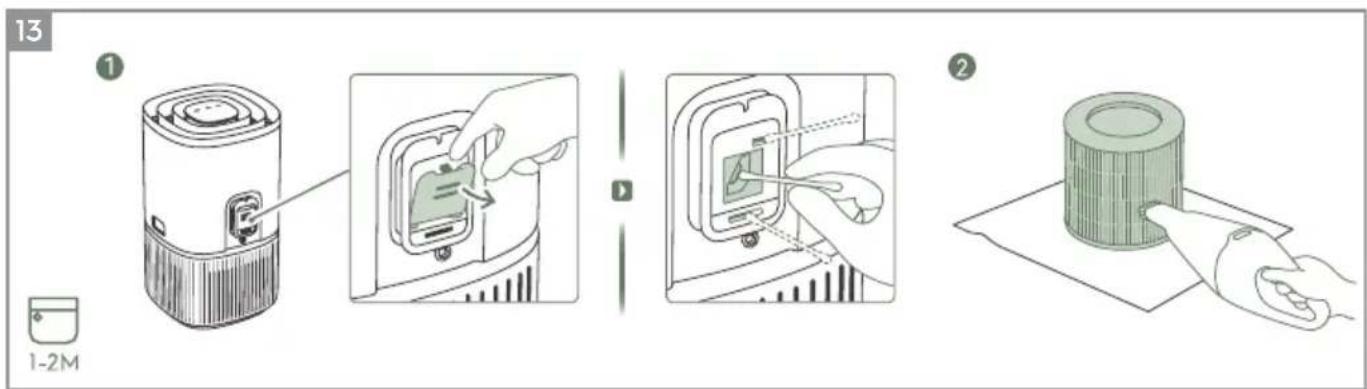
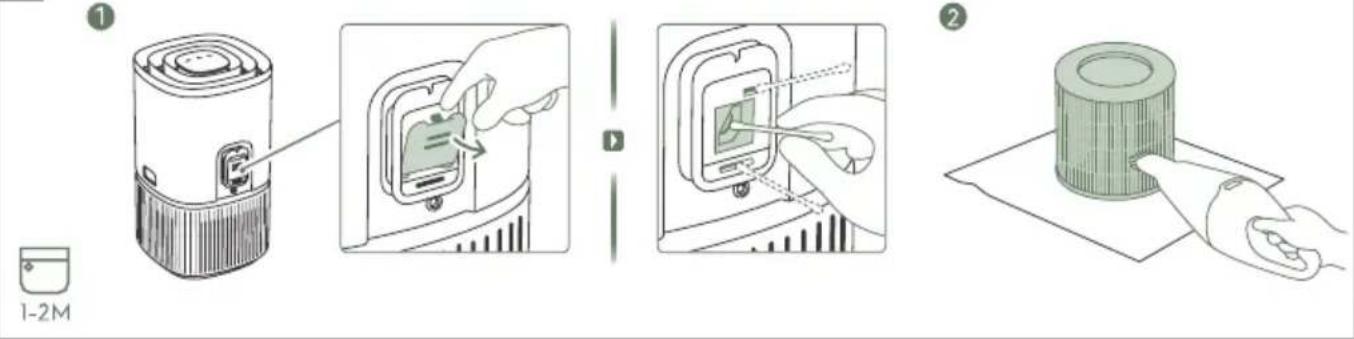
22 Cleaning the air quality sensor box and sensor (page 6, picture 13)
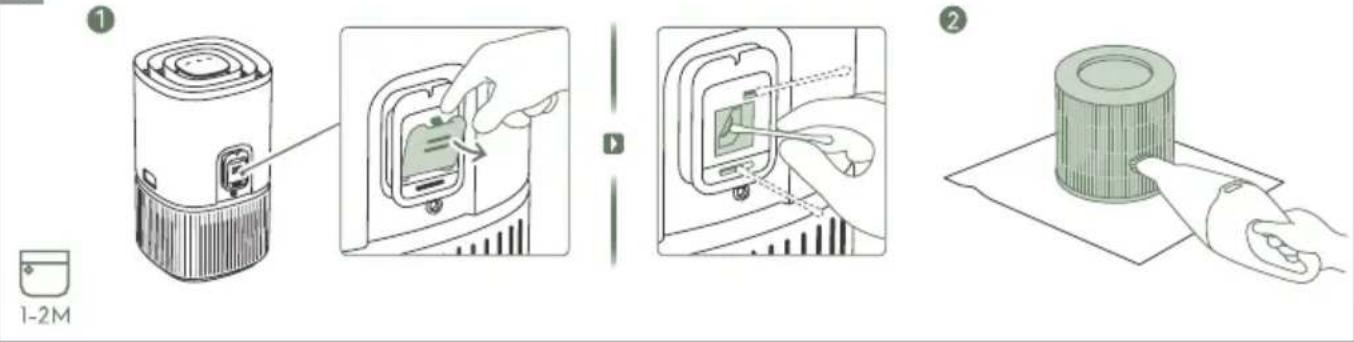
NOTE: Clean every 1-2 months to maintain the performance of the air quality sensor.
Ensure that the air quality sensor is kept clean and unclogged for optimal performance of the unit. It is natural for dust to accumulate in this area, vacuuming of the sensor box inlet grill with a vacuum cleaner that has a narrow nozzle/brush.
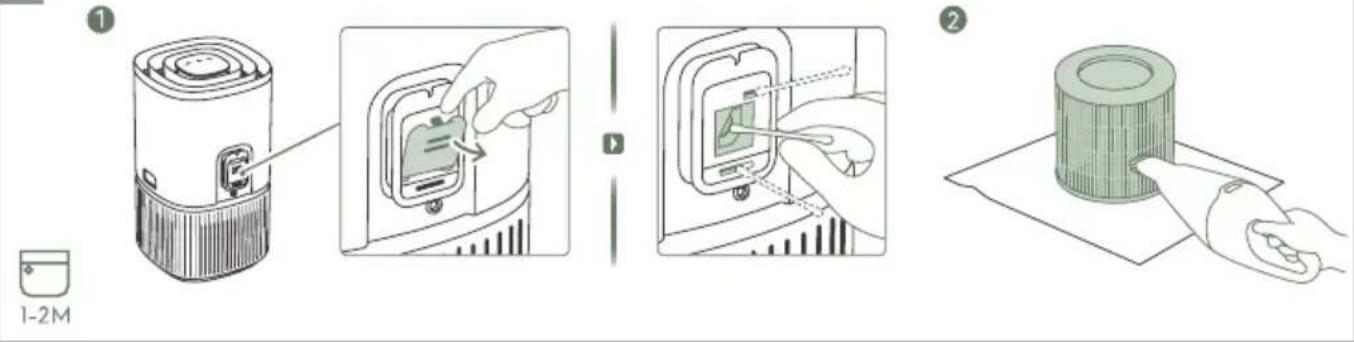
Cleaning the sensor: Open the sensor box inlet grill with finger and clean the lens, inlet and outlet with wet cotton swab. Use dry cotton swab to remove any excess water from the sensor.
After having cleaned the sensor box, we recommend to vacuum clean the filter at the same time. (ref. page 6, picture 13:2)
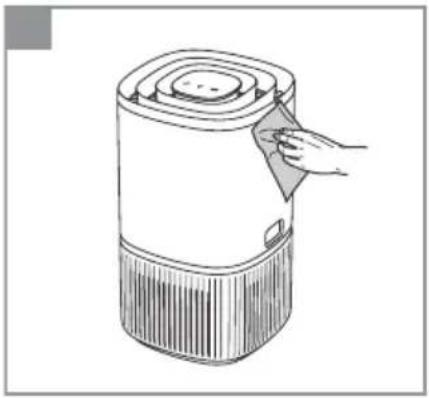
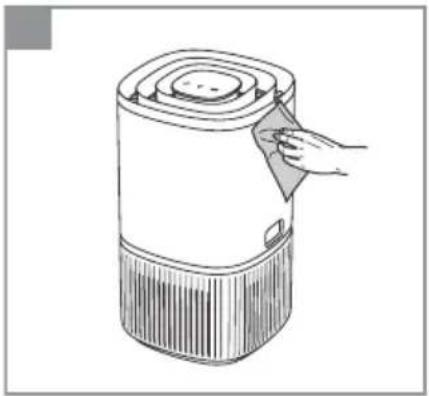
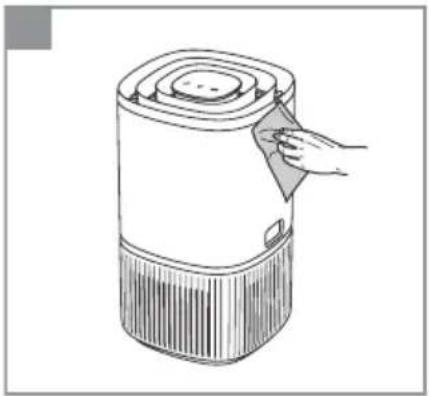
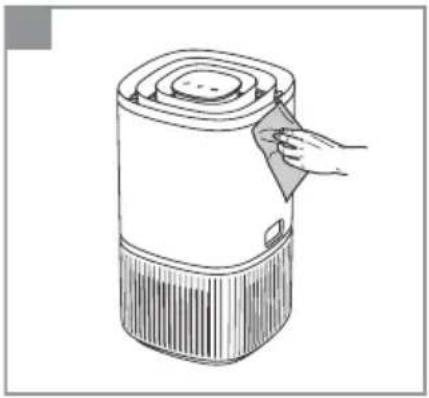
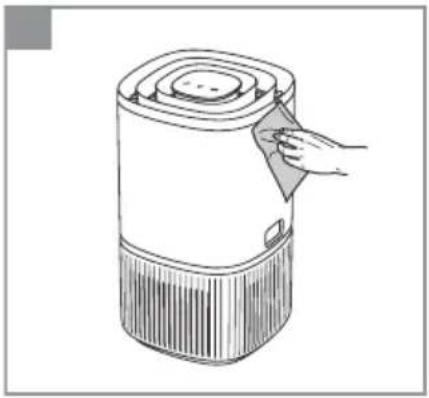
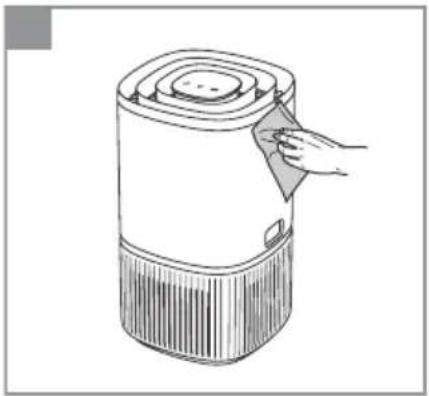
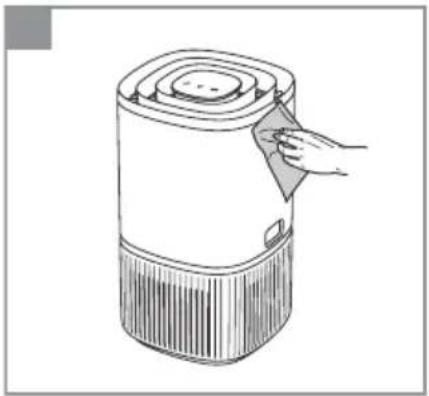
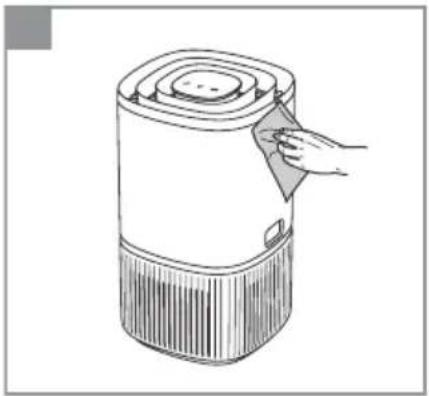
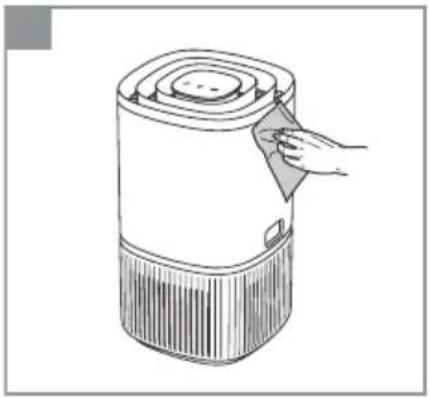
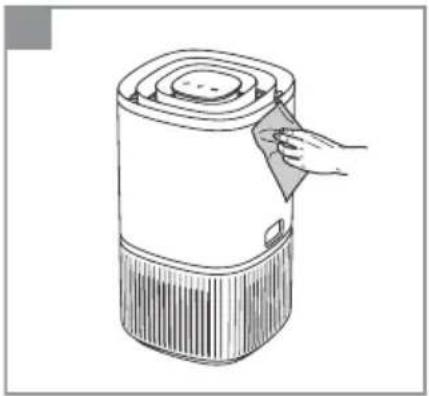
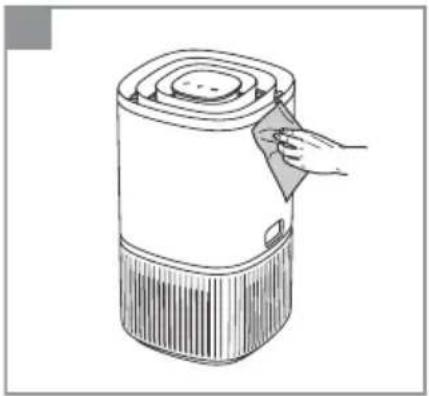
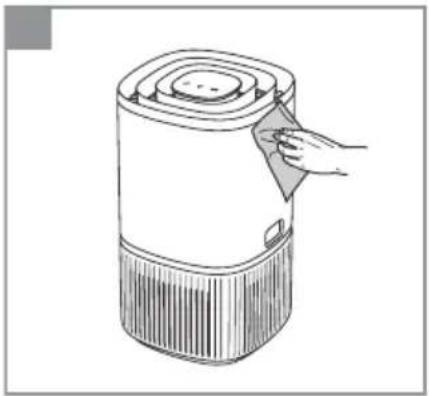
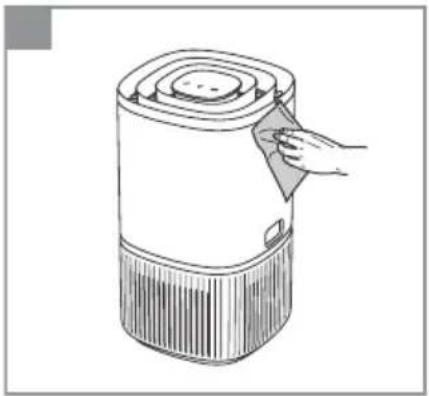
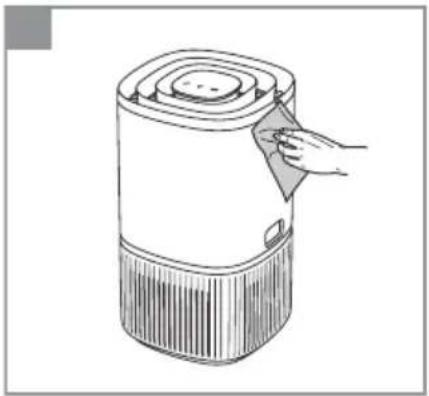
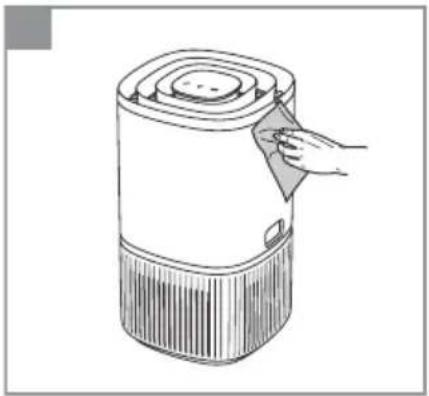
23 The plastic parts of the unit should be cleaned with an oil-free dry cloth. For stains on plastic parts, use a slightly damp soft microfiber cloth to gently rub against the stain.
(ref. page 6, picture 14).
24 The area around the air inlet on the bottom of the unit may accumulate more dust than some other parts and hence may require more frequent cleaning to ensure optimal performance. The filter is equipped with a mesh filter and should occasionally be wiped off or cleaned with a vacuum cleaner to avoid loss of performance.
STORAGE
25 If you are not planning to use the appliance for a long time, cover it with plastic or return it to its carton.
NOTE: The multi-layer filter can not be washed, it can only be replaced.
CAUTION!
Do not touch the fan blade when removing the multi-layer filter.
TROUBLESHOOTING
When fault indicators show that the system is not operating properly, perform the following check.
The table below is only a limited list. For the latest and complete section on troubleshooting, FAQ and error guide please refer to the corresponding section on our website or the Electrolux App.
| # ISSUE TROUBLESHOOTING NOTES | |
| 1 The air purifier's alert icon is lit. | Generally, the unit comes with a variety of sophisticated sensors, electronics and other electrical components and if one of these is malfunctioning, you will see the alert icon on the product control panel light up. For more details on steps to resolve, please head over to the Electrolux App and check for details whenever you see this icon lit. | Please have at hand the unit's PNC and SERIAL number if you need to contact Electrolux service organisation for support. |
| | | |
| 2 | The air purifier is running at max fan speed all the time for extended periods | If in MANUAL mode, please check the fan speed slider on the product control panel or within Electrolux App and adjust it to desired level.If in SMART mode, please check air quality indicator on the product control panel or within Electrolux App – if all PM values are constantly showing 999-1000 without any reduction then most likely the sensor is clogged. Please clean the sensor as described under section 22 above. | The PM sensor in the unit is highly accurate and sensitive and it is normal for the purifier to react to poor air quality by ramping up the fan speed – to get your indoor air quality back to safe levels. |
| 3 | The air purifier is running at lowest fan speed all the time for extended periods | If in MANUAL mode, please check the fan speed on the product control panel display or within Electrolux App and adjust it to desired level.If in SMART mode, please check air quality indicator on the product control panel or within Electrolux App – if all PM values are constantly reading very good without any increase then this is normal behavior for the unit - your air quality is very good! If the PM2.5 value is high and the unit is still operating at lowest fan speed, then please check filter change icon on the product control panel or within Electrolux App and if lit please replace used filter with a new one, this should resolve the specific fan speed issue.If neither of the above steps OR instructions in the Electrolux App help, please refer to item 9 in the table. | The unit is designed so that when a filter is at end of life, it will discourage usage till the filter is replaced, by limiting the fan speed so as not to reintroduce the captured particulate matter back into the air. |
| 4 | The air purifier produces a loud or abnormal noise | Please ensure that the plastic bag around the filter has been removed, ensure the air inlet grill and air outlet grill (top of the unit) are unobstructed and that there is a clearance of at least 30 cm between the unit and the nearest surface.If neither of the above steps OR instructions in the Electrolux App help, please refer to item 10 in the table. | If there is an abnormal noise in your product, even after checking the steps in the trouble shoot guide, please contact an Electrolux authorized service center for further support. |
| 5 | The air purifier or fan does not operate | Ensure that the unit is receiving power. If needed, try pushing the power plug firmly into the wall socket to check if this resolves the issue. Check that the fuse of your home has not blown or that the circuit breaker has been tripped. Replace fuse or reset circuit breaker if needed.If neither of the above steps OR instructions in the Electrolux App help, please refer to item 10 in the table. | |
| 6 | The air purifier is running but the air quality does not improve | If in SMART mode, closely monitor the difference in air quality levels within the Electrolux App for next 20 minutes – if you do not see any improvement of the air quality values in the Electrolux App during this period then follow the step below.Change to MANUAL mode and adjust the fan speed to a higher level to see if this helps resolve the issue.If you still do not see any improvement. Close any open doors OR windows to the outside of the room and rerun the unit at the highest fan speed for 20 minutes. If this resolves the issue, we recommend that you operate the unit in this sealed environment as much as possible, till the air quality is also at a good level. | If the unit is placed in a room larger than the recommended size, it will take longer for the air quality to improve – please be patient and maintain the unit at the highest feasible speed. |
| 7 | The air purifier produces or emits a strange smellISSUE# NOTESTROUBLESHOOTING | The first time you run the unit, you may perceive a plastic, glue or paint smell – especially near the air outlet grill – this is unavoidable in some cases (like the ‘new car smell’) but should disappear quickly.If you perceive a burning smell, please disconnect the unit and contact Electrolux authorized service center for further support.The VOC filter is in the end of life. Please change to a new filter. | Always ensure that the filters are covered in appropriate packaging while stored away between uses, and that all parts are dry to avoid smell or mould build up. |
| 8 | The filter icon is lit, even though I recently changed the filters | After having changed the filter, long press the MODE button for 3 seconds and the filter indication will be reset. | It is important to turn OFF the unit before changing the filter, in order to reset the product. |
| 9 | I am unable to connect the Air purifier to the App | If you are unable to onboard the unit and connect it to the Electrolux App after a couple of attempts, then please contact an Electrolux authorized service center for support. | The WiFi chip in the unit operates only at 2.4Ghz so please ensure your home WiFi is operating at this bandwidth. |
| 10 | I have another issue not listed here OR none of the above steps have helped resolve the issue | You can search for more troubleshooting and FAQ guides on our website OR the Electrolux App under the product information pages, or directly contact Electrolux authorized service center for support. Thank you! | Please have the unit's PNC and serial number available when contacting the Electrolux service. This information can be found on the rating label which is located on the bottom of the unit. |
POPIS ČISTIČKY VZDUCHU
Přístroj:
2
3

1
3

2
4
Pure 500
4
5
6
7
8
9
∴ m = 3/11
111
![graph LR A["Receipt"] --> B["Recycle with 0% label"] B --> C["Storage unit with 1% recycling"] C --> D["Packaging with 2% recycling"] D --> E["Recycling with 3% mode"] E --> F["Reset 3s Mode with 4% mode"]](/content/2026/04/638710/images/2ccbe978634bae37770886af251b7715793b26ad53a28e7b03b7635511f476b5.jpg)
12
![graph LR A["Receipt"] --> B["Storage"] B --> C["Recycle with 5% label"] C --> D["Recycle with battery icon"] D --> E["Recycle with battery icon"] E --> F["Recycle with battery icon"] F --> G["Recycle with battery icon"] G --> H["Recycle with battery icon"] H --> I["Mode Reset 3s"]](/content/2026/04/638710/images/aa2d4945acd50c020f8cec666b4d089846ff1f125dffc240d9c96d0470ed0112.jpg)
13
1. ⚠️ TURVALLISUUSTIEDOT
ILMANPUHDISTIMESI KUVAUS
Laite:
12
![graph LR A["Recard with sensor icon"] --> B["Storage unit with 5% charge"] B --> C["Recycle into battery with filter and recycling symbol"] C --> D["Recycle with battery inside box"] D --> E["Recycle with battery inside box with recycling symbol"] E --> F["Recycle with battery inside box with recycl…](/content/2026/04/638710/images/68b7832cfdf14a2dc0d09b2faf4759f6adbb1c6398139cef6d8c8a936efa7706.jpg)
13
DESCRIPTION DE VOTRE PURIFICATEUR D'AIR
Appareil :
2
3
2
4
5
6
7
8
9
The image is too blurry to recognize any text content.
111

![graph LR A["Receipt"] --> B["OR"] B --> C["Cell with 0.2 charge"] C --> D["Cell with 4.5 charge"] D --> E["Cell with 1.5 charge"] E --> F["Cell with 0.5 charge"] F --> G["Cell with 0.2 charge"] G --> H["Reset 3s"] H --> I["Mode with 'MODE' icon"]](/content/2026/04/638710/images/cdb910772a27f6c6663e67b8be3b2584f9625dd35f6b63080000833743ea2159.jpg)
OPIS VAŠEG PROČIŠĆIVAČA ZRAKA
Uređaj:
12
![graph LR A["Receipt"] --> B["Storage"] B --> C["Recycle with 5% label"] C --> D["Recycle with battery icon"] D --> E["Recycle with battery icon"] E --> F["Recycle with battery icon"] F --> G["Recycle with battery icon"] G --> H["Recycle with battery icon"] H --> I["Mode Reset 3s"]](/content/2026/04/638710/images/92cba15a35d876d87655bd32d27fe833d3883263abe3575db6b87c20404a9b63.jpg)
13

Za dodatne pojedinosti opisa slika pogledajte stranice 63-65.
A LÉGTISZTÍTÓ LEÍRÁSA
Készülék:
2
3

1
3
2
4
Pure 500
4
5
6
7
8

9
∴ m = 3/11
111
![graph LR A["Receipt"] --> B["OR"] B --> C["Cell with 0.5% label"] C --> D["Cell with 4.5% load"] D --> E["Storage unit with battery"] E --> F["Recycle with battery icon"] F --> G["Order with battery icon"] G --> H["Reset 3s Mode with 3 seconds reset"]](/content/2026/04/638710/images/01b793c8e2a7cd51a4615d24ee10aacfea27fb3f9a8844d82198a17a3efe5318.jpg)
DESCRIZIONE DEL PURIFICATORE DELL'ARIA
Apparecchio:
J. Pulsante ACCENSIONE
K. Pulsante VENTOLA
L. Pulsante MODALITÀ
M. Icona avviso
12
![graph LR A["Recard with sensor"] --> B["Storage with 5% charge"] B --> C["Recycle into battery with filter"] C --> D["Recycle with battery inside box"] D --> E["Recycle with battery inside box with recycling tray"] E --> F["Recycle with battery inside box with mode reset icon"] F --> G["Reset 3s Mod…](/content/2026/04/638710/images/40b373a454f0bb17da375fd9982a401d43608199f1702098a98687a319c7ae59.jpg)
13
2
3
2

4
5
6
7
8
9
The image is too blurry to recognize any text content.
111
![graph LR A["Receipt"] --> B["OR"] B --> C["Cell with 0.5% label"] C --> D["Cell with 4.5% load"] D --> E["Storage unit with battery"] E --> F["Recycle with battery icon"] F --> G["Order with battery icon"] G --> H["Reset 3s Mode with 3 seconds reset"]](/content/2026/04/638710/images/03ed258e6fc6ac5d9735047377ec0c914b94c7b5dfd1862e1567825c43c2fa2b.jpg)
DESCRIEREA PURIFICATORULUI DUMNEAVOASTRĂ DE AER
Aparatul:
A. Afisajul panoului de control
B. Ghid debit de aer (Evacuarea aer)
C. Butoane de deblocare
D. Corp principal (superior)
E. Cutie cu senzori
F. Mufă adaptor
G. Corp principal (inferior)
H. Cablu de alimentare
I. Filtru (interior)
Panou de comandă:
12
![graph LR A["Recard with sensor"] --> B["Storage with 5% charge"] B --> C["Recycle into battery with filter"] C --> D["Recycle with battery inside box"] D --> E["Recycle with battery inside box with recycling tray"] E --> F["Recycle with battery inside box with mode reset icon"] F --> G["Reset 3s Mod…](/content/2026/04/638710/images/44d5841ef8d2fce2389a9e7008a0582f61b5974b001b88b6cbc2323422b0bad6.jpg)
13
BESKRIVNING AV DIN LUFTRENARE
Enheten:
2
3
2
4
5
6
7
8
9
∴ m = 3/11
111
![graph LR A["Receipt"] --> B["OR"] B --> C["Cell with 0.5% label"] C --> D["Cell with 4.5% load"] D --> E["Storage unit with battery"] E --> F["Recycle with battery icon"] F --> G["Order with battery icon"] G --> H["Reset 3s Mode with 3 seconds reset"]](/content/2026/04/638710/images/ae80b70aab1ea93e1c0cb73d76a027c9fee60793751ca6fa0b32568572a5519e.jpg)
BESKRIVELSE AV LUFTRENSEREN
Apparatet:
A. Kontrollpanel displayet
B. Luftstrømguide (luftuttak)
C. Slipp knappene
D. Hoveddel (øverst)
E. Sensor
F. Adapterkontakt
G. Hoveddel (nederst)
H. Strømledning
I. Filter (innvendig)
Kontrollpanel:
J. PÅ/AV- knapp
K. VIFTE-knapp
L. MODUS-knapp
M. Advarsel-ikon
N. Filterbytte-ikon
O. Wifi-ikon*
P. Planlegger-ikon*
Q. Barnesikringsikon
R. MODUS-indikator
S. VIFTEHASTIGHET-indikator
T. Luftkvalitetsindikator
12
![graph LR A["Recard with sensor icon"] --> B["Storage unit with 5% charge"] B --> C["Recycle into battery with filter and recycling symbol"] C --> D["Recycle with battery inside box"] D --> E["Recycle with battery inside box with recycling symbol"] E --> F["Recycle with battery inside box with recycl…](/content/2026/04/638710/images/92a849b3b299eec490ef7ba988a0862f3e627bc8029a2de284221893a7f0610f.jpg)
13
BESKRIVELSE AF LUFTRENSEREN
Luftrenseren:
A. Kontrolpanel skærm
B. Luftstrømsstyring (luftudtag)
C. Udløserknapper
D. Hoveddel (top)
E. Følerboks
F. Adapterstik
G. Hoveddel (bund)
H. Strømledning
I. Filter (inden i)
Kontrolpanel:
J. TÆND/FRA-knap
K. BLÆSER-knap
L. TILSTAND-knap
M. Advarselsikon
N. Ikon for filterudskiftning
O. Wi-Fi-ikon*
P. Planlægningsikon*
Q. Børnelåsikon
R. TILSTANDS-indikator
S. BLÆSERHASTIGHEDs indikator
T. Luftkvalitetsindikator
2
3
2
4
5
6
7
8
9
∴ m = 3/11
111
![graph LR A["Receipt"] --> B["OR"] B --> C["Cell with 0.5% label"] C --> D["Cell with 4.5% label"] D --> E["Storage unit with battery icon"] E --> F["Recycle with battery icon"] F --> G["Reset 3s Mode with 3 seconds reset"]](/content/2026/04/638710/images/bc82f98b6c33c0536a7071f925f07b718fb449ba6a1b66e12578ceb760a4cd60.jpg)
OPIS VAŠEGA ČISTILNIKA ZRAKA
Naprava:

12
![graph LR A["Recard with sensor icon"] --> B["Storage unit with 5% charge"] B --> C["Recycle into battery with filter and recycling symbol"] C --> D["Recycle with battery inside box"] D --> E["Recycle with battery inside box with recycling symbol"] E --> F["Recycle with battery inside box with recycl…](/content/2026/04/638710/images/2f51766a18faf215902e848e607bd8127e419af929dd21b8bfb41201954442e8.jpg)
13
OPIS VAŠEJ ČISTIČKY VZDUCHU
Spotrebič:
2
3

1
3
2

4
Pure 500
4
5
6
7
8
9
∴ m = 3/11

111
![graph LR A["Receipt"] --> B["OR"] B --> C["Cell with 0% label"] C --> D["Cell with 4% label"] D --> E["Storage unit with battery"] E --> F["Recycle with battery icon"] F --> G["Reset 3s Mode with MODE icon"]](/content/2026/04/638710/images/f6dd6443bccf8f4ffc0d180f7bb6ddd83099d37a527ca05587bc2a5d40f4dce6.jpg)
HAVA TEMİZLEYİCİNİZİN AÇIKLAMASI
Cihaz:
12
![graph LR A["Recard with sensor icon"] --> B["Storage unit with 5% charge"] B --> C["Recycle into battery with filter and recycling symbol"] C --> D["Recycle with battery inside box"] D --> E["Recycle with battery inside box with recycling symbol"] E --> F["Recycle with battery inside box with recycl…](/content/2026/04/638710/images/ef5f372e3ca8300ceeb527407fb4d1d09e61137626f8a0371643f65e712ab8b8.jpg)
13
ELECTROLUX APPLIANCES AB
BUSINESS SECTOR EMA-EMEA (SEE)
ST GÖRANSGATAN 143
SE-105 45 STOCKHOLM SWEDEN
TEL: +46 (8) 738 60 00
FAX: +46 (8) 738 63 35
www.electrolux.com
ithalatci:
Electrolux Dayanıklı Tüketim
Mamulleri San. ve Tic. AŞ.
TR-34435 Taksim-Beyoğlu-İstanbul
2
3

1
3
2
4
Pure 500
4
5
6
7
8
9

∴ m = 3/11
111
![graph LR A["Battery Storage"] --> B["OR"] B --> C["Cell with 0% label"] C --> D["Cell with 1% label"] D --> E["Cell with 2% label"] E --> F["Cell with 3% label"] F --> G["Reset 3s Mode"]](/content/2026/04/638710/images/80ad90323838c98fac3ad748d2b9ae2792779d8dafabaf8f38994e91bf17ed7d.jpg)

12
![graph LR A["Raw Material Input"] --> B["Recycle with 5% label"] B --> C["Storage with 20% load"] C --> D["Recycle with 10% load"] D --> E["Recycle with 3% load"] E --> F["Recycle with 2% load"] F --> G["Recycle with 1% load"] G --> H["Recycle with 3% load"] H --> I["Reset 3s Mode with 3 seconds"]](/content/2026/04/638710/images/16337e223d405a979801a55457ed388c5b4d1bd4a95aa47f1a2de239ed18a37f.jpg)
13
JÚSŲ ORO VALYTUVO APRAŠYMAS
Irenginys:
2
3

1
3
2
4
Pure 500
4
5
6
7
8
9
∴ m = 3/11
111
![graph LR A["Receipt"] --> B["OR"] B --> C["Cell with 0% charge"] C --> D["Cell with 1% charge"] D --> E["Cell with 2% charge"] E --> F["Cell with 3% charge"] F --> G["Reset 3s Mode"]](/content/2026/04/638710/images/d55f0ec8f96c30a446a8b1cd18a900985e81d68ee453792237ce094ea452e1d2.jpg)
TEIE ÖHUPUHASTI KIRJELDUS
Seade:

12
![graph LR A["Receipt"] --> B["Storage"] B --> C["Recycle with 5% label"] C --> D["Recycle with battery icon"] D --> E["Recycle with recycling tray"] E --> F["Recycle with battery icon"] F --> G["Recycle with recycling tray"] G --> H["Recycle with battery icon"] H --> I["Mode Reset 3s"]](/content/2026/04/638710/images/80b78f8a7d03bc04b78a7c8297a8f99954796bc01bea020fbe049382afc19645.jpg)
13

2
3

1
3
2
4
4
5
6
7
8
9
10
11
![graph LR A["Receipt"] --> B["Recycle with 0% label"] B --> C["Storage unit with 4.5% load"] C --> D["Packaging unit with 2% load"] D --> E["Ordering unit with 3% load"] E --> F["Reset 3s Mode with 1 second cycle"]](/content/2026/04/638710/images/362524289f69a6fd30d49c2daedebe4245a79efdf1d16f669cade312172e8e0d.jpg)

12
![graph LR A["Receipt"] --> B["Storage"] B --> C["Recycle with 5% label"] C --> D["Recycle with battery icon"] D --> E["Recycle with battery icon"] E --> F["Recycle with battery icon"] F --> G["Recycle with battery icon"] G --> H["Recycle with battery icon"] H --> I["Mode Reset 3s"]](/content/2026/04/638710/images/c9f514db01e09ac8fa2c4b4d357f7fa0cfd2fdb147ca7f2f8fd04da46237d5df.jpg)
13
12
![graph LR A["Device with fan icon"] --> B["OR"] B --> C["Phone with battery icon"] C --> D["Device with battery icon"] D --> E["Device with battery icon"] E --> F["Device with battery icon"] F --> G["Device with battery icon"] G --> H["Device with battery icon"] H --> I["Device with battery icon"] I…](/content/2026/04/638710/images/725b1ea8da94c70aa55a7379b2cb0a84da0377d6a931ef5ca3be3eb55cfdc3cc.jpg)
13
BESCHRIJVING VAN UW LUCHTREINIGER
Apparaat:
12
![graph LR A["Raw Material Input"] --> B["OR"] B --> C["Storage System"] C --> D["Recycle with Battery"] D --> E["Recycle with Battery"] E --> F["Recycle with Battery"] F --> G["Recycle with Battery"] G --> H["Recycle with Battery"] H --> I["Mode Reset 3s"]](/content/2026/04/638710/images/e683b47c402d74284c270d15be6b095253a69de9e28a86a043ba28aa50188906.jpg)
13
DESCRIÇÃO DO SEU PURIFICADOR DE AR
Aparelho:
2
3

1
3
2
4
4
5
6
7
8
9
10
11
![graph LR A["Receipt"] --> B["OR"] B --> C["Storage with 0% label"] C --> D["Recycle with 4.5% load"] D --> E["Storage with 1% load"] E --> F["Packaging with 2% load"] F --> G["Reset 3s Mode with 3 seconds"] G --> H["Mode with 3 seconds"]](/content/2026/04/638710/images/739915ac62ed28c5b14e7ca58c574f88937e76527af09cbfd2c9072db6beb143.jpg)
12
![graph LR A["Receipt"] --> B["Storage"] B --> C["Recycle with 5% label"] C --> D["Recycle with battery icon"] D --> E["Recycle with recycling tray"] E --> F["Recycle with battery icon"] F --> G["Recycle with recycling tray"] G --> H["Recycle with battery icon"] H --> I["Recycle with battery icon"] I…](/content/2026/04/638710/images/65fa0b85891653c0d6a50f0e5e4cc222d849dc762c90cc8fc4526a1821f2a82e.jpg)
13

2
3

1
3
2
4
Pure 500
4
5
6
7
8
9
10
11
![graph LR A["Receipt"] --> B["OR"] B --> C["Cell with 0.2 charge"] C --> D["Cell with 4.5 charge"] D --> E["Storage unit with battery"] E --> F["Recycle with 1 hour mark"] F --> G["Recycle with 3 seconds"] G --> H["Reset 3s Mode"]](/content/2026/04/638710/images/5fb6f8fd8ce7eaa70598d90dd7d95ed6b1fb8d8b6e1d9a672f0e7bcd922cdcea.jpg)
12
![graph LR A["Receipt"] --> B["Storage"] B --> C["Recycle with 5% label"] C --> D["Recycle with battery icon"] D --> E["Recycle with recycling tray"] E --> F["Recycle with battery icon"] F --> G["Recycle with recycling tray"] G --> H["Recycle with battery icon"] H --> I["Recycle with battery icon"] I…](/content/2026/04/638710/images/a6ffdeef4200295e0c0a75e0cd9be90e2ac767adb5ade086a24aab8058cc4e75.jpg)
13
The software in the air purifier is partly based on free and open source software. To see the full copyright information and applicable license terms, please visit: https://emtech.delta.electrolux.com/license
For more information visit
electrolux.com