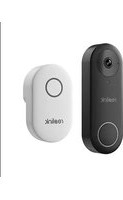
Video Doorbell WiFi - Doorbells REOLINK - Free user manual and instructions
Find the device manual for free Video Doorbell WiFi REOLINK in PDF.



| Product Type | Wi-Fi Video Doorbell |
| Brand | Reolink |
| Model | Video Doorbell WiFi |
| Dimensions | 133 x 48 x 23 mm |
| Weight | 96 g |
| Viewing Angle | Black version: 135° horizontal, 100° vertical, 180° diagonal White version: 100° horizontal, 135° vertical, 180° diagonal |
| Power Supply | Included power adapter, PoE compatible (not included), or existing doorbell wiring |
| Connectivity | Wi-Fi 2.4/5 GHz, Ethernet (PoE version) |
| Main Features | Live video, two-way audio, motion detection, smartphone alerts |
| Installation | Wall-mounted with mounting plate and drilling template |
| Included Accessories | Doorbell, chime, angle bracket, mounting plate, template, 1 m Ethernet cable, extension cable, connection cable, power adapter, power extension cable, screw bag, quick start guide |
| Warranty | 2-year limited |
| Compatibility | Reolink App (iOS/Android), Reolink Client (PC) |
| Certifications | FCC, IC, CE |
Frequently Asked Questions - Video Doorbell WiFi REOLINK
User questions about Video Doorbell WiFi REOLINK
0 question about this device. Answer the ones you know or ask your own.
Ask a new question about this device
Download the instructions for your Doorbells in PDF format for free! Find your manual Video Doorbell WiFi - REOLINK and take your electronic device back in hand. On this page are published all the documents necessary for the use of your device. Video Doorbell WiFi by REOLINK.
USER MANUAL Video Doorbell WiFi REOLINK
If you need any technical help, please visit our official support site and contact our support team before returning the products. https://support.reolink.com.
EC REP CET PRODUCT SERVICE SP. Z O.O.
Ul. Dluga 33 102 Zgierz, Polen
UK REP CET PRODUCT SERVICE LTD.
January 2024
Beacon House Stokenchurch Business Park, Ibstone
QSG1_A
Rd, Stokenchurch High Wycombe, HP14 3FE, UK
58.03.006.0104A

EN/DE/FR/IT/ES
Item No.: D340P/D340W
Operational Instruction
Apply to: Reolink Video Doorbell WiFi / PoE
@ReolinkTech https://reolink.com
EN
Content
What's in the Box 2
Doorbell Introduction 3
Set up the Doorbell 5
Install the Doorbell 9
Remove the Doorbell 15
Specification 16
Notification of Compliance 16
What's in the Box
Doorbell Chime
•
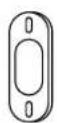
Corner Wedge
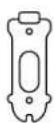
Mounting Plate
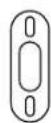
Mounting Hole Template
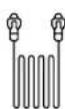
1m Ethernet Cable

Extension Cable

Jumper Cable

Power Adapter +

Power Extension Cable*
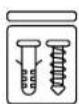
Pack of Screws
Quick Start Guide
NOTE: The Reolink Video Doorbell PoE doesn't come with a power adapter and power extension cable.
Doorbell Introduction
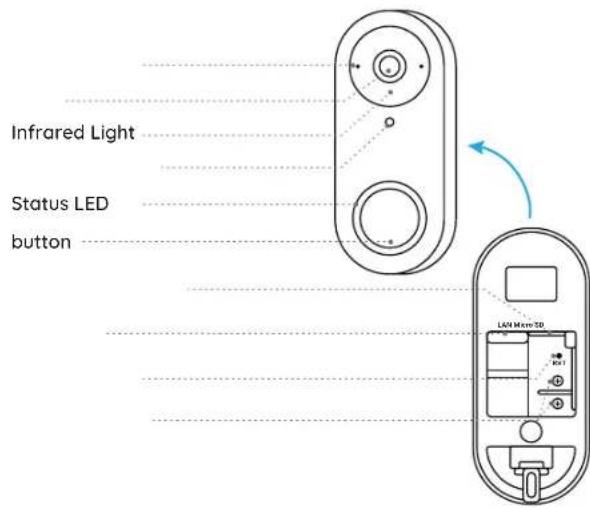
Video Doorbell PoE
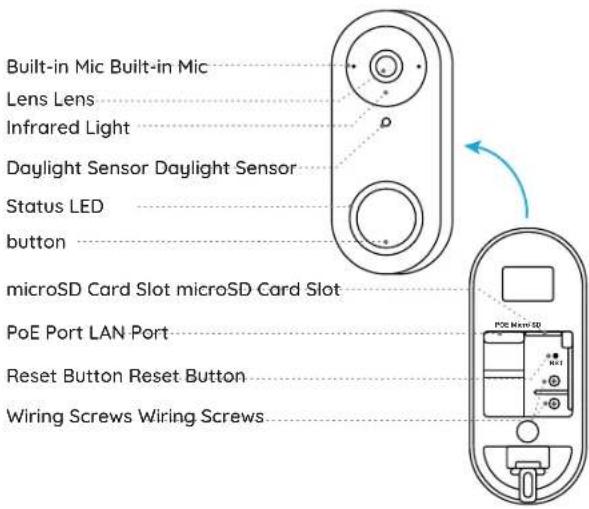
Video Doorbell WiFi
Set up the Doorbell
Set up the Doorbell on Phone
Step 1
Scan to download the Reolink App from the App Store or Google Play Store.


NOTE: If the Reolink App is already existed, please check if it is the newest; if no, please update it.
Step 2
Power on the video doorbell.
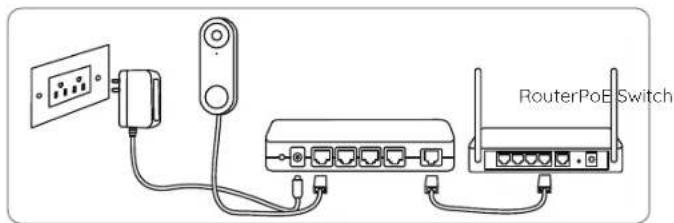
PoE Version:
-
Power the doorbell on by connecting it to a PoE Switch/Injector or a Reolink PoE NVR (not included in the package).
-
Connect the PoE Switch/Injector/Reolink PoE NVR to the LAN Port on the router.
NOTE: The Reolink NVR should be upgraded to the latest firmware version.
EnglishEnglish5 6
WiFi Version: Connect the Y-shape plugs to the screws on the back of the doorbell, then power it on with the power adapter.
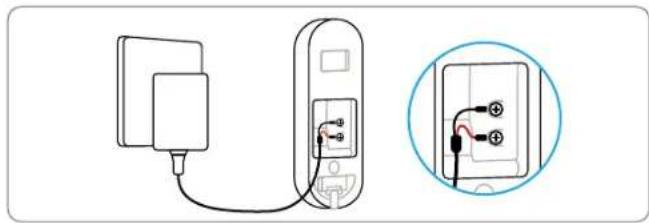
NOTE: It is recommended to setup the Internet before the installation. Make sure the Y-shape plugs are separate from each other.
Step 3
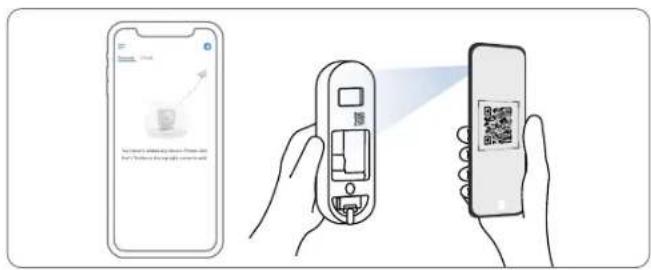
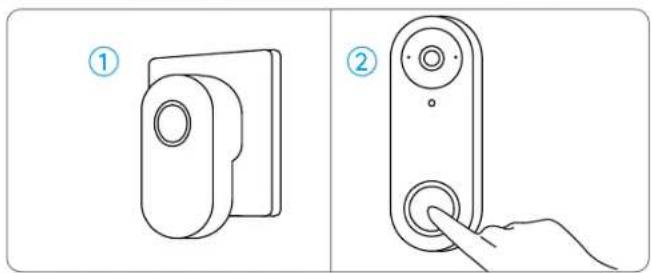
Launch the Reolink App. Click the “+” button in the top right corner and scan the QR code on the doorbell and follow the onscreen instructions to finish the initial setup.
EnglishEnglish7 8
Set up the Doorbell on PC (Optional)
Step 1
Download and install the Reolink Client. Go to https://reolink.com > Support > App & Client
Step 2
Power on the video doorbell.
Step 3
Launch the Reollink Client. Click the " + " button and input the UID number of the doorbell to add it.
Step 4
Follow the onscreen instructions to finish the initial setup.
Install the Doorbell
Step 1
Put the mounting hole template on the wall by the door and drill holes as shown.
Step 2
Install the mounting plate using the long screws provided through the two holes.
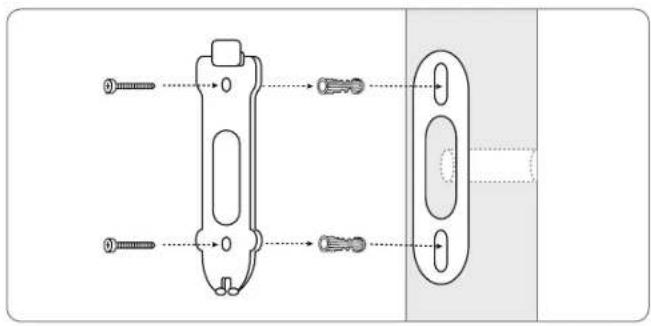
EnglishEnglish9 10
For the PoE Version:
Step 3
Run the Ethernet cable through the mounting plate and the hole on the wall to connect it to the doorbell, then attach the doorbell to the plate.
Step 4
The doorbell is powered by connecting the other end of the Ethernet cable to a PoE device.
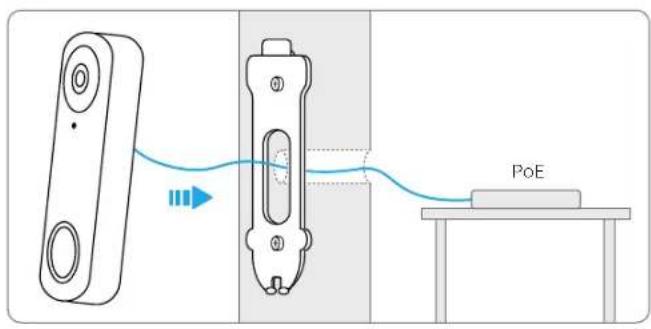
For the WiFi Version:
Step 3
Run the power adapter through the mounting plate and the hole on the wall to connect it to the doorbell, then attach the doorbell to the plate.
Step 4
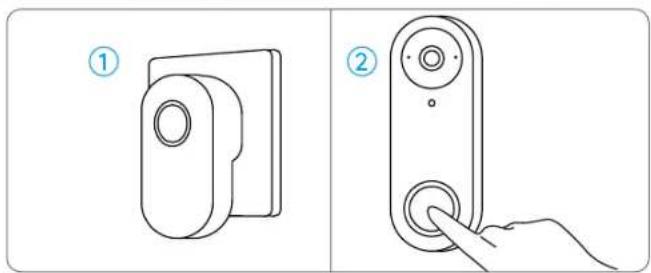
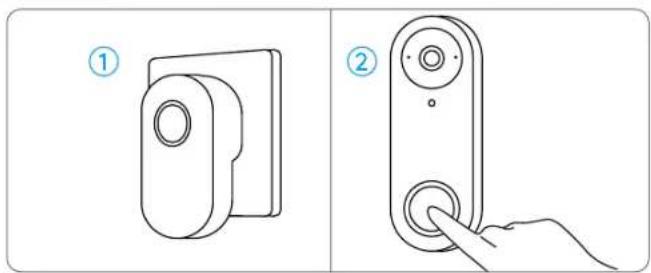
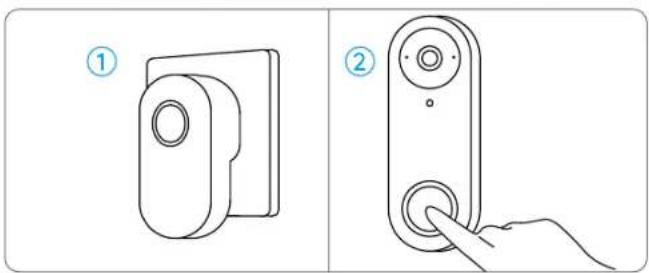
Plug the power adapter into a socket near the door. Use the long power extension cable if the socket is too far away from your doorbell.
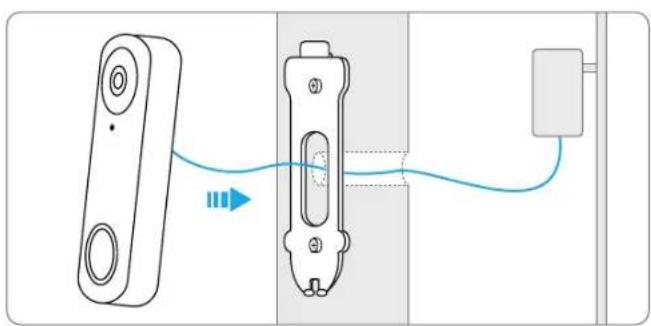
EnglishEnglish11 12
NOTE: Reolink Video Doorbell PoE&WiFi can also be powered by the existing doorbell wiring system. In such case, you are required to first bypass the existing mechanical chime with the jumper cable to get sufficient power. Without sufficient power, the doorbell may restart and has an unstable connection, and the mechanical chime may vibrate and generate noise. If the wire is not long enough, use the extension cable, as shown below. After the installation, the existing mechanical chime will not ring anymore. Use the extension cable to extend the length of the existing power cable for the doorbell, as shown below.
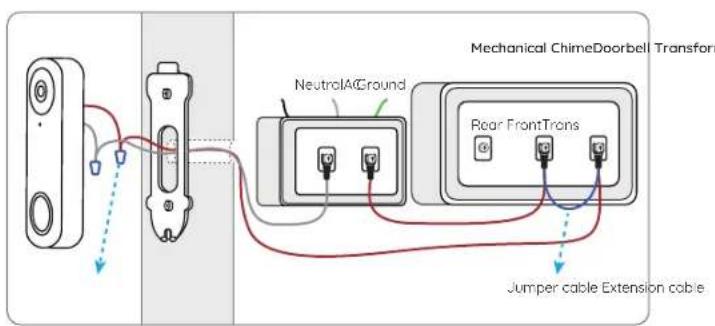
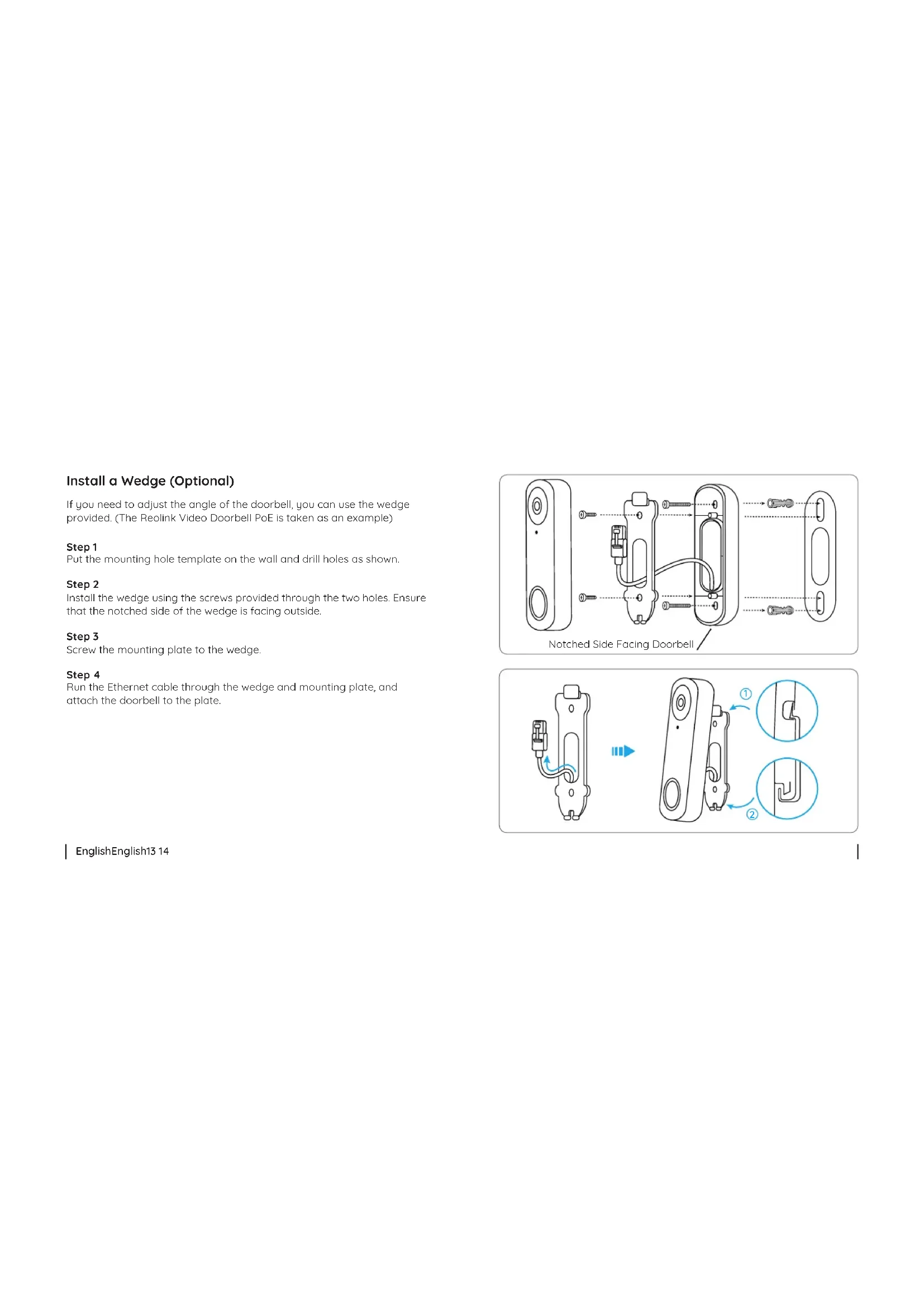
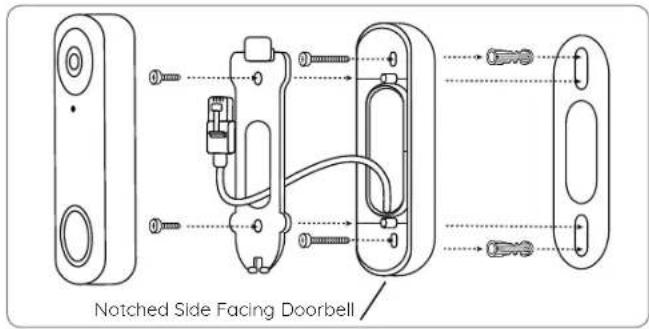
Install a Wedge (Optional)
If you need to adjust the angle of the doorbell, you can use the wedge provided. (The Realink Video Doorbell PoE is taken as an example)
Step 1
Put the mounting hole template on the wall and drill holes as shown.
Step 2
Install the wedge using the screws provided through the two holes. Ensure that the notched side of the wedge is facing outside.
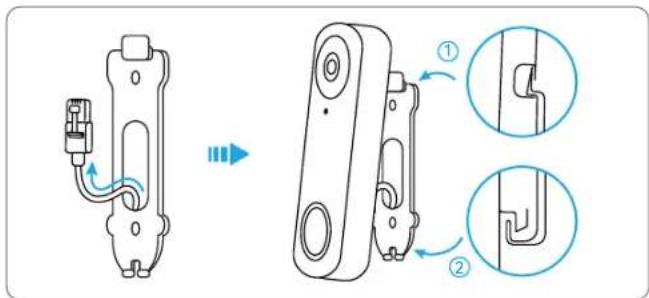
Step 3
Screw the mounting plate to the wedge.
Step 4
Run the Ethernet cable through the wedge and mounting plate, and attach the doorbell to the plate.
Remove the Doorbell
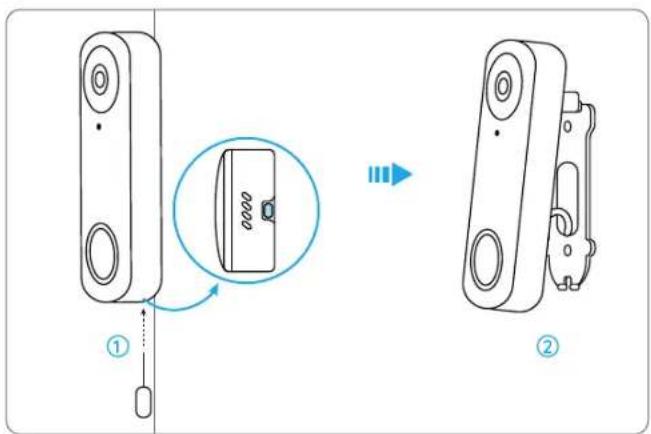
If you want to remove the doorbell from the mounting plate, you may use the reset needle to poke the bottom.
EnglishEnglish15 16
Specification
Field of View:
Black Version: 135° Horizontal, 100° Vertical, 180° Diagonal White Version: 100° Horizontal, 135° Vertical, 180° Diagonal Dimension: 133 x 48 x 23mm Weight: 96g
Notification of Compliance
FCC Compliance Statement
This device complies with Part 15 of the FCC Rules. Operation is subject to the following two conditions:
this device may not cause harmful interference, and this device must accept any interference received, including interference that may cause undesired operation.
NOTE: This equipment has been tested and found to comply with the limits for a Class B digital device, pursuant to part 15 of the FCC Rules. These limits are designed to provide reasonable protection against harmful interference in a residential installation. This equipment generates uses and can radiate radio frequency energy and, if not installed and used in accordance with the instructions, may cause
harmful interference to radio communications. However, there is no guarantee that interference will not occur in a particular installation. If this equipment does cause harmful interference to radio or television reception, which can be determined by turning the equipment off and on, the user is encouraged to try to correct the interference by one or more of the following measures:
- Reorient or relocate the receiving antenna.
- Increase the separation between the equipment and receiver.
- Connect the equipment into an outlet on a circuit different from that to which the receiver is connected.
- Consult the dealer or an experienced radio/TV technician for help.
Changes or modifications not expressly approved by the party responsible for compliance could void the user's authority to operate the equipment.
FCC RF Exposure Warning Statements
This equipment complies with FCC radiation exposure limits set forth for an uncontrolled environment. This equipment shall be installed and operated with minimum distance 20cm between the radiator & body.

Simplified EU Declaration of Conformity
Reolink declares that the WIFI camera is in compliance with the essential requirements and other relevant provisions of Directive 2014/53/EU, the
EnglishEnglish17 18
PoE camera is in compliance with Directive 2014/30/EU.

Correct Disposal of This Product
This marking indicates that this product should not be disposed with other household wastes. throughout the EU. To prevent possible harm to the environment or human health from uncontrolled waste disposal, recycle it responsibly to promote the sustainable reuse of material resources. To return your used device, please use the return and collection systems or contact the retailer where the product was purchased. They can take this product for environmentally safe recycling.
Limited Warranty
This product comes with a 2-year limited warranty that is valid only if purchased from Reolink Official Store or a Reolink authorized reseller. Learn more: https://reolink.com/warranty-and-return/.
NOTE: We hope that you enjoy the new purchase. But if you are not satisfied with the product and plan to return, we strongly suggest that you reset the camera to factory default settings before returning.
Terms and Privacy
Use of the product is subject to your agreement to the Terms of Service and Privacy Policy at reolink.com. Keep out of reach of children.
End User License Agreement
By using the Product Software that is embedded on the Reolink product, you agree to the terms of this End User License Agreement ("EULA") between you and Reolink. Learn more: https://reolink.com/eula/.
ISED Statements
This device contains licence-exempt transmitter(s)/receiver(s) that comply with Innovation, Science and Economic Development Canada's licence-exempt RSS(s). Operation is subject to the following two conditions:
(1) This device may not cause interference.
(2) This device must accept any interference, including interference that may cause undesired operation of the device.
Radio Frequency Exposure Statement for IC
The device has been evaluated to meet general RF exposure requirements. The device can be used in mobile exposure conditions. The min separation distance is 20cm.
OPERATING FREQUENCY (For WiFi Version) (the maximum transmitted power)
2.4 GHz EIRP<20dBm
5 GHz EIRP<23dBm
5.8GHz EIRP<14dBm
868MHz EIRP<14dbm

The functions of Wireless Access Systems Including Radio Local Area Networks(WAS/RLANs) within the band 5150-5350 MHz for this device are restricted to indoor use only within all European countries (BE/BG/CZ/DK/DE/EE/IE/EL/ES/FR/HR/IT/CY/LV/LT/MT/NL/AT/PL/PT/RO/SI/SK/FI/SE/TR/N O/CH/IS/LI/UK(NI))
Technical Support
If you need any technical help, please visit our official support site and contact our support team before returning the products: https://support.reolink.com.
DE
Katalog
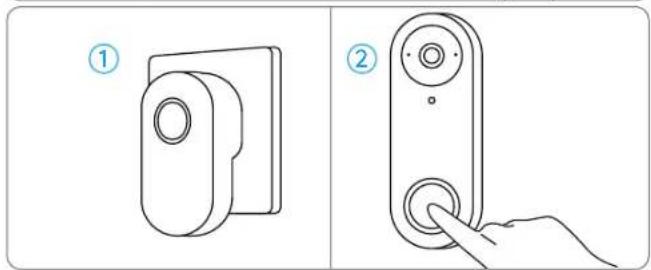
Lieferumfang 22
DeutschDeutsch27 28
DeutschDeutsch29 30
DeutschDeutsch31 32
DeutschDeutsch35 36
Spezifikationen
Sichtfeld:
Schwarze Version: 135° horizontal, 100° vertikal, 180° diagonal Weiße Version: 100° horizontal, 135° vertikal, 180° diagonal Abmessungen: 133 x 48 x 23mm Gewicht: 96g
Notification of Compliance
Assistance Technique
Italianoltaliano67 68
Italianoltaliano69 70
Italianoltaliano71 72
Italianoltaliano75 76
Specifiche
Campo Visivo:
EspañolEspañol87 88
EspañolEspañol89 90
EspañolEspañol91 92
Retirar el timbre
EspañolEspañol95 96
Especificaciones
Campo de visión:
https://support.reolink.com.


- OPERATIONAL INSTRUCTION
- EN
- CONTENT
- WHAT'S IN THE BOX
- DOORBELL INTRODUCTION
- VIDEO DOORBELL POE
- VIDEO DOORBELL WIFI
- SET UP THE DOORBELL
- SET UP THE DOORBELL ON PHONE
- STEP 1
- STEP 2
- STEP 3
- SET UP THE DOORBELL ON PC (OPTIONAL)
- STEP 4
- INSTALL THE DOORBELL
- FOR THE POE VERSION
- FOR THE WIFI VERSION
- INSTALL A WEDGE (OPTIONAL)
- REMOVE THE DOORBELL
- SPECIFICATION
- NOTIFICATION OF COMPLIANCE
- FCC RF EXPOSURE WARNING STATEMENTS
- SIMPLIFIED EU DECLARATION OF CONFORMITY
- CORRECT DISPOSAL OF THIS PRODUCT
- LIMITED WARRANTY
- TERMS AND PRIVACY
- END USER LICENSE AGREEMENT
- ISED STATEMENTS
- RADIO FREQUENCY EXPOSURE STATEMENT FOR IC
- OPERATING FREQUENCY (FOR WIFI VERSION) (THE MAXIMUM TRANSMITTED POWER)
- TECHNICAL SUPPORT
- KATALOG
- SPEZIFIKATIONEN
- SICHTFELD
- ASSISTANCE TECHNIQUE
- SPECIFICHE
- CAMPO VISIVO
- RETIRAR EL TIMBRE
- ESPECIFICACIONES
- CAMPO DE VISIÓN
Brand : REOLINK
Model : Video Doorbell WiFi
Category : Doorbells