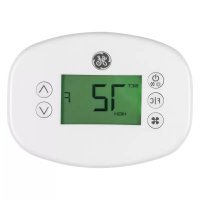
RAK160W2 - Air Conditioning GE - Free user manual and instructions
Find the device manual for free RAK160W2 GE in PDF.

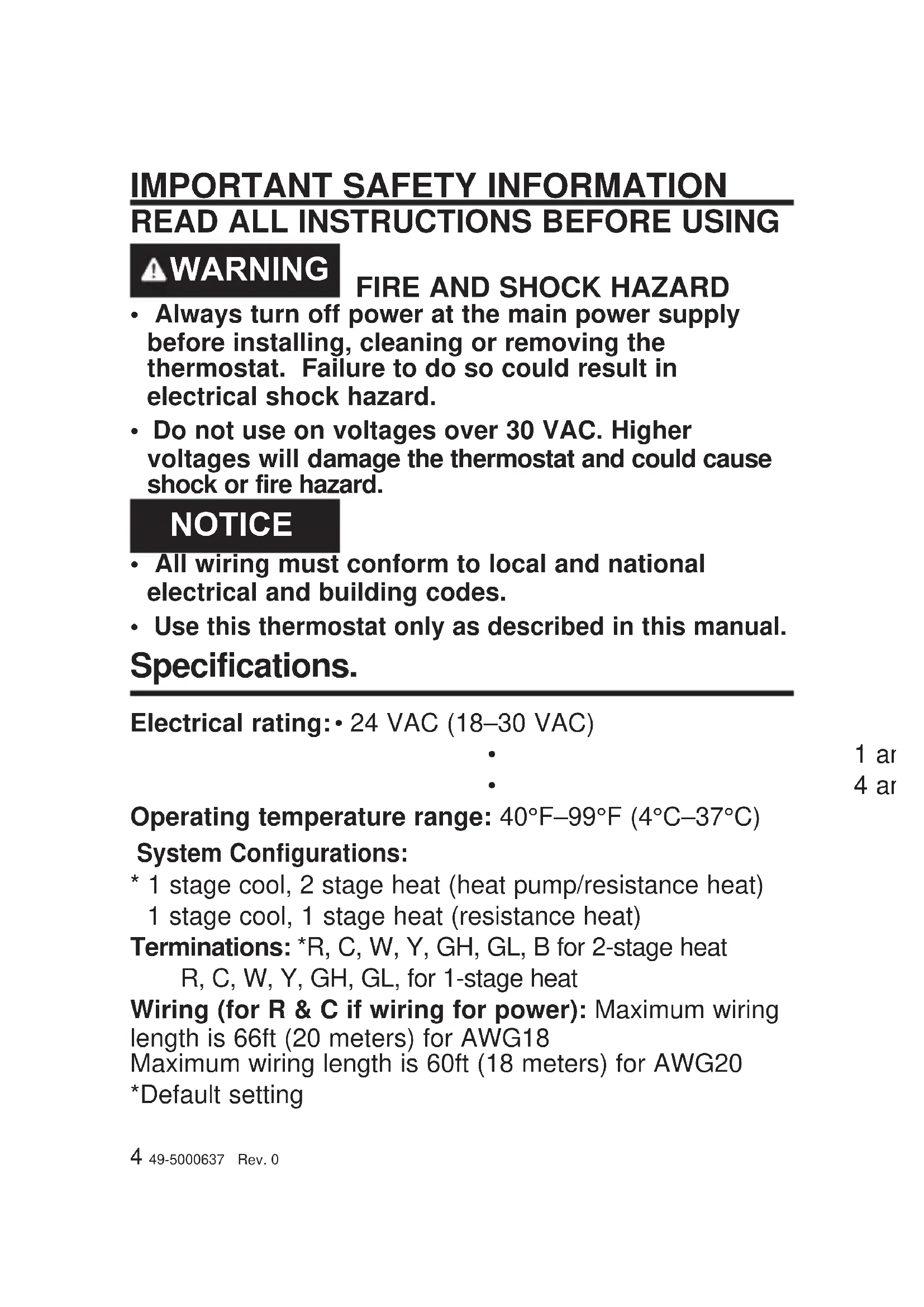


| Product Type | Wireless Wall Thermostat |
| Brand | GE |
| Model | RAK160W2 |
| Thermostat Dimensions | 102 x 140 x 23.5 mm |
| Control Board Dimensions | 98 x 54 x 19 mm |
| Power Supply | 3 V DC (2 AA batteries) or 24 V AC/DC optional |
| Operating Voltage | 24 VAC (18 to 30 VAC) |
| Maximum Current | 4 A per circuit |
| Compatible System Types | 1/2 stage heat pump, 1 stage air conditioner, 1/2 stage electric heat |
| Fan Speeds | High (GH) and Low (GL) – 2 speeds, or 1 speed if wiring combined |
| Wireless Frequency | 900 MHz |
| Temperature Accuracy | ±1 °F |
| Operating Temperature Range | 4 to 37 °C (40 to 99 °F) |
| Installation | Wall mounted, with or without wires (wired or wireless) |
| Warranty | 1 year (thermostat replacement) |
| Safety | Risk of fire and electric shock – cut power before installation |
| Maintenance | Annual battery replacement (2 AA batteries) |
| Display | LCD screen |
| Configuration | Clock, part number, equipment settings (compressor, heat, etc.) |
| Functions | Auto changeover, adjustable differential, energy savings |
| Compatibility | GE Zoneline units (AZ45/65 series, etc.) |
Frequently Asked Questions - RAK160W2 GE
User questions about RAK160W2 GE
0 question about this device. Answer the ones you know or ask your own.
Ask a new question about this device
Download the instructions for your Air Conditioning in PDF format for free! Find your manual RAK160W2 - GE and take your electronic device back in hand. On this page are published all the documents necessary for the use of your device. RAK160W2 by GE.
USER MANUAL RAK160W2 GE
Wireless Thermostat with two fan speeds
OWNER'S MANUAL & INSTALLATION INSTRUCTIONS
RAK160W2
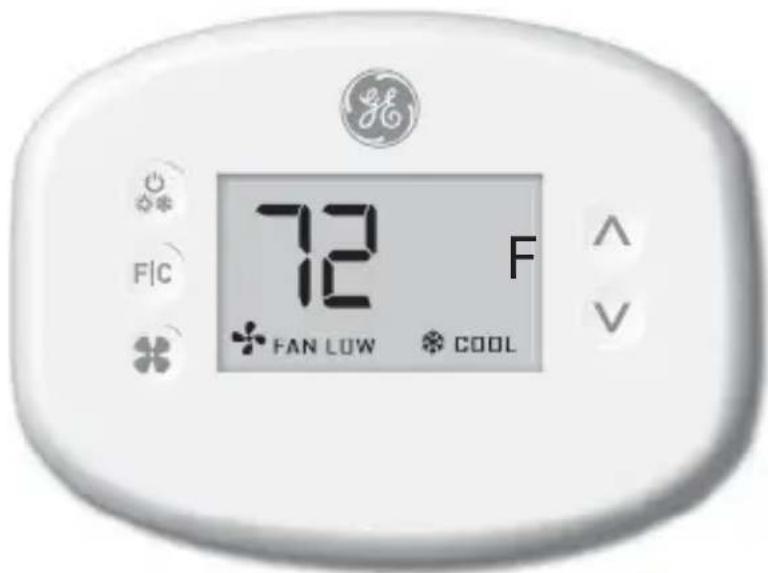
49-5000637 Rev. 0 05-22 GEA
THANK YOU FOR MAKING GE APPLIANCES A PART OF YOUR HOME.
Whether you grew up with GE Appliances, or this is your first, we're happy to have you in the family.
We take pride in the craftsmanship, innovation and design that goes into every GE Appliances product, and we think you will too.

GE APPLIANCES
Table of Contents
Safety Information 4
Before You Begin 5
Thermostat Installation.... 7
Installing the Wireless Control card....7
Wireless Installation ....10
Wired Installation ....10
Thermostat Configuration....11
Setting the clock 12
Entering the room number ....13
Configuring the Equipment Settings ....14
Custom Energy Savings Settings 16
Using the Thermostat Settings Screens....17
01 - FAN CONTROL MODE ....18
02 – 1ST STAGE DIFFERENTIAL - HEAT .....19
03 – 2ND STAGE DIFFERENTIAL - HEAT .....20
04 – 1ST STAGE DIFFERENTIAL - COOL .....21
07 - FORCED 2ND STAGE HEATING .....22
17 - MINIMUM SET POINT .....23
18 - MAXIMUM SET POINT .....23
19 - TEMPERATURE CONTROL MODE .....24
20 - AUTO CHANGEOVER SET POINT OFFSET (DEAD BAND) 25
23 - TEMPERATURE CALIBRATION .....26
Thermostat Maintenance....27
Troubleshooting....28
Technical Specifications ....31
Limited Warranty....32
IMPORTANT SAFETY INFORMATION
READ ALL INSTRUCTIONS BEFORE USING
WARNING
FIRE AND SHOCK HAZARD
- Always turn off power at the main power supply before installing, cleaning or removing the thermostat. Failure to do so could result in electrical shock hazard.
- Do not use on voltages over 30 VAC. Higher voltages will damage the thermostat and could cause shock or fire hazard.
NOTICE
- All wiring must conform to local and national electrical and building codes.
- Use this thermostat only as described in this manual.
Specifications.
Electrical rating: • 24 VAC (18–30 VAC)
•
•
Operating temperature range: 40°F–99°F (4°C–37°C)
System Configurations:
* 1 stage cool, 2 stage heat (heat pump/resistance heat) 1 stage cool, 1 stage heat (resistance heat)
Terminations: *R, C, W, Y, GH, GL, B for 2-stage heat R, C, W, Y, GH, GL, for 1-stage heat
Wiring (for R & C if wiring for power): Maximum wiring length is 66ft (20 meters) for AWG18
Maximum wiring length is 60ft (18 meters) for AWG20
*Default setting
- Determine the appropriate installation location for the thermostat
The thermostat must not be installed near or on metal structures or surfaces including metal air ducting that may be in the wall.
Metal structures and surfaces significantly reduce the range of the wireless signal.
A. Refer to the Zoneline Owner's Manual to enable the use of a wall thermostat. For AZ45/65 Series Models, auxiliary mode 6 should be set to "6A".
B. Zoneline output is 24VAC. Be sure the jumper on the wireless control card is on the AC position – jumper is connecting “R” and “C” (common) pins. This is the default position.
NETWORK INSTALLATION ONLY
NOTE: This section is not required unless the thermostats are networked
Pairing the Thermostat and the Control Card:
In case of Network Installation with online management, the thermostat and the Control Card must be paired with a Network Programmer specific to the property before the installation.
Note: Thermostat and Control Card are factory paired.
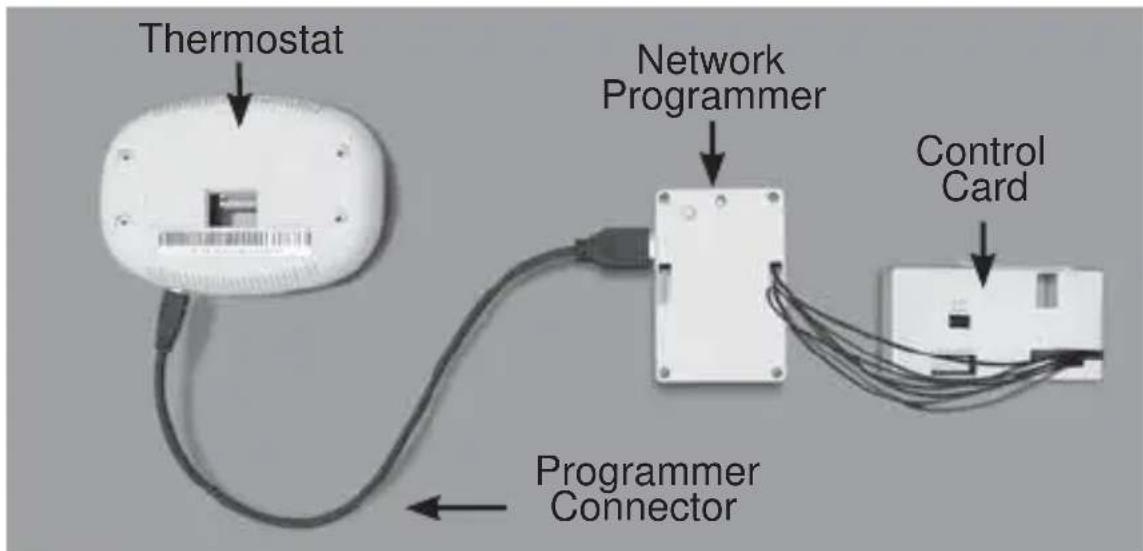
The thermostat and control card must not be powered during the pairing procedure - remove batteries from the thermostat and unplug the control card from the HVAC unit during the pairing procedure.
- Plug one programmer connector into the thermostat;
- Plug the other programmer connector into the control card.
- Push the black button on the programmer.
- The red light on the programmer should turn on and remain steadily lit.
- If the red light on the programmer is blinking or is not steadily lit, unplug the programmer from the thermostat and the control card and repeat the steps above.
- Unplug the programmer from the thermostat and the control card.
Thermostat Installation
Installing the Wireless Control Card
• Power off the Zoneline
- Insert the Control Card wiring harness into the thermostat connection port on the front of the Zoneline control box cover.
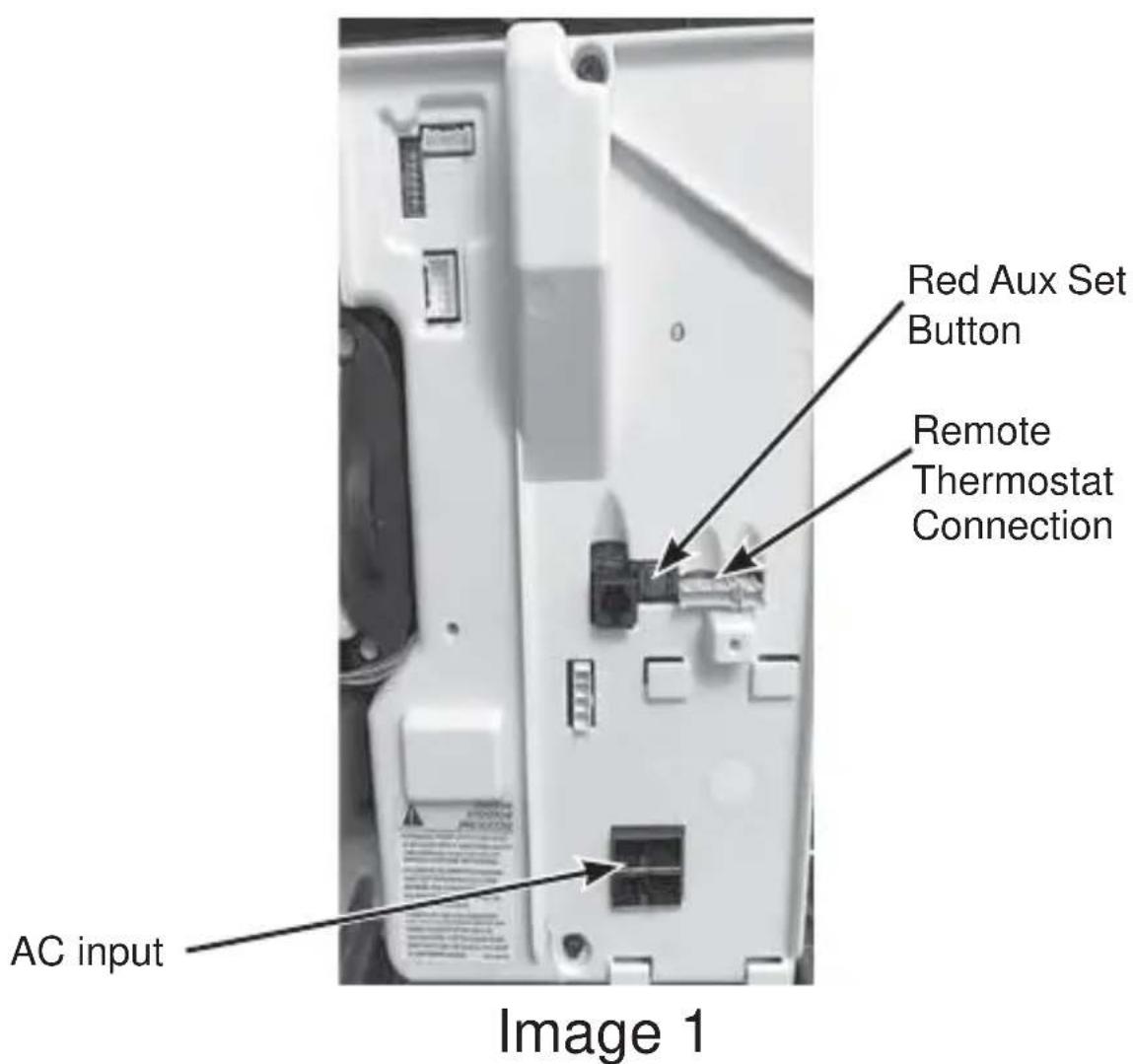
Thermostat Installation
Installing the Wireless Control Card (cont.)
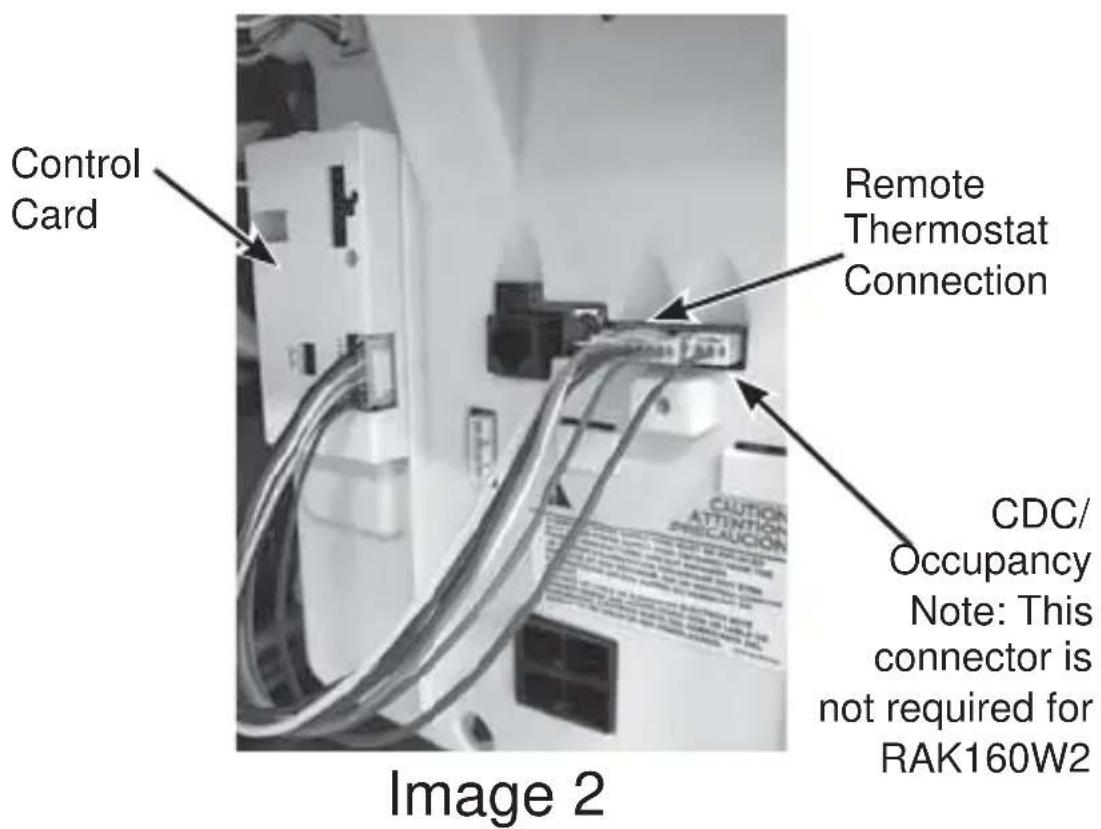
- Using double sided tape, attach the control card to the Zoneline control box cover (see image 2).
The wireless control card antenna must not be touching any metal components of the hvac unit.
The wireless control card antenna must face the thermostat on the wall and be oriented so that any metal parts of the Zoneline do not obstruct the wireless communication to the thermostat and, in case of a network installation, to other wireless control cards and the server.
The wireless control card must not be placed in the Zoneline condensation pan and must be mounted so it cannot fall into the condensation pan.
- For wired applications, join the common and 24VAC wires with any code-approved low voltage field supplied connection method.
Thermostat Installation
Wiring Table – 24V AC
| Wire Color Terminal Letter Terminal | Connection | |
| Black C Common | ||
| Red R 24V | ||
| Yellow Y Compressor | ||
| White W Heat | ||
| Orange O or B Reversing Valve | ||
| Green GH Fan High | ||
| Purple | GL | Fan Low |
NOTE: If the PTAC unit has only one (1) fan speed, connect both fan control wires – Green and Purple – to the fan terminal (G).
Wireless Installation

Mounting the thermostat to the wall
- Remove the thermostat cover;
- Use the supplied wall anchors and mounting screws to secure the thermostat to the wall;
- Insert two (2) AA-cell batteries (not supplied) into the thermostat battery compartment;
- Follow the “Thermostat Configuration” instructions starting on page 11.
- Replace the thermostat cover and screw in the locking screw.
Wired Installation
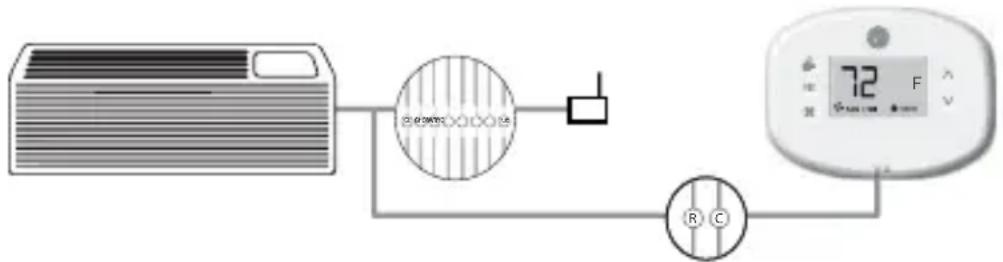
Mounting the thermostat to the wall
- Connect R & C from HVAC unit to the corresponding wires on the harness by splicing 24VAC and common wires from the thermostat into the 24VAC and common wires to the zoneline.
- Remove the thermostat cover;
- Use the supplied wall anchors and mounting screws to secure the thermostat to the wall;
- Follow the “Thermostat Configuration” instructions starting on page 11.
- Replace the thermostat cover and screw in the locking screw.
Thermostat Configuration
Once the thermostat is powered, thermostat configuration settings will appear on the thermostat screen.
In order to properly operate the HVAC unit:
- Set the thermostat clock
- Enter the room number
- Configure the equipment settings
The thermostat configuration screens have a 30-second time-out. If no action is taken within thirty (30) seconds, the thermostat will exit configuration settings.
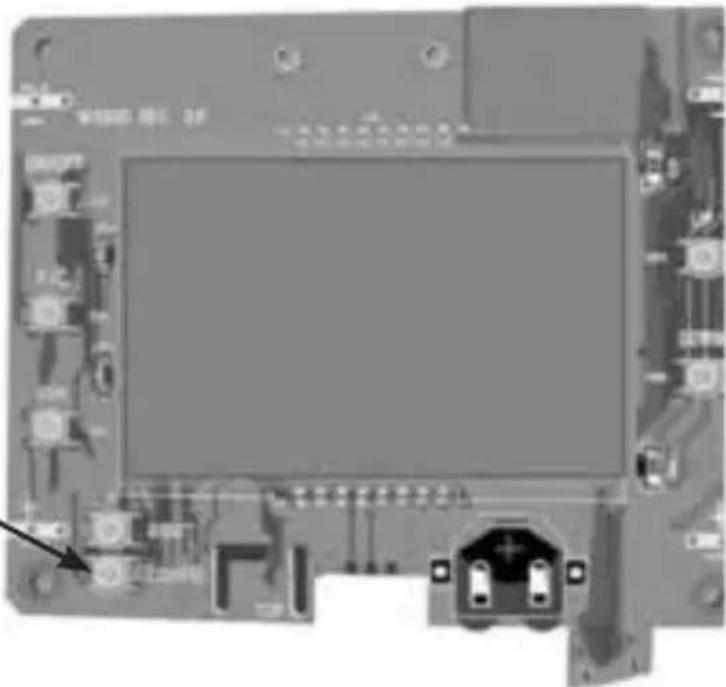
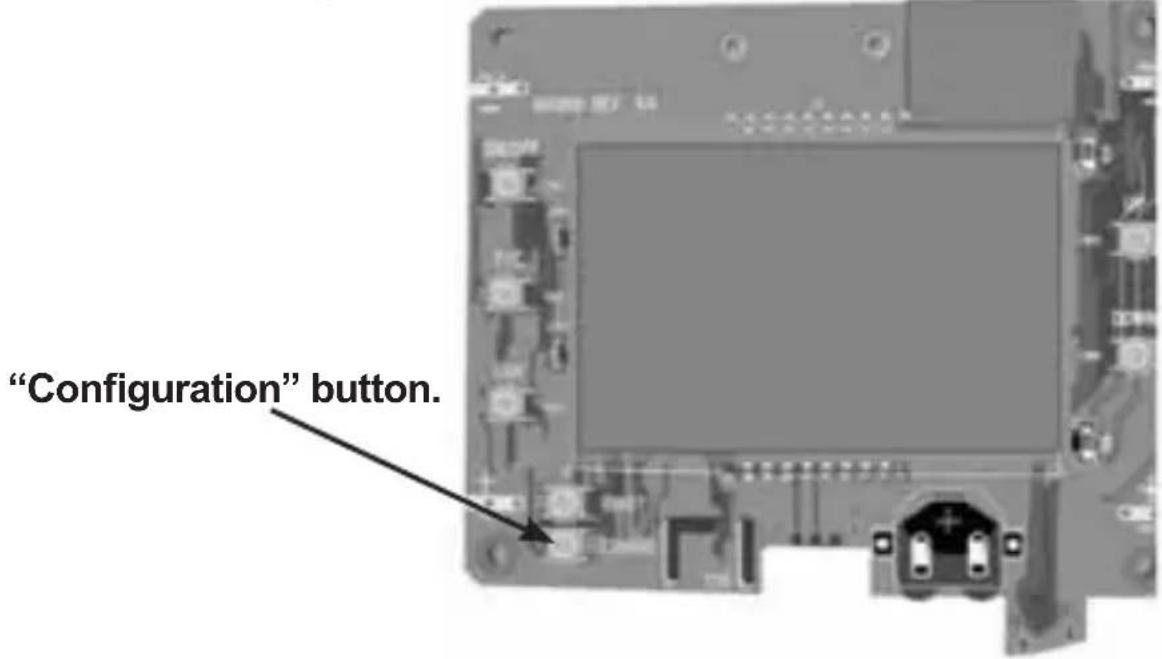
NOTE: You can access Thermostat Configuration settings at any time by pressing the "Configuration" button.
natural_image
Close-up of a printed circuit board with visible components and connectors (no readable text or symbols)NOTE: If the thermostat is connected to a network, the settings configured online will be applied.
Setting the thermostat clock
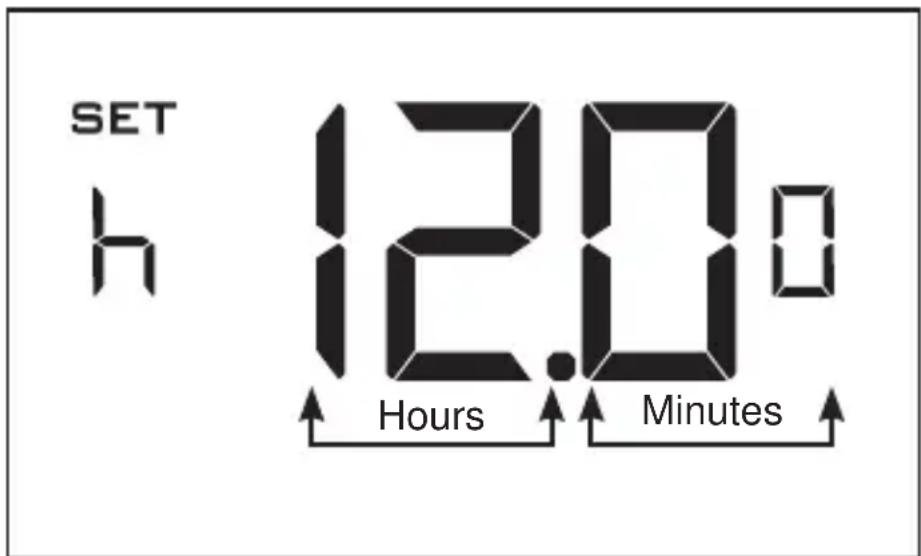
Set the thermostat clock to current time in 24h (Military Time) format.
- Use the "Up" and "Down" buttons to set the hours
- Press the "Fan" button to advance to the minutes setting
- Use the "Up" an "Down" buttons to set the minutes
- Press the "F/C" button to advance to the next menu
Setting the clock correctly is crucial for proper operation of the thermostat.
NOTE: The thermostat clock will need to be reset each time the batteries are replaced.
Entering the room number
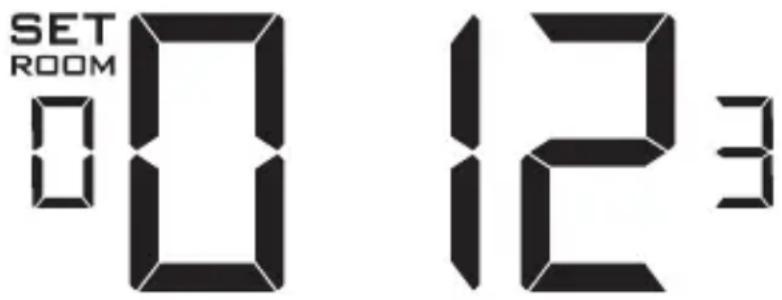
Enter the room number by changing the digits on the screen. Leading zeros “0” preceding other digits will be ignored, i.e. Room number “123” should be entered as “00123”.
- Use the “Up” and “Down” buttons to change the digit;
- Press the “Fan” button to advance to the next digit;
- Press the "F/C" button to advance to the next menu;
Entering the room number correctly is crucial for proper operation of networked systems.
Configuring the Equipment Settings
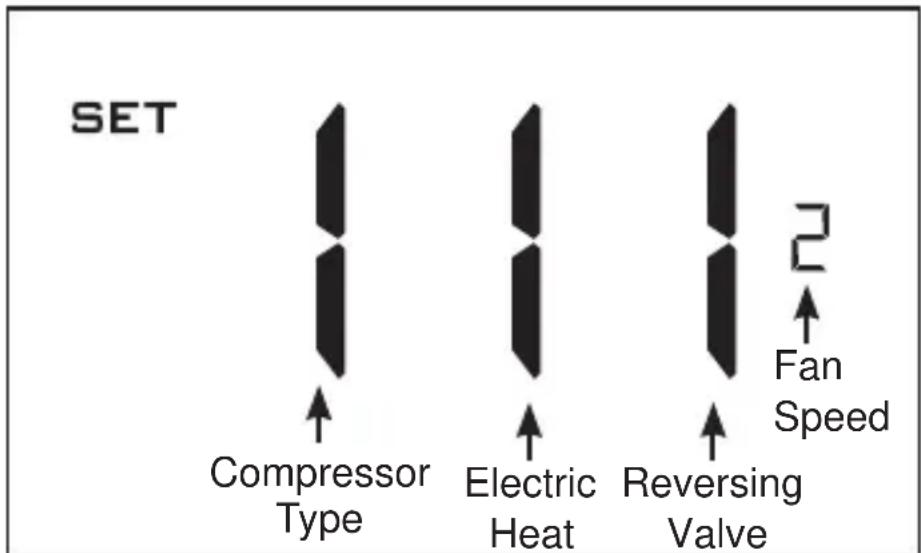
- Use the “Up” and “Down” buttons to change the value of each setting. Reference chart below for options.
- Press the “Fan” button to advance to the next setting.
- Press the “Power” button to save the Thermostat Configuration and start using the thermostat.
| Value | Compressor Type | Electric Heat Reversing Valve Fan | Speed | |
| 0 No | Compressor | No Electric Heat | O/B Contact is energized to cool | N/A |
| 1 Heat Pump* | Electric Heat* | O/B Contact is en-ergized to heat* | One Fan Speed | |
| 2 Air | Conditioner N/A N/A | Two Fan Speeds* | ||
| 3 | N/A | Three Fan Speeds | ||
* Indicates default setting
NOTE: If the Zoneline is an AZ45 or AZ95E model, change the compressor type to a 2.
Testing the thermostat
Following the thermostat configuration, test if the thermostat is controlling the Zoneline unit.
- Press the "Power" button to turn the thermostat ON;
- Press the “Down” button to change the temperature set point below the current room temperature to confirm that the thermostat initiates air conditioning.
- Press the “Up” button to change the temperature set point above the current room temperature to confirm that the thermostat initiates heating.
- Change the fan speed by touching the “Fan” button to test if the thermostat is controlling the fan speed.
Custom Settings
This thermostat comes preprogrammed to use a custom energy setting. To change any of these presets, follow the instructions below.
Accessing the Thermostat Settings
With the thermostat turned on, press and hold the "Configuration" button until the first thermostat settings screen appears. The thermostat must be turned on to access the thermostat settings.
NOTE: If the thermostat is connected to a network, the settings configured online will be applied.
- Use the "Up" and "Down" buttons to change the setting;
- Press the "F/C" button to advance to the next setting;
- Press the "Fan" button to return to the previous setting;
- Press the "Power" button to save and exit thermostat settings.
Using the Thermostat Settings Screens
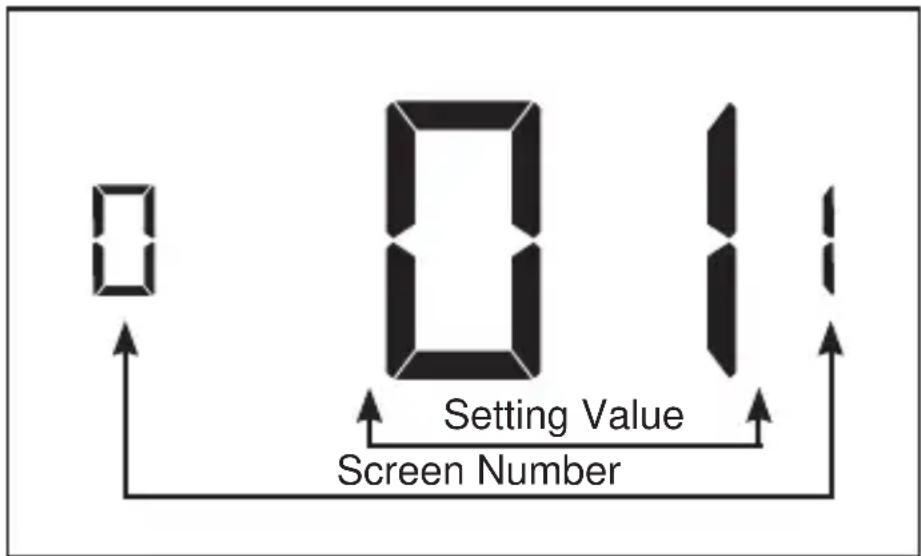
- Use the "Up" and "Down" buttons to change the setting.
- Press the "F/C" button to advance to the next setting.
- Press the “Fan” button to return to the previous setting.
- Press the “Power” button to save and exit thermostat settings.
The above is a representation of how to read the digits on the thermostat screen.
01 - FAN CONTROL MODE
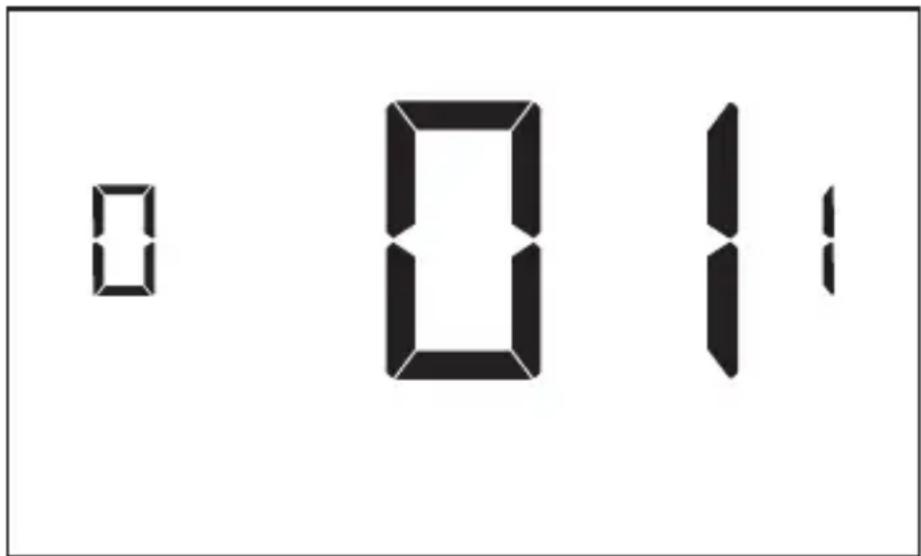
Select Fan Control Mode:
00 - MANUAL - guest can select automatic or continuous fan mode.
01* - AUTOMATIC - fan runs only when there is a demand for heating or air conditioning.
* Indicates default setting.
02 – 1ST STAGE DIFFERENTIAL - HEAT
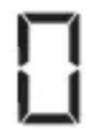
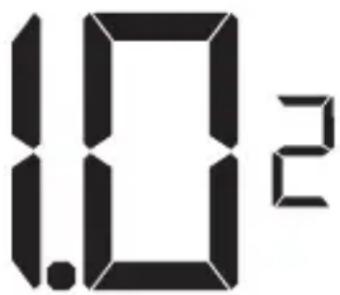
(0.2°F - 3.0°F; 1.0°F* default setting) Select the number of degrees** the thermostat has to sense between the automatic changeover temperature for heat and the room temperature before a call for the 1st stage heating is initiated.
** above the dead band offset (refer to page 25)
03 – 2ND STAGE DIFFERENTIAL - HEAT
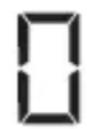
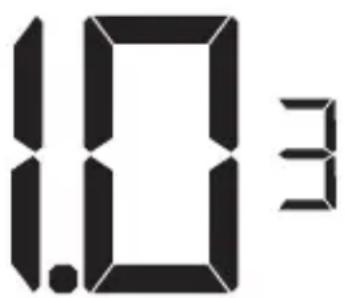
(1.0°F - 2.0°F; 1.0°F* default setting) Select the difference between 1st stage heating and 2nd stage heating initiation.
04 – 1ST STAGE DIFFERENTIAL - COOL
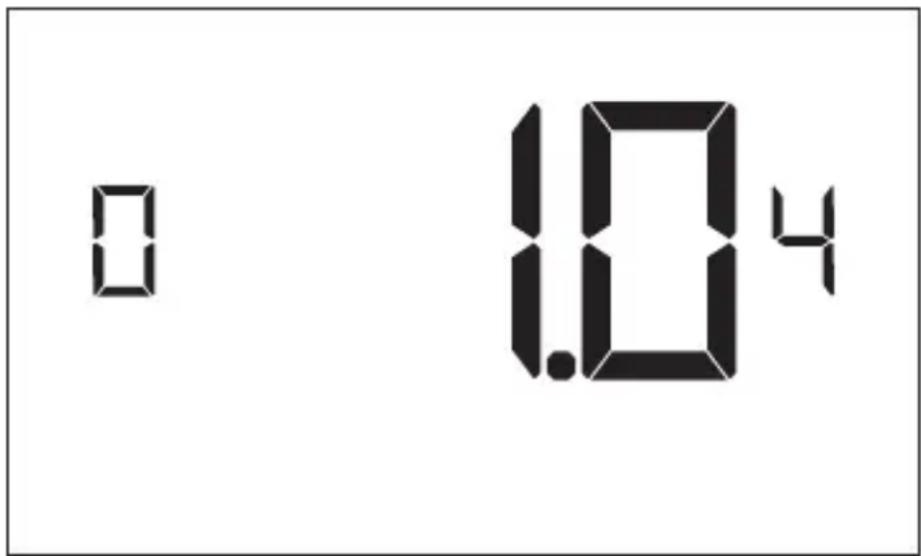
(0.2°F - 3.0°F; 1.0°F* default setting) Select the number of degrees** the thermostat has to sense between the automatic for cool and the room temperature before a call for the 1st stage cooling is initiated.
**below the dead band offset (refer to page 25)
07 - FORCED 2ND STAGE HEATING
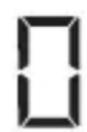
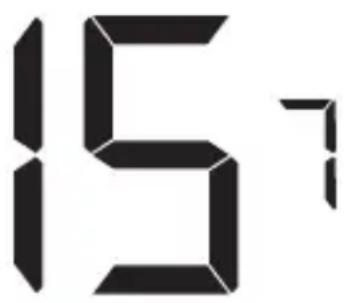
(00 - 60; 15* default setting) Select a number of minutes 1st stage heating will run before 2nd stage heating is automatically initiated if the guest set point is not reached and the 2nd stage heating is not initiated through differential settings.
This feature allows automatically turning on 2nd stage heating to avoid excessive compressor use.
Set to 00 to disable the feature.
17 - MINIMUM SET POINT
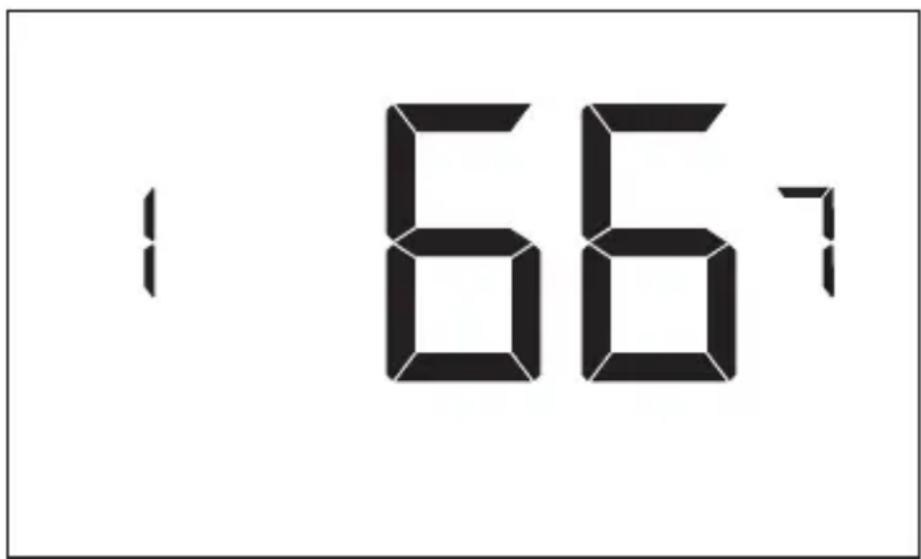
(64°F - 84°F; 66°F* default setting) Select the minimum set point in °F that a guest can select.
18 - MAXIMUM SET POINT
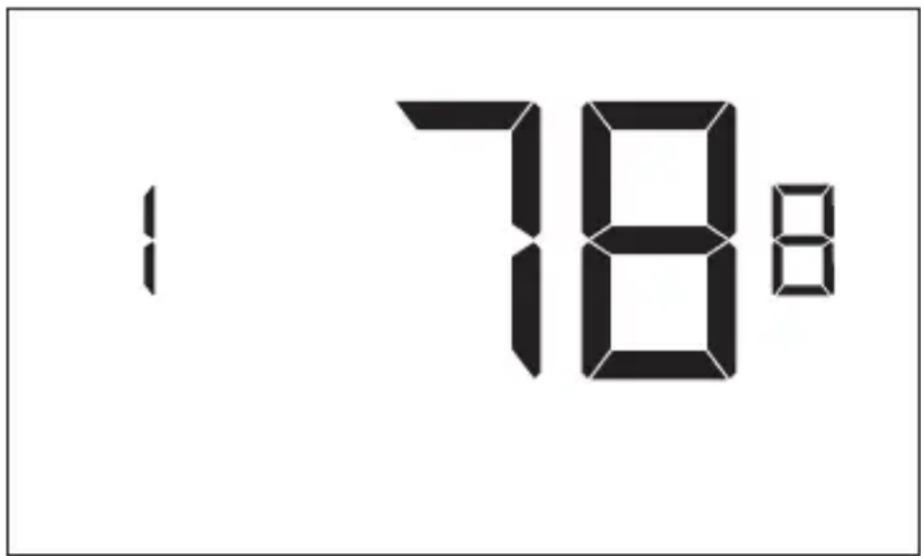
(60°F - 82°F; 78°F* default setting) Select the maximum set point in °F that a guest can select.
19 - TEMPERATURE CONTROL MODE
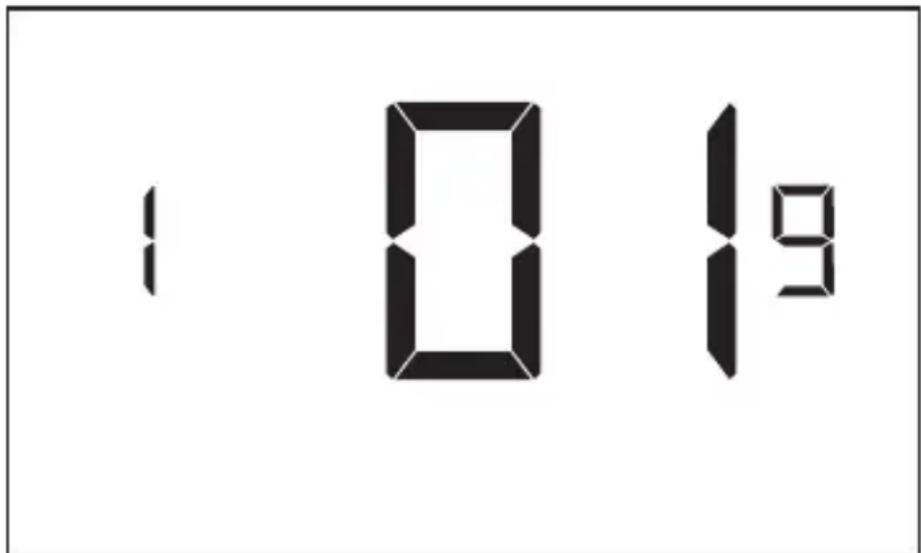
Select Temperature Control Mode:
00 - MANUAL - Allows users to select HEAT only or COOL only temperature control mode to maintain the room temperature.
01* - AUTOMATIC - Thermostat automatically turns on heating or air conditioning to maintain the room temperature at the selected temperature set point.
* Indicates default setting
20 – AUTO CHANGEOVER SET POINT OFFSET (DEAD BAND)
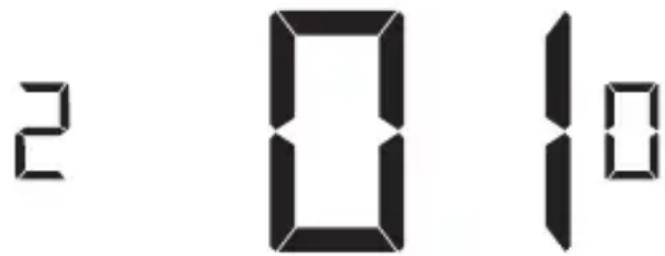
(00°F - 05°F; 01°F* default setting) Select the difference between the guest-selected set point and the heat and the cool set point when the thermostat is in the automatic temperature control mode.
This value plus the 1st stage differential defined in settings 02 and 04, defines the temperature at which the thermostat would automatically change heating/cooling modes.
This feature allows adjusting the dead band between the heat and the cool set points in automatic changeover mode in order to avoid the system from bouncing back and forth between heating and cooling under normal operating conditions.
23 - TEMPERATURE CALIBRATION
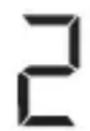
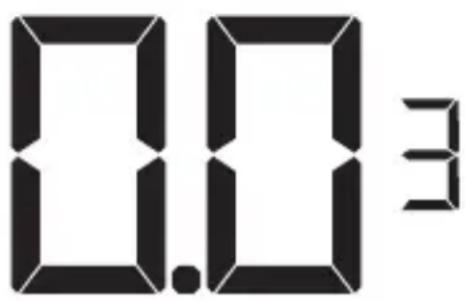
(-5.0°F - 5.0°F; 0.0°F* default setting) Calibrate the temperature display: +/- 5.0°F
Thermostat Maintenance
Replacing Thermostat Batteries
The low battery indicator will be displayed on the thermostat screen when it is necessary to replace batteries in the thermostat.
Under normal operating conditions, new brand-name alkaline batteries will last for a period of approximately one (1) year.
Please replace batteries every twelve (12) months to ensure continuous thermostat operation.
To replace thermostat batteries:
- Remove the thermostat cover;
- Replace the two (2) AA-cell batteries (not-supplied);
- Replace the thermostat cover;
- Follow the “Thermostat Configuration” instructions to set the thermostat clock;
- Press the "Power" button to start using the thermostat;
NOTE: The thermostat maintains all the “Thermostat Configuration” settings in a non-volatile memory. There is no need to configure the thermostat again after battery replacement.
NOTE: While batteries are not required in a wired installation, batteries should be installed to prevent re-configuring the time on the thermostat if a power failure occurs.
Troubleshooting
Error Codes
ERR1 - Thermostat Temperature Sensor Hardware Defect
ERR2 - Thermostat Radio Hardware Defect
ERR3 - Thermostat Radio Software Defect
ERR4 - No link with the Wireless Control Card
ERR5 - Thermostat Memory Defect
NOTES:
For ERR1, ERR2, ERR3, and ERR5, call GE Appliances service. (Phone number located in Limited Warranty section on page 32.
For ERR4, reset the configurations starting on page 5.
The thermostat is not controlling the HVAC unit.
Check if the HVAC unit is set to “External Thermostat” (Class 2) mode. Refer to Zoneline Owner’s Manual, Aux settings.
Verify the status of the red light on the Wireless Control Card.
- The red light is off
The Wireless Control Card is not powered. Verify that the Wireless Control Card is properly wired to the HVAC unit-specifically make sure that the RED and the BLACK wire are properly connected.
- If the red light is blinking with one (1) flash.
The Wireless Control Card is powered but it is not communicating with the thermostat, turn the thermostat off and on to re-initiate the linking procedure.
In case of a Network Installation, re-link the thermostat and the Wireless Control Card with the Network Programmer.
- The red light is blinking with three (3) flashes.
The Wireless Control Card is communicating with the thermostat. Verify that the Wireless Control Card is properly wired to the HVAC unit and that equipment settings on a thermostat - compressor type, electric heat and reversing valve - are properly configured.
Initiating a Master Reset
If there are reported errors or configuration issues, the user may master reset the thermostat to its default parameters.
Procedure:
- Remove the faceplate of the thermostat
- Power down the thermostat by either removing the batteries or cutting power to the thermostat.
- While the thermostat is powered off, press and hold the "config" button located on the control board inside the thermostat.
- Restore power to the thermostat by reinstalling the batteries.
- Once the screen lights up, release the "config" button.
- If the master reset was successful, the thermostat will display “12:00”, indicating all settings will be reset to default and the thermostat needs to be re-configured. Please see “configuring thermostat” in the manual on page 11.
Contact GE Appliances technical support at 1-844-GE4-PTAC option 1 (or 844-434-7822) if the issues are not resolved.
Technical Specifications
| Thermostat Wireless Control Card | ||
| Case Dimensions (Imperial) 4.015 x 5.5118" x 0.925" 3.875" x 2.125" x 0.75" | ||
| Case Dimensions (Metric) 102mm x 140mm x 23.5mm | 98mm x 54mm x 19mm | |
| Screen Dimensions (Imperial) 3.625" x 2.125" N/A | ||
| Screen Dimensions (Metric) 92mm x 54mm N/A | ||
| Operating Voltage 3V DC - 2 “AA” Cell Batteries OR(Optional) 24V AC/DC | 24V AC/DC | |
| Control Outputs Fan High (GH) | ||
| Fan Low (GL) | ||
| Compressor (Y) | ||
| Heat Pump (OB) | ||
| Electric Heat (W2) | ||
| Wireless Frequency 900MHz 900MHz | ||
| Temperature Accuracy ±1°F N/A | ||
| FCC ID | XEYWX | XEYV8ACCC |

FCC STATEMENT
This device complies with part 15 of the fcc rules. Operation is subject to the following two conditions: (1) this device may not cause harmful interference, and (2) this device must accept any inter-
ference received, including interference that may cause undesired operation.
Pursuant to part 15.21 of the FCC rules, any changes or modifications to this equipment not expressly approved by GE Appliances may void the user's authority to operate the equipment.
THERMOSTAT LIMITED WARRANTY
Staple your receipt here.
Proof of the original purchase date is needed to validate the warranty.
For The Period Of: GE Appliances Will Replace:
One Year Full Replacement of the thermostat which fails
From the date of the due to a defect in materials or workmanship. original purchase
For help with thermostat troubleshooting, call 1-844-GE4-PTAC option 1 (or 844-434-7822)
What GE Appliances Will Not Cover:
■ Service trips to your location.
- Improper installation. If you have an installation problem, contact your installer. You are responsible for providing adequate electrical connections to the product.
- Failure of the product resulting from modifications to the product or due to unreasonable use, including failure to provide reasonable and necessary maintenance.
In commercial locations, labor necessary to move the unit, after it has been initially installed, to a location where it is accessible for service by an individual technician; or, if the instructions included in this manual have been disregarded.
■ Replacement of location fuses or the resetting of circuit breakers.
■ Damage to the product caused by improper power supply voltage, accident, fire, floods or acts of God.
■ Incidental or consequential damage caused by possible defects with this thermostat.
EXCLUSION OF IMPLIED WARRANTIES—Your sole and exclusive remedy is product exchange as provided in this Limited Warranty. Any implied warranties, including the implied warranties of merchantability or fitness for a particular purpose, are limited to one year or the shortest period allowed by law.
This limited warranty is extended to the original purchaser and any succeeding owner for products purchased for use within the USA and Canada. In Alaska, the limited warranty excludes the cost of shipping or service calls to your site.
Some states or provinces do not allow the exclusion or limitation of incidental or consequential damages. This limited warranty gives you specific legal rights, and you may also have other rights which vary from state to state or province to province. To know what your legal rights are, consult your local, state or provincial consumer affairs office or your state's Attorney General.
Warrantor: GE Appliances, Louisville, KY 40225
THERMOSTAT
49-5000637 Rev. 0 05-22 GEA
MERCI D'AVOIR INTÉGRÉ GE APPLIANCES DANS VOTRE FOYER.
natural_image
Circular logo with stylized white 'GE' symbol inside a black ring (no text or symbols beyond the emblem)GE APPLIANCES
Table des matières
natural_image
Close-up of a printed circuit board with electronic components and connectors (no readable text or symbols)REMARQUE : Si
Garant : GE Appliances, Louisville, KY 40225
TERMOSTATO
49-5000637 Rev. 0 05-22 GEA
GRACIAS POR HACER QUE GE APPLIANCES SEA PARTE DE SU HOGAR
natural_image
Circular logo with stylized 'g' symbol inside a black ring (no text or numbers)GE APPLIANCES
Índice
natural_image
Close-up of a printed circuit board with connectors and components, no visible text or symbolsNOTA: Si el
- OWNER'S MANUAL & INSTALLATION INSTRUCTIONS
- THANK YOU FOR MAKING GE APPLIANCES A PART OF YOUR HOME.
- Table of Contents
- IMPORTANT SAFETY INFORMATION
- READ ALL INSTRUCTIONS BEFORE USING
- WARNING
- FIRE AND SHOCK HAZARD
- NOTICE
- Specifications.
- System Configurations:
- NETWORK INSTALLATION ONLY
- Pairing the Thermostat and the Control Card:
- Thermostat Installation
- Installing the Wireless Control Card
- Installing the Wireless Control Card (cont.)
- Wireless Installation
- Mounting the thermostat to the wall
- Wired Installation
- Thermostat Configuration
- Setting the thermostat clock
- Entering the room number
- Testing the thermostat
- Custom Settings
- Accessing the Thermostat Settings
- NOTE: If the thermostat is connected to a network, the settings configured online will be applied.
- - FORCED 2ND STAGE HEATING
- – AUTO CHANGEOVER SET POINT OFFSET (DEAD BAND)
- Thermostat Maintenance
- Replacing Thermostat Batteries
- Troubleshooting
- Error Codes
- NOTES:
- The thermostat is not controlling the HVAC unit.
- Initiating a Master Reset
- Procedure:
- Technical Specifications
- FCC STATEMENT
- THERMOSTAT LIMITED WARRANTY
- For The Period Of: GE Appliances Will Replace:
- What GE Appliances Will Not Cover:
- THERMOSTAT
- MERCI D'AVOIR INTÉGRÉ GE APPLIANCES DANS VOTRE FOYER.
- Table des matières
- REMARQUE : Si
- TERMOSTATO
- GRACIAS POR HACER QUE GE APPLIANCES SEA PARTE DE SU HOGAR
- Índice
- NOTA: Si el
Brand : GE
Model : RAK160W2
Category : Air Conditioning