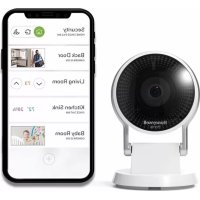
RCHC4400WF1004 - Surveillance Camera HONEYWELL - Free user manual and instructions
Find the device manual for free RCHC4400WF1004 HONEYWELL in PDF.


| Product Type | Indoor Wi-Fi Security Camera |
| Brand | Honeywell Home (manufactured by Resideo Technologies) |
| Model | RCHC4400WF1004 |
| Power | USB 5V power adapter via micro USB cable (included) |
| Connectivity | 2.4 GHz Wi-Fi, Bluetooth (for setup) |
| Built-in Storage | Pre-installed 16 GB encrypted microSD card (replaceable) |
| LED Indicator | Multicolor LED indicator (blue, green, red, purple) |
| Mobile App | Honeywell Home (iOS and Android) |
| Installation | QR code scan, app-guided via Bluetooth |
| Main Features | Live video, smoke/CO alarm detection, push alerts |
| Usage | Indoor only |
| Reset | Reset button accessible via pinhole (paperclip) |
| Certifications | FCC Part 15 Class B, IC |
| Box Contents | Camera, base, micro USB cable, power adapter, quick installation guide |
| Customer Service | Website: resideo.com, phone: 1-800-633-3991 |
Frequently Asked Questions - RCHC4400WF1004 HONEYWELL
User questions about RCHC4400WF1004 HONEYWELL
0 question about this device. Answer the ones you know or ask your own.
Ask a new question about this device
Download the instructions for your Surveillance Camera in PDF format for free! Find your manual RCHC4400WF1004 - HONEYWELL and take your electronic device back in hand. On this page are published all the documents necessary for the use of your device. RCHC4400WF1004 by HONEYWELL.
USER MANUAL RCHC4400WF1004 HONEYWELL
natural_image
Line drawing of a circular object mounted on a base, resembling a monitor or lamp (no text or symbols)RCHC4400WF1004, RCHC4400WF1013 Read before installing.
Input: 5 V -2 A
Installation
Download the Honeywell Home app
Note: Have your Wi-Fi password available before installation.
1 Make sure bluetooth is enabled on your mobile device.
2 Search for Honeywell Home in the App Store or Google Play.
3 Download the Honeywell Home app.
Launch the Honeywell Home app
4 Launch the Honeywell Home app.
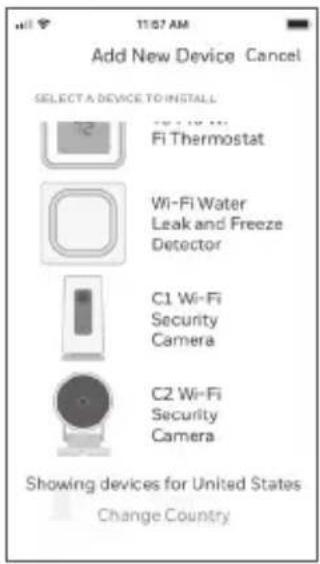
5 Create an account (if necessary), or sign in to your Honeywell Home account. Tap ADD DEVICE or the plus sign.
6 Select the C2 Wi-Fi Camera to install, then follow the instructions in the Honeywell Home app to name the camera and its location.

Connect the power cord
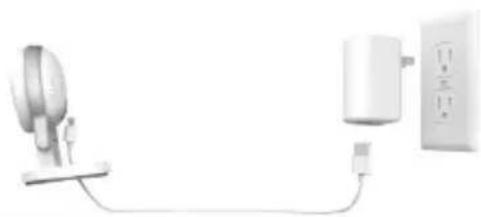
7 Plug the power cord's micro USB end into the camera.
8 Plug the power cord's USB end into the wall outlet adapter, and plug your camera into a power outlet.
9 Wait until the LED on the camera blinks blue (about 1 minute), then tap NEXT.
natural_image
Diagram showing a wall-mounted device connected to a wall-mounted electrical outlet (no text or symbols visible)Note: If the LED turns solid red, it means the connection mode timed out. Unplug the camera and plug it back in.
Connect
Connect to mobile device
1 Enable bluetooth on your mobile device.
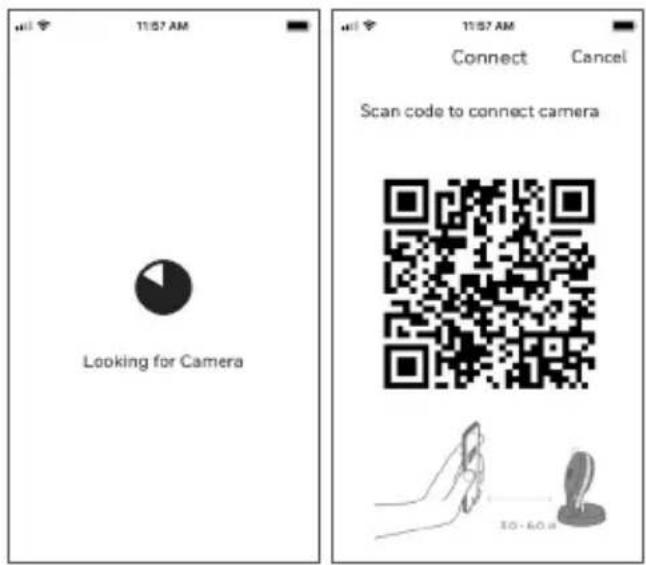
2 The app will look for the camera.
- For one camera, it will connect automatically.
- For more than one camera, the app will prompt you to select one camera at a time. Each camera has a unique MAC ID printed on the back. Use that ID to select the camera you want to connect.
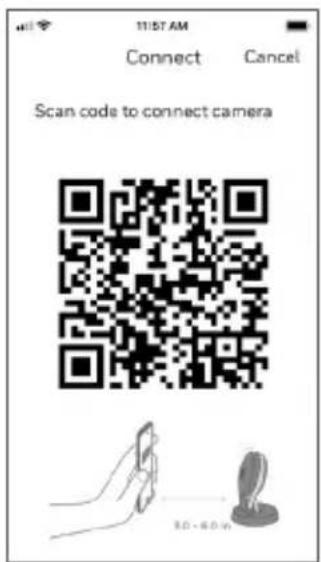
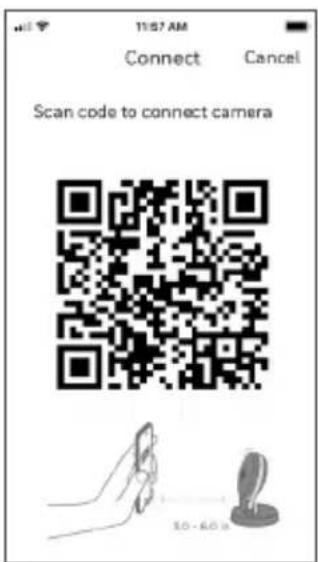
3 A QR code will display in the app. To connect your camera to the app, hold the QR code approximately 3-6 inches (7-15 cm) from the camera lens.
4 The camera LED turns purple and the camera beeps.
Connect to Wi-Fi
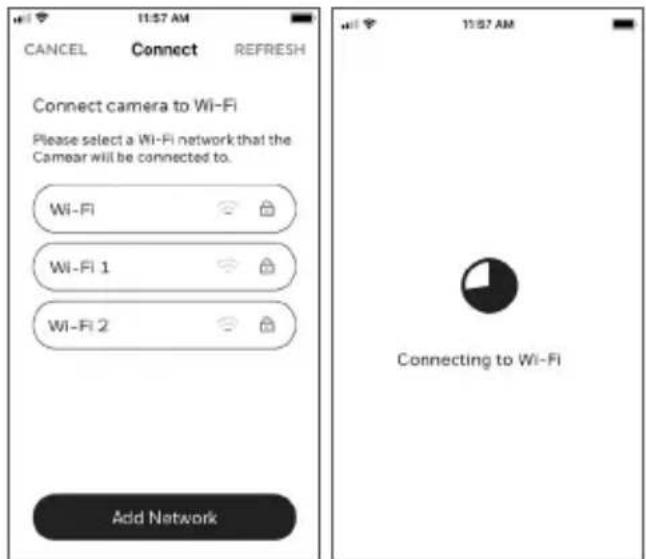
Be sure you are on the same Wi-Fi network you wish to connect your camera to.
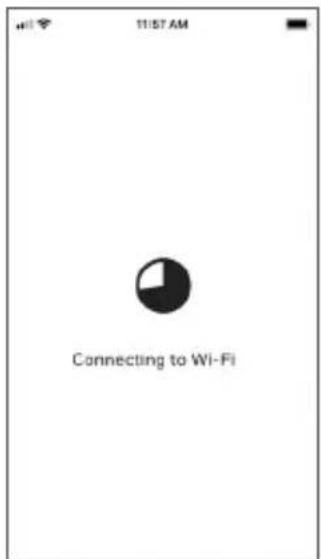
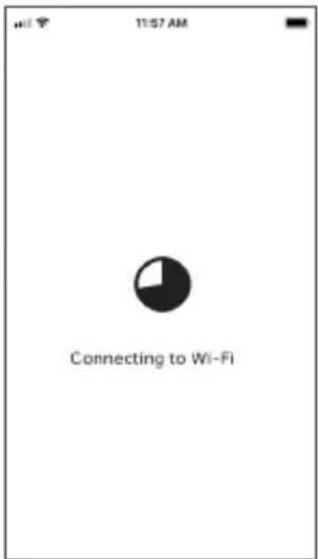
1 Choose your Wi-Fi network from the list. Tap NEXT.
2 Enter your Wi-Fi password, if necessary. Tap DONE.
Note: The camera will beep during some steps in this process.
Wi-Fi Connection LEDs
During Wi-Fi connection, the LED indicates the following.
| LED Camera state | |
| Blinking Green Connecting to Wi-Fi network. | |
| Solid Green Connected to Wi-Fi network. | |
| Solid Red (for 2 seconds) | Connection failed. LED will then turn solid purple. |
| Solid Purple QR Code scan complete.Go to “Connect to Wi-Fi” on page 3. | |
| Blinking Blue Camera has lost bluetooth connection. Unplug camera and plug it back in. See “Connect the power cord” on page 2 for instructions. | |
Options
Choose your Geofencing and Honeywell Home Membership options (if you skip them you can change them easily later).
Placement
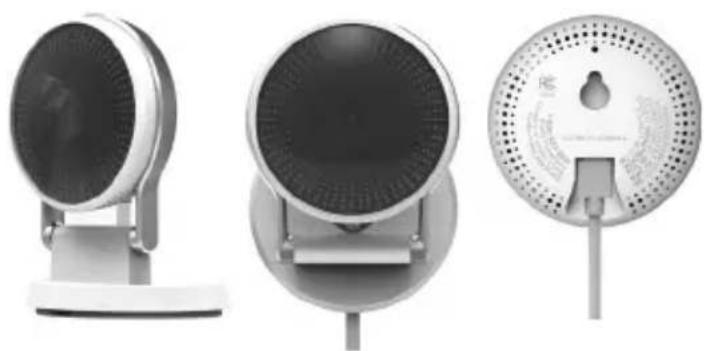
With Stand
Place the camera in a desired location for viewing and recording.
On the Wall
You can also mount the camera directly to the wall without the stand.
natural_image
Three different electronic devices with circular fans and stands, no visible text or symbolsOperation
Honeywell Home app experience
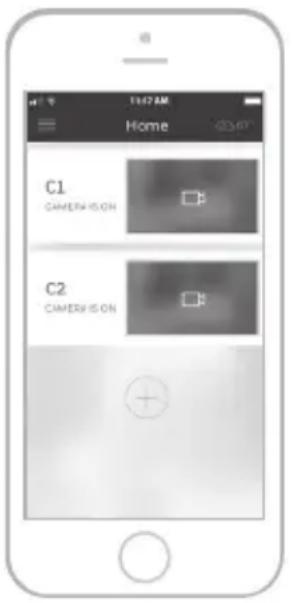
When you launch the application, your Home screen is displayed.
All of your devices (cameras, thermostats, water leak detectors, etc.) are displayed. Select a camera from the list to view live video from that camera.
Testing smoke/CO alarm detection
If your smoke or carbon monoxide alarm goes off and your camera is on, it will send you an alert that a smoke or CO alarm has been detected.
To test this feature, press and hold the Test button on your smoke/CO detector for at least 5 seconds or 3 cycles of the detector's alarm. A shorter test might not trigger a sound event.
For a list of compatible alarms see Resideo.com.
Camera Overview
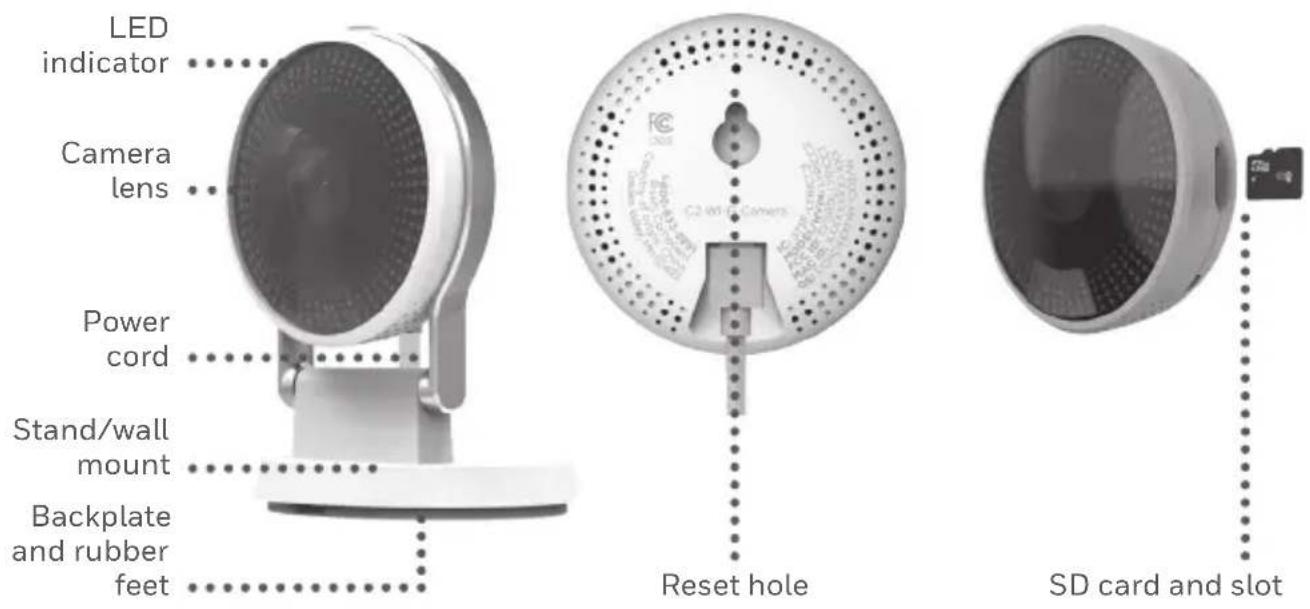
Reset
If your Wi-Fi connection fails or you need to connect to a different Wi-Fi network, insert one end of a paperclip into the reset hole. Press and hold it for 10 seconds until you hear a chirp.
SD card
The camera comes with an encrypted 16GB SD card installed. It stores images if the camera's connection to the cloud is lost. You can replace it with any compatible SD card.
Status LED
The camera has an LED that gives device status.
| LED Camera state | |
| During installation | |
| Blinking Blue Powered up. Ready to begin setup. | |
| Solid Blue Connected to app. Ready to complete setup. | |
| Solid Purple QR Code scan complete. Go to Connect to Wi-Fi process. | |
| Blinking Green Connecting to Wi-Fi network. | |
| Solid Green Connected to Wifi network. | |
| Solid Red Setup timed out. Unplug camera, plug it back in, and restart the process. | |
| During operation | |
| Blinking Green Connecting to Wi-Fi network. | |
| Solid Green Connected to Wi-Fi and operating. | |
| Blinking Red Not connected to Wi-Fi. |
FCC Regulations
§ 15.19 (a)(3)
This device complies with part 15 of the FCC Rules. Operation is subject to the following two conditions: (1) This device may not cause harmful interference, and (2) this device must accept any interference received, including interference that may cause undesired operation.
§ 15.21
Changes or modifications not expressly approved by the party responsible for compliance could void the user's authority to operate the equipment.
§ 15.105(b)
This equipment has been tested and found to comply with the limits for a Class B digital device, pursuant to part 15 of the FCC Rules. These limits are designed to provide reasonable protection against harmful interference in a residential installation. This equipment generates, uses and can radiate radio frequency energy and, if not installed and used in accordance with the instructions, may cause harmful interference to radio communications. However, there is no guarantee that interference will not occur in a particular installation. If this equipment does cause harmful interference to radio or television reception, which can be determined by turning the equipment off and on, the user is encouraged to try to correct the interference by one or more of the following measures:
- Reorient or relocate the receiving antenna.
- Increase the separation between the equipment and receiver.
- Connect the equipment into an outlet on a circuit different from that to which the receiver is connected.
- Consult the dealer or an experienced radio/TV technician for help.
For product available in the USA/Canada market, only channel 1–11 can be operated. Selection of other channels is not possible.
This device is restricted to indoor use.
FCC Radiation Exposure Statement:
This equipment complies with FCC radiation exposure limits set forth for an uncontrolled environment. This equipment should be installed and operated with minimum distance 20cm between the radiator and your body.
This device and its antenna(s) must not be co-located or operating in conjunction with any other antenna or transmitter.
IC Regulations
This device contains license-exempt transmitter(s)/receiver(s) that comply with Innovation, Science and Economic Development Canada's license-exempt RSS(s). Operation is subject to the following two conditions:
- This device may not cause interference.
- This device must accept any interference, including interference that may cause undesired operation of the device.
This device is restricted to indoor use.
IC Radiation Exposure Statement:
This device complies with IC radiation exposure limits set forth for an uncontrolled environment. This device should be installed and operated with minimum distance of 20cm between the radiator and your body.
This device and its antenna(s) must not be co-located or operating in conjunction with any other antenna or transmitter.
Need help?
- Web: resideo.com
• Phone: 1-800-633-3991
The operation of this equipment is subject to the following two conditions: (1) this equipment or device may not cause harmful interference, and (2) this equipment or device must accept any interference, including interference that may cause undesired operation.
The product should not be disposed of with other household waste. Check for the nearest authorized collection centers or authorized recyclers. The correct disposal of end-of-life equipment will help prevent potential negative consequences for the environment and human health.

resideo
www.resideo.com
Resideo Technologies, Inc.
1985 Douglas Drive North, Golden Valley, MN 55422
1-800-633-3991
33-00365EFS-09 M.S. Rev. 04-21 | Printed in United States
©2021 Resideo Technologies, Inc. All rights reserved.
The Honeywell Home trademark is used under license from
Honeywell International, Inc. This product is manufactured by Resideo Technologies, Inc. and its affiliates.
33-00365EFS-09
Honeywell Home

natural_image
Line drawing of a circular object mounted on a base, resembling a monitor or lamp (no text or symbols)RCHC4400WF1004, RCHC4400WF1013 Lire avant l'installation.
ENTRÉE: 5 V -2 A
Installation
natural_image
Pure electrical circuit lines without any symbolsConnexion
natural_image
Three different electronic devices with visible speaker bases and front-mounted screens (no text or symbols)Fonctionnement
Resideo Technologies, Inc.
1985 Douglas Drive North, Golden Valley, MN 55422
1-800-633-3991
©2021 Resideo Technologies, Inc. All rights reserved.
The Honeywell Home trademark is used under license from
Honeywell International, Inc. This product is manufactured by Resideo Technologies, Inc. and its affiliates.
33-00365EFS-09
Honeywell Home

natural_image
Line drawing of a circular object mounted on a base, resembling a monitor or lamp (no text or symbols)RCHC4400WF1004, RCHC4400WF1013 Leer antes de instalar.
Entrada: 5 V - 2 A
Instalación
natural_image
Diagram showing a wall-mounted device connected to a battery and plug, with no visible text or symbols.Conectar
natural_image
Three modern smart speaker devices with front and side views, no visible text or symbolsFuncionamiento
Resideo Technologies, Inc.
1985 Douglas Drive North, Golden Valley, MN 55422
1-800-633-3991
©2021 Resideo Technologies, Inc. All rights reserved.
The Honeywell Home trademark is used under license from
Honeywell International, Inc. This product is manufactured by Resideo Technologies, Inc. and its affiliates.
33-00365EFS-09

- Installation
- Download the Honeywell Home app
- Launch the Honeywell Home app
- Connect the power cord
- Connect
- Connect to mobile device
- Connect to Wi-Fi
- Wi-Fi Connection LEDs
- Options
- Placement
- With Stand
- On the Wall
- Operation
- Honeywell Home app experience
- Testing smoke/CO alarm detection
- Reset
- SD card
- Status LED
- FCC Regulations
- § 15.19 (a)(3)
- § 15.21
- § 15.105(b)
- FCC Radiation Exposure Statement:
- IC Regulations
- IC Radiation Exposure Statement:
- Need help?
- resideo
- Honeywell Home
- Connexion
- Fonctionnement
- Instalación
- Conectar
- Funcionamiento
Brand : HONEYWELL
Model : RCHC4400WF1004
Category : Surveillance Camera