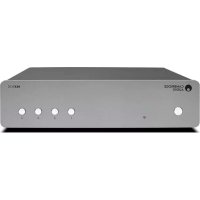
MXN10 - Media player CAMBRIDGE - Free user manual and instructions
Find the device manual for free MXN10 CAMBRIDGE in PDF.

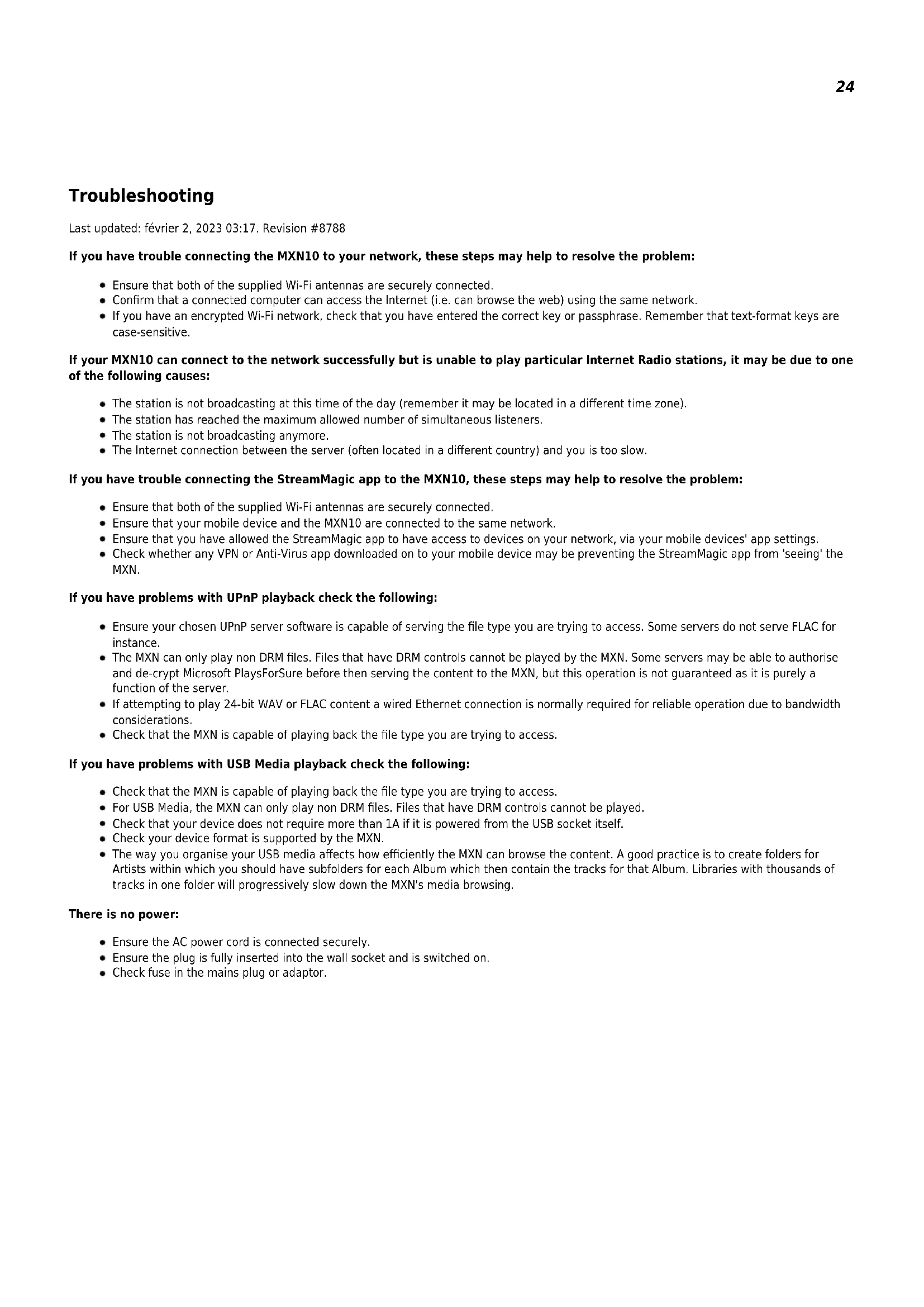

| Product type | Network media player |
| Brand | Cambridge Audio |
| Model | MXN10 |
| DAC | ESS Sabre ES9033Q |
| Supported audio formats | ALAC, WAV, FLAC, AIFF, DSD (x512), WMA, MP3, AAC, HE AAC AAC+, OGG Vorbis |
| High-resolution support | PCM 32-bit up to 768 kHz, DSD up to DSD512 |
| Network connectivity | Wi-Fi 5 dual-band 2.4/5 GHz, Ethernet 10/100 Base-T |
| Bluetooth | Version 5.0, A2DP/AVRCP profiles, SBC and AAC codecs |
| USB ports | 2 USB host ports (for mass storage devices) |
| Audio outputs | Asymmetrical analog line output (RCA), coaxial digital output S/P-DIF, optical digital output TOSLINK |
| Built-in streaming services | Spotify Connect, TIDAL, Qobuz, Deezer, AirPlay 2, Chromecast built-in, Roon Ready |
| Internet radio | Yes, with 99 presets |
| Control app | StreamMagic (iOS and Android) |
| Multiroom support | Yes, via Chromecast and AirPlay 2 |
| Power supply | Mains, regional power cable supplied |
| Maximum power consumption | 20 W |
| Standby power consumption | Less than 0.5 W (Eco mode) |
| Maintenance and cleaning | Unplug the device before cleaning. Use a dry, soft cloth. |
| Safety | Do not expose to moisture. Unplug during storms or prolonged non-use. |
Frequently Asked Questions - MXN10 CAMBRIDGE
User questions about MXN10 CAMBRIDGE
0 question about this device. Answer the ones you know or ask your own.
Ask a new question about this device
Download the instructions for your Media player in PDF format for free! Find your manual MXN10 - CAMBRIDGE and take your electronic device back in hand. On this page are published all the documents necessary for the use of your device. MXN10 by CAMBRIDGE.
USER MANUAL MXN10 CAMBRIDGE
Google Home / Chromecast built-in 12
Radio Internet 13
Airplay 14
Frequently Asked Questions (FAQ) 25
MXN10
natural_image
Simple line drawing of a rectangular device with five circular buttons on the front panel (no text or symbols)Manuel D'utilisation
Introduction
© Copyright Cambridge Audio Ltd
Lecteur MXN101.
WiFi/BT Antenna (x2)2.
1. Sortie de ligne
Application StreamMagic - Réglages

Configuration
Google Home / Chromecast built-in

TIDAL (via StreamMagic)
Qobuz (via Chromecast)
Qobuz (via StreamMagic)
Deezer (via Chromecast)
Deezer (via StreamMagic)\*
Dimensions (H X I X P)
75 × 430 × 305 mm
Poids
3kg
Troubleshooting
If you have trouble connecting the MXN10 to your network, these steps may help to resolve the problem:
- Ensure that both of the supplied Wi-Fi antennas are securely connected.
- Confirm that a connected computer can access the Internet (i.e. can browse the web) using the same network.
- If you have an encrypted Wi-Fi network, check that you have entered the correct key or passphrase. Remember that text-format keys are case-sensitive.
If your MXN10 can connect to the network successfully but is unable to play particular Internet Radio stations, it may be due to one of the following causes:
- The station is not broadcasting at this time of the day (remember it may be located in a different time zone).
- The station has reached the maximum allowed number of simultaneous listeners.
- The station is not broadcasting anymore.
- The Internet connection between the server (often located in a different country) and you is too slow.
If you have trouble connecting the StreamMagic app to the MXN10, these steps may help to resolve the problem:
- Ensure that both of the supplied Wi-Fi antennas are securely connected.
- Ensure that your mobile device and the MXN10 are connected to the same network.
- Ensure that you have allowed the StreamMagic app to have access to devices on your network, via your mobile devices' app settings.
- Check whether any VPN or Anti-Virus app downloaded on to your mobile device may be preventing the StreamMagic app from 'seeing' the MXN.
If you have problems with UPnP playback check the following:
- Ensure your chosen UPnP server software is capable of serving the file type you are trying to access. Some servers do not serve FLAC for instance.
- The MXN can only play non DRM files. Files that have DRM controls cannot be played by the MXN. Some servers may be able to authorise and de-crypt Microsoft PlaysForSure before then serving the content to the MXN, but this operation is not guaranteed as it is purely a function of the server.
- If attempting to play 24-bit WAV or FLAC content a wired Ethernet connection is normally required for reliable operation due to bandwidth considerations.
- Check that the MXN is capable of playing back the file type you are trying to access.
If you have problems with USB Media playback check the following:
- Check that the MXN is capable of playing back the file type you are trying to access.
- For USB Media, the MXN can only play non DRM files. Files that have DRM controls cannot be played.
- Check that your device does not require more than 1A if it is powered from the USB socket itself.
- Check your device format is supported by the MXN.
- The way you organise your USB media affects how efficiently the MXN can browse the content. A good practice is to create folders for Artists within which you should have subfolders for each Album which then contain the tracks for that Album. Libraries with thousands of tracks in one folder will progressively slow down the MXN's media browsing.
There is no power:
- Ensure the AC power cord is connected securely.
- Ensure the plug is fully inserted into the wall socket and is switched on.
- Check fuse in the mains plug or adaptor.
Frequently Asked Questions (FAQ)
Can the MXN10 support MQA content?
Although the MXN can receive MQA encoded content, it is not possible for the device to playback full MQA files via TIDAL Connect, because the MXN does not have an MQA decoder built in to unfold the MQA files.
There are no plans to integrate MQA support into the MXN, as this would require a hardware modification to install a Full MQA Decoder.
How do I set up my MXN10 with a DacMagic 200M for MQA passthrough?
Although the MXN can receive MQA encoded content, it is not possible for the device to playback full MQA files via TIDAL Connect, because the MXN does not have an MQA decoder built in to unfold the MQA files.
It is, however, possible to bypass the DAC in the MXN, and have the MQA file processed by an external DAC that supports MQA, such as the DacMagic 200M. This will allow the full unfold of the MQA file to take place in the DacMagic 200M, and you will still be able to control and queue your MQA files via the MXN.
Please follow the below instructions on how to how to set this up:
- Connect either of the Digital Outputs (SP/DIF Coaxial or Toslink Optical) of the MXN to the corresponding DacMagic 200M Digital Input (D1 or D2).
- Connect the Balanced or Unbalanced Output of DacMagic 200M to your amplifier.
- Select the relevant D1/D2 Input on your DacMagic 200M.
- Open the TIDAL app 'Settings' on your smartphone or tablet, and confirm that the streaming quality is set to 'Master'.
- Select the MXN within the TIDAL Connect menu as your output device.
- Processing of the MQA files will now be passed through to the DacMagic 200M, and MQA playback should be indicated on the DacMagic 200M by the relevant LED light.
Can I use more than one of the MXN10's outputs at once?
If you wish to connect the MXN to one single device, you can use any output, digital or analogue, that you wish.
If, however, you would like to connect the MXN to more than one device at a time, you can connect up to three devices and play simultaneously, as all outputs remain active at all times.
Please note, however, that as the MXN does not contain a volume control, you will need to ensure that the devices connected to the player have their own volume control.
How do I stop the MXN10 from powering down when not in use?
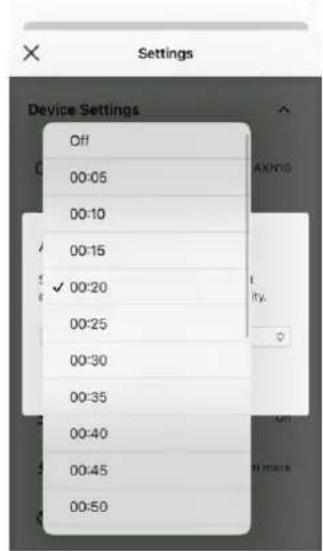
The MXN will automatically switch to standby mode after 20 minutes of inactivity. This Automatic Power-Down (APD) feature can be disabled, by navigating to the device settings within the StreamMagic app.
You can either disable this feature, or edit the length of time it takes for APD to be triggered, by selecting 'Automatic Power-Down'.

Can I play files from a connected USB HD when the MXN10 is not connected to a network?
This is not possible as the use of the StreamMagic app is required to be able to play local files from a connected USB HD.
Please note that it is strongly recommended that the MXN is connected to a network at all times.
What is the Service port on the back of the MXN10 for?
The service port on the back of the MXN is intended for servicing use only by Cambridge Audio authorised service centres and dealers.
Please do not connect any devices to the service port, as this may result in damage to the unit.
Do I need to connect both Antennas for the MXN10 to work?
Yes, if you are connecting your MXN to your network wirelessly, you will need to connect both of the supplied antennas to enable full Wi-Fi functionality and the strongest possible wireless network connection.
Bluetooth functionality will also only be possible when one of the antennas is connected to the port with the Bluetooth symbol.
Does the MXN10 have pre-amp or volume control?
The MXN does not have a 'pre-amp' mode and it is not possible to control the volume of the unit, as it outputs a fixed volume level.
You will need to control the volume of the MXN via your connected amplifier or DAC.
Does the MXN10 have a remote control?
The MXN does not have a remote control. The unit can be controlled and the settings can be adjusted via the StreamMagic app.
- MXN10
- Manuel D'utilisation
- Introduction
- Sortie de ligne
- Application StreamMagic - Réglages
- Configuration
- Google Home / Chromecast built-in
- TIDAL (via StreamMagic)
- Qobuz (via Chromecast)
- Qobuz (via StreamMagic)
- Deezer (via Chromecast)
- Deezer (via StreamMagic)\*
- Troubleshooting
- There is no power:
- Frequently Asked Questions (FAQ)
- Can the MXN10 support MQA content?
- How do I set up my MXN10 with a DacMagic 200M for MQA passthrough?
- Can I use more than one of the MXN10's outputs at once?
- How do I stop the MXN10 from powering down when not in use?
- What is the Service port on the back of the MXN10 for?
- Do I need to connect both Antennas for the MXN10 to work?
- Does the MXN10 have pre-amp or volume control?
- Does the MXN10 have a remote control?
Brand : CAMBRIDGE
Model : MXN10
Category : Media player