Coda - Piano ALESIS - Free user manual and instructions
Find the device manual for free Coda ALESIS in PDF.



| Product Type | Digital Piano |
| Power Supply | 12V, 2A AC adapter (center positive plug) |
| Number of Styles | 50 Styles |
| Demo Songs | 2 Songs |
| User Recording | 5 Songs |
| Polyphony | Not specified (estimated: 64 notes) |
| Reverb Effects | Room, Hall, Church, Delay, Pan Delay |
| Chorus Effects | Chorus (3 types), Flanger, Rotary |
| Equalization (EQ) | Standard, Modern, Rock, Classic, Jazz |
| Touch Sensitivity | 3 levels (Light, Medium, Heavy) + Off |
| Main Functions | Metronome, Transposition, Tuning, Duo, Harmony, Lesson Mode, Dual Voice, Split, Recording, Playback |
| USB Connectivity | USB MIDI (MIDI transmission to computer) |
| MIDI Connectivity | 5-pin MIDI Out |
| Pedal Input | Sustain pedal (TS 6.35mm) |
| Auxiliary Input | Stereo 6.35mm (1/4") |
| Auxiliary Output | Stereo 6.35mm (1/4") |
| Headphone Outputs | 2 x 6.35mm (Phones 1: with speakers, Phones 2: mutes speakers) |
| Built-in Speakers | Yes |
| Auto Power Off | After 30 minutes of inactivity |
| Maintenance and Cleaning | Clean with a dry, soft cloth. Avoid moisture and abrasive products. |
| Safety | Safety instructions detailed in the manual. Do not expose to water or extreme temperatures. |
| Spare Parts and Repairability | Contact Alesis support (alesis.com/support) for parts and repairs. |
Frequently Asked Questions - Coda ALESIS
User questions about Coda ALESIS
0 question about this device. Answer the ones you know or ask your own.
Ask a new question about this device
Download the instructions for your Piano in PDF format for free! Find your manual Coda - ALESIS and take your electronic device back in hand. On this page are published all the documents necessary for the use of your device. Coda by ALESIS.
USER MANUAL Coda ALESIS
User Guide (English)
Introduction
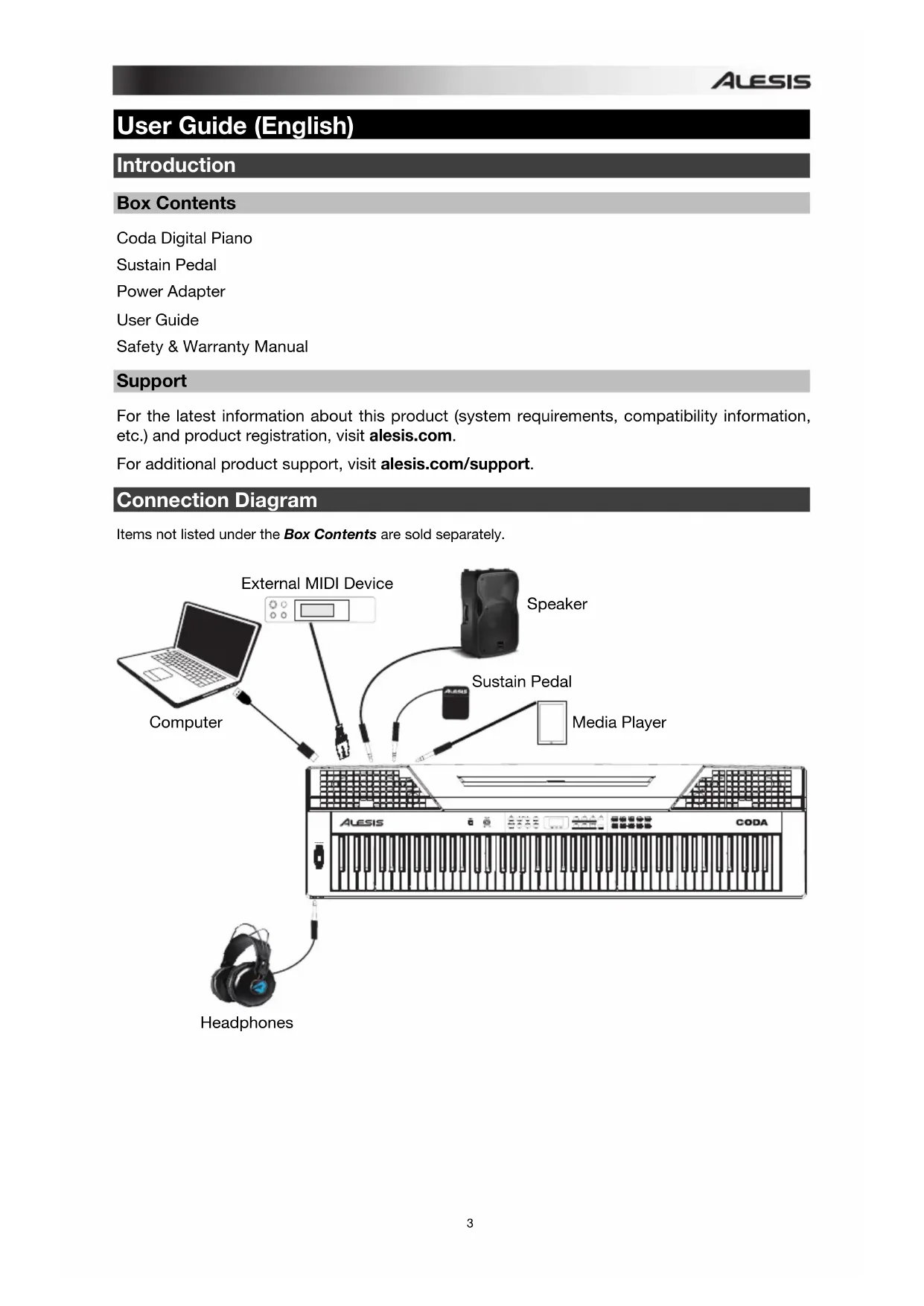
Box Contents
Coda Digital Piano
Sustain Pedal
Power Adapter
User Guide
Safety & Warranty Manual
Support
For the latest information about this product (system requirements, compatibility information, etc.) and product registration, visit alesis.com.
For additional product support, visit alesis.com/support.
Connection Diagram
Items not listed under the Box Contents are sold separately.
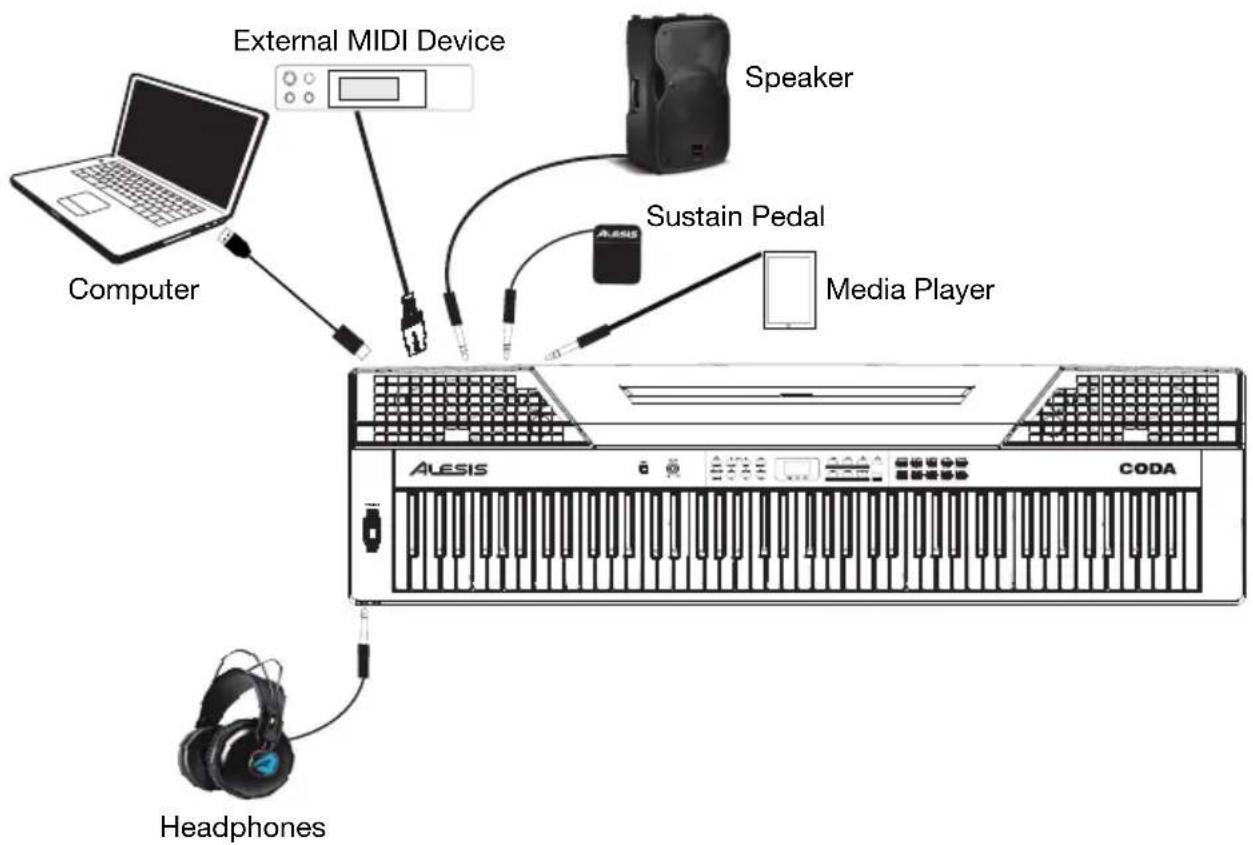
flowchart
graph TD
    A["Computer"] --> B["External MIDI Device"]
    B --> C["Speaker"]
    C --> D["Sustain Pedal"]
    D --> E["Media Player"]
    E --> F["ALESIS"]
    F --> G["CODA"]
    H["Headphones"] --> I["Audio Headset"]
    style A fill:#f9f,stroke:#333
    style B fill:#ccf,stroke:#333
    style C fill:#cfc,stroke:#333
    style D fill:#fcc,stroke:#333
    style E fill:#cff,stroke:#333
    style F fill:#ffc,stroke:#333
    style G fill:#cfc,stroke:#333
    style H fill:#fcc,stroke:#333
Features
Top Panel

text_image
ONION 1 VOLUME 2 3 4 5 6 7 8 9 10 11 12 13 14 15 16 17 18 19 20 31 SoundPro 32 FLOW 33 FLOW 34 31 SoundPro 32 FLOW 33 FLOW 34 31 SoundPro 32 FLOW 33 FLOW 34 31 SoundPro 32 FLOW 33 FLOW 34 31 SoundPro 32 FLOW 33 FLOW 34 31 SoundPro 32 FLOW 33 FLOW 34 31 SoundPro 32 FLOWER 33 FLOWER 34 31 SoundPro 32 FLOWER 33 FLOWER 34 31 SoundPro 32 FLOWER 33 FLOWER 34 31 SoundPro 32 FLOWER 33 FLOWER 34 31 SoundPro 32 FLOWER 33 FLOWER 34 31 SoundPro 32 FLOWER 33 FLOWER 34 31 SoundPro 0.0000000000000000000000000000000000000000000000000000000000000000000000000000000000000000000000000000-
Power Switch: Turns the piano's power on or off. In order to save energy, the piano will automatically shut down after 30 minutes if it is not used.
-
Volume Knob: Adjusts the master volume.
-
Demo/MIDI Mode Button: Starts/stops the demo playback. Press and hold Shift, then press this button to turn MIDI Mode on or off.
-
Tempo - Button: Decreases the currently set tempo. Press and hold Shift, then press this button to enter Command Edit Mode.
-
Tempo + Button: Increases the currently set tempo. Press and hold Shift, then press this button to set the MIDI data value of a control.
-
Metronome Button: Press this button to turn the metronome on or off. Press and hold Shift, then press this button to set the MIDI channel of the piano.
-
Start/Stop Button: Press this button to start or stop various features of the piano. Press and hold Shift, then press this button to enter MIDI Edit Mode.
-
Fill A/B Button: Press this button to trigger a fill when playing along with a style. Press and hold Shift, then press this button to transmit the MIDI data currently set to Controller 1.
-
Record Button: Press this button to enter Record Mode. Press and hold Shift, then press this button to transmit the MIDI data currently set to Controller 2.
-
Play/Pause Button: Press this button to play or stop various features of the piano. Press and hold Shift, then press this button to transmit the MIDI data currently set to Controller 3.
-
Display: Shows all the parameters and values related to the currently selected operation and mode of the piano.
-
Voice Button: Press this button to enter Voice Mode. Press and hold Shift, then press this button to play a short demo of the currently selected voice.
-
Style Button: Press this button to enter Style Mode. Press and hold Shift, then press this button to play to turn the Dual Voice function on or off.
-
Song Button: Press this button to enter Song Mode. Press and hold Shift, then press this button, then press a piano key to set the split point.
-
Duet Button: Turns the Duet function on or off.
-
-/No Button: Decreases a parameter value or selects a "NO" operation. Press and hold Shift, then press this button to turn the Lesson function on or off.
-
+/Yes Button: Increases a parameter value or selects a "YES" operation. Press and hold Shift, then press this button to turn the Scale function on or off.
-
Transpose Button: Press this button to edit the Transpose setting. Press and hold Shift, then press this button to turn the Harmony function on or off.
-
Shift Button: Press and hold this button to access the secondary functions of other buttons (in shaded writing under the button) or of the keys on the keyboard.
-
Voice Select Buttons: Each voice select button can select one of two preset voices. Press a button once to select the first preset voice of the button. Press this button again to select the second preset voice of a button.
-
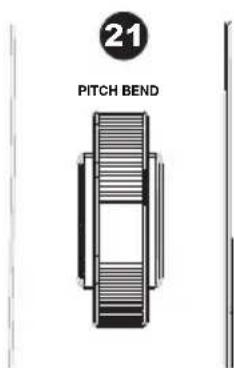
Pitch Bend Wheel: Roll the wheel upward or downward to raise or lower the pitch of the notes currently being played.
text_image
21 PITCH BEND
text_image
KUSH 22 23 PEAR PERFORMANCE THASH 24 TIME 25 OUTAGE 26 TYPE SCALE ROOT 27 ROCKET 28 ON/OFF 29 CHINA 30 OH 31 DUCT 32 HAWHY 33 MELIST OFF 34 NICKLE 35 MOLEC 36- Click Key: Hold Shift and press this key to turn the "setting change" tone on or off. When this is on, you will hear a "click" sound whenever you change a setting or parameter.
- Pedal Resonance Key: Hold Shift and press this button to turn the pedal resonance on or off.
- Touch Keys: Hold Shift and press one of these keys to set an appropriate touch sensitivity level.
- Tune Keys: Hold Shift and press one of these keys to adjust the current tuning of the piano.
- Octave Keys: Hold Shift and press one of these keys when in Lesson Mode to adjust the octave value.
- Scale Type Keys: Hold Shift and press one of these keys when in Scale Mode to select different scale types.
- Scale Root Keys: Hold Shift and press one of these keys when in Scale Mode to set the root note of a scale.
- Reverb Keys: Hold Shift and press one of these keys to turn the reverb effect on/off, or to select the desired reverb effect type.
- Chorus Keys: Hold Shift and press one of these keys to turn the chorus effect on/off, or to select the desired chorus effect type.
- EQ Keys: Hold Shift and press one of these keys to select the desired EQ type.
- Duet Keys: Hold Shift and press one of these keys to select the desired Duet type.
- Harmony Keys: Hold Shift and press one of these keys to select the desired harmony type.
- Melody Off Keys: Hold Shift and press one of these keys when in Song Mode, then press the L or R key to mute/activate the left or right hand part, for each part to be practiced separately.
- Metronome Keys: Hold Shift and press one of these keys to set the metronome type.
- Accomp Volume Keys: Hold Shift and press one of these keys to set the accompaniment volume.
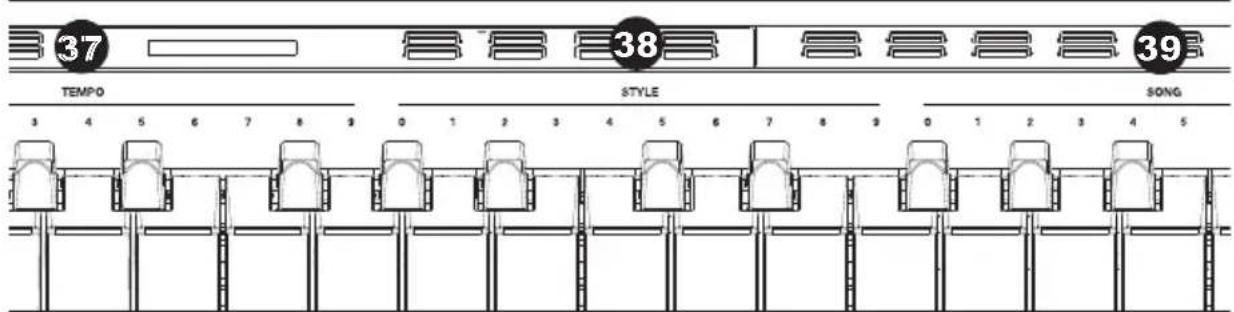
- Tempo Keys: Hold Shift and press these keys to set the tempo.
- Style Keys: Hold Shift and press these keys to select the desired style.
- Song Keys: Hold Shift and press these keys to select the desired song.
text_image
37 38 39 TEMPO STYLE SONG 3 4 5 6 7 8 9 0 1 2 3 4 5 6 7 8 9 0 1 2 3 4 5ALESIS
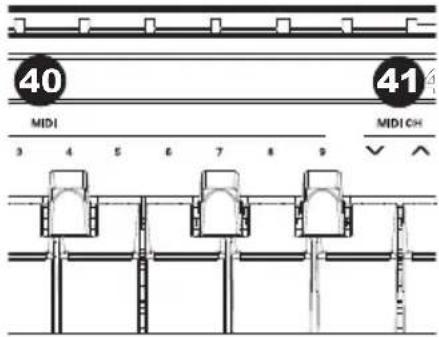
- MIDI Keys: When in the MIDI Controller Edit Mode, this sets the MIDI parameter value.
- MIDI CH Keys: Hold Shift and press these keys to select the desired MIDI channel for the keypad.
text_image
40 MIDI 3 4 5 6 7 8 9 41 MIDI CHRear Panel
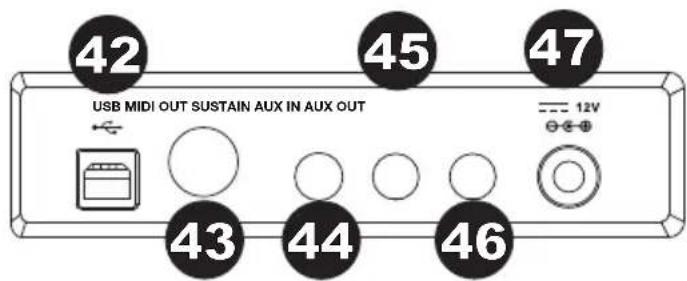
- USB Port: Allows for transfer of MIDI data to a computer.
Note: Do not set the USB driver to be input and output simultaneously when you are setting the software on the computer. Otherwise, the sound will be overlapped when playing the keys.
text_image
42 45 47 USB MIDI OUT SUSTAIN AUX IN AUX OUT 43 44 46 --- 12V- MIDI Out: Connect this to the MIDI input of an external MIDI device using a standard MIDI cable.
- Sustain Jack: Connect a standard 1/4" (6.35 mm) TS pedal here.
- Aux Input: Use a 1/4" (6.35 mm) stereo cable to connect an external audio source here, such as a drum machine, media player, or CD player.
- Aux Output: Use a 1/4" (6.35 mm) stereo cable to connect to external audio equipment such as an amplifier, mixer, or recorder.
- Power Jack: Connect the included power adapter (12V, 2A, center-positive) here.
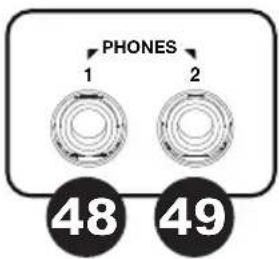
- Phones 1: Connect stereo headphones with a 1/4" (6.35 mm) stereo phone plug. When a pair of headphones is plugged into Phones 1, the piano's sound can be heard from the headphones and the internal speakers.
- Phones 2: Connect stereo headphones with a 1/4" (6.35 mm) stereo phone plug. When a pair of headphones is plugged into Phones 2, the internal speakers are automatically turned off. The piano's sound will only be heard from the headphones.
text_image
PHONES 1 2 48 49Quickstart
Playing Demo Songs
This piano features 2 demo songs. Follow these steps to play a demo song:
- Press the Demo button, the display will show d-1 while playing the demo songs in a continuous loop.
- Press the +/Yes or -/No button to select the desired demo song.
- Press the Demo or Start/Stop button to stop playing, and exit Demo Mode.
Selecting a Voice
- Press the Voice button. The display will show the current voice number, such as 0.01.
- Press the +/Yes or -/No button to select a voice you want to play. You can also press one of the Voice Select buttons to select one.
- Play the keys to hear the voice.
Playing Styles
This piano features 50 piano styles in a variety of musical genres.
Follow these steps to select a different style to play:
- Press the Style button. The display shows the current style number, such as 0.01.
- Press the +/Yes or -/No button to select a style you want to play. You can also press and hold the Shift button, then press the keys marked Style 0-9 to select the desired style.
Note: If you press key(s) marked Style 0–9 to select the desired style, press and hold the Shift button, then tap 2 consecutive keys. For example, tap 0 then 8 in sequence to select the 08 style. - Press the Start/Stop button and once you play the keys in the left hand area, the auto accompaniment (piano style) will start.
Playing Songs
Follow these steps to access the play-along songs:
- Press the Song button. The display will show the current song number, and it will play all songs in a loop.
- Press the +/ Yes or -/No button to select a song you want to play. You can also press and hold the Shift button, then press one of the keys marked Song 0–9 to select the desired song.
Note: If you press key(s) marked Song 0–9 to select the desired song, press and hold the Shift button, then tap 2 consecutive keys. For example, tap 0 then 8 in sequence to select the 08 song.
-
Press the Start/Stop button to play the selected song in a loop.
-
When the selected song has finished, press the Voice or Style button to exit the Song Mode.
Learning Songs
Follow these steps to mute the part of a play-along song:
- Press and hold the Shift button, then press the key marked L in the Melody Off section. The left hand part of the selected song will be muted so you can practice the left hand part with the right hand melody.
- In the same way, you can press and hold Shift and the key marked R to mute the right hand part, and practice the right hand melody.
- Press the key marked OFF to restore both parts and exit the Learning Songs Mode.
Recording
This piano allows for up to 5 user songs to be recorded. Follow these steps to record a song:
- Press the Record button to select a user song number. Press the +/Yes or-/No button to select the number where the user song will be saved.
- Press the Record button again to enter Recording Standby Mode. The Start/Stop LED indicator will flash. Select the desired voice, style, or other parameter to prepare to record.
- Press the Start/Stop button or press a key to start recording.
- Press the Record button again to stop recording.
To play back the user song, press the Play/Stop button and press the +/Yes or -/No button to select the user song number. Then press the Play/Stop button again to start playback. To stop playback, press the Play/Stop button. To delete a user song, press the Record button. The display will show dEL. Press +/Yes to confirm the user song deletion, or press -/No to cancel and go back to the selection interface.
Selecting Voices
Selecting and Playing a Voice
- Press the Voice button.
- Press the +/Yes or -/No button or a Voice Select button to select the upper voice you want to play.
- Play the keys to hear the voice.
Note: If the Dual Voice or Lower function is on, repeatedly press the Voice button to switch between the upper and lower voice or between the first and second voice.
Selecting and Playing Two Voices Simultaneously
This piano has a Dual Voice function. This function allows two sounds to be layered together, creating a more complex sound. The default dual voice number is d.19.
- Select the first voice.
- Press and hold the Shift button, then press the Dual button to turn the Dual Voice function on.
- Press the +/Yes or -/No button or a Voice Select button to select the second voice you want to play.
- Play the keys to hear the two different voices layered together.
- Press and hold the Shift button, then press the Dual button again to turn the Dual Voice function off.
Note: If you are using the Lower function, only the upper region will use the Dual Voice function.
Playing Different Voices with Both Hands
The Lower function splits the piano into right and left areas to create two different voices.
- Press and hold the Lower button, then press a key to set the split point at that key. The default split point is F#3.
- Release the Lower button.
- Press the Voice button.
- Press the +/Yes or -/No or Voice Select button to select the upper voice you want to play.
- Press and hold the Shift button, then press the Lower button to turn the Lower function on.
- Press the +/Yes or -/No button or one of the Voice Select buttons to select the lower voice you want to play.
- Play the keys. You will hear the right and left hand areas with different voices.
- Press and hold the Shift button, then press the Lower button again to turn the Lower function off.
Playing a Voice Demo
Press and hold the Shift button, then press the Voice Demo button to start playing back a voice demo. While the voice demo is playing, you can repeat the above operations to exit voice Demo Mode.
Functions
Touch Sensitivity
This piano is equipped with touch response to control the level of the voice with your playing strength—just as on an acoustic piano. That means the harder you play the keys, the greater volume comes from the speakers. Turning this function off results in a fixed touch response no matter how hard or how soft you play the keys. There are 3 types of touch settings (Off, 1–3). The default setting is 2.
Press and hold the Shift button, press and hold Shift and use the Touch Keys to select an appropriate touch level.
| Parameters | Description |
| OFF | Fixed |
| 1 | Soft |
| 2 | Medium |
| 3 | Hard |
Transpose
This function allows the overall pitch of the piano to be transposed up or down by a maximum of one octave in semitone increments.
- Press the Transpose button and the display will show the current Transpose value, such as 07. Press the +/Yes or -/No button to set the transpose value.
- Press the +/Yes and -/No buttons simultaneously to reset the transposition back to the default value of 0.
Tune
The overall tuning of the piano can be shifted up or down by a maximum of 100 cents (displayed as -50 to 50) in 2-cent increments. (100 cents = 1 semitone)
- Press and hold the Shift button, then use the keys marked Tune +/- to set the tune value. The display shows the current tune value.
- Press the Tune + and Tune - keys simultaneously to reset the tune value to 00.
Pedal Resonance
Pedal resonance is a function that simulates the reverberation of notes when pressing the sustain pedal on an actual grand piano. With pedal resonance, it reproduces the rich harmonics and unique sound characteristics of an actual grand piano when using the sustain pedal.
Press and hold the Shift button, then press the Pedal Resonance key to turn this function on.
Note: The Harmony function is automatically turned off when you turn the Pedal Resonance on.
Note: There may be a slight pause in the piano sound if you switch the Pedal Resonance on/off while performing.
Metronome
The Metronome function provides a steady beat to aid in practicing at a consistent tempo.
- Press the Metronome button to turn Metronome function on or off. When the metronome is in use, the LED indicator for the Start/Stop will flash with the current tempo. The tempo of the metronome can be freely adjusted.
- Press and hold the Shift button, then use the keys marked Metronome +/- to set the time signature.
- Press and hold the Shift button, then press the key marked Vocal to change the metronome sound.
Note: The Metronome function is disabled in Song Mode.
Piano Accompaniments
Selecting a Style
- Press the Style button to enter Style Mode. The display shows the current style number, such as 00.1.
- Press the +/Yes or -/No button to select the desired style, or press and hold the Shift button, then press one of the keys marked Style 0-9 to select the desired style.
Note: If you press key(s) marked Style 0–9 to select the desired style, press and hold the Shift button, then tap 2 consecutive keys. For example, tap 0 then 8 in sequence to select the 08 style.
Start/Stop Style Playing
- In Style Mode, press the Start/Stop button and the Auto Bass Chord function will turn on. Play chords in the left hand area, and the style will start playing.
- Press the Start/Stop button again to stop playing the style and the auto bass chord.
Fill In A/B
When the Accompaniment function is in use, press the Fill A/B button to play a fill-in pattern over the rhythm. When the A fill-in pattern is complete, it will go into the main B pattern. If you are playing the main B pattern of music, pressing the Fill A/B button will play an appropriate fill-in pattern over the rhythm. When the fill-in is complete, it will go into the main A pattern. If you press and hold the Fill A/B button, it will play the fill-in pattern continuously.
Accompaniment Volume
This function is used to change the volume of all accompaniment tracks to balance the volume between the accompaniment part and voice.
- Press and hold the Shift button, then use the Accomp + or Accomp - key to set the accompaniment volume, adjustable from 0–127.
- Press the Accomp + and Accomp - keys simultaneously to turn off the accompaniment volume. Press the Accomp + and Accomp - keys simultaneously again to turn on the accompaniment volume.
Tempo
Each style, song, metronome, and duet of the piano has been programmed with a default tempo. However, this can be changed with the tempo buttons, adjustable from 30–280 BPM.
- Press the Tempo + or Tempo - button to adjust the tempo value.
- Press the Tempo + and Tempo - buttons simultaneously to restore the default optional tempo for the style or song.
- Press and hold the Shift button, then press the key(s) marked Tempo 0–9 to set the tempo value. For example, press 1, 2, and 0 in sequence to enter a tempo value of 120.
- Alternatively, during the style or song playback, press and hold the Shift button, then tap the key marked Tap twice to get the desired tempo.
Effects
Reverb
- Press and hold the Shift button, then press the key marked On/Off in the Reverb section to turn the reverb effect on/off.
- Use the keys marked Reverb +/- (next to On/Off) to select the desired reverb type.
| Parameter | Reverb | Type |
| 1 | Room | |
| 2 | Hall | |
| 3 | Church | |
| 4 | Delay | |
| 5 | Pan | Delay |
Chorus
- Press and hold the Shift button, then press the key marked On/Off in the Chorus section to turn chorus effect on/off.
- Use the keys marked Chorus +/- (next to On/Off) to select the desired chorus type.
| Parameter | Chorus Type |
| 1 | Chorus |
| 2 | Chorus |
| 3 | Chorus |
| 4 | Flanger |
| 5 | Rotary |
1 2 3
EQ
The EQ function controls the gain of different frequency bands. Press and hold the Shift button, then use the keys marked EQ +/- to select the desired EQ type.
| Parameter | EQ Type |
| 1 | Standard |
| 2 | Modern |
| 3 | Rock |
| 4 | Classic |
| 5 | Jazz |
Duet
When the Duet function is in use, the piano is automatically split into two sections: a chord section in the left hand area and a melody section in the right hand area.
To turn the Duet function on or off, press the Duet button.
To set the split point:
- Press and hold the Lower button, then press a key to set the split point at that key. The default split point is F#3.
- Release the Lower button.
To select a Duet type, press and hold Shift, then use the keys marked Duet +/- to select one.
Harmony
With this function, the system will automatically add a harmony effect to your performance.
| Parameter | Harmony | Type |
| 1 | Fifth | |
| 2 | Octave | |
| 3 | Octave |
- Press and hold the Shift button, then press the Harmony button to turn this function on/off.
- Press and hold the Shift button, then use the keys marked Harmony +/- to select the desired harmony type.
Lesson Mode
In Lesson Mode, the piano will be divided into two areas with the same pitch and voice.
- Before entering Lesson Mode, the default voice of the right hand and left hand is the upper voice you select. You can press one of the Voice Direct buttons or the +/Yes or -/No button to choose a voice.
- Press and hold the Shift button, then press the Lesson button to enter Lesson Mode. In Lesson Mode, Dual and Split functions are unavailable.
- Press and hold the Lower button, then tap a key between C3 and C6 to set the split point for the lesson, and then release the Lower button.
- Press and hold the Shift button, then use the keys marked Octave +/- to set octave value of the lesson.
Note: The Lesson function is not selectable in Song Mode.
MIDI Controller
This piano has 3 independent MIDI controllers, which can be used to control a MIDI device.
Controller Settings
- Press and hold the Shift button, then press the MIDI Mode button to enter MIDI Mode.
- Press the MIDI Edit button to enter the MIDI Edit Mode.
- Press one of the Ctrl 1-Ctrl 3 buttons to individually edit the selected controller. For example, press the Ctrl 1 button to enter Controller 1 Edit Mode, then you can edit parameters for Controller 1.
- Press the Command button. Press the assigned key(s) in the MIDI section for the desired function.
Note: If you press the assigned key(s) to select the desired command value, press and hold the Shift button, then tap 3 consecutive keys. For example, tap 0, 6, and 4 in sequence to set the command value to 64. - Press the Data button.
- Press the Channel button. Set the channel value by pressing the assigned key(s) in the MIDI section to the desired function.
- To exit MIDI Mode, press and hold the Shift button, then press the MIDI Mode button.
Controller Output
- Press and hold the Shift button, then press the MIDI Mode button to enter MIDI Mode.
- Press the Ctrl 1 button to transmit MIDI information for Controller 1 through the MIDI output.
- To exit MIDI Mode, press and hold the Shift button, then press the MIDI Mode button.
Press and hold +/Yes and -/No buttons together while powering on the piano. The system will be restored to the default factory settings and will permanently delete all recorded song data.
Scale Tuning System
A tuning system is the system used to define which tones, or pitches, to use when playing music. In other words, it is the number and spacing of frequency values used. The equal temperament is the most common musical scale used today for the tuning of pianos and other pianos of relatively fixed scale. One of the advantages of the equal-tempered scale is that it is the same in any musical "key", so that compositions may be freely transposed up or down without changing the musical intervals. Especially for piano, equal temperament is widely used and taken for granted, but throughout history composers have used several other scales to compose and perform before adopting the equal-tempered scale. This piano has been equipped with 6 scale tuning systems.
Equal Temperament
In twelve-tone equal temperament, which divides the octave into 12 equal parts, the width of a semitone (i.e., the frequency ratio of the interval between two adjacent notes) is the 12th root of two. There is a minute difference of the same amount between each two intervals. This is the default setting when Scale Mode is turned off.
Pythagorean
The Pythagorean tuning, named after the early mathematician and philosopher Pythagoras, is based on a stack of intervals called perfect fifths. It is particularly well suited to music which treats fifths as consonances, and thirds as dissonances.
Pure Major & Pure Minor
In music, just intonation or pure intonation is any musical tuning in which the frequencies of notes are related by ratios of small whole numbers. Any interval tuned in this way is called a pure or just interval. The major scale consists of just intonations especially for triad chords (chords consisting of a root, third, and fifth, from lowest to highest).
Meantone
The Meantone System is a musical temperament which is close to just intonation. This was used to tune pipe organs in 16th-Century Europe. These musical scales are based on the Pythagorean System.
Werckmeister
The Werckmeister temperament was named after organist and music theorist Andreas Werckmeister. This scale was created as an improvement on the Pythagorean scale. This temperament's adjusted spacing of intervals makes each tonality sound distinct.
Kirnberger
Developed in the second half of the 18th Century by Johann Kirnberger, this temperament is regarded as an improved version of Meantone temperament.
Setting the Scale Tuning System Type and Root Note
- Press and hold Shift button, then press the Scale button to enter Scale Mode.
- Press and hold the Shift button, then use the keys marked Scale Type +/- to select the desired scale type.
- Press and hold the Shift button, then use the keys marked Scale Root +/- to select the desired scale root.
- Press and hold Shift button, then press the Scale button to exit Scale Mode.
| Parameter | Scale | Type |
| 1 | Pythagorean | MajorMinor |
| 2 | Pure | |
| 3 | Pure | |
| 4 | Meantone | |
| 5 | Werckmeister | |
| 6 | Kirnberger |
Troubleshooting
| Problem | Solution |
| The speakers produce a “pop” sound when the power is turned on or off. | This is normal and no cause for alarm. |
| The piano is turned on, but no sound is produced when the keys are played. | Make sure the volume is set to an appropriate level. Check that headphones are not connected to the Phones 2 jack. |
| Using a mobile phone produces noise in the piano sound. | Using a mobile phone in close proximity to the piano may produce interference. To prevent this, turn off the mobile phone or use it far away from the piano. |
| The wrong notes sound when the keys are played. | Make sure the Tune setting is set to 0. Press and hold the +/Yes and -/No buttons simultaneously, and then turn the piano on to revert the settings back to factory defaults. |
| After connecting with the computer, the piano is not recognized. | Make sure the USB cable is connected properly, or try to connect it to a different USB port on your computer. |
Assistance technique
text_image
21 PITCH BEND
text_image
FLAIR 22 PEAL METHNIC 23 TACTOR 24 TUBE 25 SOTAGE 26 TYPE SCALE SHAT 27 BOARD 28 ON/OFF 29 SHEMIS 30 ES 31 DUCT 32 HUMANITY 33 BEET/OFF 34 MOB/VEGET 35 AC/OPF 36Technical Specifications
| Piano | 88 velocity-sensitive semi-weighted keys |
| Polyphony (Max) | 64 |
| Voices (Sounds) | 20 |
| Styles | 50 |
| Songs | 60 |
| Demos | 2 |
| Power | 12V DC, 2A, center-positive |
| Dimensions(width x depth x height) | 59" x 19" x 9"151 cm x 48 cm x 23 cm |
| Weight | 24 lbs.10.7 kg |
Specifications are subject to change without notice.
Trademarks and Licenses
Alesis is a trademark of inMusic Brands, Inc., registered in the U.S. and other countries.
All other product or company names are trademarks or registered trademarks of their respective owners.