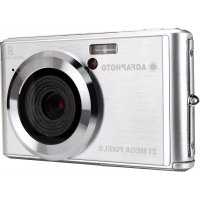
DC5200 - Camera AGFAPHOTO - Free user manual and instructions
Find the device manual for free DC5200 AGFAPHOTO in PDF.



| Product type | Compact digital camera |
| Brand | AgfaPhoto |
| Model | DC5200 |
| Image resolution (max) | 21 megapixels (5616x3744) |
| Available resolutions | 21M, 18M, 16M, 14M, 12M, 10M, 9M, 8M, 7M HD, 5M, 3M, 2M HD, VGA |
| Digital zoom | 8x |
| LCD screen | 2.4 inches TFT |
| Memory support | SD card up to 64 GB (not included) |
| Sensor | CMOS |
| Built-in flash | Yes (Auto, Manual, Red-eye reduction, Off) |
| Video resolution | HD 1280x720, VGA 640x480, QVGA 320x240 |
| File format | Photo: JPEG, Video: AVI |
| Power source | Rechargeable lithium battery via USB |
| PC connection | USB 2.0 |
| PictBridge | Yes |
| Special features | Anti-shake, Face detection, Smile capture, Continuous shooting (6 photos VGA), Self-timer (2/5/10s) |
| Preset scenes | Auto, Landscape, Portrait, Night landscape, Night portrait, High sensitivity, Beach |
| White balance | Auto, Sunny, Cloudy, Fluorescent, Incandescent |
| ISO | Auto, 100, 200, 400 |
| Maintenance and cleaning | Clean with a soft, dry cloth. Avoid any contact with water. |
| Safety | Do not expose to moisture, shocks or extreme temperatures. Remove the battery if not used for a long time. |
| Spare parts / Repairability | Lithium battery, USB cable, SD card (standard). No specific spare parts provided by the manufacturer. |
| Box contents | Camera, USB cable, user manual, lithium battery |
| Weight | Approximately 120 g (with battery) |
| Dimensions (approx.) | 95 x 60 x 25 mm |
Frequently Asked Questions - DC5200 AGFAPHOTO
User questions about DC5200 AGFAPHOTO
0 question about this device. Answer the ones you know or ask your own.
Ask a new question about this device
Download the instructions for your Camera in PDF format for free! Find your manual DC5200 - AGFAPHOTO and take your electronic device back in hand. On this page are published all the documents necessary for the use of your device. DC5200 by AGFAPHOTO.
USER MANUAL DC5200 AGFAPHOTO
natural_image
Black digital camera with '21 MEGA PIKELS' label and '3x DIGITALZOOM' logo, no visible text beyond brandingPlease read this manual carefully before using your camera and keep it for future reference.
Please format your SD card first in the camera when you start to use it, or format it on your computer.
Thanks for purchasing this digital camera, it can not only shoot high-quality photos and videos but also can be used as removable disk. Everything you need to take quality photos is included with your camera, please read this manual carefully before use.
Keyfeatures
- Video resolution – 1280x720 HD, 640x480 VGA, 320x240 QVGA
- 21-megapixel camera with choice of 12 digital resolutions - (21M) 5616x3744, (18M) 4896x3672, (16M) 4608x3456, (14M) 4416x3312, (12M) 4000x3000, (10M) 3648x2736, (9M) 3488x2616, (8M) 3264x2448, (7M HD) 3648x2048, (5M) 2592x1944, (3M) 2048x1536, (2M HD) 1920x1080, (VGA) 640x480
- 2.4" TFT LCD
- 8X digital zoom
- (AS)Anti-Shake
- Face detection
- Smile capture
- Continue shot
- Self-timer
- Support up to 64 GB SD memory card (certified SD card brand). Memory card speed recommended: Class 4 and above.
- Built-in flash
- PhoTags Express software for photo editing, printing, and sharing via e-mails, etc.
Contentofthebox:
- Digital camera
- USB cable
- User manual
- Lithium battery
Computer system requirements for Windows 7/XP
If you want to transfer photos and videos to a Windows 7/XP computer, the computer must be set up as follows:
- Pentium processor compatible with Windows 7/XP or higher
• 128 MB RAM with at least 150 MB of available disk space - Compatible USB interface
- Recommended screen resolution: 1024 x 768 pixels or more
• 16-bit color or higher display adapter
ComputersystemrequirementsforWindowsVista
If you want to transfer photos and videos to a Windows Vista computer, the computer must be set up as follows:
- Windows Vista processor
• 800 MHz processor and 512 MB RAM
• 20 GB hard disk with at least 15 GB of available space
• Support for Super VGA graphics - Compatible USB interface
ComputersystemrequirementsforMacintosh
If you want to transfer photos and videos to a Macintosh computer, the computer must be set up as follows:
• Macintosh G3 500 MHz processor or higher
• Mac OS X or 10.5.X version or earlier versions
- 128 MB or more available system RAM (256 MB recommended) with at least 150 MB of available disk space
- 800 x 600 pixels or higher-resolution screen displaying millions of colors
Note: PhoTags Express software is incompatible with Macintosh system but the digital camera can be used as a removable disk.
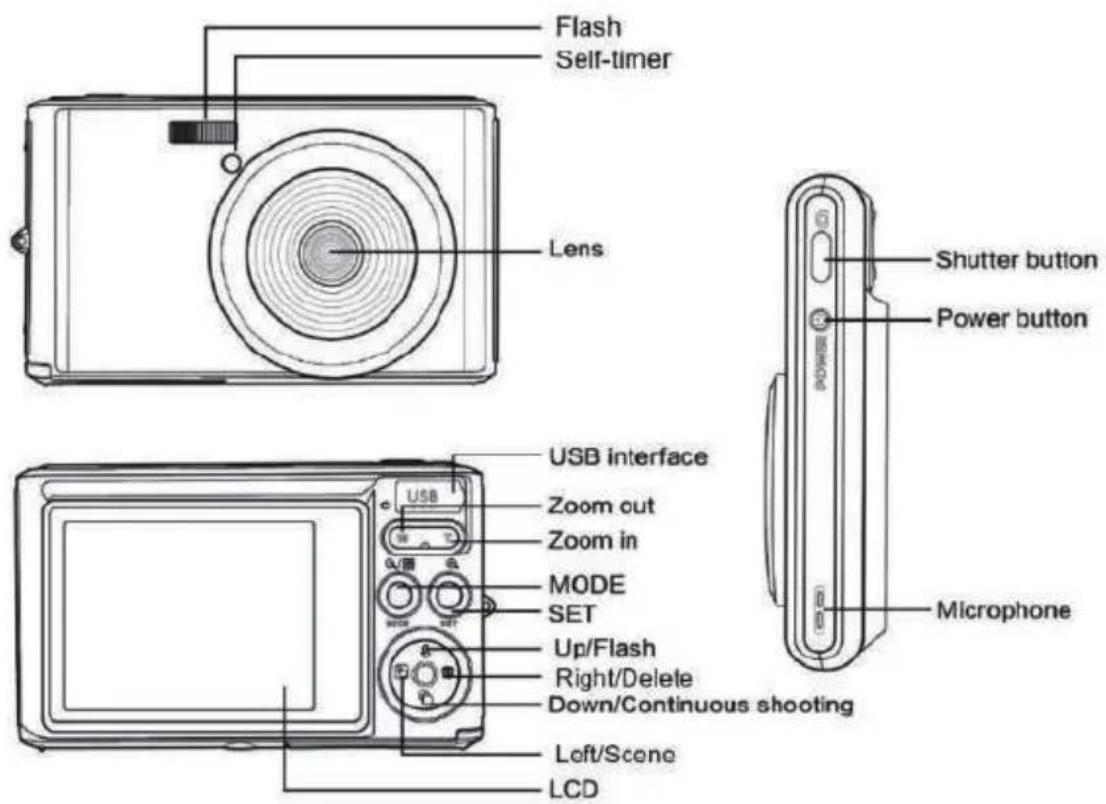
Digitalcameraoverview
MainiconsontheLCD
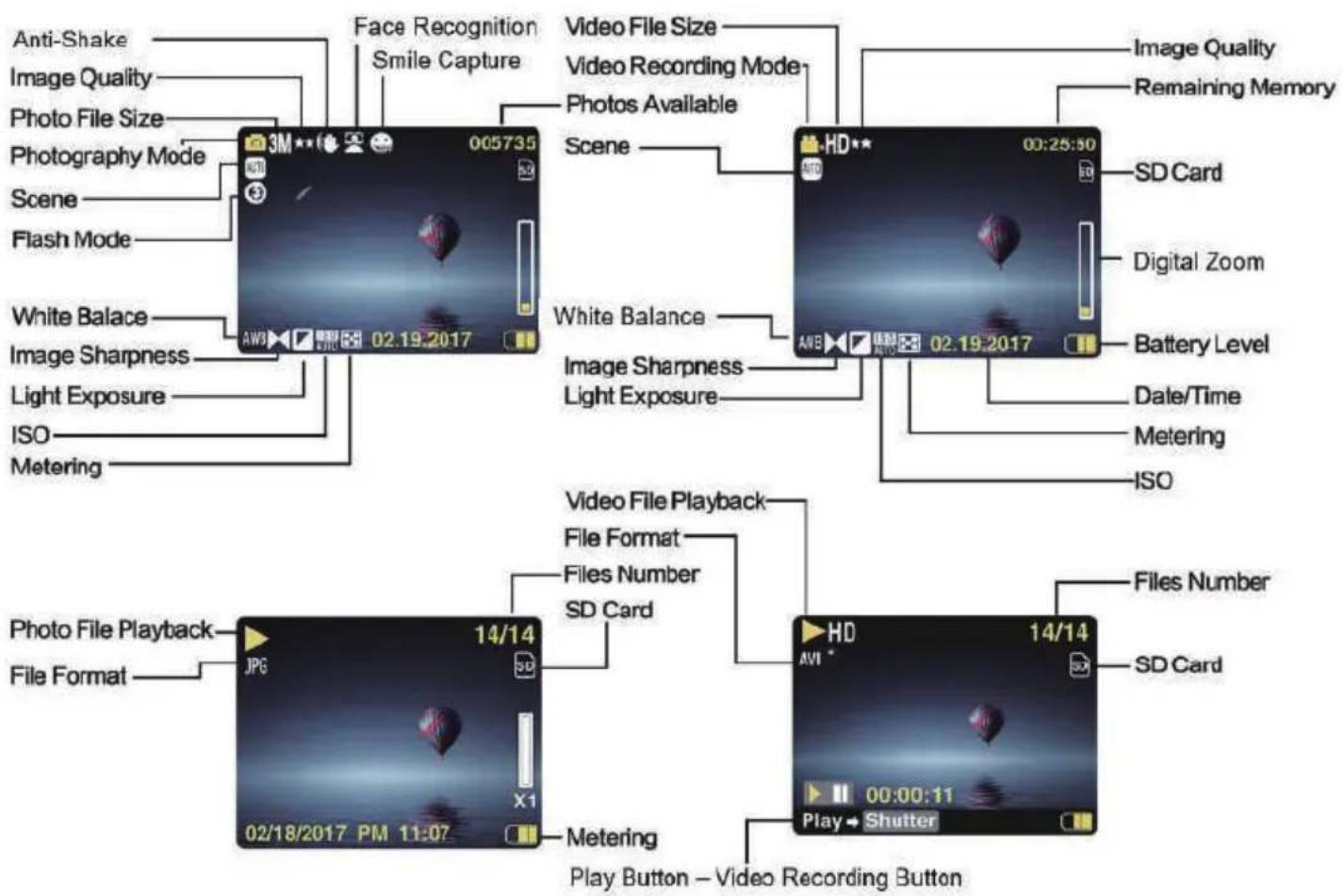
Batterypowerlevel

Fullbatterypower

Mediumbatterypower

Lowbatterypower
Imagequality

Normal

Fine

SuperFine
Flash

ManualFlash

AutoFlash

NoFlash

Redeyereduction
Mode

Photo

Playback

Video
Self-timer

Self-timeron10seconds

Self-timeron5seconds

Self-timeron2seconds

Self-timeroff
Digitalzoom
1.00X 8.00X
Protection

Protection
Anti-Shake

Anti-Shakeon

Anti-Shakeoff
Scene

AutoPortraitNightPortrait

SceneryNightScenery

HighSensitivityB

Prepareyourcameraforuse
Lithium battery installation
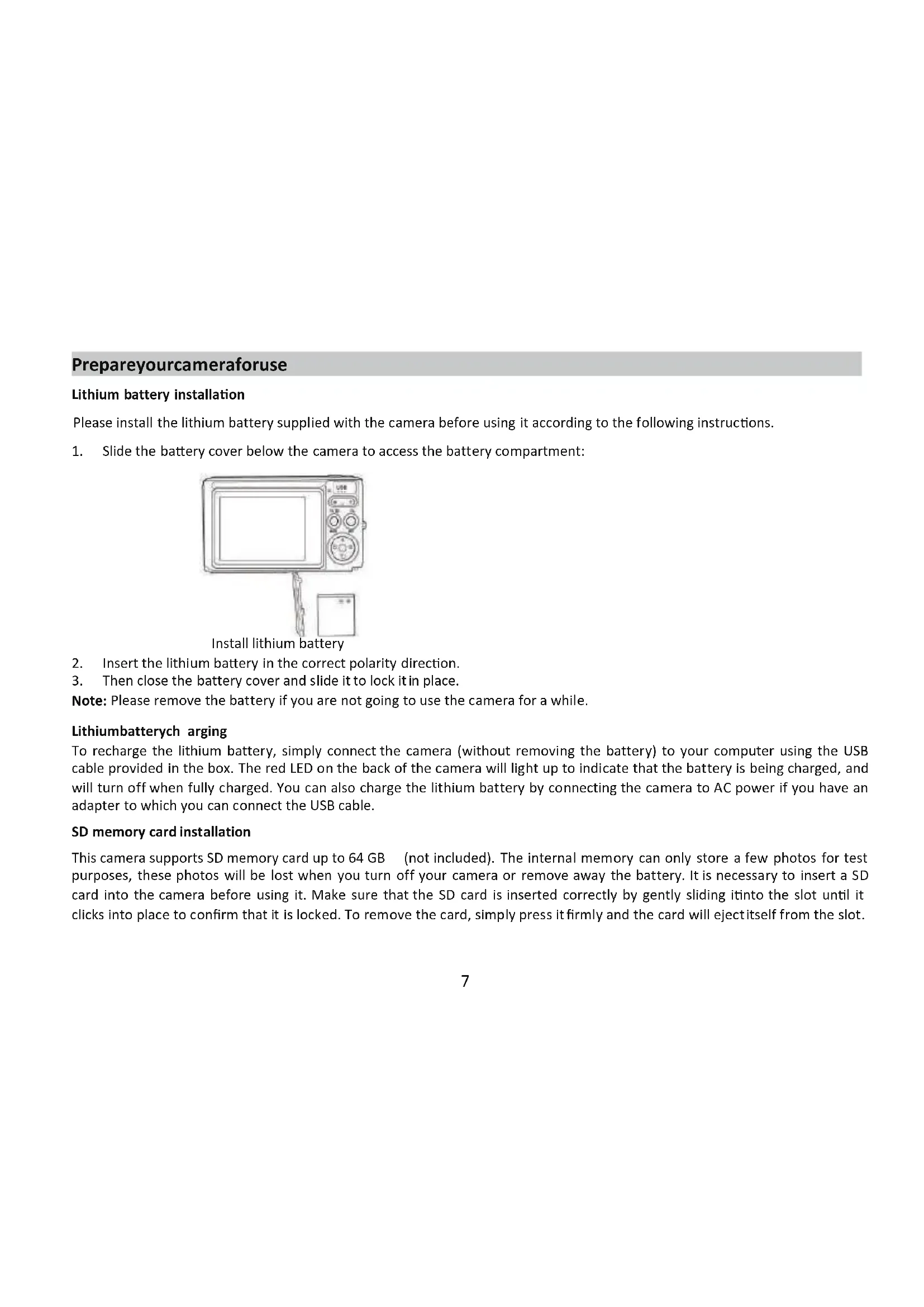
Please install the lithium battery supplied with the camera before using it according to the following instructions.
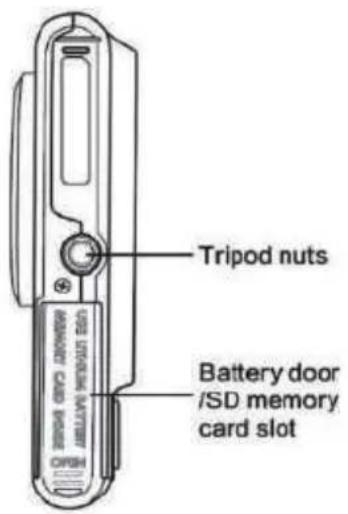
- Slide the battery cover below the camera to access the battery compartment:

natural_image
Line drawing of a digital camera with control panel and display unit (no text or symbols)Install lithium battery
- Insert the lithium battery in the correct polarity direction.
- Then close the battery cover and slide it to lock it in place.
Note: Please remove the battery if you are not going to use the camera for a while.
Lithiumbatterych arguing
To recharge the lithium battery, simply connect the camera (without removing the battery) to your computer using the USB cable provided in the box. The red LED on the back of the camera will light up to indicate that the battery is being charged, and will turn off when fully charged. You can also charge the lithium battery by connecting the camera to AC power if you have an adapter to which you can connect the USB cable.
SD memory card installation
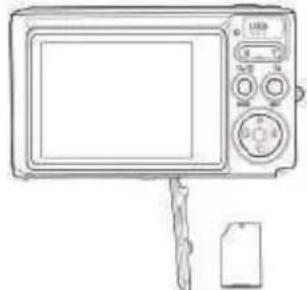
This camera supports SD memory card up to 64 GB (not included). The internal memory can only store a few photos for test purposes, these photos will be lost when you turn off your camera or remove away the battery. It is necessary to insert a SD card into the camera before using it. Make sure that the SD card is inserted correctly by gently sliding it into the slot until it clicks into place to confirm that it is locked. To remove the card, simply press it firmly and the card will eject itself from the slot.
Please refer to the below diagram for correct installation:
natural_image
Line drawing of a digital camera with display screen and control panel (no text or symbols)Install SD memory card
Locate the SD memory card slot and insert a SD memory card as described above until you hear a "click" sound indicating you that your SD card is installed. An icon "SD" appears also on the LCD screen when you start up the camera.
Note:
- All photos and videos will be saved to the SD card once it is installed.
- Formatting will delete all data stored on the memory card.
- Do not remove the micro SD card during formatting as this may damage the card.
Startwithyourdigitalcamera
The digital camera supports 3 modes: Photo mode, Video mode and Playback mode.
Photo mode is for you to take still photos and the Video one to record videos. You can also view photos or videos you shot or delete, rotate, protect, crop and print your photos in Playback mode.
Poweron
Press Power key once to turn on your camera. The LCD screen will light up and it will sound "beep" indicating you that your camera is turned on and ready to use.
Poweroff
Press Power key once to turn off your camera. When the battery power level is insufficient, the camera will display a red icon on the LCD screen and automatically turn off after a few seconds.
Photomode
Once the camera is turned on, 📷 icon will appear on your LCD screen indicating that photo mode is activated.
Takingphotos
Hold the camera steady and press Shutter key to take photo. It then takes a few seconds to record the photo on the memory card. After each photo shot, the number displayed on the LCD screen top right corner indicates how many more photos you can take based on the current settings and the size of the memory card inserted in the camera. When the camera memory is full, the LCD screen will display "Memory Card Full" if you press Shutter key to take photo. To continue photo shooting, you need to transfer all data of the memory card on your computer or delete them to get more memory. Alternatively, you can insert a new empty SD memory card.
Digitalzoom
You can enlarge the object up to 8 times with the digital zoom. Press (T) key to zoom in the object and press the (W) key to zoom outit. Theicon W T will show up on the LCD screen.
Flash
In low light conditions it is better to use the built-in flash. You can also use the flash to compensate for backlight conditions.
To setthe flash:
• Automatic flash: press Flash key repeatedly until the ⌘A icon. It should turn on automatically when the shooting brightness is low.
- Manual flash: press Flash key repeatedly until the icon. It remains active until you turn it off. If the flash is not ready, a red LED will light up beside the LCD screen and the icon will blink; you have to wait for the flash to focus. A "low battery" warning will appear on the LCD screen if there is insufficient battery to power on the flash.
• Red-eye reduction: press Flash key repeatedly until the 📄 icon to activate the red eye reduction.
- Flash off: press Flash key repeatedly until the Ⓕ icon to turn it off.
Scene
Your camera supplies scenes for you to take photos in any environment: Auto / Scenery / Portrait / Night Portrait / Night Scenery / High Sensitivity / Beach.
Press Power key to turn on your camera – the 📄 icon will appear on the upper left corner of the LCD screen.
- Press SET key to enter the menu.
- Press SET key to enter the menu.
- Press Left / Right keys to select Scene.
- Press Up / Down keys to select: Auto / Scenery / Portrait / Night Portrait / Night Scenery / High Sensitivity / Beach.
- Press SET key again to confirm your selection and then press MODE key to return to photo mode.
Note:
- Once scenery is selected, the corresponding scenery icon appears on the LCD screen.
- You can press Left / Right keys to directly switch into Scene options.
- Press Up / Down keys to select the scene and press SET key to confirm.
Imageresolution
The image size and quality settings determine the number of photos can be saved and the memory required for each photo. Higher quality photos will take more memory. The image size and quality will also affect the maximum size to which you can print your photo.
To set the image resolution:
- Press SET key to enter the menu.
- Press Left / Right keys to select the icon
- Press Up / Down keys to select: 5616x3744 (21M), 4896x3672 (18M), 4608x3456 (16M), 4416x3312 (14M), 4000x3000 (12M), 3648x2736 (10M), 3488x2616 (9M), 3264x2448 (8M), 3648x2048 (7M HD), 2592x1944 (5M), 2048x1536 (3M), 1920x1080 (2M HD), 640x480 (VGA).
- Press SET key again to confirm your selection and then press MODE to return to photo mode.
- The selected resolution will appear as an icon on LCD screen.

Quality
The quality of your photos also affects the number of photo shoots you can take. The Super Fine quality means you can take fewer photos but they will be better quality.
-
Press SET key to enter the menu.
-
Press Left / Right keys to select Quality.
- Press Up / Down keys to select: Super Fine / Fine / Normal.
- Press SET key again to confirm your selection and then press MODE key to return to photo mode.
- The icon corresponding to the selected quality will then be displayed on the LCD screen.
Self-timer
You can include yourself in a photo by turning on this option to delay the time between your pressing Shutter key and when the photo is actually taken. Ideal for group shots, we recommend you to use a tripod or to place the camera on a stable surface if you wish to use the self-timer.
-
Press SET key to enter the menu.
-
Press Left / Right keys to select the icon

- Press Up / Down keys to select a countdown time or turning self-timer off: 2 sec. / 5 sec. / 10 sec. / Off.
- Press SET key again to confirm your selection and then MODE key to return to photo mode.
- The icon corresponding to the selected self-timer time will then be displayed on the LCD screen.
Note: This function switches off automatically after each use.
Anti-Shake
This setting allows you to stabilize shooting to avoid taking blurry pictures. You do not need a tripod for stabilization. To set as follows:

- Press SET key to enter the menu.
- Press Left / Right keys to select the icon
- Press Up / Down keys to select: On / Off.
- Press SET key again to confirm and then MODE key to return to photo mode.
- The icon will be displayed on the LCD screen to indicate that the Anti-Shake is activated.
Continuous shooting
With this setting, you can take up to 6 pictures continuously (VGA image size only) after pressing Shutter key once.
- Press SET key to enter the menu.
- Press Left / Right keys to select the icon
- Press Up / Down keys to select: On / Off.
- Press SET key again to confirm and then MODE key to return to photo mode.
Note: When you activate this setting, the image resolution automatically switches to VGA. If it has been changed, the message "Continue Shot Mode Off" message will be displayed on the screen to remind you that the continuous shooting is only available when the image size is VGA.
Whitebalance
This setting allows the camera to adjust the color of your photos according to the color of the light source.
- Press SET key to enter the menu.
- Press Left / Right keys to select White balance.
- Press Up / Down keys to select: Auto / Daylight / Cloudy / Fluorescent / Incandescent.
- Press SET key again to confirm your selection and then MODE key to return to photo mode.
Coloreffect
This setting allows you to give a fancy effect to your photos by changing their color.
- Press SET key to enter the menu.
- Press Left / Right keys to select Color effect.
- Press Up / Down keys to select: Stand / Sepia / Monochrome / Vivid.
- Press SET key again to confirm your selection and then MODE key to return to photo mode.
Sharpness
This setting allows you to adjust the sharpness of your images, making edges more or less distinct.
- Press SET key to enter the menu.
- Press Left / Right keys to select Image Sharpness.
- Press Up / Down keys to select: Soft / Normal / Sharp.
- Press SET key again to confirm your selection and then MODE key to return to photo mode.
Exposure
This setting allows you to control the brightness of your photos.
- Press SET key to enter the menu.
- Press Left / Right keys to select Exposure.
- Press Up / Down keys to select an exposure value from +3 to -3.
- Press SET key again to confirm your selection and then MODE key to return to photo mode.
- The exposure icon will then be displayed on the LCD screen.
ISO
It is better to activate this setting if the shooting brightness is low and flash using is not possible.
- Press SET key to enter the menu.
- Press Left / Right keys to select ISO.
- Press Up / Down keys to select: Auto / 100 / 200 / 400.
- Press SET key again to confirm your selection and then MODE key to return to photo mode.
- The corresponding ISO icon will then be displayed on the LCD screen.
Metering
This setting allows you to adjust the metering point.
- Press SET key to enter the menu.
- Press Left / Right keys to select Metering.
- Press Up / Down keys to select: Center / Multi / Spot.
- Press SET key again to confirm your selection and then MODE key to return to photo mode.
- The corresponding metering icon will then be displayed on the LCD screen.
Language
There are multiple languages available.
- Press SET key to enter the menu.
- Press Left / Right keys to select Language.
- Press Up / Down keys to select your language.
- Press SET key again to confirm your selection and then MODE key to return to photo mode.
Date/Time
This setting allows you to set system date and time that will be displayed on the photos if you turn it on.
- Press SET key to enter the menu.
- Press Left / Right keys to select Date/Time.
- Press Up / Down keys to select: On - to display the date on the photo when you download it to your computer / Off - no date on the photos / Date Setup - to set the system date.
-
If you select Date Setup:
-
Press SET key to enter the Date Setup menu.
- Press Left / Right keys to select the highlighted Year / Month / Date / Hour / Minute / Second / AM.
-
Press Up / Down keys to set up the precise date and time.
-
Press MODE key to return to the menu and press SET key again to return to photo Mode.
Silentmode
This setting allows you to turn on / off the camera sound.
- Press SET key to enter the menu.
- Press Left / Right keys to select Silent Mode.
- Press Up / Down keys to select: On / Off.
- Press SET key again to confirm and press MODE key to return to photo mode.
Autopoweroff
The default setting for camera auto power off is 1 minute, to change it, follow the steps below:
- Press SET key to enter the menu.
- Press Left / Right keys to select Auto Power Off.
- Press Up / Down keys to select a time: 1 Minute / 3 Minutes / 5 Minutes / None.
- Press SET key again to confirm your selection and press MODE key to return to photo mode.
Note: If you choose None, the camera will not turn off until the battery is completely discharged or it is manually turned off.
Frequency
- Press SET key to enter the menu.
- Press Left / Right keys to select Frequency.
-
Press Up / Down keys to select: 50Hz / 60Hz.
-
Press SET key again to confirm and press MODE key to return to photo mode.
Format
This option will format the memory card and erase all photos and videos stored on it including protected files.
Note: Please be careful with formatting. Once the memory card is formatted, all files stored on it will be permanently deleted. It is highly recommended that you transfer all your photos and movies or other important files to your computer before formatting.
- Press SET key to enter the menu.
- Press Left / Right keys to select Format.
- Press Up / Down keys to select: Yes / Cancel.
- Press SET key again to confirm.
- Press Up / Down keys to select "Yes" or "No" if you chose OK.
- Press the SET key one more time to confirm.
- "Please wait" appears on the LCD screen and the camera will come back to photo mode once formatting is done.
Defaultsetting
This setting allows you to reset your camera settings back to the factory defaults values.
- Press SET key to enter the menu.
- Press Left / Right keys to select Default setting.
- Press SET key again to confirm and enter the submenu.
- Press Up / Down keys to select: Yes – to restore default setting / No – to exit.
- Press SET key again to confirm and press MODE key to return to photo mode.
VideoMode
Note: The camera has limited internal memory and does not allow recording without a SD card (up to 32 GB) inserted.
- Press MODE key to select the video mode and then press Shutter key to start video recording. The video icon will be displayed in the upper left corner of the LCD screen and the elapsed recording time in the upper right corner. The flashing red dot will also appear on the screen to indicate that video recording is in progress.
- Press Shutter key to stop shooting.
- The scale can be adjusted during the recording.
Note:
- Files will be saved in AVI format.
- You can play all AVI file you shotin playback mode or other media players on your computer.
- When the camera's memory is full, the "Card Full" message will appear on the LCD screen when you attempt shoot more videos. Transfer all files stored on SD memory card to your PC or delete them to shoot more videos. Alternatively, you can insert a SD memory card to expand the memory to record longer videos.
There are many settings to set up in video mode that are similar as photo mode. This is not introduced here.
Videoresolution
- Press SET key to enter the menu.
- Press Left / Right keys to select the icon MP
- Press Up / Down keys to select: HD 1280x720P, VGA 640x480, QVGA 320x240.
- Press SET key again to confirm your selection and press MODE key to return to video mode.
- The corresponding icon of image size will show up on the LCD screen.
PlaybackMode
With the playback mode, you can view the photos and videos stored on the memory card. You can also rotate, protect, delete, crop, print via PictBridge and start a slideshow of your photos. To switch on it, double press the MODE key and an icon JPG (photo) or AVI (video) will show up on the upper left corner of the LCD screen to indicate that the playback mode is well activated.
Note:
- The message "No File Exist" will be displayed on the LCD screen if there are no photos/videos in the camera. Press then MODE key to return to the Photo Mode.
- Please switch to photo mode and press SET key to change the settings of video recording, such as video size, white balance, etc.
Thumbnail playback
When the camera is in playback Mode, press (W) / Zoom out key to enter the thumbnail playback. Select a photo and press SET key to display it in full screen. In full screen mode, you can press (T) key to zoom in and press (W) key to zoom out on the photo you selected.
- Press (W) key to enter the thumbnail playback.
- Press Left / Right keys to choose which photo you want to preview.
- Press SET key to choose the photo.
- Press (T) key to zoom in.
- Press Up / Down / Left / Right keys to view the details of the photo more clearly.
- Press SET key again to exit the menu.
Editstillphotos
When the camera is in playback mode, press Left / Right keys to first select a photo (an icon JPG will show on the LCD screen) you want to rotate, protect, delete, crop or print.
Delete
You can delete unwanted photos and videos to gain more memory. You can do this file by file or delete all unprotected photos and videos stored on the memory card.
- Press SET key in playback mode.
- Press Left / Right keys to select the Delete.
- Press Up / Down keys to select: Delete This Photo / Delete All Images / Cancel.
-
Press SET key again to confirm your selection.
-
Press Up / Down keys to select "Yes" or "No".
- Press SET key to confirm.
Note: In playback Mode, here is how to quickly delete photo:
- Select the photo you want to delete.
- Press Right / Delete key.
- Press Up / Down keys to select "Yes" or "No".
- Press SET key to confirm.
Rotate
- Press SET key in playback mode.
- Press Left / Right keys to select Rotate.
- Press Up / Down keys to select: 90°/ 180°/ 270°/ Cancel.
- Press SET key again to save photo rotation and return to playback mode.
Note: The "Saving" message will show up on the LCD screen once you have pressed SET key to confirm.
Croplmage
Crop your photos to reveal only a part of an image or to highlight certain focal point, and save the cropped part as a new photo.
- Press SET key in playback mode.
- Press Left / Right keys to select the icon
- Press Up / Down keys to select: Crop / Cancel.
- If you select Crop, press SET key again to enter the submenu.
- Press Up / Down / Left / Right keys to select the area you want to crop.
- Press (W) / (T) keys to expand or reduce the area you chose.
- Press Shutter key to confirm and save the image cropping.
- Press SET key one more time to return to playback mode.
Protect
You can protect your photos/videos from accidental deletion.
- Press SET key in playback mode.
- Press Left / Right keys to select the Protect.
- Press Up / Down keys to select: Lock This Photo / Unlock This Photo / Lock All Image / Unlock All Images.
-
Press SET key to confirm your choice.
-
A lock icon will show up on the LCD screen if you select "Lock".
- If you select "Unlock", press then SET key again to unlock the current file.
- Press MODE key to return to playback mode.
Note: When you view photos or videos, a lock icon will be displayed on the screen for each protected file.
Photos can be printed using any printer with the PictBridge function.
Proceed as below:
- Select the photo you want to print.
- Press SET key.
- Press Left / Right keys to select Print.
- Press Up / Down keys to select: Print This Photo / Cancel.
- Press SET key again to enter print option and the "Please connect camera to Pictbridge printer" message will show up on the LCD screen.
- Connect the camera to compatible printer with USB cable correctly to launch the photo printing.
SlideShow
You can view your photos in a slide show.
- Press SET key.
- Press Up / Down keys to select a slide show time per photo: 3 Seconds / 5 Seconds / 10 Seconds.
- Press Up key to confirm and start the photo slide show.
PlayAVIfiles
- Select an AVI file you want to watch.
- Press Shutter key to play the file and press it again to pause.
Note: To protect and delete videos, please refer to the dedicated sections above.
DownloadphotostoyourPC
First, please connect your camera to the computer via a USB cable that can read data and then turn it on:
the image

will show up on the camera LCD screen and a window (removable disk) will appear on your PC.
Now you can copy the photos to your computer in two ways:
- Download photos directly from the windows.
- Choose "Copy pictures to a folder on my computer" on the Removable Disk (H:). After you have clicked "OK", there will be some windows on the screen for you to complete the copying step by step. You only need to select the default settings to complete the transferring.
Or you can:
- Click on the computer icon on the desktop.
- Your memory card will appear as a removable storage device.
- Click on it to view all files stored in the subfolder DCIM.
- Then you can simply copy and paste files you want on your computer.
Appendix A: technical specifications
| Image Sensor CMOS Sensor | |
| Image Resolution | (21M) 5616x3744, (18M) 4896x3672, (16M) 4608x3456, (14M) 4416x3312, (12M) 4000x3000, (10M) 3648x2736, (9M) 3488x2616, (8M) 3264x2448, (7M HD) 3648x2048, (5M) 2592x1944, (3M) 2048x1536, (2M HD) 1920x1080, (VGA) 640X480 |
| Video Resolution | 1280x720 HD, 640x480 VGA, 320x240 QVGA |
| LCD Display 2.4” TFT LCD | |
| External Memory | SD card up to 64 GB (notincluded) |
| Digital Zoom | 8X Digital Zoom |
| Exposure | EV-3---EV+3 |
| White Balance | Automatic/Day/Cloudy/Fluorescent/Incandescent |
| Scene | Auto/Scenery/Portrait/Night Scenery/Night Portrait/High Sensitivity/Beach |
| ISO | Auto/100/200/400 |
| Self-timer | Off/2s/5s/10s |
| File Format | JPEG (photo)/AVI (video) |
| Anti-shake YES | |
| Flash | Auto/Manual/Red-eye reduction/Off |
| Direct Print | YES |
| Face Detect | YES |
| Smile Capture YES | |
| Continuous Shooting | YES (VGA 6 PCS) |
| Microphone | YES |
| Optical Viewfinder | N/A |
| TV Output | N/A |
| Interface USB 2.0 | |
| System Requirements | Windows XP/VISTA/7/MAC |
| Battery | Lithium Battery |
| Working Temperature | 0-40°C |
The built-in memory can only store photos for testing (3MP only). The photos will not be saved when the camera is battery low or the battery is removed. Please insert the SD memory card before use by referring to corresponding instructions for correct installation.
Appendix B: common problems and solution
Q: I have taken photos but my computer does not recognize my camera. What do I do?
A: First of all, make sure you took photos. Take a few photos as a test, and then try downloading them to your computer by connecting the camera to it via the USB charging cable. Alternatively, you can insert the memory card directly into your computer card slot if your computer has one, or use an external card slot that can be connected to your computer USB port. Also, check that your computer has the minimum requirements as indicated at the beginning of this instruction manual.
Q: How to be sure that I haven't missed any important photos?
A: As all files are stored on the SD card inserted in your camera, make sure there is always enough space on the card for you to take pictures. It is recommended that you insert a memory card up to 64 GB and regularly transfer the files stored on the memory card to your PC to free up more memory. This will also be the backup data when you have lost or damaged the SD card. The test photos are stored in the limited RAM of the SD memory card but if the camera has insufficient power or is out of power, all the test photos will be lost.
Q: Will the device work normally if I use the MAC system?
A: The device can be used as a removable disk on Mac OSX (10.5.x or higher version).
FR
Introduction
natural_image
Line drawing of a digital camera with monitor, control panel, and attached device (no text or symbols)natural_image
Line drawing of a digital camera with control panel and paper clip (no text or symbols)Anti-ShakeanAnti-Shakeaus


natural_image
Line drawing of a vintage digital camera with control panel and external device (no text or symbols)InstalliereneinerLithium-Batterie
natural_image
Line drawing of a digital camera with control panel and paper clip (no text or symbols)InstallierenSiedieSD-Speicherkarte
NoticeofcompliancefortheEuropeanUnion:
products bearing the CE mark comply with the applicable European directives and associated harmonised European standards.
DisposalofwasteequipmentbyusersintheEuropeanUnion:
this symbol means that according to local laws and regulations, it is prohibited to dispose of this product with household waste. Instead, it is your responsibility to protect the environment and human health by handing over your used device to a designated collection point for the recycling of waste electrical and electronic equipment. For more information about where you can drop off your waste equipment for recycling, please contact your local city office, your household waste disposal service or the shop where you purchased the product.
After sales service / service après vente / Kundendienst / servicio postventa / serviço pós venda / servizio post vendita / serviço pós venda / serwis posprzedażowy / poprodejní servis / értékesítés utáni szolgáltatás / dienst na verkoop / послепродажное обслуживание:
@ : aftersales@agfaphoto-gtc.com
+ 33 (0) 1.85.49.10.26
Product manufactured for and distributed by:
GT COMPANY - 5 rue de la Galmy - 77700 Chessy - France - +33 (0) 1.61.10.09.25 - www.gtcompany.fr GT COMPANY UK LTD - 11 Old Jewry - EC2R 8DU London - United Kingdom
AgfaPhoto is used under license of Agfa-Gevaert NV. For this product a sublicense has been granted by AgfaPhoto Holding GmbH (www.agfaphoto.com). Neither Agfa-Gevaert NV nor AgfaPhoto Holding GmbH manufacture this product or provide any product warranty or support. For service, support and warranty information, Contact the distributor or manufacturer.
www.agfaphoto-gtc.com


- Keyfeatures
- Contentofthebox:
- Computer system requirements for Windows 7/XP
- ComputersystemrequirementsforWindowsVista
- ComputersystemrequirementsforMacintosh
- Digitalcameraoverview
- Batterypowerlevel
- Imagequality
- Flash
- Mode
- Self-timer
- Digitalzoom
- Protection
- Anti-Shake
- Scene
- Prepareyourcameraforuse
- Lithium battery installation
- Lithiumbatterych arguing
- SD memory card installation
- Note:
- Startwithyourdigitalcamera
- Poweron
- Poweroff
- Photomode
- Takingphotos
- Imageresolution
- Quality
- Continuous shooting
- Whitebalance
- Coloreffect
- Sharpness
- Exposure
- ISO
- Metering
- Language
- Date/Time
- Silentmode
- Autopoweroff
- Frequency
- Format
- Defaultsetting
- VideoMode
- Videoresolution
- PlaybackMode
- Thumbnail playback
- Editstillphotos
- Delete
- Rotate
- Croplmage
- Protect
- SlideShow
- PlayAVIfiles
- DownloadphotostoyourPC
- Or you can:
- Appendix B: common problems and solution
- FR
- Introduction
- Product manufactured for and distributed by:
Brand : AGFAPHOTO
Model : DC5200
Category : Camera