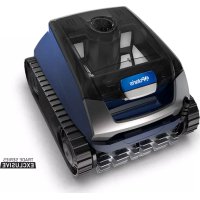
EPIC 8640 - Swimming Pool POLARIS - Free user manual and instructions
Find the device manual for free EPIC 8640 POLARIS in PDF.



| Product Type | Automatic pool cleaner robot |
| Brand | Polaris |
| Model | EPIC 8640 |
| Dimensions (L x W x H) | Approximately 45 x 40 x 30 cm |
| Weight | Approximately 11 kg |
| Power supply | 100-125 V AC, 60 Hz |
| Output voltage | 30 V DC |
| Rated power | 150 W max |
| Double insulation | Yes |
| Required electrical protection | GFCI outlet |
| Cleaning modes | Floor only (1h30) / Floor, walls and waterline (2h30) |
| Filtration | Removable filter basket to clean after each cycle |
| Connectivity | Wi-Fi and Bluetooth via iAquaLink app (connected models) |
| Allowed water temperature | 13°C to 35°C |
| Floating cable length | Approximately 18 m (estimated) |
| Brush material | Rubber with wear indicator |
| Brush replacement frequency | Every 2 years or according to wear indicator |
| Pool type | In-ground or permanent above-ground pool |
| Warranty | See included warranty card |
| Routine maintenance | Cleaning the filter basket and rinsing the unit after use |
Frequently Asked Questions - EPIC 8640 POLARIS
User questions about EPIC 8640 POLARIS
0 question about this device. Answer the ones you know or ask your own.
Ask a new question about this device
Download the instructions for your Swimming Pool in PDF format for free! Find your manual EPIC 8640 - POLARIS and take your electronic device back in hand. On this page are published all the documents necessary for the use of your device. EPIC 8640 by POLARIS.
USER MANUAL EPIC 8640 POLARIS
FOR YOUR SAFETY - For anything other than the routine cleaning and maintenance described in this manual, this product must be serviced by a pool technician who is licensed and qualified in pool equipment by the jurisdiction in which the product will be installed where such state or local requirements exist. In the event no such state or local requirement exists, the maintainer must be a professional with sufficient experience in pool equipment installation and maintenance so that all of the instructions in this manual can be followed exactly. Improper installation and/or operation may void the warranty.
FCC Statement
This device complies with Part 15 of the FCC Rules and IC licence-exempt RSS standard. Operation is subject to the following two conditions: (1) this device may not cause harmful interference, and (2) this device must accept any interference received, including interference that may cause undesired operation.
NOTE: This equipment has been tested and found to comply with the limits for a Class B digital device, pursuant to part 15 of the FCC Rules. These limits are designed to provide reasonable protection against harmful interference in a residential installation. This equipment generates, uses and can radiate radio frequency energy and, if not installed and used in accordance with the instruction, may cause harmful interference to radio communications. However, there is no guarantee that interference will not occur in a particular installation. If this equipment does cause harmful interference to radio or television reception which can be determined by turning the equipment off and on, the user is encouraged to try to correct interference by one or more of the following measures:
- Reorient or relocate the receiving antenna.
- Increase the separation between the equipment and receiver.
- Connect the equipment into an outlet on circuit different from that to which the receiver is connected.
- Consult the dealer or an experienced radio/TV technician for help.
CAUTION
Any changes or modifications not expressly approved by the part responsible for compliance could void the user's authority to operate the equipment.
NOTE: This device complies with FCC and IC RF radiation exposure limits set forth for general population. This device must be installed to provide a separation distance of at least 20cm from all persons and must not be co-located or operating in conjunction with any other antenna or transmitter.
This device contains license-exempt transmitter(s)/receiver(s) that comply with Innovation, Science and Economic Development Canada's license-exempt RSS(s) Operation is subject to the following two conditions: (1) This device may not cause interference. (2) This device must accept any interference including interference that may cause undesired operation of the device.
THANK YOU FOR PURCHASING THIS ROBOTIC POOL CLEANER.
YOUR ROBOTIC CLEANER HAS BEEN DESIGNED AND MANUFACTURED TO BE EASILY INSTALLED AND TO PROVIDE LOW MAINTENANCE OPERATION. PRIOR TO INSTALLING YOUR NEW CLEANER, PLEASE DO THE FOLLOWING:
1) Complete and return the warranty card.
2) Record your purchase information on the spaces provided below.
3) Attach your invoice (or a copy) to this page.
Taking these steps will help ensure prompt warranty service, should it be required. If service is required, please contact your original dealer. If the original dealer does not perform warranty service, please call our Technical Support department at 1-800-822-7933.
RECORD YOUR CLEANER DATA HERE:
Date of Purchase Purchased From Serial Number:
City State/Province Zip/Postal Code
located on robot- head)
Table of Contents
1 Important Safety Instructions 4
2 Cleaner Specifications 5
Technical Specifications 5
3 Getting Started 6
Contents 6
Connect to a Power Source.. 6
4 General Cleaner Operation. 7
Install and Submerge the Cleaner. 7
Control Box Buttons. 8
Start/Stop Cleaning and Select Cleaning Time 8
Removal from Pool. 9
5 Maintenance 10
Cord Tangling 10
Clean the Filter Canister. 11
Store the Cleaner When Not in Use 12
Replacing Wear Parts. 12
ReplacingBrushes 12
6 Installing iAquaLink 14
Download the App 14
Sign Up and Log In. 14
Add to Mobile App System 14
7 iAquaLink® Control* 15
iAquaLink® Control Home Screen. 15
Start/Stop Cleaning and Adjust Cleaning Time. 15
Set Cleaning Mode 15
Remote Control 15
Removal from Pool 16
In-App Error Messages and Troubleshooting. 16
System Settings. 16
8 Troubleshooting 16
Error Codes 17
General Troubleshooting 18
iAquaLink Troubleshooting 19
How to Connect 19
Common iAquaLink* Troubleshooting 20
1 Important Safety Instructions
Please read through the entire manual before installing your new robotic pool cleaner. The cleaner must be installed and operated as specified.
WARNING
Failure to comply with the following warnings can result in permanent injury, electrocution or death.
PREVENT ELECTRICAL SHOCK
To reduce risk of electrical shock:
- Connect unit to receptacle protected by a ground fault circuit interrupter (GFCI). Such a GFCI receptacle should be provided by a qualified installer and should be tested on a routine basis. To test the GFCI, push the test button. The GFCI should interrupt power. Push the reset button. Power should be restored. If the GFCI fails to operate in this manner, the GFCI is defective. If the GFCI interrupts power to the pump without the test button being pushed, a ground current is flowing, indicating the possibility of an electric shock. Do not use this product. Disconnect the cleaner and have the problem corrected by a qualified service representative before using.
- Per the United States National Electrical Code (NEC), keep the control box at least five (5) feet from the edge of the (pool/spa) water. In Canada, the Canadian Electrical Code (CEC) requires a minimum distance of 3m (10 ft.) to be maintained between the pool edge and the control box. Never submerge the control box.
- Do not enter pool while the cleaner is in water.
- Do not bury cord. Locate cord so as to prevent it from being damaged by lawn mowers, hedge trimmers and other equipment.
- To reduce the risk of electrical shock, do not use the robotic cleaner or control box if the cord is worn or damaged. Contact Zodiac Pool Systems LLC. Technical Support immediately for proper servicing and replacement of the damaged cord.
- Double insulation—For continued protection against possible electric shock, use only identical replacement parts when servicing. Do not attempt repair of the robotic cleaner, control box, power cord, or floating cable.
- NEVER OPEN CONTROL UNIT.
- DO NOT USE AN EXTENSION CORD TO CONNECT THE UNIT TO ELECTRIC SUPPLY; PROVIDE A PROPERLY LOCATED GFCI RECEPTACLE. THE CONTROL BOX SHOULD BE PLUGGED INTO THE GFCI RECEPTACLE BOX.
PREVENT CHILD INJURY AND DROWNING
- To reduce the risk of injury, do not permit children to operate this product.
- Do not let anyone, especially small children, sit, step, lean, or climb on any equipment installed as part of your pool's operational system.
CAUTION
Failure to comply with the following warnings could cause damage to pool equipment or personal injury.
- The cleaner must be installed and operated as specified.
- This product is intended for use with permanently-installed pools. Do not use with storable pools. A permanently-installed pool is constructed in or on the ground or in a building such that it cannot be readily disassembled for storage. A storable pool is constructed so that it is capable of being readily disassembled for storage and reassembled to its original integrity.
- Clean the filter canister in the cleaner after each use.
- Do not use the product in your pool if the water temperature is above 95 irc F( 35 irc C) or below 55 irc F( 13 irc C) .
USE OF THE ROBOTIC CLEANER IN A VINYL LINER POOL
- Certain vinyl liner patterns are particularly susceptible to rapid surface wear of pattern removal caused by objects coming into contact with the vinyl surface, including pool brushes, pool toys, floats, fountains, chlorine dispensers, and automatic pool cleaners. Some vinyl liner patterns can be seriously scratched or abraded simply by rubbing the surface with a pool brush. Ink from the pattern can also rub off during the installation process or when it comes into contact with objects in the pool. Zodiac Pool Systems LLC is not responsible for, and the Limited Warranty does not cover, pattern removal, abrasion or markings on vinyl liners.
SAVE THESE INSTRUCTIONS
2 Cleaner Specifications
Technical Specifications
The general specifications for the cleaner are as follows:
| Control box supply voltage | 100-125 VAC, 60 Hz |
| Supply voltage | 30 V DC |
| Installed load | 150 W max |
The cleaner is a double-insulated product. A double-insulated electrical appliance is one which has been designed in such a way that it does not require a safety connection to ground. The basic requirement for double-insulation is that no single failure can result in dangerous voltage becoming exposed so that it might cause an electric shock and that this is achieved without relying on an earthed (grounded) metal casing. This is achieved by having two (2) layers of insulating material surrounding live parts or by using reinforced insulation. Therefore, devices having double-insulated construction, such as this cleaner, do not utilize a grounded (three-prong) cord/plug.
3 Getting Started
Contents
The packaging should contain the following items:
- Robotic cleaner and floating cable
Control box - Transport and storage caddy (not available with all models)
Connect to a Power Source
WARNING
Failure to comply with the following warnings can result in permanent injury, electrocution or drowning.
PREVENT ELECTRICAL SHOCK
U.S.: Per NEC requirements, keep the control box at least five (5) ft. (1.5m) from the edge of the pool. CANADA: Per CEC requirements, keep the control box at least three (3) m (10 ft.) from the edge of the pool.
- Only connect the control box to a receptacle protected by a ground fault circuit interrupter (GFCI). Contact a certified electrician if you cannot verify that the receptacle is protected by a GFCI.
- Do not use an extension cord to connect the control box.
- Do not allow anyone to swim while the cleaner is in the pool.
- The control box is water-resistant, not waterproof. In order to prevent electrocution, never submerge the control box or leave exposed to inclement weather.
- Firmly insert power cord connector (with TOP shown facing up) until you hear a "click" (Figure 1).
NOTE: The "click" indicates the power cord is connected correctly.
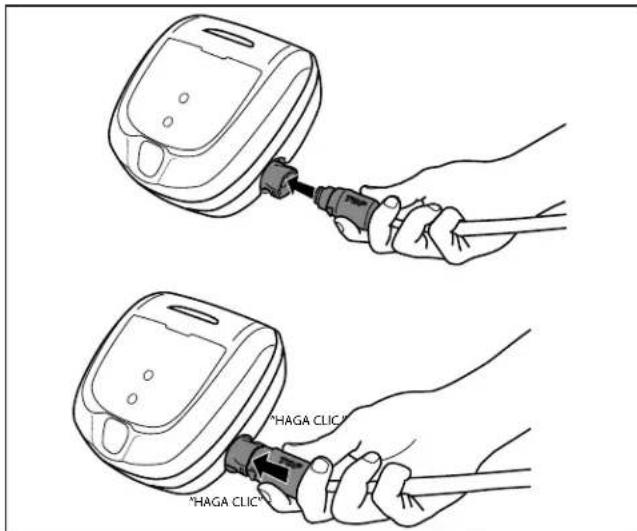
Figure 1. Connect Power Cable
NOTE: To disconnect, firmly grip the power cord connector on each side, press the two tabs, and pull out (Figure 2).
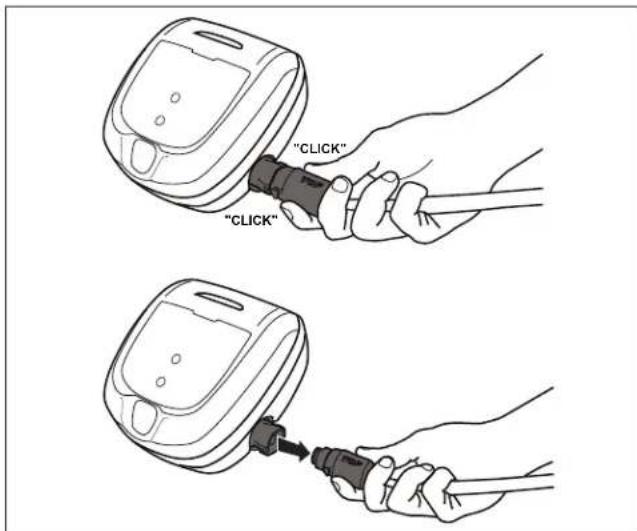
Figure 2. Disconnect Power Cable
4 General Cleaner Operation
CAUTION
To prevent damage to the cleaner, to adhere to the following guidelines:
- Remove the cleaner from the pool after the cleaning cycle is completed.
- Store out of direct sunlight or inclement weather.
- Never lift the cleaner out of the pool by the floating cable.
- Take additional care when lifting the cleaner out of the pool. It becomes heavier when filled with water.
Always remove the cleaner from pool when super chlorinating or adding acid. - Do not handle cleaner while it is in operation
IMPORTANT
Always fully submerge the cleaner head before you begin operation.
- Clean the filter canister after each cleaning cycle.
- Do not leave your cleaner in the pool on a permanent basis.
- At the end of each cycle, remove the cleaner from the pool.
- Start at the cleaner head and untangle any coils in the cable before storing the cleaner.
The robotic cleaner includes a safety feature that automatically stops the cleaner if a cleaning cycle starts but it is not submerged in water. For pools equipped with a beach area, this safety feature is programmed to drive the cleaner in reverse and back into the pool when the impeller is out of the water.
Install and Submerge the Cleaner
- With the control box plugged into a power outlet, spread the floating cable across the pool deck until you reach the middle of the pool length.
WARNING: Do not use an extension cord
2. At the center point, submerge the cleaner in the pool and hold in the vertical position to release any air trapped inside. (Figure 3).
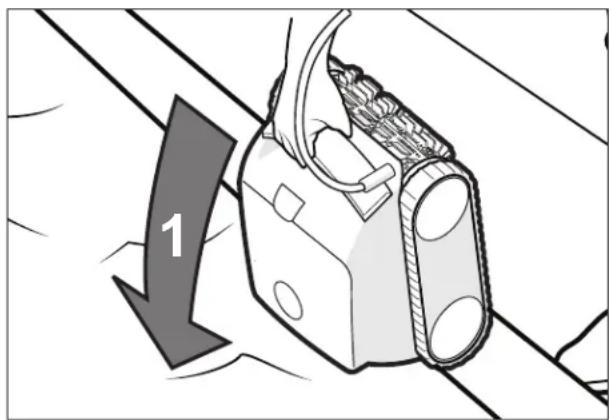
Figure 3. Submerge the Cleaner Vertically
- Ensure the unit sinks to the bottom of the pool and does not float (Figure 4).
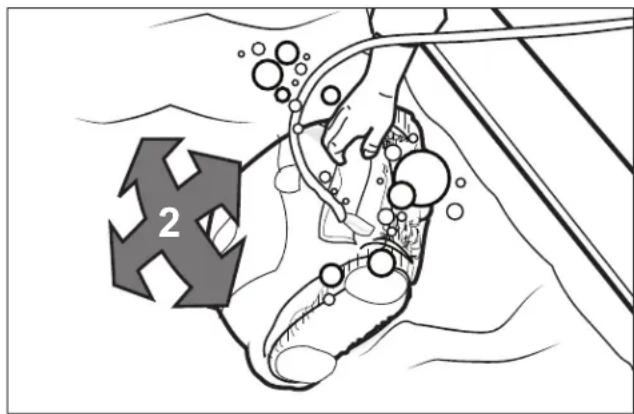
Figure 4. Cleaner Sinking to the Bottom of the Pool
- Place all of the floating cable in the water to allow free movement in your pool from the central point. Spread out the floating cable ensuring there are no kinks or coils in the cable (Figure 5).
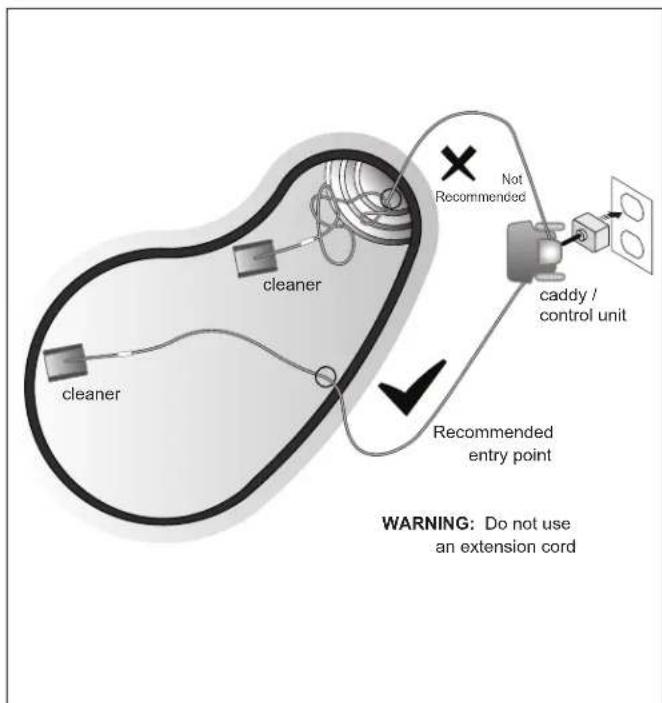
Figure 5. Pool Entry Point for Optimal Patterning
Start / Stop Cleaning and Select Cleaning Mode
The factory default cleaning mode is set to Floor, Wall, Waterline.
Use change cleaning surface setting.*
Toggle between modes:
Floor Only (1h 30 min)
Floor, Wall, Waterline (2 hours 30 minutes)
With the cleaner submerged in the water, press begin operation.
Press again to interrupt and cancel an in-progress cleaning cycle.
*not available on all models
Button Functions
Control Box Buttons
The control box can be used to initiate basic cleaning features and to connect the device to home Wi-Fi (connected models only).
For more information on connecting your cleaner to Wi-Fi (connected models), see Section 5, Installing iAquaLink.

Start/Stop cleaning

Select cleaning mode*

Remove cleaner from the pool*

Initiate connection and set up iAquaLink control*
*not available on all models
Removal from Pool
Depending on the model, you can manually remove the cleaner from the pool or use the Lift System feature.
For manual removal, pull gently on the floating cable to bring the cleaner handle within arm's reach.
Use the handle to lift the cleaner from the water and hold the cleaner vertically over the pool surface to drain (Figure 6). Never lift the cleaner out of the pool by the floating cable.
Using the Lift System*
The Lift System is designed to assist in retrieving the robot from the pool. Lift System can be activated at any time during or after a cleaning cycle.
- Press any button to engage cleaner controls.
- Press on the control box to begin the automated procedure to bring the cleaner to the wall.
NOTE: To stop the procedure at any time, press and release the button again.
- Next, Press and HOLD to isolate the cleaner.
- Once the cleaner is facing the wall of your choice for retrieval, release the button.
-
Cleaner will drive forward and up the wall it is facing. It will wait at the waterline to be retrieved.
-
When in reach, remove the cleaner from the pool using the handle. The cleaner will quickly expel water to allow for lighter, easier removal (Figure 6).
NOTE: Never lift the cleaner out of the pool by the floating cable.
*not available on all models
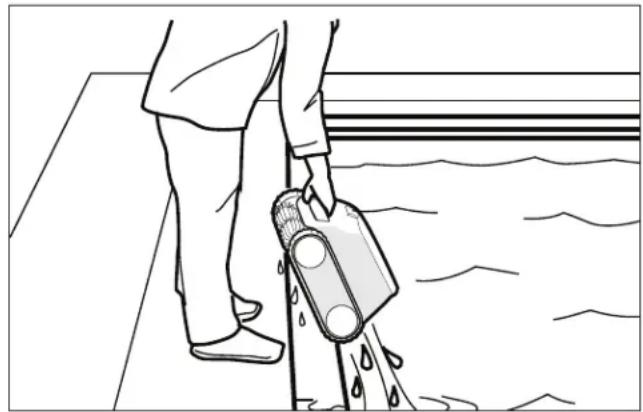
Figure 6. Always remove cleaner using the handle
5 Maintenance
WARNING
To avoid electric shock and other hazards which could result in permanent injury or death, disconnect (unplug) the cleaner from the power source before performing any cleaning and maintenance.
Cord Tangling
Tangling can occur more frequently when the cleaner is not attended to after each cleaning cycle. Proper installation, general maintenance and the following troubleshooting steps can help to avoid cable challenges.
IMPORTANT
Cleaner power cable may become tangled if correct procedure is not followed after each cleaning cycle.
NOTE: Place all of the floating cable in the water to allow free movement in your pool from the central point. Spread out the floating cable ensuring there are no kinks or coils in the cable (Figure 7).
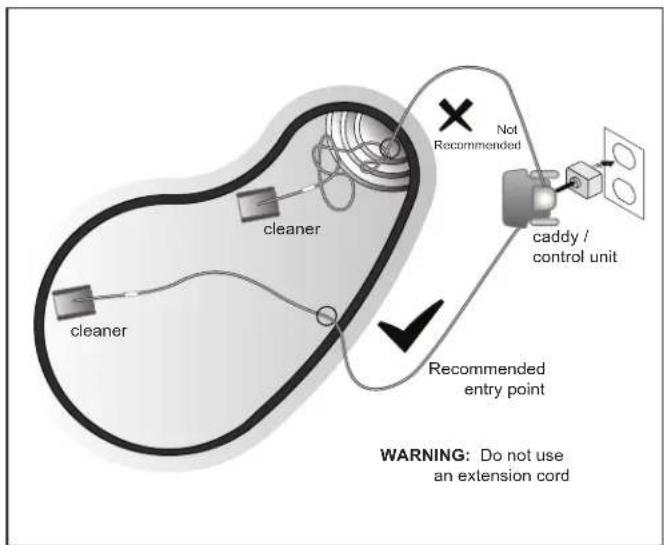
Figure 7. Optimal Entry Point in Pool
If tangling occurs, follow these steps:
- Remove the cleaner from the pool. When the cleaner is within arm's reach, use the handle to remove from the water. Never lift the cleaner out of the pool by the floating cable.
- Hold the cleaner vertically to drain (Figure 8).
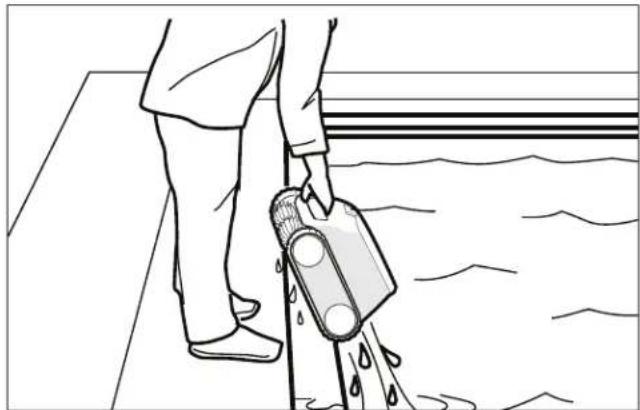
Figure 8. Keep Cleaner Vertical to Drain Water
- Unplug power to the cleaner at the control box (Figure 9).
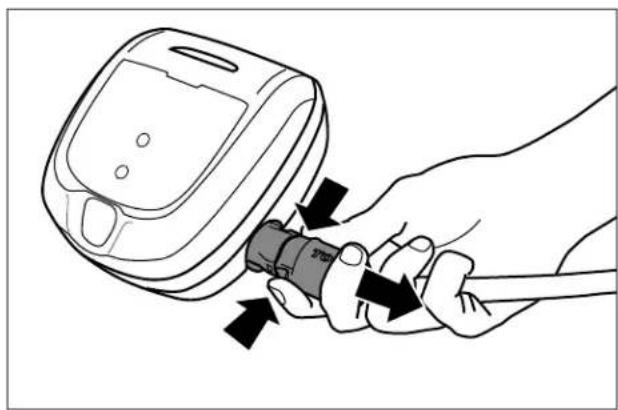
Figure 9. Unplug
- Remove the cleaner from the pool and untangle all kinks and coils in the power cable. Start at the cleaner head. Lay the cable in the sun to loosen any tangling memory (Figure 10).
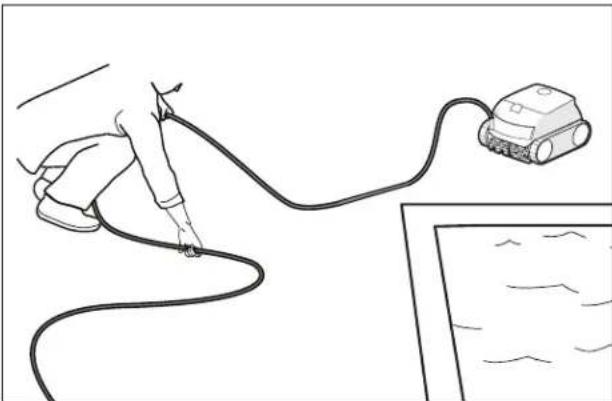
Figure 10. Untangle the power cable
Clean the Filter Canister
The filter canister should be cleaned at the end of each cycle.
- Remove the cleaner from the water and let the remaining water drain.
- Unlatch the cleaner cover to access the canister (Figure 11).
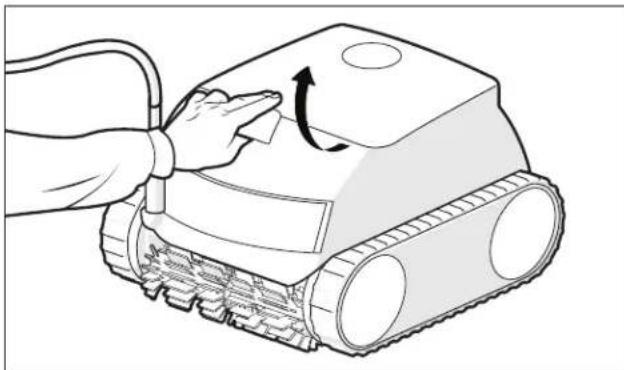
Figure 11. Lift Cleaner Cover
- Remove the filter canister from the body (Figure 12).
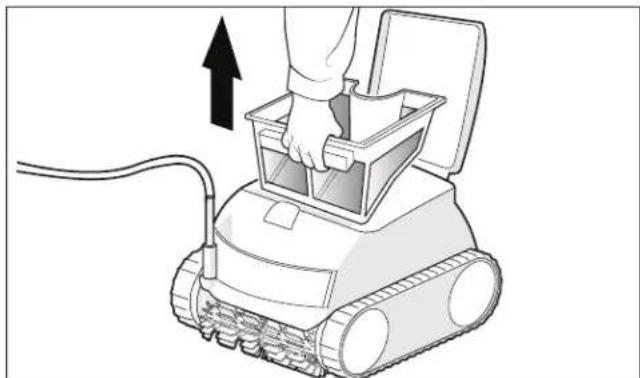
Figure 12. Remove Filter Canister
- Empty all debris from the filter canister, then rinse the canister and the cleaner using a hose (Figure 13).
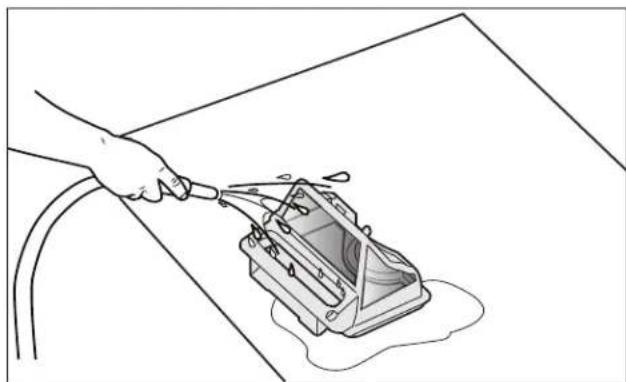
Figure 13. Wash Filter Canister
NOTE: Periodically, deep-clean the filter canister with soapy water and a soft bristle brush to prevent clogging.
Store the Cleaner When Not in Use
The cleaner should be cleaned regularly using slightly soapy water. Do not use solvents such as trichlorethylene or its equivalent. Rinse the cleaner generously using clean water. Do not let your cleaner dry in direct sunlight.
- Disconnect cleaner from the power source.
- Starting at the cleaner head, remove all twists and tangles from the cable. Lay the cable in the sun to loosen any tangling memory (see Figure 14).
- Loosely coil the cable into a loop for storage near the cleaner or on the caddy hook (not available with all models).
- Disconnect the cable from the control box.
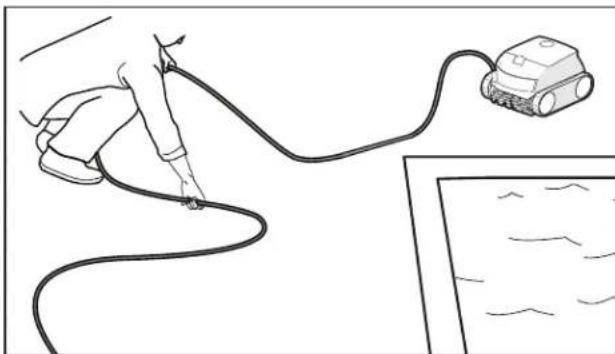
Figure 14. Untangle the power cable
Replacing Wear Parts
Replacing Brushes
The cleaner is fitted with brushes with a "wear" indicator (Figure 15).
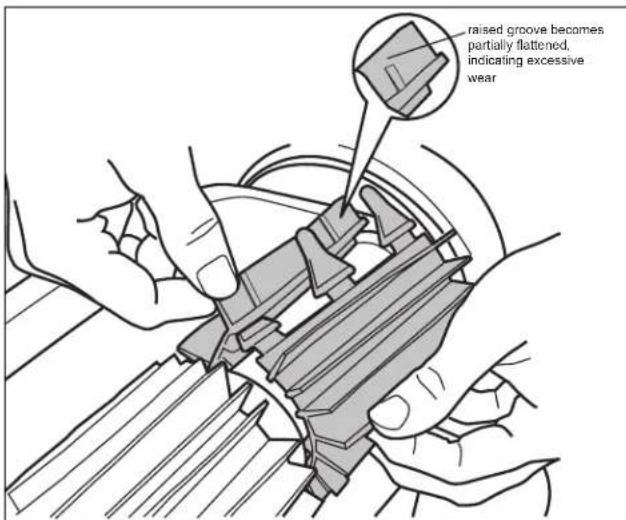
Figure 15. Worn Brush Indicator
To maintain cleaner performance at its best, replace the brushes as soon as one of the wear indicators is reached (even if the wear is not even). It is recommended that you replace the brushes when the rubber is worn down to the top of the wear indicator (or every two years, whichever comes first).
To replace a worn brush:
- Stand the cleaner on its end in a vertical position (see Figure 16).
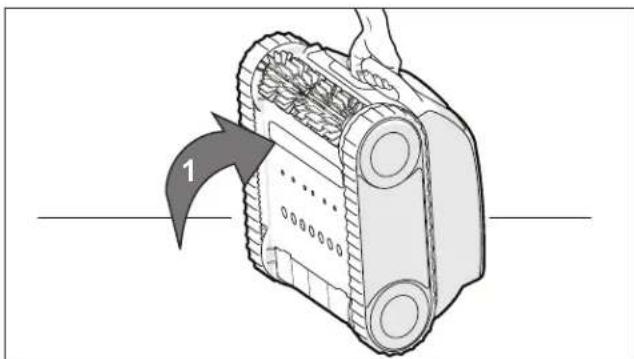
Figure 16. Cleaner in Upright Position
- Separate the edges of the brush and undo the tabs. Remove the worn brush (see Figure 17).
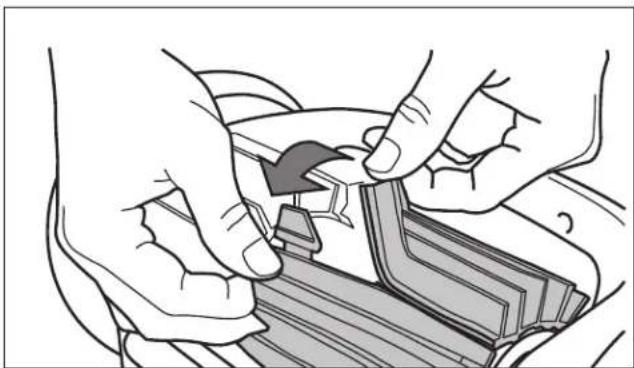
Figure 17. Undo the Tabs of the Brush
- Position the new brush underneath the roller with the bristles facing downwards (see Figure 18).
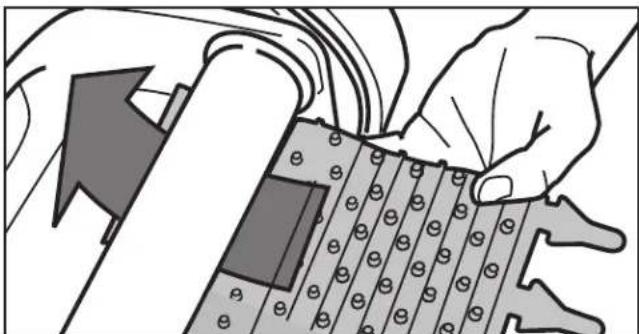
Figure 18. Position the New Brush on Roller
- Thread each tab into the slot provided and gently feed it through until the heel comes out at the other side of the slot.(Figure 19).
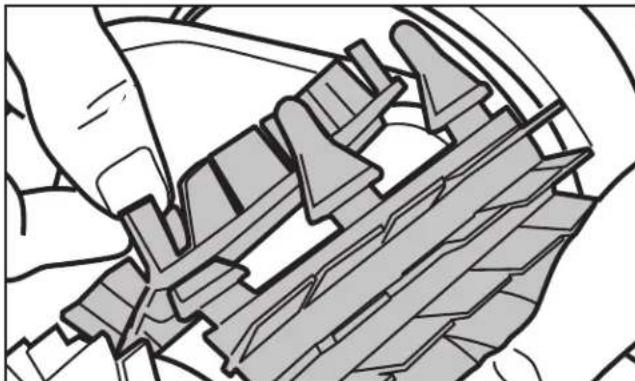
Figure 19. Pull Tabs Through Each Slot
- Use a pair of scissors to cut the tabs 3/4 inch from the heel so that they are no higher than the cleaning blade (Figure 20).
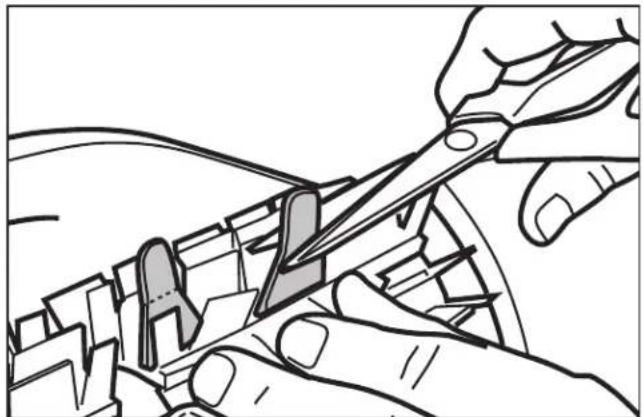
Figure 20. Cut Tabs
6
Installing iAquaLink®
(connected models only)

ANDROID APP ON
Google play

Available on the
App Store
The iAquaLink app is available for download from the App Store or Google Play.
With iAquaLink Control, you can connect to your robotic cleaner from anywhere, anytime to access functions and troubleshooting advice. App features are dependant on model.
Before you begin installation, make sure you have the following:
- IMPORTANT: Have your Wi-Fi network password available.
- Robotic Cleaner submerged in the pool.
Control Box connected and plugged into a GFCI outlet. - Smart device (phone or tablet) with Wi-Fi and Bluetooth enabled
- Wi-Fi router with sufficient signal strength at the Control Box
Download the App
Install or update the iAquaLink app from the App Store or Google Play.
Sign Up and Log In
Open the iAquaLink app, then Sign Up or Log In.
Complete all required fields in the Account Set Up page and agree to the Terms and Conditions.
Add to Mobile App System
- On the My Systems page, click + in the upper right-hand corner to add a system.
-
Choose "Robotic Cleaner". Follow in app instructions to add your cleaner and connect it to your home router.
-
On the control box, press

Bluetooth light
indicates status:
BLINKING - searching for signal
SOLID - paired with phone
Wi-Fi light

cates status:
BLINKING - connected to router
SOLID - connected to the internet
NOTE: Errors during connection may be the results of insufficient Wi-Fi signal strength at the control box location. If you are unable to move the control or router to improve signal strength, you may need a Wi-Fi extender to boost your signal strength. (See iAquaLink Troubleshooting section.)
An incorrect password may also be that cause of a connection error. If the signal strength at the control box is good, double check the network name and credentials for the router you are trying to access.
7 iAquaLink® Control
(connected models only)
Once you have downloaded the iAquaLink app and connected the device to Wi-Fi, the iAquaLink app allows for robotic cleaner control from anywhere, anytime. Functions vary within the iAqualink app depending on which cleaner model you have.

WARNING
Do not enter pool while the robotic cleaner is in water.
iAquaLink® Control Home Screen
App function and design is subject to change.

Start/Stop Cleaning

Remote*

Clean Mode

Lift System*
*not available on all models
Start / Stop Cleaning
The factory default cleaning surface setting is Floor, Wall, Waterline.
- From the Home screen or the Control Box press the Start/Stop button to begin cleaning.
- The app displays the cycle time in hours and minutes.
- Press to interrupt and cancel an inprogress cleaning cycle.
Set Cleaning Mode
- From the home screen, select Cleaning Mode to view and select.
Remote Control*
Use your mobile device as a remote control.
IMPORTANT: Only use Remote Control when in view of the cleaner.
- From the main screen, select the Remote tab.
- You can direct the cleaner using the remote control to help pick up debris.
NOTE: If you experience significant delays between the app command and cleaner response, you may have a weak Wi-Fi signal or other connectivity challenges that interfere with the immediacy of the remote control functions.
*not available on all models
Removal from Pool
Depending on the model, you can manually remove the cleaner from the pool or use the Lift System* feature in app or on the control box.
The Lift System is designed to assist in retrieving the robot from the pool. Lift System can be activated at any time during or after a cleaning cycle.
IMPORTANT: Only use Lift System when in view of the cleaner.
- From the home screen, select Lift System to enter automated procedure.
- Use the left and right controls to rotate the cleaner to face the wall of your choice.
- Press the Start Button to drive the cleaner up the wall it is facing. The cleaner will wait at the water line to be retrieved.
NOTE: To stop the procedure at any time, press and release the button again.
4. When in reach, grab the cleaner handle and begin to pull cleaner out of the water. The cleaner will quickly expel water to allow for lighter, easier removal.
NOTE: Never lift the cleaner out of the pool by the floating cable.
*not available on all models
In-App Error Messages and Troubleshooting
If an error occurs, cleaning will be interrupted and the app will display an error message. The message will display:
The error code and name
A brief description of the error
- A set of troubleshooting steps you can take to resolve the error (if available for the error type)
Tap "Clear Error" when you believe you have fixed the problem and want to try again or anytime you want to return to the home screen.
System Settings
Access System Settings by pressing the gear icon in the upper right hand corner of the app screen.
8 Troubleshooting
- If the status indicator on the control box flashes to alert the user, follow the recommended troubleshooting tips below
- User alerts can also be accessed in the iAquaLink® app (on connected models only)
Error Codes
| In-App Display (depending on the model) | Solutions | |
| 1 flash / 1 second pause | Communication | · Disconnect and reconnect the cleaner. · Check that the cable is properly connected to the control box. · Check that nothing is interfering with the cable connection area. · If this does not resolve the problem, contact your local retailer for a diagnostic review or call customer service. |
| 2 flash / 1 second pause | Right traction motor Left traction motor Right traction motor consumption Left traction motor consumption | · Check that debris or the cable is not preventing the brushes or the tracks from rotating freely. · Check that nothing is interfering with the cable connection area. · Rotate the track by a quarter of a turn in the same direction until it rotates smoothly · If this does not resolve the problem, contact your local retailer for a diagnostic review or call customer service. |
| 3 flash / 1 second pause | Cleaner out of the water | · Turn the cleaner off. · Clean the filter thoroughly. · Put it back in the water, shaking to release the air bubbles. · Restart the cycle. · If this does not resolve the problem, contact your local retailer for a diagnostic review or call customer service. |
| Pump motor Pump motor consumption | · Check that no debris or hair is blocking the impeller. · Clean the filter thoroughly. · If this does not resolve the problem, contact your local retailer for a diagnostic review or call customer service. | |
| iAquaLink Control Models Only | ||
| 5 flash / 1 second pause | Software update failed or incomplete | · Disconnect and reconnect the control box to restart the update. · If this does not resolve the problem, contact your local retailer for a diagnostic review or call customer service. |
| Rapid flashing | Update in progress | · Wait for the update to complete. · Do not disconnect the power cable from the cleaner during an update. |
| N/A Connection error | · Check the status of the Bluetooth/Wi-Fi LEDs on the control box. | |
| N/A | A red dot appears in the "My systems" list | · Robot not plugged in or not connected to the home Wi-Fi network. If the dot is red when the control box is plugged in and if the Bluetooth/Wi-Fi icons are lit up, refresh the screen (by swiping downwards). · If the dot turns green: the robot is ready for use. |
Deleting an error code
Using the control box:
- After following the troubleshooting solutions, press any key to delete the error code (except the button).
From the iAquaLink® app (connected models only): - After following the troubleshooting solutions, press Clear Error.
General Troubleshooting
The following list provides some helpful hints for troubleshooting common challenges when using the cleaner.
| User Issue Possible Cause Suggested Solution | ||
| The cleaner does not stay on the pool surface or is floating excessively. | There is air trapped inside the cleaner housing. | Remove cleaner from pool and re-submerge (see Install and Submerge the Cleaner). |
| The filter canister is full or dirty. Dispose | of debris and thoroughly clean the filter canister with mild soap and a soft brush. Then, re-submerge the cleaner (see Clean the Filter Canister). | |
| The cleaner is not climbing walls. | The filter canister is full or dirty. Dispose | of debris and thoroughly clean the filter canister with mild soap and a soft brush. Then, re-submerge the cleaner (see Clean the Filter Canister). |
| Confirm appropriate pool chemistry Spea | peak with your pool service professional. Do not leave cleaner in the pool during any chemical treatments. | |
| The cleaner is not moving No | connected to electricity. The outlet the | control box is connected to, is not supplying electrical power. Check that the outlet to which the control box is connected is receiving electricity. |
| Cycle not started. Press the Start button | to initiate a cleaning cycle. | |
| Reset needed Disconnect the unit power | and reconnect after 20 seconds. If the problem is not resolved, contact your local retailer to request a diagnostic review or contact Technical Support at 1-800-822-7933. | |
| Cable is tangling in the pool. | Cable is not spread evenly in the water | Verify the floating cable enters the water near the middle of the pool length. Spread all of the floating cable carefully in the pool, ensuring there are no kinks or coils. Ensure the cable is not too tightly wrapped or coiled when storing. If the problem persists, lay the cable straight in the sun to relax it and remove kinks. Follow the procedure in Cord Tangling to avoid and correct tangled cord. |
| The cleaner is not cleaning the pool effectively. | Filter canister is full or dirty. Dispose of | debris and thoroughly clean the filter canister with mild soap and a soft brush. Then, re-submerge the cleaner (see: Clean the Filter Canister). |
| Brushes are worn. Check the wear indi | icator(s). Contact your local dealer for spare parts. | |
| Cable is excessively tangled. Untangle | the twisted cord and lay in sun to reduce memory. (See: Cord Tangling). | |
iAquaLink® Troubleshooting (not available on all models)
This information can help to troubleshoot connection and setup challenges between the iAquaLink app and the cleaner.
How It Works
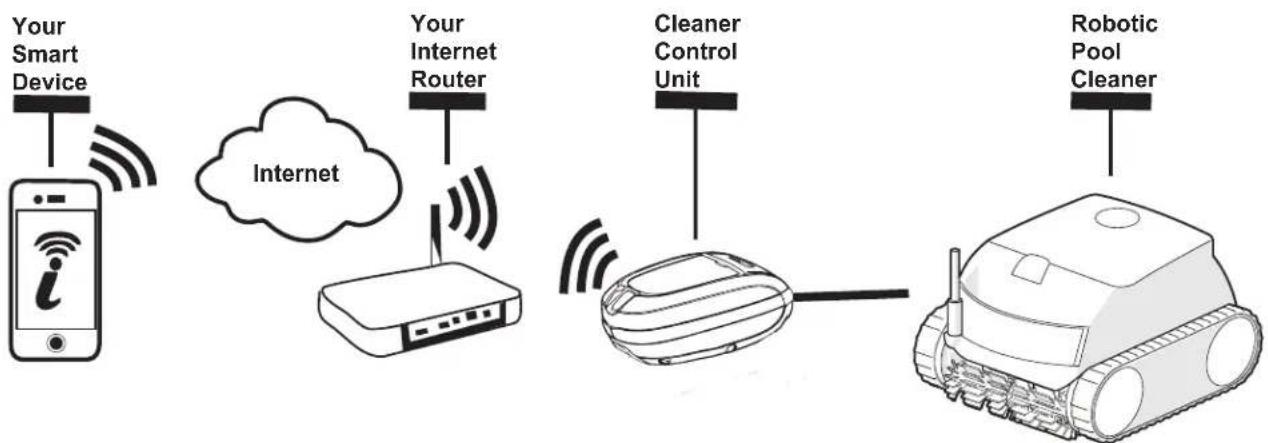
How to connect:
You must connect to the home router (network) by first establishing a direct connection between the control box and your smart device. (See: Configuring the System.)
IMPORTANT: It is recommended to locate the control box as close to the home router as practical. Do not use an extension cord.
Common iAquaLink® Troubleshooting
Remember, if you get a new Wi-Fi Router, reset the defaults of your current Wi-FiRouter or simply change your Wi-Fi network password, you will have to re-establish the connection between your cleaner and the router. (See: Configure the System.)
| User Issue Possible Cause Suggested Solution | ||
| All lights are off Bright sunlight | Shield the lights to block sunlight and | re-check if the lights are lit. |
| Control box is unplugged. Plug the control box in. (See: Connect to a Power Source). | ||
| Power outage. Verify that the breaker is on and electricity is being supplied to the outlet. | ||
| Lost internet connection. Check internet connection - Network may be down. | ||
| Wi-Fi is off Router is off. Turn router on. | ||
| Router password was changed. Reset router with new password. | ||
| Wi-Fi light is flashing Lost internet connection Check internet connection on - Network may be down. | ||
| Control box is too far from home router | Relocate the control box as near to the home router as practical. (See: Install and Submerge the Cleaner) Do not use an extension cord. | |
| Weak Wi-Fi signal • Check for adequate Wi-Fi signal strength. • With a Windows laptop, go to Network Connections in the Control Panel. Check Signal Strength meter under Wireless Network Connection icon while standing near the control box. • With a smart device, search for, download, and use an app that can check signal strength while standing near the control box. If Wi-Fi signal is weak, consider installing a Wi-Fi extender. | ||
| Connectivity issue with local Wi-Fi or connection to the server | Contact your local internet service provider. • Unplug your control box and wait 10 seconds. Plug in the box again and see if lights illuminate. • Check Internet connection - Network may be down. | |
| Status light is continuously flashing | Antenna firmware update in progress. | Wait for the update to complete and the flashing to end. Do not disconnect the power cable from the cleaner during an update. |
| Power LED is blinking fast | Firmware update in progress | Wait for blinking to stop, indicating update is complete. Do not unplug from power during an update. |
Zodiac Pool Systems LLC
2882 Whiptail Loop # 100, Carlsbad, CA 92010
1.800.822.7933 | www.PolarisPool.com
Zodiac Pool Systems Canada, Inc.
2-3365 Mainway
Burlington, ON • Canada L7M 1A6
1.888.647.4004 | www.ZodiacPoolSystems.ca
©2020 Zodiac Pool Systems LLC. All rights reserved.
All trademarks are property of their respective owners.
Apple and the Apple logo are trademarks of Apple, Inc., registered in the U.S. and other countries. App Store is a service mark of
Apple, Inc., registered in the U.S. and other countries. Google Play and the Google Play logo are trademarks of Google LLC.
TYPE EN27---
TYPE EN37---
Zodiac Pool Systems LLC
2882 Whiptail Loop # 100, Carlsbad, CA 92010
1.800.822.7933 | www.PolarisPool.com
Zodiac Pool Systems Canada, Inc.
2-3365 Mainway
Burlington, ON • Canada L7M 1A6
1.888.647.4004 www.ZodiacPoolSystems.ca
Zodiac Pool Systems LLC
2882 Whiptail Loop # 100, Carlsbad, CA 92010
1.800.822.7933 | www.PolarisPool.com
Zodiac Pool Systems Canada, Inc.
2-3365 Mainway
Burlington, ON • Canada L7M 1A6
1.888.647.4004 www.ZodiacPoolSystems.ca
©2020 Zodiac Pool Systems LLC. All rights reserved.
All trademarks are property of their respective owners.
Apple and the Apple logo are trademarks of Apple, Inc., registered in the U.S. and other countries. App Store is a service mark of Apple, Inc., registered
in the U.S. and other countries. Google Play and the Google Play logo are trademarks of Google LLC.

- FCC Statement
- CAUTION
- Table of Contents
- Important Safety Instructions 4
- Cleaner Specifications 5
- Getting Started 6
- General Cleaner Operation. 7
- Maintenance 10
- Installing iAquaLink 14
- iAquaLink® Control* 15
- Troubleshooting 16
- Important Safety Instructions
- WARNING
- PREVENT ELECTRICAL SHOCK
- PREVENT CHILD INJURY AND DROWNING
- USE OF THE ROBOTIC CLEANER IN A VINYL LINER POOL
- SAVE THESE INSTRUCTIONS
- Cleaner Specifications
- Technical Specifications
- Getting Started
- Contents
- Connect to a Power Source
- General Cleaner Operation
- IMPORTANT
- Install and Submerge the Cleaner
- Start / Stop Cleaning and Select Cleaning Mode
- Button Functions
- Control Box Buttons
- Removal from Pool
- Using the Lift System*
- Maintenance
- Cord Tangling
- Clean the Filter Canister
- Store the Cleaner When Not in Use
- Replacing Wear Parts
- Replacing Brushes
- 6
- Installing iAquaLink®
- Before you begin installation, make sure you have the following:
- Download the App
- Sign Up and Log In
- Add to Mobile App System
- iAquaLink® Control
- iAquaLink® Control Home Screen
- Start / Stop Cleaning
- Set Cleaning Mode
- Remote Control*
- In-App Error Messages and Troubleshooting
- System Settings
- Troubleshooting
- Deleting an error code
- General Troubleshooting
- iAquaLink® Troubleshooting (not available on all models)
- How It Works
- How to connect:
- Common iAquaLink® Troubleshooting
- Zodiac Pool Systems LLC
- Zodiac Pool Systems Canada, Inc.
Brand : POLARIS
Model : EPIC 8640
Category : Swimming Pool