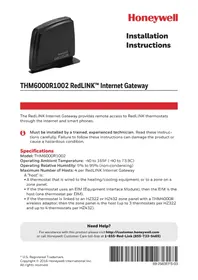
RedLink THM6000R1002 - Server HONEYWELL - Free user manual and instructions
Find the device manual for free RedLink THM6000R1002 HONEYWELL in PDF.

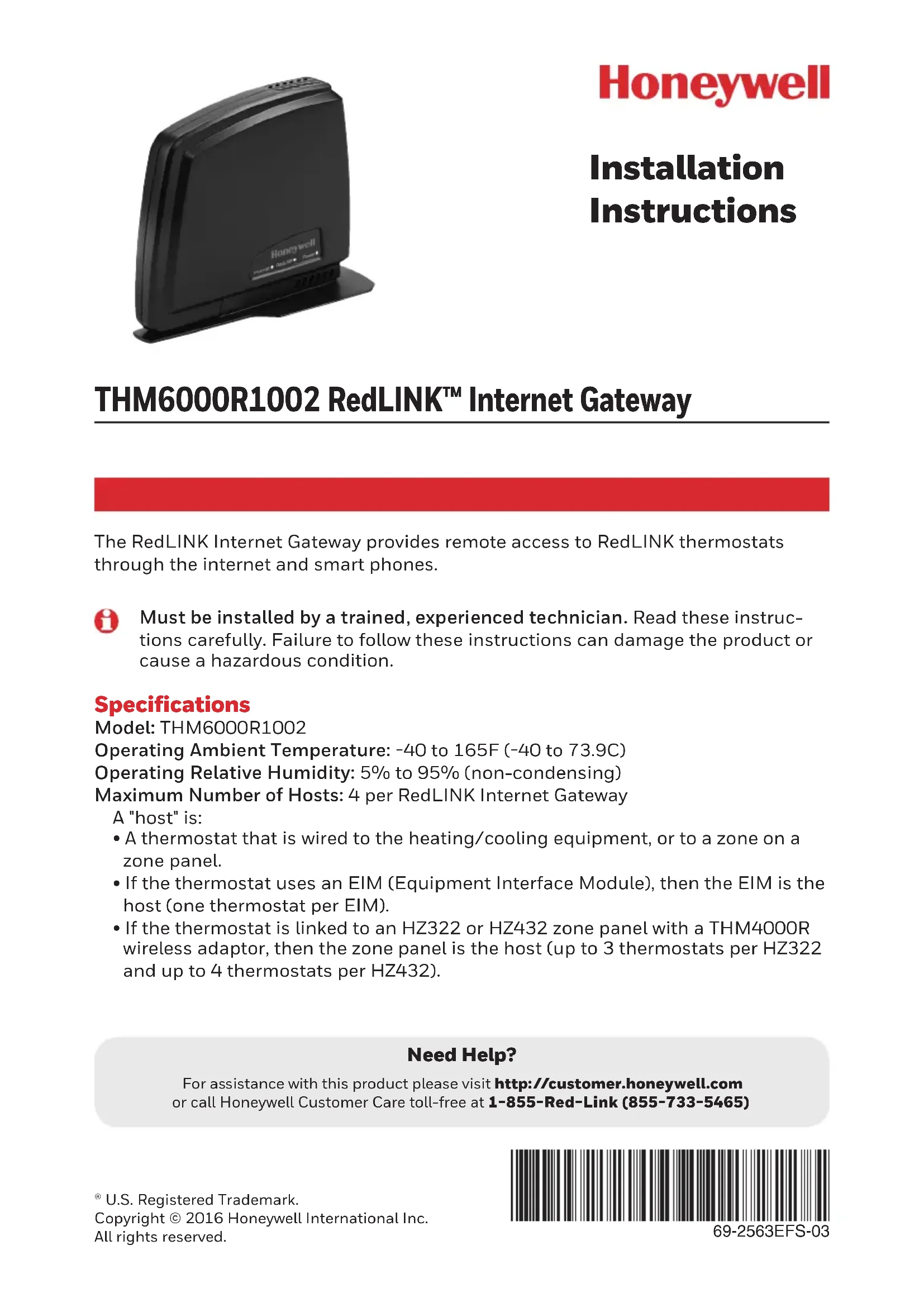


| Product Type | RedLINK Internet Gateway Server |
| Brand | Honeywell |
| Model | THM6000R1002 |
| Supply Voltage | 5 V DC via included power adapter |
| Power Consumption | Less than 5 W (estimated) |
| Operating Temperature | -40 to 73.9 °C |
| Operating Humidity | 5 % to 95 % non-condensing |
| Maximum Number of Hosts | 4 (thermostats or EIM modules) |
| Connectivity | Ethernet 10/100, RedLINK wireless 2.4 GHz |
| Dimensions (approx.) | 120 x 80 x 30 mm |
| Weight (approx.) | 200 g |
| Key Features | Remote access to RedLINK thermostats via Internet and smartphone app, wireless configuration, remote monitoring |
| LED Indicators | Power (solid green), Internet (red/amber/green), RedLINK (off/flashing green/solid green/red) |
| Connect Button | One button to initiate wireless connection with thermostats |
| Maintenance | Clean with a soft, dry cloth |
| Safety | Compliant with FCC Part 15, minimum RF exposure distance of 20 cm |
| Included Accessories | Power adapter, Ethernet cable |
| Repairability | No user-serviceable parts |
| Certifications | FCC, Industry Canada (IC) |
| General Information | Patents pending, made in USA |
Frequently Asked Questions - RedLink THM6000R1002 HONEYWELL
User questions about RedLink THM6000R1002 HONEYWELL
0 question about this device. Answer the ones you know or ask your own.
Ask a new question about this device
Download the instructions for your Server in PDF format for free! Find your manual RedLink THM6000R1002 - HONEYWELL and take your electronic device back in hand. On this page are published all the documents necessary for the use of your device. RedLink THM6000R1002 by HONEYWELL.
USER MANUAL RedLink THM6000R1002 HONEYWELL
Installation Instructions
THM6000R1002 RedLINK™ Internet Gateway
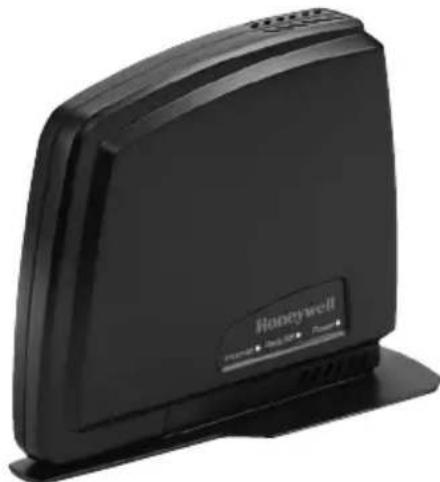
The RedLINK Internet Gateway provides remote access to RedLINK thermostats through the internet and smart phones.

Must be installed by a trained, experienced technician. Read these instructions carefully. Failure to follow these instructions can damage the product or cause a hazardous condition.
Specifications
Model: THM6000R1002
Operating Ambient Temperature: -40 to 165F (-40 to 73.9C)
Operating Relative Humidity: 5% to 95% (non-condensing)
Maximum Number of Hosts: 4 per RedLINK Internet Gateway
A "host" is:
- A thermostat that is wired to the heating/cooling equipment, or to a zone on a zone panel.
- If the thermostat uses an EIM (Equipment Interface Module), then the EIM is the host (one thermostat per EIM).
- If the thermostat is linked to an HZ322 or HZ432 zone panel with a THM4000R wireless adaptor, then the zone panel is the host (up to 3 thermostats per HZ322 and up to 4 thermostats per HZ432).
Need Help?
For assistance with this product please visit http://customer.honeywell.com or call Honeywell Customer Care toll-free at 1-855-Red-Link (855-733-5465)
THM6000R1002 RedLINK™ Internet Gateway
Installation
Step 1
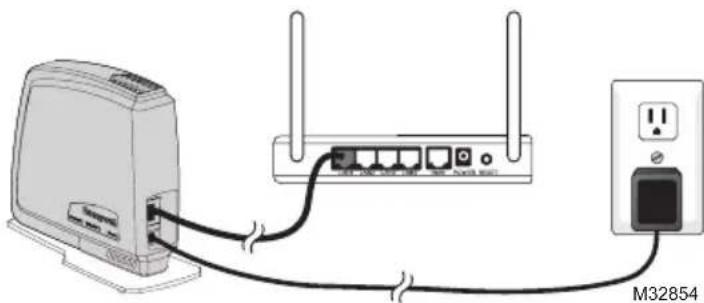
Connect the power cable to the RedLINK internet gateway.
Step 2
Connect the power adapter to a wall socket.
Step 3
Connect an Ethernet cable from the RedLINK internet gateway to an internet-connected home router.
Step 4
Enter the WIRELESS SETUP MODE on your thermostat (refer to thermostat instructions).
Step 5
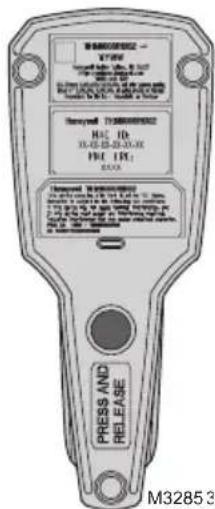
Press and release the CONNECT button on the bottom of the RedLINK internet gateway.
Step 6
Instruct the homeowner on the account set up and registration process.
- Visit www.mytotalconnectcomfort.com and create an account.
- Validate the account.
- Log in and register the gateway at www.mytotalconnectcomfort.com by entering the MAC ID and MAC CRC found on the bottom of the device.
- Provide company business card so that the homeowner can enter your contact information.
LED Behavior
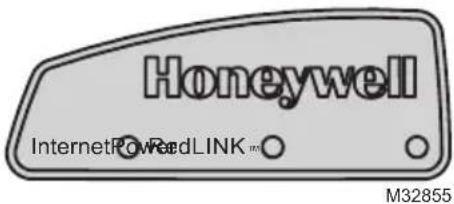
Power LED
Solid Green: The Gateway is powered
Internet LED
Solid Red: No Ethernet Connection (cable disconnected or Ethernet connection error)
Solid Amber: Ethernet Connection Detected (cable connected and Gateway is retrieving the IP address)
Blinking Amber: Acquiring DHCP
Blinking Green: Data Exchange with TCC
Solid Green: Normal, Connected to TCC
Notes
The RedLINK Internet Gateway (RIG) pings a specific server approximately every 5 seconds. The RIG waits for up to 15 seconds for a response. If there is no response, then the ping action failed.
- RIG will try different servers. If at least one can be reached, the Internet LED will be solid green.
RIG will flash red at 1Hz if it cannot ping all servers. - RIG will work with the server it can reach, but will regularly ping servers that didn't give a response to see if the connection is restored.
- If there is a continuous ping error to the servers, RIG will release the IP and capture it again. The Internet LED will be amber during this time.
RedLINK LED
Off: The Gateway is not connected to the RedLINK system
Green (flashing): The Gateway is connecting to the RedLINK system
Green: The Gateway is connected to the RedLINK system
Red: The RedLINK Internet Gateway is not communicating with the RedLINK system.
RedLink Internet Gateway Checklist
Power Cable is Connected
Green Power Light is On
□ Ethernet Cable is Connected
Internet Light is On
- Gateway is Connected to the RedLINK system
RedLINK Green LED is On
Gateway is Registered to www.mytotalconnectcomfort.com
FCC Compliance Statement (Part 15.19) (USA only)
This device complies with Part 15 of the FCC Rules. Operation is subject to the following two conditions:
1 This device may not cause harmful interference, and
2 This device must accept any interference received, including interference that may cause undesired operation.
FCC Warning (Part 15.21) (USA only)
Changes or modifications not expressly approved by the party responsible for compliance could not void the user's authority to operate the equipment.
FCC Interference Statement (Part 15.105 (b)) (USA only)
This equipment has been tested and found to comply with the limits for a Class B digital device, pursuant to Part 15 of the FCC Rules. These limits are designed to provide reasonable protection against harmful interference in a residential installation. This equipment generates uses and can radiate radio frequency energy and, if not installed and used in accordance with the instructions, may cause harmful interference to radio communications. However, there is no guarantee that interference will not occur in a particular installation. If this equipment does cause harmful interference to radio or television reception, which can be determined by turning the equipment off and on, the user is encouraged to try to correct the interference by one of the following measures:
- Reorient or relocate the receiving antenna.
- Increase the separation between the equipment and receiver.
- Connect the equipment into an outlet on a circuit different from that to which the receiver is connected.
- Consult the dealer or an experienced radio/TV technician for help.
Equipment interface module, thermostats and outdoor sensor
To comply with FCC and Industry Canada RF exposure limits for general population/uncontrolled exposure, the antenna(s) used for these transmitters must be installed to provide a separation distance of at least 20cm from all persons and must not be co-located or operating in conjunction with any other antenna or transmitter.
Portable Comfort Control
This portable transmitter with its antenna complies with FCC and Industry Canada RF exposure limits for general population/uncontrolled exposure. This device must not be co-located or operating in conjunction with any other antenna or transmitter.
Section 7.1.2 of RSS-GEN
Under Industry Canada regulations, this radio transmitter may only operate using an antenna of type and maximum (or lesser)
gain approved for the transmitter by Industry Canada. To reduce potential radio interference to other users, the antenna type and its gain should be so chosen that the equivalent isotropically radiated power (e.i.r.p.) is not more than that necessary for successful communication.
Section 7.1.3 of RSS-GEN
Operation is subject to the following two conditions:
1 this device may not cause interference, and
2 this device must accept any interference, including interference that may cause undesired operation of the device.
Automation and Control Solutions
Honeywell International Inc.
1985 Douglas Drive North
Golden Valley, MN 55422
http://customer.honeywell.com
Patents Pending
^ 念 U.S. Registered Trademark. © 2016 Honeywell International Inc.
69-2563EFS-03 M.S. Rev. 10-16
Printed in U.S.A.
Honeywell
Honeywell International Inc.
1985 Douglas Drive North
Golden Valley, MN 55422
http://customer.honeywell.com
69-2563EFS-03 M.S. Rev. 10-16
Honeywell International Inc.
1985 Douglas Drive North
Golden Valley, MN 55422
http://customer.honeywell.com
Patentes en trémite
69-2563EFS-03 M.S. Rev. 10-16
Impreso en EE. UU.
Honeywell
- Installation Instructions
- THM6000R1002 RedLINK™ Internet Gateway
- Specifications
- Need Help?
- Installation
- Step 1
- Step 2
- Step 3
- Step 4
- Step 5
- Step 6
- LED Behavior
- Power LED
- Internet LED
- Notes
- RedLINK LED
- RedLink Internet Gateway Checklist
- FCC Compliance Statement (Part 15.19) (USA only)
- FCC Warning (Part 15.21) (USA only)
- FCC Interference Statement (Part 15.105 (b)) (USA only)
- Equipment interface module, thermostats and outdoor sensor
- Portable Comfort Control
- Section 7.1.2 of RSS-GEN
- Section 7.1.3 of RSS-GEN
- Automation and Control Solutions
Brand : HONEYWELL
Model : RedLink THM6000R1002
Category : Server