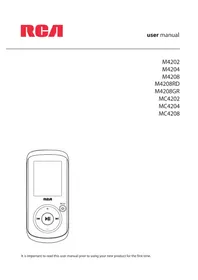
Opal M4208 - Media player RCA - Free user manual and instructions
Find the device manual for free Opal M4208 RCA in PDF.



User questions about Opal M4208 RCA
0 question about this device. Answer the ones you know or ask your own.
Ask a new question about this device
Download the instructions for your Media player in PDF format for free! Find your manual Opal M4208 - RCA and take your electronic device back in hand. On this page are published all the documents necessary for the use of your device. Opal M4208 by RCA.
USER MANUAL Opal M4208 RCA
It is important to read this user manual prior to using your new product for the first time.
Contents
Safety information
FCC information ....3
Important battery information ....4
Electrostatic disturbance ....4
Headset safety 4
IMPORTANT SAFETY INFORMATION ....5
End user license agreement
End user license agreement ....6
Before you begin
Copyright warning 8
Back up your data ....8
Unpacking your player 8
Computer system requirements 8
Secure music transfer requirements ....8
Connecting to the computer 9
Charging the player 9
Managing files on your RCA Player
Using RCA easyRip 10
Using Windows Explorer 10
Deleting files from the player ....11
Disconnecting the player from the PC ....11
General controls
Turning the player on and off 12
Locking the player controls 12
Resetting the player 12
Using the menus
Menu types 13
Menu navigation 13
The Home menu 14
Music
Playing music files 15
Music playback 15
Music playback display 15
Pictures
Playing picture files ....16
Picture viewing 16
Videos
Playing video files 17
Video viewing 17
Radio
Playing FM radio 18
Storing and recalling preset stations 18
Improving FM radio sound 19
Recording FM radio 19
Playing back FM radio recordings 20
Copying recordings to your PC 20
Audiobooks
Playing audiobooks 21
Audiobooks playback controls 21
Skipping through audiobook sections 21
Favorites
Creating a "Favorites" playlist 22
Removing files from "Favorites" playlist ....22
Voice Memo
Recording voice memo 23
Playing back voice memo 23
Copying recordings to your PC 23
Settings
Changing the player's settings 24
Shuffle 24
Equalizer 24
Customize menu 24
Slideshow....24
Brightness 24
Screensaver 24
Power save 24
RecDur (Record duration) 24
FreqStep (Frequency Step) 24
Language 24
Protocol....24
System info 24
Restore defaults 24
Additional information
Tips and troubleshooting 25
For your records 26
Visiting RCA website 26
Technical specification 26
Specifications....26
Limited warranty
Limited warranty 27
FCC information
This device complies with part 15 of the FCC rules. Operation is subject to the following two conditions: (1) This device may not cause harmful interference, and (2) This device must accept any interference received including interference which may cause undesired operation.
This equipment has been tested and found to comply with the limits for a Class B digital device, pursuant to Part 15 of the FCC Rules. These limits are designed to provide reasonable protection against harmful interference in a residential installation. This equipment generates, uses and can radiate radio frequency energy and, if not installed and used in accordance with the instructions, may cause harmful interference to radio communications. However, there is no guarantee that interference will not occur in a particular installation.
If this equipment does cause harmful interference to radio or television reception, which can be determined by turning the equipment off and on, the user is encouraged to try to correct the interference by one or more of the following measures:
- Reorient or relocate the receiving antenna.
- Increase the separation between the equipment and receiver.
- Connect the equipment into an outlet on a circuit different from that to which the receiver is connected.
- Consult the dealer or an experienced radio / TV technician for help.
In accordance with FCC requirements, changes or modifications not expressly approved by manufacturer could void the user's authority to operate this product.
Manufacturer/Responsible party
Audiovox Electronics Corp, 150 Marcus Blvd, Hauppauge, NY 11788 1-317-810-4880 (Please note this phone number is for regulatory matters only. No technical or product support is available via this number.)
|  THE LIGHTNING FLASH AND ARROWHEAD WITHIN THE TRIANGLE IS A WARNING SIGN ALERTING YOU OF "DANGEROUS VOLTAGE" INSIDE THE PRODUCT. | CAUTION RISK OF ELECTRIC SHOCK DO NOT OPEN CAUTION: TO REDUCE THE RISK OF ELECTRIC SHOCK, DO NOT REMOVE COVER (OR BACK). NO USER-SERVICEABLE PARTS INSIDE. REFER SERVICING TO QUALIFIED SERVICE PERSONNEL. | ! THE EXCLAMATION POINT WITHIN THE TRIANGLE IS A WARNING SIGN ALERTING YOU OF IMPORTANT INSTRUCTIONS ACCOMPANYING THE PRODUCT. |
| SEE MARKING ON BOTTOM / BACK OF PRODUCT | ||
WARNING: TO PREVENT FIRE OR ELECTRICAL SHOCK HAZARD, DO NOT EXPOSE THIS PRODUCT TO RAIN OR MOISTURE.

Safety information
Important battery information
Warning: Your product contains a battery and charging system which is designed to work in temperatures that do not exceed 50°C (122°F). Leaving this product in a closed automobile or the trunk of an automobile where temperatures may exceed 50°C may result in permanent battery damage, fire, or explosion. Please remove your product from the automobile when you exit, do not place your product in the trunk of your automobile, and do not leave your product in any location where temperatures may exceed 50°C.
Important Battery Precautions
- Any battery may present a risk of fire, explosion, or chemical burn if abused. Do not try to charge a battery that is not intended to be recharged, do not incinerate, and do not puncture.
- Non-rechargeable batteries, such as alkaline batteries, may leak if left in your product for a long period of time. Remove the batteries from the product if you are not going to use it for a month or more.
- If your product uses more than one battery, do not mix types and make sure they are inserted correctly. Mixing types or inserting incorrectly may cause them to leak.
- Discard any leaky or deformed battery immediately. They may cause skin burns or other personal injury.
- Please help to protect the environment by recycling or disposing of batteries according to federal, state, and local regulations.
To minimize the risk of fire, explosion, or chemical burn, observe the following precautions:
- Do not use an unauthorized battery. Use only the rechargeable battery that came with your product or that is listed in the user's guide.
- Do not use unauthorized chargers or power adapters. Use only chargers that came with your product or that is listed in the user's guide.
- Do not attempt to open the rechargeable battery or battery pack. There are no user serviceable parts inside.
- Do not leave in a hot automobile or in temperatures exceeding 50^ (122°F).
Caution: Danger of explosion if battery is incorrectly replaced. Replace only with the same or equivalent type.
Electrostatic disturbance
This unit may temporarily cease to function if subjected to electrostatic disturbance. To resume normal operation, you may reset the player by pressing and holding ⏻/MENU for more than 10 seconds.
Precautions for the player
- Do not use the unit immediately after transportation from a cold place to a warm place; condensation problems may result.
- Avoid shock to the unit.
- Do not store the unit near fire, places with high temperature or in direct sunlight. Exposure to direct sunlight or extreme heat (such as inside a parked car) may cause damage or malfunction.
- Do not expose to rain or moisture.
- Do not operate or store unit in places with frequent static electricity or electrical noise (e.g. speaker, TV set).
- Clean the unit with a soft cloth or a damp chamois leather. Never use solvents.
- The unit must only be opened by qualified personnel.
Headset safety
To use a headset safely, please keep the following in mind:
- Do not play your headset at a high volume. Hearing experts advise against continuous extended play.
- If you experience ringing in your ears, turn down the volume or stop using the headset.
- Do not use a headset while driving a motorized vehicle or riding a bike. It may cause a traffic hazard and is illegal in many areas.
- Even if your headset is an open-air type designed to let you hear outside sounds, don't turn up the volume so high that can't hear sounds around you.
Keep player out of direct sunlight. Exposure to direct sunlight or extreme heat (such as inside a parked car) may cause damage or malfunction.

Safety information
IMPORTANT SAFETY INFORMATION
PLEASE READ AND SAVE FOR FUTURE REFERENCE
Some of the following information may not apply to your particular product; however, as with any electronic product, precautions should be observed during handling and use.
- Read these instructions.
- Keep these instructions.
- Heed all warnings.
- Follow all instructions.
- Do not use this apparatus near water.
- Clean only with dry cloth.
- Do not block any ventilation openings. Install in accordance with the manufacturer's instructions.
- Do not install near any heat sources such as radiators, heat registers, stoves, or other apparatus (including amplifiers) that produce heat.
- Do not defeat the safety purpose of the polarized or grounding-type plug. A polarized plug has two blades with one wider than the other. A grounding type plug has two blades and a third grounding prong. The wide blade or the third prong is provided for your safety. If the provided plug does not fit into your outlet, consult an electrician for replacement of the obsolete outlet.
- Protect the power cord from being walked on or pinched particularly at plugs, convenience receptacles, and the point where they exit from the apparatus.
- Only use attachments/accessories specified by the manufacturer.
- Use only with the cart, stand, tripod, bracket, or table specified by the manufacturer, or sold with the apparatus. When a cart is used, use caution when moving the cart/apparatus combination to avoid injury from

Portable Cart Warning
- Unplug this apparatus during lightning storms or when unused for long periods of time.
- Refer all servicing to qualified service personnel. Servicing is required when the apparatus has been damaged in any way, such as power-supply cord or plug is damaged, liquid has been spilled or objects have fallen into the apparatus, the apparatus has been exposed to rain or moisture, does not operate normally, or has been dropped.
• ADDITIONAL SAFETY INFORMATION
- Apparatus shall not be exposed to dripping or splashing and no objects filled with liquids, such as vases, shall be placed on the apparatus.
• Always leave sufficient space around the product for ventilation. Do not place product in or on a bed, rug, in a bookcase or cabinet that may prevent air flow through vent openings. - Do not place lighted candles, cigarettes, cigars, etc. on the product.
- Connect power cord only to AC power source as marked on the product.
- Care should be taken so that objects do not fall into the product.
- Do not attempt to disassemble the cabinet. This product does not contain customer serviceable components.
- The marking information is located at the bottom of apparatus.
- Caution marking is located at bottom of apparatus.
Important Battery Precautions
- Any battery may present a risk of fire, explosion, or chemical burn if abused. Do not try to charge a battery that is not intended to be recharged, do not incinerate, and do not puncture.
- Non-rechargeable batteries, such as alkaline batteries, may leak if left in your product for a long period of time. Remove the batteries from the product if you are not going to use it for a month or more.
- If your product uses more than one battery, do not mix types and make sure they are inserted correctly. Mixing types or inserting incorrectly may cause them to leak.
- Discard any leaky or deformed battery immediately. They may cause skin burns or other personal injury.
- Please help to protect the environment by recycling or disposing of batteries according to federal, state, and local regulations.
- Do not expose batteries to excessive heat (for example, by leaving them in sunlight or close to fire).
End user license agreement
IMPORTANT: READ CAREFULLY BEFORE DOWNLOADING OR INSTALLING THIS SOFTWARE!
THIS END USER LICENSE AGREEMENT (THIS "EULA") IS A LEGAL AGREEMENT BETWEEN YOU AND AUDIOVOX CORPORATION AND, AS APPLICABLE, ANY AUDIOVOX SUBSIDIARY, AS DEFINED BELOW (COLLECTIVELY "AUDIOVOX"), FOR THE RCA BRANDED PORTABLE DIGITAL AUDIO/VIDEO DEVICE APPLICATION/DRIVER SOFTWARE PROGRAM WHICH MAY INCLUDE ASSOCIATED SOFTWARE COMPONENTS, SOFTWARE LICENSED BY AUDIOVOX FROM THIRD PARTIES ("LICENSORS") AND ASSOCIATED DOCUMENTATION, IF ANY (COLLECTIVELY, THE "PROGRAM"). THIS EULA CONTAINS IMPORTANT LEGAL LIMITATIONS, RESTRICTIONS AND DISCLAIMERS, AND ALSO SPECIFIES THE DURATION OF YOUR LICENSE.
BY INSTALLING THE PROGRAM OR CLICKING ON THE ACCEPTANCE BUTTON OF THE PROGRAM, COPYING OR OTHERWISE USING THE PROGRAM, YOU ACKNOWLEDGE AND AGREE THAT YOU HAVE READ THIS EULA, UNDERSTAND IT, AND AGREE TO BE BOUND BY ITS TERMS AND CONDITIONS. THIS PROGRAM IS PROTECTED BY COPYRIGHT LAWS AND INTERNATIONAL COPYRIGHT TREATIES, AS WELL AS OTHER INTELLECTUAL PROPERTY LAWS AND TREATIES. YOU MAY USE THE PROGRAM ONLY IN ACCORDANCE WITH THIS EULA, AND ANY SUCH USE IS HEREBY UNDERSTOOD TO BE CONDITIONAL UPON YOUR SPECIFIC AGREEMENT TO THE UNMODIFIED TERMS SET FORTH HEREIN. IF YOU DO NOT AGREE WITH ALL OF THE TERMS OF THIS EULA, CLICK ON THE REJECTION BUTTON AND/OR DO NOT INSTALL THE PROGRAM AND/OR DO NOT USE THE PROGRAM.
1. LICENSE
(a) Under this EULA, you are granted a non-exclusive, non-sublicenseable, non-assignable and non-transferable (except as expressly set forth below) license (i) to use and install the Program on a single workstation, and (ii) to make one (1) copy of the Program into any machine-readable form for backup of the Program, provided the copy contains all of the original Program's proprietary notices.
(b) You may transfer the Program and license to another party only as a part of the RCA branded Portable Digital Audio/Video Device ("A/V Device"), and only if the other party agrees to accept the terms and conditions of this EULA. If you transfer the Program, you must at the same time either transfer all copies to the same party or destroy any copies not transferred.
(c) The terms of this EULA will govern any software upgrades or updates provided by AUDIOVOX that replace and/or supplement the original Program, unless such upgrade or update is accompanied by separate license terms and conditions in which case the terms of that separate license will govern. You acknowledge and agree that AUDIOVOX may automatically download upgrades or updates to the Program software to your computer in order to update, enhance, and/or further develop the Program.
2. LICENSE RESTRICTIONS
(a) Except for the licenses expressly granted to you in this EULA, no other licenses or rights are granted or implied.
(b) You may not (i) make the Program available over a network where it could be used by multiple computers at the same time; (ii) modify, translate, reverse engineer, decompile, disassemble (except to the extent that this restriction is expressly prohibited by law), or create derivative works
based upon the Program; (iii) copy the Program, except as expressly permitted herein; (iv) remove or alter any copyright notices on all copies of the Program; or (v) rent, lease or lend the Program. You agree that you shall only use the Program in a manner that complies with all applicable laws in the jurisdictions in which you use the Program, including, but not limited to, applicable restrictions concerning copyright and other intellectual property rights.
(c) The Program may contain pre-release code that does not perform at the level of a final code release. In such case, the Program may not operate properly. Updated versions of the Program may be downloaded from www.rcaaudiovideo.com/downloads
(d) AUDIOVOX is not obligated to provide support services for the Program.
(e) The Program is provided with "RESTRICTED RIGHTS". Use, duplication, or disclosure by the U.S. Government is subject to restrictions as set forth in subparagraph (c)(1)(ii) of DFARS 252.227-7013, or FAR 52.227-19, or in FAR 52.227-14 Alt. III, as applicable.
3. TERM AND TERMINATION
(a) Your license is effective on the date you accept this EULA and remains in effect until this EULA is terminated by either party.
(b) You may terminate this EULA and the associated license, without any notice or delay, by destroying or permanently erasing the Program and all copies thereof.
(c) If you fail to comply with any of the terms of this EULA, in whole or part, your license will automatically terminate without notice from AUDIOVOX.
(d) Upon termination of this EULA and your associated license, you shall cease all use of the Program and destroy or permanently erase the Program and all full or partial copies thereof.
4. WARRANTY DISCLAIMER
THE PROGRAM IS PROVIDED "AS IS" WITHOUT WARRANTY OF ANY KIND, EITHER EXPRESSED OR IMPLIED, INCLUDING, BUT NOT LIMITED TO THE IMPLIED WARRANTIES OF MERCHANTABILITY, FITNESS FOR A PARTICULAR PURPOSE, TITLE OR NON-INFRINGEMENT. THE ENTIRE RISK AS TO THE QUALITY AND PERFORMANCE OF THE PROGRAM IS WITH YOU. SHOULD THE PROGRAM PROVE DEFECTIVE, YOU (AND NOT AUDIOVOX, ITS SUPPLIERS, OR ITS DEALERS) ASSUME THE ENTIRE COST FOR ALL NECESSARY REPAIR OR CORRECTION.
This exclusion of warranty may not be allowed under some applicable laws. As a result, the above exclusion may not apply to you, and you may have other rights depending on the law that applies to you.
5. OWNERSHIP RIGHTS
All title and intellectual property rights, including but not limited to copyrights, in and to the Program and any copies thereof are owned by AUDIOVOX, its Licensors or its suppliers. All title and intellectual property rights in and to the content which may be accessed through use of the Program is the property of the respective content owner and may be protected by applicable copyright or other intellectual property laws and treaties. This license grants you no rights to use such content. All rights not expressly granted are reserved by AUDIOVOX or its Licensors.
End user license agreement
6. LIMITATION OF LIABILITY
(a) TO THE MAXIMUM EXTENT PERMITTED BY APPLICABLE LAW, IN NO EVENT SHALL AUDIOVOX, OR ITS DEALERS BE LIABLE FOR ANY SPECIAL, INCIDENTAL, INDIRECT, OR CONSEQUENTIAL DAMAGES WHATSOEVER (INCLUDING, WITHOUT LIMITATION, DAMAGES FOR LOSS OF PROFITS, BUSINESS INTERRUPTION, CORRUPTION OF FILES, LOSS OF BUSINESS INFORMATION, OR ANY OTHER PECUNIARY LOSS) REGARDLESS OF CAUSE OR FORM OF ACTION, INCLUDING CONTRACT, TORT, OR NEGLIGENCE, ARISING OUT OF YOUR USE OF OR INABILITY TO USE THE PROGRAM, EVEN IF AUDIOVOX HAS BEEN ADVISED OF THE POSSIBILITY OF SUCH DAMAGES. BECAUSE SOME STATES AND JURISDICTIONS DO NOT ALLOW THE EXCLUSION OR LIMITATION OF LIABILITY OF CONSEQUENTIAL OR INCIDENTAL DAMAGES, THE ABOVE LIMITATION MAY NOT APPLY TO YOU.
(b) YOU ASSUME RESPONSIBILITY FOR THE SELECTION OF THE APPROPRIATE PROGRAM TO ACHIEVE YOUR INTENDED RESULTS, AND FOR THE INSTALLATION, USE, AND RESULTS OBTAINED.
7. WINDOWS MEDIA
The software embedded within your A/V Device (the "Device Firmware") contains software licensed from Microsoft that enables you to play Windows Media Audio (WMA) files ("WMA Software"). The WMA Software is licensed to you for use with your A/V Device under the following conditions. By installing and using this version of the Device Firmware, you are agreeing to these conditions. IF YOU DO NOT AGREE TO THE END USER CONDITIONS OF THIS SECTION 7, DO NOT INSTALL OR USE THIS VERSION OF THE DEVICE FIRMWARE.
The WMA Software is protected by copyright and other intellectual property laws. This protection also extends to documentation for the WMA Software, whether in written or electronic form.
GRANT OF LICENSE: The WMA Software is only licensed to you as follows:
You may use this version of the Device Firmware containing the WMA Software only as such use relates to your A/V Device.
You may not reverse engineer, decompile, or disassemble the WMA Software, except and only to the extent that such activity is expressly permitted by applicable law.
You may transfer your right to use the Device Firmware only as part of a sale or transfer of your A/V Device, on the condition that the recipient agrees to the conditions set forth herein. If the version of the Device Firmware that you are transferring is an upgrade, you must also transfer all prior versions of the Device Firmware that you have which include the WMA Software. MICROSOFT IS NOT PROVIDING ANY WARRANTY OF ANY KIND TO YOU FOR THE WMA SOFTWARE, AND MICROSOFT MAKES NO REPRESENTATION CONCERNING THE OPERABILITY OF THE WMA SOFTWARE.
The WMA Software is of U.S. origin. Any export of this version of the Device Firmware must comply with all applicable international and national laws, including the U.S. Export Administration Regulations, that apply to the WMA Software incorporated in the Device Firmware.
Content owners use Windows Media digital rights management technology ("WMDRM") to protect their intellectual property, including copyrights. This device uses WMDRM software to access WMDRM-protected content. If the WMDRM software fails to protect the content, content owners may ask Microsoft to revoke the software's ability to use WMDRM to play or copy protected content. Revocation does not affect unprotected content. When you download licenses for protected content, you agree that Microsoft may include a revocation list with the licenses. Content owners may require you to upgrade WMDRM to access their content. If you decline to accept an upgrade, you will not be able to access content that requires the upgrade.
8. THIRD PARTY SOFTWARE
ANY THIRD PARTY SOFTWARE THAT MAY BE PROVIDED WITH THE PROGRAM IS INCLUDED FOR USE AT YOUR OPTION. IF YOU CHOOSE TO USE SUCH THIRD PARTY SOFTWARE, THEN SUCH USE SHALL BE GOVERNED BY SUCH THIRD PARTY'S LICENSE AGREEMENT, AN ELECTRONIC COPY OF WHICH WILL BE INSTALLED IN THE APPROPRIATE FOLDER ON YOUR COMPUTER UPON INSTALLATION OF THE SOFTWARE. AUDIOVOX IS NOT RESPONSIBLE FOR ANY THIRD PARTY'S SOFTWARE AND SHALL HAVE NO LIABILITY FOR YOUR USE OF THIRD PARTY SOFTWARE.
9. GOVERNING LAW
If you acquired this A/V Device in the United States, this EULA shall be governed and construed in accordance with the laws of the State of Indiana, U.S.A. without regard to its conflict of laws principles. If you acquired this A/V Device outside the United States or the European Union, then local law may apply.
10. GENERAL TERMS
This EULA can only be modified by a written agreement signed by you and AUDIOVOX, and changes from the terms and conditions of this EULA made in any other manner will be of no effect. If any portion of this EULA shall be held invalid, illegal, or unenforceable, the validity, legality, and enforceability of the remainder of the Agreement shall not in any way be affected or impaired thereby. This EULA is the complete and exclusive statement of the agreement between you and AUDIOVOX, which supersedes all proposals or prior agreements, oral or written, and all other communications between you and AUDIOVOX, relating to the subject matter of this hereof. AUDIOVOX'S Licensors shall be considered third party beneficiaries of this Agreement and shall have the right to enforce the terms herein.
"AUDIOVOX SUBSIDIARY" shall mean any person, corporation, or other organization, domestic or foreign, including but not limited to subsidiaries, that is directly or indirectly controlled by Audiovox Corporation including, but not limited to, Audiovox Consumer Electronics, Inc. and Audiovox Electronics Corporation. For purposes of this definition only, the term "control" means the possession of the power to direct or cause the direction of the management and policies of an entity, whether by ownership of voting stock or partnership interest, by contract, or otherwise, including direct or indirect ownership of at least fifty percent (50%) of the voting interest in the entity in question.
Dear RCA Customer,
Thank you for purchasing the Player. This product will play mp3 and Windows Media™ audio (WMA) content as well as content purchased from most online music download services.
RCA easyRip™ Media Software, installed automatically when you connected this player to your PC, lets you import music files from CDs and other sources, organize your music library, and transfer unprotected MP3 and WMA files to and from this player.
To transfer DRM-protected files to this player, you must use the application provided by the online music store.
Copyright warning
This player is for your personal use only. Unauthorized recording or duplication of copyrighted material may infringe upon the rights of third parties and may be contrary to copyright laws.
Back up your data
As with any portable player, you must back up the drive regularly. The manufacturer is not responsible for lost data.
Unpacking your player
All of the items listed below should have been packed in the box with your player.
- RCA player (contains music management software installer and user manual)
- Quick Start Guide
- USB cable
- Earphones
- Carrying case (for M4202, M4204, M4208, MC4202, MC4204 and MC4208 only)
Computer system requirements
• Pentium III 500MHz or higher recommended
- Windows® XP (service pack 1 or higher) or Windows Vista™
- Internet Explorer 6.0 or higher with Internet access
• Windows Media Player 10 or higher
- 250MB or more free hard disk space for the software
• 128MB RAM (256MB recommended)
- CD-ROM drive capable of digital audio extraction
• USB port (2.0 recommended)
- Sound card
Secure music transfer requirements
The default setting of this player is in MSC (Mass Storage Class) mode when connected to your PC. To enable function of transferring subscription music content to the player, select MTP (Media Transfer Protocol) mode under Protocol in the player's Settings menu (refer to page 24).
Before you begin
Connecting to the computer
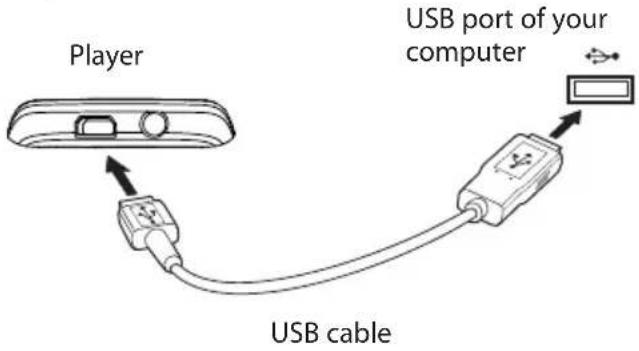
- Connect the player to your computer with the USB cable provided. The player will turn on automatically.
- The player will be connected in MSC (Mass Storage Class) mode. It will appear as a drive letter on your computer and behave as a detachable drive for file transfer in one or both directions.
- The RCA easyRip™ Media Software installer (stored in the player*) will launch automatically. Click NEXT to begin the installation and follow the instructions to install the software on your PC.
- The software installer can be deleted from the player after installation to free up more storage spaces.
To enable function of launching RCA easyRip installer stored in the player, the player must be in MSC mode which can be selected under Protocol in the
Settings menu. The default setting of this player is already in MSC mode. Refer to page 24 for more information.

- It might take several seconds for the player to be detected. Click Refresh in My Computer or Windows Explorer to make sure the player has been detected.
- The player is capable of transferring files at USB 2.0. If USB 2.0 port is available on your computer, use it to connect to your player. The player is still backward compatible with the older USB 1.1 ports. However, you will not be able to take full advantage of the potential speed increase.
- IMPORTANT: Don't disconnect the USB cable to the PC or the player during the software installation.
- If the installer does not auto-launch, locate and right-click the associated drive letter (i.e. OPAL) to show the option menu and select the "Install RCA easyRip™" option.
Charging the player
The player charges automatically every time you connect it to your computer. To fully charge the player, make sure your computer is on and the device is connected for at least 3 hours. Refer to the battery level icon □ on the display to check the battery level. Recharge the player when the icon is empty.
Managing files on your RCA Player
Before you begin using your RCA player, you'll want to copy your media files to the player. You can use any of the following methods to transfer content:
- RCA easyRip
- Drag and drop files in Windows Explorer
- Software provided by online music stores
To transfer DRM-protected content, use the software provided by the online music store.
The following sections explain how to copy unprotected files to the player. For instructions on transferring protected files, please refer to the documentation for the software you use to transfer the files.
Using RCA easyRip
The RCA easyRip software was installed automatically the first time you connected this player to your PC.
easyRip lets you:
- Import music from CDs
- Organize your music library on your PC
- Create playlists
• Copy files from your library to the player
• Copy files from the player to your library - Delete files from the player
To start easyRip:
- Click on the RCA system tray icon and select RCA easyRip from the menu.
- Double-click the easyRip icon on your PC's desktop. The easyRip dock appears at the side of your screen.
- Video fi les must be transferred via easyRip, which automatically converts the fi les to optimal format.
- Help – For detailed explanation on using easyRip, click the Help widget on the module dock.


Using Windows Explorer
To copy files in Windows XP with Windows Media Player 10 installed:
-
Open the player in Windows Explorer.
-
Drag and drop music files onto the Music folder.
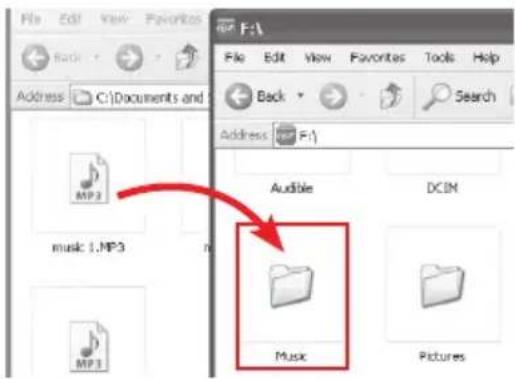
To copy files in Windows Vista or Window XP with Windows Media Player 11 installed:
- Open the player in Windows Explorer
- Open Internal Storage.
Internal Storage 1.92 GB
-
Drag and drop music files.
-
Drag-and-drop picture files onto the root level or a specific folder of the player for viewing.
• Video files must be converted and transferred via RCA easyRip for playback.

Managing files on your RCA Player
Deleting files from the player
For any files you have transferred to the player, you may delete them while you have connected the player with your computer.
- Open the player in Windows Explorer and then navigate to the folder containing the files.
- Select the files you want to remove and then press the Delete key on the keyboard of your PC.
- It is best to remove subscription files from the player by using Windows Media Player.
Disconnecting the player from the PC If Windows sees the player as an MTP device:
- Unplug the player from the PC when no file transfer is in progress.
If Windows sees the player as a removable disk:
- In the Windows system tray, click the Safely Remove Hardware icon 📋 and then select the player from the list of devices.
- When the Safe to remove hardware message appears, unplug the player from the PC.

Safe To Remove Hardware
The 'USB Mass Storage Device' device can now be safely removed from the system.
Do not disconnect the USB connection during file download. Doing so may corrupt system files or the files being downloaded.


Turning the player on and off
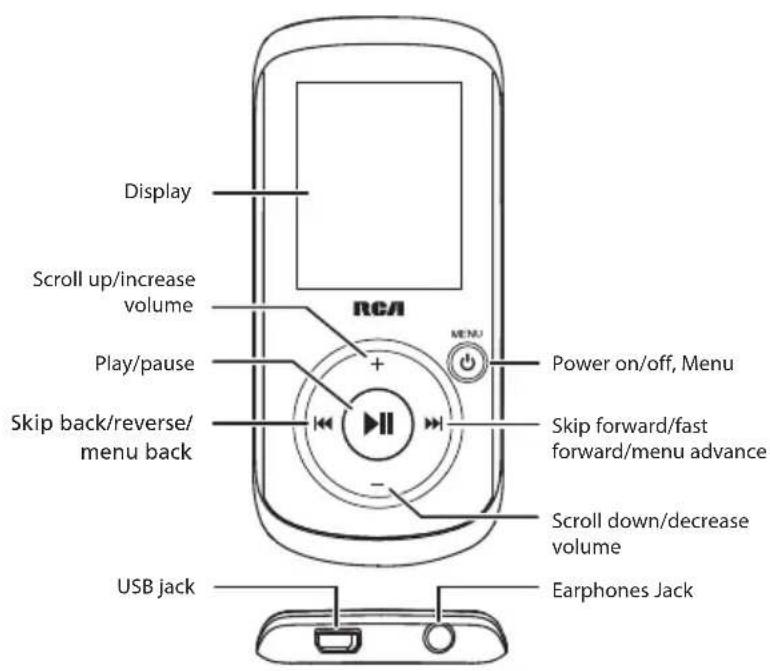
To turn the player on, press and hold ⬆MENU. Press and hold ⬆MENU again to turn the player off.
Locking the player controls
To lock the player controls to prevent them from being activated accidentally, slide LOCK▶ to the right. To unlock, slide LOCK▶ to the left. When the controls are locked, the lock icon 📄 appears on the display.
Resetting the player
If the player stops operating properly, you can reset it by pressing and holding ⏻/MENU for more than 10 seconds.
Using the menus
Menu types
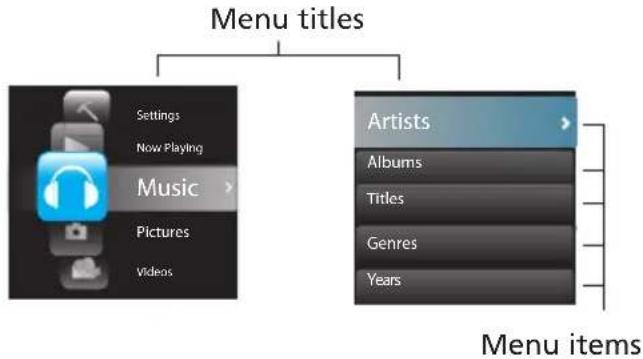
The player has two types of menu:
Player menu
The player menu appears when you turn on the player or if you press ⒶMENU while listening to the player. It lets you:
- Browse for and play music, audiobook, video and picture files
- Listen to the radio
• Record and play back voice memos - Change the player's settings – language, display brightness, etc.
Option menu
The option menu appears if you press ▶II while listening to the player. It provides different options depending on what you are listening to when you press ▶II.

Menu navigation
When a menu is displayed:
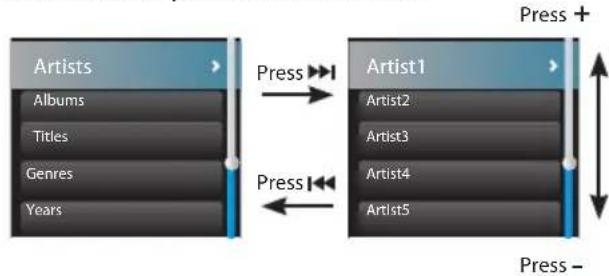
- Press + and – to scroll up and down the list of menu items. (The Home menu shows one item at a time; other menus show five at a time.)
- Press ▶ to go to the next menu level. Press ▶ to return to the previous menu level.
flowchart
graph LR
    A["Albums"] -->|Press >>| B["Artist1"]
    C["Titles"] -->|Press >>| B
    D["Genres"] -->|Press >>| B
    E["Years"] -->|Press >>| B
    B --> F["Artist2"]
    B --> G["Artist3"]
    B --> H["Artist4"]
    B --> I["Artist5"]
    style A fill:#333,stroke:#fff,color:#fff
    style C fill:#333,stroke:#fff,color:#fff
    style D fill:#333,stroke:#fff,color:#fff
    style E fill:#333,stroke:#fff,color:#fff
    style B fill:#666,stroke:#fff,color:#fff
    style F fill:#666,stroke:#fff,color:#fff
    style G fill:#666,stroke:#fff,color:#fff
    style H fill:#666,stroke:#fff,color:#fff
    style I fill:#666,stroke:#fff,color:#fff
- If the highlighted item is playable (for example, an audio file), press ▶to start playback.
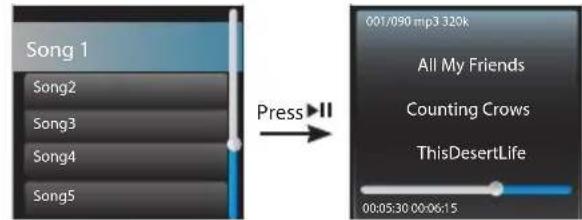
- If the highlighted item indicates the current setting (for example, the repeat mode setting), press ▶II to change the setting.

Using the menus
The Home menu
The top-level or "Home" menu is always displayed when you press ⏻/MENU. The menu options are:

Now Playing
Available only during playback. Press ▶ to return to the currently playing file.

Music
Press ▶ to play all the music files on the player. Press ▶ to enter the Music menu and choose an artist, album, genre, year, or individual title.

Pictures
Press ▶ to play a slideshow of all the image files on the player.

Videos
Press ▶ to play all the videos on the player.

Radio
Press ▶to listen to the radio. Press ▶to enter the Radio menu and choose to either listen to the radio or play recordings of previous radio shows.

Audiobooks
Press ▶ to play all the audiobooks on the player. Press ▶ to enter the Audiobook menu and choose a particular audiobook.

Favorites
As you listen to music, you can add individual titles to a "favorites" playlist. Press ▶to play the entire playlist. Press ▶to enter the Favorites menu and choose a particular title or edit the playlist.

Voice memo
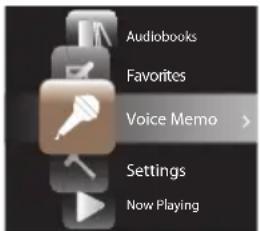
Press ▶ enter the Voice memo menu and choose to either start recording or play recordings of previous voice memo.

Settings
Press ▶ to enter the Settings menu, which lets you:
- Choose the shuffle playback mode
- Choose an equalizer setting
- Customize the music menu
- Set the slideshow image duration
- Change the screen brightness
- Change the screensaver setting
- Turn on/off the automatic shutdown feature
- Choose a record duration setting
- Switch between US and European radio frequency steps
- Change the language of the player's menus
- Switch between MTP and MSC modes
- Display the firmware version, space used, and space available
- Reset the player's settings to the factory defaults
Music
Playing music files
The player sorts your music files by artist, album, track name (title), genre and year.
- Press ⏻/MENU to display the Home menu, then press + or - to select Music.
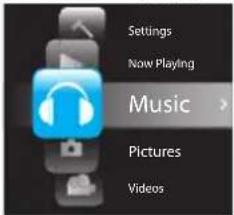
- Press ▶▶ on ▶to enter the Music menu.
- Use + or - and ◀◀ or ▶▶ to navigate through the menus and select the desired item, then press ▶▶ or ▶▶D start listening.
Music playback
natural_image
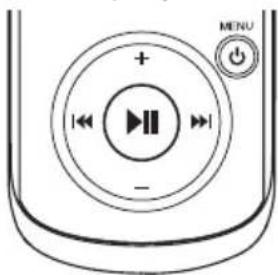
Line drawing of a remote control interface with playback buttons and a 'MENU' button (no text or symbols beyond basic icons)| |◀◀ | Skips to the previous file*, press and hold to scan backwards within a file |
| ▶▶I | Skips to the next file, press and hold to scan forward within a file |
| ▶II | Starts/ pauses playback and shows/ hides the Option menu |
| + or - | Increases or decreases the volume during playback |
* Press within the beginning 4 seconds of the current music file to skip to previous file. Otherwise, you will return to the beginning of the current file.
Option menu (music playback)
Press ▶II to show or hide the Option menu during playback. Press + or - to highlight an option and then press ▶to confirm the selection or change the setting.
The following options are available:
- Resume – to resume playback
- Repeat – press ▶ repeatedly to select repeat current Ⓒ or all files (corresponding icon shows on the display)
- Add to Favorites – to add the current file in the Favorites playlist (read page 22). If the file is already in the playlist, this option changes to Clear from Favorites to remove the current file from the playlist
- Delete – to remove current file from the player
Music playback display

- Current file number/total number of files
- Song name
- Artist name
- Album name
- Elapsed playback time
- File total time
- Playback progress bar
- File bitrate
- File type
The information provided in the playback screen depends upon the ID3 tags that have been set up for the music file.
Pictures
Playing picture files
- Press ⏻ /MENU to display the Home menu, then press + or - to select Pictures.

- Press ▶▶ or ▶▶ to enter the Pictures menu.
- Use + or - and◀ or ▶ to navigate through the menus and select the desired item, then press ▶ or ▶ to start viewing.
Picture viewing

natural_image
Diagram of a remote control panel with playback buttons and a 'MENU' button (no text or symbols beyond basic labels)| I<< | Goes back, skips backward |
| ▶▶I | Advances, skips forward |
| ▶II | Starts/pauses slideshow if it is activated, also shows/hides the Option menu |
Option menu (picture viewing)
Press ▶to show or hide the Option menu during playback. Press + or - to highlight an option and then press ▶to confirm the selection or change the setting.
The following options are available:
- Resume – to resume playback
- Slideshow – to select the viewing time for each picture during a slideshow. Press▶ repeatedly to select among off, 3, 5, 10 and 15 seconds
- Delete – to remove current file from the player
Refer to page 10 for transferring picture files to the player.

Videos
Playing video files
- Press Ⓧ /MENU to display the Home menu, then press + or - to select Videos.
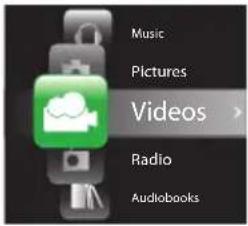
- Press ▶▶ on▶ into enter the Videos menu.
- Use + or - and ◀◀ or ▶▶ to navigate through the menus and select the desired item, then press ▶▶ or ▶▶ to start viewing.
Video viewing

| |←| | Goes back, skips backward*. Press and hold to scan backwards within a file |
| →| | Advances, skips forward. Press and hold to scan forward within a file |
| →|| | Starts/pauses playback and shows/ hides the option menu |
| + or - | Increases or decreases the volume during playback |
* Press within the beginning 4 seconds of the current file to skip to previous file. Otherwise, you will return to the beginning of the current file.
Option menu (video playback)
Press ▶ to show or hide the Option menu during playback. Press + or - to highlight an option and then press ▶ to confirm the selection or change the setting.
The following options are available:
- Resume – to resume playback
- Repeat – press ▶ repeatedly to select repeat current Ⓗ or all files (corresponding icon shows on the display)
- Delete – to remove current file from the player
Video files must be converted to optimal format for playback on this player. The RCA easyRip Media Software can convert the video files automatically while transferring to the player.

Radio
The radio uses the earphones as an antenna. For better reception, extend the earphone cable as far as possible.

Playing FM radio
To turn the radio on:
-
Press ⏻/MENU to display the player menu.
-
Press + or - to select Radio and press to enter the radio menu.

- While Listen is highlighted, press >> to start listening. The frequency screen appears.
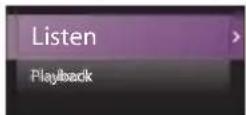
To tune the radio:
- Press and hold on to start scanning through the frequency range. The player stops scanning when it detects the next station.
- Press◀◀ or ▶to step through the frequency range.
To turn the radio off:
- Either turn the player off or press /MENU and choose a different option.
Storing and recalling preset stations
You can store up to 20 preset stations in the player.
To store the currently playing station as a preset:
-
Press ▶ to display the Option menu.
-
Press + or - to highlight Save to Preset and then press >>.
- If all 20 preset station numbers are occupied, the option changes to Replace Preset.
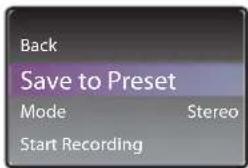
- The first available preset number is displayed. Press + or - to select a different preset number if desired.
- If you choose a preset number that already contains an FM station, you will replace the existing station with the new station.
- Press ▶ to highlight Yes and then press ▶II.
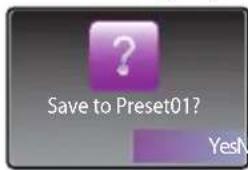
To listen to a preset station:
-
When the radio is playing, press ▶ to display the Option menu.
-
Press + or - to highlight Tuning and press ▶II to switch from Manual to Preset.
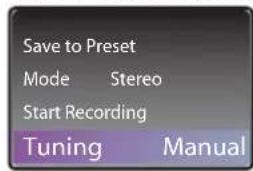
- Press + or - to highlight Back and press ▶II to return to the frequency screen.
Radio
- Press or to choose the desired station preset number. The preset number shows at the top left of the screen.

Improving FM radio sound
If stereo reception is noisy, you can often reduce the noise by switching to mono.
To switch between stereo and mono:
-
While the radio is playing, press ▶ to display the Option menu.
-
Press + or - to highlight Mode and then press▶ to switch between Stereo and Mono.

- Press + or - to highlight Back and press ▶II to return to the frequency screen.
Recording FM radio
You can record the radio and play back recordings as well as copy the recordings (WAV files) to your PC.
To record the currently playing radio station:
-
Press▶II to display the Option menu.
-
Press + or - to highlight Start Recording and then press ▶ to start recording.
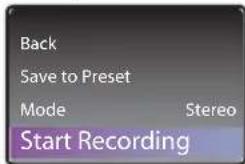
- Press▶II to pause or resume recording.
- Press ⏻/MENU to stop recording.
- The player names each recording FMRecXXX.wav where XXX is a unique number.
To record for a specific duration:
Refer to RecDur on page 24.
Radio
Playing back FM radio recordings To play back a recording:
- Press ⏻/MENU to display the player menu.
- Press + or - to select Radio and press ▶ to enter the radio menu.
- Press + or - to highlight Playback and press▶ to see the list of recordings.

- Press + or - to select a recording and press▶II to start playback.
Option menu (recording playback)
Press▶no show or hide the Option menu during playback. Press + or – to highlight an option and then press ▶ to confirm the selection or change the setting.
The following options are available:
- Resume – to resume playback
- Repeat – press ▶ repeatedly to select repeat current Ⓗ or all files (corresponding icon shows on the display)
- Delete File – to remove current file from the player
Copying recordings to your PC
Recordings are stored as WAV files in the "FMRecord" folder on the player.
To copy recordings to the PC:
- Plug the player into the PC.
- Open the player's Record folder.
- Select the files you want to copy and drag and drop them onto a folder on the PC.
- Almost all audio applications can play WAV files.
Audiobooks
Playing audiobooks
Audiobook playback is similar to music playback.
- Press ⏻/MENU to display the Home menu, then press + or - to select Audiobooks.

- Press ▶▶▶ on▶▶ to enter the Audiobooks menu.
- Use + or - and◀◀ or ▶to navigate through the menus and select the desired item, then press▶◀◀ or ▶to start listening.
Audiobooks playback controls
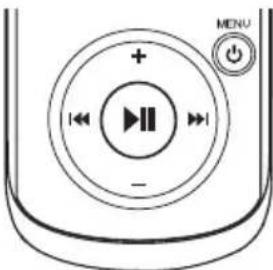
natural_image
Diagram of a remote control panel with playback buttons and a 'MENU' button (no text or symbols beyond basic icons)| ◀◀ | Skips to previous file/section, press and hold to scan backward within a file |
| ▶◀ | Skips to the next file or section, press and hold to scan forward within a file |
| ▶◀ | Starts/pauses playback and shows/hides the option menu |
| + or - | Increases or decreases the volume during playback |
Option menu (Audiobook playback)
Press ▶ to show or hide the Option menu during playback. Press + or - to highlight an option and then press ▶ to confirm the selection or change the setting.
The following options are available:
- Resume – to resume playback
- Skip – to select section-by-section or file-by-file skipping (read below section for details)
- Delete – to remove current file from the player
Skipping through audiobook sections If the currently playing audiobook contains sections, you can choose to skip forward and back between sections when you press ◀◀ or ▶ instead of skipping between files.
To choose section-by-section skipping:
- Press ▶ to pause playback and display the Option menu.
- Press + or - to select Skipping, then press ▶II to switch to Section.

- Press + to select Resume and press ▶ to resume playback.
- Section-by-section skipping is indicated by Sect on the display.
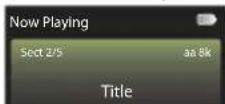
- The player returns to file-by-file skipping automatically when you play another file or turn the player off.
Favorites
Creating a "Favorites" playlist
You can create a playlist of your favorite music by adding new files to the playlist as you listen to them. This function is not available for other media formats such as videos, pictures, audiobooks and recordings.
To add the currently playing music file in the playlist:
-
Press▶ to pause playback and display the Option menu.
-
Press + or - to highlight Add to Favorites and then press ▶II.
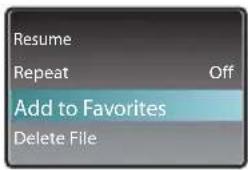
- Added Successfully shows on the display. - Repeat the above steps for adding more music files.
To listen to the Favorites playlist:
-
Press ⬇MENU to display the Home menu.
-
Press + or - to select Favorites.
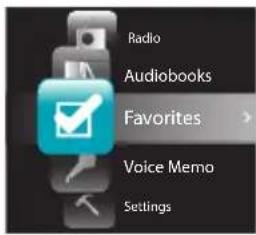
- To play the entire playlist, press ▶II - To play back a particular file, press ▶enter the Favorites menu and then press ▶to list the files. Press + or - to select the desired file and press ▶II.
Removing files from "Favorites" playlist
To remove a music file from the playlist:
-
While the music file is playing, press ▶II to pause playback and display the Option menu.
-
Press + or - to highlight Clear from Favorites and press ▶
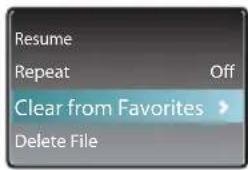
- Press ▶ to highlight Yes and then press ▶ to remove the file from the playlist.
To remove all music files from the playlist:
-
Press ⏻/MENU to display the Home menu.
-
Press + or - to select Favorites and press ▶ to enter the Favorites menu.
-
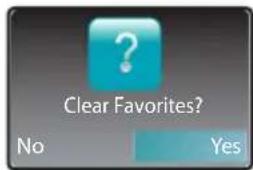
Press + or - to highlight Clear Favorites and press ▶II

- Press ▶ to highlight Yes and then press ▶ to remove all files from the playlist.
Recording voice memo
You can record voice and play back recordings as well as copy the recordings (WAV files) to your PC.
To record voice:
-
Press ⏻/MENU to display the Home menu.
-
Press + or - to select Voice Memo.
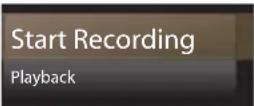
- Press ▶I to highlight Start Recording and press ▶II to start recording.
- Press ▶ to pause or resume recording.
- The microphone is located at the back of the player.
- Press ⏻/MENU to stop recording.
- The player names each recording VRecXXX.wav where XXX is a unique number.
To record for a specific duration:
Refer to RecDur on page 24.
Playing back voice memo To play back a recording:
-
Press ⏻/MENU to display the player menu.
-
Press + or – to select Voice Memo and press ➞ to enter the voice memo menu.
-
Press + or – to highlight Playback and press >> to see the list of recordings.
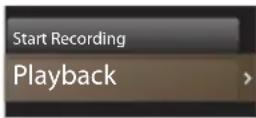
- Press + or - to select a recording and press ▶II to start playback.
Option menu (recording playback)
Press ▶II to show or hide the Option menu during playback. Press + or - to highlight an option and then press ▶II to confirm the selection or change the setting.
The following options are available:
- Resume – to resume playback
- Repeat – press ▶I repeatedly to select repeat current Ⓐ or all files (corresponding icon shows on the display)
- Delete File – to remove current file from the player
Copying recordings to your PC
Recordings are stored as WAV files in the "VRecord" folder on the player.
To copy recordings to the PC:
- Plug the player into the PC.
- Open the player's Record folder.
- Select the files you want to copy and drag and drop them onto a folder on the PC.
- Almost all audio applications can play WAV files.

Additional information
Tips and troubleshooting
Cannot delete files on the player.
- For any files you have transferred to the player, you may delete them while you have connected the player with your computer. Highlight the unwanted file in the player's file directory on your computer and press the delete key on your computer to delete the file. Subscribed files are best to be removed through Windows Media® Player.
- For deleting files from the player, refer to Option menu from page 15-23 for details.
Player repeats same tracks or all tracks.
- Repeat play is turned on. Press the PLAY button to show the option menu and change the play mode.
Audio distorted at high volume.
- Change the Equalizer mode to Flat.
- Turn down the volume.
The audio tracks on my player keep skipping or popping.
- You'll need to re-record the audio track – make sure you close all other applications on your PC when you record.
- Try recording with Error Correction setting turned on.
Player turns itself off.
- Your player turns itself off if you leave it in pause mode or navigation mode for the duration specified in PowerSave setting.
The player cannot be turned on.
- Battery is empty.
- Ensure the keys lock is not activated.
- Reset the player by pressing and holding ⏻/MENU for more than 10 seconds.
- If the player still cannot be turned on after resetting, perform a firmware upgrade to restore it.
- Please go to www.rcaaudiovideo.com for more details.
Player does not respond to key presses.
- If your player stops responding to key presses, you can reset it by pressing and holding ⏻/MENU for more than 10 seconds. Most of your settings will be preserved; only the settings that you have changed after your last power off will be lost.
- This player may temporarily cease to function if subjected to electrostatic disturbance.
To resume normal operation, it may be necessary to cycle the power off and back on or you can reset it by pressing and holding ⏻/MENU for more than 10 seconds.
Player cannot play WMA songs.
- Secure music download files must be transferred to your player through the Windows Media Player or the application recommended by your online music download service (Note: Services and applications must be Windows Media audio-compliant and support Digital Rights Management.) (Apple iTunes music content is not supported).
The player takes a long time to read files in a folder.
- File reading may take longer if too many files are put in a single folder. Re-organize your files into a number of folders.
Song information is not showing correctly.
- Song information may not match your current player's language setting. Change the language setting.
Cannot view picture files.
- The player only supports .jpg extension file, and do not support other formats like .bmp, .tiff, .jpeg.
Cannot play video files.
- All video contents must be converted by RCA easyRip software which comes with the player. Other format of video file will not be supported.
Cannot play audible files.
- Make sure the file format is correct. The player supports Format 4 Audible file.
The player reports that it is full.
- You have filled the capacity of the internal memory of the player.
- You have exceeded the maximum number of items that this player supports. Your player can only support up to 2000 media files within eight hierarchy of folder in maximum.
Additional information
Cannot playback tracks on the player.
- Make sure audio tracks are encoded in the mp3 or Windows Media formats at supported bitrates.
- Bitrates support by the player: mp3 – 32 to 320 kbps wma – 48 to 192 kbps
- WMA files may be DRM protected and you don't have the proper rights (license) to play the files.
- Check the website and/or application help system of the music download service provider from where the content was purchased from for license acquisition details. For more information on how license acquisition works, go to www.microsoft.com/windowsmedia/drm.
Cannot playback songs downloaded from my paid Music Server Provider subscription service.
- The internal clock in your portable player may not be up to date. Downloading a new subscription song from your Music Server Provider should update your player's clock and allow it to playback all your songs again.
- The license for your subscription songs may have expired. Synchronize your device with your PC again to obtain an update to your license. If the problem persists, please contact your Music Service Provider for additional support.
Cannot transfer subscription music content to the player.
- To enable function of transferring subscription music content, select MTP mode under Protocol in the Settings menu. Refer to page 24 for more information.
What is MTP mode?
- MTP (Media Transfer Protocol) mode is essential if you want to transfer DRM10 content to your player. In MTP mode your player will no longer show up as a drive letter. So programs that were designed to work with a player that shows up as a drive letter will not be able to work directly with the player.
Cannot launch RCA easyRip installer stored in the player to install easyRip on my PC.
- To enable function of launching RCA easyRip installer stored in the player, select MSC mode under Protocol in the Settings menu. Refer to page 24 for more information.
For your records
Keep your sales receipt for proof of purchase to obtain warranty parts and service. In the event that service should be required, you may need both the model number and the serial number. In the space below, record the date and place of purchase, and the serial number:
Model No.
Date of Purchase
Place of Purchase
Serial No.
Visiting RCA website
Please visit www.rcaaudiovideo.com for:
• Product registration
- Latest software and firmware
- Latest RCA easyRip software
- User manual
• Frequently asked questions (FAQ)
- Customer service and technical support information
Technical specification
Product: Digital Audio Player
Brand: RCA
Model: M4202, M4204, M4208, M4208RD, M4208GR, MC4202, MC4204, MC4208
Electrical Consumption: 3.7V Lithium battery (built-in)
Specifications
Hardware
• Dimensions: 93.5 mm H, 42.4 mm W, 9.5 mm D
• Unit Weight: 36 g, 1.3oz
- Stereo Headphones jack
- USB Connection Jack
- Battery Operated: Rechargeable lithium battery.
USB Drive
- External USB Drive: When connected to a computer via USB, the player is capable of storing any file type allowing the user a fast, convenient method of storing, retrieving, and transferring files. This includes word processing files, presentations, spreadsheets and any other computer files.
- Capacity: M4202/MC4202 - 2GB, M4204/MC4204 - 4GB, M4208/M4208RD/M4208GR/MC4208 - 8GB
- Connection: USB 2.0, Hi-speed capable
Software
- Includes the player applications and media management software.
Limited warranty
12 Month Limited Warranty
Applies to RCA Audio/Video Products
AUDIOVOX ELECTRONICS CORP. (the Company) warrants to the original retail purchaser of this product that should this product or any part thereof, under normal use and conditions, be proven defective in material or workmanship within 12 months from the date of original purchase, such defect(s) will be repaired or replaced with reconditioned product (at the Company's option) without charge for parts and repair labor.
To obtain repair or replacement within the terms of this Warranty, the product is to be delivered with proof of warranty coverage (e.g. dated bill of sale), specification of defect(s), transportation prepaid, to the Company at the address shown below.
This Warranty does not extend to the elimination of externally generated static or noise, to correction of antenna problems, loss/interruptions of broadcast or internet service, to costs incurred for installation, removal or reinstallation of product, to corruptions caused by computer viruses, spyware or other malware, to loss of media, files, data or content, or to damage to tapes, discs, removable memory devices or cards, speakers, accessories, computers, computer peripherals, other media players, home networks or vehicle electrical systems.
This Warranty does not apply to any product or part thereof which, in the opinion of the Company, has suffered or been damaged through alteration, improper installation, mishandling, misuse, neglect, accident, or by removal or defacement of the factory serial number/bar code label(s). THE EXTENT OF THE COMPANY'S LIABILITY UNDER THIS WARRANTY IS LIMITED TO THE REPAIR OR REPLACEMENT PROVIDED ABOVE AND, IN NO EVENT, SHALL THE COMPANY'S LIABILITY EXCEED THE PURCHASE PRICE PAID BY PURCHASER FOR THE PRODUCT.
This Warranty is in lieu of all other express warranties or liabilities. ANY IMPLIED WARRANTIES, INCLUDING ANY IMPLIED WARRANTY OF MERCHANTABILITY, SHALL BE LIMITED TO THE DURATION OF THIS WRITTEN WARRANTY. ANY ACTION FOR BREACH OF ANY WARRANTY
HEREUNDER INCLUDING ANY IMPLIED WARRANTY OF MERCHANTABILITY MUST BE BROUGHT WITHIN A PERIOD OF 24 MONTHS FROM DATE OF ORIGINAL PURCHASE. IN NO CASE SHALL THE COMPANY BE LIABLE FOR ANY CONSEQUENTIAL OR INCIDENTAL DAMAGES FOR BREACH OF THIS OR ANY OTHER WARRANTY. No person or representative is authorized to assume for the Company any liability other than expressed herein in connection with the sale of this product.
Some states do not allow limitations on how long an implied warranty lasts or the exclusion or limitation of incidental or consequential damage so the above limitations or exclusions may not apply to you. This Warranty gives you specific legal rights and you may also have other rights which vary from state to state.
How to make a warranty claim:
- If your product is capable of storing content (such as an mp3 player, digital voice recorder, etc), it is recommended to make periodic backup copies of content stored on the product. If applicable, before shipping a product, make a back up copy of content or data stored on the device. Also, it is advisable to remove any personal content which you would not want exposed to others. IT IS LIKELY THAT CONTENTS AND DATA ON THE DEVICE WILL BE LOST DURING SERVICE AND REFORMATTING. AUDIOVOX ACCEPTS NO LIABILITY FOR LOST CONTENT OR DATA, OR FOR THE SECURITY OF ANY PERSONAL CONTENT OR DATA ON THE RETURNED DEVICE. Product will be returned with factory default settings, and without any pre-loaded content which may have been installed in the originally purchased products. Consumer will be responsible for reloading data and content. Consumer will be responsible to restore any personal preference settings.
- Properly pack your unit. Include any remotes, memory cards, cables, etc. which were originally provided with the product. However DO NOT return any removable batteries, even if batteries were included with the original purchase. We recommend using the original carton and packing materials.
Limited warranty
- Include evidence of purchase date such as the bill of sale. Also print your name and address and a description of the defect. Send via standard UPS or its equivalent to:
Audiovox Electronics Corp.
Attn: Service Department.
150 Marcus Blvd.
Hauppauge N.Y. 11788
1-800-878-5779
• Insure your shipment for loss or damage.
Audiovox accepts no liability in case of damage or loss en route to Audiovox.
- Pay any charges billed to you by the Exchange Center for service not covered by the warranty.
- A new or refurbished unit will be shipped to you freight prepaid.
What we will do:
Provide you with a new, or at our option, a refurbished unit. The exchange unit is under warranty for the remainder of the original product's warranty period.
For Canada Customers, please ship to:
Audiovox Return Centre
c/o Genco
6685 Kennedy Road,
Unit#3, Door 16,
Mississuaga, Ontario
L5T 3A5
Illustrations contained within this publication are for representation only and subject to change.
The descriptions and characteristics given in this document are given as a general indication and not as a guarantee. In order to provide the highest quality product possible, we reserve the right to make any improvement or modification without prior notice.
Audiovox Electronics Corp.
150 Marcus Blvd, Hauppauge, NY 11788
© 2009 Audiovox Electronics Corp.
Trademark(s) ^® Registered
Marca(s) ^® Registrada(s)
This Class B digital apparatus complies with Canadian ICES-003.
Uso de los menús
El menú Inicio

natural_image
Diagram of a remote control with playback buttons and a menu icon (no text labels)Radio
Aleatorio
M4208GR, MC4202, MC4204, MC4208
Audiovox Electronics Corp.
Audiovox Electronics Corp.
150 Marcus Blvd, Hauppauge, NY 11788
© 2009 Audiovox Electronics Corp.
Trademark(s) ^® Registered
Marca(s) ^® Registrada(s)
natural_image
Line drawing of a RCA mobile phone with playback control buttons (no text or symbols on the device body)Electrostatic disturbance ....4
This Class B digital apparatus complies with Canadian ICES-003.
Audiovox Electronics Corp.,
150 Marcus Blvd., Hauppauge, NY 11788
1-317-810-4880
Electrostatic disturbance
Safe To Remove Hardware

The 'USB Mass Storage Device' device can now be safely removed from the system.
Radio
natural_image
Diagram of a mobile control panel with playback buttons and a 'MENU' button (no text or symbols beyond basic labels)Lecture aléatoire
MC4202, MC4204, MC4208
Audiovox Electronics Corp.
Attn : Service Department.
150 Marcus Blvd.
Hauppauge N.Y. 11788
1-800-878-5779
Audiovox Return Centre
c/o Genco
6685 Kennedy Road,
Unit#3, Door 16,
Mississauga, Ontario
L5T 3A5
Audiovox Electronics Corp.
150 Marcus Blvd, Hauppauge, NY 11788
© 2009 Audiovox Electronics Corp.
Trademark(s) ^® Registered
Marca(s) ^® Registrada(s)
- Contents
- Safety information
- End user license agreement
- Before you begin
- Managing files on your RCA Player
- General controls
- Using the menus
- Music
- Pictures
- Videos
- Radio
- Audiobooks
- Favorites
- Voice Memo
- Settings
- Additional information
- Limited warranty
- FCC information
- Manufacturer/Responsible party
- Important battery information
- Important Battery Precautions
- To minimize the risk of fire, explosion, or chemical burn, observe the following precautions:
- Electrostatic disturbance
- Precautions for the player
- Headset safety
- IMPORTANT SAFETY INFORMATION
- PLEASE READ AND SAVE FOR FUTURE REFERENCE
- • ADDITIONAL SAFETY INFORMATION
- LICENSE
- LICENSE RESTRICTIONS
- TERM AND TERMINATION
- WARRANTY DISCLAIMER
- OWNERSHIP RIGHTS
- LIMITATION OF LIABILITY
- WINDOWS MEDIA
- THIRD PARTY SOFTWARE
- GOVERNING LAW
- GENERAL TERMS
- Dear RCA Customer,
- Copyright warning
- Back up your data
- Unpacking your player
- Computer system requirements
- Secure music transfer requirements
- Connecting to the computer
- Charging the player
- Using RCA easyRip
- easyRip lets you:
- To start easyRip:
- Using Windows Explorer
- To copy files in Windows Vista or Window XP with Windows Media Player 11 installed:
- Deleting files from the player
- Disconnecting the player from the PC If Windows sees the player as an MTP device:
- If Windows sees the player as a removable disk:
- Turning the player on and off
- Locking the player controls
- Resetting the player
- Menu types
- Player menu
- Option menu
- Menu navigation
- The Home menu
- Now Playing
- Playing music files
- Option menu (music playback)
- Playing picture files
- Option menu (picture viewing)
- Playing video files
- Option menu (video playback)
- Playing FM radio
- To turn the radio on:
- To tune the radio:
- To turn the radio off:
- Storing and recalling preset stations
- To store the currently playing station as a preset:
- To listen to a preset station:
- Improving FM radio sound
- To switch between stereo and mono:
- Recording FM radio
- To record the currently playing radio station:
- To record for a specific duration:
- Playing back FM radio recordings To play back a recording:
- Option menu (recording playback)
- Copying recordings to your PC
- To copy recordings to the PC:
- Playing audiobooks
- Audiobooks playback controls
- Option menu (Audiobook playback)
- To choose section-by-section skipping:
- Creating a "Favorites" playlist
- To add the currently playing music file in the playlist:
- To listen to the Favorites playlist:
- Removing files from "Favorites" playlist
- To remove a music file from the playlist:
- To remove all music files from the playlist:
- Recording voice memo
- To record voice:
- Playing back voice memo To play back a recording:
- Tips and troubleshooting
- Cannot delete files on the player.
- Player repeats same tracks or all tracks.
- Audio distorted at high volume.
- The audio tracks on my player keep skipping or popping.
- Player turns itself off.
- The player cannot be turned on.
- Player does not respond to key presses.
- Player cannot play WMA songs.
- The player takes a long time to read files in a folder.
- Song information is not showing correctly.
- Cannot view picture files.
- Cannot play video files.
- Cannot play audible files.
- The player reports that it is full.
- Cannot playback tracks on the player.
- Cannot playback songs downloaded from my paid Music Server Provider subscription service.
- Cannot transfer subscription music content to the player.
- What is MTP mode?
- Cannot launch RCA easyRip installer stored in the player to install easyRip on my PC.
- For your records
- Visiting RCA website
- Technical specification
- Specifications
- Hardware
- USB Drive
- Software
- Month Limited Warranty
- Applies to RCA Audio/Video Products
- How to make a warranty claim:
- Audiovox Electronics Corp.
- What we will do:
- For Canada Customers, please ship to:
- Uso de los menús
- El menú Inicio
- Aleatorio
- Lecture aléatoire
- Attn : Service Department.
- Marcus Blvd.
- Hauppauge N.Y. 11788
Brand : RCA
Model : Opal M4208
Category : Media player