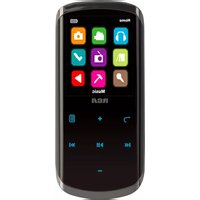
Opal M5001 - Media player RCA - Free user manual and instructions
Find the device manual for free Opal M5001 RCA in PDF.


Pick your language and provide your email: we'll send you a specifically translated version.
| Product Type | Media Player |
| Brand | RCA |
| Model | Opal M5001 |
| Dimensions | 4.5 x 3.0 x 1.0 inches (approx.) |
| Weight | 0.5 lbs (approx.) |
| Power Supply | 5V DC via USB port |
| Media Formats | MP3, WMA, WAV, JPEG, MPEG-4, AVI, DIVX |
| Storage Interface | USB 2.0, SD/MMC card slot |
| Remote Control | Yes, infrared (battery included) |
| Display | LED indicator |
| Audio Output | 3.5mm headphone jack, RCA stereo (L/R) |
| Video Output | Composite video (RCA) & HDMI |
| Supported Languages | English, French, Spanish (menu) |
| Cleaning | Wipe with a soft, dry cloth; do not use liquids |
| Safety | Keep away from moisture and heat sources |
| Spare Parts Availability | Not user-serviceable; contact support for repairs |
| Warranty | 90-day limited warranty (check documentation) |
Frequently Asked Questions - Opal M5001 RCA
What file formats does the RCA Opal M5001 support?
The device supports common formats such as MP3, WMA, WAV for audio, JPEG for images, and MPEG-4, AVI, DIVX for video.
How do I play media from a USB drive?
Insert the USB drive into the USB port on the device. Use the remote control or front panel buttons to select 'USB' as the source. The device will automatically scan and play files.
Can I use an SD card with this media player?
Yes, the device has an SD/MMC card slot. Insert the card directly; the device will detect and browse content automatically.
How do I connect the Opal M5001 to a TV?
Use the provided composite AV cable (yellow for video, red/white for audio) or an HDMI cable (if supported) to connect to your TV. Select the correct input on the TV.
The remote control doesn't work. What should I do?
First, check the batteries and ensure they are inserted correctly. Make sure there are no obstacles between the remote and the device. Point the remote directly at the IR sensor.
How do I reset the device to factory settings?
Go to the setup menu via the remote or front panel, select 'Factory Reset' or 'Default Settings', and confirm. The device will reboot with original settings.
Why is there no sound from the headphones?
Ensure headphones are fully inserted into the 3.5mm jack. Check the volume level on the device and the media source. Also, verify that the audio output is not set to 'mute'.
Can I play media files from a portable hard drive?
Usually yes, if the hard drive is FAT32 formatted and draws power less than 500mA. For larger drives, an external powered hub may be required.
How do I update the firmware?
Check the RCA support website for firmware updates. Download any update file to a USB drive, insert it into the device, and select 'Firmware Update' from the settings menu.
What should I do if the device freezes?
Try unplugging the power cord from the device and reconnecting after 30 seconds. If the issue persists, perform a factory reset. If still frozen, contact RCA support.
User questions about Opal M5001 RCA
0 question about this device. Answer the ones you know or ask your own.
Ask a new question about this device
No questions yet. Be the first to ask one.
Download the instructions for your Media player in PDF format for free! Find your manual Opal M5001 - RCA and take your electronic device back in hand. On this page are published all the documents necessary for the use of your device. Opal M5001 by RCA.
USER MANUAL Opal M5001 RCA

Manual assistant
Powered by Anthropic
Waiting for your message
Product information
Brand : RCA
Model : Opal M5001
Category : Media player