90 G3 - Tablet Arnova - Free user manual and instructions
Find the device manual for free 90 G3 Arnova in PDF.


| Product Type | Touchscreen Tablet |
| Brand | Arnova |
| Model | 90 G3 |
| Dimensions (estimated) | 190 x 120 x 10 mm |
| Weight (estimated) | 300 g |
| Screen | 7 inches, capacitive touch |
| Operating system | Android™ |
| Processor (estimated) | Rockchip, 1.2 GHz |
| RAM (estimated) | 1 GB |
| Internal storage (estimated) | 8 GB |
| Connectivity | WiFi 802.11 b/g/n, micro-USB, 3.5 mm jack, micro-SD card reader |
| Camera | Front webcam |
| Power | 5V mains charger, USB cable included, rechargeable lithium-ion battery (estimated capacity 4000 mAh) |
| Speakers | Built-in speaker |
| Microphone | Built-in microphone |
| Box contents | Tablet, charger, USB cable, quick start guide, warranty guide |
| Cleaning and maintenance | Wipe with a soft, dry cloth. Do not use abrasive products. |
| Safety | Do not expose to moisture, shocks, or extreme temperatures. Use only the supplied charger. |
| Repairability | Contact Arnova support for any repairs. No spare parts provided. |
Frequently Asked Questions - 90 G3 Arnova
User questions about 90 G3 Arnova
0 question about this device. Answer the ones you know or ask your own.
Ask a new question about this device
Download the instructions for your Tablet in PDF format for free! Find your manual 90 G3 - Arnova and take your electronic device back in hand. On this page are published all the documents necessary for the use of your device. 90 G3 by Arnova.
USER MANUAL 90 G3 Arnova
Package contents....2
Getting started....3
Description of the device....4
Through the wizard....6
Connecting to a WiFi network....7
The Android ^TM interface....8
Getting familiar with Android™....12
Troubleshooting....14
For more information, please consult the FAQs on www.arnovatech.com. Make sure to read them before considering any product return. Your deal may be no big deal. As we are often updating and improving our products, your device's software may have a slightly different appearance or modified functionality than presented in this Quick Start Guide.




Package Contents
natural_image
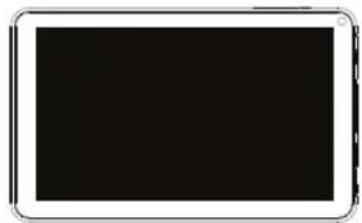
Front view of a blank tablet device with no visible text or symbolsARNOVA 90 G3
QSG booklet
Warranty,
legal & safety booklet
USB cable
natural_image
Simple black line drawing of a plug connected to a coiled cable (no text or symbols)Charger
2
UserGuide_Arnova_90_G3_book.indd 2 30/01/2013 17:57:51




Getting Started
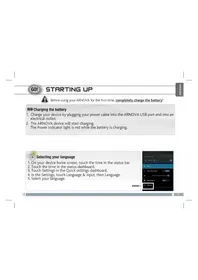
Charging
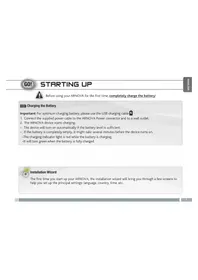
- Connect the supplied power cable to the ARNOVA and to a wall outlet.
The ARNOVA device will start charging. - Press the ON/OFF button to turn on the device.
You can use your ARNOVA whilst it charges.
-Let your device charge completely the first time you use it.
-Use only the supplied charger.
TIPS:
To receive more complete service, please register your product. From a computer, go to www.arnovatech.com/register.




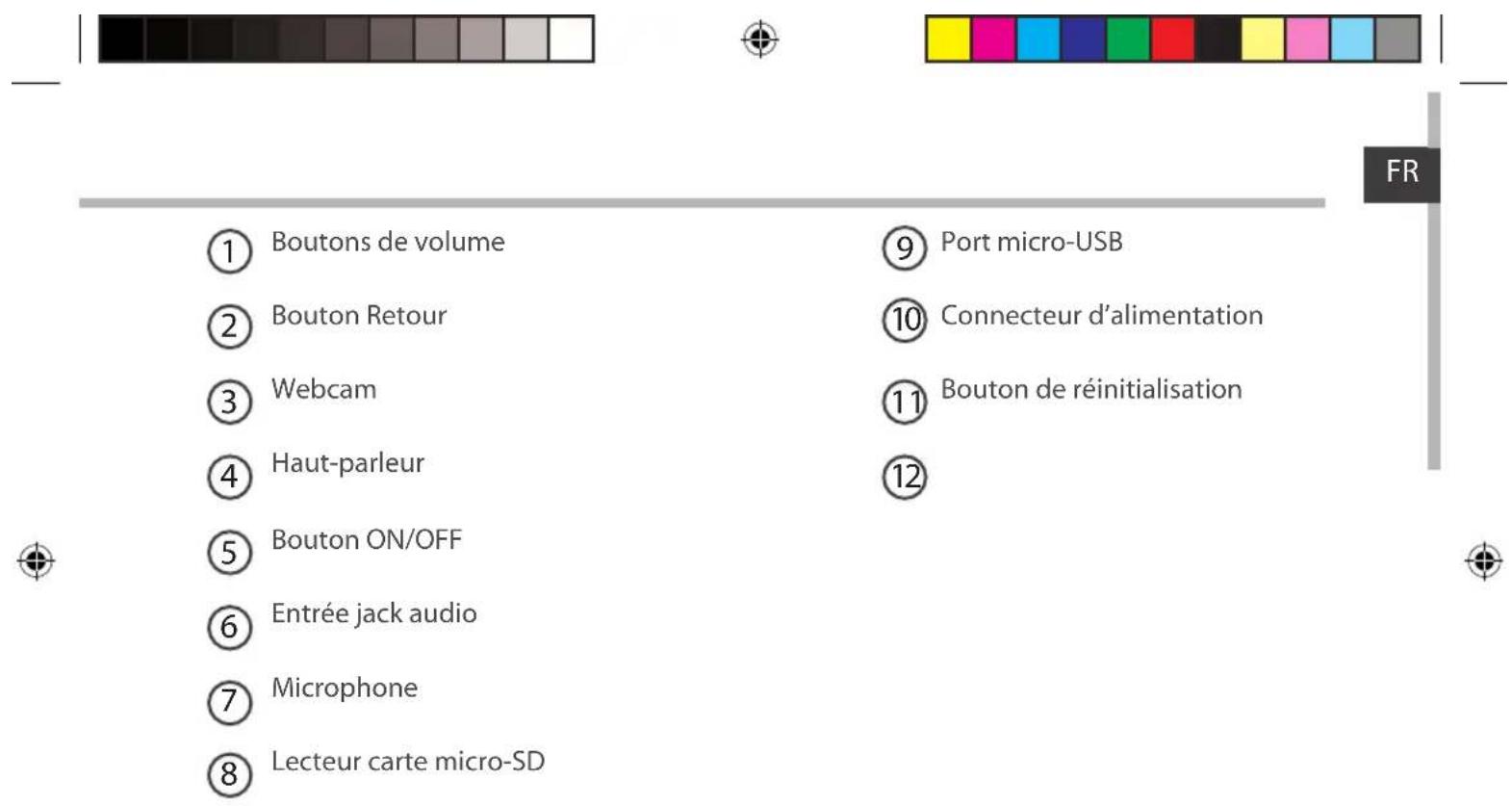
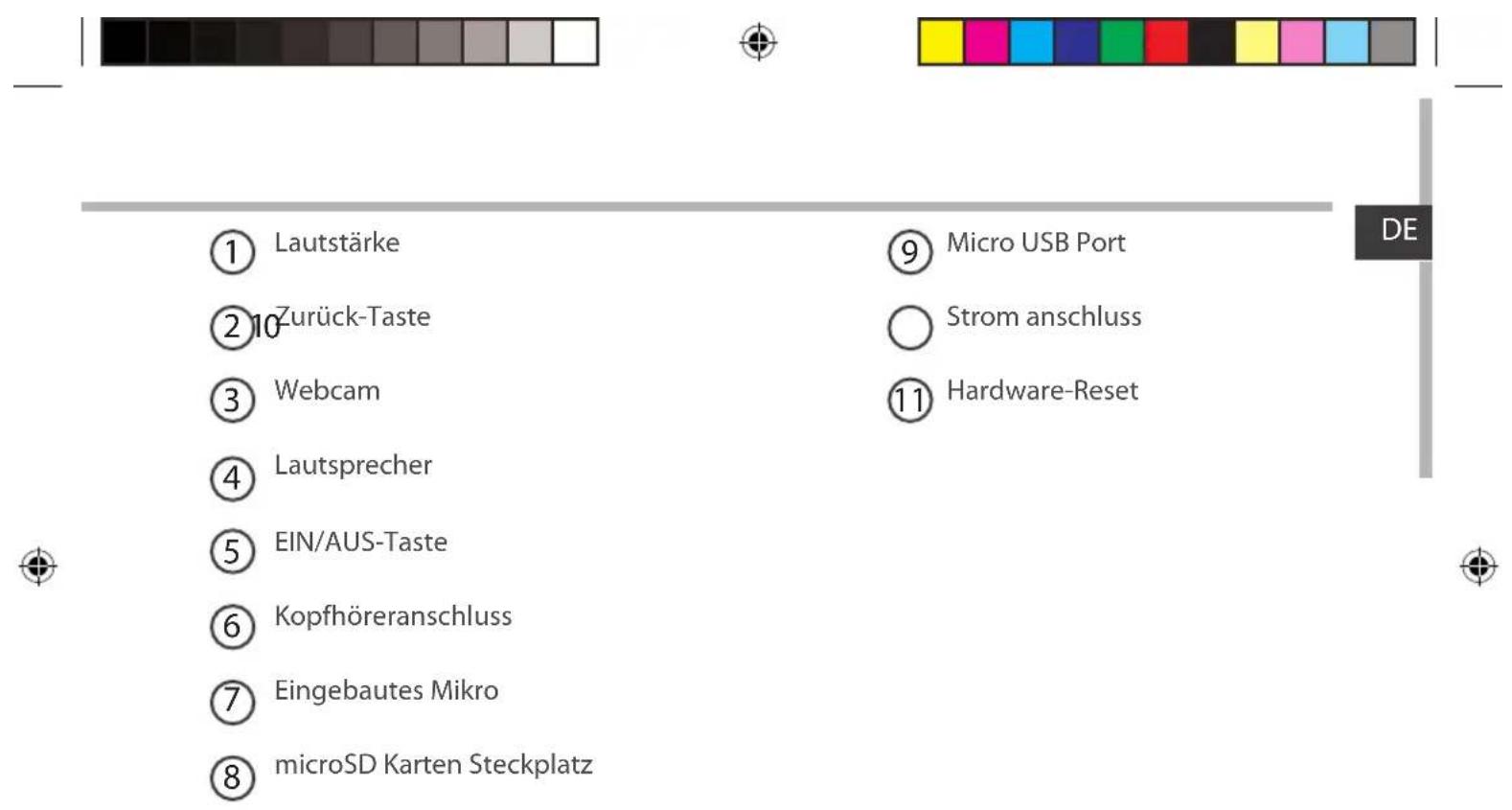
Description of the device
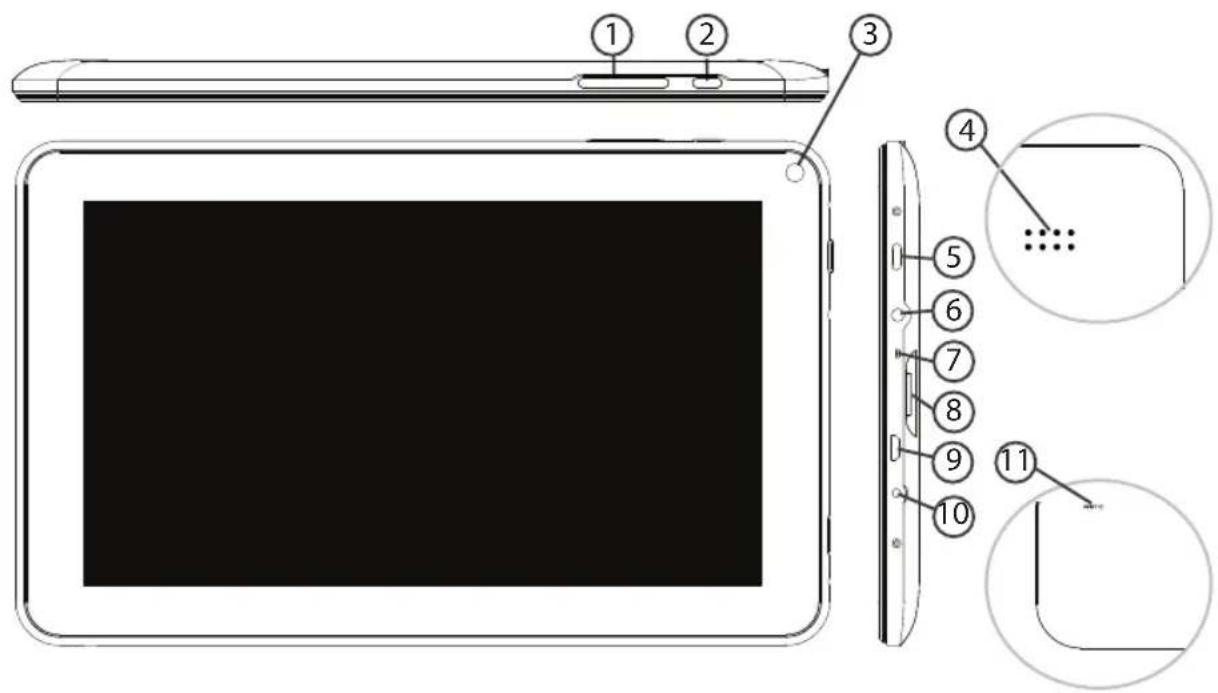
4

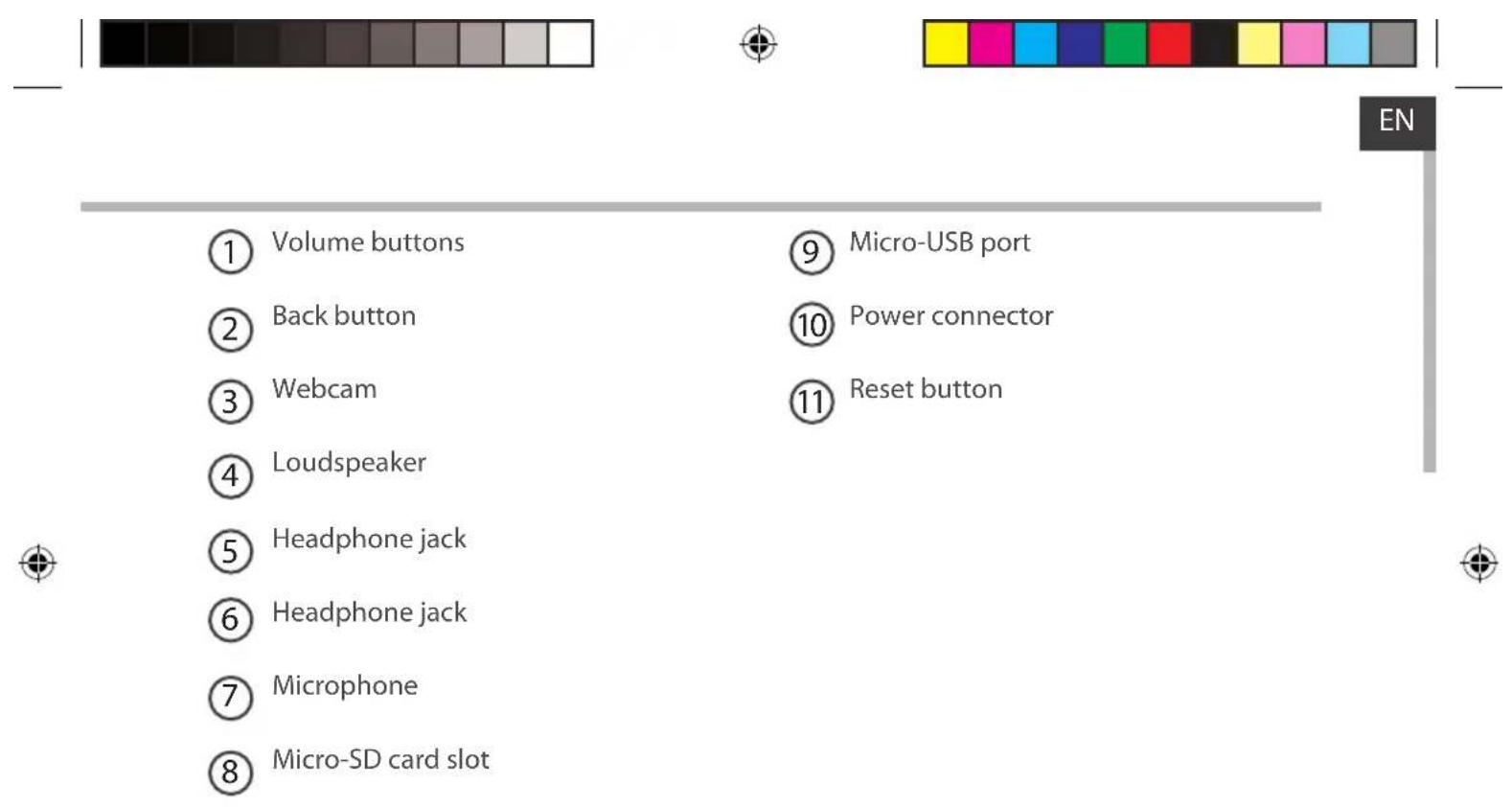



Through the Wizard
The first time you start up your ARNOVA, the installation wizard will help you set up your device:
-Language
-Date & time
- WiFi connection
- Location service options
-3rd party apps


TIPS: We recommend that you set up your device in the WiFi zone of the network that you will regularly be using.




Connecting to a WiFi Network
WARNING: Make sure that you are in a WiFi zone. You can access the WiFi settings quickly from the status bar in the bottom right corner of the screen.
- Touch the time in the status bar.
The status dashboard is displayed. - Touch the time a second time in the status dashboard.
The quick settings will be displayed.
-
Touch "Settings" to open the WiFi settings menu.
-
If the WiFi is off, slide the WiFi switch to the "ON" position.
Once the WiFi is on, the ARNOVA will scan for WiFi networks in range.
- Touch the name of network you want to connect to.
Private networks are shown with a lock icon and will require you to enter your password.
TIPS:
- When entering a WiFi password, we recommend that you select "Show password" so you can see the characters you are typing.
- To get the correct WiFi password (or settings) for the network, contact the WiFi network provider.
- If your WiFi is on and you are in range of a network that you previously connected to, your ARNOVA will automatically attempt to connect to it.




The Android™ Interface
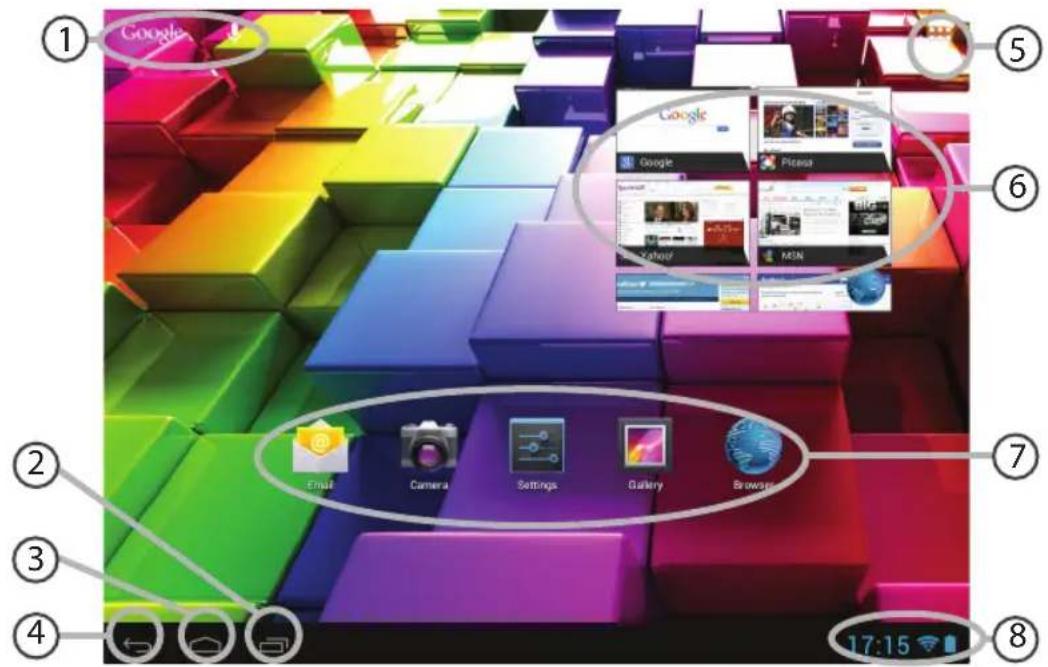




EN
① Google™ Search
Touch "Google" for text search or touch the microphone icon for voice search.
② "Recent apps" button
③ "Home" button
④ "Back" button
⑤ "All Apps" button Touch this icon to show all the applications and widgets installed on your ARNOVA. All your downloaded applications are here.
⑥ Widget
⑦ Android™ apps shortcuts Touch to start an application.
⑧ The status bar Displays notifications and quick settings.




The Android™ Interface
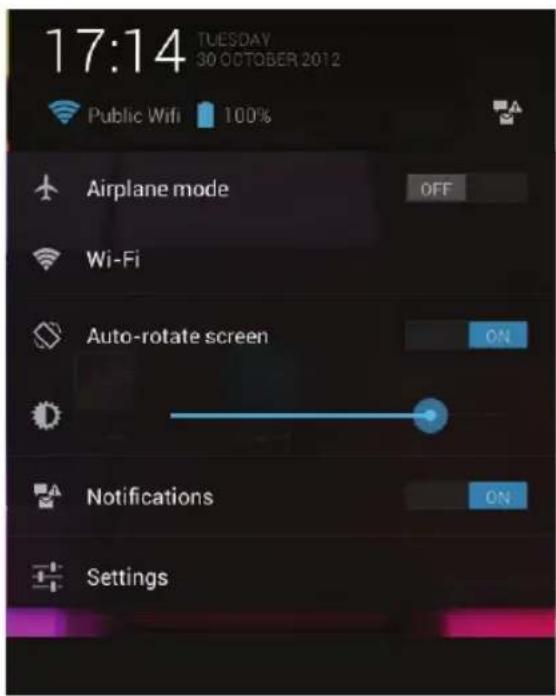
The Quick settings
-Airplane mode:
To turn on/off all the wireless connections
-WiFi:
To turn on/off your WiFi connection.
-Auto-rotate screen:
To activate/deactivate automatic screen
orientation as you turn your ARNOVA.
-Brightness:
To adjust the screen brightness.
-Notifications:
To activate/deactivate incoming notifications.
-Settings:
To access all your settings.




EN
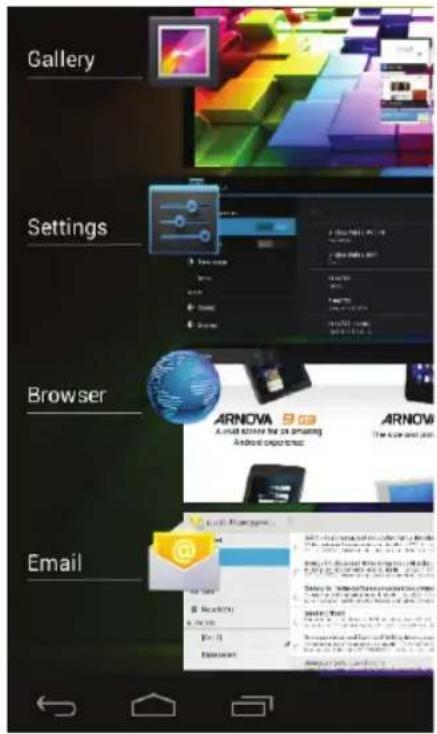
The Recent Apps
Opens a list of thumbnail images of apps you've worked with recently:
-To open an app, touch it.
-To close an app, swipe it left or right.





Getting familiar with Android™
The extended home screen:
Navigate between different home screen panels by swiping left and right.
Moving a home screen item:
Touch and hold your finger onto it until the positioning gridlines appear, then slide it to the desired location, and release your finger.
Removing a home screen item:
Touch and hold it, slide your finger towards the top of the screen and drop it over the "Remove" icon.
Uninstalling an item:
From the "All apps" screens, touch and hold it, slide your finger towards the top of the screen and drop it over "Uninstall" bin.
Creating application folders:
Drop one app icon over another on a home screen and the two icons will be combined.




EN
Widgets:
Touch the "All Apps" icon on your home screen. Touch "Widgets" at the top of the screen. From the main Widget screen, you can move around widgets just as you do for app icons.
Changing your wallpaper:
Hold your finger on a home screen at an empty location, then choose from the list.
Locking the touchscreen:
From the quick settings dashboard in the status bar, touch "Settings". In "Settings", scroll down and touch "Security". Touch "Screen lock". Touch the type of lock you would like to use. After you set a lock, a lock screen is displayed whenever your screen wakes up, requesting the pattern, pin or other specified key.




Troubleshooting
If your device is frozen:
Press the ON/OFF button for 10 seconds or use the reset button. To use the reset button, press the "pinhole reset" button by using a sharp object such as a toothpick.
If your device doesn't turn on:
- Charge your device.
- Press the ON/OFF button for 10 seconds or use the reset button. To use the reset button, press the "pinhole reset" button by using a sharp object such as a toothpick.
If you want to extend the life of your battery:
Decrease the screen brightness and turn off the wireless connections if not in use.
If your device functioning is too slow:
Close all apps which are not currently used.
If your WiFi reception is too low:
Make sure you are not far from the WiFi hotspot. Update the firmware of the device: http://www.arnovatech.com/support. Reset and redefine your connection parameters. Contact your WiFi connection provider.




Table des matières
natural_image
Front view of a blank tablet device with no visible text or symbolsARNOVA 90 G3
natural_image
Simple black-and-white line drawing of a plug connected to a coiled cable (no text or symbols)



Mise en route
Charger la batterie

22




FR
① Google™ Search
natural_image
Front view of a blank tablet device with rounded corners and a black screen (no text or symbols)ARNOVA 90 G3
Benutzerhandbuch
natural_image
Simple black-and-white line drawing of a plug connected to a coiled cable (no text or symbols)30




Erste Schritte
Aufladen des Akkus
32





① Google™ Suche
Letzte Apps
natural_image
Front view of a blank tablet device with rounded corners and a black screen (no text or symbols)ARNOVA 90 G3
Guía de usuario
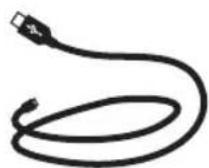
Cable USB Cargador
natural_image
Simple black-and-white line drawing of a plug connected to a coiled cable (no text or symbols)44




46




50




① Google™ Search
Los ajustes rápidos
- Modo avión:
natural_image
Front view of a blank tablet device with no visible text, numbers, or symbolsARNOVA 90 G3
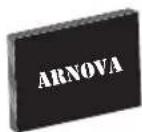
Guida dell'utente
natural_image
Simple line drawing of a plug connected to a coiled cable (no text or symbols)Caricatore




Avvio
60








① Google™ Search
Impostazioni rapide
- Modalità aereo:
natural_image
Front view of a blank tablet device with no visible text, numbers, or symbolsARNOVA 90 G3
natural_image
Simple line drawing of a plug connected to a coiled cable (no text or symbols)Lader
72
UserGuide_Arnova_90_G3_book.indd 72 30/01/2013 17:58:07




Aan de slag
De batterijen laden
74








① Google™ Search
De Snelinstellingen
-Vliegmodus:
Recente apps
natural_image
Front view of a blank tablet device with no visible text, numbers, or symbolsARNOVA 90 G3
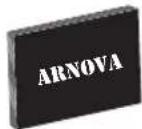
Guia do usuário
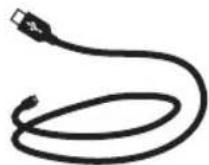
Cabo USB Carregador
natural_image
Simple black line drawing of a plug connected to a coiled cable (no text or symbols)



Início
Carregar a bateria








① Google™ Search
Aplicações recentes
natural_image
Front view of a blank tablet device with no visible text, numbers, or symbolsARNOVA 90 G3
Краткое руководство
natural_image
Simple line drawing of a plug connected to a coiled cable (no text or symbols)Зарядное устройство
100
UserGuide_Arnova_90_G3_book.indd 100 30/01/2013 17:58:10




Начало работы
Зарядка
102




106



① Поиск Google™
Быстрые настройки
-WiFi:
National restrictions
This device is intended for home and office use in all EU countries (and other countries following the EU directive 1999/5/EC) without any limitation except for the countries mentioned below:
Country Restriction Reason/remark
Bulgaria None General authorization required for outdoor use and public service
France Outdoor use limited
to 10 mW e.i.r.p.
within the band
2454-2483.5 MHz
Military Radiolocation use. Refarming of the 2.4 GHz band has been ongoing in recent years to allow current relaxed regulation. Full implementation planned 2012
Italy None If used outside of own premises, general authorization is required.
Luxembourg None General authorization required for network and service supply (not for spectrum)
Norway Implemented This subsection does not apply for the geographical aera within a radius of 20 km from the centre of Ny-Alesund
Russian Federation None Only for indoor applications
Note: Frequency 2454-2483.5MHZ are restricted to indoor use in France.
Consult the declaration of conformity on http://www.arnovatech.com/products/declaration_conformity.html




Open Source Software Offer
The software bundled with this product includes software files subject to certain open source license requirements. Such open source software files are subject solely to the terms of the relevant open source software license. Such open source software is provided on an "AS IS" basis to the maximum extent permitted by applicable law.
For the open source files contained herein, please access "Open source license" section located at: Settings\About tablet\Legal information on the device for the relevant copyright and licensing terms. You may obtain a copy of Apache License, Version 2.0 at http://www.apache.org/licenses/LICENSE-2.0. You may also obtain a copy of GNU General Public License, Version 2 at the Free Software Foundation, INC, 51 Franklin Street, Fifth Floor, Boston, MA 02110-1301, USA.
Until the date that is three years after our last shipment of this product, you may obtain a copy of the source code corresponding to the binaries for any GPL-Licensed file by contacting ARNOVA customer service at http://www.arnovatech.com and ARNOVA will send you a link to such source code or will provide instructions to get the source on a physical medium.
This offer is valid to anyone in receipt of this information.