10 G2 - Tablet Arnova - Free user manual and instructions
Find the device manual for free 10 G2 Arnova in PDF.


| Product type | Touchscreen tablet |
| Brand | Arnova |
| Model | 10 G2 |
| Dimensions (approx.) | 262 x 172 x 15 mm |
| Weight (approx.) | 630 g |
| Power supply | AC adapter 5V DC, 2A (via power connector) |
| Battery | Built-in rechargeable lithium-ion, capacity approx. 4000 mAh |
| Screen | 10 inch capacitive touchscreen, resolution 1024x600 pixels (estimated) |
| Operating system | Android (version not specified, probably 2.3 or 4.0) |
| Wi-Fi connectivity | Wi-Fi 802.11 b/g/n |
| Ports | 1 micro-USB, 1 USB host, 3.5 mm headphone jack, micro-SD card reader |
| Camera | Built-in camera (front or rear, not specified) |
| Internal memory | 4 GB (estimated), expandable via micro-SD up to 32 GB |
| Main features | Web browsing, email, multimedia playback, app installation via AppsLib, file transfer via USB |
| Care and cleaning | Clean with a soft, dry cloth, avoid abrasive products |
| Safety | Do not expose to moisture, do not open the device, use only the provided adapter |
| Spare parts and repairability | Parts not available separately, contact support for repairs |
| General information | Product registration recommended on arnovatech.com for support |
Frequently Asked Questions - 10 G2 Arnova
User questions about 10 G2 Arnova
0 question about this device. Answer the ones you know or ask your own.
Ask a new question about this device
Download the instructions for your Tablet in PDF format for free! Find your manual 10 G2 - Arnova and take your electronic device back in hand. On this page are published all the documents necessary for the use of your device. 10 G2 by Arnova.
USER MANUAL 10 G2 Arnova
→On the web at http://arnovatech.com/register
Thank you for choosing this ARNOVA product. We hope that you will enjoy using it and that it will give you satisfaction for many years to come. Once you unpack your ARNOVA product, we recommend that you take a few minutes to register it (http://arnovatech.com/register). This will allow you to get access to ARNOVA technical support (http://arnovatech.com/support).

NEED HELP?

On our Website: See the Frequently Asked Questions section on http://arnovatech.com/faq

Contact our Technical Support Team: Visit http://arnovatech.com/support for e-mail support. Please register your product before contacting Technical Support (seeRegister your Product).
P/N:110212
As we are often updating and improving our products, your device's software may have a slightly different appearance or modified functionality than presented in this Quick Start Guide.
DESCRIPTION OF THE DEVICE
① Volume + / Volume -
2 Charging indicator: Red light: battery charging / Green: battery charged.
3 On/Off button: enables to turn on or turn off the device.
Headphone jack
USB Host port: to connect a keyboard, a mouse or a mass storage USB device.
Go on the Home screen, tap on the Menu icon ☐, then select Settings/USB Mode select. If the Host Mode is off, tap on the Host Mode line to turn it on. Important: turn off the Host Mode after use.
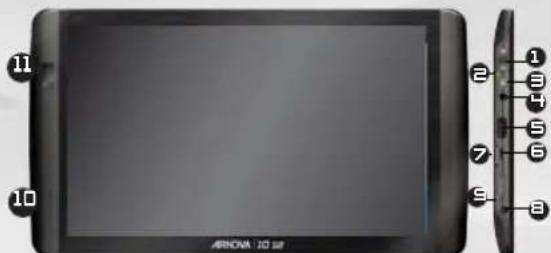
5 Micro-USB port: to connect your ARNOVA to your computer, using the included USB cable (to transfer files)
7 Micro-SD card Power connector
Microphone Camera
Hardware Reset
IMPORTANT:
Your device is frozen. You can turn it off. Press the ON/OFF button for 10 seconds or press the reset button. See Hardware Reset.
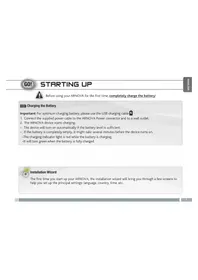
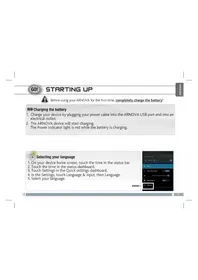
GO! STARTING UP

Before using your ARNOVA for the first time, completely charge the battery!

Charging the Battery
1 Connect the supplied power cable to the ARNOVA Power connector and to a wall outlet.
2 The ARNOVA device will turn on and start charging. The Power indicator light is red while the battery is charging. It will turn green when the battery is fully charged.

Installation Wizard
The first time you start up your ARNOVA, the installation wizard will bring you through a few screens to help you set up the principal settings: Language, country, time, etc.
三

CONNECTING TO THE WIFI NETWORK

For this procedure to work, you need to be in a WiFi zone that will allow you to connect to it. Every time the ARNOVA is in range of a network that you have already configured once, it will attempt to make a connection.
1 To configure a new WiFi network, go on the Home screen, tap Settings
2 In the Settings screen, select Wireless & networks.
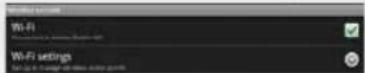
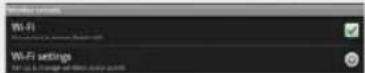
3 If the WiFi is off, tap on the Wi-Fi line to turn it on. Then select Wi-Fi settings. The ARNOVA will scan for available WiFi networks and display them at the bottom of the screen.
4 Tap on the network you want to connect to, enter the required network information* and then tap on Connect. Your ARNOVA will establish a connection to that WiFi hot spot.
THE ARNOVA INTERFACE
Your ARNOVA device is equipped with a capacitive touchscreen. Use your finger pulp to navigate.
Home Screen
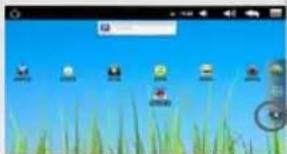
These are the default Android™ shortcuts (Web Browser, EMail, etc.). Tap on an icon to open the corresponding application. You can customize the Home screen by adding/removing shortcuts and widgets, etc. See next page.
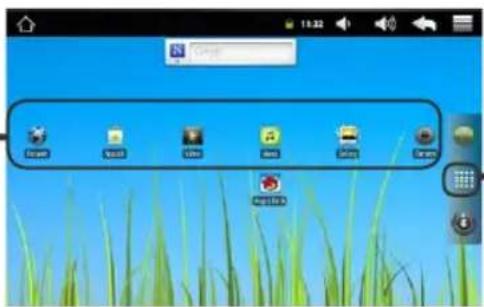
Settings shortcut
Web browser shortcut
Application button
Tap on this icon to reveal all the Android™ applications installed on your ARNOVA (games, various tools, etc.). You can copy them onto the Home screen. You can get more Android™ applications from AppsLib.
Top bar of the Interface (varies according to the screen you are in)

flowchart
graph LR
    A["Home Screen Return"] --> B["Notification Icons: drag the top bar downwards to reveal the notification messages (if any)."]
    B --> C["Time Volume -/+"]
    C --> D["Status Icons: (WiFi connection status, battery level, etc.)"]
    D --> E["Return to the previous Screen"]
    E --> F["Menu: gives menu options according to the current screen."]
5
CUSTOMIZING YOUR PRODUCT
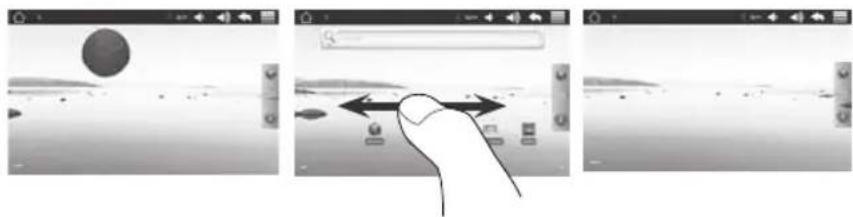
The extended Home screen
Slide your finger horizontally on the screen to go to the left or right side of the extended Home screen.
natural_image
Three-panel grayscale image showing a hand interacting with a device, with no visible text or symbols.Customizing the Home screen items
- To add a Home screen item (shortcuts, widgets, etc.), hold your finger on the screen at an empty location, then choose from the list. You can also tap on the Menu icon and select Add at the bottom of the screen.
- To move a Home screen item, hold your finger onto it until it gets larger, then drag it to the desired location, and release your finger.
- To remove a Home screen item, hold your finger onto it, drag it onto the recycle bin (while you're holding an item, the Applications tab, on the right side of the screen, turns into a recycle bin) and release your finger.

Adding more applications with APPSLIB : With the ARNOVA connected to the Internet, tap on the AppsLib icon. This online library of free and purchasable applications has thousands of fun games and useful applications to download and use.

Changing the Settings: From the Home screen, tap on Settings and choose a category: Wireless controls, Sound & display, Date & time, etc.

PLAYING MULTIMEDIA FILES
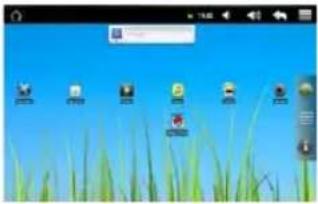
1 From the Home screen, tap on the video, audio or photo icon.
2 The ARNOVA will display a list of files or folders corresponding to the selected category.
3 Tap on an item to start playing it.

Only in Video and Photo modes: to display/hide the on-screen controls, tap anywhere on the screen.

Video
To pause or resume a video, tap on the icon 📄 / ▶ (bottom of screen). To go to any particular point in the video, slide the progression bar to the desired point.

Music
To play the next or previous song, tap on the icons / . Use the icons / and the progression bar as in the video player screen (see above).

Photo
To start or pause a slide show, tap on the icon 🎨 / ▶. To view the next or previous photo, tap on the icons 🎨.
TRANSFERRING MEDIA TO YOUR ARNOVA
1 Connect the supplied USB cable to the ARNOVA and to a running computer.
2 The ARNOVA will turn on. Within a few seconds the ARNOVA will appear as an icon on your computer.
3 You can transfer your media files to the ARNOVA either by copy/pasting them into the respective folders using Windows® Explorer (or the Finder on a Mac®), or by using Windows Media® Player. Open Windows Media Player® and then use the Sync tab to synchronize your music, videos, and photos onto your ARNOVA. See Windows Media Player®'s Help to learn more about this.
4 Once all your file transfers are finished, close Windows® Explorer and any other program that may have read or written to the ARNOVA. Click on the 'safely remove' icon in the system tray, next to the clock. You can now unplug the USB cable.

ENREGISTREZ VOTRE PRODUIT !
→ Sur Internet : http://arnovatech.com/register

natural_image
Three-panel grayscale image showing a hand interacting with a device in a game environment, no visible text or symbolsnatural_image
Desktop screenshot showing a desktop with icons on grass and blue sky (no readable text or symbols)

Web-Browser Shortcut
ANPASSEN IHRES PRODUKTES


LA INTERFAZ DEL ARNOVA
natural_image
Three-panel grayscale image showing a hand interacting with a device in a game environment, no visible text or symbols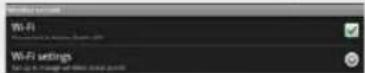
INTERFACCIA
Icona Impostazioni
Icona Web Browser
natural_image
Three-panel grayscale image showing a hand interacting with a device in a game environment, no visible text or symbols
Snelkoppeling Instellingen
Snelkoppeling Web Browser
Applicaties knop
PERSONALISEER UW PRODUCT
natural_image
Three-panel grayscale image showing a hand interacting with a device in a game environment, no visible text or symbols
natural_image
Three-panel grayscale image showing a hand interacting with a device in a game environment, no visible text or symbolsNational restrictions
This device is intended for home and office use in all EU countries (and other countries following the EU directive 1999/5/EC) without any limitation except for the countries mentioned below:
Country Restriction Reason/remark
Bulgaria None General authorization required for outdoor
use and public service
France Outdoor use lim-
ited to 10 mW e.i.r.p.
within the band
2454-2483.5 MHz
Military Radiolocation use. Refarming of the
2.4 GHz band has been ongoing in recent
years to allow current relaxed regulation. Full
implementation planned 2012
Italy None If used outside of own premises, general
authorization is required.
Luxembourg None General authorization required for network
and service supply (not for spectrum)
Norway Implemented This subsection does not apply for the geo-
graphical aera within a radius of 20 km from
the centre of Ny-Alesund
Russian Federation None Only for indoor applications
Note: Frequency 2454-2483.5MHZ are restricted to indoor use in France.
Consult the declaration of conformity on http://www.arnovatech.com/products/declaration_conformity.html