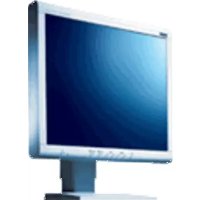
MultiSync LCD1850DX - Monitor NEC - Free user manual and instructions
Find the device manual for free MultiSync LCD1850DX NEC in PDF.



| Product Type | 18.1-inch LCD Monitor |
| Brand | NEC |
| Model | MultiSync LCD1850DX |
| Native Resolution | 1280 x 1024 |
| Screen Size (diagonal) | 46 cm (18.1 inches) |
| Typical Brightness | 240 cd/m² |
| Typical Contrast Ratio | 300:1 |
| Viewing Angle (horizontal/vertical) | ±85° / ±85° |
| Synchronization Frequencies (H/V) | 31-82 kHz / 50-85 Hz |
| Video Inputs | Analog (VGA), Digital (DVI-D) via DVI-I |
| Dimensions (Landscape W x H x D) | 398 x 445 x 218 mm |
| Dimensions (Portrait W x H x D) | 349 x 469.5 x 218 mm |
| Weight | 8.5 kg |
| Power Supply | 100-120 V / 220-240 V AC, 50/60 Hz |
| Power Consumption | 0.8 A (120 V) / 0.35 A (240 V) |
| Standby Power Consumption | Less than 3 W |
| Main Features | Screen rotation (Landscape/Portrait), height adjustment, tilt, swivel, OSM, sRGB color control, IPM power saving, Plug and Play |
| Maintenance and Cleaning | Use a soft, lint-free cloth, without cleaning solution or glass cleaner |
| Safety | Do not open the casing, keep away from liquids, use a suitable power cord |
| Spare Parts and Repairability | No user-serviceable parts; contact a qualified technician |
| Certifications | TCO'99 (white model), TCO'95 (black model), ENERGY STAR, FCC Class B, C-UL |
| General Information | TFT active matrix LCD monitor, 0.28 mm dot pitch, VESA compatible (100 mm) |
Frequently Asked Questions - MultiSync LCD1850DX NEC
User questions about MultiSync LCD1850DX NEC
0 question about this device. Answer the ones you know or ask your own.
Ask a new question about this device
Download the instructions for your Monitor in PDF format for free! Find your manual MultiSync LCD1850DX - NEC and take your electronic device back in hand. On this page are published all the documents necessary for the use of your device. MultiSync LCD1850DX by NEC.
USER MANUAL MultiSync LCD1850DX NEC
TO PREVENT FIRE OR SHOCK HAZARDS, DO NOT EXPOSE THIS UNIT TO RAIN OR MOISTURE. ALSO, DO NOT USE THIS UNIT'S POLARIZED PLUG WITH AN EXTENSION CORD RECEPTACLE OR OTHER OUTLETS UNLESS THE PRONGS CAN BE FULLY INSERTED. REFRAIN FROM OPENING THE CABINET AS THERE ARE HIGH VOLTAGE COMPONENTS INSIDE. REFER SERVICING TO QUALIFIED SERVICE PERSONNEL.
CAUTION
RISK OF ELECTRIC SHOCK • DO NOT OPEN


TO REDUCE THE RISK OF ELECTRIC SHOCK, DO NOT REMOVE COVER (OR BACK). NO USER SERVICEABLE PARTS INSIDE. REFER SERVICING TO QUALIFIED SERVICE PERSONNEL.

This symbol warns user that uninsulated voltage within the unit may have sufficient magnitude to cause electric shock. Therefore, it is dangerous to make any kind of contact with any part inside this unit.

This symbol alerts the user that important literature concerning the operation and maintenance of this unit has been included. Therefore, it should be read carefully in order to avoid any problems.
Caution:
When operating the MultiSync LCD1850DX (LH-18S02-2 and LH-18S02-BK2) with a 220-240V AC power source in Europe, use the power cord provided with the monitor.
In the UK, a BS approved power cord with a moulded plug has a Black (five Amps) fuse installed for use with this equipment. If a power cord is not supplied with this equipment please contact your supplier.
When operating the MultiSync LCD1850DX with a 220-240V AC power source in Australia, use the power cord provided with the monitor.
For all other cases, use a power cord that matches the AC voltage of the power outlet and has been approved by and complies with the safety standard of your particular country.
ENERGYSTAR is a U.S. trademark.
As an ENERGYSTAR ^® Partner, NEC-Mitsubishi Electronics Display of America, Inc. has determined that this product meets the ENERGYSTAR guidelines for energy efficiency. The ENERGYSTAR emblem does not represent EPA endorsement of any product or service.
IBM PC/XT/AT, PS/2, MCGA, VGA, 8514/A and XGA are registered trademarks of International Business Machines Corporation.
Apple and Macintosh are registered trademarks of Apple Computer Inc.
Microsoft and Windows are registered trademarks of the Microsoft Corporation.
NEC is a registered trademark of NEC Corporation.
All other trademarks or registered trademarks are property of their respective owners.
English-1
Declaration
Declaration of the Manufacturer
We hereby certify that the colour monitor
MultiSync LCD1850DX (LH-18S02-2)
MultiSync LCD1850DX (LH-18S02-BK2)
is in compliance with
Council Directive 73/23/EEC:
- EN 60950
Council Directive 89/336/EEC:
- EN 55022
- EN 61000-3-2
- EN 61000-3-3
- EN 55024
and marked with

NEC-Mitsubishi Electric Visual Systems, Corp.
MS Shibaura Bldg., 13-23,
Shibaura 4-chome,
Minato-Ku, Tokyo 108-0023, Japan

Power consumption of the monitor is less than 3 W when in power-saving mode.
English-2
For the Customer to use in U.S.A. or Canada
English
Canadian Department of Communications Compliance Statement
DOC: This Class B digital apparatus meets all requirements of the Canadian Interference-Causing Equipment Regulations.
C-UL: Bears the C-UL Mark and is in compliance with Canadian Safety Regulations according to CSA C22.2 #950.
- Use the attached specified cables with the MultiSync LCD1850DX colour monitor so as not to interfere with radio and television reception.
(1) The power supply cord you use must have been approved by and comply with the safety standards of U.S.A., and meet the following condition.
| Power supply cord NLength 1.8 mPlug shape | on shield type, 3-conductor |
(2) Shielded video signal cable. Use of other cables and adapters may cause interference with radio and television reception.
English-3
-
This equipment has been tested and found to comply with the limits for a Class B digital device, pursuant to part 15 of the FCC Rules. These limits are designed to provide reasonable protection against harmful interference in a residential installation. This equipment generates, uses, and can radiate radio frequency energy, and, if not installed and used in accordance with the instructions, may cause harmful interference to radio communications. However, there is no guarantee that interference will not occur in a particular installation. If this equipment does cause harmful interference to radio or television reception, which can be determined by turning the equipment off and on, the user is encouraged to try to correct the interference by one or more of the following measures:
-
Reorient or relocate the receiving antenna.
- Increase the separation between the equipment and receiver.
- Connect the equipment into an outlet on a circuit different from that to which the receiver is connected.
- Consult your dealer or an experienced radio/TV technician for help. If necessary, the user should contact the dealer or an experienced radio/television technician for additional suggestions. The user may find the following booklet, prepared by the Federal Communications Commission, helpful: "How to Identify and Resolve Radio-TV Interference Problems." This booklet is available from the U.S. Government Printing Office, Washington, D.C., 20402, Stock No. 004-000-00345-4.
Declaration of Conformity
This device complies with Part 15 of FCC Rules. Operation is subject to the following two conditions. (1) This device may not cause harmful interference, and (2) this device must accept any interference received, including interference that may cause undesired operation.
U.S. Responsible party: NEC-Mitsubishi Electronics
Display of America, Inc.
Address: 1250 N. Arlington Heights Road
Itasca, Illinois 60143-1248
Tel. No.: (630)467-3000
Type of Product: Computer Monitor
Equipment Classification: Class B Peripheral
Models: MultiSync LCD1850DX

We hereby declare that the equipment specified above conforms to the technical standards as specified in the FCC Rules.
English-4



Contents
English
Your new NEC MultiSync LCD monitor box* should contain the following:
- MultiSync LCD1850DX monitor with tilt base
- Power Cords
• Video Signal Cable (15-pin mini D-SUB male to DVI)
• Video Signal Cable (DVI-D to DVI-D Cable)
- User's Manual
- NEC LCD Setup Software, Pivot Software, User's Manual and other helpful files. To see the User's Manual, Acrobat Reader 4.0 must be installed on your PC.
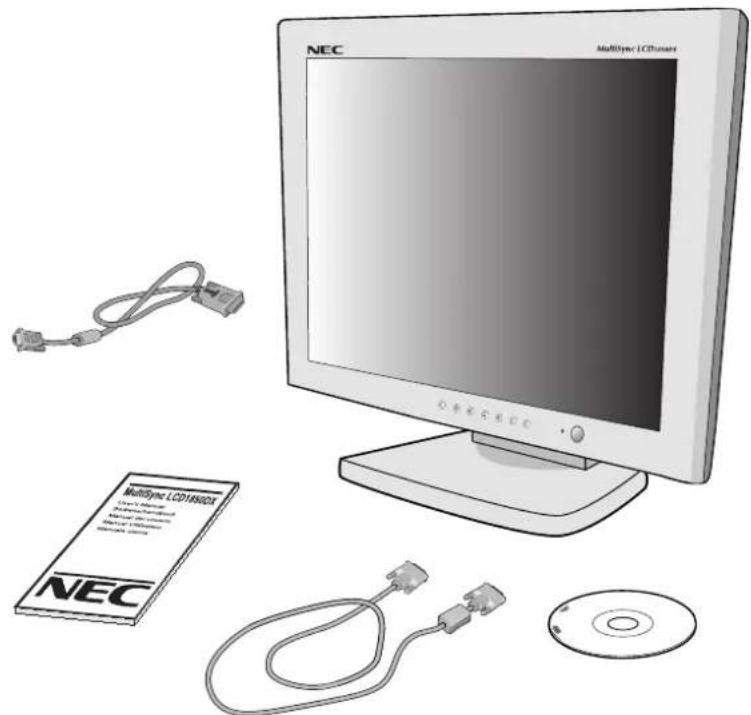
* Remember to save your original box and packing material to transport or ship the monitor.
English-5

Quick Start
To attach the MultiSync LCD monitor to your system, follow these instructions:
- Turn off the power to your computer.
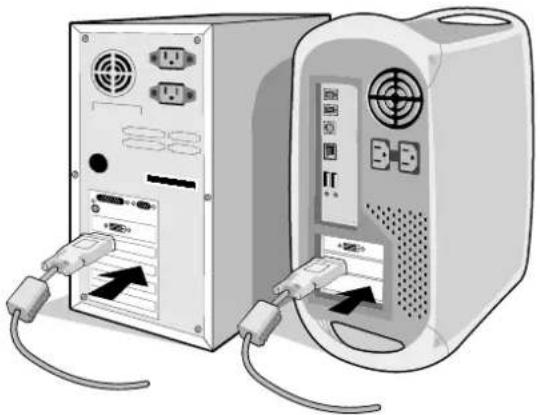
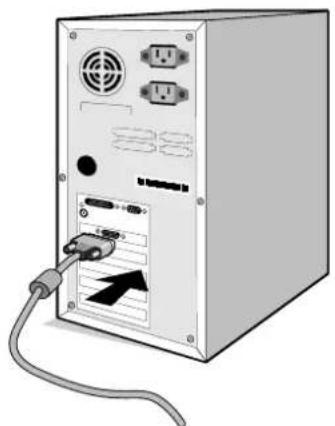
- For the PC or Mac with DVI digital output: Connect the DVI-D to DVI-D signal cable to the connector of the display card in your system (Figure A.1). Tighten all screws.
For the PC with Analog output: Connect the 15-pin mini D-SUB to DVI signal cable to the connector of the display card in your system (Figure A.2).
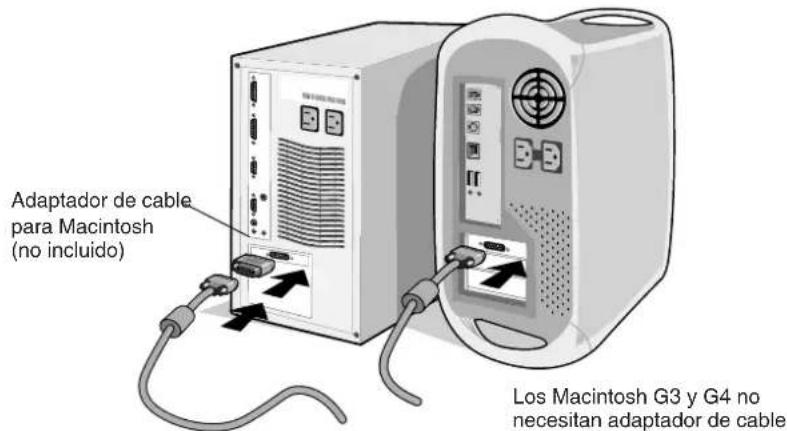
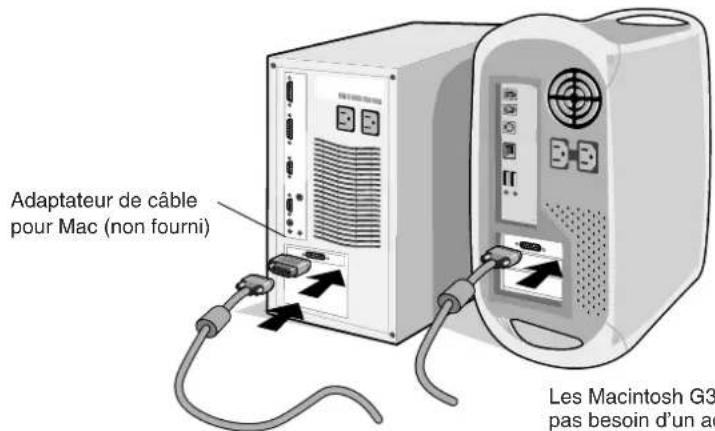
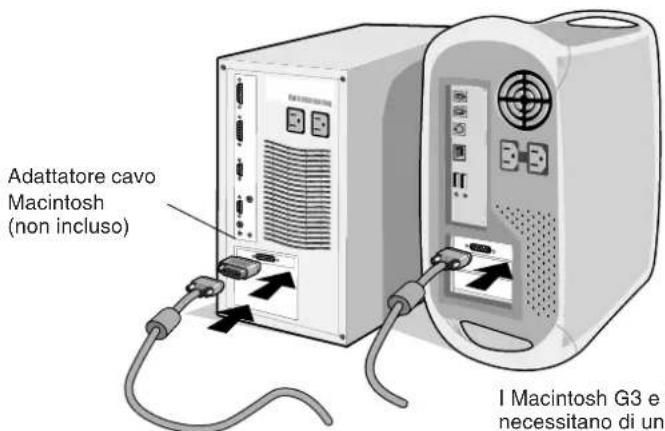
For the Mac: Connect the MultiSync Macintosh cable adapter to the computer (Figure B.1). Attach the 15-pin mini D-SUB signal cable to the MultiSync Macintosh cable adapter (Figure B.1).
NOTE: Some Macintosh systems do not require a Macintosh cable adapter.
- Remove connector cover. Connect the DVI signal cable to the connector on the back of the monitor. Place the video signal cable (Figure C.1).
Replace connector cover.
NOTE: Incorrect cable connections may result in irregular operation, damage display quality/components of LCD module and/or shorten the module's life.
- Connect one end of the power cord to the AC inlet on the back of the monitor and the other end to the power outlet (Figure D.1).
NOTE: Please refer to Caution section of this manual for proper selection of AC power cord.
- Check the Vacation Switch on the right hand side of the monitor is in the ON position. Turn on the monitor with the Power Button (Figure E.1) and the computer.
NOTE: There are two switches: one on the right side and one on the front side of the monitor. DO NOT switch on/off quickly.
English-6



- To complete the setup of your MultiSync LCD monitor, use the following OSM controls:
• Auto Adjust Contrast (Analog input only)
• Auto Adjust (Analog input only)
Refer to the Controls section of this User's Manual for a full description of these OSM controls.
NOTE: If you have any problems, please refer to the Troubleshooting section of this User's Manual.
NOTE: Refer to User's Manual in the NEC LCD Setup Software CD case for installation and operation of this software.
natural_image
Two computer monitors connected by cable, one with ports and arrows indicating data transfer (no visible text or symbols)Figure A.1
natural_image
Front view of a computer tower drive with ports and cable (no visible text or labels)Figure A.2
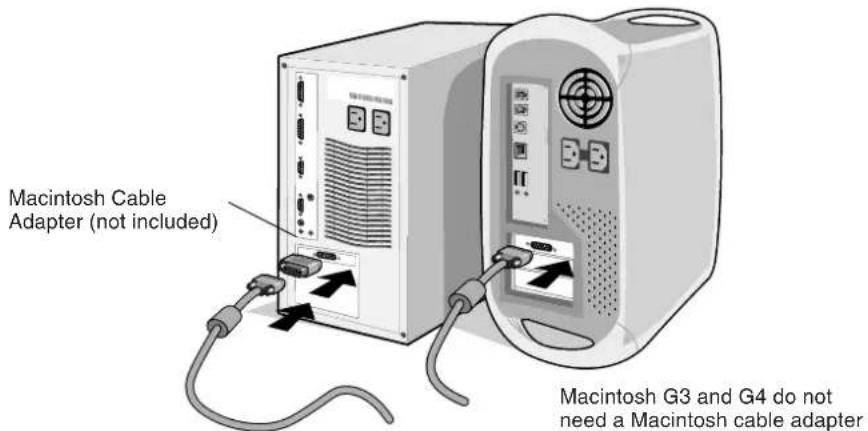
Figure B.1
English-7

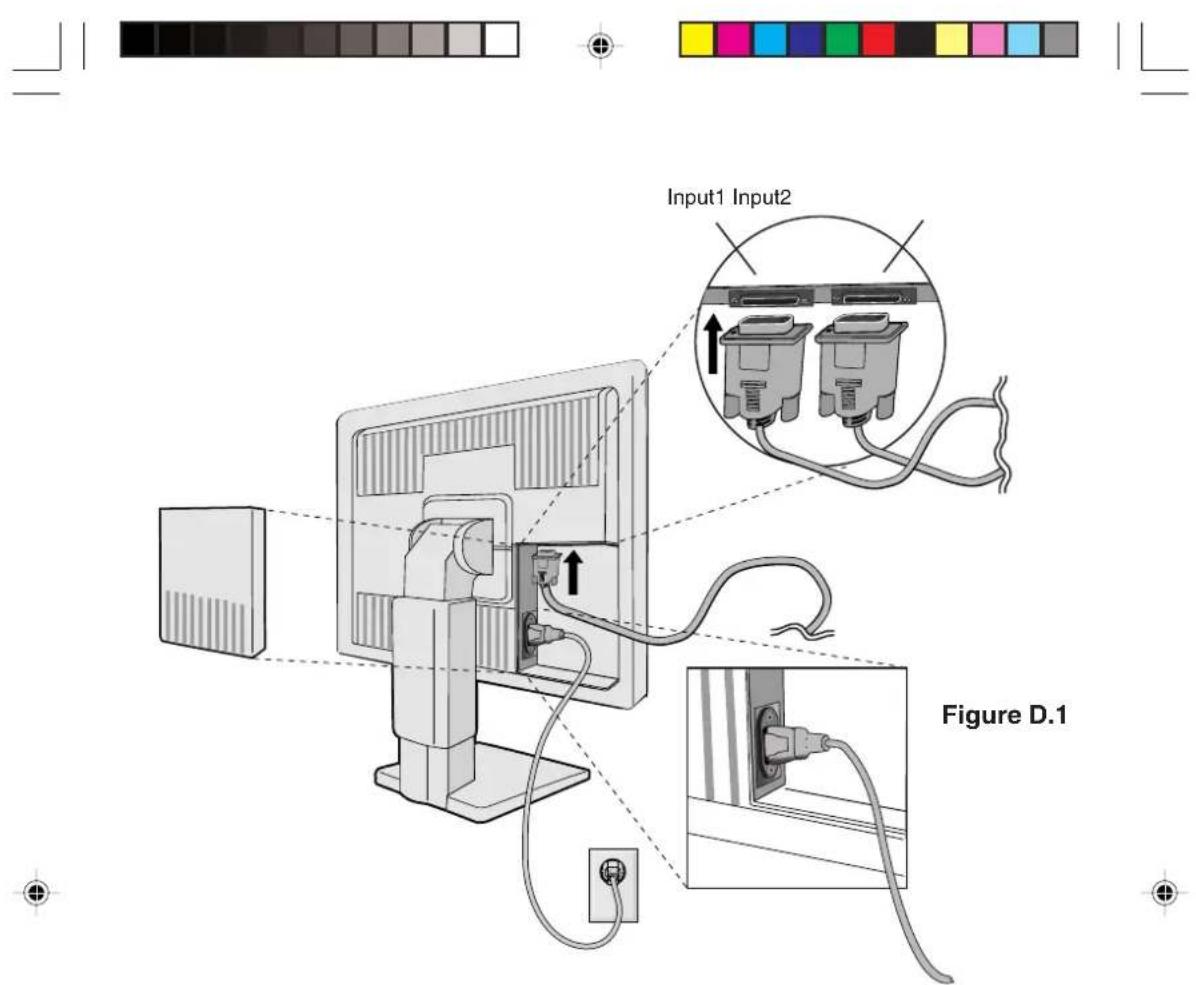
Figure C.1
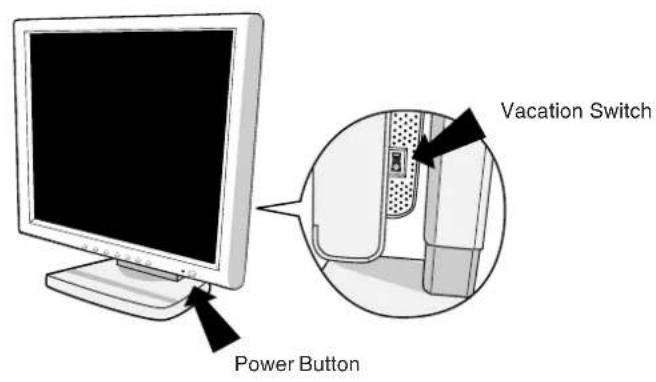
Figure E.1
English-8
Raise and Lower Monitor Screen
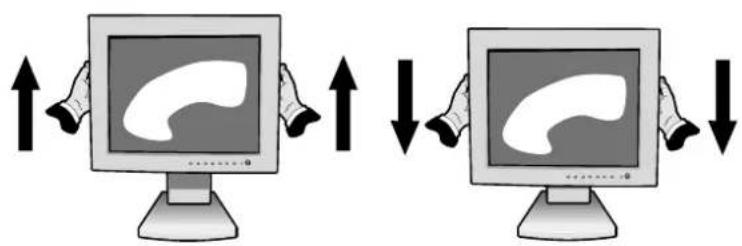
The monitor may be raised or lowered in either Portrait or Landscape mode.
To raise or lower screen, place hands on each side of the monitor and lift or lower to the desired height (Figure RL.1).
Screen Rotation
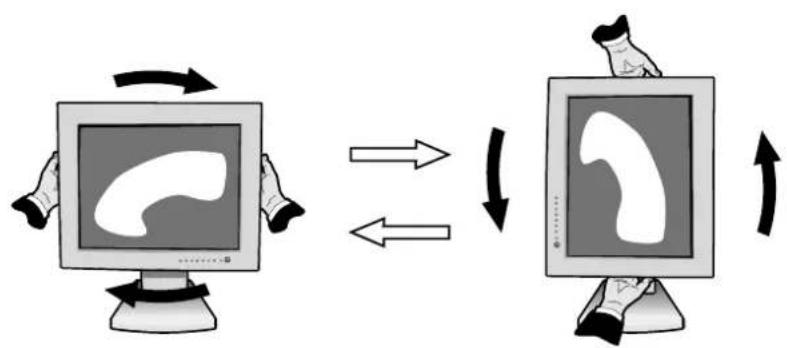
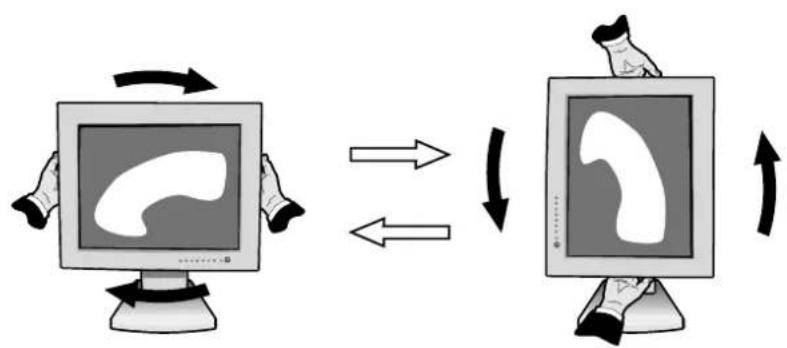
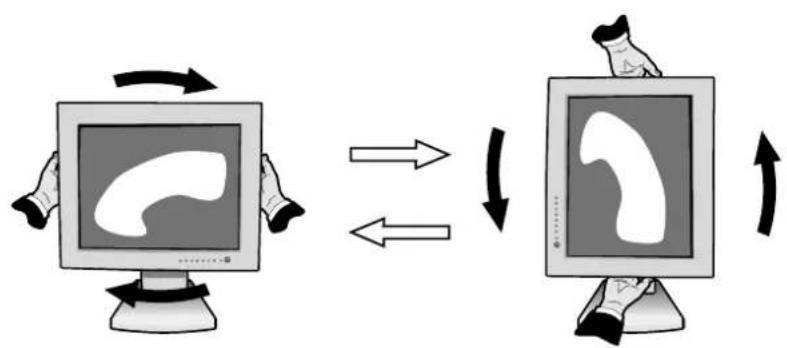
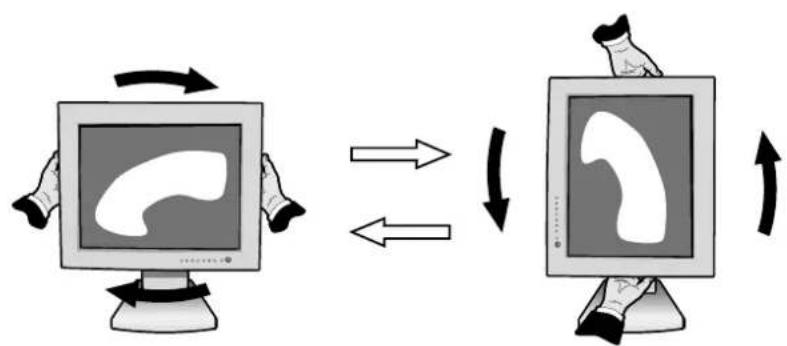
Before rotating, the screen must be raised to the highest level to avoid knocking the screen on the desk or pinching your fingers.
To raise the screen, place hands on each side of the monitor and lift up to the highest position (Figure RL.1).
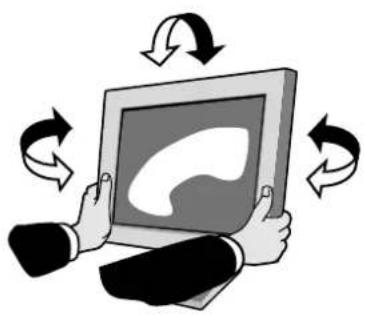
To rotate screen, place hands on each side of the monitor screen and turn clockwise from Landscape to Portrait or counter-clockwise from Portrait to Landscape (Figure R.1).
To toggle the orientation of the OSM menu between Landscape and Portrait modes, press the RESET button while OSM menu is off.
Tilt and Swivel
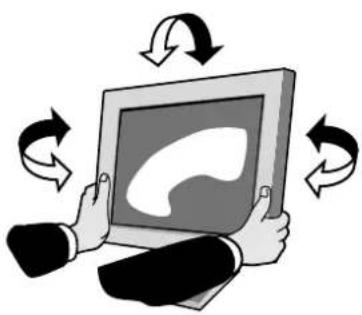
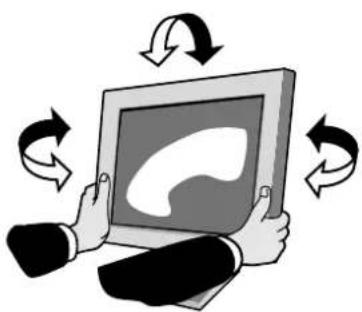
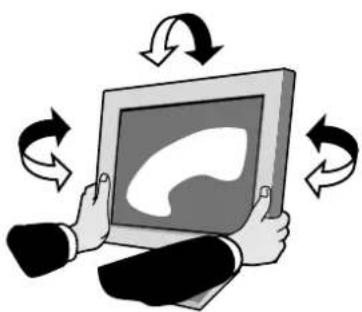
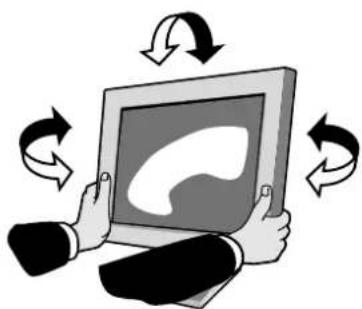
Grasp both sides of the monitor screen with your hands and adjust the tilt and swivel as desired (Figure TS.1).
Remove Monitor Stand for Mounting
To prepare the monitor for alternate mounting purposes:
- Disconnect all cables.
- Place hands on each side of the monitor and lift up to the highest position (Figure RL.1).
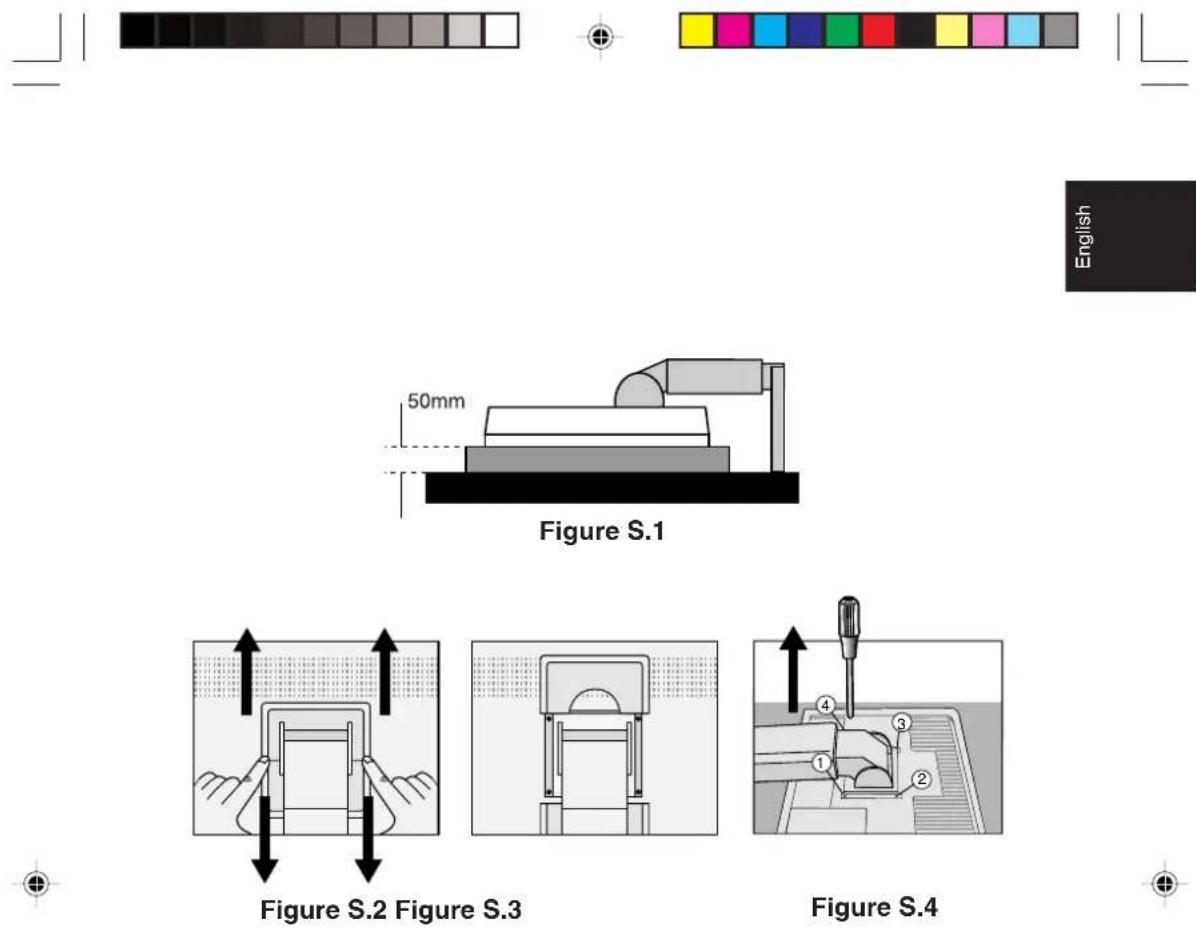
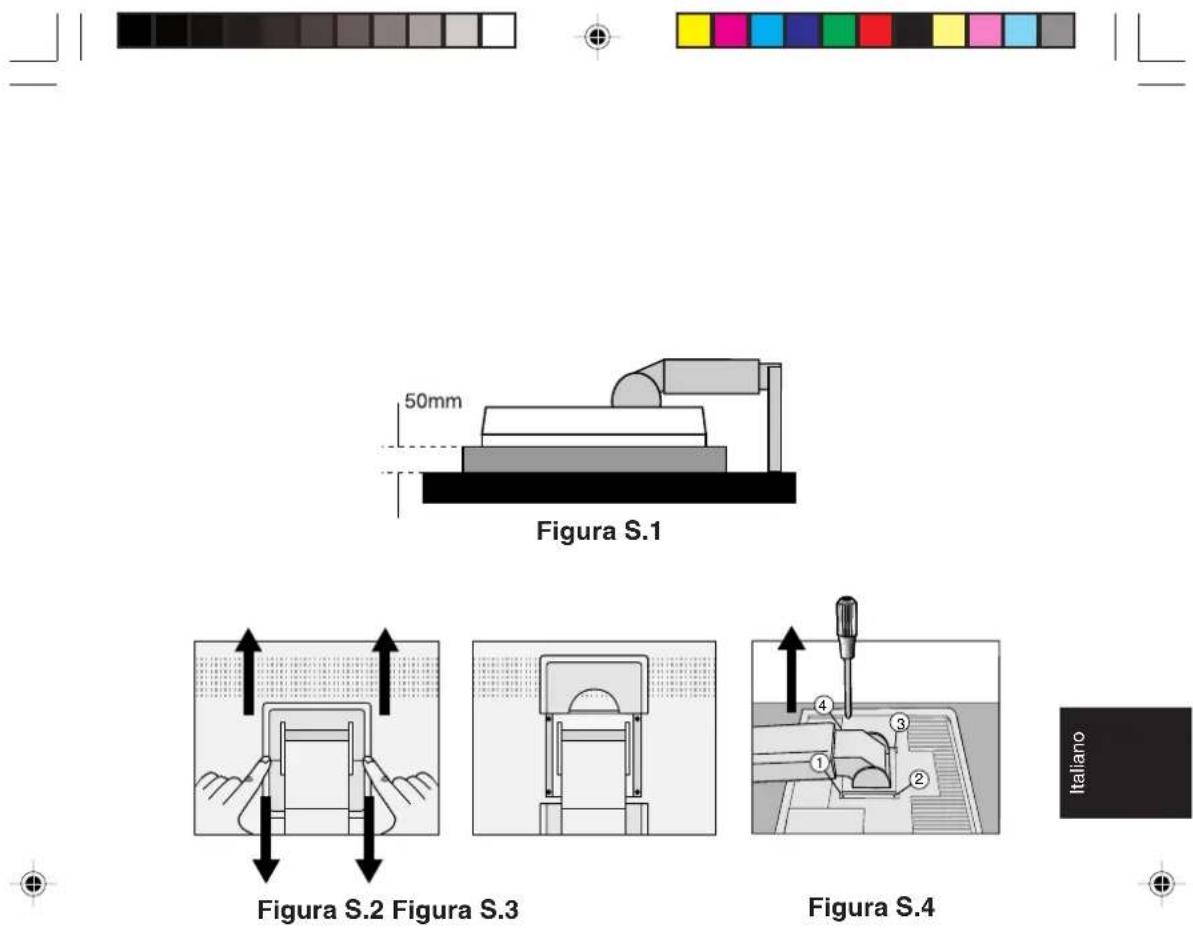
- Place monitor face down on a non-abrasive surface (Place the screen on a 50 mm platform so that the stand is parallel with the surface.) (Figure S.1).
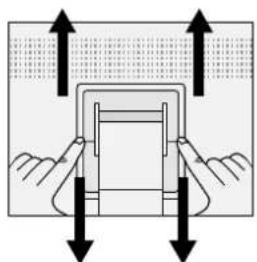
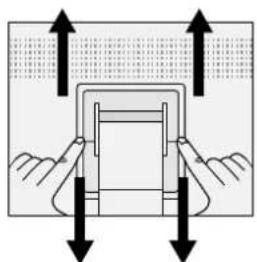
- Press the “▼” portion with your index finger and at the same time slide the lower stand cover. (Figure S.2)
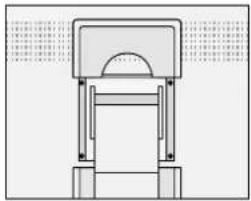
Next, lift up the stand, remove the lower stand cover, then go on to remove the upper stand cover. (Figure S.3)
Return the stand to its original position, remove the 4 screws that connect the monitor to the stand, and lift off the stand assembly.
(Figure S.4)
English-9



- Reverse this process to reattach stand.
NOTE: Use only VESA-compatible alternative mounting method.
natural_image
Two identical computer monitors with hand gestures showing upward and downward movement (no text or symbols)Figure RL.1
flowchart
graph TD
    A["Computer monitor with abstract internal shape"] --> B["Computer screen with abstract internal shape"]
    B --> C["Output state with arrow indicating transformation"]
Figure R.1
natural_image
Illustration of a person holding a tablet with a speech bubble, surrounded by curved arrows indicating rotation (no text or symbols)Figure TS.1
English-10
Caution: Please use the attached screws (4pcs) when mounting. To fulfil the safety requirements the monitor must be mounted to an arm which guarantees the necessary stability under consideration of the weight of the monitor. The LCD monitor shall only be used with an approved arm (e.g. GS mark).
English-11
Controls
OSM (On-Screen-Manager) Controls
The OSM controls on the front of the monitor function as follows:
To access OSM press any of the control buttons (◀, ▶, -, +).
To change signal input, press the NEXT button.
To rotate OSM between Landscape and Portrait modes, press the RESET button.
NOTE: OSM menu must be closed in order to change signal input and to rotate.
Control Menu
EXIT Exits the OSM controls.
Exits to the OSM main menu.
CONTROL ▶ Moves the highlighted area left/right to select control menus.
Moves the highlighted area up/down to select one of the controls.
ADJUST -/+ Moves the bar left/right to increase or decrease the adjustment.
Activates Auto Adjust function.
Enter the sub menu.
NEXT Moves the highlighted area of main menu right to select one of the controls.
RESET Resets the highlighted control menu to the factory setting.
Resets the highlighted control to the factory setting.
NOTE: When RESET is pressed in the main and sub-menu, a warning window will appear allowing you to cancel the RESET function by pressing the EXIT button.

Brightness/Contrast Controls

BRIGHTNESS
Adjusts the overall image and background screen brightness.

CONTRAST
Adjusts the image brightness in relation to the background.

AUTO ADJUST (Analog input only)
Adjusts the image displayed for non-standard video inputs.
AUTO
Auto Adjust (Analog input only)
Automatically adjusts the Image Position, the H. Size and Fine setting.

Position Controls (Analog input only)

LEFT/RIGHT
Controls Horizontal Image Position within the display area of the LCD.

DOWN/UP
Controls Vertical Image Position within the display area of the LCD.

H. SIZE
Adjusts the horizontal size by increasing or decreasing this setting.

FINE
Improves focus, clarity and image stability by increasing or decreasing this setting.
RGB
Color Control Systems
Six color presets select the desired color setting (sRGB and NATIVE color presets are standard and cannot be changed). Color temperature increases or decreases in each preset.
English-13



R,Y,G,C,B,M,S
Increases or decreases Red, Yellow, Green, Cyan, Blue, Magenta and Saturation depending upon which is selected. The change in color will appear on screen and the direction (increase or decrease) will be shown by the color bars.
sRGB
sRGB mode dramatically improves the color fidelity in the desktop environment by a single standard RGB color space. With this color supported environment, the operator could easily and confidently communicate colors without further color management overhead in the most common situations.
NATIVE
Original color presented by the LCD panel that is unadjustable.

Tools 1
a→a
SMOOTHING
Select one of three image sharpness settings. This function is only valid when the expanded display function (expansion function) is on.
TEXT MODE
Use this to display text clearly.
NORMAL MODE
This sharpness is between TEXT and GRAPHIC MODE.
GRAPHIC MODE
This mode is suited for images and photographs.

EXPANSION MODE
Sets the zoom method.
FULL
The image is expanded to 1280 x 1024, regardless of the resolution.
English-14




ASPECT
The image is expanded without changing the aspect ratio.
OFF
The image is not expanded.
CUSTOM (Digital input and Resolution of 1280 x 1024 only)
Select one of seven expansion rates.
In this mode the resolution may be low and there may be blank areas. This mode is for use with special video cards.

VIDEO DETECT
Selects the method of video detection when more than one computer is connected.
FIRST DETECT
The video input has to be switched to "FIRST DETECT" mode. When current video input signal is not present, then the monitor searches for a video signal from the other video input port. If the video signal is present in the other port, then the monitor switches the video source input port to the new found video source automatically. The monitor will not look for other video signals while the current video source is present.
LAST DETECT
The video input has to be switched to the “LAST DETECT” mode. When the monitor is displaying a signal from the current source and a new secondary source is supplied to the monitor, then the monitor will automatically switch to the new video source. When current video input signal is not present, then the monitor searches for a video signal from the other video input port. If the video signal is present in the other port, then the monitor switches the video source input port to the new found video source automatically.
NONE
The Monitor will not search the other video input port unless the monitor is turned on.
English-15




1 DVI SELECTION
This function selects the 1 DVI input mode. When the DVI selection has been changed, you must restart your computer.
DIGITAL
DVI digital input is available.
ANALOG
DVI analog input is available.

2 DVI SELECTION
This function selects the 2 DVI input mode. When the DVI selection has been changed, you must restart your computer.
DIGITAL
DVI digital input is available.
ANALOG
DVI analog input is available.


Tools 2

LANGUAGE
OSM control menus are available in seven languages.

OSM POSITION
You can choose where you would like the OSM control image to appear on your screen. Selecting OSM Location allows you to manually adjust the position of the OSM control menu left, right, down or up.

OSM TURN OFF
The OSM control menu will stay on as long as it is use. In the OSM Turn Off submenu, you can select how long the monitor waits after the last touch of a button to shut off the OSM control menu. The preset choices are 10, 20, 30, 45, 60 and 120 seconds.

OSM LOCK OUT
This control completely locks out access to all OSM control functions. When attempting to activate OSM controls while in the Lock Out mode, a screen will appear indicating the OSM controls are locked out.
English-16




To activate the OSM Lock Out function, press ◀ then ▶ and hold down simultaneously. To de-activate the OSM Lock Out, press ◀ then ▶ and hold down simultaneously.
English

RESOLUTION NOTIFIER
This optimal resolution is 1280 x 1024. If ON is selected, a message will appear on the screen after 30 seconds, notifying you that the resolution is not at 1280 x 1024.

FACTORY PRESET
Selecting Factory Preset allows you to reset all OSM control settings back to the factory settings. The RESET button will need to be held down for several seconds to take effect. Individual settings can be reset by highlighting the control to be reset and pressing the RESET button.
Information
MODE
DISPLAY MODE
Provides information about the current resolution display and technical data including the preset timing being used and the horizontal and vertical frequencies. Increases or decreases the current resolution. (Analog input only)

MONITOR INFO
Indicates the model and serial numbers of your monitor.
OSM Warning
OSM Warning menus disappear with Exit button.
NO SIGNAL: This function gives a warning when there is no signal present. After power is turned on or when there is a change of input signal or video is inactive, the No Signal window will appear.
English-17




RESOLUTION NOTIFIER: This function gives a warning of use with optimized resolution. After power is turned on or when there is a change of input signal or the video signal doesn't have proper resolution, the Resolution Notifier window will open. This function can be disabled in the TOOL menu.
OUT OF RANGE: This function gives a recommendation of the optimized resolution and refresh rate. After the power is turned on or there is a change of input signal or the video signal doesn't have proper timing, the Out Of Range menu will appear.
NOTE: If “① CHANGE DVI SELECTION” is displayed, switch to DVI SELECTION.
Recommended Use
English
Safety Precautions and Maintenance

FOR OPTIMUM PERFORMANCE, PLEASE NOTE THE FOLLOWING WHEN SETTING UP AND USING THE MULTISYNC LCD COLOR MONITOR:

- DO NOT OPEN THE MONITOR. There are no user serviceable parts inside and opening or removing covers may expose you to dangerous shock hazards or other risks. Refer all servicing to qualified service personnel.
- Do not spill any liquids into the cabinet or use your monitor near water.
- Do not insert objects of any kind into the cabinet slots, as they may touch dangerous voltage points, which can be harmful or fatal or may cause electric shock, fire or equipment failure.
- Do not place any heavy objects on the power cord. Damage to the cord may cause shock or fire.
- Do not place this product on a sloping or unstable cart, stand or table, as the monitor may fall, causing serious damage to the monitor.
- Do not place any objects onto the monitor and do not use the monitor outdoors.
- The inside of the flourescent tube located within the LCD monitor contains mercury. Please follow the bylaws or rules of your municipality to dispose of the tube properly.
Immediately unplug your monitor from the wall outlet and refer servicing to qualified service personnel under the following conditions:
- When the power supply cord or plug is damaged.
- If liquid has been spilled, or objects have fallen into the monitor.
- If the monitor has been exposed to rain or water.
- If the monitor has been dropped or the cabinet damaged.
- If the monitor does not operate normally by following operating instructions.
- Do not bend power cord.
- Do not use monitor in high temperatured, humid, dusty, or oily areas.
- Do not cover vent on monitor.
- If monitor is broken, do not come in contact with the liquid crystal.
- If glass is broken. Handle with care.
English-19

CAUTION
- Allow adequate ventilation around the monitor so that heat can properly dissipate. Do not block ventilated openings or place the monitor near a radiator or other heat sources. Do not put anything on top of monitor.
- The power cable connector is the primary means of detaching the system from the power supply. The monitor should be installed close to a power outlet which is easily accessible.
- Handle with care when transporting. Save packaging for transporting.

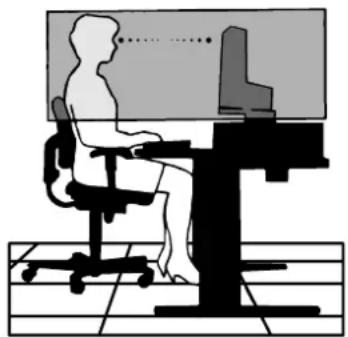
CORRECT PLACEMENT AND ADJUSTMENT OF THE MONITOR CAN REDUCE EYE, SHOULDER AND NECK FATIGUE. CHECK THE FOLLOWING WHEN YOU POSITION THE MONITOR:

- For optimum performance, allow 20 minutes for warm-up.
- Adjust the monitor height so that the top of the screen is at or slightly below eye level. Your eyes should look slightly downward when viewing the middle of the screen.
- Position your monitor no closer than 40 cm and no further away than 70 cm from your eyes. The optimal distance is 58 cm.
- Rest your eyes periodically by focusing on an object at least 6 m away. Blink often.
- Position the monitor at a 90^ angle to windows and other light sources to minimize glare and reflections. Adjust the monitor tilt so that ceiling lights do not reflect on your screen.
- If reflected light makes it hard for you to see your screen, use an antiglare filter.
- Clean the LCD monitor surface with a lint-free, non-abrasive cloth. Avoid using any cleaning solution or glass cleaner!
- Adjust the monitor's brightness and contrast controls to enhance readability.
- Use a document holder placed close to the screen.
- Position whatever you are looking at most of the time (the screen or reference material) directly in front of you to minimize turning your head while you are typing.
natural_image
Silhouette of a person sitting at a desk with a computer, no text or symbols visibleEnglish-20



- Avoid displaying fixed patterns on the monitor for long periods of time to avoid image persistence (after-image effects).
- Get regular eye checkups.
English
Ergonomics
To realize the maximum ergonomics benefits, we recommend the following:
- Adjust the Brightness until the background raster disappears
- Do not position the Contrast control to its maximum setting
- Use the preset Size and Position controls with standard signals
- Use the preset Color Setting
- Use non-interlaced signals with a vertical refresh rate between 60-75 Hz
- Do not use primary color blue on a dark background, as it is difficult to see and may produce eye fatigue to insufficient contrast
English-21

Specifications
| Monitor Specifications | MultiSync LCD1850DX Monitor | Notes |
| LCD Module Diagonal:Viewable Image Size:Native Resolution (Pixel Count): | 46 cm/18.1 inches46 cm/18.1 inches1280 x 1024 | Active matrix; thin film transistor (TFT) liquid crystal display (LCD);0.28 mm dot pitch;240cd/m2 white luminence, typical; 300:1 contrast ratio, typical |
| Input Signal Video:Sync: | ANALOG 0.7 Vp-p/75 Ohms / Digital Input: TMDS Separate sync.TTL Level Horizontal sync. Positive/Negative Vertical sync. Positive/Negative Compostite sync. Positive/Negative Sync on Green (Video 0.7 Vp-p and Sync 0.3 Vp-p) | |
| Display Colours Analog input: | 16,777,216 | Depends on display card used. |
| Viewing Angle Left/Right:Up/Down: | ± 85°± 85° | |
| Synchronization Range Horizontal:Vertical: | 31 kHz to 82 kHz50 Hz to 85 Hz | AutomaticallyAutomatically |
| Resolutions Supported Landscape:Portrait: | 720 x 400*1 : VGA text640 x 480*1 at 60 Hz to 85 Hz800 x 600*1 at 56 Hz to 85 Hz832 x 624*1 at 75 Hz1024 x 768*1 at 60 Hz to 85 Hz1152 x 870*1 at 75 Hz1280 x 1024*2 at 60 Hz to 75 Hz480 x 640*1 at 60 Hz to 85 Hz600 x 800*1 at 56 Hz to 85 Hz624 x 832*1 at 75 Hz768 x 1024*1 at 60 Hz to 85 Hz870 x 1152*1 at 75 Hz1024 x 1280*2 at 60 Hz to 75 Hz | Some systems may not support all modes listed. |
| Active Display Horizontal:Area (Landscape) Vertical: | 359 mm/14.1 inches287 mm/11.3 inches | Dependent upon signal timing used, and does not include border area. |
| Active Display Horizontal:Area (Portrait) Vertical: | 287 mm/11.3 inches359 mm/14.1 inches | Dependent upon signal timing used, and does not include border area. |
| Power Supply | AC 100-120 V/220-240 V 50/60 Hz | |
| Current Rating | 0.8 A @ 100-120 V, 0.35 A @ 220-240 V | |



| Monitor Specifications | MultiSync LCD1850DX Monitor Notes |
| Dimensions Landscape: | 398 mm (W) x 445 mm (H) x 218 mm (D) |
| 15.7 inches (W) x 17.5 inches (H) x 8.6 inches (D) | |
| Portrait: | 349 mm (W) x 469.5 mm (H) x 218 mm (D) |
| 13.7 inches (W) x 18.5 inches (H) x 8.6 inches (D) | |
| Weight | 8.5 kg (18.7 lbs) |
| Environmental Considerations | |
| Operating Temperature: | 5 °C to 35 °C |
| Humidity: | 30% to 80% |
| Altitude: | 0 to 3,050 m |
| Storage Temperature: | -10 °C to +60 °C |
| Humidity: | 10% to 85% |
| Altitude: | 0 to 14,000 m |
English
*1 Interpolated Resolutions: When resolutions are shown that are lower than the pixel count of the LCD module, text may appear different. This is normal and necessary for all current flat panel technologies when displaying non-native resolutions full screen. In flat panel technologies, each dot on the screen is actually one pixel, so to expand resolutions to full screen, an interpolation of the resolution must be done.
*2 NEC-Mitsubishi Electronics Display cites recommended resolutions at 60 Hz for optimal display performance.
NOTE: Technical specifications are subject to change without notice.
Features
sRGB Color Control: A new optimized color management standard which allows for color matching on computer displays and other peripherals. The sRGB, which is based on the calibrated color space, allows for optimal color representation and backward compatibility with other common color standards.
Reduced Footprint: Provides the ideal solution for environments requiring superior image quality but with size and weight limitations. The monitor's small footprint and low weight allow it to be moved or transported easily from one location to another.
Color Control System: Allows you to adjust the colors on your screen and customize the color accuracy of your monitor to a variety of standards.
OSM (On-Screen Manager) Controls: Allow you to quickly and easily adjust all elements of your screen image via simple to use on-screen menus.

ErgoDesign Features: Enhance human ergonomics to improve the working environment, protect the health of the user and save money. Examples include OSM controls for quick and easy image adjustments, tilt base for preferred angle of vision, small footprint and compliance with MPRII and TCO guidelines for lower emissions.
Plug and Play: The Microsoft solution with the Windows 95/98/2000 operating system facilitates setup and installation by allowing the monitor to send its capabilities (such as screen size and resolutions supported) directly to your computer, automatically optimizing display performance.
IPM (Intelligent Power Manager) System: Provides innovative power-saving methods that allow the monitor to shift to a lower power consumption level when on but not in use, saving two-thirds of your monitor energy costs, reducing emissions and lowering the air conditioning costs of the workplace.
Multiple Frequency Technology: Automatically adjusts monitor to the display card's scanning frequency, thus displaying the resolution required.
FullScan Capability: Allows you to use the entire screen area in most resolutions, significantly expanding image size.
Wide Viewing Angle Technology: Allows the user to be able to see the monitor from any angle (170 degrees) from any orientation – Portrait or Landscape. Provides full 170^ viewing angles either up, down, left or right.
VESA Standard Mounting Interface: Allows users to connect their MultiSync monitor to any VESA standard (100 mm pitch) third party mounting arm or bracket. Allows for the monitor to be mounted on a wall or an arm using any third party compliant device.
DVI-I Technology: Dual input technology allowing both analog and digital inputs through one connector (DVI-I) as well as additional legacy analog support through a traditional 15-pin VGA connector. Provides traditional MultiSync technology compatibility for analog as well as TMDS (Transition Minimized Differential Signal) based digital compatibility for digital inputs. TMDS-based digital interfaces include DVI-D, DFP and P&D.
DVI-I: The integrated interface ratified by the Digital Display Working Group (DDWG) that allows both digital and analog connectors through one port. The "I" stands for integration for both digital and analog. The digital portion is TMDS based.
DVI-D: The digital only subset of DVI ratified by the Digital Display Working Group (DDWG) for digital connections between computers and displays. As a digital only connector, analog support is not provided for through a DVI-D connector. As a TMDS based digital only connection, only a simple adapter is necessary for compatibility between DVI-D and other TMDS based digital connectors such as DFP and P&D.
P&D: Plug and Display - The VESA standard for digital flat panel monitor interfaces. It is more robust than DFP since it allows for other options through a single connector (options like USB, analog video and IEEE-1394-995). The VESA committee has recognized that DFP is a subset of P&D. As a TMDS based connector (for the digital input pins), only a simple adapter is necessary for compatibility between P&D and other TMDS based digital connectors such as DVI and DFP.
Pivoting Stand: Allows users to adjust the monitor to the orientation that best fits their application, either Landscape orientation for wide documents, or portrait orientation for the ability to preview a full page on one screen at one time. The Portrait orientation is also perfect for full screen video conferencing.
English-25
Troubleshooting
No picture
- The signal cable should be completely connected to the display card/computer.
- The display card should be completely seated in its slot.
- Check the Vacation Switch should be in the ON Position. Front power Switch and computer power switch should be in the ON position.
- Check to make sure that a supported mode has been selected on the display card or system being used. (Please consult display card or system manual to change graphics mode.)
- Check the monitor and your display card with respect to compatibility and recommended settings.
- Check the signal cable connector for bent or pushed-in pins.
- Check the signal input, "INPUT 1" or "INPUT 2".
Power Button does not respond
- Unplug the power cord of the monitor from the AC outlet to turn off and reset the monitor, or simultaneously press the RESET and Power buttons.
- Check the Vacation Switch on the right hand side of the monitor.
Image persistence
- Image persistence is when a “ghost” of an image remains on the screen even after the monitor has been turned off. Unlike CRT monitors, LCD monitors’ image persistence is not permanent. To alleviate image persistence, turn the monitor off for as long as an image was displayed. If an image was on the monitor for one hour and a “ghost” of that image remains, the monitor should be turned off for one hour to erase the image.
NOTE: As with all personal display devices, NEC-Mitsubishi Electronic Displays recommends using a screen saver at regular intervals whenever the screen is idle.
Image is unstable, unfocused or swimming is apparent
- Signal cable should be completely attached to the computer.
- Use the OSM Image Adjust controls to focus and adjust display by increasing or decreasing the fine total. When the display mode is changed, the OSM Image Adjust settings may need to be readjusted.
- Check the monitor and your display card with respect to compatibility and recommended signal timings.
- If your text is garbled, change the video mode to non-interlace and use 60 Hz refresh rate.
Message “OUT OF RANGE” is displayed (screen is either blank or shows rough images only)
- Image is displayed only roughly (pixels are missing) and OSM warning "OUT OF RANGE" is displayed: Either signal clock or resolution is too high. Choose one of the supported modes.
- OSM warning "OUT OF RANGE" is displayed on a blank screen: Signal frequency is out of range. Choose one of the supported modes.
LED on monitor is not lit (no green or amber color can be seen)
- Power Switch should be in the ON position and power cord should be connected.
Display image is not sized properly
- Use the OSM Image Adjust controls to increase or decrease the Coarse total.
- Check to make sure that a supported mode has been selected on the display card or system being used. (Please consult display card or system manual to change graphics mode.)
No Video
- If no video is present on the screen, turn the Power button off and on again.
- Make certain the computer is not in a power-saving mode (touch the keyboard or mouse).
English-27
TCO'99
MultiSync LCD1850DX white Model (LH-18S02-2)
Congratulations! You have just purchased a TCO'99 approved and labeled product! Your choice has provided you with a product developed for professional use. Your purchase has also contributed to reducing the burden on the environment and also to the further development of environmentally adapted electronics products.

Why do we have environmentally labelled computers?
In many countries, environmental labelling has become an established method for encouraging the adaptation of goods and services to the environment. The main problem, as far as computers and other electronics equipment are concerned, is that environmentally harmful substances are used both in the products and during the manufacturing. Since it has not been possible for the majority of electronics equipment to be recycled in a satisfactory way, most of these potentially damaging substances sooner or later enter Nature.
There are also other characteristics of a computer, such as energy consumption levels, that are important from the viewpoints of both the work (Internal) and natural (external) environments. Since all methods of conventional electricity generation have a negative effect on the environment (acidic and climate-influencing emissions, radioactive waste, etc.), it is vital to conserve energy. Electronics equipment in offices consume an enormous amount of energy since they are often left running continuously.
What does labelling involve?
This product meets the requirements for the TCO'99 scheme which provides for international and environmental labelling of personal computers. The labelling scheme was developed as a joint effort by the TCO (The Swedish Confederation of Professional Employees), Svenska Naturskyddsforeningen (The Swedish Society for Nature Conservation) and Statens Energimyndighet (The Swedish National Energy Administration).
The requirements cover a wide range of issues: environment, ergonomics, usability, emission of electrical and magnetic fields, energy consumption and electrical and fire safety.
The environmental demands concern restrictions on the presence and use of heavy metals, brominated and chlorinated flame retardants, CFCs (freons) and chlorinated solvents, among other things. The product must be prepared for recycling and the manufacturer is obliged to have an environmental plan which must be adhered to in each country where the company implements its operational policy. The energy requirements include a demand that the computer and/or display, after a certain period of inactivity, shall reduce its power consumption to a lower level in one or more stages. The length of time to reactivate the computer shall be reasonable for the user.
Labelled products must meet strict environmental demands, for example, in respect of the reduction of electric and magnetic fields, physical and visual ergonomics and good usability.
Environmental Requirements
Flame retardants
Flame retardants are present in printed circuit boards, cables, wires, casings and housings. In turn, they delay the spread of fire. Up to thirty percent of the plastic in a computer casing can consist of flame retardant substances. Most flame retardants contain bromine or chloride and these are related to another group of environmental toxins, PCBs, which are suspected to give rise to severe health effects, including reproductive damage in fisheating birds and mammals, due to the bioaccumulative* processes. Flame retardants have been found in human blood and researchers fear that disturbances in foetus development may occur.
TCO'99 demand requires that plastic components weighing more than 25 grams must not contain flame retardants with organically bound chlorine and bromine. Flame retardants are allowed in the printed circuit boards since no substitutes are available.
Lead\*\*
Lead can be found in picture tubes, display screens, solders and capacitors. Lead damages the nervous system and in higher doses, causes lead poisoning.
TCO'99 requirement permits the inclusion of lead since no replacement has yet been developed.
English-29



Cadmium\*\*
Cadmium is present in rechargeable batteries and in the colour generating layers of certain computer displays. Cadmium damages the nervous system and is toxic in high doses.
TCO'99 requirement states that batteries, the colourgenerating layers of display screens and the electrical or electronics components must not contain any cadmium.
Mercury\*\*
Mercury is sometimes found in batteries, relays and switches, Mercury damages the nervous system and is toxic in high doses.
TCO'99 requirement states that batteries may not contain any Mercury. It also demands that no mercury is present in any of the electrical or electronics components associated with the display unit.
CFCs (freons)
CFCs (freons) are sometimes used for washing printed circuit boards. CFCs break down ozone and thereby damage the ozone layer in the stratosphere, causing increased reception on Earth of ultraviolet light with consequent increased risks of skin cancer (malignant melanoma).
The relevant TCO'99 requirement; Neither CFCs nor HCFCs may be used during the manufacturing and assembly of the product or its packaging.
* Bio-accumulative is defined as substances which accumulate within living organisms.
** Lead, Cadmium and Mercury are heavy metals which are Bioaccumulative.
To obtain complete information on the environmental criteria document, order from:
TCO Development Unit
SE-114 94 Stockholm
SWEDEN
FAX Number: +46 8 782 92 07
E-mail (Internet): development@tco.se
You may also obtain current information on TCO'99 approved and labelled products by visiting their website at:
http://www.tco-info.com/
English-30

TCO'95
English
MultiSync LCD1850DX Black Model (LH-18S02-BK2)
Congratulations! You have just purchased a TCO'95 approved and labeled product! Your choice has provided you with a product developed for professional use. Your purchase has also contributed to reducing the burden on the environment and also, to the further development of environmentally adapted electronics products.

Why do we have environmentally labelled computers?
In many countries, environmental labelling has become an established method for encouraging the adaptation of goods and services to the environment. The main problem, as far as computers and other electronics equipment are concerned, is that environmentally harmful substances are used both in the products and during the manufacturing. Since it has not been possible for the majority of electronics equipment to be recycled in a satisfactory way, most of these potentially damaging substances sooner or later enter Nature.
There are also other characteristics of a computer, such as energy consumption levels, that are important from the viewpoints of both the work (Internal) and natural (external) environments. Since all methods of conventional electricity generation have a negative effect on the environment (acidic and climate-influencing emissions, radioactive waste, etc.), it is vital to conserve energy. Electronics equipment in offices consume an enormous amount of energy since they are often left running continuously.
What does labelling involve?
This product meets the requirements for the TCO'95 scheme which provides for international and environmental labelling of personal computers. The labelling scheme was developed as a joint effort by the TCO (The Swedish Confederation of Professional Employees), Naturskyddsforeningen (The Swedish Society for Nature Conservation) and NUTEK (The National Board for Industrial and Technical Development in Sweden).
The requirements cover a wide range of issues: environment, ergonomics, usability, emission of electrical and magnetic fields, energy consumption and electrical and fire safety.
English-31
The environmental demands concern restrictions on the presence and use of heavy metals, brominated and chlorinated flame retardants, CFCs (freons) and chlorinated solvents, among other things. The product must be prepared for recycling and the manufacturer is obliged to have an environmental plan which must be adhered to in each country where the company implements its operational policy. The energy requirements include a demand that the computer and/or display, after a certain period of inactivity, shall reduce its power consumption to a lower level in one or more stages. The length of time to reactivate the computer shall be reasonable for the user.
Labelled products must meet strict environmental demands, for example, in respect of the reduction of electric and magnetic fields, physical and visual ergonomics and good usability.
TCO'95 is a co-operative project between TCO (The Swedish Confederation of Professional Employees), Naturskyddsforeningen (The Swedish Society for Nature Conservation) and NUTEK (The National Board for Industrial and Technical Development in Sweden).
Environmental Requirements
Brominated flame retardants
Brominated flame retardants are present in printed circuit boards, cables, wires, casings and housings. In turn, they delay the spread of fire. Up to thirty percent of the plastic in a computer casing can consist of flame retardant substances. These are related to another group of environmental toxins, PCBs, which are suspected to give rise to similar harm, including reproductive damage in fisheating birds and mammals, due to the bio-accumulative* processes. Flame retardants have been found in human blood and researchers fear that disturbances in foetus development may occur.
TCO'95 demand requires that plastic components weighing more than 25 grams must not contain organically bound chlorine and bromine.
Lead\*\*
Lead can be found in picture tubes, display screens, solders and capacitors. Lead damages the nervous system and in higher doses, causes lead poisoning.
TCO'95 requirement permits the inclusion of lead since no replacement has yet been developed.
English-32



Cadmium\*\*
Cadmium is present in rechargeable batteries and in the colour generating layers of certain computer displays. Cadmium damages the nervous system and is toxic in high doses.
English
TCO'95 requirement states that batteries may not contain more than 25 ppm (parts per million) of cadmium. The colourgenerating layers of display screens must not contain any cadmium.
Mercury\*\*
Mercury is sometimes found in batteries, relays, switches, and back-light systems, Mercury damages the nervous system and is toxic in high doses.
TCO'95 requirement states that batteries may not contain more than 25 ppm (parts per million) of mercury. It also demands that no mercury is present in any of the electrical or electronics components concerned with the display unit, except the back-light system.
CFCs (freons)
CFCs (freons) are sometimes used for washing printed circuit boards and in the manufacturing of expanded foam for packaging. CFCs break down ozone and thereby damage the ozone layer in the stratosphere, causing increased reception on Earth of ultraviolet light with consequent increased risks of skin cancer (malignant melanoma).
The relevant TCO'95 requirement; Neither CFCs nor HCFCs may be used during the manufacturing of the product or its packaging.
*Bio-accumulative is defined as substances which accumulate within living organisms.
**Lead, Cadmium and Mercury are heavy metals which are Bio-accumulative.
To obtain complete information on the environmental criteria document, order from:
TCO Development Unit
SE-114 94 Stockholm
SWEDEN
FAX Number: +46 8 782 92 07
E-mail (Internet): development@tco.se
You may also obtain current information on TCO'95 approved and labelled products by visiting their website at: http://www.tco-info.com/
English-33

natural_image
Blank white image with a color palette bar at the top and corner markers (no text or symbols)English-34

WARNUNG

MS Shibaura Bldg., 13-23,
Shibaura 4-chome,
Minato-Ku, Tokyo 108-0023, Japan

Display of America, Inc.
Adresse: 1250 N. Arlington Heights Road
Itasca, Illinois 60143-1248
Telefon:
(630)467-3000
Produkttyp: Computermonitor
natural_image
Two computer hardware units connected by USB cables, one with ports and cable connectors (no visible text or symbols)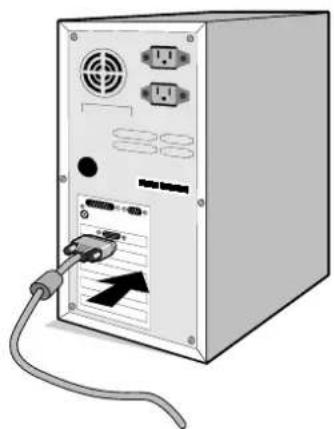
natural_image
Front view of a computer tower drive with cable and ventilation slots (no visible text or labels)natural_image
Two identical computer monitors with hand gestures showing upward and downward movement (no text or symbols)Abbildung RL.1
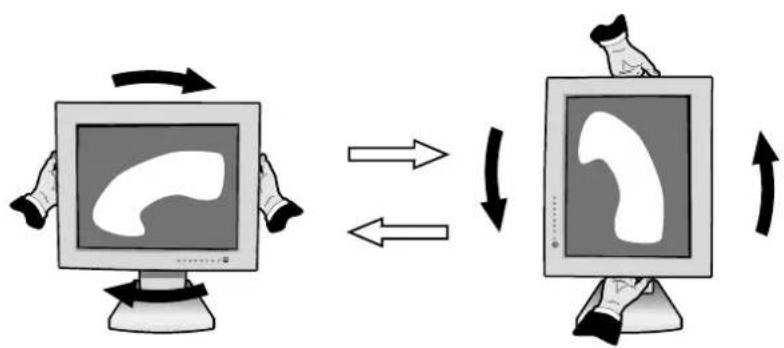
Abbildung R.1
natural_image
Illustration of a person holding a tablet with a phone icon, surrounded by curved arrows indicating rotation (no text or symbols)natural_image
Color palette bar with grayscale gradient and a small crosshair symbol (no text or symbols)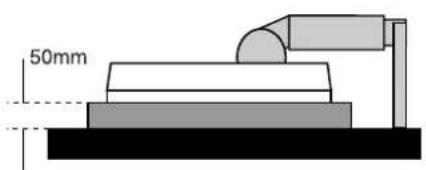
Abbildung S.1
Deutsch
natural_image
Diagram of a mechanical assembly with arrows indicating force directions (no text or symbols)natural_image
Technical line drawing of a mechanical device with no visible text or symbols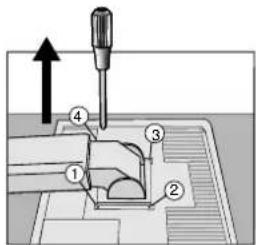
Abbildung S.4
Vorsicht:
natural_image
Silhouette of a person sitting at a desk with a computer, no text or symbols visibleDeutsch-20




TCO Development Unit
SE-114 94 Stockholm
SCHWEDEN
Faxnummer: +46 8 782 92 07
E-Mail (Internet): development@tco.se
TCO Development Unit
SE-114 94 Stockholm
SWEDEN
Faxnummer: +46 8 782 92 07
E-Mail (Internet): development@tco.se
natural_image
Blank white image with a color palette bar at the top and corner (no text or symbols)Deutsch-34

ADVERTENCIA

PARA PREVENIR EL PELIGRO DE INCENDIO O DESCARGAS ELÉCTRICAS, NO EXPONGA ESTE PRODUCTO A LA LLUVIA O LA HUMEDAD. TAMPOCO UTILICE EL ENCHUFE POLARIZADO DE ESTE PRODUCTO CON UN RECEPTÁCULO DEL CABLE DE EXTENSIÓN U OTRAS TOMAS A MENOS QUE LAS PROLONGACIONES SE PUEDAN INSERTAR COMPLETAMENTE. NO ABRA LA CAJA DEL MONITOR, YA QUE CONTIENE COMPONENTES DE ALTO VOLTAJE. DEJE QUE SEA EL PERSONAL DE SERVICIO CUALIFICADO QUIEN SE ENCARGUE DE LAS TAREAS DE SERVICIO.
PELIGRO
RIESGO DE DESCARGAS ELÉCTRICAS • NO ABRIR


PARA REDUCIR EL RIESGO DE DESCARGAS ELÉCTRICAS, NO RETIRE LA CUBIERTA (O LA PARTE POSTERIOR). EL MONITOR NO CONTIENE PIEZAS QUE DEBA MANIPULAR EL USUARIO. DEJE QUE SEA EL PERSONAL DE SERVICIO CUALIFICADO QUIEN SE ENCARGUE DE LAS TAREAS DE SERVICIO.
MS Shibaura Bldg., 13-23,
Shibaura 4-chome,
Minato-Ku, Tokyo 108-0023, Japan

DOC: This Class B digital apparatus meets all requirements of the Canadian Interference-Causing Equipment Regulations.
Cet appareil numérique de la classe B respecte toutes les exigences du Règlement sur le matériel brouiller du Canada. (Este aparato digital de clase B cumple todos los requisitos de las normas canadienses para el control de equipos causantes de interferencias.)
C-UL: Bears the C-UL Mark and is in compliance with Canadian Safety Regulations according to CSA C22.2 #950.
Ce produit porte la marque 'C-UL' et se conforme aux règlements de sûrele Canadiens selon CAN/CSA C22.2 No. 950.(Dispone de la marca C-UL y cumple todas las normas de seguridad canadienses de acuerdo con CAN/CSA C22.2 N°. 950.)
(U.S. Government Printing Office, Washington, D.C., 20402, Stock N° 004-000-00345-4.
Display of America, Inc.
natural_image
Two computer monitors connected by cable, one with a USB cable and the other with an Ethernet port (no visible text or labels)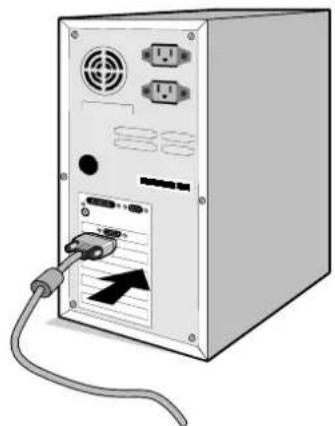
natural_image
Front view of a computer tower with attached cable and indicator lights (no visible text or symbols)Figura A.1 Figura A.2
natural_image
Two identical computer monitors with hand gestures showing upward and downward movement (no text or symbols)Figura RL.1
flowchart
graph LR
    A["Computer monitor with abstract internal shape"] --> B["Computer screen with abstract internal shape"]
    B --> C["Output state with arrow indicating transformation"]
Figura R.1
natural_image
Illustration of hands holding a tablet with a speech bubble icon, surrounded by curved arrows indicating rotation (no text or symbols)Figura TS.1
Español-10
natural_image
Silhouette of a person sitting at a desk using a computer, viewed from behind (no text or symbols present)Español-20



TCO Development Unit
SE-114 94 Stockholm
SUECIA
FAX: +46 8 782 92 07
E-mail (Internet): development@tco.se
TCO Development Unit
SE-114 94 Stockholm
SUECIA
FAX: +46 8 782 92 07
E-mail (Internet): development@tco.se
MS Shibaura Bldg., 13-23,
Shibaura 4-chome,
Minato-Ku, Tokyo 108-0023, Japan

DOC : This Class B digital apparatus meets all requirements of the Canadian Interference-Causing Equipment Regulations.
C-UL : Bears the C-UL Mark and is in compliance with Canadian Safety Regulations according to CSA C22.2 #950.
natural_image
Two computer desktop units connected by cable, one with a USB port and arrow indicating connection (no text or symbols visible)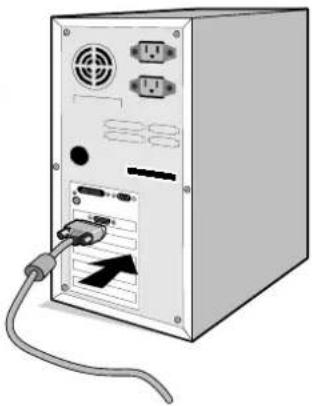
natural_image
Front view of a computer tower with ventilation slots and cable (no visible text or labels)Figure A.2
Figure A.1
natural_image
Two identical computer monitors with hand gestures showing upward and downward movement (no text or symbols)Figure RL.1
flowchart
graph LR
    A["Computer monitor with abstract internal shape"] --> B["Computer screen with abstract internal shape"]
    style A fill:#f9f,stroke:#333
    style B fill:#bbf,stroke:#333
Figure R.1
natural_image
Illustration of hands holding a tablet with a speech bubble icon, surrounded by curved arrows indicating rotation (no text or symbols)Figure TS.1
Français-10



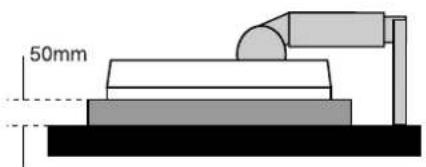
Figure S.1
natural_image
Diagram of a mechanical or electrical component with arrows indicating direction (no text or symbols)Figure S.2 Figure S.3
natural_image
Technical line drawing of a mechanical device with no visible text or symbols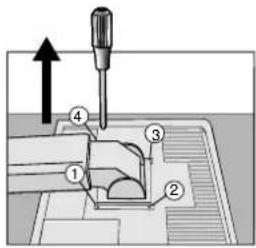
Figure S.4


natural_image
Silhouette of a person sitting at a desk using a computer, no text or symbols visibleFrançais-20




TCO Development Unit
SE-114 94 Stockholm
SUÈDE
TCO Development Unit
SE-114 94 Stockholm
SWEDEN
natural_image
Pure color palette bar with no text or symbols, showing a gradient from black to yellow squares on white background (no text or symbols)Français-34

AVVERTENZA

PER EVITARE IL PERICOLO DI INCENDI O SCOSSE ELETTRICHE, NON ESPORRE L'UNITA' A PIOGGIA O UMIDITA'. INOLTRE, NON USARE LA SPINA POLARIZZATA DELL'UNITA' CON UNA PRESA DI CAVO DI PROLUNGA O ALTRE PRESE A MENO CHE I POLI DELLA SPINA SI INSERISCANO COMPLETAMENTE. NON APRIRE LA CARROZZERIA POICHE' ALL'INTERNO VI SONO COMPONENTI SOTTO ALTA TENSIONE. PER LA MANUTENZIONE RIVOLGERSI A PERSONALE DI MANUTENZIONE QUALIFICATO.
ATTENZIONE
PERICOLO DI SCOSSA ELETTRICA • NON APRIRE


ATTENZIONE
PER EVITARE IL RISCHIO DI SCOSSA ELETTRICA, NON TOGLIERE IL COPERCHIO (O LA COPERTURA POSTERIORE). ALL'INTERNO NON VI SONO PARTI MANUTENIBILI DALL'UTENTE. PER LA MANUTENZIONE RIVOLGERSI A PERSONALE DI MANUTENZIONE QUALIFICATO.

MS Shibaura Bldg., 13-23,
Shibaura 4-chome,
Minato-Ku, Tokyo 108-0023, Japan

Display of America, Inc.
Indirizzo: 1250 N. Arlington Heights Road
Itasca, Illinois 60143-1248
N.. Tel.: (630)467-3000
natural_image
Two computer units connected by cable, one with a USB port and arrow indicating connection (no visible text or symbols)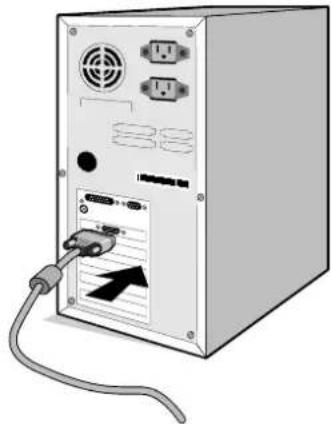
natural_image
Front view of a computer tower with ventilation slots and an attached cable (no visible text or symbols)
Figura A.1 Figura A.2
natural_image
Two identical computer monitors with hand gestures showing upward and downward movement (no text or symbols)Figura RL.1
flowchart
graph LR
    A["Computer monitor with icon"] -->|Forward| B["Computer monitor with icon"]
    B -->|Reverse| A
Figura R.1
natural_image
Illustration of hands holding a tablet with a speech bubble icon, surrounded by curved arrows indicating rotation (no text or symbols)Figura TS.1
Italiano-10
Controlli OSM (On-Screen Manager):
natural_image
Silhouette of a person sitting at a desk using a computer, with no visible text or symbolsItaliano-20



TCO Development Unit
SE-114 94 Stockholm
SWEDEN
Numero FAX: +46 8 782 92 07
E-mail (Internet): development@tco.se
TCO Development Unit
SE-114 94 Stockholm
SWEDEN
FAX Number: +46 8 782 92 07
E-mail (Internet): development@tco.se
natural_image
Blank white image with a color palette bar at the top and corner markers (no text or symbols)Italiano-34

natural_image
Color palette bar and a grid of colored squares with a crosshair for selection (no text or symbols)NEC

natural_image
Two identical circular symbols with crosshairs on a white background, no text or labels present.Printed in Japan
7A812181

xx_Back 26/3/01, 12:13 pm2


- CAUTION
- Caution:
- English-1
- Declaration
- English-2
- For the Customer to use in U.S.A. or Canada
- Canadian Department of Communications Compliance Statement
- English-3
- Declaration of Conformity
- English-4
- Contents
- English-5
- Quick Start
- English-6
- Raise and Lower Monitor Screen
- Screen Rotation
- Tilt and Swivel
- Remove Monitor Stand for Mounting
- English-9
- English-11
- Controls
- OSM (On-Screen-Manager) Controls
- Control Menu
- Brightness/Contrast Controls
- BRIGHTNESS
- CONTRAST
- AUTO ADJUST (Analog input only)
- Position Controls (Analog input only)
- LEFT/RIGHT
- DOWN/UP
- SIZE
- FINE
- Color Control Systems
- English-13
- R,Y,G,C,B,M,S
- sRGB
- NATIVE
- Tools 1
- SMOOTHING
- TEXT MODE
- NORMAL MODE
- GRAPHIC MODE
- EXPANSION MODE
- FULL
- English-14
- ASPECT
- OFF
- CUSTOM (Digital input and Resolution of 1280 x 1024 only)
- VIDEO DETECT
- FIRST DETECT
- LAST DETECT
- NONE
- English-15
- DVI SELECTION
- DIGITAL
- ANALOG
- DVI SELECTION
- Tools 2
- LANGUAGE
- OSM POSITION
- OSM TURN OFF
- OSM LOCK OUT
- English-16
- RESOLUTION NOTIFIER
- FACTORY PRESET
- Information
- DISPLAY MODE
- MONITOR INFO
- OSM Warning
- English-17
- Recommended Use
- Safety Precautions and Maintenance
- English-19
- English-20
- Ergonomics
- English-21
- Features
- English-25
- Troubleshooting
- No picture
- Power Button does not respond
- Image persistence
- Image is unstable, unfocused or swimming is apparent
- Message “OUT OF RANGE” is displayed (screen is either blank or shows rough images only)
- LED on monitor is not lit (no green or amber color can be seen)
- Display image is not sized properly
- No Video
- English-27
- TCO'99
- MultiSync LCD1850DX white Model (LH-18S02-2)
- Why do we have environmentally labelled computers?
- What does labelling involve?
- Environmental Requirements
- Flame retardants
- Lead\*\*
- English-29
- Cadmium\*\*
- Mercury\*\*
- CFCs (freons)
- TCO Development Unit
- English-30
- TCO'95
- MultiSync LCD1850DX Black Model (LH-18S02-BK2)
- English-31
- Brominated flame retardants
- English-32
- English-33
- WARNUNG
- Vorsicht:
- Deutsch-20
- ADVERTENCIA
- PELIGRO
- Español-20
- Français-20
- AVVERTENZA
- ATTENZIONE
- Controlli OSM (On-Screen Manager):
- Italiano-20
- NEC
Brand : NEC
Model : MultiSync LCD1850DX
Category : Monitor