
PHOTOSMART A532 - Photo printer HP - Free user manual and instructions
Find the device manual for free PHOTOSMART A532 HP in PDF.
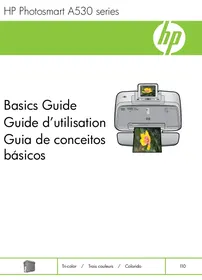



| Brand | HP |
| Model | PHOTOSMART A532 |
| Product Type | Photo printer |
| Power Supply | 100-240 V AC, 50/60 Hz (power adapter included) |
| Power Consumption | Printing: 11 W, Standby: 3.5 W, Off: 0.48 W |
| Main Functions | Computer-free photo printing, memory card slot, automatic photo correction, creative gallery (sepia, black and white), red-eye removal, computer connection via USB |
| Supported Paper Sizes | 10x15 cm, 13x18 cm, 10x30 cm (panoramic), A6 cards, index cards, L-size cards |
| Paper Tray Capacity | 20 sheets of photo paper (max 11.5 mil thickness) |
| Ink Cartridge | HP 110 Tri-color ink cartridge |
| Connectivity | USB 2.0, PictBridge camera port, memory card slots (Memory Stick, SD/MMC, xD-Picture Card) |
| Display | Built-in tiltable LCD screen for preview and menus |
| Compatible Operating Systems | Windows XP, Vista, Mac OS X 10.4 or later |
| Operating Conditions | Temperature: 15 to 35°C, Humidity: 20 to 80% RH |
| Warranty | 1 year for printer, 90 days for software |
| Maintenance and Cleaning | Cartridge alignment and cleaning via the printer's Tools menu |
| Spare Parts and Repairability | HP 110 ink cartridge, power adapter (ref. HP 0957-2120/2121) |
| General Information | Portable photo printer with carry handle |
Frequently Asked Questions - PHOTOSMART A532 HP
User questions about PHOTOSMART A532 HP
0 question about this device. Answer the ones you know or ask your own.
Ask a new question about this device
Download the instructions for your Photo printer in PDF format for free! Find your manual PHOTOSMART A532 - HP and take your electronic device back in hand. On this page are published all the documents necessary for the use of your device. PHOTOSMART A532 by HP.
USER MANUAL PHOTOSMART A532 HP
The information contained in this document is subject to change without notice.
All rights reserved. Reproduction, adaptation, or translation of this material is prohibited without prior written permission of Hewlett-Packard, except as allowed under copyright laws. The only warranties for HP products and services are set forth in the express warranty statements accompanying such products and services. Nothing herein should be construed as constituting an additional warranty. HP shall not be liable for technical or editorial errors or omissions contained herein.
© 2007 Hewlett-Packard Development Company, L.P.
Windows, Windows 2000, and Windows XP are U.S. registered trademarks of Microsoft Corporation.
Windows Vista is either a registered trademark or trademark of Microsoft Corporation in the United States and/or other countries.
Intel and Pentium are trademarks or registered trademarks of Intel Corporation or its subsidiaries in the United States and other countries.
The Bluetooth trademarks are owned by its proprietor and used by Hewlett-Packard Company under license.
© 2007 Hewlett-Packard Development Company, L.P.
© 2007 Hewlett-Packard Development Company, L.P.
The software included in this product is based in part on the work of the Independent JPEG Group.
HP Photosmart A530 series HP Photosmart A530 series Basics Guide
Contents
1 Get started
The HP Photosmart at a glance 2
Control panel buttons and indicator lights. 2
Printer menus. 4
2 Print basics
Load your paper 4
Insert a memory card. 5
Print a photo. 6
Creative options. 6
Enhance your photos. 6
Connect to a computer 7
3 Troubleshooting and support
Printing and hardware issues. 8
Insert or replace the print cartridge. 9
Find more information. 11
HP support 11
Regulatory notices. 12
Regulatory model identification number 12
Environmental statements. 12
Printer specifications. 12
HP Warranty. 14
1 Get started
This section provides introductory information about the HP Photosmart A530 series printer.
The HP Photosmart at a glance
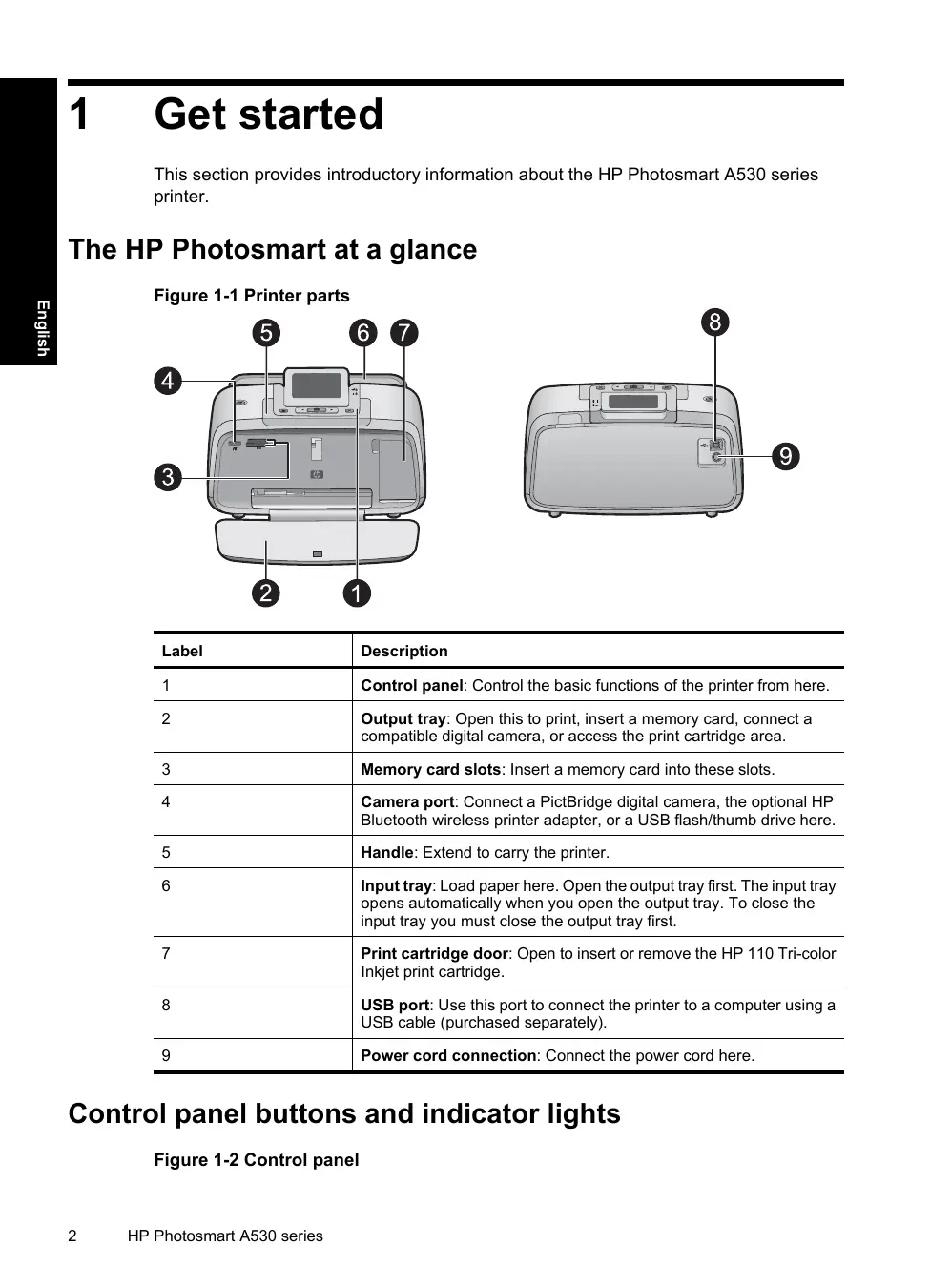
Figure 1-1 Printer parts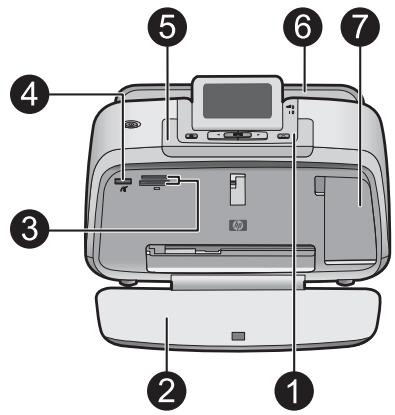
Figure 1-2 Control panel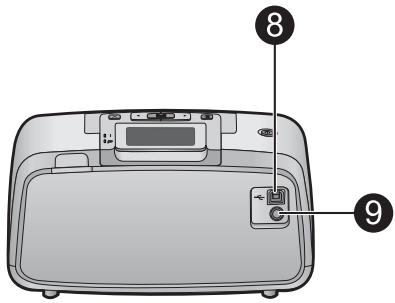
| Label | Description |
| 1 | Control panel: Control the basic functions of the printer from here. |
| 2 | Output tray: Open this to print, insert a memory card, connect a compatible digital camera, or access the print cartridge area. |
| 3 | Memory card slots: Insert a memory card into these slots. |
| 4 | Camera port: Connect a PictBridge digital camera, the optional HP Bluetooth wireless printer adapter, or a USB flash/thumb drive here. |
| 5 | Handle: Extend to carry the printer. |
| 6 | Input tray: Load paper here. Open the output tray first. The input tray opens automatically when you open the output tray. To close the input tray you must close the output tray first. |
| 7 | Print cartridge door: Open to insert or remove the HP 110 Tri-color Inkjet print cartridge. |
| 8 | USB port: Use this port to connect the printer to a computer using a USB cable (purchased separately). |
| 9 | Power cord connection: Connect the power cord here. |
Control panel buttons and indicator lights
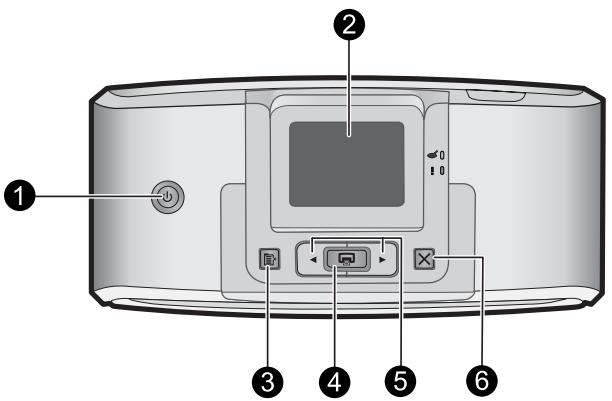
| Label | Description |
| 1 | Power: Press to turn the printer on or off. The power button will glow when the power is on. |
| 2 | Printer screen: Lift up to adjust the viewing angle. You can preview photos, make selections from the printer menu, and more from this screen. |
| 3 | Menu: Press to access the printer menu. |
| 4 | Print: Press to print the currently viewed image from a memory card or to select a highlighted menu option. The Print button glows when the printer power is on. |
| 5 | Navigation arrows: Press ↓ or ↑ to scroll through photos on a memory card or to navigate the printer menu. |
| 6 | Cancel: Press to stop an action, exit a menu, or to cancel printing a queued image. |
Figure 1-3 Indicator lights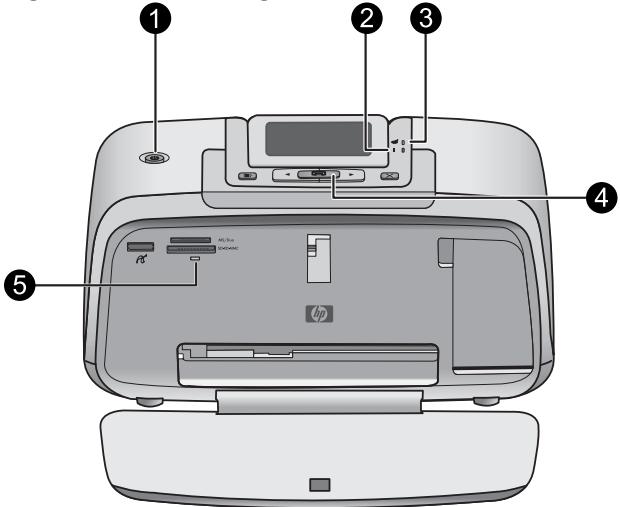
| Label | Description |
| 1 | Power: The power button glows when the power is on. |
| 2 | Attention LED: Flashes when the printer requires attention. |
| 3 | Red Eye: Lit if red eye removal is turned on. |
| 4 | Print: Press to print the currently viewed image from a memory card. The Print button glows when the printer power is on. |
| 5 | Memory card and PictBridge light: This light flashes and then remains lit after a memory card is correctly inserted or when a supported device is attached to the camera port. It flashes when the printer is communicating with a memory card or attached device or when a connected computer is performing a read, write, or delete operation. |
Printer menus
The Printer menu gives you many print options, allows you to change the printer defaults, provides maintenance and troubleshooting tools, and provides how-to information for common printing tasks.
To use the Printer menu
- Press the Menu button on the printer control panel.
- Pressing the right arrow will move to the next option and pressing the left arrow will move to the previous menu option.
- Press Print to select an option. Menu options that are not accessible are dimmed.
- To exit a menu, press the Cancel button.
For more information on this subject, download the comprehensive User Guide at: www.hp.com/support.
2 Print basics
Load your paper
Use HP Advanced Photo Paper. It is especially designed to work with the inks in your printer to create beautiful photos. Other photo papers will produce inferior results.
The printer is set, by default, to print the best quality photos on HP Advanced Photo Paper. If you print on a different type of paper, be sure to change the paper type setting in the printer menu or in the print dialog box.
For more information on this subject, download the comprehensive User Guide at: www.hp.com/support.
To order HP papers and other supplies, go to www.hp.com/buy/supplies. If prompted, choose your country/region, follow the prompts to select your product, and then click one of the shopping links on the page.
To load paper
- Open the output tray. The input tray opens automatically.
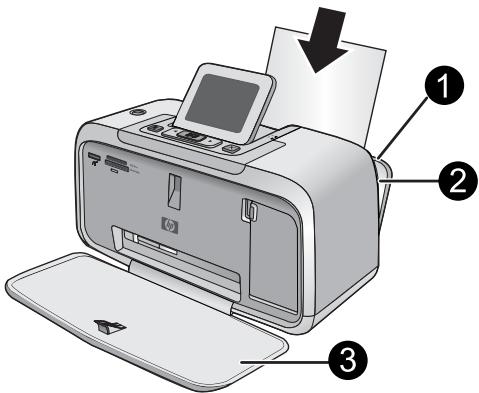
| 1 | Input tray |
| 2 | Paper-width guide |
| 3 | Output tray |
- Load up to 20 sheets of photo paper with the print side or glossy side facing the front of the printer. If you are using tabbed paper, load the paper so tab feeds in last. When loading, slide the paper to the left side of the input tray and push the paper down firmly until it stops.
- Adjust the paper-width guide to fit close to the edge of the paper without bending the paper.
Insert a memory card
Insert a memory card into the appropriate slot with the label facing up and the metal contacts going in first. Refer to the figure to select the correct slot for your memory card.
Figure 2-1 Memory card slots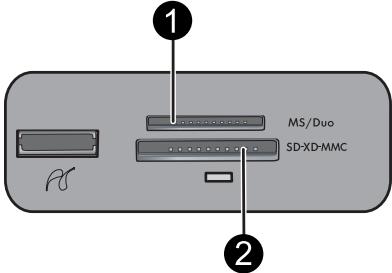
| Label | Description |
| 1 | Memory Stick |
| 2 | Secure Digital, MultiMediaCard (MMC) xD-Picture Card |
CAUTION: Do not pull out the memory card while the memory card light is flashing. A flashing light means the printer or computer is accessing the memory card. When the memory card light on the printer is solid, it is safe to pull the card out of the slot.
Print a photo
To print a single photo
- Navigate through the photos on the inserted memory card.
- Display the photo you want to print.
- Press Print.

NOTE: To print additional copies of the current image, press Print again.
Creative options
Change the mood and impact of a photo by applying a Design Gallery effect or color tint. The Sepia color effect applies brown tones similar to those seen in photos produced in the early 1900s. For a hand-tinted effect, try the Antique color option. For a classic, dramatic effect, convert a color photo to grayscale (Black and White).
To access Design Gallery
- Insert a memory card.
- Display the photo you want to print.
- Press the Menu button.
- Press the left or right arrow to highlight Design Gallery.
- Press Print to open the Design Gallery menu of creative options.
- Press the left or right arrow to scroll through the menu options.
- Press Print to select an option.
Enhance your photos
Your HP Photosmart A530 series includes two on-board features for enhancing your images: red-eye reduction and Photo Fix.
The red-eye reduction feature is on by default when you turn on the printer for the first time. It reduces the red-eye effect that sometimes occurs in flash photos. If you want to print a photo without removing red eye, turn off Red Eye from the Tools menu. See "Printer menus" on page 4 for more information.
Photo Fix automatically enhances your photos using HP Real Life Technologies that:
Sharpen photos. - Improve the dark areas of a photo without affecting the light areas of a photo.
- Improve the overall brightness, color, and contrast of photos.
- Auto-align photos. Many digital cameras record images at a size that does not fit standard photo paper sizes, such as 10 x 15 cm (4 x 6 inches). If necessary, printers crop or trim an image to fit the paper size. The auto-align feature senses the position of subjects' heads and attempts to avoid trimming those from the photo.
Photo Fix is off by default when you turn on the printer for the first time. If you want to print a photo using the Photo Fix improvements, turn Photo Fix on from the Tools menu. See "Printer menus" on page 4 for more information.
Connect to a computer
The printer includes HP quick connect software, which installs when you connect the printer to your computer. In less than two minutes, you'll be ready to print from your computer!

NOTE: Windows XP or Vista or Mac OS X v10.4 or v10.5.
For Windows 64-bit systems: Please download the software from the HP support website at www.hp.com/support.
NOTE: The USB 2.0 cable required for printing from a computer might not be included in the box with the printer, so you might need to purchase it separately.
To install the software
- Make sure the printer is on, and then connect the printer to your computer with a USB cable.
- Follow the steps for your operating system.
Windows users
The installation starts automatically. If the installation screen does not appear, open My Computer on your desktop and double-click the HP_A530_Series icon to launch the installation.
Mac users
a. Double-click the HP A530 CD icon on the desktop. b. Double-click the installer icon in the CD folder.
- Follow the prompts on your computer.
3 Troubleshooting and support
The HP Photosmart A530 series printer is designed to be reliable and easy to use. This section answers frequently asked questions about using the printer and printing without a computer.

NOTE: Before contacting HP support, read this section for troubleshooting tips or go to the online support services at www.hp.com/support.
Printing and hardware issues
The Attention light is flashing.
Cause: A printer error has occurred. Try the following solutions.
Solution:
- Check the printer screen for instructions. If you have a digital camera connected to the printer, check the camera screen for instructions. If the printer is connected to a computer, check the computer monitor for instructions.
- Turn off the printer. If the light continues to flash, go to www.hp.com/support or contact HP support.
The printer is plugged in, but it will not turn on.
Solution:
- The printer may be plugged into a power strip that is turned off. Turn on the power strip, and then turn on the printer.
- The printer may be plugged into an incompatible power source. If you are traveling abroad, make certain the power source in the country/region you are visiting complies with the power requirements and power cord of the printer.
- Check that the power adapter is functioning properly. To check the power adapter:
- Make sure the power adapter is connected to your printer and a compatible power source. Press and hold down the Power button on the printer. If the Power button lights up, then the power cord is working properly. If it fails to light, go to www.hp.com/support or contact HP support.
The paper does not feed into the printer correctly, or the image printed off-center.
Solution:
- The paper may not be loaded correctly. Reload the paper, making sure that the paper is correctly oriented in the input tray and that the paper-width guide fits close to the edge of the paper. For paper-loading instructions, see "Load your paper" on page 4.
- The print cartridge may need to be aligned. Press the Menu button on the printer and select Tools > Align Print Cartridge. The printer may need attention. Read the printer screen for instructions.
- The power may be off or there may be a loose connection. Make sure that the power is on and the power cord is securely connected.
- The paper may have jammed while printing. See the following section for instructions on clearing a paper jam.
The paper jammed while printing.
Solution: Try the following steps to clear the paper jam:
- Turn off the printer, and then unplug it from the power source.
- Pull out any paper that is jammed in the printer.
- Remove any wrinkled or torn paper from the input tray or output tray. Load new paper in the input tray.
- Plug the printer back in, and turn it on. Try printing your document again.
Print quality is poor.
Solution:
- The print cartridge may be running low on ink. Check the ink-level icon on the printer screen, and replace the cartridge if necessary. For more information, see "Insert or replace the print cartridge" on page 9.
NOTE: Ink level warnings and indicators provide estimates for planning purposes only. When you receive a low-ink warning message, consider having a replacement cartridge available to avoid possible printing delays. You do not need to replace the print cartridges until print quality becomes unacceptable.
- The print cartridge may need to be cleaned or aligned. These tasks can be performed from the Printer menu. For more information on using the Printer menu, see "Printer menus" on page 4.
- Reduce the size of the image and try printing again. For better results in the future, set the digital camera to a higher photo resolution.
- Make sure you are using the right type of photo paper for the project. For more information, see "Load your paper" on page 4.
- Make sure the print quality setting is optimum for the paper type you are using. For best results, use the Normal print quality setting with HP Advanced Photo paper. If you are using other types of photo or plain paper, use the Best setting. For more information on this subject, download the comprehensive User Guide at www.hp.com/support.
- Your photos are instantly dry, and can be handled immediately after they are printed. However, HP recommends that you leave the printed surface of your photos exposed to the air for 3 minutes after printing, to allow the colors to fully develop before you stack them with other photos or place them in albums.
Insert or replace the print cartridge
Use the HP 110 Tri-color Inkjet print cartridge to print black-and-white and color photos. HP Vivera Inks deliver true-to-life photo quality and exceptional fade resistance, resulting in vivid colors that last. HP Vivera Inks are specially formulated and scientifically tested for quality, purity, and fade resistance.
CAUTION: Check that you are using the correct print cartridges. Also, note that HP does not recommend modifying or refilling HP cartridges. Damage that results from modifying or refilling HP cartridges is not covered by the HP warranty.

NOTE: Ink from the cartridges is used in the printing process in a number of different ways, including in the initialization process, which prepares the device and cartridges for printing, and in printhead servicing, which keeps print nozzles clear and ink flowing smoothly. In addition, some residual ink is left in the cartridge after it is used. For more information see www.hp.com/go/inkusage.
To insert or replace a print cartridge
- Make sure the power is on and you have removed the cardboard from inside the printer.
- Open the print cartridge door of the printer.
- Remove the bright pink tape from the cartridge.
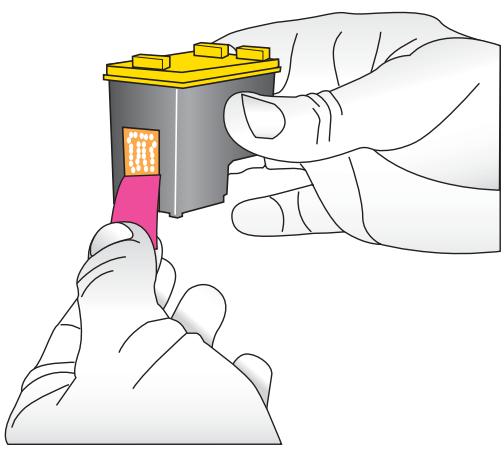

NOTE: Do not touch the copper-colored contacts on the print cartridge.
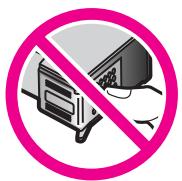
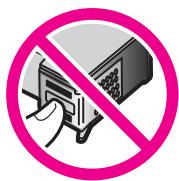
- If you are replacing a cartridge, push down and pull outward on the cartridge in the cradle to remove it.
- Hold the replacement cartridge with the label on top. Slide the cartridge at a slight upward angle into the cradle so the copper-colored contacts go in first. Push the cartridge until it snaps into place.
- Close the print cartridge door.
- Follow the onscreen instructions.

NOTE: Recycle the old cartridge. The HP Inkjet Supplies Recycling Program is available in many countries/regions and lets you recycle used print cartridges free of charge. For more information, go to www.hp.com/hpinfo/globalcitizenship/environment/recycle/inkjet.html.
Find more information
Your new HP Photosmart A530 series printer comes with the following documentation:
- Setup instructions: The setup instructions explain how to set up the printer, install the HP Photosmart software, and print a photo. Read this document first. This document may be called Quick Start or Start Here, depending on your country/region, language, or printer model. Basics Guide: This is the book you are reading.
- User Guide: The User Guide is available for download and provides comprehensive information about using the product with or without a computer. Download at: www.hp.com/support.
- Help from your device: Help is available from your device and contains additional information on select topics.
To access Help on the printer
- Press the Menu button.
- Press the left or right arrow to highlight Help Menu.
- Press Print.
- Press the left or right arrow to highlight the desired Help topic, and then press Print.
HP support
If you still have a problem, follow these steps:
- Check the documentation that came with the HP Photosmart.
- Visit the HP online support Web site at www.hp.com/support. HP online support is available to all HP customers. It is the fastest source for up-to-date device information and expert assistance and includes the following features:
- Fast access to qualified online support specialists
- Valuable HP Photosmart and troubleshooting information for common problems
- Proactive device updates, support alerts, and HP newsgrams that are available when you register the HP Photosmart
- For Europe only: Contact your local point of purchase. If the printer has a hardware failure, you will be asked to bring the printer to where you purchased it. Service is free during the printer limited warranty period. After the warranty period, you will be quoted a service charge.
- Call HP support. Support options and availability vary by device, country/region, and language.

NOTE: For a list of support phone numbers, see the phone number list on the inside of the back cover.
Regulatory notices
The HP Photosmart meets product requirements from regulatory agencies in your country/region. For a complete listing of regulatory notices, download the comprehensive User Guide at: www.hp.com/support.
Regulatory model identification number
For regulatory identification purposes, your product is assigned a Regulatory Model Number. The Regulatory Model Number for your product is SDGOA-0812. This regulatory number should not be confused with the marketing name (HP Photosmart A530 series, etc.) or product numbers (Q8624A, Q8625A, Q8626A, etc.).
Environmental statements
For Environmental Stewardship information, download the comprehensive User Guide at www.hp.com/support.
Printer specifications
For more information on this subject, download the comprehensive User Guide at: www.hp.com/support.
| Operating System Microsoft® Windows XP Home, XP Professional, x64 Edition, or Vista Mac® OS X 10.4x or higher |
| Environmental Specifications Maximum during operation: 5-40°C (41-104°F), 5-90% RH Recommended during operation: 15-35°C (59-95°F), 20-80% RH |
| Power Consumption Printing: 11 W Sleep: 3.5 W Standby/off: 0.48 W |
| Power Supply Model Number HP Part # 0957-2121 (North America), 120 Vac (±10%) 60 Hz (±3 Hz) |
HP Part # 0957-2120 (Rest of world), 100-240 Vac (±10%) 50/60 Hz (±3 Hz)
Media sizes
Photo paper 10 x 15 cm (4 x 6 inches) Photo paper with tab 10 x 15 cm with 1.25 cm tab (4 x 6 inches with 0.5 inch tab)
Photo paper 13 x 18 cm (5 x 7 inches)
Index cards 10 x 15 cm (4 x 6 inches)
A6 cards 105 x 148 mm (4.1 x 5.8 inches)
L-size cards 90 x 127 mm (3.5 x 5 inches)
L-size cards with tab 90 x 127 mm with 12.5 mm tab (3.5 x 5 inches with 0.5 inch tab)
Supported only when printing from a computer: 101 x 203 mm (4 x 8 inches), Panorama photo paper 10 x 30 cm (4 x 12 inches)
Paper Tray
One photo paper tray
Paper Tray Capacity
20 sheets of photo paper, maximum thickness 292 μm (11.5 mil) per sheet
10 sheets of 10 x 30 cm (4 x 12 inches) photo paper for panoramic printing
HP Warranty
| HP product | Duration of limited warranty |
| Software Media | 90 days |
| Printer | 1 year |
| Print or Ink cartridges | Until the HP ink is depleted or the “end of warranty” date printed on the cartridge has been reached, whichever occurs first. This warranty does not cover HP ink products that have been refilled, remanufactured, refurbished, misused, or tampered with. |
| Accessories | 1 year unless otherwise stated |
A. Extent of limited warranty 1. Hewlett-Packard (HP) warrants to the end-user customer that the HP products specified above will be free from defects in materials and workmanship for the duration specified above, which duration begins on the date of purchase by the customer. 2. For software products, HP's limited warranty applies only to a failure to execute programming instructions. HP does not warrant that the operation of any product will be interrupted or error free. 3. HP's limited warranty covers only those defects that arise as a result of normal use of the product, and does not cover any other problems, including those that arise as a result of: a. Improper maintenance or modification; b. Software, media, parts, or supplies not provided or supported by HP; c. Operation outside the product's specifications; d. Unauthorized modification or misuse. 4. For HP printer products, the use of a non-HP cartridge or a refilled cartridge does not affect either the warranty to the customer or any HP support contract with the customer. However, if printer failure or damage is attributable to the use of a non-HP or refilled cartridge or an expired ink cartridge, HP will charge its standard time and materials charges to service the printer for the particular failure or damage. 5. If HP receives, during the applicable warranty period, notice of a defect in any product which is covered by HP's warranty, HP shall either repair or replace the product, at HP's option. 6. If HP is unable to repair or replace, as applicable, a defective product which is covered by HP's warranty, HP shall, within a reasonable time after being notified of the defect, refund the purchase price for the product. 7. HP shall have no obligation to repair, replace, or refund until the customer returns the defective product to HP. 8. Any replacement product may be either new or like-new, provided that it has functionality at least equal to that of the product being replaced. 9. HP products may contain remanufactured parts, components, or materials equivalent to new in performance. 10. HP's Limited Warranty Statement is valid in any country where the covered HP product is distributed by HP. Contracts for additional warranty services, such as on-site service, may be available from any authorized HP service facility in countries where the product is distributed by HP or by an authorized importer. B. Limitations of warranty TO THE EXTENT ALLOWED BY LOCAL LAW, NEITHER HP NOR ITS THIRD PARTY SUPPLIERS MAKES ANY OTHER WARRANTY OR CONDITION OF ANY KIND, WHETHER EXPRESS OR IMPLIED, INCLUDING WARRANTIES OR CONDITIONS OF MERCHANTABILITY, SATISFACTORY QUALITY, AND FITNESS FOR A PARTICULAR PURPOSE. C. Limitations of liability 1. To the extent allowed by local law, the remedies provided in this Warranty Statement are the customer's sole and exclusive remedies. 2. TO THE EXTENT ALLOWED BY LOCAL LAW, EXCEPT FOR THE OBLIGATIONS SPECIFICALLY SET FORTH IN THIS WARRANTY STATEMENT, IN NO EVENT SHALL HP OR ITS THIRD PARTY SUPPLIERS BE LIABLE FOR DIRECT, INDIRECT, SPECIAL, INCIDENTAL, OR CONSEQUENTIAL DAMAGES, WHETHER BASED ON CONTRACT, TORT, OR ANY OTHER LEGAL THEORY AND WHETHER ADVISED OF THE POSSIBILITY OF SUCH DAMAGES. D. Local law 1. This Warranty Statement gives the customer specific legal rights. The customer may also have other rights which vary from state to state in the United States, from province to province in Canada, and from country to country elsewhere in the world. 2. To the extent that this Warranty Statement is inconsistent with local law, this Warranty Statement shall be deemed modified to be consistent with such local law. Under such local law, certain disclaimers and limitations of this Warranty Statement may not apply to the customer. For example, some states in the United States, as well as some governments outside the United States (including provinces in Canada), may: a. Preclude the disclaimers and limitations in this Warranty Statement from limiting the statutory rights of a consumer (e.g., the United Kingdom); b. Otherwise restrict the ability of a manufacturer to enforce such disclaimers or limitations; or c. Grant the customer additional warranty rights, specify the duration of implied warranties which the manufacturer cannot disclaim, or allow limitations on the duration of implied warranties. 3. THE TERMS IN THIS WARRANTY STATEMENT, EXCEPT TO THE EXTENT LAWFULLY PERMITTED, DO NOT EXCLUDE, RESTRICT, OR MODIFY, AND ARE IN ADDITION TO, THE MANDATORY STATUTORY RIGHTS APPLICABLE TO THE SALE OF THE HP PRODUCTS TO SUCH CUSTOMERS.
HP Limited Warranty
Dear Customer,
You will find below the name and address of the HP entity responsible for the performance of the HP Limited Warranty in your country.
You may have additional statutory rights against the seller based on your purchase agreement. Those rights are not in any way affected by this HP Limited Warranty.
Ireland: Hewlett-Packard Ireland Ltd. 30 Herbert Street IRL-Dublin 2
United Kingdom: Hewlett-Packard Ltd, Cain Road, Bracknell, GB-Berks RG12 1HN
HP Photosmart A530 series
Basic concepts guide for the HP Photosmart A530 series
Contents
1 Getting started
HP Photosmart overview. 33
Control panel buttons and indicator lights 34
35
2 Basic printing concepts
Load paper. 35
Disposal of Waste Equipment by Users in Private Households in the European Union
This symbol on the product or on its packaging indicates that this product must not be disposed of with your other household waste. Instead, it is your responsibility to dispose of your waste equipment by handling it over to a designated collection point for the recycling of waste electrical and electronic equipment. The separate collection and recycling of your waste equipment at the time of disposal will help to conserve natural resources and ensure that it is recycled in a manner that protects human health and the environment. For more information about where you can drop off your waste equipment for recycling, please contact your local city office, your household waste disposal service or the shop where you purchased the product.
- HP PHOTOSMART A530 SERIES HP PHOTOSMART A530 SERIES BASICS GUIDE
- CONTENTS
- GET STARTED
- PRINT BASICS
- TROUBLESHOOTING AND SUPPORT
- THE HP PHOTOSMART AT A GLANCE
- CONTROL PANEL BUTTONS AND INDICATOR LIGHTS
- PRINTER MENUS
- TO USE THE PRINTER MENU
- LOAD YOUR PAPER
- TO LOAD PAPER
- INSERT A MEMORY CARD
- PRINT A PHOTO
- TO PRINT A SINGLE PHOTO
- CREATIVE OPTIONS
- TO ACCESS DESIGN GALLERY
- ENHANCE YOUR PHOTOS
- CONNECT TO A COMPUTER
- TO INSTALL THE SOFTWARE
- WINDOWS USERS
- MAC USERS
- PRINTING AND HARDWARE ISSUES
- THE ATTENTION LIGHT IS FLASHING
- SOLUTION
- THE PRINTER IS PLUGGED IN, BUT IT WILL NOT TURN ON
- THE PAPER DOES NOT FEED INTO THE PRINTER CORRECTLY, OR THE IMAGE PRINTED OFF-CENTER
- THE PAPER JAMMED WHILE PRINTING
- PRINT QUALITY IS POOR
- INSERT OR REPLACE THE PRINT CARTRIDGE
- TO INSERT OR REPLACE A PRINT CARTRIDGE
- FIND MORE INFORMATION
- TO ACCESS HELP ON THE PRINTER
- HP SUPPORT
- IF YOU STILL HAVE A PROBLEM, FOLLOW THESE STEPS
- REGULATORY NOTICES
- REGULATORY MODEL IDENTIFICATION NUMBER
- ENVIRONMENTAL STATEMENTS
- PRINTER SPECIFICATIONS
- MEDIA SIZES
- PAPER TRAY
- PAPER TRAY CAPACITY
- HP WARRANTY
- HP LIMITED WARRANTY
- HP PHOTOSMART A530 SERIES
- GETTING STARTED
- BASIC PRINTING CONCEPTS
- DISPOSAL OF WASTE EQUIPMENT BY USERS IN PRIVATE HOUSEHOLDS IN THE EUROPEAN UNION
Brand : HP
Model : PHOTOSMART A532
Category : Photo printer