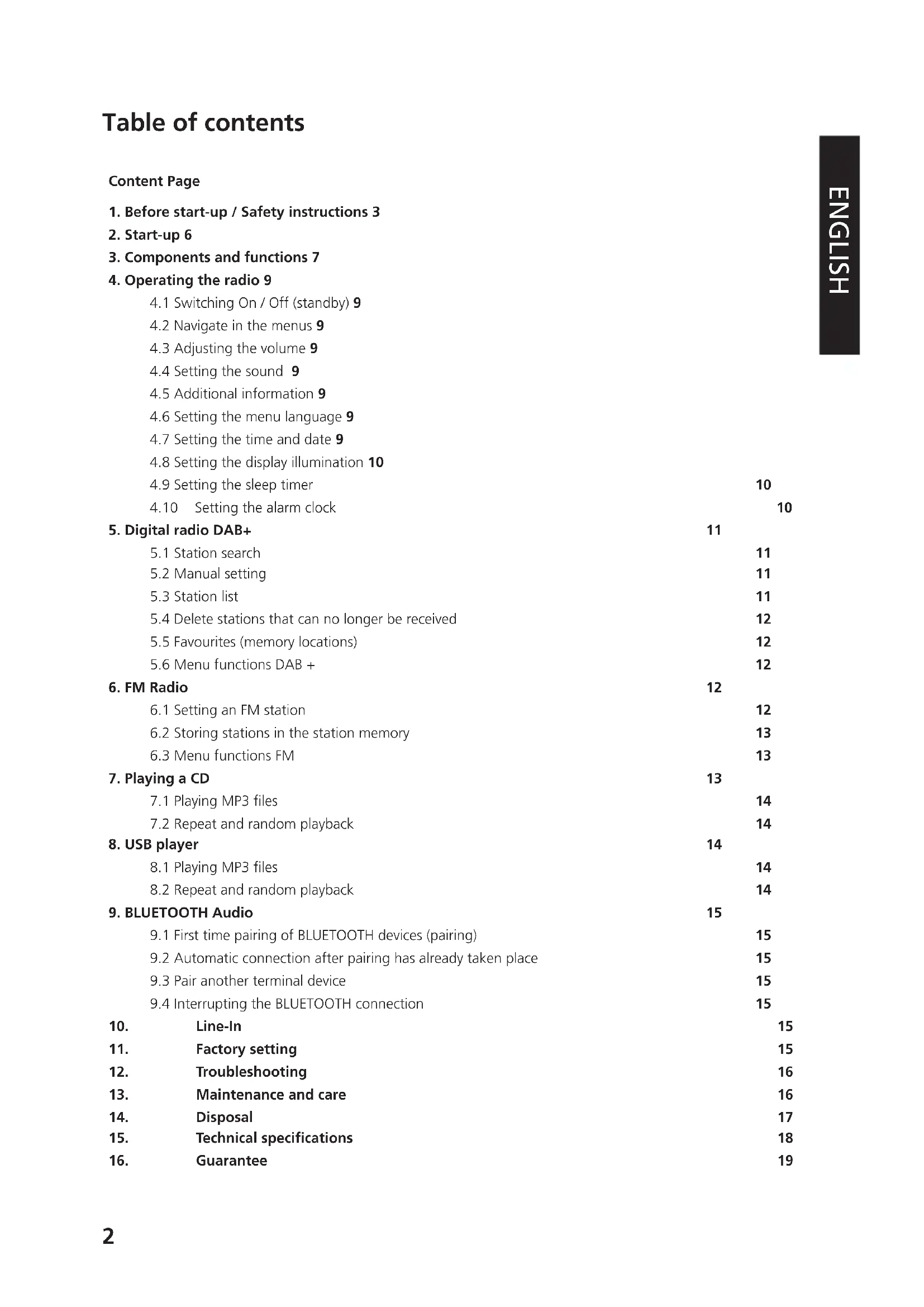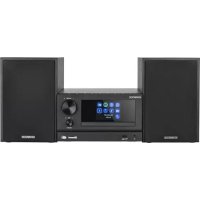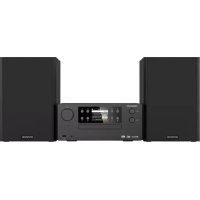
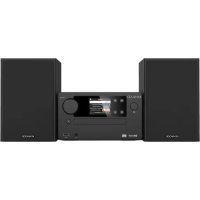
M925DAB - Hi-fi system KENWOOD - Free user manual and instructions
Find the device manual for free M925DAB KENWOOD in PDF.
Download the instructions for your Hi-fi system in PDF format for free! Find your manual M925DAB - KENWOOD and take your electronic device back in hand. On this page are published all the documents necessary for the use of your device. M925DAB by KENWOOD.
USER MANUAL M925DAB KENWOOD
1. Before start-up / Safety instructions 3
3. Components and functions 7
4. Operating the radio 9
4.1 Switching On / Off (standby) 9
4.2 Navigate in the menus 9
4.3 Adjusting the volume 9
4.4 Setting the sound 9
4.5 Additional information 9
4.6 Setting the menu language 9
4.7 Setting the time and date 9
5.4 Delete stations that can no longer be received 12
5.5 Favourites (memory locations) 12
6.1 Setting an FM station 12
6.2 Storing stations in the station memory 13
7.2 Repeat and random playback 14
8.2 Repeat and random playback 14
9. BLUETOOTH Audio 15
9.1 First time pairing of BLUETOOTH devices (pairing) 15
9.2 Automatic connection after pairing has already taken place 15
9.3 Pair another terminal device 15
9.4 Interrupting the BLUETOOTH connection 15
13. Maintenance and care 16
1. Before switching on the power supply
IMPORTANT SAFETY INSTRUCTIONS
Attention: Read this page carefully to ensure safe operation of the device. Read instructions carefully!
- Follow all safety and operating instructions when using this product. Keep the instructions in a safe place!
- You should keep the safety and operating instructions for future reference. Follow the warning instructions!
- You should strictly follow all warnings provided on the product and listed in the operating instructions. Clean only with a dry cloth!
- Pull out the mains plug of this device from the mains power socket before cleaning this product. Never use liquid cleaning detergents or cleaning sprays. Use only a slightly damp cloth for cleaning. Accessories
- Use only the accessories specified by the manufacturer. Do not use this device near water
- The device should never be exposed to water droplets or water splashes, such as those found near a bathtub, wash basin, kitchen sink, washing machine, wet basement or swimming pool. Never place containers filled with liquids, such as e.g. flower vases, on the device. Ventilation
- Slots and openings in the housing are used to ventilate the device to ensure reliable operation of the device and to protect the device from overheating and possible autoignition. Do not block the ventilation holes. Install the device according to the manufacturer's instructions. Never block the ventilation holes by placing the device on a bed, sofa, rug, or similar soft surfaces. This device should not be installed in a bookshelf or built-in wardrobe unless adequate ventilation is ensured. Power supply
- This device may connected only to the mains voltage indicated on the device. If you are unsure about the type of power supply in your home, contact your specialised dealer or power company. Power cord
- Make sure that you can not trip over the power cable or that it is disconnected in the immediate vicinity of a power outlet, including auxiliary sockets. The power cable must not be squeezed under any circumstances even when exiting the device. Since the mains plug is used for completely disconnecting from the power supply, it must be left on the power cable and remain accessible at all times. Thunderstorm
- The device should be disconnected from the mains during thunderstorms and if it is not used for a long time.4 Overload
- Never overload mains sockets, extension cords or multiple sockets, otherwise there is a risk of fire or electric shock. Penetration of foreign material and liquid
- Be careful not to allow foreign material or liquid to enter this device through ventilation holes, otherwise it may come into contact with high voltage components or short circuit resulting in a fire or electric shock. Never spill liquids of any kind on this device. Maintenance
- Never attempt to carry out the maintenance of this device yourself, because live parts can be exposed through the openings or by removing covers, contacting which can be hazardous. Leave all maintenance to qualified service personnel. Damage requiring repair
- Maintenance and repair work should only be carried out by a qualified customer service. Maintenance/repair is required if the device has been damaged (e.g. the power cable or plug), if liquid has spilled into the device, if objects have penetrated the device, if the device has been exposed to rain or moisture, if it no longer works properly or has fallen down. Spare parts
- If replacement parts are required, make sure that the customer service technician uses spare parts specified by the manufacturer or that have the same characteristics as the original parts. Unauthor ised parts may cause fire, electric shock or other accidents. Safety test
- After completing service or repair of this device, ask the customer service technician to perform a safety test to determine if the equipment is in good working order. Heat
- Do not install the device near hot surfaces, such as radiators, fan heaters, stoves or other devices (including amplifiers) that can be hot. Never place objects with open flame, such as candles or lanterns, on or near the device. The batteries installed in the remote control should not be exposed to excessive heat such as direct sunlight, fire, etc. Batteries
- If you do not use the device for a month or more, remove the batteries from the battery com partment of the remote control to prevent it from leaking. Immediately dispose of leaking batteries properly and observe all relevant legal regulations. Leaking batteries can cause injury and damage the device. Never mix batteries of different types or old and new batteries. To minimise the risk of electric shock, re, etc.
- do not remove screws, covers or body parts.
- the power button does not completely disconnect the power supply in any position. In order to completely disconnect the device from the power supply, please pull the mains plug out of the socket.5 Risks associated with high volume
- To prevent possible hearing damage, do not listen at high volume for long periods. This applies in particular for the use of the headphones. Remote control
Exposing the remote control sensor to direct sunlight or high-frequency fluorescent light may cause malfunction. In such cases, you should move the system to a different location to avoid such malfunction.
The supplied batteries are intended for functional testing and may have a limited lifetime. If the range of the remote control decreases, replace the old battery with a new one. Caution! Risk of explosion
- if incorrect batteries are used;
- high or low extreme temperatures to which a battery may be exposed during use, storage or transport;
- low air pressure at high altitude;
- if the batteries are disposed of in fire or in a heated oven;
- with mechanical crushing or cutting of a battery;
- when leaving a battery in an environment with extremely high temperatures or with extremely low air pressure, which may cause an explosion or escaping of flammable liquids or gases. Automatic energy saving function The model is equipped with an automatic energy saving function. This switches the device to standby mode within 15 minutes if it is played at a very low volume or if the radio is muted. This setting cannot be changed.
IMPORTANT FOR LASER PRODUCTS
1. CLASS 1 LASER PRODUCT
2. CAUTION: Do not open the casing. The device contains no user serviceable parts;
Maintenance should only be carried out by qualified personnel. EU Declaration of conformity Hereby, JVCKENWOOD Corporation declares that the radio equipment type M-925DAB complies with Directive 2014/53/EU. The full text of the EU Declaration of Conformity is available at the follow- ing Internet address: http://www.kenwood.com/euukdoc/ Manufacturer: JVCKENWOOD Corporation 3-12. Moriyacho, Kanagawa-ku, Yokohama-shi, Kanagawa 221-0022, JAPAN Authorised representative (EU): JVCKENWOOD EUROPE B.V., Amsterdamseweg 37, 1422 AC UITHOORN, THE NETHERLANDS6
Carefully unpack the device and make sure all accessories are present:
- Infrared remote control
- FM/DAB + wire antenna
- 2 x AAA/R03 batteries
- Operating instructions
- Open the battery compartment of the remote control and insert the batteries with correct polarity. The specified polarity (+/-) is marked in the battery compartment. Connect the left and right speakers to the connection (Speaker Out) on the rear of the device. To do this, press the spring clips and insert the loose cable ends into the openings provided. Connect the black wire with the black spring clamp. The other wire is connected to the red terminal in the same way.
Black Finally, connect the power plug to an AC outlet. Since the mains plug is used to completely discon- nect it from the power grid, the socket must always be accessible.
2.3 DAB + / FM antenna connection
1. Connect the wire antenna to [ANTENNA 75Ω] socket.
2. Find the place where the best reception is achieved.
The antenna supplied with the system is a simple wire antenna. It is recommended to use an outdoor antenna (commercially available) for stable signal reception. To connect an outdoor antenna, first pull out the indoor antenna. The reception of radio stations from the cable network cannot be guaranteed.7
3. Components and functions
Previous album, preset memory -
Skip track / track search backwards
Track programming, use preset memory
Stop playback, BLUETOOTH pairing, station search
Next album, preset memory +
Skip track/track search forwards
Switching screen information, 10 seconds intro per track with playback8
3. Components and functions continuation
1 - Speaker connection
BLUETOOTH pairing, station search
9 - Skip track forwards
15 - Skip track backwards
4. Operating the radio
4.1 Switching On / Off (standby)
Press the Standby key on the device or on the remote control to switch on the radio. Press the button again to put the device into standby mode. To switch it off completely, disconnect the radio from the power supply.
4.2 Navigate in the menus
Press the <MENU> key on the remote control to call up the source-related menu. Press the <Skip track forwards> or <Skip track backwards> on the device or on the remote control to navigate within the menus. Confirm the menu selection with the <OK> key on the remote control or the <SELECT> key on the device. Proceed likewise when selecting the settings.
4.3 Adjusting the volume
You can adjust the volume by turning the volume control. For this you can also use the <VOL+> and <VOL-> keys on the remote control. The volume setting is graphically displayed on the Display.
4.4 Setting the sound
The system has five preset sound settings: "FLAT" / "CLASSIC" / "POP" / "JAZZ" / "ROCK". These can be selected with the <EQ> key on the remote control. In addition, you can raise or lower the bass and treble to suit your musical preferences. On the main device: Turn the BASS or TREBLE control to set the volume level in steps: -6 to +6
4.5 Additional information
By repeatedly pressing the <INFO/INTRO> button, depending on the source and station, additional information can be displayed:
- Name of the station, the current program, content, topics, etc.
- Signal level and signal error
- Today's date and current time
2. Select the "System" menu and confirm the selection.
3. Now select the "Language" menu and confirm.
4. In the following menu, select the desired language and confirm.
4.7 Setting the time and date
When receiving a DAB + or FM station in sufficient quality, the clock will be set automatically. De- pending on the reception strength, this process may take some time. If no corresponding station is available, you can also set the time manually:
1. Switch the radio on and call up the menu.
2. Select the "System" menu and confirm the selection.
3. Now select the "Time" menu and confirm.
4. Select "Set Time/Date" and confirm. Then select, set and confirm hours, minutes, day, month
and year.10 The "Time" menu can also be called up using the <CLOCK> key on the remote control. Additional settings in the "Time" menu The following functions can be set in the "Time" menu: "Auto Update": Setting from which source the time is automatically retrieved. Choices: "Update from Any" / "Update from DAB" / "Update from FM" / "No update" "Set 12/24 hour": Setting the time format. Choices: "Set 24 hour” / "Set 12 hour" "Set date format": Setting the date format. Choices: "DD-MM-YYYY" / "MM-DD-YYYY"
4.8 Setting the display illumination
The display illumination can be programmed in 3 brightness levels. The following settings can be made in the "Backlight" menu: "Timeout": Time until the display is set to the "Dim level" lighting level. Choices: "On / 10 / 20 / 30 / 45 / 60 / 90 / 120 / 180 seconds" "ON" means that the radio always remains in the brightness level of the "On level". "On level: Brightness of the display when the radio is switched on. Choices: "High" / "Medium" / "Low" "Dim level": Brightness adjustment for operation and standby. Choices: "High" / "Medium" / "Low"
4.9 Setting the sleep timer
The sleep timer is used to automatically turn off the radio after a preset period of time. For adjust- ment, please proceed as follows:
1. Switch the radio on and call up the menu.
2. Select the "System" menu and confirm the selection.
3. Now select the "Sleep" menu and confirm.
4. Next, please select from the following options: "Off, 15, 30, 45, 60, 90 Minutes" then confirm
this setting. The time remaining until switch off is shown in the bottom line of the Display. If you would like to deactivate the sleep timer, please select the time setting "Off". The "Sleep" menu can also be called up using the <SLEEP> key on the remote control.
4.10 Setting the alarm clock
This Device can be set to 2 different alarm times. These alarm times can be programmed for the following time blocks: "Daily" / "Once" / "Weekend" / "Weekdays" To set the alarm time, please proceed as follows:
1. Switch the radio on and call up the menu.
2. Select the "System" menu and confirm the selection.
3. Now select the "Alarm" menu and confirm.
4. "Alarm 1 Setup" is displayed. Now you can set up the Alarm Time 1or using the <Skip track11
forwards> or <Skip track backwards> switch to Alarm Time 2 ("Alarm 2 Setup"). 5.Afterconrming,pleaseperformthefollowingsteps:
- Settingofhoursandminutes,conrmingtheselection.
- "Last listened"orselectotherstoragespaceandconrm. This item appears only when DAB or FM is selected as the source.
- In the next menu select frequency with "Daily" / "Once" / "Weekends" / "Weekdays" and confirm.
- Next, select the switch-on volume with <VOL+> and <VOL-> keysandconrm
- Select alarm clock "On" or "Off"andconrm. The alarm time is now saved and an alarm clock symbol appears in the lower left corner in the Display during standby and playback. For the setting of the 2nd alarm time proceed analogously. To delete a set alarm clock select the "Alarm Clock Off" in the last step of the setting, or press and hold the <ALARM> key for 2 seconds. Thealarmclockswitchesonatthespeciedtimeforthesetduration,thealarmclocksymbolstarts ashingintheDisplay. The "Alarm Clock" menu can also be called up using the <ALARM> key on the remote control.
In order to receive the digital radio DAB+, please use the <MODE> key on the remote control or on the device to switch to source"DAB". When switching for the first time, an automatic station search is started. The "Scanning" appears on the display, as well as the number of stations found so far and a corresponding progress bar. The reception strength and the stereo reception of the station are shown in the Display.
To search for receivable stations, you can start an automatic search. To do this, use the <MENU> button to open the menu and select "Full scan". The "Scanning" appears on the display, as well as the number of stations found so far and a corresponding progress bar. The stations are then saved in alphabetical order. Stations that were found during a previous search but cannot currently be received are shown in the station list with a "?" in front of the station name.
You can also set ensembles manually. To do this, use the <MENU> button to call up the menu and select "Manual tune". Then select the desired station and confirm with <OK>. Now information about the ensemble and the signal strength are displayed. Another pressing of the <OK> button saves the corresponding stations in the list.
Use the <Skip track forwards> or <Skip track backwards> keys on the device or on the remote control to select a station, and press <OK> to confirm. The device starts playing automatically. Note: The reception quality of a station depends on factors such as weather, installation location and antenna orientation. If a station from the station list cannot be received, change the orientation of12 the antenna or the location of the radio. Stations that can no longer be received can be removed from the station list.
5.4 Delete stations that can no longer be received
Stations that can no longer be received can be deleted from the list. To do this, press the <MENU> button and select "Prune". Select "Yes" and these stations will be deleted. Selecting "NO" takes you back into the menu without deleting the stations.
5.5 Favourites (memory locations)
30 memory locations (favourites) are available for storing DAB+ stations. To call up saved stations, please press the <FAV> key and select the desired memory location by pressing the <Skip track forwards> or <Skip track backwards> and then press <OK> . The memory locations 1 - 10 can also be selected with the number keys on the remote control, whereby the key <0> corresponds to memory location 10.
5.5.1 Saving DAB+ stations
To save the DAB+ stations please proceed as follows:
- Select the station which is to be stored in one of the 30 memory locations.
- Hold and press the <FAV> until "Preset Store" appears in the Display
- Select the desired memory location and press <OK>
- The "Preset XX stored." appears in the Display whereby "XX" corresponds to the number of the selected memory location. Note: The memory locations cannot be deleted, but can only be overwritten with other stations.
5.6 Menu functions DAB +
Press the <MENU> key to call up the source-related Menu. The following functions are available:
- Full scan: Another automatic station search.
- Manual tune: This allows you to manually set a specific reception channel.
- DRC (Dynamic Range Control): If supported by the selected station, it is possible to adjust the dynamic range. Possible settings are "DRC off", "DRC low" and "DRC high".
- Prune: This deletes invalid or no longer receivable stations from the station list.
- System: Settings for sleep timer, alarm clock, time, backlight, language, factory reset, software upgrade and SW version.
To receive FM Radio, please use the <MODE> key on the remote control or on the device to switch to source "FM".
6.1 Setting an FM station
- Press the <Skip track forwards> key to increase the reception frequency.
- Press the <Skip track backwards> key to reduce reception frequency.
- Press and hold one of these keys to start an automatic station search, which stops at the next station found.
- Press the <SCAN> key to start an automatic station search. All found stations are stored in the station memory.13 RDS functions The following information can be retrieved by repeatedly pressing the <INFO/INTRO> key: PTY (Program Type) / RDS Radio text / Frequency / Stereo-reception / Time / Date In case of inadequate reception conditions, the reception of this information may be interrupted or not possible.
6.2 Storing stations in the station memory
To store FM stations for easier retrieval, 30 memory slots are available. To save, please proceed as follows:
- Select the station which is to be stored in one of the 30 memory locations.
- Hold and press the <FAV> until "Preset Store" appears in the Display
- Select the desired memory location and press <OK>
- The "Preset XX stored." appears in the Display whereby "XX" corresponds to the number of the selected memory location. Note: The memory locations cannot be deleted, but can only be overwritten with other stations.
6.3 Menu functions FM
Press the <MENU> key to call up the source-related Menu. The following functions are available:
- Scan setting: "All stations" or "Strong stations only".
- Audio setting: "Stereo allowed" or "Forced mono". In case of poor reception conditions, select "Forced mono".
- System: Settings for sleep timer, alarm clock, time, backlight, language, factory reset, software upgrade and SW version.
You can use the source "CD" to play audio CDs and MP3 CDs. To do this please use the <MODE> key on the remote control or the device to switch to source "CD". Open the CD tray by pressing the <EJECT> button on the main unit or on the remote control. Insert the CD and close the tray by pressing <EJECT>. Playback begins automatically with the first track on the CD. You can briefly play the tracks on the CD by pressing and holding the <INFO/INTRO> button on the remote control. For audio CDs, information about the number of tracks and total playing time is displayed as follows: TX/XX XX:xX The first number block stands for the number of tracks and the second for the total playing time of the CD. The number of the track currently being played and the time elapsed are displayed during playback.14
Using the <ALBUM+> or <ALBUM-> keys you can navigate through the folder structures. With the <OK> buttons, playback is paused and continued. By continuously pressing the <SKIP TRACK> buttons you can fast forward and rewind within the track with increasing speed. Brief pressing of the <SKIP TRACK BACKWARD> takes you to the beginning of the track or to the previous Track. For CDs that contain MP3 files, the number of available folders and files is displayed as follows: FX/xx TXX/XX The number behind "F" stands for the number of folders and the second block of numbers for the total number off "T" files.
7.2 Repeat and random playback
To play tracks from a CD or MP3 files in a folder in random order, or to repeat the playback of the files, please use the <SHUFFLE> or <REPEAT> keys on the remote control. Repeated presses activate the functions as follows: Repeat <REPEAT>: Press once: Repeat track / press twice: Repeat ALB (only with MP3) Press thrice: Repeat All / press four times: Off Random playback <SHUFFLE>: Press once: Random playback On / press twice: Random playback Off
YoucanusethissourcetoplayMP3les(16bit/48kHz)fromaUSBstick.To do this please use the <MODE> key on the remote control or the device to switch to source "USB".
Using the <ALBUM+> or <ALBUM-> keys you can navigate through the folder structures. With the <OK> buttons, playback is paused and continued. By continuously pressing the <SKIP TRACK> buttons you can fast forward and rewind within the track with increasing speed. Brief pressing of the <SKIP TRACK BACKWARD> takes you to the beginning of the track or to the previous Track. For CDs that contain MP3 files, the number of available folders and files is displayed as follows: FX/xx TXX/XX The number behind "F" stands for the number of folders and the second block of numbers for the total number off "T" files.
8.2 Repeat and random playback
For random playback of MP3 files in a folder, or to repeat the playback of the files, use the <SHUFFLE> or <REPEAT> key on the remote control. Repeated presses activate the functions as follows:15 Repeat <REPEAT>: Press once: Repeat track / press twice: Repeat ALB Press thrice: Repeat All / press four times: Off Random playback <SHUFFLE>: Press once: Random playback On / press twice: Random playback Off
The BLUETOOTH function enables the wireless transmission of music files (audio streaming) to the radio. Smartphones, tablets or similar devices can be paired. To do this please use the <MODE> key on the remote control or the device to switch to source "BT".
9.1 Pairing BLUETOOTH devices for the rst time (pairing)
Make sure that the terminal device to be paired is switched on and BLUETOOTH is activated. The "Not connected" appears in the Display. Now open the BLUETOOTH settings on the terminal device to be paired and start searching for available BLUETOOTH devices there. Select "M-925DAB" and start the pairing process. After successful pairing, "Connected" appears on the display. Now the music playback can be controlled via the terminal. To do this, use the music App of your choice. Basic operation of play/pause and skip forward/backward is possible using the corresponding buttons on the remote control. Note: Some terminal devices require a PIN code when connecting, then enter "0000".
9.2 Automatic connection after pairing has already taken place
If switched from source "BT" or when the radio is switched off, the BLUETOOTH connection is dis- connected. The radio is switched on again or switched to source "BT"
9.3 Pair another terminal device
To pair another device with the radio, please press and hold the <BT PAIR> key. This will disconnect the current connection. Now proceed as when you first connect a terminal device.
9.4 Interrupting the BLUETOOTH connection
If you want to interrupt the connection to a paired device, please press and hold the <BT PAIR> button on the remote control. The radio then switches back to pairing mode.
External devices such as MP3 players, DVD players or game consoles can be connected to the line-in connection to play music. To do this please use the <MODE> key on the remote control or the device to switch to source "Line-In".
To reset the radio to the delivery state, please select "YES" in the menu "Factory Reset". Attention: All previous settings are deleted. If you select "NO" the process is cancelled.16
Please check the following points in case of malfunctions: No sound Plug in the power adapter properly. Adjust the volume to the correct level. Make sure the desired source is selected. The system does not respond at the touch of a button Unplug the mains plug and reconnect it. Problems with radio reception Reorient the antenna. Find a more suitable location. Other electrical appliances interfere with the reception. Location not suitable for receiving DAB + signals.
13. Maintenance and care
Cleaning the housing Use a cloth lightly moistened with a mild detergent. Do not use detergents containing alcohol, am- monia or scouring agents. Cautions on condensation Condensation (dew) may form inside the unit if there is a significant difference between the tempera- ture of the unit and the ambient temperature. If condensation occurs inside the unit, proper function is no longer guaranteed. In this case, you have to wait a few hours; After the moisture has dried, the device can be reused. Special care should be taken in the following circumstances When the unit is moved from one place to another at a much higher or lower temperature, or when the humidity at the installation site increases, etc. Handling of CDs Hold the CD so that you do not touch the signal surface. (The unprinted side is the playing side.) Use only use CDs with marking. In some cases, CDs with this marking may not play back prop- erly. Notes on using a USB device Thisdeviceiscapableofplayingaudiolesstoredonaashmemoryordigitalaudioplayerifthese devices have a USB port (these devices are referred to as USB Devices in this document).17 The following restrictions apply to the usable USB Devices: Usable USB devices
- USB Devices that belong to the USB Mass Storage Class.
- USB Devices whose maximum power consumption is 500 mA or less.
- USB Mass Storage Class: USB Devices that the PC recognises as external storage without the need for a special driver or application software.
- Consult your dealer if you are not sure whether your USB device complies with the specifications for the USB Mass Storage Class.
- Using a USB device that is not supported may result in erroneous playback or display of the audio file. Even if you use a USB device that meets the above specifications, audio files may not play back prop- erly depending on the type or condition of the USB device.
Disposal of used electrical and electronic equipment and batteries.
The (crossed-out wheeled bin) symbol on the product or its packaging indicates that this product must not be handled as normal household waste, but handed in to a collection point managed by public waste management authorities or to a collection point set up by the manufacturer or distribu- tor, free of charge. The owners of electrical devices should usually separate the waste batteries and waste accumulators which are not firmly enclosed in the waste devices from these waste devices before handing them over to collection points. This does not apply if the waste devices are prepared for recycling with the participation of a public waste management authority. By helping to properly dispose of this product, you are protecting the environment and the health of your fellow human beings. Improper or incor- rect disposal endangers the environment and health. For more information on the recycling of these electrical devices and batteries, please contact your local authority or your municipal waste disposal companies.
Disposal instructions for consumers in Germany: https://www.e-schrott-entsorgen.org/ Disposal instructions for consumers in Austria: https://www.elektro-ade.at/
The Bluetooth® word mark and logos are registered trademarks of BLUETOOTH SIG Inc. and any use of such marks by JVCKENWOOD Corporation takes place under license. Other trademarks and trade names are those of their respective owners.18 Technicalmodicationsreserved Power supply AC ~ 100 - 240 V. AC input frequency 50/60 Hz Power consumption 40 Watts Power consumption in standby mode < 1 Watt Tuner FM/DAB + DAB tuning range BAND III 174.928 MHz – 239.200 MHz FM tuning range 87.50 MHz – 108.00 MHz CD mode Signal-to-noise ratio (A filter) ≥ 70 dB Dynamic Range ≥ 60 dB USB devices Playable files: MP3 Compatible with USB1.1 full-speed, FAT16, FAT32 Max. 500 mA, Bit rates: 32 kBit/s to 320 kBit/s BLUETOOTH BLUETOOTH version V5.0 Power class Class 2 Maximum transmission power Max. 13dBm Range about 10 meters (may vary depending on the environ- ment) Frequency range 2.402 GHz – 2.480 GHz BLUETOOTH prole A2DP (Advanced Audio Distribution Profile, AVRCP (Audio/Video Remote Control Profile) Line-In 3.5 mm jack socket Headphone port 3.5 mm jack socket Amplier part Output power 2 x 50 watts / 6 ohm Frequency response 20 Hz - 20 kHz (+- 3dB) Dimensions and weight Main unit (W x H x D) 260 x 116 x 242 mm / 2.0 kg Speaker (W x H x D) 172 x 263 x 242 mm / 2.4 kg each. Temperature range 0°C to 40°C
Dear customer, thank you for purchasing this Kenwood product. If this product shows defects in material or workmanship under normal operating conditions, we will remove these free of charge or replace the device in accordance with the following warranty provisions. Please keep this warranty card in a safe place. Kenwood guarantees this device for a period of two years from the date of purchase as shown on the invoice or sales receipt from the Kenwood dealer. Thiswarrantycoversmaterialandworkmanshipdefects.Wereservetherighttoreplacetheproductifcost-efcientrepairisnolonger possible. Costs for packaging and installation as well as costs and risks in connection with the actual repair are not included in the warranty and will be invoiced. Conditions A. To assert warranty claims, in addition to submitting this warranty card, the following information is required: (a) Your name with full address (b) The receipt or invoice from a retailer based in an EU country indicating the original date of purchase. (c) The full name and address of the retailer from whom the product was purchased. (d) The serial number and model name of the product. Kenwood reserves the right to refuse warranty service if the aforementioned information is missing or if changes have been made to theproductsinceitwasrstpurchased. B. At the time of delivery to the retailer, this product complies with all standards and safety regulations applicable in the country ofdestination.Modicationsrequiredtooperatethedeviceincountriesoutsidethecountryofdestinationarenotcoveredbythe aforementioned warranty conditions. In addition, we do not accept any liability for work in this context or for damage to the product resulting from such work. If the product is used in a country for which it was not designed and manufactured, warranty work will only be carried out if the user bears the costs for upgrading the device to nationally applicable standards and safety regulations. Inaddition,iftheproductdiffersfromtheproductssoldbytheofcialimporterandifsparepartsarenotavailablefortherepairofthis product, the user must bear the costs of transporting the device to and from the country of purchase. The same applies if no warranty services can be offered in the country concerned for other legitimate reasons. C. The following are excluded from the warranty: (a) Changes to the product, as well as normal maintenance and adjustment work, including the regular checks mentioned in the Operating Instructions. (b) Damage to the product caused by inadequate or improper work if this work was carried out by third parties who are not authorised to carry out warranty services on behalf of the manufacturer. (c) Damage caused by negligence, accidents, changes, improper installation, defective packaging, incorrect operation or the use of incorrect spare parts for repairs. (d)Damagecausedbyre,waterdamage,lightningstrikes,earthquakes,inadequateventilation,forcemajeure,connectiontoincorrect mains voltage or other causes for which Kenwood is not responsible. (e)Damagetospeakersduetooperationatapowerhigherthanthatspecied.Damagetorecords,audiotapes,audioandvideo cassettes, compact CDs and other objects that are not part of the product. (f) Consumable or wearing parts that have to be replaced as part of normal customer service, such as: Pick-up systems, needles, drive belts, tape heads, plug-in units, audio consoles, dry batteries, rechargeable batteries, power output tubes, etc. (g) All products in which the serial number(s) has been completely or partially removed, changed or made illegible. This warranty can be claimed by anyone who has purchased the product legally. In accordance with the aforementioned warranty conditions, the product will be repaired or replaced free of charge. This right does not in any way affect other rights of the user within the framework of the applicable legal provisions. Repairs or replacements do not extend the warranty period. Further claims are excluded, in particular those for conversion, reduction or compensation. Contact address: JVCKENWOOD U.K. Limited First Floor, Gleneagles, the Belfry, Colonial Way, Watford, Hertfordshire WD24 4WH Email : Enquiries@uk.jvckenwood.com www.kenwood-electronics.co.ukSystème stéréo compact M-925DAB
3 - BASS regeling (woofer
- Scan settings: "All stations" of "Strong stations only".
ManualGo.com