
HOME Classic 1500 - Speaker Lemus - Free user manual and instructions
Find the device manual for free HOME Classic 1500 Lemus in PDF.


| Product type | Acoustic loudspeaker |
| Brand | Lemus |
| Model | HOME Classic 1500 |
| Power supply | 100-240 V, 50/60 Hz |
| Power consumption | 80 W |
| Wired connectivity | HDMI ARC, AUX 3.5 mm, USB (for service) |
| Wireless connectivity | Wi-Fi 2.4 GHz / 5 GHz, Bluetooth |
| Audio streaming | AirPlay, Google Chromecast, Spotify Connect |
| Multiroom function | Yes, via Google Home app |
| Room correction | Yes, via Lemus HOME app |
| Dedicated app | Lemus HOME (iOS and Android) |
| Remote control | Optional (not included) |
| Materials | Wood and steel, sustainable sources |
| Environmental commitment | 1 tree planted per product sold |
| Safety | Do not expose to water; do not block ventilation openings; use original parts |
| Maintenance | Clean with a dry cloth |
| Reset | Reset button held for 10 seconds |
| LED indicator | Multi-color (green, red, orange, yellow) depending on status |
| Repairability | Only by Lemus or authorized repairer |
Frequently Asked Questions - HOME Classic 1500 Lemus
User questions about HOME Classic 1500 Lemus
0 question about this device. Answer the ones you know or ask your own.
Ask a new question about this device
Download the instructions for your Speaker in PDF format for free! Find your manual HOME Classic 1500 - Lemus and take your electronic device back in hand. On this page are published all the documents necessary for the use of your device. HOME Classic 1500 by Lemus.
USER MANUAL HOME Classic 1500 Lemus
- READ THESE INSTRUCTIONS THOROUGHLY.
- Keep these instructions.
- Read through and take note of all warnings.
- Follow all these instructions carefully.
- Do not use Lemus HOME near water.
- Clean only with a dry cloth (near the electronics).
- Do not place Lemus HOME near radiators, other heat generators or flammable materials.
- Use only original parts directly from Lemus HOME.
- Use only together with the original steel legs from Lemus. Move Lemus HOME carefully to avoid damage.
- In case of stormy weather or a longer period without use, remember to unplug the Lemus HOME.
- Servicing and reparation may only be done by Lemus or an authorized Lemus-repairer. Attempting to repair the device yourself withdraws your warranty.
- Do not block ventilation openings on the amplifier and for the amplifier in general.
- Use only the supplied cable. If the cable does not fit your connector, contact Lemus: home@lemus.dk
- Protect the cord from being pinched or walked on - especially at the outlet of the Lemus HOME or the outlet of the electrical outlet.
Warning
To reduce the risk of fire or electric shock, Lemus HOME may not be exposed to water or other liquids.
How to place Lemus HOME for the best sound experience
Because the placement of your Lemus HOME is essential for sound quality, we have made a short guide that will help make your experience significantly better.
Place the piece of sound-furniture directly against the wall.
Lemus HOME is developed to take advantage of the walls that it is placed against as an acoustic supporter for better and more dynamic sound. Thus, it is very important that you place your Lemus HOME directly against the wall in your chosen room.
The optimal listening position
The optimal listening position to achieve the full stereo-effect is about three meters away from your piece of sound-furniture. Placing your sofa or chair against a wall will provide for another acoustic supporter. Sitting against the wall as opposed to in the middle of the room will thus lead to an increase in bass reception.
Wi-Fi set up
Connect your new Lemus HOME to your home network to receive the latest software updates without hassle, utilize multiroom, and much more.
Use the Google HOME app, which will allow you to connect several speakers, control lighting and sound, utilize voice control and much more.
IF YOU HAVE IOS (APPLE):
- Download the Google Home app from the App Store.
- Connect your Lemus HOME to a power outlet and wait two minutes.
- Open the Google Home App and click on "set up device", choose Njord/Platin and follow the instructions.
- Download the Google Home app from Google Play.
- Connect your Lemus HOME to a power outlet and wait two minutes.
- Open the Google Home App and click on "set up device", choose Njord/Platin and follow the instructions.

Airplay:
- To play music through a device that supports Apple Airplay (typically an iPhone, iPad or MacBook), you need to connect the device to the same network as your Lemus HOME.
- From your device you activate Apple Airplay by clicking on the icon and selecting Lemus HOME (or the name you have given your device).

Google ChromeCast:
- Make sure that your Lemus HOME is on the same network as the device you are playing from.
- From any app that supports ChromeCast (e.g. Spotify and Tidal), you can connect by clicking on the icon and selecting Lemus HOME (or the name you have given your device).

Spotify Connect:
- Ensure that your device is connected to the same network as your Lemus HOME and then open your Spotify app.
- From your Spotify app, click on the icon and select Lemus HOME (or the name you have given your device).
Bluetooth
Bluetooth:
- Lemus HOME is always ready to connect to any device that supports Bluetooth. Go to your Bluetooth device, select Lemus HOME, and the device will connect.
- Lemus HOME will automatically switch to Bluetooth input.
- You can now play music from any music app such as YouTube.
*It is not possible to connect to Bluetooth, if another user is already connected. Make sure that all users are disconnected prior to connecting a new user.
How to set up Multiroom in your home
If you wish to synchronize and play music in several rooms at the same time or switch between various rooms from your IOS device with Airplay2, or through the Google Home app:
1.
Open your Google Home app (make sure you are connected to your Wi-Fi network).
2.
On the frontpage you will find your Lemus HOME device, which you have already set up.
3.
Click on the device that you wish to connect (make multiroom).
4.
Click on the "gear icon" and then on "group". This will allow you to connect and syn- chronize several devices at once.
5.
Give your new group connection a name and you are now ready to play music through that group of devices in your music app.
Note:
You can control each device's volume by scrolling to the bottom of your Google Home app, selecting the group you are using, and then clicking on the "DJ icon" in the top right corner.
Room correction and sound settings
Lemus HOME comes with advanced room correction opportunities that can analyze the room in which the sound-furniture is located, to then optimize your listening experience by adjusting any acoustic mistakes the room may have.
Download the Lemus HOME app in your App Store and follow the instructions. In there, you also have access to other settings such as the opportunity to turn high notes (treble), mid-range, and bass up and down – and you can set up the sound system exactly as you desire.
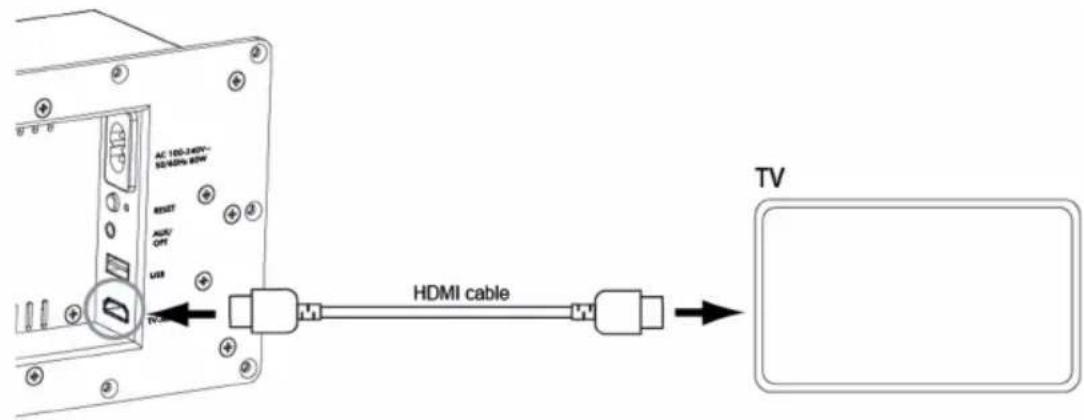
Connect Lemus HOME to your television via HDMI (ARC)
1.
Make sure that your TV has a HDMI ARC (Audio Return Channel) port. Then connect your Lemus HOME through this port using a HDMI 1.4 cable or newer.
2.
Connect your Lemus HOME to a power source.
3.
Turn on your television and activate your HDMI ARC audio output in your television settings (this is sometimes done automatically, so if it does not work automatically, make sure your settings are correct). Make sure that your television's sound settings are set up to PCM.
4.
Lemus HOME is now ready to play sound through your television when you turn it on and you will be able to control the volume using your TV remote, without the need for any additional remotes.
5.
If there is no sound coming from the television for 20 minutes, then Lemus HOME will automatically turn itself off. When you turn the sound on your television on again, Lemus HOME will automatically turn on and play your sound again within 20 seconds.
* If you have any problems making the sound go through your Lemus HOME, then contact the producer/seller of your television to ensure the correct setup.
Connect Lemus HOME with your TV or another device via 3.5mm AUX
If you have problems connecting your television via HDMI, then you can always connect via 3.5mm AUX. This also lets you connect other devices (e.g. your record
player).
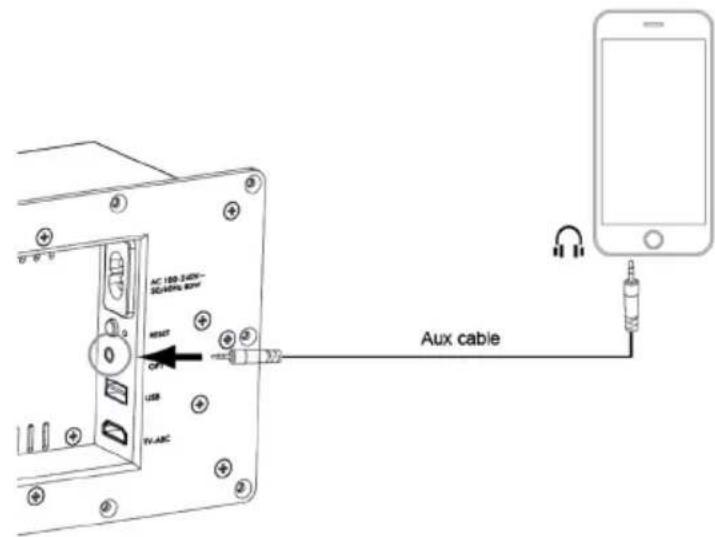
To connect with your TV, you have to:
1.
Get an optical cable where one of the ends is AUX 3.5mm.
2.
Connect the optical end to your television and the AUX 3.5mm end to your Lemus HOME.
3.
Turn on your Lemus HOME and the signal will automatically shift to AUX when the television is active.
*This method requires a Lemus HOME remote to control volume. Contact info@lemus.dk to order.
How to connect your remote
(not included as standard)
You have the opportunity to buy a Lemus HOME remote. The remote serves a variety of purposes and is especially useful when you are trying to control sound using your AUX input to connect to a TV or record player. The add-on Lemus HOME remote will let you control the following options:
- Manually selecting input
- Controlling volume
- Play, pause, next, last played
- Power on/off
To connect your remote, do the following:
- Turn on your Lemus HOME and wait for 90 seconds.
- Click briefly on the reset-button on the backside.
- Click on any button on the remote.
- The remote is now connected to Lemus HOME.
- To disconnect or connect a new remote, Lemus HOME has to be reset to factory settings.
How to switch input/signal
Lemus HOME is built on an intelligent and incredibly intuitive and user-friendly sound system. Consequently, you do not need a remote to switch from streaming music to streaming movies.
If your Lemus HOME detects a sound signal from a device, then this will automatically be played. If several signals are sent at once (for instance if one person is watching TV and another wants to listen to music), then Lemus HOME prioritizes like this:
- Streaming
- HDMI
- AUX
How to reset to factory settings
In the event of unforeseen technical problems, resetting the system to factory settings will often solve the problem. However, resetting to factory setting should be a last resort.
1.
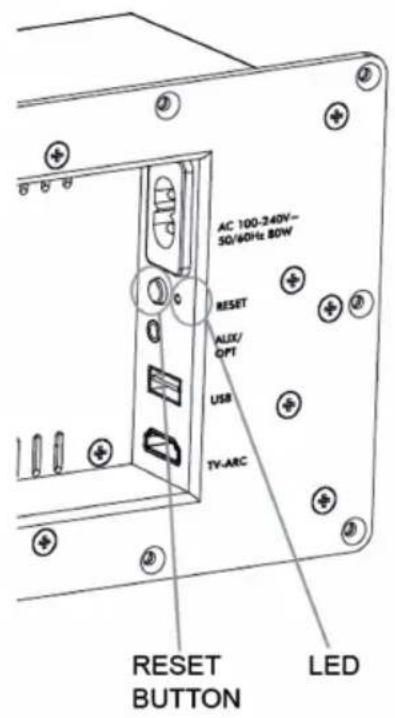
On the back of your Lemus HOME you will find the amplifier with a small button that says "Reset".
2.
Hold this button down for 10 seconds and wait for the LED light to turn off. When this is done the system will have reset and is ready to be set up anew.
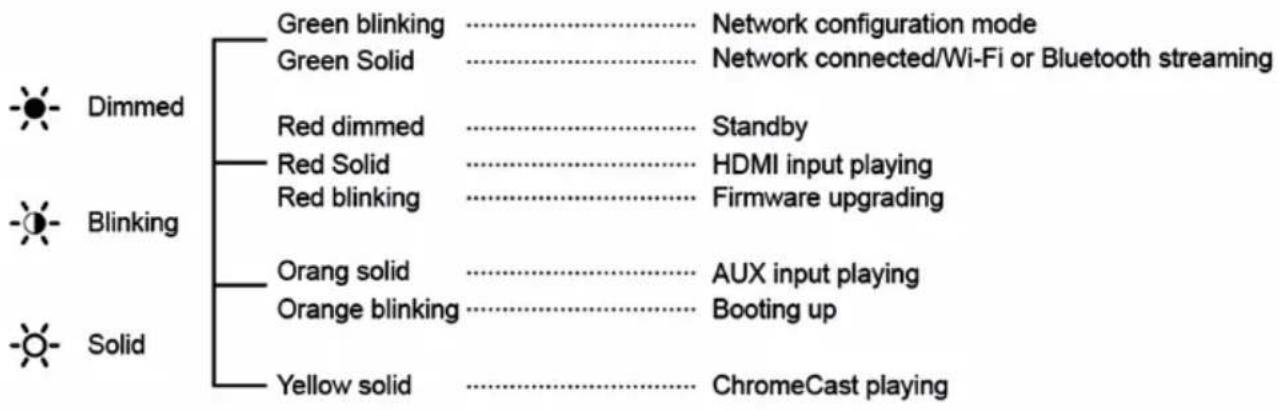
flowchart
graph TD
    A["Dimmed"] --> B["Green blinking"]
    A --> C["Green Solid"]
    A --> D["Red dimmed"]
    A --> E["Red Solid"]
    A --> F["Red blinking"]
    A --> G["Orang solid"]
    A --> H["Orange blinking"]
    A --> I["Yellow solid"]

    B --> J["Network configuration mode"]
    C --> K["Network connected/Wi-Fi or Bluetooth streaming"]
    D --> L["Standby"]
    E --> M["HDMI input playing"]
    F --> N["Firmware upgrading"]
    G --> O["AUX input playing"]
    H --> P["Booting up"]
    I --> Q["ChromeCast playing"]
Trouble shooting:
I cannot connect to my Lemus HOME / the sound is unstable
- First, make sure the power cord is plugged into both the socket and the Lemus HOME properly. If it is plugged in correctly and the problem persists, unplug the Lemus HOME, and plug it in again.
- The problem could also be due to weak Wi-Fi. Find out how strong your Wi-Fi is around the Lemus HOME. You can measure your Wi-Fi strength at www.speedtest.net. You must have over 10 Mbit and your ping (seen in the upper left corner) must be less than 10 in order for an optimal connection.
- Your router might also be causing the issue, especially if you have a standard router from your ISP. Such routers are rarely good enough to provide a good streaming experience. We recommend investing in a better router (minimum specs: 1 to 1.4 Ghz and dual- to quadcore CPU).
- If you need to upgrade, make sure that your bandwidth corresponds to your overall consumption and that your router is capable of reaching all parts of your home.
- If your router is set up in a closed cabinet or similar, this can also cause interference.
- If you live in an apartment with several neighboring networks, check the amount of noise. In case of high interference, it is recommended to upgrade to a router with the option of connecting at both 2.4Ghz and 5Ghz.
- If your Wi-Fi is provided by a third party such as your employer, check with the provider if UPNP is active or if other firewall settings on the local network block DLNA communication. If blocked, devices cannot find each other, despite proper setup.
My Lemus HOME's sound quality is poor
- If you are playing music from YouTube or YT music, you may find that the sound quality is low because these platforms play music at 128kbps (lower speeds lead to poorer quality).
Spotify plays music at 356kbps which is the normal speed, but not the highest possible. Lemus HOME supports Hi-Res audio, so you can use platforms like Tidal that support Hi-Res Audio (CD quality).
- Playing music through an old phone with an old Bluetooth version (Bluetooth 5.0 is the latest version) may also affect the sound quality.
- If you hear a slight buzzing when playing music, make sure the Lemus HOME is plugged into the first possible plug in the socket, as other appliances can add noise to the power.
- If possible, try to choose the highest possible streaming quality for your music service for the best quality (this may result in increased data usage).
I cannot connect to my Lemus HOME via Bluetooth
- If you cannot connect to your Lemus HOME via Bluetooth, try turning it on and off again. Make sure the device you want to connect to the speaker with has Bluetooth turned on. If you are still having issues, go to your device's Bluetooth settings and choose to "FORGET" or to "REMOVE" the Lemus HOME speaker, then pair the device with the speaker again.
- In case this does not solve your issue, check if there are other devices connected to the speaker. If other devices are connected to the speaker, they could be blocking your device from connecting with the Lemus HOME.
- If you are still unable to connect, your Bluetooth device may be out of reach. Try moving it closer to the speaker.
- To determine if there is a problem with your device try connecting to the Lemus HOME with another Bluetooth device.
Setup on Wi-Fi
- In order to connect the Lemus HOME to your router, your router needs to output
a 2.4Ghz signal. If you have a dual band router (i.e. 2.4Ghz and 5Ghz), do not disable the 2.4Ghz signal.
- The network must not contain enterprise access points configured to require certificates or other forms of enterprise authentication. If you use multiple access points, make sure they are all set to the same 2.4 GHz wireless channel.
- Lemus HOME cannot connect to guest networks or networks that use a portal page to login. Further, networks using wireless range extenders are known to cause problems with Lemus HOME systems that are configured wirelessly.
HDMI connection does not output sound
- Make sure the HDMI connector is HDMI 1.4 standard or better. If you have the right connector, make sure it is plugged into the TV's HDMI (ARC) input. If it is not plugged into the ARC input, then no sound will be outputted.
- If there is still no sound, go into the TV's audio settings and make sure it is on "PCM" and not "Bitstream" or a similar setting. Then switch both the Lemus HOME and television off and on.
- If it still does not output sound, switch to the HDMI input on the TV that the Lemus HOME is set to. For example, if the Lemus HOME is set to HDMI ARC 4, then switch to this channel via your TV remote and wait for 20 seconds. Then return to your normal TV channel. The HDMI connection should then output sound.
The Lemus HOME app does not work
- Make sure your Lemus HOME is connected to your network through the Google Home app.
- Another issue could be your Wi-Fi connection. The Lemus HOME App only works when connected to Wi-Fi.
- Finally, make sure that your Lemus HOME and your network are well connected and that your device has Bluetooth turned on.
DEUTSCH
Trouble shooting:
SI VOUS AVEZ IOS (APPLE):
natural_image
Silhouette of a bird in flight against a plain background (no text or symbols)Lemus ApS
VAT: DK-35864121
www.lemus.dk