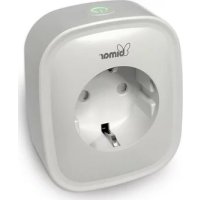
APO2 - Power outlet Bimar - Free user manual and instructions
Find the device manual for free APO2 Bimar in PDF.



| Product Type | Smart Plug |
| Brand | Bimar |
| Model | APO2 |
| Power Supply | 220-240 V ~ 50/60 Hz, max 10 A, 2200 W |
| Connectivity | Wi-Fi 2.4 GHz |
| App Compatibility | Android 4.4+ / iOS 8.0+ |
| Mobile App | Smart Life or Bimar AP2 |
| Main Functions | Remote control, switch, timer, countdown, consumption statistics, scenarios |
| Voice Control | Compatible with Amazon Alexa and Google Home |
| Dimensions (L x W x H) | Approximately 5 x 5 x 5 cm |
| Weight | Approximately 50 g |
| Care and Cleaning | Soft, slightly damp cloth; do not immerse |
| Safety | Do not touch with wet hands; keep out of reach of children; do not expose to weather |
| Repairability | Repairs by highly qualified personnel only |
| Warranty | Warranty void if unauthorized repair |
Frequently Asked Questions - APO2 Bimar
User questions about APO2 Bimar
0 question about this device. Answer the ones you know or ask your own.
Ask a new question about this device
Download the instructions for your Power outlet in PDF format for free! Find your manual APO2 - Bimar and take your electronic device back in hand. On this page are published all the documents necessary for the use of your device. APO2 by Bimar.
USER MANUAL APO2 Bimar
type AP02 (mod. SP1)


Please read these instructions carefully before using the appliance, and instruct other persons using it, too, if necessary. Keep the manual handy for future use.
If when reading these instructions manual certain parts should be difficult to understand, or if there is any confusion, contact the company indicated on the last page before using the product.
GENERALWARNINGS
- This device is a radio device that intentionally emits and/or receives radio waves for radiocommunication and/or radio-determination.
- The smart plug can be controlled remotely using an application to connect to any type of electrical appliance monitoring the real-time consumption from your smartphone.
- The application works with Android and iOS.
- The appliance must be kept out of reach of children.
Children must be supervised to ensure they do not play with the appliance. - Warning: when using electrical appliances, always follow basic safety precautions to prevent fire, electrocution and physical injury.
- If the plug is not being used, unplug it from the plug point.
- Do not allow the appliance to be exposed to the weather (sun, rain, etc.).
- Do not touch the plug with wet hands or feet.
- If there is a fault or the appliance is not working correctly, switch it off and have it checked by a qualified professional. Repairs done by an unqualified person can be dangerous and cause the guarantee to become void.
INSTALLATION
- Before connecting the Smart plug, check that the voltage values on the box match with those of the power supply. Should the plug and the device's plug be incompatible, have the former replaced with a correct one by a professional operator. The use of adaptors is not advisable; if it is necessary to use them, they must comply with safety regulations and the total current (amps) must not be rated lower than the maximum current of the appliance.
- Connect the Smart plug to the power outlet. Check that the Smart plug cannot be damaged and that it is out of reach of children or people with limited cognitive impairments, or animals.
Functions
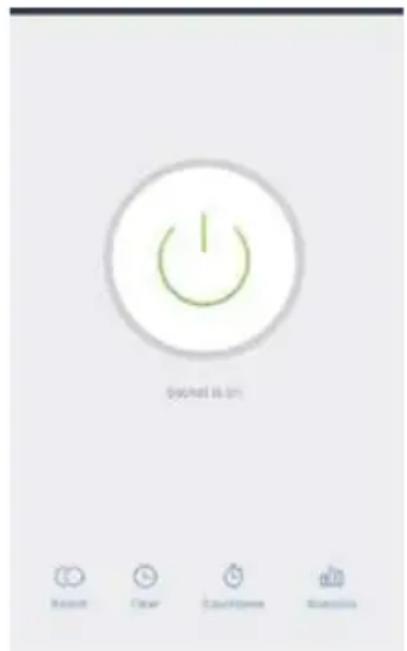
The application allows the following functions to be performed remotely:
- Device control.
- Switch control, allows you to turn the device on and off remotely
- Timer, allows you to plan when the plug switches on or off.
- Countdown, allows you to turn the plug off after a certain time interval.
- Statistics, allows you to monitor the consumption of the device connected to the smart plug in real time, allowing you to view the consumption history in a convenient diagram.
- Scenario: this function allows you to create scenarios to be implemented if conditions are met.
- Profile: allows you to manage your personal data.
Use
Check the following conditions before each use
- Check that the router is for home use (i.e. it has no access restrictions other than the password), the WiFi network is 2.4 GHz, the WiFi signal is strong and uniform in the environment where the smart plug is to be installed.
- Make sure the smartphone is connected to the same WiFi network as the smart plug.
First Installation
-
Installing the Application:
-
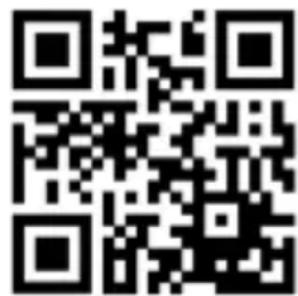
Install the "Smart Life or o Bimar AP2" application by searching it on Google Play (android) or from the App Store (iOS), or scan the QR code here to proceed with the installation. The free "Smart Life or o Bimar AP2" app is compatible with devices that support iOS 8.0 or higher or Android 4.4 or higher.
For Android
For iOS
-
Register the plug by entering your phone number. You will receive a confirmation code to complete the registration of your account.
-
Connecting the smart plug with the application
Simple mode (recommended)
- Check that the smart plug is connected to the power and then start the application and select "add device" or the "+" button in the upper right corner.
- Press the power button of the smart plug for at least 5 seconds until the indicator light flashes quickly.
- Confirm the status of the light on the application (the application will ask for the status)
- Select the WiFi network and ener the correct password
- Wait for the automatic configuration
AP mode
- Use AP mode in case of failed connection in simple mode
- Long press the power button on the smart plug until the indicator light flashes slowly.
- Confirm the status of the light on the application (the application will ask for the status)
- Select the WiFi network and ener the correct password
- Select "connect now", choose the hotspot called "Smartlife xxx" and then return to the application.
- Wait for the configuration.
If the installation has been carried out correctly, it is possible to act directly on the power on status of the plug, set the timer and create usage scenarios
Mode: Voice control with Amazon Alexa or Google Home, supports iFTTT Frequently asked questions
- Does the smart plug work with any device?
The smart plug works with any device equipped with a shuko plug that falls within the operating parameters or up to a maximum load of 2200 W and 10 Ampere. - Is the smart plug compatible with any network?
Ensure that the Wi-Fi network operates at 2.4GHz (frequency of common routers sold in Italy) and that the router is for home use (i.e. it has no access restrictions other than password).
- Can I use several smart plugs?
Yes! It is possible to operate several smart plugs with the only limit being the maximum capacity of the router to manage devices (this can vary from 5 to 150 devices). It is also possible to create groups to activate multiple smart plugs at the same time.
What is the best position for the smart plug?
Within the range of the WiFi network in a position where the signal is powerful enough to allow internet browsing.
- How can I reset the smart plug?
You can reset the smart plug to the default settings by pressing the power button for 5 seconds and restarting the installation mode.
- The smart plug loses the connection during use.
a) Check if the Wi-Fi signal is still strong where the smart plug is installed and can that it connect to the Internet
b) If the router has been reset or the Wi-Fi password has been changed, reset the smart plug and repeat the setup.
CLEANING AND MAINTENANCE
Important: before performing routine cleaning, remove the plug from the mains.
- To clean use a soft, damp cloth; do not use steel wool or abrasive products.
-
Do not immerse any part of the plug in water or other liquid: in such an event, do not place your hand into the liquid but first remove the plug from the plug point. Dry the appliance thoroughly and check that the electrical parts are dry: if in doubt consult a qualified professional.
-
Do not dump non-biodegradable products; be sure to dispose of them in compliance with existing regulations. At the end of its life, the product must not be disposed of as part of ordinary waste. It should be handed in to specific collection centres set up by the municipality, or to retailers who provide such a service following the purchase of a new device. Disposing of a household appliance separately avoids possible negative consequences for the environment and human health resulting from inappropriate disposal and allows the recovery of the materials from which it is made in order to obtain significant savings in energy and resources. As a reminder of the obligation to dispose of appliances separately, the product is marked with a crossed-out wheelie bin symbol.

Brand : Bimar
Model : APO2
Category : Power outlet