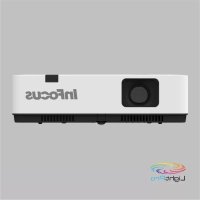
LightPro IN1044 - Projector INFOCUS - Free user manual and instructions
Find the device manual for free LightPro IN1044 INFOCUS in PDF.


| Product type | DLP Projector |
| Brand | InFocus |
| Model | LightPro IN1044 |
| Native resolution | XGA (1024 x 768) |
| Supported resolutions | Up to WUXGA (1920 x 1200) |
| Brightness | Not specified, Eco mode available |
| Contrast | Not specified |
| Lamp life | Up to 10,000 hours in Eco mode |
| Power supply | AC 100-240 V, 50/60 Hz |
| Power consumption | Approx. 260 W (max), < 0.5 W on standby |
| Connectivity | 2 x HDMI, 1 x VGA, 1 x USB-A, 1 x USB-B, 1 x Composite video, 1 x Audio in, 1 x Audio out, RS-232, LAN (RJ45) |
| Built-in speaker | Yes, power not specified |
| Zoom | Manual (ring) |
| Focus | Manual (wheel) |
| Keystone correction | Vertical and horizontal, corner correction, curved correction |
| Main functions | Digital zoom, freeze, timer, blank screen, image mode (Dynamic, Standard, Cinema, etc.), captioning, power management |
| Maintenance and cleaning | Lens and filter cleaning, lamp replacement |
| Security | Password lock (PIN), keypad lock, Kensington security slot |
| Spare parts and repairability | Replaceable lamp, cleanable filter; InFocus technical support |
| Dimensions (approx.) | 315 x 224 x 88 mm |
| Weight (approx.) | 3.0 kg |
Frequently Asked Questions - LightPro IN1044 INFOCUS
User questions about LightPro IN1044 INFOCUS
0 question about this device. Answer the ones you know or ask your own.
Ask a new question about this device
Download the instructions for your Projector in PDF format for free! Find your manual LightPro IN1044 - INFOCUS and take your electronic device back in hand. On this page are published all the documents necessary for the use of your device. LightPro IN1044 by INFOCUS.
USER MANUAL LightPro IN1044 INFOCUS
natural_image
Line drawing of a projector with ventilation slots and a circular vent (no text or symbols)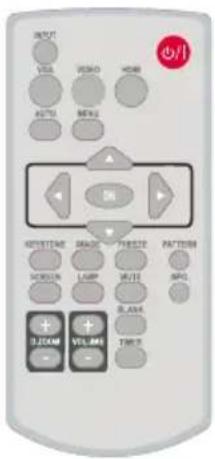
text_image
INPUT VIDEO VIDEO HOME AUTO MENU ON KEYSTONE DRAGON PRAZER PATTERN SCREEN LUMP MUTE BPG 3.20AM VOLUME TIMECopyright © 2021 InFocus
Copyright © 2020 by InFocus Corporation
https://infocus.com/support/contact/
Closed caption....61
Verrouillage 61
Iris....62
Son....62
Réglages HDMI 63
Étendre....64
Langue....64
Réglages auto....65
Trapèze 65
Logo 70
Sécurité 72
Contacter InFocus....122
text_image
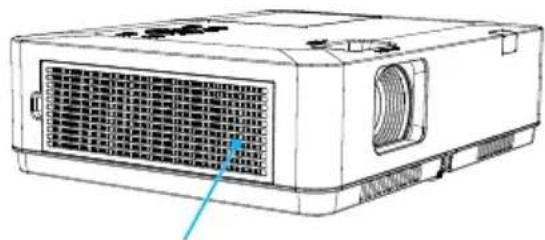
Technical diagram of a projector with labeled ports and internal structure, showing front panel and rear panel layout.Entrée d'air
natural_image
Line drawing of a projector unit with ventilation grilles and ventilation ducts (no text or symbols)text_image
Diagram of a projector with a hand using a screen, showing no label or symbols on the device.text_image
Diagram of a projector with a red prohibition symbol indicating no protection, showing mechanical components and label text.natural_image
Line drawing of a projector with a hand holding the lens and a warning symbol (no text or labels)FCC

Note
text_image
Diagram of a projector with labeled parts including front panel, screen, and indicator lightsFaçade arrière
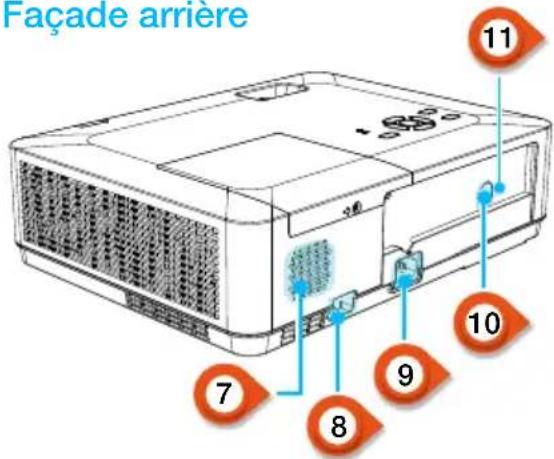
• Pour les modèles IN1029, IN1039, IN1049, IN1059, IN1024, IN1034, IN1044, IN1026, IN1036, IN1046
Terminaux
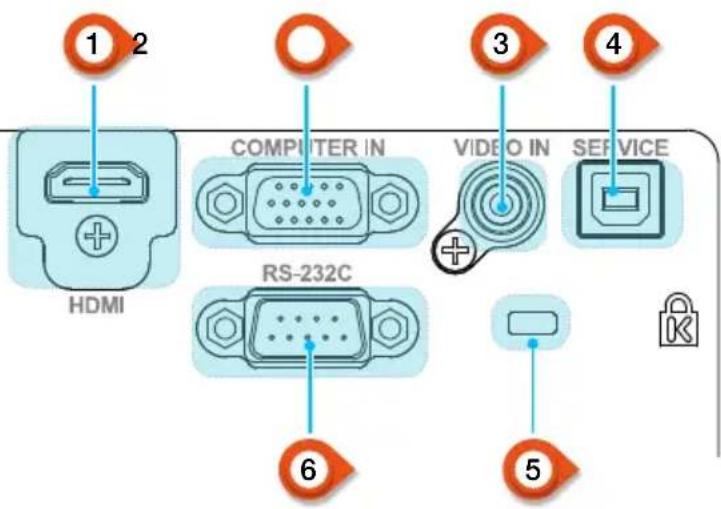
text_image
1 2 HDMI COMPUTER IN RS-232C VIDEO IN SERVICE 6 51 Port HDMI
text_image
8M 30° 30° 30° 30° 8M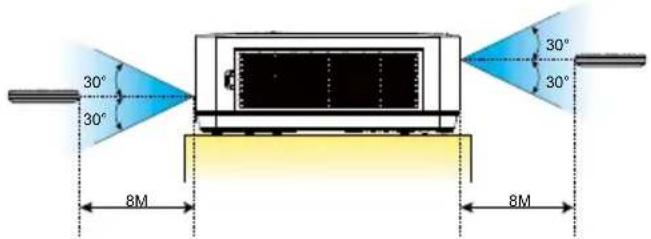
text_image
30° 30° 8M 30° 30° 8MIN1024, IN1034, IN1044
| Taille d’écran | Distance de projection | |||||
| Standard 4:3 Compatible 16:9 | ||||||
| Taille d’écran (pouce) | Largeur (m) | Hauteur (m) | Large | Télé Large | Télé | |
| 30” 0.6100.457 0.8 | 121.347 0.8 | 85 1.467 | ||||
| 60” 1.2190.9141.63 | 2.702 1.7 | 76 2.944 | ||||
| 80” 1.6261.2192.17 | 3.610 2.3 | 73 3.933 | ||||
| 100” 2.032 1.524 | 2.728 4.523 | 2.972 4.927 | ||||
| 150” 3.048 2.2864 | 1146.8204.4 | 827.430 | ||||
| 200” 4.0643.048 5 | 514 9.1416 | 0089.959 | ||||
| 250” 5.080 3.810 | 6.92911.486 | 7.549 12.513 | ||||
| 300” 6.0964.572 8 | 358 13.855 | 9.10615.094 | ||||
IN1026
| Taille d’écran | Distance de projection | |||||
| Standard 4:3 Compatible 16:9 | ||||||
| Taille d’écran (pouce) | Largeur (m) | Hauteur (m) | Large | Télé Large | Télé | |
| 30” 0.6460.4040.94 | 2 1.137 | 0.969 1.169 | ||||
| 60” 1.2920.8081.91 | 0 2.299 | 1.963 2.363 | ||||
| 80” 1.723 1.077 2 | 554 3.073 | 2.626 3.159 | ||||
| 100” 2.154 1.346 | 3.199 3.848 | 3.289 3.956 | ||||
| 150” 3.231 2.0194 | 811 5.785 | 4.946 5.946 | ||||
| 200” 4.308 2.6926 | 423 7.721 | 6.602 7.937 | ||||
| 250” 5.385 3.365 | 8.035 9.658 | 8.259 9.927 | ||||
| 300” | 6.462 | 4.039 | 9.647 | 11.595 | 9.916 | 11.917 |
IN1046, IN1039, IN1059
| Taille d’écran | Distance de projection | |||||
| Standard 4:3 Compatible 16:9 | ||||||
| Taille d’écran (pouce) | Largeur (m) | Hauteur (m) | Large | Télé Large | Télé | |
| 30” 0.6460.4040.81 | 2 1.347 0 | 835 1.384 | ||||
| 60” 1.2920.8081.63 | 0 2.702 1 | 675 2.777 | ||||
| 80” 1.723 1.077 2 | 178 3.610 | 2.239 3.711 | ||||
| 100” 2.154 1.346 | 2.728 4.523 | 2.804 4.648 | ||||
| 150” 3.231 2.0194 | 114 6.820 | 4.228 7.009 | ||||
| 200” 4.308 2.6925 | 520 9.150 | 5.673 9.405 | ||||
| 250” 5.385 3.365 | 6.936 11.49 | 8 7.129 11.817 | ||||
| 300” 6.4624.039 8 | 367 13.869 | 8.599 14.255 | ||||
IN1036, IN1029, IN1049
| Taille d’écran | Distance de projection | |||||
| Standard 4:3 Compatible 16:9 | ||||||
| Taille d’écran (pouce) | Largeur (m) | Hauteur (m) | Large | Télé Large | Télé | |
| 30” 0.6460.4040.87 | 2 1.053 0. | 896 1.082 | ||||
| 60” 1.2920.8081.76 | 9 2.129 1. | 818 2.188 | ||||
| 80” 1.723 1.077 2 | 365 2.845 | 2.431 2.924 | ||||
| 100” 2.154 1.346 | 2.962 3.563 | 3.044 3.662 | ||||
| 150” 3.231 2.0194 | 455 5.356 | 4.578 5.505 | ||||
| 200” 4.308 2.6925 | 947 7.149 | 6.113 7.348 | ||||
| 250” 5.385 3.365 | 7.440 8.943 | 7.647 9.191 | ||||
| 300” 6.4624.039 8 | 932 10.736 | 9.181 11.035 | ||||
natural_image
Technical line drawing of a projector with a screw inserted, showing internal components and mounting bracket (no text or symbols)Figure (1)
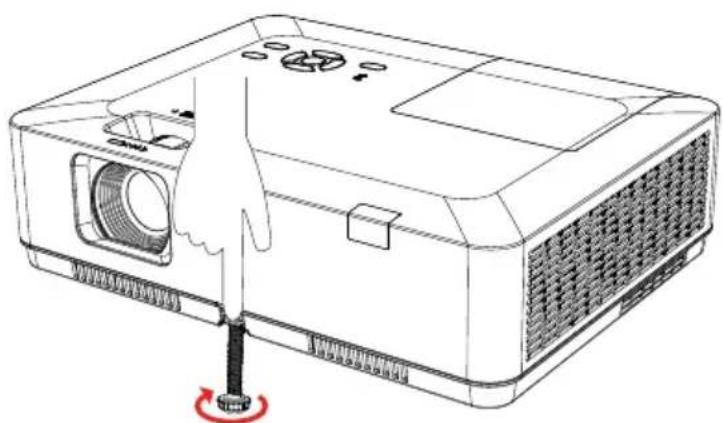
natural_image
Line drawing of a projector with a hand inserting a screwdriver into the base (no text or symbols)Figure (2)
natural_image
Line drawing of a desktop computer setup with monitor, keyboard, and tower (no text or symbols)• Pour les modèles IN1029, IN1039, IN1049, IN1059, IN1024, IN1034, IN1044, IN1026, IN1036, IN1046
• Pour les modèles IN1029, IN1039, IN1049, IN1059, IN1024, IN1034, IN1044, IN1026, IN1036, IN1046
• Pour les modèles IN1029, IN1039, IN1049, IN1059, IN1024, IN1034, IN1044, IN1026, IN1036, IN1046
• Pour les modèles IN1029, IN1039, IN1049, IN1059, IN1024, IN1034, IN1044, IN1026, IN1036, IN1046