INA-AWB - Projector INFOCUS - Free user manual and instructions
Find the device manual for free INA-AWB INFOCUS in PDF.


User questions about INA-AWB INFOCUS
0 question about this device. Answer the ones you know or ask your own.
Ask a new question about this device
Download the instructions for your Projector in PDF format for free! Find your manual INA-AWB - INFOCUS and take your electronic device back in hand. On this page are published all the documents necessary for the use of your device. INA-AWB by INFOCUS.
USER MANUAL INA-AWB INFOCUS
Environment for system 4
Accessories 5
Remote Control 6
System Connection 8
Mounting 9
Startup 9
Home 10
My Apps 11
Whiteboard 12
Create a drawing 12
Add text 13
Import an image 13
Modify objects 14
Navigate the whiteboard canvas 14
Clear the canvas 15
Save the whiteboard canvas 15
Open a new whiteboard canvas 16
Open a saved whiteboard canvas 16
Whiteboard tools 17
Settings 23
Network 23
Display 25
Advanced 26
Other 27
Troubleshooting 28
Specifications 38
Preface
Thank you for choosing the InFocus Android module. In order to make it more convenient for you to use proficiently, we provide you with this user manual. Please read it carefully before using and keep it in a safe place for future reference.
Statements
We have made every effort to provide the most current information about the product.
We do not grant any guarantees as to the contents of the present instruction manual and disclaim any implied guarantees concerning market value or suitability for specific purposes.
The information contained here is an instruction intended to enable the correct usage and maintenance of the receiver.
We reserve the right to introduce amendments, changes, or translations of the user manual without prior notification thereof. For this reason, we recommend you regularly visit our website in order to obtain the latest information.
System Introduction
Key features
• InFocus Whiteboard application
- Android 4.4. operating system with Quad-Core Cortex-A9r4, 2.0GHz
• Support many kinds of IPTV and OTT TV programmes.
- Support three main HD formats: VC-1, H.264, MPEG-2 and many other normal formats such as MPEG-1, MPEG-2, MPEG-4, DIVX, REALMEDIA and so on.
• Video formats include avi, mpg, vob, rmvb, mkv, m2ts, tx, and so on.
• Photo formats include JPEG, BMP, and PNG up to 80M pixels.
• Audio formats include MP3, WMA, AC3, DTS, AAC, and so on.
• Support SD/SDHC/MMC cards.
- Support two USB 2.0 host connectors with maximum output current of 1.5A/5V.
- Support standard RJ45 cable network connection and wireless network connection.
• Support infrared remote control operation.
Environment for system
Operation:
Temperature limitation: 0-40°C; Humidity limitation: 20-80%.
Storage:
Temperature limitation: -20-50°C; Humidity limitation: 10-90%.
Accessories
• Power adapter (1)
- Remote control (1)
- HDMI cable (1)
- Velcro strips (3)
- User manual (1)
Remote Control
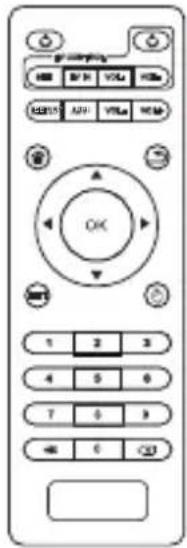
text_image
OK 1 2 3 4 5 6 7 8 9 ← 0 ←| Remote key Description | |
 | Power: Click to turn on/off. |
 | SET: Not functional on this model. |
 | TV IN: Not functional on this model. |
 | SETUP: Click to access the Settings options. |
 | APP: Not functional on this model. |
 | VOL: Click to decrease/increase the volume. |
 | Home: Click to get back the main menu. |
 | Return: Click to return back to previous menu. |
 | Navigation: Click to navigate left/right/up/down, and click OK to confirm your selection. |
 | Menu: Click to choose function menu of corresponding application in video, music, photo and website. |
 | Mouse: Click to use the navigation button as a mouse. |
 | Number: Click to select a number. |
 | Mute: Click to turn down the volume. |
 | Backspace: Click to backspace the input. |
System Connection
Connect to InFocus touch display
Connect to InFocus touch display
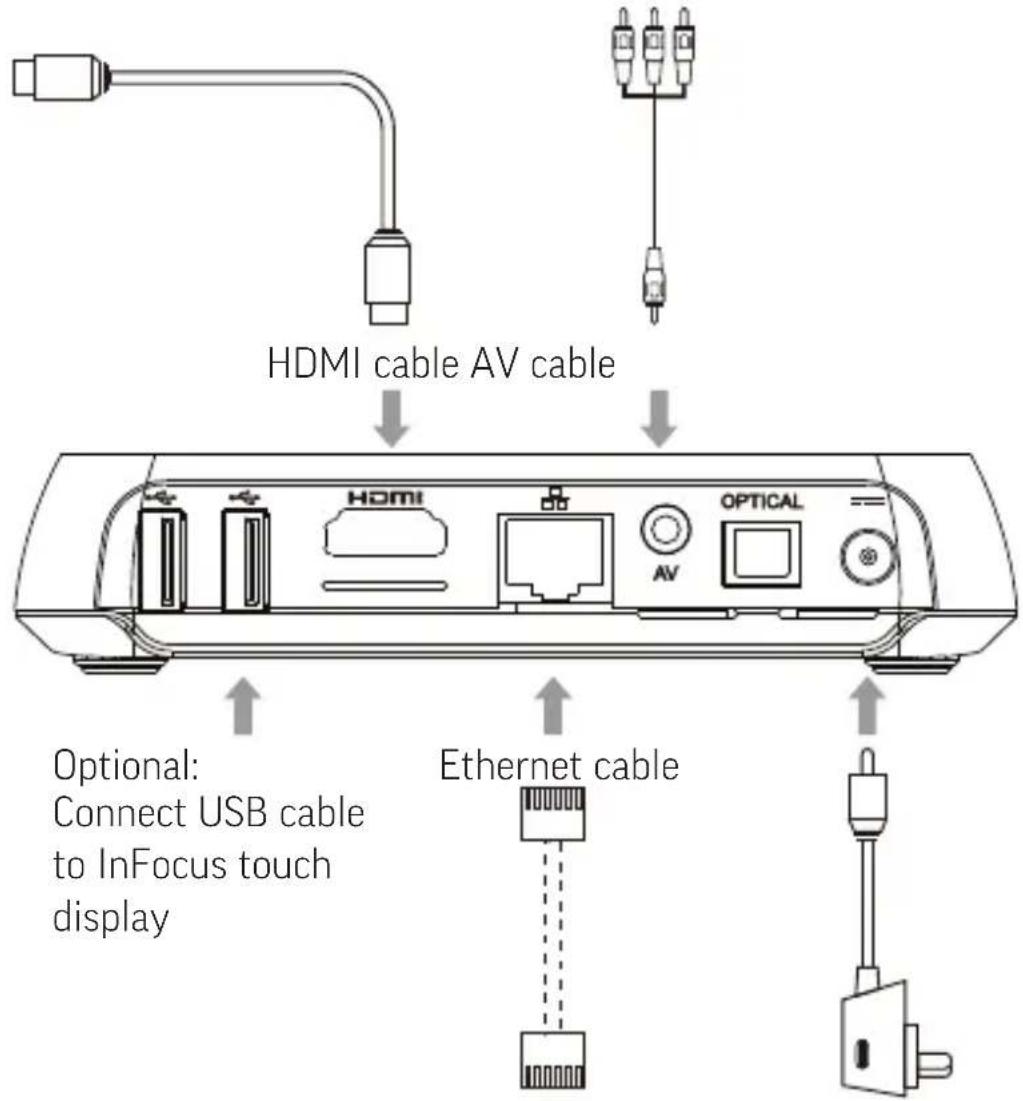
text_image
HDMI cable AV cable Optional: Connect USB cable to InFocus touch display Ethernet cableRouter Power adapter
Mounting
If desired, the Android module can be mounted to the back of the display. To do so, attach the velcro strips onto back of module per the illustration. Then attach it to the back of display being careful not to block display vents.

natural_image
Pure electrical circuit lines without any symbolsNote: When mounted to the back of the display, we recommend using the display to control the Android module instead of the remote.
Startup
Turn on the InFocus Android module when the indicator light is blue. The main menu appears in about 30 seconds.
Home
From the home page, you can access a number of features using the shortcuts at the bottom of the screen.

text_image
InFocus Settings Browser Whiteboard File Browser Gallery Calendar App InstallerMy Apps Movie PlayerMy Apps
This is where all installed applications and widgets can be accessed.
Note: InFocus only supports the Whiteboard application. InFocus does not design or support any other Android applications and widgets. Android applications and those found in the Play Store are supported by their associated manufacturers.

text_image
APPS WIDGETS SHOP* AppWizard Browser Calculator Click Downloads Email FileBrowser Gallery Google Settings Kodi Media Center MoviePlayer Music Netflix People Play Store PPPUC Search SettingsBox UPDATE&3AC Windowsboard YouTube1) Navigate to My Apps.
2) Click OK.
3) Navigate to the desired application.
Whiteboard
Use the Whiteboard to brainstorm ideas, create graphs, and workflows, or whatever you desire. This blank slate lets you collaborate, share, and save your ideas.
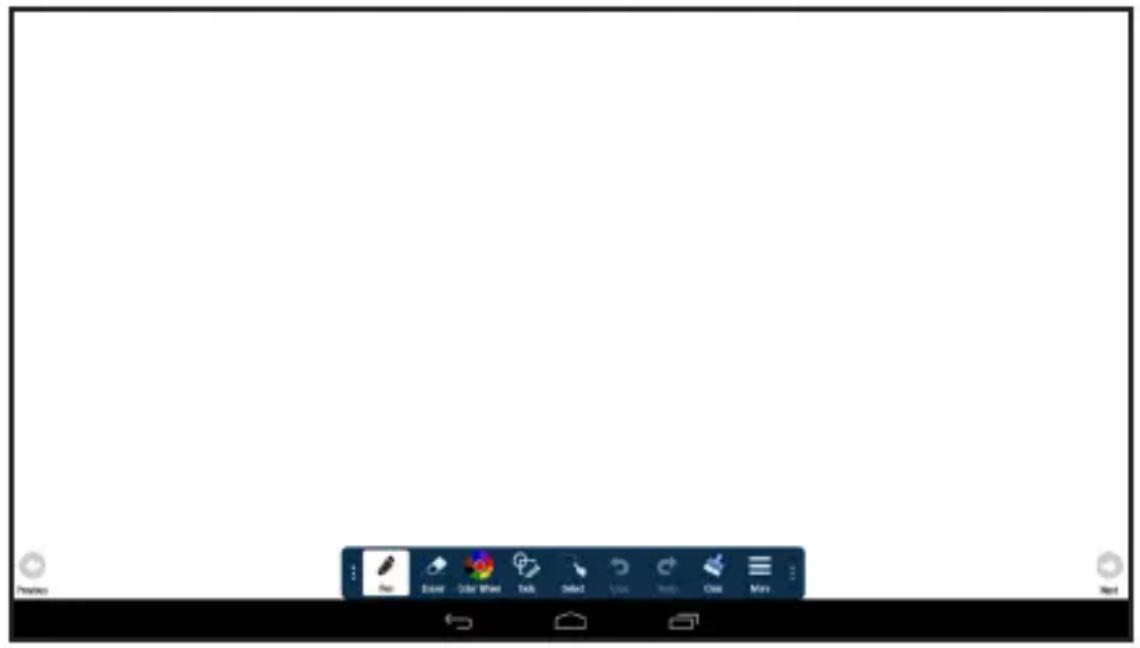
text_image
Screenshot of a blank application workspace with tool icons and a toolbar labeled 'Menu', 'Excel', 'Color Wheel', etc.Create a drawing
1) Tap a drawing object from the Tools submenu.
2) Tap the color, size, and opacity you desire.
3) Draw on the whiteboard canvas with your finger or a stylus.
TIP: Keep other objects, including writing utensils, other fingers, and knuckles away from the drawing surface to draw your image cleanly.
4) Use Erase, Select, Undo, and Re-do to modify the drawing.
Add text
1) Tap Text in the Tools submenu
2) Tap the screen where you want the text box to be. A text box opens.
3) Adjust the font family, type, size, and color, as desired.
4) Using either a keyboard or the on-screen keyboard, type your text.
5) Tap OK when finished.
6) Tap and drag the text box to the desired position.
Import an image
Supported image types include JPEG, PNG, BMP, GIF, and TIFF.
1) Tap More.
2) Tap Import.
3) By default, the device will look at internal storage. To import the image from a USB thumb drive, tap the USB icon.
4) Navigate to the associated folder and tap the desired image.
5) Tap Done.
6) While the object is highlighted, drag it to the desired location and re-size it as needed using the sizing handles. In addition, you can cut, copy, paste, and delete it using the features in the Select submenu.
7) Tap Cancel when finished.
Modify objects
1) Tap Select.
2) Tap and drag your finger or the stylus across the objects you would like to select. The objects are outlined.
To copy the selected objects: tap Copy and tap Paste. While the objects are selected, drag them to the desired location.
To cut the objects and place them on a different page of the whiteboard canvas: tap Cut. Then navigate to the desired page and tap More and Paste. While the objects are selected, drag them to the desired location.
To delete the objects: tap Delete. The objects are deleted immediately.
Navigate the whiteboard canvas
1) Tap Next to add or go to the next page.
2) Tap Previous to add or go to the previous page.
Note: The whiteboard feature supports up to 9 pages total. You can grow the canvas, but you cannot shrink the canvas.
3) Tap the Canvas tool to navigate between pages.
a. Tapping an arrow within the Canvas tool moves the current view 1/2 page in the direction of the arrow. If the arrow is gray, you have reached the maximum edge of the canvas.
b. Tap any cell in the map to move directly to that page.
Clear the canvas
Tap Clear to remove all whiteboard data from the entire whiteboard canvas.
Save the whiteboard canvas
1) Tap More.
2) Tap Save to save it to the unit, or tap USB to save it to a USB thumb drive.
3) Type a file name in the Name text box.
4) Select the file type:
| File Type Option | Choose this file type if you want to... |
| DigiEasel saves the whiteboard file for future editing. | |
| JPG creates an image file. Note: The image file cannot be re-opened by the monitor for later use. | |
| PDF creates a printable document for others to view. Note: The PDF file cannot be re-opened by the monitor for later use. | |
5) For JPG and PDF file types, tap Current view to save the visible portion of the canvas or tap Whole view to save the entire canvas. Note: Whole view creates multiple pages and requires extra time to complete.
6) Enter the desired file location or accept the default location.
7) Tap Save.
Open a new whiteboard canvas
1) Tap More.
2) Tap New.
3) Then select Save to save the current canvas or select Don't save to delete the current canvas and open a new one. Cancel returns the user to the current canvas.
Open a saved whiteboard canvas
The following instructions explain how to open a saved DigiEasel whiteboard file. To open a saved JPG or PDF file, navigate to File-Browser.
Note: JPG files can be opened with Gallery or Kodi applications. PDF files require a PDF reader (not included in the standard application set).
1) Tap More.
2) Tap Open.
3) If the current whiteboard canvas contains objects, you will be prompted to save the current canvas. Select Save to save the current canvas or select Don't save to delete the current canvas and open a new one. (Cancel returns the user to the current canvas.)
4) By default, the Open Files window displays whiteboard files saved internally on the monitor. To open a saved file from a USB thumb drive, tap the USB icon at the top of the Open Files window, and navigate to the desired USB thumb drive.
5) Navigate to the desired folder and tap the file you wish to open.
Whiteboard tools
| Icon Tool | Name | Description |
 Previous Previous | Previous Tap to go to the previous page. | |
 | Current tool | Tap to use the current tool. |
 | Eraser Tap Eraser, and then tap and drag across the drawing object to erase the portion you touched. | |
 | Color Wheel submenu | Tap to access the color sub-menu. |
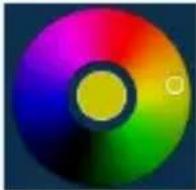 | Color wheel | Tap to choose a color using a color ramp. The current selected color appears in the middle of the color wheel. |
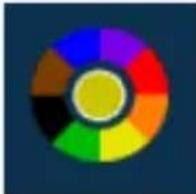 | Segment-ed color wheel | Tap to choose a color from the segmented color wheel. The current selected color appears in the middle of the color wheel. |
 | Size Tap and drag the thumbnail button along the slider path to adjust the size of the pen/line width. |
 | Opacity Tap and drag the thumbnail button along the slider path to adjust the size of the highlight-er/shape opacity. |
 | Tools submenu Tap to select a drawing object.NOTE: Each object has its own color, pen width, and pen transparency setting. |
 | Pen Tap to use a pen.NOTE: Opacity control is not available for the pen object. |
 | High-lighter Tap to use a highlighter. |
 | Rectangle Tap to draw a rectangle. |
 | Circle Tap to draw a circle. |
 | Line Tap to draw a line. |
 | Text Tap Text. Then tap the existing text object, or another area on the screen where you want a new text box to be placed, and adjust the placement, font size, color, and type attributes as desired. Type your text and tap OK. |
 | Laser Tap to highlight something temporarily. The red laser mark disappears when a new mark is made. Laser marks cannot be saved. |
 | Select Tap Select. Tap and drag the selection box around the drawing objects which you want to move, copy or delete.Tap and drag the selected objects to move them.Tap Copy to copy or Delete to delete the selected drawing objects. Cancel removes the selection. TIP: Copied objects are laid directly on top of existing drawing objects. Tap and drag the copied annotation mark to a new location. |
 | Cut Tap to cut the selected object(s). |
 | Copy Tap to copy the selected object(s). |
 | Paste Tap to paste the last copied or cut object(s) onto the white-board canvas. |
 | Delete Tap to delete the selected object(s). |
 | Cancel Tap to remove the selection box. |
 | Undo Tap to reverse the last executed command. |
 | Redo Tap to reverse the last Undo command. |
 | Clear Tap to clear the drawing objects from the whiteboard canvas. |
 | More submenu | Tap to access additional menu features. |
 | Canvas Tap to open the canvas tool, which allows you to navigate between pages. | |
 | New Tap to open a new whiteboard canvas. | |
 | Open Tap to open a saved file. | |
 | Save Tap to save the file as a JPG image or PDF file. | |
 | Paste Tap to paste the last copied or cut object(s) on the whiteboard canvas. | |
 | Import Tap to import an image onto the whiteboard canvas. To remove an imported image, tap the red X in the top right-hand corner of the image. | |
 | USB Tap to save or open files from an external USB thumb drive. | |
 | Next Tap to go to the next page. | |
Settings
To access the settings options, click the Settings shortcut (or to My Apps > Settings).
Network
Wi-Fi

text_image
SETTINGS Network Display Advanced Other Wi-Fi Ethernet InFocus-Guest Liteshow4 InFocus LC_TEST InFocus-Guest InFocus Wi-Fi connected AP Name: InFocus IP Address: 172.21.1.1771) If the Wi-Fi check box is checked, the system scans for available Wi-Fi networks automatically.
2) Click OK to choose your Wi-Fi network and enter with your password.
3) After authenticating the IP address, when connected is shown, Wi-Fi is available.
Note: Sometimes Wi-Fi is unstable. If the WiFi connection fails, please try again.
Ethernet
If the Ethernet check box is checked, the system scans for Ethernet connections automatically.

text_image
SETTINGS Network Display Advanced Other Wi-Fi Ethernet Ethernet connected IP Address: 172.20.10.159Display
text_image
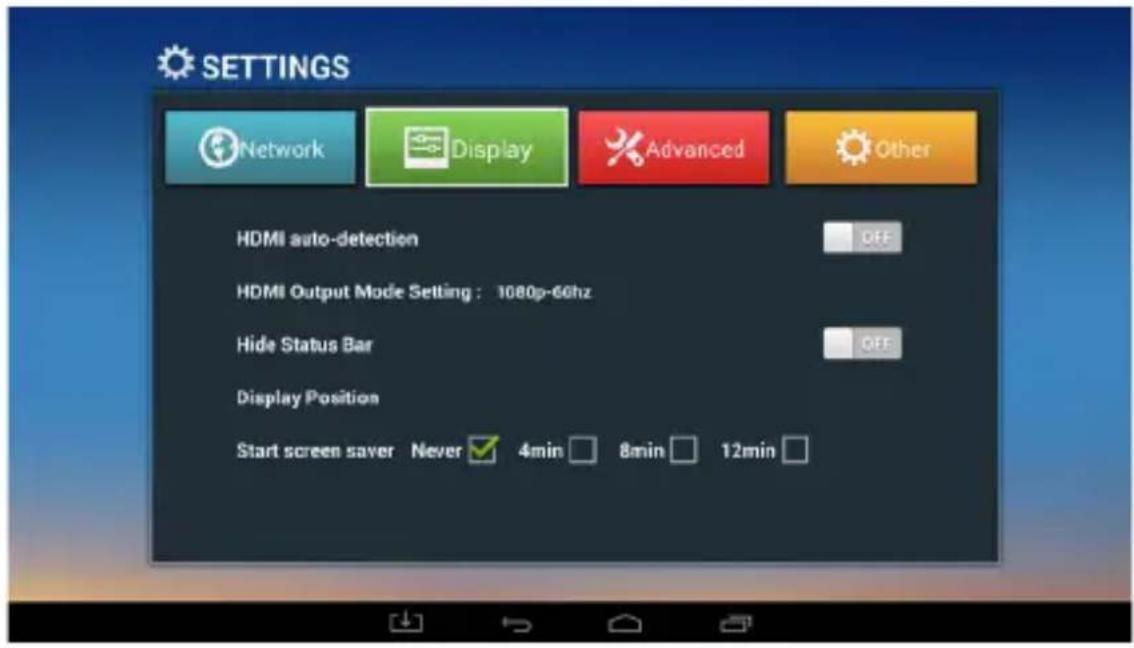
SETTINGS Network Display Advanced Other HDMI auto-detection OFF HDMI Output Mode Setting : 1080p-60hz Hide Status Bar OFF Display Position Start screen saver Never ✓ 4min □ 8min □ 12min □1) Navigate to Settings > Display.
2) You can select the HDMI audio output mode, turn the status bar on or off, adjust the display position, and choose the screen saver start time.
Advanced
text_image
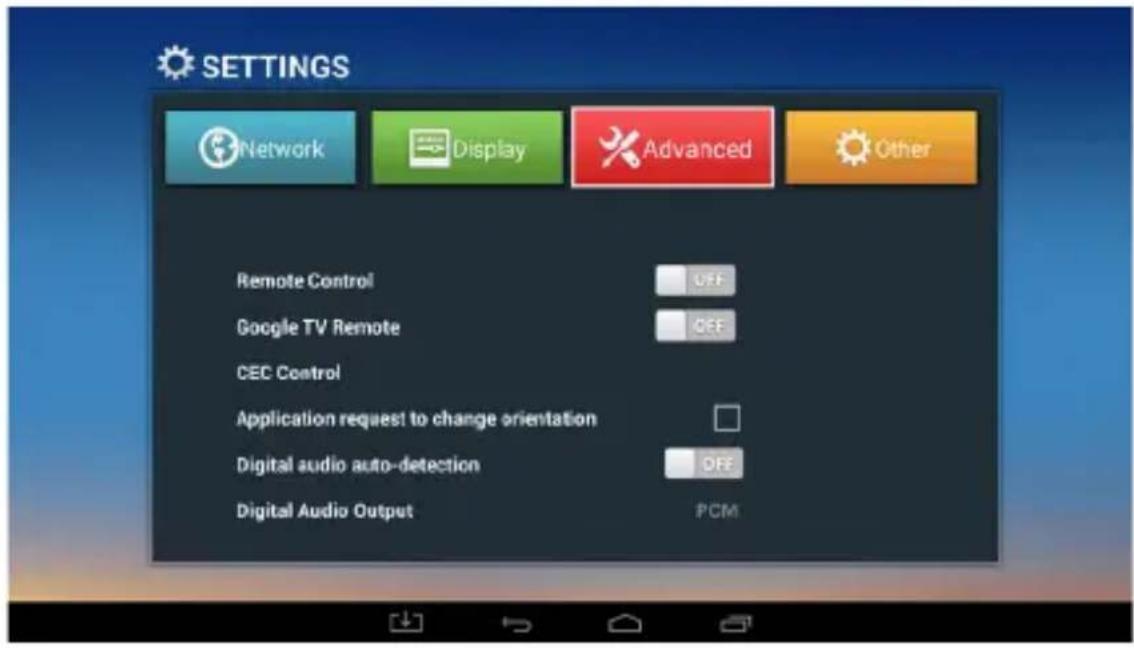
SETTINGS Network Display Advanced Other Remote Control OFF Google TV Remote DEF CEC Control Application request to change orientation Digital audio auto-detection OFF Digital Audio Output PCM1) Navigate to Settings > Advanced.
2) You can control the remote control, Google TV Remote, CEC control, orientation, and digital audio output.
Other
text_image
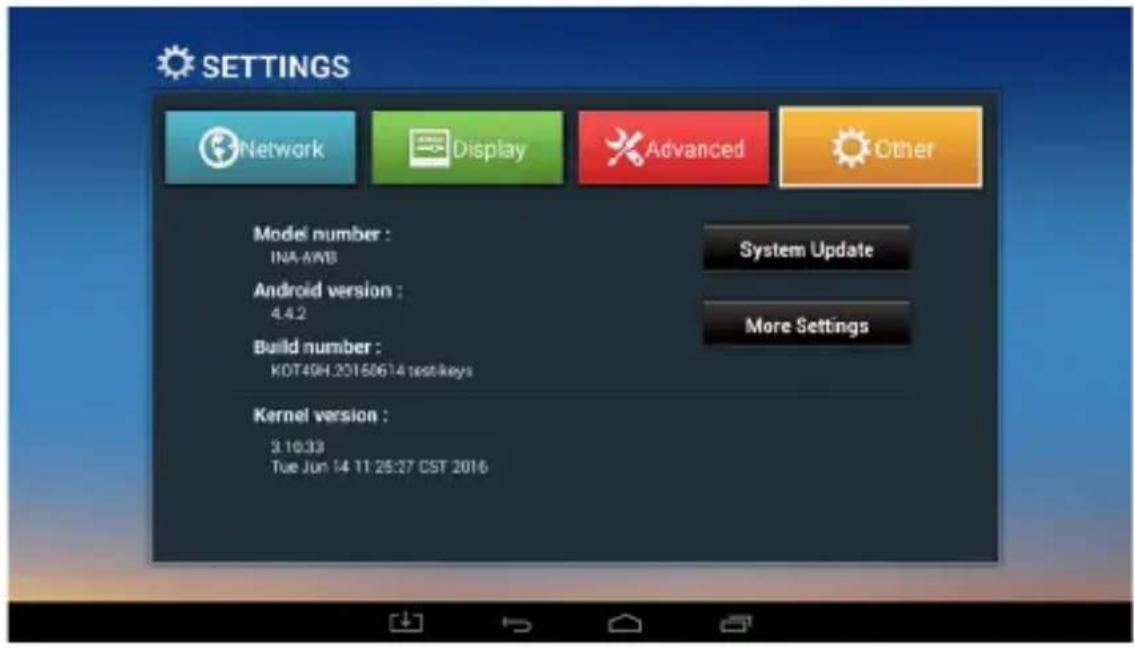
SETTINGS Network Display Advanced Other Model number : INA-AWB Android version : 4.4.2 Build number : KOT49H.20150614 testkeys Kernel version : 3.10:33 Tue Jun 14 11 25:27 CST 2016 System Update More SettingsNavigate to Settings > Other to see more InFocus Android module information. You can also update firmware and change other settings here.
Troubleshooting
Under no circumstances should you try to repair the InFocus Android module by yourself, as this will invalidate the warranty. Do not open the InFocus Android module as there is a risk of electrical shock. If a fault occurs, first check with points listed below before taking the InFocus Android module for repair. If you are unable to remedy a problem by following these hints, consult your dealer for help or contact InFocus Support at www.infocus.com/support.
| Problem Solution | |
| No power • Check if the power adapter is properly connected to a power outlet and to the InFocus Android module.• Click the power button on the remote control to turn power on. | |
| No image • Reconnect the HDMI cable or AV cable.• Verify that the InFocus touch display is turned on. | |
| No sound or distorted sound | • Adjust the volume.• Verify that the HDMI cable or audio cable is properly connected to the InFocus Android module and to the InFocus touch display.• Verify that the speakers are connected correctly. |
| No audio or digital output | Check the digital connections.Verify that your amplifier is set correctly. |
| No sound during movie playback | Adjust the volume.The audio codec many not be supported by the InFocus Android module. Change the audio codec. |
| The box does not respond to the remote control | Aim the remote control directly at the sensor on the front of the InFocus Android module.Reduce the distance to the InFocus Android module.Replace the batteries in the remote control. |
| Player does not respond to some operating commands during playback | Operations may not be permitted. Refer to the user manual.The system may have halted. Re-insert the power adapter to restart. |
| The contents of the USB flash drive cannot be read | Turn off the InFocus Android module. Wait 30 seconds, and then turn the InFocus Android module back on.The USB flash drive format may not be compatible with the InFocus Android module. |
| Slow operation of the USB flash drive | Reduce the file size or resolution of the images on the USB flash drive. |
| The InFocus touch display screen is blank and the InFocus Android module LED is blinking. | Turn off the InFocus Android module. Wait 30 seconds, and then turn the InFocus Android module back on.Verify that the HDMI cable or audio cable is properly connected to the InFocus Android module and to the InFocus touch display.Change the resolution output of the InFocus Android module to 720p. |
For additional support, please contact:
InFocus Corporation
Technical Support
6am-5pm PST
877-388-8385
www.infocus.com/support
Limited Warranty
InFocus Limited Warranty For InFocus Branded Hardware Products Only
LIMITED WARRANTY. InFocus's warranty obligations for the hardware products are limited to the terms set forth herein. InFocus warrants the InFocus-branded hardware products against defects in materials and workmanship under normal use for a period outlined in the Limited Warranty Periods section below from the date of retail purchase by the original end-user purchaser ("Warranty Period"). The Warranty Period starts on the date of purchase. Your dated sales or delivery receipt, showing the date of purchase of the product, is your proof of the purchase date. You may be required to provide proof of purchase and proof that the product was purchased new as a condition of receiving warranty service. If a hardware defect arises and a valid claim is received within the Warranty Period, at its option and to the extent permitted by law, InFocus will either (1) repair the hardware defect at no charge, using new parts or refurbished parts that are equivalent to new in performance and reliability, (2) exchange the product with a product that is new or refurbished that is equivalent to new in performance and reliability and is at least functionally equivalent to the original product, or (3) refund the purchase price of the product. InFocus may request that you replace defective parts with customer-installable new or refurbished parts that InFocus provides in fulfillment of its warranty obligation ("Customer Self Repair"). A replacement product or part, including a Customer Self Repair part that has been installed in accordance with instructions provided by InFocus, assumes the remaining warranty of the original product or ninety (90) days from the date of replacement or repair, whichever provides longer coverage. When a product or part is exchanged, any replacement item becomes your property and the replaced item becomes InFocus's property. Parts provided by InFocus in fulfillment of its warranty obligation must be used in products for which warranty service is claimed. When a refund is given, the product for which the refund is provided must be returned to InFocus and becomes InFocus's property. This is your exclusive remedy for defective products.
Limited Warranty Periods vary depending on your product model and the country of purchase. To review the warranty period associated with your product model, please refer to the product specifications information on www.infocus.com. By inputting your product model in the Quick Search box on the website, you will find warranty terms in the Specifications matrix.
EXCLUSIONS AND LIMITATIONS. This Limited Warranty applies only to the hardware products manufactured by or for InFocus, and sold by InFocus, its worldwide subsidiaries, authorized resellers or country distributors, that can be identified by the "InFocus" trademark, trade name, or logo affixed to it, and to required firmware. The Limited Warranty does not apply to any non-InFocus hardware products or peripherals external to the InFocus-branded hardware products (including but not limited to external storage subsystems, displays, printers, speakers or other peripherals), or to any software applications or programs, even if packaged or sold with the InFocus hardware. Manufacturers, suppliers, or publishers of
products, software or peripherals, other than InFocus, may provide their own warranties to the end user purchaser, but InFocus, in so far as permitted by law, provides their products "AS IS" without the InFocus Limited Warranty. Software distributed by InFocus with or without the InFocus brand name (including, but not limited to system software) is not covered under this Limited Warranty. Refer to the licensing agreement accompanying the software for details of your rights with respect to its use.
InFocus does not warrant that the operation of the products will be uninterrupted or error-free. InFocus is not responsible for damage arising from failure to follow instructions relating to the products' use.
INFOCUS IS NOT RESPONSIBLE FOR DAMAGE TO OR LOSS OF ANY PROGRAMS, DATA, OR REMOVABLE STORAGE MEDIA. INFOCUS IS NOT RESPONSIBLE FOR THE RESTORATION OR REINSTALLATION OF ANY PROGRAMS OR DATA OTHER THAN SOFTWARE INSTALLED BY INFOCUS WHEN THE PRODUCT IS MANUFACTURED.
To enable InFocus to provide the best possible support and service during the Limited Warranty Period, you will be required to:
- Maintain a proper and adequate environment, and use the InFocus hardware products in accordance with the instructions furnished.
- Verify configurations, load most recent firmware, install software patches, run InFocus diagnostics and utilities, and implement temporary procedures or workarounds provided by InFocus while InFocus works on permanent solutions.
- Allow InFocus to keep resident on your systems or sites certain system and network diagnosis and maintenance tools to facilitate the performance of warranty support (collectively referred to as "Proprietary Service Tools"); Proprietary Service Tools are and remain the sole and exclusive property of InFocus.
Additional Limitations:
- Products external to the system processor (CPU) box, such as external storage subsystems, printers and other peripherals, are covered by the applicable warranty for those products or options.
- An effective repair does not necessarily require the replacement of a defective part. For example, cleaning the heads of a floppy drive or updating revision levels of ROM BIOS on a PCA board are activities that in many instances deliver an effective repair.
- BIOS/Firmware upgrades are not covered under the Limited Warranty. Firmware that is an integral part of the option hardware board is not automatically upgraded when new versions of firmware are released.
- It is the responsibility of the customer to ensure that their software is compatible with the latest BIOS/firmware revision.
This Limited Warranty does not apply: (a) to consumable or expendable parts, such as batteries, or protective coatings designed to diminish over time unless failure has occurred due to a defect in materials or workmanship; (b) to cartons, carrying cases, shipping cases, external cabinets, accessories used in connection with the product; (c) to cosmetic damage, including but not limited to scratches, dents, and broken plastic on ports; (d) to damage caused by use with non-InFocus products; (e) to damage caused by accident, abuse, misuse, improper ventilation, smoke exposure, contamination, improper or inadequate maintenance, cleaning or calibration, liquid contact, unusual physical or electrical stress and/or power surges, virus infection, fire, earthquake, disaster, lightning or other external causes; (f) to damage caused by operating the product outside the permitted or intended uses or usage parameters described by InFocus (including burned monitor screens and incorrect input voltage); (g) to damage caused by service (including upgrades and expansions) performed by anyone other than a representative of InFocus or an InFocus Authorized Service Provider ("ASP") or your own installation of customer-installable parts as instructed by InFocus; (h) to a product or part that has been modified to alter functionality or capability without the written permission of InFocus (including use of an unauthorized mount); (i) to defects caused by normal wear and tear or otherwise due to the normal aging of the product; (j) to failure to follow maintenance procedures as outlined in the product user documentation including where a schedule is specified for regular cleaning of certain parts (based on usage and environment); (k) to loss or damage in transit; or (l) if the product is not used under normal operating conditions which are defined as use not in excess of 16 hours continuously per day with a minimum 8 hour period of continuous rest in the powered off state; or (m) if any InFocus serial number has been removed or defaced. In addition, LCD burn-in as a result of excessive display of static images on the product is not covered under the terms of this Limited Warranty.
Important: Do not open the hardware products unless otherwise directed by InFocus for the purposes of a Customer Self Repair (CSR). Opening the hardware products may cause damage that is not covered by this Limited Warranty. Only InFocus or an ASP should perform service on the hardware products.
TO THE EXTENT PERMITTED BY LAW, THIS WARRANTY AND THE REMEDIES SET FORTH ABOVE ARE EXCLUSIVE AND IN LIEU OF ALL OTHER WARRANTIES, REMEDIES AND CONDITIONS, WHETHER ORAL, WRITTEN, STATUTORY, EXPRESS OR IMPLIED. AS PERMITTED BY APPLICABLE LAW, INFOCUS SPECIFICALLY DISCLAIMS ANY AND ALL STATUTORY OR IMPLIED WARRANTIES, INCLUDING, WITHOUT LIMITATION, WARRANTIES OF MERCHANTABILITY AND FITNESS FOR A PARTICULAR PURPOSE AND WARRANTIES AGAINST HIDDEN OR LATENT DEFECTS. IF INFOCUS CANNOT LAWFULLY DISCLAIM STATUTORY OR IMPLIED WARRANTIES THEN TO THE EXTENT PERMITTED BY LAW, ALL SUCH WARRANTIES SHALL BE LIMITED IN DURATION TO THE DURATION OF THE EXPRESS WARRANTY AND TO THE REPAIR OR REPLACEMENT SERVICE AS DETERMINED BY INFOCUS IN ITS SOLE DISCRETION. No InFocus reseller, agent, or employee is authorized to make any modification, extension, or addition to this warranty. If any term is held to be illegal or unenforceable, the legality or enforceability of the remaining terms shall not be affected or impaired.
EXCEPT AS PROVIDED IN THIS WARRANTY AND TO THE MAXIMUM EXTENT PERMITTED BY LAW, INFOCUS IS NOT RESPONSIBLE FOR DIRECT, SPECIAL, INCIDENTAL OR CONSEQUENTIAL DAMAGES RESULTING FROM ANY BREACH OF WARRANTY OR CONDITION, OR UNDER ANY OTHER LEGAL THEORY, INCLUDING BUT NOT LIMITED TO LOSS OF USE; LOSS OF REVENUE; LOSS OF ACTUAL OR ANTICIPATED PROFITS (INCLUDING LOSS OF PROFITS ON CONTRACTS); LOSS OF THE USE OF MONEY; LOSS OF ANTICIPATED SAVINGS; LOSS OF BUSINESS; LOSS OF OPPORTUNITY; LOSS OF GOODWILL; LOSS OF REPUTATION; LOSS OF, DAMAGE TO, COMPROMISE OR CORRUPTION OF DATA; OR ANY INDIRECT OR CONSEQUENTIAL LOSS OR DAMAGE HOWSOEVER CAUSED INCLUDING THE REPLACEMENT OF EQUIPMENT AND PROPERTY, ANY COSTS OF RECOVERING, PROGRAMMING OR REPRODUCING ANY PROGRAM OR DATA STORED IN OR USED WITH THE INFOCUS PRODUCT AND ANY FAILURE TO MAINTAIN THE CONFIDENTIALITY OF DATA STORED ON THE PRODUCT. THE FOREGOING LIMITATION SHALL NOT APPLY TO DEATH OR PERSONAL INJURY CLAIMS, OR ANY STATUTORY LIABILITY FOR INTENTIONAL AND GROSS NEGLIGENCE ACTS AND/OR OMISSIONS. INFOCUS DISCLAIMS ANY REPRESENTATION THAT IT WILL BE ABLE TO REPAIR ANY PRODUCT UNDER THIS WARRANTY OR MAKE A PRODUCT EXCHANGE WITHOUT RISK TO OR LOSS OF PROGRAMS OR DATA.
Limitation on Bringing Action: No action, regardless of form, arising out of the agreement to purchase the Product may be brought by purchaser more than one year after the cause of action has accrued. Governing Law: Any action, regardless of form, arising out of the agreement to purchase the Product is governed by the laws of the State of Oregon, U.S.A. Mandatory Arbitration – Any action, regardless of form, arising out of the agreement to purchase the Product is subject to mandatory arbitration.
ADDITIONAL RIGHTS. FOR CUSTOMERS, WHO ARE COVERED BY CONSUMER PROTECTION LAWS OR REGULATIONS IN THEIR COUNTRY OF PURCHASE OR, IF DIFFERENT, THEIR COUNTRY OF RESIDENCE, THE BENEFITS CONFERRED BY THIS WARRANTY ARE IN ADDITION TO ALL RIGHTS AND REMEDIES PROVIDED BY SUCH CONSUMER PROTECTION LAWS AND REGULATIONS. THIS WARRANTY DOES NOT EXCLUDE, LIMIT OR SUSPEND ANY RIGHTS OF CONSUMERS ARISING OUT OF NONCONFORMITY WITH A SALES CONTRACT. SOME COUNTRIES, STATES AND PROVINCES DO NOT ALLOW THE EXCLUSION OR LIMITATION OF INCIDENTAL OR CONSEQUENTIAL DAMAGES OR ALLOW LIMITATIONS ON HOW LONG AN IMPLIED WARRANTY OR CONDITION MAY LAST, SO THE LIMITATIONS OR EXCLUSIONS DESCRIBED BELOW MAY NOT APPLY TO YOU. THIS WARRANTY GIVES YOU SPECIFIC LEGAL RIGHTS, AND YOU MAY ALSO HAVE OTHER RIGHTS THAT VARY BY COUNTRY, STATE OR PROVINCE. INFOCUS, THE WARRANTOR UNDER THIS LIMITED WARRANTY, IS IDENTIFIED AT THE END OF THIS DOCUMENT.
EXTENDED WARRANTIES. InFocus extended product warranties are available for an additional charge. For further information on InFocus extended product warranties, please contact InFocus or your product reseller.
OBTAINING WARRANTY SERVICE. Please access and review the online help resources located at www.infocus.com/support before seeking warranty service. If the product is still not functioning properly after making use of these resources, please contact InFocus Technical Support or, if applicable, an ASP using the information provided below. When contacting InFocus via telephone, other charges may apply depending on your location. When calling, InFocus Technical Support or an ASP will help determine whether your product requires service and, if it does, will inform you how InFocus will provide it. You must assist in diagnosing issues with your product and follow InFocus's warranty processes. InFocus may restrict service to the country where InFocus or its Authorized Distributors originally sold the hardware product. InFocus will provide warranty service either (i) at an ASP location, where service is performed at the location, or the ASP may send the product to an InFocus repair service location for service, (ii) by sending you prepaid way bills (and if you no longer have the original packaging, InFocus may send you packaging material at your cost) to enable you to ship the product to an InFocus repair service location, or (iii) by sending you customer-installable new or refurbished replacement parts to enable you to conduct Customer Self Repair, or (iv) by exchanging the product for a new or refurbished replacement.
Customer Self Repair
InFocus products are designed with many Customer Self Repair (CSR) parts to minimize repair time and allow for greater flexibility in performing defective parts replacement. If during the diagnosis period, InFocus identifies that the repair can be accomplished by the use of a CSR part, InFocus will ship that part directly to you for replacement. There are two categories of CSR parts:
- Parts for which customer self repair is mandatory. If you request InFocus to replace these parts, you will be charged for the travel and labor costs of this service.
- Parts for which customer self repair is optional. These parts are also designed for customer self repair. If, however, you require that InFocus replace them for you, this may be done at no additional charge under the type of warranty service designated for your product.
Based on availability and where geography permits, InFocus will attempt to ship CSR parts out the next business day. Customer receipt will vary based upon the actual part, customer location and shipping method. Next Day service may be offered at an additional charge where geography permits. If assistance is required, you can call the InFocus Technical Support Center and a technician will help you over the phone. InFocus specifies in the materials shipped with a replacement CSR part whether a defective part must be returned to InFocus. In cases where it is required to return the defective part to InFocus, you must ship the defective part back to InFocus within a defined period of time, normally five (5) business days, and clearly display the Return Material Authorization (RMA#) on the outside of the shipping carton or a similar package affording an equal degree of protection. The defective part must be returned with the associated documentation in the provided shipping material. Failure to return the defective part may result in InFocus charging you for the replacement. With a Customer Self Repair, In-
Focus will pay all shipping and part return costs and determine the courier/carrier to be used.
Upon receipt of the replacement product or part, the original product or part becomes the property of InFocus and you agree to follow instructions, including arranging the return of original product or part to InFocus in a timely manner. When providing a product exchange or Customer Self Repair (CSR) part requiring the return of the original product or part, InFocus may require a credit card authorization as security for the retail price of the replacement product or part and applicable shipping costs. When returning product to InFocus, a Return Material Authorization Number (RMA #) is required and must be clearly displayed on the outside of the shipping carton or a similar package affording an equal degree of protection. Service options, parts availability and response times may vary according to the country in which service is requested. Service options are subject to change at any time. You may be responsible for shipping and handling charges if the product cannot be serviced in the country in which service is requested. If you seek service in a country that is not the country of original purchase, you will comply with all applicable import and export laws and regulations and be responsible for all custom duties, V.A.T. and other associated taxes and charges. Where international service is available, InFocus may repair or exchange defective products and parts with comparable products and parts that comply with local standards. In accordance with applicable law, InFocus may require that you furnish proof of purchase details and/or comply with registration requirements before receiving warranty service. Resources with more details on this and other matters on obtaining warranty service are described below.
PRIVACY. InFocus will maintain and use customer information in accordance with the InFocus Privacy Policy available at www.Infocus.com/privacy and InFocus's applicable legal obligations.
BACKUP. If your product is capable of storing software programs, data and other information, you should protect its contents against possible operational failures. Before you deliver your product for warranty service it is your responsibility to keep a separate backup copy of the contents, remove all personal information and data that you want to protect and disable any security passwords. THE CONTENTS OF YOUR PRODUCT WILL BE DELETED AND THE STORAGE MEDIA REFORMATTED IN THE COURSE OF WARRANTY SERVICE. Your product or a replacement product will be returned to you as your product was configured when originally purchased, subject to applicable updates. InFocus may install system software updates as part of warranty service that will prevent the hardware from reverting to an earlier version of the system software. Third party applications installed on the hardware may not be compatible or work with the hardware as a result of the system software update. You will be responsible for reinstalling all other software programs, data and passwords. Recovery and reinstallation of software programs and user data are not covered under this Limited Warranty.
RESOURCES. Support and service information including Authorized Distributor and Authorized Service Provider locations is available at: www.infocus.com/support.
InFocus Corporation, 13190 SW 68th Parkway, Suite 200, Portland, OR 97223-8368 USA
© 2016 InFocus Corp. All rights reserved. InFocus and the InFocus logo are trademarks of InFocus Corp., registered in the U.S. and other countries.
Specifications
| On-line video (IPTV and OTT TV programs) | Many IPTV programs, all standard IPTV software and popular on-line video web-sites based on the Android system (such as YouTube, Netflix, local satellite TVs, sports, finance, etc.). It can also connect to your designated websites. |
| Android applications Support many applications from Google-Play including web browser, Google map, 2D/3D games, P2P download, online video chat, email and so on. Support mouse and keyboard; Support FAT16, FAT32, NTFS file system.Full HD definition All formats with 4K2K H.264 high definition decoding, support all formats | |
| Video format 1080p/720p/480p multi-format decodingMPEG1/MPEG2/MPEG4/VC-1/H.264/H.265/Real Video formats including avi, mpeg, vob, mkv, ts, m2ts, wmv, rm, rmvb suffixes and so on. | |
| Photo format Up to 80M pixels. JPG, BMP, PNG | |
| Audio format MP3, WMA, WAV, MIDI, OGG, AC3, DTS(some formats need the support of the third party player software.) | |
| Chipset Quad core Cortex A9R4 2GHz | |
| GPU Octo-Core Mali-450 | |
| Memory 2GB-DDR3, 8GB-Flash (other capacity available.) | |
| Inputs SD/SDHC/MMC | card slot (voltage: 2.7-3.3V), USB-A (2), RJ45;Two way 2.0 high speed, output current up to 1.5A/5V, connect with different kinds of mobile devices directly without additional power; Supports hot-plugging.Support internal wireless WiFi (some other models require additional adapter) |
| Outputs HDMI 1.4 out, | CVBS output (AV output), standard 3.5mm earphone socket, coaxial digital audio output, |
| Remote control range Up to 19.69' (6 meters) | |
| Dimensions(W x L x D) | 5.06" x 5.06" x 1.18" /128.5mm x 128.5mm x 30mm |
| Weight .56 lbs / 256g | |
| Electrical range(video) | 1.0V +/-0.1V (75 Ω overload); S/N≥55dB |
| Electrical range(audio) | 2.0V +/-0.2V (10k Ω overload); S/N≥85dB |
| Power Supply 5V DC; 2A | |
This specification may be modified without notice.