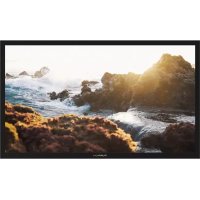
FDUP55CBR - Television Furrion - Free user manual and instructions
Find the device manual for free FDUP55CBR Furrion in PDF.



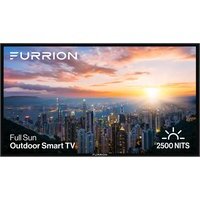
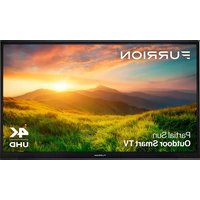
| Product Type | Outdoor LED TV |
| Model | FDUP55CBR |
| Brand | Furrion |
| Screen Size | 55 inches (139.7 cm) |
| Resolution | Full HD (1920 x 1080) |
| Backlight Type | LED |
| Outdoor Design | Weather-resistant, partial sun exposure |
| Power Supply | 100-240 V AC, 50/60 Hz |
| Connectivity | 3 x HDMI (1 ARC/CEC, 1 CEC, 1 MHL/CEC), 1 x VGA, 1 x USB 2.0, 1 x RF, 1 x Composite (VIDEO + Audio L/R), 1 x Component (Y/Pb/Pr), 1 x Coaxial Audio Out, 1 x L/R Audio Out, 1 x PC Audio In, 1 x IR Extender |
| Main Features | Freeze Frame, Electronic Program Guide, Parental Control (V-Chip), Closed Captioning (CC), Zoom, Programmable Sleep Timer, Voice Guide |
| Wall Mount Standard | VESA 400 x 400 mm |
| Operating Temperature | -20 °C to +43 °C |
| Storage Temperature | -33 °C to +58 °C |
| Included Accessories | Weather-resistant remote, CR2025 button cell battery, battery cover opening tool, wall mount screws (x4), screw adapters (x4), RCA cable |
| Cleaning | Microfiber cloth slightly dampened with water or a 50% isopropyl alcohol / 50% distilled water mixture |
| Safety | Polarized plug, grounding, disconnect during storms, professional installation recommended |
| General Information | Manual available in multiple languages, support: support@furrion.com |
Frequently Asked Questions - FDUP55CBR Furrion
User questions about FDUP55CBR Furrion
0 question about this device. Answer the ones you know or ask your own.
Ask a new question about this device
Download the instructions for your Television in PDF format for free! Find your manual FDUP55CBR - Furrion and take your electronic device back in hand. On this page are published all the documents necessary for the use of your device. FDUP55CBR by Furrion.
USER MANUAL FDUP55CBR Furrion
Thank you and congratulations for purchasing this Furrion Aurora™ TV. Before placing your new appliance into operation, please read these operating instructions carefully. This instruction manual contains important information for safe use, installation and maintenance of the appliance.
The manufacturer does not accept responsibility for any damages that may arise due to non-observation of these instructions.
If you have any further questions regarding our products, please contact us at support@furrion.com
Supplier's Declaration of Conformity
47 CFR § 2.1077 Compliance Information
Unique Identifier
Trade Name: Furrion
Model No.: FDUP43CBR, FDUP49CBR, FDUF55CBR, FDUP65CBR, FDUF43CBR, FDUF49CBR, FDUP55CBR, FDUF65CBR
Responsible Party – U.S. Contact Information
Furrion Innovation Center & Institute of Technology
52567 Independence Ct., Elkhart, IN 46514, USA
Toll free:1-888-354-5792; Email: support@furrion.com
FCC Compliance Statement
This device complies with Part 15 of the FCC Rules. Operation is subject to the following two conditions: (1) This device may not cause harmful interference, and (2) this device must accept any interference received, including interference that may cause undesired operation.
Contents
Welcome....2
Contents....3
Safety Warnings....4
Important Safety Instructions....4
Control Panel 8
Function Overview....8
Rear Panel....9
Connection....10
Remote Control....12
Before Operation....14
What's in the Box....14
Prepare your Remote Control 14
Choose a Proper Location for your TV 15
Cable Management ....15
Mount on Wall 17
Getting Started....19
TV Settings.... 20
Setup Settings....20
Picture Settings 23
Audio Settings 24
Time Settings....26
Lock Settings....27
Channel Settings....30
PC Settings....31
USB Operation....32
Troubleshooting 33
Specifications 34
Care and Clean 37
Safety Warnings
CAUTION
RISK OF ELECTRIC SHOCK DO NOT OPEN

CAUTION: TO REDUCE THE RISK OF ELECTRIC SHOCK, DO NOT REMOVE COVER (OR BACK). NO USER-SERVICEABLE PARTS INSIDE. REFER SERVICING TO QUALIFIED SERVICE PERSONNEL.
WARNING: TO REDUCE THE RISK OF FIRE OR ELECTRIC SHOCK, DO NOT EXPOSE THIS APPARATUS TO RAIN OR MOISTURE.
This 'bolt of lightning' indicates uninsulated material within your unit which may cause an electric shock. For the safety of everyone in your
household, please do not remove product covering.

The ‘exclamation mark’ calls attention to features within the enclosed literature to prevent operating and maintenance problems.
Important Safety Instructions
- Read these instructions.
- Keep these instructions.
- Heed all warnings.
- Follow all instructions.
- Clean only with dry cloth.
- Do not block any ventilation openings. Install in accordance with the manufacturer's instructions.
- Do not install near any heat sources such as radiators, heat registers, stoves, or other apparatus (including amplifiers) that produce heat.
-
Do not mount this TV near a motor or transformer where strong magnetism is generated. Images on the television will become distorted and the colour irregular.
-
Do not defeat the safety purpose of the polarized or grounding-type plug. A polarized plug has two blades with one wider than the other. A grounding type plug has two blades and a third grounding prong. The wide blade or the third prong are provided for your safety. When the provided plug does not fit into your outlet, consult an electrician for replacement of the obsolete outlet.
- Protect the power cord from being walked on or pinched, particularly at plugs, convenience receptacles, and the point where they exit from the apparatus.
- Only use attachments/accessories specified by the manufacturer.
- Do not place the product on an unstable cart, stand, tripod, table, or anywhere the unit is not permanently installed. Placing the product on an unstable place can cause the product to fall, resulting in potential serious personal injuries, as well as damage to the product.
- Use only with a cart, stand, tripod, bracket or
table specified by the manufacturer or sold with the apparatus. When a cart is used, use caution when moving the cart/ apparatus to avoid injury from tip-over. - Unplug this apparatus during lightning storms or when unused for long periods of time.
- Do not touch this apparatus or antenna during a thunder or lightning storm.
- Refer all servicing to qualified service personnel. Servicing is required when the apparatus has been damaged in any way, such as if the power-supply cord or plug is damaged, liquid has been spilled or objects have fallen into the apparatus, or when the apparatus has been exposed to rain or moisture, does not operate normally, or has been dropped.
- Naked flame sources such as lit candles, should not be placed on apparatus.
- Do not overload wall outlets, extension cords, or integral convenience receptacles as this can result in a risk of fire or electric shock.
- The power cord must be routed properly to prevent people from stepping on it, or objects from resting on it. Check the cords at the plugs and product.

Safety Warnings
- Never push objects of any kind into this product through openings as they may touch short-out parts or dangerous voltage points that could result in a fire or electric shock.
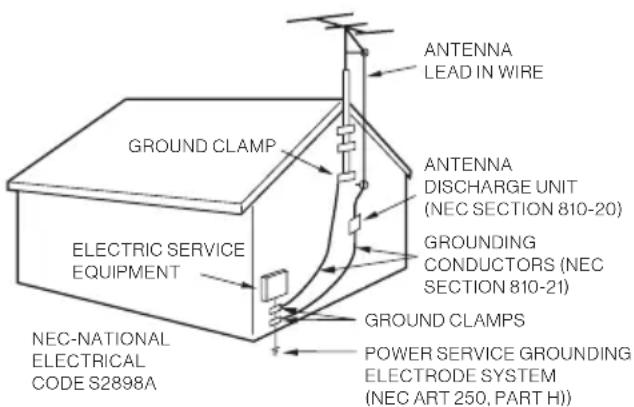
- If an outside antenna is connected to the television equipment, be sure the antenna system is grounded so as to provide some protection against voltage surges and built up static charges. Section 810 of the National Electrical Code provides information with respect to proper grounding of the mast and supporting structure, grounding of the lead-in wire to an antenna discharge unit, size of grounding conductors, location of antenna discharge unit, connection to grounding electrodes, and requirements for the grounding electrodes.
- An outside antenna system should not be located in the vicinity of overhead power lines or other electrical light or power circuits, or where it can fall into such power lines or circuits. When installing an outside antenna system, extreme care should be taken to keep from touching such power lines or circuits as contact with them might be fatal.
EXAMPLE OF ANTENNA GROUNDING AS PER THE NATIONAL ELECTRICAL CODE
-
NOTE TO CABLE/TV INSTALLER: This reminder is provided to call the CATV system installer's attention to Article 820-40 of the National Electric Code (U.S.A.). The code provides guidelines for proper grounding and, in particular, specifies that the cable ground shall be connected to the grounding system of the building, as close to the point of the cable entry as practical.
-
When replacement parts are required, be sure the service technician uses replacement parts specified by the manufacturer or those that have the same characteristics as the original part. Unauthorized substitutions may result in fire, electric shock or other hazards.
- Upon completion of any service or repairs to this unit, ask the service technician to perform safety checks to determine that the unit is in proper operating condition.
- When you connect the product to other equipment, turn off the power and unplug from the wall outlet. Failure to do so may cause an electric shock and serious personal injury. Read the owner's manual of the other equipment carefully and follow the instructions when making any connections.
- The socket-outlet must be installed near the unit and easily accessible.
- Where the mains plug is used as the disconnect device, the disconnect device shall remain readily operable.
- Never remove the back cover of the TV as this can expose you to very high voltages and other hazards. If the TV does not operate properly, unplug the TV and call your authorized dealer or service center. Adjust only those controls that are covered in the instructions, as improper changes or modifications not expressly approved by Furrion could void the user's warranty.
- Do not submerge this TV in water or pressure wash it. It is not designed to be submerged in water, withstand pressure washers, high-pressure water jets, or hurricane-type weather.
- Cleaning: With your TV turned off, gently wipe the surface of the display panel with a damp (with water) microfiber, cotton or flannel cloth. (Do not use tissues, rags, sponges or paper towels because they may damage the screen and leave lint pieces behind). Remove any dirt and salt deposits from the unit, being careful to rinse the cloth frequently to avoid scratching the TV or screen surface. Avoid using harsh chemicals, abrasives, or solvents when cleaning any surface on the unit.
Safety Warnings
- The operation temperature for the unit is -20°C ( -4°F ) to +43°C ( +109.4°F ). The storage temperature is -33°C ( -27.4°F ) to +58°C ( +136.4°F ). Protect the TV from damage by the extreme temperature. This is not a commercial TV.
- Batteries (battery pack or batteries installed) shall not be exposed to excessive heat such as sunshine, fire or the like.
- The apparatus should be connected to a mains socket outlet with a protective earthing connection.
- To prevent injury, this apparatus must be securely attached to the wall in accordance with the installation instructions.
HOW TO HANDLE THE LED PANEL
- Do not press hard or jolt the LED panel. It may cause the LED panel glass to break and injury may occur.
- If the LED panel is broken, make absolutely sure that you do not touch the liquid in the panel. This may cause skin inflammation.
- If the liquid gets in your mouth, immediately rinse and consult with your doctor. Also, if the liquid gets in your eyes or touches your skin, consult your doctor after rinsing for at least 15 minutes in clean water.
Possible Adverse Effects on LED Panel: If
a fixed image displays on the TV screen for a long period of time, it may cause a permanent disfigurement on the screen with image burn-in or ghosting. This type of damage is NOT COVERED BY THE WARRANTY.
- Avoid displaying a static picture or a picture with static elements (black bars, black borders, logos, etc.) on the TV screen for more than two hours at a time. Make sure you change the image on your screen periodically.
- If the aspect ratio of the TV is set to 4:3 for a long period of time, image burn may occur on the letterboxed area of the screen. Make sure you change the size of the picture occasionally.
The following symptoms are not signs of malfunction but technical limitation.
Therefore we disclaim any responsibility for these symptoms.
- LED panels are manufactured using an extremely high level of precision technology, however sometimes parts of the screen may be missing picture elements or have luminous spots. This is not a sign of a malfunction.
- Do not install the LED panel near electronic equipment that produces electromagnetic waves. Some equipment placed too close to LED may cause interference.
- Effect on infrared devices – There may be interference while using infrared devices such as infrared cordless headphones.
COMPLIANCE
FCC Statement
Note: This equipment has been tested and found to comply with the limits for a Class B digital device, pursuant to Part 15 of the FCC Rules.
These limits are designed to provide reasonable protection against harmful interference in a residential installation. This equipment generates, uses and can radiate radio frequency energy and, if not installed and used in accordance with the instructions, may cause harmful interference to radio communications.
However, there is no guarantee that interference will not occur in a particular installation. If this equipment does cause harmful interference to radio or television reception, which can be determined by turning the equipment off and on, the user is encouraged to try to correct the interference by one or more of the following measures:
- Reorient or relocate the receiving antenna.
- Increase the separation between the equipment and receiver.
- Connect the equipment into an outlet on a circuit different from that to which the receiver is connected.
- Consult the dealer or an experienced radio/TV technician for help.
WARNING: Changes or modifications to this unit not expressly approved by the party responsible for compliance could void the user's authority to operate this equipment under FCC Rules.
Safety Warnings
This device complies with part 15 of the FCC Rules. Operation is subject to the following two conditions:
- This device may not cause harmful interference.
- This device must accept any interference received, including interference that may cause undesired operation.
POWER SOURCE
This TV is designed to operate on 100\~240 volt 50/60 Hz, AC current. Connect the power cord to a GFCI protected AC outlet with an "in-use" waterproof cover.
Warning: TV and GFCI receptacle must be installed away from any water source in a safety distance. Be sure to check local electrical codes and comply with their local standards.
To reduce the risk of fire or electric shock, do not expose this apparatus to rain or moisture.
CARE OF THE ENVIRONMENT
Disposal of your old product and battery

Your product is designed and manufactured with high quality materials and components, which can be recycled used.
- Never dispose of your product with other household waste. Please familiarize yourself with the local rules on the separate collection of electrical and electronic products and batteries.
- The correct disposal of these products helps prevent potentially negative consequences on the environment and human health.
- Your product contains batteries which cannot be disposed of with normal household waste. The battery must be recycled or disposed of properly. Contact your local waste management office for information on battery recycling or disposal.
All registered and unregistered trademarks are property of their respective owners.
CAUTION: Changes or modifications not expressly approved by the party responsible for compliance could void the user's authority to operate the equipment.
SAFETY PRECAUTIONS
WARNING: Never place a television set in an unstable location. A television set may fall, causing serious personal injury or death. Many injuries, particularly to children, can be avoided by taking simple precautions such as:
- Using cabinets or stands recommended by the manufacturer of the television set.
- Only using furniture that can safely support the television set.
- Ensuring the television set is not overhanging the edge of the supporting furniture.
- Not placing the television set on tall furniture (for example, cupboards or bookcases) without anchoring both the furniture and the television set to a suitable support.
- Not placing the television set on cloth or other materials that may be located between the television set and supporting furniture.
- Educating children about the dangers of climbing on furniture to reach the television set or its controls.
If your existing television set is being retained and relocated, the same considerations as above should be applied.
NOTES WHEN MOUNTING THE TV ON THE WALL
IMPORTANT: The TV must be installed away from any water source in a safe distance.
If the unit is to be mounted on the wall, contact the retailer where you purchased the TV for advice, and have the equipment professionally installed. Incomplete or improper installation may cause injury to you, and/or damage to the TV. Please refer to the VESA mounting pattern to ensure the correct VESA mounting is used for the TV.
CAUTION: To prevent personal injury and/or damage to the TV or personal property, use at least two people to install or move the TV.
Function Overview
Control Panel
![graph TD A["POWER"] --> B["CH-CH+ MENUSOURCE"] B --> C["1"] B --> D["2"] B --> E["3"] B --> F["4"] B --> G["5"] B --> H["6"] B --> I["7"]](/content/2026/04/586215/images/dee670532072a3940f518f1ed607e1abb6b2dfd0642c0cbdead261d72559a92b.jpg)
* Please note that the button layout of the controls may vary from model to model.
| Item Button Function | ||
| 1 | SOURCE | Select the input source |
| 2 | MENU | Enter the main menu |
| 3 | CH+ | Skip to the next channel |
| 4 | CH- | Skip to the previous channel |
| 5 | VOL+ | Increase volume |
| 6 | VOL- | Decrease volume |
| 7 | POWER | Switch the TV on/off |
Function Overview
Rear Panel
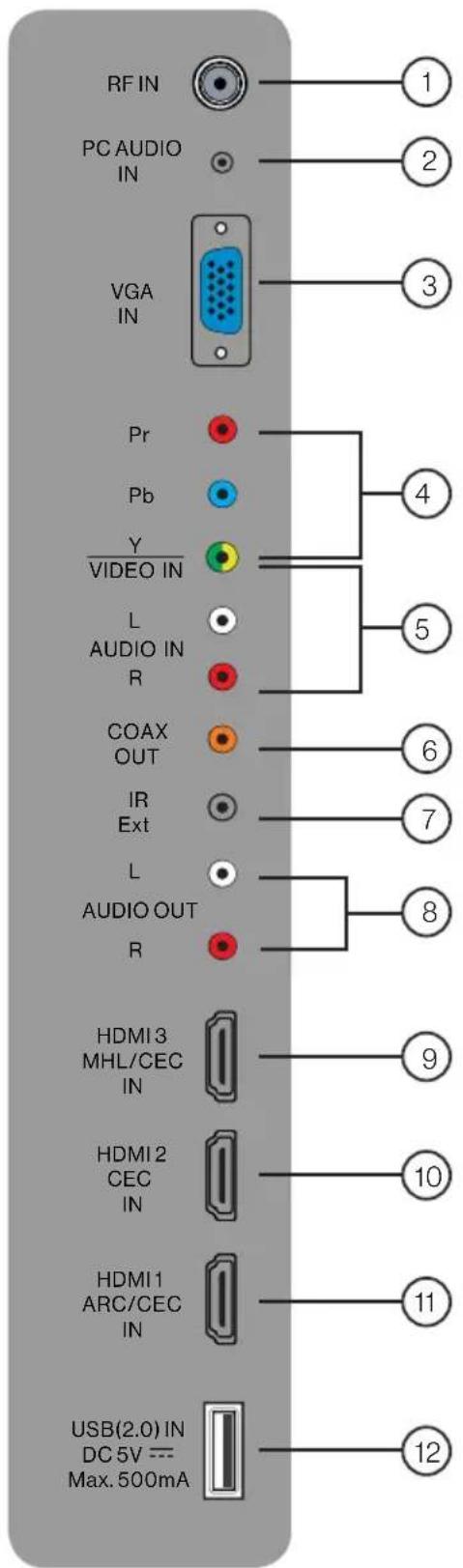
* The configuration of the connection ports may vary from model to model.
| No. I/O port Description | ||
| 1 | RF IN | Connect to the ANTENNA, CABLE or CABLE BOX. |
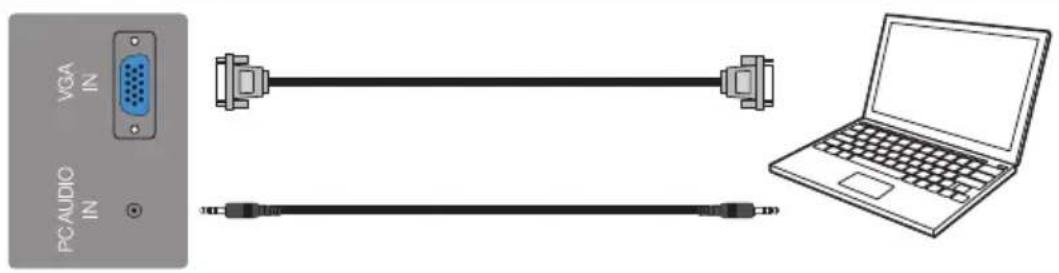
| 2 | PC AUDIO IN | Connect to the AUDIO OUT port of a PC. |
| 3 | VGA IN | Connect to the VGA OUT port of a PC to use the TV as a monitor. |
| 4 | Y/Pb/Pr | Connect to the COMPONENT VIDEO OUT ports of a DVD Player, Cable Box or other compatible devices. |
| 5 | VIDEO IN | Connect to the COMPOSITE VIDEO/AUDIO OUT ports of a DVD Player, Cable Box or other compatible devices. |
| AUDIO IN (L-R) | ||
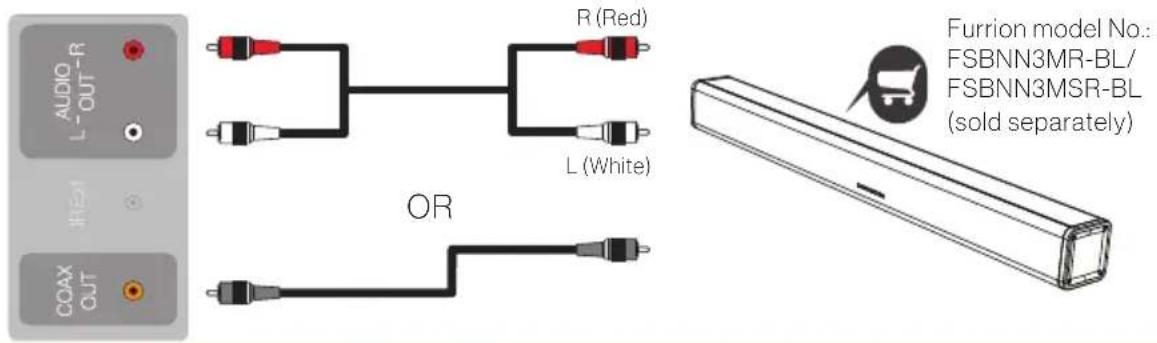
| 6 | COAX OUT | Connect to the COAXIAL AUDIO IN port of an audio device. |
| 7 | IR Ext | Connect with an IR extender.Note: Please purchase an IR extender with the spec as below:3.5 mini plug/Tip-VCC 5V/Center-Data/Lower-Ground; With 30ft range from remote control to IR receiver; Operating voltage 3.3~5v and supported by 38Khz bandwidth. |
| 8 | AUDIO OUT (L-R) | Connect to the AUDIO IN ports of an audio device. |
| 9 | HDMI 3 IN (MHL/CEC) | Connect to the HDMI OUT port of a DVD Player, Games Console, Cable Box or other HDMI device.MHL (Mobile High-Definition Link)You can connect an MHL-enabled device, such as certain models of smart phones & tablets, and view the device's screen on the TV. Connecting an MHL-enabled device to the HDMI3 input requires a special MHL cable (not included).CEC (Consumer Electronics Control)When connected to the CEC compatible Furrion Entertainment Systems or other CEC Compatible devices, the TV links with the system to give extra functionality.ARC (Audio Return Channel)When connected with a HDMI 1.4 cable to an ARC compatible audio system, the TV links with the device to give extra audio functionality. |
| 10 | HDMI 2 IN (CEC) | |
| 11 | HDMI 1 IN (ARC/CEC) | |
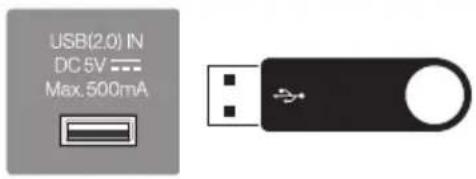
| 12 | USB IN | USB Port: view pictures/movies/text and listen to MP3s via a compatible USB stick. |
Function Overview
Connection
Your Furrion Aurora™ TV offers multiple connection options. Please consult the manual of DVD player, Games Console or other devices to ensure proper connection and use.
You can choose one or more of the connections below to operate.
Note: All external devices and cables shown in the diagram are for reference only and not included in the package.
![graph LR A["光 Σ"] --> B["Switch"] B --> C["Satellite Dish"] style A fill:#f9f,stroke:#333 style C fill:#ccf,stroke:#333](/content/2026/04/586215/images/21cf0bdbc370a2b739334778f3f8e6b1419cc1188ba96bc316155055e210af51.jpg)
![graph LR A["HDMI 1, HDMI 2, or HDMI 3"] --> B["OR"] B --> C["Game Controller"] C --> D["Signal"] D --> E["CH204"]](/content/2026/04/586215/images/bdcb4096b80cd48a6ab7b9b0e76f33a49e5a09d601b99492d229f3647bf966fe.jpg)
![graph LR A["VIDEO IN"] --> B["AVIO L (White)"] A --> C["AVIO L (White)"] A --> D["AVIO L (White)"] A --> E["AVIO L (White)"] A --> F["AVIO L (White)"] G["VIDEO IN"] --> H["AVIO L (Red)"] G --> I["AVIO L (Red)"] G --> J["AVIO L (Red)"] G --> K["AVIO L (Red)"] G --> L["AVIO L (Red)"] M["CD204"] --> N[…](/content/2026/04/586215/images/8cae63ce6aec543f66466b90b3773d6fd64595ef00524096eaa0f52ba94521fc.jpg)
Function Overview
Connection
D
![graph TD A["Audio"] --> B["L (White)"] A --> C["R (Red)"] D["Video"] --> E["Y (Green)"] D --> F["Pb (Blue)"] D --> G["Pr (Red)"] H["CH204"] --> I["Radio"] I --> J["Signal"]](/content/2026/04/586215/images/a37a08effffa0a2db7f8e73c459d197ee72a0ad0050be8249ffbba12aea110de.jpg)
E
F
G
H

Function Overview
Remote Control
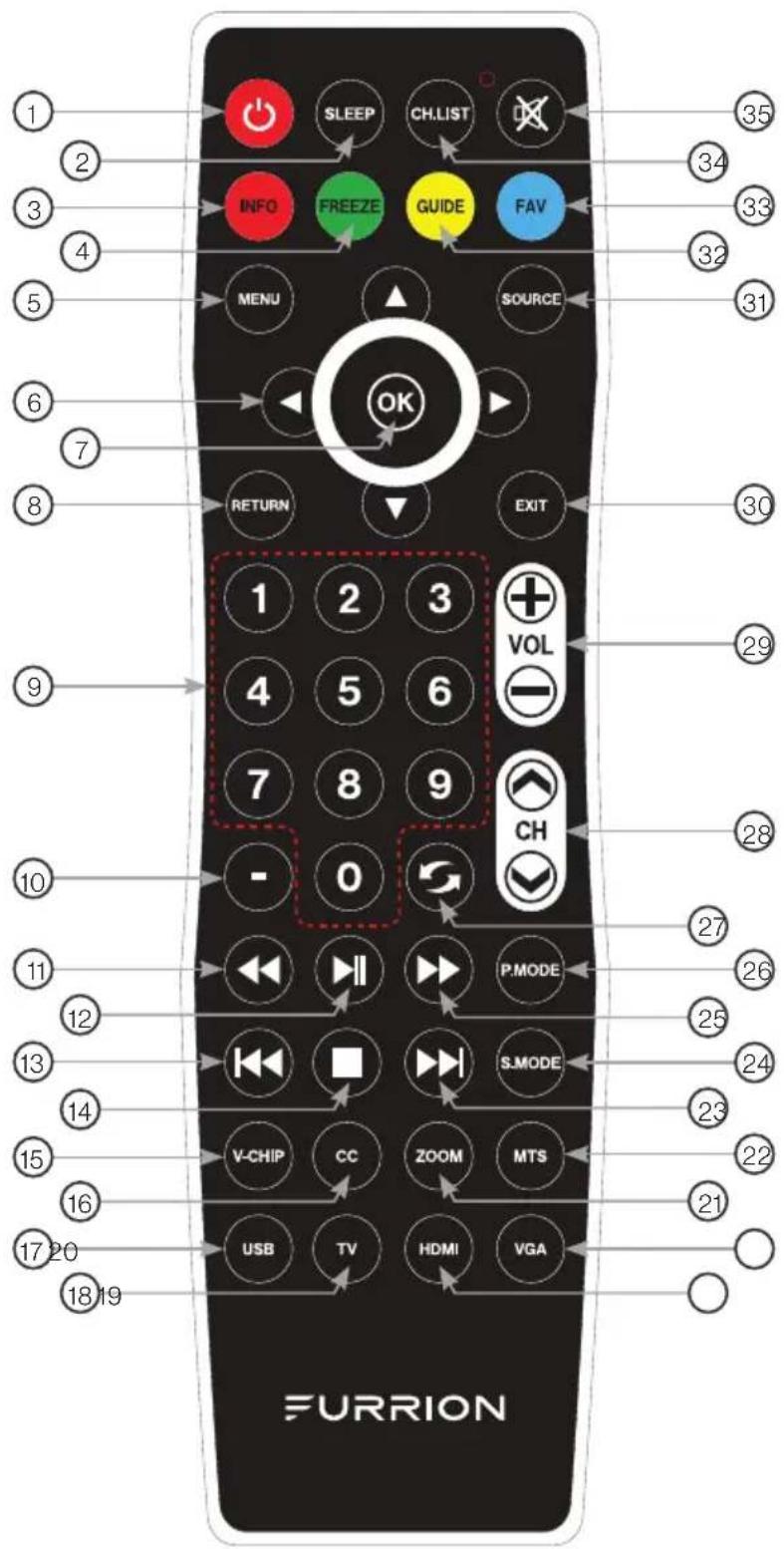
Function Overview
Remote Control
| No. | Button Function | |
| 1 | 💡 | Turn the TV on/off |
| 2 | SLEEP | Set time for the TV to turn off |
| 3 | INFO | Display information about the current input source |
| 4 | FREEZE | Freeze current picture |
| 5 | MENU | Enter the main menu |
| 6 | ◄/►/▲Navigate in a menu | |
| 7 | OK | Confirm the selection |
| 8 | RETURN | Return to the previous menu |
| 9 | NUMBER BUTTONS | Enter numbers or select channels |
| 10 | - | Insert the dash for selecting digital channels directly (For example, channel 28-2 would be selected by the button sequence 2 8 - 2.) |
| 11 | ◀◀ | Fast backward |
| 12 | ▶|| | Start or pause the playback |
| 13 | ◀◀ | Skip to the beginning of the previous chapter/track/photo. |
| 14 | ■ | Stop playback |
| 15 | V-CHIP | Set up parental control |
| 16 | CC | Select Closed Caption: ON/OFF/CC On Mute |
| 17 | USB | Switch the source to USB |
| 18 | TV | Switch the source to TV |
| No. | Button Function | |
| 1 | 💡 | Turn the TV on/off |
| 2 | SLEEP | Set time for the TV to turn off |
| 3 | INFO | Display information about the current input source |
| 4 | FREEZE | Freeze current picture |
| 5 | MENU | Enter the main menu |
| 6 | ◄/►/▲Navigate in a menu | |
| 7 | OK | Confirm the selection |
| 8 | RETURN | Return to the previous menu |
| 9 | NUMBER BUTTONS | Enter numbers or select channels |
| 10 | - | Insert the dash for selecting digital channels directly (For example, channel 28-2 would be selected by the button sequence 2 8 - 2.) |
| 11 | ◀◀ | Fast backward |
| 12 | ▶|| | Start or pause the playback |
| 13 | ◀◀ | Skip to the beginning of the previous chapter/track/photo. |
| 14 | ■ | Stop playback |
| 15 | V-CHIP | Set up parental control |
| 16 | CC | Select Closed Caption: ON/OFF/CC On Mute |
| 17 | USB | Switch the source to USB |
| 18 | TV | Switch the source to TV |
| No. | Button Function | |
| 19 | HDMI | Switch the source to HDMI |
| 20 | VGA | Switch the source to VGA |
| 21 | ZOOM | Enlarge screen images |
| 22 | MTS | Select Stereo, Mono, or Second Audio Programming |
| 23 | ▶▶ | Skip to the beginning of the next chapter/track/photo. |
| 24 | S.MODE | Select sound mode |
| 25 | ▶▶ | Fast forward |
| 26 | P.MODE | Select picture mode |
| 27 | ◀ | Toggle between the current and previous channels |
| 28 | CH ✗ √ | Channel Up/Down |
| 29 | VOL +/- | Increase/Decrease the volume |
| 30 | EXIT | Exit the current menu |
| 31 | SOURCE | Select the input source |
| 32 | GUIDE | Open the current digital channel information guide (antenna only). |
| 33 | FAV | Add the channel to favorite list |
| 34 | CH.LIST | Display the channel list |
| 35 | ✕ | Mute or unmute the audio |
Before Operation
What's in the Box
Thanks for purchasing this Furrion Aurora™ TV. This manual will help you set up and begin using your TV. First, check the contents of your box with the parts checklist below:
• TV
- Weather proof remote with button battery (x1) and tool to open battery cover (x1)
• Wall mount screws (x4)
- Screw adaptors (x4)
- RCA cable
- Printing materials
Now you can get started!
Prepare your Remote Control
BATTERY INSTALLATION
- Open the battery cover with the tool supplied with the remote control.
- Install the supplied button battery CR2025.
- Close the battery cover.
![graph LR A["Start"] --> B["Open"] B --> C["Close"] C --> D["Hold"] D --> E["Open"] E --> F["Close"] F --> G["+"] G --> H["Open"] H --> I["Close"]](/content/2026/04/586215/images/b8538a8c2acccbb9eb1e23ec59b8bcaf9c5622840f8ea380926e104927858a3f.jpg)
BATTERY PRECAUTIONS
These precautions should be followed when using battery in this device:
- Use only the size and type of battery specified.
- Danger of explosion if batteries are incorrectly replaced.
- If the device is not to be used for a long period of time, remove the battery to prevent damage or injury from possible battery leakage.
- The batteries should not be exposed to excessive heat due to sunlight, fire or other heat sources.
WARNING: This product contains a button battery on the remote control.
Before Operation
- Do not ingest the battery contained within the remote control supplied with the unit as this battery represents a chemical burn hazard.
- If the button battery is swallowed, it can cause severe internal burns in just 2 hours and can lead to death. If you think batteries might have been swallowed or placed inside any part of the body, seek immediate medical attention.
- Keep new and used batteries away from children. If the battery compartment does not close securely, stop using the product and keep it away from children.
Choose a Proper Location for your TV
Important: The TV must be installed away from any water source in a safety distance.
For best viewing we recommend you install it in a shaded environment.
- Avoid to install the TV where the screen is facing direct sunlight. The ideal location is in one place where the TV is shaded by structures, or under a patio cover or gazebo.
- If the sun shines directly on the screen for long periods of time, dark areas may appear on the screen. This is a normal reaction for the LED panel, and will not cause damage to the screen. Either turn the screen away from the sun, or shade the TV, and the dark areas will soon disappear.
Note: DO NOT use the TV if ambient air temperature exceeds the operating temperature limits.
Cable Management
WARNING: Do not connect the power source before making connections.
- Open the cable access door in the rear panel by loosing the thumb screws. (Figure 1)
- Connect the cables and lead all connecting cables downwards through the duct at the bottom of the cable access door.
- Leave a drip loop when cables enter the compartment. This will prevent water from dripping down the cord and possibly entering the door area.
- Close the door and tighten the thumb screws for the best waterproof effect. (Figure 2)
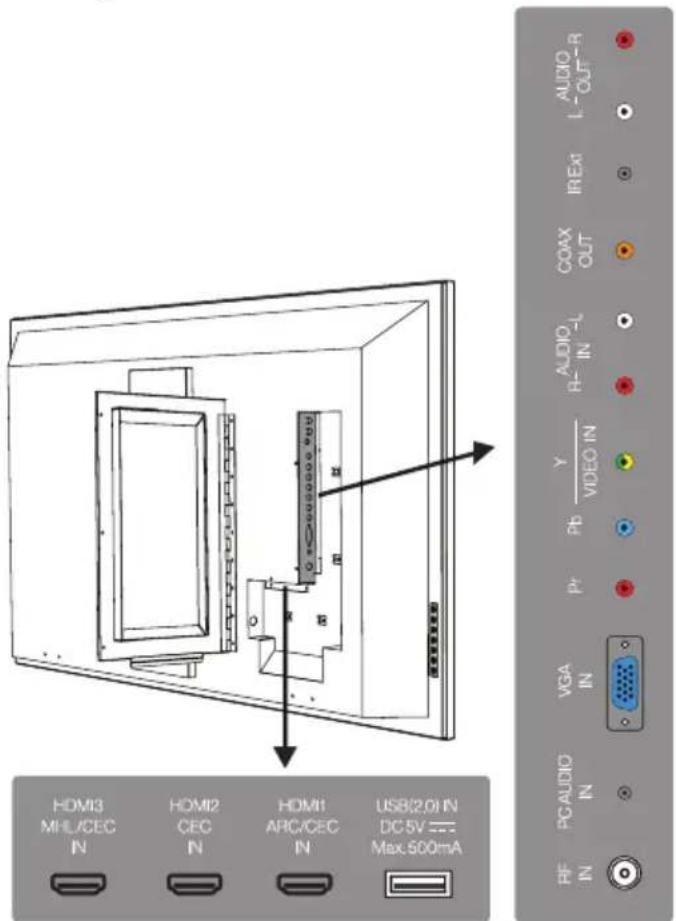
Figure 1
Before Operation
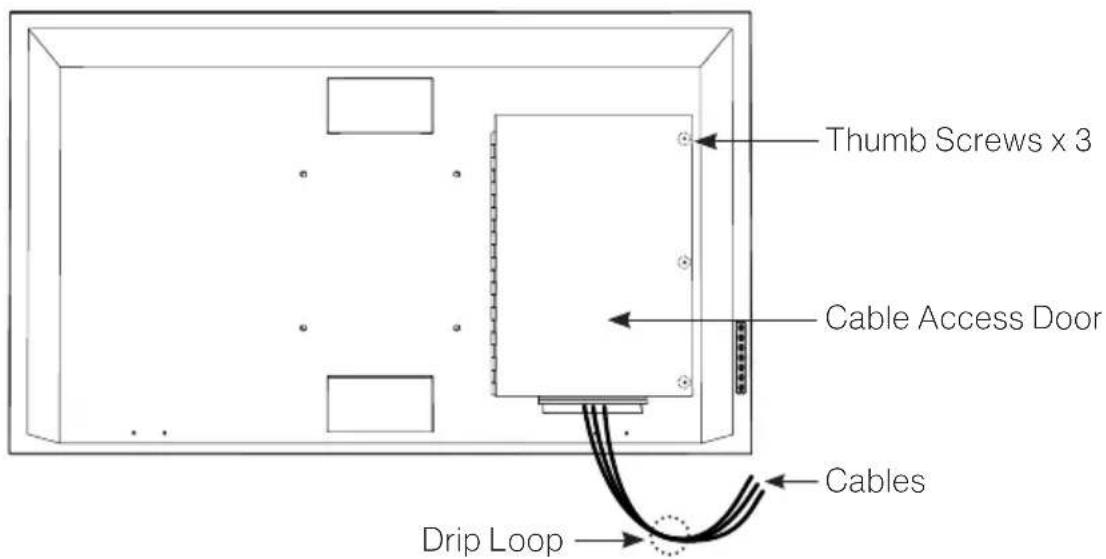
Figure 2
Tip: If a TV streaming stick is connected and stays inside the rear cable compartment, the RF/Wifi signal will be reduced when passing through the closed cable door.
Connect the Power Cord
Connect the power cord to a GFCI protected AC outlet with an "in-use" waterproof cover.
Caution:
- Do not connect power cord during cable connecting and TV installation.
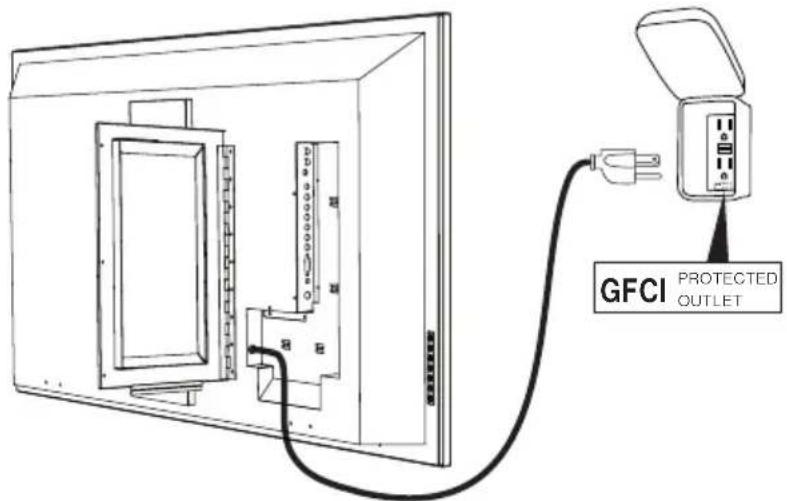
WARNING: TV and GFCI receptacle must be installed away from any water source in a safety distance. Be sure to check local electrical codes and comply with their local standards.
Before Operation
POWER SOURCE
NOTE: Please make sure to insert the cord securely at both the TV and the wall outlet.
WARNING:
- DO NOT USE WITH A VOLTAGE OTHER THAN THE POWER VOLTAGE SPECIFIED. DOING SO MAY CAUSE FIRE, ELECTRIC SHOCK, OR DAMAGE.
- DO NOT PLUG/UNPLUG THE POWER ADAPTER WHEN YOUR HANDS ARE WET. DOING SO MAY CAUSE ELECTRIC SHOCK.
CAUTION:
- WHEN THIS UNIT IS NOT BEING USED FOR EXTENDED PERIODS OF TIME(E.G., AWAY ON A TRIP), BE SURE TO UNPLUG IT FROM THE OUTLET.
Mount on Wall
You are recommended to install the TV in an area shaded by trees, landscape and/or structures, or under a patio cover or gazebo.

FULL SHADE (Covered gazebos, patios, porches)
TV designed for fully shade outdoor spaces.
(Model: FDUF43CBR / FDUF49CBR / FDUF55CBR / FDUF65CBR)
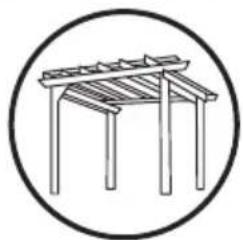
PARTIAL SUN (Pergolas, partially covered decks)
TV designed for partial sun exposure and brighter outdoor spaces.
(Model: FDUP43CBR / FDUP49CBR / FDUP55CBR / FDUP65CBR)
Before Operation
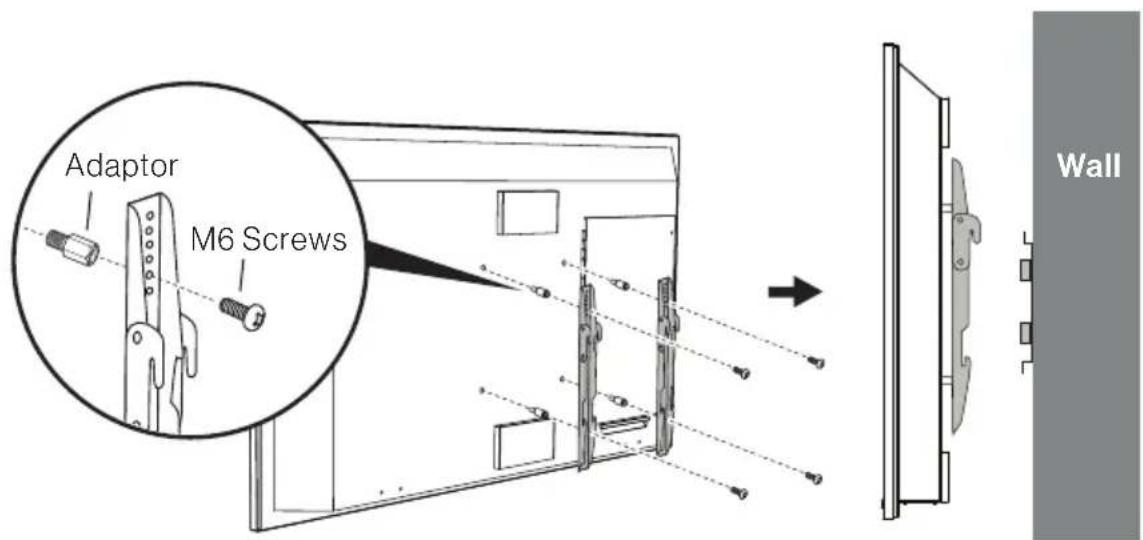
IMPORTANT: Connect all cables to the rear panel prior to mounting TV on wall. The cable access door in rear panel will be obstructed once the TV is mounted.
- Follow the installation guide supplied with the Wall-Mount Bracket (purchased separately) when installing the TV.
- Choose an appropriate location and refer to VESA pattern for mounting.
- Recommend you to contact a professional for installation and use at least two people to move or install the TV.
Getting Started
The Setup Wizard window appears only the first time you turn on the TV. It will assist you to configure the TV and scan for available channels.
IMPORTANT: Make sure the antenna or cable connection is made.
- Press POWER button on the TV control panel or button on the remote control to switch on the TV. The Setup Wizard window appears on the screen.
NOTE: It may take a few seconds before the Setup Wizard window appears on the screen.
- Use ▲ / ▼ / ◀/ ▶ to navigate and select your desired settings.
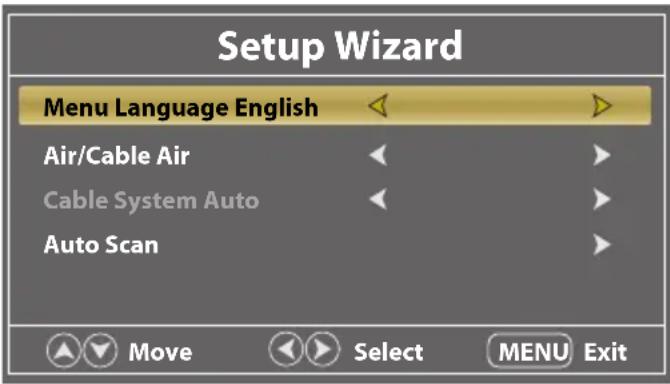
| Setup Wizard | |
| Menu Language | Use ▲r to▼ highlight Menu Language, then press ◀r to select English, French or Spanish. |
| Air/Cable | Use ▲ or ▼ to highlight Air/Cable, then press ◀r to select Air or Cable. |
| Cable System | Use ▲r to▼ highlight Cable System, then press ◀r to select Auto, STD, IRC or HRC.NOTE: Only adjustable when “Air/Cable” is set as “Cable” mode. |
| Auto Scan | Use ▲ or ▼ to highlight Auto Scan, then press OK or to start scanning all the channels available in your area. |
NOTE: You may press MENU at any time to exit the menu.
TV Settings
Setup Settings
- Press MENU button, the setup window will appear on the screen.
- Use ◀ or ▶ to highlight Setup mode.
- Use ▲ or ▼ to highlight the item you would like to reset, then press ◀ or ▶ to select the settings.
- Press MENU to return to the previous menu or press EXIT at any time to exit the setting.
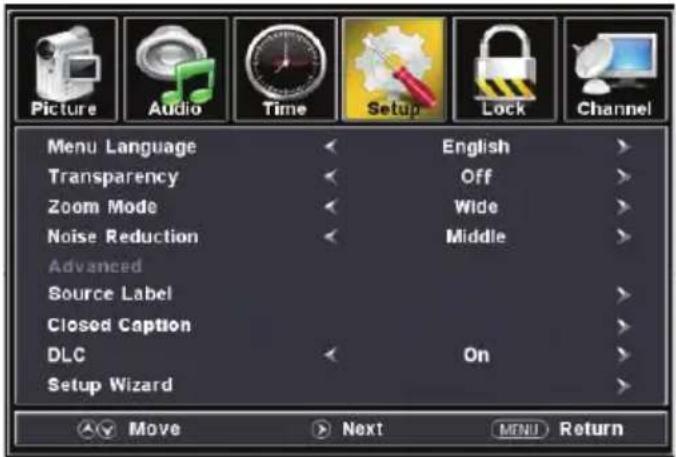
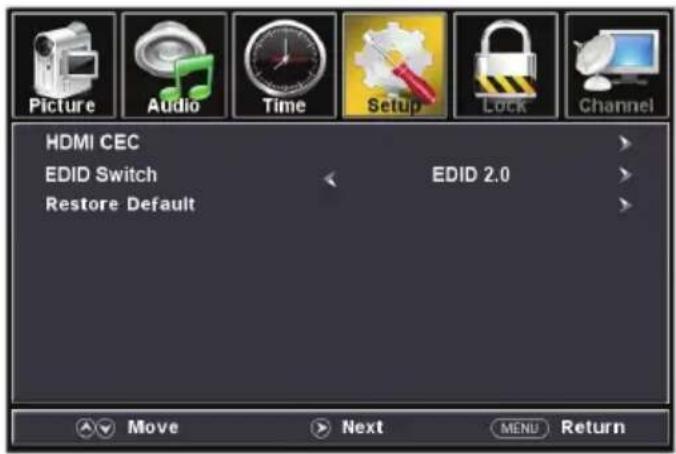
| Setup Menu | |||
| Menu Language | Select the menu language | Pressorto select English, Français, Español or Deutsch. | |
| Transparency | Control the menu transparency | Pressto select Off /On. | |
| Zoom Mode | Set the picture proportion | Pressorto select Zoom, Normal, Cinema or Wide.* The selection for Zoom Mode may vary from model to model. | |
| Noise Reduction | Reduce the roughness of the picture | Pressorto select Off, Weak, Middle or Strong. | |
| Advanced | Control the PC settings. | *Only available after a PC connected. | |
| Source Label | Allow labeling the input source | TV | Pressorto select Custom, Default, Antenna, Cable, Satellite, DTV, DVD, Blu-ray, HD-DVD, XBOX, Wii, PS3, Game, Computer, VCR or DV.* The selection for Source Label may vary from model to model. |
| AV | |||
| YPBPR | |||
| HDMI1 | |||
| HDMI2 | |||
| HDMI3 | |||
| PC | |||
| USB | |||
TV Settings
Setup Menu
| Closed Caption | Set the Closed Caption features. | CC Mode | Pressorto select Off, On or CC On Mute. | |
| Basic Selection | Pressrto select CC1, CC2, CC3, CC4, Text 1, Text 2, Text 3 or Text 4. | |||
| Advanced | Pressrto select Service1, Service 2, Service 3, Service 4, Service 5 or Service 6. | |||
| OptionPressrto enter the sub menu to customize text fonts, colors, opacity. | Mode | Pressrto select Default or Custom. | ||
| Font Style | Pressrto select Default, Font 0, Font 1, Font 2, Font 3, Font 4, Font 5, Font 6 or Font 7. | |||
| Font Size | Pressrto select Default, Normal, Large or Small. | |||
| Font Edge Style | Pressrto select Default, None, Raised, Depressed, Uniform, Left Shadow or Right Shadow. | |||
| Font Edge Color | Pressrto select Default, Black, Red, Green, Blue, Yellow, Magenta or Cyan. | |||
| FG Color | Pressrto select Default, White, Red, Green, Blue, Yellow, Magenta or Cyan. | |||
| BG Color | Pressrto select Default, Cyan, Magenta, Yellow, Blue, Green, Red or Black. | |||
| FG Opacity | Pressrto select Default, Solid, Flashing, Translucent or Transparency. | |||
| BG Opacity | Pressrto select Default, Solid, Flashing, Translucent or Transparency. | |||
| DLC | Adjust the picture contrast. | Pressorto select Off or On. | ||
| Setup Wizard | Start the Setup Wizard. | Pressrto enter setup wizard menu. | ||
TV Settings
| Setup Menu | |||
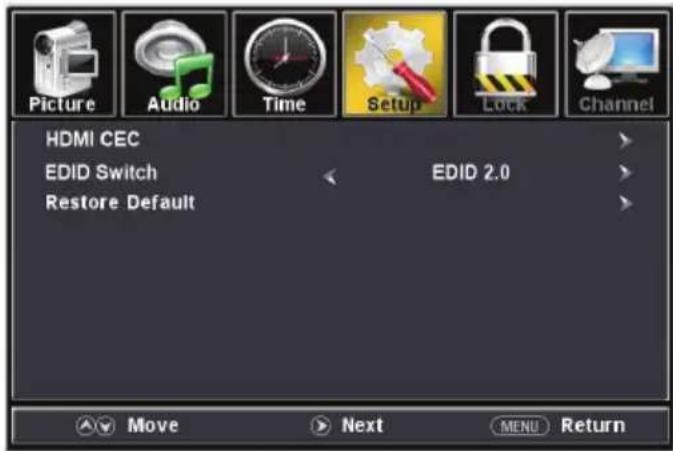
| HDMI CEC | Press ▶ to enter sub-menu, then press ▶ to select Off /On for HDMI CEC. When selecting On, the sub-menu in the right column will be available to set up. | Auto Standby | Press ▶ to select Off /On.In On mode, TV will shut down when there is no signal for several minutes. |
| Auto TV on | Press ▶ to select Off /On.In On mode, TV will automatically turn on when the connected CEC device is turned on. | ||
| HDMI ARC | Press ▶ to select Off /On.Set the HDMI ARC On if you want to enable the ARC function with a connected 5.1/7.1 Home Theater System. | ||
| Device control | Press ▶ to select Off /On.In On mode, it allows a connected CEC device to be controlled by TV remote control. | ||
| Device list | Press ▶ to display a list of HDMI CEC devices currently connected to the TV. | ||
| EDID Switch | Select the EDID version. | Press ▶ or ▶ to select Auto, EDID 1.4 or EDID 2.0. | |
| Restore Default | Reset to factory default settings. | Press ▶ or ▶ to select Yes or No. | |
| NOTE: HDMI CEC function is only available when connecting with a CEC device. | |||
TV Settings
Picture Settings
- Press MENU button, the setup window will appear on the screen.
- Use ◀ or ▶ to highlight Picture mode.
- Use ▲ or ▼ to highlight the item you would like to reset, then press ◀ or ▶ to select the settings.
- Press MENU to return to the previous menu or press EXIT at any time to exit the setting.
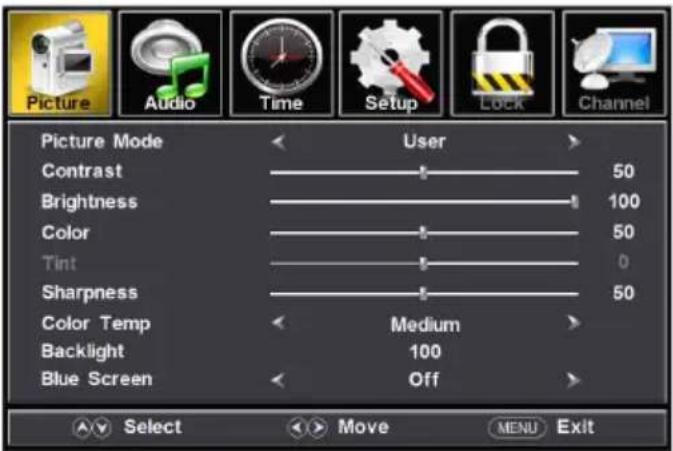
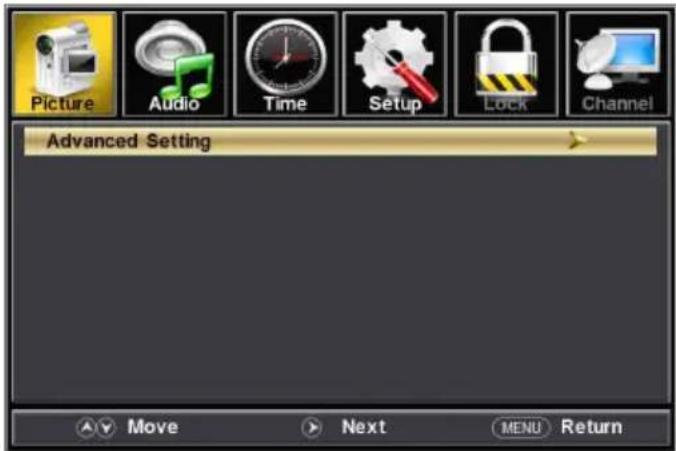
Picture Menu
| Picture Mode | Select the display mode | Pressorto selectUser / Standard / Dynamic / Mild. | |
| Contrast | Control the contrast level of the picture | Presstcrease or decrease contrast intensity.* Only adjustable after set "Picture Mode" as "User" mode | |
| Brightness | Control the brightness level of the picture | Presstcrease or decrease the overall brightness.* Only adjustable after set "Picture Mode" as "User" mode | |
| Color | Control the color level of the picture | Presstcrease or decrease the color intensity.* Only adjustable after set "Picture Mode" as "User" mode | |
| Tint | Control picture tint | Presstadjust colors toward green or reddish tint.* Only adjustable under NTSC signal | |
| Sharpness | Control the sharpness of the picture | Presstsoften or enhance edges in the picture.* Only adjustable after set "Picture Mode" as "User" mode | |
| Color Temp | Select the color mode | Pressorto selectMedium / Warm / Cool. | |
| Blue Screen | If this is set asOn, the screen changes to blue when no signal input. | Pressorto set asOn or Off. | |
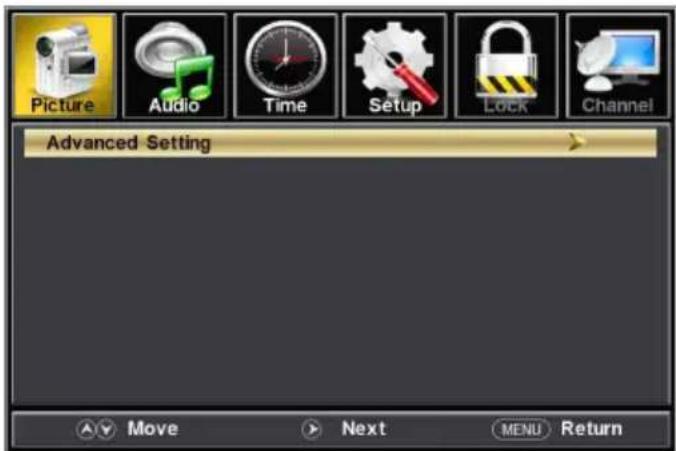
| Advanced Setting | Pressto enter sub-menu to set the features in right column. | Aspect Ratio | Pressorto selectWide / Normal/Cinema/ Zoom. |
| Noise Reduction | Pressorto selectOff / Weak / Middle / Strong. | ||
| Dynamic Contrast | Pressorto set asOn or Off. | ||
| HDMI mode | Presstorset as Video. | ||
| Auto Brightness | Pressorto set asOn or Off. | ||
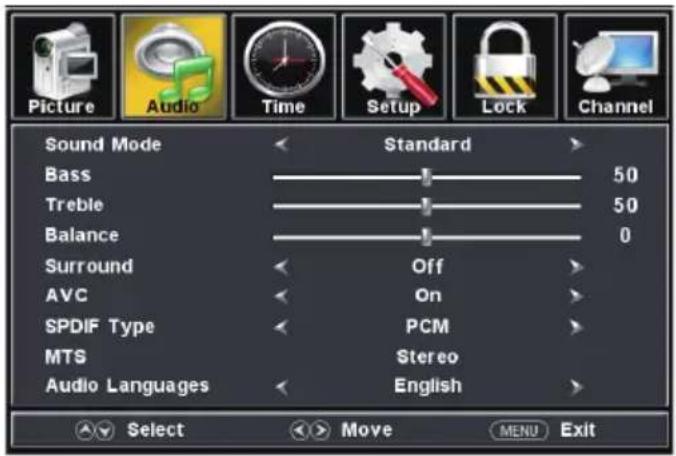
TV Settings
Audio Settings
- Press MENU button, the setup window will appear on the screen.
- Use ◀ or ▶ to highlight Audio mode.
- Use ▲ or ▼ to highlight the item you would like to reset, then press ◀ or ▶ to select the settings.
- Press MENU to return to the previous menu or press EXIT at any time to exit the settings.
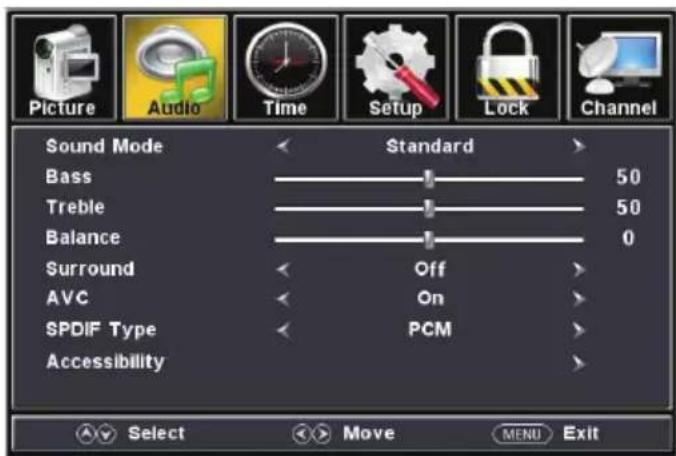
For DTV mode For ATV mode
TV Settings
| Audio Menu | ||||
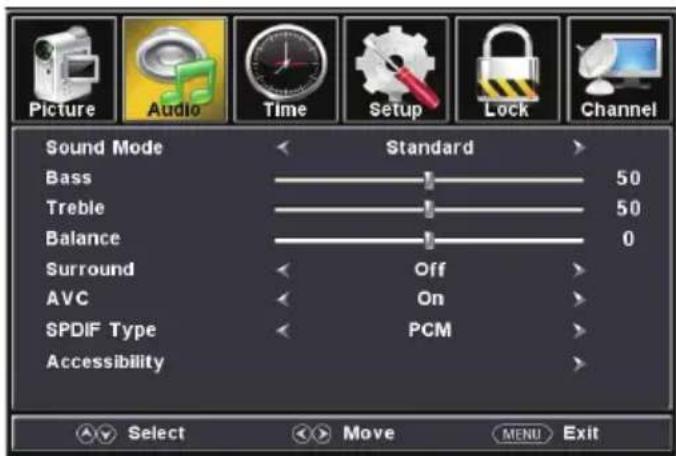
| Sound Mode | Select the sound mode | Press ▶ to select Standard / Music / Movie / Sport / User mode.Standard: Optimizes a balanced sound in all environments.Music: Preserves the original sound clear and dynamic like that on a concert.Movie: Enhances treble and bass for a rich surround sound experience.Sport: Reproduces a realistic sound like that in a stadium.User: Customizes audio setting. | ||
| Bass | Control the bass level | Press ▶ to increase or decrease low frequency intensity. | ||
| Treble | Control the treble level | Press ▶ to increase or decrease high frequency intensity. | ||
| Balance | Control the balance level | Press ▶ to adjust the desired level between 0~100. | ||
| Surround | Control the surround effect | Press ▶ or ▶ to set as On or Off. | ||
| AVC | (Auto Volume Control)Control the maximum power output | Press ▶ or ▶ to set as On or Off. | ||
| SPDIF Type | Select the SPDIF sound mode | Press ▶ or ▶ to select Off / RAW / PCM. | ||
| Audio Languages | Select the menu language | Press ▶ or ▶ to select English / French / Spanish.* Only available on DTV channel | ||
| MTS | Select the sound mode | Press ▶ or ▶ to select Stereo / SAP / Mono.* Only available on ATV channel. | ||
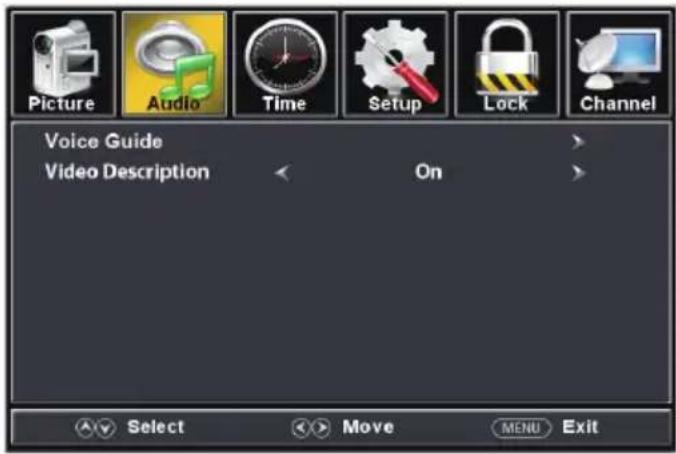
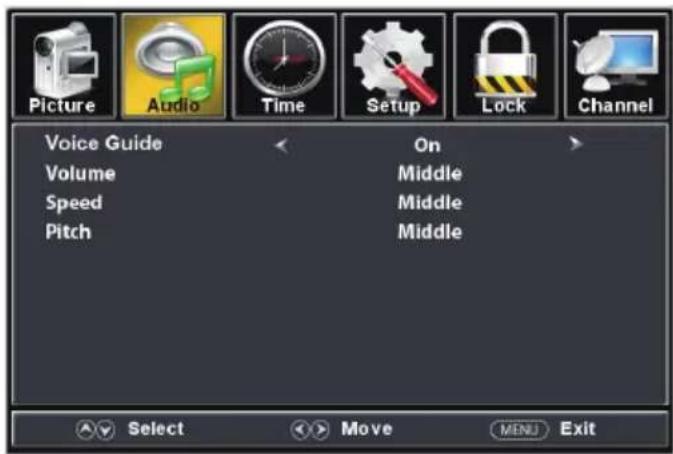
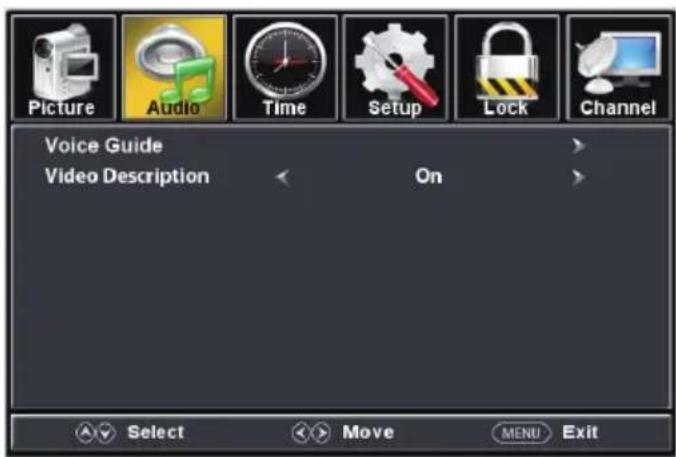
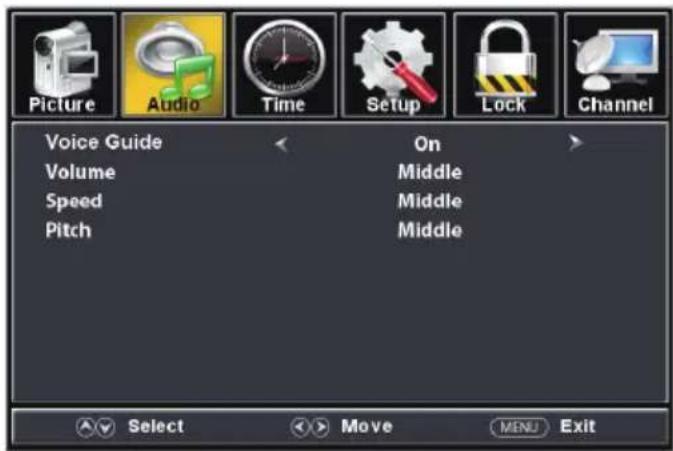
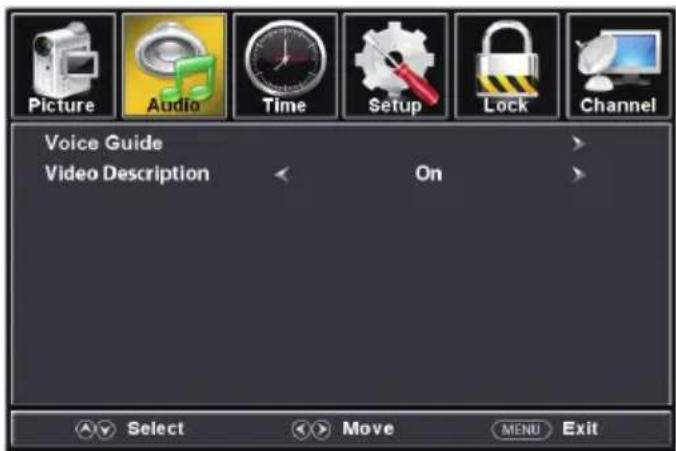
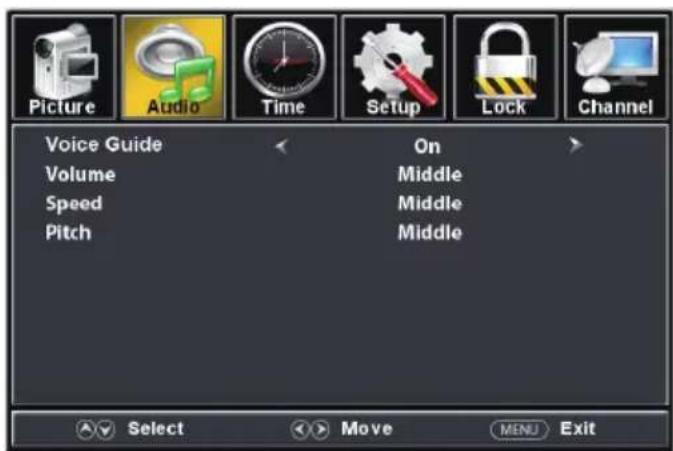
| Accessibility | Control the Voice Guide functions | Voice Guide | Voice Guide | Press ▶ or Enter to enter sub menu settings.Then press ▶ to set as On or Off. When the Voice Guide is On, the OSD will read out via voice once you operate the TV. |
| Volume | Press ▶ or ▶ to select Weak / Middle / Strong to change the volume.* Only available after Voice Guide is set as On mode | |||
| Speed | Press ▶ or ▶ to select Weak / Middle / Strong to change the voice speed.* Only available after Voice Guide is set as On mode | |||
| Pitch | Press ▶ or ▶ to select Weak / Middle / Strong to change the voice pitch.* Only available after Voice Guide is set as On mode. | |||
| Video Description | Press ▶ or ▶ to set as On or Off. When setting as On, the video description function is enabled and the video commentary text will appear. | |||
TV Settings
Time Settings
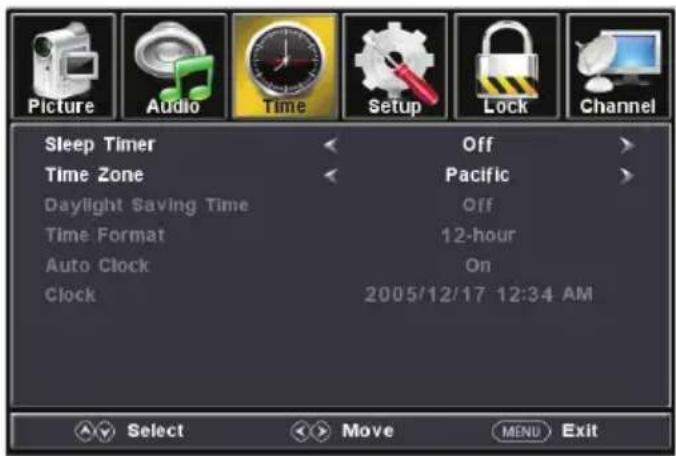
- Press MENU button, the setup window will appear on the screen.
- Use to highlight Time mode.
- Use ▲ to highlight the item you would like to reset, then press ◀ or ▶ to select the settings.
- Press MENU to return to the previous menu or press EXIT at any time to exit the setting.
| Time Menu | ||
| Sleep Timer | Set the countdown time before TV automatically shutdown | Press◀ to select Off, 5Min, 10Min, 15Min, 30Min, 45Min, 60Min, 90Min, 120Min, 180Min or 240Min. |
| Time Zone | Set the time zone | Press◀ to select Pacific, Alaska, Hawaii, Atlantic, Eastern, Central or Mountain |
| Daylight Saving Time | Turn on/off daylight saving time | Press◀ or ▶ to set as On or Off.* Only adjustable on DTV channel |
| Time Format | Select the time display format | Press◀ or ▶ to set as 12-hour or 24-hour.* Only adjustable on DTV channel |
| Auto Clock | Set automatic time | Press◀ or ▶ to set as On or Off.* Only adjustable on DTV channel |
| Clock | When Auto Clock is set as Off, you can set the time manually. Clock and Date are automatically set on the first time when the tuner receives a broadcast channel.* Only adjustable on DTV channel | |
TV Setting
Lock Settings
- Press MENU button, the setup window will appear on the screen.
- Use ◀ or ▶ to highlight Lock mode.
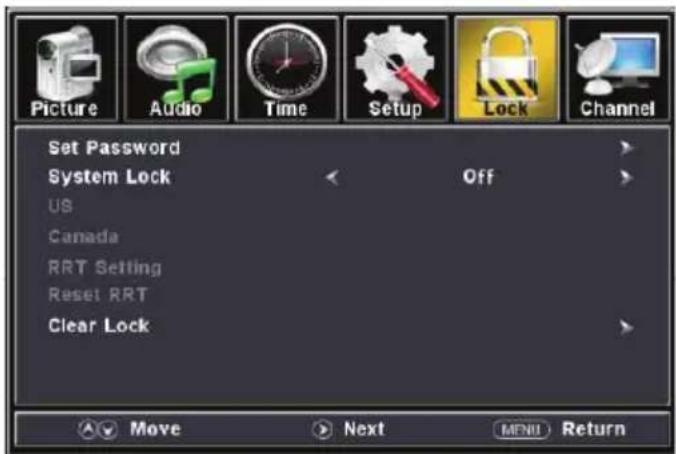
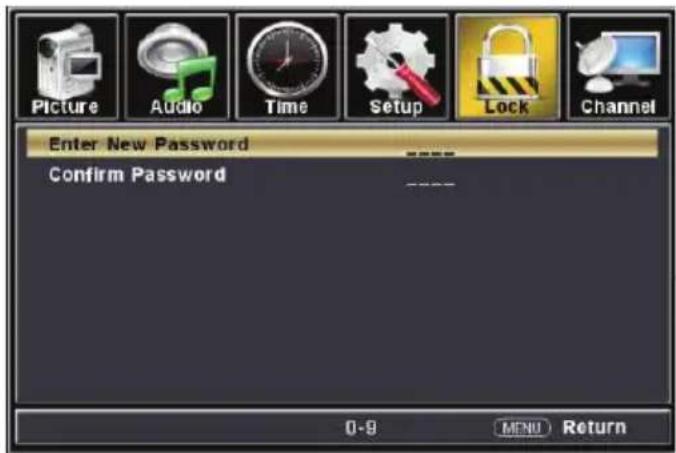
- Use ▲ or ▼ to highlight "Enter Password" and input "0000" to enter the sub menu.
- Use ▲ or ▼ to highlight the item you would like to reset, then press ◀ or ▶ to select the settings.
- Press MENU to return to the previous menu or press EXIT at any time to exit the setting.
TV Setting
| Lock Menu | |||
| Enter Password | Input the password to access the Lock menu. | Use the Number Buttons (0-9) to enter the password, the Lock menu will appear.* Default password is 0000.* If you forgot the password, use 8888 to enter any locked menu. | |
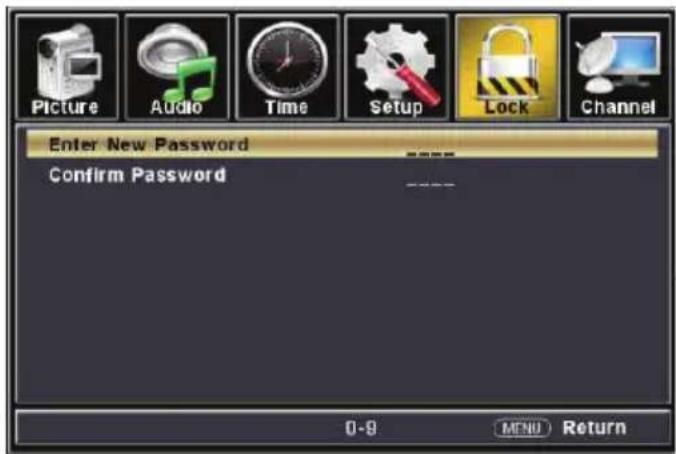
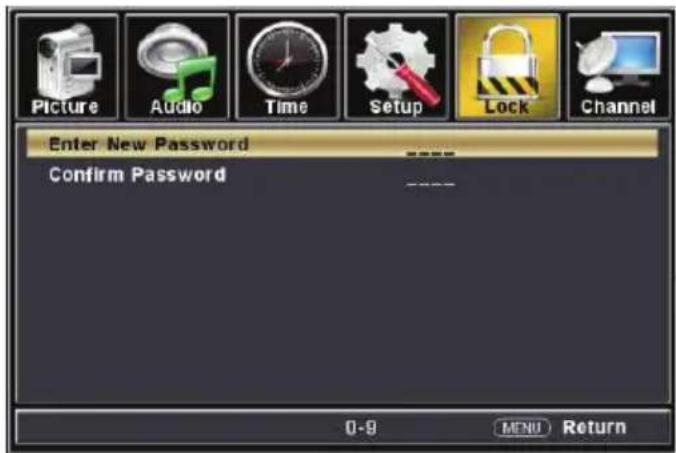
| Set Password | Change the user password. | Set Password | Use Number buttons (0-9) to enter a new password. |
| Confirm Password | Repeat the password to confirm. | ||
| System Lock | Change the parental controls. | Pressor to set as On or Off. | |
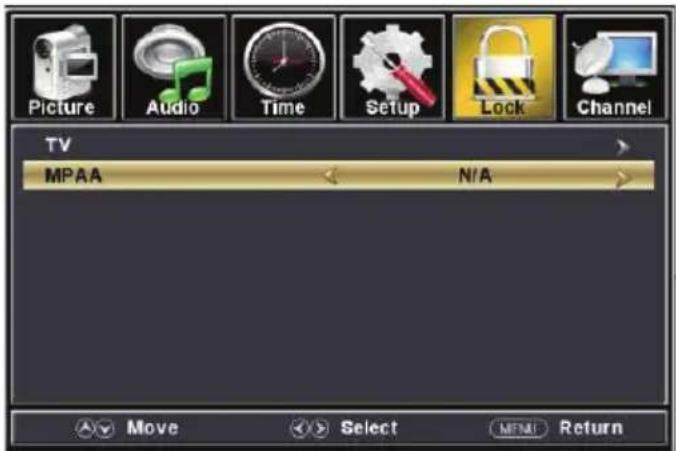
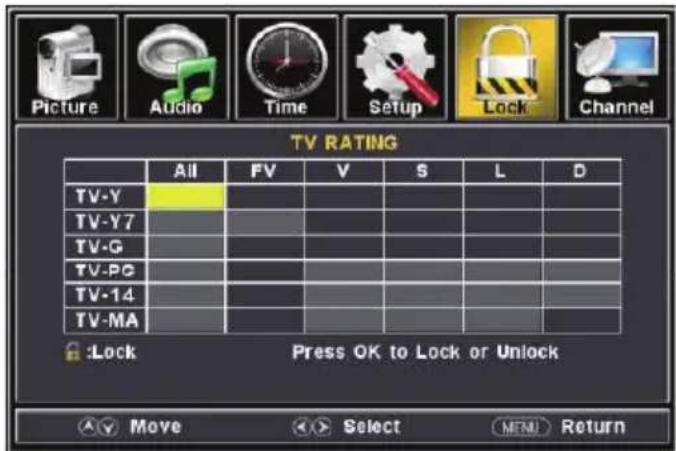
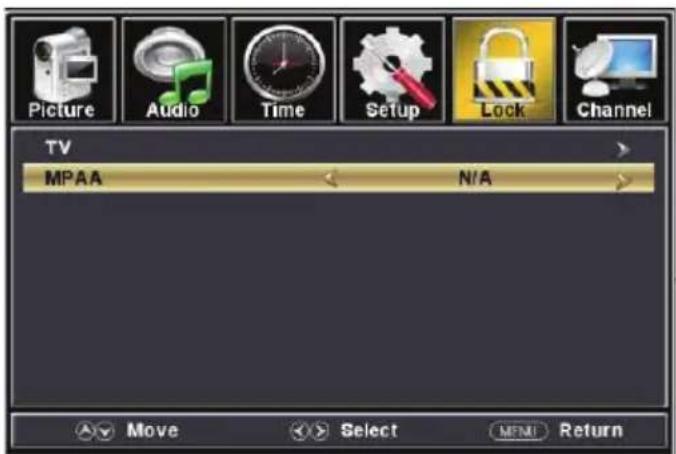
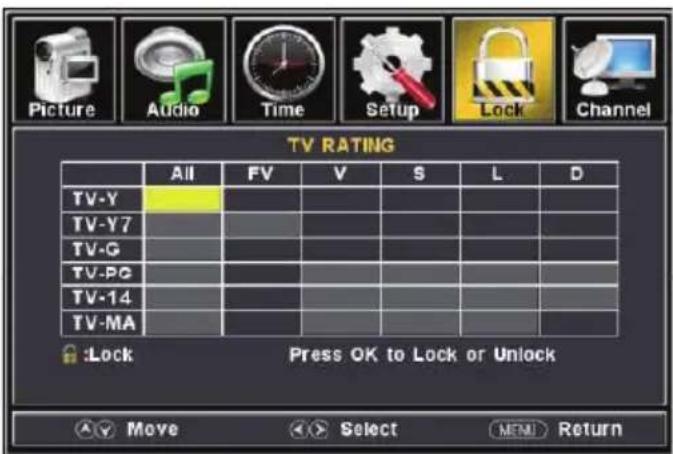
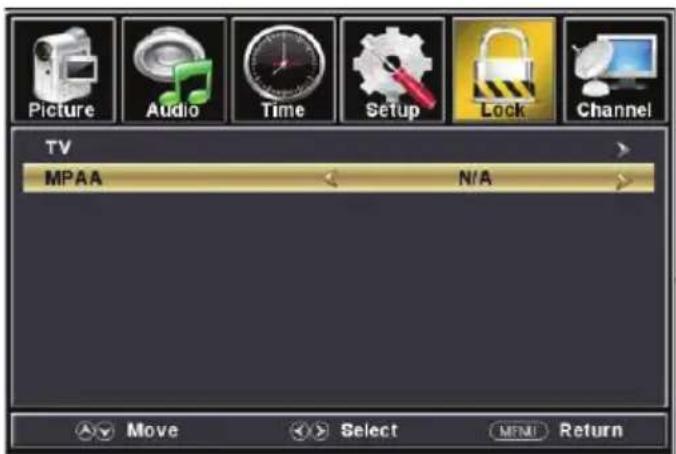
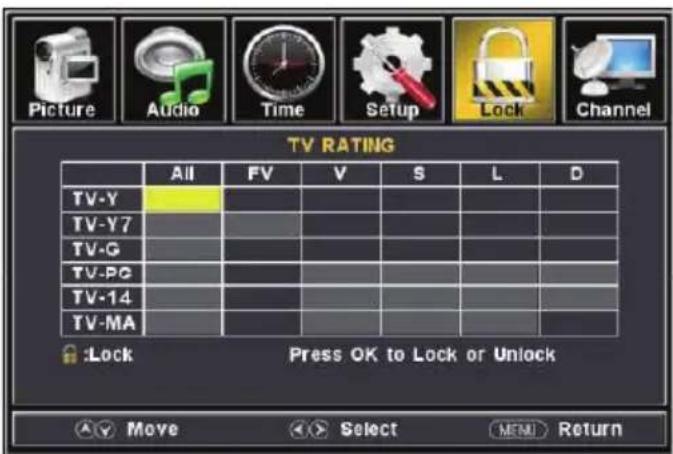
| US | Set up parental locks based on US rating system.* Only available when System Lock is set as On mode. | TV | Press to enter the TV Ratings menu and use ▲/▼/◄/► to select your TV rating preference (refer to the following tables of Age and Genre) |
| MPAA | Press buttons to select your movie rating preference based on US Rating System. | ||
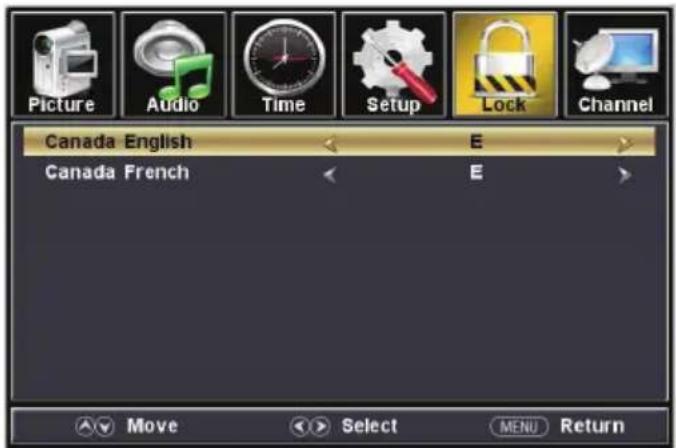
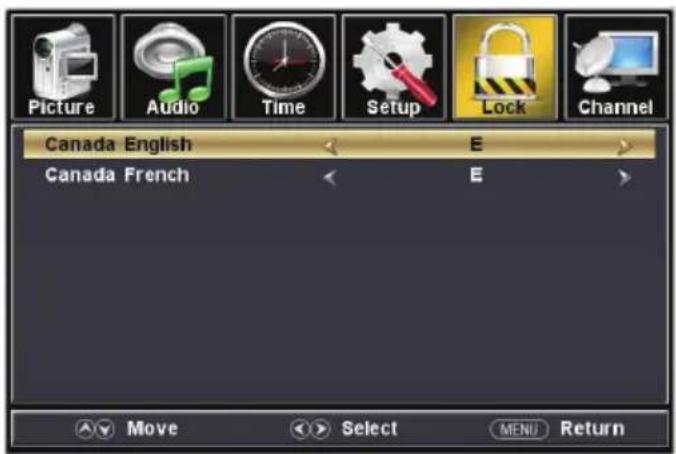
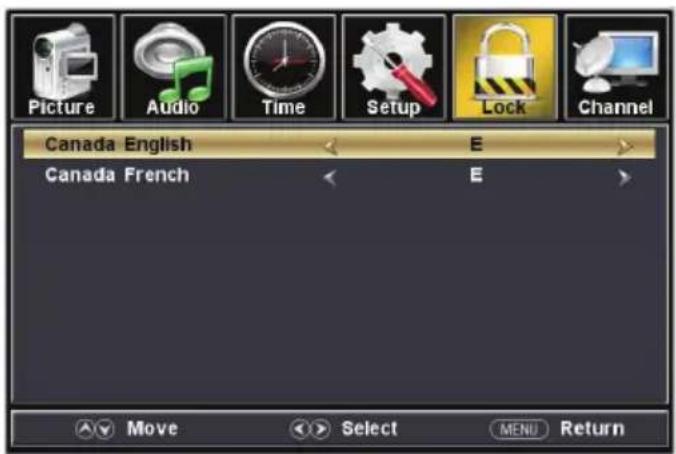
| Canada | Set up parental locks based on Canadian rating system.* Only available when System Lock is set as On mode | Canada English | Use buttons to select your ratings preference based on Canadian Rating System (English). |
| Canada French | Use buttons to select your ratings preference based on Canadian Rating System(French). | ||
| RRT Setting | Not adjustable by user. | ||
| Reset RRT | Restore to default RRT settings. | Press OK or to enter the sub menu, then press or to select Yes or No. | |
| Clear Lock | Restore to default V-chip settings and clear the lock setting. | Press OK or to enter the sub menu, then press or to select Yes or No. | |
TV Settings
| Age | |
| TV-Y | All Children |
| TV-Y7 | Suitable for 7 years old or above |
| TV-G | General Audience |
| TV-PG | Parental Guidance |
| TV-14 | Suitable for 14 years old or above |
| TV-MA | Suitable for 17 years old or above |
| Genre | |
| ALL | All |
| FV | Fantasy Violence |
| V | Violence |
| S | Sex |
| L | Language |
| D | Dialogue |
English
| US Rating System | |
| N/A | All Ages |
| G | General Audience |
| PG | Parental Guidance |
| PG-13 | Parental Guidance below 13 years |
| R | Parental Guidance below 17 years |
| NC-17 | Suitable for 17 years old or above |
| X | Adults Only |
| Canadian Rating System (English) | |
| E | Exempt from the ratings (All ages) |
| C | Suitable for children age of 0–7 years |
| C8+ | Suitable for children age over 8 years |
| G | General Audience |
| PG | Parental Guidance |
| 14+ | Suitable for viewers age over 14 years |
| 18+ | Suitable for adults over 18 years |
| Canadian Rating System (French) | |
| E | Exempt from the ratings (All ages) |
| G | General Audience |
| 8 ans+ | Suitable for children ages over 8 years |
| 13 ans+ | Suitable for children ages over 13 years |
| 16 ans+ | Suitable for viewers ages over 16 years |
| 18 ans+ | Suitable for adults over 18 years |
TV Settings
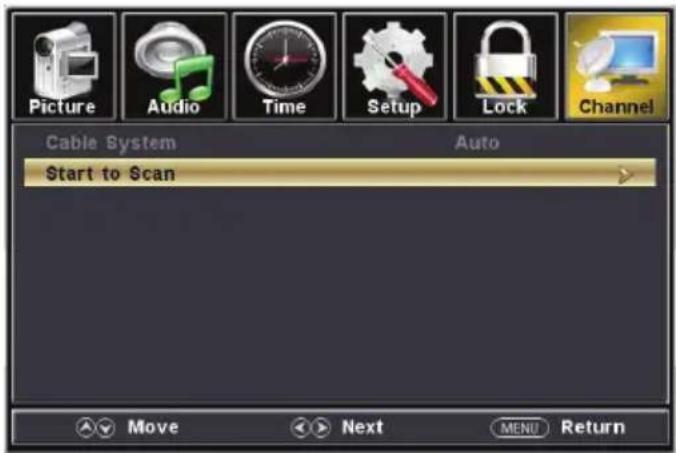
Channel Settings
- Press MENU button, the setup window will appear on the screen.
- Use ▲ to highlight Channel mode.
- Use ▲ to highlight the item you would like to reset, then press or to select the settings.
- Press OK to confirm your selections or settings and enter the sub menus.
- Press MENU to return to the previous menu or press EXIT at any time to exit the setting.
Note: For Cable or Satellite users with a set-top box, there is no need to run channel Auto Scan. Connect your cable or satellite set top box to one of the available inputs on the TV for viewing.
Channel Menu
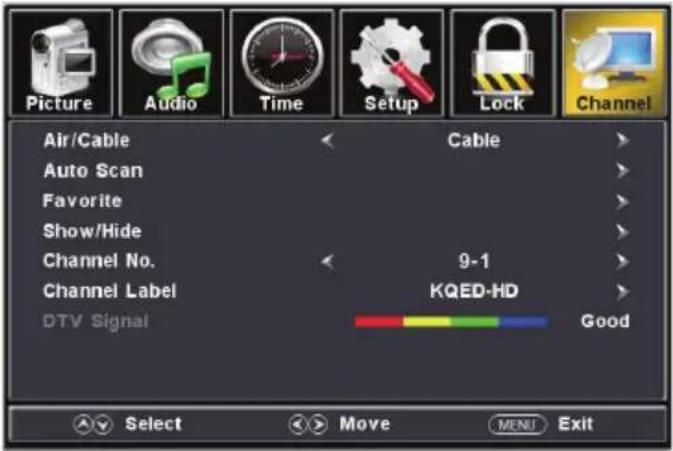
| Air/Cable | Set the reception type. | Press◀ to select Air or Cable. Select Air when TV is connected to an indoor / outdoor antenna. Select Cable if you subscribe to a pay television service WITHOUT a set top box. | |
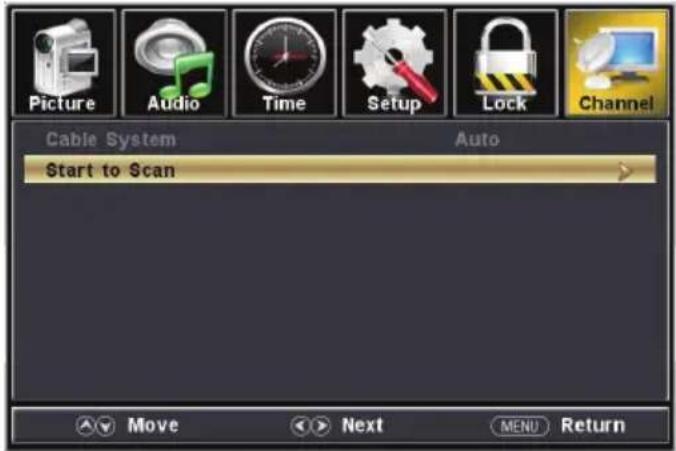
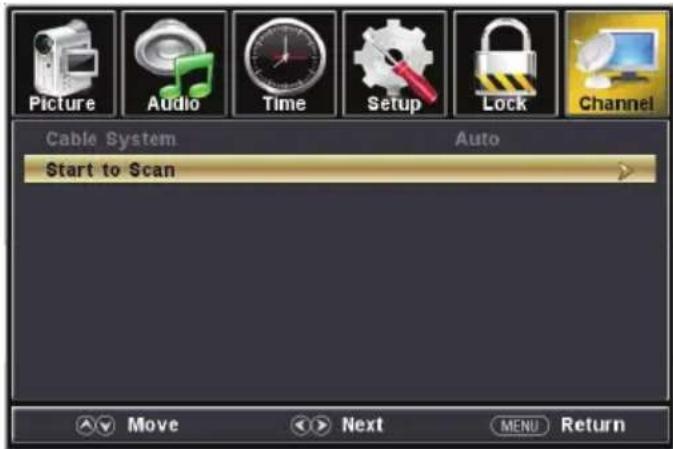
| Auto Scan | Press ▶ OK to enter sub menu. | Cable System | Press◀ or ▶ to select Auto, STD, IRC or HRC. (Only available when you select Cable as the reception type.) |
| Start to Scan | Press▶ or OK to start scanning available channels.. | ||
| Favorite | Add or delete a channel in the favorite list. | Press▲ or ▼ to select a channel, then press▶ or OK to add or delete the channel in the favorite list. | |
| Show/Hide | Show or hide available channels already in memory. | Press▲ or ▼ to select a channel, then press▶ or OK to show or hide the channel. | |
| Channel No. | Select a channel number to be labeled | Press◀ to select a channel. | |
| Channel Label | Allow custom labeling to name or rename a channel | Press▲ to select each letter, number or character. Press or ▶ to the next space. (Maximum of 7 characters) | |
| DTV Signal | Dynamically display the DTV signal status. | ||
TV Settings
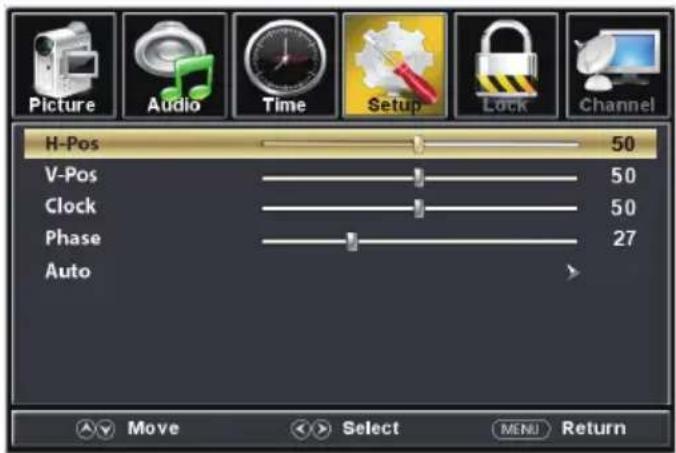
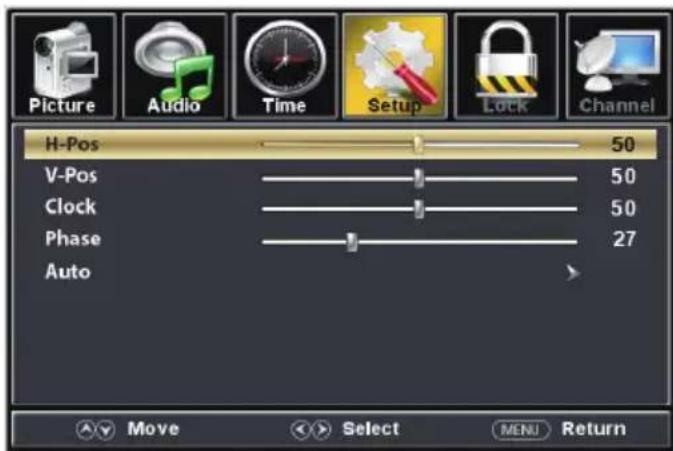
PC Settings
The PC menu is only accessible when a PC is connected to the TV via the VGA connection. Press Source button to select VGA as the input source.
- Press MENU button, the setup window will appear on the screen.
- Use ◀ or ▶ to highlight Setup mode.
- Use ▲ or ▼ to highlight Advanced, then press OK or ▶ to enter the sub menu.
- Use ▲ or ▼ to highlight the item you would like to reset, then press ◀ or ▶ to select the settings.
- Press MENU to return to the previous menu or press EXIT at any time to exit the setting.
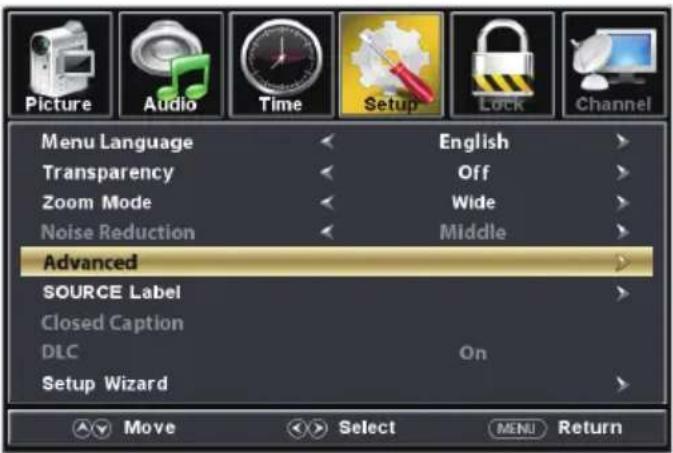
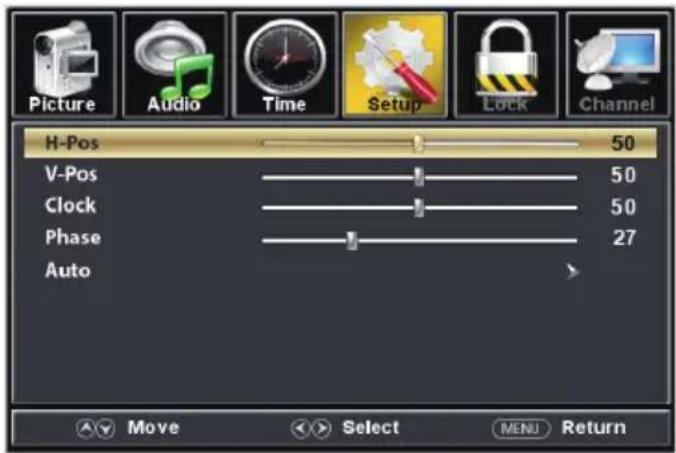
Advanced Sub-Menu
| H-Pos | Configure the horizontal position of the TV image. | Press ←r to move the screen horizontally. |
| V-Pos | Configure the vertical position of the TV image. | Press ←r to move the screen vertically. |
| Clock | Adjust the pixel Clock (vertical) for a clearer image. | Press ←r to adjust the pixel clock vertically. |
| Phase | Adjust the phase Clock (horizontal) for a clearer image. | Press ←r to adjust the phase clock horizontally. |
| Auto | Automatically adjust the PC settings. | Press OK or no adjust all PC settings automatically. |
PC MONITOR DISPLAY MODES
| Mode Resolution Refresh Rate | ||
| VGA | 640 x 480 60/75 Hz | |
| VGA | 720 x 400 70 Hz | |
| VGA | 1366 x 768 60Hz | |
| SVGA | 800 x 600 60/75 Hz | |
| XGA | 1024 x 768 | 60/70/75 Hz |
| WXGA | 1280 x 720 | 60 Hz |
PC MONITOR DISPLAY MODES
| Mode Resolution Refresh Rate | ||
| WXGA | 1360 x 768 | 60 Hz |
| SXGA | 1280 x 1024 | 60 Hz |
| WXGA+ | 1440 x 900 | 60 Hz |
| WSXGA+ | 1680 x 1050 | 60 Hz |
| FHD | 1920 x 1080 | 60 Hz |
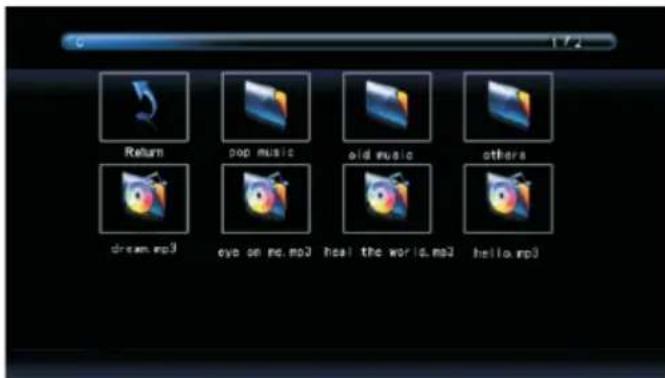
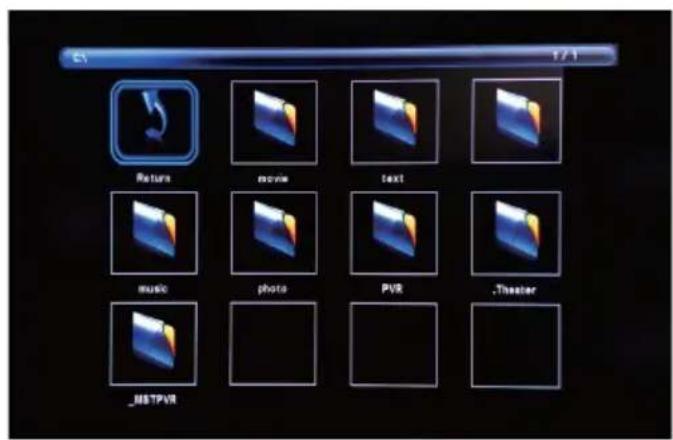
USB Operation
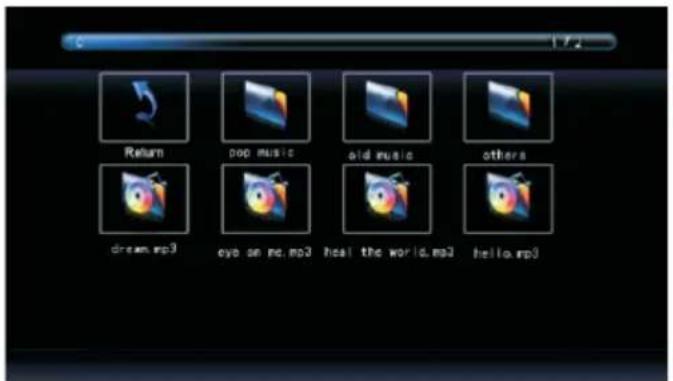
- After connecting a flash drive, press SOURCE button and select MEDIA. Press OK or ▶ to enter.
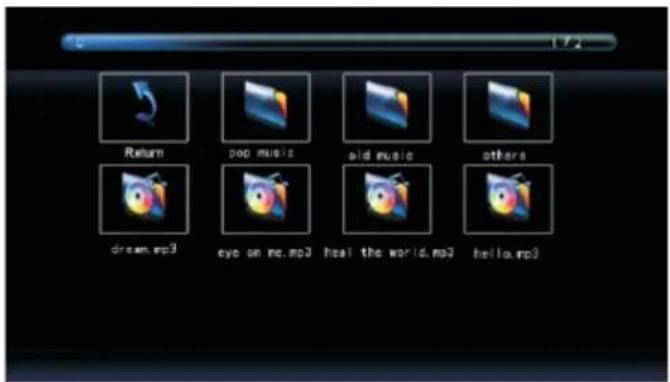
- Use ◀ or ▶ to select Photo or Music. Press OK or ▶ to enter.
- Use ▲ to navigate the files or folders on the USB drive.
- Press MENU to return to the previous menu or press EXIT at any time to exit the setting.
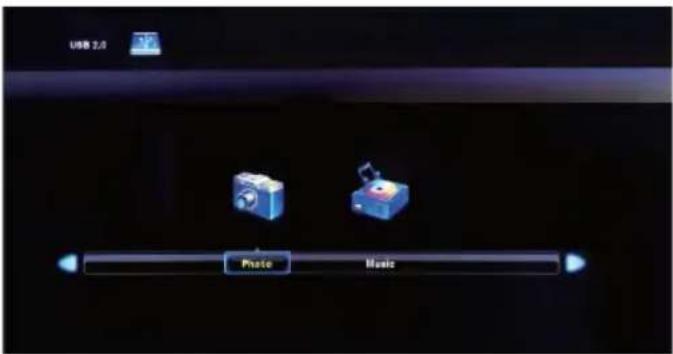
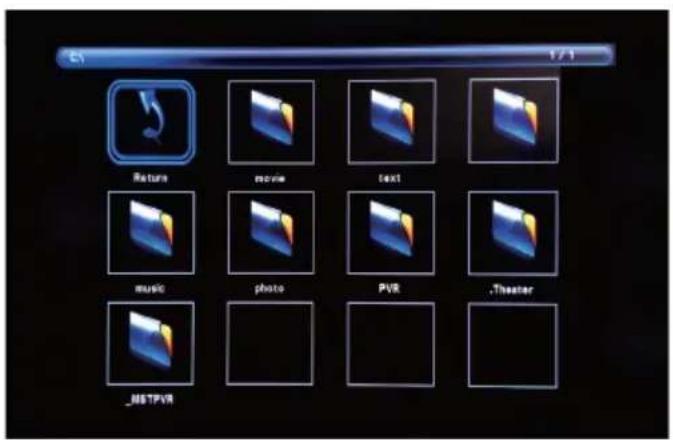
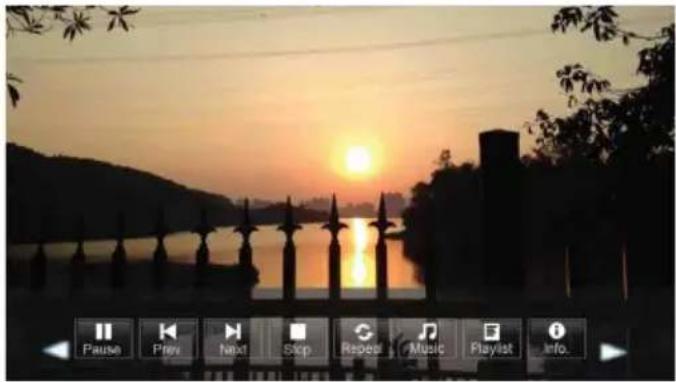
When viewing photos, you can use this photo viewer tool to control slide show, play music and show file information.
The photo viewer displays .jpg photo format files.
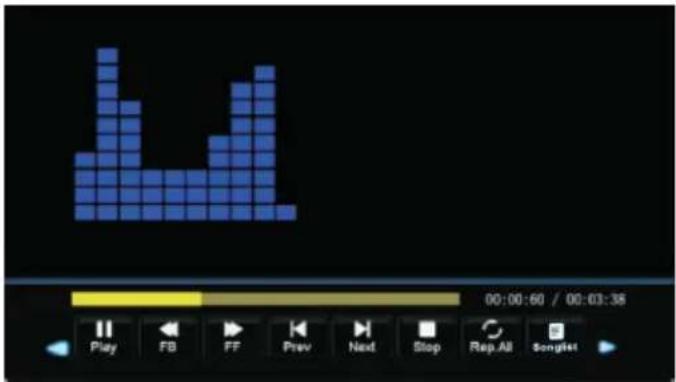
Playback of music is via this music player, which gives playback controls and information on the file.
The music player plays MP3 audio format files.
Troubleshooting
| Problem Solution/Issue | |
| TV does not operate | Make sure the power cord is plugged in.Try another AC outlet.Power is off, check fuse or circuit breaker.Unplug unit for an hour, then plug it back in. |
| Normal picture, but no sound | Check the volume settings.Sound muted? Press MUTE button.Try another channel.Check audio cable connections. |
| The remote control does not work | Make sure the remote control is in range with no obstructions.Check the batteries.Correct operating mode set: TV, VCR etc. |
| Poor sound or no sound | Station or Cable TV experiencing problems, tune to another station.Check sound adjustments (Volume or Mute).Check for sources of possible interference. |
| Poor picture or no picture | Station or Cable TV experiencing problems, tune to another station.Make sure channels are set into memory.Check antenna or Cable TV connections, adjust antenna.Check for sources of possible interference.Check picture control adjustments. |
| Poor TV reception | Ensure the antenna amplifier is turned on for Antenna TV.Adjust the antenna position to a stronger signal receiving angle.Check if the Antenna connection is tight to the TV.Check if there is power supplied to the Antenna distribution box.Check if your incoming cable is connected to the correct cable / antenna wall connection inside the RV.Ensure the internal RV coax jump cable is connected to the correct port. |
| Poor Cable / Satellite TV Reception | Ensure antenna amp is turned off for cable signal.Check if incoming cable is connected correctly to RV.Ensure cable splitter box has power.Check if the incoming cable is connected to the correct cable / Satellite wall connection inside your RV.Ensure the internal RV coax jump cable is connected to the correct port.Ensure Dish has no obstruction. |
| TV shuts off | Sleep Timer is set.Power interrupted. |
| Black and white image from the connected AV device | Check video connections on both the TV and connected AV device.Ensure the colors match between the connectors and sockets: green (Y), blue (Pb/Cb) and red (Pr/Cr) for component connection, and yellow (VIDEO) for composite connection.Ensure all video cables are connected firmly. |
Specifications
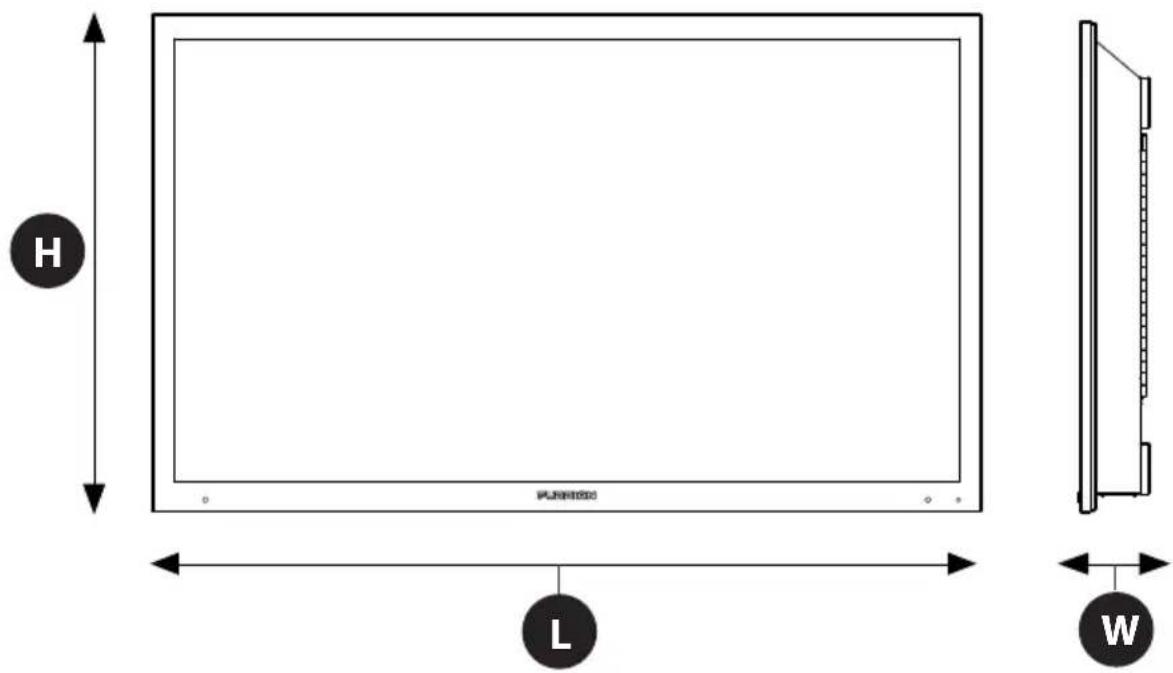
MODEL, DIMENSION & RESOLUTION
| TV Model | Dimension without Stand (L x H x W) | Max Resolution |
| FDUP43CBR | 397/8" × 237/8" × 33/4" (1013 × 605 × 96 mm) | 3840 x 2160@ 60Hz UHD |
| FDUF43CBR | ||
| FDUP49CBR | 4411/16" × 2613/16" × 37/8" (1135 × 680 × 98 mm) | |
| FDUF49CBR | ||
| FDUP55CBR | 503/16" × 293/4" × 43/16" (1274 × 756 × 105 mm) | |
| FDUF55CBR | ||
| FDUP65CBR | 591/16" × 347/8" × 37/8" (1499 × 885 × 97 mm) | |
| FDUF65CBR |
INPUT & OUTPUT CONNECTIONS
| Model | L-AUDIO OUT-R | IR Ext | Coaxial Out | L-AUDIO IN-R | Component Video in | Component YPbPr Video in | HDMI in | VGA (PC) in | Audio (PC) in | RF in | USB |
| FDUP43CBR FDUP49CBR FDUP55CBR FDUP65CBR FDUF43CBR FDUF49CBR FDUF55CBR FDUF65CBR | 111 | 1x Left (White) 1x Right (Red) | 1x Yellow/Green* | 3111† | |||||||
| 1x Blue 1x Red | |||||||||||
Specifications
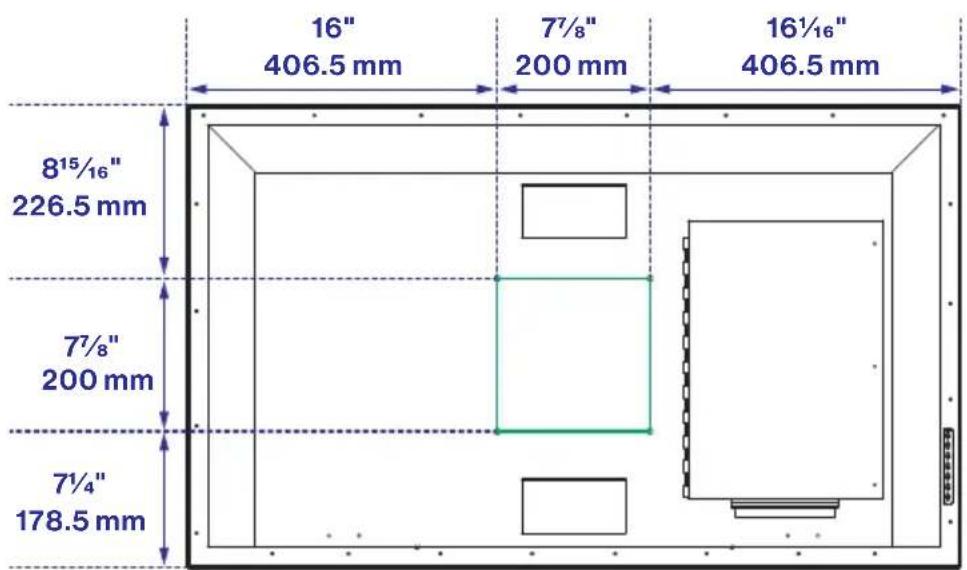
FDUP43CBR, FDUF43CBR
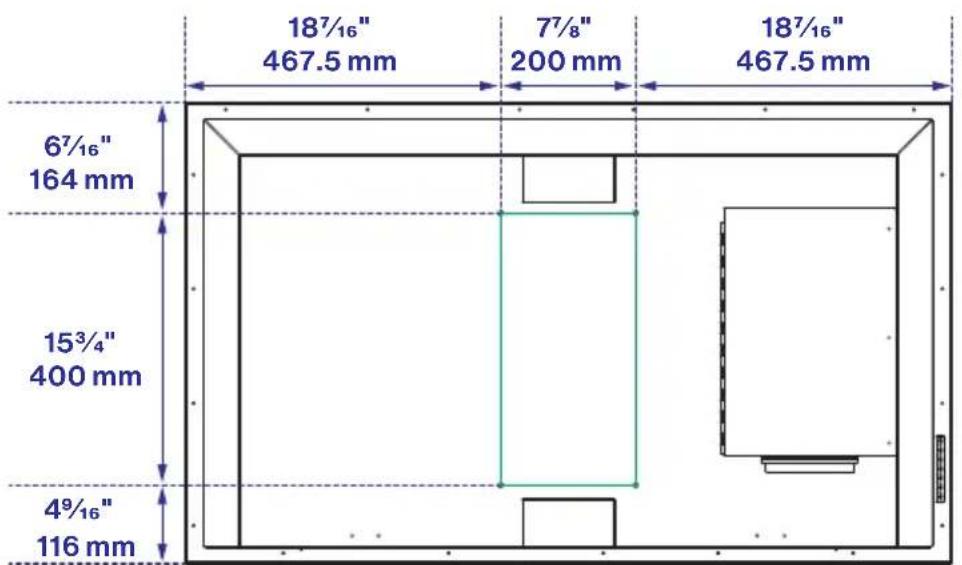
FDUP49CBR, FDUF49CBR
VESA MOUNTING PATTERN
| Model Width mm | Height mm Screw Size | Quantity | ||
| FDUP43CBR | 200 200 | M6 * 15mm 4 | ||
| FDUF43CBR | 200 200 | |||
| FDUP49CBR | 200 400 | |||
| FDUF49CBR | 200 400 |
Specifications
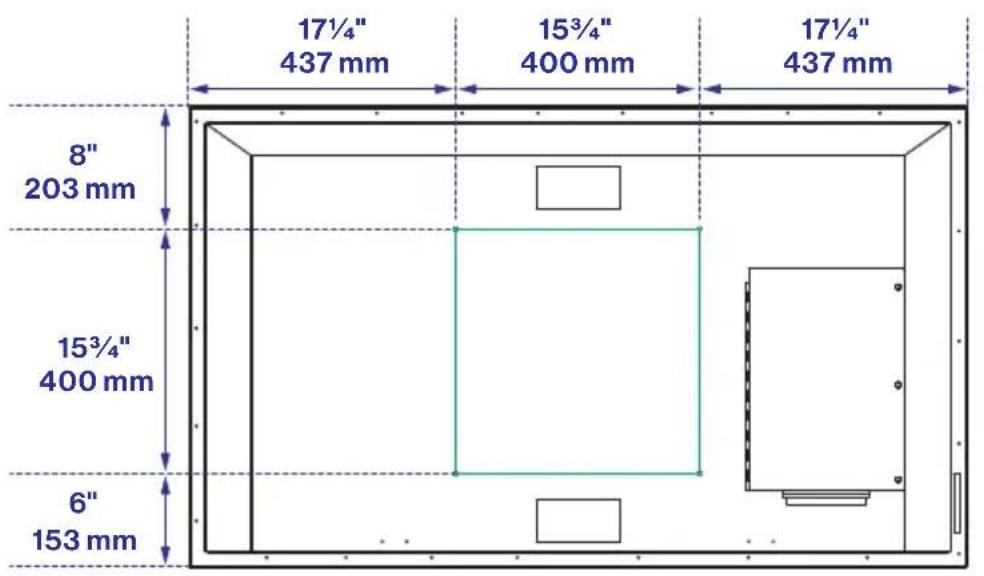
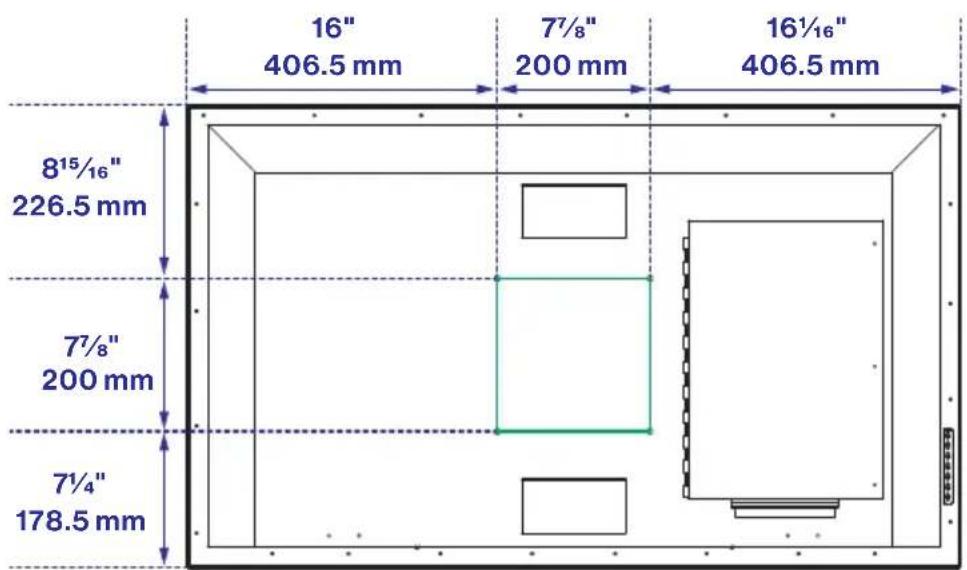
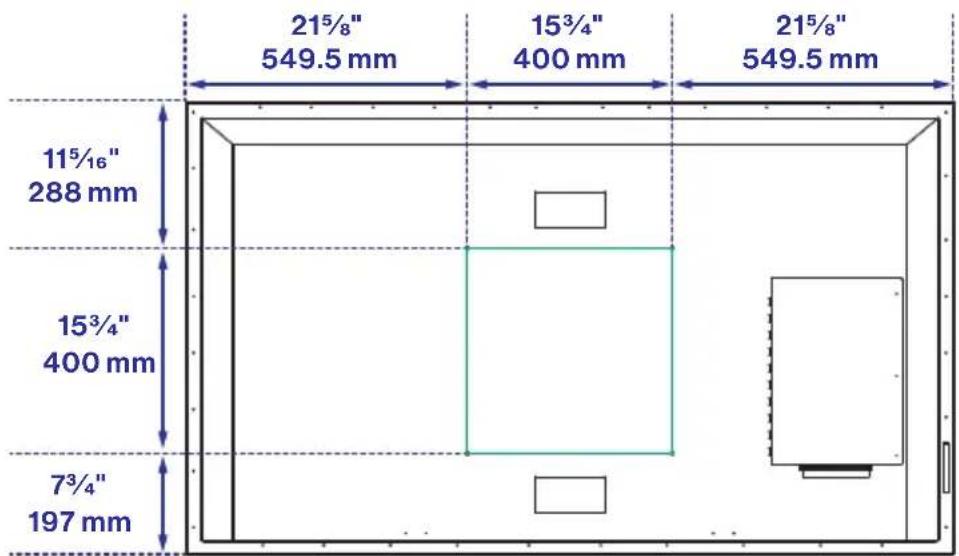
FDUP55CBR, FDUF55CBR
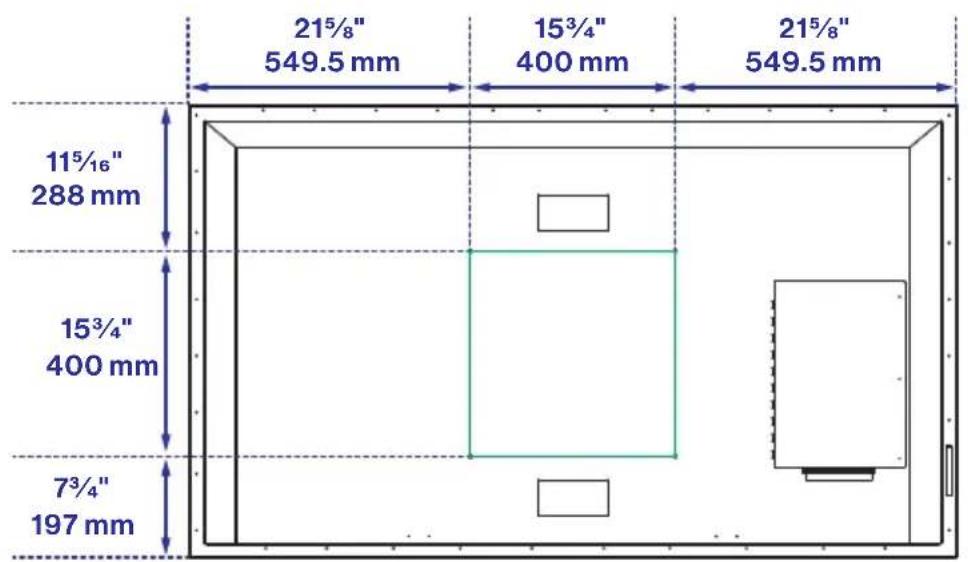
FDUP65CBR, FDUF65CBR
VESA MOUNTING PATTERN
| Model Width mm Height mm Screw Size Quantity | ||||
| FDUP55CBR | 400 400 | M6 * 15mm 4 | ||
| FDUF55CBR | 400 400 | |||
| FDUP65CBR | 400 400 | |||
| FDUF65CBR | 400 400 | |||
Care and Clean
TV Cleaning
Remove any dirt and salt deposits from the unit, being careful to rinse the cloth frequently to avoid scratching the TV or screen surface. Avoid using harsh chemicals, abrasives, or solvents when cleaning any surface on the unit.
- If there is snow or ice on the TV surface, use a soft brush and towel to remove snow and ice from the unit.
- Cleaning the LED panel: With your TV turned off, gently wipe the surface of the display panel with a damp (with water) microfiber, cotton or flannel cloth. (Do not use tissues, rags, sponges or paper towels because they may damage the screen and leave lint pieces behind). If the LED panel is very dirty, you can mix equal parts of isopropyl alcohol and distilled water in a clean spray bottle, spray the mixture onto the cloth (do not spray the solution directly on the panel) and gently clean the panel.
- When the TV is not in use, keep it covered with the Furrion Weatherproof TV Cover. The fitted cover is designed to protect the LED panel from the harmful UV rays from direct sunlight, the ingress of water, and keeps wind-blown objects from scratching the surface of the TV. To order a Furrion Weatherproof TV Cover, you can contact the authorized dealer or buy from Furrion website.
Bienvenue
Furrion Innovation Center & Institute of Technology
SOURCE D'ALIMENTATION
PRÉCAUTIONS CONCERNANT LES PILES
SOURCE D'ALIMENTATION
PARTIELLEMENT ENSOLEILLÉ (Pergolas, terrasses partiellement couvertes)
Setup Wizard (Assistant de configuration)
Menu Image
Sous-menu avancé
Dépannage
MODÈLE, DIMENSION ET RÉSOLUTION
| Modèle du téléviseur | Dimensions sans le support (L x H x I) | Résolution maximale |
| FDUP43CBR | 393/4 po × 237/8 po × 33/4 po (1010 × 605 × 96 mm) | 3840 x 2160@60 Hz UHD |
| FDUF43CBR | ||
| FDUP49CBR | 4411/16 po × 2613/16 po × 37/8 po (1135 × 680 × 98 mm) | |
| FDUF49CBR | ||
| FDUP55CBR | 503/16 po × 293/4 po × 43/16 po (1274 × 756 × 105 mm) | |
| FDUF55CBR | ||
| FDUP65CBR | 591/16 po × 347/8 po × 37/8 po (1499 × 885 × 97 mm) | |
| FDUF65CBR |
CONNEXIONS D'ENTRÉE ET DE SORTIE
| Modèle | L-AUDIO OUT-R | IR Ext | Coaxial Out | L-AUDIO IN-R | Component Video in | Component YPbPt Video in | HDMI in | VGA (PC) in | Audio (PC) in | RF in | USB |
| FDUP43CBR FDUP49CBR FDUP55CBR FDUP65CBR FDUF43CBR FDUF49CBR FDUF55CBR FDUF65CBR | 111 | 1 x Gauche (Blanc) 1 x Droit (Rouge) | 1 x Jaune/Vert* | 31111 | |||||||
| 1 x Bleu 1 x Rouge | |||||||||||
Caractéristiques
FDUP43CBR, FDUF43CBR
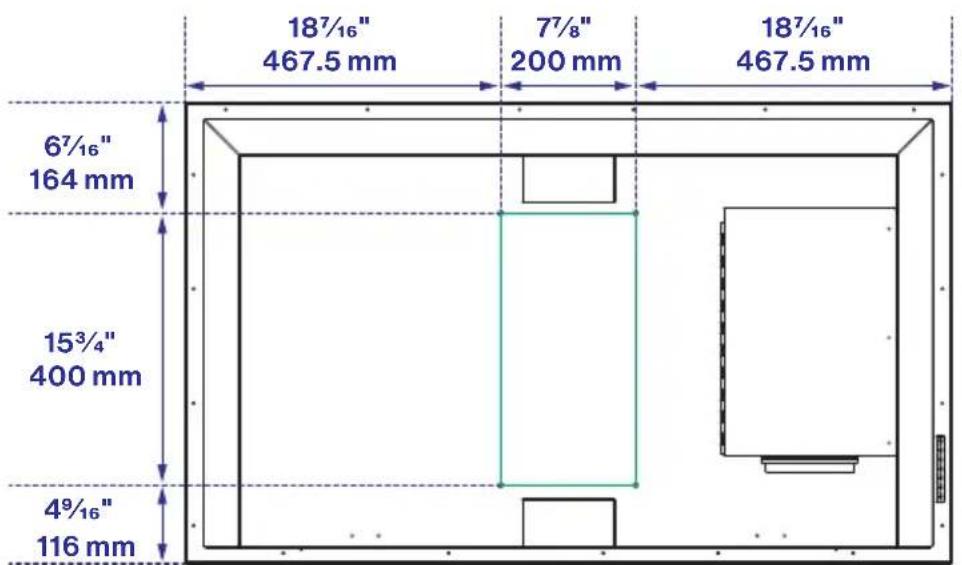
FDUP49CBR, FDUF49CBR
MODÈLE DE MONTAGE VESA
FDUP55CBR, FDUF55CBR
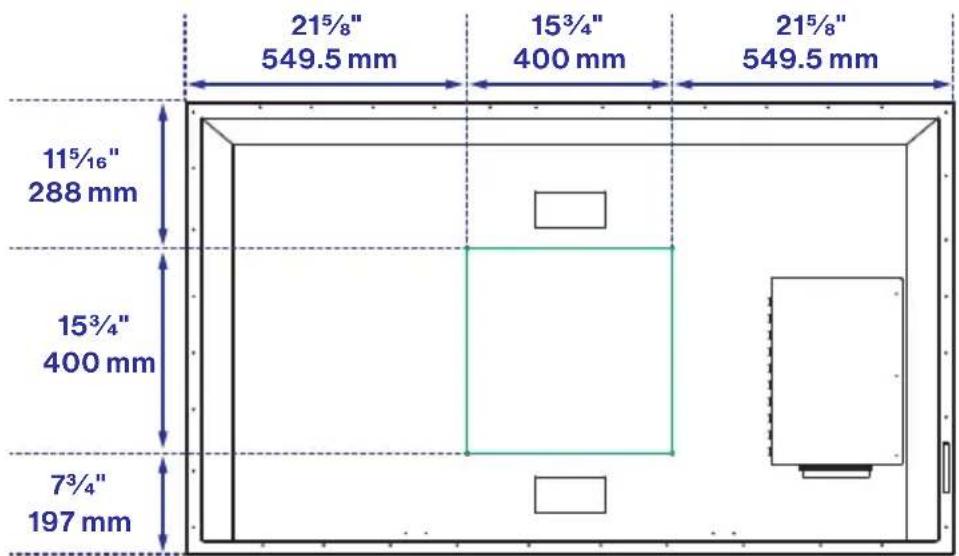
FDUP65CBR, FDUF65CBR
MODÈLE DE MONTAGE VESA
Modelo N.o: FDUP43CBR, FDUP49CBR, FDUF55CBR, FDUP65CBR,
FDUF43CBR, FDUF49CBR, FDUP55CBR, FDUF65CBR
Furrion Innovation Center & Institute of Technology 52567
Independence Ct., Elkhart, IN 46514, USA
PLENA SOMBRA (gazebos cubiertos, patios, porches)
SOL PARCIAL (pérgolas, terrazas parcialmente cubiertas)
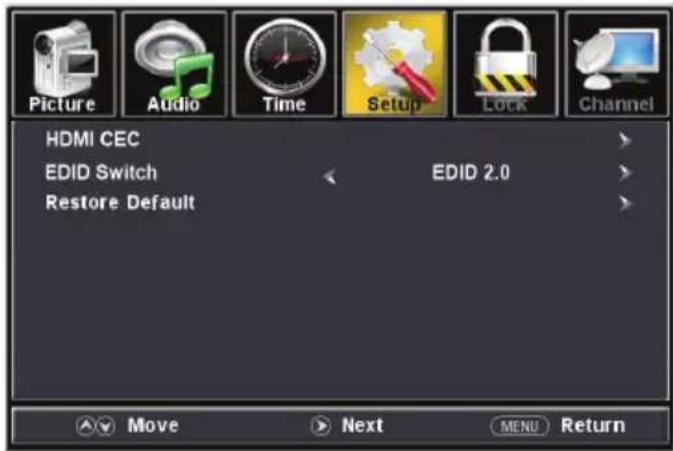
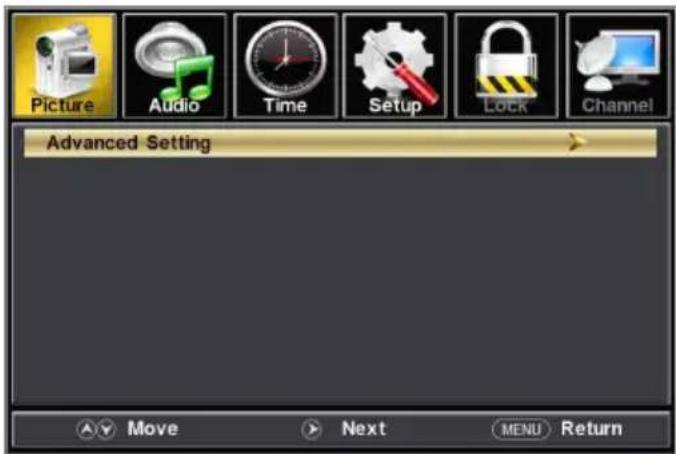
Menú de imagen
Menú de audio
Ajuste del televisor
Menú de canales
FDUP43CBR, FDUF43CBR

FDUP49CBR, FDUF49CBR
FDUP55CBR, FDUF55CBR
FDUP65CBR, FDUF65CBR
Furrion Innovation Center & Institute of Technology
• 52567 Independence Ct., Elkhart, IN 46514, USA • Toll free:1-888-354-5792
- Email: support@furrion.com
©2007-2019 Furrion Ltd. Furrion® and the Furrion logo are trademarks licensed for use by Furrion Ltd. and registered in the U.S. and other countries.
- SUPPLIER'S DECLARATION OF CONFORMITY
- 47 CFR § 2.1077 COMPLIANCE INFORMATION
- UNIQUE IDENTIFIER
- RESPONSIBLE PARTY – U.S. CONTACT INFORMATION
- FCC COMPLIANCE STATEMENT
- CONTENTS
- WELCOME....2
- CONTENTS....3
- SAFETY WARNINGS....4
- FUNCTION OVERVIEW....8
- BEFORE OPERATION....14
- GETTING STARTED....19
- TV SETTINGS.... 20
- USB OPERATION....32
- TROUBLESHOOTING 33
- SPECIFICATIONS 34
- CARE AND CLEAN 37
- SAFETY WARNINGS
- CAUTION
- IMPORTANT SAFETY INSTRUCTIONS
- HOW TO HANDLE THE LED PANEL
- POSSIBLE ADVERSE EFFECTS ON LED PANEL: IF
- THE FOLLOWING SYMPTOMS ARE NOT SIGNS OF MALFUNCTION BUT TECHNICAL LIMITATION
- THEREFORE WE DISCLAIM ANY RESPONSIBILITY FOR THESE SYMPTOMS
- COMPLIANCE
- FCC STATEMENT
- POWER SOURCE
- CARE OF THE ENVIRONMENT
- DISPOSAL OF YOUR OLD PRODUCT AND BATTERY
- SAFETY PRECAUTIONS
- NOTES WHEN MOUNTING THE TV ON THE WALL
- FUNCTION OVERVIEW
- CONTROL PANEL
- REAR PANEL
- CONNECTION
- YOU CAN CHOOSE ONE OR MORE OF THE CONNECTIONS BELOW TO OPERATE
- REMOTE CONTROL
- BEFORE OPERATION
- WHAT'S IN THE BOX
- PREPARE YOUR REMOTE CONTROL
- BATTERY INSTALLATION
- BATTERY PRECAUTIONS
- CHOOSE A PROPER LOCATION FOR YOUR TV
- CABLE MANAGEMENT
- CONNECT THE POWER CORD
- WARNING
- MOUNT ON WALL
- GETTING STARTED
- TV SETTINGS
- SETUP SETTINGS
- PICTURE SETTINGS
- AUDIO SETTINGS
- TIME SETTINGS
- TV SETTING
- LOCK SETTINGS
- CHANNEL SETTINGS
- PC SETTINGS
- USB OPERATION
- TROUBLESHOOTING
- SPECIFICATIONS
- CARE AND CLEAN
- TV CLEANING
- BIENVENUE
- SOURCE D'ALIMENTATION
- PRÉCAUTIONS CONCERNANT LES PILES
- DÉPANNAGE
- CARACTÉRISTIQUES
- MENÚ DE AUDIO
- AJUSTE DEL TELEVISOR
- FURRION INNOVATION CENTER & INSTITUTE OF TECHNOLOGY
Brand : Furrion
Model : FDUP55CBR
Category : Television