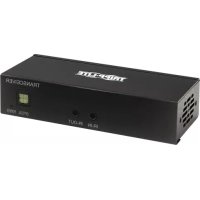
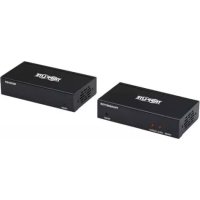
B127A110BH - HDMI Extender Tripp Lite - Free user manual and instructions
Find the device manual for free B127A110BH Tripp Lite in PDF.


| Product Type | HDMI over CAT6 Extender |
| Model | B127A-110-BH |
| Maximum Resolution | 4K x 2K (3840 x 2160) @ 60 Hz (HDMI 2.0, 4:4:4) |
| Maximum Distance | 70 m (230 ft) with CAT6 24 AWG cable |
| HDCP Compatibility | HDCP 2.2 |
| Audio | Up to 7.1 channels, audio extraction via Toslink |
| Power | Power over Cable (PoC) – no external power required |
| Connectors | 1 x HDMI (output), 1 x RJ45 (input/output), 1 x Toslink (audio output) |
| Built-in Functions | Equalizer (EQ), automatic EDID adjustment, bidirectional IR and USB 1.1 support (via transmitter) |
| Mounting | Wall, 19-inch rack, or pole mount (hardware included) |
| Warranty | 1 year limited |
| Usage | Extension of HDMI signals over CAT6 cable for daisy-chain installations (up to 4 levels) |
| Operating Temperature | 0°C to 40°C (reasonable estimate for electronic equipment) |
| Operating Humidity | 10% to 85% RH (estimate) |
| Maintenance | Clean with a dry, soft cloth; avoid liquids |
| Safety | Do not use for life support devices; disconnect before maintenance |
| Spare Parts | Not provided; contact Tripp Lite for repair |
| Repairability | Repair exclusively by Tripp Lite or authorized center |
Frequently Asked Questions - B127A110BH Tripp Lite
User questions about B127A110BH Tripp Lite
0 question about this device. Answer the ones you know or ask your own.
Ask a new question about this device
Download the instructions for your HDMI Extender in PDF format for free! Find your manual B127A110BH - Tripp Lite and take your electronic device back in hand. On this page are published all the documents necessary for the use of your device. B127A110BH by Tripp Lite.
USER MANUAL B127A110BH Tripp Lite
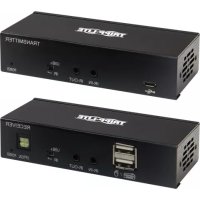
HDMI over Cat6 Extender Kits and Repeater, 4K/60 Hz
Extender Kit Models: B127A-1A1-BHBH, B127A-1A1-BHPH, B127A-111-BHTH, B127A-110-BH Repeater Model: B127A-010-H
Español 27 • Français 53 • Русский 79 • Deutsch 105
WARRANTY REGISTRATION
Register your product today and be automatically entered to win an ISOBAR ^® surge protector in our monthly drawing!
tripplite.com/warranty


Manufacturing Excellence.
HDMI ^TM
HIGH DIFFERENCE MULTIBUIDA INTERFACE
1111 W. 35th Street, Chicago, IL 60609 USA • tripplite.com/support
Copyright © 2021 Tripp Lite. All rights reserved.
Package Contents
| B127A-1A1-BHBH | B127A-1A1-BHPH | B127A-111-BHTH | B127A-110-BH | B127A-010-H | |
| Local and Remote Units (LR),Remote Unit (R), Repeater Unit (RT) | LR | LR LR | R RT | ||
| External Power Supplies (0 or 1) 1 1 1 1 0 | |||||
| Mounting Hardware Y Y Y Y N |
Product Features
All
- Support video resolutions up to 4K x 2K (3840 x 2160) @ 60 Hz, as specified in HDMI 2.0, with 4:4:4 Chroma Subsampling
- Support up to 7.1-channel surround sound audio
• HDCP 2.2- and HDR-compatible - USB 1.1 standard
- Plug and play—no software or drivers required
Note: USB 1.1 standard and bi-directional IR applies only to the extender kits, not the repeater.
Product Features
B127A-1A1-BHBH
- HDMI over Cat6 Power over Cable (PoC) Extender Kit
- Extends a 4K x 2K (3840 x 2160) @ 60 Hz signal, as specified in HDMI 2.0, up to 230 ft. (70 m) from the source
• Built-in local HDMI port supports 4K @ 60 Hz signal - Remote receiver unit features built-in equalization (EQ) control and auto EDID image adjustment
• Supports up to 7.1-channel surround sound audio - Receiver features built-in Toslink port for audio extraction function
- HDCP 2.2-compatible
- Plug and play—no software or drivers required
- Support bi-directional IR and USB 1.1 function by dip switch selection
- Includes mounting hardware that enables both the local transmitter and remote receiver units to be wall-mounted, rack-mounted or pole-mounted
- Power over Cable (PoC) function allows external power supply to be plugged in at either transmitter or receiver side and provide power to both units
Product Features
B127A-1A1-BHPH
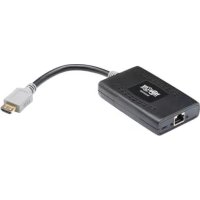
- HDMI over Cat6 Power over Cable (PoC) Extender Kit with Pigtail Receiver
- Extends a 4K x 2K (3840 x 2160) @ 60 Hz signal, as specified in HDMI 2.0, up to 230 ft. (70 m) from the source
• Built-in local HDMI port supports 4K @ 60 Hz signal - Remote receiver unit features built-in equalization (EQ) control and auto EDID image adjustment with 1 ft. HDMI male cable
• Supports up to 7.1-channel surround sound audio - HDCP 2.2-compatible
- Plug and play—no software or drivers required
- Includes mounting hardware that enables both the local transmitter and remote receiver units to be wall-mounted, rack-mounted or pole-mounted
- Power over Cable (PoC) function allows external power supply to be plugged into transmitter and provide power to both units
Product Features
B127A-111-BHTH
- HDMI over Cat6 Power over Cable (PoC) daisy-chainable Extender Kit
- Remote transceiver unit features built-in equalization (EQ) control, auto EDID image adjustment and RJ45 expanding port to be able to connect to next B127A-110-BH
- Transceiver features built-in Toslink port for audio extraction function
- Extends and expands a 4K x 2K (3840 x 2160) @ 60 Hz signal, as specified in HDMI 2.0, in an over Cat6 installation, allowing multiple monitors to be located at different points in a chain by adding up to four B127A-110-BH units
- Extends a 4K (3840 x 2160) @ 60 Hz signal up to an additional 230 ft. or a 1080p @ 60 Hz signal up to an additional 230 ft. from each remote/repeater unit to the next unit in the chain (in a full four-level daisy chain installation), a 4K (3840 x 216) @ 60 Hz signal up to 920 ft. or a 1080p @ 60 Hz signal up to 500 ft. from the source to the last remote unit in the chain
• Supports up to 7.1-channel surround sound audio - Transceiver features built-in Toslink port for audio extraction function
Product Features
- HDCP 2.2-compatible
- Plug and play—no software or drivers required
- Includes mounting hardware that allows unit to be wall-mounted, rack-mounted or pole-mounted
- Power over Cable (PoC) function allows external power supply to be plugged into either transmitter or receiver side and provide power to connected units
B127A-110-BH
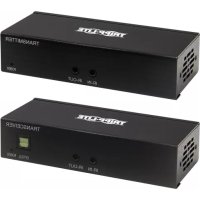
- HDMI over Cat6 Power over Cable (PoC) transceiver unit
- Works with the B127A-111-BHTH to extend a 4K x 2K (3840 x 2160) @ 60 Hz signal, as specified in HDMI 2.0, up to 230 ft. (70 m)
- This transceiver unit features built-in equalization (EQ) control and auto EDID image adjustment and one RJ-45 expanding port to be able to connect to next B127A-110-BH
- Transceiver features built-in Toslink port for audio extraction function
Product Features
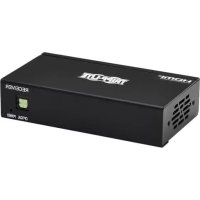
B127A-010-H
- Repeater unit extends the transmission of a 4K x 2K (3840 x 2160) @ 60 Hz signal, as specified in HDMI 2.0, up to a total of 400 ft. (120 m)
- Power over Cable (PoC) technology means no external power is required to power the unit
• HCDP 2.2- and HDR-compliant
• Supports up to 7.1-channel surround sound audio
Optional Accessories:
• N202-Series Cat6 24 AWG Solid Wire Patch Cables
- P569-XXX-CERT or P568-XXX-2A Series High-Speed HDMI 2.0 Cables
Disclaimer
Before installation, please check the following settings of your source(s) and TV/monitor(s):
- Set display to 60 Hz. Double-check factory settings, as default can be set to a lower frequency (Hz) than advertised.
- Ensure the input setting of your monitor is set at HDMI 2.0. Some displays may have default setting at HDMI 1.4.
- Verify your monitor has the HDR feature enabled. Some displays may have this feature disabled as a factory setting.
- Check if the Ultra HD (UHD) Deep Color setting is enabled on your TV/monitor. Confirm with your TV/monitor manufacturer which HDMI ports support UHD Deep Color.
- Check USB/IR DIP switch, as the default setting is set to IR.
Note: To connect a local monitor to your installation, the UHD Deep Color setting may need to be disabled on your local TV/monitor (depending make/mode) to achieve 4K @ 60 Hz resolution.
Mounting Instructions (select models only)
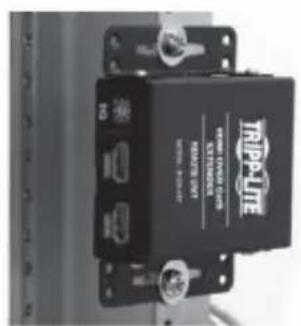
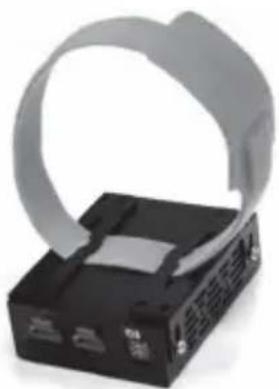
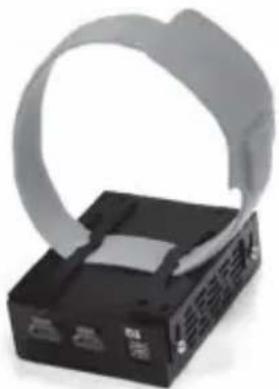
The B127A-1A1-BHBH, B127A-1A1-BHPH, B127A-111-BHTH and B127A-110-BH include mounting hardware that allows for a variety of mounting methods.
The following images illustrate how the included mounting brackets can be attached for different installations.
Note: The model shown in the below images is for illustrative purposes only. Your product may vary by model number, size or port orientation. The mounting options for all over IP units are the same.
Wall-Mount
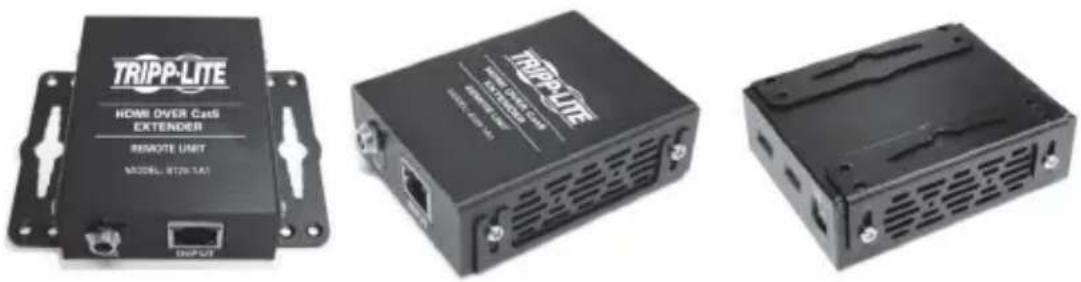
19" Rack-Mount Pole-Mount
natural_image
Black electronic device with a gray plastic strap and ventilation slots (no visible text or symbols)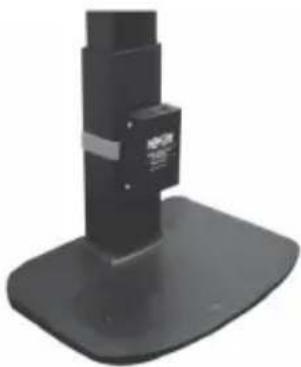
natural_image
Close-up of a black mechanical device with a base and mounting base (no visible text or symbols)Standard Extender Kit Installation
Notes:
1) Test to ensure the entire installation works properly before pulling cables through ceilings/walls.
2) To achieve maximum distance and performance, use 24 AWG solid wire Cat6 cable. Using stranded wire Cat6 cable or cable with a gauge (AWG) size higher than 24 AWG will result in shorter extension distance. Higher gauge cabling, such as 26 AWG, has a more limited transmission capability than lower gauge cabling. All Tripp Lite N202-Series Cat6 cables are made with 24 AWG solid wire cabling.
3) The installation diagram shows a B127A-1A1-BHBH unit.
4) External power is not required for remote receiver units due to Power over Cable (PoC) technology incorporated in the transmitter units.
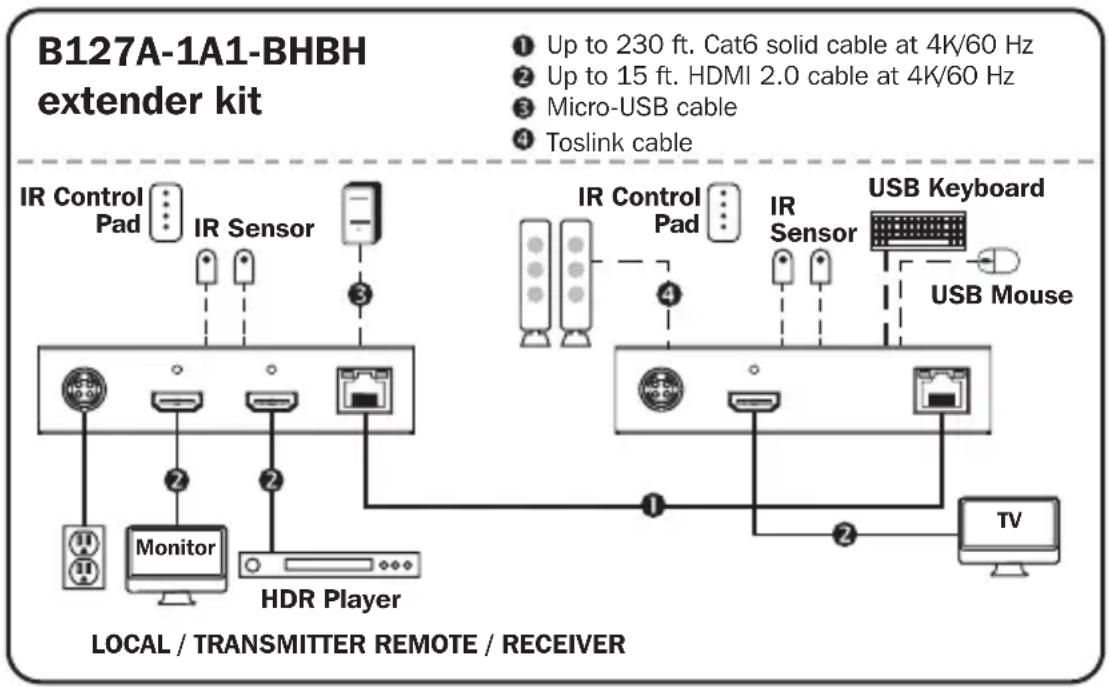
flowchart
graph TD
    A["IR Control Pad"] --> B["Monitor"]
    B --> C["HDR Player"]
    D["IR Sensor"] --> E["Micro-USB cable"]
    F["IR Control Pad"] --> G["USB Keyboard"]
    H["Sensor"] --> I["USB Mouse"]
    J["Monitor"] --> K["TV"]
    style A fill:#f9f,stroke:#333
    style D fill:#f9f,stroke:#333
    style F fill:#f9f,stroke:#333
    style H fill:#f9f,stroke:#333
    style J fill:#f9f,stroke:#333
    style B fill:#ccf,stroke:#333
    style C fill:#ccf,stroke:#333
    style E fill:#ccf,stroke:#333
    style G fill:#ccf,stroke:#333
    style I fill:#ccf,stroke:#333
    style K fill:#ccf,stroke:#333
    style L fill:#ccf,stroke:#333
Standard Extender Kit Installation
- Make sure all equipment in the installation—such as TVs, Blu-ray™ players and the transmitter—is powered OFF.
- Using an HDMI 2.0 cable (such as Tripp Lite P569-XXX-CERT or P568-XXX-2A Series cables), connect the HDMI source to the INPUT port on the local transmitter unit.
- Optional for B127A-1A1-BHBH: Using an HDMI 2.0 cable (such as Tripp Lite P569-XXX-CERT or P568-XXX-2A Series cables), connect a local monitor to the LOCALOUT port on the B127A-1A1-BHBH local transmitter unit.
- Optional: For extended range, connect a B127A-010-H signal repeater unit to the transmitter and receiver via Cat6 cabling. See B127A-010-H product features for more information.
- Using Cat6 cable, connect the RJ45 port on the local transmitter unit to the RJ45 port on the remote receiver unit.
- Using an HDMI 2.0 cable (such as Tripp Lite P569-XXX-CERT or P568-XXX-2A Series cables), connect the remote receiver unit's HDMI port to a monitor.
- Turn on the power to your connected TVs/monitors. The LOCAL (orange) LED will illuminate to indicate the local port has been connected to a display.
Standard Extender Kit Installation
- Connect the external power supply to either the transmitter or receiver unit. Plug it into an available wall outlet or a Tripp Lite surge protector, power distribution unit (PDU) or uninterruptible power supply (UPS). The POWER (green) LED on the local transmitter unit will illuminate to indicate the unit is receiving power from the external power supply. The POWER (green) LED on the remote receiver unit will illuminate to indicate the unit is receiving power from the local transmitter unit through PoC technology.
- Turn on the power to the HDMI source. The OUTPUT (orange) LED on the local transmitter unit will illuminate to indicate a signal is being received from the source.
- The (orange) RJ45 LED will illuminate on both the local transmitter and remote receiver units to indicate a signal is being received from the source to display. The screen should now display on the connected monitor(s).
Standard Extender Kit Installation
Notes:
1) Test to ensure the entire installation works properly before pulling cables through ceilings/walls.
2) To achieve maximum distance and performance, use 24 AWG solid wire Cat6 cable. Using stranded wire Cat6 cable or cable with a gauge (AWG) size higher than 24 AWG will result in shorter extension distance. Higher gauge cabling, such as 26 AWG, has a more limited transmission capability than lower gauge cabling. All Tripp Lite N202-Series Cat6 cables are made with 24 AWG solid wire cabling.
3) The installation diagram shows a B127A-1A1-BHPH unit.
4) External power is not required for remote receiver units due to Power over Cable (PoC) technology incorporated in the transmitter units.

flowchart
graph TD
    A["IR Control Pad"] --> B["Monitor"]
    C["IR Sensor"] --> D["HDRA Player"]
    B --> E["Local / TRANSMITTER REMOTE / RECEIVER"]
    D --> F["TV"]
    style A fill:#f9f,stroke:#333
    style C fill:#f9f,stroke:#333
    style B fill:#ccf,stroke:#333
    style D fill:#ccf,stroke:#333
    style F fill:#cfc,stroke:#333
Standard Extender Kit Installation
- Make sure all equipment in the installation—such as TVs, Blu-ray players and the transmitter—is powered OFF.
- Using an HDMI 2.0 cable (such as Tripp Lite P569-XXX-CERT or P568-XXX-2A Series cables), connect the HDMI source to the INPUT port on the local transmitter unit.
- Optional for B127A-1A1-BHPH: Using an HDMI 2.0 cable (such as Tripp Lite P569-XXX-CERT or P568-XXX-2A Series cables), connect a local monitor to the LOCALOUT port on the B127A-1A1-BHPH local transmitter unit.
- Optional: For extended range, connect a B127A-010-H signal repeater unit to the transmitter and receiver via Cat6 cabling. See B127A-010-H product features for more information.
- Using Cat6 cable, connect the RJ45 port on the local transmitter unit to the RJ45 port on the remote receiver unit.
- Connect the remote receiver unit's HDMI cable to a monitor/TV.
- Turn on the power to your connected TVs/monitors. The LOCAL (orange) LED will illuminate to indicate the local port has been connected to a display.
Standard Extender Kit Installation
- Connect the external power supply to the transmitter unit. Plug it into an available wall outlet or a Tripp Lite surge protector, power distribution unit or uninterruptible power supply (UPS). The POWER (green) LED on the local transmitter unit will illuminate to indicate the unit is receiving power from the external power supply. The POWER (green) LED on the remote receiver unit will illuminate to indicate the unit is receiving power from the local transmitter unit through PoC technology.
- Turn on the power to the HDMI source. The OUTPUT (orange) LED on the local transmitter unit will illuminate to indicate a signal is being received from the source.
- The (orange) RJ45 LED will illuminate on both local transmitter and remote receiver units to indicate a signal is being received from source to display. The screen should now display on the connected monitor(s).
Standard Extender Kit Installation
Notes:
1) Test to ensure the entire installation works properly before pulling cables through ceilings/walls.
2) To achieve maximum distance and performance, use 24 AWG solid wire Cat6 cable. Using stranded wire Cat6 cable, or cable with a gauge (AWG) size higher than 24 AWG, will result in shorter extension distance. Higher gauge cabling, such as 26 AWG, has a more limited transmission capability than lower gauge cabling. All Tripp Lite N202-Series Cat6 cables are made with 24 AWG solid wire cabling.
3) The installation diagram shows a B127A-111-BHTH unit.
4) External power is not required for remote receiver units due to Power over Cable (PoC) technology incorporated in the transmitter units.
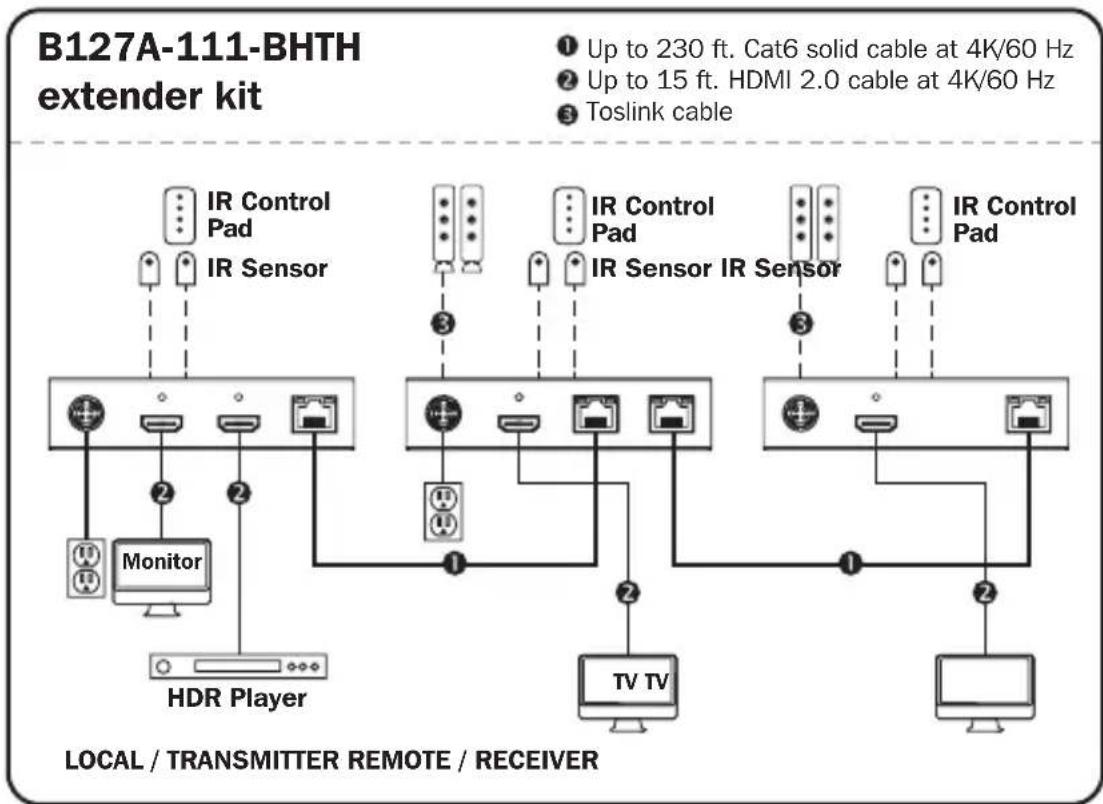
flowchart
graph TD
    A["Monitor"] --> B["HDRA Player"]
    C["IR Control Pad"] --> D["IR Sensor"]
    E["IR Control Pad"] --> F["IR Sensor"]
    G["IR Control Pad"] --> H["IR Sensor"]
    I["IR Control Pad"] --> J["IR Sensor"]
    K["TV TV"] --> L["Monitor"]
    style A fill:#f9f,stroke:#333
    style B fill:#ccf,stroke:#333
    style C fill:#cfc,stroke:#333
    style D fill:#fcc,stroke:#333
    style E fill:#cff,stroke:#333
    style F fill:#ffc,stroke:#333
    style G fill:#fcc,stroke:#333
    style H fill:#cff,stroke:#333
    style I fill:#fcc,stroke:#333
    style J fill:#cff,stroke:#333
    style K fill:#fcc,stroke:#333
    style L fill:#ccf,stroke:#333
Standard Extender Kit Installation
- Make sure all equipment in the installation—such as TVs, Blu-ray players and the transmutter—is powered OFF.
- Using an HDMI 2.0 cable (such as Tripp Lite P569-XXX-CERT or P568-XXX-2A Series cables), connect the HDMI source to the INPUT port on the local transmitter unit.
- Optional for B127A-111-BHTH: Using an HDMI 2.0 cable (such as Tripp Lite P569-XXX-CERT or P568-XXX-2A Series cables), connect a local monitor to the LOCALOUT port on the B127A-111-BHTH local transmitter unit.
- Using Cat6 cable, connect the RJ45 port on the local transmitter unit to the RJ45 port on the remote receiver unit.
- Using an HDMI 2.0 cable (such as Tripp Lite P569-XXX-CERT or P568-XXX-2A Series cables), connect the remote receiver or transceiver unit's HDMI port to a monitor.
- Turn on the power to your connected TVs/monitors. The LOCAL (orange) LED will illuminate to indicate the local port has been connected to a display.
Standard Extender Kit Installation
- Connect the external power supply to the transmitter. Plug it into an available wall outlet or a Tripp Lite surge protector, power distribution or uninterruptible power supply (UPS). The POWER (green) LED on the local transmitter unit will illuminate to indicate the unit is receiving power from the external power supply. The POWER (green) LED on the remote receiver unit will illuminate to indicate the unit is receiving power from the local transmitter unit through PoC technology.
- Turn on the power to the HDMI source. The OUTPUT (orange) LED on the local transmitter unit will illuminate to indicate a signal is being received from the source.
- The (orange) RJ45 LED will illuminate on both the local transmitter and remote receiver units to indicate a signal is being received from the source to display. The screen should now display on the connected monitor.
Transceiver Daisy-Chain Installation (B127A-110-BH only)
Notes:
1) Test to ensure the entire installation works properly before pulling cables through ceilings/walls.
2) To achieve maximum distance and performance, use 24 AWG solid wire Cat5e/6 cable. Using stranded wire Cat5e/6 cable or cable with a gauge (AWG) size higher than 24 AWG will result in shorter extension distance. Higher gauge cabling, such as 26 AWG, has a more limited transmission capability than lower gauge cabling. All Tripp Lite N202-Series Cat6 cables are made with 24 AWG solid wire cabling.
3) The installation diagram shows the B127A-111-BHTH and B17A-110-BH installation.
Transceiver Daisy-Chain Installation
(B127A-110-BH only)
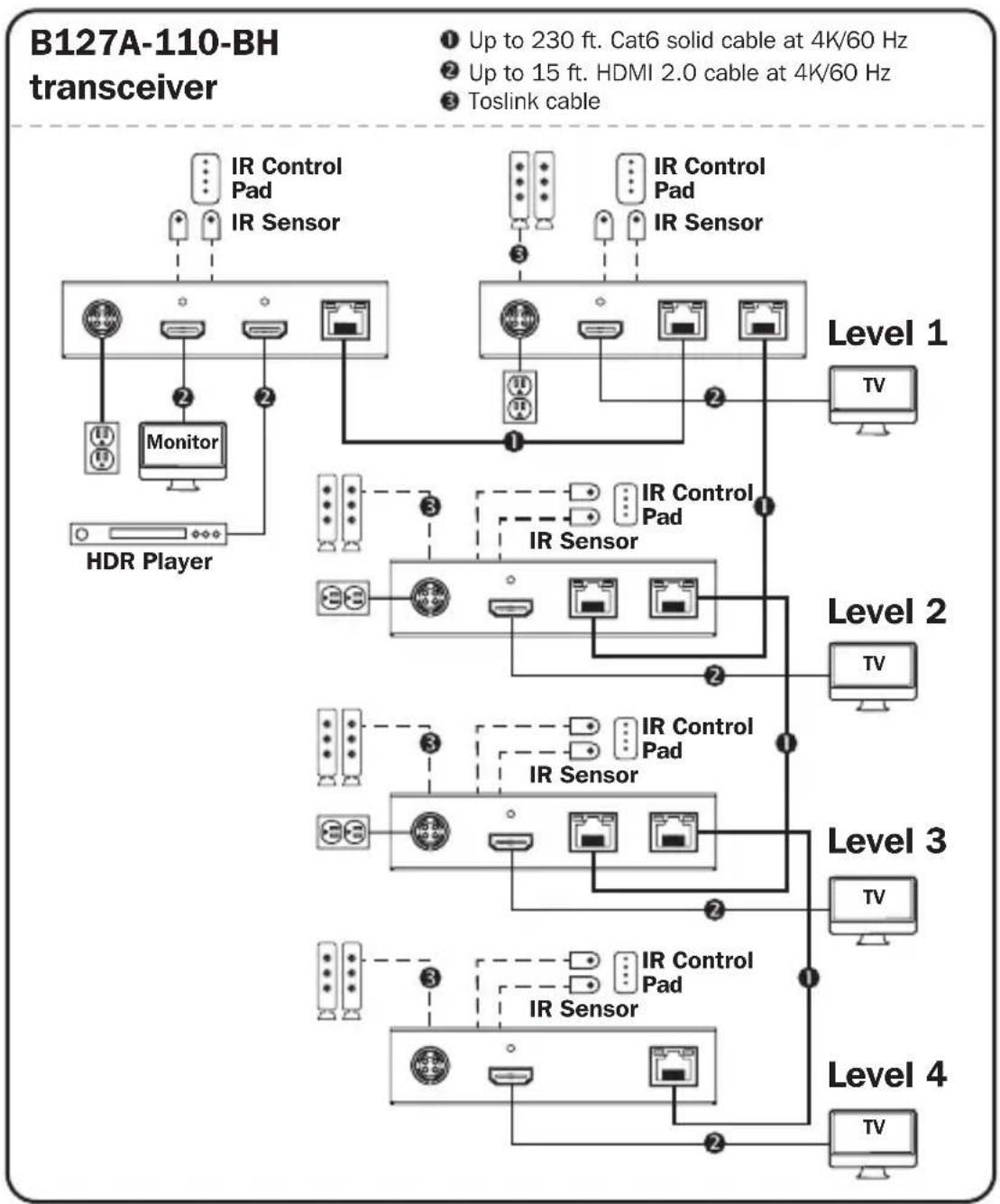
flowchart
graph TD
    subgraph Level 1
        A["Top Panel"] --> B["IR Control Pad"]
        A --> C["IR Sensor"]
        D["Top Panel"] --> E["IR Control Pad"]
        D --> F["IR Sensor"]
        G["Top Panel"] --> H["Monitor"]
        G --> I["Monitor"]
        J["Top Panel"] --> K["HDAR Player"]
    end

    subgraph Level 2
        L["Top Panel"] --> M["IR Control Pad"]
        L --> N["IR Sensor"]
        O["Top Panel"] --> P["Monitor"]
        O --> Q["Monitor"]
        R["Top Panel"] --> S["HDAR Player"]
    end

    subgraph Level 3
        T["Top Panel"] --> U["IR Control Pad"]
        T --> V["IR Sensor"]
        W["Top Panel"] --> X["Monitor"]
        W --> Y["Monitor"]
        Z["Top Panel"] --> AA["HDAR Player"]
    end

    subgraph Level 4
        AB["Top Panel"] --> AC["IR Control Pad"]
        AB --> AD["IR Sensor"]
        AE["Top Panel"] --> AF["Monitor"]
        AE --> AG["Monitor"]
        AH["Top Panel"] --> AI["HDAR Player"]
    end

    B -->|Up to 230 ft. Cat6 solid cable at 4K/60 Hz| B
    C -->|Up to 15 ft. HDMI 2.0 cable at 4K/60 Hz| C
    F -->|IR Control Pad| F
    H -->|IR Control Pad| H
    N -->|IR Control Pad| N
    P -->|IR Control Pad| P
    S -->|IR Control Pad| S
    U -->|IR Control Pad| U
    V -->|IR Control Pad| V
    X -->|IR Control Pad| X
    Y -->|IR Control Pad| Y
    Z -->|IR Control Pad| Z
    AA -->|IR Control Pad| AA
    AB -->|TV| AB
    AC -->|TV| AC
    AD -->|TV| AD
    AE -->|TV| AE
    AF -->|TV| AF
    AG -->|TV| AG
    AH -->|TV| AH
    AI -->|TV| AI
    AJ -->|TV| AJ
    AK -->|TV| AK
20
Transceiver Daisy-Chain Installation (B127A-110-BH only)
- Make sure all equipment in the installation—such as TVs, Blu-ray players and the transmitter—is powered OFF.
- Connect the HDMI source to the INPUT port on the B127A-111-BHTH using a Tripp Lite P568-Series HDMI Cable.
- Connect a local monitor to the LOCAL HDMI port using a Tripp Lite P568-Series HDMI Cable.
- Connect the external power supply to the local unit and plug it into a Tripp Lite surge protector, power distribution unit (PDU) or uninterruptible power supply (UPS). The green RJ45 LEDs will illuminate to indicate power is being received from the external power supply.
- Using Cat5e/6 cable, connect one of the RJ45 output ports on the local unit to the RJ45 input port on the B127A-110-BH transceiver unit.
- Connect a monitor to the HDMI OUTPUT port on the transceiver unit using a Tripp Lite P568-Series HDMI Cable.
- The green power LED and the green RJ45 LEDs on the transceiver will illuminate to indicate the unit is receiving power. Up to four units can be daisy-chained (three transceivers and one receiver). To connect additional transceiver units, proceed to step 8. To finish your installation with a B127A-110-BH unit, proceed to step 12.
Transceiver Daisy-Chain Installation (B127A-110-BH only)
- Using Cat5e/6 cable, connect the RJ45 OUTPUT port on the B127A-111-BHTH receiver unit to the RJ45 INPUT port on B127A-110-BH.
- Connect a monitor to the HDMI OUTPUT port on the B127A-110-BH that you just added using a Tripp Lite P568-Series HDMI Cable.
- Connect the external power supply to the B127A-110-BH and plug it into a Tripp Lite surge protector, power distribution unit (PDU) or uninterruptible power supply (UPS). The green power LED and the green RJ45 LEDs will illuminate to indicate the unit is receiving power.
- To add a second B127A-110-BH, repeat steps 8 through 10. To finish your installation with a B127A-110-BH, proceed to step 12.
- Using Cat5e/6 cable, connect the RJ45 OUTPUT port on the last B127A-110-BH to the RJ45 INPUT port.
- Connect a monitor to the HDMI OUTPUT port on the B127A-110-BH using a Tripp Lite P568-Series HDMI Cable.
- The green LED on the B127A-110-BH will illuminate to indicate the unit is receiving power from the previous transceiver. The orange LED will illuminate to indicate the unit is connected to a powered ON remote/repeater unit.
- Turn on the power to the HDMI source. The orange RJ45 LEDs on the local unit will illuminate to indicate a signal is being received from the source.
Transceiver Daisy-Chain Installation (B127A-110-BH only)
- If necessary, use the Equalization control on the remote/repeater unit(s) and remote receiver unit to adjust the video image.
- The maximum number of daisy chain layers is 4 for a total distance of 920 ft.
Note: An improper Equalization setting can cause the monitor not to display a picture at all. Try each Equalization setting until an acceptable picture is displayed.
USB/IR/Toslink Controls
The extender kit provides the following functional controls:
- USB 1.1 – One Micro-USB input at transmitter, dual USB-A outputs at receiver
- Bi-Directional IR – Dual 3.5 mm jacks at both the transmitter and receiver
- Toslink output at receiver and transceiver
(Optional) Connect the included IR-OUT cable to the transmitter unit's IR-OUT port. Place the sensor on the IR-OUT cable in an unobstructed area within clear view of the device being controlled. Then connect the included IR-IN cable to the receiver unit's IR-IN port. The IR-IN cable will communicate the desired command via the transmitter's IR-OUT cable.
Note: The IR-OUT cable receives the signal from the remote control and sends it to the device being controlled (e.g. Blu-ray player, etc.).
(Optional) With a user-supplied USB Micro-B cable (such as Tripp Lite U050-XXX Series USB cable), connect to the transmitter's Micro-B port. Then connect a keyboard and mouse to the available USB-A ports on the receiver unit.
(Optional) Using a Toslink cable (such as Tripp Lite A102-XXM Series cables), connect the Toslink cable to a set of speakers, an audio receiver or other audio system equipped with Toslink digital outputs.
Warranty and Product Registration
1-Year Limited Warranty
TRIPP LITE warrants its products to be free from defects in materials and workmanship for a period of one (1) year from the date of initial purchase.
TRIPP LITE's obligation under this warranty is limited to repairing or replacing (at its sole option) any such defective products. To obtain service under this warranty, you must obtain a Returned Material Authorization (RMA) number from TRIPP LITE or an authorized TRIPP LITE service center. Products must be returned to TRIPP LITE or an authorized TRIPP LITE service center with transportation charges prepaid and must be accompanied by a brief description of the problem encountered and proof of date and place of purchase. This warranty does not apply to equipment which has been damaged by accident, negligence or misapplication or has been altered or modified in any way.
EXCEPT AS PROVIDED HEREIN, TRIPP LITE MAKES NO WARRANTIES, EXPRESS OR IMPLIED, INCLUDING WARRANTIES OF MERCHANTABILITY AND FITNESS FOR A PARTICULAR PURPOSE. Some states do not permit limitation or exclusion of implied warranties; therefore, the aforesaid limitation(s) or exclusion(s) may not apply to the purchaser.
EXCEPT AS PROVIDED ABOVE, IN NO EVENT WILL TRIPP LITE BE LIABLE FOR DIRECT, INDIRECT, SPECIAL, INCIDENTAL OR CONSEQUENTIAL DAMAGES ARISING OUT OF THE USE OF THIS PRODUCT, EVEN IF ADVISED OF THE POSSIBILITY OF SUCH DAMAGE. Specifically, TRIPP LITE is not liable for any costs, such as lost profits or revenue, loss of equipment, loss of use of equipment, loss of software, loss of data, costs of substitutes, claims by third parties, or otherwise.
PRODUCT REGISTRATION
Visit tripplite.com/warranty today to register your new Tripp Lite product. You'll be automatically entered into a drawing for a chance to win a FREE Tripp Lite product!*
* No purchase necessary. Void where prohibited. Some restrictions apply. See website for details.
Warranty and Product Registration
WEEE Compliance Information for Tripp Lite Customers and Recyclers (European Union)
Under the Waste Electrical and Electronic Equipment (WEEE) Directive and implementing regulations, when customers buy new electrical and electronic equipment from Tripp Lite they are entitled to:
- Send old equipment for recycling on a one-for-one, like-for-like basis (this varies depending on the country)
- Send the new equipment back for recycling when this ultimately becomes waste
WARNING
Use of this equipment in life support applications where failure of this equipment can reasonably be expected to cause the failure of the life support equipment or to significantly affect its safety or effectiveness is not recommended.
Tripp Lite has a policy of continuous improvement. Specifications are subject to change without notice. Photos and illustrations may differ slightly from actual products.


1111 W. 35th Street, Chicago, IL 60609 USA • tripplite.com/support
20-10-008 93-3D27_RevA
1111 W. 35th Street, Chicago, IL 60609 EE UU • tripplite.com/support
natural_image
Three black TRIPP-LITE devices with visible ports and labels, no readable text or symbols on the devices themselves.natural_image
Three black electronic devices: a tripla timer, a cable strap device, and a stand (no visible text or symbols)1111 W. 35th Street, Chicago, IL 60609 EE UU • tripplite.com/support
20-10-008 93-3D27_RevA
1111 W. 35th Street, Chicago, IL 60609 USA • triplite.com/support
natural_image
Three black TRIPP-LITE wireless devices with visible ports and connectors, no text or symbols on the devices themselves.natural_image
Three black electronic devices: a trippa-litre device, a USB cable connector, and a DC motor stand (no visible text or symbols)1111 W. 35th Street, Chicago, IL 60609 USA • tripplite.com/support
20-10-008 93-3D27_RevA
1111 W. 35th Street, Chicago, IL 60609 USA • tripplite.com/support
natural_image
Black electronic device with a gray plastic strap and control buttons (no visible text or symbols)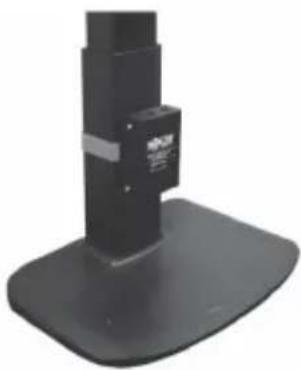
natural_image
Black mechanical device with a base mount and vertical support (no visible text or symbols)flowchart
Комплект ретрансляторов B127A-1A1-BHBH network architecture showing connections to panels, switches, monitors, and televisions.1111 W. 35th Street, Chicago, IL 60609 USA • tripplite.com/support
20-10-008 93-3D27_RevA
Bedienungsanleitung
Manufacturing Excellence.
HDMI ^TM
HIGH DIFFERENCE MULTIBRASS INTERFACE
1111 W. 35th Street, Chicago, IL 60609 USA • tripplite.com/support
natural_image
Close-up of a black electronic device with a gray plastic strap and two ports, no visible text or symbols.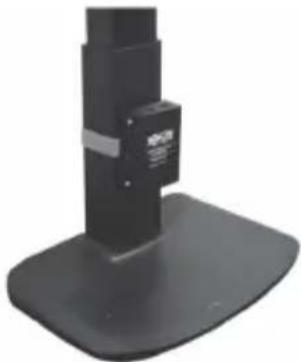
natural_image
Black mechanical device with a base mount and mounting base (no visible text or symbols)113
1111 W. 35th Street, Chicago, IL 60609 USA • tripplite.com/support
132
20-10-008 93-3D27_RevA
- HDMI over Cat6 Extender Kits and Repeater, 4K/60 Hz
- WARRANTY REGISTRATION
- Product Features
- All
- B127A-1A1-BHBH
- B127A-1A1-BHPH
- B127A-111-BHTH
- B127A-110-BH
- B127A-010-H
- Optional Accessories:
- Disclaimer
- Mounting Instructions (select models only)
- Standard Extender Kit Installation
- Notes:
- Transceiver Daisy-Chain Installation (B127A-110-BH only)
- Transceiver Daisy-Chain Installation
- (B127A-110-BH only)
- USB/IR/Toslink Controls
- Warranty and Product Registration
- 1-Year Limited Warranty
- PRODUCT REGISTRATION
- WEEE Compliance Information for Tripp Lite Customers and Recyclers (European Union)
- WARNING
- Bedienungsanleitung
Brand : Tripp Lite
Model : B127A110BH
Category : HDMI Extender