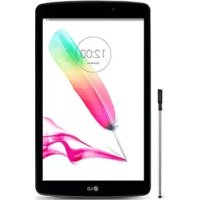
V497 - Tablet LG - Free user manual and instructions
Find the device manual for free V497 LG in PDF.


| Product Type | Tablet |
| Brand | LG |
| Model | V497 |
| Operating System | Android 5.0 Lollipop (estimated) |
| Screen | Capacitive touch, multi-touch |
| Internal Memory | Internal storage (unspecified) + microSD card up to 128 GB |
| Front Camera | Yes, for selfies and video calls |
| Rear Camera | Yes, with LED flash |
| Connectivity | Wi-Fi 802.11 b/g/n, Bluetooth 4.0, GPS, Wi-Fi Direct |
| Mobile Network | SIM card (microSIM) for mobile data |
| Ports | USB 2.0 (charging/data), 3.5 mm headphone jack, USB peripheral port (OTG) |
| Battery | Rechargeable internal lithium-ion |
| Special Features | KnockON, Knock Code, QuickMemo+, QSlide, QuickRemote, Dual Window, QPair, Stylus |
| Security | Lock by code, pattern, PIN, password, Smart Lock |
| Included Accessories | Charger (travel adapter), USB cable, quick start guide |
| Maintenance | Clean with a dry microfiber cloth, avoid moisture and impacts |
Frequently Asked Questions - V497 LG
User questions about V497 LG
0 question about this device. Answer the ones you know or ask your own.
Ask a new question about this device
Download the instructions for your Tablet in PDF format for free! Find your manual V497 - LG and take your electronic device back in hand. On this page are published all the documents necessary for the use of your device. V497 by LG.
USER MANUAL V497 LG
- Some of the contents in this manual may differ from your device depending on the software version of the device, OS version or your service provider, and are subject to change without prior notice.
- Always use genuine LG accessories. The supplied items are designed only for this device and may not be compatible with other devices.
- This device is not suitable for people who have a visual impairment due to the touchscreen keyboard.
- All screen shots in this guide are simulated.
- Actual displays and the colour of the device may vary.
Table of contents
For Your Safety. 4
Safety Guidelines 9
Important Notice 20
Getting to know your device 23
Phone layout 23
Connecting cables to the ports 26
Installing the SIM card or microSD card ...29
Removing the memory card 30
Locking and unlocking the device 30
Your Home screen 32
Touch screen tips 32
Home screen 33
Customizing the Home screen 34
Returning to recently-used applications ...36
Notifications panel 36
On-screen keyboard. 39
Special Features 40
Gesture shot 40
Gesture View 41
KnockON 42
Knock Code 42
Dual window 43
QuickMemo+ 44
QSlide 45
QuickRemote 46
Google Account Setup 47
Connecting to Networks and Devices ....49
Wi-Fi 49
Bluetooth 50
Wi-Fi Direct 51
SmartShare 52
QPair 53
Transferring data between a PC and your device 55
Contacts 56
Searching for a contact 56
Adding a new contact 56
Favourites contacts 56
Creating a group 57
Messaging 58
Sending a message 58
Conversation view 59
Changing your messaging settings 59
E-mail 60
Managing email accounts 60
Working with account folders 60
Composing and sending email 61
Camera and Video 62
Using the advanced settings 63
Taking a photo 64
Once you have taken a photo 64
Recording a video 65
After recording a video 65
Gallery. 66
Trademarks 92
Trademarks 92
DivX HD 92
Multimedia 69
Music 69
Accessories 93
Troubleshooting 94
Utilities 71
Clock 71
72
Calendar 73
Voice Recorder 73
Voice Search 73
Downloads 74
LG SmartWorld 74
Browsing the Web. 76
Chrome 76
Settings 77
WIRELESS NETWORKS 77
DEVICE 78
PERSONAL 83
SYSTEM 86
Software Update 90
Device Software Update 90
LG Device Software Update via Over-the-Air
(OTA) 90
About this user guide 91
About this user guide 91
For Your Safety
Important Information
This user guide contains important information on the use and operation of this device. Please read all the information carefully for optimal performance and to prevent any damage or misuse of the device. Any changes or modifications not expressly approved in this user guide could void your warranty for this equipment.
Before You Start
Safety Instructions

WARNING!
- For your safety, do not remove the battery incorporated in the product. If you need to replace the battery, take it to the nearest authorised LG Electronics service point or dealer for assistance.
- Li-Ion Battery is a hazardous component which can cause injury.
- Battery replacement by non-qualified professional can cause damage to your device.

WARNING!
To reduce the possibility of electric shock, do not expose your device to high humidity areas, such as the bathroom, swimming pool, etc.
Always store your device away from heat. Never store your device in settings that may expose it to temperatures less than 32^ ( 0^ ) or greater than 104^ ( 40^ ), such as outside during extreme weather conditions or in your car on a hot day. Exposure to excessive cold or heat will result in malfunction, damage and/or catastrophic failure.
Be careful when using your device near other electronic devices. RF emissions from your device may affect nearby inadequately shielded electronic equipment. You should consult with manufacturers of any personal medical devices such as pacemakers and hearing aides to determine if they are susceptible to interference from your device.
Turn off your device in a medical facility or at a gas station. Never place your device in a microwave oven as this will cause the battery to explode.
Safety Information
Read these simple guidelines. Breaking the rules may be dangerous or illegal. Further detailed information is given in this user guide.
- Never use an unapproved battery since this could damage the device and/or battery and could cause the battery to explode.
- Never place your device in a microwave oven as it will cause the battery to explode.
- Your device contains an internal battery. Do not dispose of your battery by fire or with hazardous or flammable materials.
- Make sure that no sharp-edged items come into contact with the battery. There is a risk of this causing a fire.
- Store the battery in a place out of reach of children.
- Be careful that children do not swallow any parts such as rubber plugs (earphone, connection parts of the device, etc.). This could cause asphyxiation or suffocation.
- Unplug the power cord and charger during lightning storms to avoid electric shock or fire.
- When riding in a car, do not leave your device or set up the hands-free kit near to the air bag. If wireless equipment is improperly installed and the air bag is activated, you may be seriously injured.
- Do not use a hand-held device while driving.
-
Do not use the device in areas where its use is prohibited. (For example: aircraft).
-
Do not expose the battery charger or adapter to direct sunlight or use it in places with high humidity, such as a bathroom.
- Do not use harsh chemicals (such as alcohol, benzene, thinners, etc.) or detergents to clean your device. There is a risk of this causing a fire.
- Do not drop, strike, or shake your device severely. Such actions may harm the internal circuit boards of the device.
- Do not use your device in high explosive areas as the device may generate sparks.
- Do not damage the power cord by bending, twisting, pulling, or heating.
- Do not use the plug if it is loose as it may cause a fire or electric shock.
- Do not place any heavy items on the power cord. Do not allow the power cord to be crimped as it may cause fire or electric shock.
- Do not handle the device with wet hands while it is being charged. It may cause an electric shock or seriously damage your device.
- Do not disassemble the device.
- Only use the batteries, antennas, and chargers provided by LG. The warranty will not be applied to products provided by other suppliers.
- Only authorised personnel should service the device and its accessories. Faulty installation or service may result in accidents and consequently invalidate the warranty.
- Use accessories, such as earphones and headsets, with caution. Ensure that cables are tucked away safely and do not touch the antenna unnecessarily.
FCC RF Exposure Information

WARNING!
Read this information before operating the device.
In August 1996, the Federal Communications Commission (FCC) of the United States, with its action in Report and Order FCC 96-326, adopted an updated safety standard for human exposure to radio frequency (RF) electromagnetic energy emitted by FCC regulated transmitters. Those guidelines are consistent with the safety standard previously set by both U.S. and international standards bodies.
The design of this device complies with the FCC guidelines and these international standards.
CAUTION
Use only the supplied and approved antenna. Use of unauthorised antennas or modifications could impair call quality, damage the device, void your warranty and/or result in violation of FCC regulations. Do not use the device with a damaged antenna. If a damaged antenna comes into contact with skin, a minor burn may result. Contact your local dealer for a replacement antenna.
Body-worn Operation
This device was tested for typical body-worn operations with the back of the device kept 0cm (0 inches) between the user's body and the back of the device.
FCC Part 15 Class B/IC RSS-Gen Compliance
This device complies with part 15 of FCC rules and IC license-exempt RSS standard(s). Operation is subject to the following two conditions:
(1) this device may not cause interference, and
(2) this device must accept any interference, including interference that may cause undesired operation of the device.
Cautions for Battery
Do not disassemble.
Do not short-circuit.
Do not expose to high temperature: 140^ (60^)
Do not incinerate.
Battery Disposal
Please dispose of your battery properly or bring to your local wireless carrier for recycling.
Your device contains an internal battery. Do not dispose of your battery by fire or with hazardous or flammable materials.
Adapter (Charger) Cautions
Using the wrong battery charger could damage your device and void your warranty.
The adapter or battery charger is intended for indoor use only.
Do not expose the adapter or battery charger to direct sunlight or use it in places with high humidity, such as the bathroom.
Avoid damage to your hearing
Damage to your hearing can occur if you are exposed to loud sounds for long periods of time. We therefore recommend that you do not turn on or off the device close to your ear. We also recommend that music and volumes are set to a reasonable level.
If you are listening to music whilst out and about, please ensure that the volume is at a reasonable level so that you are aware of your surroundings. This is particularly imperative when attempting to cross the street.
Safety Guidelines
TIA Safety Information
Provided herein is the complete TIA Safety Information for Wireless Handheld devices. Inclusion of the text covering Pacemakers, Hearing Aids, and Other Medical Devices is required in the owner's manual for CTIA Certification. Use of the remaining TIA language is encouraged when appropriate.
Exposure to Radio Frequency Signal
Your wireless handheld portable device is a low power radio transmitter and receiver. When it is ON, it receives and also sends out radio frequency (RF) signals. In August, 1996, the Federal Communications Commissions (FCC) adopted RF exposure guidelines with safety levels for handheld wireless devices.
Those guidelines are consistent with the safety standards previously set by both U.S. and international standards bodies:
ANSI C95.1 (1992) *
NCRP Report 86 (1986)
ICNIRP (1996)
Those standards were based on comprehensive and periodic evaluations of the relevant scientific literature. For example, over 120 scientists, engineers, and physicians from universities, government health agencies and industry experts reviewed the available body of research to develop the ANSI Standard (C95.1).
- American National Standards Institute; National Council on Radiation Protection and Measurements; International Commission on Non-lonizing Radiation Protection The design of your device complies with the FCC guidelines (and those standards).
Antenna Care
Use only the supplied or an approved replacement antenna. Unauthorized antennas, modifications, or attachments could damage the device and may violate FCC regulations.
Tips on Efficient Operation
For your device to operate most efficiently:
Do not touch the antenna unnecessarily when the device is in use. Contact with the antenna affects call quality and may cause the device to operate at a higher power level than otherwise needed.
Driving
Check the laws and regulations on the use of wireless devices in the areas where you drive. Always obey them. Also, if using your device while driving, please:
- Give full attention to driving - driving safely is your first responsibility;
- Use hands-free operation, if available;
Pull off the road and park before using it.
Electronic Devices
Most modern electronic equipment is shielded from RF signals. However, certain electronic equipment may not be shielded against the RF signals from your wireless device.
Pacemakers
The Health Industry Manufacturers Association recommends that a minimum separation of six (6") inches be maintained between a handheld wireless device and a pacemaker to avoid potential interference with the pacemaker. These recommendations are
consistent with the independent research by and recommendations of Wireless Technology Research. Persons with pacemakers:
- Should ALWAYS keep the device more than six inches from their pacemaker when the device is turned ON.
- Should not carry the device in a breast pocket.
- Should use the ear opposite the pacemaker to minimize the potential for interference.
- If you have any reason to suspect that interference is taking place, turn your device OFF immediately.
Hearing Aids
Some digital wireless devices may interfere with some hearing aids. In the event of such interference, you may want to consult your service provider.
Other Medical Devices
If you use any other personal medical device, consult the manufacturer of your device to determine if they are adequately shielded from external RF energy. Your physician may be able to assist you in obtaining this information.
Health Care Facilities
Turn your device OFF in health care facilities when any regulations posted in these areas instruct you to do so. Hospitals or health care facilities may use equipment that could be sensitive to external RF energy.
Vehicles
RF signals may affect improperly installed or inadequately shielded electronic systems in motor vehicles. Check with the manufacturer or its representative regarding your vehicle.
You should also inform the manufacturer of any equipment that has been added to your vehicle.
Posted Facilities
Turn your device OFF in any facility where posted notices so require.
Aircraft
FCC regulations prohibit using your device while in the air. Turn your device OFF before boarding an aircraft.
Blasting Areas
To avoid interfering with blasting operations, turn your device OFF when in a blasting area or in areas posted: 'Turn off two-way radio'. Obey all signs and instructions.
Potentially Explosive Atmosphere
Turn your device OFF when in any area with a potentially explosive atmosphere and obey all signs and instructions. Sparks in such areas could cause an explosion or fire resulting in bodily injury or even death.
Areas with a potentially explosive atmosphere are often, but not always, marked clearly. Potential areas may include: fueling areas (such as gasoline stations); below deck on boats; fuel or chemical transfer or storage facilities; vehicles using liquefied petroleum
gas (such as propane or butane); areas where the air contains chemicals or particles (such as grain, dust, or metal powders); and any other area where you would normally be advised to turn off your vehicle engine.
For Vehicles Equipped with an Air Bag
An air bag inflates with great force. DO NOT place objects, including installed or portable wireless equipment, in the area over the air bag or in the air bag deployment area. If in-vehicle wireless equipment is improperly installed and the air bag inflates, serious injury could result.
Safety Information
Please read and observe the following information for safe and proper use of your device and to prevent damage. Also, keep the user guide in an accessible place at all times after reading it.
Charger and Adapter Safety
The charger and adapter are intended for indoor use only.
Battery Information and Care
- Please dispose of your battery properly or take it to your local wireless carrier for recycling.
- The battery does not need to be fully discharged before recharging.
- Use only LG-approved chargers specific to your device model since they are designed to maximize battery life.
-
Do not disassemble or impact the battery as it may cause electric shock, short-circuit, and fire. Store the battery in a place out of reach of children.
-
Replace the battery when it no longer provides acceptable performance. If you need to replace the battery, take it to the nearest authorised LG Electronics service point or dealer for assistance.
- Recharge the battery after long periods of non-use to maximize battery life.
- Battery life will vary due to usage patterns and environmental conditions.
- Use of extended backlighting, Media Net Browsing, and data connectivity kits affect battery life and standby times.
- Actual battery life will depend on network configuration, product settings, usage patterns, battery and environmental conditions.
- Always unplug the charger from the wall socket after the device is fully charged to save unnecessary power consumption of the charger.
Explosion, Shock, and Fire Hazards
- Do not put your device in a place subject to excessive dust and keep the minimum required distance between the power cord and heat sources.
- Unplug the power cord prior to cleaning your device, and clean the power plug pin when it is dirty.
- When using the power plug, ensure that it is firmly connected. If it is not, it may cause excessive heat or fire.
- If you put your device in a pocket or bag without covering the receptacle of the device (power plug pin), metallic articles (such as a coin, paperclip or pen) may short-circuit the device. Always cover the receptacle when not in use.
- Do not short-circuit the battery. Metallic articles such as a coin, paperclip or pen in your pocket or bag may short-circuit the + and - terminals of the battery (metal strips on the battery) upon moving. Short-circuiting of the terminal may damage the battery and cause an explosion.
General Notice
- Using a damaged battery or placing a battery in your mouth may cause serious injury.
- Do not place items containing magnetic components such as a credit card, device card, bank book or subway ticket near your device. The magnetism of the device may damage the data stored in the magnetic strip.
- When the device is not being used for a long period time, store it in a safe place with the power cord unplugged.
- Using the device in proximity to receiving equipment (i.e., TV or radio) may cause interference to the device.
- Do not use the device if the antenna is damaged. If a damaged antenna contacts skin, it may cause a slight burn. Please contact an LG Authorised Service Centre to replace the damaged antenna.
- Do not immerse your device in water. If this happens, turn it off immediately. If the device does not work, take it to an LG Authorised Service Centre.
- Do not paint your device.
- The data saved in your device might be deleted due to careless use, repair of the device, or upgrade of the software. Please backup your important device numbers. (Ring tones, text messages, voice messages, pictures, and videos could also be deleted.) The manufacturer is not liable for damage due to the loss of data.
- When you use the device in public places, set the ring tone to vibration so as not to disturb others.
- Do not turn your device on or off when putting it near your ear.
-
Your device is an electronic device that generates heat during normal operation. Extremely prolonged, direct contact with skin in the absence of adequate ventilation may result in discomfort or minor burns. Therefore, use care when handling your device during or immediately after operation.
-
Do not attempt to repair or modify the device yourself. Your device is equipped with an internal rechargeable battery which should be replaced only by LG or an authorised LG repair centre. You should never attempt to open or disassemble this device yourself and doing so may cause damage that will void your warranty.
Consumer Information on SAR (Specific Absorption Rate)
This Model Device Meets the Government's Requirements for Exposure to Radio Waves. Your wireless device is a radio transmitter and receiver. It is designed and manufactured not to exceed the emission limits for exposure to radiofrequency (RF) energy set by the Federal Communications Commission (FCC) of the U.S. Government. These limits are part of comprehensive guidelines and establish permitted levels of RF energy for the general population. The guidelines are based on standards that were developed by independent scientific organizations through periodic and thorough evaluation of scientific studies. The standards include a substantial safety margin designed to assure the safety of all persons, regardless of age and health.
The exposure standard for wireless mobile device employs a unit of measurement known as the Specific Absorption Rate, or SAR. The SAR limit set by the FCC is 1.6 W/kg. * Tests for SAR are conducted using standard operating positions specified by the FCC with the device transmitting at its highest certified power level in all tested frequency bands.
Although SAR is determined at the highest certified power level, the actual SAR level of the device while operating can be well below the maximum value. Because the device is designed to operate at multiple power levels to use only the power required to reach the network, in general, the closer you are to a wireless base station antenna, the lower the power output.
Before a device model is available for sale to the public, it must be tested and certified by the FCC that it does not exceed the limit established by the government adopted
requirement for safe exposure. The tests are performed in positions and locations (e.g., at the ear and worn on the body) as required by the FCC for each model.
The highest SAR value for this device when worn on the body, as described in this user guide, is 1.22 W/kg. (Body-worn measurements differ among devices models, depending upon available accessories and FCC/IC requirements.) While there may be differences between SAR levels of various devices and at various positions, they all meet the government requirement for safe exposure.
The FCC has granted an Equipment Authorization for this model device with all reported SAR levels evaluated as in compliance with the FCC RF emission guidelines. SAR information on this model device is on file with the FCC and can be found under the Display Grant section of http://www.fcc.gov/oet/ea/fccid after searching on FCC ID: ZNFV495.
Additional information on Specific Absorption Rates (SAR) can be found on the Cellular Telecommunications Industry Association (CTIA) website at http://www.ctia.org/
- In the United States and Canada, the SAR limit for mobile device used by the public is 1.6 watts/kg
(W / kg) averaged over one gram of tissue. The standard incorporates a substantial margin of safety to give additional protection for the public and to account for any variations in measurements.
- Product meets current FCC & IC Radio Frequency Exposure Guidelines.
FCC ID: ZNFV495
IC ID: 2703C-V495
Wi-Fi Caution!
(i) The device for operation in the band 5150-5250 MHz is only for indoor use to reduce the potential for harmful interference to co-channel mobile satellite systems;
(ii) the maximum antenna gain permitted for devices in the bands 5250-5350 MHz and 5470-5725 MHz shall comply with the e.i.r.p. limit; and
(iii) the maximum antenna gain permitted for devices in the band 5725-5825 MHz shall comply with the e.i.r.p. limits specified for point-to-point and non point-to-point operation as appropriate.
- High-power radars are allocated as primary users (i.e. priority users) of the bands 5250-5350 MHz and 5650-5850 MHz and these radars could cause interference and/or damage to LE-LAN devices.
Open Source Software Notice Information
To obtain the source code under GPL, LGPL, MPL, and other open source licenses, that is contained in this product, please visit http://opensource.lge. com.
In addition to the source code, all referred license terms, warranty disclaimers and copyright notices are available for download.
LG Electronics will also provide open source code to you on CD-ROM for a charge covering the cost of performing such distribution (such as the cost of media, shipping, and handling) upon email request to opensource@lge.com. This offer is valid for three (3) years from the date on which you purchased the product.
How to update your tablet
Access to latest firmware releases, new software functions and improvements.
-
Select the software update in settings menu on your device.
-
Update your tablet by connecting it to your PC. For more information about using this function, please visit http://www.lg.com/common/index.jsp select country and language.
Important Notice
Please read this before you start using your device!
Please check to see whether any problems you encountered with your device are described in this section before taking the device in for service or calling a service representative.
1. Device memory
You may need to check your device memory and delete some data, such as applications to make more memory available.
To uninstall applications:
1 Tap > > Apps.
2 Once all applications appear, scroll to and select the application you want to uninstall.
3 Tap Uninstall.
2. Optimizing battery life
Extend your battery's power by turning off features that you do not need to run constantly in the background. You can monitor how applications and system resources consume battery power.
Extending your device's battery life:
- Turn off radio communications when you are not using. If you are not using Wi-Fi, Bluetooth or GPS, turn them off.
- Reduce screen brightness and set a shorter screen timeout.
- Turn off automaticyncing forGmail,Calendar,Contacts and other applications.
- Some applications you download may consume battery power.
While using downloaded applications, check the battery charge level.
3. Before installing an open source application and OS

WARNING
- If you install and use an OS other than the one provided by the manufacturer it may cause your device to malfunction. In addition, your device will no longer be covered by the warranty.
- To protect your device and personal data, only download applications from trusted sources, such as Play Store™. If there are improperly installed applications on your device, the device may not work normally or a serious error may occur. You must uninstall those applications and all associated data and settings from the device.
4. Using the Hard Reset (Factory Reset)
If your device does not restore to its original condition, use a Hard Reset (Factory Reset) to initialise it.
1 Turn the power off.
2 Press and hold the Power/Lock Key + Volume Down Key on the right side of the device until the LG logo is displayed.
3 Briefly release only the Power/Lock Key when the LG logo is displayed.
4 Immediately press and hold the Power/Lock Key again.
5 Release all keys when the Factory reset screen is displayed.
6 Press the Volume Keys to select Yes, and then press the Power/Lock Key to perform a Hard Reset. Perform this step twice.

WARNING
If you perform a Hard Reset, all user applications, user data and DRM licenses will be deleted. Please remember to backup any important data before performing a Hard Reset.
5. Opening and switching applications
Multitasking is easy with Android; you can keep more than one application running at the same time. There is no need to quit an application before opening another. Use and switch between several open applications. Android manages each application, stopping and starting them as needed to make sure that idle applications don't consume resources unnecessarily.
1 Tap . App previews of recently used applications will be displayed.
2 Tap the application you want to access. This does not stop the previous app from running in the background. Make sure to tap to back out of an app after using it.
- To close an app from the recent apps list, swipe the app preview to the left or right. To clear all apps, tap Clear all.
6. If the screen freezes
If the screen freezes or the device does not respond when you try to operate it: Press and hold the Power/Lock Key for about 10 seconds to reset your device. To turn your device off, press and hold the Power/Lock Key for about 20 seconds. If it still does not work, please contact the service centre.
Getting to know your device
Phone layout
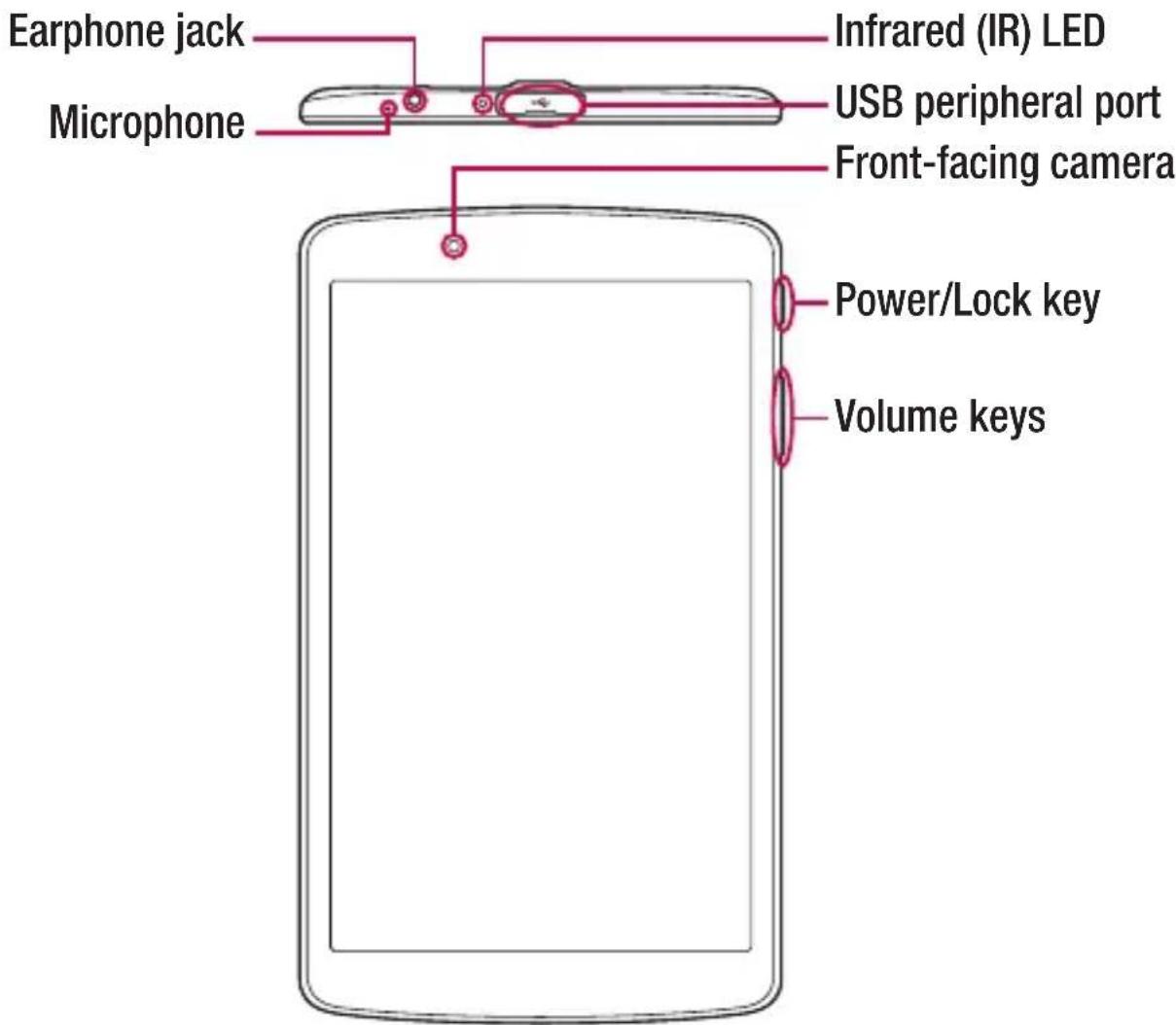
| Front-facing camera | Use to take pictures and record videos of yourself. You can also use this for video chatting. Keep it clean for optimal performance. |
| Power/Lock key | Press to lock/unlock the screen. Press and hold to turn the tablet on/off, restart it, and activate/deactivate airplane mode. |
| Volume keys | Allow you to adjust the media volumes. Press and hold both keys at the same time to access the QuickMemo+ while screen is unlocked. Press and hold Down or Up to access the Camera while screen is off or locked. |
| Earphone jack | Allows you to plug in an optional headset for convenient, hands-free conversations. You can also plug in headphones to listen to music. |
| Infrared (IR) LED Used as a sensor for the QuickRemote app. | |
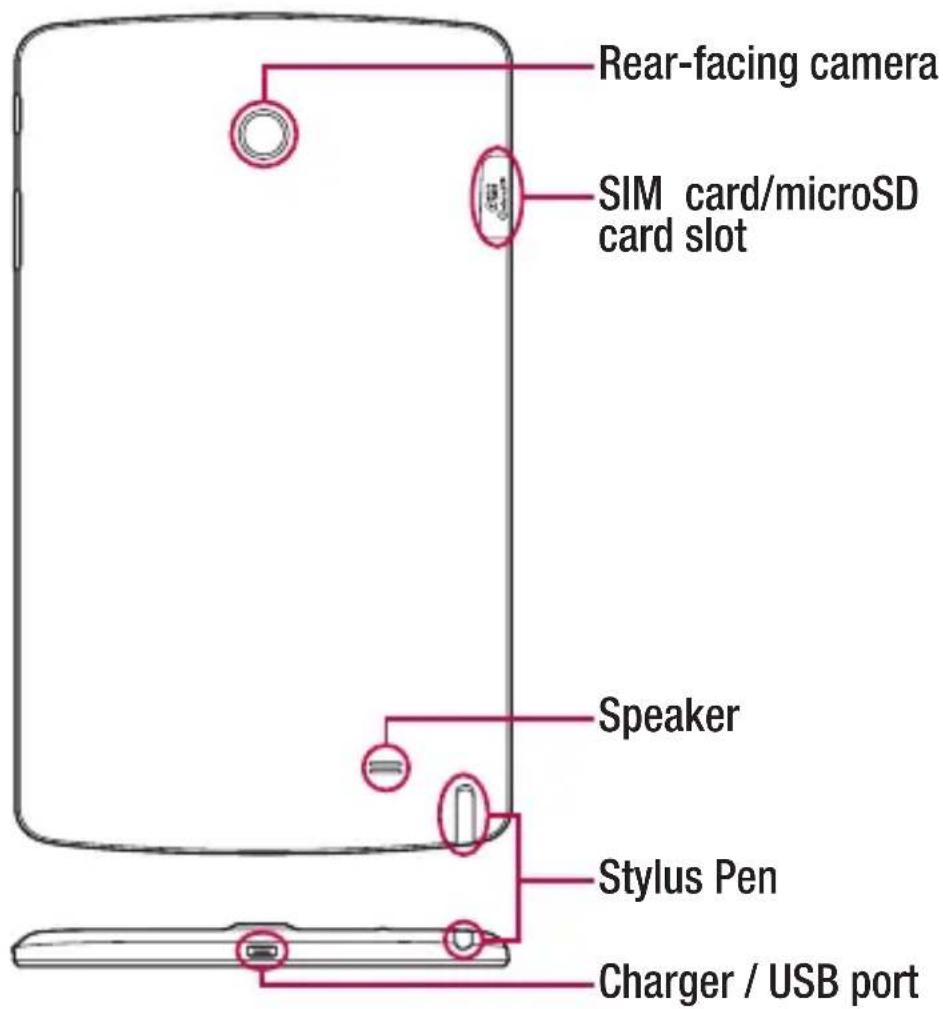
| SIM card/MicroSD card slot | Allows you to insert your SIM card and a microSD card. |
| Microphone | Records your voice and allows use for voice-activated functions. |
| USB peripheral port | Allow you to connect a USB peripheral, such as a keyboard, mouse, and external storage to your tablet. Also allows you to charge another device. |
| Charger / USB port | Allows you to connect the tablet and the USB cable for use with the charger adapter, your PC, or other compatible accessories. |
| Rear-facing camera | Use to take photos and record videos. Keep it clean for optimal performance. |
| Speaker | Use to listen to the audio from the selected function (e.g., music, videos, sound clips, etc.). |
| Stylus Pen | Allows you to use a convenient stylus pen that you can use to input commands and navigate your device. It also works well with popular writing and drawing applications. To use the stylus, slide it out from the bottom of the device. |
Connecting cables to the ports
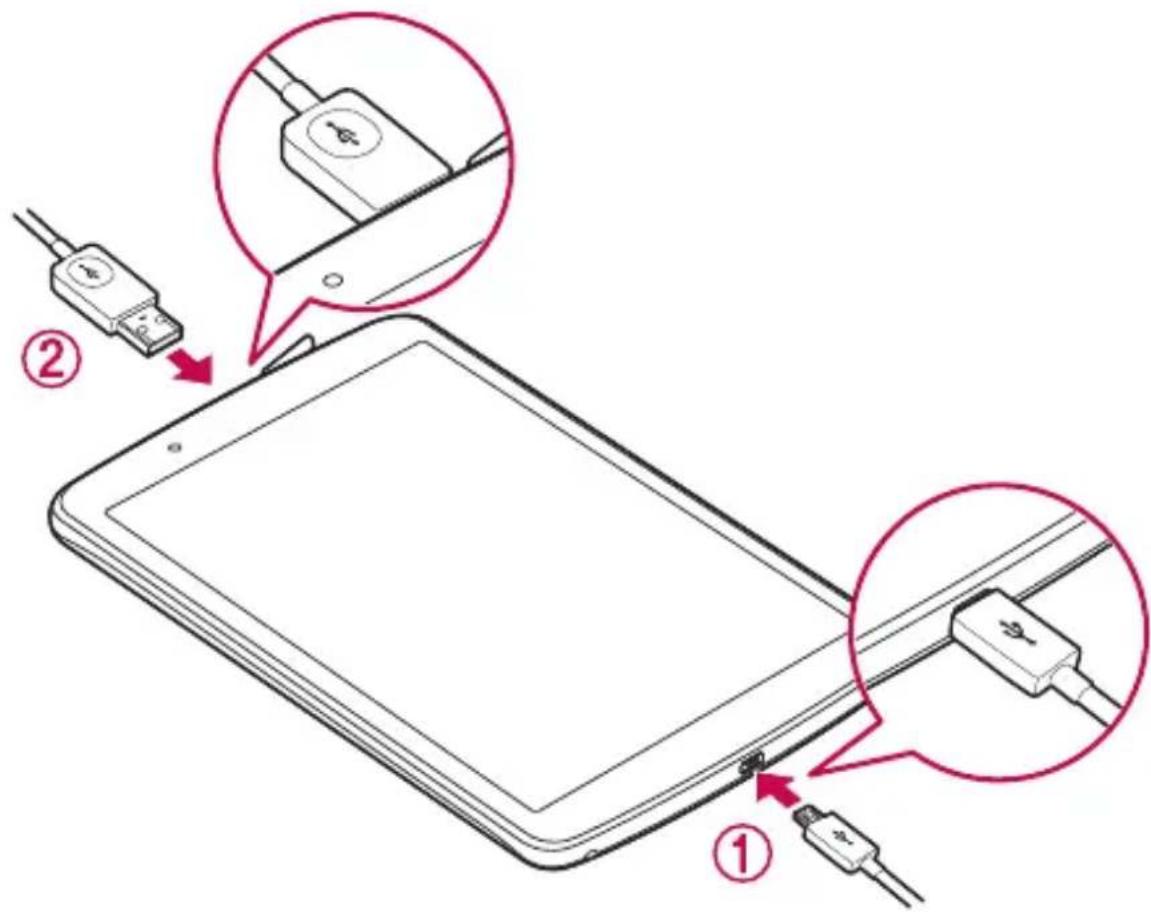
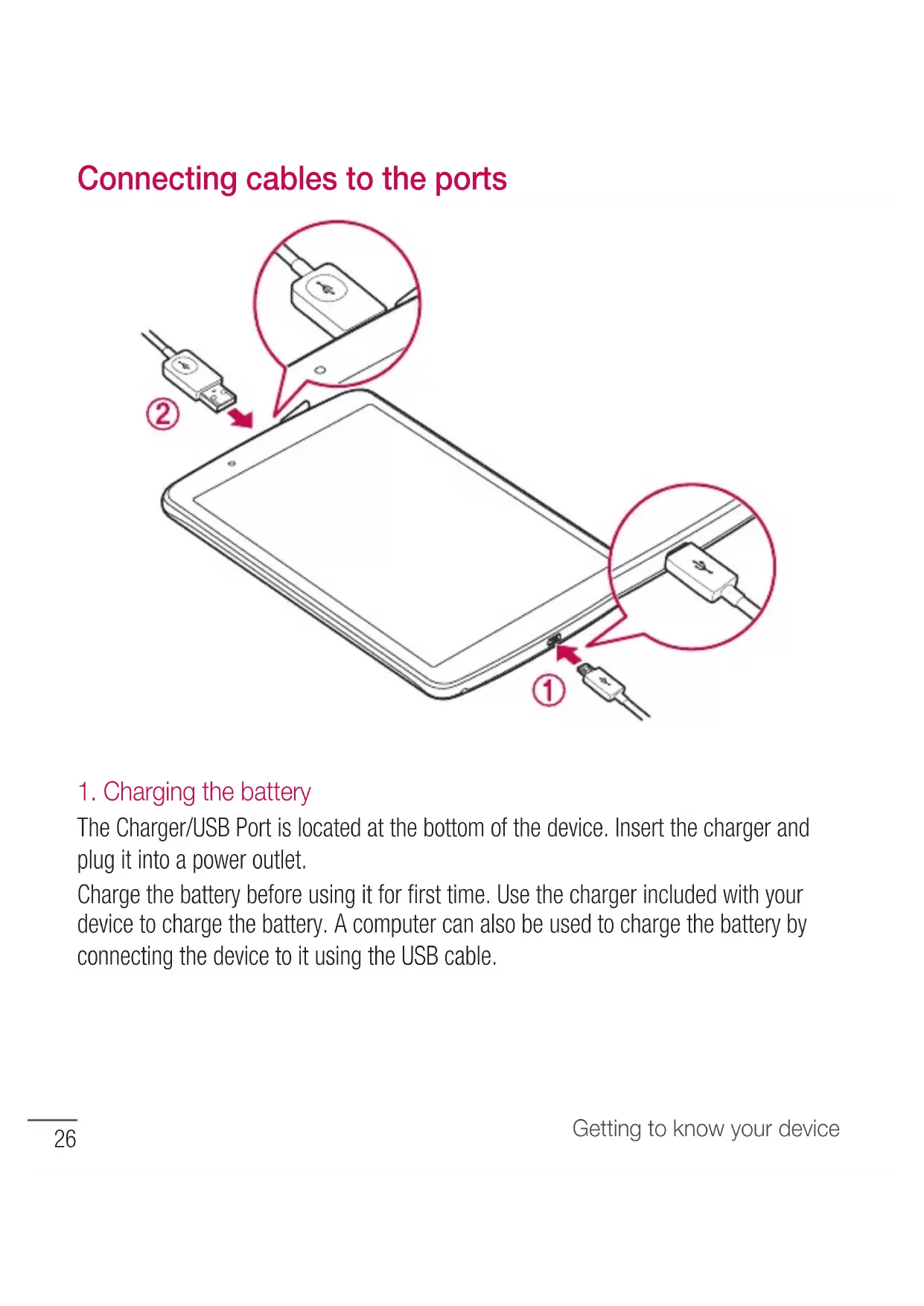
1. Charging the battery
The Charger/USB Port is located at the bottom of the device. Insert the charger and plug it into a power outlet.
Charge the battery before using it for first time. Use the charger included with your device to charge the battery. A computer can also be used to charge the battery by connecting the device to it using the USB cable.

WARNING
Use only LG-approved chargers, batteries and cables. If you use unapproved chargers, batteries or cables, it may cause a battery charging delay or pop up message regarding slow charging. This can also cause the battery to explode or damage the device, which is not covered by the warranty.
NOTE:
- Your device has an internal rechargeable battery. For your safety, do not remove the embedded battery.
- The battery must be fully charged initially to improve battery lifetime.
Your device supports up to a 128GB microSD card. Depending on the memory card manufacturer and type, some memory cards may not be compatible with your device.
2. Connecting a USB device to your tablet
The USB peripheral port is located at the top of the device. Insert the USB port and plug it into the desired device.
Some of the USB devices supported through the USB port include a keyboard, mouse, game controller, digital camera, and storage device (including an Android smartphone acting as external storage device). As most USB keyboards, mouse and game controllers are designed for desktop computers and operation systems, some devices may not function.
NOTE:
- Only devices that meet the USB specs may connect to the USB peripheral port.
- If you are experiencing errors with device recognition, please use a shorter USB cable or check the USB Hub with external power supply (Self-Powered Hub).
- Only file systems such as FAT32, exFAT, and NTFS are supported for the external USB storage device.
- Transferring data through both USB devices at the same time is not supported. The first device that is connected has priority. The USB device connected second can only be charged.

WARNING
You cannot store data in the USB storage when the battery level is below 15% . Please charge the battery above 15% in order to use the USB storage function.
Installing the SIM card or microSD card
Before you can start exploring your new device, you need to set it up.
Your device supports the use of microSD memory cards of up to 128GB capacity. Multimedia contents can be saved in the microSD card.
1 Open the SIM/microSD slot cover.
2 Slide the SIM card into the upper slot as shown in the figure below. Make sure the gold contact area on the card is facing downward.
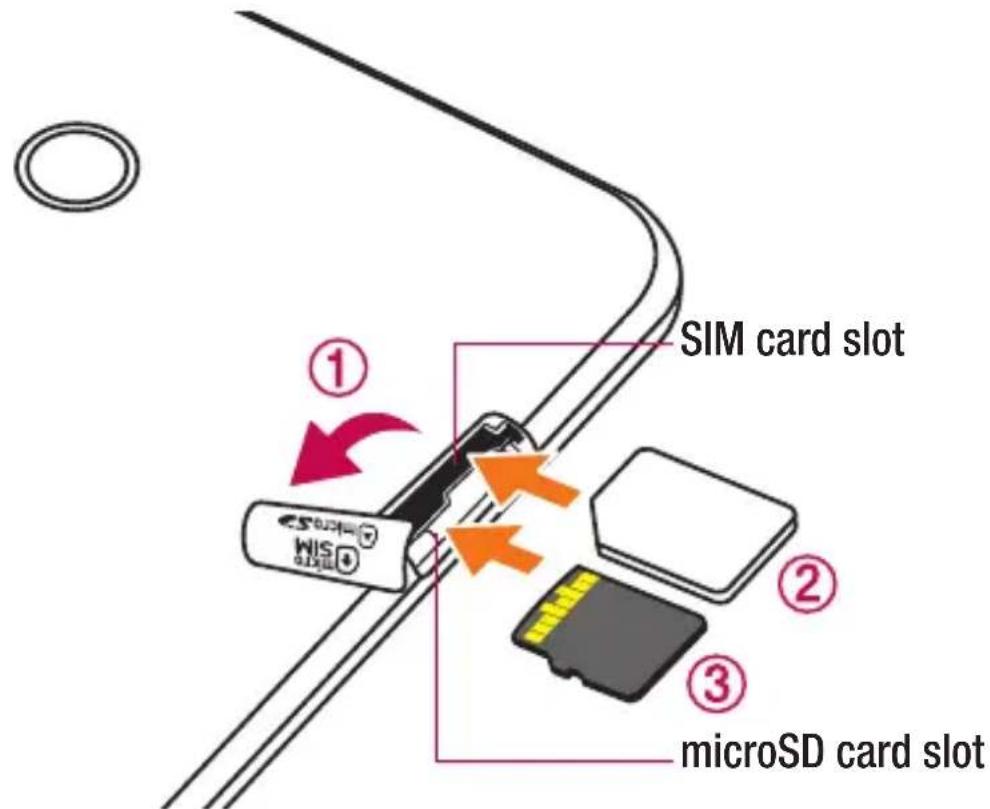
3 If you want to use a memory card, insert the memory card into the lower slot. Make sure the gold contact area is facing upwards. Slide the microSD card into the slot until it "clicks" into place and then close the slot cover.
NOTE:
- Cards must be positioned as shown.
- MicroSD card is not included.
- Only microSIM cards work with this device.
- Your device comes with the dummy microSD card. Remove it to use your microSD card.
- Depending on the memory card manufacturer and type, some memory cards may not be compatible with your device.
Removing the memory card
Before removing the memory card, first unmount it for safe removal.
1 Tap > > > Storage > Unmount SD card.
2 Open the card slot cover and press the memory card in to unlock it. Then pull it out of the slot.

WARNING
Do not remove the memory card while the device is transferring or accessing information. Doing so can cause data to be lost or corrupted or damage to the memory card or device. LG is not responsible for losses that result from the misuse of damaged memory cards, including the loss of data.
Locking and unlocking the device
Pressing the Power/Lock Key turns off the screen and puts the device into lock mode. The device automatically gets locked if it is not used for a specified period. This helps to prevent accidental taps and saves battery power.
To unlock the device, press the Power/Lock Key and swipe the screen in any direction.
NOTE: Double-tapping on the screen also can wake up the screen instead of the Power/Lock Key.
Changing the screen lock method
You can change the way that you lock the screen to prevent others accessing your personal information.
1 Tap > > > Display > Lock screen > Select screen lock.
2 Select a desired screen lock from None, Swipe, Knock Code, Pattern, PIN and Password.
NOTE: Create a Google account before setting an unlock pattern and remember the Backup PIN you created when creating your pattern lock.
Caution! If you haven't created a Google account on the device and you forgot your PIN, Password, and the backup PIN, you need to perform a hard reset. If you perform a hard reset, all user applications and user data will be deleted. Please remember to back up any important data before performing a hard reset.
TIP! Smart Lock
- You can use Smart Lock to make unlocking your device easier. You can set it to keep your device unlocked when you have a trusted Bluetooth device connected to it, when it's in a familiar location like your home or work, or when it recognises your face.
- Setting up Smart Lock
1 Tap > > > Display > Lock screen > Smart Lock.
2 Before you add any trusted devices, trusted places, or trusted face, you need to set up a screen lock (pattern, PIN, or password).
Your Home screen
Touch screen tips
Here are some tips on how to navigate on your device.
- Tap or touch - A single finger tap selects items, links, shortcuts and letters on the on-screen keyboard.
- Touch and hold - Touch and hold an item on the screen by tapping it and not lifting your finger until an action occurs.
- Drag - Touch and hold an item for a moment and then, without lifting your finger, move your finger on the screen until you reach the target position. You can drag items on the Home screen to reposition them.
- Swipe or slide - To swipe or slide, quickly move your finger across the surface of the screen, without pausing when you first tap it (so you don't drag an item instead).
- Double-tap - Double-tap to zoom on a webpage or a map.
- Pinch-to-Zoom - Use your index finger and thumb in a pinching or spreading motion to zoom in or out when using the browser, Maps, or when viewing pictures.
- Rotate the screen - From many applications and menus, the screen orientation adjusts to the device's physical orientation.
NOTE:
- Do not press too hard; the tap screen is sensitive enough to pick up a light, yet firm tap.
- Use the tip of your finger to tap the option you want. Be careful not to tap any other buttons.
Home screen
The Home screen is the starting point for many applications and functions. It allows you to add items like app shortcuts and Google widgets to give you instant access to information and applications. This is the default canvas and accessible from any menu by tapping .
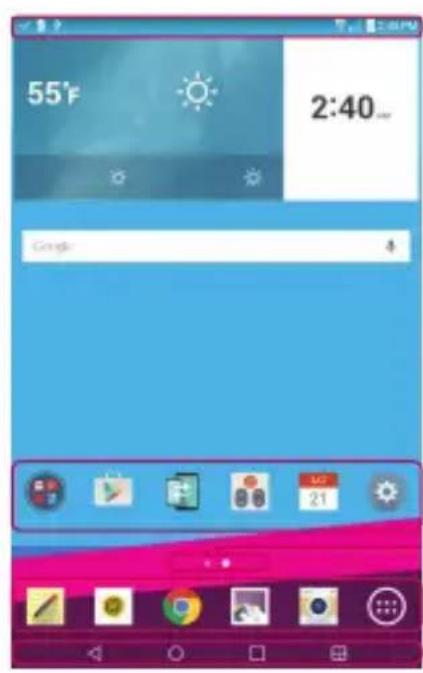
Status Bar
Application Icons
3 Location Indicator
Quick Button Area
Home Touch Buttons
1 Shows the device's status information, including the time, signal strength, battery status and notification icons.
Tap an icon (application, folder, etc.) to open and use it.
3 Indicates which Home screen canvas you are currently viewing.
4 Provides one-touch access to the function from any Home screen canvas.
5
| Back Button | Returns to the previous screen. Also closes pop-up items, such as menus, dialogue boxes and the on-screen keyboard. |
| Home Button | Return to the Home screen from any screen. Touch and hold to access the Google Now shortcut. |
| Recent Apps Button | Displays recently used applications. If you touch and hold this button, it opens a menu of available options. |
| Dual window button | Tap to change to dual window mode. It allows you to manage two different apps at the same time by splitting the screen in two. |
Extended Home screen
The operating system provides multiple Home screen canvases to provide more space for adding icons, widgets and more.
- Slide your finger left or right across the Home screen to access additional canvases.
Customizing the Home screen
You can customise your Home screen by adding apps and widgets and changing wallpapers.
Adding items on your Home screen
1 Touch and hold the empty part of the Home screen.
2 Tap the Widgets tab and select the item you want to add. You then see this added item on the Home screen.
3 Drag it to the desired location and lift your finger.
TIP! To add an application icon to the Home screen from the Apps screen, touch and hold the application you want to add.
Removing an item from the Home screen
While on the Home screen, touch and hold the icon you want to remove then drag it to and release it.
Adding an app to the Quick Button area
- From the Apps screen or on the Home screen, touch and hold an application icon and drag it to the Quick Button area. Then release it in the desired location.
Removing an app from the Quick Button area
- Touch and hold the desired Quick Button, drag it to , and release it.
NOTE: The Apps Button cannot be removed.
Customizing app icons on the Home screen
1 Touch and hold an application icon until it unlocks from its current position, then release it. The editing icon appears in the upper-right corner of the application.
2 Tap the application icon again and select the desired icon design and size.
3 Tap OK to save the change.
NOTE: You can also tap Add new to personalize icons with your pictures.
Returning to recently-used applications
1 Tap App previews of recently used applications will be displayed.
2 Tap an app preview to open the application. Or tap to return to your previous screen.
Notifications panel
Notifications alert you to the arrival of new messages, calendar events and alarms, as well as ongoing events, such as downloads.
When a notification arrives, its icon appears at the top of the screen. Icons for pending notifications appear on the left, and system icons, such as Wi-Fi and battery strength are shown on the right.
NOTE: The available options may vary depending on the region or service provider.
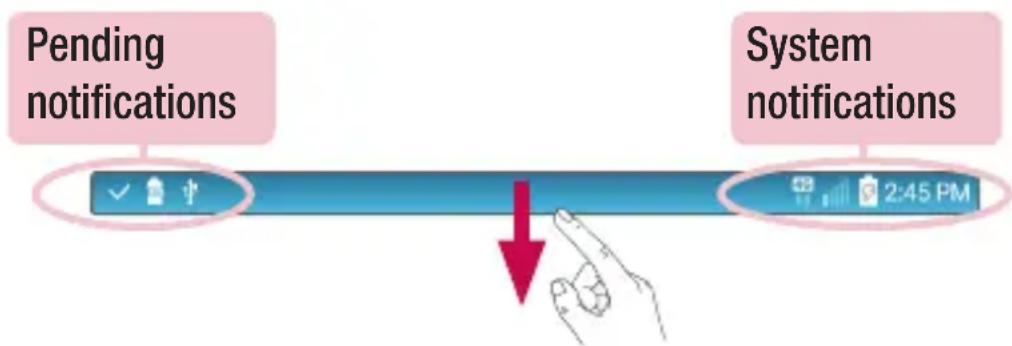
Opening the Notifications panel
Swipe the Status bar to open the Notifications panel. To close the Notifications panel, swipe the screen upwards or tap .

Quick Settings Area
Notifications
3 Clear
Tap each quick setting button to toggle it on/off. Touch and hold the desired button to directly access the settings menu for the function. To see more toggle keys, swipe left or right. Tap to remove, add or rearrange quick setting buttons.
2 Current notifications are listed, each with a brief description. Tap a notification to view it.
3 Tap to clear all of the notifications.
Indicator icons on the Status Bar
Indicator icons appear on the Status bar at the top of the screen to calendar events, device status and more.

The icons displayed at the top of the screen provide information about the status of the device. The icons listed in the table below are some of the most common ones.
| Icon Description Icon Description | ||
| No SIM card inserted Silent mode is enabled | ||
| No network signal available Vibrate mode is on | ||
| Airplane mode is on Battery fully charged | ||
| Connected to a Wi-Fi network Battery is charging | ||
| Wired headset connected | The device is connected to PC via a USB cable | |
| Bluetooth is on Downloading data | ||
| System warning Uploading data | ||
| An alarm is set GPS is on | ||
| VPN is active Data is synchronizing | ||
| Media server content sharing is on | Choose input method | |
| A song is currently playing | ||
NOTE: The icon's location in the Status bar may differ according to the function or service.
On-screen keyboard
You can enter text using the on-screen keyboard. The on-screen keyboard appears on the screen when you tap an available text entry field.
Using the keypad and entering text
Tap once to capitalise the next letter you type. Double-tap for all caps.
Tap to go to the keyboard settings. Touch and hold to enter text by voice, handwriting, or access the clip tray.
Tap to enter a space.
Tap to create a new line.
Tap to delete the previous character.
Entering special characters
The on-screen keyboard allows you to enter special characters.
For example, to input "á", touch and hold the "a" button until the pop-up appears and displays related special characters. Without lifting the finger, drag your finger to the desired special character. Once it's highlighted, lift your finger.
NOTE: A symbol at the top right corner of a key indicates that additional characters are available for that key.
Special Features
Gesture shot
The Gesture shot feature allows you to take a picture with a hand gesture using the front camera.
To take photo
There are two methods for using the Gesture shot feature.
- Raise your hand, with an open palm, until the front camera detects it and a box appears on the screen. Then close your hand into a fist to start the timer, allowing you time to get ready.
OR
- Raise your hand, in a clenched fist, until the front camera detects it and a box appears on the screen. Then unclench your fist to start the timer, allowing you time to get ready.

Gesture View
After taking a photo with the front camera lens, you can automatically check the captured photo with this gesture.
1 Tap > >
2 Take a picture with the front camera.
3 After taking the picture, bring the device close to your face. The captured photo will be displayed.

Taking a picture Quick preview Returning front camera mode
NOTE:
- Depending on the speed and angle of the gesture, this feature may not work properly.
- When the angle is changed after the quick preview, the device returns to camera mode. You must access the Gallery to view the picture again.
KnockON
The KnockON feature allows you to double-tap the screen to easily turn it on or off.
To turn the screen on
1 Double-tap the centre of the screen to turn the screen on.
2 Unlock the screen or access any of the available shortcuts or widgets.
To turn the screen off
1 Double-tap an empty area of the Home screen or the Status Bar.
2 The screen will turn off.
NOTE: Tap on the centre area of the screen. If you tap on the bottom or the top area, the recognition rate may decrease.
Knock Code
The Knock Code feature allows you to create your own unlock code using a combination of knocks on the screen. You can access the Home screen directly when the screen is off by tapping the same sequence on the screen.
NOTE:
- If you enter the wrong Knock Code 6 times, it will compulsorily take you to your google account log in/backup PIN.
- Use the fingertip instead of finger nail to tap the screen for turning it on or off.
1 Tap > > > Display > Lock screen > Select screen lock > Knock Code.
2 Tap the squares in a pattern to set your Knock Code. Your Knock Code pattern can be 3 to 8 taps.
Unlocking the screen using the Knock Code
You can unlock the screen by tapping the Knock Code pattern you already set, when the screen turns off.
Dual window
This feature allows you to multi-task by splitting up the screen into two, allowing you to use two compatible applications at the same time.
1 Tap > Dual window
OR
tap 2
2 Tap or drag the app icon for the corresponding application you wish to use.


: Tap to view the Dual window menu options, or drag to resize the split screens.

: Switch the two screens.

:View the app list.

: Change the selected window to full screen.

: Close the currently selected app window.
NOTE: Dual window is enabled by default. You can enable or disable Dual window through the Settings menu.
1 TapO > > Dual window.
2 Slide the toggle button to On or Off.
QuickMemo+
The QuickMemo+ feature allows you to create memos and capture screen shots. You can use QuickMemo+ to easily and efficiently when you create memos, capture screens, and share them with family and friends.
1 While viewing the screen you want to capture and use in your memo, drag the Status bar down and tap

2 Create a memo using the following options:
| Tap to undo the most recent action. | |
| Tap to redo the most recently deleted action. | |
| T | Tap to insert text into your memo. |
| Tap to select the pen type and colour. | |
| Tap to use the eraser to erase the pen marks on the memo. | |
| Tap to save the memo you've created. | |
| Tap to hide or display the toolbar. |
NOTE: Please use a fingertip or Stylus Pen while using the QuickMemo+ feature. Do not use your fingernail.
3 Tap to save the current memo to the QuickMemo+ or Gallery.
Discard Memos
- Tap
View the Saved Memo
Tap > > and select the QuickMemo+ album or tap and select the desired memo.
QSlide
From any screen, use the Notification panel to easily access and use the Notepad, Calendar, Calculator, and more with QSlide.

1 Slide the Status bar downward, then tap QSlide to view the available QSlide apps. Then tap the desired app from the QSlide Apps section.
OR
Also, while using applications that support QSlide, tap. The function is displayed as a small window on your screen.
2 You can use and tap the screen under the QSlide windows when the transparency bar is not full
NOTE: QSlide can support up to two window at the same time.
QuickRemote
QuickRemote turns your device into a Universal Remote for your home TV, set-top box, audio system and more.
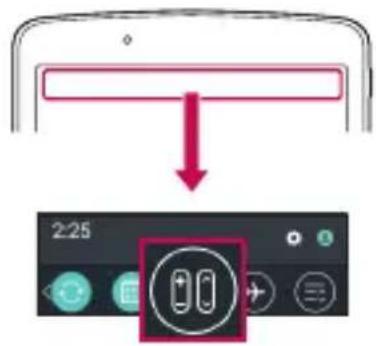
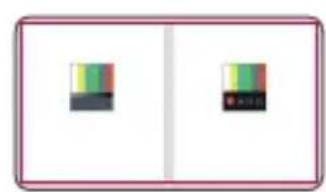

1 Touch and slide the Status bar downward and tap 00 > + If you can not see 00 tap checkmark QuickRemote to enable.
OR Tap > > Apps tab >
2 Select the type and brand of the device, then follow the on-screen instructions to configure the device.
3 Once you have completed the initial set up, you can easily access the QuickRemote from the Notification panel. Open the Notification panel and use the QuickRemote functions.
NOTE: QuickRemote operates the same way as an ordinary remote control infrared (IR) signals. Be careful not to cover the infrared sensor at the top of the device when you use the QuickRemote function. This function may not be supported depending on the model, the manufacturer or service company.
Google Account Setup
The first time you open a Google application on your device, you will be required to sign in with your existing Google account. If you do not have a Google account, you will be prompted to create one.
Creating your Google account
1 Tap >
2 Tap > Accounts & sync > Add account > Google > Or create a new account.
3 Enter your first and last name, then tap NEXT.
4 Enter a username and tap NEXT. Your device will communicate with Google servers and check for username availability.
5 Enter your password and tap NEXT.
6 Follow the instructions and enter the required and optional information about the account. Wait while the server creates your account.
Signing into your Google account
1 Tap >
2 Tap > Accounts & sync > Add account > Google.
3 Enter your email address and tap NEXT.
4 Once you have set up your Google account, your device will automatically synchronise with your Google account on the web (if a data connection is available).
After signing in, your device will sync with your Google services, such as Gmail, Contacts, and Google Calendar. You can also use Maps, download applications from Play Store, back up your settings to Google servers, and take advantage of other Google services on your device.
IMPORTANT
- Some applications, such as Calendar, work only with the first Google Account you add. If you plan to use more than one Google Account with your device, be sure to sign into the one you want to use with such applications first. When you sign in, your contacts, Gmail messages, Calendar events, and other information from these applications and services on the web are synchronised with your device. If you don't sign into a Google Account during setup, you will be prompted to sign in or to create a Google Account the first time you start an application that requires one, such as Gmail or Play Store.
- If you have an enterprise account through your company or other organization, your IT department may have special instructions on how to sign into that account.
Connecting to Networks and Devices
Wi-Fi
You can use high-speed Internet access while within the coverage of the wireless access point (AP).
Connecting to Wi-Fi networks
1 Tap > > Wi-Fi.
2 Tap OFFON to turn Wi-Fi on and start scanning for available Wi-Fi networks.
3 Tap a network to connect to it.
- If the network is secured with a lock icon, you will need to enter a security key or password.
4 The Status bar displays icons that indicate Wi-Fi status.
NOTE: If you are out of the Wi-Fi zone or have set Wi-Fi to Off, the device may automatically connect to the Web using mobile data, which may incur data charges.
TIP! How to obtain the MAC address
Tap > > >Wi - Fi> Advanced Wi-Fi > MAC address.
Bluetooth
Bluetooth is a short-range communications technology that allows you to connect wirelessly to a number of Bluetooth devices, such as headsets and hands-free car kits, and Bluetooth-enabled handhelds, computers, printers, and wireless devices.
NOTE:
- LG is not responsible for the loss, interception or misuse of data sent or received via the Bluetooth feature.
- Always make sure that you share and receive data with devices that are trusted and properly secured.
- If there are obstacles between the devices, the operating distance may be reduced.
- Some devices, especially those that are not tested or approved by Bluetooth SIG, may be incompatible with your device.
Pairing your device with another Bluetooth device
1 Tap > > Bluetooth.
2 Tap OFFON to turn Bluetooth on.
3 Tap Search to view the visible devices in range.
4 Choose the device you want to pair with from the list. Once the paring is successful, your device connects to the other device.
NOTE: Pairing between two Bluetooth devices is a one-time process. Once a pairing has been created, the devices will continue to recognise their partnership and exchange information.
TIP! Please consult documentation included with Bluetooth device for information on pairing mode and passcode (typically 0 0 0 0 - four zeroes).
Sending data via Bluetooth
1 Select a file or item such as a contact or media file.
2 Select the option for sending data via Bluetooth.
3 Search for and pair with a Bluetooth-enabled device.
- Due to different specifications and features of other Bluetooth-compatible devices, display and operations may be different, and functions such as transfer or exchange may not be possible with all Bluetooth compatible devices.
Receiving data via Bluetooth
1 Tap > > Bluetooth.
2 Tap OFFON to turn Bluetooth on.
3 You will receive a request to accept a pairing attempt from the sending device. Be sure to select Accept.
Wi-Fi Direct
Wi-Fi Direct provides a direct connection between Wi-Fi enabled devices without requiring an access point.
Turning on Wi-Fi Direct
1 Tap > > Wi-Fi.
2 Tap > Advanced Wi-Fi > Wi-Fi Direct.
NOTE: When in this menu, your device is visible to other visible Wi-Fi Direct devices nearby.
SmartShare
SmartShare allows you to receive multimedia content via LG device and tablets.
1 While viewing the content you want to share, tap or >SmartShare.
2 Tap Play or Beam in the pop-up that is displayed.
- Play: You can stream your content via a TV, Bluetooth speaker, etc.
- Beam: You can send your content to Bluetooth devices or via SmartShare Beam* to supported LG devices or tablets.
*SmartShare Beam quickly transfers multimedia contents through Wi-Fi Direct.
3 Tap the device you want to share from the list.
- If the device is not displayed on the list, make sure that Wi-Fi, Wi-Fi Direct, or Bluetooth is turned on. Then tap Rescan.
Enjoying content from nearby devices
1 To connect nearby devices to your device, tap the Nearby devices option on the Gallery and Music apps.
- Make sure that your device and nearby devices are connected to the same Wi-Fi network and that the DLNA service on the nearby device is turned on.
2 Tap the device you wish to connect to. If the device is not listed, tap Search nearby devices.
3 After a connection is established, you can enjoy the content on your device.
QPair
By connecting your tablet and mobile device via QPair, you can sync incoming calls, messages, and social networking notifications between your tablet and mobile device.

1 Run QPair and tap Get started > Start on your tablet first and then run the same steps on your device.
TIP! QPair may not be pre-installed on the device. Go to the Google Play Store and search for QPair and install it.
NOTE:
- QPair works with devices running Android 4.1 or later. Some features may be limited depending on your device model.
- Since QPair uses the Bluetooth function, it may not work normally if you change the Bluetooth settings while QPair is in use.
2 Bluetooth connection will be turned on and you will be able to pair the devices.
QPair features
Call notifications - Sends the tablet a notification when the device receives a call. The notification displays the caller's number and allows you to answer and decline the call. You can also change call settings, such as a ringtone, ringtone volume, ringtone with vibration, or send a decline message when you get a call.
NOTE: You can only receive a call supported by Bluetooth technology. Dialing a call from the tablet using the QPair feature is not possible.
Message notifications - Sends the tablet a notification when the device receives a message. You can also change message settings, such as message pop-up, message preview, notification sound, and notification vibration.
Social network notifications - Displays a social networking notification on your tablet's Status Bar when it arrives on your device.
NOTE: To enable this feature, turn the QPair social network notifications option on your device (Settings > Accessibility > QPair social network notifications). This option allows you to be notified of social networking notifications on your tablet.
QuickMemo+ transfer - Saves your current QuickMemo+ in the tablet's Gallery, and then syncs the tablet's Gallery with the Gallery on your device.
Internet via phone - Connection will be established through Internet via phone (Wi-Fi hotspot). Phone data charges may apply.
Transferring data between a PC and your device
You can copy or move data between a PC and the device.
Transferring data
1 Connect your device to a PC using the USB cable that came with your device.
2 Open the Notifications panel, tap the current USB connection, and select Media device (MTP).
3 A window will pop-up on your PC, allowing you to transfer the desired data.
NOTE:
- The LG United Mobile Driver is required to be installed on your PC to be able to detect the device.
- Check the requirements for using Media device (MTP).
Items Requirement
OS Microsoft Windows XP SP3, Vista or higher
Window Media Player version Windows Media Player 10 or higher
- Please refer to www.android.com/filetransfer/#tips in order to use MTP on the MAC OS.
Contacts
You can add contacts on your device and synchronise them with the contacts in your Google Account or other accounts that supportyncingcontacts.
Searching for a contact
1 Tap > > to open your contacts.
2 Tap Search contacts and enter the contact name using the keyboard.
Adding a new contact
1 Tap > > > +
2 Select the desired account (if applicable).
3 If you want to add a picture to the new contact, tap the image area. Choose Take photo or Select from Gallery.
4 Enter the desired information for the contact.
5 Tap Save.
Favourites contacts
You can classify frequently called contacts as favourites.
Adding a contact to your favourites
1 Tap > > to open your contacts.
2 Tap a contact to view its details.
3 Tap the star at the top right of the contact details screen. The star turns gold.
Removing a contact from your favourites list
1 Tap > > to open your contacts.
2 Tap the Favourites tab and choose a contact to view its details.
3 Tap the gold star at the top right of the contact details screen. The star turns a dark colour and the contact is removed from your favourites.
Creating a group
1 Tap to open your contacts.
2 Tap Groups >
3 Enter a name for the new group.
4 Tap Add members to add contacts to the group.
5 Tap Save to save the group.
NOTE: If you delete a group, the contacts assigned to that group will not be lost. They will remain in your contact list.
Messaging
Your phone combines text and multimedia messaging into one intuitive, easy to use menu.
Sending a message
1 Tap > > and tap to create a new message.
2 Enter a contact name or contact number into the To field. As you enter the contact name, matching contacts appear. You can tap a suggested recipient and add more than one contact.
NOTE: You may be charged for each text message you send. Please consult with your service provider.
3 Tap the text field and start entering your message.
4 Tap to open the options menu. Choose from any of the available options.
TIP! You can tap to attach the file that you want to share with message.
5 Tap Send to send your message.
TIP!
- The 160-character limit may vary from country to country depending on how the text message is coded and the language used in the message.
- If an image, video, or audio file is added to a text message, it will be automatically converted into a multimedia message and you will be charged accordingly.
NOTE: When you get a text message during a call, there will be an audible notification.
Conversation view
Messages exchanged with another party are displayed in chronological order so that you can conveniently see and find your conversations.
Changing your messaging settings
Your phone's messaging settings are predefined to allow you to send messages immediately. You can change the settings based on your preferences.
- Tap > Settings.
You can use the Email application to read email from providers other than Gmail. The Email application supports the following account types: POP3, IMAP and Microsoft Exchange (for Enterprise users).
Managing email accounts
To open the Email application
The first time you open the Email application, a setup wizard opens to help you add an email account. After the initial setup, the contents of your inbox are displayed. If you have added more than one account, you can switch among accounts.
• Tap > >
Adding another email account:
- Tap > > > > > Settings >
Changing the email general settings:
- Tap > > > > > Settings > General settings.
Deleting an email account:
- Tap > > > Settings > Remove account > Select the account to delete > Remove > Yes.
Working with account folders
Each account has Inbox, Outbox, Sent and Drafts folders. Depending on the features supported by your account's service provider, you may have additional folders.
- Tap > > > > > Folders.
Composing and sending email
1 In the application, tap to create a new email.
2 Enter an address for the message's intended recipient. As you enter text, matching addresses will be offered from your contacts. Separate multiple addresses with semicolons.
3 Tap the Cc/Bcc field to copy or blind copy to other contacts/email addresses.
4 Tap the text field and enter your message.
5 Tap to attach the file you want to send with your message.
6 Tap to send the message.
Camera and Video
Camera options on the viewfinder
You can use the camera or camcorder to take and share pictures and videos.
- Tap > >
NOTE: Be sure to clean the protective lens cover with a microfiber cloth before taking pictures. A lens cover with smudges from fingers can cause blurry pictures with a "halo" effect.
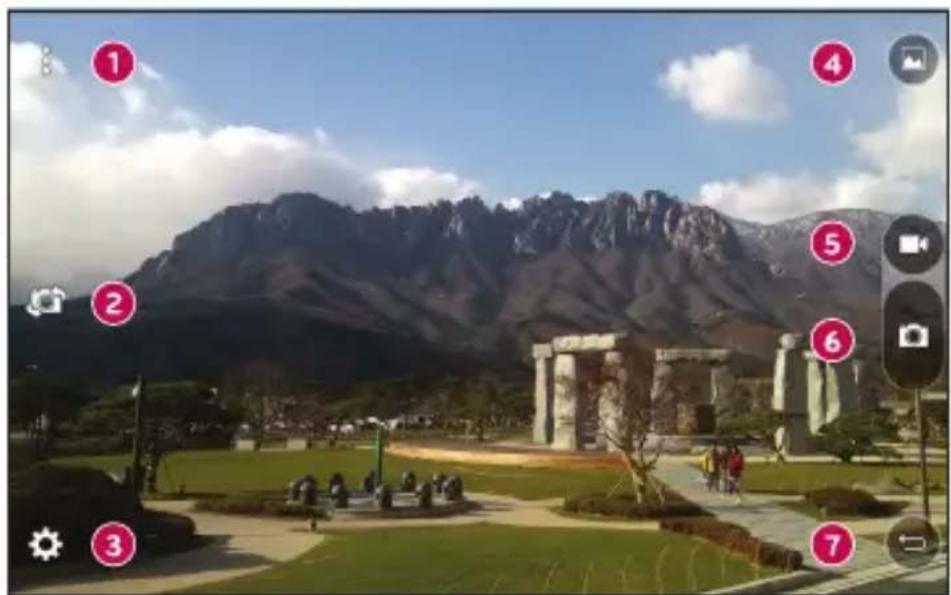
1 Hide/Display Options - Tap to hide/display the camera options on the viewfinder.
Swap camera - Tap to swap between the rear camera lens and the front camera lens.
Settings - Tap this icon to open the camera settings menu.
4 Gallery - Tap to view the last photo or video you captured.
5 Record - Tap to start recording.
6 Capture - Tap to take a photo.
7 Exit - Tap to exit the camera.
Using the advanced settings
In the camera viewfinder, tap to show the advanced options. Tap each icon to adjust the following camera settings.
| Set the size of your picture and video. | |
| Allows you to say a voice command to take pictures. You can say LG, Cheese, Smile, or any other supported command. | |
| Set your camera's timer. This is ideal if you want to be a part of the picture or video. | |
| Allows you to take better pictures and record better videos by displaying a grid line for help with alignment. | |
| Set the storage location for your pictures and videos. Choose from IN (internal memory) and SD (memory card). This menu appears only when the SD card is inserted. | |
| Allows you to learn how a function works. This icon will provide you with a help guide. |
Taking a photo
1 Open the application and point the lens toward the subject you want to photograph.
2 Focus indicators will appear in the centre of the viewfinder screen. You can also tap anywhere on the screen to focus on that spot.
3 When the focus indicators turn blue, the camera has focused on your subject.
4 Tap to capture the photo.
Once you have taken a photo
Tap the image thumbnail on the screen to view the last photo you took. The following options are available.
| ★ | Tap to add the photo to your favourites. |
| ← | Tap to edit the photo. |
| © | Tap to take another photo immediately. |
| < | Tap to open the available sharing options. |
| © | Tap to delete the photo. |
| ≡ | Tap to access additional options. |
Recording a video
1 Open the application and point the lens toward the subject you want to capture in your video.
2 Tap once to start recording.
NOTE: The timer will be displayed on the screen.
3 Tap to stop recording.
TIP!
- Tap to capture a screen shot while recording a video.
- Tap to pause the recording.
After recording a video
Tap the video thumbnail on the screen to view the last video you recorded. The following options are available.
| ★ | Tap to add the video to favourites. |
| ◎ | Tap to record another video immediately. |
| ← | Tap to send your video to others or share it via any available social network services. |
| ► | Tap to delete the video. |
| ⋮ | Tap to access additional options. |
Multi-point Auto Focus
When you take a picture, the Multi-point Auto Focus (AF) function operates automatically and allows you to see a clear image.
Camera and Video
Burst shot
Allows you to take multiple shots quickly. Touch and hold
Gallery
The Gallery application presents the pictures and videos in your storage, including those you've taken with the Camera application and those you downloaded from the web or other locations.
1 Tap > > to view the images stored in the storage.
2 Tap an album to open it and view its contents. (The pictures and videos in the album are displayed in chronological order.)
3 Tap a picture in an album to view it.
NOTE:
Depending on the software installed, some file formats may not be supported.
- Some files may not play properly due to their encoding.
Viewing pictures
The Gallery displays your pictures in folders. When some apps save a picture, a folder is automatically created to contain the picture.
Pictures are displayed by the date they were created. Select a picture to view it full screen. Scroll left or right to view the next or previous image.
Zooming in and out
Use one of the following methods to zoom in and out on an image:
Double-tap anywhere to zoom in and out.
- Spread two fingers apart on any place in the picture zoom in. Pinch in to zoom out.
Video options
1 Tap >
2 Select the video you want to watch.

| 1 | 图 | Touch to use QSlide for the Video app. |
| 2 | 图 | Tap to share your video using the SmartShare function. |
| 3 | 图 | Tap to access additional options. |
| 4 | 图 | Touch to adjust video volume. |
| 5 | 图 | Touch and hold to rewind in 3 second increments. Tap to go to previous video. |
| 6 | 图 / 图 | Touch to pause/resume video playback. |
| 7 | 图 | Touch and hold to fast-forward in 3 second increments. Tap to go to next video. |
| 8 | 图 / 图 | Touch to lock/unlock the screen. |
NOTE:
While playing a video, the following options are available:
- Slide the right side of the screen up or down to adjust the sound.
- Slide the left side of the screen up or down to adjust the brightness.
- Slide your finger from left to right (or vice versa) to fast-forward and rewind.
Editing photos
While viewing a photo, tap
Deleting photos/videos
Use one of the following methods:
While in a folder, tap , select the photos/videos you want to delete. Then tap Delete.
While viewing a photo, tap
Setting wallpaper
While viewing a photo, tap > Set image as to set the image as wallpaper or assign it to a contact.
NOTE:
Depending on the software installed, some file formats may not be supported.
- If the file size exceeds the available memory, an error can occur when you open files.
Multimedia
Music
Your device has a music player that lets you play all your favourite tracks.
Playing a song
1 Tap > >
2 Tap the Songs tab.
3 Select the song you want to play.
4 The following options are available.

| 1 | Tap to share your music via the SmartShare function. |
| 2 | Tap to add the song to your favourites. |
| 3 | Tap to open the current playlist. |
| 4 | Tap to access additional options. |
| 5 | Tap to play the current playlist in shuffle mode (tracks are played in random order). |
| 6 | Tap to toggle through repeat all songs, repeat current song and repeat off. |
| 7 | Tap to adjust the volume. |
| 8 | Tap to restart the current track or skip to the previous track in the album, playlist or shuffle list. Touch and hold to rewind. |
| 9 | Tap to pause playback. |
| Tap to resume playback. | |
| 10 | Tap to skip to the next track in the album, playlist or shuffle list. Touch and hold to fast-forward. |
| 11 | Tap to set audio effects. |
NOTE:
Depending on the software installed, some file formats may not be supported.
- If the file size exceeds the available memory, an error can occur when you open files.
- Music file copyrights may be protected by international treaties and national copyright laws. Therefore, it may be necessary to obtain permission or a licence to reproduce or copy music. In some countries, national laws prohibit private copying of copyrighted material. Before downloading or copying the file, please check the national laws of the relevant country concerning the use of such material.
Utilities
Clock
The Clock app gives you access to the Alarms, Timer, World clock and Stopwatch functions. Access these functions by tapping the tabs across the top of the screen or swiping horizontally across the screen.
Tap > >
Alarms
The Alarms tab allows you to set alarms.
1 Open the app, then select the Alarms tab.
2 Tap + to add a new alarm, tap an alarm.
3 Adjust the settings as necessary and tap Save.
NOTE: You can also tap an existing alarm to edit it.
Timer
The Timer tab can alert you with an audible signal when a set amount of time has passed.
1 Open the app, then select the Timer tab.
2 Set the desired time on the timer.
3 Tap Start to start the timer.
4 Tap Stop to stop the timer.
World clock
The World clock tab allows you to easily check the current time in other cities around the world.
1 Open the app, then select the World clock tab.
2 Tap + and select the desired city.
Stopwatch
The Stopwatch tab allows you to use your device as a stopwatch.
1 Open the app, then select the Stopwatch tab.
2 Tap the Start button to initiate the stopwatch.
- Tap the Lap button to record lap times.
3 Tap the Stop button to stop stopwatch.
Calculator
The Calculator app allows you to perform mathematical calculations using a standard or scientific calculator.
1 Tap > >
2 Tap the number keys to enter numbers.
3 Tap the number keys to enter numbers.
4 For simple calculations, tap the function you want to perform (+, -, x or ÷) followed by = .
NOTE: For more complex calculations, tap > Scientific calculator.
Calendar
The Calendar app allows you to track your schedule of events.
1 Tap 0 > 0 > 1
2 Tap the date you want to add an event to. Then tap+
Voice Recorder
The Voice Recorder app records audible files for you to use in a variety of ways.
Recording a sound or voice
1 Tap 0 > 0 > 0
2 Tap to begin recording.
3 Tap to end the recording.
4 Tap to listen to the recording.
NOTE: Tap to access your recordings. You can listen to your saved recordings.
Voice Search
Use this application to search webpages using voice.
1 Tap > > Google folder>
2 Say a keyword or phrase when Speak now appears on the screen. Select one of the suggested keywords that appear.
NOTE: This application may not be available depending on the region or service provider.
Downloads
Use this application to see what files have been downloaded through the applications.
- Tap > >
NOTE: This application may not be available depending on the region or service provider.
LG SmartWorld
LG SmartWorld offers an assortment of exciting content – fonts, themes, games, applications.
How to Get to LG SmartWorld from Your Phone
1 Tap > >
2 Tap Sign in and enter your user name and password. If you have not signed up yet, tap Register to create an account.
3 Browse and download the content you want.
NOTE:
- You may incur data fee charges when using your mobile network to access LG SmartWorld.
- LG SmartWorld may not be available for all carriers or in all countries.
What if there is no LG SmartWorld icon?
1 Using a mobile Web browser on your device, access LG SmartWorld (www. lgworld.com) and select your country.
2 Download the LG SmartWorld App.
3 Run and install the downloaded file.
4 Access LG SmartWorld by tapping the LG icon.
Special benefits available for LG SmartWorld
- Personalize your device with home themes, keyboard themes, and fonts.
- Enjoy special promotions only offered on LG SmartWorld.
- Note that LG SmartWorld is only available for certain devices. Please check the www/lgworld.com for more information.
Browsing the Web
Chrome
Use Chrome to search for information and browse webpages.
1 Tap 0 > 0 > 0
NOTE: This application may not be available depending on your region and service provider.
Viewing webpages
Tap the address field, and then enter a web address or search criteria.
Opening a page
To go to a new page, tap at the top of the browser.
- To go to another web page, tap a tab at the top of the screen to select the page.
Settings
The Settings application contains most of the tools for customizing and configuring your device. All of the settings in the Settings application are described in this section.
To open the Settings application
- Tap > touch and hold > System settings.
-0r
- TapO >① >②.
WIRELESS NETWORKS
Turns on Wi-Fi to connect to available Wi-Fi networks.
Turns the Bluetooth wireless feature on or off to use Bluetooth.
Displays the data usage and allows you to set a personalized mobile data usage limit.
- SmartShare Beam - Allows you to receive multimedia content from LG devices or tablets.
- Media server - Share media content with nearby DLNA-compatible devices.
- Miracast - You can mirror your tablet screen and sound onto LG Miracast dongle or TV wirelessly.
- LG PC Suite - Connect LG PC Suite with your device to easily manage multimedia content and apps.
- USB tethering - Allows you to share the internet connection with your computer via a USB cable.
- Wi-Fi hotspot - Allows you to create a hotspot and share your connection. Please consult "Sharing your phone's data connection" for more information.
- Bluetooth tethering - Allows you to connect to other devices via Bluetooth.
- Help - Displays Help information about USB tethering, Wi-Fi hotspot, and Bluetooth tethering.
- Airplane mode - Airplane Mode (flight mode) allows you to use many of your phone's features, such as games, and music, when you are in an area where making or receiving calls or data use is prohibited. When you set your phone to Airplane Mode, it cannot send or receive any calls or access online data.
- Mobile networks - Set options for network operators, access point names, and mobile data.
- VPN - From your device, you can add, set up, and manage virtual private networks (VPNs) that allow you to connect and access resources inside a secured local network, such as your corporate network.
DEVICE
Sound profile
Allows you to set the sound profile to Sound, Vibrate only and Do not disturb.
Volume
Adjust the device's volume settings to suit your needs and environment.
Notification sound
Select the ringtone for notifications such as new messages receipt or calendar events.
Do not disturb
Allows you to set a schedule when to prevent interruptions from notifications. You can set to allow certain features to interrupt when Priority only is set.
Lock screen
Allows you to choose if you want to show or hide notifications on the lock screen.
Apps
Allows you to prevent apps from displaying notifications or set apps to show notifications with priority when Do not disturb is set to Priority only.
Touch sound
Allows you to set your tablet to play a sound when you touch buttons, icons and other onscreen items that react to your touch.
Screen lock sound
Allows you to set your tablet to play a sound when locking and unlocking the screen.
Vibrate on tap
Checkmark to vibrate when tapping the Home touch buttons and during other UI interactions.
Home screen
- Theme - Sets the screen theme for your device. You can download new themes from LG SmartWorld.
- Wallpaper - Allows you to set the desired wallpaper for your Home screen.
- Screen swipe effect - Choose the desired type of effect to display when you swipe from one Home screen canvas to the next.
- Allow Home screen looping – Choose the desired type of effect to display when you swipe from one Home screen canvas to the next.
- Home backup & restore - Allows you to back up and restore the Home screen app layout and wallpaper.
- Help - Displays help information for the Home screen.
Lock screen
- Select screen lock - Allows you to set a screen lock to secure your device.
- Smart Lock - Sets to keep your device unlocked when you have a trusted Bluetooth device connected to it, when it's in a familiar location like your home or work, or when it recognises your face.
- Screen swipe effect - Sets the effect used when swiping the lock screen.
- Wallpaper - Select the wallpaper to display for your lock screen.
- Shortcuts - Customise shortcuts on the lock screen.
- Contact info for lost tablet - Allows you to display the owner information on the lock screen in case the device is lost.
- Lock timer - Allows you to set the amount of time before the screen automatically locks after the screen has timed-out.
- Power button instantly locks - Checkmark to instantly lock the screen when the Power/Lock Key is pressed. This setting overrides the Security lock timer setting.
Brightness
Allows you to adjust the screen brightness. Checkmark Night brightness to set brightness at 0% automatically between 12:00 AM 06:00 AM.
Screen timeout
Allows you to set the amount of time before the screen times out.
Screen-off effect
Allows you to set the screen off effect used when the screen turns off.
Auto-rotate screen
Allows you to set to switch the screen orientation automatically when you physically rotate the device.
Daydream
Select the screenshot to display when the device is sleeping while docked and/or charging.
Font type
Select the desired font type.
Font size
Select the desired font size.
Smart screen
Keeps the screen on when the device detects your eyes looking at the screen.
Home touch buttons
Allows you to set which Home touch buttons are displayed and their position on the bar. You can also select the colour and the background.
Motion sensor calibration
Allows you to improve the accuracy of the tilt and speed of the sensor.
INTERNAL STORAGE
Allows you to view information about the internal storage usage.
SD CARD
Allows you to view information about storage use on the SD card. Tap Unmount SD card to allow safe removal of the card. If no SD card is mounted, tap Mount SD card. Tap Erase SD card if you want to delete all of the data from the SD card.
< Battery >
The Battery charge information is displayed on a battery graphic along with the percentage of the remaining charge and its status.
BATTERY INFORMATION
The Battery charge information is displayed on a battery graphic along with the percentage of the remaining charge and its status.
Battery usage
Displays the battery usage level and battery use details. Tap one of the items to see more detailed information.
Battery percentage on status bar
Checkmark to display the battery level percentage on the Status bar next to the icon.
Battery saver
Tap the Battery Saver switch to toggle it On or Off. You can also set when to battery saver on.
Help
Displays help information for the Battery saver feature.
Display the list of applications such as currently running or downloaded. Swipe and right to view one of the three tabs across the top of the screen to view det information for DOWNLOADED, ON SD CARD, RUNNING, and ALL application entry to view more information, tap Force stop (or Stop), then Yes to stop it running.
This menu allows you to choose what messaging app to use as your default me app.
< Dual window >
Auto-open
Allows the device to automatically open Dual window when you tap a link on screen or tap an e-mail attachment (images only).
Help
Displays help information about using the Dual window feature.
PERSONAL
Checkmark to add users when phone locked. Add user to share the phone with other people. Each user can have their own apps and content in their own space. Anyone using the phone can change settings like Wi-Fi and accept app updates that will affect everyone. Initial setup is required for new users to use phone.
Turn on location service, your device determines your approximate location using Wi-Fi and mobile networks. When you select this option, you're asked whether you consent to allowing Google to use your location when providing these services.
- Mode - Sets the how your current location information is determined.
- RECENT LOCATION REQUEST - Displays applications and services that have recently requested your location.
- Camera - Checkmark to tag photos or videos with their locations.
- Google Location Reporting - Allows you to view and manage your Google location history.
Use the Security menu to configure how to help secure your device and its data.
Encrypt tablet
Allows you to encrypt data on the device for security. You will be required to enter a PIN or password to decrypt your device each time you power it on.
Encrypt SD card storage
Encrypt SD card storage and keep data unavailable for other devices.
Setup SIM card lock
Sets the PIN to lock your SIM card and allows you to change the PIN.
Password typing visible
Checkmark to briefly show each character of passwords as you enter them so that you can see what you enter.
Tablet administrators
View or deactivate device administrators.
Unknown sources
Allow installation of non-Play Store applications.
Verify apps
Disallow or warn before installation of apps that may cause harm.
Storage type
Displays the storage type for credentials.
Trusted credentials
Allows you to check trusted CA certificates list.
Install from storage
Touch to install a secure certificate.
Clear credentials
Deletes all secure certificates and related credentials and erases the secure storage's own password.
Trust agents
Select apps to use without unlocking screen.
Screen pin
This feature allows you to lock your device so that the current user can only access the pinned app. This is useful for users with children.
App usage access
Allow this app to view usage info of apps on your device.
< Accounts & sync >
Use the Accounts & sync settings menu to add, remove, and manage your Google and other supported accounts. You can also use these settings to control how and whether all applications send, receive, and sync data on their own schedules and whether all applications can synchronise user data automatically.
Gmail™, Calendar, and other applications may also have their own settings to control how they synchronise data; see the sections on those applications for details. Touch Add account to add new account.
< Language & input >
Use the Language & input settings to select the language for the text on your device and to configure the on-screen keyboard, including words you've added to its dictionary.
< Backup & reset >
Change the settings for managing your settings and data.
Back up my data
Back up app data, Wi-Fi passwords, and other settings to Google servers.
Backup account
Displays the account that is currently being used to back up information.
Automatic restore
When reinstalling an app, restore backed up settings and data.
LG Backup service
Backs up all information on the device and restores it in the event of data loss or replacement.
Factory data reset
Reset your settings to the factory default values and delete all your data. If you reset the device this way, you are prompted to re-enter the same information as when you first started Android.
SYSTEM
< Shortcut key >
Allows you to turn the Shortcut keys on and off. Press and hold the Volume Up and Down keys together when the screen is unlocked to access QuickMemo+. Press and hold the Volume Up or Down key when the screen is off or locked to access the camera.
< Date & time >
Use Date & time settings to set how dates will be displayed. You can also use these settings to set your own time and time zone rather than obtaining the current time from the mobile network.
< Accessibility >
Use the Accessibility settings to configure accessibility plug-ins you have installed on your device.
TalkBack
Allows you to set up the TalkBack function which assists people with impaired vision by providing verbal feedback. Tap the TalkBack switch at the top right corner of the screen to turn it on. Tap Settings at the bottom of the screen to adjust the TalkBack settings.
Font size
Allows you to change the size of the text.
Invert colours
Checkmark to invert the colours of the screen and content.
Colour adjustment
Sets to view the screen with greater colour contrast. Tap the switch OFFON to turn it on. Then tap the screen and drag across the screen in any direction until you see the colour contrast you want to use.
Touch zoom
Allows you to zoom in and out by triple-tapping the screen.
Screen shade
Dims the screen's backlight.
Accessibility shortcut
Activate this feature to allow you to quickly enable accessibility features in two steps.
Text-to-speech output
Sets the text-to-speech preferred engine and speech rate setting. Also plays a short demonstration of speech synthesis. The default language status is also displayed.
Audio type
Sets the audio type. Choose Mono or Stereo.
Sound balance
Sets the audio route. Move the slider on the slide bar to set it.
Turn off all sounds
Turns off all sounds.
Captions
Allows to customise caption settings for those with hearing impairments. Tap the switch OFFON to turn this feature on. Set the language, text size, and caption style options as desired.
Touch feedback time
Sets the touch and feedback time. Choose from Short, Medium, and Long.
Touch assistant
Touch the switch OFFON to toggle between on and off. On allows you to replace the hardware keys with a Universal touch board 心
Tap the Universal touch icon to access the Power, Home, Volume down, Volume up, Screen capture, Accessibility, and Pinch buttons. Draw a "W" on the board to automatically launch the browser app. Draw an "S" on the board to automatically
display the settings app. Draw an "L" on the board to lock the screen. Draw a "e" on the board to access the Email app.
Screen timeout
Sets the amount of time before the screen turns off.
Touch control areas
Tap the switch OFFON to turn this feature on. Allows you to limit the touch control to selected areas of the screen. Press the Volume Down Key and Home Button at the same time to activate and deactivate the feature.
Auto-rotate screen
Checkmark to allow the device to rotate the screen depending on the device orientation (portrait or landscape).
Password voice confirmation
Checkmark to have verbal confirmation when inputting passwords.
Accessibility settings shortcut
Sets quick and easy access to selected features when you triple-tap the Home Key.
One-touch input
Each finger touch enters a letter/character on the LG keyboard.
Switch Access
Allows you to interact with your device using one or more switches that work like keyboard keys. This menu can be helpful for users with mobility limitations that prevent them from interacting directly with the your device. Tap Settings at the bottom of the screen to adjust the Switch access settings.
< Printing >
Allows you to print the content of certain screens (such as web pages displayed in Chrome) to a printer connected to the same Wi-Fi network as your Android device.
This menu allows you to manage your software updates and view various information relating to your device.
Tablet name
Allows you to set your device name.
Update Center
Allows you to check for software updates.
Network
Allows you to see the network, signal strength, mobile network type and state, service state, roaming state, and IP address.
Status
Allows you to view the device number, IMEI, and IMEI SV.
Battery
Allows you to view battery status, battery level, and battery use information.
Hardware info
Allows you to view the model number, hardware version, up time, Wi-Fi MAC address and Bluetooth address.
Software info
Allows you to view Android version, baseband version, kernel version, build number, and software version.
Legal info
Allows you to view legal documents for LG software, open source licenses and Google legal information.
Software Update
Device Software Update
This feature allows you to update the firmware of your device to the latest version conveniently from the internet without the need to visit a service centre.
For more information on how to use this function, please visit:
http://www.lg.com/common/index.jsp.
As the device firmware update requires the user's full attention for the duration of the update process, please make sure to check all instructions and notes that appear at each step before proceeding. Please note that removing the USB cable or battery during the upgrade may seriously damage your device.
LG Device Software Update via Over-the-Air (OTA)
This feature allows you to update the firmware of your device to the newer version conveniently via OTA without connecting the USB cable. This feature is only available if and when LG makes the newer version of the firmware available for your device.
First, you can check the software version on your device:
Tap > > > About tablet > Software info.
To perform the device software update, tap > > About tablet > Update Center > Software Update > Check now for update.
NOTE: Your personal data—including information about your Google account and any other accounts, your system/application data and settings, any downloaded applications and your DRM licence—might be lost in the process of updating your device's software. Therefore, LG recommends that you back up your personal data before updating your device's software. LG does not take responsibility for any loss of personal data.
About this user guide
About this user guide
- Before using your device, please carefully read this manual. This will ensure that you use your device safely and correctly.
- Some of the images and screenshots provided in this guide may appear differently on your device.
- Your content may differ from the final product, or from software supplied by service providers or carriers. This content may be subject to change without prior notice. For the latest version of this manual, please visit the LG website at www.lg.com.
- Your device's applications and their functions may vary by country, region, or hardware specifications. LG cannot be held liable for any performance issues resulting from the use of applications developed by providers other than LG.
- LG cannot be held liable for performance or incompatibility issues resulting from edited registry settings being edited or operating system software being modified. Any attempt to customise your operating system may cause the device or its applications to not work as they should.
- Software, audio, wallpaper, images, and other media supplied with your device are licensed for limited use. If you extract and use these materials for commercial or other purposes is, you may be infringing copyright laws. As a user, you are fully are entirely responsible for the illegal use of media.
- Additional charges may be applied for data services, such as messaging, uploading and downloading, auto-syncing, or using location services. To avoid additional charges, select a data plan to is suitable for your needs. Contact your service provider to obtain additional details.
Trademarks
Trademarks
Copyright 2015 LG Electronics, Inc. All rights reserved. LG and the LG logo are registered trademarks of LG Group and its related entities.
- Bluetooth is a registered trademark of the Bluetooth SIG, Inc. worldwide.
- Wi-Fi, the Wi-Fi CERTIFIED logo, and the Wi-Fi logo are registered trademarks of the Wi-Fi Alliance.
All other trademarks and copyrights are the property of their respective owners.
DivX HD DivX
This DivX Certified® device has passed rigorous testing to ensure it plays DivX video. To play purchased DivX movies, first register your device at vod.divx.com. Find your registration code in the DivX VOD section of your device setup menu.
DivX Certified® to play DivX® video up to HD 720p, including premium content.
DivX®, DivX Certified® and associated logos are trademarks of DivX, LLC and are used under license.
NOTE: Wi-Fi® and Wi-Fi Protected Access® are registered trademarks of the Wi-Fi Alliance.
Accessories
These accessories are available for use with the your phone. (Items described below may be optional.)
- Travel adaptor
Quick Start Guide
USB cable
NOTE
- Always use genuine LG accessories. The supplied items are designed only for this device and may not be compatible with other devices.
- The items supplied with the device and any available accessories may vary depending on the region or service provider.
Troubleshooting
This chapter lists some problems you might encounter when using your device. Some problems require you to call your service provider, but most are easy to fix yourself.
| Message Possible causes Possible corrective measures | ||
| No applications can be set | Not supported by service provider or registration required. | Contact your service provider. |
| Charging error | Battery is not charged. | Charge battery. |
| Outside temperature is too hot or cold. | Make sure device is charging at a normal temperature. | |
| Contact problem | Check the charger and its connection to the device. | |
| No voltage | Plug the charger into a different socket. | |
| Charger defective | Replace the charger. | |
| Wrong charger | Use only original LG accessories. | |
| Impossible to receive / send photos | Memory full | Delete some images from your device. |
| Files do not open | Unsupported file format | Check the supported file formats. |
| No sound Vibration mode | Check the settings status in the sound menu to make sure you are not in vibration or silent mode. | |
LIMITED WARRANTY STATEMENT
1. WHAT THIS WARRANTY COVERS:
LG offers you a limited warranty that the enclosed subscriber unit and its enclosed accessories will be free from defects in material and workmanship, according to the following terms and conditions:
- The limited warranty for the product extends for ONE (1) year beginning on the date of purchase of the product by the original end user.
- The limited warranty extends only to the original end user of the product and is not assignable or transferable to any subsequent purchaser/end user.
- This warranty is good only to the original end user of the product during the warranty period as long as it is in Canada.
- Upon request from LG, the consumer must provide information to reasonably prove the date of purchase.
- During the applicable warranty period, LG will repair or replace at LG's sole option, without charge to the original end user, any defective component of the tablet or accessory.
- LG may use rebuilt, reconditioned or new parts or components when repairing any product or replace a product with a rebuilt, reconditioned or new product.
2. WHAT THIS WARRANTY DOES NOT COVER:
- Defects or damages resulting from use of the product in other than its normal and customary manner.
- Defects or damages from abnormal use, abnormal conditions, improper storage, exposure to moisture or dampness, unauthorized modifications, unauthorized connections, unauthorized repair, misuse, neglect, abuse, accident, alteration, improper installation or other acts which are not the fault of LG, including damage caused by spills of food or liquids.
- Breakage or damage to antennas unless caused directly by defects in material or workmanship.
-
The fact that the Customer Service Department at LG was not notified by the original end user of the alleged defect or malfunction of the product, during the warranty period.
-
Products which have had their serial numbers removed or made illegible.
- Damage resulting from use of non-LG approved accessories.
- All plastic surfaces and all other externally exposed parts that are scratched or damaged due to normal customer use.
- Products serviced by non-authorized persons or companies.
Notes:
- This limited warranty supersedes all other warranties, expressed or implied either in fact or by operations of law, statutory or otherwise, including, but not limited to any implied warranty of merchantability or fitness for a particular purpose.
- Shipping damage is the sole responsibility of the shipping company.
3. EXCLUSION OF LIABILITY:
No other express warranty is applicable to this product.
THE DURATION OF ANY IMPLIED WARRANTY, INCLUDING THE IMPLIED WARRANTY OF MARKETABILITY, IS LIMITED TO THE DURATION OF THE EXPRESS WARRANTY HEREIN. LG ELECTRONICS CANADA, INC. SHALL NOT BE LIABLE FOR THE LOSS OF THE USE OF THE PRODUCT, INCONVENIENCE, LOSS OR ANY OTHER DAMAGES, DIRECT OR CONSEQUENTIAL, ARISING OUT OF THE USE OF, OR INABILITY TO USE, THIS PRODUCT OR FOR ANY BREACH OF ANY EXPRESS OR IMPLIED WARRANTY, INCLUDING THE IMPLIED WARRANTY OF MARKETABILITY APPLICABLE TO THIS PRODUCT.
4. HOW TO GET WARRANTY SERVICE:
To obtain warranty service, please call the following telephone number from anywhere in Canada:
LG Electronics Canada, Inc.
Tel. 1-888-LG-Canada (1-888-542-2623)
http://www/lg.com/ca_en/support/mobile-support
- American National Standards Institute; National Council on Radiation Protection and Measurements; International Commission on Non-Ionizing
Avtissement important
You can use the following command to convert your orientation to the rotation of the apparet.
LG Electronics Canada, Inc.
Tel. 1-888-LG-Canada (1-888-542-2623)
http://www.lg.com/ca_fr/aider/aider-mobile


Electronics Canada Inc.
North York, Ontario
Life's Good

LG
Life's Good