
KXTVP100E - Phone PANASONIC - Free user manual and instructions
Find the device manual for free KXTVP100E PANASONIC in PDF.



| Product Type | Voicemail system for landline phone |
| Brand | Panasonic |
| Model | KXTVP100E |
| Main Functions | Receive and send voice messages, message transfer with annotation, message waiting notification (indicator, phone call, pager), call screen, automatic call management, interview mailbox, distribution lists |
| Mailbox Capacity | Up to 84 messages in distribution history |
| Number of Distribution Lists | Up to 4 personal lists (20 members each) and 2 external lists (8 members each) |
| Supported Languages | Up to 3 languages (French, English, etc.) |
| Power Supply | Via Panasonic KX-TD telephone system (not specified separately) |
| Dimensions | Not provided |
| Weight | Not provided |
| Maintenance and Cleaning | Wipe with a soft, dry cloth. Do not use solvents. |
| Security | Customizable password up to 8 digits to access the mailbox |
| Spare Parts and Repairability | Contact authorized Panasonic after-sales service |
| General Information | Requires a Panasonic KX-TD telephone network. Approved for connection to telecommunication systems in accordance with EC directives. |
Frequently Asked Questions - KXTVP100E PANASONIC
User questions about KXTVP100E PANASONIC
0 question about this device. Answer the ones you know or ask your own.
Ask a new question about this device
Download the instructions for your Phone in PDF format for free! Find your manual KXTVP100E - PANASONIC and take your electronic device back in hand. On this page are published all the documents necessary for the use of your device. KXTVP100E by PANASONIC.
USER MANUAL KXTVP100E PANASONIC
SUBSCRIBER'S GUIDE Please read before using.
MODEL
KX-TVS100E
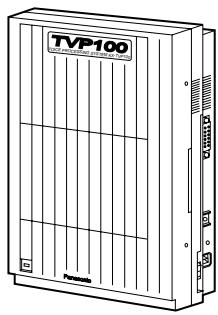
Introduction
The Panasonic Voice Processing System (VPS) provides you with powerful, convenient ways to manage your voice communications and increase your productivity through your voice mailbox. As the owner of a VPS mailbox, or Subscriber, you can:
- send a message to one or many people inside or outside of your office
- transfer messages (with your annotation) to another VPS Subscriber
- take messages when you are on the phone or unavailable
- receive your messages from any touch-tone telephone
- be notified by extension message waiting lamp, telephone or beeper (radio pager) of messages waiting screen your calls
- automate the handling of callers and more...
This guide is your reference to using and optimizing your VPS mailbox.
NOTE:
- This Subscriber's Guide does not show complete model numbers that indicate the country where your models should be used. The model number of your unit is found on the label affixed to the unit.
MODEL NO. - - - - - - -
[label)
C
73/23/EEC
89/336/EEC
92/31/EEC
93/68/EEC
APPROVED for connection to telecommunication systems specified in the instructions for use subject to the conditions set out in them.
606168
How to Use this Manual
This Subscriber's Guide explains the Voice Processing System's (VPS) operations by touch tone telephone for Subscribers.
Each operation consists of a description, a diagram, tips and some notes. During operations, the VPS plays voice prompts telling you what to do at each step though they do not appear in this guide except for Voice Mail Service Entry.
Description
Describes the operation with the telephone keys to be pressed step by step.
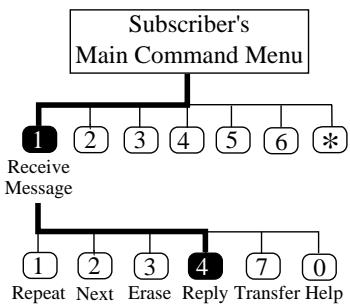
Diagram
A diagram is provided for each function on the lefthand of the text. It will help you understand how the operation goes on in the tree-structured VPS menu. You will know other options you can choose in a certain step. It will also help you to perform your desired operation faster if you press the outlined keys in a row along the bold line.
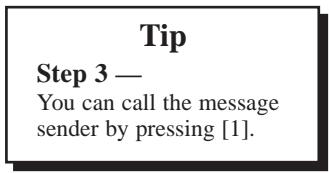
Tip
Tips framed in a square are used to make you aware of alternate options available at a particular step.
Note
This symbol describes additional information or useful advice about each feature.
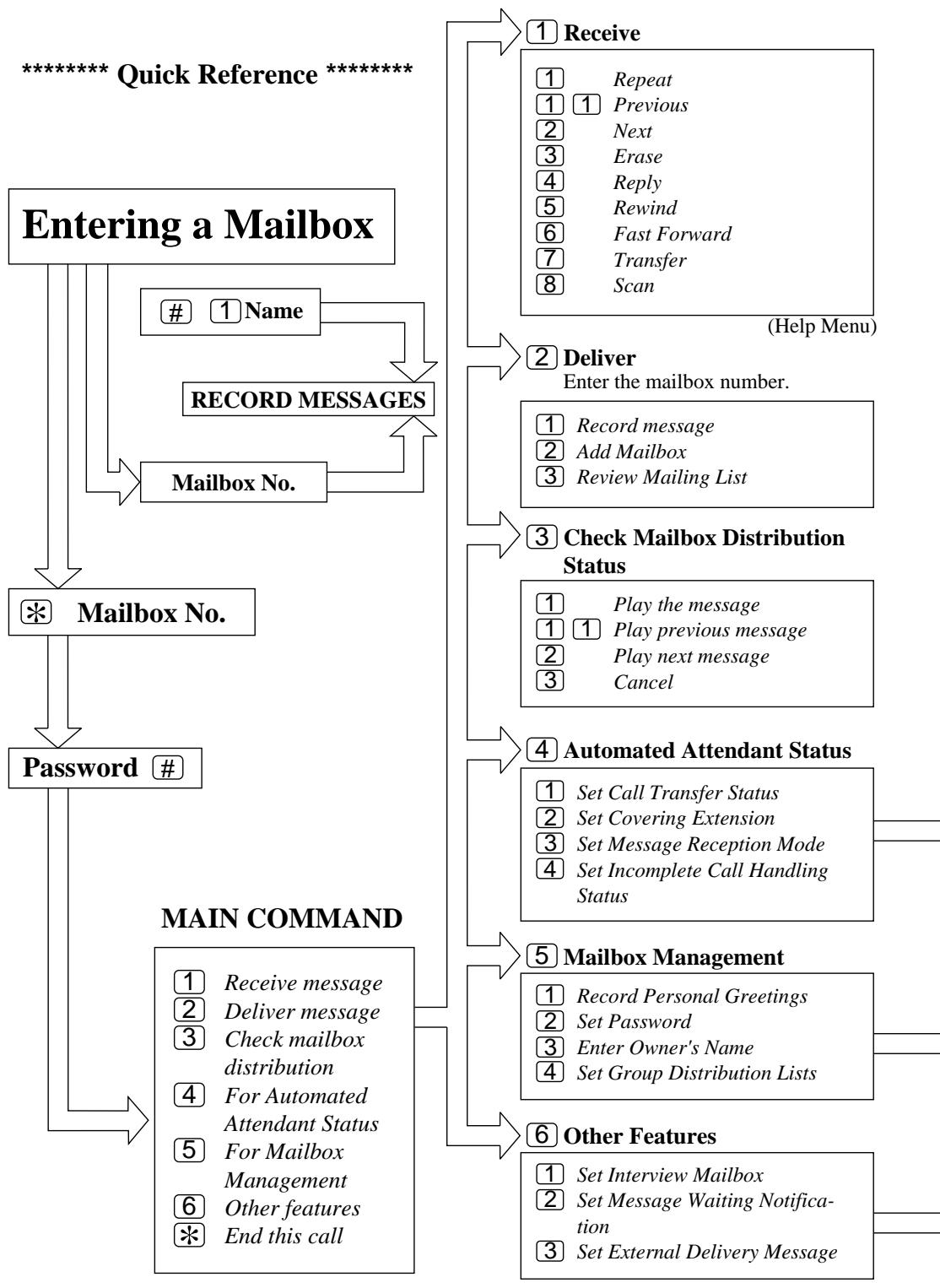
Once you become familiar with operating the VPS, use the Quick Reference Section, which appears at the end of this guide.
Terms to Know
The following words are used in this guide.
Subscriber
The owner of a VPS mailbox. The System Manager can create a mailbox for you.
System Manager
The System Manager is the person who manages and maintains the VPS to make it work efficiently. He controls mailbox creating and authorizes some of the features.
Caller
A caller is any person who is connected to a VPS service besides the Subscriber or the System Manager.
Getting Started
Required Numbers
Get the following information before you begin the operation.
(1) Telephone Number Directly Connected to Voice Mail Service If your VPS does not have one, call any extension number connected to the VPS and press [#] [6] (Service Access Command). (2) Your Mailbox Number Usually, the same number as your extension number. Check with your System Manager to be sure. (3) The System Manager's Phone Number In case you need their help or need to change certain mailbox settings.
Basic Steps
You need to know your mailbox number to use this guide.
If you are going into your mailbox for the first time, read Chapter 5 "Mailbox Setup" first. You need to customize it before sending or receiving messages. Especially, it is important to identify yourself as the owner of the mailbox by setting the following.
- Recording Personal Greetings (See page 5-7)
- Recording Your Name (See page 5-9)
- Changing Your Password (See page 5-8)
Then customize it as it suits you by setting the additional features as appropriate.
- Setting the Call Transfer Status (See page 5-2)
- Setting the Incomplete Call Handling Status (See page 5-4)
- Message Waiting Lamp Notification Setting (See page 5-13)
- Setting Notification by Calling (See page 5-14) ...
Once you complete your setting, find your desired operation from the titles, then call the VPS.
Table of Contents
Chapter 1 Using Your Mailbox and the VPS
Opening Your Mailbox (Mailbox Login) 1-2
Accessing VPS Services 1-3
Chapter 2 Receiving Messages
Receiving Messages 2-2
MessagePlayback Options 2-3
Replying to Messages 2-5
Message Transfer 2-6
Erasing Messages 2-7
Receiving Message Waiting Notification 2-8
Live Call Screening 2-9
Recording a Two-Way Conversation 2-10
Chapter 3 Sending Messages
Delivering Messages to Other Subscribers 3-2
Checking Mailbox Distribution 3-3
Setting up an External Message Delivery List 3-4
Sending External Delivery Messages 3-6
Checking and Setting External Message Delivery Status 3-7
Chapter 4 Caller Handling
Recording Messages (for any caller) 4-2
Recording Messages (from a rotary phone) 4-3
Receiving External Delivery Messages 4-4
Replying to External Delivery Messages 4-5
Chapter 5 Mailbox Setup
Setting the Call Transfer Status (Call Block/Call Screening/Intercom Paging/Beeper Access) 5-2 Setting up a Covering Extension 5-3 Setting the Incomplete Call Handling Status 5-4 Setting the Message Reception Mode 5-6 Recording Personal Greetings 5-7 Changing Your Password 5-8 Recording Your Name 5-9 Entry of Personal Group Distribution Lists 5-10 Recording the Names of Personal Group Distribution Lists 5-11 Deleting from Personal Group Distribution Lists 5-12 Message Waiting Lamp Notification Setting 5-13 Setting Notification by Calling 5-14 Setting Answer Lengths for the Interview Mailbox 5-16 Recording Questions for the Interview Mailbox 5-17 Erasing Questions from the Interview Mailbox 5-18
Chapter 1
Using Your Mailbox and the VPS
This chapter tells you how to enter Subscriber Service and other services provided by the VPS.
Contents
Opening Your Mailbox (Mailbox Log in) 1-2
Accessing VPS Services 1-3
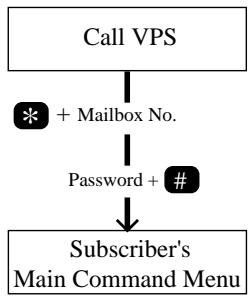
If you just want to record a message in someone else's mailbox, you do not have to use this procedure.
See the following topic in Chapter 4.
- Recording Messages (for any caller)
- Recording Messages (from a rotary phone)
If your company is using a Panasonic KX-TD series telephone system, you can directly access your mailbox just by dialing the number of the V.M. Service, depending upon System Programming. Check with your System Manager.
Tip
Step 1 — If no ports are assigned to Voice Mail Service, press # 6 after calling the VPS.
To access Subscriber Services, you must open your mailbox first. Follow the operation below.
1 Dial an extension number which is connected to the Voice Mail Service.
Good morning/Good afternoon/Good evening Welcome to the Voice Processing System.
If the system is equipped with multiple languages (up to three languages), you will hear a selection prompt as follows.
(ex.)
For English, press [7].
For French, press [8].
For Chinese, press [9].
2 If you hear the above prompt, press the number of the appropriate language.
Please enter your party's mailbox number.
To enter by name, press [#] and [1].
If you are using a rotary telephone, stay on the line.
To call the operator, press [0].
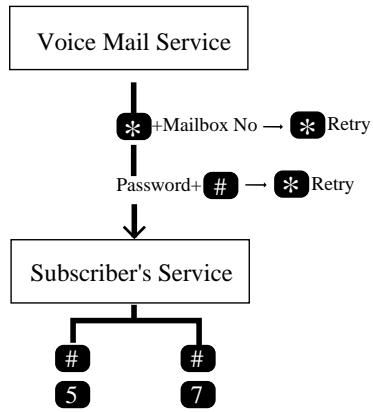
3 Press #, then enter your mailbox number.
Enter your password, followed by [#].
4 Enter the password if you have one. You are now in the main command menu.
Tip
5 and 7 are valid only for Subscriber Service.
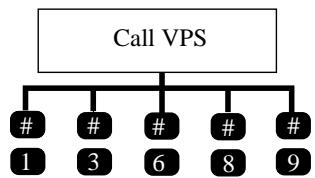
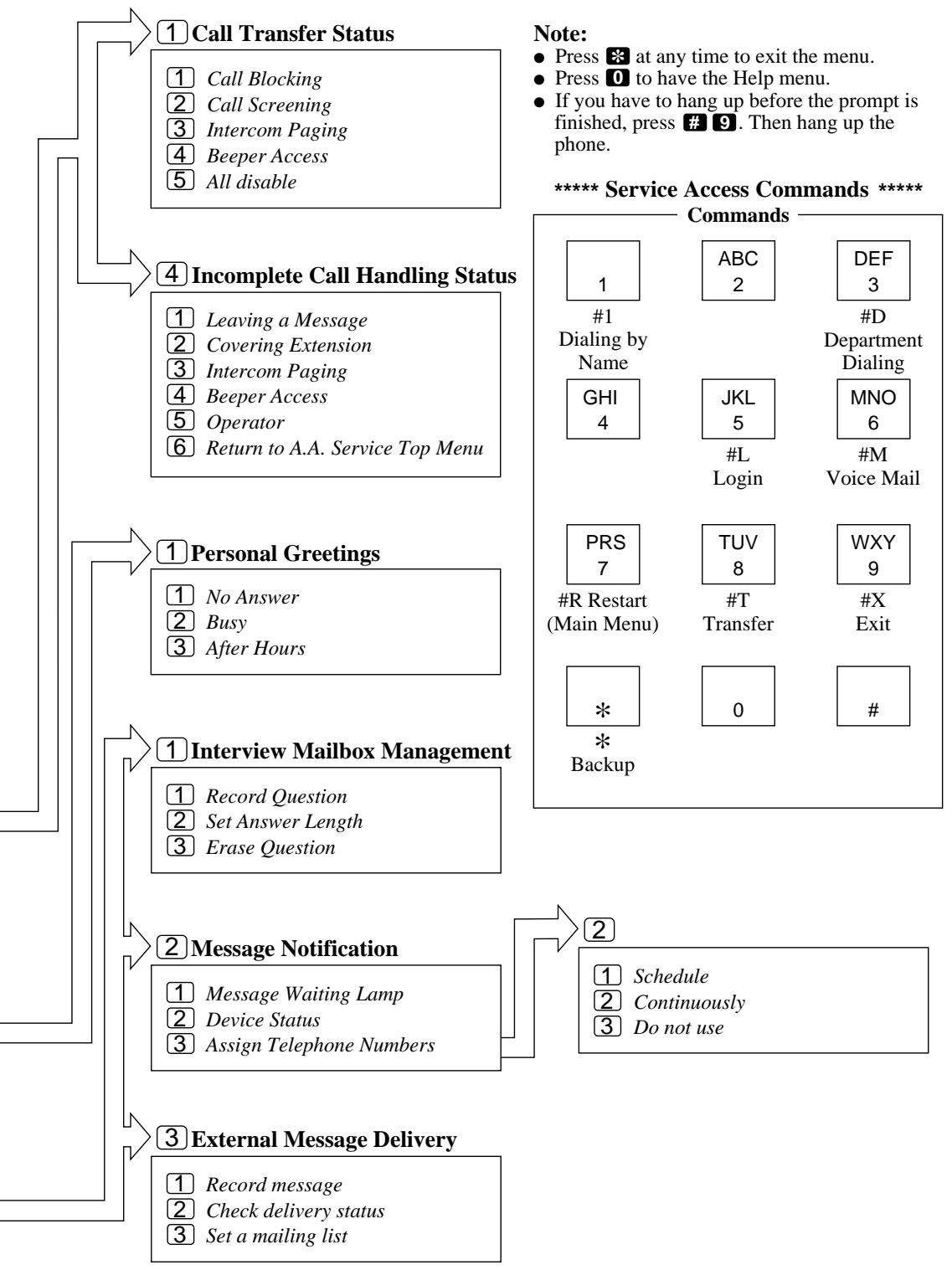
In VPS operation, the following functions are available whenever the system is providing voice prompts.
Press the appropriate key to receive your desired option (Service Access Commands).
Dialing by Name
If you press # 1, you can call the desired extension or mailbox by entering first 3 or 4 letters of the person's last name.
Department Dialing
If you press 3, you can call the intended extension and mailbox by pressing one digit (1-9) according to the Department Dialing Menu.
Voice Mail Service
If you press # 6, you can access the Voice Mail Service.
Call Transfer
If you press # 8, you can access the Automated Attendant Service and call your desired extension.
Exit the Menu
If you press # 9, you can exit the VPS.
Back up
If you press #, you can retry to enter a mailbox number, a password and also an extension number while you are in the call transfer status. In addition, you can move back to a previous menu in the main command menu.
Log in
If you press # 5, you can reselect a mailbox while you are in the main command menu.
Restart
If you press # 7, you can be back in the initial main command menu.
Chapter 2 Receiving Messages
This chapter tells you how to access and manage received messages: replying immediately, transferring messages with or without an additional comment, and replaying messages.
Contents
Receiving Messages 2-2
Message Playback Options 2-3
Replying to Messages 2-5
Message Transfer 2-6
Erasing Messages 2-7
Receiving Message Waiting Notification 2-8
Live Call Screening 2-9
Recording a Two-Way Conversation 2-10
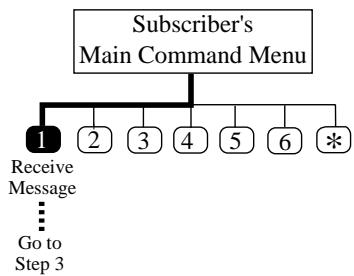
The VPS plays new messages and saved messages in your mailbox with the information of the message sender and the recorded date respectively.
1. Log in to the main command menu. - The VPS tells you the number of messages. 2. Press 1 to use the Receive Message menu. - The VPS tells you the number of messages. Then it plays the messages. 3. Press 0 to listen to the whole menu (for Help). - You can end your call by pressing # 9.
Tip
Step 3
You do not have to listen to the whole menu if you do not wish to.
1: Repeat this message 1 1: Play the previous message 2: Play the next message 3: Erase this message 4: Reply 5: Rewind 6: Fast forward 7: Transfer 8: Message scan
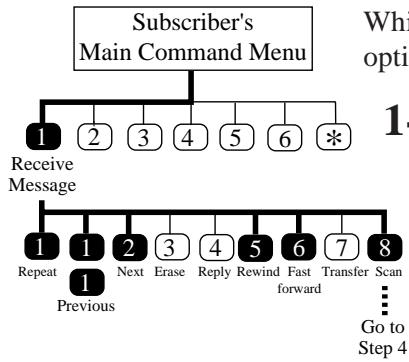
While receiving messages, several message playback options are available for efficient receiving.
1-2 Same as Receiving Messages.
3 Press the appropriate key to receive your desired option. If you choose 8, go to the next step.
Repeating Messages
If you press 1, you can listen to the current message again.
Replaying the Previous Message
If you press 1 1 while receiving a message, you can listen to the previous message.
Playing the Next Message
If you press 2 while receiving a message, you can listen to the next message.
Rewinding Messages
If you press 5 while receiving a message, you can listen to it again.
Fast Forwarding Messages
If you press 6 while receiving a message, you can fast forward it to the end.
Scanning Messages
If you press 8, you can listen to the first four seconds of each message.
4 Messages are scanned one at a time.
If you press 1, you will hear the previous message.
If you press 2, you will hear the next message.
If you press 3, you will hear the entire message.
Note:
Option 3 is available only once.
The second time will erase the message.
Tip
Step 3
You can receive the whole menu by pressing [0] for Help.
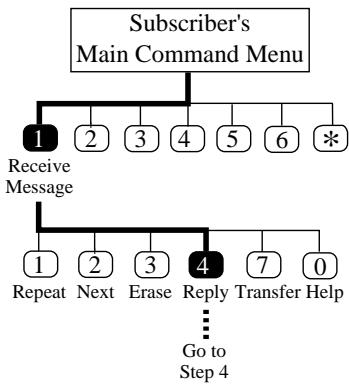
This feature is available only when the message has been delivered from a Subscriber using his mailbox, i.e., Message Transfer and Message Delivery. Otherwise, you will hear this prompt: "Sorry, you cannot reply. The message sender is unknown."
1-2 Same as Receiving Messages.
3 Press 4 to reply to the message. 4 Press 2 to record a message. 5 Record your message at the tone. 6 Press to end recording. 7 Press 2 to accept. 8 Press 1 to set delivery time. 9 Press 1 to specify the delivery time or the private status. 10 Press to specify the delivery time. 11 Enter the time and #. 12 Press 1 for AM or 2 for PM. 13 Enter the date (the day of the month) and #. 14 Press 2 to accept. 15 Press 1 to set this message to a private message. Otherwise, press 2.
Tip
Step 4
You can call the message sender by pressing [1].
Step 6
You can pause/restart recording by pressing [2].
Step 9
You can make your reply immediate by pressing [2].
You will skip to step 15.
Step 11
If you press [0] for help here, "For example, to enter 5 o'clock press [5] and [#] or 5:15 press [5], [1], [5] and [#].
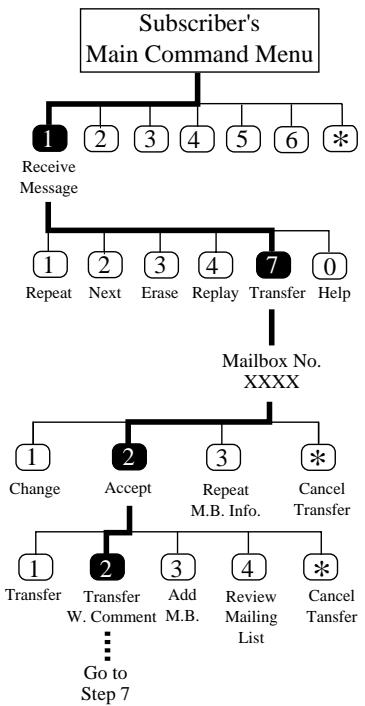
If the message has been assigned as private, you cannot transfer it to other mailboxes.
This function allows you to transfer messages to other mailboxes.
1-2 Same as Receiving Messages.
3 Press 7 to use the Message Transfer menu. 4 Enter the mailbox number of the intended recipient. 5 Press 2 to accept. 6 Press 2 to record a comment. 7 State your comment and press to end recording. 8 Press 2 if the comment is acceptable.
Tip
Step 4
You can enter by name by pressing [#] [1] first. Also, you can specify a Personal Group Distribution List or a System Group Distribution List by entering the number followed by [#].
Step 6
You can transfer the message without comment by pressing [1].
You can add the mailbox number by pressing [3].
You can review the mailing list by pressing [4].
You can cancel message transfer by pressing [*].
Step 7
You can press [2] to pause/restart recording.
Step 8
You can press [3] to change your comment.
You can press [1] to review your comment.
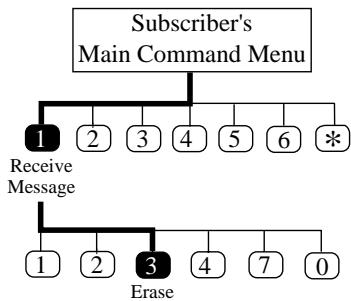
The VPS will automatically erase messages after a certain number of days. Check with your System Manager to find out how many days you can keep messages in your mailbox.
You can erase messages during playback. Erased messages cannot be recovered.
1. Log in to the main command menu. - The VPS tells you the number of messages. 2. Press to use the Receiving Messages menu. - The VPS tells you the number of messages, and the message information. Then it plays the message. 3. Press 3 to erase the messages.
Tip
Step 3
Messages are erased one at a time. After a message is erased, you will hear the following prompt and repeat step 3 for the next message.
"The message is erased."
If all messages have been erased, you will hear "All messages are erased".
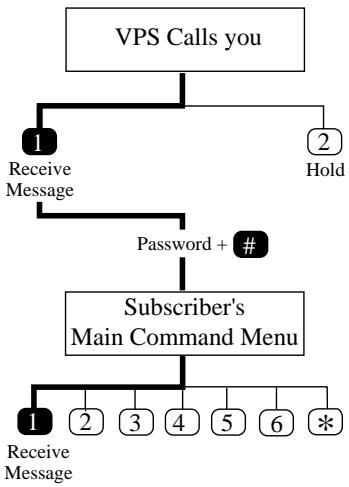
The Message Waiting Notification is a feature to notify you that unplayed messages are waiting in your mailbox. Notification Calls are sent to you via specified device after the message is recorded.
1 Pick up a call from the VPS.
If the system is equipped with multiple languages (up to three languages), you will hear a selection menu.
2 Press 1 to receive the message. 3 Enter the password and #
Now, you are in the main command menu. 4 Follow steps 2 - 3 of Receiving Messages.
Tip
Step 3 — If a password is not assigned, skip this step.
This feature is available only if your company is using a Panasonic KX-TD series telephone system.
By assigning one of your telephone keys to this feature, you can monitor incoming calls that have been forwarded to the Voice Mail Service.
In Hands-Free Mode, you can monitor the incoming call through built-in speaker of the telephone. Also, you can speak with the caller by picking up the handset.
In Private Mode, you can monitor the incoming call by going off-hook after you hear the notification tone. You can speak with the caller by pressing the feature key. Or you can stop listening to the message by going on-hook.
Note:
For detailed information, please refer to the Installation Manual of Panasonic KX-TD series telephone systems' PBXs (KX-TD816, KX-TD1232).
Recording a Two-Way Conversation
This feature is available only if your company is using a Panasonic KX-TD series telephone system. A beep sounds every sixteen seconds during recording.
By assigning one of the function keys on your telephone to this feature, you can record the conversation that you are having.
You should give your party a notice before recording that your conversation will be recorded.
Chapter 3 Sending Messages
This chapter tells you how to send messages, including recording and delivery.
Contents
Delivering Messages to Other Subscribers 3-2
Checking Mailbox Distribution 3-3
Setting up an External Message Delivery List 3-4
Sending External Delivery Messages 3-6
Checking and Setting External Message Delivery Status 3-7
Delivering Messages to Other Subscribers
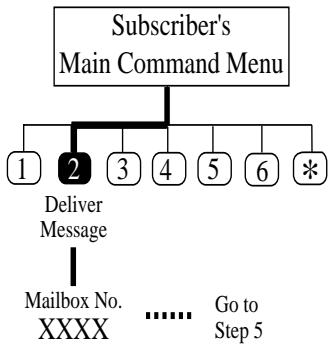
To use Personal Group Distribution Lists, they must have been created beforehand. To use the System Group Distribution Lists, check with your System Manager to see if there is any list in your VPS.
Tip
Step 3
You can enter by name if you press [#] [1] first. Also, you can specify a Personal Group Distribution List or a System Group Distribution List by entering the number followed by [#].
Step 4
You can review the mailing list by pressing [3].
Step 6
You can press [2] to pause recording while you are in the message recording process. Restart the recording within 20 seconds, or the VPS will stop it automatically.
Step 9
You can deliver the message immediately and return to the main command menu by pressing [2].
Step 10
You can deliver your message immediately after recording by pressing [2]. Then you will skip to step 14.
Step 11
You can press [0] for Help menu. It will guide you how to enter the time.
If you are sending an identical message to several Subscribers, follow the steps below. You can send it with a single operation.
1. Log in to the main command menu. - The VPS tells you the number of messages. 2. Press 2 for Message Delivery. 3. Enter the mailbox number of the intended recipient. 4. Press 2 to accept the mailbox number if it is correct. 5. Press to record a message.
You can add mailbox numbers by pressing 2. Then repeat steps 3 and 4. You can specify a maximum of 20 mailboxes as the destination.
6. State your message at the tone. 7. Press 1 to end recording. 8. Press 2 to accept. 9. Press to set delivery time or private status.
10. Press to specify the delivery time. 11. Enter the time and #. 12. Press 1 for AM or 2 for PM. 13. Enter the date (the day of the month) and #. 14. Press 2 to accept. 15. Press 1 to set this message to a private message. Otherwise, press 2.
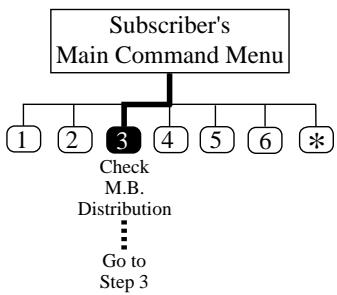
This function lets you check the status of messages which you have recorded in your mailbox to deliver to other mailboxes.
You can check the history (delivery status) of up to 84 message transmissions.
1. Log in to the main command menu. 2. Press 3 to check distribution status. 3. Press 3 to cancel the message or delete verification. 4. Select 1 to delete verification of this message or 2 to cancel message delivery.
Tip
Step 3
You can listen to the message by pressing [1]. You can check the previous message by pressing [1] twice. You can check the next message by pressing [2].
Setting up an External Message Delivery List
To use this feature, you must have your System Manager authorize it beforehand.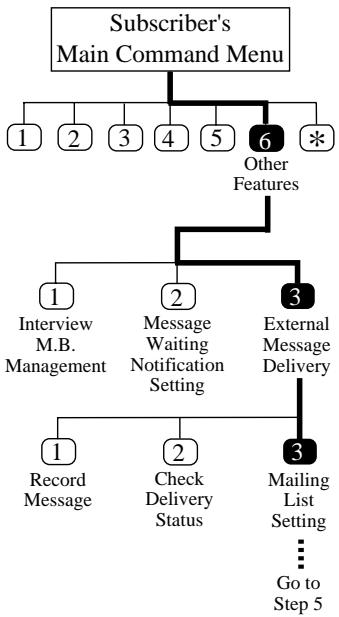
Tip
Step 8
1. Change the telephone number 2. Accept 3. Review 4. Add more digits 5. Insert a pause 6. Set dial mode 7. Insert a wait for dial tone
Setting up an External Message Delivery List lets you send the same message to several people outside of the system with a single operation. Up to two lists can be maintained at the same time, and each list can contain up to eight members.
1 Log in the main command menu. 2 Press 6 for Other Features. 3 Press 3 for External Message Delivery. 4 Press 3 to set up the mailing list. 5 Press 1 or 2 to choose the delivery list. (Up to two delivery lists can be established.)
To add members:
6 Press to add members to the list.
You can have up to 8 members on the list.
7 Enter the telephone number. 8 Press 2 to accept the number. 9 Record the name and press 1.
10 Press 2 to accept. 11 Press 1 to continue adding members or 2 to end.
If you press 1, you will repeat steps 7-11.
Setting up an External Message Delivery List
To delete members:
Go to the Delivery List Menu.
(See steps 1 - 5 in "Setting up an External Message Delivery List".)
6 Press 2 to delete members from the list. 7 Press 1 to delete all members from the list. Otherwise, press 2. 8 Press 1 to delete the number, or 2 to keep the number and play the next telephone number.
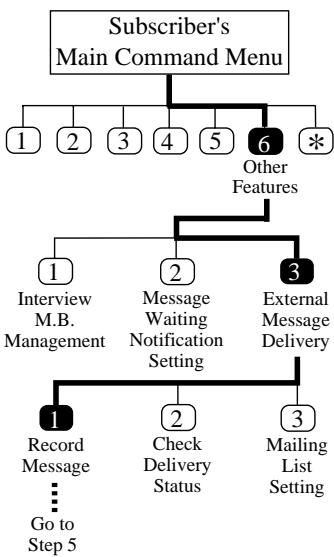
To use this feature, you must have your System Manager authorize it beforehand.
Tip
Step 5
You can press [2] to send your message by mailing list 1 or 2.
Step 7 —
1 Change the telephone number 2 Accept 3 Review 4 Add more digits 5 Insert a pause 6 Set dial mode 7 Insert a wait for dial tone
Step 10
You can press [0] for the Help menu. It will guide you on how to enter the time.
1 Log in to the main command menu. 2 Press 6 for Other Features. 3 Press 3 for External Message Delivery. 4 Press to record an external delivery message. 5 Press to send to a recipient. 6 Enter the telephone number. 7 Press 2 to accept the number. 8 Enter the password. 9 Record the recipient's name and press 1. 10 Enter the time and press #. 11 Press 1 for AM or 2 for PM. 12 Enter the date and press #. 13 Review your setting and press 2 to accept the setting. 14 Record your message. (See Recording Messages.)
Checking and Setting External Message Delivery Status
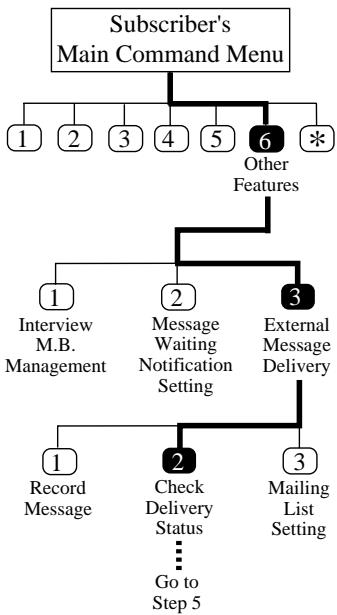
To use this feature, you must have your System Manager authorize it beforehand.
After recording your external delivery messages, you may want to check the delivery schedules or the recipients. You can listen to the report from the VPS unless the messages have been delivered yet. After listening, you have the option of deleting unnecessary ones or changing the schedules.
1 Log in to the main command menu. 2 Press 6 for Other Features. 3 Press 3 for External Message Delivery. 4 Press 2 to check External Message Delivery status.
- The VPS tells you when the message is being sent.
5 Press to reschedule the setting. 6 Press to cancel the external message delivery.
(To change the time and date, press 2. See Sending External Delivery Messages steps 10 to 13.)
Tip
Step 3
You can skip the Help menu.
Step 5
You can play the next schedule by pressing [2], repeat this schedule by pressing [3], or play the previous schedule by pressing [4].
Step 6
If you press [*] twice, you will return to the External Message Delivery menu.
Chapter 4 Caller Handling
This chapter describes how callers can be handled by the Subscriber's mailbox.
Contents
Recording Messages (for any caller) 4-2
Recording Messages (from a rotary phone) 4-3
Receiving External Delivery Messages 4-4
Replying to External Delivery Messages 4-5
Recording Messages (for any caller)
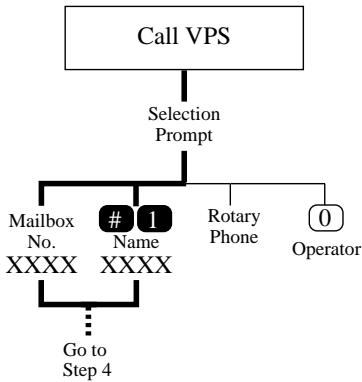
Anyone who reaches the Voice Mail Service can record messages in the mailboxes.
1 Call the VPS and access the Voice Mail Service.
If the system supports multiple services (up to three languages), you will hear a selection menu.
2 If you hear the above prompt, press the number of the appropriate language. 3 Enter the mailbox number of the intended recipient.
To enter by name, press # 1 and the first 3 or 4 letters of the recipient's last name.
Tip
Step 3, 6
When the beeper callback no. entry mode is not disabled, the VPS will ask you for a callback number according to the intended mailbox setting; before recording a message, after recording a message, or after selecting an urgent message.
"Please enter your callback number.
You can enter up to ... digits."
1 Enter the number. 2 Press 2 to accept.
Step 6
1 Review 2 Accept 3 Record a new one 4 Add 5 Erase and exit
4 State your message at the tone. 5 Press to end recording. 6 Press 2 to accept. 7 Press 1 to set this message to a private message. Otherwise, press 2.
Recording Messages (from a rotary phone)
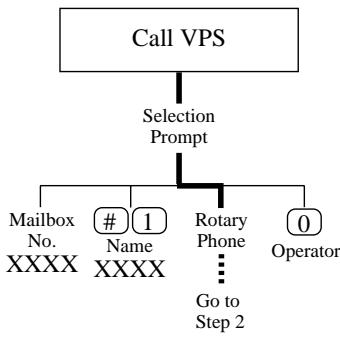
From a rotary phone, once your message has been recorded, you cannot re-record nor erase it.
If you are using a rotary phone, you cannot specify a mailbox because every key entry is invalid. Wait a moment until the VPS guides you to the General Delivery Mailbox where you can leave your message. The recorded messages will be delivered to your intended party later. Callers who do not enter anything because they are unfamiliar with the VPS can also leave messages in the same way.
1 Call the VPS and access the Voice Mail Service. 2 Wait a moment. 3 State your message. 4 Hang up the phone.
Receiving External Delivery Messages

External Delivery Messages are delivered by the VPS to telephone numbers instead of mailboxes.
1 Pick up a call from the VPS.
If the system is equipped with multiple languages (up to three languages), you will hear a selection prompt.
2 Press the number of the appropriate language. 3 Press to receive the message. 4 Enter the password and #
- Then the VPS plays the external message.
5 Press to end the call.
Tip
Step 4
If a password is not assigned, you can listen directly to the message.
If you enter the incorrect password three times, the VPS will play the following prompt and you cannot receive the external message any more.
"This message is from 'SENDER' of 'Company Name.'
Please call 'TELEPHONE NUMBER.'
Extension number ...
To repeat, press [1].
To end this call, press [*].
When you press [1], the VPS will repeat this prompt.
Replying to External Delivery Messages
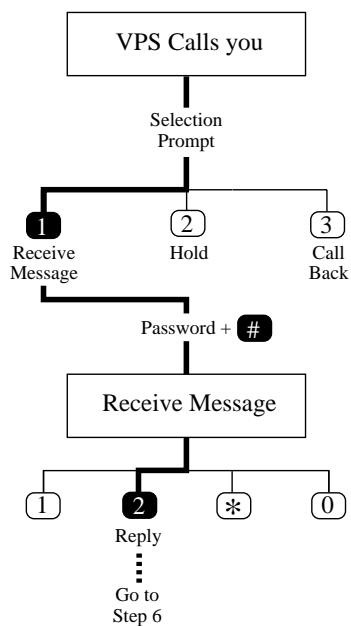
1-4 Same as Receiving External Delivery Messages.
5 Press 2 to reply to the message. 6 Record the message and press 1 to continue. 7 Press 2 to accept. 8 Press 1 to set this message to a private message. Otherwise, press 2.
Chapter 5 Mailbox Setup
This chapter describes the setup procedures using a touch-tone telephone.
Contents
Setting the Call Transfer Status (Call Block/Call Screening/Intercom Paging/Beeper Access)..... 5-2
Setting up a Covering Extension 5-3
Setting the Incomplete Call Handling Status 5-4
Setting the Message Reception Mode 5-6
Recording Personal Greetings 5-7
Changing Your Password 5-8
Recording Your Name 5-9
Entry of Personal Group Distribution Lists 5-10
Recording the Names of Personal Group Distribution Lists 5-11
Deleting from Personal Group Distribution Lists 5-12
Message Waiting Lamp Notification Setting 5-13
Setting Notification by Calling 5-14
Setting Answer Lengths for the Interview Mailbox 5-16
Recording Questions for the Interview Mailbox 5-17
Erasing Questions from the Interview Mailbox 5-18
The Intercom Paging feature is available only if your company is using a Panasonic KX-TD series telephone system.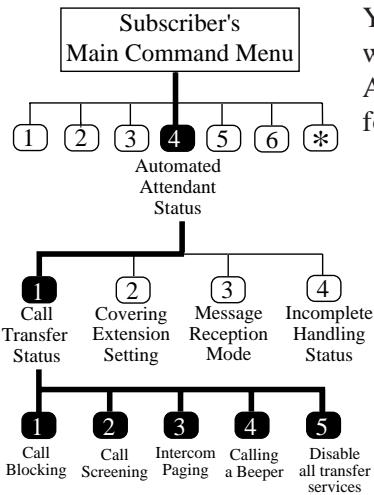
You can specify how the VPS should handle a call when a caller specifies your extension number in the Automated Attendant Service. You can set one of the four functions or you can set none of them.
1. Log in to the main command menu. 2. Press 4 for Automated Attendant status. 3. Press to set the call transfer status.
- The VPS tells you the current status.
4. Press the appropriate key to receive your desired option.
Call Blocking
Blocks all incoming calls to your extension.
Call Screening
Tells you the caller's name before you answer the call. Then you can decide whether or not to answer it.
3 Intercom Paging
Pages you over the Intercom Paging System.
4 Calling a Beeper
Calls your beeper and displays the caller's callback number on the LCD.
5 Disable all transfer services
Rings your extension directly.
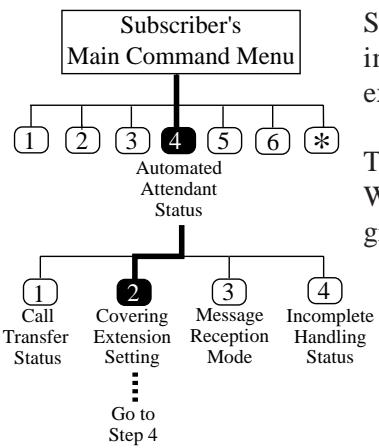
Setting up a Covering Extension lets you have incoming calls and messages transferred to a designated extension.
This extension also performs as a personal operator. When the caller presses '0' while receiving the personal greeting, the call is transferred to this extension.
The owner of this extension should be someone whom you can rely on, as he will be handling your calls when you are not available. This feature does not work unless Covering Extension Transfer is enabled (see page 5-4).
1 Log in the main command menu. 2 Press 4 for Automated Attendant status. 3 Press 2 to set up a covering extension. 4 Press 1 to set the extension. 5 Enter the extension number.
- The VPS tells you the number you have just entered. 6 Press 2 to accept.
Tip
Step 4 — You can accept the current status by pressing [2]. You can delete the current extension by pressing [3] if you don't need it.
Setting the Incomplete Call Handling Status
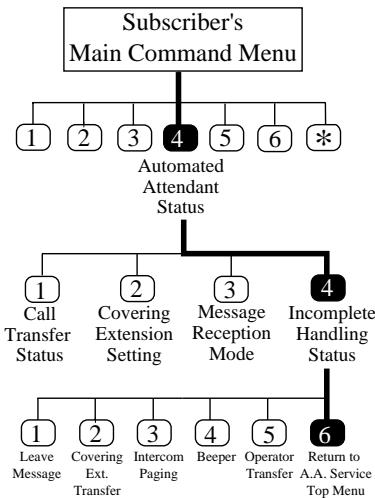
Incomplete calls are calls which are unanswered or for which the line is busy. The Incomplete Call Handling status can be set to record a message from the caller, transfer the caller to a covering extension, page the mailbox's owner by intercom, notify the mailbox's owner via beeper, transfer the caller to the operator, or let the caller try another extension. You may enable as many features as you may need among the six.
1 Log in the main command menu. 2 Press 4 for Automated Attendant status. 3 Press 4 to set the Incomplete Call Handling status.
The Intercom Paging feature is available only if your company is using a Panasonic KX-TD series telephone system.
Enabling Leaving a Message Status
1 Press 1.
- The VPS tells you the current status.
2 Press 1 to change or 2 to accept (enable/disable).
Enabling Covering Extension Transfer Status
1 Press 2.
- The VPS tells you the current status.
2 Press 1 to change or 2 to accept (enable/disable).
Enabling Intercom Paging Status
1 Press 3.
- The VPS tells you the current status.
2 Press 1 to change or 2 to accept (enable/disable).
Setting the Incomplete Call Handling Status
Enabling Beeper Access Status
1 Press 4.
- The VPS tells you the current status.
2 Press 1 to change or 2 to accept (enable/disable).
Enabling Operator Transfer Status
1 Press 5.
- The VPS tells you the current status.
2 Press 1 to change or 2 to accept (enable/disable).
Returning to Top Menu Automated Attendant Service Status
1 Press 6.
- The VPS tells you the current status.
2 Press 1 to change or 2 to accept (enable/disable).
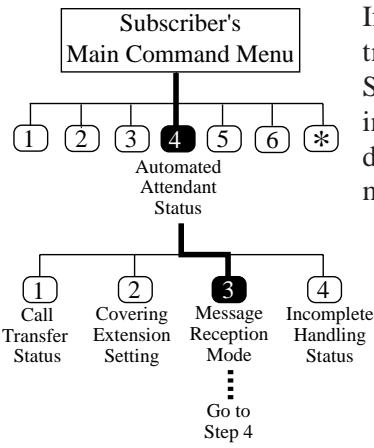
To use an interview mailbox, you must have the System Manager assign an interview mailbox number beforehand.
If you are not available to answer calls, those calls are treated according to the Incomplete Call Handling Status setting. When callers decide to leave messages in your mailbox, you can specify whether callers are directed to your regular mailbox or your interview mailbox.
1 Log in to the main command menu. 2 Press 4 for Automated Attendant status. 3 Press 3 to set the message reception mode. 4 Press 1 to change the current setting to the other (interview mode/message recording mode).
Tip
Step 4
You can press [2] to accept the current setting.
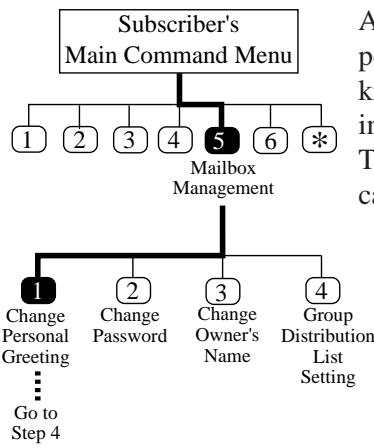
After reaching your mailbox, callers will hear your personal greeting messages first. You will record three kinds of personal greetings: (1) No Answer Greeting, (2) Busy Greeting, and (3) After Hours Greeting. The VPS plays one of them as appropriate for each call.
1 Log in to the main command menu. 2 Press 5 for Mailbox Management. 3 Press to record a personal greeting. 4 Press 1 - 3 to change the greeting.
- The VPS tells you the current personal greeting (if it exists).
Note:
It is helpful to include a statement of your answering telephone number with the exchange name or normal code in the greeting message. A greeting message begins within 3 seconds of answering, of paytone ceasing, or of answering ceasing, as appropriate.
5 Press 1 to record a greeting. 6 Record your greeting and press 1. 7 Press 2 to accept. 8 Confirm your setting and press 2 to accept.
Tip
Step 4
No answer greeting 2 Busy greeting 3 After hours greeting
Step 7
1 Review Accept 3 Record a new one 4 Add 5 Erase and exit
Step 8
You can erase the greeting by pressing [3].
Mailbox Management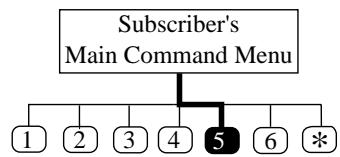
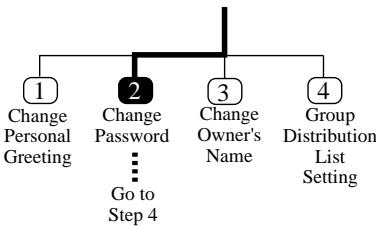
For your password, avoid setting it to obvious combinations of numbers. If you forget your password, have your System Manager delete it, then you can assign a new one.
You have the option of assigning a password to your mailbox to prevent someone else accessing it to receive Subscriber's Service. A password should be no longer than eight digits and the valid keys are from '0' to '9'. You can change it at any time.
1 Log in the main command menu. 2 Press 5 for Mailbox Management. 3 Press 2 to change the password. 4 Press to set the mailbox password. 5 Enter the password and #
- The VPS tells you the password. 6 Press 2 to accept.
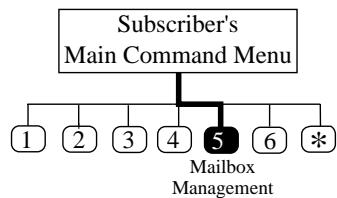
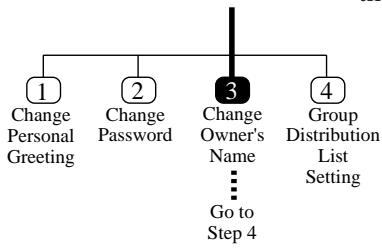
Record the name by which most people know you. If a name has been already recorded, the VPS plays the recording for you. You can then make a new recording.
This recording is played for callers who have reached your mailbox. This assures them that they are in the right mailbox. In addition, when a caller is specifying the mailbox by entering first three or four letters of the owner's last name, the VPS will announce a series of the recorded names among which they can select.
1 Log in the main command menu. 2 Press 5 for Mailbox Management. 3 Press 3 to record the owner's name. 4 Press to record a new one. 5 Record your name and press 1.
- The VPS tells you the owner's name. 6 Press 2 to accept.
Tip
Step 4 — You can accept the current owner's name by pressing [2]. You can erase the name by pressing [3].
Entry of Personal Group Distribution Lists
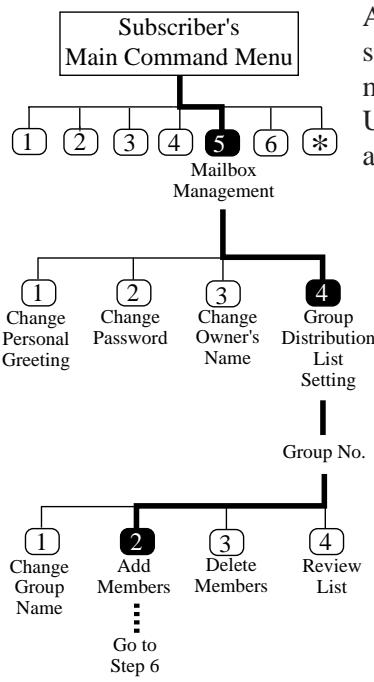
A Personal Group Distribution List is used in Message Delivery and Message Transfer to send the same message to several mailboxes with a single operation. Up to four lists can be maintained at the same time, and each list can contain up to twenty members.
1 Log in the main command menu. 2 Press 5 for Mailbox Management. 3 Press 4 to set the group distribution list. 4 Enter the group number (1 - 4). 5 Press 2 to add members to the list. 6 Enter the mailbox number to be added. 7 Press 2 to add the number. 8 Press 2 to end adding members.
Tip
Step 7
You can change the number by pressing [1].
You can end adding members by pressing [*].
Step 8
You can continue adding members by pressing [1].
Recording the Names of Personal Group Distribution Lists
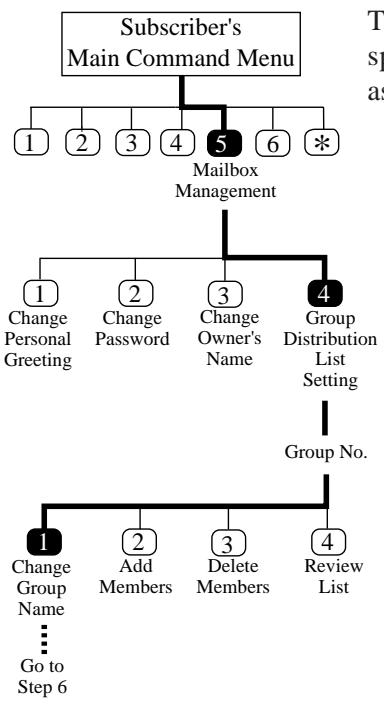
The VPS will play the recording for you when you specify a personal group distribution list. Then you assure that it is the right one.
1 Log in the main command menu. 2 Press 5 for Mailbox Management. 3 Press 4 to set the group distribution list. 4 Enter the group number (1 - 4). 5 Press to record the group name. 6 Record the name and press 1. 7 Press 2 to accept.
Tip
Step 5, 6
If a group name is already recorded, press [1] to change this name, then record the new one.
Step 7
You can erase the name by pressing [3].
Deleting from Personal Group Distribution Lists
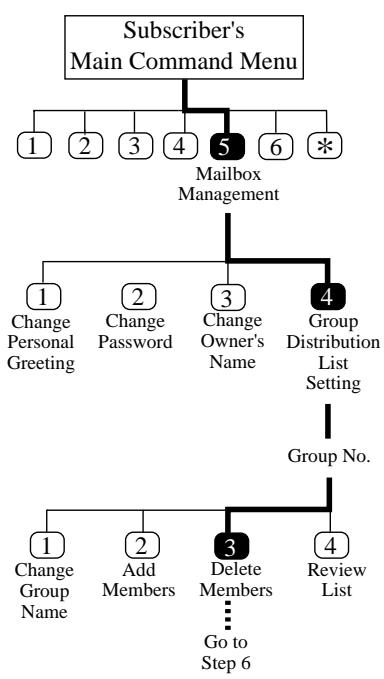
1 Log in to the main command menu. 2 Press 5 for Mailbox Management. 3 Press 4 to set the group distribution list. 4 Enter the group number (1 - 4). 5 Press 3 to delete members from the list. 6 Press 2 to delete a member. 7 Press 1 to delete the mailbox.
Tip
Step 6
You can delete all members by pressing [1].
Step 7
You can keep the mailbox and play the next mailbox by pressing [2].
Message Waiting Lamp Notification Setting
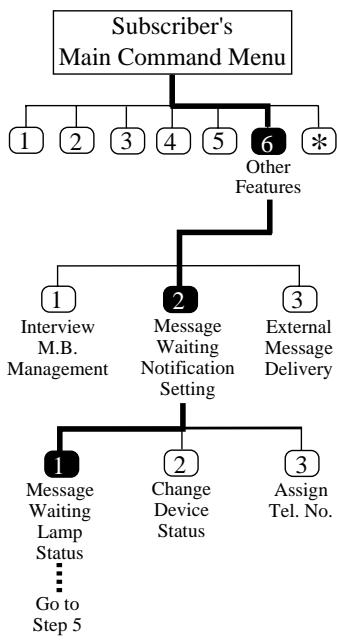
The VPS illuminates the message waiting lamp of your extension when a new message is recorded in your mailbox.
1 Log in to the main command menu. 2 Press 6 for Other Features. 3 Press 2 to set Message Waiting Notification. 4 Press to change the Message Waiting Lamp Notification Status. 5 Press 1 to change the Message Waiting Lamp Notification Status, or 2 to accept it.
The VPS calls the preset telephone or beeper when a new message is recorded in your mailbox. Set the following three parameters as appropriate.
The VPS can notify your beeper with the callback number of the party who left the message. For this feature to work, the telephone number stored on the VPS for your beeper must include the beeper display command.
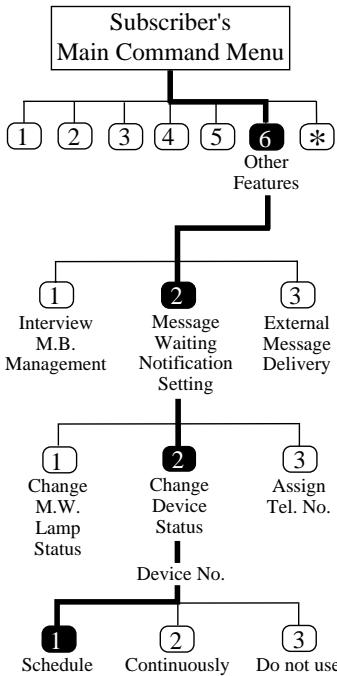
Setting Device Status
For each device, the notification is enabled, disabled, or enabled on the preset schedule.
If you want to enable it on the schedule, contact your System Administrator as you are not allowed to set the schedule by yourself.
1-3 Same as the Message Waiting Lamp Status.
4 Press 2 to set the device status. 5 Enter the device number. 6 Press 1-3 to select the status.
Tip
Step 6
1 Schedule (enabled on the schedule) 2 Continuously (enabled whole day) 3 Do not use (disabled whole day)
You must have your System Manager authorize the use of the Callback Number Entry Mode beforehand.
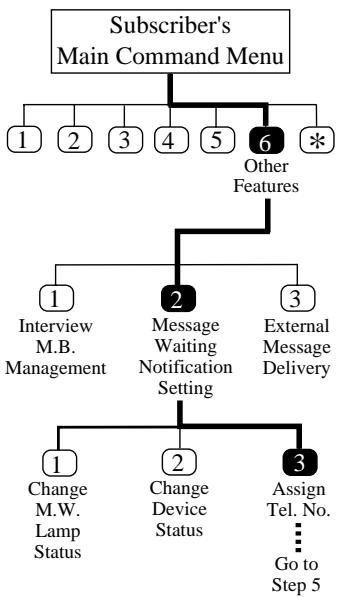
Notification Number Assignment
You can set the telephone or beeper numbers where you wish to receive notification calls up to three. You can use the keys '0' to '9', a tone/pulse switch.
1-3 Same as the Message Waiting Lamp Status.
4 Press 3 to assign the telephone number. 5 Press 1 to change the first telephone number, 2 to change the second telephone number, 3 to change the third telephone number. 6 Press 1 to set the telephone number. 7 Enter the telephone number. 8 Press 2 to accept. 9 Select 1 to be notified by telephone or 2 by a beeper.
Tip
Step 8
1 Change the telephone number 2 Accept 3 Review 4 Add more digits 5 Insert a pause 6 Set dial mode 7 Insert a wait for dial tone 8 Insert a beeper display command
Setting Answer Lengths for the Interview Mailbox
Every subscriber can maintain an interview mailbox. Be sure to have your System Manager assign an interview mailbox number.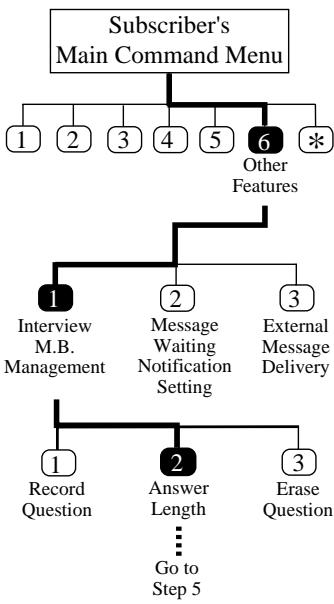
An Interview Mailbox plays prerecorded questions to callers and records their answers. You can record up to ten questions and set the answer lengths from four to thirty-two seconds. The answers are recorded in a string and stored in your mailbox.
1 Log in to the main command menu. 2 Press 6 for Other Features. 3 Press 1 for Interview Mailbox Management. 4 Press 2 to set the answer length.
- The VPS plays question No. 1 if it has been recorded. 5 Press to set or change the length of question No. 1.
- The VPS plays the length if it has been set. 6 Press to change the length. 7 Press 1 for 4 seconds, 2 for 8 seconds, 3 for 16 seconds, or 4 for 32 seconds.
- The VPS plays the length that you have just entered. 8 Accept the length by pressing 2.
- Then, the VPS plays the next question if it has been recorded. 9 Repeat steps 5 - 8.
Tip
Step 5
You can go to the next question by pressing [2] and to the previous question by pressing [3].
You can jump to the desired question by pressing [4], then the question number and [#].
Recording Questions for the Interview Mailbox
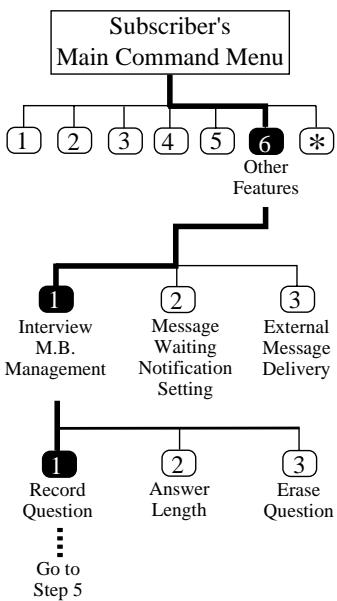
1 Log in to the main command menu. 2 Press 6 for Other Features. 3 Press 1 for Interview Mailbox Management. 4 Press to record questions.
- The VPS plays the question.
5 Press 1 to record question No. 1. 6 Record the question and press to end recording. 7 Press 2 to accept the question.
- The VPS plays the next question.
8 Repeat steps 6-8.
Tip
Step 5
You can go to the next question by pressing [2] and to the previous question by pressing [3].
You can jump to the desired question by pressing [4], then the question number and [#].
Step 7
1 Review Accept 3 Record a new one 4 Add 5 Erase and exit
Erasing Questions from the Interview Mailbox
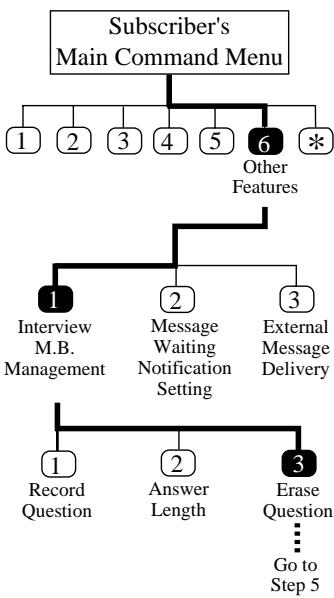
1 Log in the main command menu. 2 Press 6 for Other Features. 3 Press for Interview Mailbox Management. 4 Press 3 to erase the question.
- The VPS plays question No. 1.
5 Press to erase question No. 1. - The VPS plays the next question. 6 Repeat step 5.
Tip
Step 5
You can go to the next question by pressing [2] and to the previous question by pressing [3].
You can jump to the desired question by pressing [4], then the question number and [#].
Matsushita Electric Industrial Co., Ltd.
Central P.O. Box 288, Osaka 530-91, Japan
To expand the sub-menu, left click the mouse on the symbol, located to the left of the selected text.
for version 3 Adobe Reader
[+] for version 4 Adobe Reader


- SUBSCRIBER'S GUIDE PLEASE READ BEFORE USING
- INTRODUCTION
- NOTE
- HOW TO USE THIS MANUAL
- DESCRIPTION
- DIAGRAM
- TIP
- TERMS TO KNOW
- SUBSCRIBER
- SYSTEM MANAGER
- CALLER
- GETTING STARTED
- REQUIRED NUMBERS
- BASIC STEPS
- TABLE OF CONTENTS
- CHAPTER 1 USING YOUR MAILBOX AND THE VPS
- CHAPTER 2 RECEIVING MESSAGES
- CHAPTER 3 SENDING MESSAGES
- CHAPTER 4 CALLER HANDLING
- CHAPTER 5 MAILBOX SETUP
- CHAPTER
- USING YOUR MAILBOX AND THE VPS
- CONTENTS
- DIALING BY NAME
- DEPARTMENT DIALING
- VOICE MAIL SERVICE
- CALL TRANSFER
- EXIT THE MENU
- BACK UP
- LOG IN
- RESTART
- STEP
- SAME AS RECEIVING MESSAGES
- REPEATING MESSAGES
- REPLAYING THE PREVIOUS MESSAGE
- PLAYING THE NEXT MESSAGE
- REWINDING MESSAGES
- FAST FORWARDING MESSAGES
- SCANNING MESSAGES
- RECORDING A TWO-WAY CONVERSATION
- DELIVERING MESSAGES TO OTHER SUBSCRIBERS
- SETTING UP AN EXTERNAL MESSAGE DELIVERY LIST
- TO ADD MEMBERS
- TO DELETE MEMBERS
- CHECKING AND SETTING EXTERNAL MESSAGE DELIVERY STATUS
- RECORDING MESSAGES (FOR ANY CALLER)
- RECORDING MESSAGES (FROM A ROTARY PHONE)
- RECEIVING EXTERNAL DELIVERY MESSAGES
- REPLYING TO EXTERNAL DELIVERY MESSAGES
- SETTING THE INCOMPLETE CALL HANDLING STATUS
- ENABLING LEAVING A MESSAGE STATUS
- ENABLING COVERING EXTENSION TRANSFER STATUS
- ENABLING INTERCOM PAGING STATUS
- ENABLING BEEPER ACCESS STATUS
- ENABLING OPERATOR TRANSFER STATUS
- RETURNING TO TOP MENU AUTOMATED ATTENDANT SERVICE STATUS
- ENTRY OF PERSONAL GROUP DISTRIBUTION LISTS
- RECORDING THE NAMES OF PERSONAL GROUP DISTRIBUTION LISTS
- DELETING FROM PERSONAL GROUP DISTRIBUTION LISTS
- MESSAGE WAITING LAMP NOTIFICATION SETTING
- SETTING DEVICE STATUS
- NOTIFICATION NUMBER ASSIGNMENT
- SAME AS THE MESSAGE WAITING LAMP STATUS
- SETTING ANSWER LENGTHS FOR THE INTERVIEW MAILBOX
- RECORDING QUESTIONS FOR THE INTERVIEW MAILBOX
- ERASING QUESTIONS FROM THE INTERVIEW MAILBOX
Brand : PANASONIC
Model : KXTVP100E
Category : Phone