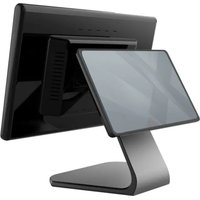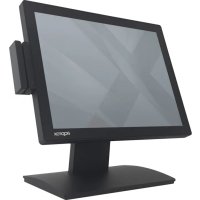
appTPV04CAPC - Monitor Aqprox - Free user manual and instructions
Find the device manual for free appTPV04CAPC Aqprox in PDF.



User questions about appTPV04CAPC Aqprox
0 question about this device. Answer the ones you know or ask your own.
Ask a new question about this device
Download the instructions for your Monitor in PDF format for free! Find your manual appTPV04CAPC - Aqprox and take your electronic device back in hand. On this page are published all the documents necessary for the use of your device. appTPV04CAPC by Aqprox.
USER MANUAL appTPV04CAPC Aqprox
15" Touch All in One
POS Terminal
e e

Thank you for choosing appTPV04 Approx POS terminal. Please always read thoroughly all the instructions and documents delivered with the product before you do anything about it. The company reminds you that the proper use will improve the use affect and authentication speed. Operation of this equipment in a residential area is likely to cause interference in which case the user at his own expense will be required to take whatever measures to correct the interference.
Approx will assume no liability for any technical inaccuracies or editorial or other errors or omissions contained herein, nor for direct, indirect, incidental, consequential or otherwise damages, including without limitation loss of data or profits, resulting from the furnishing, performance, or use of this material. This information is provided "as is" and Approx expressly disclaims any warranties, expressed, implied or statutory, including without limitation implied warranties of merchantability or fitness for particular purpose, good title and against infringement.
The information in this manual contains only essential hardware concerns for general user and is subject to change without notice. Approx reserves the right to alter product designs, layouts or drivers without notification. The system integrator shall provide applicative notices and arrangement for special options utilizing this product.
All data should be backed-up prior to the installation of any drive unit or storage peripheral, Approx will not be responsible for any loss of data resulting from the use, disuse or misuse of this or any other Approx's post terminal product.
Daily maintenance guide
For regular cleaning of POS touch screen, please use only soft-haired brush or dry soft cloth. You may use moist soft cloth to remove stains when necessary. Apply only proper amount of mild neutral detergent for obstinate stains. Please note that never use Acryl dissolving solvent or Polycarbonate dissolving solvent. You may apply ammonia-based glass cleaner only on the screen surface. The LCD built in this POS terminal is manufactured with highly precise technology, however bright pixels or blank pixels may appear. Also an irregular color and brightness may occur depending on the view angle. Please note that this type of phenomena is common for LCD and is not a malfunction.
Caution
- Risk of explosion if battery is replaced by an incorrect type.
- Dispose of used batteries according to local regulations.
- Do not remove the cover, and ensure no user serviceable components are inside. Take the unit to the service center for service and repair.
- Lay this equipment on a reliable surface when install. A drop or fall could cause injury.
Specifications
The display may be tilted for the best viewing angle. The angle can be adjusted as illustrated in the picture.
Important:
- Do not pull the display beyond the maximum tilt angle nor apply excessive pressure to the display nor push the screen of the display directly when you adjust the angle for the display.
- Make sure to hold the body when pulling the display so that the terminal may not move.
- The backlight in the display is a consumable part.
- When the LCD can no longer be adjusted and becomes darker, you should replace the LCD. Consult your authorized dealer for further details.
- Make sure not to catch your finger when you adjust the
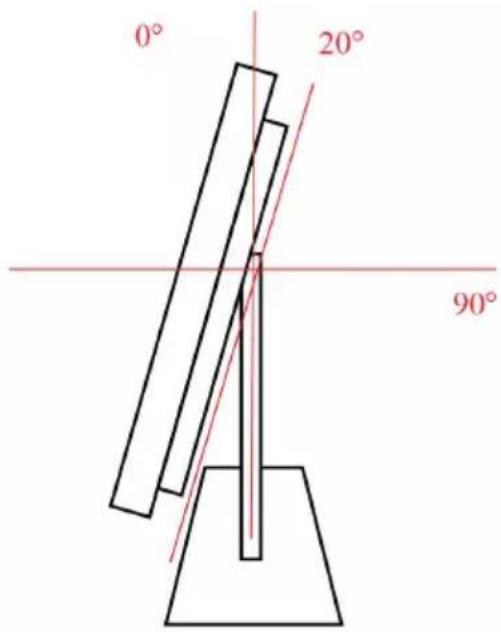
angle for the display.
- Do not knock or scratch the display surface by using pointed object, such as ball point pens or similar devices on the display. This may cause damages or scratches of the display.
| Display size 15 LCD Touch Display Max. resolution (LED back lit) | |||
| Touch type | Capacitive / | ||
| Main Board Processor System memory SO | Intel Celeron N5105 Quad Core 2.9GHz | ||
| -DIMM 4/8/16 GB DDR4 2666MHz | |||
| Storage HDD 64/ | 128 GB SSD M.2 | ||
| I/O Audio Port x | USB | x 2 (USB | |
| x 4 (USB 3.0) | |||
| VGA | x 1 | ||
| RS232 | x 2 | ||
| RJ45 | x 1 (10/100/1000) | ||
| 1 line out x 1 line in | |||
| DC Power | x 1 | ||
| Speakers | 2W | ||
| Environmental Operation | temperature 0° to 50°C | ||
| Relative humidity | 20% to | ||
| Power Supply 12V 5A power adapter | |||
| OS Support Windows 10, 11, Linux | |||
| Certifications | CE/RoHS | ||
Operating system installation
This product is highly professionalized equipment. The installation of an OS into a machine without any preloaded OS could be a major difficulty for average user or obstacle by possibly unintentional negligence even for PC veterans to accomplish such a task. Therefore, OS installation into a system without preloaded OS is highly discouraged.
Safety, maintenance and recycling instructions
- Caution: Never open the device, the internal parts are danger, electrical shock.
- Do not install this unit near water, for example, in a wet basement, in an unprotected outdoor installation or in any area classified as a wet.
- Do not connect cables other than those specified in this manual. Doing so may result in fire or improper operation.
- Be sure to set this product on a firm, stable, horizontal surface. The product may be damaged or cause injury if it falls.
- Do not place heavy objects on top of this product. The product may be damaged and cause injury if it falls.
- Do not insert objects of any kind into this unit through openings as they may touch voltage points and short out parts that could result in fire or electric shock.
- Do not spill any liquid on the unit. Danger of explosion!
English
- Do not crush power cables, danger of short circuit!
- Always connect to the manufacturer's recommended tension.
- Clean the product with a soft and dry cloth.
- Follow local regulations for disposing of the product.
Recycled
AEE REI-RAEE 5548 In this manual, the container (bin) symbol indicates that the product is subject to the European directive 2002/96 / EC, electrical and electronic products, batteries, and batteries and other accessories must necessarily be subject to a selective collection.
At the end of the life of the device, make use of the recycling bins. This gesture will help reduce the health risks and preserve the environment.
Municipalities and distributors, Will provide essential details on recycling your old device. If this device carries an internal battery, it must be removed and deposited separately for proper management.