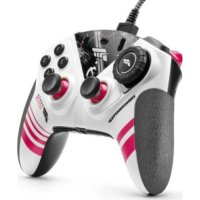
eSwap XR Pro Controller - Controller THRUSTMASTER - Free user manual and instructions
Find the device manual for free eSwap XR Pro Controller THRUSTMASTER in PDF.


User questions about eSwap XR Pro Controller THRUSTMASTER
0 question about this device. Answer the ones you know or ask your own.
Ask a new question about this device
Download the instructions for your Controller in PDF format for free! Find your manual eSwap XR Pro Controller - THRUSTMASTER and take your electronic device back in hand. On this page are published all the documents necessary for the use of your device. eSwap XR Pro Controller by THRUSTMASTER.
USER MANUAL eSwap XR Pro Controller THRUSTMASTER
Click on a title in this table of contents to access the corresponding section
- Installing the ThrustmapperX software 2
- Launching the ThrustmapperX software 2
- Home page 3
3.1. Managing add-on packs 5
3.2. Managing profiles 6
3.3. Managing presets 8
- Mapping of buttons 9
- Configuring the mini-sticks and racing wheel module 11
- Configuring the triggers 15
- Configuring the vibrations 17
- Configuring the backlighting 19
- Verifying and updating the different elements 20
INTRODUCTION
Take advantage of Thrustmaster's expertise in programming software to extend the ESWAP X PRO CONTROLLER and ESWAP XR PRO CONTROLLER FORZA HORIZON 5 EDITION experience and push the boundaries of programmability.
1. Installing the ThrustmapperX software
Xbox Series X|S, Xbox One: On the Microsoft Store, search for "ThrustmapperX", then download and install the ThrustmapperX software.
PC (Windows 10/11): Search for "ThrustmapperX" on the Microsoft Store, or go to https://www.microsoft.com/store/apps/9P3SR9K3V8NR, to download and install the ThrustmapperX software.
Please note: We strongly recommend that you update your gamepad with the latest firmware version in order to get the most out of the ThrustmapperX software experience. To do so, please refer to section 9 of this user manual (Verifying and updating the different elements).
2. Launching the ThrustmapperX software
To launch the ThrustmapperX software on PC (Windows 10/11): in the Windows Start menu, select ThrustmapperX.
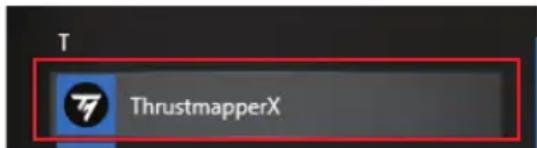
To launch the ThrustmapperX software on Xbox Series X|S or Xbox One: on the Home screen, select My games & apps, then Apps and ThrustmapperX.
3. Home page
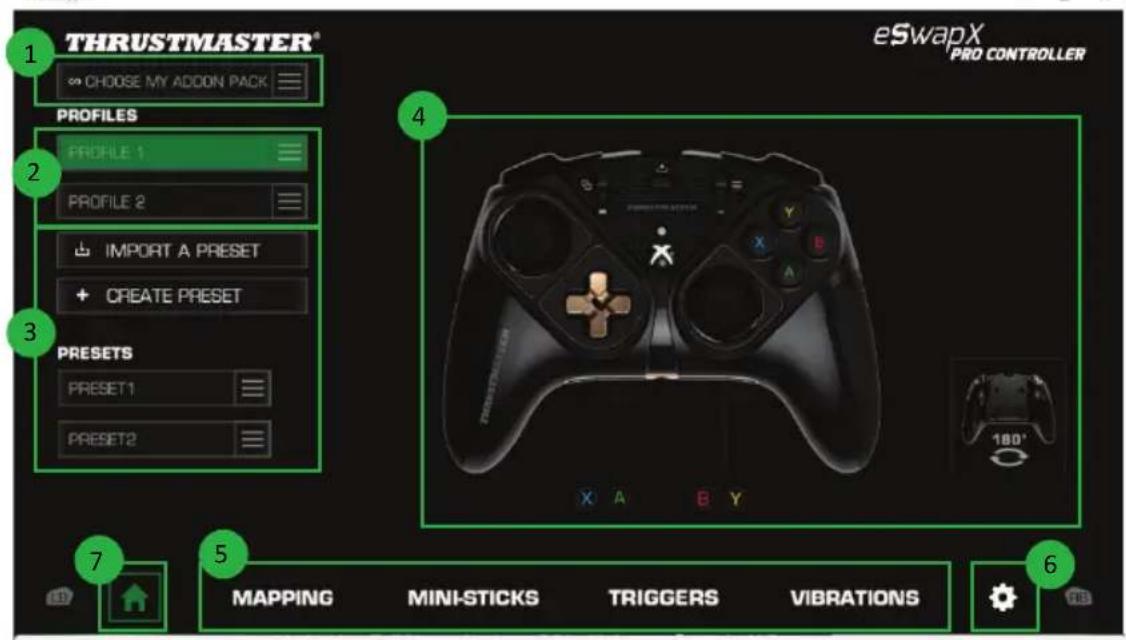
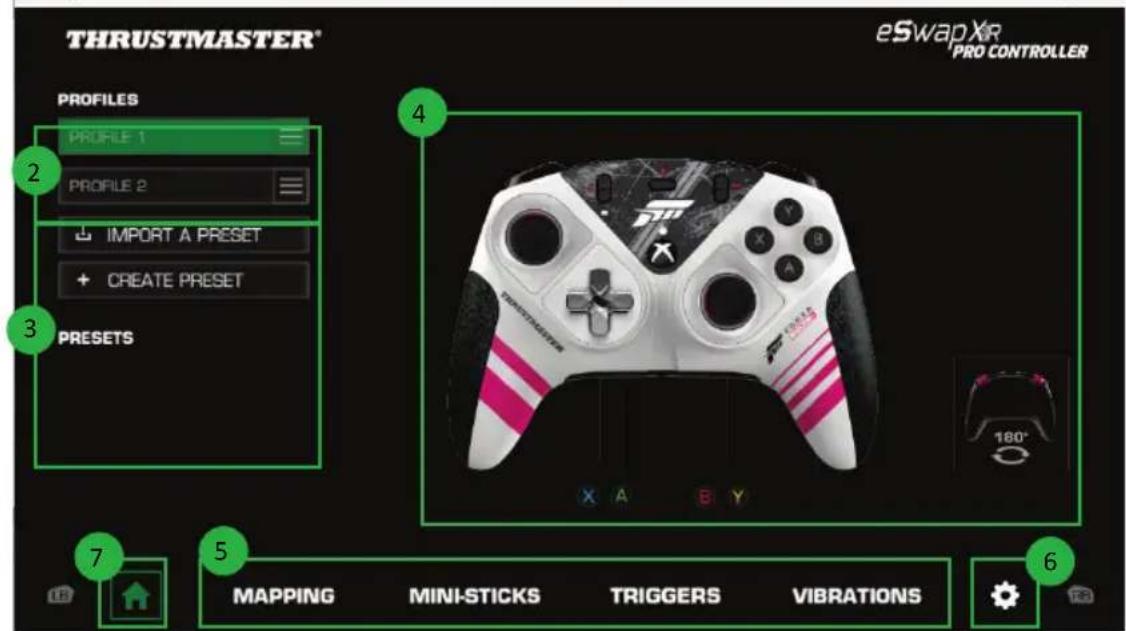
- Select an add-on pack, if you own one (1) — only for ESWAP X PRO CONTROLLER.
- Select one of the gamepad's two profiles in order to modify it (2).
- Create or import presets grouping together all of your customized settings. These presets can then be saved in one of the two profiles for your ESWAP X PRO CONTROLLER (3).
- Quickly view the mapping of buttons for the selected profile or preset (4).
- Access advanced settings for the selected profile or preset (5):
MAPPING: remap buttons according to your gaming style.

MINI-STICKS: adjust the response curve and the dead zones for the left and right mini-sticks.
TRIGGERS: precisely adjust the dead zones for the left and right triggers.
VIBRATIONS: set the maximum intensity of the vibrations for the handles and triggers on your ESWAP X PRO CONTROLLER.
- Verify the current firmware version for your gamepad, the current driver version for your gamepad, and the current version of the ThrustmapperX software, and update these elements if necessary (6).
- Return to the home page from other menus (7).

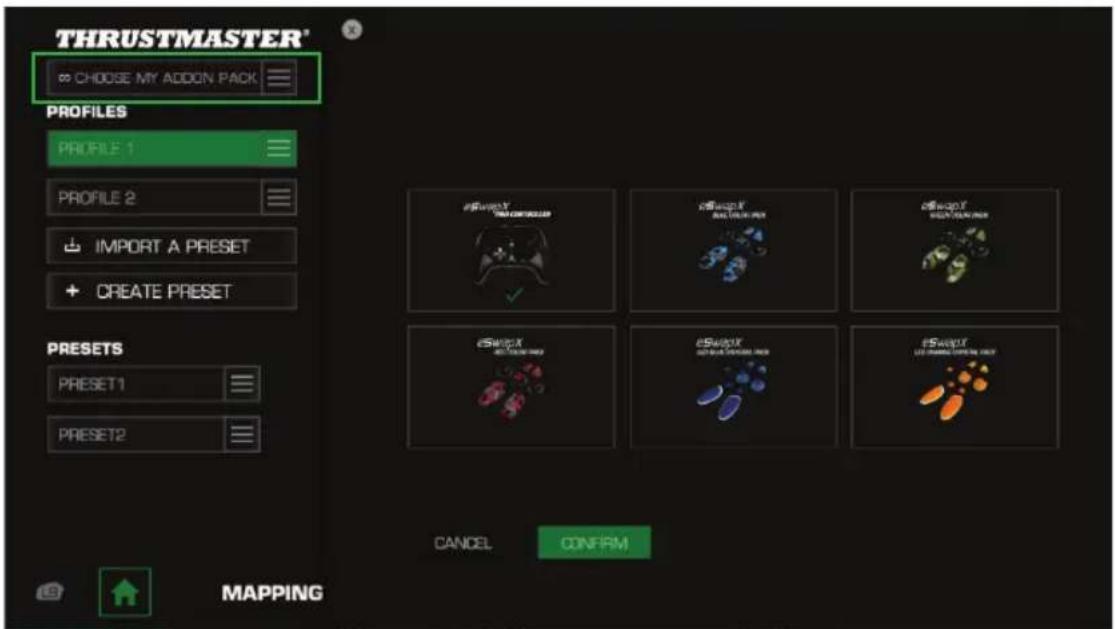
3.1. Managing add-on packs
A variety of add-on packs are currently available for your ESWAP X PRO CONTROLLER.
This section is not available for ESWAP XR PRO CONTROLLER FORZA HORIZON 5 EDITION.
You can select the pack that you own in the list, in order to access the corresponding visuals, as well as additional features (if applicable).
3.2. Managing profiles
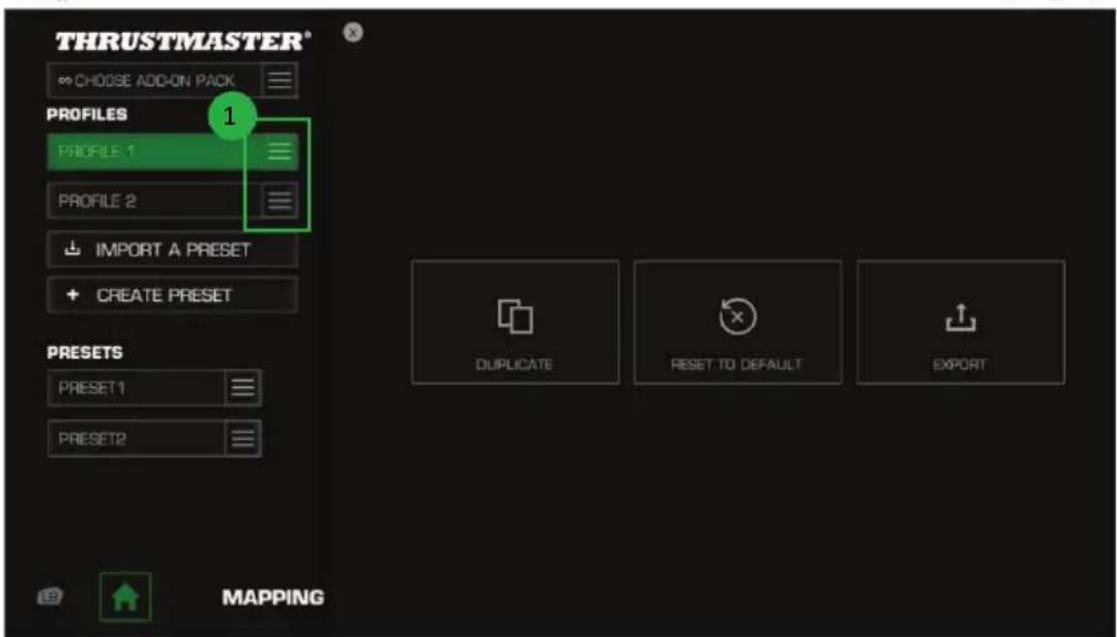
The ESWAP X PRO CONTROLLER and ESWAP XR PRO CONTROLLER FORZA HORIZON 5 EDITION gamepads include two profiles loaded by default (1). Each profile corresponds to a storage space in which you can save the changes made with ThrustmapperX and use them in games on your Xbox Series XJS, Xbox One or your PC (Windows 10/11).
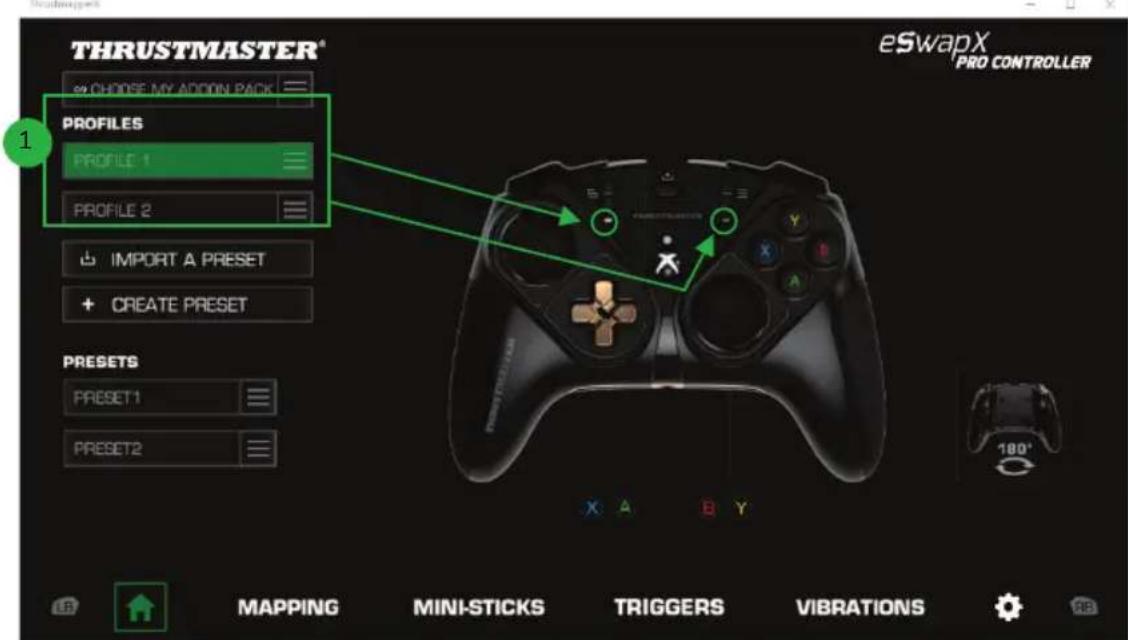
By default, the profiles include the following mapping for buttons:
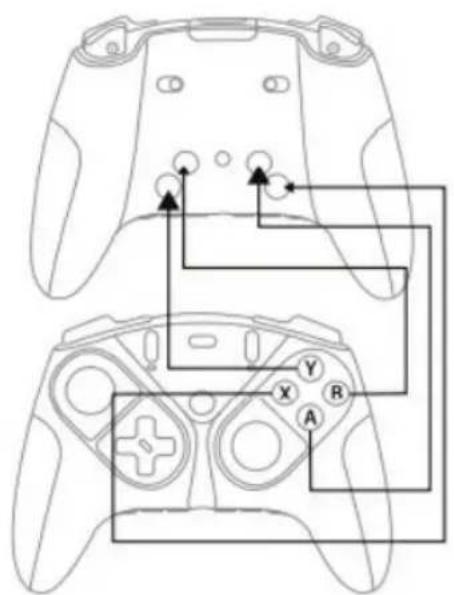
Profile 1:
A, B, X and Y are duplicated on rear buttons 1 through 4.
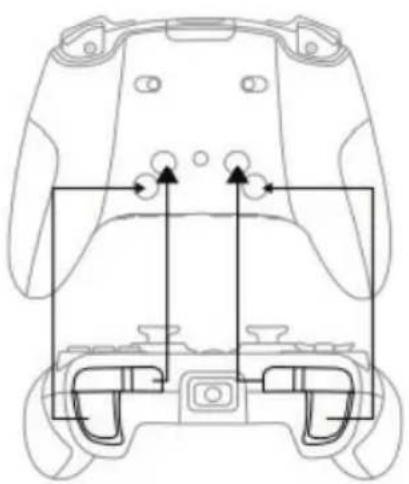
Profile 2:
LB, LT, RB and RT are duplicated on rear buttons 1 through 4.
6/21 -ThrustmapperX user manual

Click on the right-hand side of a profile (1) in order to:
Duplicate the profile, which will export all of these settings to a new preset.
- Reset the default settings for the profile.
- Export the profile, allowing you to export all of these settings to a file, which can then either be shared or reimported in the software.
3.3. Managing presets
Presents work the same way as profiles, but are stored in the ThrustmapperX software and not directly in the gamepad.
In this way, you can create as many presets as you like, and save them in one of the gamepad's profiles (1 or 2) so that they can be used in games on Xbox Series X|S, Xbox One or PC (Windows 10/11).
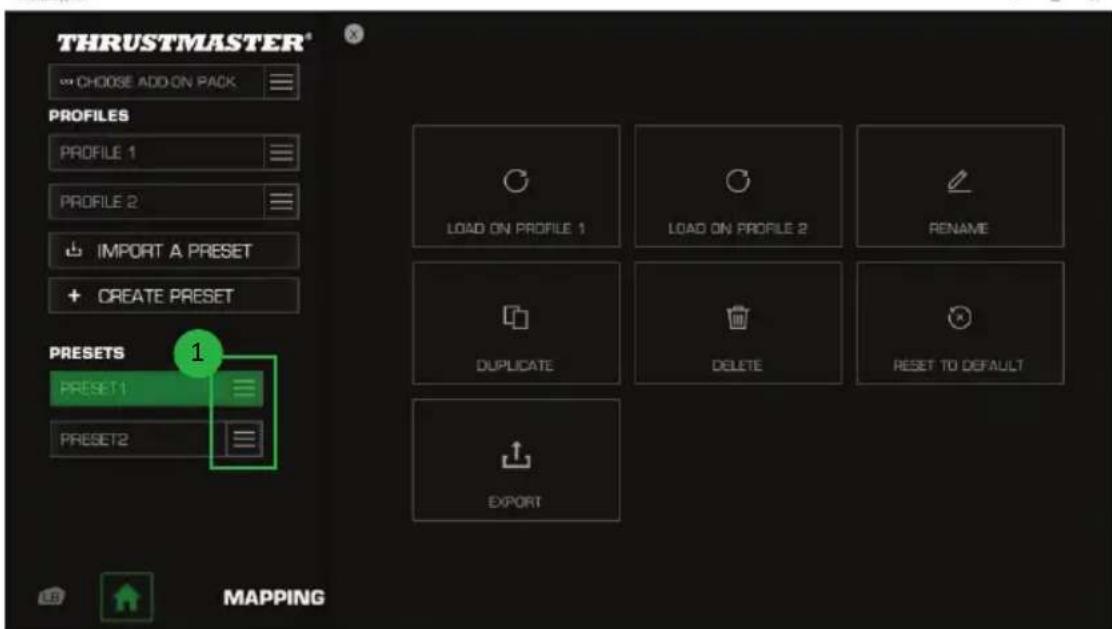
Click on the right-hand side of a preset (1) in order to:
- Load it into profile 1 or profile 2 for your ESWAP X PRO CONTROLLER or ESWAP XR PRO CONTROLLER FORZA HORIZON 5 EDITION gamepad.
- Rename the preset.
Duplicate the preset: create a copy of the settings in a new preset. - Delete the preset.
- Reset the default settings for the preset.
- Export the preset: create a copy of the settings in a file, which can then either be shared or reimported in the software.

4. Mapping of buttons
You can modify the mapping of the gamepad's buttons according to your gaming preferences.
- You can modify the functions of all buttons apart from: Xbox/Nexus, Share, View, Menu, RT, LT, as well as the Profile, Mapping, Volume and Microphone buttons.
Only the M1, M2, M3 and M4 buttons — along with the M5 and M6 buttons when a fighting module is installed — can be mapped with a duplicate button. - You can only map a single button onto another button: no combos (i.e. combinations of two or more buttons) are possible.
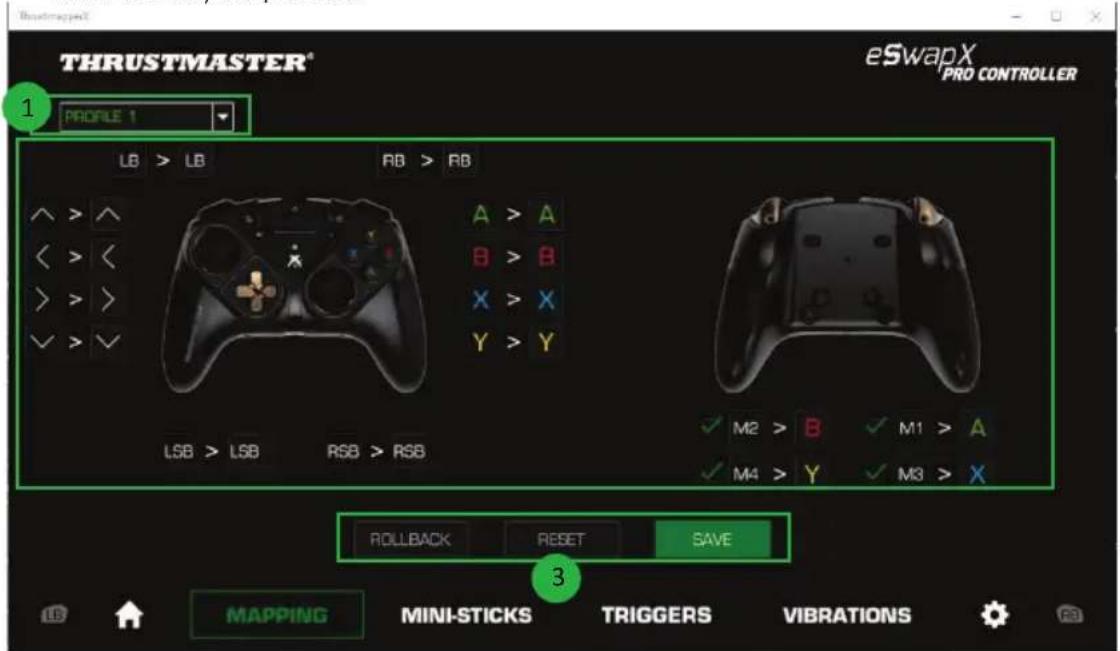
- The drop-down menu in the upper left-hand corner (1) lets you switch between profiles and presets in the MAPPING page.
- You can modify the mapping of the gamepad's buttons by swapping their functions (2).
ROLLBACK, RESET and SAVE buttons (3):
ROLLBACK: return to the previous settings, since the last save.
RESET: reset all of the settings and content to their default values.
SAVE: save the current settings in the selected profile or preset.

To remap the buttons:
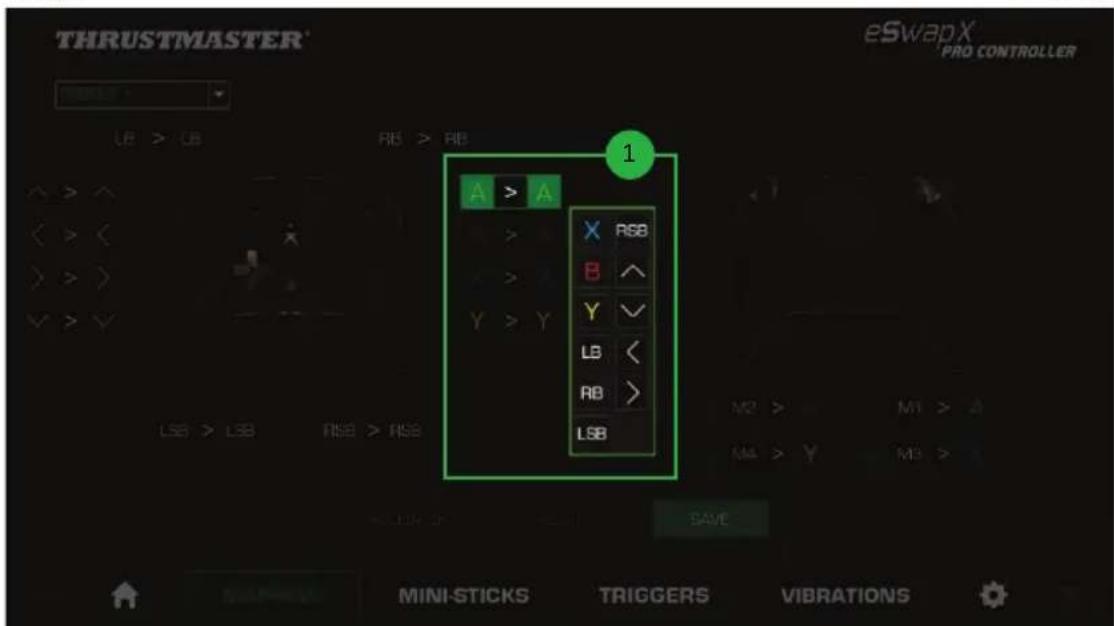
- Click on the button whose function you would like to change.
From the list, select the new function that will be assigned to this button (1).
Please note: In the absence of the D-pad, when your ESWAP X PRO CONTROLLER (with firmware version v63 or higher) or ESWAP XR PRO CONTROLLER FORZA HORIZON 5 EDITION gamepad is equipped with a racing wheel module and two mini-stick modules, the directional buttons are automatically remapped to M1, M2, M3 and M4.
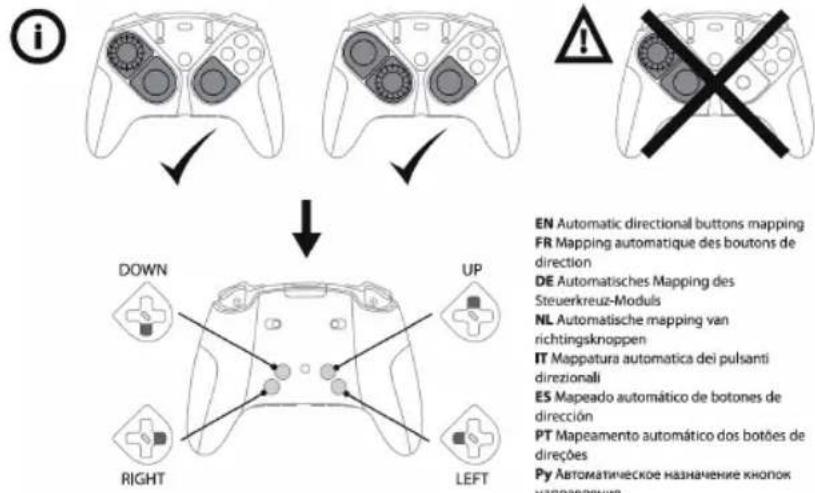
In that case, it is not possible to modify the mapping for buttons M1, M2, M3 and M4.

5. Configuring the mini-sticks and racing wheel module
Adjust the sensitivity curve and the dead zones for the left and right mini-sticks, for optimal control of your movements.
If your ESWAP X PRO CONTROLLER or ESWAP XR PRO CONTROLLER FORZA HORIZON 5 EDITION gamepad is equipped with a racing wheel module, this module will automatically be detected as the left mini-stick.

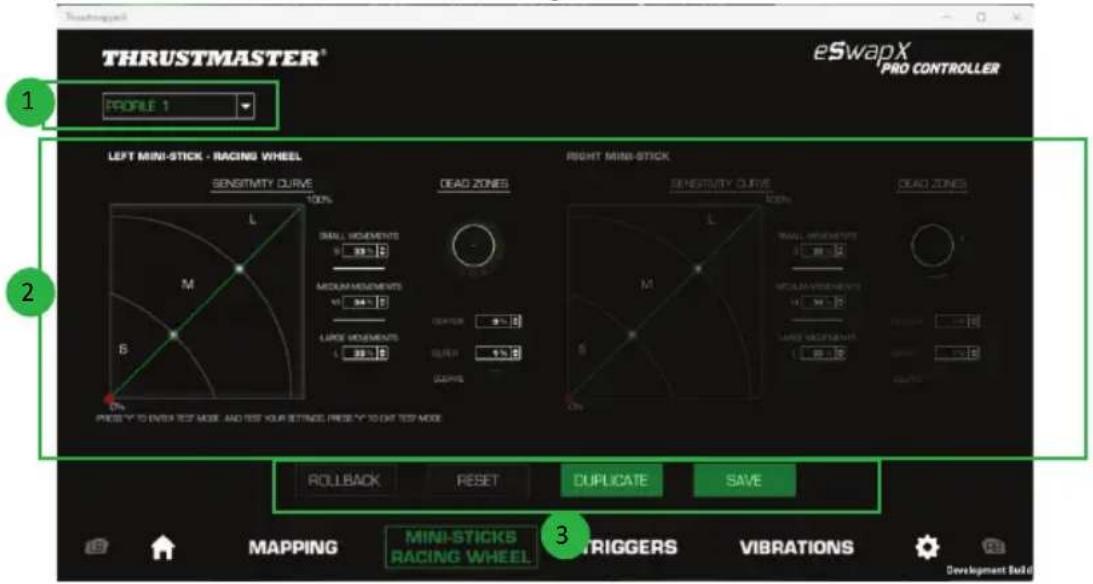
-
The drop-down menu in the upper left-hand corner (1) lets you switch between profiles and presets in the MINI-STICKS page.
-
Adjust the sensitivity curve and the dead zones for the left and right mini-sticks independently of one another (2).
ROLLBACK, RESET, DUPLICATE and SAVE buttons (3):
ROLLBACK: return to the previous settings, since the last save.
RESET: reset all of the settings and content to their default values.
DuplicATE: duplicate the settings for the selected mini-stick on the second mini-stick.
SAVE: save the current settings in the selected profile or preset.

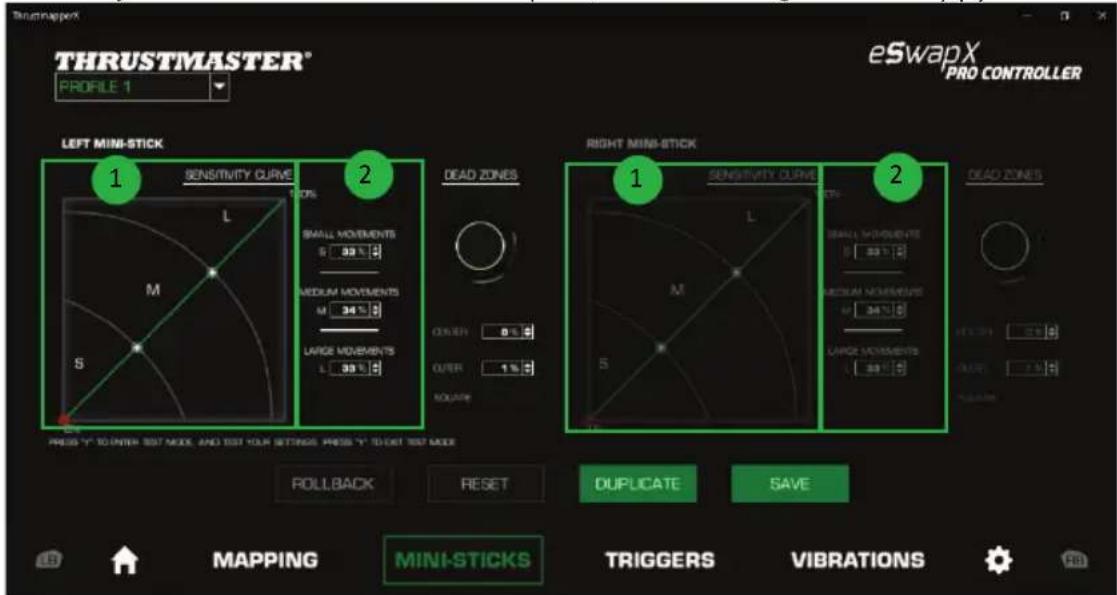
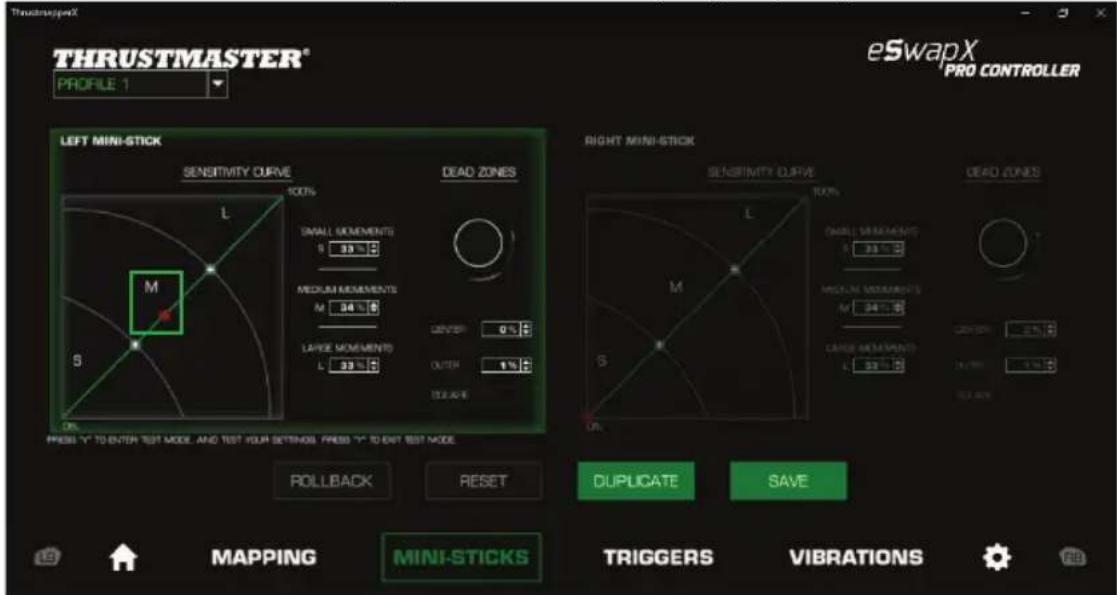
The sensitivity curve is divided into 3 different zones: small, medium and large movements (S, M, L). Increasing the size of one (or more) of the zones (S, M, L) will provide more sensitivity — and therefore more precision — for the zone(s) in question.
For example, if you increase the S zone, your movements near the center of the mini-stick will be more precise.
To modify the sensitivity curve for the mini-sticks, you can:
- Move the points directly on the graph (1).
- Modify the values in the 3 different zones (small, medium and large movements) (2).
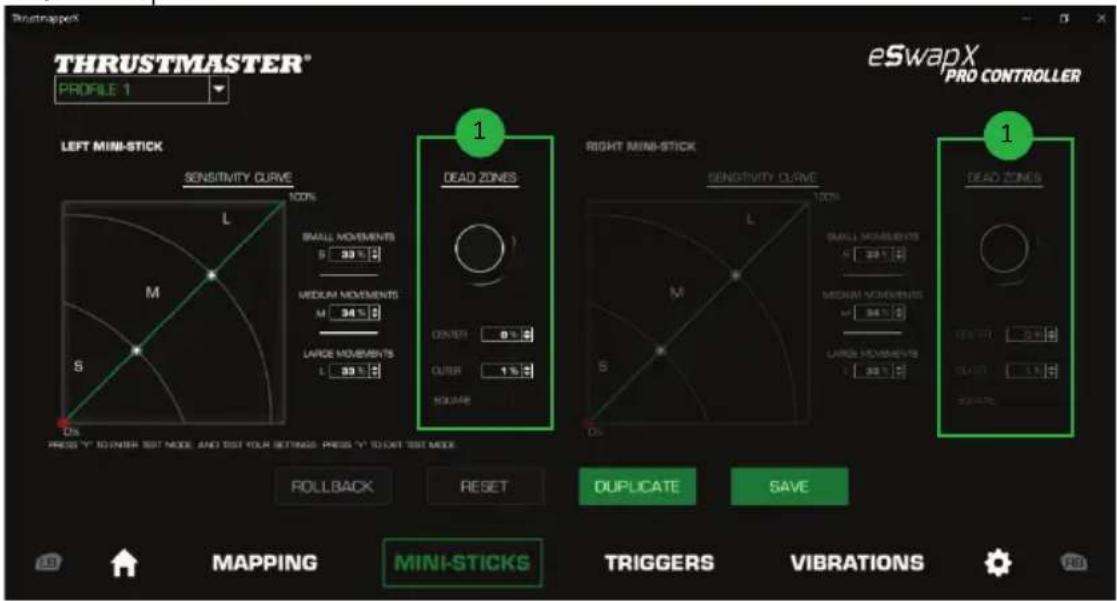
You can also customize the center and outer dead zones for the mini-sticks (1).
A dead zone corresponds to the zones defined for the mini-stick which do not respond to movements, at the beginning (center) or at the end (outer) of its travel.
You can also define an end (outer) dead zone in the shape of a square by selecting the "SQUARE" option.
To enter Test mode and test out your settings, press the Y button on your gamepad and move your mini-stick. To exit Test mode, press the Y button on your gamepad again.

6. Configuring the triggers
Adjust the dead zones for the left and right triggers, in order to optimize your comfort and responsiveness in games.
A dead zone corresponds to the zones defined for the trigger which do not respond to movements, at the beginning (center) or at the end (outer) of its travel.
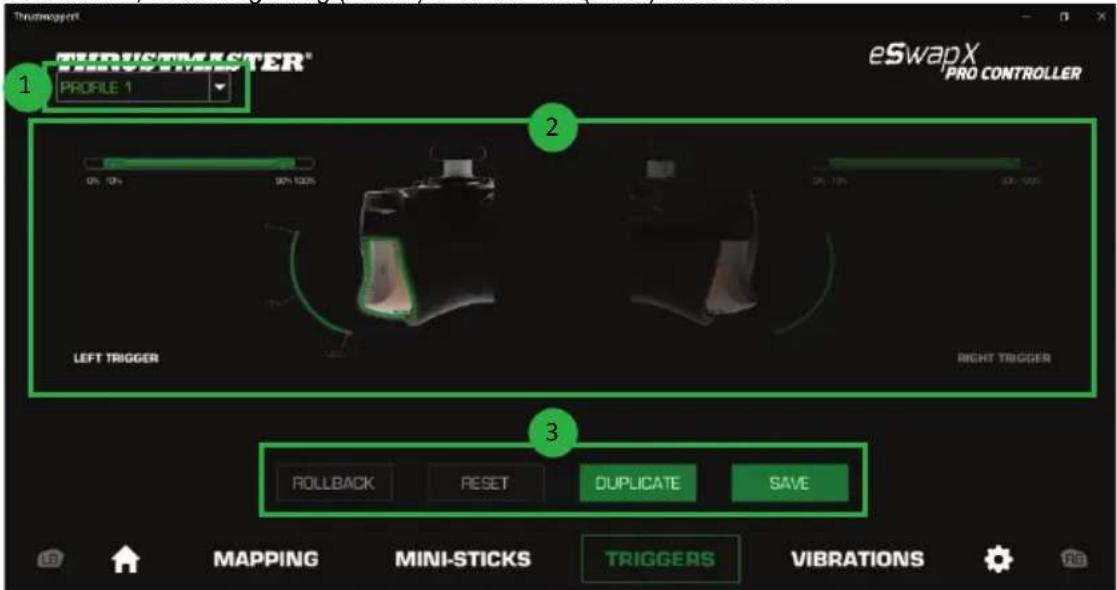
- The drop-down menu in the upper left-hand corner (1) lets you switch between profiles and presets in the TRIGGERS page.
- Adjust the dead zones for the left and right triggers independently of one another (2).
ROLLBACK, RESET, DUPLICATE and SAVE buttons (3):
ROLLBACK: return to the previous settings, since the last save.
RESET: reset all of the settings and content to their default values.
DuplicATE: duplicate the settings for the selected trigger on the second trigger.
SAVE: save the current settings in the selected profile or preset.
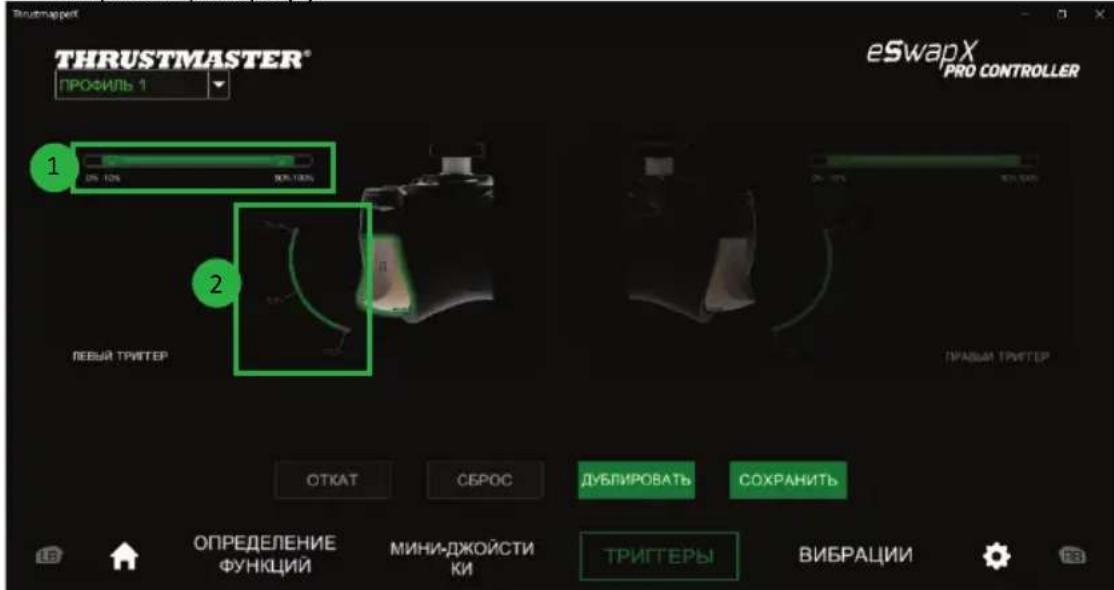
To set the active zone for the triggers:
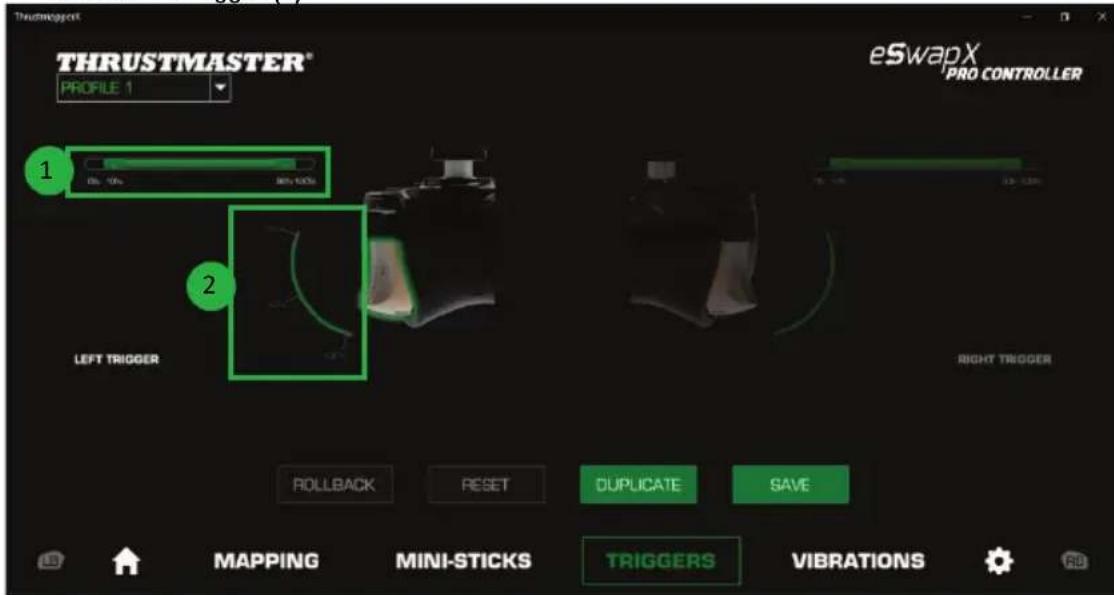
- Move the sliders representing the beginning and end of the dead zone on the selected trigger (1).
- Press the trigger to directly test your settings: the green gauge indicates your position on the curve of the trigger (2).

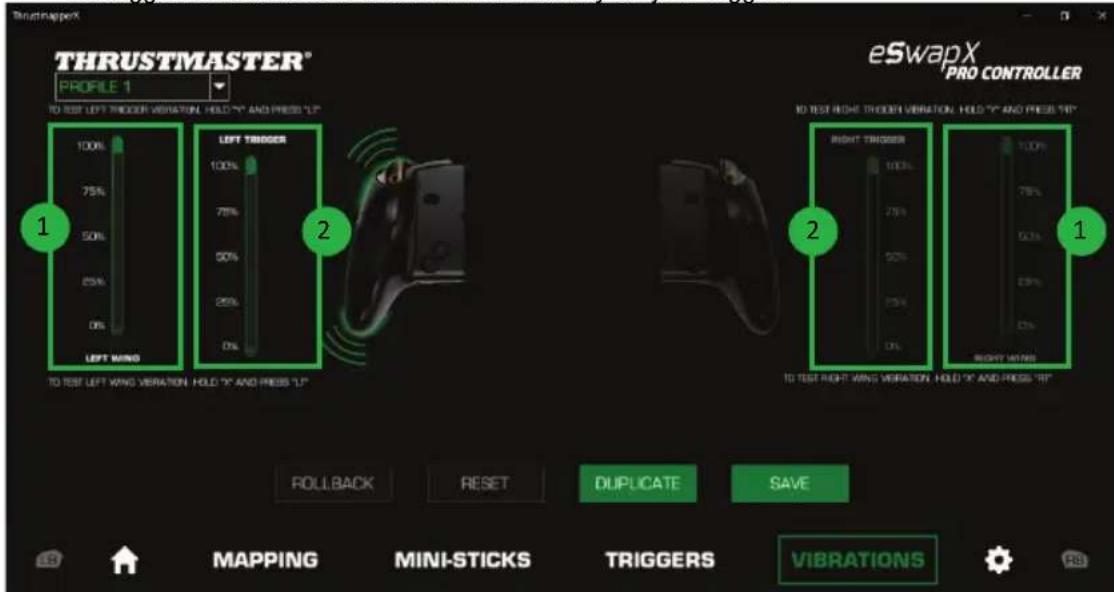
7. Configuring the vibrations
Set the maximum intensity:
of the vibrations for your gamepad's right and left handles;
of the vibrations for your gamepad's right and left triggers.
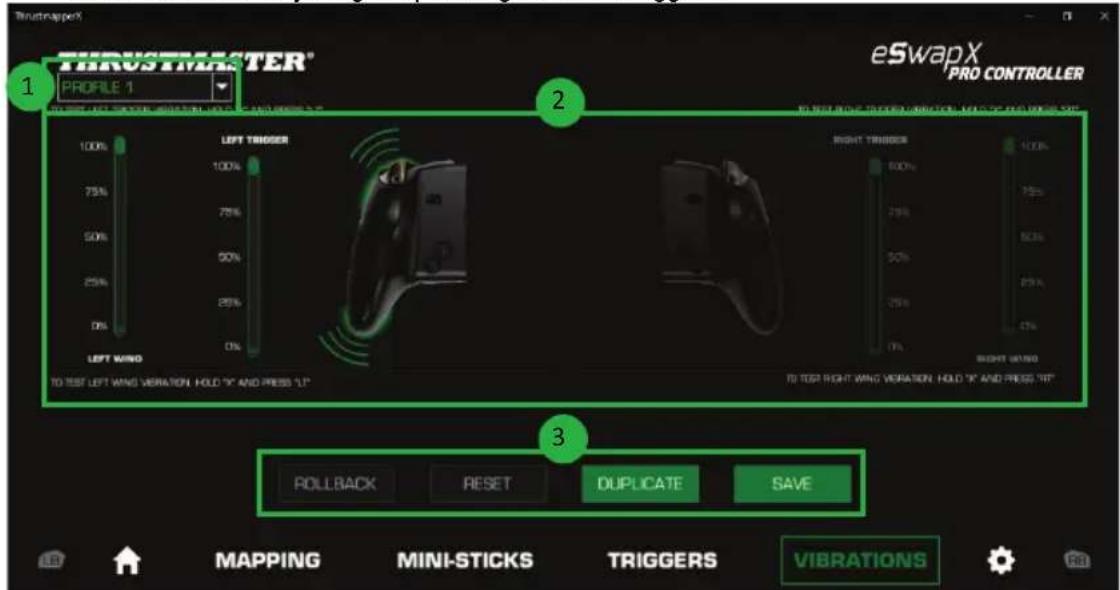
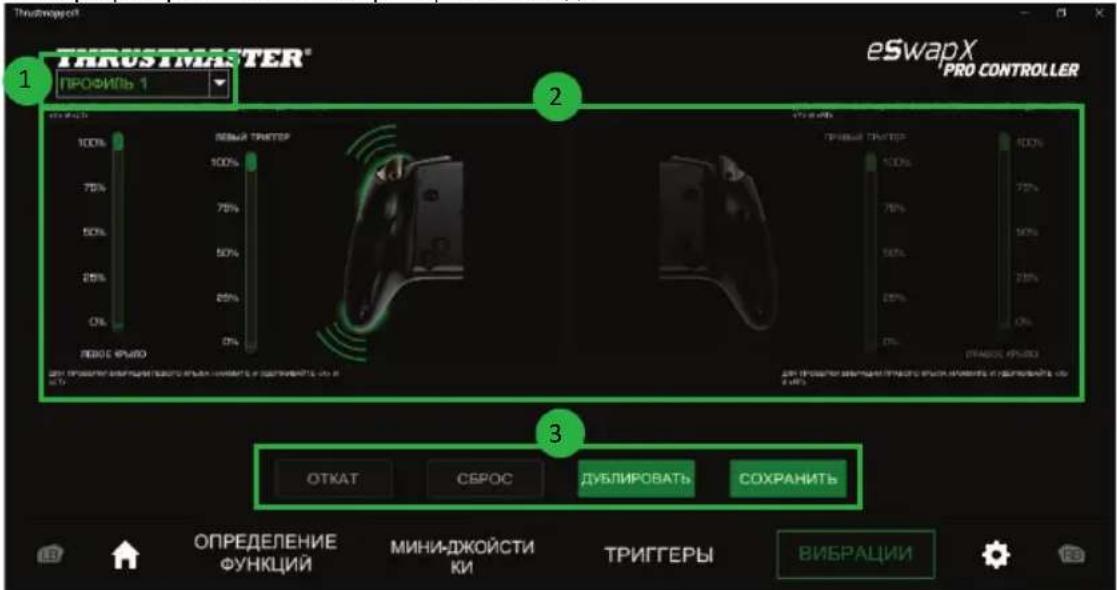
- The drop-down menu in the upper left-hand corner (1) lets you switch between profiles and presets in the VIBRATIONS page.
- Adjust the vibrations for your gamepad's right and left handles, as well as the vibrations for your gamepad's right and left triggers, independently (2).
ROLLBACK, RESET, DUPLICATE and SAVE buttons (3):
ROLLBACK: return to the previous settings, since the last save.
RESET: reset all of the settings and content to their default values.
DUPLICATE: duplicate the settings for the vibrations on one side (left or right) on the other side.
SAVE: save the current settings in the selected profile or preset.

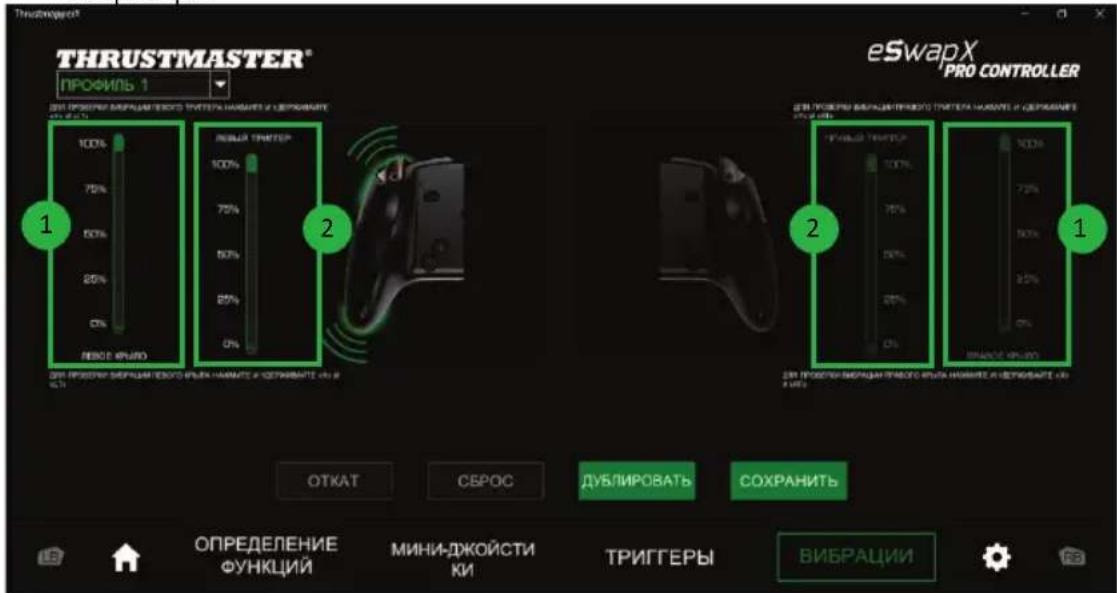
To set the maximum intensity of the vibrations for the handles:
- Move the sliders to set the maximum intensity of both the right and left handle vibrations (1).
- Press and hold down the X button on your gamepad, and press the corresponding right or left trigger to feel the selected vibration intensity on your gamepad.
To set the maximum intensity of the vibrations for the triggers:
- Move the sliders to set the maximum intensity of both the right and left trigger vibrations (2).
- Press and hold down the Y button on your gamepad, and press the corresponding right or left trigger to feel the selected vibration intensity on your trigger.

8. Configuring the backlighting
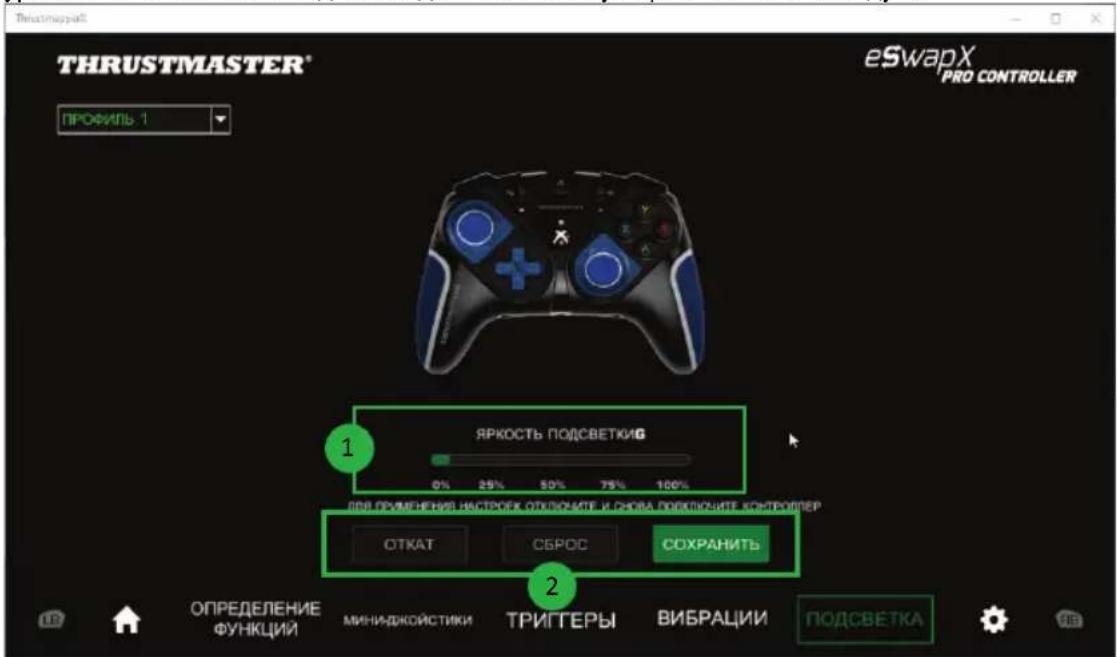
If you own an add-on pack or a LED Blue Crystal, LED Orange Crystal or LED White Crystal mini-stick module and have selected it in the list, you can set the intensity level for the backlighting of the pack or module in question.
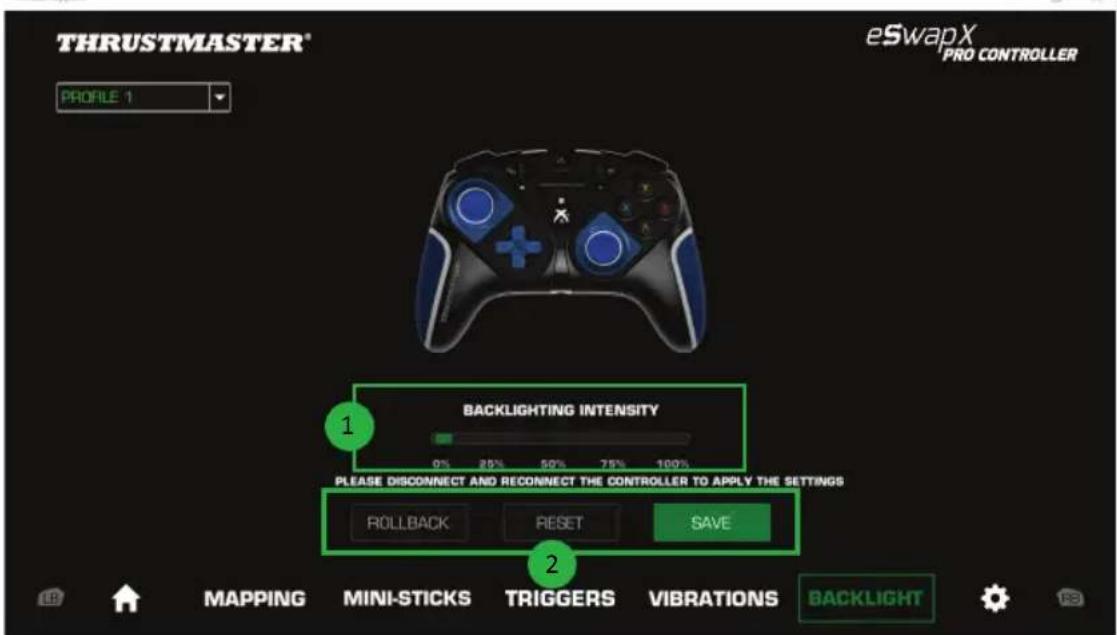
The horizontal slider bar (1) lets you select the backlighting intensity level that you wish to use, between 0% and 100% .
ROLLBACK, RESET and SAVE buttons (2):
ROLLBACK: return to the previous settings, since the last save.
RESET: reset all of the settings and content to their default values.
SAVE: save the current settings in the selected profile or preset.
Once the settings have been saved, if your firmware version is older than v63, disconnect and then reconnect your ESWAP X PRO CONTROLLER to apply the backlighting intensity level that you wish to use for all LED Crystal Pack modules.

9. Verifying and updating the different elements
Click the icon for information regarding the current firmware version for your gamepad, the current driver version for your gamepad, and the current version of the software, as well as to access the online user manual.
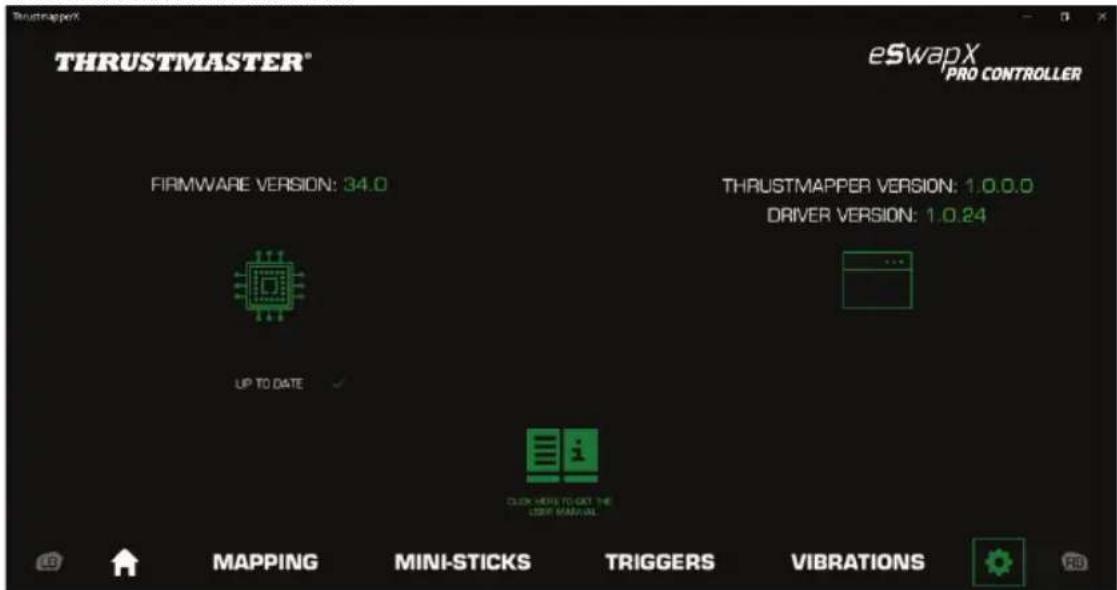
Follow the instructions to proceed with updates, if necessary.
Please note: We strongly recommend that you update your gamepad with the latest firmware version, in order to get the most out of the ThrustmapperX software experience.

COPYRIGHT
© 2023 Guillemot Corporation S.A. All rights reserved. Thrustmaster® is a registered trademark of Guillemot Corporation S.A. Microsoft, Xbox, the Xbox "Sphere" design, Xbox Series X|S, Xbox One and Windows 10/11 are trademarks of the Microsoft group of companies. All other trademarks are the property of their respective owners. Illustrations not binding. Contents, designs and specifications are subject to change without notice and may vary from one country to another. Made in China.
No part of this manual may be reproduced, summarized, transmitted, transcribed, stored in a retrieval system, or translated into any language or computer language, in any form or by any means, electronic, mechanical, magnetic, manual, via photocopying, recording, or other, without the express written consent of Guillemot Corporation S.A.
End User License Agreement applicable to the THRUSTMAPPERX software
Please read the License Agreement displayed during installation of the THRUSTMAPPERX software carefully.

TABLE DES MATIÈRES
https://support.thrustmaster.com



COIDEPKHAHNE
IπepeoxoBa COOTBETCTByOuμn pa3dεn ΜεκηHnte 3aRθOBK B 3TOM cOeρχaHm.
- YctaHObKa nporpaMMHoro oecneueHn ThrustmapperX.....2
- 3anyck IO ThrustmapperX 2
- ⅡaBnaCTpaHnca 3
3.1. Ynpaenue KomnneKmamu Modyneu 5
3.2. YnpaeneHue npooumau 6
3.3. YnpaeneHue npedycmaHObKaMu 8
- Ha3naeHne KhoNok 9
- Hactpoika MmHn-IXKOCTIKOB N MOdyIra roHOCHoro pyJIa .... 11
- HactpoKa TpnrrepoB 15
- HacrpoKa Bn6paun 17
- HactpoKa Iopcbetkn 19
- Поберka и обовлене раимчьх заим entob 20
BBEDEHNE
BocnoJIb3yIeTcB obuHbIM onbITOM KOMnAHm Thrustmaster,HaKoJIeHHbIM B oIaCTn pa3pa6OTKn IporpAMMHOro OBeCneueHna, YTO6bl 3aJeNCTBOBaTb BCE BO3MOxHocTn KOHTpoJIpepa ESWAP X PRO CONTROLLER n ESWAP XR PRO CONTROLLER FORZA HORIZON 5 EDITION n paCunptb rpaHnUbI nporpamMnpyemocTn.
1. YctaHObKa nporpamMHoro oecneueHn ThrustmapperX
Xbox Series X|S, Xbox One: B Mara3nHe Microsoft Store BbInOnHte nonck «ThrustmapperX», nocne yero ckauaTe n ycTaHOBnTe nporpamMHoe oecneueHne ThrustmapperX.
OTKAT: BO3BpaT K npeIbIyIuIM HAcTpOaM, yCTaHOBJIeHHbIM C MOMeHTa NocJeHero COxpaHeHn.
C6P0C:c6poc Bcex HAcTpoek N Bcero KOHTeHTa K 3HaHeHnAm No yMOnJyHaHnIO.
Dy6JIPOBAtb: Dy6JIPOBaHne HAcTpoE K BbI6paHHOro MmHN-IXKOJCTnKa Ha BTOPOM MmHN-IXKOJCTnKe.
COXPAHNTb: coxpaHeHne TeKyuix HacTpoeB B bIbpaHHb IpoΦnJIb nJI npEduCTaHOBky.

KpmbaayyBCTBnTeJIbHOCTHpa3deIeHa Ha Tpr pa3HbIe 30HbI: He6oJIbUHe, cpeHne n 6oJIbUme IINJEN (S,MnL).YBeJIuHHe pa3Mepa OHOH (nnn HeCKOJIbKnx) 3OH (S,M nnN L) OBeCNEuINBaET 6oJIbUyIO yBCTBnTeJIbHOCTb - a 3HaHT, n 6oJIbUyIO TOHOCtB - dIpy COOTBETCTBYUUX 3OH.
Hanpimep,ecn yBeiNHTb 3oHy S,DbNXeHn B6JIn3n cEHTpaJIbHOJ qACTn MHN-IXOJCTNKA 6ydyT 6oJee TOUHbIMN.
IIN3MeHeHHKPNBOYyBCTBNTeJIbHOCTMUNH-IXKOCTNKOBMOXHO BblNOJHHTbcJeDyUoee:
- Iepemecntnb ToKHeNoocpeCTBeHHo Ha daarpamme (1).
- 3MeHHTb 3HaueHnB B Tpex pa3hblx 30Hax (He6oJbWne, cpeHnE n 6oJbWne DInXeHnR) (2).
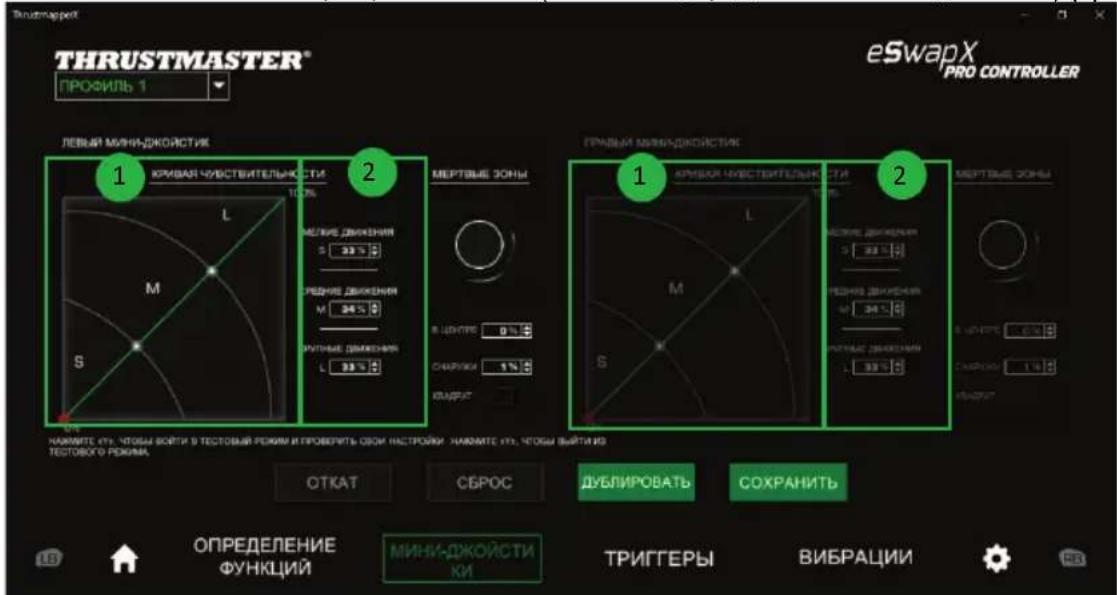
Kpome TORO,ДЯ MUNH-ДЖОИCTNUKOB MOXHO HAcTpOuNTb ueHTpaJIbHbIe IN BHeUHHe MePTBbl 30HbI (1).
Мертвая 30HA COOTBETCTBYET 3OHAM, укаЗаньIM ДлЯ МИн-ДЖОИCTИКА, KOTOPБИ He peaIpyeТ ha DBиженя B Haayane (цentpaJIbHЯ 3OHa) ИИВ KOнцe (BHeSHЯ 3OHa) CBOero NapeMeIeHЯ. KoheChyIO (BHeSHIO) MePTByIO 3OHу TAKKKe MOxHO yKa3aTb B BInde KBaDpaTa, Bbl6pAB napaMeTp «KBaDPAТ».
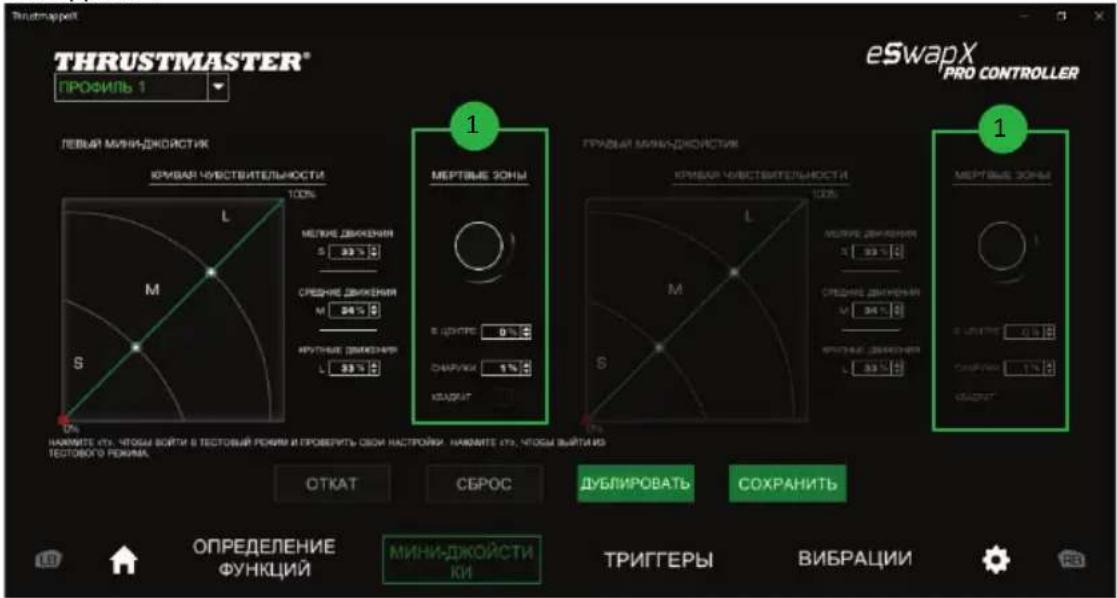
YTO6bI BOITN B PEXIM Tect N IPOBepNTb CBOH HAcTPOKIN, HAXMITE KHOKNY Y Ha TeiMMnade N nepeMeCTNTe MHN-IXKOJCTNK. YTO6bI BBInTN IN3 peXIMa Tect, CHOBA HAXMITE KHOKNY Y Ha reiMMnade.
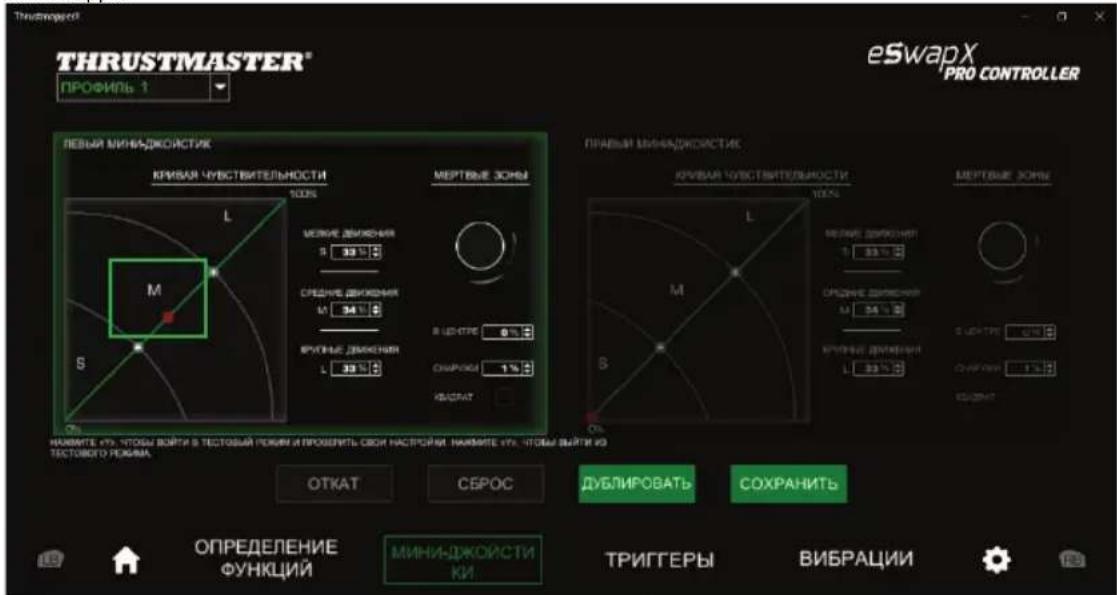

6. Hactpoika TprirrepoB
HacpoKa MeptBbIX 30H dIy IeBoro n npaBoro TpuRepOB No3BOJReT ONTMn3npoBaTb yO6CTBO N Bpem OTKInka B INrpax.
Meptbary 30Ha COOTBeTCTByET 30Ha, yka3aHhbIM IJIa TpIrrepa, KOtOpbI He pearnpyet Ha DnBxHeHb B HauJAE (UeHTpaJIbHa 30Ha) NJIu B KOHcE (BHeuHra 3OHa) CBOero nepemeJeHry.
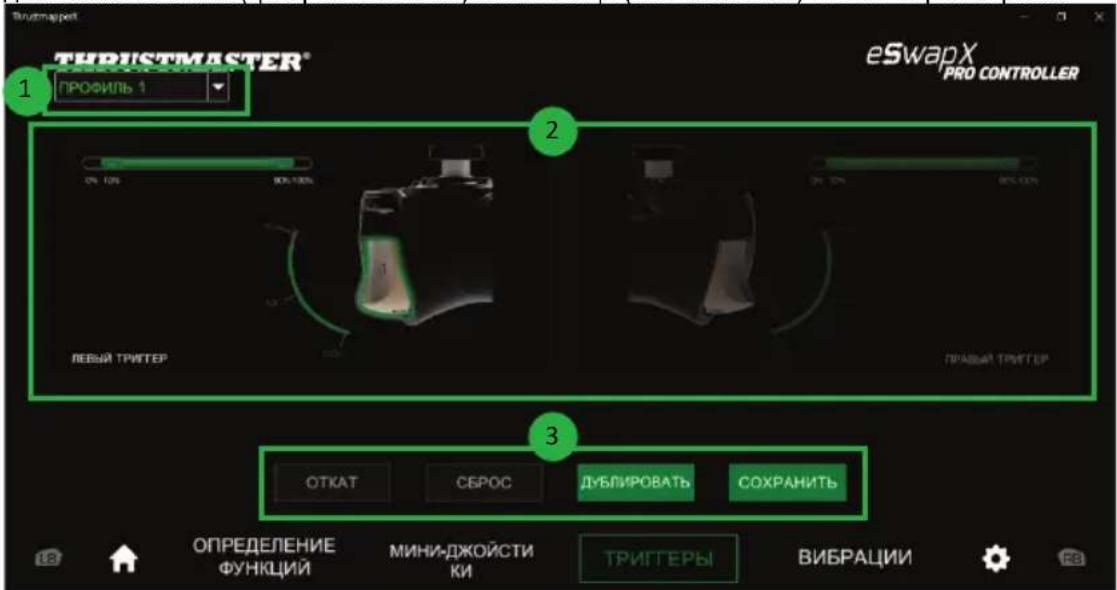
- PackpbIbAIOUeEeMeHIOB B BepxHem NeBOM yrny (1) no3BOJraT nepeKJIouaTbcMexdy npoФnIyMn nPpeDyCTaHOBkAmn Ha cTpaHnue TPNITREPOB.
- MepTBbIe 30HbI MOKHO HAcTpaNBAbT OTeJeNbHO DnIa NeBOrO n IpaBOrO TpInrRePoB (2). - KhoKN OTKAT, CEPOC, dyEINPOBATb u COXPAHHTb (3):
OTKAT: BO3Bpat K npedbyuim HacTpoiKaM, yCTaHOBneHHbIM C MOMeHTa NocJeHero coxpaHeHn.
C6P0C:c6poc Bcex HAcTpoek IN BCero KOHTeHTa K 3HaueHnA m NO yMOJUaHnIO.
ДуБЛПОВАТь: ДуБЛПОВАне HabToeK BbIbpaHnO TpUrRepa Ha BTOPOM TpUrRepe.
COXPAHNTb: coxpaHeHne TeKuInx HAcTpoE K B bI6paHHb IpoΦnbl nIIN ppeDyctaHOBky.

YcTaHOBkaAKTNBHOJ 3OHBI DnT PprrrepoB:
BbIbepnte Tprrrep n nepemecntne noJ3yHKn, o6o3haaioue hauano n KOHeu MeptBOI 3OHbl (1).
- Haxmte Tprrrep IJI npOBepKn HAcTpoE: 3eJIeHa yKa3bIbaET BaSe NOIOXeHne Ha KpNB0r Tprrtepa (2).

7. Hac troponka Bn6paun
YCTaHOBtMe MaKcImaJIbHyIO INHTeHCMBHOCTb:
- Bn6paun npaBoN n IeBoN pyuKn reMnaJa;
Bn6paun npaBOrO nIeBOrTo TprrrepoB reMnaJa.
PacKpbIbAIOUeecr MeHIO B BepXHeM JeBOM yrJy (1) N03BOJIaTe NpeKeIIOHaTbcr MExdy npOuJIaMn InpEDYCTaHOBkAmn Ha cTpaHnue HACTPOIK BUNPAUIN.
- Bn6paun npaBoi n neBoi pyuKn reMnpa, a taKke Bn6paun npaBoro n neBoro TpntrepoB MOxHO peryNupoBaTb He3aBNCMO (2).
- KhoNkOTKAT, CbPOC, NyBnIOPBAtb n COXPAHHTb (3):
OTKAT: Bo3Bpat K npedbyuHACtpoikam, yCTaHOJIeHHbIM C MOMeHTa NocJeHero COxpaHeHn.
C5POC:c6poc BCex HAcTpoEK BCETo KOHTeHTa K3HaueHnM ITO YM0JIyAHnIO.
Dy6JIHPOBATb: Dy6InpOBaHne HacTpoE KIn6paUIN, yCTaHOBJIeHHbIX dNIA OHO CTOpOHBI (JeBOI INI npAOB), HA dpyrO CTOpOHE KOHTpONJIepa.
COXPAHNTb: coxpaheHne Tekyuixn Hactpoek B BBbpaHHn npofoHn bnn npeDyctaHOBky.
YcTaHOBKa MaKcHMaJIbHOu INTeHCNBHOCTn Bn6paun nn pyuek:
- Iepemecntte NOJ3yHKn Dny yCTaHOBKn MAKcImaJIbHOH INHTeHCNBHOCTN Bn6paCm pykN KAK C npABoT, TAK N C JEBOc CTOpOHbI (1).
HaxMMTe u ydepKuBaIte KhONky X Ha reMnaJe, 3aTeM HaxMMTe COOTBETCTBYOUsn npabBi IIN NEBi TpIRTEp, YTO6bl NOUYBCTBoBaTb Bbl6paHHyIO INTEHCNBHOCTb BIBpaCmN Ha reMnaJe.
YcTaHOBka MaKcMaJIbHOINHTeHcNBHOCTN Bn6paUN DnTpnrrePoB:
- IepemecHTe TIO3yHKn DJIa YCTaHOBKn MAKcIMaJIbHOINHTeHCNBHOCTN Bn6paCmTpuTrepak C npaBO, TAK u C JEBO CTOpOHbl (2).
HaxMMTe u ydepKuBaIte KhoNky Y Ha reMnaJe, 3aTeM HaxMMTe COOTBeTCTByOUsn IpaBBi NII JEBbI TpUrTe, UTO6bl NOUYBCTBOBaTb Bbl6paHHyIO INTEHCNBHOCTb Bn6paCmN Ha TpUrTrepe.

8. Hac troponka noDCBETKn
Ecni y Bac ecTb dononHntBnI nakET nn MOnyIb MmNcKa LED Blue Crystal,LED Orange Crystal nII LED White Crystal n Bbl BbIbpaIero B CnIcKe, Bbl MoKeTe yCTaHOBTb ypoBeHb INTEHCMBHOCTn IOCBETKn IJIe COOTBECTByOJUeI ONaTe aII MOnyI.
-Topn30HTaJIbHaJInHeiKa C NoI3yHKOM (1)No3BOJraET BbIbpaTb XeJaemyo RpkocTB noDCBETKIN Dnana3OHe OT 0% Do 100%.
- KhoTOKAT, CbPOc n COXPAHnTb (2):
OTKAT: Bo3BpaT K IpeIbIyUzIM HacTpOuKaM, yCTaHOJIeHHbIM C MOMeHTa NocneJHero coXpaHeHn.
C6POC:c6poc Bcex HAcTpoek INBCErO KOHTeHTa K3HaueHnA mNo yMOJUaHnIO.
COXPAHHTb: coxpaheHne TeKuyux HAcTpoE K Bbl6paHHb InpoΦnIb NJI npedyctaHOBky.
Iocne coxpanen Hactpoek, ecn y Bac Bercn npoWNBKn CTapwe v63, OTKIOHTe, a 3aTeM cHOBA noKIOHNTe reIMnA ESWAP X PRO CONTROLLER, TTo6bI npImeHnTb tot ypOBeHb apKoCTN NOCBETKN, KOTOpB bBy XOTnTE nCNOJb3OBaTb dJa BCex MoDyne LED Crystal Pack.
https://support.thrustmaster.com

三目录
https://support.thrustmaster.com



三号
默的樂歌
- ThrustmapperX 紅連連戦の戦功
2 - ThrustmapperX 紅連連戦人 氏
3.1. 0H德上默私
3.2. 6
3.3. 田引/义观/吉
MNI sTikJtJiJiJiJiJiJiJiJiJiJiJiJiJiJiJiJiJiJiJiJiJiJiJiJiJiJiJiJiJiJiJiJiJiJiJiJiJiJiJi
https://support.thrustmaster.com