DVDRV32GC - DVD player PANASONIC - Free user manual and instructions
Find the device manual for free DVDRV32GC PANASONIC in PDF.


User questions about DVDRV32GC PANASONIC
0 question about this device. Answer the ones you know or ask your own.
Ask a new question about this device
Download the instructions for your DVD player in PDF format for free! Find your manual DVDRV32GC - PANASONIC and take your electronic device back in hand. On this page are published all the documents necessary for the use of your device. DVDRV32GC by PANASONIC.
USER MANUAL DVDRV32GC PANASONIC
natural_image
Front view of a computer monitor with ports and control buttons (no visible text or labels)Panasonic
DVD/CD PLAYER
Operating Instructions
Model No. DVD-RV32/DVD-RV27/DVD-RV22

natural_image
Monochrome artistic composition featuring a central globe with wave patterns and surrounding digital graphics (no readable text or symbols)Before connecting, operating or adjusting this product, please read these instructions completely. Please keep this manual for future reference.



As an ENERGY STAR® Partner, Panasonic has determined that this product meets the ENERGY STAR® guidelines for energy efficiency.


TM
This manual was printed with soy based ink.

Region number supported by this player
Region numbers are allocated to DVD players and software according to where they are sold.
For U.S.A., Canada, and units with PX printed on the outer packaging
- The region number of this player is "1".
- The player will play DVDs marked with labels containing "1" or "ALL".
Example:



For the Middle East and South Africa
- The region number of this player is "2".
- The player will play DVDs marked with labels containing "2" or "ALL".
Example:



For Asia
- The region number of this player is "3".
- The player will play DVDs marked with labels containing "3" or "ALL".
Example:



For Australia and N.Z.
- The region number of this player is "4".
- The player will play DVDs marked with labels containing "4" or "ALL".
Example:



[For\U.S.A.\only]
The warranty can be found on page 21.
Thank you for purchasing this product. For optimum performance and safety, please read these instructions carefully.
These operating instructions are applicable to models DVD-RV32, DVD-RV27 and DVD-RV22.
Operations in these instructions are described mainly with the remote control, but you can do the operations on the main unit if the controls are the same.
[DVD-RV32]: indicates features applicable to DVD-RV32 only.
[DVD-RV27]: DVD-RV27 only.
[DVD-RV22]: DVD-RV22 only.
Accessories
Please check and identify the supplied accessories. Use numbers indicated in parentheses when asking for replacement parts.
(Only for U.S.A.)
To order accessories contact 1-800-332-5368 or web site (http://www.panasonic.com).
(For other areas)
To order accessories, call the dealer from whom you have made your purchase.
□ 1 Remote control
[For\U.S.A.\and\Canada] (N2QAJB000043)
[For\others] (N2QAJB000050)
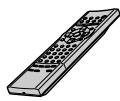
□ 2 Batteries
for remote control

☐ 1 AC power supply cord
[For\U.S.A.\and\Canada] [For\Australia\and\N.Z.]
(RJA0065-A)
[For\others]
(RJA0035-2X)
(RJA0019-2X)



☐ 1 Audio/video cable (VJA0788-D)

[DVD-RV32] (for units with PX printed on the outer packaging)
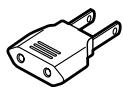
☐ 1 Power plug adaptor (VJP2974)
[Note]
The included AC power supply cord is for use with this unit only. Do not use it with other equipment.
User memo:
DATE OF PURCHASE
DEALER NAME
DEALER ADDRESS
TELEPHONE NUMBER
The model number and serial number of this product can be found on either the back or the bottom of the unit.
Please note them in the space provided below and keep for future reference.
MODEL NUMBER
SERIAL NUMBER
Table of contents
Getting started
Accessories 2
IMPORTANT SAFETY INSTRUCTIONS....4
Maintenance....4
Control reference guide .... 5
Disc information....5
[1] Connection to a television 6
[2] The remote control ....7
[3] Quick Setup....7
Basic operations
Basic play....8
Replaying a scene — QUICK REPLAY....8
Setting the unit to turn off — SLEEP timer .... 8
Using menus to play MP3 discs 9
Resume function 9
Skipping chapters or tracks.... 10
Fast forward and rewind—SEARCH....10
Slow-motion play.... 10
Frame-by-frame viewing 10
Starting play from a selected title or track.... 10
4:3 TV ZOOM function 10
Advanced operations
Convenient features 11
Repeat play 11
A-B repeat play 11
Program play....11
Random play....11
Increasing your enjoyment of movies ..... 12
Soundtracks 12
Subtitles.... 12
Angles 12
ONE TOUCH CINEMA MEMORY....13
Using On-Screen Menu Icons....14
Common procedures.... 14
Disc information....14
Unit information....15
Progress indicator 15
Changing settings 16
Common procedures.... 17
Entering a password (Ratings) 17
Digital output 17
Home Theater—Enjoying more powerful sound.....18
Reference
Troubleshooting guide .... 19
Glossary 20
Limited Warranty (U.S.A.) 21
Product Service (U.S.A. and Canada) 22
(Spanish Quick Reference)
Specifications.... Back cover
CAUTION!
THIS PRODUCT UTILIZES A LASER.
USE OF CONTROLS OR ADJUSTMENTS OR PERFORMANCE OF PROCEDURES OTHER THAN THOSE SPECIFIED HEREIN MAY RESULT IN HAZARDOUS RADIATION EXPOSURE.
DO NOT OPEN COVERS AND DO NOT REPAIR YOURSELF. REFER SERVICING TO QUALIFIED PERSONNEL.
WARNING:
TO REDUCE THE RISK OF FIRE, ELECTRIC SHOCK OR PRODUCT DAMAGE, DO NOT EXPOSE THIS APPARATUS TO RAIN, MOISTURE, DRIPPING OR SPLASHING AND THAT NO OBJECTS FILLED WITH LIQUIDS, SUCH AS VASES, SHALL BE PLACED ON THE APPARATUS.
CAUTION!
- DO NOT INSTALL, OR PLACE THIS UNIT, IN A BOOKCASE, BUILT-IN CABINET OR IN ANOTHER CONFINED SPACE. ENSURE THE UNIT IS WELL VENTILATED. TO PREVENT RISK OF ELECTRIC SHOCK OR FIRE HAZARD DUE TO OVERHEATING, ENSURE THAT CURTAINS AND ANY OTHER MATERIALS DO NOT OBSTRUCT THE VENTILATION VENTS.
- DO NOT OBSTRUCT THE UNIT'S VENTILATION OPENINGS WITH NEWSPAPERS, TABLECLOTHS, CURTAINS, AND SIMILAR ITEMS.
- DO NOT PLACE SOURCES OF NAKED FLAMES, SUCH AS LIGHTED CANDLES, ON THE UNIT.
- DISPOSE OF BATTERIES IN AN ENVIRONMENTALLY FRIENDLY MANNER.
THE FOLLOWING APPLIES ONLY IN THE U.S.A. AND CANADA:
CAUTION:
TO PREVENT ELECTRIC SHOCK MATCH WIDE BLADE OF PLUG TO WIDE SLOT, FULLY INSERT.
For the Middle East, South Africa and Asia
THIS UNIT IS INTENDED FOR USE IN TROPICAL CLIMATES.
For Australia, N.Z. and units with PX printed on the outer packaging
THIS UNIT IS INTENDED FOR USE IN MODERATE CLIMATES.
This product may receive radio interference caused by mobile telephones during use. If such interference is apparent, please increase separation between the product and the mobile telephone.
| DANGER - | VISIBLE AND INVISIBLE LASER RADIATION WHEN OPEN.AVOID DIRECT EXPOSURE TO BEAM. (FDA 21 CFR) |
| CAUTION - | VISIBLE AND INVISIBLE LASER RADIATION WHEN OPEN.AVOID EXPOSURE REAUM (IEC60825-1) |
| ATTENTION- | RAYONNEMENT LASER VISIBLE ET INVISIBLE EN CAS D'OUVERTURE-EXPOSITION DANGEREUSE AU FAISCEAU. |
| ADVARSEL- | SYNLIG OG USYNLIG LASERSTRÄLING VED ÄBNING.UNIDG AUSD'ETTELSE FOR STRÄLING. |
| VARO! | AVATTAESSA OLET ALTIINA NÄKYVÄÄ JA NÄKYMÄTÖNLASERSÄTEILYLE. ÄLA KATSO SÄTEESEN. |
| VARNING | SYNLIG OCH OSYNLIG LASERSTRÄLING NÄR DENNA DELAR OPPNAD. BETRAKTA EJ STRÄLEN. |
| ADVARSEL - | SYNLIG OG USYNLIG LASERSTRÄLING NÄR DEKSEL ÄPNES.UNINGÄ EKSPONERING FOR STRÄLEN. |
| VORSICHT - | SICHTBARE UND UNSICHTBARE LASERSTRÄHLUNG, WENN ABDECKUNGGEOFFNET. NICHT DEM STRAHL AUSSETZEN. |
| 注意 - | 打开时有可见及不可见激光辐射。避免激光束照射。 |
| 注意 - | ここを聞くと可提及及び不可視のレーザー光が出ます。ピームを直接見にし、触れにしてしないでください。RQLS0233 |
(Inside of product)
THE FOLLOWING APPLIES ONLY IN THE U.S.A.:
CAUTION:
This equipment has been tested and found to comply with the limits for a Class B digital device, pursuant to Part 15 of the FCC Rules.
These limits are designed to provide reasonable protection against harmful interference in a residential installation. This equipment generates, uses and can radiate radio frequency energy and, if not installed and used in accordance with the instructions, may cause harmful interference to radio communications. However, there is no guarantee that interference will not occur in a particular installation. If this equipment does cause harmful interference to radio or television reception, which can be determined by turning the equipment off and on, the user is encouraged to try to correct the interference by one or more of the following measures:
●Reorient or relocate the receiving antenna.
- Increase the separation between the equipment and receiver.
- Connect the equipment into an outlet on a circuit different from that to which the receiver is connected.
- Consult the dealer or an experienced radio/TV technician for help.
Any unauthorized changes or modifications to this equipment would void the user's authority to operate this device.
This device complies with Part 15 of the FCC Rules. Operation is subject to the following two conditions: (1) This device may not cause harmful interference, and (2) this device must accept any interference received, including interference that may cause undesired operation.
THE FOLLOWING APPLIES ONLY IN THE U.S.A. AND CANADA:
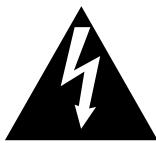
CAUTION
RISK OF ELECTRIC SHOCK DO NOT OPEN

CAUTION: TO REDUCE THE RISK OF ELECTRIC SHOCK, DO NOT REMOVE SCREWS.
NO USER-SERVICEABLE PARTS INSIDE.
REFER SERVICING TO QUALIFIED SERVICE PERSONNEL.

The lightning flash with arrowhead symbol, within an equilateral triangle, is intended to alert the user to the presence of uninsulated “dangerous voltage” within the product’s enclosure that may be of sufficient magnitude to constitute a risk of electric shock to persons.

The exclamation point within an equilateral triangle is intended to alert the user to the presence of important operating and maintenance (servicing) instructions in the literature accompanying the appliance.
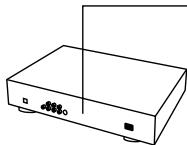
[DVD-RV32]
text_image
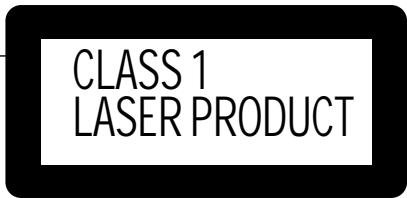
CLASS 1 LASER PRODUCTThe laser product label has not been attached to products for U.S.A. and Canada.
IMPORTANT SAFETY INSTRUCTIONS
Read these operating instructions carefully before using the unit. Follow the safety instructions on the unit and the safety precautions listed below. Keep these operating instructions handy for future reference.
Safety
- Power source—Connect the unit to a power source of the type described in these instructions or as marked on the unit.
- Polarization—The unit is equipped with a polarized power plug where one blade is wider than the other. This safety feature ensures that the plug fits into your household AC outlet only one way. If the plug doesn't fit one way, try reversing it. If the plug still doesn't fit, contact an electrician to replace the obsolete outlet. Do not attempt to defeat the safety purpose of the plug.
- Power cord protection—Route the AC power supply cord so that it will not be walked on or pinched by items placed on or against it. Never take hold of the plug or cord with wet hands. Always grasp the plug body firmly when connecting and disconnecting it.
- Overloading—When connecting the AC power supply cord, be careful not to overload the household AC outlet, extension cord, or outlet from any other device as this can result in fire or electric shock.
- Nonuse periods—Turn the unit off when it is not in use. Unplug the unit from the household AC outlet if it is not to be used for a long time. Unplug the unit during lightning storms.
- Attachments and accessories—Use only the attachments and accessories recommended in these operating instructions.
Installation
Placement
- Ventilation—Situate the unit so that it receives proper ventilation. Do not install in a confined space such as a bookcase or cabinet. Allow at least 10 cm (4 inches) clearance from the rear of the unit. To prevent the risk of electric shock or fire due to overheating ensure curtains and other materials do not obstruct the unit's ventilation.
- Foreign material—Ensure objects and liquids do not get into the unit. Avoid exposing the unit to excessive smoke, dust, mechanical vibration, and shock.
- Magnetism—Situate the unit away from equipment and devices that generate strong magnetic fields.
- Stacking—Do not place heavy objects on top of this unit.
- Surface—Place the unit on a flat, level surface.
- Carts and stands—Use the unit only with carts and stands recommended by the manufacturer. Move carts with care. Sudden stops, excessive force, and uneven surfaces can cause carts to overturn.
- Wall and ceiling mounting—Do not mount the unit on walls or ceilings unless specified in the instructions.

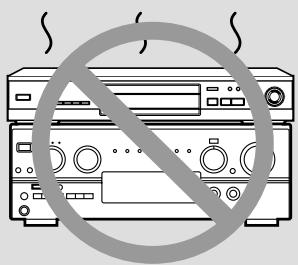
Do not place the unit on amplifiers or equipment that may become hot.
The heat can damage the unit.
natural_image
Illustration of a pair of electronic devices with a diagonal line crossed out, no text or symbols present.Environment
- Water and moisture—Do not use the unit near water, such as near a bathtub or swimming pool. Avoid damp basements.
- Heat—Situate the unit away from heat sources, such as radiators. Do not situate where temperatures fall below 5 °C ( 41 °F ) or rise above 35 °C ( 95 °F ).
Maintenance
(See below for details.)
Unplug the unit from the household AC outlet before cleaning.
Clean with a damp cloth.
Do not use abrasive pads, scouring powders, or solvents.
Service
- Damage requiring service—The unit should be serviced by qualified service personnel if:
(a) The AC power supply cord or the plug has been damaged; or
(b) Objects or liquids have gotten into the unit; or
(c) The unit has been exposed to rain; or
(d) The unit does not operate normally or exhibits a marked change in performance; or
(e) The unit has been dropped or the cabinet damaged. - Servicing—Do not attempt to service the unit beyond that described in these operating instructions. Refer all other servicing to authorized servicing personnel.
- Replacement parts—When parts need replacing ensure the servicer uses parts specified by the manufacturer or parts that have the same characteristics as the original parts. Unauthorized substitutes may result in fire, electric shock, or other hazards.
- Safety check—After repairs or service, ask the servicer to perform safety checks to confirm that the unit is in proper working condition.
Item 2 in "Safety" applies only in the U.S.A. and Canada.
Maintenance
To clean this unit, wipe with a soft, damp cloth.
- Never use alcohol, paint thinner or benzine to clean this unit.
- Before using chemically treated cloth, read the instructions that came with the cloth carefully.
- Never use alcohol, paint thinner or benzine to clean this unit. - Before using chemically treated cloth, read the instructions that came with the cloth carefully.
text_image
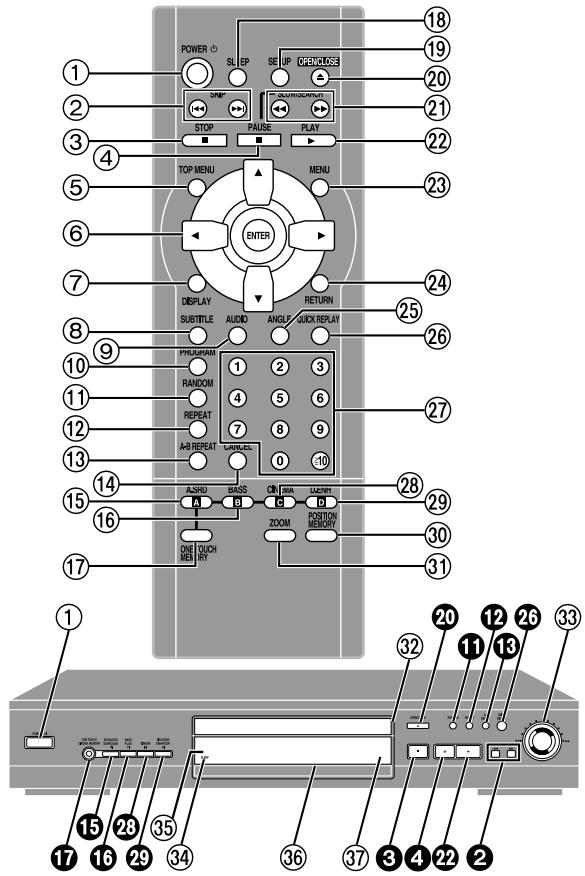
POWER 1 2 3 4 5 6 7 8 9 10 11 12 13 14 15 16 17 18 19 20 21 22 23 24 25 26 27 28 29 30 31 32 33 34 35 36 37 38 39 40 41 42 43 44 45 46 47 48 49 50 51 52 53 54 55 56 57 58 59 60 61 62 63 64 65 66 67 68 69 70 71 72 73 74 75 76 77 78 79 80 81 82 83 84 85 86 87 88 89 90 91 92 93 94 95 96 97 98 99 100Buttons such as ② function the same as the controls on the remote control.
The actual marking of the standby/on switch depends on the area. Illustrations in these operating instructions use the markings shown in the above illustration.
Page
① Standby/on switch (⏻/l)....7 Press to switch the unit from on to standby mode or vice versa. In standby mode, the unit is still consuming a small amount of power.
② Skip buttons (|◀◀, ▶▶| SKIP) .... 10
③ Stop button (■ STOP) 8
④ Pause button (II PAUSE)....8
⑤ Top menu button (TOP MENU) 8,9
⑥ Cursor buttons (▲, ▼, ◀, ▶)/Enter button (ENTER) ..... 8
⑦ Display button (DISPLAY) 14
⑧ Subtitle button (SUBTITLE)....12
⑨ Audio button (AUDIO)....12
⑩ Program button (PROGRAM)....11
⑪ Random play button (RANDOM)....11
⑫ Repeat button (REPEAT) 11
⑬ A-B repeat button (A-B REPEAT) 11
⑭ Cancel button (CANCEL)....11
⑮ Advanced Surround button ([A] A.SRD)....13
⑯ Bass plus button ([B] BASS) 13
⑰ One touch cinema memory button (ONE TOUCH MEMORY) ... 13
⑱ Sleep button (SLEEP)....8
⑲ Setup button (SETUP) 7, 17
⑳ Open/Close button (▲ OPEN/CLOSE) 8
②1 Slow/Search buttons (◀◀, ▶▶ SLOW/SEARCH) ..... 10
②2 Play button (▶ PLAY)....8
②3 Menu button (MENU) 8,9
⑳ Return button (RETURN)....7
⑲ Angle button (ANGLE)....12
②6 Quick replay button (QUICK REPLAY) 8
②7 Numbered buttons (1–9, 0, ≥10)....8
⑳ Cinema button ([C] CINEMA)....13
⑲ Dialogue Enhancer button ([D] D.ENH)....13
③0 Position memory button (POSITION MEMORY)....9
③1 4:3 TV ZOOM button (ZOOM).... 10
③2 Disc tray 8
③3 Shuttle dial (◀◀, ▶▶) 10
③4 Sleep indicator (SLEEP)....8
③5 Remote control signal sensor
③6 Display
③7 [DVD-RV32] (For units sold outside U.S.A. and Canada) Standby indicator (☐, STANDBY)
When the unit is connected to the AC mains supply, this indicator lights up in standby mode and goes out when the unit is turned on.
Disc information
■ Discs that can be played
| DVD-Video | DVD-R | Audio CD | Video CD |
| Indication used in instructions | |||
| [DVD] | [CD]* | [VCD] | |
*Including CD-R/RW and discs recorded with MP3 (and WMA for the U.S.A., Canada and units with PX printed on the outer packaging [DVD-RV32] [DVD-RV27]).
Do not use irregularly shaped discs (e.g. heart-shaped), as these can damage the unit.
■ Discs that cannot be played
DVD-Audio, PAL discs*, DVD-ROM, DVD-RAM, CD-ROM, CDV, CD-G,
+RW, DVD-RW, CVD, SVCD, SACD, Divx Video Discs and Photo CD.
*Only for U.S.A., Canada and units with PX printed on the outer packaging
■ DVDs that can be played
This unit has a Dolby Digital decoder so you can play DVDs with this mark.
This unit does not have a DTS decoder. Connect this unit to equipment that has a DTS decoder to enjoy DVDs with this mark.
■ Playing DVDs and Video CDs
The producer of these discs can control how they are played so you may not always be able to control play as described in these operating instructions. Read the disc's instructions carefully.
■ Video systems
(For the Middle East, South Africa, Asia, Australia and N.Z.)
This unit can play both the PAL and NTSC video systems. To view PAL or NTSC, however, your television must match the system used on the disc. PAL discs cannot be correctly viewed on an NTSC television.
NTSC can be correctly viewed on a PAL television by converting the video signal to PAL 60 (→ page 16, Video—NTSC Disc Output).
■ CD-R and CD-RW discs
This unit can play CD-DA (digital audio) and video CD format audio CD-R and CD-RW that have been finalized (a process that enables CD-R and CD-RW players to play audio CD-R and CD-RW) upon completion of recording. It may not be able to play some CD-R/RW due to the condition of the recording.
DVD-R discs
Panasonic DVD-R recorded and finalized on a Panasonic DVD video recorder are played as DVD-Video on this unit.
It may not be possible to play these discs in all cases due to the type of disc or condition of the recording.
■ Handling precautions
- Do not write on the label side with a ball-point pen or other writing instrument.
- Do not use record cleaning sprays, benzine, thinner, static electricity prevention liquids or any other solvent.
- Do not attach labels or stickers to discs. (Do not use discs with exposed adhesive from tape or left over peeled-off stickers.)
- Do not use scratch-proof protectors or covers.
- Do not use discs printed with label printers available on the market.
[1] Connection to a television
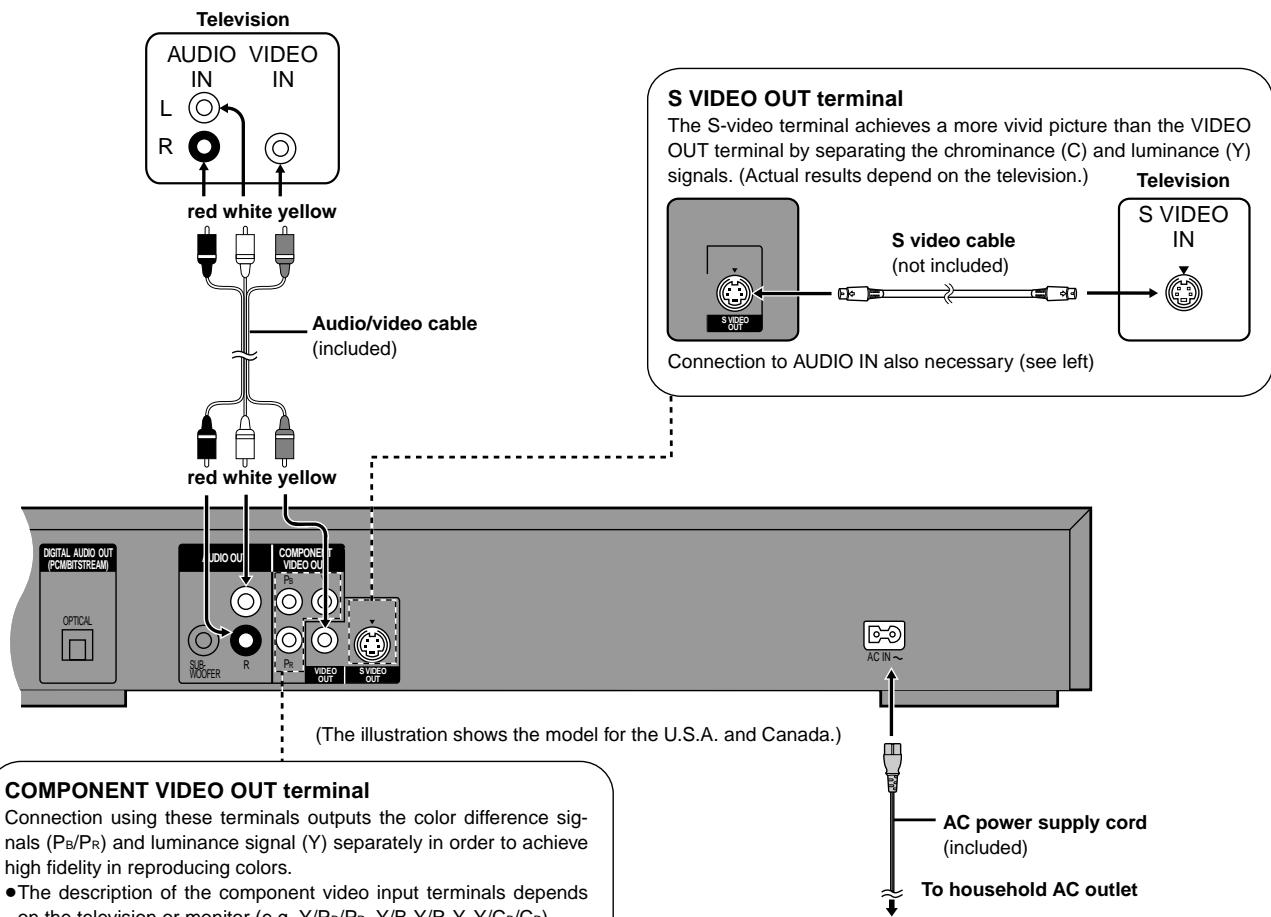
This page explains how to connect the unit to a television and set it up so you hear the audio through the television's speakers. To get the full benefit from the powerful 5.1-channel audio found on DVDs, you should connect an amplifier and six speakers (→ page 18).
Before connection
- Disconnect the AC power supply cord.
- Refer to the television's operating instructions.
Connect your unit directly to your television.
Do not connect the unit through your video cassette recorder when setting up your home entertainment system, because the picture may not be played correctly due to the copy guard.
flowchart
graph TD
    A["Television"] --> B["red white yellow"]
    B --> C["Audio/video cable (included)"]
    C --> D["red white yellow"]
    D --> E["Component video OUT terminal"]
    E --> F["AC power supply cord (included)"]
    F --> G["To household AC outlet"]
    H["S VIDEO OUT terminal"] --> I["S video cable (not included)"]
    I --> J["Connection to AUDIO IN also necessary (see left)"]
    style A fill:#f9f,stroke:#333
    style H fill:#ccf,stroke:#333
    style E fill:#cfc,stroke:#333
    style F fill:#fcc,stroke:#333
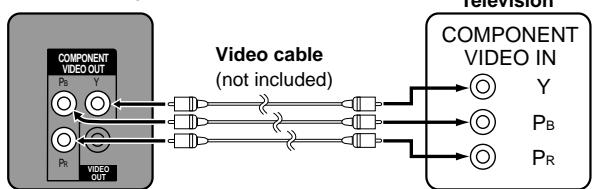
COMPONENT VIDEO OUT terminal
Connection using these terminals outputs the color difference signals ( P_B/P_R ) and luminance signal (Y) separately in order to achieve high fidelity in reproducing colors.
- The description of the component video input terminals depends on the television or monitor (e.g. Y/P_B/P_R , Y/B-Y/R-Y , Y/C_B/C_R ). Connect to terminals of the same color.
[For\U.S.A.,\Canada\and\units\with\PX\printed\on\the\outer\packaging]
- After making this connection, change the black level for a better picture (→ page 16, Video—Black Level Control).
flowchart
graph LR
    A["COMPONENT VIDEO OUT"] --> B["Video cable (not included)"]
    B --> C["Television"]
    A --> D["Y"]
    A --> E["PB"]
    A --> F["PR"]
Connection to AUDIO IN also necessary (see above)
[DVD-RV32] (for units with PX printed on the outer packaging)
If the power plug does not fit your AC outlet
- Use the power plug adaptor (included).
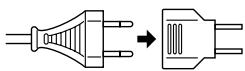
If it still doesn't fit, contact an electrical parts distributor for assistance.
Conserving power
This unit consumes a small amount of power, even when it is turned off.
[DVD-RV32]
(For U.S.A. and Canada)
approx. 2 W
(For others)
approx. 3 W
[DVD-RV27] [DVD-RV22]
approx. 2 W
To save power when the unit is not to be used for a long time, unplug it from the household AC outlet.
[2] The remote control
■ Batteries
![PANASONIC DVDRV32GC - [2] The remote control - 1](/content/2019/10/56215/images/b2c462f36942a70027ef6937d7ca6693950cfa366b6bc4d8c3860a09ae3695aa.jpg)
text_image
R6, AA, UM-3- Insert so the poles (+ and -) match those in the remote control.
- Do not use rechargeable type batteries.
Do not:
- mix old and new batteries.
- use different types at the same time.
- heat or expose to flame.
●take apart or short circuit. - attempt to recharge alkaline or manganese batteries.
- use batteries if the covering has been peeled off.
Mishandling of batteries can cause electrolyte leakage which can damage items the fluid contacts and may cause a fire.
Remove if the remote control is not going to be used for a long period of time. Store in a cool, dark place.
Use
Aim at the sensor, avoiding obstacles, at a maximum range of 7 m (23 feet) directly in front of the unit.
[3] Quick Setup
![PANASONIC DVDRV32GC - [3] Quick Setup - 1](/content/2019/10/56215/images/51caaf721cd80e0ec7de81c76284ebbe99a82f796f0c268eed6f8d27a58904e0.jpg)
text_image
POWER d SLEEP SETUP OPEN/MODE 2-6 SKIP SLOW/SEARCH STOP PAUSE PLAY TOP MENU MENU 3.4-5-6 ENTER RETURN DISPLAY SUBTITLE AUDIO ANGLE QUICK REPLAY PROGRAM 1 2 3 RANDOM 4 5 6 REPEAT 7 8 9 A-B/REPEAT CANCEL 0 10 A.SRD BASS CINEMA D.ENH A C D ZOOM POSITION MEMORY ONE TOUCH MEMORYRemote control only
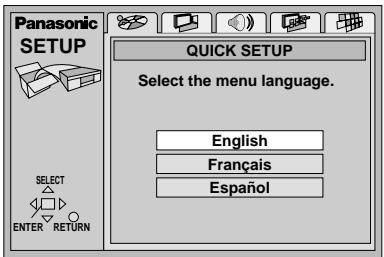
The QUICK SETUP screen appears when you press [SETUP] the first time after purchase and assists you to make necessary settings.
Preparation
Turn on the television and select the appropriate video input on the television to suit the connections for the player.
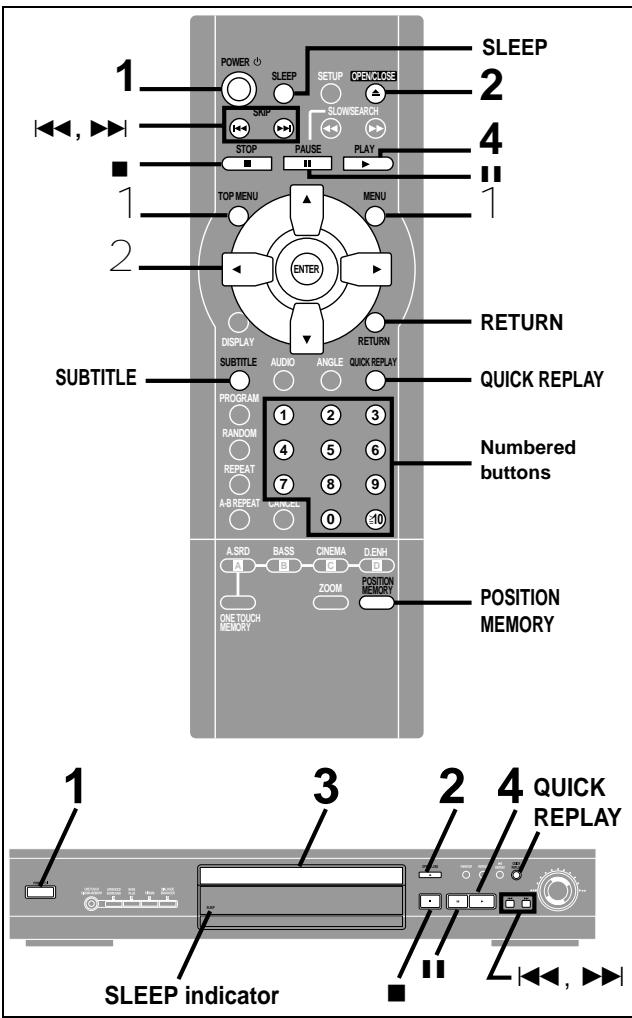
1 Press [POWER ⏻] to turn on the unit.
2 Press [SETUP] to show the Quick Setup screen.
e.g. For U.S.A., Canada and units with PX printed on the outer packaging
text_image
Panasonic SETUP QUICK SETUP Select the menu language. English Français Español SELECT ENTER RETURN3 Press [▲, ▼, ◀, ▶] to select the menu language and press [ENTER].
4 Press [▲, ▼] to select "Yes" to continue and press [ENTER].
5 Press [▲, ▼, ◀, ▶] to select the item and press [ENTER].
●Audio Language (For setting details → page 16)
- Subtitle Language (For setting details page 16)
- TV Aspect (For setting details below)
6 Press [ENTER] and then [SETUP] to end the settings.
To return to the previous screen
Press [RETURN].
TV Aspect
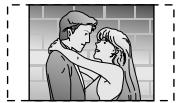
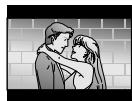
Select "4:3" (regular) or "16:9" (widescreen) to suit your television.
If you have a regular 4:3 television, you can also select how video on some discs is shown (→ page 16, Video—TV Aspect).
●4:3 Pan&Scan (Factory preset)
The pan and scan (the original widescreen images are converted for viewing on a regular television) version of the video is automatically selected if recorded on the disc.
- 4:3 Letterbox
The letterbox (the original widescreen images appear with black bands above and below) version of the video is automatically selected if recorded on the disc.
text_image
SLEEP 1 POWER ○ SLEEP SETUP OPENCLOSE 2 SKIP SLOWSEARCH STOP PAUSE PLAY 4 TOP MENU MENU 1 2 ENTER RETURN DISPLAY RETURN SUBTITLE SUBTITLE AUDIO ANGLE QUICK REPLAY PROGRAM ① ② ③ RANDOM ④ ⑤ ⑥ REPEAT ⑦ ⑧ ⑨ A-B REPEAT CANCEL 0 ⑩ A.SRD BASS CINEMA D.ENH POSITION ONET MEMORY ZOOM MEMORY POSITION MEMORY 3 QUICK REPLAY 1 SLEEP indicator ■[DVD] [CD] [VCD]
Preparation
Turn on the television and select the appropriate video input on the television to suit the connections for the player.
1 Press [POWER ⏻] to turn on the unit.
2 Press [▲] to open the disc tray.
3 Place the disc on the disc tray.
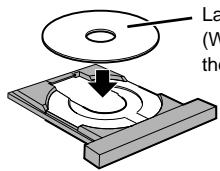
Label must face upward.
(With double-sided discs, load so the label for the side you want to play is facing up.)
4 Press [▶] (PLAY).
The disc tray closes and play begins.
[CD] (MP3 discs)
Group and track names are displayed on the television.
Press [SUBTITLE] to change the display.
To stop play
Press [■] (→ page 9, Resume function).
To pause play
Press [■■] during play.
Press [▶] (PLAY) to restart play.
[Note]
- If “∅” appears on the television
The operation is prohibited by the unit or disc.
- The disc continues to rotate while the menu is displayed even after you finish playing an item. Press [■] when you finish to preserve the unit's motor and your television screen.
- Volume may be lower when playing DVDs than when playing other discs or during television broadcasts.
If you turn the volume up on the television or amplifier, be sure to reduce the volume again before playing other sources so that a sudden increase in output does not occur.
When a menu screen appears on the television
[DVD] [VCD]
Press the numbered buttons to select an item.
To select a 2-digit number
Example: To select item 23, press [≥10] → [2] → [3].
- When playing DVDs, you can also use [▲, ▼, ◀, ▶] to select items. Press [ENTER] to confirm your selection.
Play of the selected item now begins.
Other buttons used to operate menus
Read the disc's instructions for further details about operation.
[▶▶] : Shows the next menu.
[◀◀]: Shows the previous menu.
[RETURN]: Shows the menu screen. [VCD]
[TOP MENU]: Shows the first menu screen. [DVD]
[MENU]: Shows the menu screen. [DVD]
Replaying a scene — QUICK REPLAY
[DVD] [CD] [VCD]
During play
Press [QUICK REPLAY].
Play skips back a few seconds each time you press the button.
- You cannot skip beyond the beginning of a track or title.
- This feature doesn't work with some discs.
Setting the unit to turn off — SLEEP timer
[DVD] [CD] [VCD]
Remote control only
Press [SLEEP] to select the setting.
Each time you press the button:
OFF→AUTO*→60 min→90 min→120 min
↑
*The unit turns off 5 minutes after play finishes.
The SLEEP indicator lights when the sleep timer is on.
To cancel the SLEEP timer
Press [SLEEP] to select "OFF".
To confirm the remaining time
Press [SLEEP].
[Note]
●AUTO also works with DVDs that show a menu after play finishes.
- AUTO does not work if you press [■], [MENU], or [TOP MENU]. It is activated again when you restart play.
- AUTO does not work correctly with some discs (e.g., if menus appear after playing video CDs).
■ Auto standby
The unit switches to standby mode after about 30 minutes in the stop mode, irrespective of the SLEEP setting.
For example:
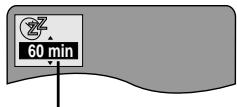
The unit turns off after 60 minutes.
Using menus to play MP3 discs
[CD] (MP3 discs)
This unit can play MP3 files recorded on CD-R/RW with a computer. Files are treated as tracks and folders are treated as groups.
1 Press [TOP MENU] or [MENU].
A file list appears.
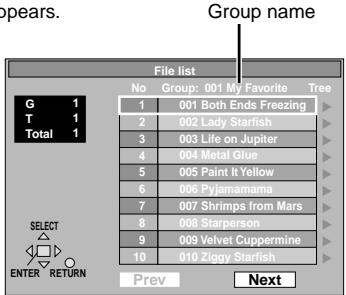
text_image
G 1 T 1 Total 1 File list No Group: 001 My Favorite Tree 1 001 Both Ends Freezing ▶ 2 002 Lady Starfish 3 003 Life on Jupiter 4 004 Metal Glue 5 005 Paint It Yellow 6 006 Pyiamamama 7 007 Shrimps from Mars 8 008 Starperson 9 009 Velvet Cuppermine 10 010 Ziggy Starfish SELECT ENTER RETURN Prev Next2 Press [▲,▼] to select the track and press [ENTER].
Play starts and continues to the last track in the last group.
“☐” indicates the track currently playing.
To show other pages
Press [▲, ▼, ◀, ▶] to select "Prev" or "Next" and press [ENTER]. After listing all the tracks in one group, the list for the next group appears.
To close the file list screen
Press [TOP MENU] or [MENU].
Using the tree screen to find a group
1 Press [▶] while a track is highlighted to display the tree screen.
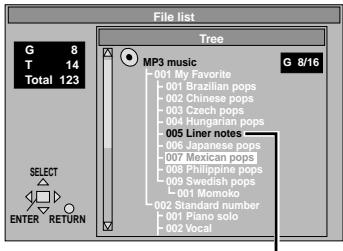
text_image
File list G 8 T 14 Total 123 Select ENTER RETURN Tree MP3 music G 8/16 001 My Favorite 001 Brazilian pops 002 Chinese pops 003 Czech pops 004 Hungarian pops 005 Liner notes 006 Japanese pops 007 Mikanic pops 008 Philippine pops 009 Swedish pops L-001 Momoko 002 Standard number 001 Piano solo 002 VocalYou cannot select groups that contain no compatible files.
2 Press [▲,▼] to select a group and press [ENTER].
The file list for the group appears.
For your reference
- Press [◀, ▶] to jump layers in the tree screen. [Note]
- Discs must conform to ISO9660 level 1 or 2 (except for extended formats). MP3 files must have the extension ".MP3" or ".mp3".
- This unit is compatible with multi-session but if there are a lot of sessions it takes more time for play to start. Keep the number of sessions to a minimum to avoid this.
●This unit is not compatible with ID3 tags.
●This unit is not compatible with files with a sampling rate of 32 kHz.
[DVD-RV32] [DVD-RV27]
(For U.S.A., Canada and units with PX printed on the outer packaging) This unit can also play Windows Media Audio (WMA).
- When creating a WMA disc, ensure the copyright feature is off.
- WMA files must have the extension “.WMA” or “.wma”.
- This unit can play WMA files with a compression rate of 48 kbps or more.
- Noise may occur when playing WMA files.
- There are some files this unit cannot play (e.g., copyright protected). "TRACK PROTECTED" or "CANNOT PLAY THIS TRACK" appear on the unit's display to indicate such tracks.
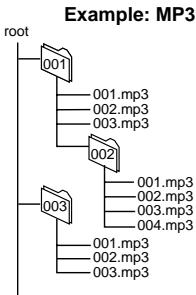
Naming folders and files
At the time of recording, prefix folder and file names with 3-digit numbers in the order you want to play them (this may not work at times).
flowchart
graph TD
    root --> 001
    001 --> 001.mp3
    001 --> 002.mp3
    001 --> 003.mp3
    002 --> 002.mp3
    002 --> 003.mp3
    002 --> 004.mp3
    003 --> 003.mp3
    003 --> 001.mp3
    003 --> 002.mp3
    003 --> 003.mp3
Windows Media, and the Windows logo are trademarks, or registered trademarks of Microsoft Corporation in the United States and/or other countries.
WMA is a compression format developed by Microsoft Corporation. It achieves the same sound quality as MP3 with a file size that is smaller than that of MP3.

Resume function
[DVD] [CD] [VCD]
(When the elapsed play time is displayed)
The position you stopped play at is recorded by the unit when “▷” is flashing on the display.
e.g. DVD

text_image
DVD VIDEO TITLE CHAP 1 3 0:3 0:0 1While “▷” is flashing, press [▶] (PLAY) to start play from where you stopped it. (When playing DVD → Chapter Preview below)
- The position is cleared when the disc tray is opened or the unit is switched to standby.
- Press [■] to clear the position.
Position Memory function
This function allows you to memorize a position to start from even after switching the unit to standby or changing discs.
- During play, press [POSITION MEMORY].
- Press [POWER ⏻] to switch the unit to standby, or press [▲] to remove the disc.
- When you are ready to play the disc again, press [▶] (PLAY). Play starts from the memorized position and the position is cleared. (When playing DVD ➔ Chapter Preview below)
To clear the position before play Press [■].
- You can memorize positions on up to five different discs at a time. When you memorize another position, the earliest position is replaced.
Chapter Preview [DVD]
One of these messages appears immediately after you press [▶] (PLAY).
![PANASONIC DVDRV32GC - Chapter Preview [DVD] - 1](/content/2019/10/56215/images/a57c4030f8c16881fe28020b0ba8c0b7c66afabf0c0611da5ece76610f661fa9.jpg)
text_image
Press PLAY to Preview Chapters Press PLAY to Chapter ReviewPress [▶] (PLAY) while the message is displayed and the beginning portions of each chapter up to the current one are played. Full play resumes from the point where you pressed [■] or [POSITION MEMORY].
(This feature works only within a title.)
If you do not press [▶] (PLAY), the message disappears and play starts from where you pressed [■] or [POSITION MEMORY].
![PANASONIC DVDRV32GC - Chapter Preview [DVD] - 2](/content/2019/10/56215/images/4c51a62c8c93f82d35be85ea38b17ab1d232bbf6daae911c83dbf7481318b929.jpg)
text_image
POWER SLEEP SETUP OPENCLOSE STOP PAUSE PLAY TOP MENU MENU ENTER DISPLAY SUBTITLE AUDIO ANGLE QUICK REPLAY PROGRAM RANDOM 1 2 3 4 5 6 7 8 9 A-B REPEAT CANCEL 0 10 Numbered buttons A.SRD BASS CINEMA D.ENH O POSITION MEMORY ZOOM ONE TOUCH MEMORY ZOOMSkipping chapters or tracks
[DVD] [CD] [VCD]
During play or while paused
Press [◀◀] or [▶▶].
●Each press increases the number of skips.
Fast forward and rewind—SEARCH
[DVD] [CD] [VCD]
During play
Press [◀◀] or [▶▶].
Turn the shuttle dial [◀◀, ▶▶] on the main unit.
- Play starts again when you release the shuttle dial.
- Audio will be heard during search (except for WMA files). You can turn this audio off if you want to (→ page 16, Audio—Audio during Search).
Slow-motion play
[DVD] [VCD]
While paused
Press [◀◀] or [▶▶].
Turn the shuttle dial [◀◀, ▶▶] on the main unit.
●The picture stills again when you release the shuttle dial.
Frame-by-frame viewing
[DVD] [VCD]
Remote control only
While paused
Press [◀] or [▶].
The frame changes each time you press the button.
- The frames change in succession if you press and hold the button.
- Pressing [III] also activates forward frame-by-frame.
Notes
●The speed of search and slow-motion increases up to 5 steps.
- Press [▶] (PLAY) to restart play.
- You cannot move backwards with Video CD during slow-motion and frame-by-frame.
When playing Video CDs with playback control
Turning the shuttle dial or pressing buttons to perform skip, search or slow-motion may take you to a menu screen.
Starting play from a selected title or track
[DVD] [CD] [VCD]
Press the numbered buttons to select the item.
To select a 2-digit number
Example: To select track 23, press [≥10] → [2] → [3].
Play starts from the selected item.
[Note]
●This works only when stopped with some discs.
- MP3 discs
Press [ENTER] after pressing the numbered buttons. (You do not have to press [≥10] .)
4:3 TV ZOOM function
[DVD]
Remote control only
Widescreen software often appears as a letterbox picture when shown on a regular 4:3 aspect television. Use 4:3 TV ZOOM to expand these pictures to fill more of the television. (The sides of the picture are cut off when you do this.)
During play
Press [ZOOM].
- Press again to cancel.
- 4:3 TV ZOOM is also canceled when you open the disc tray or switch the unit to standby.
[Note]
- Depending on the video format of the disc and current play status, this feature may not work as described.
- Menus may act or appear differently while 4:3 TV ZOOM is on.
text_image
POWER SLEEP SETUP OPEN/LOSE SHIP STOP PAUSE PLAY ▲,▼,◄,►/ TOP MENU MENU ENTER DISPLAY RETURN SUBTITLE AUDIO ANGLE QUICK REPLAY PROGRAM 1 2 3 RANDOM 4 5 6 REPEAT 7 8 9 A-B REPEAT CANCEL 0 -10 A.SRD BARS CINEMA D.ENH CANCE A POSITION MEMORY ZOOM[DVD] [CD] [VCD]
(When the elapsed play time is displayed)
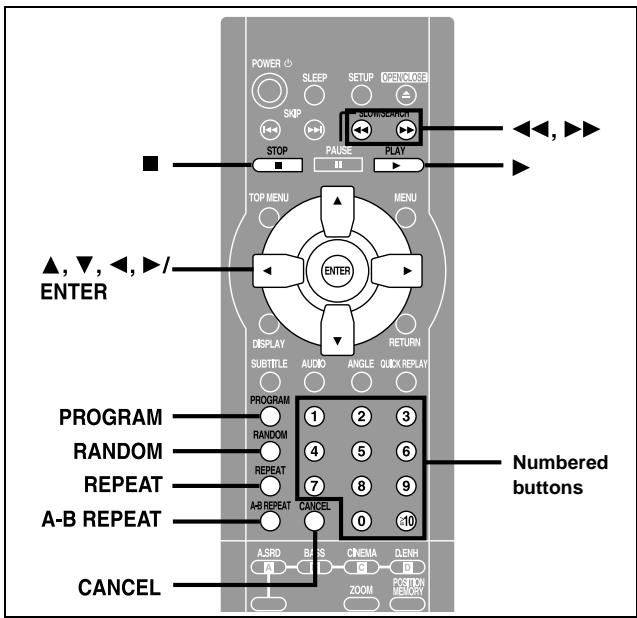
Repeat play
During play
Press [REPEAT].
Each time you press the button:
[DVD]
Chapter (C)→Title (T)*→OFF
![PANASONIC DVDRV32GC - Press [REPEAT]. - 1](/content/2019/10/56215/images/21739a14c090121ced6a41251bbeb137f59c0f592a4f466a5fc233c19f1d5f5b.jpg)
[CD] [VCD]
Track (T)→Entire disc (A)→OFF
![PANASONIC DVDRV32GC - Press [REPEAT]. - 2](/content/2019/10/56215/images/90f7c922c7df2cfafd6c82416c63155dcec622f3de7617ddc80093c583897faf.jpg)
[CD] (MP3 discs)
Track (T)→Group (G)*→OFF
![PANASONIC DVDRV32GC - Press [REPEAT]. - 3](/content/2019/10/56215/images/3b8e6b6ea074540ba10c033a4f0a0cfb0be1497183f9a9d26cf416a0a2892ec7.jpg)
*“All (A)” during program and random play.
For example: DVD
![PANASONIC DVDRV32GC - Press [REPEAT]. - 4](/content/2019/10/56215/images/9c82dfbe9b58dfc8e1f4bb30da6eb072db6ec9dfcb1fef87c69e10f07f202fd9.jpg)
flowchart
graph TD
    A["C"] --> B["T"]
    B --> C["OFF"]
    D["DVD"] --> E["VIDEO"]
    F["Clock"] --> A
    G["Clock"] --> B
    H["Clock"] --> C
If the Video CD has playback control
- Press [■] during play until "PBC PLAY" is cleared from the display.
- Press the numbered buttons to select a track to start play (→ page 10).
- Press [REPEAT] ( above).
[Note]
You cannot use repeat play to repeat an entire DVD or an entire MP3 disc.
■ To repeat only your favorite tracks/chapters
Start program play (see right) and press [REPEAT] to display "A".
A-B repeat play
You can repeat a section between points A and B within a title or track.
During play
1 Press [A-B REPEAT] at the starting point (A).
2 Press [A-B REPEAT] at the finishing point (B).
e.g. DVD

To cancel
Press [A-B REPEAT] until “▶**” is displayed.
[Note]
- Some subtitles recorded around point A or B may fail to appear. [DVD]
- The unit automatically determines the end of a title/track as point B when the end of the title/track is reached.
●A-B repeat is canceled when you press [QUICK REPLAY].
Program play
Remote control only
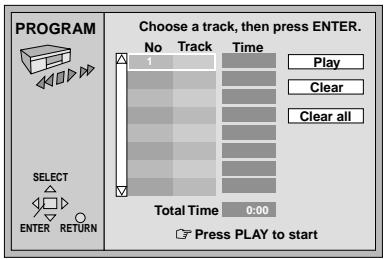
You can select up to 32 items to play in the order you choose.
While stopped
1 Press [PROGRAM].
e.g. CD
text_image
PROGRAM SELECT ENTER RETURN Choose a track, then press ENTER. No Track Time 1 Play Clear Clear all Total Time 0:00 Press PLAY to start
text_image
PGM TRACK Track No. Program No.2 [DVD,\MP3\discs\only] Press the numbered buttons to select a title (DVD) or group (MP3 discs).
- Some items cannot be selected.
●Different titles have different soundtrack and subtitles.
3 Press the numbered buttons to select a track (CD or VCD) or chapter (DVD) (and, for MP3 discs press [ENTER]).
- Repeat steps 2 and 3 to program other items.
- To select an item using the cursor buttons
Press [ENTER] and [▲, ▼] to select an item, then press [ENTER] again to register the number.
All the items on a disc, a title or a group are selected when you select "ALL".
●Times are not displayed when programming DVD and MP3.
4 Press [▶] (PLAY).
Play now begins in the programmed sequence.
- Some items cannot be played even if you programmed them. [DVD]
To add or change items
Press [▲, ▼] to select an available item, then repeat steps 2 and 3.
To move to the page before or after the one shown
Press [◀◀] or [▶▶].
To clear the programmed items one by one
Press [▲, ▼] to select the item number (No) and press [CANCEL]. (Alternatively, you can select "Clear" with [▲, ▼, ◀, ▶] and press [ENTER].)
To clear the whole program
Move to "Clear all" with [▲, ▼, ◀, ▶] and press [ENTER]. The whole program is also cleared when the unit is turned off or the disc tray is opened.
To exit the program mode
Press [PROGRAM] while stopped. (The program is retained in memory.)
Random play
While stopped
1 Press [RANDOM].
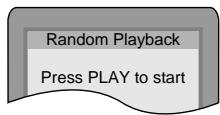
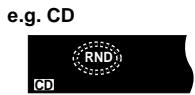
2 Press the numbered buttons to select a title (DVD only) and press [▶] (PLAY).
- Some titles cannot be selected. [DVD]
Play now begins in random order.
To exit the random mode
Press [RANDOM] while stopped.
text_image
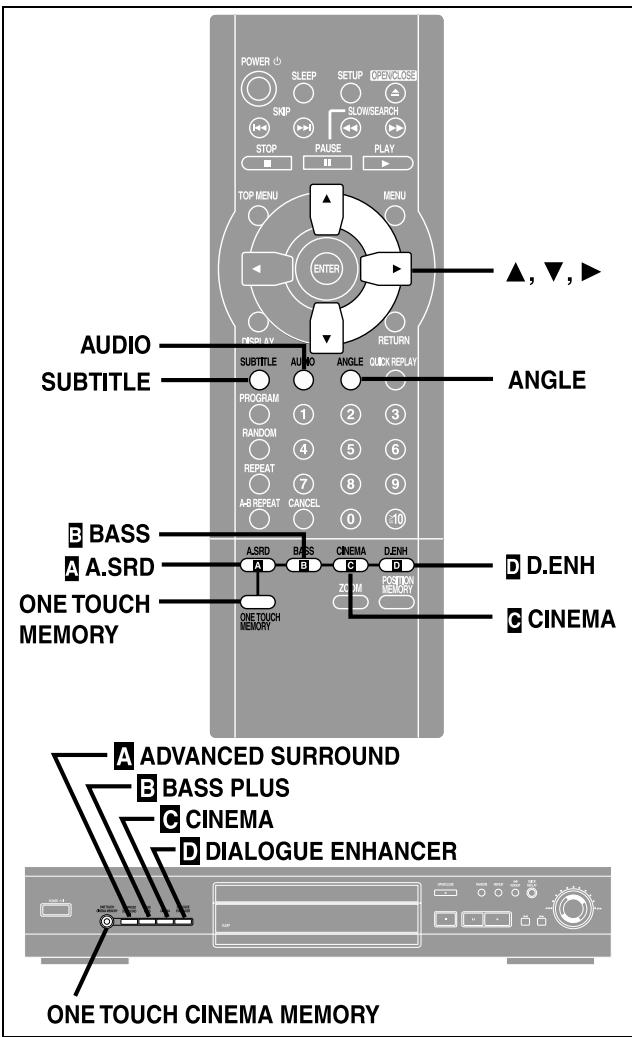
POWER SLEEP SETUP OPEN/OSS SKIP SLOW/SEARCH STOP PAUSE PLAY TOP MENU MENU ENTER FISRU 2V RETURN ▲, ▼, ► AUDIO SUBTITLE AUDIO ANGLE QUICK REPLAY ANGLE PROGRAM 1 2 3 RANDOM 4 5 6 REPEAT 7 8 9 A-B REPEAT CANCEL 0 10 B BASS A A.SRD ONE TOUCH MEMORY ASRD BASS CINEMA DENH D D.ENH ZOOM POSITION MEMORY C CINEMA ONE TOUCH MEMORY A ADVANCED SURROUND B BASS PLUS C CINEMA D DIALOGUE ENHANCER ONE TOUCH CINEMA MEMORY[DVD]
Remote control only
Some DVDs have multiple soundtracks, subtitle languages and camera angles, and you can change these during play.
- “—” or “—”—” is displayed instead of the language number in circumstances such as when no language is recorded on the disc.
Soundtracks
During play
Press [AUDIO].
The number changes each time you press the button.
![PANASONIC DVDRV32GC - Press [AUDIO]. - 1](/content/2019/10/56215/images/0009cf26e290d60fdc0a7ae540bdbc0d98603e4b69ed1547bbf6e4250f841432.jpg)
![PANASONIC DVDRV32GC - Press [AUDIO]. - 2](/content/2019/10/56215/images/c88a3b598642053c198d3cc136ba17214c2add72dc6e3d51e55039c5721e6fc1.jpg)
text_image
DVD VIDEO TITLE CHAP D.MIX Indicates that a multi-channel soundtrack can be down-mixed to two channels.- You can also use this button to turn the vocals on and off on karaoke discs. Read the disc's instructions for details.
- Refer to [B] on page 15 for audio signal type details.
Subtitles
During play
Press [SUBTITLE].
The number changes each time you press the button.
![PANASONIC DVDRV32GC - Press [SUBTITLE]. - 1](/content/2019/10/56215/images/3c1f68852937ed0514cbf78429b7890acacbb42c98a16589385a0ef63204d6f4.jpg)
text_image
ON 1 English I love you ON 2 French Je t'aime- In some cases, the subtitle language is not changed to the selected one immediately.
[For\U.S.A.,\Canada\and\units\with\PX\printed\on\the\outer\packaging] - If the subtitles overlap closed captions recorded on discs, turn the subtitles off.
To clear/display the subtitles
- Press [SUBTITLE].
- Press [▶]
- Press [▲, ▼] to select "OFF" or "ON".
Angles
During play
Press [ANGLE].
The number changes each time you press the button.
![PANASONIC DVDRV32GC - Press [ANGLE]. - 1](/content/2019/10/56215/images/a60c879de3eea50968aeb651680ab4edd056efbb3a17f0a17e8961b6e6be5a4b.jpg)
text_image
Diagram showing two stages of a race car racing, with labeled parts 1 and 2 indicating positions or states.Use the [A] [B] [C] [D] buttons to control the following features, used to enhance your enjoyment of movies. ONE TOUCH CINEMA MEMORY then allows you to store the settings and recall them at a touch of a button.
[Note]
Turn Advanced Surround and BASS PLUS off when using Dolby Pro Logic. Dolby Pro Logic will not work correctly if they are on.
A ADVANCED SURROUND
[DVD]
(Dolby Digital, 2-channel or over only)
Use ADVANCED SURROUND V.S.S. (Virtual Surround Sound) to enjoy a surround-like effect if you are using 2 front speakers.
If you are playing a disc with surround effects recorded on it, the effect is broadened and sound seems to come from virtual speakers on either side.
During play
Press [ [A] A.SRD].
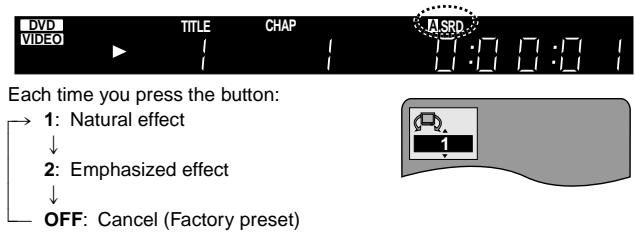
text_image
DVD VIDEO TITLE CHAP A SRD 1:0 0:0 Each time you press the button: 1: Natural effect 2: Emphasized effect OFF: Cancel (Factory preset)Optimum seating position
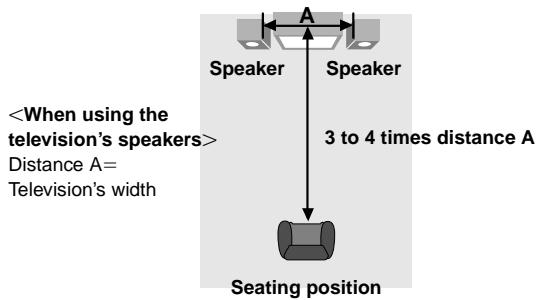
text_image
[Note]
- Advanced Surround will not work, or will have less effect with some discs.
- Turn off the surround sound effects on the equipment you have connected when using this effect.
- Turn Advanced Surround off if it causes distortion.
B BASS PLUS
[DVD] [CD] [VCD]
Turn BASS PLUS on when you have connected an active subwoofer to the SUBWOOFER terminal on the rear of the unit (→ page 18).
Press [ [B] BASS].
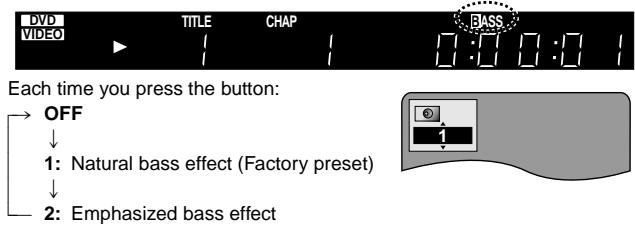
text_image
DVD VIDEO TITLE CHAP BASS Each time you press the button: OFF ↓ 1: Natural bass effect (Factory preset) ↓ 2: Emphasized bass effectC CINEMA
[DVD] [VCD]
You can change the picture quality for movie viewing.
Press [ [C] CINEMA].

text_image
DVD VIDEO TITLE CHAP CINEMA 0:00:00Each time you press the button:
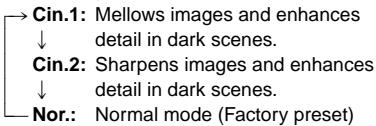
text_image
→ Cin.1: Mellows images and enhances ↓ detail in dark scenes. Cin.2: Sharpens images and enhances ↓ detail in dark scenes. Nor.: Normal mode (Factory preset)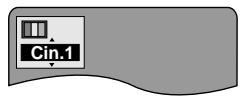
For your reference
You can make finer adjustments to the picture if desired ( page 15, Digital picture mode–User mode).
D DIALOGUE ENHANCER
[DVD] (Dolby Digital, 3-channel or over, where the dialogue is recorded in the center channel)
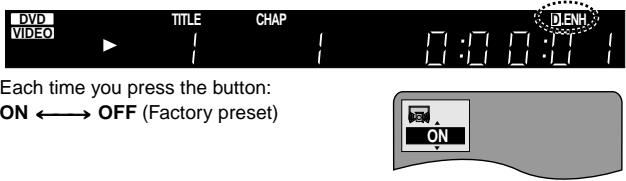
This mode makes the dialogue in movies easier to hear.
Press [ [D] D.ENH].
text_image
DVD VIDEO TITLE CHAP 0:00:00 IDENH Each time you press the button: ON ←→ OFF (Factory preset) ON[Note]
Dialogue Enhancer will not work, or will have less effect with some discs.
ONE TOUCH CINEMA MEMORY
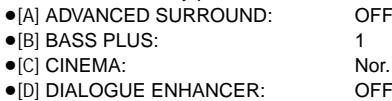
This feature allows you to reselect the settings you made for ADVANCED SURROUND, BASS PLUS, CINEMA and DIALOGUE ENHANCER with one button press.
[Putting\the\settings\into\memory]
After making the settings
Press and hold [ONE TOUCH MEMORY].
The button on the main unit lights.
The settings remain in the memory even if you turn the unit off.
[Recalling\the\settings]
Press [ONE TOUCH MEMORY].
The button on the main unit lights.
To cancel
Press [ONE TOUCH MEMORY] to turn it off and return the settings for the features to the factory preset.
text_image
[A] ADVANCED SURROUND: OFF [B] BASS PLUS: 1 [C] CINEMA: Nor. [D] DIALOGUE ENHANCER: OFFThe button's light also turns off if you press any of the other buttons to change the settings.
text_image
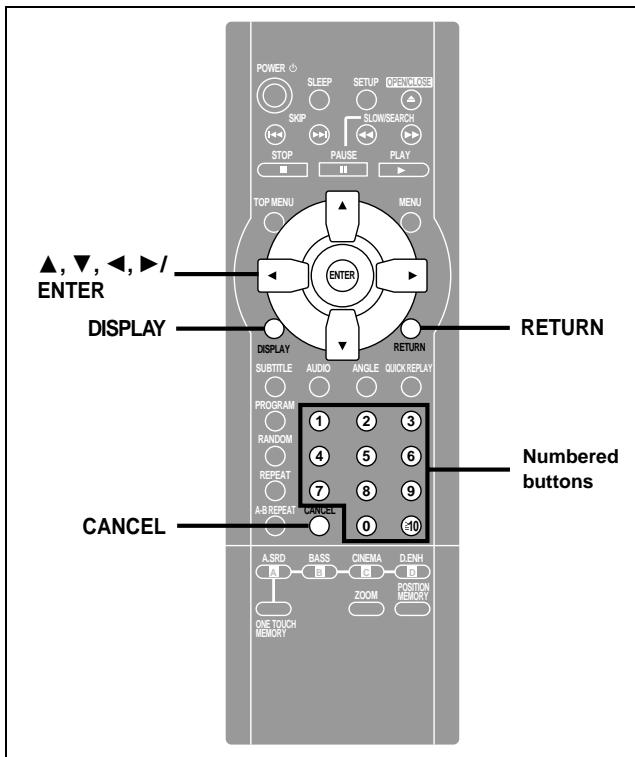
POWER SLEEP SETUP OPEN/CLOSE SKIP SLOW/SEARCH STOP PAUSE PLAY TOP MENU MENU ▲, ▼, ◀, ▶/ ENTER DISPLAY ENTER RETURN DISPLAY AUDIO ANGLE QUICK REPLAY SUBTITLE PROGRAM 1 2 3 4 5 6 7 8 9 REPEAT A-8 REPEAT CANCEL Numbered buttons 0 10 A.SRD BASS CINEMA DENH ZOOM POSITION MEMORY ONE TOUCH MEMORYOn-Screen Menu Icons are menus that contain information about the disc or unit. These menus allow you to perform operations by changing this information.
Common procedures
[DVD] [CD] [VCD]
Remote control only
1 Press [DISPLAY].
Each time you press the button:
Disc information→Progress indicator [DVD-RV32] (→ page 15)

2 [Unit\information\only]
While the leftmost icon is highlighted
Press [▲, ▼] to select the menu.
Each time you press the button:
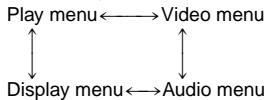
3 Press [◀, ▶] to select the item.
4 Press [▲, ▼] to select the setting.
- Items with “▲” or “▼” above and below can be changed by [▲, ▼].
- Press [ENTER] if the setting does not change after pressing [▲, ▼].
- Some items require different operations. Read the following explanations.
For your reference
- Depending on the condition of the unit (playing, stopped, etc.) and the type of software you are playing, there are some items that you cannot select or change.
- When numbers are displayed (e.g. title No.), the numbered buttons are also effective for setting. After entering numbers, press [ENTER] to register the setting.
To clear the icons
Press [RETURN] until the menus disappear.
■ To change the position of the icons
- Press [◀, ▶] to select the rightmost icon.
- Press [▲, ▼] to move the icons.
(There are 5 positions.)

Disc information
e.g. DVD

text_image
2 2 1 : 46 : 50 Digital 1 ENG 3/2.1 ch ON 1 ENG 1 a b c d e f ge.g. MP3 disc
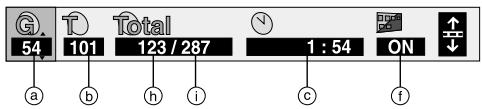
text_image
G 54 101 Total 123 / 287 1 : 54 ON a b h i c fe.g. Video CD
① T: Title number [DVD]
G: Group number [CD] (MP3 discs)
⑥ C: Chapter number [DVD]
T: Track number in group [CD] (MP3 discs)
T: Track number [CD] [VCD]
© Time [DVD]
- Press [▲, ▼] to show the elapsed play time or remaining time for the title (or chapter during program and random play).
- Select a position to start play by specifying a time with the numbered buttons.
Changing the time display [CD] [VCD]
Press [▲, ▼] to show the elapsed play time, remaining time for the track, or remaining time for the disc.
Elapsed play time [CD] (MP3 discs)
(display only, cannot be changed)
(See [A] on page 15 for language abbreviations.)
© Audio signal type [DVD] (→ page 12)
(See [B] on page 15 for details.)
Karaoke vocal on/off (Karaoke DVD only) [DVD]
Solo: OFF or ON
Duet: OFF, V1+V2, V1 or V2
f Subtitle language [DVD] (→ page 12)
(See [A] on page 15 for language abbreviations.)
Subtitles on/off
ON←→OFF
Group/Track name display on/off [CD] (MP3 discs)
ON OFF
⑨ Angle number [DVD] (→ page 12)
① Track number in disc [CD] (MP3 discs)
① Total number of tracks on disc [CD] (MP3 discs)
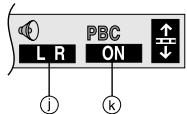
j Audio mode [VCD]
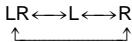
⑨ Menu play [VCD] (with playback control only)
Indicates whether menu play ( playback control) is on or off.
Unit information
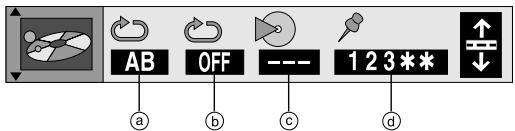
Play menu
text_image
AB OFF 1 2 3 ** a b c d① A-B repeat [DVD] [CD] [VCD] (→ page 11) [ENTER] (start point)→ [ENTER] (finish point) To cancel: [ENTER]
b Repeat play (→ page 11) [DVD] [CD] (MP3 discs) Chapter (C)←→Title (T)* Track (T)←→Group (G)* ↑→OFF←↑ ↑→OFF←↑ [CD] [VCD] Track (T)←→Entire disc (A) ↑→OFF←↑ *“All (A)” during program and random play.
© Play mode display [DVD] [CD] [VCD] ---: Normal play PGM: Program play RND: Random play
(d) Marker [DVD] [CD] [VCD] You can mark up to 5 positions to play again. [ENTER] (The unit is now ready to accept markers.)
To mark a position: [ENTER] (at the desired point) To mark another position: [◀, ▶] ⇔ [ENTER] To recall a marker: [◀, ▶] ⇔ [ENTER] To erase a marker: [◀, ▶] ⇔ [CANCEL]
Video menu
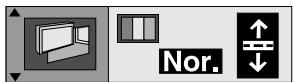
Digital picture mode [DVD] [VCD] ( page 13)
Nor.: Normal mode
Cin.1: Mellows images and enhances detail in dark scenes Cin.2: Sharpens images and enhances detail in dark scenes User: User mode
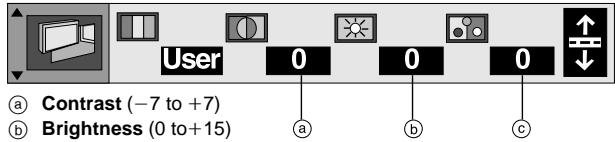
The following items are also displayed when you select "User".
text_image
User 0 0 0 Contrast (-7 to +7) Brightness (0 to+15) a b c© Color (-7 to +7)
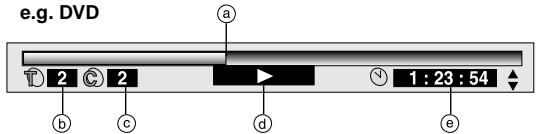
Progress indicator
Indicates how far you have played through an item. ([DVD-RV32] only)
text_image
e.g. DVD 2 2 1 : 23 : 54 a b c d e(a) Current position [DVD] [CD] [VCD]
⑥ T: Title number [DVD]
G: Group number [CD] (MP3 discs)
© C: Chapter number [DVD]
T: Track number in group [CD] (MP3 discs)
T: Track number [CD] [VCD]
(d) Condition – play, pause, or slow/search [DVD] [CD] [VCD]
© Time [DVD]
- Press [▲, ▼] to show the elapsed play time or remaining time for the title (or chapter during program and random play).
- Select a position to start play by specifying a time with the numbered buttons.
Changing the time display [CD] [VCD]
Press [▲, ▼] to show the elapsed play time or remaining time for the track.
Elapsed play time [CD] (MP3 discs)
(display only, cannot be changed)
Audio menu
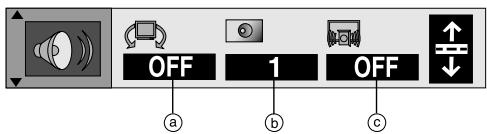
text_image
OFF 1 OFF a b c(a) Advanced Surround [DVD] (→ page 13) 1←→2←→OFF ↑ ↑
⑥ Bass Plus [DVD] [CD] [VCD] (→ page 13) 1←→2←→OFF
© Dialogue Enhancer [DVD] (→ page 13) ON←→OFF
Display menu
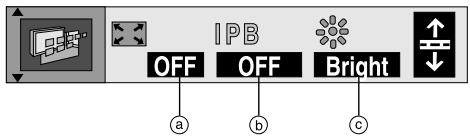
text_image
IPB OFF OFF Bright a b c① 4:3 TV ZOOM [DVD] (→ page 10) ON←→OFF
⑥ IPB display [DVD] (→ page 20, Glossary) ON←→OFF
Displays the picture type (I/P/B) in the still picture mode.
© Display dimmer [DVD] [CD] [VCD] Changes the brightness of the unit's display. Bright←→Dim←→Auto* ([DVD] [VCD])
* The display is dimmed during play, but brightens when you perform operations such as slow-motion, search, and pause.
[A] Audio/Subtitle language
ENG: English SVE: Swedish CHI: Chinese
FRA: French NOR: Norwegian KOR: Korean
DEU: German DAN: Danish MAL: Malay
ITA: Italian POR: Portuguese VIE: Vietnamese
ESP: Spanish RUS: Russian THA: Thai
NLD: Dutch JPN: Japanese *: Others
[B] Signal type/data
LPCM/☐ Digital/DTS/MPEG: Signal type
k (kHz): Sampling frequency
b (bit): Number of bits
ch (channel): Number of channels
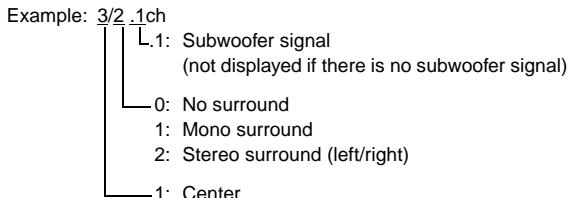
text_image
Example: 3/2 .1ch L.1: Subwoofer signal (not displayed if there is no subwoofer signal) 0: No surround 1: Mono surround 2: Stereo surround (left/right) 1: Center2: Front left+Front right
3: Front left+Front right+Center
This chart shows the settings for this unit. Change the settings to suit your preferences and to suit the unit to the environment in which it is being used. These settings are retained in memory until they are changed, even if the unit is turned off. See page 17 for details on menu operation.
| Menus | Items | Options (Underlined items are the factory preset.) | |
Disc | Audio [DVD]Choose the audio language. | Language options*1 French Spanish*2 French German ItalianSpanish Portuguese Swedish Dutch*3 Chinese | English (Language options) Original*4Other * * * * * *5 |
| Subtitle [DVD]Choose the subtitle language. | Automatic*6 English (Language options)Other * * * * * *5 | ||
| Menus [DVD]Choose the language for disc menus. | English (Language options)Other * * * * * *5 | ||
| Ratings [DVD]Set a ratings level to limit DVD play.•The password screen is shown if you choose levels 0 to 7 or if you choose “Ratings” when levels 0 to 7 have been selected (→ page 17).•Select Level “0” to prevent play of discs that do not have ratings levels recorded on them. | Setting ratings (When level 8 is selected)8 No Limit 1 to 7*7 0 Lock AllChanging ratings (When level 0–7 is selected)Unlock Player Change PasswordChange Level Temporary Unlock | ||
Video | TV Aspect (→ page 7)Choose the setting to suit your television and preference. | 4:3 Pan&Scan 4:3 Letterbox 16:9 | |
| Still Mode (→ page 20, Glossary)Specify the type of picture shown when paused. | Automatic Field Frame | ||
| Black Level Control*1Change the black level of the picture if you connected a television through the COMPONENT VIDEO OUT terminals. | Lighter: when connected to a TV through the VIDEO OUT or S VIDEO OUT terminal.Darker: when connected to a TV through the COMPONENT VIDEO OUT (Y/PB/PR) terminals. | ||
| NTSC Disc Output*2 *3Choose whether PAL 60 or NTSC signals are output during playback of NTSC discs (→ page 5). | PAL60: when connected to a PAL television.NTSC: when connected to an NTSC television.(For Asia: “NTSC” is the factory preset.) | ||
Audio | PCM Down Conversion [DVD] (→ page 17) | No Yes | |
| Dolby Digital [DVD] (→ page 17) | Bitstream PCM | ||
| DTS Digital Surround [DVD] (→ page 17) | Off Bitstream | ||
| MPEG*2 [DVD] (→ page 17) | PCM Bitstream | ||
| D. Range Compression [DVD] Dolby Digital only (→ page 20, Glossary)Change the dynamic range for late night viewing. | Off On | ||
| Audio during SearchChoose whether to have sound during search. | On Off | ||
Display | Menu LanguageChoose the language for these menus and the on-screen messages. | *1 English Français Español*2 English Français Deutsch ItalianoEspañol Português Svenska Nederlands*3 English 中文 | |
| On-Screen MessagesChoose whether to show on-screen messages or not. | On Off | ||
Others | DemoA demonstration of the unit's on-screen displays starts when you select “On”. The demonstration stops when you press a button and the setting reverts to “Off”. | Off On | |
| QUICK SETUP (→ page 7)Answer questions to make basic settings. | Yes No | ||
^1 For U.S.A., Canada and units with PX printed on the outer packaging.
^2 For the Middle East, South Africa, Australia and N.Z.
※3 For Asia.
*4 The original language of each disc will be selected.
^*5 Input a code number with the numbered buttons (see below).
※6 If the language selected for “Audio” is not available, subtitles of that language will automatically appear if available on that disc.
*7 Prohibits play of DVDs with corresponding ratings recorded on them.
Language code list
| Abkhazian: | 6566 | Byelorussian: | 6669 | Georgian: | 7565 | Kashmiri: | 7583 | Mongolian: | 7778 | Serbo-Croatian: | 8372 | Tigrinya: | 8473 |
| Afar: | 6565 | Cambodian: | 7577 | German: | 6869 | Kazakh: | 7575 | Nauru: | 7865 | Shona: | 8378 | Tonga: | 8479 |
| Afrikaans: | 6570 | Catalan: | 6765 | Greek: | 6976 | Kirghiz: | 7589 | Nepali: | 7869 | Sindhi: | 8368 | Turkish: | 8482 |
| Albanian: | 8381 | Chinese: | 9072 | Greenlandic: | 7576 | Korean: | 7579 | Norwegian: | 7879 | Singhalese: | 8373 | Turkmen: | 8475 |
| Ameharic: | 6577 | Corsican: | 6779 | Guarani: | 7178 | Kurdish: | 7585 | Oriya: | 7982 | Slovak: | 8375 | Twi: | 8487 |
| Arabic: | 6582 | Croatian: | 7282 | Gujarati: | 7185 | Laotian: | 7679 | Pashto, Pushto: | 8083 | Slovenian: | 8376 | Ukrainian: | 8575 |
| Armenian: | 7289 | Czech: | 6783 | Hausa: | 7265 | Latin: | 7665 | Persian: | 7065 | Somali: | 8379 | Urdu: | 8582 |
| Assamese: | 6583 | Danish: | 6865 | Hebrew: | 7387 | Latvian, Lettish: | 7686 | Polish: | 8076 | Spanish: | 6983 | Uzbek: | 8590 |
| Aymara: | 6588 | Dutch: | 7876 | Hindi: | 7273 | Lingala: | 7678 | Portuguese: | 8084 | Sundanese: | 8385 | Vietnamese: | 8673 |
| Azerbaijani: | 6590 | English: | 6978 | Hungarian: | 7285 | Lithuanian: | 7684 | Punjabi: | 8065 | Swahili: | 8387 | Volapük: | 8679 |
| Bashkir: | 6665 | Esperanto: | 6979 | Icelandic: | 7383 | Macedonian: | 7775 | Quechua: | 8185 | Swedish: | 8386 | Welsh: | 6789 |
| Basque: | 6985 | Estonian: | 6984 | Indonesian: | 7378 | Malagasy: | 7771 | Rhaeto-Romance: | 8277 | Tagalog: | 8476 | Wolof: | 8779 |
| Bengali; Bangla: | 6678 | Faroese: | 7079 | Interlingua: | 7365 | Malay: | 7783 | Romanian: | 8279 | Tajik: | 8471 | Xhosa: | 8872 |
| Bhutani: | 6890 | Fiji: | 7074 | Irish: | 7165 | Malayalam: | 7776 | Russian: | 8285 | Tamil: | 8465 | Yiddish: | 7473 |
| Bihari: | 6672 | Finnish: | 7073 | Italian: | 7384 | Maltese: | 7784 | Samoan: | 8377 | Tatar: | 8484 | Yoruba: | 8979 |
| Breton: | 6682 | French: | 7082 | Japanese: | 7465 | Maori: | 7773 | Sanskrit: | 8365 | Telugu: | 8469 | Zulu: | 9085 |
| Bulgarian: | 6671 | Frisian: | 7089 | Javanese: | 7487 | Marathi: | 7782 | Scots Gaelic: | 7168 | Thai: | 8472 | ||
| Burmese: | 7789 | Galician: | 7176 | Kannada: | 7578 | Moldavian: | 7779 | Serbian: | 8382 | Tibetan: | 6679 |
text_image
POWER SLEEP SETUP OPENCLOSE SKIP SLOWSEARCH STOP PAUSE PLAY TOP MENU MENU ENTER ▲, ▼, ◀, ▶/ ENTER DISPLAY SUBTITLE AUDIO ANGLE QUICK REPLAY PROGRAM 1 2 3 RANDOM 4 5 6 REPEAT 7 8 9 A/B REPEAT CANCEL 0 10 A.SRD BASS CINEMA DENH F G C POSITION MEMORY ZOOM CANCELCommon procedures
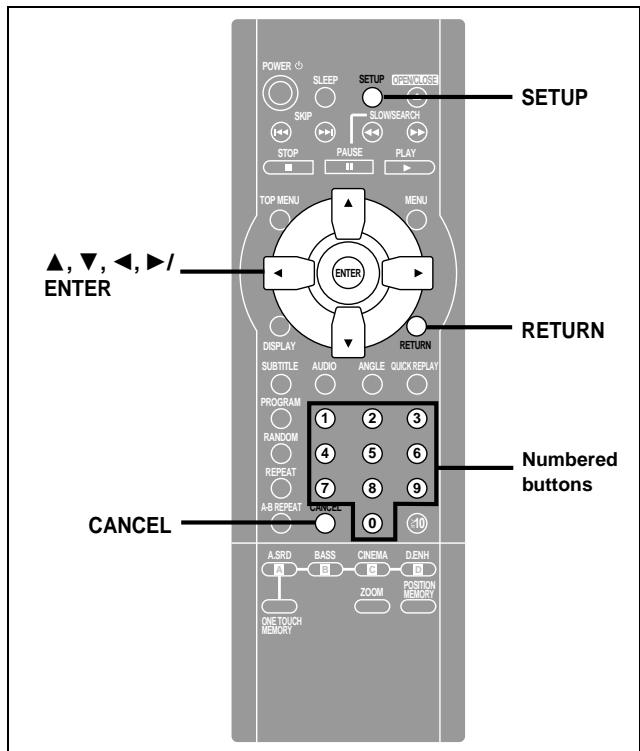
Remote control only
See page 16 for menu and option details.
1 Press [SETUP] to show the menus.
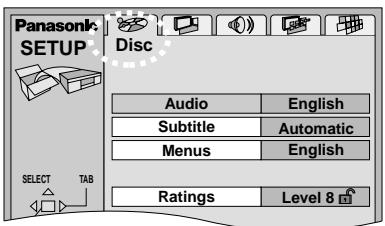
text_image
Panasonic SETUP Disc Audio English Subtitle Automatic Menus English Ratings Level 8- The QUICK SETUP screen appears when you press [SETUP] the first time after purchase (→ page 7).
2 Press [◀, ▶] to select the menu's tab.
The screen changes to display the menu.
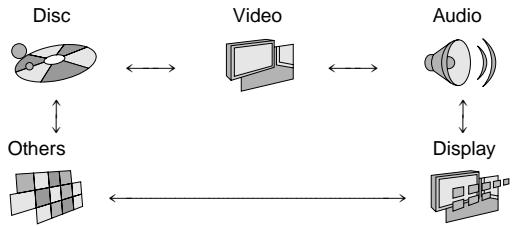
flowchart
graph TD
    A["Disc"] <--> B["Video"]
    B <--> C["Audio"]
    C <--> D["Display"]
    D --> E["Others"]
3 Press [▲, ▼] to select the item you want to change and press [ENTER].
4 Press [▲, ▼, ◀, ▶] to select the option and press [ENTER].
The screen now shows the menu again.
To return to the previous screen
Press [RETURN].
When you are finished
Press [SETUP].
Entering a password (Ratings)
[DVD]
The password screen is shown when you select levels 0 to 7.
- Input a 4-digit password with the numbered buttons and press [ENTER].
- If you enter a wrong number, press [CANCEL] to erase it before you press [ENTER].
- The lock symbol appears closed to show the rating is locked.
- Do not forget your password.
- Press [ENTER] to confirm the 4 digits.
Now, when you insert a DVD that exceeds the ratings limit you set, a message appears on the television.
Follow the on-screen instructions.
Digital output
[DVD]
Change the settings when you have connected equipment through this unit's DIGITAL AUDIO OUT terminal (OPTICAL).
PCM Down Conversion
Select how to output the high-quality 96-kHz audio signals on discs that do not have copyright protection.
No (Factory preset):
Output as 96 kHz. The equipment you connect must be compatible with these signals.
Yes:
Down-sampled to 48 kHz/16 bit.
Dolby Digital, DTS Digital Surround and MPEG\*
Bitstream (Factory preset for Dolby Digital):
Select if the equipment you connected can decode the signal.
PCM (Factory preset for MPEG*):
Select if the equipment you connected cannot decode the signal.
*Only for the Middle East, South Africa, Australia and N.Z.
Off (Factory preset for DTS Digital Surround):
Select if the equipment you connected cannot decode the signal.
IMPORTANT
If the equipment you connected cannot decode the signal, the setting must be changed to PCM or Off. If not, signals the equipment cannot process will be output by this unit, causing high levels of noise which can damage your hearing and the speakers.
Home Theater—Enjoying more powerful sound
This model can play Dolby Digital, but only in two channels. This model does not have a DTS decoder. You must connect a unit with a Dolby Digital or DTS decoder to enjoy surround sound.
[Note]
●The equipment connections described are examples.
- Peripheral equipment and optional cables sold separately unless otherwise indicated.
- Before connection, turn off all equipment and read the appropriate operating instructions.
![PANASONIC DVDRV32GC - [Note] - 1](/content/2019/10/56215/images/a05b04489282d49af94e63da60a710a5436e62eaf7061e471345e3499dceca55.jpg)
Digital connection
To enjoy 5.1-ch surround sound Connect an amplifier with a built-in decoder or a decoder-amplifier combination.
- Change the settings in "Digital output" to suit the decoder (→ page 17).
- Dolby Digital decoder: set "Dolby Digital" to "Bitstream"
- DTS decoder: set "DTS Digital Surround" to "Bitstream"
- MPEG decoder: set "MPEG ^* " to "Bitstream"
* Only for the Middle East, South Africa, Australia and N.Z.
[Note]
You cannot use DTS Digital Surround decoders not suited to DVD.
To enjoy stereo or Dolby Pro Logic
Connect a digital amplifier or system component.
- Go to "Digital output" and change the settings to "PCM" and "Off" (→ page 17).
![PANASONIC DVDRV32GC - [Note] - 1](/content/2019/10/56215/images/028475925899fd033639c0300b307708ef3f640c2b437cc7d592c3ee1ebae1d7.jpg)
flowchart
graph TD
    A["Speaker: Three speakers"] --> B["Amplifier with built-in decoder or a digital amplifier"]
    B --> C["Optical IN"]
    C --> D["Insert fully, with this side facing up."]
    D --> E["Optical digital audio cable"]
    E --> F["Do not bend sharply when connecting."]
![PANASONIC DVDRV32GC - [Note] - 2](/content/2019/10/56215/images/1d199ea92781bbb21e9e3fd7fc36169b6872a1a3446dfc47d4d0470e4c964bf1.jpg)
Analog connection
To enjoy stereo or Dolby Pro Logic Connect an analog amplifier or system component.
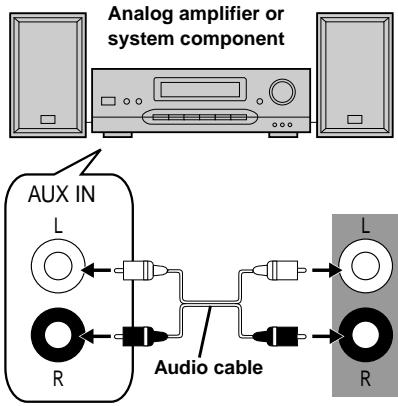
text_image
Analog amplifier or system component AUX IN L Audio cable R L R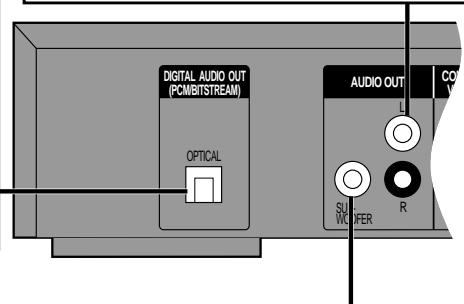
text_image
DIGITAL AUDIO OUT (PCMBITSTREAM) OPTICAL AUDIO OUT SU W U F R CO VConnecting an active subwoofer
You can enjoy more powerful bass by connecting an active subwoofer.
- Place the subwoofer as close as possible to the front center.
- Turn BASS PLUS on to boost the output from the subwoofer (→ page 13).
- Adjust the volume on the subwoofer to suit your preference.
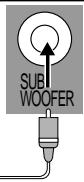
To the subwoofer's input terminal

■ Recording to digital recording equipment or cassette tapes
- Digital recording
You can record the digital signal directly onto digital recording equipment.
The signals on DVDs will be converted to 48 kHz/16 bit linear PCM.
Ensure the following conditions are met.
●The recording equipment can handle a sampling frequency of 48 kHz.
- You cannot record MP3 (or WMA for U.S.A., Canada and units with PX printed on the outer packaging [DVD-RV32] [DVD-RV27]).
To make a digital recording
- Connect the recording equipment with an optical digital audio cable ( [A] above).
- When recording DVDs, make the following settings.
ADVANCED SURROUND: OFF (→ page 13)
PCM Down Conversion: Yes (→ page 17)
Dolby Digital: PCM ( page 17)
DTS Digital Surround: Off (→ page 17)
MPEG*: PCM (→ page 17)
* Only for the Middle East, South Africa, Australia and N.Z.
- Analog recording
You can record to a digital recording equipment or cassette deck. Using analog connection means sound will be unaffected by the copy guards found on DVDs.
To make an analog recording
Connect the recording equipment with an audio cable (→ [B] above).
Troubleshooting guide
Before requesting service, make the below checks. If you are in doubt about some of the check points, or if the remedies indicated in the chart do not solve the problem:
In the U.S.A., contact the Panasonic Customer Call Center at 1-800-211-7262, or e-mail consumerproducts@panasonic.com, or web site (http://www.panasonic.com).
In Canada, contact Panasonic Canada Inc. Customer Care Centre at 1-800-561-5505, web site (www.panasonic.ca), or an authorized Servicentre closest to you.
In other areas, consult your dealer.
Power
Page
| No power. | ●Insert the AC power supply cord securely into the household AC outlet. | 6 |
| The unit is automatically switched to the standby mode. | ●To conserve power, the unit automatically switches to standby after approximately 30 minutes in the stop mode. Turn the power back to ON.●The unit was switched to standby by the SLEEP timer. | -8 |
Operation
| No response when buttonspressed. | Some operations may be prohibited by the disc.The unit may not be operating properly due to lightning, static electricity or some other external factor.Reset procedure:Press [POWER ⏻] to switch the unit to the standby mode and then back to ON.Alternatively, press [POWER ⏻] to switch the unit to the standby mode, disconnect the AC power supply cord, and then reconnect it. | -- |
| No operations can be performed with the remote control. | Check the batteries are installed correctly.The batteries are depleted: Replace them with new ones.Point the remote control at the remote control sensor and operate. | 777 |
| Play fails to start even when [▶](PLAY) is pressed.Play starts but then stops immediately. | Condensation has formed: Wait 1 to 2 hours for it to evaporate.This unit cannot play discs other than DVD, CD and Video CD.You can only play DVD if their region number is the same or includes the same region number as the unit or if the DVD is marked “ALL”. Confirm the region number for the unit on the rear panel.The disc may be dirty and may require cleaning.Ensure that the disc is installed with the label of the side to be played facing upwards. | -5Cover page-8 |
| Alternative languages fail to be selected. | An alternative language is not selected with discs which do not contain more than one language.In the case of some discs, the alternative language cannot be selected with [AUDIO] or [SUBTITLE]. Try selecting it from the disc’s menu if one is available. | -8 |
| No menu play. | Menus are only displayed if they are recorded on the disc. | - |
| No subtitles. | Subtitles appear only with discs that contain them.Subtitles are cleared from the television. Display the subtitles. | -12 |
| Soundtrack and/or subtitle language is not the one selected with the SETUP menus. | The language is not recorded on the disc. | - |
| Angle cannot be changed. | This function is dependent on software availability. Even if a disc has a number of angles recorded, these angles may be recorded for specific scenes only. | 12 |
| Dialogue Enhancer has no effect. | This feature does not work when the unit is outputting bitstream signals. | - |
| You have forgotten your ratings password.Reset all the settings to Factory Preset. | While stopped, press and hold [◀◀] and [■■] on the unit and then also press and hold [▲] on the unit until “Initialized” disappears from the television. Turn the unit off and on again.All settings will return to the default values. | - |
Sound
| No sound. Distorted sound. | ●Check the connections. ●Check the volume on the equipment you have connected. ●Ensure that the input settings for the television and stereo system are correct. ●Turn Advanced Surround off if it causes distortion. | 6, 18 - - 13 |
| Piercing noise comes from the speakers. | ●If you have connected this unit to other equipment through the DIGITAL AUDIO OUT terminal, ensure you have selected the correct settings for “Dolby Digital”, “DTS Digital Surround” and “MPEG*” in the SETUP menu’s Audio menu. *Only for the Middle East, South Africa, Australia and N.Z. | 17 |
Troubleshooting guide
Picture
Page
| Picture distorted. | ●Some distortion is normal during SEARCH. | - |
| No picture. | ●Ensure that the equipment is connected properly.●Make sure the television is on.●Ensure the television's video input setting (e.g., VIDEO 1) is correct. | 6-- |
| The picture shown on the television is not normal. (The sides of the picture are cut off or black bands appear at the top and bottom of the screen.) | ●Go to the Video menu in the SETUP screen, and change “TV Aspect” to suit your television. You may also need to change the screen mode on the television itself.●Ensure that the unit is connected directly to the television, and is not connected through a video cassette recorder.●The 4:3 TV ZOOM function is on. | 7, 16--10 |
| Picture quality is poor. | ●Check the settings in the On-Screen Menu Icons' Video menu. | 15 |
| The SETUP menus and other screens shown on the television are displayed incorrectly. Colors appear faded. | ●The unit and television are using different video systems.\For\the\Middle\East,\South\Africa,\Australia\and\N.Z.\Use a multi-system or PAL television.\For\others\Use a multi-system or NTSC television. | - |
Unit displays
| “NO PLAY” | ●You inserted a disc the unit cannot play; insert one it can. | 5 |
| “CHECK DISC” | ●Disc is dirty. Wipe the disc clean. | - |
| “H□□”□□ stands for a number. | ●Trouble is likely to have occurred. The number following “H” depends on the status of the unit.Reset procedure:Press [POWER ⏻] to switch the unit to the standby mode and then back to ON. Alternatively, press [POWER ⏻] to switch the unit to the standby mode, disconnect the AC power supply cord, and then reconnect it.●If the service numbers fail to clear, note the service number and contact a qualified service person. | - |
| “NO DISC” | ●You haven’t inserted a disc; insert one.●You haven’t inserted the disc correctly; insert it correctly. | -8 |
Television displays
| No on-screen display. | ●Go to Display in the SETUP menus, and select “On” for “On-Screen Messages”. | 16 |
| On-Screen Menu Icons not displayed or only partially displayed on the television. | ●Press [▲, ▼] while the rightmost icon is highlighted to move them down. | 14 |
| The disc’s menu is displayed in a different language. | ●Go to Disc in the SETUP menus, and select the preferred language for “Menus”. | 16 |
Glossary
Bitstream
This is the digital form of multiple channel audio data (e.g., 5.1 channel) before it is decoded into its various channels.
Decoder
A decoder restores the coded audio signals on DVDs to normal. This is called decoding.
Dolby Digital
This is a method of coding digital signals developed by Dolby Laboratories. Apart from stereo (2-channel) audio, these signals can also be 5.1-channel audio. A large amount of audio information can be recorded on one disc using this method.
Dolby Pro Logic
A surround system where a 4-channel audio track is recorded as 2 channels and then is restored to 4 channels for play. The surround channel is monaural and can reproduce up to 7 kHz.
DTS (Digital Theater Systems)
This surround system is used in many movie theaters around the world. There is good separation between the channels, so realistic sound effects are possible.
Dynamic range
Dynamic range is the difference between the lowest level of sound that can be heard above the noise of the equipment and the highest level of sound before distortion occurs.
Frame still and field still
Frames are the still pictures that go together to make a moving picture. There are about 30 frames shown each second.
One frame is made up of two fields. A regular television shows these fields one after the other to create frames.
A still is shown when you pause a moving picture. A frame still is made up of two alternating fields, so the picture may appear blurred, but overall quality is high.
A field still is not blurred, but it has only half the information of a frame still so picture quality is lower.
I/P/B
MPEG 2, the video compression standard adopted for use with DVD-Video, codes frames using these 3 picture types.
I: Intra coded picture (I-picture)
This is the standard picture and is a complete picture in itself. This means it has the best picture quality and is the best to use when adjusting the picture.
P: Predictive coded picture (P-picture)
This picture is calculated based on past I or P-pictures.
B: Bidirectionally-predictive coded picture (B-picture)
This picture is calculated by comparing past and future I and P-pictures so it has the lowest volume of information.
Linear PCM (pulse code modulation)
These are uncompressed digital signals, similar to those found on CDs.
Playback control (PBC)
If a Video CD has playback control, you can select scenes and information with menus (called menu play in these instructions).
Panasonic Consumer Electronics Company, Division of Matsushita Electric Corporation of America One Panasonic Way Secaucus, New Jersey 07094
Panasonic Sales Company, Division of Matsushita Electric of Puerto Rico, Inc. Ave. 65 de Infantería, Km. 9.5 San Gabriel Industrial Park, Carolina, Puerto Rico 00985
Panasonic DVD Player/Recorder Limited Warranty
Limited Warranty Coverage
If your product does not work properly because of a defect in materials or workmanship, Panasonic Consumer Electronics Company or Panasonic Sales Company (collectively referred to as “the warrantor”) will, for the length of the period indicated on the chart below, which starts with the date of original purchase (“warranty period”), at its option either (a) repair your product with new or refurbished parts, or (b) replace it with a new or a refurbished product. The decision to repair or replace will be made by the warrantor.
| Product or Part Name | Parts | Labor |
| DVD Player | One (1) Year | Ninety (90) Days |
| DVD Recorder | One (1) Year | One (1) Year |
| Rechargeable Batteries, DVD-RAM Disc (in exchange for defective item) | Ten (10) Days | Not Applicable |
During the “Labor” warranty period there will be no charge for labor. During the “Parts” warranty period, there will be no charge for parts. You must carry-in or mail-in your product during the warranty period. If non-rechargeable batteries are included, they are not warranted. This warranty only applies to products purchased and serviced in the United States or Puerto Rico. This warranty is extended only to the original purchaser of a new product which was not sold “as is”. A purchase receipt or other proof of the original purchase date is required for warranty service.
Carry-In or Mail-In Service
For Carry-In or Mail-In Service in the United States call 1-800-211-PANA(7262) or visit Panasonic Web Site: http://www.panasonic.com
For assistance in Puerto Rico call Panasonic Sales Company (787)-750-4300 or fax (787)-768-2910.
Limited Warranty Limits And Exclusions
This warranty ONLY COVERS failures due to defects in materials or workmanship, and DOES NOT COVER normal wear and tear or cosmetic damage. The warranty ALSO DOES NOT COVER damages which occurred in shipment, or failures which are caused by products not supplied by the warrantor, or failures which result from accidents, misuse, abuse, neglect, mishandling, misapplication, alteration, faulty installation, set-up adjustments, misadjustment of consumer controls, improper maintenance, power line surge, lightning damage, modification, or commercial use (such as in a hotel, office, restaurant, or other business), rental use of the product, service by anyone other than a Factory Servicenter or other Authorized Servicer, or damage that is attributable to acts of God.
THERE ARE NO EXPRESS WARRANTIES EXCEPT AS LISTED UNDER "LIMITED WARRANTY COVERAGE". THE WARRANTOR IS NOT LIABLE FOR INCIDENTAL OR CONSEQUENTIAL DAMAGES RESULTING FROM THE USE OF THIS PRODUCT, OR ARISING OUT OF ANY BREACH OF THIS WARRANTY. (As examples, this excludes damages for lost time, travel to and from the servicer, loss of media or images, data or other recorded content. The items listed are not exclusive, but are for illustration only.) ALL EXPRESS AND IMPLIED WARRANTIES, INCLUDING THE WARRANTY OF MERCHANTABILITY, ARE LIMITED TO THE PERIOD OF THE LIMITED WARRANTY.
Some states do not allow the exclusion or limitation of incidental or consequential damages, or limitations on how long an implied warranty lasts, so the exclusions may not apply to you.
This warranty gives you specific legal rights and you may also have other rights which vary from state to state. If a problem with this product develops during or after the warranty period, you may contact your dealer or Servicenter. If the problem is not handled to your satisfaction, then write to the warrantor's Consumer Affairs Department at the addresses listed for the warrantor.
PARTS AND SERVICE WHICH ARE NOT COVERED BY THIS LIMITED WARRANTY ARE YOUR RESPONSIBILITY.
For Product Information, Operating Assistance, Literature Request, Dealer Locations, and all Customer Service inquiries please contact: 1-800-211-PANA (7262), Monday–Friday 9 am–9 pm; Saturday–Sunday 9 am–7 pm, EST.
Web Site: http://www.panasonic.com You can purchase parts, accessories or locate your nearest servicenter by visiting our Web Site.
Accessory Purchases:
1-800-332-5368 (Customer Orders Only)
Panasonic Services Company 20421 84th Avenue South, Kent, WA 98032
(6 am to 5 pm Monday–Friday; 6 am to 10:30 am Saturday; PST)
(Visa, MasterCard, Discover Card, American Express, Check)
Service in Puerto Rico Matsushita Electric of Puerto Rico, Inc. Panasonic Sales Company/Factory Servicenter: Ave. 65 de Infanteria, Km. 9.5, San Gabriel Industrial Park, Carolina, Puerto Rico 00985 Phone (787) 750-4300 Fax (787) 768-2910
Product Service (U.S.A. and Canada)
- Damage requiring service—The unit should be serviced by qualified service personnel if:
(a) The AC power supply cord or AC adaptor has been damaged; or
(b) Objects or liquids have gotten into the unit; or
(c) The unit has been exposed to rain; or
(d) The unit does not operate normally or exhibits a marked change in performance; or
(e) The unit has been dropped or the cabinet damaged.
-
Servicing—Do not attempt to service the unit beyond that described in these operating instructions. Refer all other servicing to authorized servicing personnel.
-
Replacement parts—When parts need replacing ensure the servicer uses parts specified by the manufacturer or parts that have the same characteristics as the original parts. Unauthorized substitutes may result in fire, electric shock, or other hazards.
-
Safety check—After repairs or service, ask the servicer to perform safety checks to confirm that the unit is in proper working condition.
Product information
For product information or assistance with product operation:
In the U.S.A., contact the Panasonic Customer Call Center at 1-800-211-7262, or e-mail consumerproducts@panasonic.com, or web site (http://www.panasonic.com).
In Canada, contact Panasonic Canada Inc. Customer Care Centre at 1-800-561-5505, web site (www.panasonic.ca), or an authorized
Servicentre closest to you.
| [For\U.S.A.,\Canada\and\units\with\PX\printed\on\the\outer\packaging]NTSC |
[For\others]
PAL 625/50, PAL525/60, NTSC
Operating temperature range:
+5 to +35 °C (+41 to +95 °F)
Operating humidity range:
5 to 90 % RH (no condensation)
Discs played [8 cm (3") or 12 cm (5'')]:
(1) DVD-Video, DVD-R (DVD-Video compatible)
(2) CD-Audio (CD-DA)
(3) Video CD
(4) CD-R/CD-RW (CD-DA, Video CD formatted discs)
(5) MP3
- Maximum number of tracks and groups recognizable: 999 tracks and 99 groups*
- Compatible compression rate: between 32 kbps and 320 kbps D-RV32] [DVD-RV27]
(For U.S.A., Canada and units with PX printed on the outer packaging)
(6) WMA
Video output:
| Output level: | 1 Vp-p (75 Ω) |
| Output terminal: | Pin jack (1 system) |
S video output:
| Y output level: | 1 Vp-p (75 Ω) |
| C output level: | NTSC; 0.286 Vp-p (75 Ω) |
| [For\the\Middle\East,\South\Africa,\Asia,\Australia\and\N.Z.] | PAL; 0.300 Vp-p (75 Ω) |
| Output terminal: | S terminal (1 system) |
Component video output:
| Y output level: | 1 Vp-p (75 Ω) |
| P_B output level: | 0.7 Vp-p (75 Ω) |
| P_R output level: | 0.7 Vp-p (75 Ω) |
| Output terminal: | Pin jack (Y: green, P_B : blue, P_R : red) |
| Number of terminals: | 1 system |
Audio output:
| Output level: | 2 Vrms (1 kHz, 0 dB) |
| Output terminal: | Pin jack |
| Number of terminals: | |
| 2ch: | 1 system |
| Subwoofer output (0.1 ch): | 1 system |
Audio performance:
| (1) Frequency response: | |
| ●DVD (linear audio): | 4 Hz–22 kHz (48 kHz sampling) |
| 4 Hz–44 kHz (96 kHz sampling) | |
| ●CD audio: | 4 Hz–20 kHz |
(2) S/N ratio:
- CD audio: 115 dB
(3) Dynamic range:
●DVD (linear audio): 102 dB
- CD audio: 98 dB
(4) Total harmonic distortion:
- CD audio: 0.0025 %
Digital audio output:
| Optical digital output: | Optical terminal | |
| ckup: | Wave length: | 658 nm/790 nm |
| [For\U.S.A.,\Canada\and\units\with\PX\on\the\outer\packaging] | |
| Laser power: | CLASS IIa/CLASS I |
[For\the\Middle\East,\South\Africa,\Asia,\Australia\and\N.Z.]
Laser power: CLASS 2/CLASS 1
Power supply:
| [For\U.S.A.\and\Canada] | AC 120 V, 60 Hz |
| [For\Australia\and\N.Z.] | AC 220–240 V, 50 Hz |
| [For\others] | AC 110–240 V, 50/60 Hz |
Power consumption:
| Dimensions: | 430 (W)×247 (D)×74.5 (H) mm [16^15/16" (W) × 9^12/16" (D) × 2^15/16" (H)] (excluding protrusions) |
| Mass: | 2.4 kg (5.31 lb.) |
Power consumption in standby mode:
| [DVD-RV32] | |
| (For U.S.A. and Canada) | approx. 2 W |
| (For others) | approx. 3 W |
| [DVD-RV27] [DVD-RV22] | approx. 2 W |
[Note]
*Including WMA files. [DVD-RV32] [DVD-RV27]
(For U.S.A., Canada and units with PX printed on the outer packaging)
Specifications are subject to change without notice.
Mass and dimensions are approximate.
Manufactured under license from Dolby Laboratories.
"Dolby", "Pro Logic" and the double-D symbol are trademarks of Dolby Laboratories.
“DTS”, “DTS Digital Surround” and “DTS Digital Out” are registered trademarks of Digital Theater Systems, Inc.
Apparatus Claims of U.S. Patent Nos. 4,631,603, 4,577,216, and 4,819,098, licensed for limited viewing uses only.
This product incorporates copyright protection technology that is protected by method claims of certain U.S. patents and other intellectual property rights owned by Macrovision Corporation and other rights owners. Use of this copyright protection technology must be authorized by Macrovision Corporation, and is intended for home and other limited viewing uses only unless otherwise authorized by Macrovision Corporation. Reverse engineering or disassembly is prohibited.
[For\U.S.A.]
Panasonic Consumer Electronics
Company, Division of Matsushita
Electric Corporation of America
One Panasonic Way Secaucus,
New Jersey 07094
http://www.panasonic.com
[For\units\with\PX\printed\on\the\outer\packaging]
Matsushita Electric Industrial Co., Ltd.
Corporate Management Division for the Americas
Sales Office for North America
Tokyo Panasonic Sales Section
32nd Floor, World Trade Center 4-1,
Hamamatsu-cho, 2-Chome, Minato-Ku,
Tokyo 105-6132, Japan
Panasonic Sales Company,
Division of Matsushita Electric of
Puerto Rico, Inc. ("PSC")
San Gabriel Industrial Park, Carolina,
Puerto Rico 00985
Panasonic Marketing Europe G.M.B.H.
Wiesbaden N. (a Division of Panasonic Marketing G.M.B.H.)
Military Sales Department
6200 Wiesbaden-Biebrich,
Hagenauerstr. 43
Germany
[For\Canada]
Panasonic Canada Inc.
5770 Ambler Drive
Mississauga, Ontario
L4W 2T3
www.panasonic.ca
[For\others]
Matsushita Electric Industrial Co., Ltd.
Web Site: http://www.panasonic.co.jp/global/

RQT6236-1P
F1101YU2022
© 2001 Matsushita Electric Industrial Co., Ltd.
Signal system:
[For\U.S.A.,\Canada\and\units\with\PX\printed\on\the\outer\packaging] NTSC
[For\others]
PAL 625/50, PAL525/60, NTSC
Operating temperature range:
+5 to +35 °C (+41 to +95 °F)
Operating humidity range:
5 to 90 % RH (no condensation)
Discs played [8 cm (3") or 12 cm (5'')]:
(1) DVD-Video, DVD-R (DVD-Video compatible)
(2) CD-Audio (CD-DA)
(3) Video CD
(4) CD-R/CD-RW (CD-DA, Video CD formatted discs)
(5) MP3
- Maximum number of tracks and groups recognizable: 999 tracks and 99 groups*
- Compatible compression rate: between 32 kbps and 320 kbps D-RV32] [DVD-RV27]
(For U.S.A., Canada and units with PX printed on the outer packaging)
(6) WMA
Video output:
Output level: 1 Vp-p (75 Ω) Output terminal: Pin jack (1 system)
S video output:
Y output level: 1 Vp-p (75 Ω) C output level: NTSC; 0.286 Vp-p (75 Ω)
[For\the\Middle\East,\South\Africa,\Asia,\Australia\and\N.Z.]
PAL; 0.300 Vp-p (75 Ω)
Output terminal:
S terminal (1 system)
Component video output:
Y output level: 1 Vp-p (75 Ω) P_B output level: 0.7 Vp-p (75 Ω) P_R output level: 0.7 Vp-p (75 Ω) Output terminal: Pin jack (Y: green, P_B : blue, P_R : red) Number of terminals: 1 system
Audio output:
Output level: 2 Vrms (1 kHz, 0 dB) Output terminal: Pin jack
Number of terminals: 2ch: 1 system Subwoofer output (0.1 ch): 1 system
Audio performance:
(1) Frequency response:
●DVD (linear audio): 4 Hz–22 kHz (48 kHz sampling)
4 Hz–44 kHz (96 kHz sampling)
- CD audio: 4 Hz–20 kHz
(2) S/N ratio:
- CD audio: 115 dB
(3) Dynamic range:
●DVD (linear audio): 102 dB
- CD audio: 98 dB
(4) Total harmonic distortion:
- CD audio: 0.0025 %
Digital audio output:
Optical digital output: Optical terminal
Pickup: Wave length: 658 nm/790 nm
[For\U.S.A.,\Canada\and\units\with\PX\on\the\outer\packaging]
Laser power: CLASS IIa/CLASS I
[For\the\Middle\East,\South\Africa,\Asia,\Australia\and\N.Z.]
Laser power: CLASS 2/CLASS 1
Power supply:
[For\U.S.A.\and\Canada] AC 120 V, 60 Hz [For\Australia\and\N.Z.] AC 220–240 V, 50 Hz [For\others] AC 110–240 V, 50/60 Hz
Power consumption: 14 W
Dimensions: 430 (W)×247 (D)×74.5 (H) mm
[16^15/16''(W) × 9^12/16''(D) × 2^15/16''(H)]
(excluding protrusions)
2.4 kg (5.31 lb.)
Mass:
Power consumption in standby mode:
| [DVD-RV32] | |
| (For U.S.A. and Canada) | approx. 2 W |
| (For others) | approx. 3 W |
| [DVD-RV27] [DVD-RV22] | approx. 2 W |
[Note]
*Including WMA files. [DVD-RV32] [DVD-RV27]
(For U.S.A., Canada and units with PX printed on the outer packaging)
Specifications are subject to change without notice.
Mass and dimensions are approximate.
Manufactured under license from Dolby Laboratories.
"Dolby", "Pro Logic" and the double-D symbol are trademarks of Dolby Laboratories.
“DTS”, “DTS Digital Surround” and “DTS Digital Out” are registered trademarks of Digital Theater Systems, Inc.
Apparatus Claims of U.S. Patent Nos. 4,631,603, 4,577,216, and 4,819,098, licensed for limited viewing uses only.
This product incorporates copyright protection technology that is protected by method claims of certain U.S. patents and other intellectual property rights owned by Macrovision Corporation and other rights owners. Use of this copyright protection technology must be authorized by Macrovision Corporation, and is intended for home and other limited viewing uses only unless otherwise authorized by Macrovision Corporation. Reverse engineering or disassembly is prohibited.
[For\U.S.A.]
Panasonic Consumer Electronics
Company, Division of Matsushita
Electric Corporation of America
One Panasonic Way Secaucus,
New Jersey 07094
http://www.panasonic.com
[For\units\with\PX\printed\on\the\outer\packaging]
Matsushita Electric Industrial Co., Ltd.
Corporate Management Division for the Americas
Sales Office for North America
Tokyo Panasonic Sales Section
32nd Floor, World Trade Center 4-1,
Hamamatsu-cho, 2-Chome, Minato-Ku,
Tokyo 105-6132, Japan
Panasonic Sales Company,
Division of Matsushita Electric of
Puerto Rico, Inc. ("PSC")
San Gabriel Industrial Park, Carolina,
Puerto Rico 00985
Panasonic Marketing Europe G.M.B.H.
Wiesbaden N. (a Division of Panasonic Marketing G.M.B.H.)
Military Sales Department
6200 Wiesbaden-Biebrich,
Hagenauerstr. 43
Germany
[For\Canada]
Panasonic Canada Inc.
5770 Ambler Drive
Mississauga, Ontario
L4W 2T3
www.panasonic.ca
[For\others]
Matsushita Electric Industrial Co., Ltd.
Web Site: http://www.panasonic.co.jp/global/

RQT6236-1P
F1101YU2022
© 2001 Matsushita Electric Industrial Co., Ltd.