
DVDRA61A - DVD Recorder PANASONIC - Free user manual and instructions
Find the device manual for free DVDRA61A PANASONIC in PDF.


| Product type | DVD Recorder |
| Brand | Panasonic |
| Model | DVDRA61A |
| Compatible disc formats | DVD-RAM, DVD-R, DVD-RW, DVD+R, DVD+RW, CD-R, CD-RW |
| Recording capacity | Up to 6 hours in LP mode |
| Connectivity | HDMI output, composite output, S-Video output, SCART input, optical digital audio output |
| Main functions | Recording, playback, programming, MP3/JPEG playback, chapter marking functions |
| Dimensions (W x H x D) | 430 x 59 x 249 mm |
| Weight | 2.6 kg |
| Power supply | 220-240 V AC, 50 Hz |
| Power consumption | 13 W (standby: 0.8 W) |
| Maintenance and cleaning | Clean the casing with a soft, dry cloth. Use a DVD lens cleaner if necessary. |
| Safety | Do not expose to moisture. Unplug before cleaning. Use in a well-ventilated area. |
| Spare parts and repairability | Parts available through Panasonic after-sales service. Repair possible by an authorized technician. |
| General information | User manual available for free download at notice-facile.com |
Frequently Asked Questions - DVDRA61A PANASONIC
User questions about DVDRA61A PANASONIC
0 question about this device. Answer the ones you know or ask your own.
Ask a new question about this device
Download the instructions for your DVD Recorder in PDF format for free! Find your manual DVDRA61A - PANASONIC and take your electronic device back in hand. On this page are published all the documents necessary for the use of your device. DVDRA61A by PANASONIC.
USER MANUAL DVDRA61A PANASONIC
Operating Instructions
Model No.
DVD-RA61
natural_image
Front view of a desktop computer chassis with front panel, buttons, and control panel (no visible text or labels)
AUDIO/VIDEO

DIGITAL VIDEO
Panasonic
Region number supported by this player
Region numbers are allocated to DVD players and DVD-Video according to where they are sold.
For the United Kingdom and Continental Europe
●The region number of this player is "2".
- The player will play DVD-Video marked with labels containing “2” or “ALL”.
Example:



For Asia
- The region number of this player is "3".
- The player will play DVD-Video marked with labels containing “3” or “ALL”.
Example:



For Australia and N.Z.
●The region number of this player is "4".
- The player will play DVD-Video marked with labels containing “4” or “ALL”.
Example:



For Russia
- The region number of this player is "5".
- The player will play DVD-Video marked with labels containing “5” or “All”.
Example:



Only for the United Kingdom
Note:
“EB” on the packaging indicates the United Kingdom.
Before connecting, operating or adjusting this product, please read these instructions completely. Please keep this manual for future reference.
Dear customer
Thank you for purchasing this product.
For optimum performance and safety, please read these instructions carefully.
CAUTION!
THIS PRODUCT UTILIZES A LASER.
USE OF CONTROLS OR ADJUSTMENTS OR PERFORMANCE OF PROCEDURES OTHER THAN THOSE SPECIFIED HEREIN MAY RESULT IN HAZARDOUS RADIATION EXPOSURE.
DO NOT OPEN COVERS AND DO NOT REPAIR YOURSELF. REFER SERVICING TO QUALIFIED PERSONNEL.
WARNING:
TO REDUCE THE RISK OF FIRE, ELECTRIC SHOCK OR PRODUCT DAMAGE, DO NOT EXPOSE THIS APPARATUS TO RAIN, MOISTURE, DRIPPING OR SPLASHING AND THAT NO OBJECTS FILLED WITH LIQUIDS, SUCH AS VASES, SHALL BE PLACED ON THE APPARATUS.
| DANGER | - VISIBLE AND INVISIBLE LASER RADIATION WHEN OPEN.AVOID DIRECT EXPOSURE TO BEAM. (FDA 21 CFR) |
| CAUTION | - VISIBLE AND INVISIBLE LASER RADIATION WHEN OPEN.AVOID EXPOSURE TO BEAM. (IEC60825-1) |
| ATTENTION | - RAYONNEMENT LASER VISIBLE ET INVISIBLE EN CAS D'OUVERTURE.EXPOSITION DANGEREUSE AU FAISCEAU. |
| ADVARSEL | - SYNLIG OG USYNLIG LASERSTRÄLING VED ÄBNING.UNDGå UDS/ETTELSE FOR STRÄLING. |
| VARO! | - AVATTAESSA OLET ALTTIINA NÄKYVÄÄ JA NÄKYMÄTÖN LASERSÄTEILYLE. ÄLA KATSÖ SÄTEESEEIN. |
| VARNING | - SYNLIG OCH OSYNLIG LASERSTRÄLING NÄR DENNA DEL AR ÖPPNAD. BETRAKTA EJ STRÄLEN. |
| ADVARSEL | - SYNLIG OG USYNLIG LASERSTRÄLING NÄR DEKSEL ÄPNES.UNNGÄ EKSPONERING FOR STRÄLEN. |
| VORSICHT | - SICHTBARE UND INSICHTBARE LASERSTRÄHLUNG, WENN ABDECKUNG GEÖFFNET. NICHT DEM STRAHL AUSSETZEN. |
| 注意 | - 打开时有可见及不可见激光辐射。避免激光束照射。 |
| 注意 | - ごこと開くと可視及び不可視のレーザー光が出ます。ビームを直接見にり、触れたり小心くてください。RQLS0233 |
(Inside of product)
(Produktets innside)
(Tuotteen sisällä)
SUOMI
VAROITUS!
LAITTEEN KÄYTTÄMINEN MUULLA KUIN TÄSSÄ KÄYTTÖOHJEESSA MAINITULLA TAVALLA SAATTAA ALTISTAA KÄYTTÄJÄN TURVALLISUUSLUOKAN 1 YLITTÄVÄLLE NÄKYMÄTTÖMÄLLE LASERSÄTEILYLLE.
VAROITUS:
TULIPALO-, SÄHKÖISKUVAARAN TAI TUOTETTA KOHTAAVAN MUUN VAHINGON VÄHENTÄMISEKSI EI LAITETTA SAA ALTISTAA SATEELLE, KOSTEUDELLE, VESIPISAROILLE TAI ROISKEELLE, EIKÄ NESTETTÄ SISÄLTÄVIÄ ESINEITÄ, KUTEN ESIMERKIKSI MALJAKOITA, SAA ASETTAA LAITTEEN PÄÄLLE.
VAROITUS!
- ÄLÄ ASENNA TAI LAITA TÄTÄ LAITETTA KABINETTITYPPISEEN KIRJAKAAPPIIN TAI MUUHUN SULJETTUUN TILAAN, JOTTA TUULETUS ONNISTUISI. VARMISTA, ETTÄ VERHO TAI MIKÄÄN MUU MATERIAALI EI HUONONNA TUULETUSTA, JOTTA VÄLTETTÄISIIN YLIKUUMENEMISESTA JOHTUVA SÄHKÖISKU-TAI TULIPALOVAARA.
- ÄLÄ PEITÄ LAITTEEN TUULETUSAUKKOJA SANOMALEHDELLÄ, PÖYTÄLIINALLA, VERHOLLA TAI MUULLA VASTAAVALLA ESINEELLÄ.
- ÄLÄ ASETA PALAVAA KYNTTILÄÄ TAI MUUTA AVOTULEN LÄHDETTÄ LAITTEEN PÄÄLLE.
- HÄVITÄ PARISTOT LUONTOA VAHINGOITTAMATTOMALLA TAVALLA.
TÄMÄ LAITE ON TARKOITETTU KÄYTETTÄVÄKSI LEUDOSSA ILMASTOSSA.
Operations in these instructions are described mainly with the remote control, but you can do the operations on the main unit if the controls are the same.
CAUTION!
- DO NOT INSTALL, OR PLACE THIS UNIT, IN A BOOKCASE, BUILT-IN CABINET OR IN ANOTHER CONFINED SPACE. ENSURE THE UNIT IS WELL VENTILATED. TO PREVENT RISK OF ELECTRIC SHOCK OR FIRE HAZARD DUE TO OVERHEATING, ENSURE THAT CURTAINS AND ANY OTHER MATERIALS DO NOT OBSTRUCT THE VENTILATION VENTS.
- DO NOT OBSTRUCT THE UNIT'S VENTILATION OPENINGS WITH NEWSPAPERS, TABLECLOTHS, CURTAINS, AND SIMILAR ITEMS.
- DO NOT PLACE SOURCES OF NAKED FLAMES, SUCH AS LIGHTED CANDLES, ON THE UNIT.
- DISPOSE OF BATTERIES IN AN ENVIRONMENTALLY FRIENDLY MANNER.
NORSK
ADVARSEL!
DETTE PRODUKTET ANVENDER EN LASER.
BETJENING AV KONTROLLER, JUSTERINGER ELLER ANDRE INNGREP ENN DE SOM ER BE- SKREVENT I DENNE BRUKSANVISNING, KAN F∅RE TIL FARLIG BESTRÅLING.
DEKSLER MÅ IKKE ÅPNES, OG FORS∅K ALDRI Å REPARERE APPARATET PÅ EGENHÅND. ALT SERVICE OG REPARASJONSARBEID MÅ UTF∅RES AV KVALIFISERT PERSONELL.
ADVARSEL:
FOR Å REDUSERE FAREN FOR BRANN, ELEKTRISK ST∅T ELLER SKADER PÅ PRODUKTET, MÅ DETTE APPARATET IKKE UTSETTES FOR REGN, FUKTIGHET, VANNDRÅPER ELLER VANNSPRUT. DET MÅ HELLER IKKE PLASSERES GJENSTANDER FYLT MED VANN, SLIK SOM BLOMSTERVASER, OPPÅ APPARATET.
ADVARSEL!
- APPARATET MÅ IKKE PLASSERES I EN BOKHYLLE, ET INNEBYGGET KABINETT ELLER ET ANNET LUKKET STED HVOR VENTILASJONSFORHOLDENE ER UTILSTREKKELIGE. S∅RG FOR AT GARDINER ELLER LIGNENDE IKKE FORVERRER VENTILASJONSFORHOLDENE, SÅ RISIKO FOR ELEKTRISK SJOKK ELLER BRANN FORÅRSAKET AV OVERHETING UNNGÅS.
- APPARATETS VENTILASJONSÅPNINGER MÅ IKKE DEKKES TIL MED AVISER, BORDDUKER , GARDINER OG LIGNENDE.
- PLASSER IKKE ÅPEN ILD, SLIK SOM LEVENDE LYS, OPPÅ APPARATET.
- BRUKTE BATTERIER MÅ KASSERES UTEN FARE FOR MILJ∅ET.
DETTE APPARATET ER BEREGNET TIL BRUK UNDER MODERATE KLIMAFORHOLD.
Getting started
Caution for AC Mains Lead 3
Accessories 4
Connection to a television 4
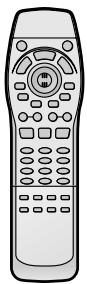
The remote control 5
Selecting TV screen type 5
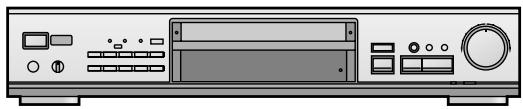
Control reference guide 6
Disc information 6
Basic operations
Basic play 7
Resume function 7
Playing MP3 discs 8
Skipping chapters or tracks 9
Frame-by-frame viewing 9
Fast forward and rewind—SEARCH 9
Slow-motion play 9
Starting play from a selected title or track 9
Selecting groups to play 9
Selecting still pictures—Page Skip 10
To enjoy even higher quality sound—AUDIO ONLY....10
Enjoying virtual surround effects with 2 speakers or
headphones (ADVANCED SURROUND V.S.S.)....10
Using headphones 10
Advanced operations
Changing the play sequence 11
All group play/Program play/Random play 11
Repeat play 12
A-B repeat play/Repeat play/Marking places to play again—MARKER .... 12
Changing soundtracks, subtitle languages
and angles 13
Using Graphical User Interface (GUI) screens ..... 14
Common procedures....14
Disc information.... 14
Unit information/Shuttle screen 15
Home Theater 16
Changing settings.... 18
Common procedures....19
Entering a password (Ratings) 19
Speaker setting 19
Digital output 20
Reference
Safety precautions 21
Maintenance 21
Glossary....21
Troubleshooting guide 22
Specifications .... Back cover
LUOKAN 1 LASERLAITE KLASS 1 LASER APPARAT
natural_image
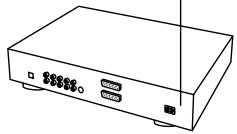
Line drawing of a rectangular electronic device with ports and an antenna (no text or symbols)(The illustration shows the model for the United Kingdom, Continental Europe and Russia.)
(Back of product)
Caution for AC Mains Lead
(For United Kingdom)
("EB" area code model only)
For your safety, please read the following text carefully.
This appliance is supplied with a moulded three pin mains plug for your safety and convenience.
A 5-ampere fuse is fitted in this plug.
Should the fuse need to be replaced please ensure that the replacement fuse has a rating of 5-ampere and that it is approved by ASTA or BSI to BS1362.
Check for the ASTA mark 🧑 or the BSI mark 🍽 on the body of the fuse. If the plug contains a removable fuse cover you must ensure that it is refitted when the fuse is replaced.
If you lose the fuse cover the plug must not be used until a replacement cover is obtained.
A replacement fuse cover can be purchased from your local dealer.
CAUTION!
IF THE FITTED MOULDED PLUG IS UNSUITABLE FOR THE SOCKET OUTLET IN YOUR HOME THEN THE FUSE SHOULD BE REMOVED AND THE PLUG CUT OFF AND DISPOSED OF SAFELY.
THERE IS A DANGER OF SEVERE ELECTRICAL SHOCK IF THE CUT OFF PLUG IS INSERTED INTO ANY 13-AMPERE SOCKET.
If a new plug is to be fitted please observe the wiring code as stated below.
If in any doubt please consult a qualified electrician.
IMPORTANT
The wires in this mains lead are coloured in accordance with the following code:
Blue: Neutral, Brown: Live.
As these colours may not correspond with the coloured markings identifying the terminals in your plug, proceed as follows:
The wire which is coloured Blue must be connected to the terminal which is marked with the letter N or coloured Black or Blue.
The wire which is coloured Brown must be connected to the terminal which is marked with the letter L or coloured Brown or Red.
WARNING: DO NOT CONNECT EITHER WIRE TO THE EARTH TERMINAL WHICH IS MARKED WITH THE LETTER E, BY THE EARTH SYMBOL ⊥ OR COLOURED GREEN OR GREEN/YELLOW.
THIS PLUG IS NOT WATERPROOF—KEEP DRY.
Before use
Remove the connector cover.
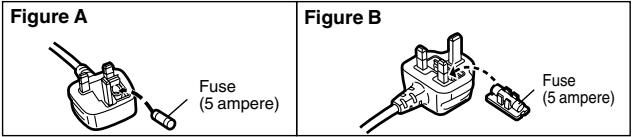
How to replace the fuse
The location of the fuse differ according to the type of AC mains plug (figures A and B). Confirm the AC mains plug fitted and follow the instructions below.
Illustrations may differ from actual AC mains plug.
- Open the fuse cover with a screwdriver.
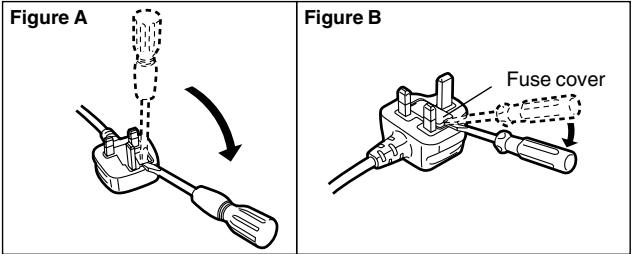
- Replace the fuse and close or attach the fuse cover.
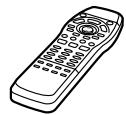
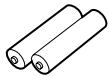
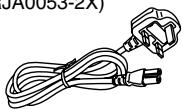
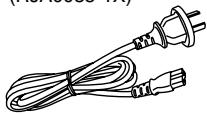
Please check and identify the supplied accessories. Use numbers indicated in parentheses when asking for replacement parts.
□ Remote control ..... 1 (N2QAJB000018)
□ Batteries ..... 2
for remote control
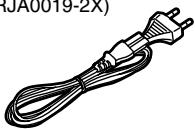
□ AC mains lead ... 1
For the United Kingdom (RJA0053-2X)
For others
(RJA0019-2X)
For Australia and N.Z. (RJA0035-1X)
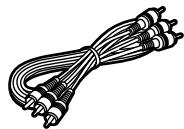
□ Audio/video cable.... 1 (VJA0788-D)
Note
The included AC mains lead is for use with this unit only. Do not use it with other equipment.
Connection to a television
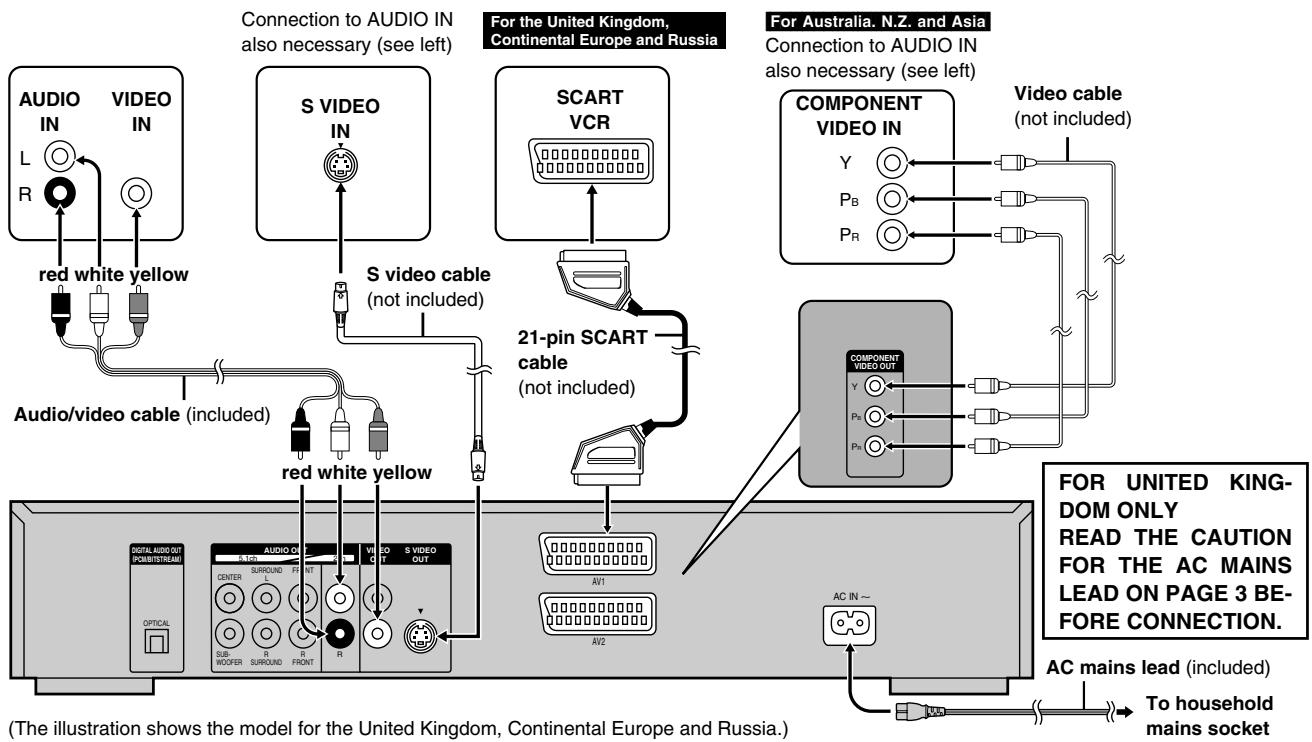
Although the audio on most DVDs is designed to be played through six speakers and this unit's factory settings assume this setup, the following describes connections that allow you to enjoy sound through your television's speakers. To get the full benefit from the powerful 5.1-channel audio found on DVDs, you should connect an amplifier and six speakers ( page 16).
Before connection
- Disconnect the AC mains lead.
- Refer to the television's operating instructions.
flowchart
graph TD
    A["AUDIO IN"] --> B["red white yellow"]
    C["VIDEO IN"] --> D["Audio/video cable (included)"]
    B --> E["red white yellow"]
    D --> E
    E --> F["S VIDEO IN"]
    F --> G["S video cable (not included)"]
    G --> H["21-pin SCART cable (not included)"]
    H --> I["COMPONENT VIDEO IN"]
    I --> J["VIDEO cable (not included)"]
    J --> K["AC MAINS lead (included)"]
    K --> L["AC mains lead (included)"]
    style A fill:#f9f,stroke:#333
    style C fill:#f9f,stroke:#333
    style F fill:#ccf,stroke:#333
    style H fill:#ccf,stroke:#333
    style I fill:#cfc,stroke:#333
    style K fill:#fcc,stroke:#333
S VIDEO OUT terminal
The S-video terminal achieves a more vivid picture than the VIDEO OUT terminal by separating the chrominance (C) and luminance (Y) signals. (Actual results depend on the television.)
COMPONENT VIDEO OUT terminal
Connection using these terminals outputs the color difference signals ( P_B/P_R ) and luminance signal (Y) separately in order to achieve high fidelity in reproducing colors.
- The description of the component video input terminals depends on the television or monitor (e.g. Y / P_B / P_R , Y/B-Y/R-Y, Y / C_B / C_R ).
Connect to terminals of the same color.
Connect Your Unit Directly To Your Television.
Do not connect the unit through your video cassette recorder when setting up your home entertainment system, because the picture may not be played correctly due to the copy guard.
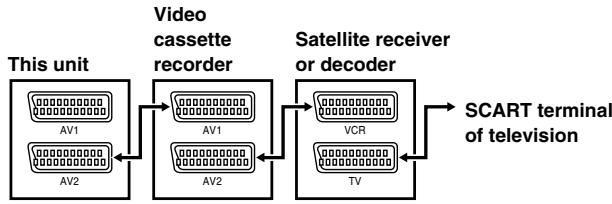
SCART terminal
- To improve picture quality, you can change the video signal output from the AV1 terminal from "Video" to either "S-Video" or "RGB" to suit the type of television you are using (→ page 18, Video—AV1 Output).
- You can also connect other equipment to AV2.
flowchart
graph LR
    A["This unit"] --> B["Video cassette recorder"]
    B --> C["Satellite receiver or decoder"]
    C --> D["SCART terminal of television"]
    subgraph Video Cassette Recorder
        A1["AV1"] --> A2["AV2"]
    end
    subgraph Satellite Receiver
        B1["AV1"] --> B2["AV2"]
    end
    subgraph TV
        C1["VCR"] --> C2["TV"]
    end
Aim at the sensor, avoiding obstacles, at a maximum range of 7 m directly in front of the unit.
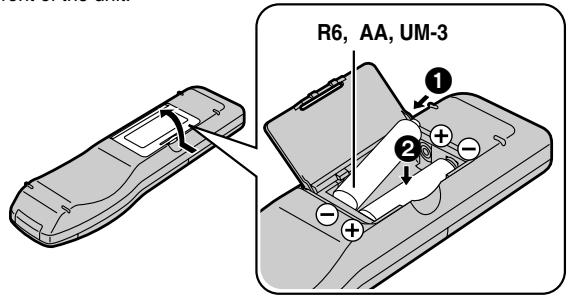
- Insert so the poles (+ and -) match those in the remote control.
- Do not use rechargeable type batteries.
Selecting TV screen type
Remote control only
Change the setting to suit your television.
The menu language is set to English, but you can change it (→ page 18, Display—Menu Language). English is used in the examples.
Do not;
- mix old and new batteries.
- use different types at the same time.
- heat or expose to flame.
●take apart or short circuit. - attempt to recharge alkaline or manganese batteries.
- use batteries if the covering has been peeled off.
Mishandling of batteries can cause electrolyte leakage which can damage items the fluid contacts and may cause a fire.
Remove if the remote control is not going to be used for a long period of time. Store in a cool, dark place.
Preparation
Turn on the television and select the appropriate video input on the television to suit the connections for the player.
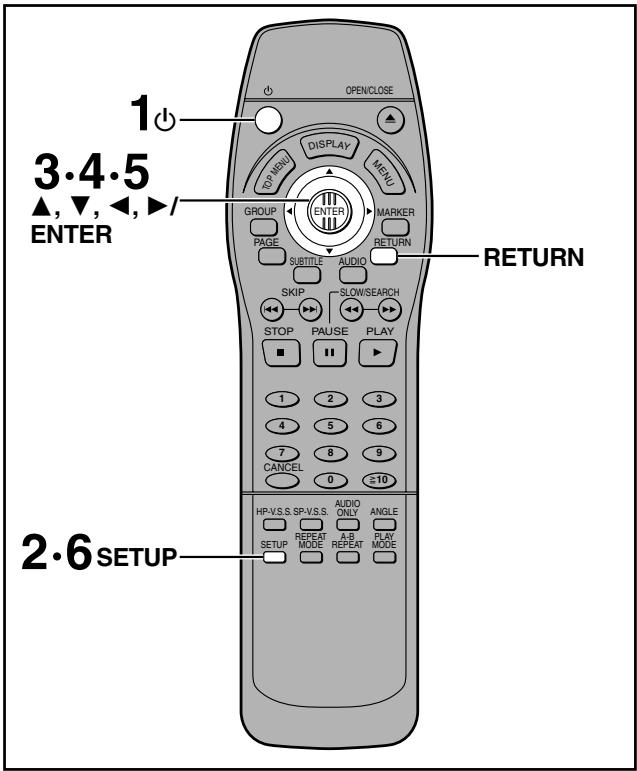
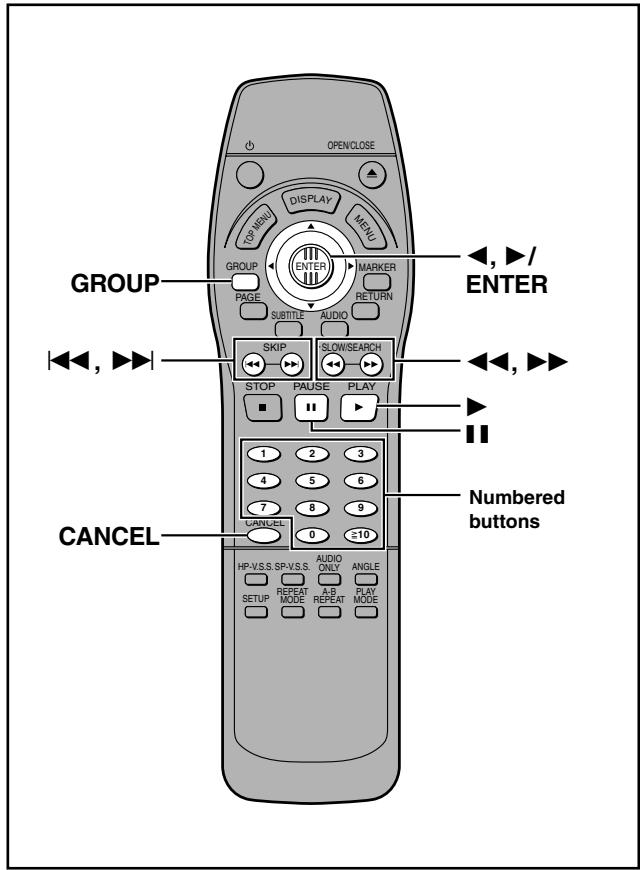
1 Press [⏻] to turn on the unit.
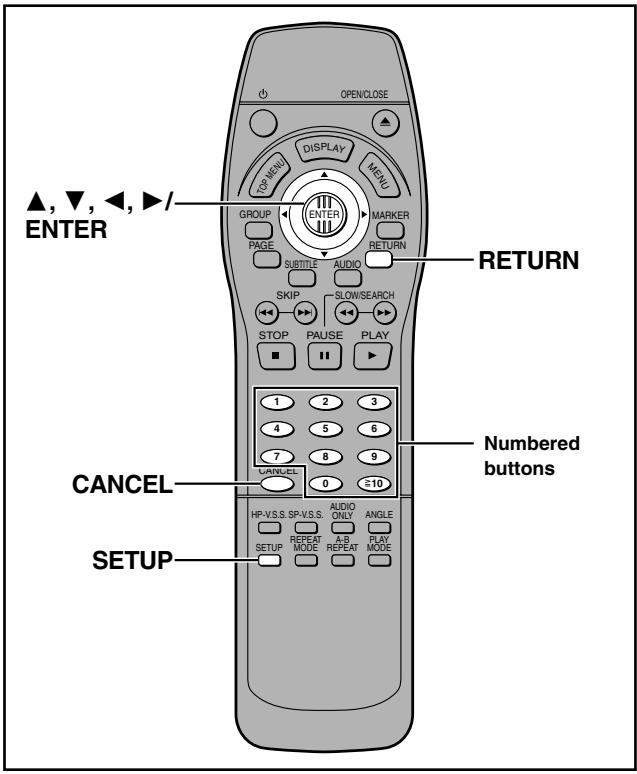
2 Press [SETUP] to show the menus.
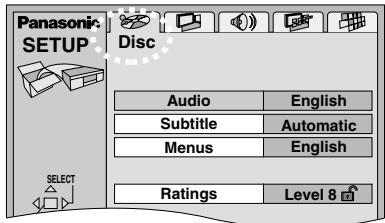
3 Move [◀, ▶] to select the "Video" tab.
4 Move [▲, ▼] to select “TV Aspect” and press [ENTER].
5 Move [▲, ▼] to select the item and press [ENTER].
●4:3 Pan&Scan (Factory preset)
Select if you have a regular television and to view 16:9 software in the pan and scan style.
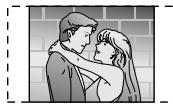
16:9 software prohibited from being shown in the pan and scan style will appear in the letterbox style despite the setting here.
●4:3 Letterbox
Select if you have a regular television and to view 16:9 software in the letterbox style.
•16:9
Select if you have a widescreen (16:9) television.
Use the television's screen modes to change the way the picture is shown.
6 Press [SETUP] to end the settings.
To return to the previous screen
Press [RETURN].
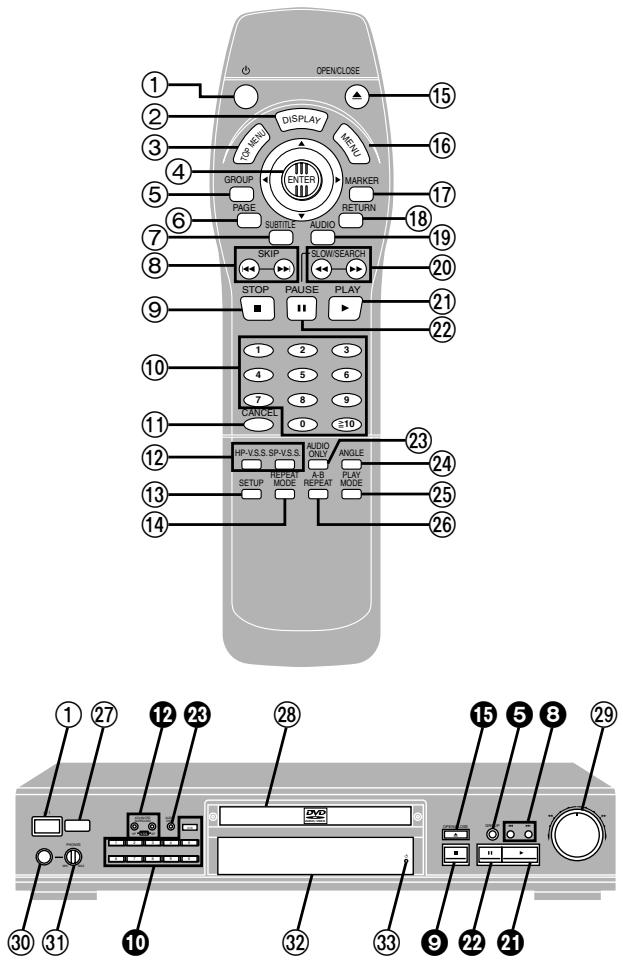
Buttons such as ⑤ function the same as the controls on the remote control.
① Standby/on switch (⏻/I) 5
Press to switch the unit from on to standby mode or vice versa. In standby mode, the unit is still consuming a small amount of power.
② Display button (DISPLAY) 14
③ Top menu button (TOP MENU) 7
④ Joystick (▲, ▼, ◀, ▶)/Enter button (ENTER) 5
⑤ Group button (GROUP) 9
⑥ Page button (PAGE) 10
⑦ Subtitle button (SUBTITLE) 13
⑧ Skip buttons (◀◀, ▶▶| SKIP) 9
⑨ Stop button (■ STOP) 7
⑩ Numbered buttons (1–9, 0, ≧10) 7
⑪ Cancel button (CANCEL) 9
⑫ Headphone and Speaker V.S.S. buttons (HP-V.S.S., SP-V.S.S.) 10
⑬ Setup button (SETUP) 5, 19
⑭ Repeat mode button (REPEAT MODE) 12
⑮ Open/Close button (▲ OPEN/CLOSE) 7
⑯ Menu button (MENU) 7
⑰ Marker button (MARKER) 12
⑱ Return button (RETURN) 5
⑲ Audio button (AUDIO) 13
⑳ Slow/Search buttons (◀◀, ▶▶ SLOW/SEARCH) ..... 9
②1 Play button (▶ PLAY) 7
②2 Pause button (II PAUSE) 7
②3 Audio only button (AUDIO ONLY) 10
⑳ Angle button (ANGLE) 13
②5 Play mode button (PLAY MODE) 11
②6 A-B repeat button (A-B REPEAT) 12
⑳ Remote control signal sensor 5
⑳ Disc tray 7
⑲ Shuttle dial (◀◀, ▶▶) 9
③0 Headphone jack 10
③1 Headphone level control (PHONES) 10
③2 FL Display
③ Standby indicator (⏻)
When the unit is connected to the AC mains supply, this indicator lights up in standby mode and goes out when the unit is turned on.
Disc information
■ Discs that can be played
| DVD-Audio | DVD-Video | DVD-R | Video CD | Audio CD |
| DVD^TM AUDIO | DVD^TM VIDEO | DVD^TM R4.7 | COMPACTDISCDIGITAL VIDEO | COMPACTDISCDIGITAL AUDIO |
| Indication used in instructions | ||||
| DVD-A | DVD-V | VCD | CD | |
Do not use irregularly shaped discs (e.g. heart-shaped), as these can damage the unit.
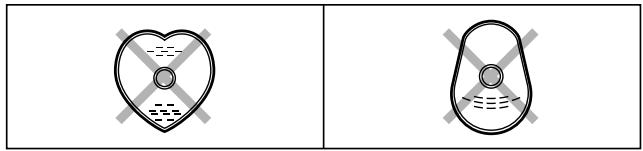
natural_image
Two identical heart-shaped diagrams with crosshairs, no text or symbols present■ Handling precautions
- Do not write on the label side with a ball-point pen or other writing instrument.
- Do not use record cleaning sprays, benzine, thinner, static electricity prevention liquids or any other solvent.
- Do not attach labels or stickers to discs. (Do not use discs with exposed adhesive from tape or left over peeled-off stickers.)
- Do not use scratch-proof protectors or covers.
- Do not use discs printed with label printers available on the market.
■ Discs that cannot be played
DVD-ROM, DVD-RAM, CD-ROM, CDV, CD-G, +RW, DVD-RW, CVD, SVCD, SACD, Divx Video Discs and Photo CD.
■ DVDs that can be played
DOLBY This unit has a Dolby Digital decoder so you can play DIGITAL DVDs with this mark.
DIGITAL

SURROUND
This unit has a DTS decoder so you can play DVDs with this mark.
DVD-R discs
Panasonic DVD-R recorded and finalized on a Panasonic DVD video recorder are played as DVD-Video on this unit.
It may not be possible to play these discs in all cases due to the type of disc or condition of the recording.
■ Video systems
This unit can play both the PAL and NTSC video systems.
To view PAL or NTSC, however, your television must match the system used on the disc.
PAL discs cannot be correctly viewed on an NTSC television.
NTSC can be correctly viewed on a PAL television by converting the video signal to PAL 60 (→ page 18, Video–NTSC Disc Output).
Playing DVDs and Video CDs
The producer of these discs can control how they are played so you may not always be able to control play as described in these operating instructions. Read the disc's instructions carefully.
DVD-A DVD-V VCD CD
Preparation
Turn on the television and select the appropriate video input on the television to suit the connections for the player.
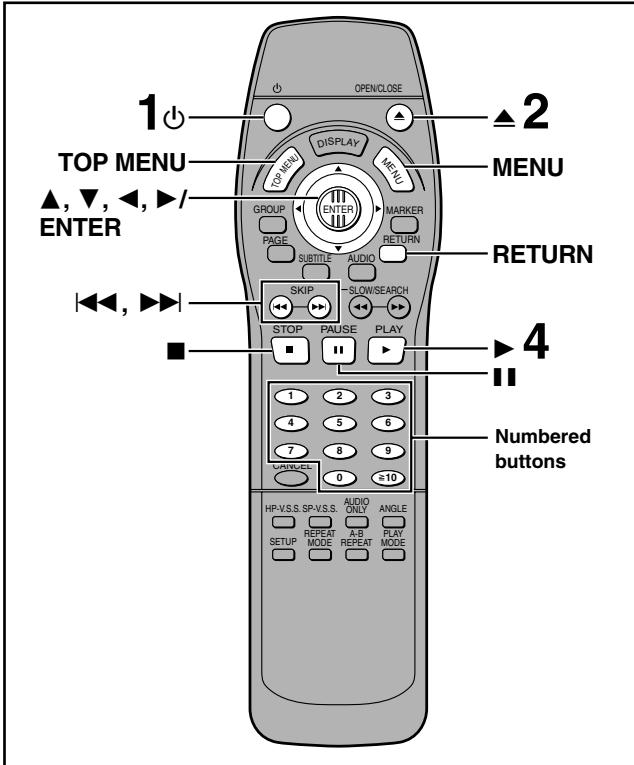
1 Press [⏻] to turn on the unit.
2 Press [▲] to open the disc tray.
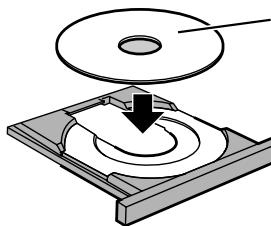
3 Place the disc on the disc tray.
natural_image
Diagram of a mechanical assembly with a rotating disk and base plate (no text or symbols)Label must face upward. (With double-sided discs, load so the label for the side you want to play is facing up.)
4 Press [▶] (PLAY).
The disc tray closes and play begins.
■ To stop play
Press [■] (→ Resume function at right).
■ To pause play
Press [■■] during play.
Press [▶] (PLAY) to restart play.
Playing CD-R and CD-RW
This unit can play CD-DA (digital audio) and video CD format audio CD-R and CD-RW that have been finalized* upon completion of recording.
It may not be able to play some CD-R or CD-RW due to the condition of the recording.
*Finalizing is a process that enables CD-R/CD-RW players to play audio CD-R and CD-RW.
Note
- If “⊗” appears on the television
The operation is prohibited by the unit or disc.
- The disc continues to rotate while the menu is displayed even after you finish playing an item. Press [■] when you finish to preserve the unit's motor and your television screen.
- Volume may be lower when playing DVDs than when playing other discs or during television broadcasts.
If you turn the volume up on the television or amplifier, be sure to reduce the volume again before playing other sources so that a sudden increase in output does not occur.
■ Auto standby
The unit switches to the standby mode after about 30 minutes in the stop mode.
When a menu screen appears on the television
DVD-A DVD-V VCD
Press the numbered buttons to select an item.
To select a 2-digit number
Example: To select item 23, press [≥10] → [2] → [3].
- When playing DVDs, you can also use [▲, ▼, ◀, ▶] to select items. Press [ENTER] to confirm your selection.
Play of the selected item now begins.
Other buttons used to operate menus
Read the disc's instructions for further details about operation.
[▶▶] : Shows the next menu.
[◀◀]: Shows the previous menu.
[RETURN]: Shows the menu screen. VCD
[TOP MENU]: Shows the first menu screen. DVD-A DVD-V
[MENU]: Shows the menu screen. DVD-V
Resume function
DVD-A DVD-V VCD CD
The position you stopped play at is recorded by the unit when “▷” is flashing on the unit’s display.
While “▷” is flashing on the unit’s display, press [▶] (PLAY) to start play from where you stopped it.
If you are playing DVD-Video, the message “Press PLAY to Chapter Review” or “Press PLAY to Preview Chapters” (for Asia) appears.
Press [▶] (PLAY) while the message is displayed and the beginning portions of each chapter up to the current one are played. Full play resumes from the point where you stopped play.
(This feature works only within a title.)
If you do not press [▶] (PLAY), the message disappears and play starts from where you stopped it.
To cancel
Press [■] until “▷” disappears from the unit’s display.
Note
- The resume function does not work if the disc's play time is not displayed.
●The position is cleared when the disc tray is opened.
Playing MP3 discs
MP3 refers to the type of music file that is compressed using MPEG audio layer 3.
When making MP3 discs to play on this unit
Disc format
Conform to ISO9660 level 1 and level 2
File format
MP3 files that have the suffix “.MP3” or “.mp3”.
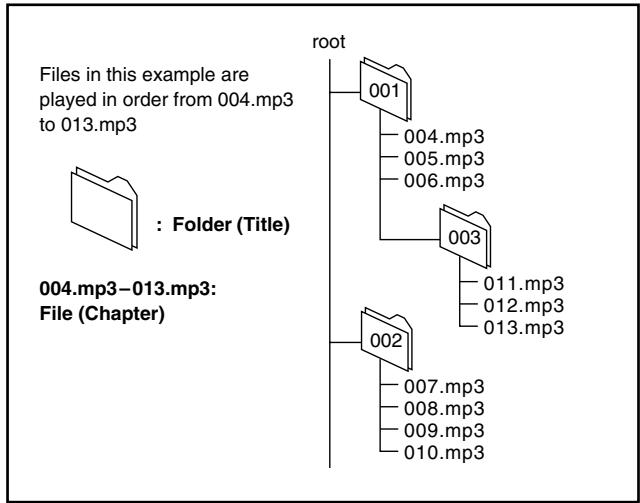
To play in a certain order
Prefix the folder and file names with numbers with the same number of digits at the time of recording.
Files may not be recorded in the numbered order if the prefixes have different numbers of digits, for example 1.mp3, 2.mp3, 10.mp3. Some writing software may also cause recording to occur in a different order.
flowchart
graph TD
    A["001"] --> B["004.mp3"]
    A --> C["005.mp3"]
    A --> D["006.mp3"]
    E["002"] --> F["007.mp3"]
    E --> G["008.mp3"]
    E --> H["009.mp3"]
    E --> I["010.mp3"]
    J["003"] --> K["011.mp3"]
    J --> L["012.mp3"]
    J --> M["013.mp3"]
How MP3 discs differ to CDs
A file is a single audio track and is treated as a chapter on this unit. A folder (album) is treated as a title on this unit.
The display during play is different

The information displayed in the GUI screens is different
Total number of chapters
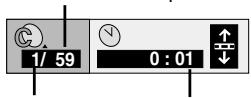
Chapter playing
Elapsed playing time (cannot be changed)
The method of specifying a chapter to play is different
Press [ENTER] after pressing the numbered buttons. For example, to select chapter 23, press [2] => [3] => [ENTER]. You do not have to press [≥10].
Repeat play
You can repeat chapters or titles.
Limitations on MP3 play
- You cannot use program or random play.
●The time information may not be displayed correctly. - If both MP3 and CD-DA data is recorded on the disc, only the data type used for the first track is played.
- It may take some time for play to start if the disc includes still picture data or if there are many folders on the disc.
- Noise may be output if a file is suffixed “.MP3” or “.mp3” but is not actually an MP3 file.
- This unit is not compatible with ID3 tags and packet-write format.
Skipping chapters or tracks
DVD-A DVD-V VCD CD
During play or while paused
Press [◀◀] or [▶▶].
● Each press increases the number of skips.
Frame-by-frame viewing
DVD-A DVD-V VCD
Remote control only
While paused
Move [◀] or [▶].
The frame changes each time you move the joystick.
- The frames change in succession if you hold the joystick in position.
- Pressing [III] also activates forward frame-by-frame.
Fast forward and rewind—SEARCH
DVD-A DVD-V VCD CD
During play
Press [◀◀] or [▶▶].
Turn the shuttle dial [◀◀, ▶▶] on the main unit.
- Play starts again when you release the shuttle dial.
- Audio will be heard during search for most discs. You can turn this audio off if you want to (→ page 18, Audio—Audio during Search).
Slow-motion play
DVD-A DVD-V VCD
While paused
Press [◀◀] or [▶▶].
Turn the shuttle dial [◀◀, ▶▶] on the main unit.
●The picture stills again when you release the shuttle dial.
Notes
●The speed of search and slow-motion increases up to 5 steps.
- Press [▶] (PLAY) to restart play.
- You cannot move backwards with Video CD during frame-by-frame and slow-motion.
- Frame-by-frame and slow motion only work on the moving picture parts of DVD-Audio.
When playing Video CDs with playback control
Turning the shuttle dial or pressing buttons to perform SKIP, search or slow-motion may take you to a menu screen.
Starting play from a selected title or track
DVD-A DVD-V VCD CD
Press the numbered buttons to select the item.
To select a 2-digit number
Example: To select track 23, press [≥10] → [2] → [3].
Play starts from the selected item.
Note
●This works only when stopped with some discs.
●This may not work with some discs.
Selecting groups to play
DVD-A
The tracks on DVD-Audio are divided into groups. How these groups are played differs with the disc so read the instructions that came with the disc for further details.
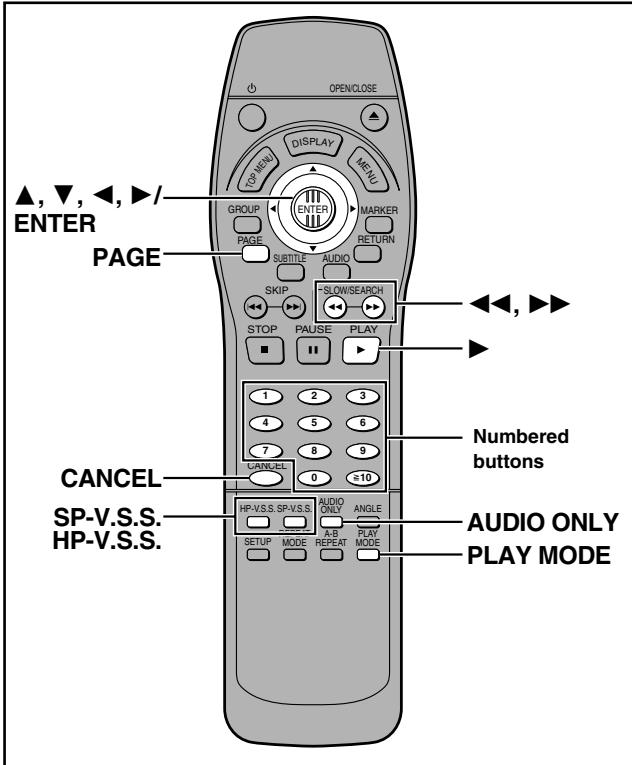
1 Press [GROUP].
The group number changes each time you press the button.
![PANASONIC DVDRA61A - Press [GROUP]. - 1](/content/2019/11/56214/images/29cd8227793b2cb15442958329aaa7cbca4732b2cabec261c23cda1e684d1b31.jpg)
2 Press [ENTER].
3 Press the numbered buttons to select the track number and press [ENTER].
The selected group and track begin to play.
Playing all the groups in succession ( page 11)
Playing bonus groups
Some discs contain bonus groups. To enjoy these groups you may have to enter a password. Refer to the disc's jacket.
- Press [GROUP] to select the bonus group and press [ENTER].
- Enter the 4-digit password with the numbered buttons and press [ENTER].
- If you enter the wrong password, you can erase a digit by pressing [CANCEL].
- Press the numbered buttons to select a track and press [ENTER].
- The bonus group can be played as many times as you like after the password has been entered until the disc is removed from the unit.
Selecting still pictures—Page Skip
DVD-A
Remote control only
During play
Press [PAGE].
The page changes each time you press the button.
To enjoy even higher quality sound—AUDIO ONLY
DVD-A DVD-V VCD CD
You can enjoy higher quality audio by stopping the video signal.
Press [AUDIO ONLY].
●The button on the main unit lights.
- AUDIO ONLY is canceled if you press the button again or turn the unit off. The light goes out.
Note
- Video signals are output while the disc is stopped and when operations such as searching are performed. The television screen can appear unusual while video signals are not being output.
- The television may be distorted when video signals are turned on and off when you turn AUDIO ONLY on and off, but this is not a malfunction.
Enjoying virtual surround effects with 2 speakers or headphones (ADVANCED SURROUND V.S.S.)
DVD-V VCD
SP-V.S.S.: Dolby Digital, DTS, MPEG, Linear PCM, 2-channel or over only
HP-V.S.S.: Dolby Digital, MPEG, Linear PCM, 2-channel or over only
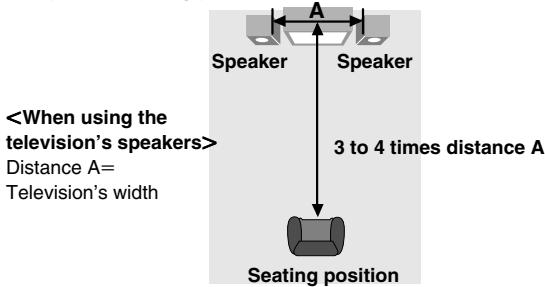
Use ADVANCED SURROUND V.S.S. (Virtual Surround Sound) to enjoy a surround-like effect if you are using 2 front speakers or headphones.
If you are playing a disc with surround effects recorded on it, the effect is broadened and sound seems to come from virtual speakers on either side.
During play
Press [SP-V.S.S.] or [HP-V.S.S.].
Each time you press the button:
![PANASONIC DVDRA61A - Press [SP-V.S.S.] or [HP-V.S.S.]. - 1](/content/2019/11/56214/images/f91fe0a4ee8e304c65a48fa1f93a5cad567dbd48324ed8d4c1551da32821ebf7.jpg)
flowchart
graph TD
    A["SP 1/HP 1: Natural effect"] --> B["↓"]
    C["SP 2/HP 2: Emphasized effect"] --> D["↓"]
    E["SP OFF/HP OFF: Cancel (Factory preset)"] --> D
Note
- Advanced Surround will not work, or will have less effect with some discs, even if you select “1” or “2”.
- Turn off the surround sound effects on the equipment you have connected when using this effect.
- Turn Advanced Surround off if it causes distortion.
- Output from this unit will be in stereo (two channels) when Advanced Surround is on.
Optimum seating position
Using headphones
1 Set [PHONES] to "MIN" and connect the headphones (not included).
Headphone plug type: 6.3 mm stereo
![PANASONIC DVDRA61A - Set [PHONES] to "MIN" and connect the headphones (not included). - 1](/content/2019/11/56214/images/973329355f3739ed2732c17a4c2b50b40b7cbc9e6dcafacdcce9b88bcb9528af.jpg)
flowchart
graph TD
    A["①"] -->|PHONES| B["MIN"]
    B --> C["MAX"]
    C --> D["②"]
2 Adjust headphone volume with [PHONES].
Note
Avoid listening for prolonged periods of time to prevent hearing damage.
DVD-A VCD CD
Remote control only
While stopped
Press [PLAY MODE] to select the play mode.
The mode changes each time you press the button. Select the mode then follow the procedures in the next column to start play.
All group play
DVD-A
To play all the groups in succession
All Group Playback
Press PLAY to start

Program play
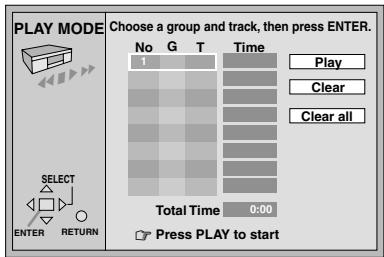
To play a maximum of 32 tracks in a programmed order e.g. DVD-Audio
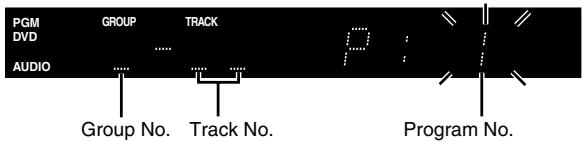
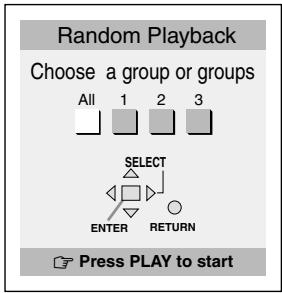
Random play
To play tracks randomly e.g. DVD-Audio (three groups)

Normal play
●The program is retained in memory.
All group play
DVD-A
Press [▶] (PLAY).
Program play
1 Press [ENTER].
2 DVD-Audio only
Move [▲, ▼] to select a group and press [ENTER].
If you select bonus groups, you will have to enter a 4-digit password ( page 9).
3 Move [▲, ▼] to select a track and press [ENTER].
Each time you move the joystick,
![PANASONIC DVDRA61A - Move [▲, ▼] to select a track and press [ENTER]. - 1](/content/2019/11/56214/images/645b3b92a06edd89e24123fc9d29ac1b6d410b9c2f21e8deb89fec89b81a5425.jpg)
- Repeat steps 1, 2 and 3 to program other tracks.
- You can also select a group or track with the numbered buttons.
- All the tracks on a disc are selected when you select "ALL" (all the tracks in the selected group with DVD-Audio).
4 Press [▶] (PLAY).
Play now begins in the programmed sequence.
To add or change tracks
Move [▲, ▼] to select an available item, then repeat steps 1–3.
To move to the page before or after the one shown
Press [◀◀] or [▶▶].
To clear the programmed tracks one by one
Move [▲, ▼] to select the item number (No) and press [CANCEL]. (Alternatively, you can select "Clear" with [▲, ▼, ◀, ▶] and press [ENTER].)
To clear the whole program
Move to "Clear all" with [▲, ▼, ◀, ▶] and press [ENTER].
The whole program is also cleared when the unit is turned off or the disc tray is opened.
Random play
1 DVD-Audio only
Move [◀, ▶] to select a group and press [ENTER].
- You can select more than one group.
- You can also select groups with the numbered buttons.
- If you select bonus groups, you will have to enter a 4-digit password (→ page 9).
2 Press [▶] (PLAY).
Play now begins in random order.
To clear a group DVD-A
Move [◀, ▶] to select the group you want to clear, then press [ENTER].
DVD-A DVD-V VCD CD
Remote control only
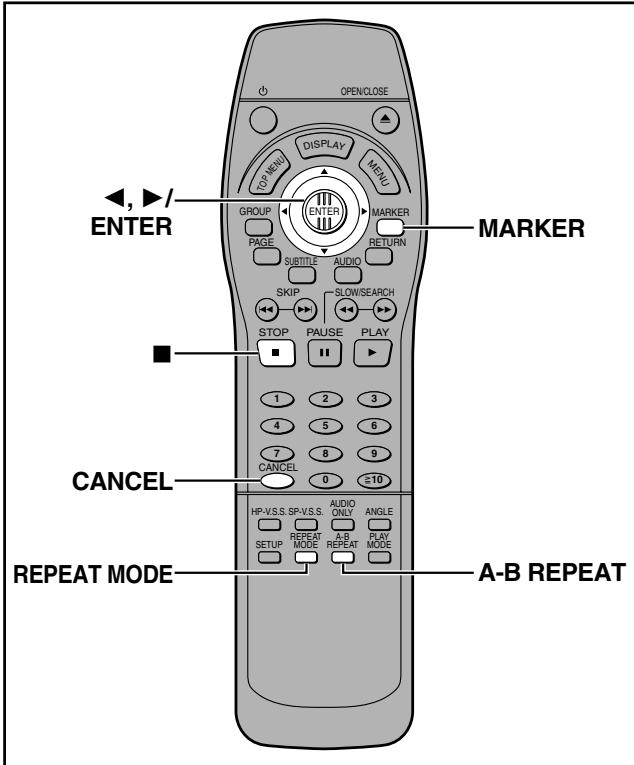
A-B repeat play
You can repeat a section between points A and B within a title or track.
1 During play
Press [A-B REPEAT] at the starting point (A).
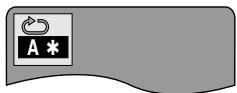
2 Press [A-B REPEAT] at the finishing point (B).
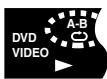
To cancel
Press [A-B REPEAT] until “↗**” is displayed.
Note
- A-B repeat play does not work if the DVD's elapsed play time is not shown on the unit's display.
- Some subtitles recorded around point A or B may fail to appear (DVD).
- The unit automatically determines the end of a title/track as point B when the end of the title/track is reached.
Repeat play
During play
Press [REPEAT MODE].
Each time you press the button:
e.g. DVD-Video
![PANASONIC DVDRA61A - Press [REPEAT MODE]. - 1](/content/2019/11/56214/images/413d79831562a168259a788edb2076453c7d7a9ed3703819afba33e0070f19c2.jpg)
flowchart
graph LR
    C["CD"] --> T["T"]
    T --> OFF["OFF"]
    OFF -->|Feedback| C
    style C fill:#f9f,stroke:#333
    style T fill:#f9f,stroke:#333
    style OFF fill:#f9f,stroke:#333
•DVD-Audio
Track (T)→Whole group (G)→OFF
During All group, Program, or Random play modes, “A” is displayed instead of “G”.
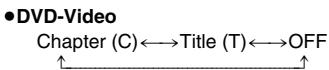
Chapter (C)→Title (T)→OFF
Track (T)→Entire disc (A)→OFF
•DVD-Video
- Video CD/CD
If the Video CD has playback control
- Press [■] during play until "PBC PLAY" is cleared from the display.
- Press the numbered buttons to select a track to start play (→ page 9).
- Press [REPEAT MODE] ( above).
Note
You cannot use repeat play to repeat an entire DVD-Video.
■ To repeat only your favorite tracks
DVD-A VCD CD
Start program play (→ page 11) and press [REPEAT MODE] to display the repeat mode you like.
Marking places to play again—MARKER
You can mark specific points on a disc to return to later. All the markers are cleared when the unit is turned off, or the disc tray is opened.
1 Press [MARKER].
2 Press [ENTER] at the point you want to mark.
To select another marker, move [◀, ▶].
To play from a marked position
Move [◀, ▶] to select a marker number and press [ENTER].
To clear a marker
Move [◀, ▶] to select a marker number and press [CANCEL].
DVD-A DVD-V
Remote control only
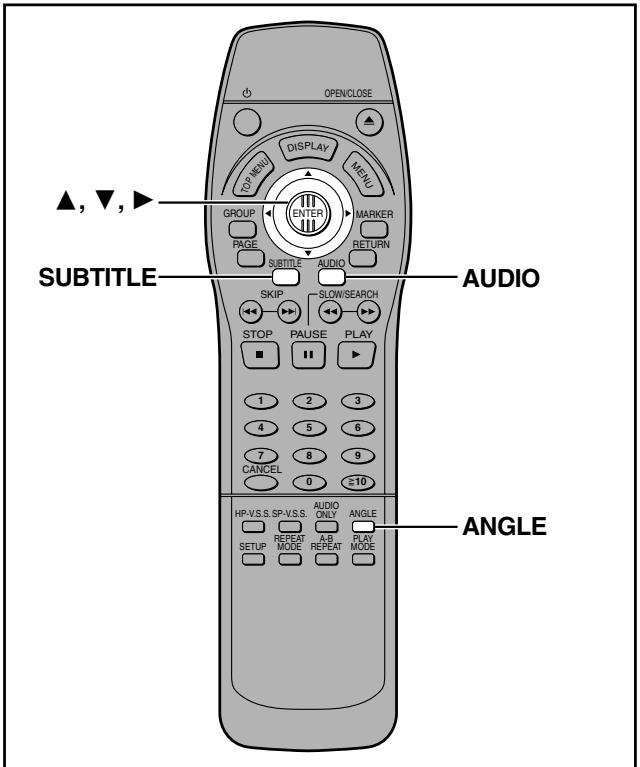
Some DVDs have multiple soundtracks, subtitle languages and camera angles, and you can change these during play.
Soundtracks
During play
Press [AUDIO].
The number changes each time you press the button.
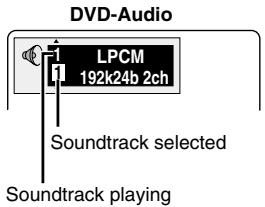
![PANASONIC DVDRA61A - Press [AUDIO]. - 2](/content/2019/11/56214/images/0ec124d8d6bf08e6bcb23e45c935285a2d134d6560c502cb08698d8a727f3e5a.jpg)
e.g. DVD-Video

Indicates that a multi-channel soundtrack can be down-mixed to two channels.
Lights when a multi-channel soundtrack is playing.
- Play restarts from the beginning of the soundtrack when changing DVD-Audio soundtracks that are accompanied by still pictures.
- Even if a second soundtrack isn't recorded on a DVD-Audio, two soundtrack numbers will normally be shown when you press [AUDIO]. The soundtrack currently playing is number 1.
- You can also use this button to turn the vocals on and off on karaoke discs. Read the disc's instructions for details.
Subtitles
During play
Press [SUBTITLE].
The number changes each time you press the button.
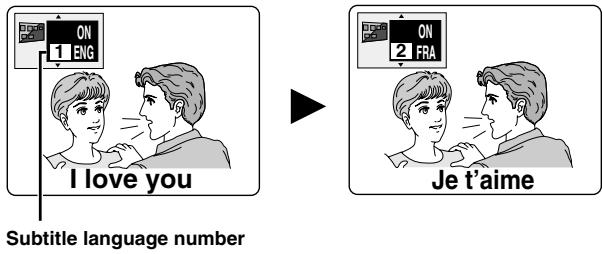
To clear/display the subtitles
- Press [SUBTITLE].
- Move [▶].
- Move [▲, ▼] to select "OFF" or "ON".
Angles
During play
Press [ANGLE].
The number changes each time you press the button.
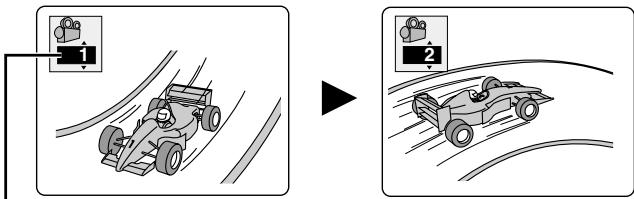
Angle number
Notes regarding soundtracks and subtitle languages
- “—” or “—” is displayed instead of the language number in circumstances such as when no language is recorded on the disc.
- In some cases, the subtitle language is not changed to the selected one immediately.
- Refer to D and E on page 15 for language abbreviations and audio signal type details.
GUI screens are menus that contain information about the disc or unit. These menus allow you to perform operations by changing this information.
Common procedures
DVD-A DVD-V VCD CD
Remote control only
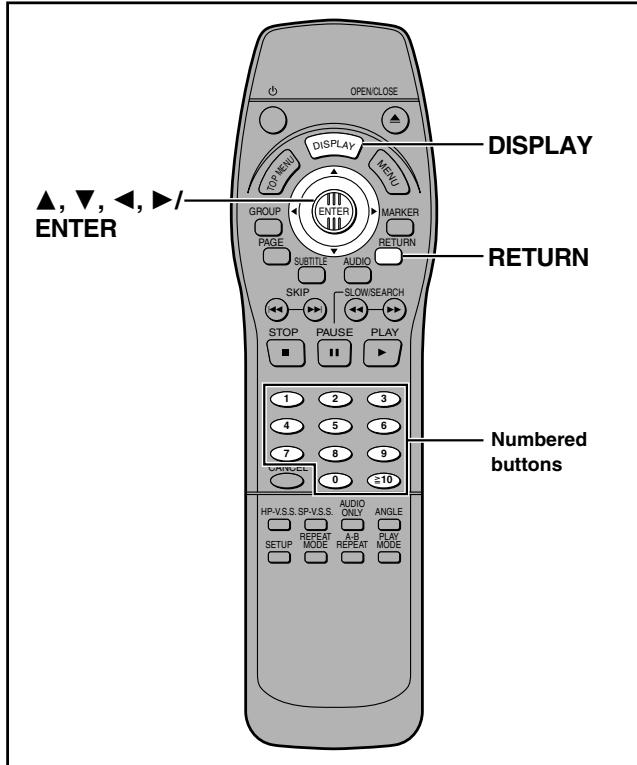
1 Press [DISPLAY].
Each time you press the button:

flowchart
graph TD
    A["Disc information"] --> B["Unit information (→ step 2)"]
    B --> C["Original display ←"]
    C --> D["Shuttle screen"]
●The screens depend on the disc contents.
2 Unit information only
While the leftmost icon is highlighted
Move [▲, ▼] to select the menu.
Each time you move the joystick:
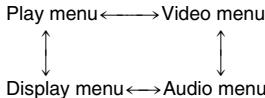
3 Move [◀, ▶] to select the item.
4 Move [▲, ▼] to select the setting.
- Items with “▲” or “▼” above and below can be changed by [▲, ▼].
- Press [ENTER] if the setting does not change after moving [▲, ▼].
- Some items require different operations. Read the explanations on the following pages.
For your reference
- Depending on the condition of the unit (playing, stopped, etc.) and the type of software you are playing, there are some items that you cannot select or change.
- When numbers are displayed (e.g. title No.), the numbered buttons are also effective for setting. After entering numbers, press [ENTER] to register the setting.
To clear the icons
Press [RETURN] until the menus disappear.
■ To change the position of the icons
- Move [◀, ▶] to select the rightmost icon.
- Move [▲, ▼] to move the icons.
(There are 5 positions)

A Disc information
e.g. DVD-Video

e.g. DVD-Audio
e.g. Video CD
① T: Title number DVD-V
G: Group number DVD-A
⑥ C: Chapter number DVD-V
T: Track number DVD-A VCD CD
© Time DVD-A DVD-V
Select a position to start play by specifying a time with the numbered buttons.
Changing the time display DVD-A VCD CD
Move [▲, ▼] to show the elapsed play time, remaining time for the track, or remaining time for the disc/group (DVD-A).
(See D on page 15 for language abbreviations.)
e Audio signal type DVD-A DVD-V (→ page 13)
(See E on page 15 for details.)
Karaoke vocal on/off (Karaoke DVD only) DVD-V
Solo: OFF or ON Duet: OFF, V1+V2, V1 or V2
f Subtitle language DVD-A DVD-V (→ page 13)
(See D on page 15 for language abbreviations.)
Subtitles on/off
ON OFF
⑨ Angle number DVD-A DVD-V (→ page 13)
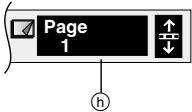
h Still picture number DVD-A
Selected picture is shown during play.
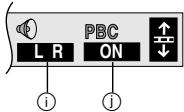
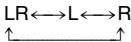
i Audio mode VCD
j Menu play VCD (with playback control only)
Indicates whether menu play ( playback control) is on or off.
B Unit information
Play menu
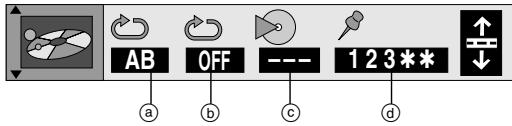
① A-B repeat DVD-A DVD-V VCD CD (→ page 12) [ENTER] (start point) → [ENTER] (finish point) To cancel: [ENTER]
⑥ Repeat play DVD-A DVD-V VCD CD (→ page 12)


© Play mode display DVD-A VCD CD
---: Normal play PGM: Program play RND: Random play ALL: All group play (DVD-A)
C: Cinema mode (Mellows movies, enhances detail in dark scenes.)
U: User mode
The following items are also displayed when you select "U".
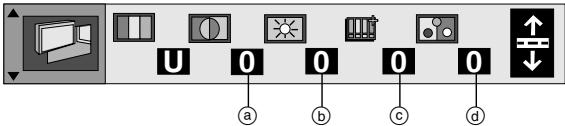
(a) Contrast (-7 to +7)
⑥ Brightness (0 to +15)
© Sharpness (-6 to +6)
(d) Color (-7 to +7)
C Shuttle screen

◀: Slow-motion play (Backward) DVD-A DVD-V
II: Pause
▶: Slow-motion play (Forward) DVD-A DVD-V VCD
◀◀: Search (Backward)
▶: Play
▶▶: Search (Forward)
Note
The numbers on either side of the shuttle screen indicate the maximum speeds of the search.
Audio menu
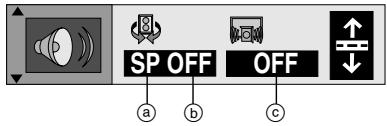
a ADVANCED SURROUND V.S.S. mode DVD-V VCD (→ page 10)
SP←→HP
(b) SP/HP level DVD-V VCD (→ page 10)
1←→2←→OFF
↑
© Dialogue Enhancer DVD-V
(Dolby Digital/DTS, 3-channel or over only) ON←→OFF
The volume of the dialogue from the center channel is raised when you select "ON".
Display menu
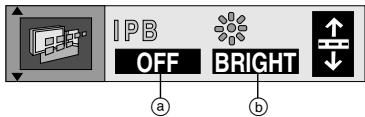
① IPB display DVD-V (→ page 21)
ON←→OFF
Displays the picture type (I/P/B) in the still picture mode.
⑥ Display dimmer
Changes the brightness of the unit's display.
BRIGHT←→DIM←→AUTO* (DVD-A DVD-V VCD)
*The display is dimmed during play, but brightens when you perform operations such as slow-motion, search, and pause.
D Audio/Subtitle language
ENG: English SVE: Swedish CHI: Chinese
FRA: French NOR: Norwegian KOR: Korean
DEU: German DAN: Danish MAL: Malay
ITA: Italian POR: Portuguese VIE: Vietnamese
ESP: Spanish RUS: Russian THA: Thai
NLD: Dutch JPN: Japanese *: Others
E Signal type/data
LPCM/PPCM/☐ Digital/DTS/MPEG: Signal type
k (kHz): Sampling frequency
b (bit): Number of bits
ch (channel): Number of channels
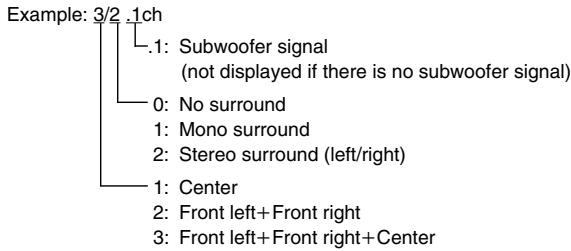
This unit has built-in Dolby Digital and DTS decoders ( page 21).
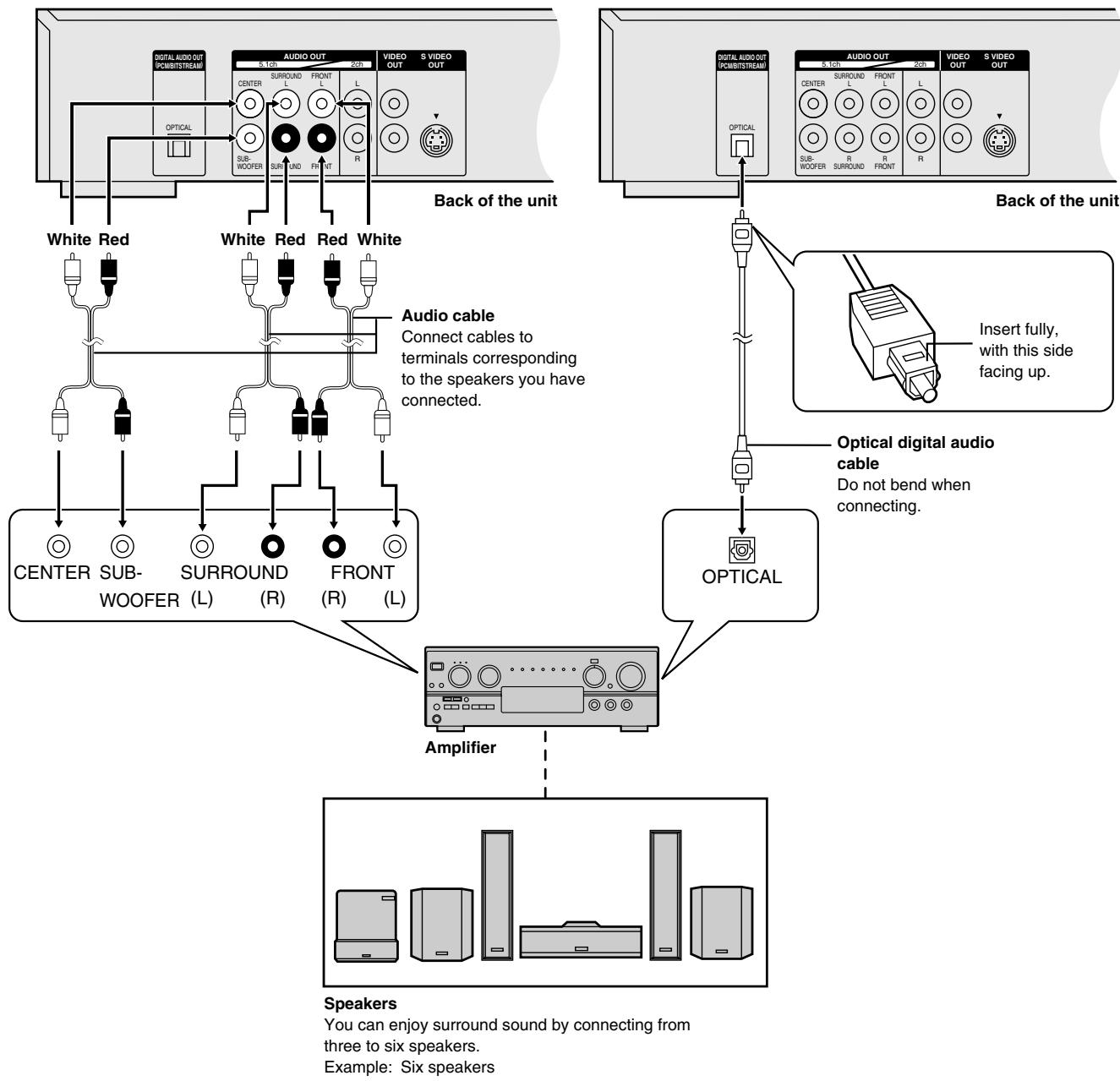
You can enjoy the powerful movie theater and hall-like sound available with Dolby Digital and DTS by connecting an amplifier with 5.1-channel input terminals. You do not need to purchase separate Dolby Digital or DTS decoders.
Use analog connection to enjoy audio recorded with high sampling frequencies (over 48 kHz). To protect the rights of the producers of this kind of material, this audio will be down-sampled to 48 kHz or 44.1 kHz if you use digital connection.
To enjoy 5.1-channel surround sound
Analog connection
Connect an amplifier with 5.1-channel audio input terminals.
Change "Speaker setting" ( page 19).
Digital connection
Connect an amplifier with a built-in decoder or a decoder-amplifier combination.
Change "Digital output" ( page 20).
flowchart
graph TD
    A["Back of the unit"] --> B["White Red"]
    A --> C["White Red"]
    A --> D["White Red"]
    A --> E["White Red"]
    A --> F["White Red"]
    A --> G["White Red"]
    A --> H["White Red"]
    A --> I["White Red"]
    A --> J["White Red"]
    A --> K["White Red"]
    A --> L["White Red"]
    A --> M["White Red"]
    A --> N["White Red"]
    A --> O["White Red"]
    A --> P["White Red"]
    A --> Q["White Red"]
    A --> R["White Red"]
    A --> S["White Red"]
    A --> T["White Red"]
    A --> U["White Red"]
    A --> V["White Red"]
    A --> W["White Red"]
    A --> X["White Red"]
    A --> Y["White Red"]
    A --> Z["White Red"]
    A --> AA["White Red"]
    A --> AB["White Red"]
    A --> AC["White Red"]
    A --> AD["White Red"]
    A --> AE["White Red"]
    A --> AF["White Red"]
    A --> AG["White Red"]
    A --> AH["White Red"]
    A --> AI["White Red"]
    A --> AJ["White Red"]
    A --> AK["White Red"]
    A --> AL["White Red"]
    A --> AM["White Red"]
    A --> AN["White Red"]
    A --> AO["White Red"]
    A --> AP["White Red"]
    A --> AQ["White Red"]
    A --> AR["White Red"]
    A --> AS["White Red"]
    A --> AT["White Red"]
    A --> AU["White Red"]
    A --> AV["White Red"]
    A --> AW["White Red"]
    A --> AX["White Red"]
    A --> AY["White Red"]
    A --> AZ["White Red"]
    A --> BA["White Red"]
    A --> BB["White Red"]
    A --> BC["White Red"]
    A --> BD["White Red"]
    A --> BE["White Red"]
    A --> BF["White Red"]
    A --> BG["White Red"]
    A --> BH["White Red"]
    A --> BI["White Red"]
    A --> BJ["White Red"]
    A --> BK["White Red"]
    A --> BL["White Red"]
    A --> BM["White Red"]
    A --> BN["White Red"]
    A --> BO["White Red"]
    A --> BP["White Red"]
    A --> BQ["White Red"]
    A --> BR["White Red"]
    A --> BS["White Red"]
    A --> BT["White Red"]
    A --> BU["White Red"]
    A --> BV["White Red"]
    A --> BW["White Red"]
    A --> BX["White Red"]
    A --> BY["White Red"]
    A --> BZ["White Red"]
    A --> CA["White Red"]
    A --> CB["White Red"]
    A --> CC["White Red"]
    A --> CD["White Red"]
    A --> CE["White Red"]
    A --> CF["White Red"]
    A --> CG["White Red"]
    A --> CH["White Red"]
    A --> CI["White Red"]
    A --> CJ["White Red"]
    A --> CK["White Red"]
    A --> CR["White Red"]
    A --> CS["White Red"]
    A --> CT["White Red"]
    A --> CU["White Red"]
    A --> CV["White Red"]
    A --> CW["White Red"]
    A --> CX["White Red"]
    A --> CY["White Red"]
    A --> CZ["White Red"]
    A --> DA[Black/Airbus/DCB/DCB/DCB/DCB/DCB/DCB/DCB/DCB/DCB/DCB/DCB/DCB/DCB/DCB/DCB/DCB/DCB/DCB/DCB/DCB/DCB/DCB/DCB/DCB/DCB/DCB/DCB/DCB/DCB/DCB/DCB/DCB/DCB/DCB 0.1
            Black/Airbus/DCB/DCB/DCB/DCB/DCB/DCB/DCB/DCB/DCB/DCB/DCB/DCB/DCB/DCB/DCB/DCB/DCB/DCB/DCB/DCB/DCB/DCB/DCB/DCB/DCB/DCB/DCB/DCB/DCB/DCB/DCB/DCB 0.2
            Black/Airbus/DCB/DCB/DCB/DCB/DCB/DCB/DCB/DCB/DCB/DCB/DCB/DCB/DCB/DCB/DCB/DCB/DCB/DCB/DCB/DCB/DCB/DCB 0.3
            Black/Airbus/DCB/DCB/DCB/DCB/DCB/DCB/DCB/DCB/DCB/DCB/DCB/DCB/DCB/DCB/DCB/DCB/DCB 0.4
            Black/Airbus/DCB/DCB/DCB/DCB/DCB/DCB/DCB/DCB/DCB/DCB/DCB/DC8
            Black/Airbus/DC8
            Black/Airbus/DC8
            Black/Airbus/DC8
            Black/Airbus/DC8
            Black/Airbus/DC8
            Black/Airbus 0.1
            Black/Airbus 0.2
            Black/Airbus 0.3
            Black/Airbus 0.4
            Black/Airbus 0.5
            Black/Airbus 0.6
            Black/Airbus 0.7
            Black/Airbus 0.8
            Black/Airbus 0.9
            Black/Airbus 1.0
            Black/Airbus 1.1
            Black/Airbus 1.2
            Black/Airbus 1.3
            Black/Airbus 1.4
            Black/Airbus 1.5
            Black/Airbus 1.6
            Black/Airbus 1.7
            Black/Airbus 1.8
            Black/Airbus 1.9
            Black/Airbus 2.0
            Black/Airbus 2.1
            Black/Airbus 2.2
            Black/Airbus 2.3
            Black/Airbus 2.4
            Black/Airbus 2.5
            Black/Airbus 2.6
            Black/Airbus 2.7
            Black/Airbus 2.8
            Black/Airbus 2.9
            Black/Airbus 3.0
            Black/Airbus 3.1
            Black/Airbus 3.2
            Black/Airbus 3.3
            Black/Airbus 3.4
            Black/Airbus 3.5
            Black/Airbus 3.6
            Black/Airbus 3.7
            Black/Airbus 3.8
            Black/Airbus 3.9
            Black/Airbus 4.0
            Black/Airbus 4.1
            Black/Airbus 4.2
            Black/Airbus 4.3
            Black/Airbus 4.4
            Black/Airbus 4.5
            Black/Airbus 4.6
            Black/Airbus 4.7
            Black/Airbus 4.8
            Black/Airbus 4.9
            Black/Airbus 5.0
            Black/Airbus 5.1
            Black/Airbus 5.2
            Black/Airbus 5.3
            Black/Airbus 5.4
            Black/Airbus 5.5
            Black/Airbus 5.6
            Black/Airbus 5.7
            Black/Airbus 5.8
            Black/Airbus 5.9
            Black/Airbus 6.0
            Black/Airbus 6.1
            Black/Airbus 6.2
            Black/Airbus 6.3
            Black/Airbus 6.4
            Black/Airbus 6.5
            Black/Airbus 6.6
            Black/Airbus 6.7
            Black/Airbus 6.8
            Black/Airbus 6.9
            Black/Airbus 7.0
            Black/Airbus 7.1
            Black/Airbus 7.2
            Black/Airbus 7.3
            Black/Airbus 7.4
            Black/Airbus 7.5
            Black/Airbus 7.6
            Black/Airbus 7.7
            Black/Airbus 7.8
            Black/Airbus 7.9
            Black/Airbus 8.0
            Black/Airbus 8.1
            Black/Airbus 8.2
            Black/Airbus 8.3
            Black/Airbus 8.4
            Black/Airbus 8.5
            Black/Airbus 8.6
            Black/Airbus 8.7
            Black/Airbus 8.8
            Black/Airbus 8.9
            Black/Airbus 9.0
            Black/Airbus 9.1
            Black/Airbus 9.2
            Black/Airbus 9.3
            Black/Airbus 9.4
            Black/Airbus 9.5
            Black/Airbus 9.6
            Black/Airbus 9.7
            Black/Airbus 9.8
            Black/Airbus 9.9
            Black/Airbus DC/B/C/D/C/D/C/D/C/D/C/D/C/D/C/D/C/D/C/D/C/D/C/D/C/D/C/D/C/D/C/D/C/D/C/D/C/D/C/D/C/D/C/D/C/D/C/D/C/D/C/D/C/D/C/D/C/D/C/D/C/D/C/D/C/D/C/D/C/D/C/D/C/D/C/D/C/D/C/D/C/D/C/D/C/D/C/D/C/D/C/D/C/D/C/D/C/D/C/D/C/D/C/C/D/C/D/C/D/C/D/C/D/C/D/C/D/C/D/C/D/C/D/C/D/C/D/C/D/C/D/C/D/C/D/C/D/C/D/C/D/C/D/C/D/C/D/C/D/C/D/C/D/C/D/C/D/C/D/C/D/C/D/C/D/C/D/C/D/C/D/C/D/C/D/C/D/C/D/C/D/C/D/C/D/C/D/C/D/C/D/C/D/C/D/C/D/C/D/C/D/C/GA/LA/LA/LA/LA/LA/LA/LA/LA/LA/LA/LA/LA/LA/LA/LA/LA/LA/LA/LA/LA/LA/LA/LA/LA/LA/LA/LA/LA/LA/LA/LA/LA/LA/LA/LA/LA/LA/LA/LA/LA/LA/LA/LA/LA/LA/LA/LA/LA/LA/LA /L.A.L.A.L.A.L.A.L.A.L.A.L.A.L.A.L.A.L.A.L.A.L.A.L.A.L.A.L.A.L.A.L.A.L.A.L.A.L.A.L.A.L.A.L.A.L.A.L.A.L.A.L.A.L.A.L.A.L.A.L.A.L.A.L.A.L.A.L.A.L.A.L.A.L.A.L.A.L.A.L.A.L.A.L.A.L.A.L.A.L.A.L.A.L.A.L.A.L.A.L.A.A.L.A.L.A.L.A.L.A.L.A.L.A.L.A.L.A.L.A.L.A.L.A.L.A.L.A.L.A.L.A.L.A.L.A.L.A.L.A.L.A.L.A.L.A.L.A.L.A.L.A.L.A.L.A.L.A.L.A.L.A.L.A.L.A.L.A.L.A.L.A.L.A.L.A.L.A.L.A.L.A.L.A.L.A.L.A.L.A.L.A.L.A.L.A.L.A.L.A.I.
        Back of the unit: Digital Audio Cable (Connect cables to terminals corresponding to speakers) connected to the unit: Optical digital audio cable (Do not bend when connecting). Insert fully with this side facing up.
        Optical digital audio cable: Optical digital audio cable does not be connected to the unit.
        Optical digital audio cable: Optical digital audio cable does not be connected to the unit.
        Optical digital audio cable: Optical digital audio cable does not be connected to the unit.
        Optical digital audio cable: Optical digital audio cable does not be connected to the unit.
        Optical digital audio cable: Optical digital audio cable does not be connected to the unit.
        Optical digital audio cable: Optical digital audio cable does not be connected to the unit.
        Optical digital audio cable: Optical digital music & sound connected from three to six speakers.
        Optical digital music & sound connected from three to six speakers.
        Optical digital music & sound connected from three to six speakers.
        Optical digital music & sound connected from three to six speakers.
        Optical digital music & sound connected from three to six speakers.
        Optical digital music & sound connected from three to six speakers.
        Optical digital music & sound connected from three to six speakers.
        Optical digital music & sound connected from three to six speakers.
        Optical digital music & sound connected from three or more speakers.
        Optical digital music & sound connected from three to six speakers.
        Optical digital music & sound connected from three to six speakers.
        Optical digital music & sound connected from three to six speakers.
        Optical digital music & sound connected from three to six speakers.
        Optical digital music & sound connected from three to six speakers.
        Optical digital music & sound connected from three to six speakers.
        Optical digital music & sound connected from three to six speakers.
        Optical digital music & sound connections to four speakers.
        Optical digital music & sound connections to four speakers.
        Optical digital music & sound connections to four speakers.
        Optical digital music & sound connections to four speakers.
        Optical digital music & sound connections to four speakers.
        Optical digital music & sound connections to four speakers.
        Optical digital music & sound connections to four speakers.
        Optical digital music & sound connections to four speakers.
        Optical digital music & sound connections to four speakers.
        Optical digital music & sound connections to four speaker.
        Optical digital music & sound connections to four speaker.
        Optical digital music & sound connections to four speaker.
        Optical digital music & sound connections to four speaker.
        Optical digital music & sound connections to four speaker.
        Optical digital music & sound connections to four speaker.
        Optical digital music & sound connections to four speaker.
        Optical digital music & sound connections to four speaker.
        Optical digital music & sound connections to four speaker.
        Optical digital music & sound connections to four speaker .
        Optical digital music & sound connections to four speaker.
        Optical digital music & sound connections to four speaker.
        Optical digital music & sound connections to four speaker.
        Optical digital music & sound connections to four speaker.
        Optical digital music & sound connections to four speaker.
        Optical digital music & sound connections to four speaker.
        Optical digital music & sound connections to four speaker.
        Optical digital music & sound connections to four speaker.
        Optical digital music & sound connections to four speaker.
       Optical Digital Audio Cable (Connect cables to terminals corresponding to speakers) connected to the unit: Digital Audio Cable (Connect cables to terminals corresponding to speakers) connected to the unit: Optical Digital Audio Cable (Connect cables to terminals corresponding to speakers) connected to the unit: Optical Digital Audio Cable (Connect cables to terminals corresponding to speakers) connected to the unit: Optical Digital Audio Cable (Connect cables to terminals corresponding to speakers) connected to the unit: Optical Digital Audio Cable (Connect cables to terminals corresponding to speakers) connected to the unit: Optical Digital Audio Cable (Connect cables to terminals corresponding to speakers) connected to the unit: Optical Digital Audio Cable (Connect cables to terminals correspondingto five speakers)
        Optical Digital Audio Cable (Connect cables to terminals corresponding to five speakers) connected to the unit: Optical Digital Audio Cable (Connect cables to terminals corresponding to five speakers) connected to the unit: Optical Digital Audio Cable (Connect cables to terminals corresponding to five speakers) connected to the unit: Optical Digital Audio Cable (Connect cables to terminals corresponding to five speakers) connected to the unit: Optical Digital Audio Cable (Connect cables to terminals corresponding to five speakers)
        Optical Digital Audio Cable (Connect cables to terminals corresponding to five speakers) connected to the unit: Optical Digital Audio Cable (Connect cables to terminals corresponding to five speakers) connected to the unit: Optical Digital Audio Cable (Connect cables to terminals corresponding to five speakers)
        Optical Digital Audio Cable (Connect cables to terminals corresponding to five speakers) connected to the unit: Optical Digital Audio Cable (Connect cables to terminals corresponding to five speakers) connected to the unit: Optical Digital Audio Cable (Connect cables to temperatures) connected to the unit: Optical Digital Audio Cable (Connect cables to terminals) connected to the unit: Optical Digital Audio Cable (Connect cables to terminals) connected to the unit: Optical Digital Audio Cable (Connect cables to terminals) connected to the unit: Optical Digital Audio Cable (Connect cables to terminals) connected to the unit: Optical Digital Audio Cable (Connect cables to terminals) connected to the unit: Optical Digital Audio Cable (Connect cables to terminals) connected to the unit: Optical Digital Audio Cable (Connect cables to terminals) connected to the unit: Optical Digital Audio Cable (Do not bend when connecting it).
        Optical Digital Audio Cable (Do not bend when connecting it)
        Optical Digital Audio Cable (Do not bend when connecting it)
        Optical Digital Audio Cable (Do not bend when connecting it)
        Optical Digital Audio Cable (Do not bend when connecting it)
        Optical Digital Audio Cable (Do not bend when connecting it)
        Optical Digital Audio Cable (Do not bend when connecting it)
        Optical Digital Audio Cable (Do not bend when connecting it)
        Optical Digital Audio Cable (Do not bend when connecting it)
        Optical Digital Audio Cable (Do not bound when connecting it)
        Optical Digital Audio Cable (Do not bound when connecting it)
        Optical Digital Audio Cable (Do not bound when connecting it)
        Optical Digital Audio Cable (Do not bound when connecting it)
        Optical Digital Audio Cable (Do not bound when connecting it)
        Optical Digital Audio Cable (Do not bound when connecting it)
        Optical Digital Audio Cable (Do not bound when connecting it)
        Optical Digital Audio Cable (Do not bound when connecting it)
        Optical Digital Audio Cable (Do not bound when connecting it)
        Optical Digital Audio Cable (Do not bound when connecting it)
        Optical Digital Audio Cable (Do not bound when connecting it)
        Optical Digital Audio Cable (Do not bound when connecting it)
        Optical Digital Audio Cable (Do not bound when connecting it)
        Optical Digital Audio Cable (Do not bound when connecting it)
        Optical Digital Audio Cable (Do not bound when connecting it)
        Optical Digital Audio Cable (Do not bound when connecting it)
      /         /         /         /         /         /         /         /         /         /         /         /         /         /         /         /         /         /         /         /         /         /         /         /         /         /         /         /         /         /         /         /         /         /         /         /         /         /         /         /         /         /         /         /         /         /         /         /         /         /         /           |
Note
- Turn speaker and headphone V.S.S. ( page 10) off when you connect through the 5.1-channel output terminals. The unit does not output the signals for channels other than the front speakers when V.S.S. is on.
- If you do not connect a subwoofer, it is advisable to connect front speakers (L/R) capable of producing bass of less than 100 Hz.
Note
You cannot use DTS Digital Surround decoders not suited to DVD-Video.
Note
●The equipment connections described are examples.
● Peripheral equipment and optional cables sold separately unless otherwise indicated.
- Before connection, turn off all equipment and read the appropriate operating instructions.
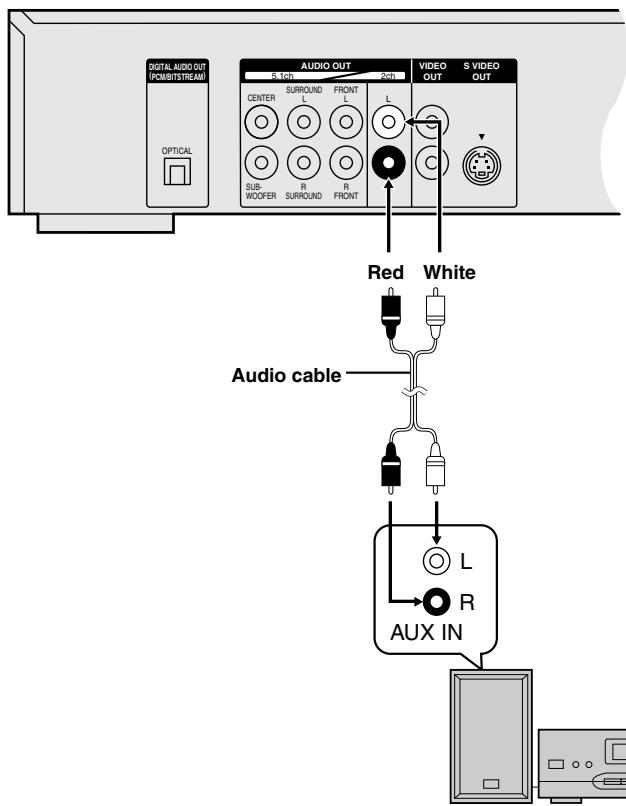
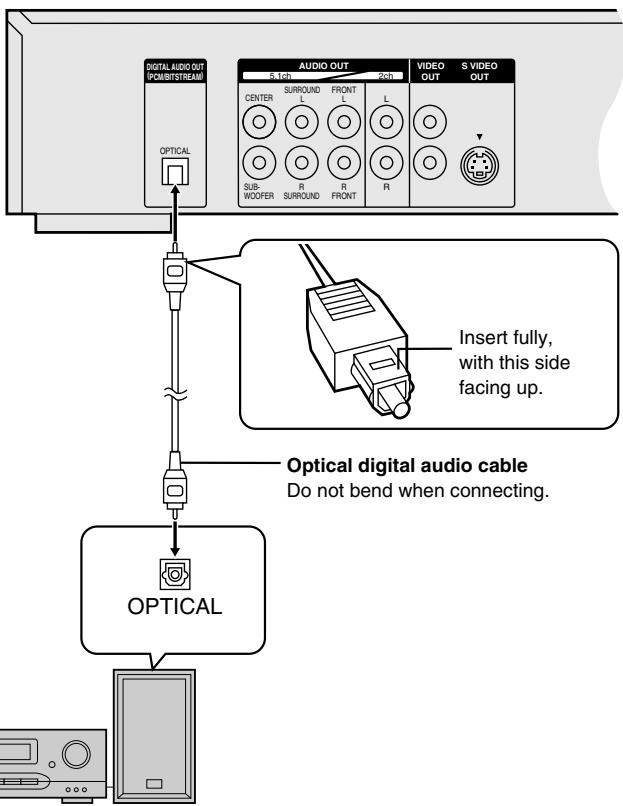
To enjoy stereo or Dolby Pro Logic
A Analog connection
Connect an analog amplifier or system component.
B Digital connection
Connect a digital amplifier or system component.
Change "Digital output" (→ page 20).
flowchart
graph TD
    A["OPTICAL"] --> B["Optical digital audio cable"]
    B --> C["OPTICAL"]
    D["Digital Audio Out / PCM/Bit Stream"] --> E["OPTICAL"]
    F["Audio Out"] --> G["5.1ch CENTER"]
    F --> H["5.1ch SUB-WOOFER"]
    F --> I["5.1ch SURROUND"]
    F --> J["5.1ch FRONT"]
    F --> K["5.1ch R"]
    F --> L["5.1ch S VIDEO OUT"]
Amplifier or system component
To enjoy Dolby Pro Logic
- If you connect an amplifier that can decode Dolby Pro Logic, you will also need to connect center and surround speakers to enjoy surround sound. Read the instructions for the equipment for connection details.
- Turn Advanced Surround off (→ page 10). Dolby Pro Logic will not function correctly if Advanced Surround is on.
Recording to MDs or cassette tapes
■ Analog recording
You can record to an MD or cassette deck. Using analog connection means sound will be unaffected by the copy guards found on DVDs.
To make an analog recording
Connect the recording equipment with an audio cable ( A above).
■ Digital recording
You can record the digital signal directly onto an MD.
The signals on DVDs will be converted to 48 kHz/16 bit linear PCM. Ensure the following conditions are met.
- There is no copy guard recorded on the disc.
●The recording equipment can handle a sampling frequency of 48 kHz.
To make a digital recording
- Connect the recording equipment with an optical digital audio cable ( B above).
- When recording DVDs, make the following settings. ADVANCED SURROUND V.S.S.: OFF ( page 10) PCM Down Conversion: Yes ( page 20) Dolby Digital/DTS Digital Surround/MPEG: PCM ( page 20)
MPEG: Not available in Asia.
This chart shows the settings for this unit. Change the settings to suit your preferences and to suit the unit to the environment in which it is being used. These settings are retained in memory until they are changed, even if the unit is turned off. See page 19 for details on menu operation.
● Underlined items are the factory preset.
| Menus | Items | Options | ||
Disc | AudioDVD-ADVD-VChoose the preferred audio language. | English Spanish | French Original*1 | German Italian Other * * * * *2 |
| SubtitleDVD-ADVD-VChoose the preferred subtitle language. | Automatic*3 Italian | English Spanish | French German Other * * * * *2 | |
| MenusDVD-ADVD-VChoose the preferred language for disc menus. | English Spanish | French Other * * * * *2 | German Italian Other * * * * *2 | |
| For Asia: Language options are English and Chinese. | ||||
| RatingsDVD-VSet a ratings level to limit DVD-Video play.•The password screen is shown if you choose levels 0 to 7 or if you choose “ Ratings” when levels 0 to 7 have been selected. (→ page 19)•Select “Level 0” to prevent play of discs that do not have ratings levels recorded on them. | Setting ratings (When level 8 is selected)8 No Limit 1 to 7*4 0 Lock AllChanging ratings (When level 0–7 is selected)Unlock Player Change LevelChange Password Temporary Unlock | |||
Video | TV Aspect (→ page 5)Choose the setting to suit your television and preference. | 4:3 Pan&Scan 4:3 Letterbox 16:9 | ||
| (For the United Kingdom, Continental Europe and Russia)AV1 Output (→ page 4)Choose the video signal format to be output from the AV1 SCART terminal. | Video S-Video RGB | |||
| Still Mode (→ page 21)Specify the type of picture shown when paused. | Automatic Field Frame | |||
| NTSC Disc OutputChoose whether PAL 60 or NTSC signals are output during playback of NTSC discs (→ page 6). | PAL60: when connected to a PAL television.NTSC: when connected to an NTSC television.(For Asia: “NTSC” is the factory preset.) | |||
Audio | Speaker SettingDVD-ADVD-V (→ page 19)Choose the settings to suit your audio system and the listening environment. | Multi-channel*5Speaker presence and sizeDelay time Channel balance2-channel*6 | ||
| PCM Down ConversionDVD-ADVD-V (→ page 20) | No Yes | |||
| Dolby DigitalDVD-ADVD-V (→ page 20) | Bitstream PCM | |||
| DTS Digital SurroundDVD-ADVD-V (→ page 20) | PCM Bitstream | |||
| (For the United Kingdom, Continental Europe, Russia, Australia and N.Z.) MPEGDVD-ADVD-V (→ page 20) | PCM Bitstream | |||
| D. Range CompressionDVD-ADVD-V (Dolby Digital only)Change the dynamic range for late night viewing. | Off On | |||
| Audio during SearchDVD-ADVD-V VCDChoose whether to have sound during search. | On Off*7 | |||
Display | Menu LanguageChoose the preferred language for these menus and the on-screen messages. | English Français DeutschItaliano Español中文For Asia: English 中文 | ||
| On-Screen MessagesChoose whether to show on-screen messages or not. | On Off | |||
Others | DVD-Video ModeSelect how to play pictures contained on some DVD-Audio.*8The setting returns to “Off” when you remove the disc or turn the unit off. | Off On | ||
| DemoA demonstration of the unit’s on-screen displays starts when you select “On”. The demonstration stops when you press a button and the setting reverts to “Off”. | Off On | |||
Remarks
^1 The original language of each disc will be selected.
^2 Input a code number with the numbered buttons ( page 23).
※3If the language selected for “Audio” is not available, subtitles of that language will automatically appear if available on that disc.
※4Prohibits play of DVD-Video with corresponding ratings recorded on them.
※5When you have connected 3 or more speakers.
※6When you have connected 2 speakers or an amplifier with a Dolby Pro Logic decoder.
※7Audio will still be heard during search with some DVD-Audio.
*8Off: DVD-Audio are played as DVD-Audio. On: DVD-Video contents found on DVD-Audio can be played.
Common procedures
Remote control only
See page 18 for menu and option details.
1 Press [SETUP] to show the menus.
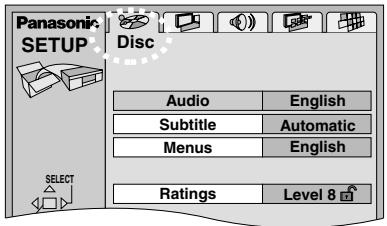
2 Move [◀, ▶] to select the menu's tab.
The screen changes to display the menu.
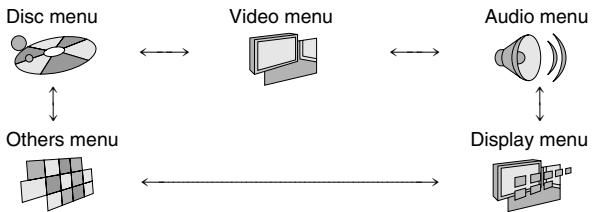
flowchart
graph TD
    A["Disc menu"] <--> B["Video menu"]
    B <--> C["Audio menu"]
    C <--> D["Display menu"]
    D <--> E["Others menu"]
3 Move [▲, ▼] to select the item you want to change and press [ENTER].
4 Move [▲, ▼] to select the option and press [ENTER].
The screen now shows the menu again.
To return to the previous screen
Press [RETURN].
When you are finished
Press [SETUP].
Entering a password (Ratings)
DVD-V
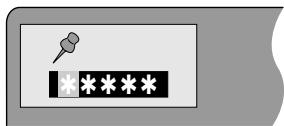
The password screen is shown when you select levels 0 to 7.
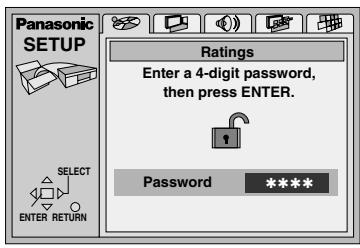
-
Input a 4-digit password with the numbered buttons and press [ENTER].
-
If you enter a wrong number, press [CANCEL] to erase it before you press [ENTER].
●The lock symbol appears closed to show the rating is locked. -
Do not forget your password.
-
Press [ENTER] to confirm the 4 digits.
Now, when you insert a DVD-Video that exceeds the ratings limit you set, a message appears on the television. Follow the on-screen instructions.
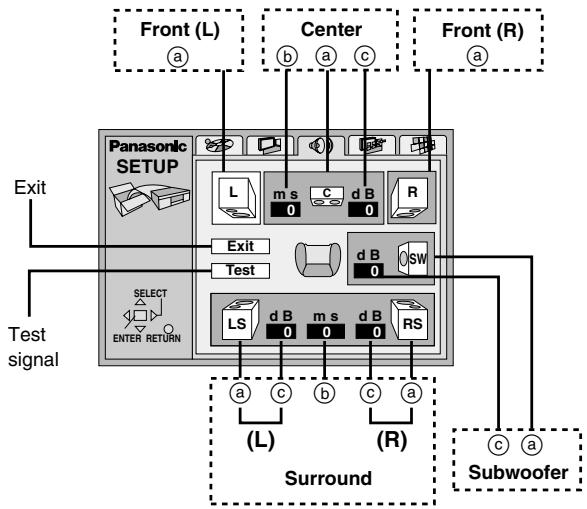
Speaker setting
DVD-A DVD-V
Change speaker presence and size ⓐ, delay time Ⓑ, and channel balance ⓒ to suit the speakers you have connected.
These settings are not necessary when you select "2-channel" (only two speakers are connected).
flowchart
graph TD
    A["Panasonic SETUP"] --> B["Exit"]
    A --> C["Center"]
    A --> D["Front (L)"]
    A --> E["Front (R)"]
    A --> F["Test signal"]
    A --> G["Surround"]
    G --> H["(L)"]
    G --> I["(R)"]
    G --> J["Subwoofer"]
    style A fill:#f9f,stroke:#333
    style B fill:#ccf,stroke:#333
    style C fill:#ccf,stroke:#333
    style D fill:#ccf,stroke:#333
    style E fill:#ccf,stroke:#333
    style F fill:#dfd,stroke:#333
    style G fill:#dfd,stroke:#333
    style H fill:#dfd,stroke:#333
    style I fill:#dfd,stroke:#333
    style J fill:#dfd,stroke:#333
Speaker presence and size (a)
- Use [▲, ▼, ◀, ▶] to select the item and press [ENTER].
- Move [▲, ▼] to select the setting and press [ENTER].
Icon examples: Surround speaker (L)
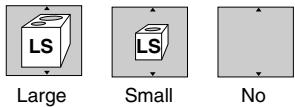
Large: When the speaker supports low-frequency (under 100 Hz) reproduction.
Small: Select when the speaker does not support low-frequency reproduction.
The size setting for the front speakers is automatically determined by the setting for the subwoofer.
Delay time (b)
DVD-V (Dolby Digital, center and surround speakers only)
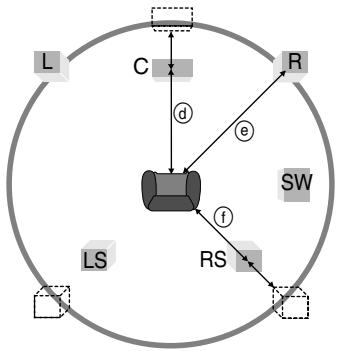
For optimum listening with 5.1-channel sound, all the speakers, except for the subwoofer, should be the same distance from the seating position. If you have to place the center or surround speakers closer to the seating position, adjust the delay time to make up for the difference.
If distance ⓓ (from the center speaker) and ⓕ (from the surround speakers) are the same as or greater than ⓔ (from the front speakers), leave the delay time as “0”, the factory preset.
If either distance ⓓ or ⓕ is less than ⓔ , find the difference in the relevant table and change to the recommended setting.
flowchart
graph TD
    L --> C
    C --> R
    R --> SW
    SW --> RS
    RS --> LS
    LS --> C
    C -->|d| Center
    Center -->|e| R
    Center -->|f| RS
Changing the delay time
- Use [▲, ▼, ◀, ▶] to select the delay time box and press [ENTER].
-
Move [▲, ▼] to adjust the delay time and press [ENTER].
-
Center speaker
| Difference | Setting |
| Approx. 50 cm | 1.3 ms |
| Approx. 100 cm | 2.6 ms |
| Approx. 150 cm | 3.9 ms |
| Approx. 200 cm | 5.3 ms |
●Surround speakers
| Difference | Setting |
| Approx. 200 cm | 5.3 ms |
| Approx. 400 cm | 10.6 ms |
| Approx. 600 cm | 15.9 ms |
Channel balance (©)
- Use [▲, ▼, ◀, ▶] to select "Test" and press [ENTER].
A test signal is output from one speaker at a time, starting with the front left speaker and proceeding clockwise.

flowchart
graph TD
    A["FRONT(L)"] --> B["CENTER"]
    B --> C["FRONT(R)"]
    D["SURROUND(L)"] <--_E["SURROUND(R)"]
    C --> E
    D --> E
- While listening to the test signal, move [▲, ▼] to adjust the volume of the center and surround speakers so they are the same apparent volume as the front speakers.
(The front speakers cannot be adjusted here.)
- Press [ENTER].
The test signal stops.
Note
No signal is output for the subwoofer. To adjust its volume, play something, then return to this screen to adjust to suit your taste.
When you are finished
Use [▲, ▼, ◀, ▶] to select "Exit" and press [ENTER].
Note
The unit may be unable to output as set here due to limitations imposed by the unit itself or the disc being played. (The FL display's "P.PCM" indicator lights or "D.MIX" indicator goes out in these cases.)
Digital output
DVD-A DVD-V
Change the settings when you have connected equipment through this unit's DIGITAL AUDIO OUT terminal (OPTICAL).
PCM Down Conversion
Select how to output the high-quality audio signals (sampling frequencies of 96 kHz and 88.2 kHz) on discs that do not have copyright protection. Choose the settings to suit the equipment you have connected.
| Equipment(Able to handle 88.2 kHz or more) | Setting | Audio output |
| Yes | No | Output as is |
| No | Yes | Down-sampled to 48 kHz or 44.1 kHz |
Note
- Some equipment cannot handle sampling frequencies of 88.2 kHz, even if they can handle 96 kHz. Read your equipment's operating instructions for details.
- Signals are down-sampled to either 48 kHz or 44.1 kHz despite the above settings if they have a sampling frequency of 176.4 kHz or more or are copyright protected.
Dolby Digital, DTS Digital Surround and MPEG※
Bitstream: Select if the equipment you connected can decode the signal. (Factory preset for Dolby Digital)
PCM: Select if the equipment you connected cannot decode the signal. (Factory preset for DTS Digital Surround and MPEG)
IMPORTANT
If the equipment you connected cannot decode the signal, the setting must be changed to PCM. If not, signals the equipment cannot process will be output by this unit, causing high levels of noise which can damage your hearing and the speakers.
*MPEG: Not available in Asia.
Safety precautions
Placement
Set the unit up on an even surface away from direct sunlight, high temperatures, high humidity, and excessive vibration. These conditions can damage the cabinet and other components, thereby shortening the unit's service life.
Do not place heavy items on the unit.
Voltage
Do not use high voltage power sources. This can overload the unit and cause a fire.
Do not use a DC power source. Check the source carefully when setting the unit up on a ship or other place where DC is used.
AC mains lead protection
Ensure the AC mains lead is connected correctly and not damaged. Poor connection and lead damage can cause fire or electric shock. Do not pull, bend, or place heavy items on the lead.
Grasp the plug firmly when unplugging the lead. Pulling the AC mains lead can cause electric shock.
Do not handle the plug with wet hands. This can cause electric shock.
Foreign matter
Do not let metal objects fall inside the unit. This can cause electric shock or malfunction.
Do not let liquids get into the unit. This can cause electric shock or malfunction. If this occurs, immediately disconnect the unit from the power supply and contact your dealer.
Do not spray insecticides onto or into the unit. They contain flammable gases which can ignite if sprayed into the unit.
Service
Do not attempt to repair this unit by yourself. If sound is interrupted, indicators fail to light, smoke appears, or any other problem that is not covered in these instructions occurs, disconnect the AC mains lead and contact your dealer or an authorized service center. Electric shock or damage to the unit can occur if the unit is repaired, disassembled or reconstructed by unqualified persons.
Extend operating life by disconnecting the unit from the power source if it is not to be used for a long time.
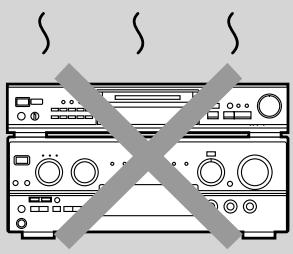
Do not place the unit on amplifiers or equipment that may become hot.
The heat can damage the unit.
natural_image
Illustration of a multi-chamber electronic device with no visible text or symbolsMaintenance
To clean this unit, wipe with a soft, dry cloth.
- Never use alcohol, paint thinner or benzine to clean this unit.
- Before using chemically treated cloth, read the instructions that came with the cloth carefully.
Glossary
Bitstream
This is the digital form of multiple channel audio data (e.g., 5.1 channel) before it is decoded into its various channels.
Decoder
A decoder restores the coded audio signals on DVDs to normal. This is called decoding.
Dolby Digital
This is a method of coding digital signals developed by Dolby Laboratories. Apart from stereo (2-channel) audio, these signals can also be 5.1-channel audio. A large amount of audio information can be recorded on one disc using this method.
Dolby Pro Logic
A surround system where a 4-channel audio track is recorded as 2 channels and then is restored to 4 channels for play. The surround channel is monaural and can reproduce up to 7 kHz.
DTS (Digital Theater Systems)
This surround system is used in many movie theaters around the world. There is good separation between the channels, so realistic sound effects are possible.
Dynamic range
Dynamic range is the difference between the lowest level of sound that can be heard above the noise of the equipment and the highest level of sound before distortion occurs.
Frame still and field still
Frames are the still pictures that go together to make a moving picture. There are about 30 frames shown each second.
One frame is made up of two fields. A regular television shows these fields one after the other to create frames.
A still is shown when you pause a moving picture. A frame still is made up of two alternating fields, so the picture may appear blurred, but overall quality is high.
A field still is not blurred, but it has only half the information of a frame still so picture quality is lower.
I/P/B
MPEG 2, the video compression standard adopted for use with DVD-Video, codes frames using these 3 picture types.
I: Intra coded picture (I-picture)
This is the standard picture and is a complete picture in itself.
This means it has the best picture quality and is the best to use when adjusting the picture.
P: Predictive coded picture (P-picture)
This picture is calculated based on past I or P-pictures.
B: Bidirectionally-predictive coded picture (B-picture)
This picture is calculated by comparing past and future I and P-pictures so it has the lowest volume of information.
Linear PCM (pulse code modulation)
PCM is the usual digital method used for music CDs. DVDs have a greater volume so they use linear PCM, which has a higher sampling rate. Compressed PCM signals are called packed PCM (PPCM).
Playback control (PBC)
If a Video CD has playback control, you can select scenes and information with menus (called menu play in these instructions).
Before requesting service for this unit, check the chart below for a possible cause of the problem you are experiencing. Some simple checks or a minor adjustment on your part may eliminate the problem and restore proper operation.
If you are in doubt about some of the check points, or if the remedies indicated in the chart do not solve the problem, consult your dealer for instructions.
Reference pages are shown as black circled numbers ④.
Power
| No power. | ●Insert the AC mains lead securely into the household mains socket. 4 |
| The unit is automatically switched to the standby mode. | ●To conserve power, the unit automatically switches to standby after approximately 30 minutes in the stop mode. Turn the power back to ON. |
Operation
| No response when buttonspressed. | Some operations may be prohibited by the disc.The unit may not be operating properly due to lightning, static electricity or some other external factor.Reset procedure:Press [⏻] to switch the unit to the standby mode and then back to ON.Alternatively, press [⏻] to switch the unit to the standby mode, disconnect the AC mains lead, and then reconnect it. |
| No operations can be performedwith the remote control. | Check the batteries are installed correctly.5The batteries are depleted: Replace them with new ones.5Point the remote control at the remote control sensor and operate.5 |
| Play fails to start even when[▶](PLAY) is pressed.Play starts but then stopsimmediately. | Condensation has formed: Wait 1 to 2 hours for it to evaporate.This unit cannot play discs other than DVD-Audio, DVD-Video, Video CD and CD.6You can only play DVD-Video if their region number is the same or includes the same region number asthe unit or if the DVD-Video is marked “ALL”. Confirm the region number for the unit on the rear panel.The disc may be dirty and may require cleaning.Ensure that the disc is installed with the label of the side to be played facing upwards.7 |
| Alternative languages fail to beselected. | An alternative language is not selected with discs which do not contain more than one language.In the case of some discs, the alternative language cannot be selected with [AUDIO] or[SUBTITLE]. Try selecting it from the disc’s menu if one is available.7 |
| No subtitles. | Subtitles appear only with discs that contain them.Subtitles are cleared from the television. Display the subtitles.18 |
| Soundtrack and/or subtilleanguage is not the one selectedwith the SETUP menus. | The language is not recorded on the disc. |
| Angle cannot be changed. | This function is dependent on software availability. Even if a disc has a number of angles recorded, theseangles may be recorded for specific scenes only.13 |
| Dialogue Enhancer has no effect. | This feature does not work when the unit is outputting bitstream signals. |
| You have forgotten your ratingspassword.Reset all the settings to FactoryPreset. | While stopped, press and hold [◀◀] and [■■] on the unit and then also press and hold [▲] on the unit until“Initialized” disappears from the television. Turn the unit off and on again.All initial settings will return to the default values. |
Sound
| No sound. Distorted sound. | ●Check the connections. 4 15 17 ●Check the volume on the equipment you have connected. ●Ensure that the input settings for the television and stereo system are correct. ●If you have connected this unit to an amplifier through the AUDIO OUT (5.1 ch) terminals, go to the Audio menu in the SETUP menus, and change “Speaker Setting” to suit your speakers. Select the large or small icon for all the speakers you have connected. 19 ●Turn Advanced Surround off if it causes distortion. 10 ●Output from this unit will be in stereo (two channels) when Advanced Surround is on. Turn Advanced Surround off if you are using three or more speakers. 10 ●Due to the specifications on some types of televisions, both video and audio may be cut off when you turn the AUDIO ONLY feature on. 10 ●If the “D.MIX” indicator on the FL display goes out while playing a multi-channel DVD-Audio disc, sound will only be output from speakers specified by the disc. Read the disc’s instructions for details. |
| Piercing noise comes from the speakers. | ●If you have connected this unit to other equipment through the DIGITAL AUDIO OUT terminal, ensure you have selected the correct settings for “Dolby Digital”, “DTS Digital Surround” and “MPEG” in the SETUP menu’s Audio menu. 20 |
Picture
| Picture distorted. | Some distortion is normal during SEARCH.The screen may be disrupted briefly when you turn on and off the AUDIO ONLY feature.10 |
| No picture. | Ensure that the equipment is connected properly.4Make sure the television is on.Ensure the television’s video input setting (e.g., VIDEO 1) is correct. |
| The picture shown on the television is not normal.(The sides of the picture are cut off or black bands appear at the top and bottom of the screen.) | Go to the Video menu in the SETUP screen, and change “TV Aspect” to suit your television. You may also need to change the screen mode on the television itself.5Ensure that the unit is connected directly to the television, and is not connected through a video cassette recorder. |
| Picture quality is poor. | Check the settings in the GUI screen’s video menu.15 |
| The SETUP menus and other screens shown on the television are displayed incorrectly.Colors appear faded. | The unit and television are using different video systems.For the United Kingdom, Continental Europe, Russia, Australia and N.Z.Use a multi-system or PAL television.For AsiaUse a multi-system or NTSC television. |
Displays
| “NO PLAY” appears on the unit’s display. | ●You inserted a disc the unit cannot play; insert one it can.6 |
| No on-screen display. | ●Go to Display in the SETUP menus, and select “On” for “On-Screen Messages”.13 |
| GUI screens not displayed or only partially displayed on the television. | ●Move [▲,▼] while the rightmost icon is highlighted to move them down.14 |
| The disc’s menu is displayed in a different language. | ●Go to Disc in the SETUP menus, and select the preferred language for “Menus”.18 |
| No menu play. | ●Menus are only displayed if they are recorded on the disc. |
| “CHECK THE DISC” appears on the unit’s display. | ●Disc is dirty. Wipe the disc clean. |
| “ERROR” appears on the unit’s display. | ●The track playing has been recorded with a nonstandard system. |
| “H□□” appears on the unit’s display. | ●Trouble is likely to have occurred. The number following “H” depends on the status of the unit. Reset procedure:Press [⏻] to switch the unit to the standby mode and then back to ON. Alternatively, press [⏻] to switch the unit to the standby mode, disconnect the AC mains lead, and then reconnect it.●If the service numbers fail to clear, note the service number and contact a qualified service person. |
| □□ stands for a number. | |
| “NO DISC” appears on the unit’s display. | ●You haven’t inserted a disc; insert one.●You haven’t inserted the disc correctly; insert it correctly.7 |
Language code list
| Abkhazian: | 6566 | Chinese: | 9072 | Hausa: | 7265 | Lithuanian: | 7684 | Romanian: | 8279 | Telugu: | 8469 |
| Afar: | 6565 | Corsican: | 6779 | Hebrew: | 7387 | Macedonian: | 7775 | Russian: | 8285 | Thai: | 8472 |
| Afrikaans: | 6570 | Croatian: | 7282 | Hindi: | 7273 | Malagasy: | 7771 | Samoan: | 8377 | Tibetan: | 6679 |
| Albanian: | 8381 | Czech: | 6783 | Hungarian: | 7285 | Malay: | 7783 | Sanskrit: | 8365 | Tigrinya: | 8473 |
| Ameharic: | 6577 | Danish: | 6865 | Icelandic: | 7383 | Malayalam: | 7776 | Scots Gaelic: | 7168 | Tonga: | 8479 |
| Arabic: | 6582 | Dutch: | 7876 | Indonesian: | 7378 | Maltese: | 7784 | Serbian: | 8382 | Turkish: | 8482 |
| Armenian: | 7289 | English: | 6978 | Interlingua: | 7365 | Maori: | 7773 | Serbo-Croatian: | 8372 | Turkmen: | 8475 |
| Assamese: | 6583 | Esperanto: | 6979 | Irish: | 7165 | Marathi: | 7782 | Shona: | 8378 | Twi: | 8487 |
| Aymara: | 6588 | Estonian: | 6984 | Italian: | 7384 | Moldavian: | 7779 | Sindhi: | 8368 | Ukrainian: | 8575 |
| Azerbaijani: | 6590 | Faroese: | 7079 | Japanese: | 7465 | Mongolian: | 7778 | Singhalese: | 8373 | Urdu: | 8582 |
| Bashkir: | 6665 | Fiji: | 7074 | Javanese: | 7487 | Nauru: | 7865 | Slovak: | 8375 | Uzbek: | 8590 |
| Basque: | 6985 | Finnish: | 7073 | Kannada: | 7578 | Nepali: | 7869 | Slovenian: | 8376 | Vietnamese: | 8673 |
| Bengali; Bangla: | 6678 | French: | 7082 | Kashmiri: | 7583 | Norwegian: | 7879 | Somali: | 8379 | Volapük: | 8679 |
| Bhutani: | 6890 | Frisian: | 7089 | Kazakh: | 7575 | Oriya: | 7982 | Spanish: | 6983 | Welsh: | 6789 |
| Bihari: | 6672 | Galician: | 7176 | Kirghiz: | 7589 | Pashto, Pushto: | 8083 | Sundanese: | 8385 | Wolof: | 8779 |
| Breton: | 6682 | Georgian: | 7565 | Korean: | 7579 | Persian: | 7065 | Swahili: | 8387 | Xhosa: | 8872 |
| Bulgarian: | 6671 | German: | 6869 | Kurdish: | 7585 | Polish: | 8076 | Swedish: | 8386 | Yiddish: | 7473 |
| Burmese: | 7789 | Greek: | 6976 | Laotian: | 7679 | Portuguese: | 8084 | Tagalog: | 8476 | Yoruba: | 8979 |
| Byelorussian: | 6669 | Greenlandic: | 7576 | Latin: | 7665 | Punjabi: | 8065 | Tajik: | 8471 | Zulu: | 9085 |
| Cambodian: | 7577 | Guarani: | 7178 | Latvian, Lettish: | 7686 | Quechua: | 8185 | Tamil: | 8465 | ||
| Catalan: | 6765 | Gujarati: | 7185 | Lingala: | 7678 | Rhaeto-Romance: | 8277 | Tatar: | 8484 |
Signal system: PAL 625/50, PAL 525/60, NTSC
Operating temperature range: +5 to +35 °C
Operating humidity range: 5 to 90 % RH (no condensation)
Discs played (8 or 12 cm):
(1) DVD-Video
DVD-R (DVD-Video compatible)
(2) DVD-Audio
(3) CD-Audio (CD-DA)
(4) Video CD
(5) CD-R/CD-RW (CD-DA, Video CD formatted discs)
(6) MP3
●Maximum number of chapters and titles recognizable: 999 chapters and 511 titles
- Compatible compression rate: between 32 kbps and 320 kbps
Video output:
Output level: 1 Vp-p (75 Ω)
Output terminal:
For the United Kingdom, Continental Europe and Russia
| For Australia, N.Z. and Asia | Pin jack (2 systems)/AV1/AV2 Pin jack (2 systems) |
S video output:
Y output level: 1 Vp-p (75 Ω)
C output level: NTSC; 0.286 Vp-p (75 Ω)
PAL; 0.300 Vp-p (75 Ω)
Output terminal:
For the United Kingdom, Continental Europe and Russia
| S terminal (1 system)/AV1 | |
| For Australia, N.Z. and Asia | S terminal (1 system) |
Component video output: For Australia, N.Z. and Asia
Y output level: 1 Vp-p (75 Ω)
P_B output level: 0.7 Vp-p (75 Ω)
P_R output level: 0.7 Vp-p (75 Ω)
Output terminal: Pin jack
(Y: green, P_B : blue, P_R : red)
Number of terminals: 1 system
RGB video output:
For the United Kingdom, Continental Europe and Russia
| R output level: | 0.7 Vp-p (75 Ω) |
| G output level: | 0.7 Vp-p (75 Ω) |
| B output level: | 0.7 Vp-p (75 Ω) |
| Output terminal: | AV1 |
| Number of terminal: | 1 system |
Audio output:
Output level: 2 Vrms (1 kHz, 0 dB)
Output terminal:
For the United Kingdom, Continental Europe and Russia
| For Australia, N.Z. and Asia | Pin jack/AV1/AV2 |
| Pin jack | |
| umber of terminals: | |
| 2ch: | 1 system |
| 5.1ch discrete output (5.1ch): | 1 system |
This product may receive radio interference caused by mobile telephones during use. If such interference is apparent, please increase separation between the product and the mobile telephone.
Manufactured under license from Dolby Laboratories.
"Dolby", "Pro Logic" and the double-D symbol are trademarks of Dolby Laboratories.
Audio performance:
| (1) Frequency response: | |
| ●DVD (linear audio): | 4 Hz–22 kHz (48 kHz sampling) |
| 4 Hz–44 kHz (96 kHz sampling) | |
| ●DVD-Audio: | 4 Hz–88 kHz (192 kHz sampling) |
| ●CD audio: | 4 Hz–20 kHz |
(2) S/N ratio:
- CD audio: 115 dB
(3) Dynamic range:
●DVD (linear audio): 102 dB
- CD audio: 98 dB
(4) Total harmonic distortion:
- CD audio: 0.0025 %
Digital audio output:
Optical digital output: Optical terminal
Phones jack:
| Pickup: | Wave length: | 658 nm/790 nm |
| Laser power: | CLASS 2/CLASS 1 |
NORSK
For the United Kingdom, Continental Europe, Russia, Australia and N.Z.
| For Asia | AC 220–240 V, 50 Hz |
| AC 110–240 V, 50/60 Hz | |
| Power consumption: | 15 W |
| Dimensions: | 430 (W)×248 (D)×82 (H) mm(excluding protrusions) |
| Class: | 2.6 kg |
Power consumption in standby mode: approx. 4 W
Note
Specifications are subject to change without notice.
Mass and dimensions are approximate.
For the United Kingdom, Continental Europe, Russia, Australia and N.Z.
THIS UNIT IS INTENDED FOR USE IN MODERATE CLIMATES.
For Asia
THIS UNIT IS INTENDED FOR USE IN TROPICAL CLIMATES.
Manufactured under license from Digital Theater Systems, Inc. US Pat. No.5,451,942, 5,956,674, 5,974,380, 5,978,762 and other world-wide patents issued and pending. "DTS" and "DTS Digital Surround" are registered trademarks of Digital Theater Systems, Inc. © 1996, 2000 Digital Theater Systems, Inc. All rights reserved.
This product incorporates copyright protection technology that is protected by method claims of certain U.S. patents and other intellectual property rights owned by Macrovision Corporation and other rights owners. Use of this copyright protection technology must be authorized by Macrovision Corporation, and is intended for home and other limited viewing uses only unless otherwise authorized by Macrovision Corporation. Reverse engineering or disassembly is prohibited.