DVDF61P - DVD player PANASONIC - Free user manual and instructions
Find the device manual for free DVDF61P PANASONIC in PDF.


User questions about DVDF61P PANASONIC
0 question about this device. Answer the ones you know or ask your own.
Ask a new question about this device
Download the instructions for your DVD player in PDF format for free! Find your manual DVDF61P - PANASONIC and take your electronic device back in hand. On this page are published all the documents necessary for the use of your device. DVDF61P by PANASONIC.
USER MANUAL DVDF61P PANASONIC
Thank you for purchasing this product. For optimum performance and safety, please read these instructions carefully before connecting, operating or adjusting this product. Please keep this manual for future reference.

AUDIO/VIDEO

DIGITALVIDEO
For U.S.A.

As an ENERGY STAR® Partner, Panasonic has determined that this product meets the ENERGY STAR® guidelines for energy efficiency.
Table of contents
Getting started
IMPORTANT SAFETY INSTRUCTIONS 3
Control reference guide 3
Accessories. 4
Connection 4
Disc information 6
The remote control. 7
Quick setup. 7
Basic operations
Basic play 8
Navigation menus. 10
Advanced operations
Convenient features 12
Changing play sequence 14
Using On-Screen Menu Icons 15
Changing settings 18
Reference
Troubleshooting guide. 20
Maintenance 21
Limited Warranty (ONLY FOR U.S.A.). 22
Product Service 22
(Spanish Quick Reference)
Glossary . Back cover
Specifications. Back cover
These operating instructions are applicable to models DVD-F65 and DVD-F61 for a variety of regions.
Unless otherwise indicated, illustrations in these operating instructions are of the unit for U.S.A. and Canada.
Region numbers
Are allocated to DVD players and software according to where they are sold. See page 6 for the region number for your unit.
The model number and serial number of this product can be found on either the back or the bottom of the unit. Please note them in the space provided below and keep for future reference.
MODEL NUMBER
SERIAL NUMBER
The warranty for the U.S.A. is on page 22.
THIS PRODUCT UTILIZES A LASER. USE OF CONTROLS OR ADJUSTMENTS OR PERFORMANCE OF PROCEDURES OTHER THAN THOSE SPECIFIED HEREIN MAY RESULT IN HAZARDOUS RADIATION EXPOSURE. DO NOT OPEN COVERS AND DO NOT REPAIR YOURSELF. REFER SERVICING TO QUALIFIED PERSONNEL.
WARNING:
TO REDUCE THE RISK OF FIRE, ELECTRIC SHOCK OR PRODUCT DAMAGE, DO NOT EXPOSE THIS APPARATUS TO RAIN, MOISTURE, DRIPPING OR SPLASHING AND THAT NO OBJECTS FILLED WITH LIQUIDS, SUCH AS VASES, SHALL BE PLACED ON THE APPARATUS.
CAUTION!
- DO NOT INSTALL OR PLACE THIS UNIT IN A BOOKCASE, BUILT-IN CABINET OR IN ANOTHER CONFINED SPACE. ENSURE THE UNIT IS WELL VENTILATED. TO PREVENT RISK OF ELECTRIC SHOCK OR FIRE HAZARD DUE TO OVERHEATING, ENSURE THAT CURTAINS AND ANY OTHER MATERIALS DO NOT OBSTRUCT THE VENTILATION VENTS.
- DO NOT OBSTRUCT THE UNIT'S VENTILATION OPENINGS WITH NEWSPAPERS, TABLECLOTHS, CURTAINS, AND SIMILAR ITEMS.
DO NOT PLACE SOURCES OF NAKED FLAMES, SUCH AS LIGHTED CANDLES, ON THE UNIT. - DISPOSE OF BATTERIES IN AN ENVIRONMENTALLY FRIENDLY MANNER.
| CAUTION | - LASER RADIATION WHEN OPEN. DO NOT STARE INTO BEAM. FDA 21 CFR / Class II |
| CAUTION | - VISIBLE AND INVISIBLE LASER RADIATION WHEN OPEN.AVOID EXPOSURE TO BEAM. IEC68025-1 / Class 3b |
| VARYING | - SYNGLI OCH OSYNLIG LASERSTRALNING NAR DENNA DEL APERPND. BETRAKTA J/E STRALEN. |
| ADVVARSE | - SYNGLI OUG USYNLIG LASERSTRALING VED ABNING.UNDGÀ UDSSETTELEF RÉSULTANT. |
| ADVVARSE | - SYNGLI OUG OSYNLIG LASERSTRALING NAR DEKSEL APNSES.UNNGÀ EXPONIERING RÉSULTANT. |
| VAR! | - AVIATTAESA OLT ALTTINA NAKYAA JA NAKYMATON.LASERSATELEY LLE. ÀLA KATO SATESEEN. |
| VORSICHT | - SIGHTBARE UNUSCINTAGE LASERSTRALUNG, WENNEABECKING GEOPNF. NICTY DEM STRAHL. AUSETZEN. |
| ATTENTION | - RAYMONMENT LASER VISIBLE ET IMINSIBLE EN CAS.DOUVERTURE. EXPOSION DANGERESEU A FASCEAU. |
| 注意 | - 打印时可有公司及不可见激光辐射。避免激光照射使用。 |
| 注意 | - 一企一命制、可及及不可视视一下光(光亮出来)。 |
(Inside of product)

The laser product label has not been attached to products for the U.S.A. and Canada.
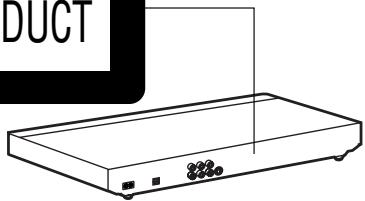
Units for Asia
THIS UNIT IS INTENDED FOR USE IN TROPICAL CLIMATES.
Units for Australia and N.Z.
THIS UNIT IS INTENDED FOR USE IN MODERATE CLIMATES.
This product may receive radio interference caused by mobile telephones during use. If such interference is apparent, please increase separation between the product and the mobile telephone.
THE FOLLOWING APPLIES ONLY IN THE U.S.A.
CAUTION:
This equipment has been tested and found to comply with the limits for a Class B digital device, pursuant to Part 15 of the FCC Rules. These limits are designed to provide reasonable protection against harmful interference in a residential installation. This equipment generates, uses and can radiate radio frequency energy and, if not installed and used in accordance with the instructions, may cause harmful interference to radio communications. However, there is no guarantee that interference will not occur in a particular installation. If this equipment does cause harmful interference to radio or television reception, which can be determined by turning the equipment off and on, the user is encouraged to try to correct the interference by one or more of the following measures:
- Reorient or relocate the receiving antenna.
- Increase the separation between the equipment and receiver.
- Connect the equipment into an outlet on a circuit different from that to which the receiver is connected.
- Consult the dealer or an experienced radio/TV technician for help. Any unauthorized changes or modifications to this equipment would void the user's authority to operate this device.
This device complies with Part 15 of the FCC Rules. Operation is subject to the following two conditions: (1) This device may not cause harmful interference, and (2) this device must accept any interference received, including interference that may cause undesired operation.
THE FOLLOWING APPLIES ONLY IN THE U.S.A. AND CANADA


CAUTION:
TO REDUCE THE RISK OF ELECTRIC SHOCK,DO NOT REMOVE SCREWS. NO USER-SERVICEABLE PARTS INSIDE. REFER SERVICING TO QUALIFIED SERVICE PERSONNEL.

The lightning flash with arrowhead symbol, within an equilateral triangle, is intended to alert the user to the presence of uninsulated "dangerous voltage" within the product's enclosure that may be of sufficient magnitude to constitute a risk of electric shock to persons.

The exclamation point within an equilateral triangle is intended to alert the user to the presence of important operating and maintenance (servicing) instructions in the literature accompanying the appliance.
For U.S.A. and Canada
CAUTION:
TO PREVENT ELECTRIC SHOCK MATCH WIDE BLADE OF PLUG TO WIDE SLOT, FULLY INSERT.
Before moving the unit, ensure the disc trays are empty.
Failure to do so will risk severely damaging the discs and the unit.
User memo:
DATE OF PURCHASE
DEALER NAME
DEALER ADDRESS
TELEPHONE NUMBER
Read these operating instructions carefully before using the unit. Follow the safety instructions on the unit and the applicable safety instructions listed below. Keep these operating instructions handy for future reference.
1) Read these instructions.
2) Keep these instructions.
3) Heed all warnings.
4) Follow all instructions.
5) Do not use this apparatus near water.
6) Clean only with dry cloth.
7) Do not block any ventilation openings. Install in accordance with the manufacturer's instructions.
8) Do not install near any heat sources such as radiators, heat registers, stoves, or other apparatus (including amplifiers) that produce heat.
9) Do not defeat the safety purpose of the polarized or grounding-type plug. A polarized plug has two blades with one wider than the other. A grounding-type plug has two blades and a third grounding prong. The wide blade or the third prong are provided for your safety. If the provided plug does not fit into your outlet, consult an electrician for replacement of the obsolete outlet.
10) Protect the power cord from being walked on or pinched particularly at plugs, convenience receptacles, and the point where they exit from the apparatus.
11) Only use attachments/accessories specified by the manufacturer.
12) Use only with the cart, stand, tripod, bracket, or table specified by the manufacturer, or sold with the apparatus. When a cart is used, use caution when moving the cart/apparatus combination to avoid injury from tip-over.
13) Unplug this apparatus during lightning storms or when unused for long periods of time.
14) Refer all servicing to qualified service personnel. Servicing is required when the apparatus has been damaged in any way, such as power-supply cord or plug is damaged, liquid has been spilled or objects have fallen into the apparatus, the apparatus has been exposed to rain or moisture, does not operate normally, or has been dropped.
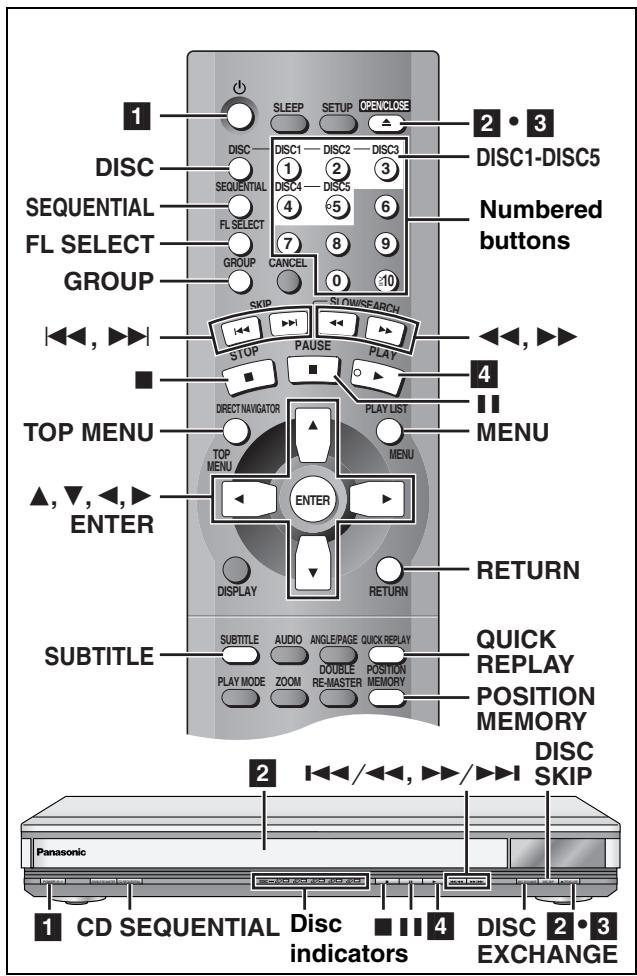
Control reference guide
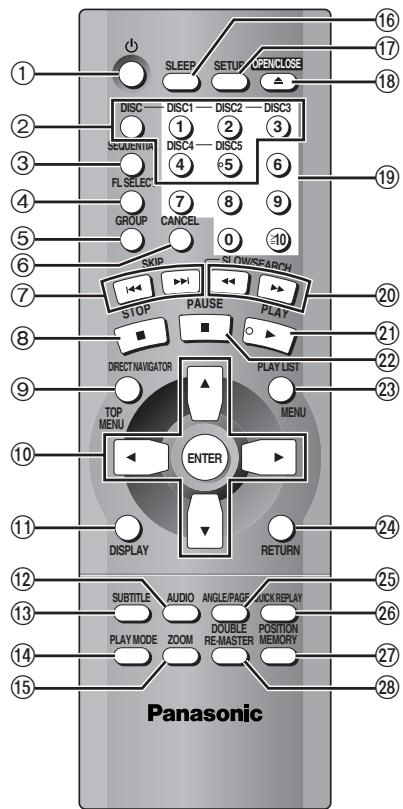
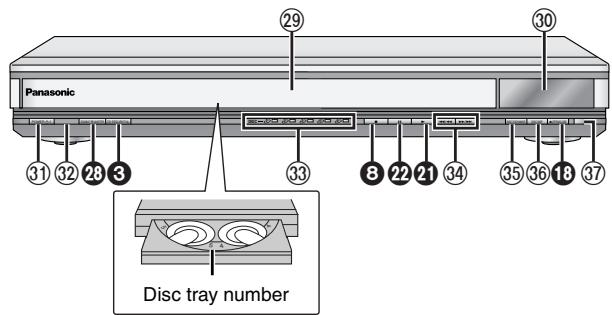
- Buttons such as 3 function the same as those on the remote control.
- The actual marking of the standby/on switch depends on the area.
Illustrations in these operating instructions use the markings shown in the above illustration.

Page
① Standby/on button (O). 7
② Disc select button (DISC), Disc buttons (DISC 1-DISC 5) ..... 9
③ Sequential button (SEQUENTIAL). 9
④ FL select button (FL SELECT). 9
(5) Group button (GROUP) 9
⑥ Cancel button (CANCEL). 14
⑦ Skip buttons (▲▲, ▲▲) SKIP) 8
⑧ Stop button (■ STOP) 8
⑨ Top menu, Direct navigator button (TOP MENU, DIRECT NAVIGATOR) 8, 11
10 Cursor buttons ( , , ,) ,Enter button (ENTER). 7
⑪ Display button (DISPLAY) 15
⑫ Audio button (AUDIO) 12
念 Subtitle button (SUBTITLE). 12
14 Play mode button (PLAY MODE). 14
⑤ Zoom button (ZOOM) 13
⑥ Sleep button (SLEEP) 13
⑦ Setup button (SETUP) 7, 19
18Drawer open/close button ( OPEN/CLOSE) 8
19 Numbered buttons (1-9, 0, ≥10). 9
20 Slow/Search buttons (▲▲, ▲▶ SLOW/SEARCH) 8
②1 Play button (▶ PLAY). 8
22 Pause button (II PAUSE). 8
23 Menu, Play list button (MENU, PLAY LIST) 8, 11
24 Return button (RETURN) 7
25 Angle/page button (ANGLE/PAGE) 12, 13
26 Quick replay button (QUICK REPLAY) 9
^27 Position memory button (POSITION MEMORY). 9
Double re-master button (DOUBLE RE-MASTER). 13
29 8
③0 FL Display. 9
③ Standby/on switch ( /1) 7 Press to switch the unit from on to standby mode or vice versa. In standby mode, the unit is still consuming a small amount of power.
② Units sold outside the U.S.A. and Canada Standby indicator (U) When the unit is connected to the AC mains supply, this indicator lights up in standby mode and goes out when the unit is turned on.
33Disc indicators (DISC 1-5) 8
③4 Skip, Search buttons (I←/←, ▷/→I). 8
35 Disc exchange button (DISC EXCHANGE). 9
③6 Disc skip button (DISC SKIP) 8
Remote control signal sensor

Please check and identify the supplied accessories. Use numbers indicated in parentheses when asking for replacement parts. (Only for U.S.A.) To order accessories contact 1-800-332-5368 or web site (http://www.panasonic.com). (For other areas) To order accessories, call the dealer from whom you have made your purchase.
1 Remote control
U.S.A. and Canada
(N2QAJB000070)
Other areas
(N2QAJB000071)
1 AC power supply cord
U.S.A. and Canada
(RJA0065-A)
Australia and N.Z.
(RJA0035-2X)
Asia
(RJA0019-2X)

1 Audio/video cable (K2KA6CA00001)

2 Remote control batteries
Note
The included AC power supply cord is for use with this unit only. Do not use it with other equipment.
Connection
Before connection
- Disconnect the AC power supply cord.
-
Turn off all equipment and read the appropriate operating instructions.
-
The equipment connections described are examples.
- Peripheral equipment and optional cables sold separately unless otherwise indicated.
Connection to a television
This page explains how to connect the unit to a television and set it up so you hear the audio through the television's speakers. To get the full benefit from the powerful multi-channel audio found on DVDs, you should connect an amplifier and speakers.
Do not place the unit on amplifiers or equipment that may become hot.
The heat can damage the unit.
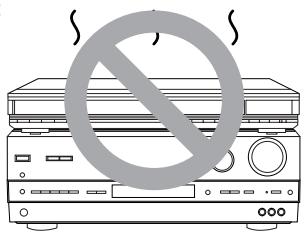
Connect your unit directly to your television.
Do not connect the unit through your video cassette recorder when setting up your home entertainment system, because the picture may not be played correctly due to the copy guard.
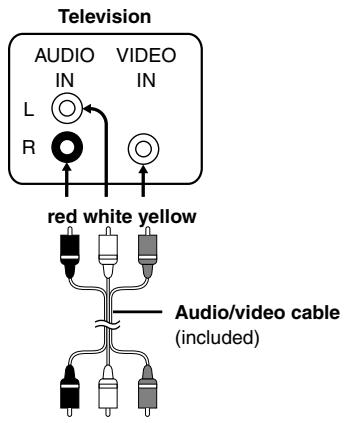
Basic connection to a television
red white yellow
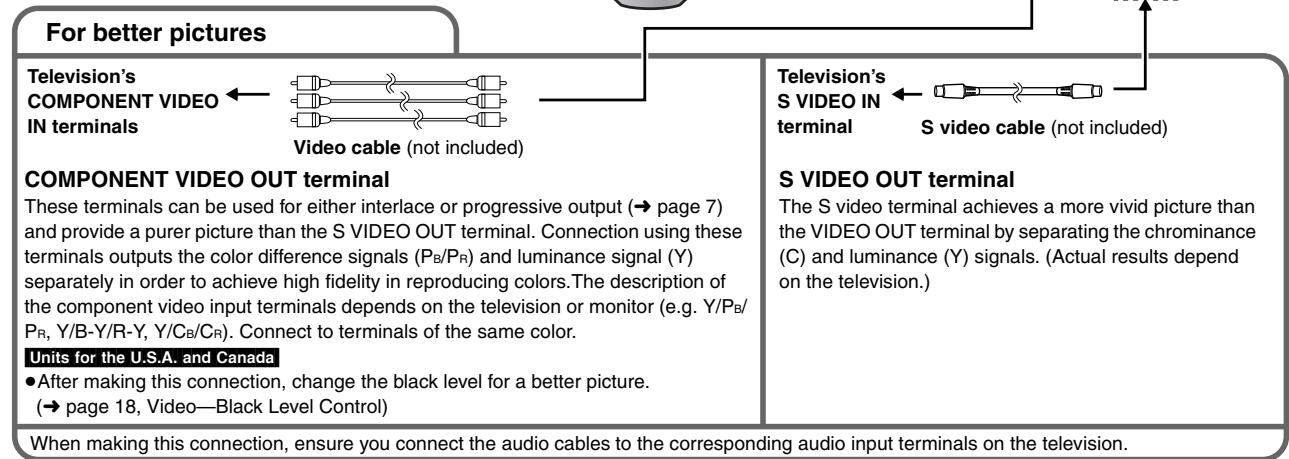
Home Theater - Enjoying more powerful sound
Enjoy the powerful movie theater and hall-like sound available with multiple channel audio found on DVDs by connecting an amplifier and speakers.

Digital connection
To enjoy multi-channel surround sound
Connect an amplifier with a built-in decoder or a decoder-amplifier combination.
Change the settings in "Digital output" ( page 19).
- You can only use DTS Digital Surround decoders that are compatible with DVD.
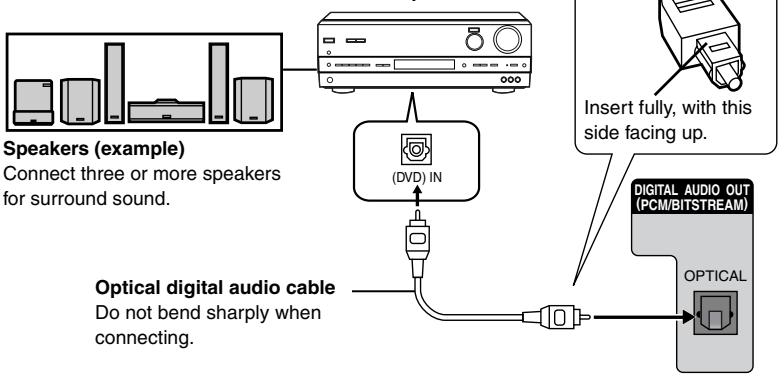
To enjoy stereo or Dolby Pro Logic
Connect a digital amplifier or system component.
Change the settings in "Digital output"
( page 19).
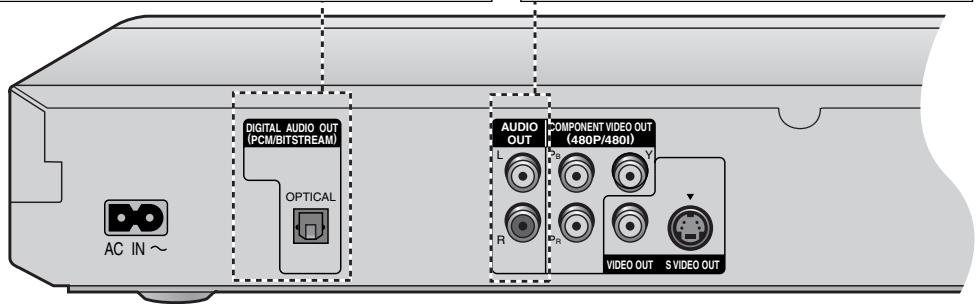

Analog connection
To enjoy stereo or Dolby Pro Logic
Connect an analog amplifier or system component.
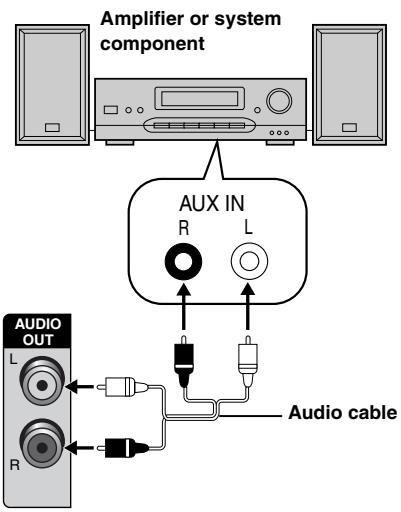
Recording Output
Digital recording Connection A to digital recording equipment
- With DVD, the following conditions must be met: a) the disc doesn't have protection preventing digital recording, and b) the recording equipment can handle signals with a sampling frequency of 48kHz .
- You cannot record WMA/MP3.
When recording DVDs, make the following settings.
-Advanced surround: OFF (→ page 17)
-PCM Down Conversion: Yes (→ page 19)
-Dolby Digital/DTS Digital Surround/MPEG: PCM (→ page 19)
MPEG: Units for Australia and N.Z.
Analog recording Connection B to a cassette deck or other recording equipment
There are no limitations on recording analog signals as there are with digital signals.
Power connection
Conserving power
This unit consumes a small amount of power, even when it is turned off.
U.S.A.and Canada :approx.0.6W
Other areas :approx.2.8W
To save power when the unit is not to be used for a long time, unplug it from the household AC outlet.
AC power supply cord (included)
To household AC outlet
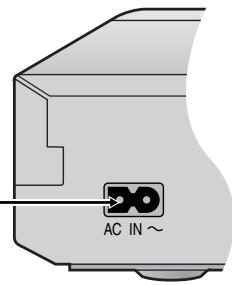
Discs that can be played
| DVD-RAM | DVD-Audio | DVD-Video | DVD-R | SVCD | Video CD | CD | CD-R/RW |
| DVD R A M R A M 4.7 Shown as "DVD-VR" on the display | DVD A U D O | DVD VIDEO | DVD R R4.7 | COMPACT DISC SUPER VIDEO Conforming to IEC62107 | COMPACT DISC DIGITAL VIDEO | COMPACT DISC DIGITAL AUDIO TEXT | - |
| DVD VIDEO | COMPACT DISC DIGITAL AUDIO | ||||||
| RAM | DVD-A | DVD-V | VCD | CD | WMA* MP3 JPEG* | ||
*DVD-F61 is not compatible with WMA, JPEG, or HighMAT. References to them apply only to DVD-F65.
Use discs with the above logos and that conform to specifications. The unit cannot play other discs correctly. Do not use irregularly shaped discs (e.g. heart-shaped), as these can damage the unit.
It may not be possible to play CD-R, CD-RW, DVD-R and DVD-ram in all cases due to the type of disc or condition of the recording.
Discs that cannot be played
DVD-ROM, CD-ROM, CDV, CD-G, +RW, DVD-RW, CVD, SACD, Divx Video Discs, Photo CD, DVD-RAM that cannot be removed from their cartridge, 2.6-GB and 5.2-GB DVD-RAM, and "Chaoji VCD" available on the market including CVD, DVCD and SVCD that do not conform to IEC62107.
Region number
The player plays DVD-Video marked with labels containing the region number or "ALL".
| Region | Number | Example |
| U.S.A. and Canada | 1 | 1ALL24 |
| Asia | 3 | 3ALL236 |
| Australia and N.Z. | 4 | 4ALL246 |
Built-in decoders
This unit has Dolby Digital and DTS decoders so you can enjoy these systems in stereo without connecting a separate decoder.
Video systems
Units for Asia, Australia and N.Z.:
- This unit can play PAL and NTSC, but your television must match the system used on the disc.
- PAL discs cannot be correctly viewed on an NTSC television.
- This unit can convert NTSC signals to PAL 60 for viewing on a PAL television ( page 18, Video—NTSC Disc Output).
- Output is interlace (576l) when playing PAL discs.
Units for the U.S.A. and Canada:
NTSC is used. This unit converts still pictures on PAL system DVD-Audio discs for play on NTSC video systems. The picture is compressed to show it in its entirety, but this may cause it to be stretched vertically.
Playing DVDs and Video CDs
The producer of these discs can control how they are played so you may not always be able to control play as described in these operating instructions (for example if the play time is not displayed or if a Video CD has menus). Read the disc's instructions carefully.
DVD-RAM discs
The DVD-RAM you can play on this unit are those recorded with DVD video recorders, DVD video cameras, personal computers, etc. using Version 1.1 of the Video Recording Format (a unified video recording standard).
- Remove discs from their cartridges before use and return them when you are finished, making sure that the labels of the disc and cartridge face the same way.
- Some parts of the disc, for example where one program ends and another begins, may not play smoothly.
DVD-R discs
Panasonic DVD-R recorded and finalized on a Panasonic DVD video recorder or DVD video camera are played as DVD-Video on this unit.
CD-R and CD-RW discs
This unit can play CD-R/RW (audio recording disc) recorded with CD-DA, video CD, SVCD (conforming to IEC62107), WMA, MP3, or JPEG. Close the session or finalize after recording.
See page 11 for more information about WMA, MP3, and JPEG.
HighMAT discs
This unit is compatible with HighMAT discs containing WMA, MP3, and/or JPEG files.
Disc structure
Disc structure and the labels given to the items on discs depend on the disc type.
Track: the smallest division on DVD-Audio, CDs, and Video CDs, or a single WMA/MP3 file.
Chapter: the smallest division on DVD-Video.
Group: collections of tracks on DVD-Audio and equivalent to folders or albums on data discs.
Title: the largest division on DVD-Video, usually an entire movie.
Program: the division on DVD-RAM equivalent to a single recording.
Picture: a single JPEG file.
Play list: the largest grouping on a HighMAT disc, or a group of scenes on DVD-RAM.
Scene: DVD-RAM program sections specified and grouped into play lists on a DVD video recorder.
Content: covers tracks and pictures on HighMAT discs.
To clean discs
DVD-Audio, DVD-Video, Video CD, CD
Wipe with a damp cloth and then wipe dry.
DVD-RAM, DVD-R
- Clean only with an optional DVD-RAM/PD disc cleaner (LF-K200DCA1, where available).
- Never use cloths or cleaners for CDs etc.
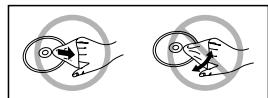
■ Handling precautions
- Do not write on the label side with a ball-point pen or other writing instrument.
- Do not use record cleaning sprays, benzine, thinner, static electricity prevention liquids or any other solvent.
- Do not attach labels or stickers to discs. (Do not use discs with exposed adhesive from tape or left over peeled-off stickers.)
- Do not use scratch-proof protectors or covers.
- Do not use discs printed with label printers available on the market.
Batteries
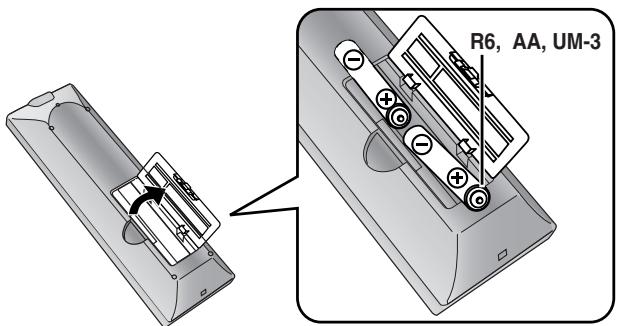
- Insert so the poles (+ and -) match those in the remote control.
- Do not use rechargeable type batteries.
Do not:
- mix old and new batteries.
- use different types at the same time.
heat or expose to flame. - take apart or short circuit.
- attempt to recharge alkaline or manganese batteries.
- use batteries if the covering has been peeled off.
Mishandling of batteries can cause electrolyte leakage which can damage items the fluid contacts and may cause a fire.
Remove if the remote control is not going to be used for a long period of time. Store in a cool, dark place.
Use
Aim at the sensor ( page 3, Control reference guide), avoiding obstacles, at a maximum range of 7m (23 feet) directly in front of the unit.
Quick setup
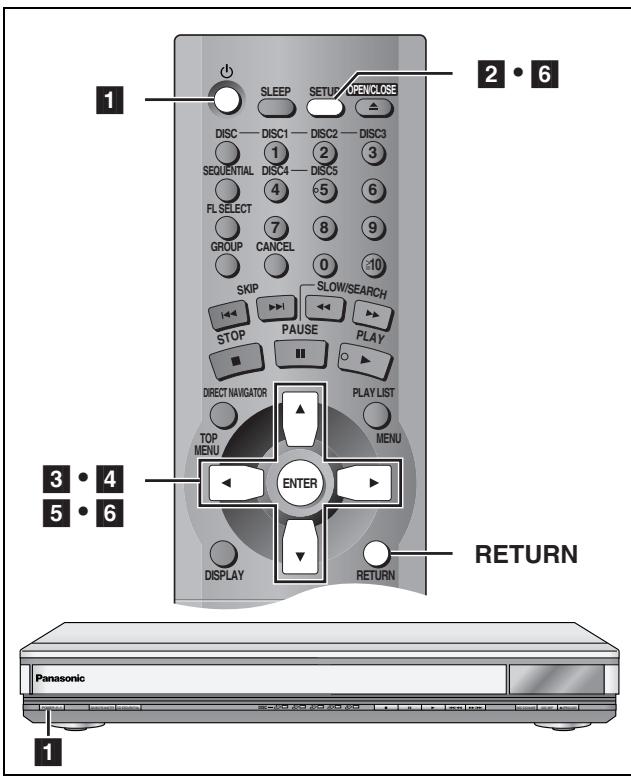
The QUICK SETUP screen appears when you press [SETUP] the first time after purchase and assists you to make necessary settings.
Preparation
Turn on the television and select the appropriate video input on the television to suit the connections for the player.
1 Press [O] to turn on the unit.
Press [SETUP] to show the QUICK SETUP screen.
e.g. Units for U.S.A. and Canada
![PANASONIC DVDF61P - Press [SETUP] to show the QUICK SETUP screen. - 1](/content/2019/10/56212/images/d1db9e09526cb6aec509e4938009ada40a8e86bb2d88119d9f54fd0a4f21b418.jpg)
Press [ , , , ] to select the menu language and press [ENTER].
Press [, ] to select "Yes" to continue and press [ENTER].
Press [▲,▼,◁,▷] to select the item and press [ENTER].
- Audio Language ( page 18)
- Subtitle Language (→ page 18)
TV Aspect ( below) - Progressive Out ( page 18)
6 Press [ENTER] and then [SETUP] to end the settings.
To return to the previous screen
Press [RETURN].
To access this screen again later
page 18, Others—QUICK SETUP
TV Aspect
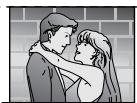
Select "4:3" (regular) or "16:9" (widenscreen) to suit your television. If you have a regular 4:3 television, you can also select how video on some discs is shown ( page 18, Video—TV Aspect).
-4:3 Pan&Scan (Factory preset)
Widescreen software is expanded to fill the screen of a 4:3 aspect television (unless prohibited by the producer of the disc).
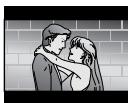
4:3 Letterbox
Widescreen software is shown in the letterbox style on a 4:3 aspect television.
To enjoy progressive video
- Connect to the component video input terminals on a 480P compatible television. (Video will not be displayed correctly if connected to an incompatible television.)
- In QUICK SETUP, set "Progressive Out" to "Enable".
- Change Video output mode to "480P" ( page 17).
- All televisions manufactured by Panasonic and that have 480P input connectors are compatible. Consult the manufacturer if you have another brand of television.
- If the unit is connected to the television through VIDEO OUT or SVIDEO OUT, output will be interlace, irrespective of the settings.
Preparation
Turn on the television and select the appropriate video input on the television to suit the connections for the player.
1 Press [O] to turn on the unit.
Press [△] to open the drawer and place the disc(s) label-up on the disc tray(s).
To load discs on the other trays, press [DISC SKIP] on the main unit.
- If the disc contains both audio data (WMA and MP3) and JPEG, check "Mixed Disc—Audio & Stills" setting in the SETUP menu ( page 18). Select "Stills (JPEG)" or "Audio (MP3/WMA)".
- Load double-sided discs so the label for the side you want to play is facing up.
3 Press [▲] to close the drawer.
A disc indicator lights to show a disc is on the tray.
4 Press [▶] (PLAY).
Play begins. It is normal for sound and pictures to take time to start.
![PANASONIC DVDF61P - Press [▶] (PLAY). - 1](/content/2019/10/56212/images/ebc48734bd29b24ffda94d2655f06e94712f21a0059ba08d3e2b1c792e2227e4.jpg)
| Stop | Press [■]. “>” flashes on the display. Press [▶] (PLAY) to restart from this position or [■] to clear it. DVD-Video: Press [▶] (PLAY) again to review chapters (→ page 9). |
| Pause | Press [■]. Press [▶] (PLAY) to restart. |
| Skip | Press [↓←] (backward) or [▶→] (forward). Group skip [JPEG] Press [▼] (backward) or [▲] (forward). Disc skip Press [DISC SKIP] on the main unit. |
| Search | Press [←] (backward) or [▶→] (forward). Press [▶] (PLAY) to restart. |
| Slow-motion | While paused, press [←] (backward) or [▶→] (forward). Press [▶] (PLAY) to restart. |
| Frame-by-frame | While paused, press [←] (backward) or [▶] (forward). Press and hold to change in succession. Or, press [■] repeatedly for forward frame-by-frame. |
| Menu | Press [▲,▼,▲,▶] to select an item and [ENTER] to confirm. Or, press the numbered buttons. Press [TOP MENU] to show the top menu. Press [MENU] to show a menu. Press [RETURN] to show a menu. VCD |
Notes
- On the main unit, press [I< / ] or [▶▶/▶] to perform skip, and press and hold to perform search and slow-motion.
- The speed of search and slow-motion increases up to 5 steps.
- Slow-motion and frame-by-frame only work on moving pictures.
- You can turn off the sound during search (→ page 18, Audio—Audio during Search).
When playing Video CDs
- You cannot move backwards during slow-motion and frame-by-frame.
- Pressing buttons to perform skip, search or slow-motion may take you to a menu screen.
If ^ appears on the television
The operation is prohibited by the unit or disc.
- Discs continue to rotate while menus are displayed even after playing an item. Press [■] when you finish to preserve the unit's motor and your television screen.
- To prevent damage
Do not:
- load more than one disc per tray.
-touch the drawer or the carousel while they are in motion
-rotate the carousel by hand.
close the drawer by hand.
Disc type screen
Check the discs loaded and select a disc to play.
1 Press [DISC].
Disc type screen
![PANASONIC DVDF61P - Press [DISC]. - 1](/content/2019/10/56212/images/76b287e8b8e37edd4c0998b6ca780744d588628438cb0a0c6d45d692e077c1e7.jpg)
2 Press the disc button ([DISC 1] - [DISC 5]).
To clear the screen
Press [DISC].
Changing the main unit display
Press [FL SELECT].
Each time you press the button:
Program/Play list/Group/Title/
Chapter/Track/Picture/Content
number display
![PANASONIC DVDF61P - Press [FL SELECT]. - 1](/content/2019/10/56212/images/58be385d74552158accf465683e02a68d473d59b15a1c984d008cd96199fd356.jpg)
Sequential play
VCD CD WMA MP3
The unit usually plays the disc in the play position and then stops. Turn sequential play on to play all loaded discs, except for DVDs and JPEG discs.
Press [SEQUENTIAL].
Each time you press the button:
SEQ on SEQ off
![PANASONIC DVDF61P - Press [SEQUENTIAL]. - 1](/content/2019/10/56212/images/7ae1b23bdeb25373e4feb777bbdfe1e6f0b8754ecd65ef8d01cdce8cad2341cc.jpg)
- On the main unit, press [CDSEQUENTIAL].
- HighMAT menus and Video CD playback control are disabled.
- You cannot change the mode during program or random play.
- Sequential Mode turns off when you switch the unit to standby.
Changing the disc in the play position
Main unit only
1 Press [DISC EXCHANGE].
The drawer opens and the disc in the play position comes to the front-left position.
2 Change the disc in the front-left position.
3 Press [DISC EXCHANGE].
Changing other discs during play
You can change the other discs without interrupting play.
Main unit only
1 Press [] to open the drawer.
2 Press [DISC SKIP] to rotate the carousel.
The carousel moves one tray clockwise and each subsequent press moves it two trays in alternate directions.
3 Change the disc and press [] .
Starting play from a selected item
RAM DVD-A DVD-V VCD CD
Press the numbered buttons.
To select a 2-digit number
e.g. 23: [≥ 10] [2] [3]
WMA MP3 JPEG
Press the numbered buttons then press [ENTER].
e.g. 123: [1] [2] [3] [ENTER]
This works only when stopped with some discs.
- When playing DVD-Audio and you want to start play from a track in a different group, select the group first (→ right).
Selecting groups to play
DVD-A WMA MP3 JPEG
1 Press [GROUP].
2 Press [ , ] to select the group number and press [ENTER].
3 Press [▲,▼] to select the track/picture number and press [ENTER].
- You can also select the group and track/picture number with the numbered buttons.
-Playing bonus groups
Some discs contain bonus groups. If a password screen appears after selecting a group, enter the password with the numbered buttons. Refer also to the disc's jacket.
Position Memory function
RAM DVD-A DVD-V VCD CD WMA MP3
(When the elapsed play time is displayed)
JPEG
Memorize positions on up to five discs to restart play after switching the unit to standby or changing discs.
During play
1 Press [POSITION MEMORY].

2 Press [] to switch the unit to standby, or change the disc.
3 When you are ready to play the disc again Press [▶] (PLAY) to restart from the position.
-
When you memorize the sixth position, the earliest position is replaced.
-
This function does not work while playing some DVDs or play lists on DVD-RAM.
- You cannot recall the position in Sequential Mode.
Chapter Review DVD-V
One of these messages appears.
Press PLAY to Preview Chapters
Press PLAY to Chapter Review
Press [▶] (PLAY) again to review the first few seconds of the chapters up to the one where you memorized the position. Play then resumes from the memorized position.
Do not press [▶] (PLAY) if you do not want to review chapters.
Replaying a scene—QUICK REPLAY
RAM DVD-A DVD-V VCD CD WMA MP3
Skip back a few seconds within the current item (program, track or title). JPEG
Skip back a few pictures.
During play
Press [QUICK REPLAY].
- This feature may not work while playing some parts of a disc or at all with some discs.
DVD-F61 is not compatible with WMA, JPEG, or HighMAT. References to them apply only to DVD-F65.
Playing WMA/MP3/JPEG and CD text
If the disc contains both audio data (WMA and MP3) and JPEG, check "Mixed Disc—Audio & Stills" setting in the SETUP menu ( page 18). Select "Stills (JPEG)" or "Audio (MP3/WMA)".
These menus help you find items to play. CD (CD text only) WMA MP3 JPEG
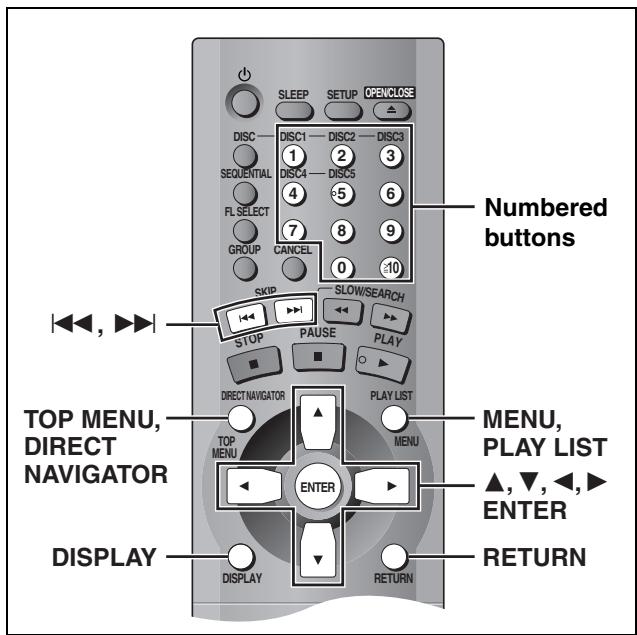
1 Press [TOP MENU].
![PANASONIC DVDF61P - Press [TOP MENU]. - 1](/content/2019/10/56212/images/204eabc63dea9c44b05ae872a9a549c56d00c566d7d2e919291108b702de94b7.jpg)
![PANASONIC DVDF61P - Press [TOP MENU]. - 2](/content/2019/10/56212/images/536dd1b2baa784cf557f9416158ce792f7d6bb4691cd39019a13e52fdc822ec5.jpg)
"..." indicates the track currently playing.
2 Press [, ] to select the track or [, , , ] to select the picture, and press [ENTER].
To show other pages, press [▲,▼,▲,▶] to select "Prev" or "Next" and press [ENTER].
- After listing all the tracks or pictures in one group, the list for the next group appears.
To exit the menu
Press [TOP MENU].
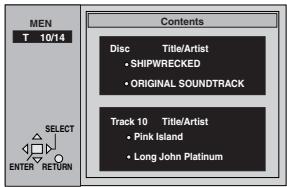
To use the contents screen to find a track CD (CD text only)
You can use the text information recorded on these discs to find a track to play. While the menu is displayed
1 Press [▶] while a track is highlighted to display the contents screen.
2 Press [, ] to move through the tracks and press [ENTER].
Track title search CD (CD text only) WMA MP3
Example: finding a track including the word "LOVE". While the menu is displayed
1 Press [, ] to select "Find" and press [ENTER].
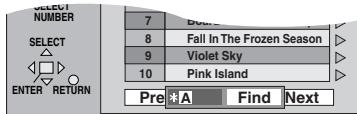
2 Press [, ] to select "L" and press [ENTER].
Only uppercase appear but the search also includes lower case. Characters change in alphanumeric order each time you press [▲].
- Press [↓←, ▷→] to skip between A, E, I, O and U.
- Press [←] to erase a character.
- You can erase the asterisk (*) to search for the first word in a title.
- You can enter numbers with the numbered buttons.
Repeat this step to enter "O", "V", and "E".
3 Press [▶] to select "Find" and press [ENTER].
The search results screen appears.
4 Press [▲,▼] to select the track and press [ENTER].
To return to the menu
Press [RETURN].
To use the tree screen to find a group WMA MP3 JPEG
While the menu is displayed
1 WMA MP3
Press [▶] while a track is highlighted to display a tree screen.
JPEG
Press [ , , , ] to select "Tree" and press [ENTER].
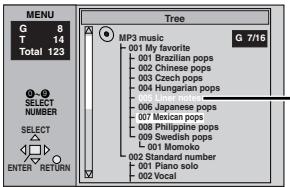
You cannot select groups that contain no compatible files.
2 Press [, , , ] to select a group and press [ENTER].
The audio navigation menu/album display for the group appears.
To return to the menu
Press [RETURN].
MPEG Layer-3 audio decoding technology licensed from Fraunhofer IIS and Thomson multimedia.
Windows Media, and the Windows logo are trademarks, or registered trademarks of Microsoft Corporation in the United States and/or other countries.
WMA is a compression format developed by Microsoft Corporation. It achieves the same sound quality as MP3 with a file size that is smaller than that of MP3.
![PANASONIC DVDF61P - Press [, , , ] to select a group and press [ENTER]. - 1](/content/2019/10/56212/images/e481e551102764c2272f94ee1829c8e1e18201749c673e577eea9e42cd01018f.jpg)
Note
WMA
- You cannot play WMA files that are copy protected.
WMA files must have the extension“.WMA” or“.wma”.
MP3
This unit is not compatible with ID3 tags.
- If you play an MP3 track that includes still picture data, it will take some time before the music itself starts playing and the elapsed time will not be displayed during this time. Even after the track starts, the correct play time will not be displayed.
- MP3 files must have the extension“.MP3” or“.mp3”.
JPEG
- To view JPEG files on this unit:
Take them on a digital camera that meets the DCF (Design rule for Camera File system) standard.
-Do not alter the files in any way or save them under a different name. - Ensure they have the extension“.JPG”,“.jpg”,“.JPEG”, or“.jpeg”.
- This unit cannot display moving pictures, MOTION JPEG and other such formats, still pictures other than JPEG (i.e. TIFF) or play associated sound.
WMA MP3 JPEG
- Discs must conform to ISO9660 level 1 or 2 (except for extended formats).
- This unit is compatible with multi-session but if there are a lot of sessions it takes more time for play to start. Keep the number of sessions to a minimum to avoid this.
Naming folders and files
At the time of recording, prefix folder and file names with 3-digit numbers in the order you want to play them (this may not work at times).
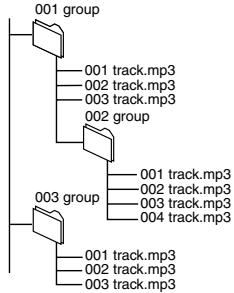
root e.g. MP3
Playing HighMAT discs
A menu appears when you select the disc.
Press [ , , , ] to select then press [ENTER].
When you press [ENTER]:
![PANASONIC DVDF61P - Press [ , , , ] to select then press [ENTER]. - 1](/content/2019/10/56212/images/0279182ff8f14fd4705f0a46dab55ab8fac7ee6406a4ce21e1108821469b201a.jpg)
Menu:
Takes you to the next menu which shows play lists or another menu
![PANASONIC DVDF61P - Press [ , , , ] to select then press [ENTER]. - 2](/content/2019/10/56212/images/0cf851ce8a712021b8aa94c01e2c4773387a94387eb17d1c099f0cb80c8f949c.jpg)
Play list: play starts
To return to the menu screen
Press [TOP MENU].
To return to the menu above the current one
Press [RETURN].
- To change the menu background
Press [DISPLAY].
The background changes to the one recorded on the disc.
Selecting from the lists
While playing
1 Press [MENU].
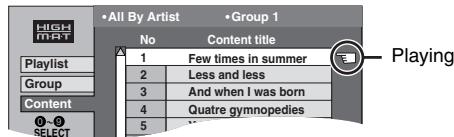
2 Press [4] then [▲,▼] to switch between the play list, group and content lists.
3 Press [▶] then [▲,▼] to select an item and press [ENTER].
To exit the list screen
Press [MENU].

HighMAT and the HighMAT logo are either trademarks or registered trademarks of Microsoft Corporation in the United States and/or other countries.
Playing the programs on DVD-RAM
RAM
Use the program list to find programs to play.
1 Press [DIRECT NAVIGATOR].
![PANASONIC DVDF61P - Press [DIRECT NAVIGATOR]. - 1](/content/2019/10/56212/images/23485366bb181bfc4a7043a4b54b6c59b6eafb161d6b41c62e5ea6485a93b1c0.jpg)
- Titles appear only if you have entered them.
- You cannot change program and disc titles.
- Units for Asia, Australia and N.Z. use the 24-hour system for the time display.
2 Press [, ] to select the program.
The selected program plays in the background.
- You can select programs with the numbered buttons.
To select a 2-digit number
e.g. 23: [≥10] → [2] → [3]
3 Press [ENTER].
The program being played in the background continues.
To clear the program list
Press [DIRECT NAVIGATOR].
To play a play list
You can play a play list created on other equipment such as a DVD video recorder.
1 Press [PLAY LIST].
![PANASONIC DVDF61P - Press [PLAY LIST]. - 1](/content/2019/10/56212/images/53317a92335364e126e22fd760b3eaca1f882a35b8eccf3b861441e3a4e3b86b.jpg)
2 Press [, ] to select the play list.
- You can select play lists with the numbered buttons.
To select a 2-digit number
e.g. 23: [≥ 10] [2] [3]
3 Press [ENTER] to start play.
- To skip scenes, press [▶] or [▶].
To clear the play list screen
Press [PLAY LIST].
![PANASONIC DVDF61P - Press [ENTER] to start play. - 1](/content/2019/10/56212/images/f3a6ac15c71602ccf055bcf78f73930da74e0c4b003c7c78fb5900ec7e2dfb89.jpg)
Changing soundtracks, subtitles and angles
Some discs have multiple soundtracks, subtitle languages and camera angles, and you can change them during play.
- "--" or "--" is displayed instead of the language number in circumstances such as when no language is recorded on the disc.
VCD (SVCD only)
Soundtrack and subtitle numbers may change even if corresponding soundtracks are not recorded.
Soundtracks
RAM DVD-A DVD-V VCD
During play
Press [AUDIO].
RAM VCD Each time you press the button:
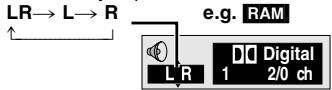
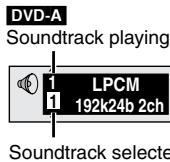
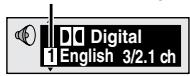
DVD-V
The number changes each time you press the button.
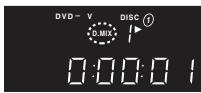
-D.MIX" indicates that a multi-channel soundtrack can be down-mixed to two channels.
-Play restarts from the beginning of the soundtrack when playing DVD-Audio and DVD-RAM soundtracks that are accompanied by still pictures.
- Even if a second soundtrack isn't recorded on a DVD-Audio, two soundtrack numbers will normally be shown when you press [AUDIO]. The soundtrack currently playing is number 1.
- You can also use this button to turn the vocals on and off on karaoke discs. Read the disc's instructions for details.
Refer to B ( page 15) for audio signal type details.
Subtitles
DVD-A (Moving picture part) DVD-V VCD (SVCD only)
You can change the subtitle language and turn the subtitles on and off.
RAM
You can turn the subtitles on and off.
During play
Press [SUBTITLE].
The number changes each time you press the button.
e.g. DVD-V
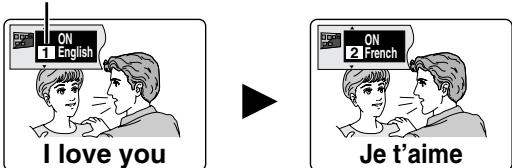
- In some cases, the subtitle language is not changed to the selected one immediately.
- If the subtitles overlap closed captions recorded on discs, turn the subtitles off.
To clear/display the subtitles
- Press [SUBTITLE].
- Press [▶]. (DVD-A DVD-V VCD)
- Press [, ] to select "OFF" or "ON".
Changing the position and brightness of the subtitles
- While the subtitle icon is on the screen, press [▲, ▲] to highlight "Subtitle Position" or "Subtitle Brightness".
- Press [, ] to adjust.
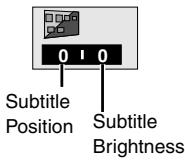
- Adjust position between 0 and -60 in 2 unit steps.
- For brightness, select "Auto" so the brightness adjusts automatically against the background, or a level between 0 and -9.
Angles
DVD-A DVD-V
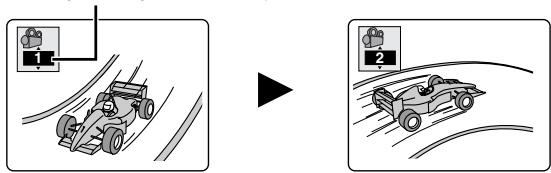
During play
Press [ANGLE/PAGE].
The angle changes each time you press the button.
JPEG
You can rotate pictures ninety degrees.
While a picture is displayed
1 Press [ANGLE/PAGE].
2 Press [, ] to select "Rotate right" or "Rotate left" and press [ENTER].
- To clear the popup screen
Press [ANGLE/PAGE].
Selecting still pictures—Page Skip
DVD-A
During play
Press [ANGLE/PAGE].
The page changes each time you press the button.
PAGE1
Variable Zoom function
RAM DVD-A (Moving picture part) DVD-V VCD
Change the zoom ratio so the picture expands to the optimum size to fill the screen.
During play
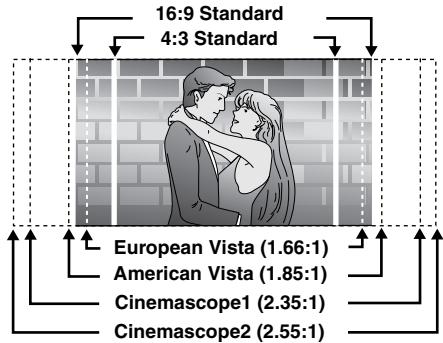
Press [ZOOM] to select the preset aspect ratio.

4:3 Standard European Vista 16:9 Standard
↑
Cinemascope2 Cinemascope1 American Vista
Refer to the disc's instructions and "Screen size" below for the aspect ratio of the picture.
Making fine adjustments to the zoom ratio
While the ZOOM icon is displayed:
Press [A, V].
The ratio changes in 0.01 units between 1.00 and 1.60 and in 0.02 units between 1.60 and 2.00.
To restore the original ratio
Press [ZOOM] until the ratio returns to 1.00.
The ratio also returns to 1.00 when you change the disc or switch the unit to standby. The ratio may return to 1.00 when a menu is displayed.
Screen size
Movies are made using a variety of screen sizes.
Double re-master—Enjoying more natural sound
(For analog connection)
RAM DVD-A DVD-V CD
Discs recorded with 2-channel LPCM at 44.1kHz or 48kHz
This feature gives you a more natural sound by adding the higher frequency signals not recorded on the disc.
WMA MP3
Discs recorded at 44.1 kHz or 48 kHz
This feature reproduces the frequencies lost during recording to give you a sound closer to the original.
During play
Press [DOUBLE RE-MASTER].
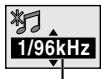
Output sampling frequency
Each time you press the button:
| Setting | RAM DVD-A DVD-V CD Type of music | WMA MP3 Effect level |
| 1 | High tempo (e.g., pops and rock) | Light |
| 2 | Various tempos (e.g., jazz) | Medium |
| 3 | Low tempo (e.g., classical) | Strong |
| OFF | Off | Off |
Setting the unit to turn off—SLEEP timer
Press [SLEEP] to select the setting.
Each time you press the button:
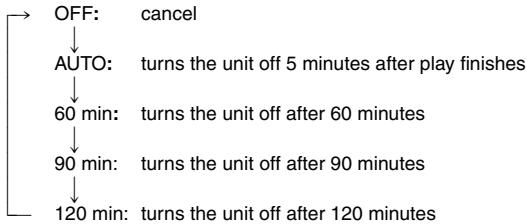
- AUTO also works with DVDs that show a menu after play finishes.
- AUTO does not work if you press [■], [MENU] or [TOP MENU]. It is activated again when you restart play.
- AUTO does not work correctly with some discs (e.g., if menus appear after playing Video CDs).
To confirm the remaining time
Press [SLEEP].
Auto standby
The unit switches to standby mode after about 30 minutes in the stop mode, irrespective of the SLEEP setting.
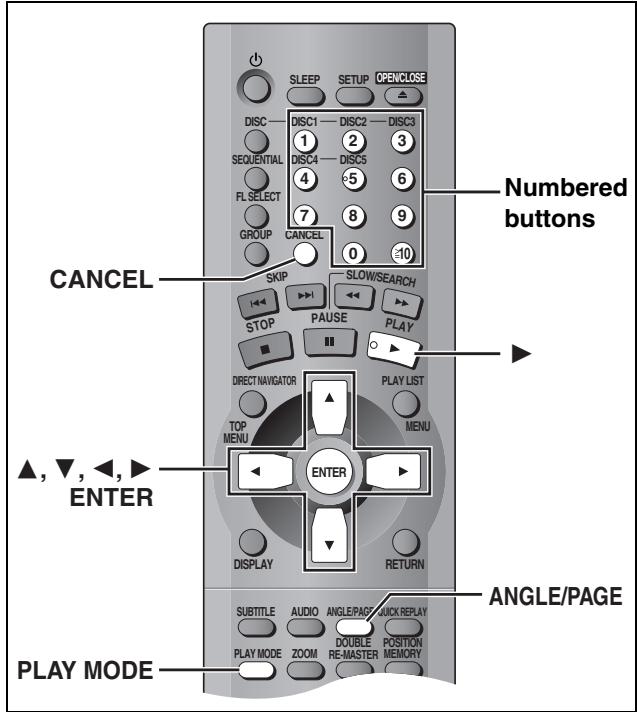
While stopped
Press [PLAY MODE].
The display changes each time you press the button.
Program Random Off (normal)
Random play
When Sequential Mode is on
VCD CD WMA MP3
You can play all the items on all the discs in random order.
When Sequential Mode is off
RAM VCD CD WMA MP3
You can play all the items on a disc in the play position in random order.
DVD-A DVD-V
You can play selected item(s) on a disc in the play position in random order.
1 When Sequential Mode is off
DVD-A DVD-V
Press the numbered buttons to select a group or a title.
DVD-V
- Some items cannot be selected.
DVD-A
-
You can select more than one group. To enter all groups, select "All" using [<,▶] and press [ENTER].
-
To deselect a group, press the numbered buttons corresponding to the group you want to clear.
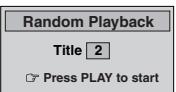
2 Press [▶] (PLAY).
e.g. DVD-V
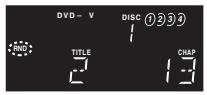
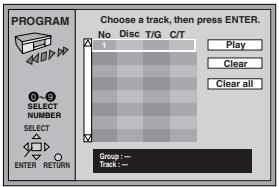
Program play
You can select up to 32 items to play in the order you choose.
When Sequential Mode is on
VCD CD WMA MP3
You can program all the items on discs.
When Sequential Mode is off
RAM DVD-A DVD-V VCD CD WMA MP3
You can program all the items on a disc in the play position.
1
When Sequential Mode is on
Press the numbered buttons to select a disc.
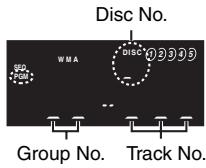
2
DVD-A DVD-V WMA MP3
Press the numbered buttons to select a group or title.
DVD-V
- Some items cannot be selected.
3 Press the numbered buttons to select a program, track or chapter.
(Press [ENTER] if the number continues to flash.)
Repeat steps 1-3 to program other items.
4
Press [▶] (PLAY).
Some items will not be played, even if you can enter them in the program.
To select using the cursor buttons
Press [ENTER] and [, ] to select an item, then press [ENTER] again to register. Select "ALL" to enter all items (on the disc or in the title or group).
Changing the program
Press [ , ] to select an item.
-To change an item, repeat steps 1-3.
-To clear an item, press [CANCEL] (or select "Clear" and press [ENTER]).
- Press [ANGLE/PAGE] to skip items.
To clear the whole program
Select "Clear all" with [, , , ] and press [ENTER]. The whole program is also cleared when the disc is moved out of the play position while the sequential mode is off or the unit is turned off.
To exit the program/random mode
Press [PLAY MODE] while stopped.
If you select a bonus group on a DVD-Audio
Enter the password with the numbered buttons. Refer also to the disc's jacket.
Note
Disable HighMAT disc play to use random and program play.
In the SETUP menu, set "HighMAT" to "Disable" ( page 18) and perform the necessary operations ( above).
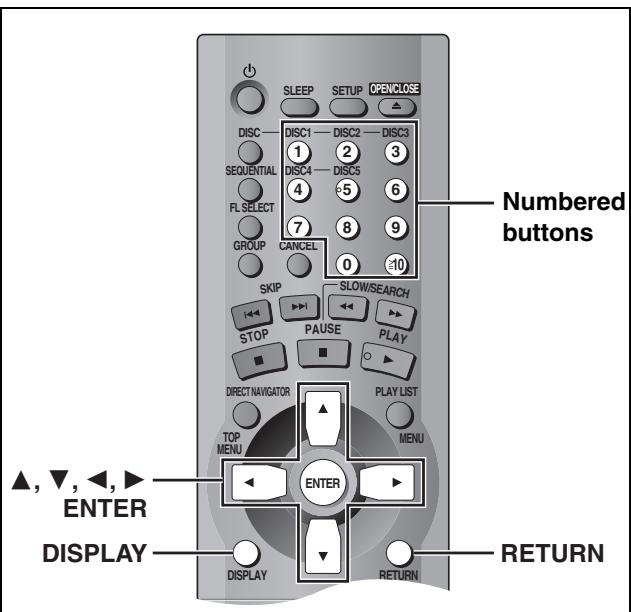
On-Screen Menu Icons are menus that contain information about the disc or unit and allow you to perform operations by changing this information.
Common procedures
1 Press [DISPLAY].
Each time you press the button:
Disc information ( right) Progress indicator ( page 17)
Original display Unit information (→ page 16-17)
2 Unit information only
While the leftmost icon is highlighted
Press [, ] to select the menu.
Each time you press the button:
Play Menu Picture Menu Audio Menu Display Menu
3 Press [4, ] to select the item.
4 Press [, ] to select the setting.
- Change items with “▲” or “▼” above and below with [▲,▼] (press [ENTER] if the setting doesn’t change).
- Change numbered items with the numbered buttons and press [ENTER].
- Depending on the condition of the unit (playing, stopped, etc.) and the type of software, there are some items that you cannot select or change.
- Read the following explanations for other items.
To clear the menus
Press [RETURN] until the menus disappear.
To change the position of the icons
- Press [▲, ▲] to select the Bar Position icon.
- Press [, ] to move the icons. (There are 5 positions.)

Disc information
| e.g. | RAM |
| DVD-V | PG: Program number PL: Play list number |
| DVD-V | |
| T: Title number C: Chapter number | |
| VCD CD | |
| T: Track number | |
| DVD-A WMA MP3 | |
| G: Group number T: Track number in group | |
| JPEG | |
| G: Group number P: Picture number in group | |
| Time RAM DVD-A DVD-V | |
| •Press [▲,▼] to show the elapsed play time or remaining time for the program, play list, group, track or title (or chapter during program and random play). | |
| •Select a position to start play by specifying a time with the numbered buttons and press [ENTER]. | |
| Changing the time display VCD CD | |
| Press [▲,▼] to show the elapsed play time, remaining time for the track, or remaining time for the disc. | |
| Elapsed play time VCD (SVCD only) WMA MP3 | |
| For display only, cannot be changed. | |
| Audio mode (→page 12, Soundtracks) | |
| Soundtrack language (See A below for language abbreviations.) | |
| Audio signal type (See B below for details.) | |
| Karaoke vocal on/off (Karaoke DVD only) DVD-V | |
| Solo: OFF or ON | |
| Duet: OFF, V1 + V2, V1 or V2 | |
| Current bitrate WMA MP3 | |
| Current sampling frequency WMA MP3 | |
| Subtitle language (→page 12) (See A below for language abbreviations.) | |
| Subtitles on/off ON←OFF | |
| Track information on/off CD (CD text only) WMA MP3 ON←OFF | |
| Picture information JPEG | |
| Full: Group title, picture title, picture size, file size, date of shooting, and camera model used*. | |
| Date: Date of shooting only. | |
| OFF: No display. | |
| * Actual displays depend on the camera and data. | |
| Angle number (→page 12) | |
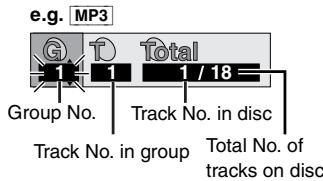
| Total | Track/picture number in disc WMA MP3 JPEG Total number of tracks/pictures on disc WMA MP3 JPEG |
| PBC | Menu play VCD Indicates whether menu play (playback control) is on or off. |
| Still picture number DVD-A Selected picture is shown during play. Slideshow setting JPEG ON←OFF Slideshow timing JPEG 0-30 sec |
A Audio/Subtitle language
ENG: English SVE: Swedish CHI: Chinese
FRA: French NOR: Norwegian KOR: Korean
DEU: German DAN: Danish MAL: Malay
ITA: Italian POR: Portuguese VIE: Vietnamese
ESP: Spanish RUS: Russian THA: Thai
NLD: Dutch JPN: Japanese *: Others
B Signal type/data
LPCM/PPCM/Digital/DTS/MPEG: Signal type
k (kHz): Sampling frequency
b (bit): Number of bits
ch (channel): Number of channels
Example: 3/2 1ch
L.1: Low frequency effect (not displayed if there is no signal)
0: No surround
1: Mono surround
2: Stereo surround (left/right)
1: Center
2: Front left+Front right
3: Front left+Front right+Center
Unit information

Play Menu
| AB | A-B repeat RAM DVD-A DVD-V VCD CD WMA MP3 (When the elapsed play time is displayed) Repeat a section between points A and B within an item. [ENTER] (start point) → [ENTER] (finish point) To cancel: [ENTER] •Subtitles recorded around A and B may fail to appear. •The end of an item becomes point B when it is reached. •A-B repeat is canceled when you press [QUICK REPLAY]. |
| OFF | Repeat mode RAM DVD-A DVD-V VCD CD WMA MP3 (When the elapsed play time is displayed) JPEG RAM DVD-A DVD-V PG: Program*1 S: Scene*3 T: Track*1 C: Chapter*1 D: Disc*2 PL: Playlist*3 G: Group*2 T: Title*2 OFF OFF OFF VCD CD WMA MP3 JPEG T: Track*1 G: Group D: Disc*2*4 OFF S: Sequential*5 OFF *1 "1 (1 Step)" during program play: repeats the current program item. *2 "A (All)" during program and random play. "S (Sequential)" appears instead of "A" if Sequential mode is on to repeat play of all loaded discs (except DVDs). *3 During play list play *4 "G (Group)" when Sequential mode is off WMA MP3 *5 Appears only when Sequential mode is on. •You can also repeat play of content ("C") and group ("G") on HighMAT discs. •If the Video CD has playback control 1. Press [■] to clear "PBC" from the display. 2. Press the numbered buttons to select a track to start play. 3. Select an item to repeat. •To repeat only your favorite programs/tracks/ chapters Start program play (→ page 14) and display "A". |
| Play mode display RAM DVD-A DVD-V VCD CD WMA MP3 ---: Normal play PGM: Program play RND: Random play | |
| Marker RAM: 999 positions DVD-A DVD-V VCD CD WMA MP3 JPEG: 5 positions [ENTER] (The unit is now ready to accept markers.) To mark a position: [ENTER] (at the desired point) To mark another position: [▲, ▲] → [ENTER] To recall a marker: [▲, ▲] → [ENTER] To erase a marker: [▲, ▲] → [CANCEL] RAM To mark the eleventh point and beyond 1. Press [▲, ▲] to select the marker pin icon 2. Press [▲, ▲] to select "11-20" •You can select the next group when the current group is full. 3. Press [▲]. •The markers are ordered by time. This means that the marker numbers can change when you add and erase markers. •If places have been marked (e.g., with a DVD video recorder), they are displayed. •You can clear existing markers, but they are restored when you change the disc or switch the unit to standby. •This feature doesn't work while using a play list. Note •This feature doesn't work during program and random play. •Markers you add clear when you change the disc or switch the unit to standby. |

Display Menu
| 4:3 Aspect Select how to show images made for 4:3 aspect screens on a 16:9 aspect television. Normal: Laterally stretches images made for a 4:3 screen. Auto: Expands suitable 4:3 letterbox images to fill more of the screen. Other images appear in full in the center of the screen. Shrink: Images appear in the center of the screen. Zoom: Expands all images to fill the screen. If your television has a similar feature, use it instead for a better effect. | |
| Zoom (→ page 13) To select preset aspect ratio Press [ENTER] and then [▲, ▲] to select. Press [ENTER] to finish. | |
| Subtitle Position/Subtitle Brightness (→ page 12) | |
| Bit | Bitrate Display on/off RAM DVD-A (Moving picture part) DVD-V VCD When you select "ON": During play: shows the average bitrate of the video being played While paused: shows the data volume of the frame and type of picture (→ back cover, Glossary—I/P/B) To change the bitrate display: 9.438 Mbps ↓ [▲, ▲] •Bitrate Cur. 7.507 Mbps 5.0 Ave. 6.730 Mbps Mbps Current bitrate A record of bitrates for a sampling period |
| OSD Brightness (-3 to +3) Adjust the brightness of the on-screen displays. |

Audio Menu
| Advanced surround (VSS) RAM DVD-V VCD (2-channel or greater) Enjoy a surround-like effect when using 2 front speakers (SP) or headphones (HP) (connect the unit to equipment that has a headphone jack). The effect broadens when playing discs with surround effects and sound seems to come from speakers on either side of you. •VSS mode: SP←→HP •SP/HP level 1: Natural effect 2: Emphasized effect OFF: Cancel (Factory preset) To change SP/HP level: [▷]→[▲, ▼] Optimum seating position Speaker A Speaker <When using the television's speakers> Distance A= Television's width 3 to 4 times distance A Seating position ●This does not work or has less effect with some discs. ●Turn off if it causes distortion. ●Do not use in combination with surround effects on other equipment. | |
| Double re-master (→page 13) | |
| Dialogue enhancer DVD-V (Dolby Digital, DTS, 3-channel or over, where the dialogue is recorded in the center channel) This makes the dialogue in movies easier to hear. ON←→OFF (Factory preset) ●This does not work or has less effect with some discs. |

Picture Menu
| Picture mode N: Normal mode | |
| C1 (Cinema1): Mellows images and enhances detail in dark scenes C2 (Cinema2): Sharpens images and enhances detail in dark scenes | |
| U1/U2: User mode (→ below) | |
| Video output mode 480l: Interlace video 480P: Progressive video (*: Progressive output not possible with PAL signals) ●You can change the video output mode only when "Progressive Out (Component)" in the SETUP menu is set to "Enable" (→ page 18). ●When progressive output is on, closed captions will not be displayed. | |
| Transfer mode Select the method of conversion for progressive output to suit the type of material being played. (→ back cover, Glossary—Film and video) Auto1 (normal): For viewing film material Auto2: For viewing film material (the same as Auto1, but able to convert 30-frame-per-second progressive video) Video: For video material |
■Usermode
Press [▶] while "U1" or "U2" is highlighted and then press [▲,▼] to select "1" or "2".
U1:Usermode1
| Contrast (-7 to +7) Adjusts the contrast between light and dark parts of the picture. | |
| Brightness (0 to +15) Adjusts the picture brightness. | |
| Sharpness (-7 to +7) Adjusts the sharpness of the edges of the horizontal lines. | |
| Color (-7 to +7) Adjusts the shade of the picture's color. | |
| Gamma (0 to +5) Adjusts the brightness of dark parts of the picture. |
U2:Usermode2
(Video output mode above)
Progress indicator
Indicates how far you have played through an item.
e.g. DVD-V
Current position

Condition - play, pause, or slow/search
Changing the time display RAM DVD-A DVD-V VCD CD
Press [, ] to show the elapsed play time or remaining time for the program, play list, track or title (or chapter during program and random play).
Elapsed play time VCD (SVCD only) WMA MP3
For display only, cannot be changed.
Changing play speed DVD-A (Moving picture part) DVD-V
(Dolby Digital only)

Press [4] (slower) or [▶] (faster).
There are five speeds:
× 0.8 × 0.9 × 1.0 (normal speed) × 1.2 × 1.4
After you change the speed:
-Output is in stereo,
-Advanced surround does not work,
-Digital output switches to PCM.
Sound is stereo as long as " × 1 . 0 " is orange.
To return to normal play
Press [▶] (PLAY).
This chart shows the settings for this unit. Change the settings to suit your preferences and to suit the unit to the environment in which it is being used. The changes remain intact even if you switch the unit to standby. See page 19 for operation.
| Menu | Items | Options (Underlined items are the factory preset.) | |
| Disc | Audio Choose the audio language. | English (Language options) Original*1 Other ****2 | Language options *4 French Spanish *5 French German Italian Spanish Portuguese Swedish Dutch *6 Chinese |
| Subtitle Choose the subtitle language. | Automatic*3 English (Language options) Other ****2 | ||
| Menu Choose the language for disc menus. | English (Language options) Other ****2 | ||
| Ratings (→ page 19) • Set a ratings level to limit DVD-Video play. • The password screen is shown if you choose levels 0 to 7 or if you choose "Ratings" when levels 0 to 7 have been selected. • Select "Level 0" to prevent play of discs that do not have ratings levels recorded on them. | Setting ratings (When level 8 is selected) 8 No Limit 1 to 7*7 0 Lock All Changing ratings (When level 0-7 is selected) Unlock Player Change Password Change Level Temporary Unlock | ||
| Video | TV Aspect (→ page 7) Choose the setting to suit your television and preference. | 4:3 Pan&Scan 4:3 Letterbox 16:9 | |
| Progressive Out (Component) Choose "Enable" to enable progressive output. | Disable Enable*4 Enable (NTSC Disc Only)*5*6 | ||
| Still Mode Specify the type of picture shown when paused. | Automatic Field Frame | ||
| Black Level Control*4 Change the black level of the picture if you connected a television through the COMPONENT VIDEO OUT terminals. | Lighter: When connected through VIDEO OUT or SVIDEO OUT. Darker: When connected through COMPONENTVIDEO OUT (Y/PS/PR). | ||
| NTSC Disc Output*5*6 Choose PAL 60 or NTSC output when playing NTSC discs (→ page 6—Video systems). | PAL60: When connected to a PAL television. NTSC: When connected to an NTSC television. (For Asia: "NTSC" is the factory preset.) | ||
| Audio | PCM Down Conversion (→ page 19) | No Yes | |
| Dolby Digital (→ page 19) | Bitstream PCM | ||
| DTS Digital Surround (→ page 19) | PCM Bitstream | ||
| MPEG*5 (→ page 19) | PCM Bitstream | ||
| Dynamic Range Compression (Dolby Digital only) Change the dynamic range for late night viewing. | Off On | ||
| Audio during Search*8 Choose whether to have sound during search. | On Off | ||
| Display | Menu Language Choose the language for these menus and the on-screen messages. | *4 English François Espanol *5 English François Deutsch Italiano Espanol Portugueses Svenska Netherlands *6 English 中文 | |
| On-Screen Messages Choose whether to show on-screen messages or not. | On Off | ||
| FL Dimmer Changes the brightness of the unit's display. | Bright Dim Auto: The display is dimmed during play, but brightens when you perform operations such as slow-motion, search, and pause. | ||
| Others | HighMAT (DVD-F65 only) Play HighMAT discs as HighMAT discs, or as regular WMA/MP3/JPEG discs. | Enable: Play HighMAT discs as HighMAT discs. Disable: Play HighMAT discs as regular WMA/MP3/JPEG discs. | |
| Mixed Disc-Audio & Stills (DVD-F65 only) Select which type of file the unit plays when playing a disc containing both JPEG and WMA/MP3. | Audio (MP3/WMA) Stills (JPEG) | ||
| DVD-Video Mode Select how to play pictures contained on some DVD-Audio. The setting returns to "Off" when you change the disc or turn the unit off. | Off: DVD-Audio are played as DVD-Audio. On: You can play DVD-Video content on DVD-Audio. | ||
| Demo | Off On: A demonstration of the on-screen displays starts. Press any button to stop it. | ||
| QUICK SETUP (→ page 7) Answer questions to make basic settings. | Yes No | ||
1 The original language of each disc is selected.
^2 Input a code number with the numbered buttons ( page 19).
3 If the language selected for "Audio" is not available, subtitles of that language will automatically appear if available on that disc.
4 Units for U.S.A. and Canada
*5 Units for Australia and N.Z.
*6 Units for Asia
*7 Prohibits play of DVD-Video with corresponding ratings recorded on them.
*8 Audio will be heard when playing some DVD-Audio despite the settings you make here.
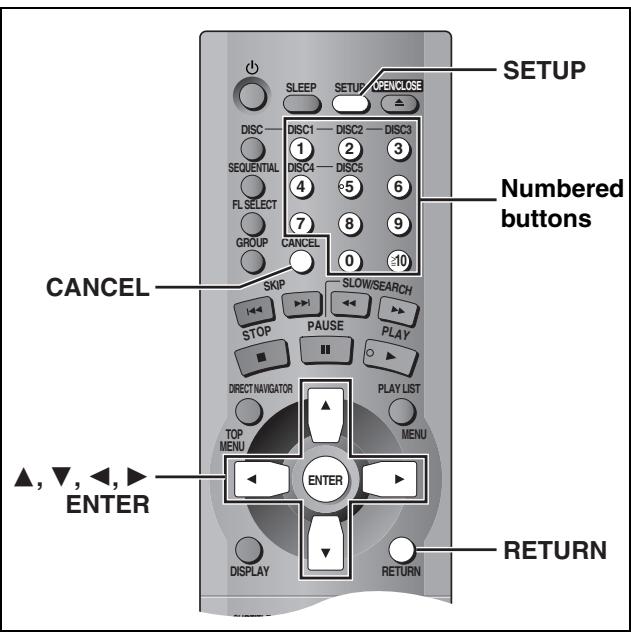
Common procedures
See page 18 for menu and option details.
1 Press [SETUP] to show the menus.
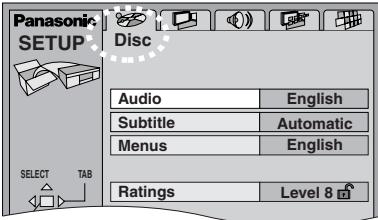
- The QUICK SETUP screen appears when you press [SETUP] the first time after purchase (→ page 7).
2 Press [A, B] to select the menu's tab.
The screen changes to display the menu.
Disc Video Audio Display Others
↑
3 Press [, ] to select the item you want to change and press [ENTER].
4 Press [, , , ] to select the option and press [ENTER].
The screen now shows the menu again.
To return to the previous screen
Press [RETURN].
To exit the SETUP menu
Press [SETUP].
Entering a password (Ratings)
DVD-V
The password screen is shown when you select levels 0 to 7.
-
Input a 4-digit password with the numbered buttons.
-
If you enter a wrong number, press [CANCEL] to erase it.
-
Press [ENTER].
The lock symbol appears closed to show the rating is locked.
-
Do not forget your password.
-
Press [ENTER] to confirm the 4 digits.
Now, when you insert a DVD-Video that exceeds the ratings limit you set, a message appears on the television.
Follow the on-screen instructions.
Digital output
DVD-A DVD-V
Change the settings when you have connected equipment through this unit's DIGITAL AUDIO OUT terminal (OPTICAL).
PCM Down Conversion
Select how to output audio with a sampling frequency of 96kHz or 88.2kHz .
- Select "Yes" if the equipment you connect cannot process signals with a sampling frequency of 96 kHz or 88.2 kHz.
No (Factory preset): Output as 96 kHz or 88.2 kHz
Yes: Converted to 48 kHz or 44.1 kHz
Note
- Signals are converted to either 48kHz or 44.1kHz despite the above settings if the signals have a sampling frequency of over 96kHz , or the disc has copy protection.
- Some equipment cannot handle sampling frequencies of 88.2kHz , even if they can handle 96kHz . Read your equipment's operating instructions for details.
Dolby Digital, DTS Digital Surround and MPEG*
Bitstream (Factory preset for Dolby Digital):
Select if the equipment you connected can decode the signal.
PCM (Factory preset for DTS Digital Surround and MPEG*:
Select if the equipment you connected cannot decode the signal.
- MPEG: Units for Australia and N.Z.
IMPORTANT
If the equipment you connected cannot decode the signal, the setting must be changed to PCM. If not, signals the equipment cannot process will be output by this unit, causing high levels of noise which can damage your hearing and the speakers.
Language code list
| Abkhazian: | 6566 | Byelorussian: | 6669 | Georgian: | 7565 | Kashmiri: | 7583 | Mongolian: | 7778 | Serbo-Croatian: | 8372 | Tigrinya: | 8473 |
| Afar: | 6565 | Cambodian: | 7577 | German: | 6869 | Kazakh: | 7575 | Nauru: | 7865 | Shona: | 8378 | Tonga: | 8479 |
| Afrikaans: | 6570 | Catalan: | 6765 | Greek: | 6976 | Kirghiz: | 7589 | Nepali: | 7869 | Sindhi: | 8368 | Turkish: | 8482 |
| Albanian: | 8381 | Chinese: | 9072 | Greenlandic: | 7576 | Korean: | 7579 | Norwegian: | 7879 | Singalese: | 8373 | Turkmen: | 8475 |
| Ameharic: | 6577 | Corsican: | 6779 | Guarani: | 7178 | Kurdish: | 7585 | Oriya: | 7982 | Slovak: | 8375 | Twi: | 8487 |
| Arabic: | 6582 | Croatian: | 7282 | Gujarati: | 7185 | Laotian: | 7679 | Pashto, Pushto: | 8083 | Slovenian: | 8376 | Ukrainian: | 8575 |
| Armenian: | 7289 | Czech: | 6783 | Hausa: | 7265 | Latin: | 7665 | Persian: | 7065 | Somali: | 8379 | Urdu: | 8582 |
| Assamese: | 6583 | Danish: | 6865 | Hebrew: | 7387 | Latvian, Lettish: | 7686 | Polish: | 8076 | Spanish: | 6983 | Uzbek: | 8590 |
| Aymara: | 6588 | Dutch: | 7876 | Hindi: | 7273 | Lingala: | 7678 | Portuguese: | 8084 | Sundanese: | 8385 | Vietnamese: | 8673 |
| Azerbaijani: | 6590 | English: | 6978 | Hungarian: | 7285 | Lithuanian: | 7684 | Punjabi: | 8065 | Swahili: | 8387 | Volapuk: | 8679 |
| Bashkir: | 6665 | Esperanto: | 6979 | Icelandic: | 7383 | Macedonian: | 7775 | Quechua: | 8185 | Swedish: | 8386 | Welsh: | 6789 |
| Basque: | 6985 | Estonian: | 6984 | Indonesian: | 7378 | Malagasy: | 7771 | Rhaeto-Romance: | 8277 | Tagalog: | 8476 | Wolof: | 8779 |
| Bengali; Bangla: | 6678 | Faroese: | 7079 | Interlingua: | 7365 | Malay: | 7783 | Romanian: | 8279 | Tajik: | 8471 | Xhosa: | 8872 |
| Bhutanli: | 6890 | Fiji: | 7074 | Irish: | 7165 | Malayalam: | 7776 | Russian: | 8285 | Tamil: | 8465 | Yiddish: | 7473 |
| Bihari: | 6672 | Finnish: | 7073 | Italian: | 7384 | Maltese: | 7784 | Samoan: | 8377 | Tatar: | 8484 | Yoruba: | 8979 |
| Breton: | 6682 | French: | 7082 | Japanese: | 7465 | Maori: | 7773 | Sanskrit: | 8365 | Telugu: | 8469 | Zulu: | 9085 |
| Bulgarian: | 6671 | Frisian: | 7089 | Javanese: | 7487 | Marathi: | 7782 | Scotts Gaelic: | 7168 | Thai: | 8472 | ||
| Burmese: | 7789 | Galician: | 7176 | Kannada: | 7578 | Moldavian: | 7779 | Serbian: | 8382 | Tibetan: | 6679 |
Before requesting service, make the following checks. If you are in doubt about some of the check points, or if the remedies indicated in the chart do not solve the problem:
In the U.S.A., contact the Panasonic Customer Call Center at 1-800-211-7262, or e-mail consumerproducts@panasonic.com, or web site (http://www.panasonic.com).
In Canada, contact Panasonic Canada Inc. Customer Care Centre at 1-800-561-5505, web site (www.panasonic.ca), or an authorized Servicentre closest to you.
In other areas, consult your dealer.
Power
Page
| No power. | • Insert the AC power supply cord securely into the household AC outlet. | 5 |
| The unit is automatically switched to the standby mode. | • The unit automatically switches to standby after approximately 30 minutes in the stop mode. Turn the power back to ON. • The SLEEP timer functioned. | - |
| 13 |
Operation
| No response when buttons pressed. | ●Some operations may be prohibited by the disc. ●The unit may not be operating properly due to lightning, static electricity or some other external factor. Reset procedure: Press [POWER ⋅/I] to switch the unit to the standby mode and then back to ON. Alternatively, press [POWER ⋅/I] to switch the unit to the standby mode, disconnect the AC power supply cord, and then reconnect it. | - - |
| No operations can be performed with the remote control. | ●Check that the batteries are installed correctly. ●The batteries are depleted: Replace them with new ones. ●Point the remote control at the remote control sensor and operate. | 7 7 3 |
| Play doesn't start (or stops immediately) when you press [▷] (PLAY). | ●Condensation has formed: Wait 1 to 2 hours for it to evaporate. ●This unit cannot play discs other than the ones listed in these operating instructions. ●You can only play DVD-Video if their region number is the same or includes the same region number as the unit or if the DVD-Video is marked "ALL". Confirm the region number for the unit on the rear panel. ●The disc may be dirty and may require cleaning. ●Ensure that the disc is loaded with the label of the side to be played facing upwards. ●Check that the DVD-RAM has something recorded on it. | - 6 6 6 8 - |
| Cannot play DVDs. | ●Sequential Mode is on. Press [SEQUENTIAL] to turn Sequential Mode off. | 9 8 |
| Cannot select alternative languages. | ●This function depends on software availability. ●Try selecting from the disc's menu if one is available. | - 8 |
| No menu play. | ●This function depends on software availability. | - |
| No subtitles. | ●This function depends on software availability. ●Subtitles are cleared from the television. Turn on the subtitles. ●Subtitle position is wrong. Adjust the position. | - 12 12 |
| Soundtrack and/or subtitle language is not the one selected with the SETUP menus. | ●This function depends on software availability. | - |
| Cannot change angle. | ●This function depends on software availability. Even if a disc has a number of angles recorded, these angles may be recorded for specific scenes only. | - |
| You have forgotten your ratings password. Reset all the settings to Factory Preset. | ●While stopped, press and hold [▲/▲] and [■] on the unit and then also press and hold [▲] on the unit until "initialized" disappears from the television. Turn the unit off and on again. All settings will return to the default values. | - |
| The drawer stops while opening. | ●There are more than 5 discs in the unit. Remove one or more discs and turn the unit off and on again. | - |
Picture
| Picture distorted. | ●Some distortion is normal during SEARCH. | - |
| Menu not displayed correctly. | ●Restore the zoom ratio to ×1.00. | 13 |
| ●Set the subtitle position to 0. | 12 | |
| ●Set "4:3 Aspect" to "Normal". | 16 | |
| No picture. | ●Check the connection. | 4 |
| ●Make sure the television is on. | - | |
| ●Ensure the television's video input setting (e.g.,VIDEO 1) is correct. | - | |
| The picture shown on the television is not normal. (The sides of the picture are cut off, the picture is stretched horizontally, or black bands appear at the top and bottom of the screen.) | ●Go to Video in the SETUP menus, and change "TV Aspect" to suit your television. | 7,18 |
| ●Use the television to change the aspect to the correct one. | - | |
| If your television cannot change the aspect when input is progressive, try changing "4:3 Aspect" with the on-screen menu icons. | 16 | |
| ●Turn off the zooming feature of your television if you are using Variable Zoom. | 13 | |
| ●Ensure that the unit is connected directly to the television, and is not connected through a video cassette recorder. | 4 | |
| There is ghosting when progressive output is on. | ●Change "Video output mode" to "480". This problem is caused by the editing method or material used on DVD-Video, but should be corrected if you use interlace output. | 17 |
| Picture quality is poor. | ●Check the settings in the On-Screen Menu Icons' Picture Menu. | 17 |
| The SETUP menus and other screens shown on the television are displayed incorrectly. Colors appear faded. | ●The unit and television are using different video systems. | - |
| Units for Australia and NZ. | ||
| Use a multi-system or PAL television. | ||
| Units for Asia | ||
| Use a multi-system or NTSC television. |
Sound
Page
| No sound. Distorted sound. | ●Check the connections. ●Check the volume on the equipment you have connected. ●Ensure that the input settings on the other equipment are correct. ●Turn Advanced surround off if it causes distortion. ●Output from this unit will be in stereo (two channels) when Advanced surround is on. Turn Advanced surround off if you are using three or more speakers. ●If the “D.MIX” indicator on the display goes out while playing a multi-channel DVD-Audio disc, sound only comes from the front left and right speakers. Read the disc's instructions for details. ●Press [▶] (PLAY) to restore normal play after changing the speed. ●Noise may occur when playing WMA files. | 4,5 - - 17 17 - 17 - |
| Piercing noise comes from the speakers. | ●If you have connected this unit to other equipment through the DIGITAL AUDIO OUT terminal, ensure you have selected the correct settings for “Dolby Digital”, “DTS Digital Surround” and “MPEG*” in the SETUP menus’ Audio menu. *For Australia and N.Z. | 19 |
| Effects do not work. | ●Dialogue enhancer and Advanced surround do not work when the unit is outputting bitstream signals. ●Advanced surround does not work if you have changed the play speed. | - 17 |
Unit displays
| “NOPLAY” | ●You inserted a disc the unit cannot play; insert one it can. | 6 |
| ●You inserted a blank DVD-RAM. | - | |
| “CHECK” | ●Disc is dirty: Wipe it clean. | 6 |
| “H☐☐”□☐ stands for a number. | ●Trouble may have occurred. The number following “H” depends on the status of the unit. Reset procedure:Press [POWER ⌒/ɪ] to switch the unit to the standby mode and then back to ON. Alternatively, press [POWER ⌒/ɪ] to switch the unit to the standby mode, disconnect the AC power supply cord, and then reconnect it.●If the service numbers fail to clear, note the service number and contact a qualified service person. | - |
| - |
Television displays
| “Cannot display group xx, picture xx.” | ●You are trying to display incompatible pictures. | - |
| “The progressive out is set to “Disable”’” | ●Go to Video in the SETUP menus, and select “Enable” in “Progressive Out (Component)”. | 18 |
| No on-screen display or only partially displayed. | ●Go to Display in the SETUP menus, and select “On” for “On-Screen Messages”.●Press [DISPLAY], and press [▲, ▽] to highlight the Bar Position icon, then press [▲, ▽] to adjust the position. | 1815 |
| The disc's menu is displayed in a different language. | ●Go to Disc in the SETUP menus, and select the preferred language for “Menu”. | 18 |
Maintenance
Clean this unit with a soft, dry cloth.
- Never use alcohol, paint thinner or benzine to clean this unit.
Manufactured under license from Dolby Laboratories. "Dolby", "Pro Logic" and the double-D symbol are trademarks of Dolby Laboratories.
Manufactured under license from Digital Theater Systems, Inc. US Pat. No. 5,451,942, 5,956,674, 5,974,380, 5,978,762 and other world-wide patents issued and pending. "DTS" and "DTS Digital Surround" are registered trademarks of Digital Theater Systems, Inc. © 1996, 2000 Digital Theater Systems, Inc. All rights reserved.
Apparatus Claims of U.S. Patent Nos. 4,631,603, 4,577,216, and 4,819,098, licensed for limited viewing uses only.
This product incorporates copyright protection technology that is protected by method claims of certain U.S. patents and other intellectual property rights owned by Macrovision Corporation and other rights owners. Use of this copyright protection technology must be authorized by Macrovision Corporation, and is intended for home and other limited viewing uses only unless otherwise authorized by Macrovision Corporation. Reverse engineering or disassembly is prohibited.
Panasonic Consumer Electronics Company, Division of Matsushita Electric Corporation of America One Panasonic Way Secaucus, New Jersey 07094
Panasonic DVD Player/Recorder Limited Warranty
Limited Warranty Coverage
If your product does not work properly because of a defect in materials or workmanship, Panasonic Consumer Electronics Company or Panasonic Sales Company (collectively referred to as "the warrantor") will, for the length of the period indicated on the chart below, which starts with the date of original purchase ("warranty period"), at its option either (a) repair your product with new or refurbished parts, or (b) replace it with a new or a refurbished product. The decision to repair or replace will be made by the warrantor.
| Product or Part Name | Parts | Labor |
| DVD Player | One (1) Year | Ninety (90) Days |
| DVD Recorder | One (1) Year | One (1) Year |
| Rechargeable Batteries, DVD-RAM Disc (in exchange for defective item) | Ten (10) Days | Not Applicable |
During the "Labor" warranty period there will be no charge for labor. During the "Parts" warranty period, there will be no charge for parts. You must carry-in or mail-in your product during the warranty period. If non-rechargeable batteries are included, they are not warranted. This warranty only applies to products purchased and serviced in the United States or Puerto Rico. This warranty is extended only to the original purchaser of a new product which was not sold "as is". A purchase receipt or other proof of the original purchase date is required for warranty service.
Carry-In or Mail-In Service
For Carry-In or Mail-In Service in the United States call 1-800-211-PANA(7262) or visit Panasonic Web Site: http://www.panasonic.com For assistance in Puerto Rico call Panasonic Sales Company (787)-750-4300 or fax (787)-768-2910.
Panasonic Sales Company, Division of Matsushita Electric of Puerto Rico, Inc.
Ave. 65 de Infantería, Km. 9.5
San Gabriel Industrial Park, Carolina, Puerto Rico 00985
Limited Warranty Limits And Exclusions
This warranty ONLY COVERS failures due to defects in materials or workmanship, and DOES NOT COVER normal wear and tear or cosmetic damage. The warranty ALSO DOES NOT COVER damages which occurred in shipment, or failures which are caused by products not supplied by the warrantor, or failures which result from accidents, misuse, abuse, neglect, mishandling, misapplication, alteration, faulty installation, set-up adjustments, misadjustment of consumer controls, improper maintenance, power line surge, lightning damage, modification, or commercial use (such as in a hotel, office, restaurant, or other business), rental use of the product, service by anyone other than a Factory Servicenter or other Authorized Servicer, or damage that is attributable to acts of God.
THERE ARE NO EXPRESS WARRANTY EXCEPT AS LISTED UNDER "LIMITED WARRANTY COVERAGE". THE WARRANTYOR IS NOT LIABLE FOR INCIDENTAL OR CONSEQUENTIAL DAMAGES RESULTING FROM THE USE OF THIS PRODUCT, OR ARISING OUT OF ANY BREACH OF THIS WARRANTY. (As
examples, this excludes damages for lost time, travel to and from the servicer, loss of media or images, data or other recorded content. The items listed are not exclusive, but are for illustration only.) ALL EXPRESS AND IMPLIED WARRANTY, INCLUDING THE WARRANTY OF MERCHANTABILITY, ARE LIMITED TO THE PERIOD OF THE LIMITED WARRANTY.
Some states do not allow the exclusion or limitation of incidental or consequential damages, or limitations on how long an implied warranty lasts, so the exclusions may not apply to you.
This warranty gives you specific legal rights and you may also have other rights which vary from state to state. If a problem with this product develops during or after the warranty period, you may contact your dealer or Servicenter. If the problem is not handled to your satisfaction, then write to the warrantor's Consumer Affairs Department at the addresses listed for the warrantor.
PARTS AND SERVICE WHICH ARE NOT COVERED BY THIS LIMITED WARRANTY ARE YOUR RESPONSIBILITY.
Customer Services Directory
For Product Information, Operating Assistance, Literature Request, Dealer Locations, and all Customer Service inquiries please contact: 1-800-211-PANA (7262), Monday-Friday 9 am-9 pm; Saturday-Sunday 9 am-7 pm, EST. or send e-mail: consumerproducts@panasonic.com For hearing or speech impaired TTY users, TTY: 1-877-833-8855
Web Site: http://www.panasonic.com You can purchase parts, accessories or locate your nearest servicenter by visiting our Web Site.
Accessory Purchases:
1-800-332-5368 (Customer Orders Only)
For hearing or speech impaired TTY users, TTY: 1-866-605-1277
Panasonic Services Company 20421 84th Avenue South, Kent, WA 98032
(6 am to 5 pm Monday-Friday; 6 am to 10:30 am Saturday; PST)
(Visa, MasterCard, Discover Card, American Express, Check)
Service in Puerto Rico
Matsushita Electric of Puerto Rico, Inc. Panasonic Sales Company/Factory Servicenter: Ave. 65 de Infanteria, Km. 9.5, San Gabriel Industrial Park, Carolina, Puerto Rico 00985 Phone (787) 750-4300 Fax (787) 768-2910
F0102NY1082
Product Service
- Damage requiring service—The unit should be serviced by qualified service personnel if:
(a) The AC power supply cord or AC adaptor has been damaged; or
(b) Objects or liquids have gotten into the unit; or
(c) The unit has been exposed to rain; or
(d) The unit does not operate normally or exhibits a marked change in performance; or
(e) The unit has been dropped or the cabinet damaged.
- Servicing—Do not attempt to service the unit beyond that described in these operating instructions. Refer all other servicing to authorized servicing personnel.
-
Replacement parts—When parts need replacing ensure the servicer uses parts specified by the manufacturer or parts that have the same characteristics as the original parts. Unauthorized substitutes may result in fire, electric shock, or other hazards.
-
Safety check—After repairs or service, ask the servicer to perform safety checks to confirm that the unit is in proper working condition.
Product information
For product information or assistance with product operation:
In the U.S.A., contact the Panasonic Customer Call Center at 1-800-211-7262, or e-mail consumerproducts@panasonic.com, or web site (http://www.panasonic.com).
In Canada, contact Panasonic Canada Inc. Customer Care Centre at 1-800-561-5505, web site (www.panasonic.ca), or an authorized Servicentre closest to you.
In other areas, consult your dealer.