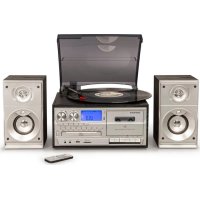
Eclipse CR7014A - Turntable Crosley - Free user manual and instructions
Find the device manual for free Eclipse CR7014A Crosley in PDF.



| Product Type | Turntable with radio, CD player, cassette player, Bluetooth, USB/SD recording |
| Brand | Crosley |
| Model | Eclipse CR7014A |
| Power supply | 120 V, 60 Hz |
| Power consumption | 28 W |
| Speakers | 4 Ω, 15 W x 2 |
| Turntable speeds | 33 1/3, 45, 78 RPM |
| Replacement needle | Crosley NP-6 |
| Bluetooth | Version 5.0 |
| Radio | AM and FM with wire antenna |
| Cassette player | Yes, with recording capability |
| CD player | Yes, with programmed playback |
| USB and SD card ports | Yes, for playback and recording |
| Auxiliary input | Yes, 3.5 mm jack |
| Outputs | RCA jack and speaker terminals |
| Auto stop | Yes, switchable ON/OFF |
| Remote control | Yes, with included CR2025 battery |
| Energy saving function | Auto power off after 20 min without audio input |
| Care and cleaning | Clean with a soft cloth. Protect from moisture |
| Safety | Do not open, unplug during storm, keep batteries out of reach of children |
| General information | Compliant with FCC and CE. Customer service: 1-888-CROSLEY |
Frequently Asked Questions - Eclipse CR7014A Crosley
User questions about Eclipse CR7014A Crosley
0 question about this device. Answer the ones you know or ask your own.
Ask a new question about this device
Download the instructions for your Turntable in PDF format for free! Find your manual Eclipse CR7014A - Crosley and take your electronic device back in hand. On this page are published all the documents necessary for the use of your device. Eclipse CR7014A by Crosley.
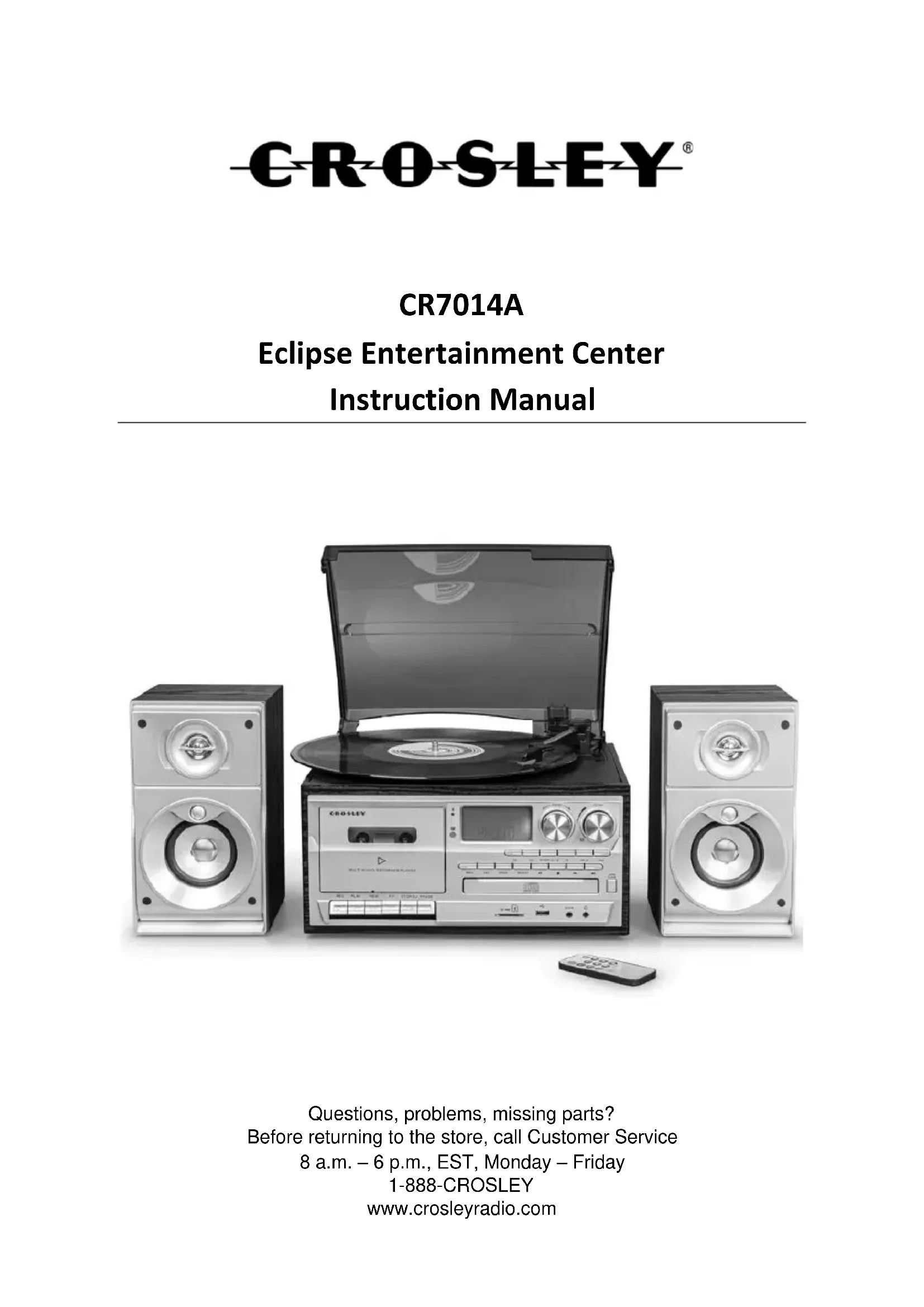
USER MANUAL Eclipse CR7014A Crosley
Questions, problems, missing parts?
Before returning to the store, call Customer Service
8 a.m. – 6 p.m., EST, Monday – Friday
1-888-CROSLEY
www.crosleyradio.com
Safety Instructions
Read and understand this entire manual before using this product. Keep these instructions for future reference.
- Do not use this product near water.
- This product should be operated only by the type of power source indicated on the marking label or in this instruction manual.
-
Do not defeat the safety purpose of the polarized plug. A polarized plug has two blades with one blade wider than the other. This plug will fit into the power outlet only one way. If you are unable to insert the plug fully into the outlet try reversing the plug. If the plug should still fail to fit, contact your electrician.
-
Protect the power cord from being walked on or pinched particularly at plugs, convenience receptacles, and the point where they exit from the product.
-
Do not overload wall outlets, extension cords, or integral convenience receptacles as this can result in a risk of fire or electric shock.
-
Never push objects of any kind into this product through openings as they may touch dangerous voltage points or short-out parts that could result in a fire or electric shock. Never spill liquid of any kind on the product.
-
Do not attempt to service this product yourself as opening or removing covers may expose you to dangerous voltage or other hazards. Refer all servicing to qualified service personnel.
-
Changes or modifications to this unit not expressly approved by the party responsible for compliance could void the user's authority to operate the equipment.
-
Do not use attachments not recommended by the product manufacturer as they may cause hazards.
-
A product and cart combination should be moved with care. Quick stops, excessive force, and uneven surfaces may cause the product and cart combination to overturn.
-
Slots and openings in the cabinet are provided for ventilation and to ensure reliable operation of the product and to protect it from overheating. Do not block or cover these openings.
-
Unplug the product during lightning storm or when unused for long periods of time.
-
Risk of explosion if the battery is replaced by an incorrect type
-
Do not ingest battery, Chemical Burn Hazard
-
This product contains a button cell battery. If the button cell battery is swallowed, it can cause severe internal burns in just 2 hours and can lead to death.
-
Keep new and used batteries away from children.
-
If the battery compartment does not close securely, stop using the product and keep it away from children.
-
If you think batteries might have been swallowed or placed inside any part of the body, seek immediate medical attention.

Items in this package
Before throwing away any packaging materials, please check thoroughly and make sure you find the following items that come along with this package:
- Turntable
- Remote
- Speakers
Please contact Crosley customer service if there is any accessory missing from the package. Retain the original packaging materials for exchange or return purposes.
Specifications
Power 120 V, 60Hz
Power consumption 28 W
Speaker 4 Ω 15 W X 2
Turntable Speed 33 1/3, 45, 78 RPM
Replacement Needle Crosley NP-6
Note:
- Design and specifications are subject to change without notice.
- To help save power consumption, some models will comply with ERP energy saving standard. When there is no audio input for 20 minutes, their powers will automatically cut-off. To turn power back on and resume playing, you will need to turn off the power and turn it on again.
Product Description
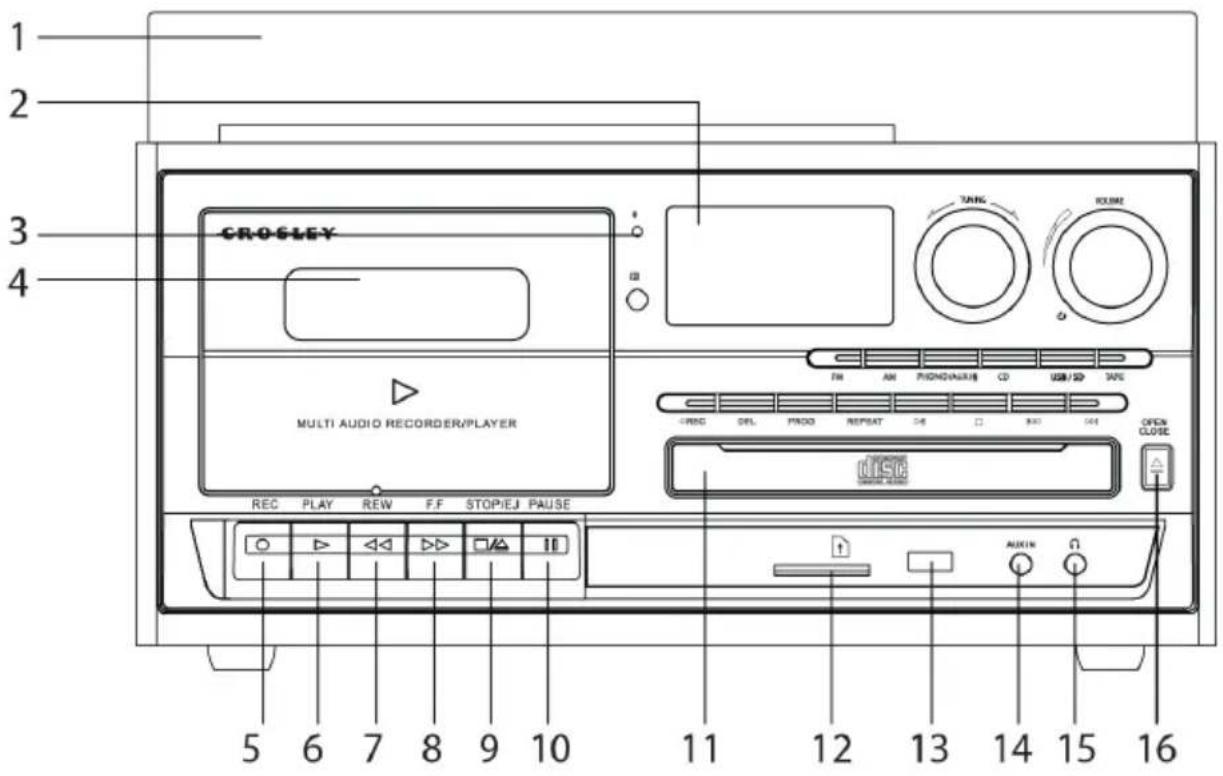
- Dust Cover
- LCD Screen
- Bluetooth Indicator
- Cassette Door
- Record Button
- Play Button
- Rewind Button
-
Fast Forward Button
-
Stop/Eject Button
- Pause Button
- CD Tray
- SD Card Slot
- USB Port
- Aux In Jack
- Headphone Jack
- CD Door Open/Close Button
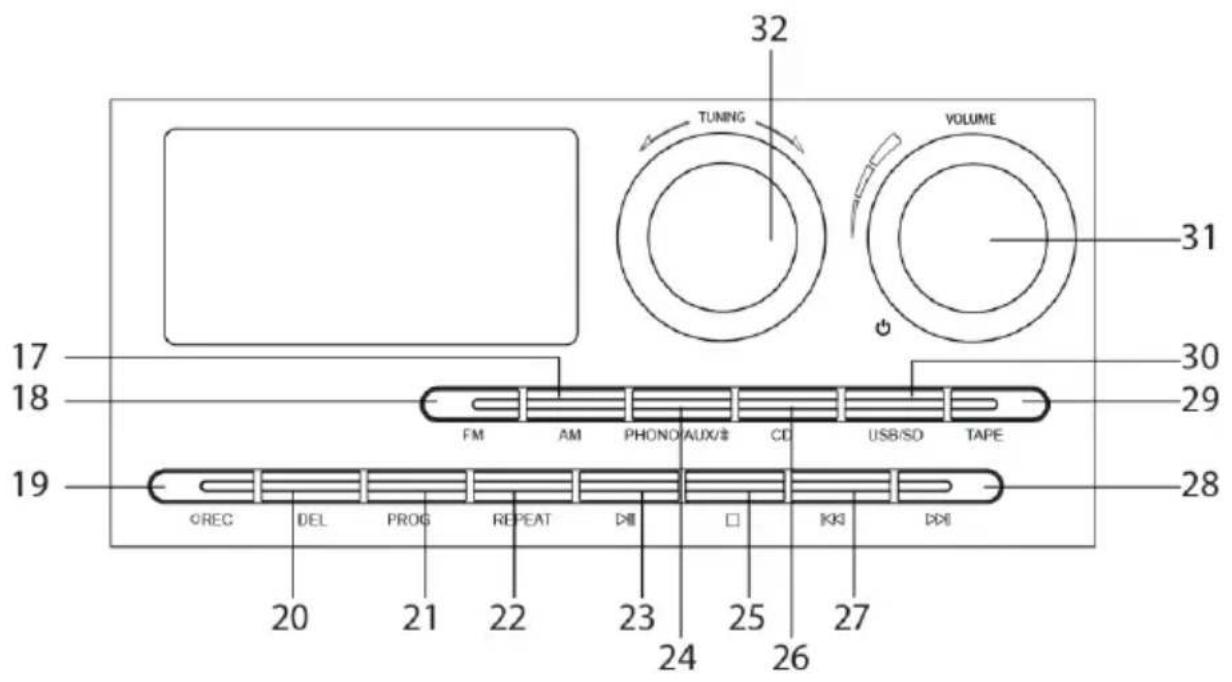
- AM Button
- FM Button
- Record Button
- Delete Button
- Program Button
- Repeat Button
- Play/Pause Button
-
Phono/Aux/Bluetooth Button
-
Stop Button
- CD Button
- Backward Skip Button
- Forward Skip Button
- Tape Button
- USB/SD Button
- On/Off-Volume Knob
- Tuning Knob
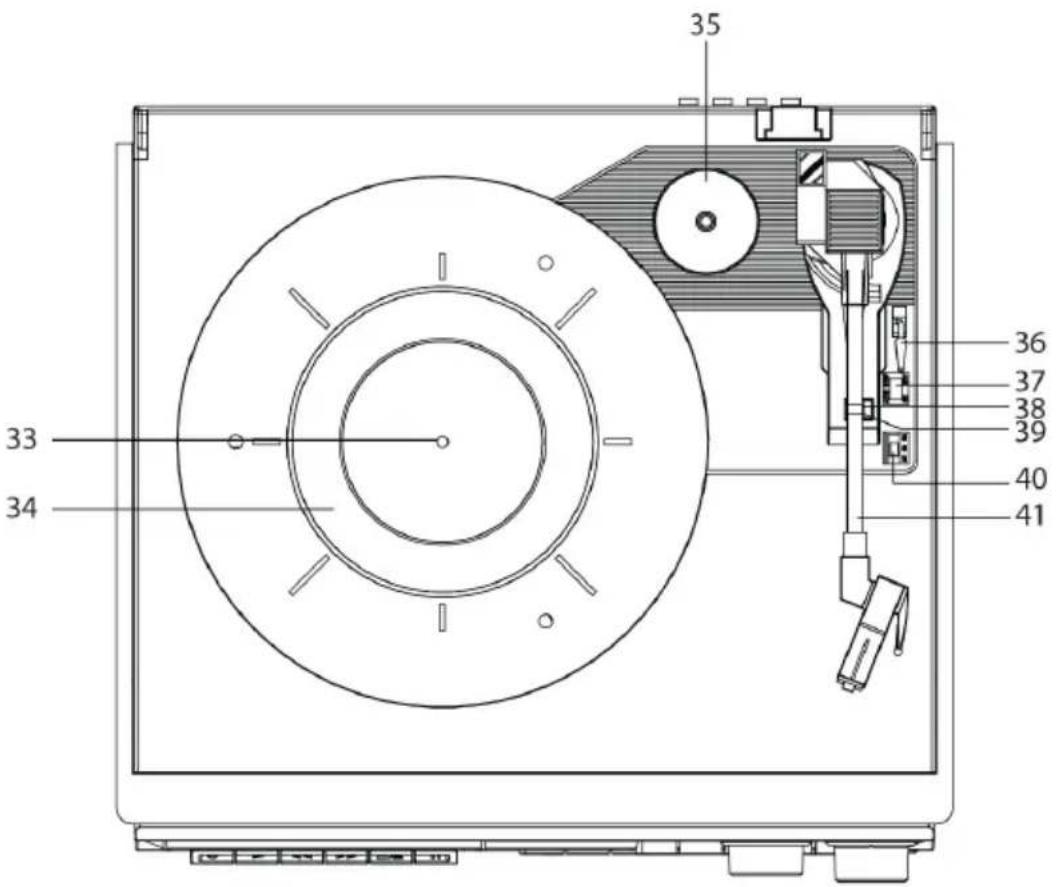
- Turntable Spindle
- Turntable Platter
- 45 RPM Adapter
- Tonearm Lever
-
Auto Stop Switch
-
Hold Down Clip
- Tonearm Rest
- Speed Switch
- Tonearm
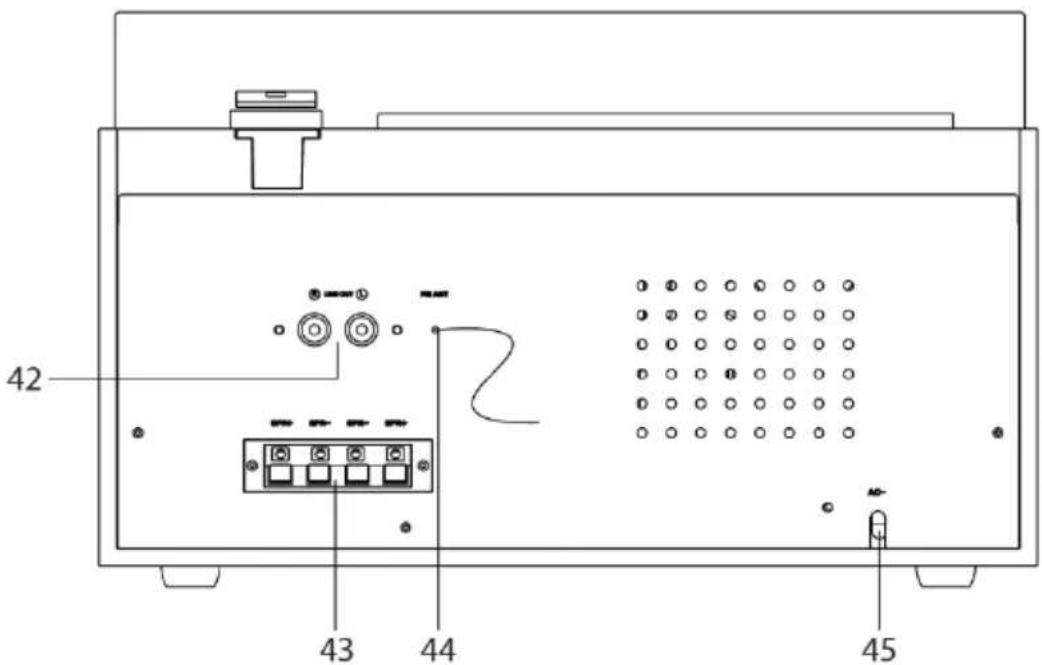
- RCA Jacks
-
Spring Clip Speaker Terminals
-
FM Wire Antenna
- Power Plug
Remote Control
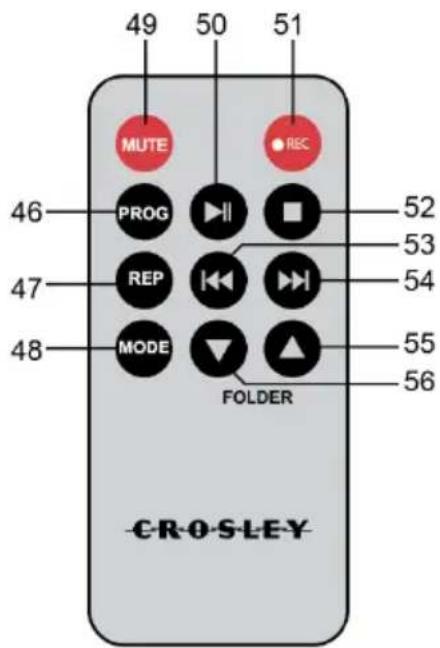
- Program Button
- Repeat Button
- Mode Button
- Mute Button
- Play Pause Button
- Record Button
- Stop Button
- Backward Skip Button
- Forward Skip Button
- Folder Down Button
- Folder Up Button
Initial Setup
Essential Setup
- Place the unit on a flat and level surface. The selected location should be stable and free from vibration.
- Remove the tie-wrap that is holding the tonearm.
- Plug the power cord to the power outlet
Remote Control
Prepare the Remote Control
First-time use:
The unit has a pre-installed lithium CR2025 battery. Remove the protective tab to activate the remote control battery.
Replace the Remote Control Battery
- Pull out the battery tray and remove the old battery.
- Place a new CR2025 battery into the battery tray with correct polarity (+/-) as indicated.
- Insert the battery tray back into the slot.
Note:
- If the Remote Control is operated near other products which generate infrared rays, or if other remote control devices using infra-red rays are used near the unit, it may operate incorrectly. Conversely, the other products may operate incorrectly.
Stereo System Connection
RCA Jacks
- The RCA Jacks output analog line-level signals and could be connected directly with a pair of active/powered speakers or the appropriate input of your stereo system.
- The Red plug connects with the Right channel and the White plug connects with the Left channel.
Note: The RCA Jacks are not designed to be connected directly to the passive/unpowered speakers. If connected to the passive speakers, the volume level will be very low.
Spring clip speaker terminals
The spring clip speaker terminals deliver amplified, speaker-level signals as output and should be connected with the passive speakers.
Aux Input Connection
You can connect an audio device to this unit and play your music through its speakers. To do this, connect the 3.5mm auxiliary cable between your audio device and the Aux In Jack of this unit, press the Phono/AUX/ button to set to Aux In mode, and start playing.
Note: The aux in connection will automatically override the turntable or Bluetooth function. To resume using the turntable or Bluetooth function, unplug the auxiliary cable from the aux in jack.
Turntable Operation
- Rotate the On/Off Volume Knob to turn on the power.
- Press the Phono/AUX/Button to set the unit to Phono mode.
- Set the Speed Switch accordingly.
- Place the record on the turntable. Use the 45 RPM Adapter if necessary.
- Remove the stylus protector from the stylus assembly. Note: To avoid stylus damage, make certain the included stylus protector is in place whenever the turntable is being moved or cleaned.
- Release the tonearm Hold Down Clip. Note: When the turntable is not in use, remember to lock back hold down clip.
- Use the Tonearm Lever to lift up the tonearm.
-
Gently move the tonearm over the record where play is desired to begin. Set the Tonearm Lever back to the down position, the tonearm will descend slowly onto the record and begin to playback.
-
When the record is finished playing or to suspend the playback, use the Tonearm Lever again to raise the tonearm and return it to the Tonearm Rest. Release the lever to lower the tonearm back to its rest.
- Lock the Tonearm Clip to secure the tonearm.
Platter Auto-stop
If the Auto-stop Switch is set to ON position, the platter will stop spinning automatically when the record plays to the end. In some rare occasion, if the turntable stops playing before the end of the record, set the switch to OFF position the turntable should overcome this issue.
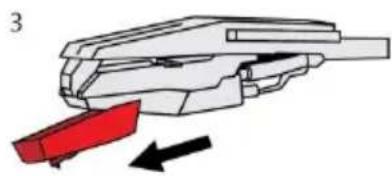
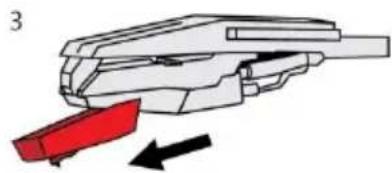
Needle Replacement
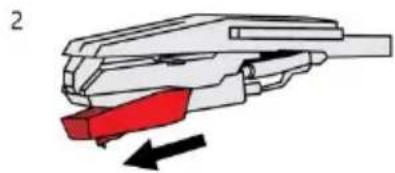
Removing Needle
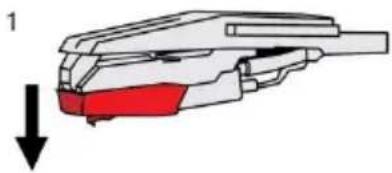
- Gently pull down the front edge of the needle.
- Pull needle forward.
- Pull out and remove.
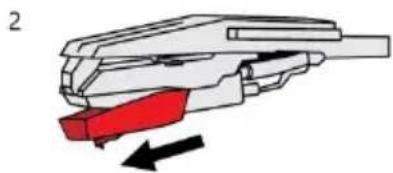
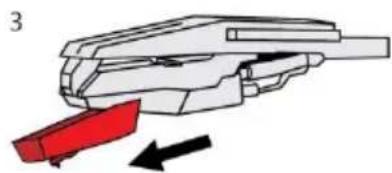
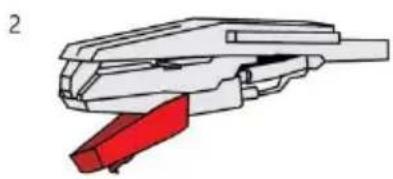
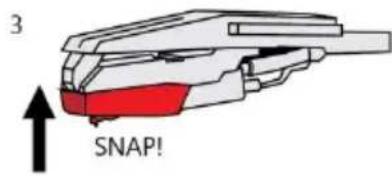
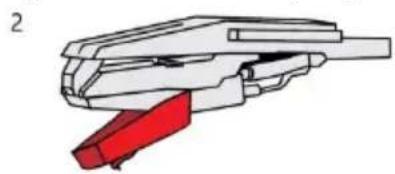
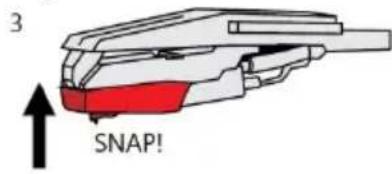
Installing Needle
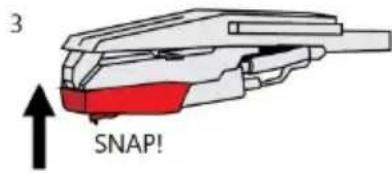
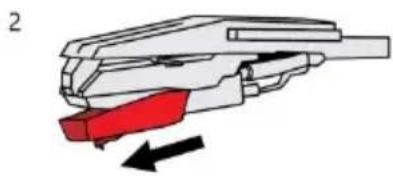
- Position the needle with its tip facing down.
- Line up the back of the needle with the cartridge.
- Insert the needle with its front end at a downward angle and gently lift the front of the needle upward until it snaps into place.
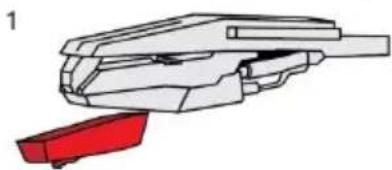
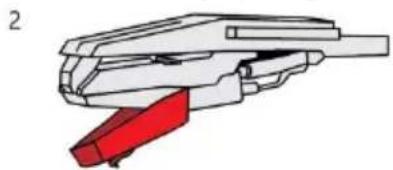
Radio Operation
- Rotate the On/Off Volume Knob to turn on the power.
- Press the AM Button or FM Button to the desired band.
- Rotate the Tuning Knob for desired radio station.
Note:
- The unit is equipped with a FM wire antenna. To improve FM reception, fully extend and move the wire around until the reception is clear without interferences. Do not connect the wire to any additional antenna.
- The AM antenna is built inside the unit. If AM reception is poor, try to rotate the unit for better reception.
Bluetooth Operation
- Rotate the On/Off Volume Knob to turn on the power.
- Press the Phono/AUX/*button to set the unit to Bluetooth mode, you will hear an activation sound from the unit.
- Turn on the Bluetooth feature of your audio device, search for "CROSLEY CR7014A" and pair.
- Once your device is successfully paired with the unit, you will hear a short confirmation sound from the unit.
- Play and stream music from your device to the unit.
Note: Bluetooth version - *5.0 *
CD Playback Operation
- Rotate the On/Off Volume Knob to turn on the power.
- Press the CD Button to set the unit to CD mode.
- Press the Open/Close button to open the CD tray and put the CD in the tray with the labeled side facing up.
- Press the Open/Close button again to close the tray. The LCD display will show "READING" for a few seconds, then the total number of tracks on the CD and the CD will automatically start playing. If it is a blank CD or an unrecognizable CD, it will show "00".
- During the playback, press the Play/Pause button to pause. Press it again to resume playback.
- To skip to the next or previous track, press the Forward Skip or Backward Skip button correspondingly
-
To search fast forward or backward a track, press and hold the Forward Skip or Backward Skip button correspondingly until you reach the desired time. Release the button and the playback will resume.
-
To repeat a specific track, press Repeat button once while that track is playing. To repeat all the tracks, press the Repeat button twice. To repeat random tracks, press the Repeat button three times. To cancel repeat function, press the Repeat button.
-
Press the Stop button if you want to completely stop playback.
Programmed Playback
- Press the Stop Button before starting, press the Program button once to enter program mode. Program Indicator will start flashing. The LCD display will flash "01" as the track sequence which is to be edited.
- Press the Forward Skip or Backward Skip buttons to select the desired track that you would like to play. The LCD's number will turn steady instead of flashing, showing the sound track number at selection.
- Press the Program button to confirm the selected track. The LCD's number will start flashing again showing the next track sequence which is to be edited.
- Repeat steps 2 & 3 for additional sound tracks that you would like to play. The tracks can be in any number and repeated. A maximum of 20 tracks can be programmed at one time.
- Press Play/Pause button to start the programmed playback. The tracks will play in the same sequence that you programmed earlier.
- To exit the program mode, press the Stop button twice and the Program Indicator will be off.
Cassette Operation
- Rotate the On/Off Volume Knob to turn on the power.
- Press the Tape button to set the unit to Tape mode.
- Press the Stop/Eject button to open the cassette door.
- Insert the prerecorded cassette into the cassette tray, and press the Play button.
- To fast forward, press the Fast Forward button in. To stop and return to the playback mode, press the Play button.
- To rewind, press the Rewind button in. To stop and return to the playback mode, press the Play button.
- To stop the playback, press the Stop/Eject button once. To eject the cassette, press the Stop/Eject button again.
Note: Remove the cassette from the cassette holder when it is not in use.
Cassette Recording
RADIO to TAPE
- Press the AM Button or FM button to the desired band.
- Insert a cassette tape, and press the RECORD and PLAY button to record the sounds from the radio.
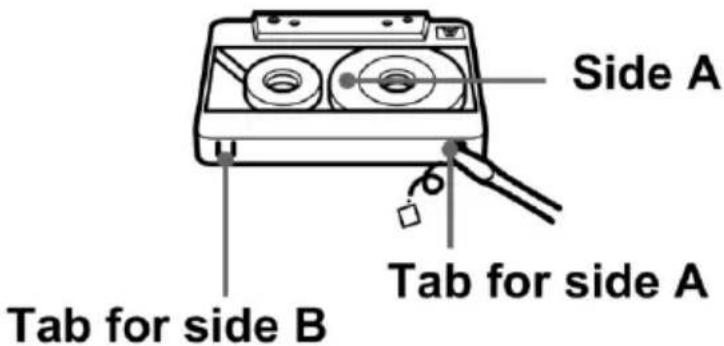
Note: To prevent accidental recording, break off the cassette tab from side A or B.
- To pause recoding, press the Pause button. Press it again to resume playback.
- To stop recording, press the Stop/Eject button.
USB/SD to TAPE
- Press the USB/SD button to set the unit to USB or SD mode.
- Insert a cassette tape, and press the RECORD and PLAY button to record the sounds from USB/SD.
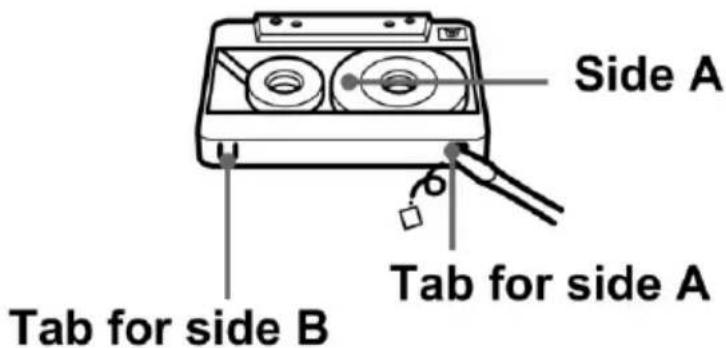
Note: To prevent accidental recording, break off the cassette tab from side A or B.
- To pause recoding, press the Pause button. Press it again to resume playback.
- To stop recording, press the Stop/Eject button.
CD to TAPE
- Press the CD button to set the unit to CD mode.
- Insert and play a CD.
- Insert a cassette tape, and press the RECORD and PLAY button to record the sounds from the CD.
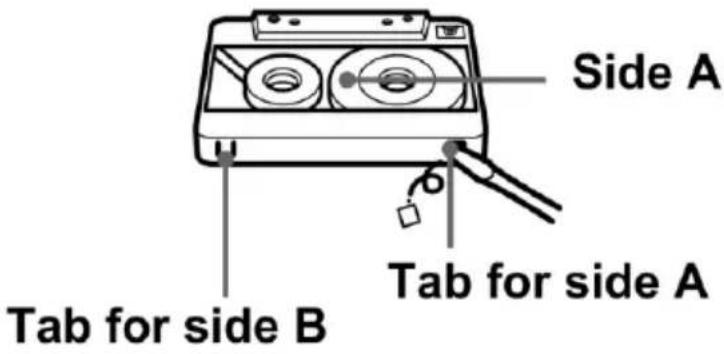
Note: To prevent accidental recording, break off the cassette tab from side A or B.
- To pause recoding, press the Pause button. Press it again to resume playback.
- To stop recording, press the Stop/Eject button.
PHONO to TAPE
- Press the Phono/AUX/*button and set the unit to phono mode.
- Lower the tone arm to start playback of the record.
- Insert a cassette tape, and press the RECORD and PLAY button to record the sounds from record.
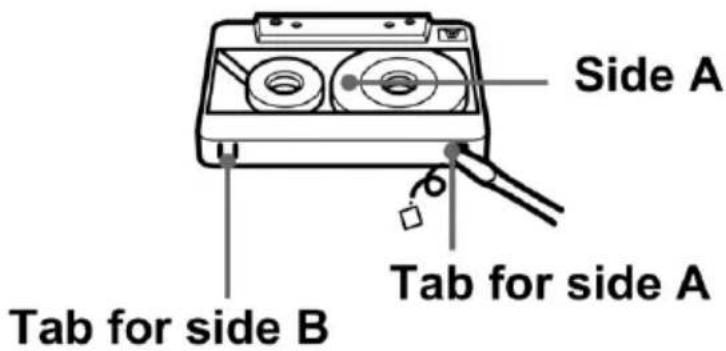
Note: To prevent accidental recording, break off the cassette tab from side A or B.
- To pause recoding, press the Pause button. Press it again to resume playback.
- To stop recording, press the Stop/Eject button.
Bluetooth to TAPE
- Press the Phono/AUX/*button and set the unit to Bluetooth mode.
- Turn on the Bluetooth feature of your audio device, search for "CROSLEY CR7014A" and pair.
- Play and stream music from your device to the unit.
- Insert a cassette tape, and press the RECORD and PLAY button to record the sounds from the Bluetooth device.
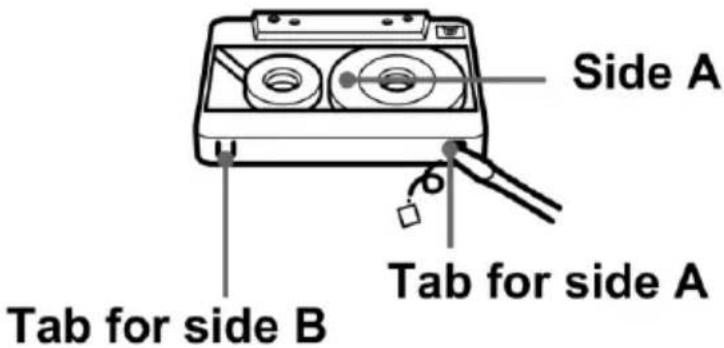
Note: To prevent accidental recording, break off the cassette tab from side A or B.
- To pause recoding, press the Pause button. Press it again to resume playback.
- To stop recording, press the Stop/Eject button.
AUX IN to TAPE
- Connect the 3.5mm auxiliary cable between your audio device and the Aux In Jack of this unit
- Press the Phono/AUX/*button to set to Aux In mode, and start playing.
- Insert a cassette tape, and press the RECORD and PLAY button to record the sounds from your audio device
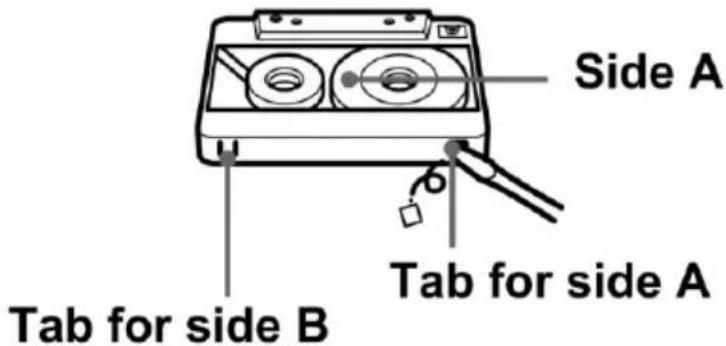
Note: To prevent accidental recording, break off the cassette tab from side A or B.
- To pause recoding, press the Pause button. Press it again to resume playback.
- To stop recording, press the Stop/Eject button.
USB/SD Playback
- Rotate the On/Off Volume Knob to turn on the power.
- Press the USB/SD button to set the unit to USB/SD mode.
- Insert a USB device into the USB port or a SD memory card into the SD card slot.
- To fast forward or rewind, press the Forward Skip Button or Backward Skip button in and release.
- To stop the playback, press the Stop button.
Note:
- Only use 32 GB or smaller USB or SD memory card
Folder/Album Playback
If your USB or SD is separated into folders, follow the steps below to access the folders.
- While the device is stopped, press the Folder Up or the Folder Down buttons on the remote to advance forward or backwards through the folders.
- Once the desired folder is reached, use the Forward Skip or the Backward Skip buttons to select the desired track.
- Press the Play button to begin playback of the selected track.
Deleting Files
The system is able to erase files stored on the USB drive or SD card. You can delete a single file/track, a folder of files/tracks, or all files/tracks on the storage medium.
Deleting a single file/track
- Insert the USB device or SD card, then select USB or SD mode.
- Press the delete DEL button during the playback of the track you want to delete: "ONE" will be flashing on the display.
- Press the delete DEL button again to confirm.
- “DEL” will show on the display while the file/track are being deleted until the deletion is complete.
Deleting a folder
- Insert a USB device and SD card, then select USB or SD mode
- When the system has recognized the device, press the stop button.
- Press the Folder Up/Folder Down buttons on the remote to advance through folders.
- Press the delete DEL button: "ONE" will be flashing on the display. Press the Forward or Backward Skip button and select "DIR".
- Press the delete DEL button again to confirm.
- “DEL” will show on the display while the folder is being deleted until the deletion is complete.
Deleting all files/tracks
- Insert a USB device or SD card, then select USB or SD mode.
- When the system has recognized the device, press the stop button.
- Press the delete DEL button: "ONE" will be flashing on the display. Press the Forward or Backward Skip button and select "ALL".
- Press the delete DEL button again to confirm.
- “DEL” will show on the display while the files/tracks are being deleted until the deletion is complete.
USB/SD Recording
RADIO to USB/SD RECORDING
- Press the AM or FM button to the desired band.
- Insert a USB device or an SD memory card and press the record button.
- Press the Backward or Forward Skip button to select USB or SD for recording, and press the record button to confirm the desired media.
- When you have finished recording, press the Stop button.
CASSETTE to USB/SD RECORDING
- Press the Tape button and set the unit to Tape Mode.
- Insert a USB device or an SD memory card and press the record button.
- Press the Backward or Forward Skip button to select USB or SD for recording, and press the record button to confirm the desired media.
- Insert a cassette and press the play button.
- When you have finished recording, press the Stop button.
PHONO to USB/SD RECORDING
- Press the Phono/AUX/ button and set the unit to Phono mode
- Insert a USB device or an SD memory card and press the record button.
- Press the Backward or Forward Skip button to select USB or SD for recording, and press the record button to confirm the desired media.
- Lower the tone arm to start playback of the record.
- When you have finished recording, press the Stop button.
CD to USB/SD RECORDING
- Press the CD button and set the unit to CD mode.
- Insert CD and press the stop button.
- Press the record button and select "ONE" to record the first song. Press the Backward or Forward Skip button to select "ALL" and record the entire CD.
- Press the Backward or Forward Skip button to select USB or SD for recording, and press the record button to confirm the desired media.
- When you have finished recording, press the Stop button.
AUX to USB/SD RECORDING
- Connect the 3.5mm auxiliary cable between your audio device and the Aux In Jack of this unit.
- Press the Phono/AUX/*button to set to Aux In mode.
- Insert a USB device or an SD memory card and press the record button.
- Press the Backward or Forward Skip button to select USB or SD for recording, and press the record button to confirm the desired media.
- Play the audio from your device.
- When you have finished recording, press the Stop button.
Bluetooth to USB/SD RECORDING
- Press the Phono/AUX/*button and set the unit to Bluetooth mode.
- Turn on the Bluetooth feature of your audio device, search for "CROSLEY CR7014A" and pair.
- Insert a USB device or an SD memory card and press the record button.
- Press the Backward or Forward Skip button to select USB or SD for recording, and press the record button to confirm the desired media.
- Play and stream music from your device to the unit.
- When you have finished recording, press the Stop button.
Troubleshooting
There is no power
- No power at the power outlet.
- To help save power consumption, some models will comply with ERP energy saving standard. When there is no audio input for 20 minutes, their powers will automatically cut-off. To turn power back on and resume playing, turn off the power and turn it on again.
Power is on, but the platter does not turn
- An aux in cable is plugged into the aux in jack, unplug it.
Turntable is spinning, but there is no sound, or sound not loud enough
- Stylus protector is still on.
- Tone arm is lift up by the lever.
CD does not play
• Function mode is not set to CD.
- The CD is blank.
- The CD is placed on the tray incorrectly with the label side facing down.
- The CD has too many scratches or dirty.
FCC Statements
This device complies with part 15 of the FCC Rules. Operation is subject to the following two conditions:
(1) This device may not cause harmful interference, and
(2) this device must accept any interference received, including interference that may cause undesired operation.
Note: This equipment has been tested and found to comply with the limits for a Class B digital device, pursuant to part 15 of the FCC Rules. These limits are designed to provide reasonable protection against harmful interference in a residential installation. This equipment generates, uses and can radiate radio frequency energy and, if not installed and used in accordance with the instructions, may cause harmful interference to radio communications. However, there is no guarantee that interference will not occur in a particular installation. If this equipment does cause harmful interference to radio or television reception, which can be determined by turning the equipment off and on, the user is encouraged to try to correct the interference by one or more of the following measures:
– Reorient or relocate the receiving antenna.
– Increase the separation between the equipment and receiver.
- Connect the equipment into an outlet on a circuit different from that to which the receiver is connected.
- Consult the dealer or an experienced radio/TV technician for help.
Note: The Grantee is not responsible for any changes or modifications not expressly approved by the party responsible for compliance. such modifications could void the user's authority to operate the equipment.
The device has been evaluated to meet general RF exposure requirement.
To maintain compliance with FCC's RF exposure guidelines, the distance must be at least 20 cm between the radiator and your body, and fully supported by the operating and installation configurations of the transmitter and its antenna(s).
SIMPLIFIED EU DECLARATION OF CONFORMITY
Hereby, Modern Marketing Concepts Inc. dba Crosley Brands, declares that the radio equipment type is in compliance with Directive 2014/53/EU. The full text of the EU declaration of conformity is available at the following internet address: http://crosleybrands.com/euDoC
CROSLLEY®
CR7014A
Instalar la aguja
Tab for side B
- SAFETY INSTRUCTIONS
- ITEMS IN THIS PACKAGE
- SPECIFICATIONS
- NOTE
- PRODUCT DESCRIPTION
- REMOTE CONTROL
- INITIAL SETUP
- ESSENTIAL SETUP
- PREPARE THE REMOTE CONTROL
- STEREO SYSTEM CONNECTION
- RCA JACKS
- SPRING CLIP SPEAKER TERMINALS
- AUX INPUT CONNECTION
- TURNTABLE OPERATION
- PLATTER AUTO-STOP
- NEEDLE REPLACEMENT
- REMOVING NEEDLE
- INSTALLING NEEDLE
- RADIO OPERATION
- BLUETOOTH OPERATION
- CD PLAYBACK OPERATION
- PROGRAMMED PLAYBACK
- CASSETTE OPERATION
- CASSETTE RECORDING
- RADIO TO TAPE
- USB/SD TO TAPE
- CD TO TAPE
- PHONO TO TAPE
- BLUETOOTH TO TAPE
- AUX IN TO TAPE
- USB/SD PLAYBACK
- FOLDER/ALBUM PLAYBACK
- DELETING FILES
- DELETING A SINGLE FILE/TRACK
- DELETING A FOLDER
- DELETING ALL FILES/TRACKS
- USB/SD RECORDING
- RADIO TO USB/SD RECORDING
- CASSETTE TO USB/SD RECORDING
- PHONO TO USB/SD RECORDING
- CD TO USB/SD RECORDING
- AUX TO USB/SD RECORDING
- BLUETOOTH TO USB/SD RECORDING
- TROUBLESHOOTING
- THERE IS NO POWER
- POWER IS ON, BUT THE PLATTER DOES NOT TURN
- TURNTABLE IS SPINNING, BUT THERE IS NO SOUND, OR SOUND NOT LOUD ENOUGH
- CD DOES NOT PLAY
- FCC STATEMENTS
- SIMPLIFIED EU DECLARATION OF CONFORMITY
- CROSLLEY®
- CR7014A
- INSTALAR LA AGUJA
- TAB FOR SIDE B
Brand : Crosley
Model : Eclipse CR7014A
Category : Turntable