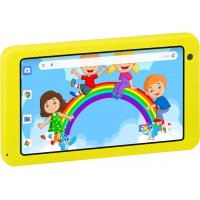
KIDTAB 7 S03 - Tablet Trevi - Free user manual and instructions
Find the device manual for free KIDTAB 7 S03 Trevi in PDF.


| Product type | Touchscreen tablet |
| Brand | Trevi |
| Model | KIDTAB 7 S03 |
| Screen | TFT LCD 7 inch, IPS, capacitive multi-touch, resolution 1024x600 |
| Processor | Quad-core ARM Cortex-A7 @1.8 GHz |
| RAM memory | 1 GB |
| Internal memory | 16 GB |
| Operating system | Android 8.1 GO |
| Connectivity | Wi-Fi 802.11 b/g/n (2.4 GHz), Bluetooth 2.4 GHz |
| Battery | Rechargeable Lithium-Polymer 3.7 V / 2100 mAh |
| Power supply | 5V adapter via micro USB port |
| Front camera | Yes (not specified in detail) |
| Rear camera | Yes (not specified in detail) |
| Speaker | Built-in |
| Headphone jack | 3.5 mm jack |
| External storage | Micro SD card |
| Care and cleaning | Wipe with a soft, dry cloth. Do not use chemicals or abrasives. Avoid moisture. |
| Safety | Use under adult supervision. Do not expose to water or flames. Follow audio volume guidelines. |
| Spare parts and repairability | Battery not user-replaceable. For any technical issues, contact after-sales service. |
| General information | Children's tablet. Functions: web browsing, applications, multimedia playback. Weight and dimensions not provided. |
Frequently Asked Questions - KIDTAB 7 S03 Trevi
User questions about KIDTAB 7 S03 Trevi
0 question about this device. Answer the ones you know or ask your own.
Ask a new question about this device
Download the instructions for your Tablet in PDF format for free! Find your manual KIDTAB 7 S03 - Trevi and take your electronic device back in hand. On this page are published all the documents necessary for the use of your device. KIDTAB 7 S03 by Trevi.
USER MANUAL KIDTAB 7 S03 Trevi
Google, Android, Google play and other marks are trademarks of Google LLC.
PER IMPOSTARE LA TUA LINGUA SUL DISPOSITIVO:
TO SET YOUR LANGUAGE DEVICE:
- Swicth on the appliance
- Go to the page with all applications
- Select the “IMPOSTAZIONI” icon
- Scroll through the list and select "LINGUE E IMMISSIONE"
- Select "LINGUE E IMMISSIONE" and find their own language from those available.
Note: For information and updates of this product: www.trevi.it
POUR CONFIGURER LANGUAGE DE VOTRE APPAREIL:
Display 7-inch TFT LCD, IPS, Capacitive (Touch- screen)
Resolution 1024x600 (16:9)
CPU Quad-core ARM CortexTM-A7@1.8GHz
RAM 1GB
Sistema Opeartivo Android 8.1 GO
Memoria Interna 16GB
WIFI Standard 802.11 b/g/n (2,4GHz)
This user manual has been specially designed to guide you through the functions and features of your device.
IMPORTANTNOTICES
- Keep this device away from strong magnetic field to avoid any damages.
- Do not rub this device with any hard objects and never clean this device with any chemicals or detergents or acids or it could cause damages on surfaces.
- Humidity or liquid may enter this device and causes permanent damages to the hardware inside. Do not place this device in any humid environment or under the rain.
- It is recommended that volume level of the earphones should be adjusted to an appropriate level to avoid damages to your hearings due to high volume.
- Do not cut off the power abruptly during software update, software download, or during this device is under any kind of operation or it may cause data lost and system error.
- Over-voltage, power cable strain, bending or squeezing by heavy objects must be avoided to prevent this device from overheating or fire disaster.
- To eliminate the risk of electric shock, do not connect the power plug with wet hands.
- Some movies, music and pictures are under protections of copyrights, any unauthorized usages are deemed as infringements to the laws of copyrights.
- The performance of the WI-Fi reception of this device could be influenced by the wireless equipments and networks in the surrounding areas.
- Any wireless equipment will influence the flight of an airplane, please consult the airline company if you want to use this device on the airplane.
- Do not use this device anywhere near any blasting operations.
- Only qualified maintenance personnel is allowed to dismantle this device.
- Please comply with any related restrictions and rules when using this device.
- Only use this device with its original accessories and battery.
- Do not use any incompatible accessories on this device.
- This device is not waterproof, please keep it dry all the time.
- For the sake of data safety, please back up the important data anytime on a timely basis.
- When connecting this device with other equipments, please follow instructions on this user's manual.
- Please consult the after-sales service in your area for any technical problems.
- The appliance must not be exposed to dripping or splashing no object Full of liquid, such as pots, must be placed on the appliance.
- No naked flame source, such as lit candles, must be placed on the unit.
- Keep this manual for future consultations.
Google, Android, Google play and other marks are trademarks of Google LLC.
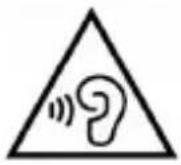
With earphone or headphones use:
To prevent possible hearing damage, limit the amount of time listening at high volumes.

This product is not a toy.
To use only under adult supervision.
APPEARANCE
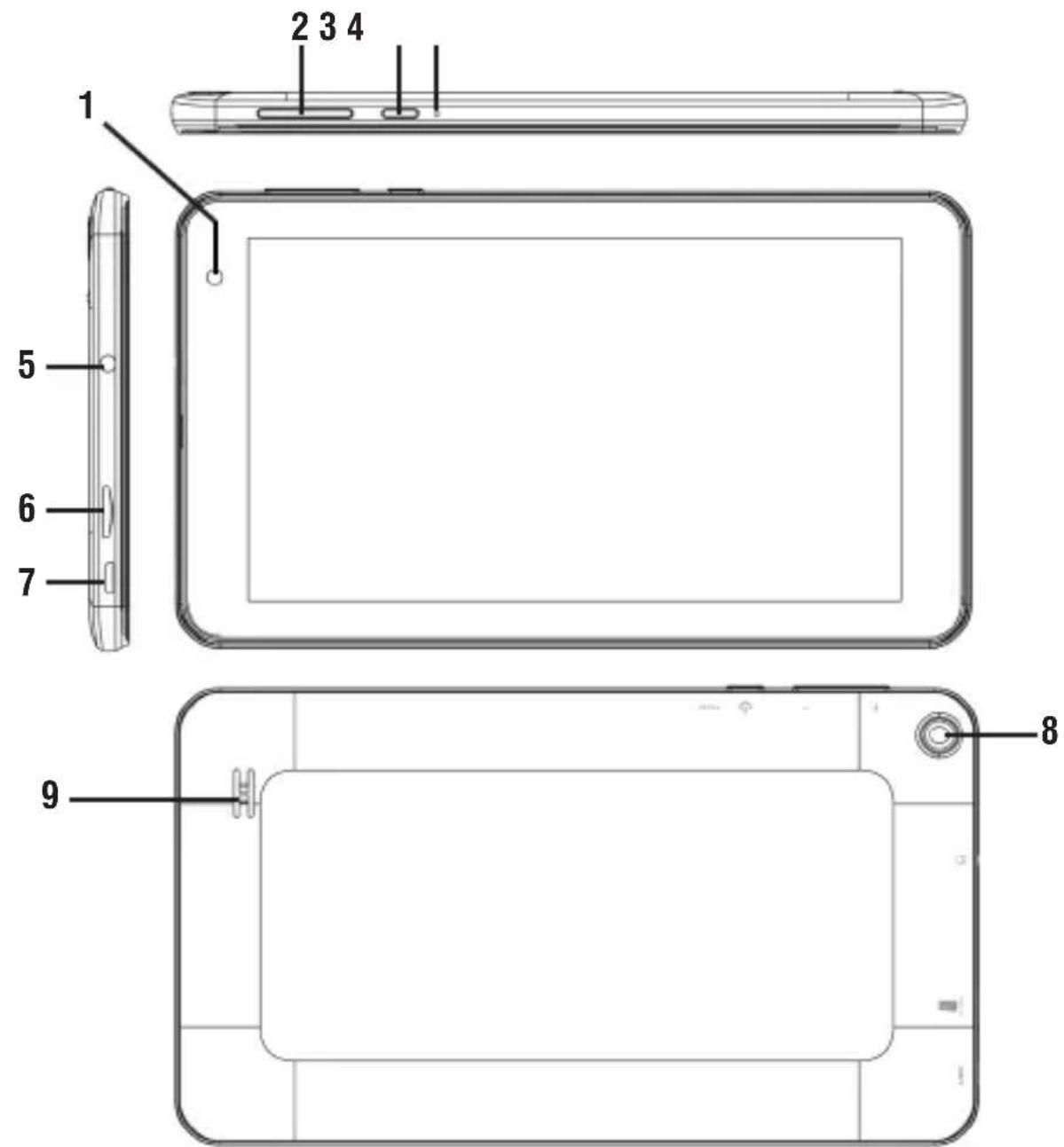
- Frontal Camera.
- Volume buttons.
-
Power button and ON/OFF Display.
-
Reset hole.
- Earphone Socket 3.5mm.
-
Micro SD CARD slot.
-
Micro USB/ DC socket: connect the unit to 5V adaptor/ connect the unit to PC.
-
Rear Camera.
- Speaker.
GETTING STARTED
Power ON
Long press the power button (3) 3-4 seconds to turn the unit on.
Power OFF
Long press the power button (3), choose "Power off" to shutdown.
Turning the Screen On or off (Standby)
When the Tablet is in operation, short press power button to enter the off-screen State and short press it again to light up the screen.
Note: To conserve battery power, the screen can be set to turn off automatically when the tablet is not in use (between 30 sec. and 30 minutes). This Screen timeout option can be found in the Display menu.
Lock and Unlocking the Screen
You can set the sleep time in the system of display.
The system will sleep automatically and lock the screen to the standby Mode if without any activity when reaches the preset stand by time.

unlock the screen and enter the application interface.
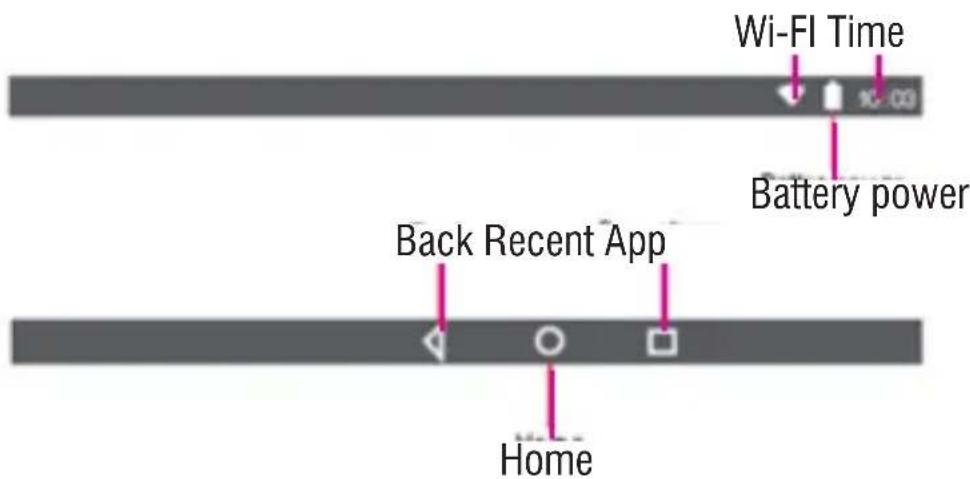
HOME PAGE INFORMATION BAR
TEXT INPUT
When use the tablet, you can use the virtual key board to input text, number, symbols directly by touching screen. After selecting the Android input method, the default keyboard show as below:
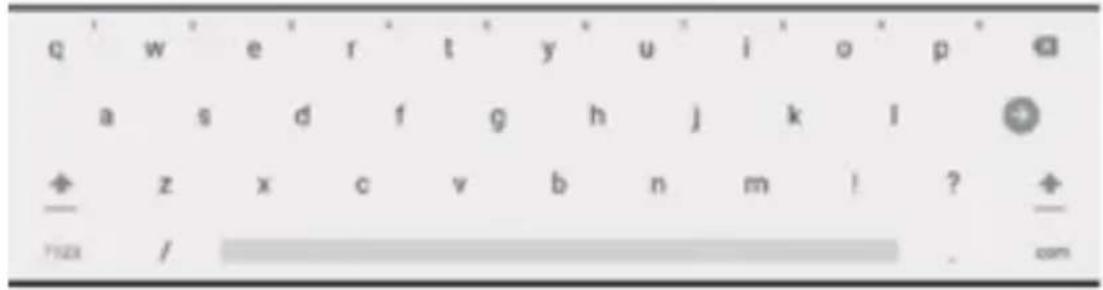
To switch the numbers and letters, press 7123 To switch the capital and lower case letter, press
RESET
Use a thin object to press the reset button in the hole, then your device will shut down, -you need to press the power button to turn on the unit.
USB CONNECTION
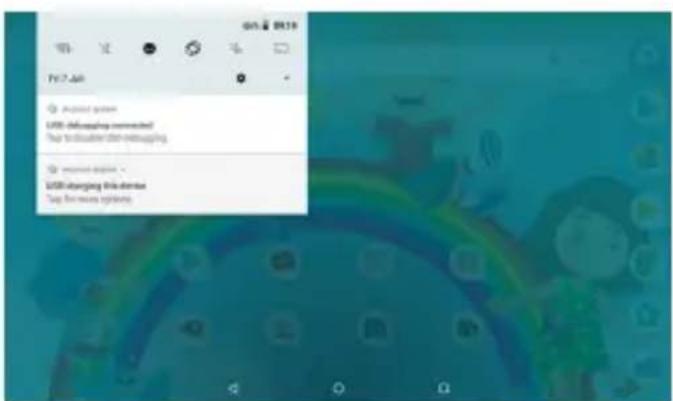
Use the USB cable to connect the tablet with PC. Click the drop down bar and you will see
Android system
USB charging this device
Tap for more options.
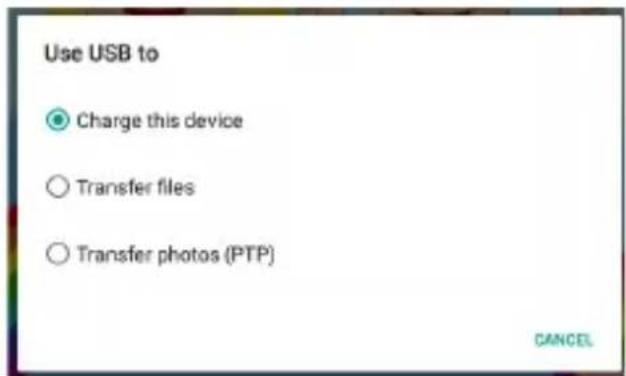
click this sign to connect your device and select:
- "Charge this device" for recharge only;
- "Transfer file" for add or delete the files in the unit;
- "Transfer photos" for transfer the photos only.
Turn off USB storage to disconnect your device with PC.
INTERNET CONNECTION
BROWSER
Require network support before using a web browser, if the reare network
Supporting problems, please contact your network operator or the service provider.
Tablet's web browser can connect to the Internet via Wi-Fi to satisfy your Business and individual network needs.
Please touch (Settings icon) to setup the Wi-Fi so that you can use the browser normally.
Touch (Chrome icon) in the application list to enter the browser pages:

Input URL: Touch the input area to get the soft keyboard, then input the URL.
Touch the icon to show the sub menu of the browser, and choose the corresponding one accordingly
SYSTEM SETTING
Click icon "Settings" to enter the system setting interface.
WIRELESS NETWORKS SETTING
Set Wi-Fi ON, the system will scan the available wireless network automatically and display
the wireless local area network in the list. If the local area network has the sign, represents the network has been encrypted, it need pass word for connection. While the
sign represents the network is unlocked and can be connected directly.
SOUND SETTING
Set the system volume, the default notification sound, enable or disable The touch sound and screen lock sound.
DISPLAY SETTING
Set the brightness, wallpaper, sleep time and font size.
APP SETTING
Display the applications. Choose one application, there levant information will show up, then you can choose force stop or uninstall. You can also choose to clear the cache, unloaded program and default value.
SECURITY SETTING
Set the system securities.
LANGUAGE & INPUT SETTING
Set the default language and input method.
DATE & TIME SETTING
Set date and time manually or set automatic date and time by using network-provided time.
INFORMATION ON BATTERY REMOVAL AND DISASSEMBLY
Caution: This operation is reserved exclusively for specialized technical personnel! The rechargeable battery installed in this appliance cannot be replaced by the user.
- Remove the rear cabinet of the appliance by levering upwards between the front and the rear;
- Locate the battery;
- Disconnect it and remove it.
Caution:
- Whatever type of battery is used, it should not be thrown away domestic, fire or water.
- Any used battery should be recycled or disposed of at any time dedicated collection centers.
WARNING: Lithium battery. Risk of explosion if battery is incorrectly replaced. Replace only with the same type or with an equivalent type.
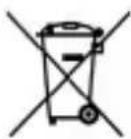
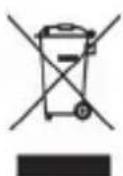
PRECAUTIONS FOR CORRECT DISPOSAL OF THE PRODUCT.
The symbol shown on the equipment indicates that waste must be disposed of in "separate collection" and so the product must not be disposed of together with urban waste. The user must take the product to special "separate waste collection centres" provided by local government, or deliver it to the retailer against the purchase of a new product. Separate collection of waste and subsequent treatment, recycling and disposal operations promotes the production of equipment with recycled materials and limits negative effects on the environment and on health caused by improper handling of waste. Illegal disposal of the product leads to the enforcement of administrative penalties.
TREVI pursues a policy of continuous research and development, the products may show different characteristics from those described.
TECHNICAL SPECIFICATION
Display 7-inch TFT LCD, IPS, Capacitive (Multi Touch)
Resolution 1024X600 (16:9)
CPU Quad-core ARM CortexTM-A7@1.8GHz
RAM 1GB
Operative Sistem Android 8.1 GO
Built-In Memory 16GB
WIFI Standard 802.11 b/g/n (2,4GHz)
Bluetooth transmission band 2,4 GHz
Bluetooth Transmission Power 1mW
Bluetooth Broadcast Power 0,8mW
Rechargeable Battery 3,7V, 2100mAh Li-Poly
BIENVENUE
Android system USB charging this device
Set the system securities.
RÉGLAGE DE LANGUAGE
RECOMMANDATIONS POUR L'ELIMINATION CORRECTE DU PRODUIT.
USB charging this device
Tap for more options.
Operative Sistem Android 8.1 GO
Memoria incorpora 16GB
WIFI Standard 802.11 b/g/n (2,4GHz)
Simplified EU Declaration Of Conformity
Hereby TREVI S.p.a declares that the equipment model Kid Tab7 S03 is in compliance with Directive 2014/53/EU.
The full text of the EU declaration of conformity is available at the following internet address https://www.trevi.it/dms/zidi/TREVI/KIDTAB7S03.pdf
Statement on chemicals (Reach)
The concentration of SVHC substances in this unit come under quantity ≤ 0.1% (W/W) permitted by the EC Regulation 1907/2006

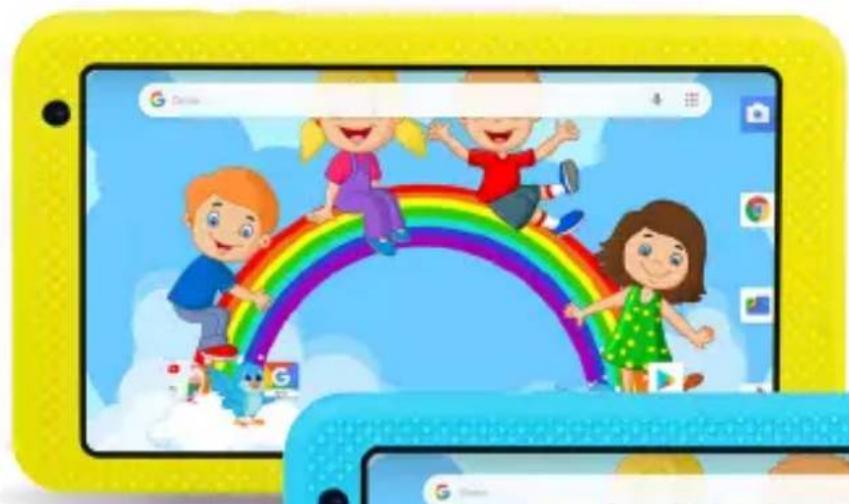
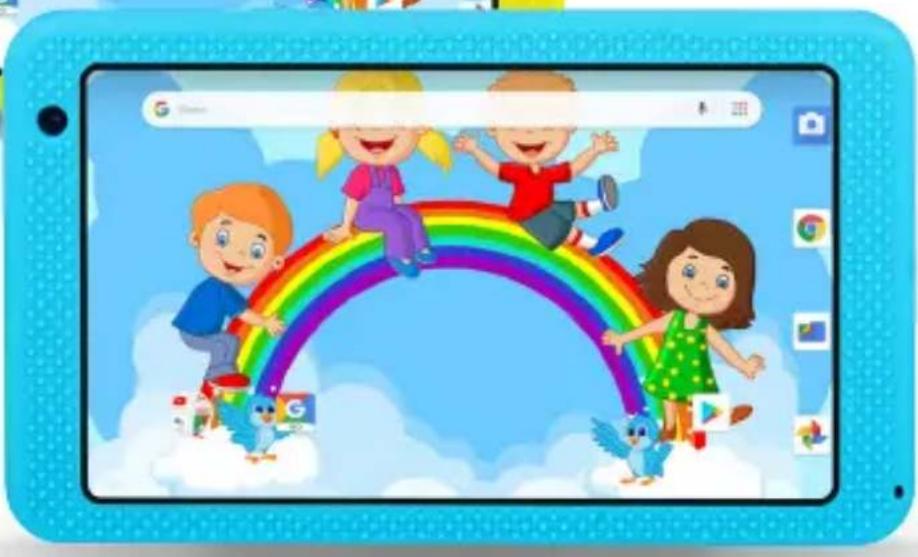
kidTab7 503

Trevi S.p.A.
Strada Consolare Rimini-San Marino, 62
47924 RIMINI (RN) Italy
Tel. 0541/756420 - Fax 0541/756430
www.trevi.it - E-mail: info@trevi.it




- PER IMPOSTARE LA TUA LINGUA SUL DISPOSITIVO:
- TO SET YOUR LANGUAGE DEVICE:
- POUR CONFIGURER LANGUAGE DE VOTRE APPAREIL:
- IMPORTANTNOTICES
- APPEARANCE
- GETTING STARTED
- Power ON
- Power OFF
- Turning the Screen On or off (Standby)
- Lock and Unlocking the Screen
- HOME PAGE INFORMATION BAR
- TEXT INPUT
- RESET
- USB CONNECTION
- INTERNET CONNECTION
- BROWSER
- SYSTEM SETTING
- WIRELESS NETWORKS SETTING
- SOUND SETTING
- DISPLAY SETTING
- APP SETTING
- SECURITY SETTING
- LANGUAGE & INPUT SETTING
- DATE & TIME SETTING
- INFORMATION ON BATTERY REMOVAL AND DISASSEMBLY
- Caution:
- PRECAUTIONS FOR CORRECT DISPOSAL OF THE PRODUCT.
- TECHNICAL SPECIFICATION
- BIENVENUE
- RÉGLAGE DE LANGUAGE
- RECOMMANDATIONS POUR L'ELIMINATION CORRECTE DU PRODUIT.
- Simplified EU Declaration Of Conformity
- Statement on chemicals (Reach)
- kidTab7 503
Brand : Trevi
Model : KIDTAB 7 S03
Category : Tablet