C550 - Cellphone LG - Free user manual and instructions
Find the device manual for free C550 LG in PDF.

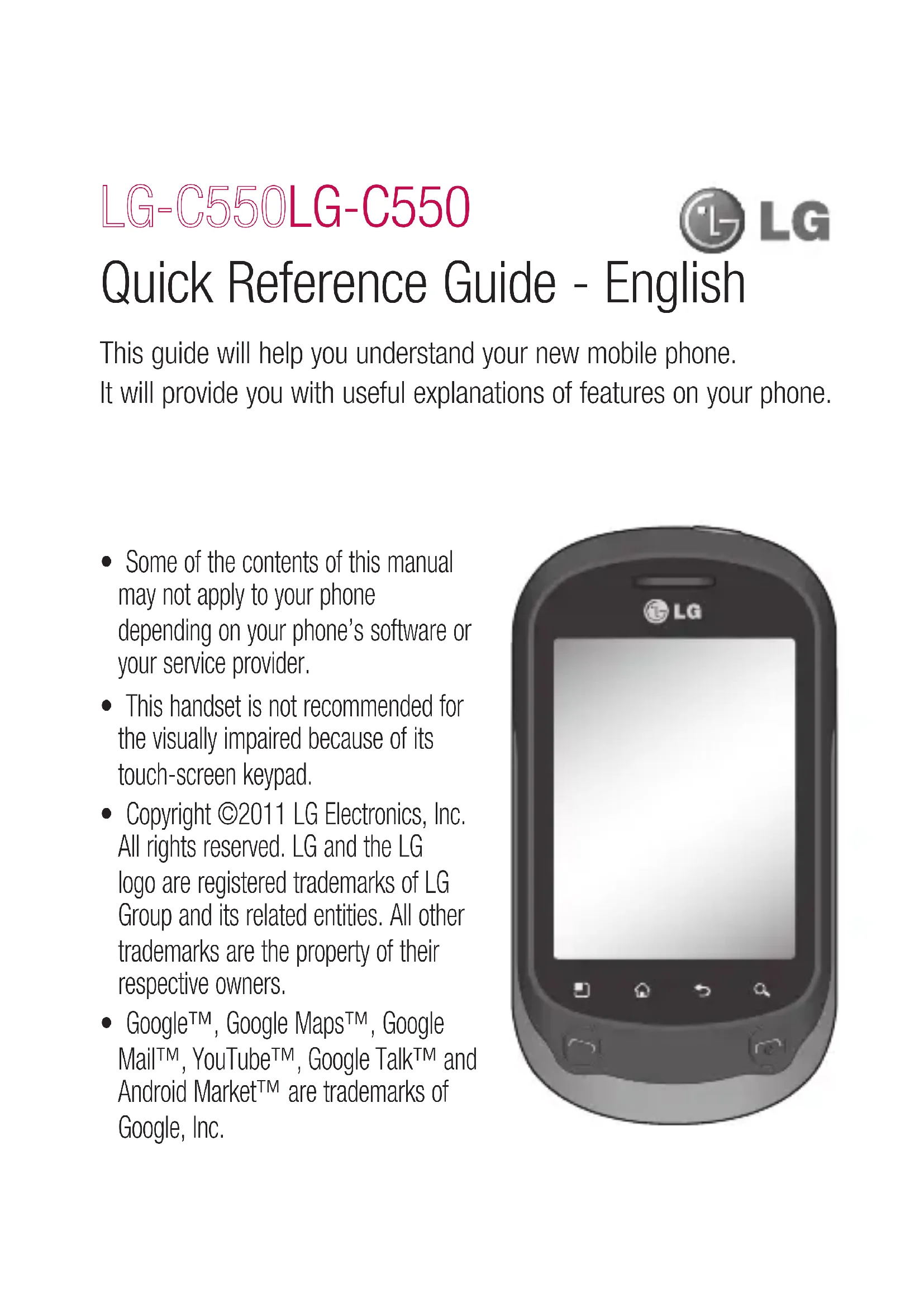


| Product Type | Mobile phone |
| Brand | LG |
| Model | C550 |
| Dimensions (approx.) | 115 x 61 x 12 mm |
| Weight (approx.) | 120 g (with battery) |
| Power supply | Rechargeable Li-Ion battery (1500 mAh) |
| Display | Capacitive touch screen (3.2 inches) |
| Operating system | Android 2.x (Gingerbread) |
| Processor | 800 MHz |
| Internal memory | 512 MB RAM, 512 MB ROM |
| External storage | microSD card up to 32 GB |
| Camera | 3.2 megapixels with autofocus, video recording |
| Connectivity | Wi-Fi 802.11 b/g, Bluetooth 2.1 EDR, GPS, microUSB 2.0 |
| Network | GSM / GPRS / EDGE / UMTS / HSDPA |
| Main functions | Calls, SMS/MMS, Email, Internet, FM Radio, Audio/video player, Google Maps, Android Market, Social networks |
| Maintenance and cleaning | Clean with a soft, dry cloth. Do not use abrasive products or solvents. Avoid moisture. |
| Safety | Do not expose to water or heat. Use only LG approved accessories. Turn off in sensitive areas (hospitals, airplanes). |
| Spare parts and repairability | Removable battery, accessible microSD slot, repairable touch screen and motherboard. Contact an LG authorized center. |
| General information | LG C550 smartphone released in 2011. Manual available in French. Manufacturer warranty. |
Frequently Asked Questions - C550 LG
User questions about C550 LG
0 question about this device. Answer the ones you know or ask your own.
Ask a new question about this device
Download the instructions for your Cellphone in PDF format for free! Find your manual C550 - LG and take your electronic device back in hand. On this page are published all the documents necessary for the use of your device. C550 by LG.
USER MANUAL C550 LG
015-200-255
* Make sure the number is correct before making a call.

C€0168①

LG
Life's Good
NEDERLANDS
FRANÇAIS
ENGLISH
Google-applicabies. 68
Maps 68
MarketTM 68
Google MailTM 69
Talk. 69
Accessoires 71
ThinkFree Office. 72
Spraakrecorder. 73
Verbinding makes met Wi-Fi
Declaration of Conformity

LG Electronics
Suppliers Details
Name
ectronics Inc.
Address
LG Twin Tower 20,Yeouido-dong, Yeongdeungpo-gu Seoul, Korea 150-721
Product Details
Product Name
GSM 850 / E-GSM 900 / DCS 1800 / PCS 1900 Quad Band and WCDMA Terminal Equipment
Model Name
LG-C550
Trade Name
LG

Applicable Standards Details
R&TTE Directive 1999/5/EC
EN301489-01v1.8.1/EN301489-07v1.3.1/EN301489-17v2.1.1
/EN301489-19v1.2.1/EN301489-24v1.4.1
EN300328v1.7.1
EN 60950-1:2006+A11:2009
EN 50360:2001 / EN62209-1:2006 / IEC62209-2:2010
EN 301 511 v9.0.2
EN 301 908-1 v4.2.1 / EN 301 908-2 v4.2.1
Supplementary Information
The conformity to above standards is verified by the following Notified Body(BABT)
BABT, Forsyth House, Churchfield Road, Walton-on-Thames, Surrey, KT12 2TD, United Kingdom
Notified Body Identification Number: 0168
Declaration
I hereby declare under our sole responsibility
that the product mentioned above to which this
declaration relates complies with the above mentioned standards, regulation and directives
LG Electronics Inc. - EU Representative
Veluwezoom 15, 1327 AE Almere, The Netherlands
Name
Doo Haeng Lee/Director
Issue Date
20, Jan, 2011

Signature of representative
Problemen oplossen
ThinkFree Office. 72
Dictaphone 73
GSM 850 / E-GSM 900 / DCS 1800 / PCS 1900 Quad Band and WCDMA Terminal Equipment
Modèle
LG-C550
Nom commercial
LG
C0168
Normes applicable
R&TTE Directive 1999/5/EC
EN301489-01v1.8.1/EN301489-07v1.3.1/EN301489-17v2.1.1
/EN301489-19v1.2.1/EN301489-24v1.4.1
EN300328v1.7.1
EN 60950-1:2006+A11:2009
EN 50360:2001 / EN62209-1:2006 / IEC62209-2:2010
EN301511v9.0.2
EN 301 908-1 v4.2.1 / EN 301 908-2 v4.2.1
Message Causes possibles Actions correctives possibles
Message Causes possibles Actions correctives possibles
Message Causes possibles Actions correctives possibles
Message Causes possibles Actions correctives possibles
This guide will help you understand your new mobile phone.
It will provide you with useful explanations of features on your phone.
- Some of the contents of this manual may not apply to your phone depending on your phone's software or your service provider.
- This handset is not recommended for the visually impaired because of its touch-screen keypad.
Copyright ©2011 LG Electronics, Inc. All rights reserved. LG and the LG logo are registered trademarks of LG Group and its related entities. All other trademarks are the property of their respective owners. - Google™, Google Maps™, Google Mail™, YouTube™, Google Talk™ and Android Market™ are trademarks of Google, Inc.
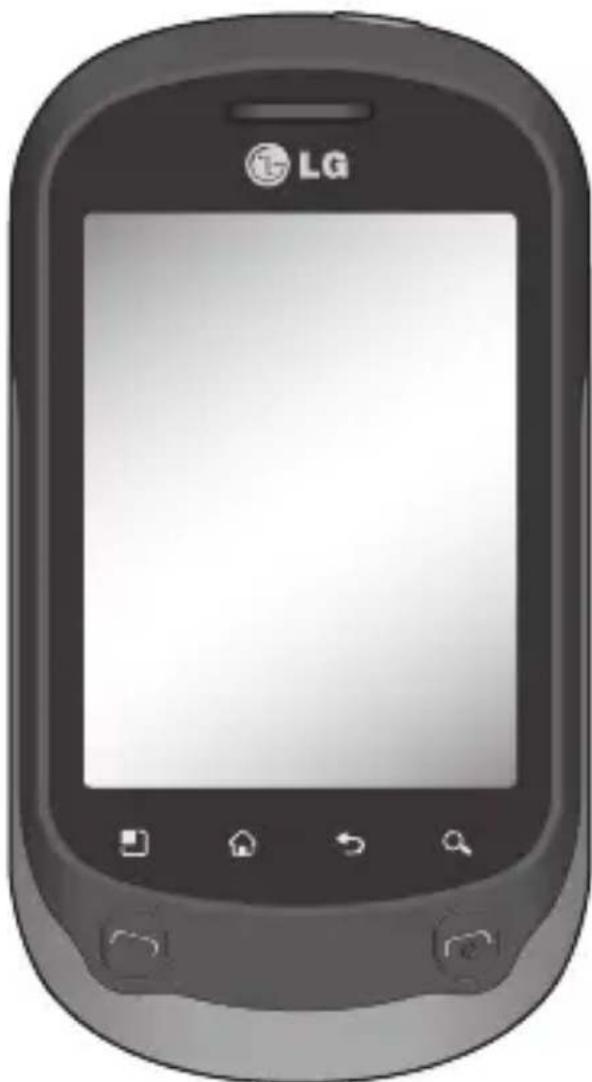
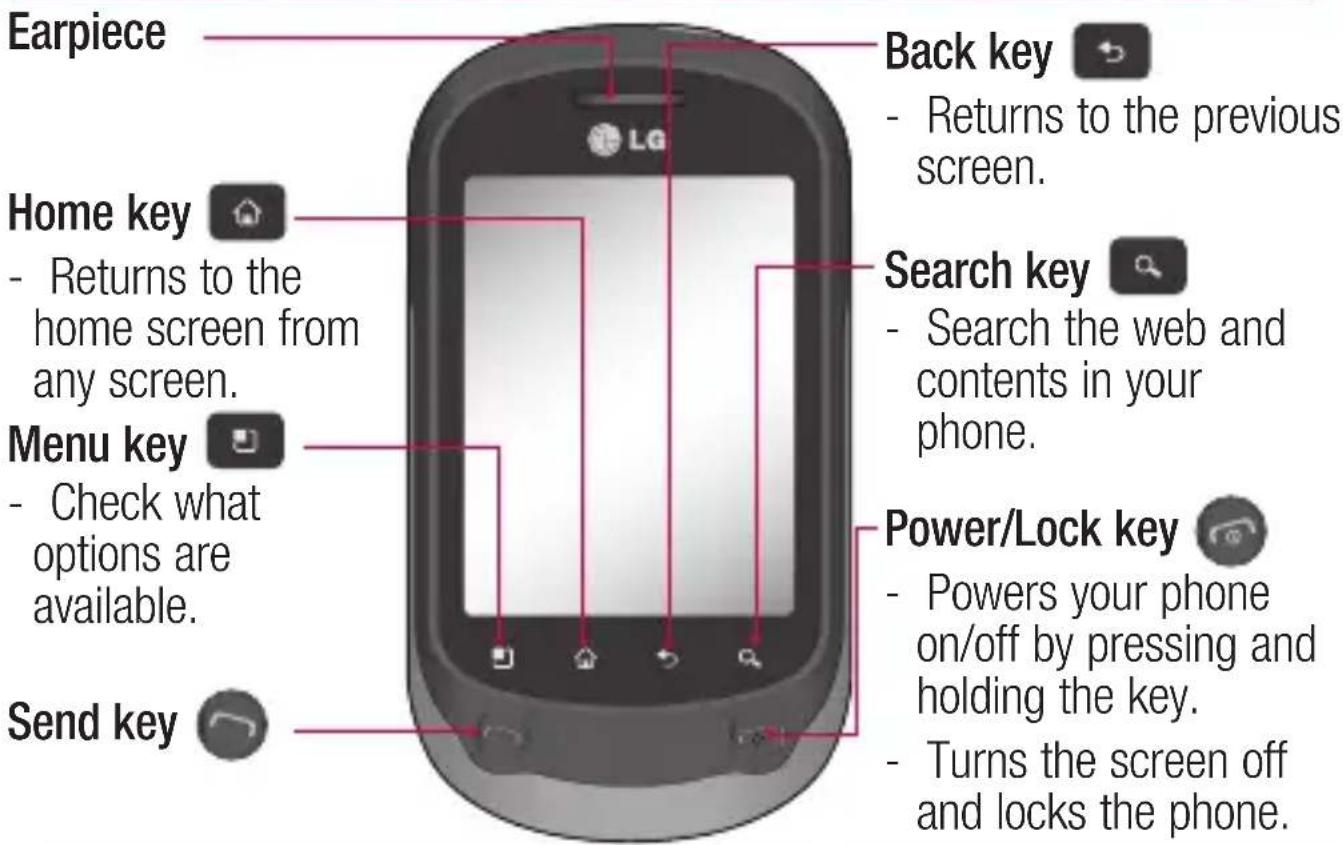
Getting to know your phone
To turn the phone on, press and hold the Power key for 3 seconds.
To turn the phone off, press the Power key for 3 seconds and touch Power Off.
TIP! When screen is locked
- Drag your finger from left to right to unlock the screen.
- To turn the phone off, press the Power key for 3 seconds and touch Power Off.

WARNING: Placing a heavy object on the phone or sitting on it damage its LCD and touch-screen functionalities.
Tip! Press Menu key whenever you tap an application to check what options are available.
Tip! LG-C550 does not support video call.
Tip! If LG-C550 has errors when you use it or you cannot turn it on, remove battery, install it again and turn it on after 5 seconds.
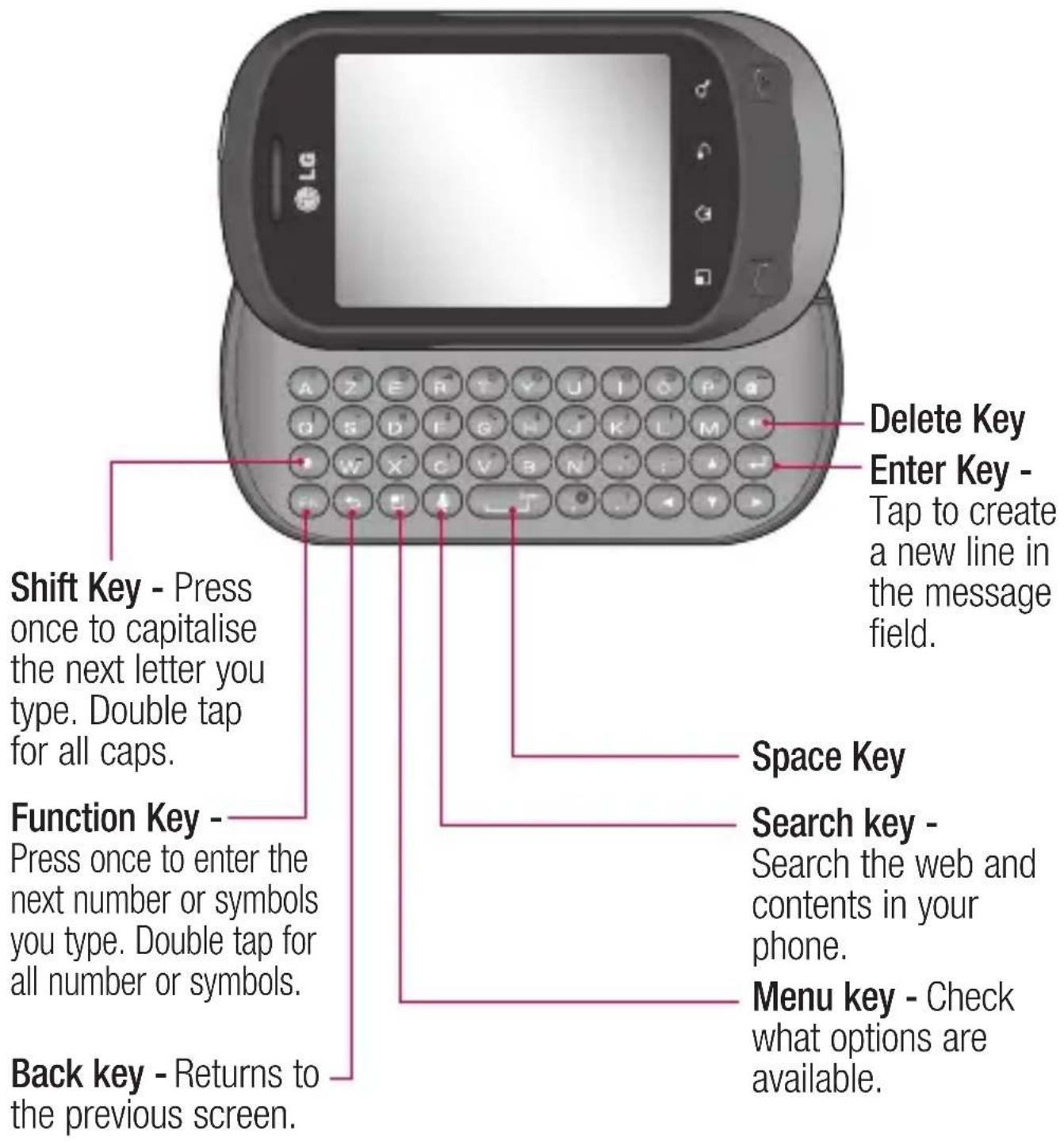
Getting to know your phone
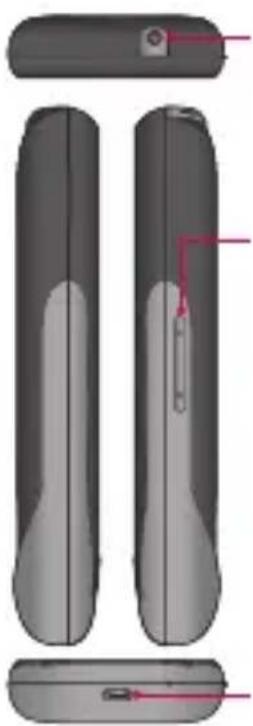
Stereo earphone connector
Volume keys
- On the home screen: controls ringer volume.
- During a call: controls your earpiece volume.
- When playing a track: controls volume continuously.
Charger, micro USB cable connector
Google Account Set-up
The first time you open the Google application on your phone, you will be required to sign in with your existing Google account. If you do not have a Google account, you're prompted to create one.
Creating your Google account
1 On the home screen, touch the Applications tab open the applications menu.
2 Tap Gmail and tap Next > Create to start the Google MailTM set up wizard.
Turn on Wi-Fi
From Home Screen, open Notification drawer and touch on.
From Menu, choose Settings > Wireless & network settings > Wi-Fi.
To connect to Wi-Fi
Choose the Wi-Fi network you want to connect with. If you see , you need to enter a password to connect.
TIP!
If you are out of the Wi-Fi area and choose 3G connection, additional charges may be applied.
USB tethering
You can share your phone's internet connection with your computer.
You can tether your phone to your computer with a USB cable.
Settings > Wireless & network > Tethering & portable hotspot > USB tethering.
For more information regarding USB tethering, click Help.
TIP!
To use USB Tethering, you need to install PC Suite onto your PC first.
Wi-Fi Tethering
Use your LG-C550 as a portable Wi-Fi hotspot.
Settings > Wireless & network > Tethering & portable hotspot > Portable Wi-Fi hotspot.
TIP!
If your phone turns into sleep mode even when it is connected to Wi-Fi, the Wi-Fi connection will be disabled automatically. In this case, if your phone has access to 3G data, it may be connected to the 3G network automatically, and additional charges may be applied.)
NOTE: The LG-C550 supports WEP, WPA/WPA2-PSK and 802.1x EAP security. If your Wi-Fi service provider or network administrator sets encryption for network security, fi ll in the key in the pop-up window. If encryption is not set, this pop-up window will not be shown. You can obtain the key from your Wi-Fi service provider or network administrator.
Camera
Getting to know the viewfinder
- Brightness - This defines and controls the amount of sunlight entering the image. Slide the brightness indicator along the bar, towards “-” for a lower brightness image, or towards “+” for a higher brightness image.
Zoom - Zoom in or zoom out. Alternatively, you can use the side volume keys.
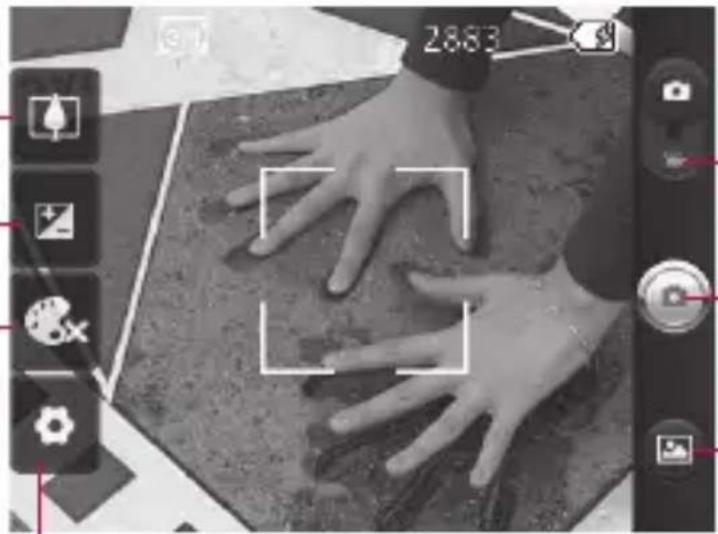
Video mode - Slide down this icon to switch to video mode.
Taking a photo
Gallery - This enables you to access your saved photos from within the camera mode. Simply touch, and your gallery will appear on the screen.
Settings - Touch this icon to open the settings menu. See Using the advanced settings.
Colour effect - Choose a colour tone for your new photo.
NOTE: You need to insert a memory card first to take a picture. Without inserting a memory card, you will not be able to take a picture or save the picture you have taken.
Video camera
Getting to know the viewfinder
Brightness - This defines and controls the amount of sunlight entering the Video. Slide the brightness indicator along the bar, towards “-” for a lower brightness Video, or towards “+” for a higher brightness Video.
Zoom - Zoom in or zoom out. Alternatively, you can use the side volume keys. Before starting to record a video, you can use the zoom function. You cannot control the zoom function during recording.
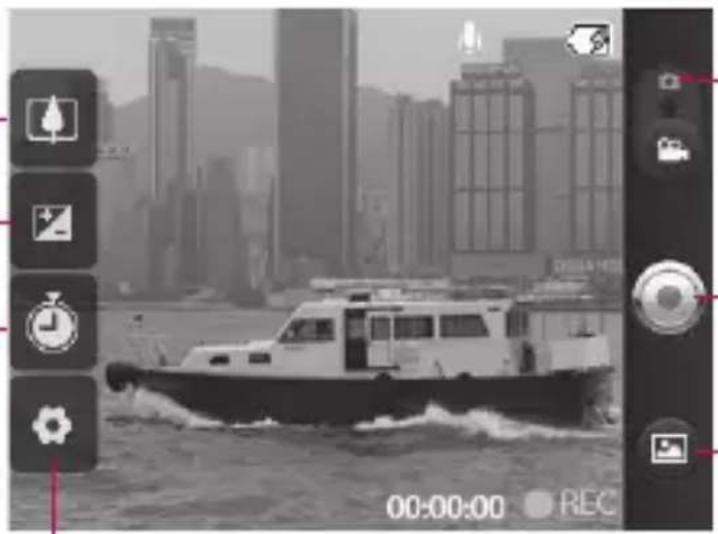
Settings - Touch this icon to open the settings menu. See Using the advanced settings.
Camera mode - Slide up this icon to switch to camera mode.
Start recording
Gallery - This enables you to access your saved photos & videos from within the video camera mode. Simply touch, and your gallery will appear on the screen.
Duration - Set a duration limit for your video. Choose between Normal and MMS to limit the maximum size to send as an MMS message. If you set as an MMS, you can record a 300kb video.
TIP! When choosing an MMS duration, the Video size will be set as QCIF and you can shoot longer videos.
Important notice
Please check to see if any problems you have encountered with your phone are described in this section, before taking the phone in for service or calling a service representative.
1. Phone memory
When available space on your phone memory is less than 10% , your phone cannot receive a new message. You need to check your phone memory and delete some data such as applications or messages to make more memory available.
To manage the application
1 On the home screen, touch Applications tab and select Settings>Applications> Manage applications.
2 When all applications appear, scroll and select the application you want to uninstall.
3 Tap Uninstall and touch OK to uninstall the application you desired.
2. Optimising Battery Life
You can extend your battery's life by turning off features that you don't need to run constantly in the background. You can also monitor how applications and system resources consume battery power.
To extend the life of your battery
- Turn off radio communications that you aren't using. If you aren't using Wi-Fi, Bluetooth, or GPS, turn them off.
- Turn down screen brightness and set a shorter screen timeout.
- Turn off automaticyncing for Google Mail, Calendar, Contacts, and other applications.
- Some applications you've downloaded may cause your battery's life to be reduced.
Important notice
To check the battery charge level
1 On the home screen, touch Applications tab and select Settings> About phone > Status.
2 The battery status (charging, discharging) and level (as a percentage of fully charged) are displayed at the top of the screen.
To monitor and control what uses the battery
1 On the home screen, touch Applications tab and select Settings> About phone> Battery use.
2 The top of the screen displays battery usage time. Either how long since last connected to a power source or, if connected to a power source, how long you were last running on battery power. The body of the screen lists applications or services using battery power from greatest amount to least.
3. Installing an Open Source OS
If you install an open source OS on your phone, and do not use the OS provided by the manufacturer, this may cause your phone to malfunction.
WARNING: If you install and use an OS other than the one provided by the manufacturer, your phone is no longer covered by the warranty.
WARNING: To protect your phone and personal data, download applications only from trusted sources, such as Android MarketTM. If some applications are not properly installed on your phone, your phone may not work correctly or a serious error could occur. You will need to uninstall those applications and all of its data and settings from the phone.
4. Using Unlock pattern
Set unlock pattern to secure your phone. Opens a set of screens that guide you through drawing a screen unlock pattern.
On the home screen, touch Applications tab and select Settings > Location & security Set up screen lock > Pattern.
Follow the screens to be guided through drawing a screen unlock pattern. Select Next to continue to next screen.

WARNING: Precautions
to take when using the Pattern Lock. It is very important that you remember the unlock pattern you set. You have 5 opportunities to enter your unlock Pattern, PIN or Password. If you have used all 5 opportunities, you may attempt again after 30 seconds.
When you can't recall your unlock Pattern, PIN, or Password:
If you've created a Google account on the phone, tap the Forgot pattern button. Then, you are required to sign in with your Google account to unlock your phone. If you haven't created a Google account on the phone or you forgot it, you need to perform a hard reset.
Caution: If you perform a hard reset, all user applications and user data will be deleted. Please remember to backup any important data before performing a hard reset.
Important notice
5. Using Safe Mode and Hard Reset
Using Safe mode
- To recover the phone from any malfunction
Turn off your phone and reboot. While your phone is powering back on, press and hold the Send key while the Android Logo is displayed. Your phone will boot all the way to the main screen and display "safe mode" in the lower left-hand corner.
- Using Hard Reset (Factory Reset)
If it does not restore to its original state, use Hard Reset to initialise your phone.
1 Remove and reinsert the battery.
2 Press and hold for over 10 seconds: Power/Lock key + Send key + Down Volume key.
3 When the power turns on, release these keys.
WARNING
If you perform a Hard Reset, all user applications and user data will be deleted. Please remember to back up any important data before performing a Hard Reset.
6. Connecting to Wi-Fi networks
To use Wi-Fi on your phone, you access a wireless access point, or "hotspot." Some access points are open and you can simply connect to them. Others are hidden or implement other security features, so you must configure your phone so it can connect to them.
Turn off Wi-Fi when you're not using it, to extend the life of your battery.
To turn Wi-Fi on and connect to a Wi-Fi network
1 On the home screen, touch Applications tab and select Settings > Wireless & networks > Wi-Fi settings.
2 Touch Wi-Fi to turn it on and begin scan for available Wi-Fi networks.
- List of available Wi-Fi networks is displayed. Secured networks are indicated by a lock icon.
3 Touch a network to connect to it.
- If the network is open, you are prompted to confirm that you want to connect to that network by touching Connect.
- If the network is secured, you're prompted to enter a password or other credentials. (Ask your network administrator for details.)
4 The Status bar displays icons that indicate Wi-Fi status.
7. Using a micro SD card
Pictures, along with Music and Video files, can only be saved to external memory.
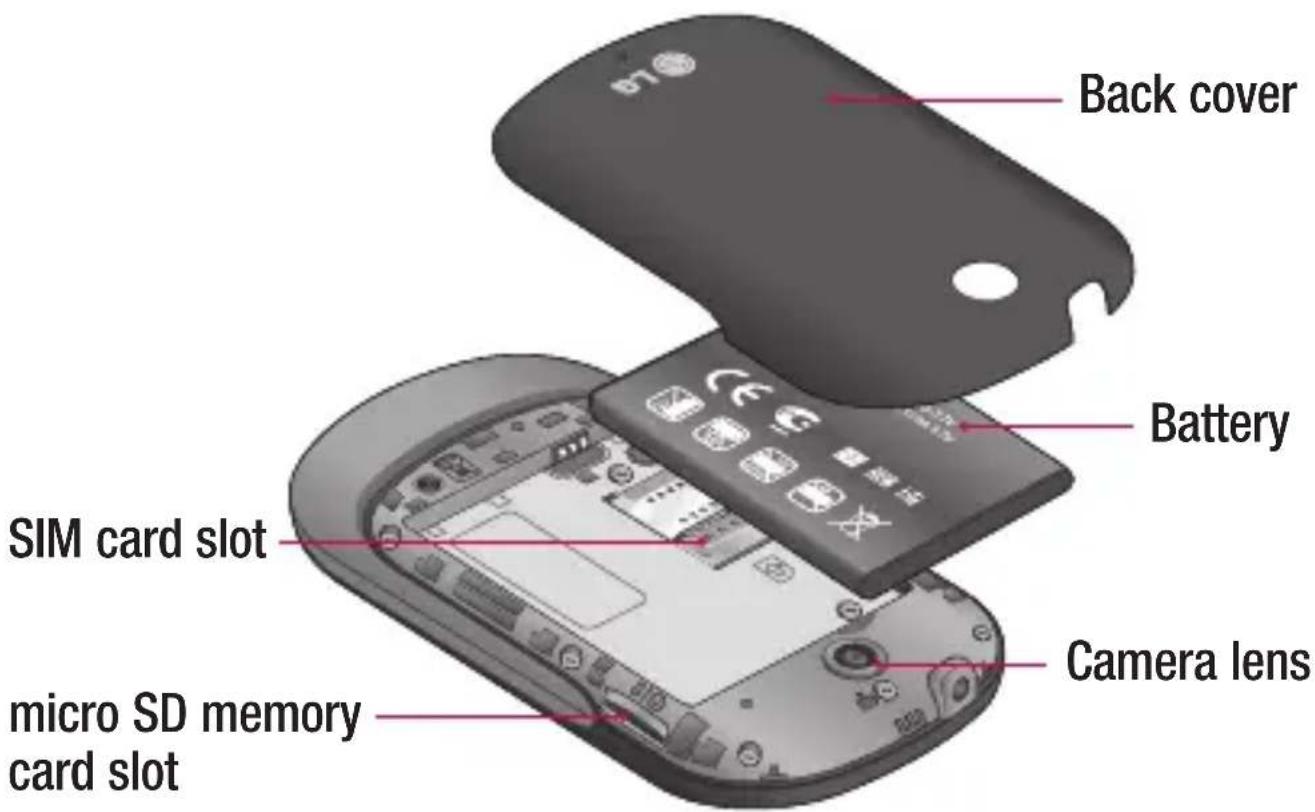
Before using the built-in camera, you need to insert a micro SD memory card to your phone first. Without inserting a memory card, you will not be able to save pictures and video you have taken.
WARNING:
Do not insert or remove the memory card when the phone is on. Otherwise, it may damage the memory card as well as your phone, and the data stored on the memory card may be corrupted. To remove the memory card safely, please select Home Screen > Applications > Settings > SD card & phone storage > Unmount SD card.
Important notice
8. Opening and Switching Applications
Multi-tasking is easy with Android because open applications keep running even when you open another application. There's no need to quit an application before opening another. Use and switch among several open applications. Android manages each application, stopping and starting them as needed, to ensure that idle applications don't consume resources unnecessarily.
To stop the application you use
1 On the home screen, touch Applications tab and select Settings>Applications> Manage applications > Running.
2 Scroll to the desired application and touch Force stop to stop using it.
TIP Getting back to recent Apps
- Press and hold Home key, then a screen will display a list of the applications you used recently
9. Copy LG PC Suite from SD Card
The LG PC Suite IV is a program that helps you connect your mobile phone to a PC using a USB data communication cable, so that you can use the functions of the mobile phone on your PC.
Major Functions of the LG PC Suite IV
- Create, edit and delete phone data conveniently.
-
Synchronise data between a PC and a phone (Contacts, Calendar, Message(SMS), Bookmark, Call log).
-
Transfer multimedia files (photos, videos, music) conveniently with a simple drag & drop between a PC and a phone.
- Transfer the messages from a phone to a PC.
- Use your phone as a Modem.
- S/W update without losing your data.
Installing LG PC Suite from your micro SD memory card
1 Insert your micro SD memory card on your phone. (It may already be inserted on your phone.)
2 Before connecting the USB data cable, make sure that the Mass storage only mode is enabled on your phone. (On the applications menu, choose Settings > SD card & phone storage, then select Mass storage only check box.)
3 Connect your phone through USB data cable to your PC.
4 In the status bar, drag the USB icon.
- Choose USB Connected and Turn On USB storage.
- You can view the mass storage content on your PC and transfer the files.
5. Copy the LGPCSuiteIV folder on your mass storage to your PC.
- Run 'LG Installer.exe' file on your PC and follow the instructions.
- When LG PC Suite IV installation is completed, disable Mass storage only mode to run LG PC Suite IV.
NOTE: Please do not remove or delete other program fi les installed on your memory card. This may cause damage to your preinstalled applications on the phone.
Important notice
10. Connecting your phone to a computer via USB
NOTE: To synchronise your phone via USB cable with your PC, you need to install the LG PC Suite program on your PC. You can download this program from the LG website (www/lg.com). Go to http://www/lg.com and select your region, country & language. Visit LG website for more information. As PC Suite is embedded at inboxed SD card, you can simply copy it to your PC.
LG-C550 does not support:
- PC Connection via Bluetooth
- LG Air Sync (Web Sync, RClick)
- OSP (On Screen Phone)
- To-do in Calendar
- Memo
- Java Application
User's guide for PC Suite IV is in Help menu after the installation PC Suite IV.
1 Use the USB cable with your phone to connect the phone to a USB port on your computer. You receive a notification that the USB is connected.
2 Open the Notification drawer and touch USB connected.
3 Touch "Turn On USB storage" to confirm that you want to transfer files between your phone's micro SD card and the computer.
When the phone is connected as USB storage, you will receive a notification. Your phone's micro SD card is mounted as a drive on your computer. You can now copy files to and from the micro SD card.
11. Unlock screen when using data connection
Your display will go dark if untouched for a period of time when using data connection. To turn on your LCD screen, just press the hard key.
Note: When uninstalling PC Suite IV, USB and Bluetooth Drivers are not automatically removed. Therefore, they must be uninstall manually.
Tip! To use a micro SD card on your phone again, you need to open the Notifi cation drawer and touch "Turn off USB storage". During this time, you can't access the micro SD card from your phone, so you can't use applications that rely on the micro SD card, such as Camera, Gallery and Music.
To disconnect your phone from the computer, carefully follow your computer's instructions to disconnect USB devices correctly, to avoid losing
information on the card.
1 Safely disconnect the USB device on your computer.
2 Open the Notification drawer and touch Turn off USB storage.
3 Touch Turn off USB storage in the dialog that opens.
12. Hold phone up right
Please hold the mobile phone up right as a regular phone.
While making/receiving calls or sending/receiving data, try to avoid holding the lower part of the phone where the antenna is located. It may affect call quality.
13. When Screen freezes
If the phone does not respond to user input or the screen freezes:
Remove the battery, insert it again and turn the phone on. If it still does not work, please contact the service centre.
Important notice
14. Do not connect your phone when turning your PC on/off
Make sure to disconnect your phone and PC via data cable as your PC might have errors.
Before using the mobile phone, please read first!
How to save music/video files to the phone
Connect your phone to the PC using the USB cable.
Touch and drag down the status bar on the home screen. Select USB connected > Turn on USB storage > Open folder to view files.
If you didn't install LG Android Platform Driver on your PC, you need to set it manually. On the home screen, touch Applications tab and select Settings > SD card & phone storage > activate Mass storage only.
Save music or video files from the PC to the phone's removable storage.
-
You may copy or move files from the PC to the phone's removable storage using a card reader.
-
If there is a video file with a subtitle file (.smi or .srt file with the same name as the video file), place them in the same folder to display the subtitle automatically when playing the video file.
- When downloading music or video files, copyright must be secured. Please note that a corrupted file or file with a wrong extension may cause damage to the phone.
How to play music/video files to the phone
Playing music files
From home screen touch Application tab > Music. Locate the file you want to play from Artist, Albums, Songs, Playlists tabs.
Playing video files
From home screen touch Application tab > Video player, locate the file you want in the list and select it to play.
Before using the mobile phone, please read first!
How to move the contacts from the old phone to the current phone
Export your contacts as a CSV file from your old phone to the PC using a PC sync program.
1 Download LG PC Suite IV at www/lg.com and install it in the PC. Run the program and connect your phone to the PC using the USB cable.
2 Select the Contacts icon. Go to Menu > More > Import and select the CSV file saved in the PC.
3 If the fields in the imported CSV file are different from the ones in LG PC Suite IV, you need to map the fields. After mapping the fields, click OK. Then, the contacts are added to the PC.
4 If the connection of LG-C550 phone (using the USB cable) is detected by LG PC Suite IV, click "Sync" or "Sync Contacts" to synchronise the contacts saved in the PC to your phone and save them.
How to send data from your phone via Bluetooth Sending data via Bluetooth:
You can send data via Bluetooth by running a corresponding application, not from Bluetooth menu, unlike regular mobile phones.
-
Sending pictures: Run the Gallery application and select Picture > Menu. Click Share and select Bluetooth > Check If Bluetooth is turned on and select Scan for devices > Choose the device you want to send data from the list.
-
Exporting contacts: Run the Contacts application. Touch the address you want to export to. Press Menu and Select Share > Bluetooth > Check if Bluetooth is turned on and select Scan for devices > Choose the device you want to send data from the list.
-
Sending multi-selected contacts: Run the "Contacts" application. To Select more than one contact press Menu key and touch Multiselect. Select the contacts you want to send or press Menu key and touch Select all. Select Share > Bluetooth > Check if Bluetooth is turned on and select Scan for devices > Choose the device you want to send data from the list.
-
Connecting to FTP (Only the FTP server is supported on this handset): Select "Settings" > "Wireless & networks" > "Bluetooth settings". Then, select the "Discoverable" checkbox and search for other devices. Find the service you want and connect to the FTP server.
TIP: The version is Bluetooth 2.1 EDR and certified by Bluetooth SIG. It is compatible with other Bluetooth SIG certified devices.
- If you want to search for this phone from other devices, go to "Settings" > "Wireless & networks" > "Bluetooth settings".
Then, select the "Discoverable" checkbox.
The checkbox is cleared after 120 seconds.
- Supported profiles are HFP, HSP, OPP, PBAP (server), FTP (server), A2DP, AVRCP, and DUN.

- Google-applicabies. 68
- Accessoires 71
- Verbinding makes met Wi-Fi
- Declaration of Conformity
- Suppliers Details
- Product Details
- Applicable Standards Details
- Supplementary Information
- Declaration
- Problemen oplossen
- Normes applicable
- Getting to know your phone
- TIP! When screen is locked
- Stereo earphone connector
- Volume keys
- Google Account Set-up
- Creating your Google account
- Turn on Wi-Fi
- To connect to Wi-Fi
- TIP!
- USB tethering
- Wi-Fi Tethering
- Camera
- Getting to know the viewfinder
- Video camera
- Start recording
- Important notice
- Phone memory
- To manage the application
- Optimising Battery Life
- To extend the life of your battery
- To check the battery charge level
- To monitor and control what uses the battery
- Installing an Open Source OS
- Using Unlock pattern
- When you can't recall your unlock Pattern, PIN, or Password:
- Using Safe Mode and Hard Reset
- WARNING
- Connecting to Wi-Fi networks
- To turn Wi-Fi on and connect to a Wi-Fi network
- Using a micro SD card
- WARNING:
- Opening and Switching Applications
- To stop the application you use
- TIP Getting back to recent Apps
- Copy LG PC Suite from SD Card
- Major Functions of the LG PC Suite IV
- Installing LG PC Suite from your micro SD memory card
- Connecting your phone to a computer via USB
- LG-C550 does not support:
- Unlock screen when using data connection
- Hold phone up right
- When Screen freezes
- Do not connect your phone when turning your PC on/off
- Before using the mobile phone, please read first!
- How to save music/video files to the phone
- Connect your phone to the PC using the USB cable.
- Save music or video files from the PC to the phone's removable storage.
- How to play music/video files to the phone
- Playing music files
- Playing video files
- How to move the contacts from the old phone to the current phone
- Export your contacts as a CSV file from your old phone to the PC using a PC sync program.
- How to send data from your phone via Bluetooth Sending data via Bluetooth:
Brand : LG
Model : C550
Category : Cellphone