SQ610RF - Thermostat Salus - Free user manual and instructions
Find the device manual for free SQ610RF Salus in PDF.



| Product type | Smart thermostat |
| Brand | Salus |
| Model | SQ610RF |
| Communication protocol | ZigBee 2.4 GHz |
| Power supply | Rechargeable Li-Ion 3.7 V battery (charges via micro-USB 5 V DC, min 0.5 A, charger not included) |
| Temperature range | 5 to 40 °C |
| Temperature accuracy | 0.5 °C or 0.1 °C (adjustable) |
| Hysteresis | ±0.25 °C / ±0.5 °C / THB / ITLC |
| Dimensions (W x H x D) | 86 x 86 x 11 mm |
| Protection rating | IP30 |
| Operating temperature | 0 to 45 °C |
| Display | LCD screen with icons |
| Inputs S1/S2 | Multi-function: floor sensor, external sensor, presence detector, dry contact (ON/OFF) |
| Operating modes | Online (with UGE600 gateway) and offline (with CO10RF coordinator), standalone |
| Programming | Mon-Fri + Sat-Sun, Mon-Sun, day by day |
| Special functions | Holiday mode, key lock, optimization (start/stop), valve protection, floor heating comfort, calibration |
| Cleaning and maintenance | Unplug before cleaning; use a dry cloth; fully charge the battery before first use (up to 24 h) |
| Safety | Indoor use only; installation by a qualified person; compliant with European directives (2014/30/EU, etc.) |
| Box contents | SQ610RF thermostat, mounting screws, manual, wall plate, double-sided adhesive tape |
Frequently Asked Questions - SQ610RF Salus
User questions about SQ610RF Salus
0 question about this device. Answer the ones you know or ask your own.
Ask a new question about this device
Download the instructions for your Thermostat in PDF format for free! Find your manual SQ610RF - Salus and take your electronic device back in hand. On this page are published all the documents necessary for the use of your device. SQ610RF by Salus.
USER MANUAL SQ610RF Salus
COMFORT OF A WARM FLOOR
SQ610RF | SMART THERMOSTAT

EASY INSTALLATION

MULTIFUNCTIONALITY

HUMIDITY SENSOR




Introduction
The SQ610RF Quantum is a ZigBee temperature controller for wireless control of iT600 series devices, such as the KLO8RF wiring centre, mini TRV head, RX10RF boiler control module.
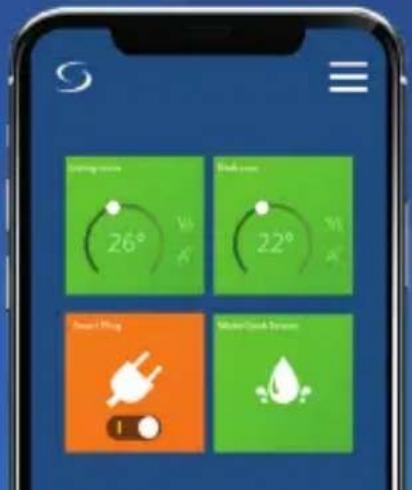
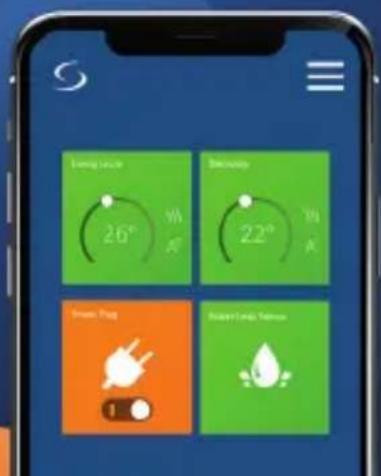
In order to control SQ610RF over the Internet or via the SALUS Smart Home mobile app (ONLINE mode), it must be installed together with the UGE600 Internet gateway (sold separately). From the application level, it is possible to pair SQ610RF with other system elements, e.g. Smart Plug SPE600, Smart Relay SR600 or window/door sensor OS600/SW600.
SQ610RF can be used locally without an Internet connection (OFFLINE mode), however, it's communication with other devices must be done using the CO10RF coordinator (sold separately).
Full manual in PDF format is available at www.salus-controls.eu site.
Product Compliance
This product complies with the essential requirements and other relevant provisions of Directives 2014/30/EU, 2014/35/EU, 2014/53/EU and 2011/65/EU. The full text of the EU Declaration of Conformity is available at the following internet address: www.saluslegal.com.

Safety Information
Use in accordance to national and EU regulations. Use the device as intended, keeping it in dry condition. Product for indoor use only. Installation must be carried out by a qualified person in accordance to national and EU regulations. Disconnect your equipment before cleaning it with a dry cloth.
Package Content:
1) SQ610RF Quantum Thermostat
2) Wall mounting plate
3) Self-adhesive mounting tape
4) Mounting screws
5) Manual instruction
Before you start:
New SQ610RF Quantum Thermostat is partially charged, however, we recommend you to fully charge the battery before use.
Connect charger to micro-USB Port which is at the bottom of SQ610RF Quantum Thermostat to charge the device.
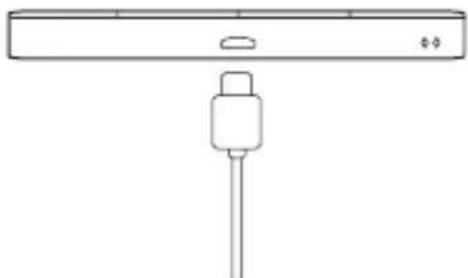
Charging to full battery level may take up to 24h maximum.
3 Mounting: to mount thermostat you can use included accessories (mounting screws or self-adhesive tape). Remove back cover to mount the plate to the wall. After this just attach thermostat to the plate (it has built-in magnet).

Please note:
The ideal position to thermostat mounting is about 1,5m under floor level far from heating or cooling sources. Thermostat can't be exposed to sunlight or any extreme conditions like for example draft.
2 Wiring diagram (S1, S2 Input)
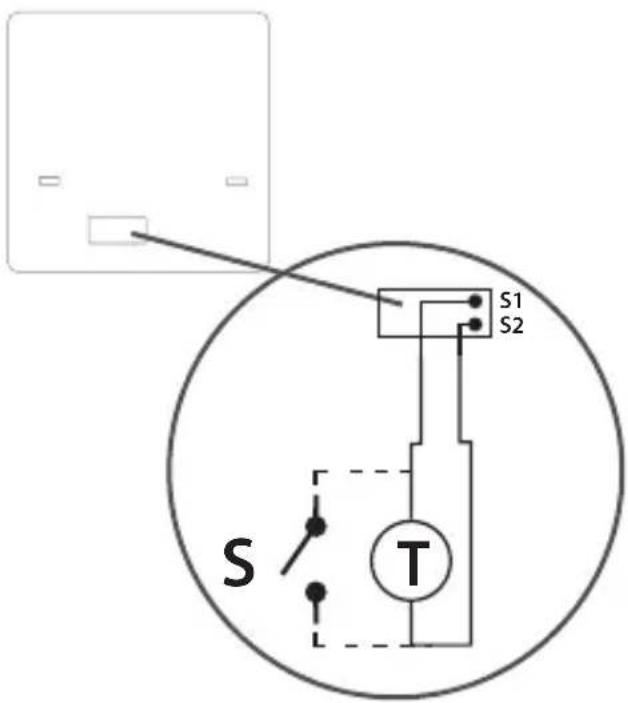
Symbols explanation:
S-volt-free contact
T - temperature sensor
S1,S2 Terminals:
-air or floor temperature sensor
external volt-free contact to connect any
ON/OFF switch or occupancy sensor (Hotel card)
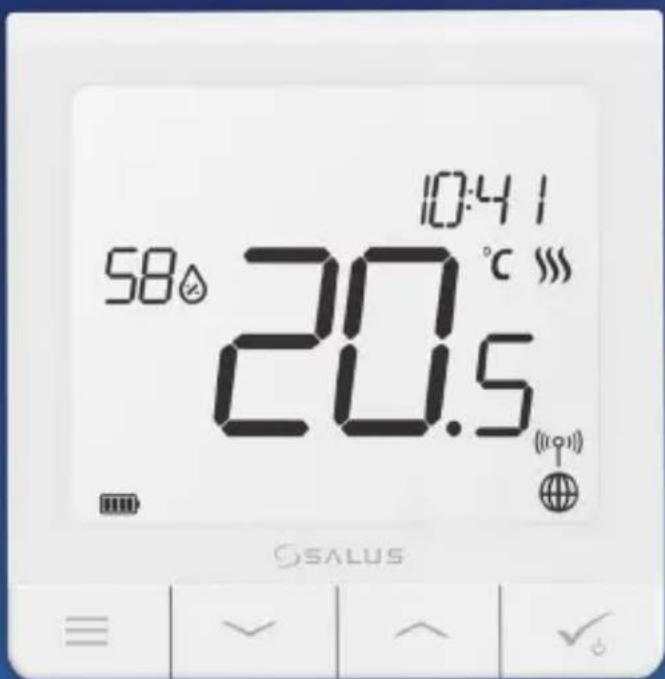
LCD Icon Description
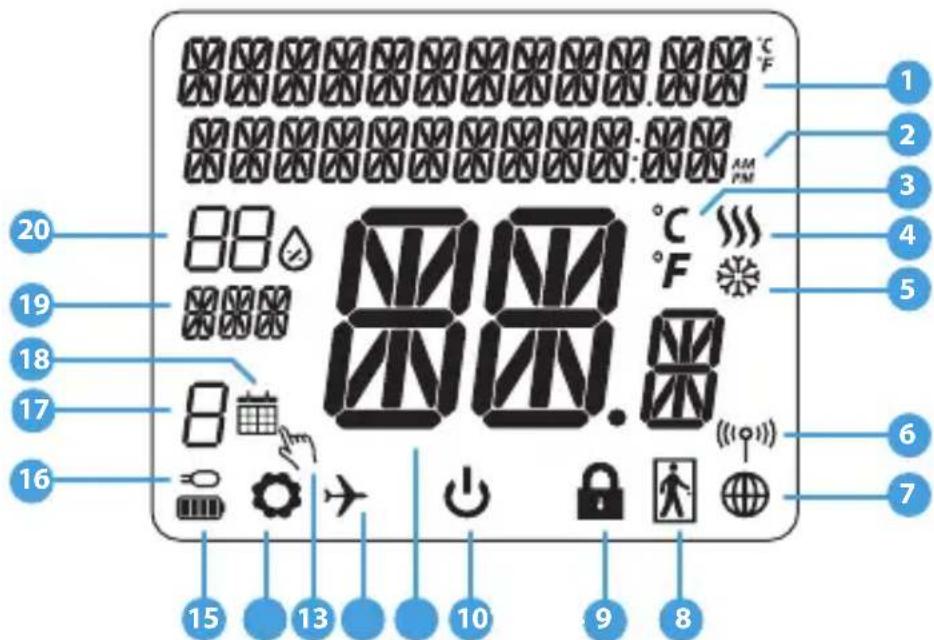
- Menu/Settings description + Clock
- AM/PM
- Temperature unit
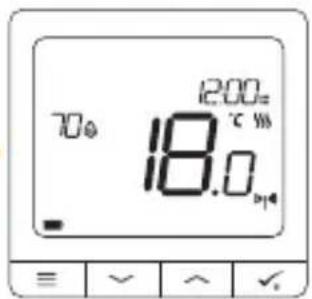
- Heating indicator (icon is animating when there is heating demand)
- Cooling indicator (icon is animating when there is cooling demand)
- RF Connection indicator
- Internet connection indicator
- Occupancy sensor (hotel card)
-
Key lock function
-
Standby mode icon
- Current Temperature / Setpoint Temperature
- Holiday mode
- Temporary override mode
- Settings icon
- Baterry status indicator
- External / Floor temp sensor indicator
- Schedule program number
- Schedule mode icon
- Day indicator/ SET information
- Current Humidity value
| Buttons Description Buttons Description | |
| Button Function | |
| = | 1) Menu button / Return button. 2) In the MAIN SCREEN: Press and hold for 3 sec to change the thermostat operating mode (Schedule mode / Permanent mode / Temporary override mode). 3) In the SETTINGS SCREEN: Press and hold for 3 sec to go back without saving the changes. 4) In the PAIRING SCREEN (in SYSTEM TYPE Menu): Press and hold for 3 sec to see other pairing options. |
| \ | "Down" Button (Decrease parameter value/moving on the menu in 'DOWN' direction) |
| \ | "Up" Button (Increase parameter value/moving on the menu in 'UP' direction) |
| √ | 1) Press and hold for 3 seconds to POWER UP new device 2) "OK / Tick" Button (Confirm parameter value / Go to the next menu / Save settings) 3) In the MAIN SCREEN: Press and hold for 3 seconds to enter Standby mode 4) In the SETTINGS SCREEN: Press and hold for 3 sec to go back to the MAIN SCREEN & SAVE all the changes. 5) During PAIRING process - hold button for 3 seconds to POWER OFF or REBOOT the thermostat. |
| + | In the MAIN SCREEN - press and hold these buttons together for 3 seconds to LOCK / UNLOCK the Thermostat keys). |
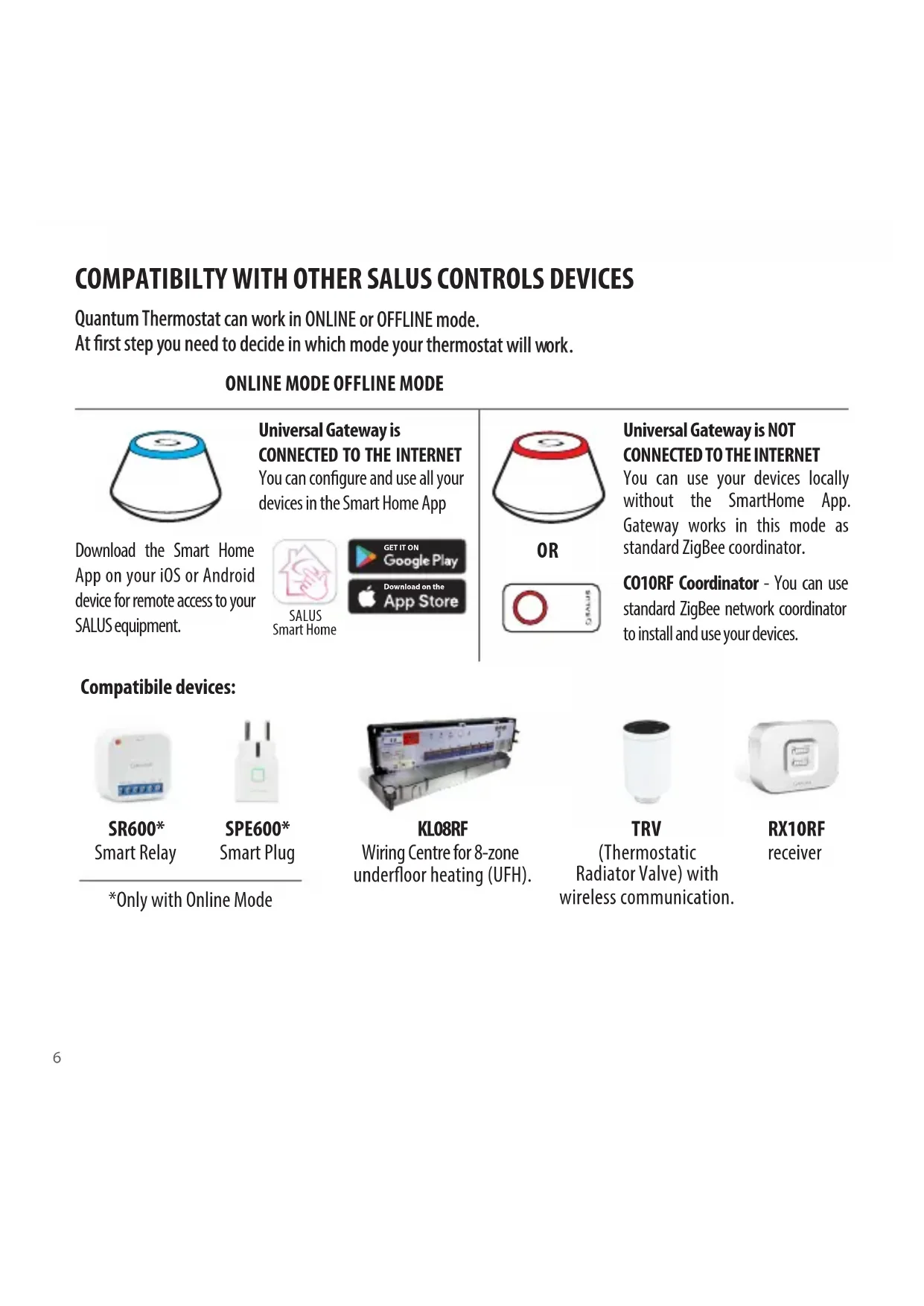
COMPATIBILTY WITH OTHER SALUS CONTROLS DEVICES
Quantum Thermostat can work in ONLINE or OFFLINE mode.
At first step you need to decide in which mode your thermostat will work.
Download the Smart Home App on your iOS or Android device for remote access to your SALUS equipment.
Universal Gateway is CONNECTED TO THE INTERNET
You can configure and use all your devices in the Smart Home App

SALUS Smart Home

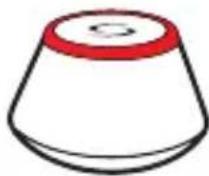
OR

Universal Gateway is NOT CONNECTED TO THE INTERNET
You can use your devices locally without the SmartHome App Gateway works in this mode as standard ZigBee coordinator.
C010RF Coordinator - You can use standard ZigBee network coordinator to install and use your devices.
Compatible devices:
SR600*
Smart Relay

SPE600*
Smart Plug
*Only with Online Mode

KLO8RF
Wiring Centre for 8-zone underfloor heating (UFH).

TRV
(Thermostatic Radiator Valve) with wireless communication.
RX10RF
receiver
First power up sequence

Please note:
For easier installation, please make sure you have already added other devices to your ZigBee network, such as Underfloor Heating Control Box (KL08RF) or Radiator heads (TRV's) etc.

Remove the protection foil
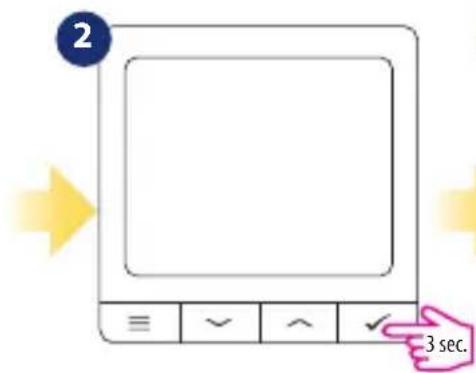
To power on the Thermostat hold. · button for 3 seconds...
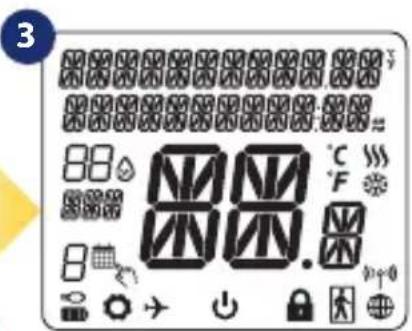
...display will show all icons...
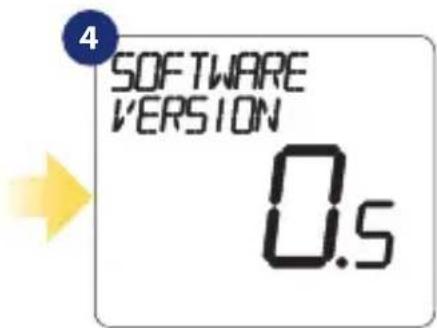
...then thermostat will display the software version.
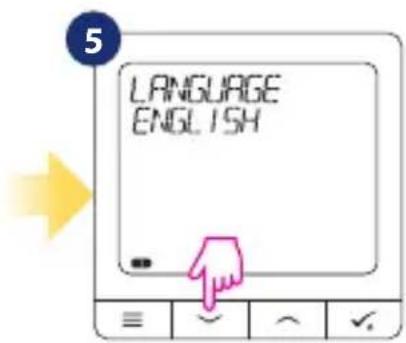
Now, choose your language by "or" buttons. Confirm your language by button.
Installation in ONLINE mode
After Language selection follow below steps to add your device to the Smart Home app and pair with other devices:

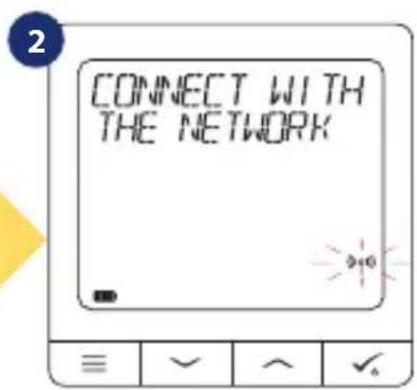

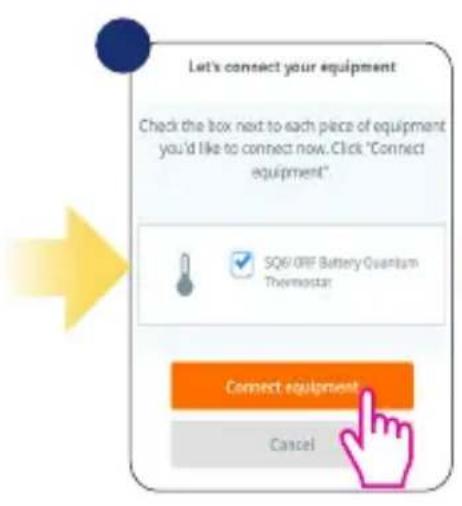
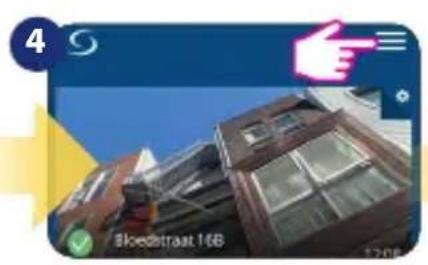
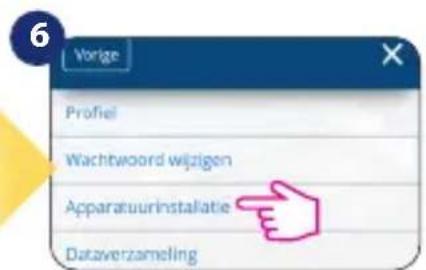
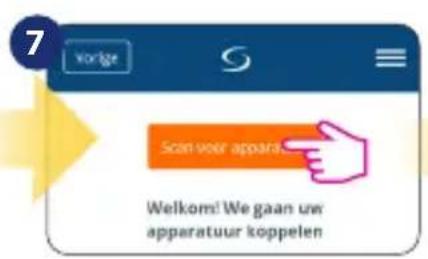
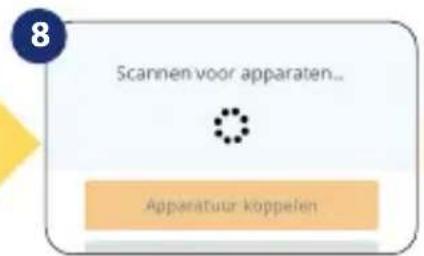
Go to SALUS Smart Home app
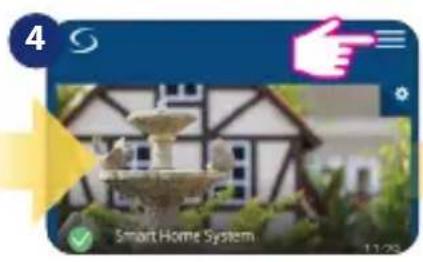
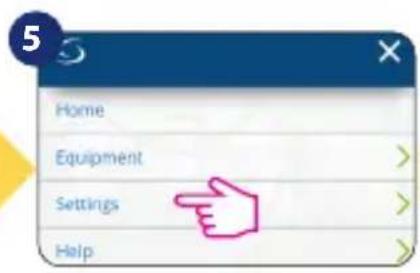


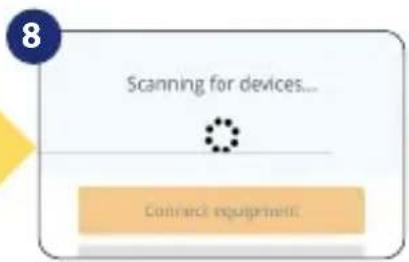

Once your thermostat is added to the app you will see above screen on the LCD.
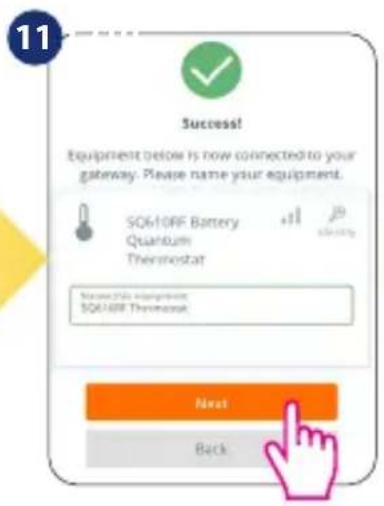

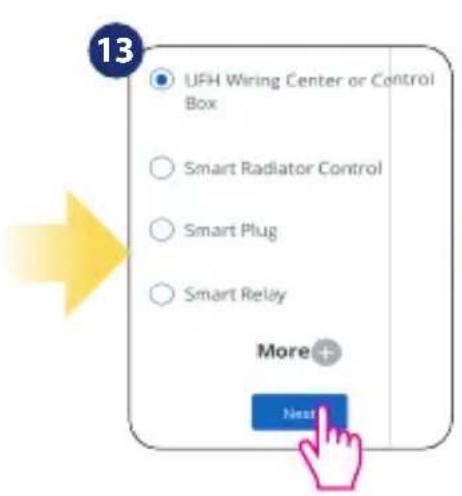
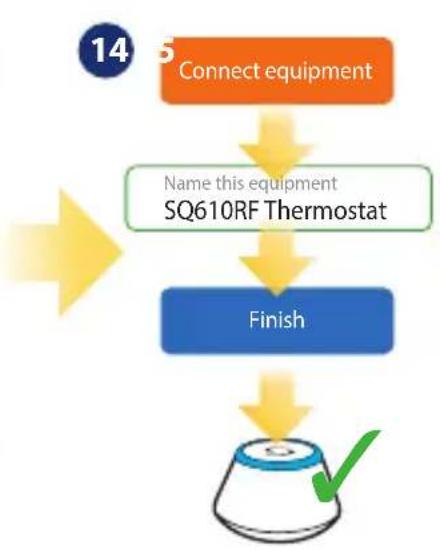
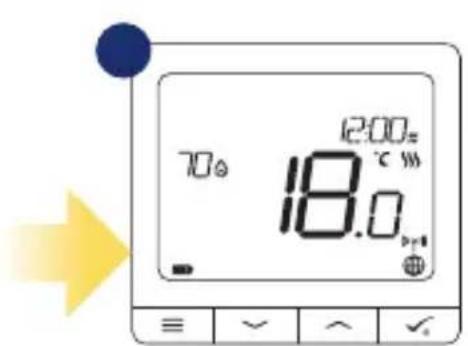
After that thermostat will display main screen.
Congratulations! You successfully configured SQ610RF Quantum Thermostat.
Installation in OFFLINE mode
Pairing with Wiring Centre / Control Box (Install the Wiring Centre / Control Box according to the instructions included with product)

1
2


3
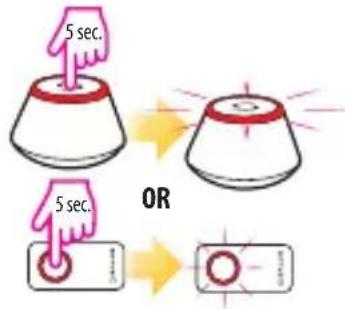
Open the ZigBee network

4
5

6
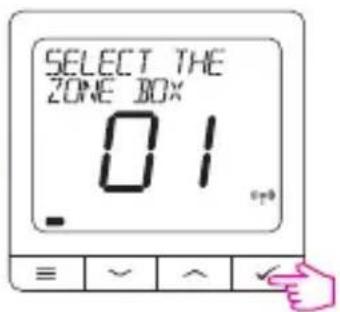
Use or buttons to select the zone number and press button to confirm.
Select system type: UNDERFLOOR, press button to confirm.
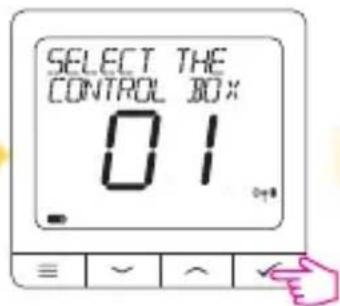
Using and buttons select the Control Box number (press PAIR button on the Control Box to see its address number). Press button to confirm.
7

8

9
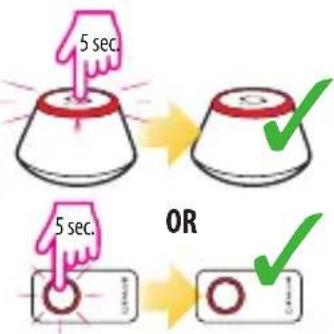
Close the ZigBee network
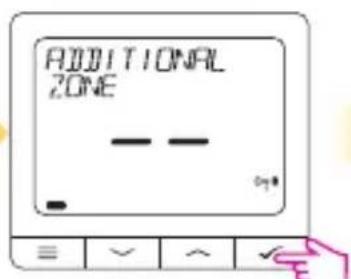
Now you can pair your thermostat with additional zones. Select one more zone or finish the pairing process by button.
Pairing with TRV radiator head (Install the TRV according to the instructions included with product)
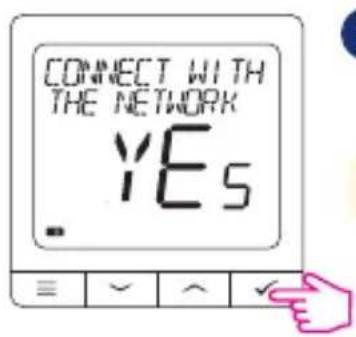
1
2
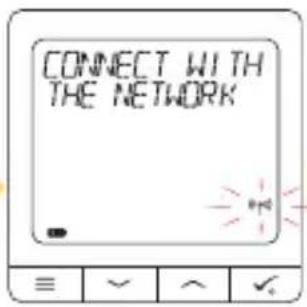
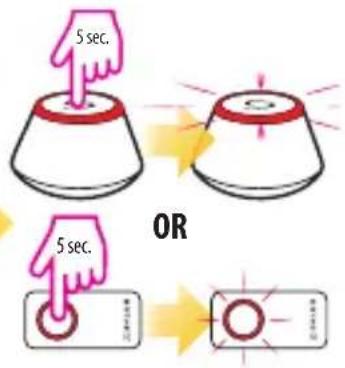
3
Open the ZigBee network
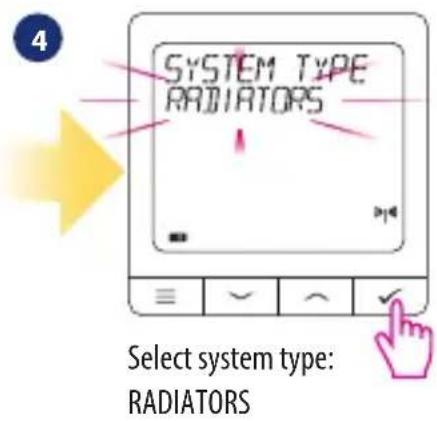
5
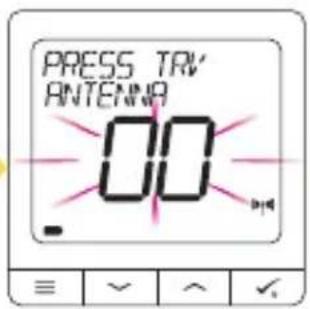
Now hold antenna button for 10 sec. on all TRV's which you want to pair with your Termostat.

6
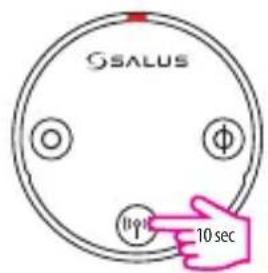
You can pair up to 6 TRV's with 1 Thermostat. All TRV's have to within the same room with Thermostat.
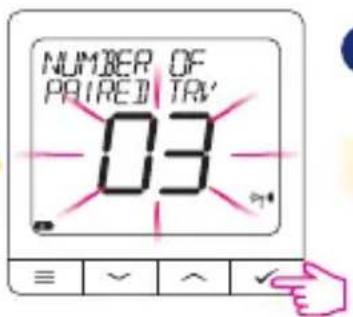
7
8
9
Close the ZigBee network

On the LCD you will see the number of paired TRV's.Once all TRV's are paired - press button to finish the pairing process.

SQ610RF Full menu structure
| Schedule settings | DISABLE M0-FR+SA-SU M0-SU SINGLE DAYS |
| User settings | TIME/DATE HOLIDAY MODE THERMOSTAT CALIBRATION SHOW/HIDE DISPLAY HUMIDITY SHOW/HIDE DISPLAY FLOOR STANDBY TEMP SETPOINT HEAT/COOL RESET USER SETTINGS |
| Admin settings | TEMPERATURE SCALE DISPLAY TEMPERATURE RESOLUTION 1. HEAT CONTROL ALGORITHM 2. COOL CONTROL ALGORITHM S1/S2 INPUT 3. MINIMUM SETPOINT MAXIMUM SETPOINT VALVE PROTECTION 4. MINIMUM TURN OFF TIME 5. OPTIMISATION FEATURE 6. COMFORT WARM FLOOR 7. PIN CODE DEVICE INFORMATION 8. FACTORY RESET 9. |
| Language | ENGLISH DANISH POLISH ... |
Short description of some selected functions (all functions are described in the full version of the SQ610RF manual):
- DISPLAY TEMP RESOLUTION: This function determines the resolution of the displayed temperature - User can temperature set by steps (every 0,5^ or 0,1^ ).
- CONTROL ALGORITHM: This function defines how to control the room temperature. Available options are: ITLC for Underfloor Heating / Radiators / Electrical Heating (that's advanced algorithm for precise maintenance of room temperature), hysteresis +/-0.5^ or +/-0.25^ , THB Actuator (option recommended for systems with THB auto balancing actuators).
- S1/S2 INPUT: A floor sensor, an external temperature sensor or an occupancy sensor can be connected to the S1/S2 input of SQ610RF. Additionally, by connecting a NO type of ON/OFF voltage-free contact, you can use this input as a OneTouch rules trigger (programmed in the Salus Smart Home app) or as a Heat/ Cool changeover.
- VALVE PROTECTION: This function activates all actuators once a week for 5 minutes (in summer, this function helps to prevent the actuators stuck).
- MIN TURN OFF TIME: Minimum switch-off time (thermostat will not send the signal for heating/ cooling more often than specified in this parameter).
- OPTIMISATION FEATURE: Optimum Start and Optimum Stop functions are energy saving features that makes thermostat most cost effective (in combination with ITLC control algorithm).
- COMFORT WARM FLOOR: This function helps to keep the floor warm, even if the room is warm enough and there is no need to turn on the heating. User can select 3 levels of warm floor feature. Please note it is not an economy feature, as your heating system may be ON even if there is no heating demand from the room thermostat. It is COMFORT feature which keeps your floor warm all the time.
- DEVICE INFORMATION: In this menu user can check: Software Version, Battery Level, RF range value, Paired devices or also user can activate Identification mode.
- FACTORY RESET: Here you can RESET your device to factory settings. After successful reset device will be removed from ZigBee network and you will need to add / pair your device again.
Einleitung:
The process of the formation of 2011-06-05 chemical

图
图2-1


necter

Gaaar Salus Smart Home App

KALIBRERENTHERMOSTAAT
TOON/VERBERG DISPLAY LUCHTVOCHTIGHEID
TOON VERBERG DISPLAY VLOER
STANDBY TEMP SETPOINT
VERWARMEN/KOELEN
RESET GEBRUKERS INSTELLINGEN
TEMPERATUURSCHAAL
WEERGAVE TEMPERATUURRESOLUTIE
VERWARMINGS ALGORITHM
KOELINGS CONTROLE ALGORITMIE
S1/S2INGANG
MINIMAAL SETPOINT
MAXIMAAL SETPOINT
KLEPBESCHERMING
MINIMUM UITSCHAKELTIJD
OPTIMALISATIEFUNCTIE
COMFORT WARMEVLOER
PINCODE
APPARAATINFORMATIE
FABRIEKSRESSET
ENGLISH
DANISH
NEDERLANDS
···
| QUANTUM SQ610RF | |
| Power Supply Built-in Li-Ion 3,7V | Battery |
| Charging voltage (no charger included) | Micro-USB 5V DC, min 0,5 A |
| Temperature range 5-40°C | |
| Display temperature accuracy 0.5°C or 0.1°C | |
| Control algorithm ITLC | SPAN (±0.25°C / ±0.5°C) THB |
| S1-S2 Input (multifunctional input) | Floor temperature Air temperature Occupancy sensor One Touch Changeover (heating/cooling) |
| Communication protocol ZigBee 2.4GHz | |
| Mounting Surface mounting | |
| Working temperature 0-45°C | |
| IP protection class IP30 | |
| Dimensions Width x Height x Deep) | 86 x 86 x 11 mm |
Deutsch

Ultra slim
Precise temperature control (underfloor heating, radiator heating, electrical heating)
Works with: Amazon Alexa and Google Home
Rechargeable through micro USB
Universal Gateway
Connect it with Universal Gateway and setup your own SALUS Smart Home system

www.salus-controls.com

Smart Radiator Control
Pair it with Quantum to achieve the perfect temperature everywhere, not only beside the radiator

Smart Relay
Connect it with Universal Gateway and control wirelessly pumps, valves, boilers, lighting etc


www.salus-smarthome.com