Profile PT920WMWW - Oven GE - Free user manual and instructions
Find the device manual for free Profile PT920WMWW GE in PDF.


User questions about Profile PT920WMWW GE
0 question about this device. Answer the ones you know or ask your own.
Ask a new question about this device
Download the instructions for your Oven in PDF format for free! Find your manual Profile PT920WMWW - GE and take your electronic device back in hand. On this page are published all the documents necessary for the use of your device. Profile PT920WMWW by GE.
USER MANUAL Profile PT920WMWW GE
Electric Convection Built-In Oven
Safety Instructions 2-1
Operating Instructions
Baking....9
Broiling....14, 15
Control Lockout 23
Controls 5
Convection 16-21
Cook and Hold Option ....31
Dehydrate Option 31
Delay Start Option 32
Favorite Recipes 22
Help 33
Kitchen Timer 23
Options-Settings 34-38
Auto Recipe ^TV Conversion .....36
Clock 34
Clock Blackout....35
Default 38
Display Color 36
Fahrenheit or Celsius Temperature Selection .....35
Kitchen Timer Signal 38
Language 36
Sound On/Off 37
Sound Volume 37
Thermostat 34
Timer Signal 38
12-Hour Shut-Off 35
Oven 6-8
Probe 12, 13, 19
Proofing 27
Racks 6,7
Roasting 9
Sabbath Option 33
Self-Cleaning Oven 24-26
Timed Baking and Roasting .....10, 11
Timed Convection Baking and Roasting .....20, 21
Two Temps Option 30
Warming....28,29
Care and Cleaning
Control Panel 39
Light Bulb 39
Oven Door 40
Probe 40
Racks 41
Removing Packaging Tape ....39
Stainless Steel Surfaces 39
Troubleshooting Tips .....42-44
Accessories 45
Consumer Support
Consumer Support ....back cover
Warranty 46
Write the model and serial numbers here:
Model # ____
Serial #
You can find them on a label on the front of the oven behind the oven door on single oven models, or the front of the lower oven behind the oven door on double oven models.
Owner's Manual
PT920-30" Single Wall Oven
PT960-30"Double Wall Oven
Four
encastré
For your safety, the information in this manual must be followed to minimize the risk of fire or explosion, electric shock, or to prevent property damage, personal injury, or loss of life.

IMPORTANT SAFETY NOTICE
The California Safe Drinking Water and Toxic Enforcement Act requires the Governor of California to publish a list of substances known to the state to cause cancer, birth defects or other reproductive harm, and requires businesses to warn customers of potential exposure to such substances.
The fiberglass insulation in self-clean ovens gives off a very small amount of carbon monoxide during the cleaning cycle. Exposure can be minimized by venting with an open window or using a ventilation fan or hood.

SAFETY PRECAUTIONS
When using electrical appliances, basic safety precautions should be followed, including the following:
Use this appliance only for its intended purpose as described in this Owner's Manual.
- Be sure your appliance is properly installed and grounded by a qualified technician in accordance with the provided installation instructions.
Do not attempt to repair or replace any part of your oven unless it is specifically recommended in this manual. All other servicing should be referred to a qualified technician.
- Have the installer show you the location of the circuit breaker or fuse. Mark it for easy reference.
Before performing any service, disconnect the oven power supply at the household distribution panel by removing the fuse or switching off the circuit breaker.
Do not leave children alone—children should not be left alone or unattended in an area where an appliance is in use. They should never be allowed to sit or stand on any part of the appliance.
Do not allow anyone to climb, stand or hang on the door. They could damage the oven, or cause severe personal injury.
- Be sure the oven is securely installed in a cabinet that is firmly attached to the house structure. Never allow anyone to climb, sit, stand or hang on the oven door.
■ Never leave the oven door open when you are not watching the oven.
■ Always keep combustible wall covering, curtains or drapes a safe distance from your oven.
■ Always keep dish towels, dishcloths, pot holders and other linens a safe distance from your oven.
■ Always keep wooden and plastic utensils and canned food a safe distance away from your oven.
■ Teach children not to play with the controls or any other part of the oven.
Large scratches or impacts to glass doors can lead to broken or shattered glass. - Do not store flammable materials in an oven.
CAUTION: Items of interest to children should not be stored in cabinets above an oven; children climbing on the oven to reach items could be seriously injured.

WARNING!
SAFETY PRECAUTIONS
Never wear loose-fitting or hanging garments while using the appliance. Be careful when reaching for items stored in cabinets over the oven. Flammable material could be ignited if brought in contact with hot surfaces or heating elements and may cause severe burns.
Use only dry pot holders—moist or damp pot holders on hot surfaces may result in burns from steam. Do not let pot holders touch hot heating elements. Do not use a towel or other bulky cloth.
For your safety, never use your appliance for warming or heating the room.
- Do not let cooking grease or other flammable materials accumulate in or near the oven.
- Do not use water on grease fires. Never pick up a flaming pan. Turn the controls off.
Flame in the oven can be smothered completely by closing the oven door and turning the oven off or by using a multi-purpose dry chemical or foam-type fire extinguisher.
Do not touch the heating elements or the interior surface of the oven. These surfaces may be hot enough to burn even though they are dark in color. During and after use, do not touch, or let clothing or other flammable materials contact any interior area of the oven; allow sufficient time for cooling first.
Potentially hot surfaces include oven vent openings, surfaces near the openings, crevices around the oven door, the edges of the window and metal trim parts above the door.
REMEMBER: The inside surface of the oven may be hot when the door is opened.
■ Never place cooking utensils or any other items on the oven floor. There is a heating element beneath the oven floor. Placing items on the oven floor may cause the oven to overheat, resulting in damage to the oven and risk of damage or fire to cabinets.
■ Never leave jars or cans of fat drippings in or near your oven.
Do not store or use combustible materials, gasoline or other flammable vapors and liquids in the vicinity of this or any other appliance.
Stand away from the oven when opening the oven door. Hot air or steam which escapes can cause burns to hands, face and/or eyes.
- Do not heat unopened food containers. Pressure could build up and the container could burst, causing an injury.
- Keep the oven vent unobstructed.
- Keep the oven free from grease buildup.
Place the oven rack in the desired position while the oven is cool. If racks must be handled when hot, do not let pot holder contact the heating elements.
When using cooking or roasting bags in the oven, follow the manufacturer's directions.
Pulling out the standard racks to their stop-locks or the extension rack to its fully open position is a convenience in lifting heavy foods. It is also a precaution against burns from touching hot surfaces of the door or oven walls.
- Do not use the oven to dry newspapers. If overheated, they can catch on fire.
- Do not use the oven for a storage area. Items stored in an oven can ignite.
- Do not leave paper products, cooking utensils or food in the oven when not in use.
■ After broiling, always take any broiler pan out of the oven and clean it. Leftover grease in a broiler pan can catch fire next time you use the pan.
- Clean only parts listed in this Owner's Manual.
- Do not use aluminum foil to line oven bottoms. Improper installation of aluminum foil may result in a risk of electric shock or fire.
IMPORTANT SAFETY INFORMATION. READ ALL INSTRUCTIONS BEFORE USING.

COOK MEAT AND POULTRY THOROUGHLY...
Cook meat and poultry thoroughly—meat to at least an INTERNAL temperature of 160^ F and poultry to at least an INTERNAL temperature of 180^ F. Cooking to these temperatures usually protects against foodborne illness.
SELF-CLEANING OVEN
Do not clean the door gasket. The door gasket is essential for a good seal. Care should be taken not to rub, damage or move the gasket.
Do not use oven cleaners. No commercial oven cleaner or oven liner protective coating of any kind should be used in or around any part of the oven. Residue from oven cleaners will damage the inside of the oven when the self-clean cycle is used.
Before self-cleaning the oven, remove the probe and any broiler pan, grid and other cookware.
- Be sure to wipe up excess spillage before starting the self-cleaning operation.
If the self-cleaning mode malfunctions, turn the oven off and disconnect the power supply. Have it serviced by a qualified technician.

READ AND FOLLOW THIS SAFETY INFORMATION CAREFULLY.
SAVE THESE INSTRUCTIONS
Introduction to the oven controls.
(Throughout this manual, features and appearance may vary from your model.)
GEAppliances.com
Touch Screen
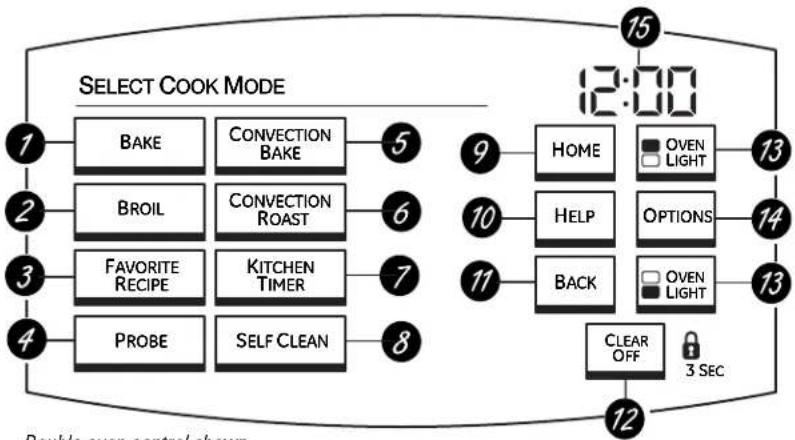
Touch the graphics on the interactive display to use the oven features.
flowchart
graph TD
    A["1"] --> B["BAKE"]
    A --> C["CONVECTION BAKE"]
    D["2"] --> E["BROIL"]
    D --> F["CONVECTION ROAST"]
    G["3"] --> H["FAVORITE RECIPE"]
    G --> I["KITCHEN TIMER"]
    J["4"] --> K["PROBE"]
    J --> L["SELF CLEAN"]
    M["5"] --> N["HOME"]
    O["6"] --> P["HELP"]
    Q["7"] --> R["BACK"]
    S["8"] --> T["CLEAR OFF"]
    U["9"] --> V["OVEN LIGHT"]
    W["10"] --> X["OPTIONS"]
    Y["11"] --> Z["OVEN LIGHT"]
    AA["12"] --> AB["3 SEC"]
    AC["13"] --> AD["14"]
    AE["15"] --> AF["12:00"]
Double oven control shown.

Touch Screen, Touch Pads and Time of Day Display
NOTE: If the oven is inactive for 10 minutes, the Touch Screen will go into standby mode, and the screen will be dark. Touch the Touch Screen or any pad to "wake up" the display. The Display may also "wake up" when it senses you (your hand) approaching the Touch Screen. The display is sensitive and may "wake up" when lights are turned on or due to the movement of nearby people or objects. The Display should return to its standby mode after 10 minutes if no further interaction occurs.
Touch Screen
BAKE
BAKE
Touch to select the bake function.
2 BROIL
BROIL
Touch to select the broil function (HIGH BROIL or LOW BROIL) or the BROIL GUIDE.
FAVORITE RECIPE
FAVORITE RECIPE
3 Touch to use, create, rename, modify or delete a favorite recipe.
PROBE
PROBE
Touch when using the probe to cook food.
CONVECTION BAKE
CONVECTION BAKE
9 Touch to select baking with the convection function.
CONVECTION ROAST
CONVECTION ROAST
Touch to select roasting with the convection function.
KITCHEN TIMER
KITCHEN TIMER
Touch to select the timer feature.
SELF CLEAN
SELF CLEAN
Touch to select the self-cleaning function. See the Using the self-cleaning oven section.
Touch Pads
HOME Pad
Touch to return to the "SELECT COOK MODE" (Home) Screen. This does not cancel any cooking or self-clean settings.
HELP Pad
HELP Pad
Touch this pad to find out more about your oven's features.
11 BACK Pad
BACK Pad
Touch to return to the previous screen.
12 CLEAR/OFF Pad
CLEAR/OFF Pad
Touch to cancel ALL oven operations except the clock and timer.
12 OVEN LIGHT On/Off Pad(s)
OVEN LIGHT On/Off Pad(s)
Touch to turn the oven light(s) on or off.
OPTIONS Pad
OPTIONS Pad
Touch to select TWO TEMPS, DELAY START, PROOF, DEHYDRATE, WARM, COOK & HOLD, SABBATH or SETTINGS.
Display
15 Display
Display
Shows the time of day.
Error Codes
If "F-" and a number or letter flash in the display and the oven control signals, this indicates a function error code. Touch the CLEAR/OFF pad. Allow the oven to cool for one hour. Put the oven back into operation. If the function error code repeats, disconnect the power to the oven and call for service.
If there has been a power outage:
If your oven was set for a timed oven operation and a power outage occurred, the clock and all programmed functions must be reset.
The time of day will flash in the display when there has been a power outage.
Using the oven.
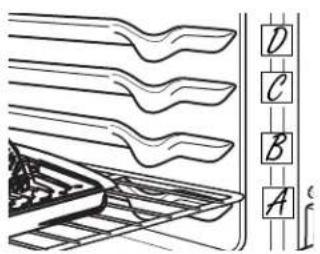
text_image
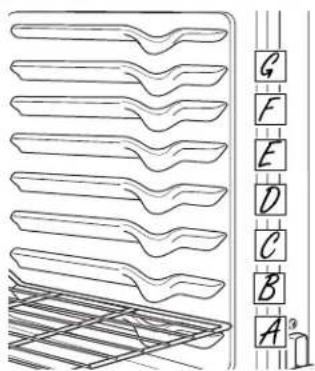
Diagram showing a rack with multiple parallel plates and labeled vertical columns (A–G) on the right side.Before you begin...
CAUTION: To avoid possible burns, place the racks in the desired position before you turn the oven on.
The racks are designed so that when placed correctly in the oven on the supports, they will stop before coming completely out, and will not tilt.
NOTE: The oven has 7 rack positions.
CAUTION: Never place cooking utensils or any other items on the oven floor. There is a heating element beneath the oven floor. Placing items on the oven floor may cause the oven to overheat, resulting in damage to the oven and risk of damage or fire to cabinets.
Standard Racks
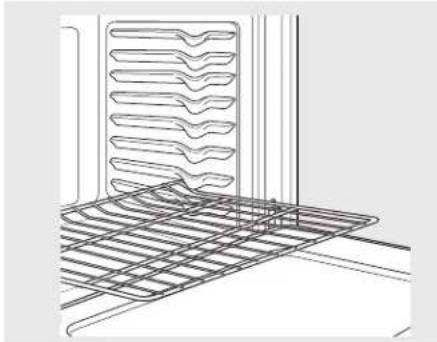
When placing and removing cookware, pull the rack out to the bump (stop position) on the rack support.
natural_image
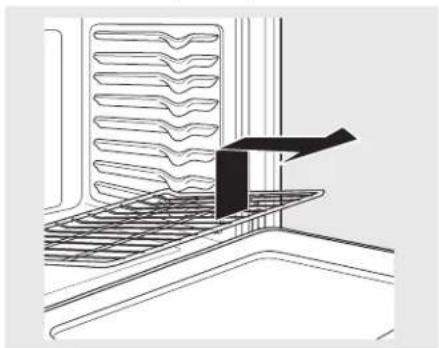
Line drawing of a kitchen grater with a rack and ventilation grille (no text or symbols)To remove a rack, pull it toward you, tilt the front end up and pull it out.
natural_image
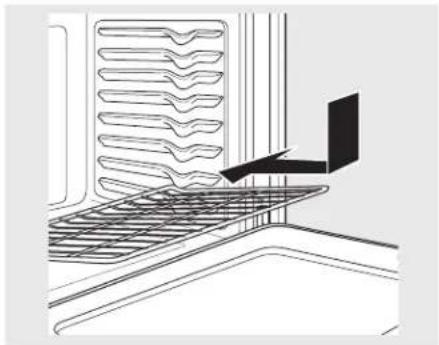
Technical line drawing of a kitchen counter with grating and a black handle (no text or symbols)To replace, place the curved end of the rack (stop-locks) onto the oven supports, tilt up the front of the rack and push the rack in.
natural_image
Line drawing of a kitchen interior with a laptop and a grater (no text or symbols)Extension Rack
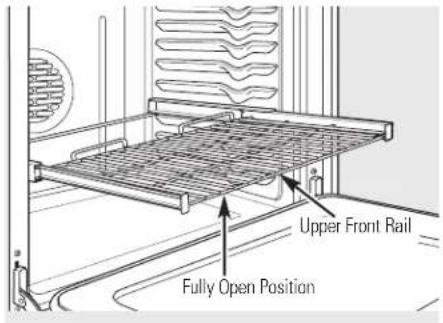
When placing and removing cookware, always pull the rack out by its upper front rail to its fully open position.
NOTE: Do not extend the rack quickly. Food may slide off the front of the rack.
text_image
Upper Front Rail Fully Open PositionTo remove the rack:
1 Make sure the rack is pushed all the way into the oven.
2 Pull both release levers toward the front of the rack, hold them and slide the rack toward you to the bump (stop position) on the rack support.
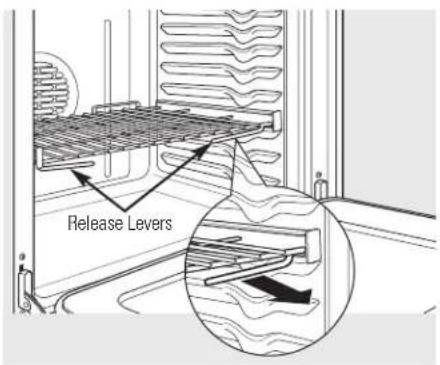
text_image
Release Levers3 Firmly grasp both sides of the rack frame and the sliding rack, tilt the front end up and pull it out.
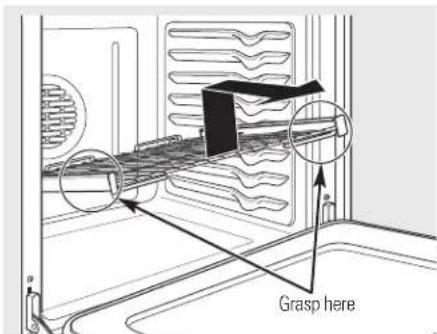
text_image
Grasp hereNOTE: When handling the extension rack, do not allow the sliding portion to fall open. This can damage the slides.
To replace the rack:
1 Firmly grasp both sides of the rack frame and the sliding rack.
2 Place the curved end of the rack (stop-locks) onto the oven supports, tilt up the front of the rack and push it in as far as it will go.
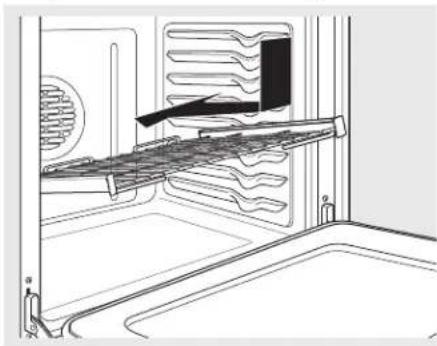
natural_image
Line drawing of an oven interior showing a rack-mounted dish and ventilation system (no text or symbols)⚠️ CAUTION: Never use the rack when its frame is not fully inserted in the oven and locked into position.
When the rack is properly installed and locked into position, the locking side paddles on the rack frame will click-lock into place on the oven supports. If the side paddles did not click-lock into position, repeat the steps above and make sure the side paddles have been correctly cleaned and lubricated. See Extension Rack in the Care and cleaning section.
Do not place the extension rack in the highest position in the oven.
Using the oven.
| Aluminum FoilDo not use aluminum foil on the bottom of the oven.Never entirely cover a rack with aluminumfoil. This will disturb the heat circulation and | result in poor baking. A smaller sheet of foil may be used to catch a spillover by placing it on a lower rack several inches below the food. | |
| Pan PlacementFor even cooking and proper browning, there must be enough room for air circulation in the oven. Baking results will be better if baking pans are centered as much as possible rather than being placed to the front or to the back of the oven. | Pans should not touch each other or the walls of the oven. Allow 1" to 11⁄2" space between pans as well as between pans and oven walls.NOTE: For convection baking of cookies, see the Multi-Rack Convection Baking section. | |
| Baking Pan/SheetsUse the proper baking pan. The type of finish on the pan determines the amount of browning that will occur.Shiny, bright and smooth pans reflect heat, resulting in a lighter, more delicate browning. Cakes and cookies require this type of pan or sheet. | Dark, rough or dull pans absorb heat resulting in a browner, crisper crust. Use this type for pies.Glass baking dishes also absorb heat.When baking in glass baking dishes, the temperature may need to be reduced by 25°F. | |
| PreheatingAllow the oven to preheat before placing food in the oven. Preheating is necessary for good results when baking cakes, cookies, pastry and breads. | To preheat, set the oven at the correct temperature.The convection fan will turn on during preheating. The control will signal when the oven is preheated—this will take approximately 10 minutes. The screen will show the set temperature.When the control signals, foods should be placed in the oven. | |
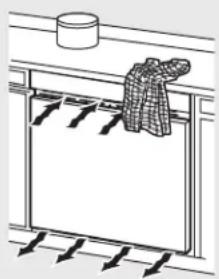 | Oven AirflowAn internal cooling fan operates during all oven modes. The warm air from inside the oven will be exhausted out through vents located at the bottom of the oven door.Intake air will be pulled into the oven through vents located between the door and the control panel. | Do not allow this airflow to be obstructed by blocking the vents at the bottom of the door, or at the top of the door by draping kitchen towels over the front of the oven in undercounter applications. |
text_image
Technical diagram showing layered structure with labeled components A, B, C, D and a scale indicator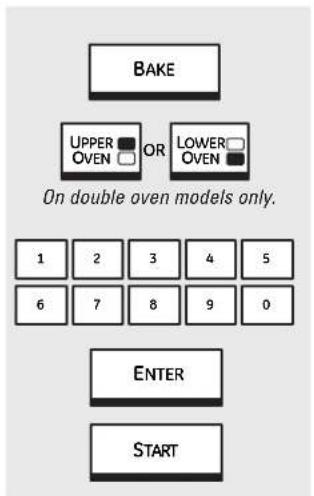
text_image
BAKE UPPER OVEN OR LOWER OVEN On double oven models only. 1 2 3 4 5 6 7 8 9 0 ENTER STARTNOTE: A cooling fan may automatically turn on and off to cool internal parts. This is normal, and the fan may continue to run even after the oven is turned off.
How to Set the Oven for Baking or Roasting
1 Touch BAKE.
2 For double oven models only, touch UPPER OVEN or LOWER OVEN to select the desired oven.
3 Touch the numbers to set the desired temperature.
4 Touch ENTER.
5 Touch START.
The convection fan will turn on during preheating. The control will signal when the oven is preheated—this will take approximately 10 minutes. The screen will show the set temperature.
When the control signals, foods should be placed in the oven.
For double oven models only, to set the second oven, select PRESS TO MAKE LOWER OVEN SELECTIONS or PRESS TO MAKE UPPER OVEN SELECTIONS as
needed and follow the above steps.
The set temperature may be changed by touching CHANGE TIME-TEMP.
The settings may be cancelled by touching CANCEL.
The timer can be set by touching SET KITCHEN TIMER. See the Kitchen timer section.
6 Check food for doneness at minimum time on recipe. Cook longer if necessary.
7 Touch CANCEL when cooking is complete.
Type of Food Rack Position
| Frozen pies C or D (on cookie sheet) |
| Angel food cake A |
| Bundt or pound cakes B or C |
| Biscuits, muffins, C or D brownies, cookies, cupcakes, layer cakes, pies |
| Casseroles C or D |
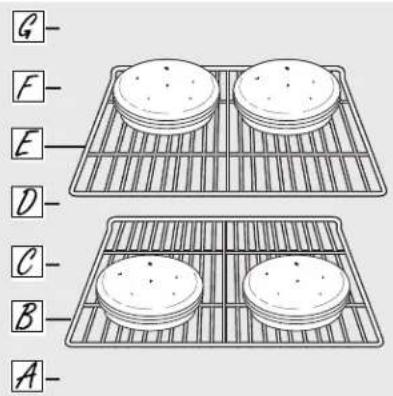
If baking four cake layers at the same time, place two layers on rack B and two layers on rack E. Stagger pans on the rack so one is not directly above the other.
text_image
G- F- E- D- C- B- A-The Type of Margarine Will Affect Baking Performance!
Most recipes for baking have been developed using high-fat products such as butter or margarine (80% fat). If you decrease the fat, the recipe may not give the same results as with a higher-fat product.
Recipe failure can result if cakes, pies, pastries, cookies or candies are made with low-fat spreads. The lower the fat content of a spread product, the more noticeable these differences become.
Federal standards require products labeled “margarine” to contain at least 80% fat by weight. Low-fat spreads, on the other hand, contain less fat and more water. The high-moisture content of these spreads affect the texture and flavor of baked goods. For best results with your old favorite recipes, use margarine, butter or stick spreads containing at least 70% vegetable oil.
Timed baking and roasting.
On double oven models, you can use timed baking in one oven while using self-clean in the other; you can also use timed baking in both ovens at the same time.
NOTE: Foods that spoil easily—such as milk, eggs, fish, stuffings, poultry and pork—should not be allowed to sit for more than 1 hour before or after cooking. Room temperature promotes the growth of harmful bacteria.
How to Set an Immediate Start and Automatic Stop
flowchart
graph TD
    A["BAKE"] --> B["UPPER OVEN OR LOWER OVEN"]
    B --> C["1 2 3 4 5 6 7 8 9 0"]
    C --> D["ENTER"]
    D --> E["1 2 3 4 5 6 7 8 9 0"]
    E --> F["ENTER"]
    F --> G["PRE-HEATED START OR COLD START"]
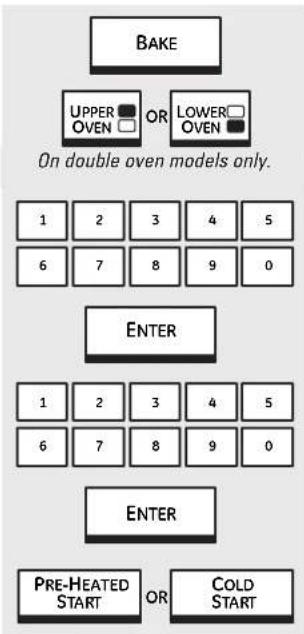
The oven will turn on immediately and cook for a selected length of time. At the end of the cooking time, the oven will turn off automatically.
Make sure the clock shows the correct time of day.
1 Touch BAKE.
2 For double oven models only, touch UPPER OVEN or LOWER OVEN to select the desired oven.
3 Touch the numbers to set the desired temperature.
4 Touch ENTER.
5 Touch the numbers to set the desired length of cooking time.
6 Touch ENTER.
7 Two immediate start and automatic stop cooking options are available:
PRE-HEATED START – Touch to preheat the oven.
The convection fan will turn on during preheating. The control will signal when the oven is preheated—this will take approximately 10 minutes. The screen will show the set temperature.
When the control signals, place food in the oven.
The timed cook will not start until the oven is preheated and START is touched.
COLD START – Touch to start the oven immediately and cook food without preheating. The convection fan will turn on. The cook time will start immediately.
The oven will start and continue to cook for the programmed amount of time, then shut off automatically, unless the Cook and Hold feature was set. See the Cook and hold option section.
For double oven models only, to set the second oven select PRESS TO MAKE LOWER OVEN SELECTIONS or PRESS TO MAKE UPPER OVEN SELECTIONS as needed and follow the above steps.
The set temperature may be changed by touching CHANGE TIME-TEMP for the appropriate oven.
The settings may be cancelled by touching CANCEL for the appropriate oven.
The timer can be set by touching SET KITCHEN TIMER. See the Kitchen timer section.
After cooking is complete the oven will signal and "MORE TIME" will display for five minutes. Check food for doneness. If more cooking time is needed, touch MORE TIME and enter additional cooking time. If not selected, the screen will automatically clear in five minutes.
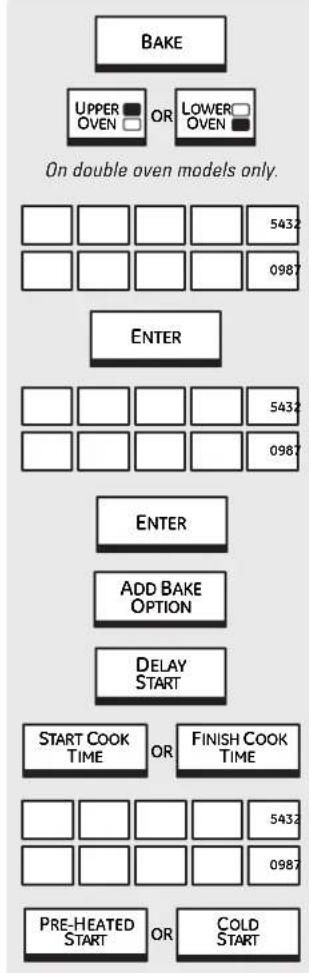
flowchart
graph TD
    A["BAKE"] --> B["UPPER OVEN OR LOWER OVEN"]
    B --> C["5432"]
    B --> D["0987"]
    E["ENTER"] --> F["5432"]
    E --> G["0987"]
    H["ENTER"] --> I["ADD BAKE OPTION"]
    I --> J["DELAY START"]
    K["START COOK TIME OR FINISH COOK TIME"] --> L["5432"]
    M["PRE-HEATED START OR COLD START"] --> N["5432"]
    M --> O["0987"]
How to Set a Delayed Start and Automatic Stop
You can set the oven control to delay-start the oven, cook for a specific length of time and then turn off automatically. See also the Delay start option section.
Make sure the clock shows the correct time of day.
1 Touch BAKE.
For double oven models only, touch UPPER OVEN or LOWER OVEN to select the desired oven.
3 Touch the numbers to set the desired temperature.
4 Touch ENTER.
5 Touch the numbers to set the desired length of cooking time.
6 Touch ENTER.
7 Touch ADD BAKE OPTION.
8 Touch DELAY START.
9 Two delay start time setting options are available:
■ START COOK TIME – Touch and then use the numbers to set the amount of time before you want cooking to start. Touch ENTER. For example, if you want cooking to begin in 2 hours, enter 2, 0 and 0.
FINISH COOK TIME – Touch and then use the numbers to set the amount of time above the cooking time that you want cooking to finish. Touch ENTER. For example, if your cooking time is 2 hours and you want to serve dinner in 5 hours, then enter 5, 0 and 0 and the oven will start in 3 hours.
10 Two start options are available when the delayed start time is reached:
PRE-HEATED START – Touch to select preheat.
When the delayed start time is reached, the oven will turn on and preheat will begin.
The convection fan will turn on during preheating. The control will signal when the oven is preheated—this will take approximately 10 to 15 minutes. The screen will show the set temperature.
COLD START – Touch to select for the oven to start immediately (without preheating) when the delayed start time is reached. The convection fan will turn on.
For double oven models only, to set the second oven, select PRESS TO MAKE LOWER OVEN SELECTIONS or PRESS TO MAKE UPPER OVEN SELECTIONS as needed and follow the above steps.
The set temperature may be changed by touching CHANGE TIME-TEMP for the appropriate oven.
The settings may be cancelled by touching CANCEL for the appropriate oven.
The timer can be set by touching SET KITCHEN TIMER. See the Kitchen Timer section.
When the delayed start time is reached, the oven will start and continue to cook for the programmed amount of time, then shut off automatically, unless the Cook and Hold feature was set. See the Cook and hold option section.
After cooking is complete, the oven will signal and "MORE TIME" will display for five minutes. Check food for doneness. If more cooking time is needed, touch MORE TIME and enter additional cooking time. If not selected, the screen will automatically clear in five minutes.
Using the probe.
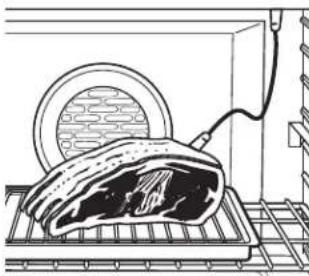
For many foods, especially roasts and poultry, internal food temperature is the best test for doneness. The temperature probe takes the guesswork out of roasting by cooking foods to the exact doneness you want.
natural_image
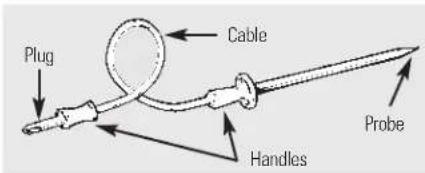
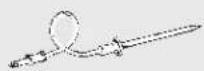
Line drawing of a cut open with meat inside a tray, next to a circular object (no text or symbols)The temperature probe has a skewer-like probe at one end and a plug at the other end that goes into the outlet in the oven.
Use of probes other than the one provided with this product may result in damage to the probe.
Use the handles of the probe and plug when inserting and removing them from the meat and outlet.
To avoid damaging your probe, do not use tongs to pull on the cable when removing it.
To avoid breaking the probe, make sure food is completely defrosted before inserting.
text_image
Plug Cable Probe HandlesTo prevent possible burns, do not unplug the probe from the outlet until the oven has cooled.
■ Never leave your probe inside the oven during a self-cleaning cycle.
Do not store the probe in the oven.
natural_image
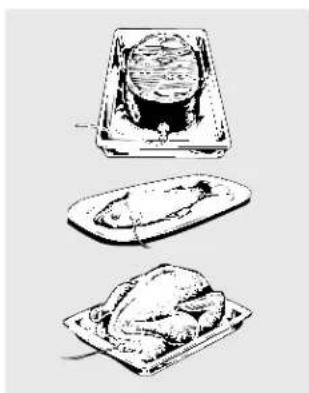
Illustration of three food items: a rectangular plate with a cylindrical object, a flat plate with a chicken, and a roasted chicken in a tray (no text or symbols)After preparing the food, follow these directions for proper probe placement:
The tip of the probe should rest in the center of the food and should not touch bone, fat or gristle.
For roasts with no bone – insert the probe into the meatiest part of the roast.
For bone-in ham or lamb – insert the probe into the center of the lowest, largest muscle or joint.
For meat loaf or casseroles – insert the probe into the center of the food so that as much as possible of the metal shaft is covered.
For fish – insert the probe from just above the gill into the meatiest area parallel to the backbone.
For a whole turkey – insert the probe into the meatiest part of the inner thigh from below and parallel to the leg.
For a turkey breast – insert the probe into the meatiest part of the breast meat.
On double oven models only.
How to Set the Oven For Roasting When Using the Probe
1 Insert the probe into the food. See the Using the probe section.
2 Plug the probe into the outlet in the oven. Make sure it's pushed all the way in. Close the oven door.
3 Touch PROBE.
4 For double oven models only, touch UPPER OVEN or LOWER OVEN to select the desired oven.
5 Touch the numbers to set the desired internal food or meat temperature. (The maximum internal temperature for the food that you can set is 200^ F.)
6 Touch ENTER.
7 Touch BAKE.
8 Touch the numbers to set the desired oven temperature.
9 Touch ENTER.
The screen will prompt if the probe is inserted into the outlet and you have not set a probe temperature and touched ENTER.
10 Touch START.
The oven will turn on immediately and stay on until the oven is turned off.
The convection fan will turn on (after a short delay) and 100°F will appear in the screen. (The temperature display will start to change once the internal temperature of the meat reaches 100°F.)
After the internal temperature of the meat reaches 100^ F, the changing internal temperature will be shown in the display.
When the internal temperature of the meat reaches the number you have set, the probe and the oven turn off and the oven control signals. To stop the signal, touch the CLEAR/OFF pad. Use hot pads to remove the probe from the food. Do not use tongs to pull on it—they might damage it.
For double oven models only, to set the second oven, select PRESS TO MAKE LOWER OVEN SELECTIONS or PRESS TO MAKE UPPER OVEN SELECTIONS as needed and follow the above steps.
The set temperature may be changed by touching CHANGE TIME-TEMP for the appropriate oven.
The settings may be cancelled by touching CANCEL for the appropriate oven.
The timer can be set by touching SET KITCHEN TIMER. See the Kitchen timer section.
▲ CAUTION: To prevent possible burns, do not unplug the probe from the oven outlet until the oven has cooled. Do not store the probe in the oven.
If the probe is removed from the food before the final temperature is reached, a tone will sound and the screen will prompt until the probe is removed from the oven.
- You can use the timer even though you cannot use timed oven operations.
Broiling.
natural_image
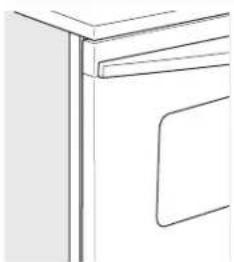
Line drawing of a cabinet or cabinet with a door and side panel (no text or symbols)Close the door. Always broil with the door closed.
flowchart
graph TD
    A["HIGH BROIL"] -->|OR| B["START"]
    C["LOW BROIL"] --> B["START"]
If your oven is connected to 208 volts, rare steaks may be broiled by preheating the broiler and positioning the oven rack one position higher.
How to Set the Oven for Broiling
Close the door. Always broil with the door closed.
1 Touch BROIL.
2 Place the food on a broiler grid in a broiler pan.
3 For double oven models only, touch UPPER OVEN or LOWER OVEN to select the desired oven.
4 Follow suggested rack positions in the Broiling Guide.
The size, weight, thickness, starting temperature and your preference for doneness will affect broiling times. This guide is based on meats at refrigerator temperature.
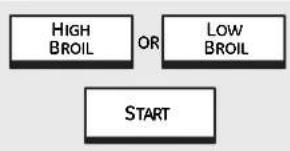
5 Touch HIGH BROIL or LOW BROIL.
6 Touch START.
NOTE: A cooling fan may automatically turn on and off to cool internal parts. This is normal, and the fan may continue to run even after the oven is turned off.
The broiler does not need to be preheated for most broiling. However,
foods that cook quickly, such as thin strips of meat or fish may require a short preheating period of 2 to 3 minutes to allow the food surface to brown in the same time the food takes to be cooked throughout.
Turn the food only once during broiling.
NOTE: Broil will not work if the temperature probe is plugged in. Never leave your probe inside the oven during a broil cycle.
To set the second oven, select PRESS TO MAKE LOWER OVEN SELECTIONS or PRESS TO MAKE UPPER OVEN SELECTIONS as needed and follow the above steps.
The set temperature may be changed by touching CHANGE TIME-TEMP.
The settings may be cancelled by touching CANCEL.
The timer can be set by touching SET KITCHEN TIMER. See the Kitchen timer section.
7 When broiling is finished, touch CANCEL.
Broiling Guide
The size, weight, thickness, starting temperature and your preference for doneness will affect broiling times. This guide is based on meats at refrigerator temperature.
| Food or Thickness Position Time (min.) Time (min.) Comments | |||||
| Ground BeefWell Done | 1/2" to 3/4" thick | E | 10–12 | 7–9 | Space evenly. |
| Beef SteaksRare †MediumWell Done | 3/4" to 1" thick | EE 10–14E 12–15 | 8–108–127–10 | 5–8 | Slash fat at edges. |
| Rare † 1MediumWell Done | 1⁄4" to 1 1⁄2" thick | EE 15–18E 18–22 | 12–158–1110–14 | 6–9 | |
| ChickenLo BroilLo Broil | Breast (bone in)Breasts (boneless)PiecesBoneless | CCDD | 25–3520–2525–3515–20 | 15–2015–2015–2010–15 | Broil skin-side-downfirst. |
| Lobster TailsLo Broil | 4 to 6 oz. each6 to 8 oz. each | DD 18–25 N/A | 12–15 | Do notturn over. | Cut through back ofshell. Spread open. |
| Fish FilletsHi BroilLo Broil | 1/4" to 1/2" thick | DF | 5–75 | 4–65 | Handle and turn verycarefully. Preheatbroiler to increasebrowning. |
| Ham Slices(precooked) | 1/4" to 1/2" thick | D | 5–7 | 4–6 | |
| Pork ChopsWell Done | 2 (1/2" thick)2 (1" thick) about 1 lb. | ED | 12–1518–22 | 8–128–12 | Slash fat at edges. |
| Garlic BreadLo Broil | E | 3–4 | N/A | ||
† The U.S. Department of Agriculture says “Rare beef is popular, but you should know that cooking it to only 140°F means some food poisoning organisms may survive.” (Source: Safe Food Book. Your Kitchen Guide. USDA Rev. June 1985.)
Using the convection oven.
natural_image
Symmetrical decorative knotwork design with central motif (no text or symbols)Convection Bake
NOTE: The convection fan will cycle on and off while cooking to best distribute hot air in the oven.
The convection oven fan shuts off when the oven door is opened. DO NOT leave the door open for long periods of time while using convection cooking or you may shorten the life of the convection heating element.
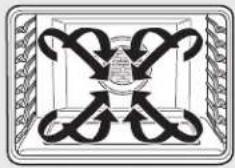
In a convection oven, a fan circulates hot air over, under and around the food.
This circulating hot air is evenly distributed throughout the oven cavity. As a result, foods are more evenly cooked and browned—often in less time with convection heat.
Ideal for evenly browned baked foods cooked on multiple racks.
Good for large quantities of baked foods.
Good results with cookies, biscuits, muffins, brownies, cupcakes, cream puffs, sweet rolls and bread.

natural_image
Technical line drawing of a grid structure with no visible text or symbolsMulti-rack position


Multi-Rack Convection Baking
When convection baking with only 1 rack, follow the rack positions recommended in the Using the oven section.
Because heated air is circulated throughout the oven, foods can be successfully baked using multiple racks.
Multi-rack baking may increase cook times slightly for some foods but the overall result is time saved. Cookies, muffins, biscuits and other quickbreads give very good results with multi-rack baking.
For two-rack baking, place one rack in the second (B) rack position. Place the other rack in the fourth (D) rack position.
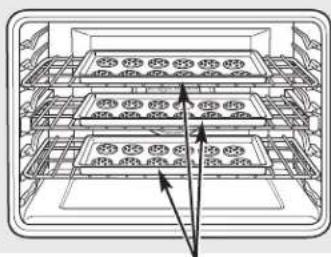
When baking on 3 racks, place one rack in the second (B) position, one in the fourth (D) position and one in the sixth (F) position.
For best results when baking multiple racks of cookies in Multi-Rack Convection Bake mode, line up the front of the cookie sheets with the front edge of the racks.
natural_image
Technical line drawing of a multi-tiered storage unit or rack system with no visible text or symbolsCookie sheets lined up at the front edge of the oven racks
Adapting Recipes...
You can use your favorite recipes in the convection oven.
When convection baking, reduce baking temperature by 25°F or activate the Auto Recipe™ Conversion feature. See Auto Recipe™ Conversion in the Options—Settings section.
Convection Roast
Good for large tender cuts of meat, uncovered.
The convection fan circulates the heated air evenly over and around the food. Meat and poultry are browned on all sides as if they were cooked on a rotisserie. The heated air seals in juices quickly for a moist and tender product while, at the same time, creating a rich golden brown exterior.
When you are convection roasting, it is important that you use a broiler pan and grid for best convection roasting results. The pan is used to catch grease spills and the grid is used to prevent grease spatters.
When baking cookies, you will get the best results if you use a flat cookie sheet instead of a pan with low sides.
Cookware for Convection Cooking
Before using your convection oven, check to see if your cookware leaves room for air circulation in the oven. If you are baking with several pans, leave space between them, and be sure the pans do not touch the walls of the oven.
Paper and Plastic
Heat-resistant paper and plastic containers that are recommended for use in regular ovens can be used in convection ovens. Plastic cookware that is heat-resistant to temperatures of 400^ F can also be used.
Metal and Glass
Any type of cookware will work in your convection oven. However, metal pans heat the fastest and are recommended for convection baking.
Darkened or matte-finished pans will bake faster than shiny pans.
■ Glass or ceramic pans cook more slowly.
For recipes like oven-baked chicken, use a pan with low sides. Hot air cannot circulate well around food in a pan with high sides.
Convection baking and roasting.
flowchart
graph TD
    A["CONVECTION BAKE"] --> B["OR"]
    C["CONVECTION ROAST"] --> D["OR"]
    E["UPPER OVEN"] --> F["OR"]
    G["LOWER OVEN"] --> H["OR"]
    I["SINGLE RACK"] --> J["OR"]
    K["MULTI-RACK"] --> L["1 2 3 4 5 6 7 8 9 0"]
    M["ENTER"] --> N["START"]
How to Set the Oven for Convection Baking or Roasting
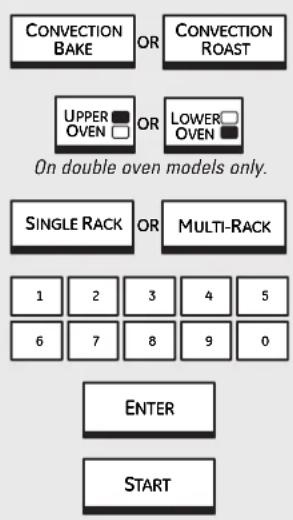
1 Touch CONVECTION BAKE or CONVECTION ROAST.
For double oven models only, touch UPPER OVEN or LOWER OVEN to select the desired oven.
3 Two rack options are available:
- SINGLE RACK – Touch for cooking food items on only one rack in convection bake.
■ MULTI-RACK – Touch for cooking food items on more than one rack (i.e. 2 or 3 racks) at the same time in Convection Bake. See the Multi-Rack Convection Baking section for more information.
4 Touch the numbers to set the desired temperature.
5 Touch ENTER.
6 Touch START.
The convection fan will turn on during preheating. The control will signal when the oven is preheated—this will take approximately 10 minutes. The screen will show the set temperature.
When the control signals, foods should be placed in the oven.
For double oven models only, to set the second oven, select PRESS TO MAKE LOWER OVEN SELECTIONS or PRESS TO MAKE UPPER OVEN SELECTIONS
as needed and follow the above steps.
The set temperature may be changed by touching CHANGE TIME-TEMP for the appropriate oven.
The settings may be cancelled by touching CANCEL for the appropriate oven.
The timer can be set by touching SET KITCHEN TIMER. See the Kitchen timer section.
After cooking is complete, the oven will signal and "MORE TIME" will display for five minutes. Check food for doneness. If more cooking time is needed, touch MORE TIME and enter additional cooking time. If not selected, the screen will automatically clear.
flowchart
graph TD
    A["For best results when roasting large turkeys and roasts, we recommend using the probe included in the convection oven."] --> B["PROBE"]
    B --> C["UPPER OVEN OR LOWER OVEN"]
    C --> D["On double oven models only."]
    D --> E["OK"]
    E --> F["54321"]
    E --> G["09876"]
    E --> H["ENTER"]
    H --> I["CONVECTION ROAST"]
    I --> J["54321"]
    I --> K["09876"]
    I --> L["ENTER"]
    L --> M["START"]
To change the oven temperature during the Convection Roast cycle, touch CONVECTION ROAST and then touch the numbers to set the new desired temperature.
How to Set the Oven for Convection Roasting when Using the Probe
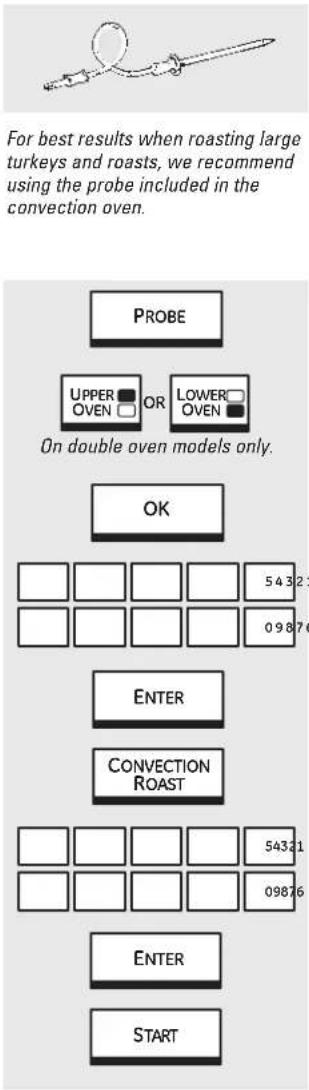
1 Place the rack in the lowest position (A). Insert the probe into the meat. See the Using the probe section.
2 Plug the probe into the outlet in the oven. Make sure it is pushed all the way in. Close the oven door.
3 Touch PROBE.
For double oven models only, touch UPPER OVEN or LOWER OVEN to select the desired oven.
5 Touch OK.
6 Touch the numbers to set the desired internal meat temperature. (The maximum internal temperature for the food that you can set is 200^ F.)
7 Touch ENTER.
8 Touch CONVECTION ROAST.
9 Touch the numbers to set the desired oven temperature.
10 Touch ENTER.
11 Touch START.
The oven will turn on immediately and stay on until the oven is turned off.
The convection fan will turn on (after a short delay) and 100^ F will appear in the screen. (The temperature display will start to change once the internal temperature of the meat reaches 100^ F.)
After the internal temperature of the meat reaches 100^ F, the changing internal temperature will be shown in the display.
When the internal temperature of the meat reaches the number you have set, the probe and the oven turn off and the oven control signals. To stop the signal, touch the CLEAR/OFF pad. Use hot pads to remove the probe from the food. Do not use tongs to pull on it—they might damage it.
CAUTION: To prevent possible
burns, do not unplug the probe from the oven outlet until the oven has cooled. Do not store the probe in the oven.
NOTE:
If the probe is removed from the food before the final temperature is reached, a tone will sound and the screen will prompt until the probe is removed from the oven.
You will hear a fan while cooking with this feature. The fan will stop when the door is opened, but the heat will not turn off.
You can use the timer even though you cannot use timed oven operations.
On double oven models, you will not be able to use the probe in the upper oven during timed oven operations. This is because, with the probe, you are cooking by temperature rather than time.
Convection Roasting Guide
| Meats | Minutes/Lb. | Oven Temp. | Internal Temp. | ||
| Beef Rib, Boneless Rib, Rare 20–24 325°F 140°F† | |||||
| Top Sirloin (3 to 5 lbs.) Medium Well | 24–28 325°F 28–32 325°F | 160°F 170°F | |||
| Beef Tenderloin Rare 10–14 Medium | 325°F 140°F† 14–18 325°F | 160°F | |||
| Pork | Bone-in, Boneless (3 to 5 lbs.) | 23–27 | 325°F | 170°F | |
| Chops (1/2 to 1" thick) | 2 chops | 30–35 total | 325°F | 170°F | |
| 4 chops | 35–40 total | 325°F | 170°F | ||
| 6 chops | 40–45 total | 325°F | 170°F | ||
| Ham | Canned, Butt, Shank (3 to 5 lbs. fully cooked) | 14–18 | 325°F | 140°F | |
| Lamb | Bone-in, Boneless (3 to 5 lbs.) | Medium Well | 17–20 | 325°F | 160°F |
| 20–24 325°F | 170°F | ||||
| Seafood | Fish, whole (3 to 5 lbs.) | 30–40 total | 400°F | ||
| Lobster Tails (6 to 8 oz. each) | 20–25 total | 350°F | |||
| Poultry | Whole Chicken (21⁄2 to 31⁄2 lbs.) | 24–26 | 350°F | 180°–185°F | |
| Cornish Hens Unstuffed (1 to 11⁄2 lbs.) Stuffed (1 to 11⁄2 lbs.) | 50–55 total | 350°F | 180°–185°F | ||
| 55–60 total | 350°F | 180°–185°F | |||
| Duckling (4 to 5 lbs.) | 24–26 325°F | 180°–185°F | |||
| Turkey, whole* Unstuffed (10 to 16 lbs.) Unstuffed (18 to 24 lbs.) | 8–11 | 325°F | 180°–185°F | ||
| 7–10 | 325°F | 180°–185°F | |||
| Turkey Breast (4 to 6 lbs.) | 16–19 325°F | 170°F | |||
* Stuffed birds generally require 30–45 minutes additional wasting time. Shield legs and breast with foil to prevent overbrowning and drying of skin.
† The U.S. Department of Agriculture says “Rare beef is popular, but you should know that cooking it to only 140°F means some food poisoning organisms may survive.” (Source: Safe Food Book. Your Kitchen Guide. USDA Rev. June 1985.)
Timed convection baking and roasting.
On double oven models, you can use timed baking in one oven while using self-clean in the other; you can also use timed baking in both ovens at the same time.
NOTE: Foods that spoil easily—such as milk, eggs, fish, stuffings, poultry and pork—should not be allowed to sit for more than 1 hour before or after cooking. Room temperature promotes the growth of harmful bacteria.
How to Set an Immediate Start and Automatic Stop
The oven will turn on immediately and cook for a selected length of time. At the end of the cooking time, the oven will turn off automatically.
Make sure the clock shows the correct time of day.
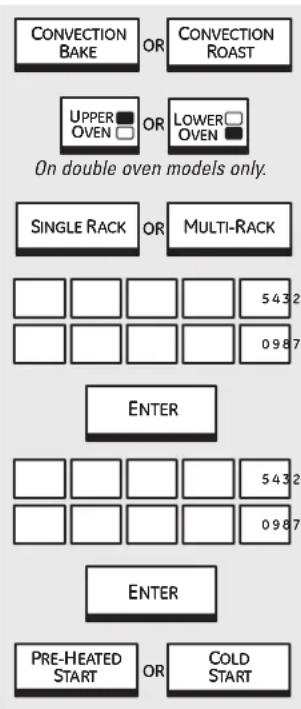
1 Touch CONVECTION BAKE or CONVECTION ROAST.
2 For double oven models only, touch UPPER OVEN or LOWER OVEN to select the desired oven.
3 Two rack options are available:
- SINGLE RACK – Touch for cooking food items on only one rack in convection bake.
■ MULTI-RACK – Touch for cooking food items on more than one rack (i.e. 2 or 3 racks) at the same time in Convection Bake. See the Multi-Rack Convection Baking section for more information.
4 Touch the numbers to set the desired temperature.
5 Touch ENTER.
6 Touch the numbers to set the desired length of cooking time.
7 Touch ENTER.
8 Two immediate start and automatic stop cooking options are available:
■ PRE-HEATED START – Touch to preheat the oven.
The convection fan will turn on during preheating. The control will signal when the oven is preheated—this will take approximately 10 minutes.
The screen will show the set temperature.
The timed cook will not start until the oven is preheated and START is touched.
When the control signals, foods should be placed in the oven.
COLD START – Touch to start the oven immediately and cook food without preheating. The convection fan will turn on. The cook time will start immediately.
The oven will start and continue to cook for the programmed amount of time, then shut off automatically, unless the Cook and Hold feature was set. See the Cook and hold option section.
For double oven models only, to set the second oven select PRESS TO MAKE LOWER OVEN SELECTIONS or PRESS TO MAKE UPPER OVEN SELECTIONS as needed and follow the above steps.
The set temperature may be changed by touching CHANGE TIME-TEMP for the appropriate oven.
The settings may be cancelled by touching CANCEL for the appropriate oven.
The timer can be set by touching SET KITCHEN TIMER. See the Kitchen timer section.
After cooking is complete, the oven will signal and "MORE TIME" will display for five minutes. Check food for doneness. If more cooking time is needed, touch MORE TIME and enter additional cooking time. If not selected, the screen will automatically clear in five minutes.
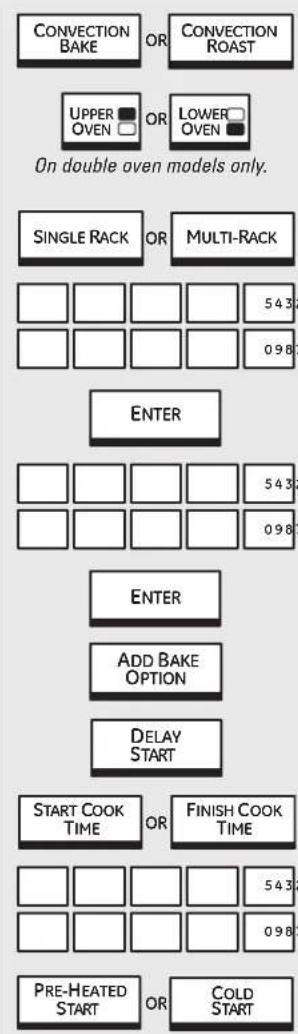
flowchart
graph TD
    A["PRE-HEATED START"] --> B["START COOK TIME"]
    B --> C["FINISH COOK TIME"]
    C --> D["543"]
    D --> E["098"]
    E --> F["SINGLE RACK"]
    F --> G["OR"]
    G --> H["CONVECTION ROAST"]
    H --> I["UPPER OVEN"]
    I --> J["OR"]
    J --> K["LOWER OVEN"]
    K --> L["ON double oven models only."]
    M["OPEN"] --> N["ENTER"]
    N --> O["ENTER"]
    O --> P["ADD BAKE OPTION"]
    P --> Q["DELAY START"]
How to Set a Delayed Start and Automatic Stop
You can set the oven control to delay-start the oven, cook for a specific length of time and then turn off automatically. See also the Delay start option section.
Make sure the clock shows the correct time of day.
1 Touch CONVECTION BAKE or CONVECTION ROAST.
2 For double oven models only, touch UPPER OVEN or LOWER OVEN to select the desired oven.
3 Two rack options are available:
- SINGLE RACK – Touch for cooking food items on only one rack in convection bake.
■ MULTI-RACK – Touch for cooking food items on more than one rack (i.e. 2 or 3 racks) at the same time in Convection Bake. See the Multi-Rack Convection Baking section for more information.
Touch the numbers to set the desired temperature.
5 Touch ENTER.
6 Touch the numbers to set the desired length of cooking time.
7 Touch ENTER.
8 Touch ADD BAKE OPTION.
9 Touch DELAY START.
10 Two delay start time setting options are available:
■ START COOK TIME – Touch and then use the numbers to set the amount of time before you want cooking to start. Touch ENTER. For example, if you want cooking to begin in 2 hours, enter 2, 0 and 0.
FINISH COOK TIME – Touch and then use the numbers to set the amount of time above the cooking time that you want cooking to finish. Touch ENTER. For example, if your cooking time is 2 hours and you want to serve dinner in 5 hours, then enter 5,0 and 0 and the oven will start in 3 hours.
11 Two start options are available when the delayed start time is reached:
PRE-HEATED START – Touch to select preheat.
When the delayed start time is reached, the oven will turn on and preheat will begin.
The convection fan will turn on during preheating. The control will signal when the oven is preheated—this will take approximately 10 minutes. The screen will show the set temperature.
COLD START – Touch to select for the oven to start immediately (without preheating) when the delayed start time is reached. The convection fan will turn on.
For double oven models only, to set the second oven, select PRESS TO MAKE LOWER OVEN SELECTIONS or PRESS TO MAKE UPPER OVEN SELECTIONS as needed and follow the above steps.
The set temperature may be changed by touching CHANGE TIME-TEMP for the appropriate oven.
The settings may be cancelled by touching CANCEL for the appropriate oven.
The timer can be set by touching SET KITCHEN TIMER. See the Kitchen timer section.
When the delayed start time is reached, the oven will start and continue to cook for the programmed amount of time, then shut off automatically, unless the Cook and Hold feature was set. See the Cook and hold option section.
After cooking is complete, the oven will signal and "MORE TIME" will display for five minutes. Check food for doneness. If more cooking time is needed, touch MORE TIME and enter additional cooking time. If not selected, the screen will automatically clear in five minutes.
Favorite recipes.
Your control will allow you to create (save), edit, use or delete a favorite recipe.

Create a Recipe
1 Touch FAVORITE RECIPE.
2 Touch CREATE RECIPE.
3 Touch the letters to create a name for the recipe. Touch NUM to add a number. Touch SPACE to add a space between letters or numbers. Touch BACK to erase a number or letter as needed. Touch DONE to save the name.
4 Touch BAKE, BROIL, CONVECTION BAKE or CONVECTION ROAST to select the cooking mode.
5 Touch the numbers to set the temperature.
6 Touch ENTER.
7 Touch the numbers to set the desired length of cooking time.
8 Touch ENTER.
9 Touch ADD PRE-HEAT OPTION to set preheating or CONTINUE to review the set recipe.
70 Touch SAVE AND CREATE NEW to save the recipe in memory but not use it at this time. Touch SAVE AND COOK NOW to save the recipe in memory and also proceed to cook now. Touch CANCEL to delete the recipe.
Edit a Saved Recipe
1 Touch FAVORITE RECIPE.
2 Touch EDIT RECIPE.
3 Touch or to highlight the recipe you want to edit.
4 Touch ENTER.
5 Touch or to select the setting you want to edit.
6 Touch EDIT and change the setting.
7 Touch DONE.
8 Touch SAVE or SAVE AND COOK NOW.

Use a Saved Recipe
1 Touch FAVORITE RECIPE.
2 Touch USE RECIPE.
3 Touch or to select the recipe you want to use.
4 Touch ENTER.
5 Touch START.
6 For double oven models only, touch UPPER OVEN or LOWER OVEN to select the desired oven.
Delete a Saved Recipe
1 Touch FAVORITE RECIPE.
2 Touch DELETE RECIPE.
3 Touch or to select the recipe you want to delete.
4 Touch ENTER.
5 Touch DELETE.
6 Touch YES.
Kitchen timer and control lockout. GEAppliances.com

flowchart
graph TD
    A["KITCHEN TIMER"] --> B[" "]
    B --> C[" "]
    C --> D["54321"]
    C --> E["09876"]
    F["START"] --> G[" "]
The KITCHEN TIMER can be set from 1 minute to 24 hours.
This timer does not control oven operations.
To Set the Kitchen Timer
1 Touch KITCHEN TIMER.
2 For double wall oven models only, touch UPPER OVEN or LOWER OVEN to select the timer for the desired oven.
3 Touch the numbers until the amount of time you want shows in the display. For example, to set 2 hours and 45 minutes, touch 2, 4 and 5 in that order.
4 Touch START.
If the set time or the remaining time is greater than or equal to one hour, the screen will show hours and minutes [HH: MM]. The letters "H" and "M" will appear to indicate that the time is in hours and minutes. (If one or more hours was set, the screen will not start to show the time counting down until one minute has passed.)
If the set time or the remaining time is less than one hour, the screen will show minutes and seconds [MM : SS]. The letters "M" and "S" will appear to indicate that the time is in minutes and seconds.
5 When the timer reaches :00, the control will beep 3 times followed by one beep every 6 seconds until KITCHEN TIMER is touched.
The tone can be canceled by following the steps in the Options-Settings section under Sound/Volume.
To cancel the KITCHEN TIMER(s), touch PUSH TO CANCEL TIMER.
To reset the KITCHEN TIMER(s), touch PUSH TO CANCEL TIMER and set a new time.

Control Lockout
Your control will allow you to lock out the touch pads so they cannot be activated when touched.
NOTE: On double oven models, this activates the feature for both ovens.
To lock/unlock the controls:
1 Touch the CLEAR/OFF pad for 3 seconds, until the screen shows CONTROL LOCKED OUT.
2 To unlock the control, touch the CLEAR/OFF pad for 3 seconds, until the home screen appears.
When this feature is on and the touch pads are touched, the control will beep and the display will show CONTROL LOCKED OUT.
NOTES:
The control lockout mode affects all controls except for the CLEAR/OFF pad. No other touch pad will work when this feature is activated.
The adjustment will be retained in memory after a power failure.
Using the self-cleaning oven.
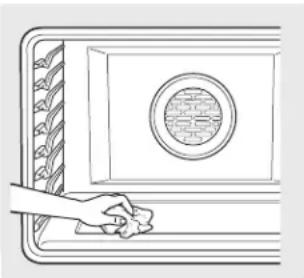
The oven door must be closed and all controls must be set correctly for the cycle to work properly.
natural_image
Line drawing of a hand opening a door with a circular vent and patterned side panel (no text or symbols)Wipe up heavy soil on the oven bottom. (appearance may vary)
Before a Clean Cycle
We recommend venting your kitchen with an open window or using a ventilation fan or hood during the first self-clean cycle.
Remove any broiler pan, broiler grid, probe, all cookware and any aluminum foil from the oven.
The oven racks may remain in the oven during the self-cleaning cycle without being damaged.
Do not use abrasives or oven cleaners. Clean the top, sides and outside of the oven door with soap and water.
Make sure the oven light bulb cover is in place and the oven light is off.
IMPORTANT: The health of some birds is extremely sensitive to the fumes given off during the self-cleaning cycle of any oven. Move birds to another well-ventilated room.
NOTE: Self-Clean will not work if the temperature probe is plugged in or if the Sabbath feature is set.
On double oven models, you can set a clean cycle in both ovens at the same time. The last oven set will automatically delay its start until the end of the first oven's clean cycle.
On double oven models, you can use timed baking in one oven and self-clean in the other at the same time.
CAUTION: Never place cooking utensils or any other items on the oven floor. There is a heating element beneath the oven floor. Placing items on the oven floor may cause the oven to overheat, resulting in damage to the oven and risk of damage or fire to cabinets.
SELF CLEAN
UPPER
OVEN □
OF
LOWER□
OVEN
On double oven models only.
(Numbers will only be used when setting a CUSTOM clean time.)
How to Set the Oven for Cleaning
1 Touch SELF CLEAN.
2 For double oven models only, touch UPPER OVEN or LOWER OVEN to select the desired oven.
3 Three self clean time options are available:
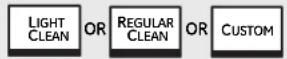
LIGHT CLEAN – Touch for an automatic 3-hour clean time. Recommended for use when cleaning small, contained spills.
■ REGULAR CLEAN – Touch for an automatic 5-hour clean time. Recommended for a dirtier oven.
CUSTOM— Touch and, using the numbers, set a clean time between 3 hours and 7 hours and 30 minutes, depending on how dirty your oven is.
4 Touch NOW.
The door locks automatically. The screen will show the clean time remaining. It will not be possible to open the oven door until the temperature drops below the lock temperature and OVEN LOCKED goes off.
When OVEN LOCKED goes off, you will be able to open the door.
The words LOCK DOOR will appear and the oven control will signal if you set the clean cycle and forget to close the oven door.
To stop a clean cycle, touch the CANCEL or CLEAR/OFF pad. When OVEN LOCKED goes off, indicating the oven has cooled below the locking temperature, you will be able to open the door.
On double oven models, you can set a clean in both ovens at the same time. The second oven set will automatically delay the start of cleaning until the end of the first oven's clean cycle.
To set the second oven, there are two options available:
- Immediately after setting the first oven:
Select PRESS TO MAKE LOWER OVEN SELECTIONS or PRESS TO MAKE UPPER OVEN SELECTIONS as needed and follow steps 3 and 4.
■ From the home screen:
1 Touch SELF CLEAN.
2 Touch LIGHT CLEAN, REGULAR CLEAN or CUSTOM. See above for reference.
3 Touch START AFTER 1ST SELF CLEAN for the second oven to automatically start cleaning after the first oven has finished.
Using the self-cleaning oven.
The oven door must be closed and all controls must be set correctly for the cycle to work properly.
flowchart
graph TD
    A["SELF CLEAN"] --> B["UPPER OVEN OR LOWER OVEN"]
    B --> C["On double oven models only."]
    C --> D["LIGHT CLEAN OR REGULAR CLEAN OR CUSTOM"]
    D --> E["1 2 3 4 5"]
    E --> F["(Numbers will only be used when setting a CUSTOM clean time.)"]
    F --> G["LATER"]
    G --> H["DELAYED TIME OR START CLEAN TIME OR FINISH CLEAN TIME"]
    H --> I["1 2 3 4 5"]
    I --> J["6 7 8 9 0"]
    J --> K["ENTER"]
How to Delay the Start of Cleaning
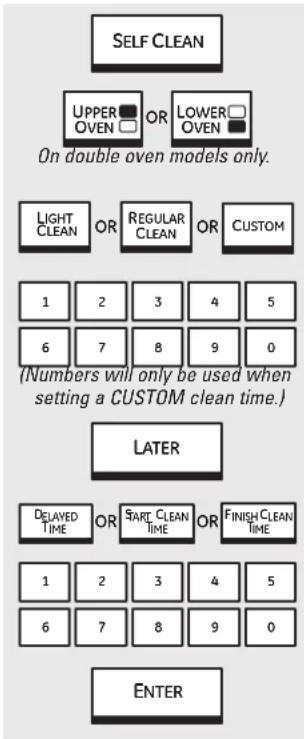
1 Touch SELF CLEAN.
2 For double oven models only, touch UPPER OVEN or LOWER OVEN to select the desired oven.
3 Three self clean time options are available:
LIGHT CLEAN – Touch for an automatic 3-hour clean time. Recommended for use when cleaning small, contained spills.
■ REGULAR CLEAN – Touch for an automatic 5-hour clean time. Recommended for a dirtier oven.
CUSTOM – Touch and, using the numbers, set a clean time between 3 hours and 7 hours and 30 minutes, depending on how dirty your oven is.
4 Touch LATER.
5 Three delay start time setting options are available:
■ DELAYED TIME – Touch and then use the numbers to set the amount of time before you want cleaning to start. Touch ENTER.
■ START CLEAN TIME – Touch and then use the numbers to set the time of day you want cleaning to begin. Touch ENTER.
FINISH CLEAN TIME – Touch and then use the numbers to set the time of day that you want cleaning to finish. Touch ENTER.
The door locks automatically. The screen will show the start time. It will not be possible to open the oven door until the temperature drops below the lock temperature and OVEN LOCKED goes off.
When OVEN LOCKED goes off, you will be able to open the door.
On double oven models, you can set a clean in both ovens at the same time. The second oven set will automatically delay the start of cleaning until the end of the first oven's clean cycle or until the delay time that you set.
To set the second oven, there are two options available:
Immediately after setting the first oven: Select PRESS TO MAKE LOWER OVEN SELECTIONS or PRESS TO MAKE UPPER OVEN SELECTIONS as needed and follow steps 3–6 above for the second oven.
■ From the home screen:
1 Touch SELF CLEAN.
2 Touch LIGHT CLEAN, REGULAR CLEAN or CUSTOM. See above for reference.
3 Touch START AFTER 1ST SELF CLEAN for the second oven to automatically start cleaning after the first oven has finished cleaning or DELAYED TIME and follow step 6 above to set the time you want the second oven to start.
To recall the remaining time or the start time set, touch SELF CLEAN.
To stop a clean cycle, touch CANCEL or the CLEAR/OFF pad. When OVEN LOCKED goes off, indicating the oven has cooled below the locking temperature, you will be able to open the door.
After a Clean Cycle
You may notice some white ash in the oven. Wipe it up with a damp cloth after the oven cools.
If white spots remain, remove them with a soap-filled steel-wool pad and rinse thoroughly with a vinegar and water mixture. These deposits are usually a salt residue that cannot be removed by the clean cycle.
If the oven is not clean after one clean cycle, repeat the cycle.
- You cannot set the oven for cooking until the oven is cool enough for the door to unlock.
While the oven is self-cleaning, you can touch CLOCK to display the time of day. To return to the clean countdown, touch SELF CLEAN.
Standard Racks
If they become hard to slide, wipe their side edges and the oven rack supports with cooking oil.
Extension Rack
If it becomes difficult to slide or if the release levers become difficult to use, see Extension Rack in the Care and cleaning section. Do not spray extension rack with cooking spray or other lubricant sprays.
If it becomes hard to remove or replace, wipe the oven rack supports with cooking oil. Do not wipe cooking oil on the slides.
NOTE: After the first self-clean cycle, the gray stainless steel surfaces will change color. This is normal.
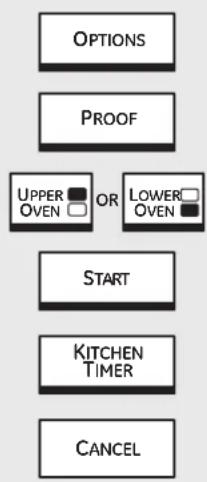
flowchart
graph TD
    A["OPTIONS"] --> B["PROOF"]
    B --> C["UPPER OVEN OR LOWER OVEN"]
    C --> D["START"]
    D --> E["KITCHEN TIMER"]
    E --> F["CANCEL"]
Proofing
The proofing feature maintains a warm environment useful for rising yeast-leavened products.
1 Place in the oven on rack B or C and, for best results, cover the dough with a cloth.
2 Touch OPTIONS.
3 Touch PROOF.
The oven interior light turns on and then will cycle during proofing.
The proofing feature automatically provides the optimum temperature for the proofing process, and therefore does not have a temperature adjustment.
4 For double oven models only, touch UPPER OVEN or LOWER OVEN to select the desired oven.
5 Touch START.
6 Set the KITCHEN TIMER for the minimum proof time.
7 When proofing is finished, touch CANCEL.
Proofing will not operate when oven is above 125°F. "OVEN IS TOO HOT" will show in the display.
It is not necessary to preheat the oven for proofing.
To avoid lowering the oven temperature and lengthening proofing time, do not open the oven door unnecessarily.
- Check bread products early to avoid over-proofing.
NOTE: Do not use the proofing mode to reheat cold food or to keep hot, cooked food warm. The proofing oven temperature is not hot enough to hold foods at safe temperatures. Use the WARM feature to keep hot food warm.
Option-Warm.
On double oven models only.
Warming
Warm can be activated to keep hot, cooked foods warm. This feature is not designed to reheat cold food.
1 Touch OPTIONS.
2 Touch WARM.
3 For double oven models only, touch UPPER OVEN or LOWER OVEN to select the desired oven.
4 Touch to select HIGH, MEDIUM or LOW automatic set temperature.
5 Touch to select CRISP or MOIST, depending on whether you want the foods you are warming to be crispy or moist.
6 Touch START.
Allow time for the oven to be preheated:
LOW8 minutes
MED 15 minutes
HIGH 20 minutes
NOTE: The convection fan will turn on during CRISP.
For double oven models only, to set the second oven, select PRESS TO MAKE LOWER OVEN SELECTIONS or PRESS TO MAKE UPPER OVEN SELECTIONS as needed and follow the above steps.
The set temperature may be changed by touching CHANGE TIME-TEMP for the appropriate oven.
The settings may be cancelled by touching CANCEL for the appropriate oven.
The timer can be set by touching SET KITCHEN TIMER. See the Kitchen timer section.
To Crisp Stale Items
- Place food in low-sided dishes or pans.
For best results, place the food items in a single layer. Do not stack.
Leave them uncovered.
■ Preheat on LOW setting. - Check crispness after 45 minutes. Add time as needed.
CAUTION: Do not keep food in
the warming mode for more than 2 hours.
IMPORTANT NOTES:
Food should be kept hot in its cooking container or transferred to a heat-safe serving dish.
Food in heat-safe glass and glass ceramic pans may need a higher thermostat setting as compared to food in metal pans.
For moist foods, cover them with an oven-safe lid or aluminum foil.
■ Fried or crisp foods do not need to be covered, but can become too dry if warmed for too long.
■ Repeated opening of the door allows the hot air to escape and the food to cool.
- Allow extra time for the temperature inside the oven to stabilize after adding items.
- With large loads it may be necessary to use a higher thermostat setting and cover some of the cooked food items.
■ Remove serving spoons, etc., before placing containers in the oven.
- Do not use plastic containers, lids or plastic wrap.
CAUTION: Plastic containers, lids or plastic wrap will melt if placed in the oven.
Melted plastic may not be removable and is not covered under your warranty.
To Warm Serving Bowl and Plates
To warm serving bowls and plates, set the control on LOW.
■ Use only heat-safe dishes.
Place the empty dishes on the rack. If you want hotter dishes or want to heat fine china, please check with the manufacturer of the dishes for their maximum heat tolerance.
The empty serving dish will heat while the oven is preheating.
When holding hot, cooked foods and warming empty serving dishes at the same time, place the serving dishes on a higher rack position and the food on a lower rack position.
CAUTION: Dishes may be
hot. Use pot holders or mitts when removing hot dishes.
Temperature Selection Chart for Crisp Foods
To keep several different foods hot, set the temperature to the food needing the highest setting. Place the items needing the highest setting on a lower rack and items needing less heat on an upper rack.
| Food Type Control Setting | |
| Bacon HIGH | |
| Bread, hard rolls MED | |
| Fried foods HIGH | |
| Pies (two crusts) MED | |
| Pizza MED | |
| Potatoes, baked HIGH | |
| Tortilla Chips LOW |
Tips:
Leave food uncovered.
- Do not use plastic containers or plastic wrap.
■ Preheat prior to use.
Temperature Selection Chart for Moist Foods
To keep several different foods hot, set the temperature to the food needing the highest setting. Place the items needing the highest setting on a lower rack and items needing less heat on an upper rack.
| Food Type Control Setting | |
| Beef, medium and well done* MED | |
| Bread, soft rolls MED | |
| Casseroles MED | |
| Chili | HIGH |
| Cooked cereal | MED |
| Eggs | MED |
| Fish, seafood MED | |
| Fruit | MED |
| Gravy, cream sauces | MED |
| Ham | MED |
| Lamb | MED |
| Pancakes, waffles | LOW |
| Pies (one crust) | MED |
| Pork | MED |
| Potatoes, mashed | MED |
| Poultry | HIGH |
| Vegetables MED |
* USDA/FSIS recommends an internal temperature of 145°F. as the minimum doneness for beef. Use a portable meat thermometer to check internal temperatures.
Tips:
■ Cover food with lid or aluminum foil.
■ Do not put water in the oven.
- Do not use plastic containers or plastic wrap.
■ Preheat prior to use.
Option—Two temps.
On double oven models only.
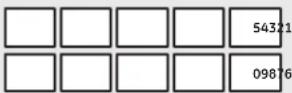

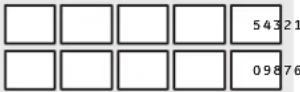
Two Temps
Use to set a first temperature with a cooking time and also a second temperature with a second cooking time.
1 Touch OPTIONS.
2 Touch TWO TEMPS.
For double oven models only, touch UPPER OVEN or LOWER OVEN to select the desired oven.
4 Touch the numbers to set the desired first temperature.
5 Touch ENTER.
6 Touch the numbers to set the desired length of the first cooking time.
7 Touch ENTER.
8 Touch BAKE, CONVECTION BAKE or CONVECTION ROAST as desired.
9 If CONVECTION BAKE was selected, touch SINGLE RACK for one rack or MULTI-RACK for two or three rack cooking.
10 Touch the numbers to set the desired second temperature.
11 Touch ENTER.
12 Touch the numbers to set the desired length of the second cooking time.
13 Touch ENTER.
14 Touch PRE-HEATED START or COLD START.
Options-Cook & hold and dehydrate. GEAppliances.com
COOK & HOLD
Cook and Hold
Your control has a cook and hold feature that keeps cooked foods warm for up to 3 hours after Timed Baking or Timed Roasting is finished.
NOTE: This feature can only be programmed to work with Timed Baking or Timed Roasting. (See the Using the timed baking or timed roasting features section.) After Timed Baking or Timed Roasting has automatically stopped and the MORE TIME option ends, the programmed cook and hold will automatically start.
There are two ways to activate this feature for use after Timed Baking or Timed Roasting:
■ After setting a Timed Bake or Timed Roast:
1 Touch ADD BAKE OPTION, ADD CONV BAKE OPTION or ADD ROAST OPTION depending on the cooking mode you are setting.
2 Touch COOK & HOLD.
3 Touch OK.
4 Touch PRE-HEATED START or COLD START.
Set using OPTIONS:
1 Touch OPTIONS.
2 Touch COOK & HOLD.
3 For double oven models only, touch UPPER OVEN or LOWER OVEN to select the desired oven.
4 Touch OK.
5 Touch BAKE, CONVECTION BAKE, CONVECTION ROAST or TWO TEMPS.
6 Touch the numbers to enter the temperature(s) and the time(s).
7 Touch ENTER.
8 Touch PRE-HEATED START or COLD START.
natural_image
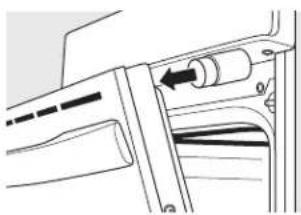
Mechanical assembly diagram showing a piston and lever mechanism (no text or symbols)Place the magnetic end onto the upper inside surface of the oven door. Close the door against the doorstop.

flowchart
graph TD
    A["OPTIONS"] --> B["DEHYDRATE"]
    B --> C["UPPER OVEN OR LOWER OVEN"]
    C --> D["ENTER"]
    D --> E["START"]
Dehydrate
Dehydration (Drying) is a method of preserving fruits, vegetables, herbs and meats by removing moisture so bacteria, yeast and mold cannot grow and spoil the food. The oven uses an automatic set temperature and the convection fan to remove moisture from the foods to dry and preserve them. Note that over 12 hours may be required to dry some foods.
Accurate and complete information on basic food drying is available from your local cooperative extension service office. To locate this office in your area, look in your telephone directory for the county government listings under your county name.
During dehydration, your oven door must remain partially open to allow for air circulation and moisture removal.
Use the dehydration doorstop, which is included with your oven, to hold the door open for dehydration.
1 Open the oven door.
2 Place the magnetic end of the doorstop onto the upper inside surface of the oven door.
3 Close the oven door, allowing the door to rest against the doorstop.
4 Touch OPTIONS.
5 Touch DEHYDRATE.
For double oven models only, touch UPPER OVEN or LOWER OVEN to select the desired oven.
7 Enter the temperature (max. 200°F).
8 Touch ENTER.
9 Touch START
NOTES:
■ Store the doorstop in a safe place when not in use.
Use only the doorstop provided with your oven and only use the doorstop while dehydrating.
- Do not store the doorstop in the oven.
Remember that the proper preparation, treatment and storage of food are essential for the quality and safety of dried food.
Dehydrating Helpful Tips:
■ Multiple racks of food can be dried at one time.
■ Drying time will vary depending on several factors:
• number of racks of food
• amount of food on each rack
• size, shape and thickness of food
• type of drying trays used
Use food preservation resources, such as your local cooperative extension service, as a guide for selecting food-safe drying trays.
To order a replacement doorstop, call our National Parts Center at 800.626.2002 and reference WB08T10024.
Option-Delay start.
NOTE: Foods that spoil easily—such as milk, eggs, fish, stuffings, poultry and pork—should not be allowed to sit for more than 1 hour before or after cooking. Room temperature promotes the growth of harmful bacteria.
On double oven models only.
text_image
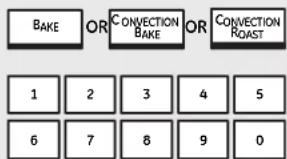
BAKE OR CONVECTION BAKE OR CONVECTION ROAST 1 2 3 4 5 6 7 8 9 0
Delayed Start and Automatic Stop
You can set the oven control to delay-start the oven in Bake, Convection Bake or Convection Roast for a specific length of time and then turn off automatically. Also see the Timed baking and timed roasting and the Timed convection baking and timed roasting sections.
Make sure the clock shows the correct time of day.
1 Touch OPTIONS.
2 Touch DELAY START.
3 For double oven models only, touch UPPER OVEN or LOWER OVEN to select the desired oven.
4 Two delay start time setting options are available:
■ START COOK TIME – Touch and then use the numbers to set the amount of time before you want cooking to start. Touch ENTER. For example, if you want cooking to begin in 2 hours, enter 2, 0 and 0.
FINISH COOK TIME – Touch and then use the numbers to set the amount of time beyond the time of day that you want cooking to end. Touch ENTER. For example if it is 12:00, your cooking time is 2 hours and you want to serve dinner at 5:00, then enter 3, 0 and 0.
5 Touch BAKE, CONVECTION BAKE or CONVECTION ROAST as desired.
6 Touch the numbers to set the desired temperature.
7 Touch ENTER.
8 Touch the numbers to set the desired length of cooking time.
9 Touch ENTER.
10 Two start options are available when the delayed start time is reached:
PRE-HEATED START – Touch to select preheat.
When the delayed start time is reached, the oven will turn on and preheat will begin.
The convection fan will turn on during preheating. The control will signal when the oven is preheated—this will take approximately 10 minutes. The screen will show the set temperature.
COLD START – Touch to select for the oven to start immediately (without preheating) when the delayed start time is reached. The convection fan will also turn on.
For double oven models only, to set the second oven, select PRESS TO MAKE LOWER OVEN SELECTIONS or PRESS TO MAKE UPPER OVEN SELECTIONS as needed and follow the above steps.
The set temperature may be changed by touching CHANGE TIME-TEMP for the appropriate oven.
The settings may be cancelled by touching CANCEL for the appropriate oven.
The timer can be set by touching SET KITCHEN TIMER. See the Kitchen Timer section.
When the delayed start time is reached, the oven will start and continue to cook for the programmed amount of time, then shut off automatically, unless the Cook and Hold feature was set. See the Cook and hold option section.
After cooking is complete the oven will signal and "MORE TIME" will display for five minutes. Check food for doneness. If more cooking time is needed, touch MORE TIME and enter additional cooking time. If not selected, the screen will automatically clear in five minutes.
Option-Sabbath.
(Designed for use on the Jewish Sabbath and Holidays.) (on some models)
GEAppliances.com
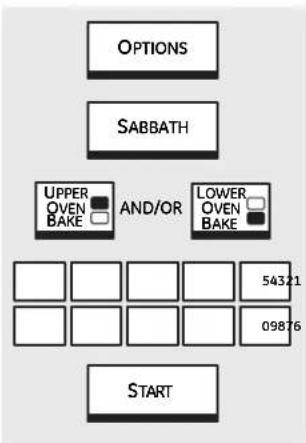
The Sabbath feature can be used for baking/roasting only. It cannot be used for convection, broiling, self-cleaning or Delay Start cooking.
flowchart
graph TD
    A["OPTIONS"] --> B["SABBATH"]
    B --> C["UPPER OVEN BAKE"]
    B --> D["AND/OR"]
    B --> E["LOWER OVEN BAKE"]
    C --> F["54321"]
    D --> G["09876"]
    E --> H["START"]
How to Set for Regular Baking/Roasting
1 Touch OPTIONS.
2 Touch SABBATH.
After entering the SABBATH screen, the touch screen pads will not sound. They will change color to indicate they are set.
3 For double oven models only, touch UPPER OVEN BAKE and/or LOWER OVEN BAKE to select the desired oven(s).
4 Touch the numbers to set the desired temperature between 170°F and 550°F. No signal or temperature will be given.
5 Touch START.
6 After a random delay period of approximately 30 seconds to 1 minute, the oven will begin baking/roasting. The touch screen will not change and the oven light will be disabled.
To adjust the oven temperature, repeat steps 3, 4, 5 and 6.
To cancel the Sabbath option, touch and hold CANCEL HOLD 3 SEC for three seconds.
NOTES: CANCEL HOLD 3 SEC, CLEAR/OFF and CANCEL are the only pads which are immediately active during Sabbath baking. These pads will cancel the current bake operation immediately after being pressed and should only be pressed after Sabbath ends. All other keys have a delayed effect.
If a power outage occurred while the oven was in Sabbath, the oven will automatically turn off and stay off even when the power returns. Sabbath mode will resume, but any bake operation will be canceled.
NOTE: If a bake mode or a timed-bake mode is active prior to entering the Sabbath mode, those baking modes will still be active after entering the Sabbath mode. All other cooking modes will be canceled after Sabbath mode begins.
Help feature.
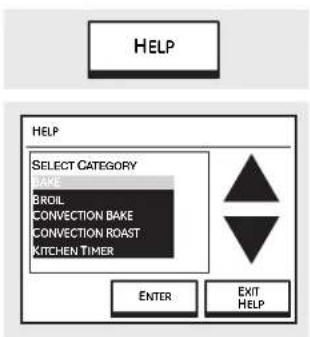
text_image
HELP HELP SELECT CATEGORY BAKE BROIL CONVECTION BAKE CONVECTION ROAST KITCHEN TIMER ENTER EXIT HELPHelp
Touch this pad to find out more about your oven's features.
1 Touch the HELP pad.
2 Touch the (up) or (down) arrow to select the desired feature.
3 Touch ENTER.
4 Touch the (down) arrow, if present, to see all of the HELP text.
5 Touch EXIT HELP to exit the HELP screen.
Options—Settings.
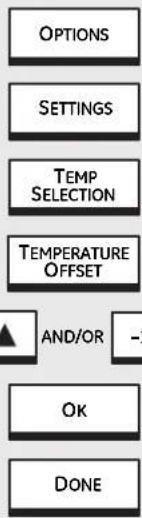
flowchart
graph TD
    A["OPTIONS"] --> B["SETTINGS"]
    B --> C["TEMP SELECTION"]
    C --> D["TEMPERATURE OFFSET"]
    D --> E["AND/OR"]
    E --> F["OK"]
    F --> G["DONE"]
Adjust the Oven Thermostat—Do It Yourself!
You may find that your new oven cooks differently than the one it replaced. Use your new oven for a few weeks to become more familiar with it. If you still think your new oven is too hot or too cold, you can adjust the thermostat yourself.
Do not use thermometers, such as those found in grocery stores, to check the temperature setting of your oven. These thermometers may vary 20–40 degrees.
NOTE: This adjustment will only affect baking and roasting temperatures; it does not affect broiling or self-cleaning temperatures. The adjustment will be retained in memory after a power failure.
1 Touch OPTIONS.
2 Touch SETTINGS.
3 Touch TEMP SELECTIONS.
4 Touch TEMPERATURE OFFSET.
5 The oven temperature can be adjusted up to (+) 35°F hotter or (-) 35°F cooler. Touch + 1° or - 1° to increase or decrease the offset temperature in 1° increments.
6 When you have made the adjustment, touch OK and DONE. Use your oven as you would normally.
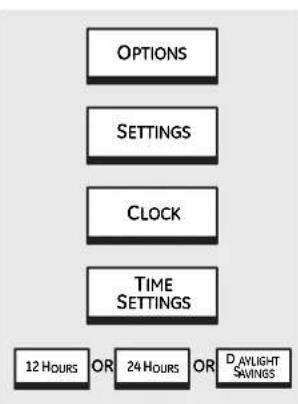
flowchart
graph TD
    A["OPTIONS"] --> B["SETTINGS"]
    B --> C["CLOCK"]
    C --> D["TIME SETTINGS"]
    D --> E["12 HOURS OR 24 HOURS OR DAYLIGHT SAVINGS"]
To Set the Clock
The clock must be set to the correct time of day for the automatic oven timing functions to work properly. The time of day cannot be changed during a timed baking or self-cleaning cycle.
1 Touch OPTIONS.
2 Touch SETTINGS.
3 Touch CLOCK.
4 Touch TIME SETTINGS.
5 Three options are available:
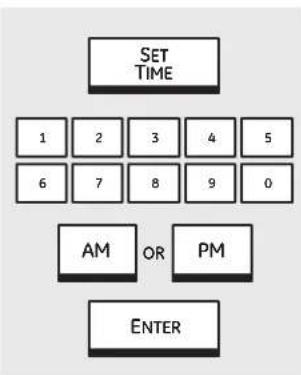
flowchart
graph TD
    A["SET TIME"] --> B["1"]
    A --> C["2"]
    A --> D["3"]
    A --> E["4"]
    A --> F["5"]
    A --> G["6"]
    A --> H["7"]
    A --> I["8"]
    A --> J["9"]
    A --> K["0"]
    A --> L["AM"]
    A --> M["OR"]
    A --> N["PM"]
    A --> O["ENTER"]
Make sure the clock is set to the correct time of day.
To set a 12 hour day time: Touch 12 HOURS, touch SET TIME, enter the time in hours and minutes from 1:00 to 12:59, touch AM or PM, touch START and touch OK.
To set a 24 hour (military) time: Touch 24 HOURS, touch SET TIME, enter the time in hours and minutes from 00:01 to 23:59, touch START and touch OK.
To set for daylight savings time: Touch DAYLIGHT SAVINGS, touch BACK 1 HOUR to fall back one hour or touch FORWARD 1 HOUR to spring forward one hour.
6 Touch SET TIME.
7 Touch the numbers to enter the current time in hours and minutes.
8 Touch AM or PM.
9 Touch ENTER.
| 12-Hour Shut-OffWith this option, should you forget and leave the oven on, the control will automatically turn off the oven after 12 hours during baking functions or after 3 hours during a broil function. | NOTE: On double oven models, this activates this special feature for both ovens. | |
| Follow the steps below:1 Touch OPTIONS.2 Touch SETTINGS.3 Touch 12 HR SHUT-OFF. | 4 Touch DEACTIVATED or ACTIVATED.5 Touch OK. | |
| Clock BlackoutIf you would prefer to black out the clock display, follow the steps below.1 Touch OPTIONS.2 Touch SETTINGS.3 Touch CLOCK.4 Touch DISPLAY.5 Touch ALWAYS OFF.6 Touch OK.7 Touch OK again. | NOTE: If the clock is in the black-out mode, you will not be able to use the Delay Start function. | |
| Fahrenheit or Celsius Temperature SelectionYour oven control is set to use the Fahrenheit temperature selections, but you may change this to use the Celsius selections.1 Touch OPTIONS.2 Touch SETTINGS.3 Touch TEMP SELECTIONS.4 Touch TEMPERATURE SCALE (°C-°F).5 Touch °F for Fahrenheit or touch °C for Celsius.6 Touch OK.7 Touch OK again.8 Touch DONE. | NOTE: On double oven models, the new setting will apply for both ovens. |
Options—Settings.
OPTIONS
SETTINGS
AUTO RECIPE CONVERSION
ON
m = 311
OK
DONE
Auto Recipe™ Conversion (on some models)
When using convection bake, the Auto Recipe ^™ Conversion option will automatically convert entered regular baking temperatures to convection baking temperatures.
Once the feature is activated, the screen will show the actual converted (reduced) temperature. For example, if you enter a regular recipe temperature of 350^ F and touch START, the screen will show CON and the converted temperature of 325^ F.
NOTE: This option does not convert convection bake cooking times, only regular baking temperatures.
To activate/deactivate the feature:

Touch OPTIONS.

Touch SETTINGS.

Touch AUTO RECIPE CONVERSION.

Touch ON to turn the auto conversion option on or OFF to turn the option off.

Touch OK.

Touch DONE.
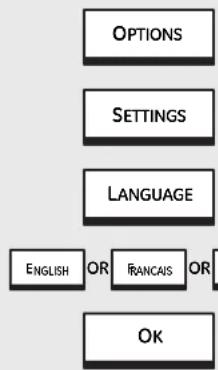
flowchart
graph TD
    A["OPTIONS"] --> B["SETTINGS"]
    B --> C["LANGUAGE"]
    C --> D["ENGLISH OR FRANCAIS OR OK"]
Language
This option allows you to choose English, Spanish or French for the touch screen.

Touch OPTIONS.

Touch SETTINGS.

Touch LANGUAGE.

Touch ENGLISH, FRANÇAIS or ESPAÑOL.

Touch OK.
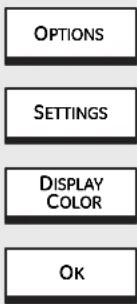
text_image
OPTIONS SETTINGS DISPLAY COLOR OKDisplay Color
This option allows you to change the colors of the touch screen.

Touch OPTIONS.

Touch SETTINGS.

Touch DISPLAY COLOR.

Touch the desired colors.

Touch OK.
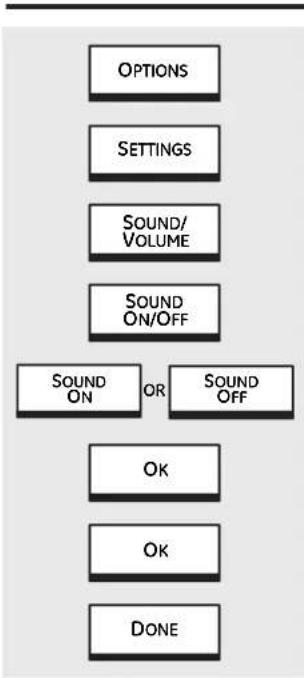
flowchart
graph TD
    A["OPTIONS"] --> B["SETTINGS"]
    B --> C["SOUND/VOLUME"]
    C --> D["SOUND ON/OFF"]
    D --> E["SOUND ON OR SOUND OFF"]
    E --> F["OK"]
    F --> G["OK"]
    G --> H["DONE"]
Sound On/Off
This option allows you to turn on or off the beep sound when a pad is touched.
1 Touch OPTIONS.
2 Touch SETTINGS.
3 Touch SOUND/VOLUME.
4 Touch SOUND ON/OFF.
5 Touch SOUND ON for the pads to beep when touched or touch SOUND OFF to eliminate the beep when pads are touched.
6 Touch OK.
7 Touch OK again.
8 Touch DONE.
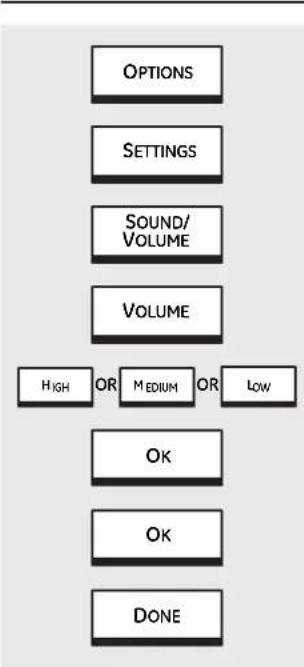
flowchart
graph TD
    A["OPTIONS"] --> B["SETTINGS"]
    B --> C["SOUND/VOLUME"]
    C --> D["VOLUME"]
    D --> E["HIGH OR MEDIUM OR LOW"]
    E --> F["OK"]
    F --> G["OK"]
    G --> H["DONE"]
Sound Volume
This feature allows you to adjust the sound volumes to a more acceptable volume. There are three possible volume levels.
1 Touch OPTIONS.
2 Touch SETTINGS.
3 Touch SOUND/VOLUME.
4 Touch VOLUME.
5 Touch HIGH, MEDIUM or LOW to select the pad sound level when touched.
6 Touch OK.
7 Touch OK again.
8 Touch DONE.
Options—Settings.
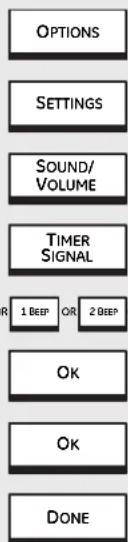
flowchart
graph TD
    A["OPTIONS"] --> B["SETTINGS"]
    B --> C["SOUND/VOLUME"]
    C --> D["TIMER SIGNAL"]
    D --> E["R 1 BEEP OR 2 BEEP"]
    E --> F["OK"]
    F --> G["OK"]
    G --> H["DONE"]
Timer Signal
This option allows you to set the type of signal used at the end of a timed cycle.
1 Touch OPTIONS.
2 Touch SETTINGS.
3 Touch SOUND/VOLUME.
4 Touch TIMER SIGNAL.
5 Touch CONTINUE, 1 BEEP, 2 BEEP or 3 BEEP.
6 Touch OK.
7 Touch OK again.
8 Touch DONE.
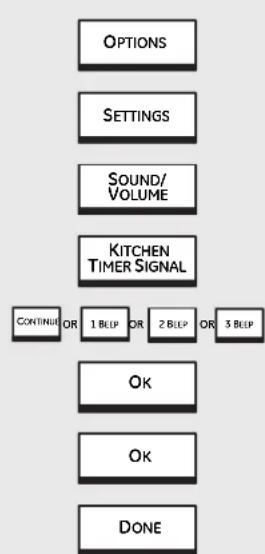
flowchart
graph TD
    A["OPTIONS"] --> B["SETTINGS"]
    B --> C["SOUND/VOLUME"]
    C --> D["KITCHEN TIMER SIGNAL"]
    D --> E["CONTINUE OR 1 BEEP OR 2 BEEP OR 3 BEEP"]
    E --> F["OK"]
    F --> G["OK"]
    G --> H["DONE"]
Kitchen Timer Signal
This option allows you to set the type of signal used for the kitchen timer.
1 Touch OPTIONS.
2 Touch SETTINGS.
3 Touch SOUND/VOLUME.
4 Touch KITCHEN TIMER SIGNAL.
5 Touch CONTINUE, 1 BEEP, 2 BEEP or 3 BEEP.
6 Touch OK.
7 Touch OK again.
8 Touch DONE.
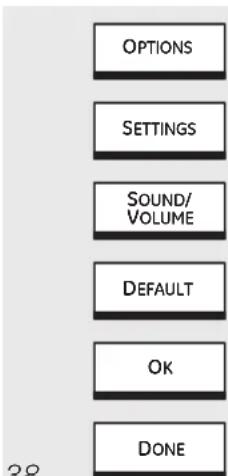
text_image
OPTIONS SETTINGS SOUND/ VOLUME DEFAULT OK DONESound/Volume Default
This option allows you to automatically set all signals to the default settings.
1 Touch OPTIONS.
2 Touch SETTINGS.
3 Touch SOUND/VOLUME.
4 Touch DEFAULT.
5 Touch OK.
6 Touch DONE.
Be sure electrical power is off and all surfaces are cool before cleaning any part of the oven.
How to Remove Protective Shipping Film and Packaging Tape
Carefully grasp a corner of the protective shipping film with your fingers and slowly peel it from the appliance surface. Do not use any sharp items to remove the film. Remove all of the film before using the appliance for the first time.
To assure no damage is done to the finish of the product, the safest way to remove the adhesive from packaging tape on new appliances is an application of a household liquid dishwashing detergent. Apply with a soft cloth and allow to soak.
NOTE: The adhesive must be removed from all parts. It cannot be removed if it is baked on.
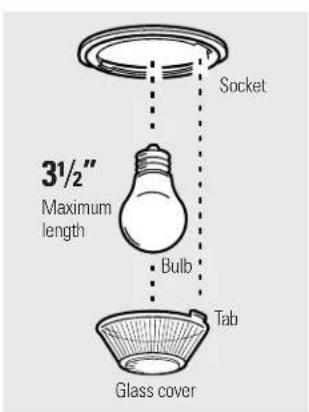
text_image
3½" Maximum length Socket Bulb Tab Glass coverOven Light Bulb
NOTE: The glass cover (on some models) should be removed only when cold. Wearing latex gloves may offer a better grip.
Before replacing the bulb, disconnect electrical power to the oven at the main fuse or circuit breaker panel. Let the bulb cool completely before removing it. For your safety, do not touch a hot bulb with a damp cloth. If you do, the bulb will break.
To remove:
Turn the glass cover counterclockwise 1/4 turn until the tabs of the glass cover clear the grooves of the socket. Remove the bulb.
To replace:
Put in a new 40-watt appliance bulb. Place the tabs of the glass cover into the grooves of the socket. Turn the glass cover clockwise 1/4 turn.
NOTE:
A 40-watt appliance bulb is smaller than a standard 40-watt household bulb.
- Install and tighten the cover clockwise.
■ Reconnect electrical power to the oven.
For improved lighting inside the oven, clean the glass cover frequently using a wet cloth. This should be done when the oven is completely cool.
Control Panel
It's a good idea to wipe the control panel after each use. Clean with mild soap and water or vinegar and water, rinse with clean water and polish dry with a soft cloth. When cleaning, the control panel should be at room temperature and not in direct sunlight.
Use of other liquid cleaners is not recommended—the residue they leave behind may affect the control.
Do not use abrasive cleansers, strong liquid cleansers, plastic scouring pads or oven cleaners on the control panel—they will damage the finish. A 50/50 solution of vinegar and hot water works best.
Stainless Steel Surfaces (on some models)
Do not use a steel wool pad; it will scratch the surface.
To clean the stainless steel surface, use warm sudsy water or a stainless steel cleaner or polish. Always wipe the surface in the direction of the grain. Follow the cleaner instructions for cleaning the stainless steel surface.
To inquire about purchasing stainless steel appliance cleaner or polish, or to find the location of a dealer nearest you, please call our toll-free number:
National Parts Center
1.800.626.2002
GEAppliances.com
Care and cleaning.
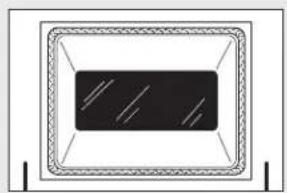
natural_image
Simple diagram of a rectangular frame with internal diagonal lines, no text or symbols present.Do not rub or clean the door gasket—it has an extremely low resistance to abrasion.
If you notice the gasket becoming worn, frayed or damaged in any way or if it has become displaced on the door, you should have it replaced.
Cleaning the Oven Door
To clean the inside of the door:
Because the area inside the gasket is cleaned during the self-clean cycle, you do not need to clean this area by hand.
The area outside the gasket and the door liner can be cleaned with a soap-filled or plastic scouring pad, hot water and detergent. Rinse well with a vinegar and water solution.
To clean the outside of the door:
Use soap and water to thoroughly clean the top, sides and front of the oven door. Rinse well. You may also use a glass cleaner to clean the glass
on the outside of the door. Do not let water drip into the vent openings.
If any stain on the door vent trim is persistent, use a soft abrasive cleaner and a sponge-scrubber for best results.
■ Spillage of marinades, fruit juices, tomato sauces and basting materials containing acids may cause discoloration and should be wiped up immediately. When surface is cool, clean and rinse.
Do not use oven cleaners, cleaning powders or harsh abrasives on the outside of the door.
Lift-Off Oven Door
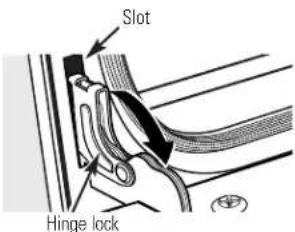
text_image
Slot Hinge lockPull hinge locks down to unlock
The door is very heavy. Be careful when removing and lifting the door.
Do not lift the door by the handle.
To remove the door:
1 Fully open the door.
2 Pull the hinge locks down toward the door frame, to the unlocked position. A tool, such as a small flat-blade screwdriver, may be required.
3 Firmly grasp both sides of the door at the top.
4 Close door to the door removal position (see illustration).
5 Lift door up and out until the hinge arm is clear of the slot.
To replace the door:
Firmly grasp both sides of the door at the top.
2 With the door at the same angle as the removal position, seat the indentation of the hinge arm into the bottom edge of the hinge slot. The notch in the hinge arm must be fully seated into the bottom of the slot.
3 Fully open the door. If the door will not fully open, the indentation is not seated correctly in the bottom edge of the slot.
4 Push the hinge locks up against the front frame of the oven cavity, to the locked position.
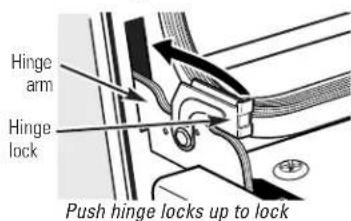
text_image
Hinge arm Hinge lock Push hinge locks up to lock5 Close the oven door.
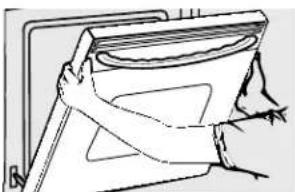
natural_image
Illustration of a hand gripping a large cylindrical object, possibly a container or machine component (no text or symbols visible)Removal position
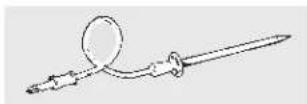
Probe
The temperature probe may be cleaned with soap and water or a soap-filled scouring pad. Cool the temperature probe before cleaning. Scour stubborn spots with a soap-filled scouring pad, rinse and dry.
Do not immerse the temperature probe in water.
Do not store the temperature probe in the oven.
Standard Racks
The standard racks may be cleaned by hand with an abrasive cleaner or steel wool. After cleaning, rinse the racks with clean water and dry with a clean cloth.
They may also remain in the oven during the self-cleaning cycle without being damaged.
If they become hard to slide, wipe their side edges and the oven rack supports with cooking oil after cleaning them by hand or in the oven. This will help maintain the case of sliding the racks in and out of the oven.
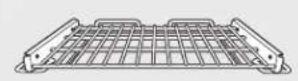
Extension Rack
Porcelain enamel surfaces of the extension rack may be cleaned by hand with an abrasive cleaner or steel wool. Do not use a steel wool pad to clean stainless steel surfaces of the extension rack; it will scratch the surface. See Stainless Steel Surfaces in this Care and cleaning section.
NOTE: Do not clean in a dishwasher.
The rack may also remain in the oven during the self-cleaning cycle without being damaged.
If the rack becomes hard to remove or replace, wipe the oven rack supports with cooking oil. Do not wipe cooking oil on the slides.
If the rack becomes difficult to slide or if the release levers become difficult to use, the rack may need to be lubricated using the Graphite Lubrication shipped with your oven. To order additional Graphite Lubrication, call our National Parts Center at 800.626.2002 and reference WB02T10303.
To lubricate the slides:
NOTE: Do not spray extension rack with cooking spray or other lubricant sprays.
1 Remove the rack from the oven. See Extension Rack in the Using the oven section.
2 Fully extend the rack on a table or countertop. Newspaper may be placed underneath the rack for easy cleanup.
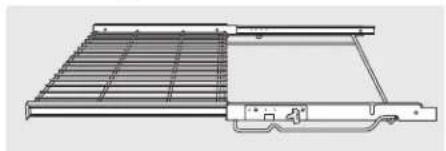
natural_image
Technical line drawing of a mechanical component with grid and housing (no text or symbols)3 If there is debris in the slide tracks, wipe it away using a paper towel. NOTE: Any graphite lubricant wiped away must be replaced.
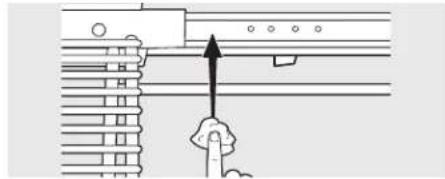
natural_image
Diagram showing a hand pressing a button on a mechanical component with no visible text or symbols4 Shake the graphite lubricant before opening it. Starting with the left slide mechanism of the rack, place four (4) small drops of lubricant on the two (2) bottom tracks of the slide close to the bearing carriers.
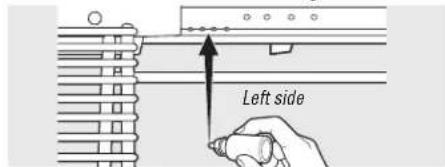
text_image
Left sideRack right-side-up
5 Repeat for the right slide mechanism of the rack.
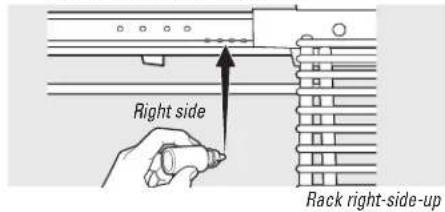
text_image
Right side Rack right-side-up6 Open and close the rack several times to distribute the lubricant.
7 Replace the cap on the lubricant and shake it again. Turn the rack over and repeat steps 3, 4, 5 and 6.
8 Close the rack, turn rack right-side-up and place in the oven. See Extension Rack in the Using the oven section.
To lubricate the release levers:
Shake lubricant and apply to the moving parts of the release levers and paddle mechanisms. 41
Before you call for service...

Troubleshooting Tips
Save time and money! Review the charts on the following
pages first and you may not need to call for service.
Problem Possible Causes What To Do
| Control signals after entering cooking time or delay start | You forgot to enter a bake temperature or cleaning time. | • TouchBAKEand desired temperature orSELF CLEANand desired clean time. |
| Food does not bake or roast properly | Oven controls improperly set. | • See theUsing the ovensection. |
| Rack position is incorrect or the rack is not level. | • See theUsing the ovensection. | |
| Oven floor not in place. | • Replace the oven floor. | |
| Oven thermostat needs adjustment. | • See theAdjust the Oven Thermostat—Do It Yourself!section. | |
| Food does not broil properly | Oven door is open. | • Close the door. This model is designed for closed door broiling only. Always broil with the door closed. |
| Oven controls improperly set. | • Make sure you touchBROIL. | |
| Improper rack position being used. | • See theBroiling Guide. | |
| Food being cooked in a hot pan. | • For best results, use a pan designed for broiling. Make sure it is cool. | |
| Cookware not suited for broiling. | • For best results, use a pan designed for broiling. | |
| The probe is plugged into the outlet in the oven. | • Unplug and remove the probe from the oven. | |
| In some areas the power (voltage) may be low. | • Preheat the broil element for 10 minutes. • Broil for the longest period of time recommended intheBroiling Guide. | |
| Clock and timer do not work | A fuse in your home may be blown or the circuit breaker tripped. | • Replace the fuse or reset the circuit breaker. |
| Oven controls improperly set. | • See theTo Set the Clockand Kitchen timer and control lockoutsections. | |
| Oven light does not work | Light bulb is loose or defective. | • Tighten or replace the bulb. |
| The oven is self-cleaning or the Sabbath option is set. | • The oven lights do not come on during self-cleaning or if the Sabbath option is set. | |
| Pad operating light is broken. | • Call for service. | |
| Extension rack is noisy and/or difficult to slide | The rack was cleaned in the self-clean cycle and now needs to be lubricated. | • SeeExtension Rackin theCare and cleaningsection. • Do not spray with cooking spray or other lubricant sprays. |
| Bearings have become misaligned due to handling. | • Install the rack in the oven (seeExtension Rackin theUsing the ovensection) and pull firmly on the sliding portion until it reaches full extension. This will reset the bearings to their proper position. | |
| Release levers on extension rack become difficult to use | The rack was cleaned in the self-clean cycle, or the original lubrication was removed by cleaning. | • Shake and apply the graphite lubrication, shipped with your oven, onto the moving parts of the release levers and paddle mechanisms. Do not spray with cooking spray or other lubricant sprays. |
| Oven temperature too hot or too cold42 | Oven thermostat needs adjustment. | • See theAdjust the Oven Thermostat—Do It Yourself!section. |
| Problem Possible Causes What To Do | ||
| Oven will not work | A fuse in your home may be blown or the circuit breaker tripped. | Replace the fuse or reset the circuit breaker. |
| Oven controls improperly set. | See the Using the oven section. | |
| Oven will not self-clean | The oven temperature is too high to set a self-clean operation. | Allow the oven to cool and reset the controls. |
| Oven controls improperly set. | See the Using the self-cleaning oven section. | |
| The probe is plugged into • Remove the probe from the oven.the outlet in the oven. | ||
| “Crackling” or “popping” sound | This is the sound of the metal heating and cooling during both the cooking and cleaning functions. | This is normal. |
| Excessive smoking during clean cycle | Excessive soil. | Touch the CLEAR/OFF pad. Open the windows to rid the room of smoke. Wait until OVEN LOCKED goes off. Wipe up the excess soil and reset the clean cycle. |
| Oven door will not open after a clean cycle | Oven too hot. | Allow the oven to cool below locking temperature. |
| Oven not clean after a clean cycle | Oven controls not properly set. | See the Using the self-cleaning oven section. |
| Oven was heavily soiled. | Clean up heavy spillovers before starting the clean cycle. Heavily soiled ovens may need to self-clean again or for a longer period of time. | |
| “LOCK DOOR” flashes in the display | The self-clean cycle has been selected but the door is not closed. | Close the oven door. |
| “OVEN LOCKED” is on when you want to cook | The oven door is locked because the temperature inside the oven has not dropped below the locking temperature. | Touch the CLEAR/OFF pad. Allow the oven to cool. |
| Control keys activate or LCD changes screens when I open the oven door | The control panel is dirty or there is residue from liquid cleaners. | Clean the control panel with a vinegar and water solution, and polish dry with a soft cloth.See the Care and cleaning section. |
Before you call for service...

Troubleshooting Tips
Problem Possible Causes What To Do
| Display "wakes up" without touching it | The Display is equipped with a sensing technology that will "wake up" when you (your hand) approaches the Touch Screen. The display is sensitive and may "wake up" when lights are turned on or due to the movement of nearby people or objects. | ·The Display should return to its standby mode after 10 minutes if no further interaction occurs. |
| "F— and a number or letter" flash in the display | You have a function error code. | ·Touch the CLEAR/OFF pad. Allow the oven to cool for one hour. Put the oven back into operation. |
| If the function code repeats. | ·Disconnect all power to the oven for at least 30 seconds and then reconnect power. If the function error code repeats, call for service. | |
| Display goes blank | A fuse in your home may be blown or the circuit breaker tripped. | ·Replace the fuse or reset the circuit breaker. |
| The clock is in the black-out mode. | ·See the Options-Settings section. | |
| Display flashes | Power failure. | ·Reset the clock. |
| "PROBE" appears in the display | This is reminding you to enter a probe temperature after plugging in the probe. | ·Enter a probe temperature. |
| Power outage, clock flashes | Power outage or surge. | ·Reset the clock. If the oven was in use, you must reset it by touching the CLEAR/OFF pad, setting the clock and resetting any cooking function. |
| Steam from the vent | When using the convection feature, it is normal to see steam coming out of the oven vent. As the number of racks or amount of food being cooked increases, the amount of visible steam will increase. | ·This is normal. |
| "Burning" or "oily" odor emitting from the vent | This is normal in a new oven and will disappear in time. | ·To speed the process, set a self-clean cycle for a minimum of 3 hours. See the Using the self-cleaning oven section. |
| Strong odor | An odor from the insulation around the inside of the oven is normal for the first few times the oven is used. | ·This is temporary. |
| Fan noise44 | A cooling fan or a convection fan (depending on the function you are using) may automatically turn on. | ·This is normal. The cooling fan will turn on to cool internal parts. It may run for up to 1-1/2 hours after the oven is turned off. The convection will cycle on and off until the function is over or the door is opened. |
Looking For Something More?
You can find these accessories and many more at GEAppliances.com (U.S.) or www.GEAppliances.ca (Canada), or call 800.626.2002 (U.S.) or 800.661.1616 (Canada) (during normal business hours). Have your model number ready.
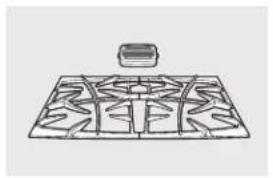
natural_image
Line drawing of a grid pattern with a small rectangular object above it (no text or symbols)Grates
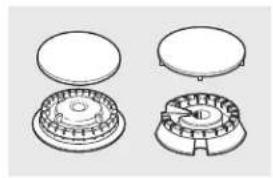
natural_image
Technical line drawing of a mechanical component with two views (top and side), no text or symbols present.Surface Burner Heads and Caps
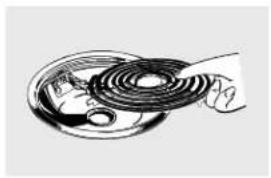
natural_image
Illustration of a hand holding a coiled cable or coil component (no text or symbols visible)Surface Elements and Drip Pans

natural_image
Simple line drawing of a sphere with internal divisions (no text or symbols)Knobs
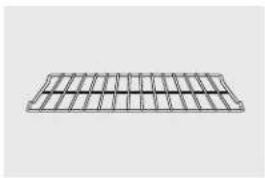
natural_image
Pure electrical circuit lines without any symbolsOven Racks
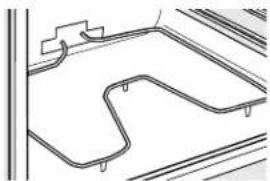
natural_image
Pure architectural line drawing of a curved road or track with no text, numbers, or symbolsOven Elements
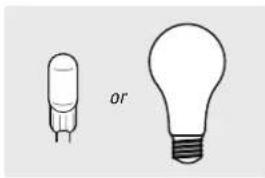
natural_image
Two simple light bulb illustrations, one with a lit bulb and the other with a standard bulb (no text or symbols)Light Bulbs
Experience these other great products to keep your kitchen looking great!
Ceramic Cooktop
Cleaning Kit:
Includes cleaner,
scraper and pad
WX10X117GCS
Ceramic Cooktop
Cleaning Wipes
WX10X305
Stainless Steel Appliance Polish Wipes
WX10X10001
Stainless Steel
Appliance
Cleaner
PM10X311
Get the most out of your Broiler Pan! (Not for use with Broiler Drawer models.)
Use your pan and grid cover to broil hamburgers, seafood, steaks, vegetables, bacon, chops and so much more! The pan below catches the excess fats and oils.
• Genuine GE Part
- Easy To Clean
• One-Year Warranty
Limited Time Offer! Free Shipping!
When you order your broiler pan within 30 days of purchasing your GE cooking product.
Small Large\* XL\*\*
U.S. Part # WB48X10055 WB48X10056 WB48X10057
Canada Part # 222D2097G001 222D2097G002 N/A
Dimensions 8-3/4"W x 1-1/4"H x 13-1/2"D
12-3/4"W x 1-1/4"H x 16-1/2"D 17"W x 1-1/4"H x 19-1/4"D
Price
US\10.50^{+}$
US\14.50^{†}$
US\16.75^{+}$
† Plus applicable state sales tax (PST/HST and GST)
* The large (standard) broil pan does not fit in 20"/24" ranges. ** The XL pan does not fit in 24" wall ovens, 27" drop-ins or 20"/24" ranges.
To place your order, call 800.626.2002 (U.S.), 800.661.1616 (Canada) or mail this form to:
In the U.S.: GE Parts, P.O. Box 221027, Memphis, TN 38122-1027. In Canada: GE Parts, 1 Factory Lane, Moncton, N.B. E1C 9M3

Broiler Pan Order Form
Quantity
Part Number
Model Number
Serial Number
Brand
Date of Purchase
First Name
Last Name
Address
City
State
Zip Code
Phone
Credit Card
Check
Money Order
Visa
MasterCard
Discover
AmEx
Credit Card #
Exp. Date: Month
Year
Signature:
GE Built-In Electric Oven Warranty.
All warranty service provided by our Factory Service Centers, or an authorized Customer Care® technician. To schedule service, visit us on-line at GEAppliances.com, or call 800.GE.CARES (800.432.2737). Please have serial number and model number available when calling for service.
Staple your receipt here. Proof of the original purchase date is needed to obtain service under the warranty.
For The Period Of: GE Will Replace:
One Year Any part of the oven which fails due to a defect in materials or workmanship.
From the date of the During this limited one-year warranty, GE will also provide, free of charge, all labor original purchase and in-home service to replace the defective part.
What GE Will Not Cover:
■ Service trips to your home to teach you how to use the product.
- Improper installation, delivery or maintenance.
- Failure of the product if it is abused, misused, or used for other than the intended purpose or used commercially.
■ Replacement of house fuses or resetting of circuit breakers.
■ Damage to the product caused by accident, fire, floods or acts of God.
■ Incidental or consequential damage caused by possible defects with this appliance.
■ Damage caused after delivery.
■ Product not accessible to provide required service.
EXCLUSION OF IMPLIED WARRANTIES—Your sole and exclusive remedy is product repair as provided in this Limited Warranty. Any implied warranties, including the implied warranties of merchantability or fitness for a particular purpose, are limited to one year or the shortest period allowed by law.
This warranty is extended to the original purchaser and any succeeding owner for products purchased for home use within the USA. If the product is located in an area where service by a GE Authorized Servicer is not available, you may be responsible for a trip charge or you may be required to bring the product to an Authorized GE Service location for service. In Alaska, the warranty excludes the cost of shipping or service calls to your home.
Some states do not allow the exclusion or limitation of incidental or consequential damages. This warranty gives you specific legal rights, and you may also have other rights which vary from state to state. To know what your legal rights are, consult your local or state consumer affairs office or your state's Attorney General.
Warrantor: General Electric Company. Louisville, KY 40225
Four autonettoyant ....69–71
Gril 60
Grilles....52, 53
Minuterie de cuisine ....68
text_image
Diagram showing a series of wavy horizontal bars with labeled vertical letters (A–G) on the right side, likely illustrating a pattern or classification.natural_image
Line drawing of a kitchen grater with a rack and ventilation slots (no text or symbols)natural_image
Technical line drawing of a kitchen counter with grating and a black handle (no text or symbols)natural_image
Line drawing of a kitchen appliance with a laptop and a rack, no text or symbols presentGrille extensible
natural_image
Line drawing of an oven interior showing a rack-mounted dish and ventilation system (no text or symbols)▲ MISE EN GARDE :
natural_image
Diagram of a mechanical or fluid system with arrows indicating flow or movement, no text or symbols presenttext_image
Technical diagram showing layered structure with labeled components A, B, C, D and a reference line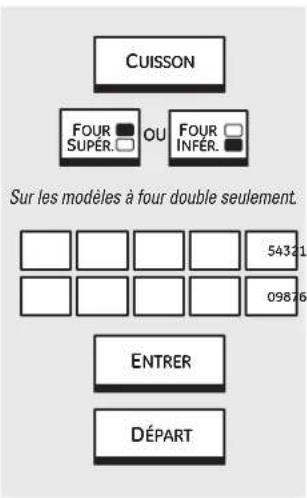
natural_image
Line drawing of a cut open on a griddle with a circular opening and grid base (no text or symbols)natural_image
Illustration of three food items: a cylindrical dish, a plate with meat, and a roasted chicken (no text or symbols)natural_image
Line drawing of a door frame with a handle and lid (no text or symbols)natural_image
Symmetrical decorative pattern with interlaced loops and central motif (no text or symbols)text_image
Technical diagram showing three grid-like structures labeled F, D, and B, with no readable text or symbols beyond labels.Plusieurs grilles
natural_image
Technical line drawing of a multi-tiered electronic device with no visible text or symbolsnatural_image
Line drawing of a hand cleaning a window with a circular vent and patterned side panel (no text or symbols)Option – Fermentation.
flowchart
graph TD
    A["OPTIONS"] --> B["FERMENTATION"]
    B --> C["OU FOR INFER."]
    C --> D["DÉPART"]
    D --> E["MINUTERIE"]
    E --> F["ANNULER"]
Fermentation
natural_image
Mechanical assembly diagram showing a lever mechanism with a cylindrical component inserted into a bracket (no text or symbols present)natural_image
Simple diagram of a rectangular frame with a central black rectangle and diagonal lines, no text or symbols present.natural_image
Illustration of hands cleaning a wall-mounted device (no text or symbols visible)natural_image
Technical line drawing of a mechanical assembly with grid and bracket components (no text or symbols)natural_image
Diagram showing a mechanical assembly with a hand pressing a button (no text or symbols present)Garant : Mabe Canada Inc., Burlington, Ontario
text_image
Diagram showing a multi-layered rack with labeled vertical letters (A–G) and a small object on the right.natural_image
Line drawing of a kitchen grater with a rack and ventilation slots (no text or symbols)natural_image
Line drawing of a kitchen counter with a grater and a black handle (no text or symbols)natural_image
Line drawing of a kitchen appliance with a laptop and a grater (no text or symbols)natural_image
Line drawing of an oven interior showing a rack-mounted dish and ventilation duct (no text or symbols)▲ PRECAUCIÓN:
text_image
Technical diagram showing layered structure with labeled components A, B, C, D and a separate vertical scale
text_image
HORNEAR HORNO SUPER. U HORNO INFER. Sólo en modelos de horno doble. 54321 09876 ACEPTAR INICIARnatural_image
Line drawing of a cut open on a griddle with a plate and pipe, no text or symbols presentnatural_image
Illustration of three food items: a rectangular dish, a plate with a cooked meat, and a flat plate (no text or symbols)natural_image
Line drawing of a cabinet or cabinet with a door and side panel (no text or symbols)natural_image
Technical line drawing of a reinforced concrete grid structure (no text or symbols)natural_image
Architectural line drawing of a multi-level building facade with internal structural elements (no text or symbols)natural_image
Line drawing of a hand holding a small object inside a rectangular frame with a circular vent and patterned side panel (no text or symbols)natural_image
Mechanical assembly diagram showing a lever mechanism with a cylindrical component inserted (no text or symbols)natural_image
Simple diagram of a rectangular frame with a central dark rectangle and diagonal lines, no text or symbols present.natural_image
Illustration of a hand gripping a large cylindrical object, possibly a container or machine component (no text or symbols visible)natural_image
Technical line drawing of a mechanical assembly with grid and housing (no text or symbols)natural_image
Diagram showing a hand pressing a button on a mechanical component (no text or symbols present)natural_image
Simple line drawing of a grid-patterned tray with a small rectangular object on top (no text or symbols)Rejillas
natural_image
Technical line drawings of four mechanical components with no visible text or symbolsnatural_image
Illustration of a hand holding a coiled cable or wire, with no visible text or symbols.natural_image
Simple line drawing of a sphere with internal divisions (no text or symbols)Perillas
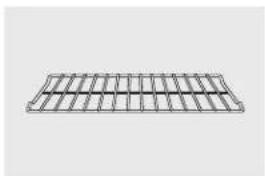
natural_image
Simple line drawing of a rectangular metal grate or grating structure (no text or symbols)Parrillas del horno
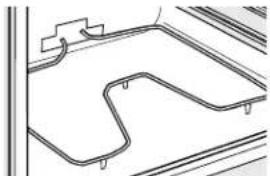
natural_image
Pure architectural line drawing of a road or path with no text, numbers, or symbolsElementos del horno
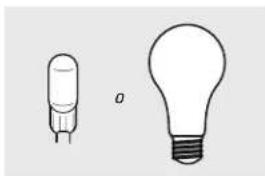
natural_image
Two simple light bulb illustrations, one with a small filament and the other a large bulb (no text or symbols)Bombillas de luz
Garante: General Electric Company. Louisville, KY 40225
General Manager, Customer Relations
GE Appliances, Appliance Park
Louisville, KY 40225
Registre su electrodoméstico GEAppliances.com
Have a question or need assistance with your appliance? Try the GE Appliances Website 24 hours a day, any day of the year! For greater convenience and faster service, you can now download Owner's Manuals, order parts or even schedule service on-line.
Schedule Service GEAppliances.com
Expert GE repair service is only one step away from your door. Get on-line and schedule your service at your convenience any day of the year! Or call 800.GE.CARES (800.432.2737) during normal business hours.
Real Life Design Studio GEAppliances.com
GE supports the Universal Design concept—products, services, and environments that can be used by people of all ages, sizes and capabilities. We recognize the need to design for a wide range of physical and mental abilities and impairments. For details of GE's Universal Design applications, including kitchen design ideas for people with disabilities, check out our Website today. For the hearing impaired, please call 800.TDD.GEAC (800.833.4322).
Extended Warranties GEAppliances.com
Purchase a GE extended warranty and learn about special discounts that are available while your warranty is still in effect. You can purchase it on-line anytime, or call 800.626.2224 during normal business hours. GE Consumer Home Services will still be there after your warranty expires.
Parts and Accessories GEAppliances.com
Individuals qualified to service their own appliances can have parts or accessories sent directly to their homes (VISA, MasterCard, and Discover cards are accepted). Order on-line today, 24 hours every day or by phone at 800.626.2002 during normal business hours.
Instructions contained in this manual cover procedures to be performed by any user. Other servicing generally should be referred to qualified service personnel. Caution must be exercised, since improper servicing may cause unsafe operation.

Contact Us GEAppliances.com
If you are not satisfied with the service you receive from GE, contact us on our Website with all the details including your phone number, or write to: General Manager, Customer Relations
GE Appliances, Appliance Park
Louisville, KY 40225
Register Your Appliance GEAppliances.com
Register your new appliance on-line—at your convenience! Timely product registration will allow for enhanced communication and prompt service under the terms of your warranty, should the need arise. You may also mail in the preprinted registration card included in the packing material.