RE700 - Surveillance Camera Alula - Free user manual and instructions
Find the device manual for free RE700 Alula in PDF.


User questions about RE700 Alula
0 question about this device. Answer the ones you know or ask your own.
Ask a new question about this device
Download the instructions for your Surveillance Camera in PDF format for free! Find your manual RE700 - Alula and take your electronic device back in hand. On this page are published all the documents necessary for the use of your device. RE700 by Alula.
USER MANUAL RE700 Alula
Simplifying · Security
Indoor Mini Camera
Quick Start Guide
Setup
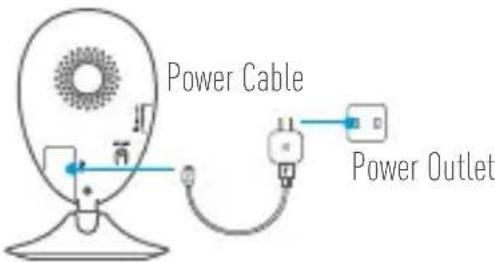
Step 1 Power-on
Plug the power cable into the camera and to the power adapter and then into a power outlet, as shown in the figure below. The LED indicator will flash red and blue when the camera is ready for
setup.
Step 2 Camera Setup
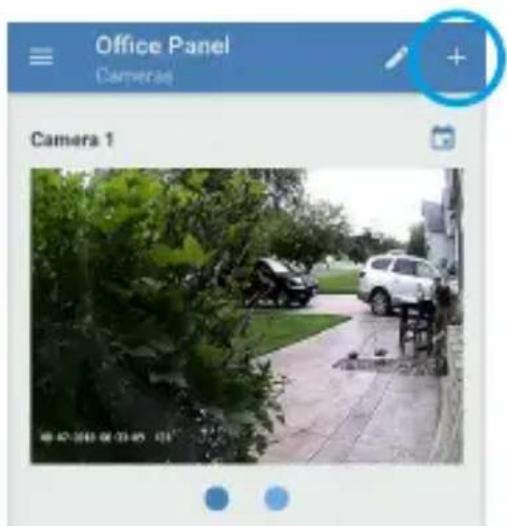
- Add a camera to the Alula app

- Log in to your account using the Alula app.
- From the Alula app Home screen, tap "+" on the upper-right hand corner to go to the scan QR code interface.
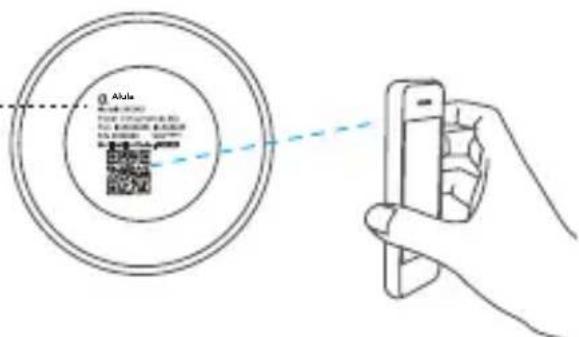
- Scan the QR Code on the bottom of the camera.
- Enter the verification code located on the bottom of the camera.
- Follow the app wizard to finish Wi-Fi configuration.
Bottom of the Camera
If you want to change your camera's Wi-Fi, press and hold the reset button for 5s and repeat this part.
Installation
Step 1 Installing the Metal Plate (Optional)
Pick a clean and flat surface and secure the metal plate to the desired position with the foam stickers or screws (not included).

There's a magnet piece inside the camera. You can skip this step if the surface is made of metal.
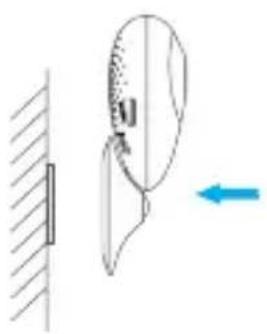
Step 2 Installing the Camera
Secure the camera magnetically to the metal plate or metal surface (see figure below).
Step 3 Completing Installation
Adjust the camera angle as required.
Appendix
Basics
EN
Name Description
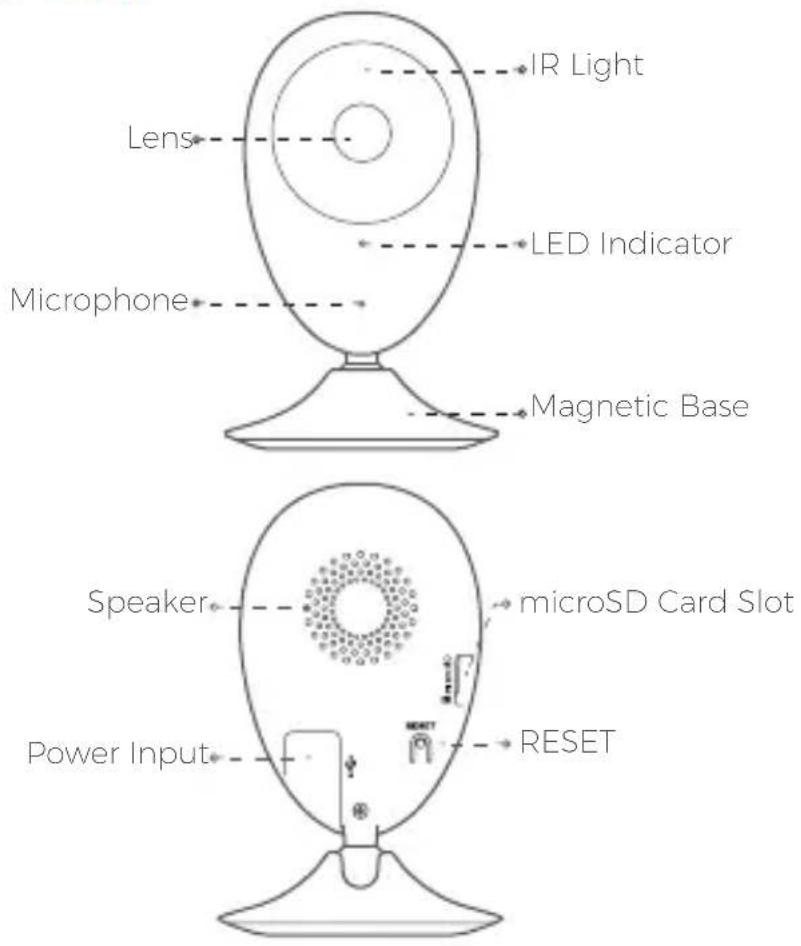
IR Light Auto light source for dark environment. The camera video has two modes: color (for daylight recording) and black and white with IR illuminator (for night condition).
| LED Indicator | • Blinking Red and Blue OR Rapidly Blinking Blue: The camera is ready for Wi-Fi connection. • Steady Red: The camera is starting up. • Steady Blue: The camera is connected by a user. • Slowly Blinking Blue The camera is running properly. • Slowly Blinking Red: The Wi-Fi connection has failed. • Rapidly Blinking Red: MicroSD card error. |
| RESET | Hold down the RESET button for 10 seconds while the camera is running, the camera restarts and all parameters are reset to default. |
| Power Input | -5V±10% |
Speaker Two-way talk.
Box Contents
Internet Camera (x1)
USB Cable (x1)
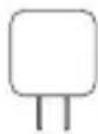
Power Adapter (x1)
Foam Sticker X2

Metal Plate X1 (3.5mm Hole Diameter)
Quick Start Guide X1
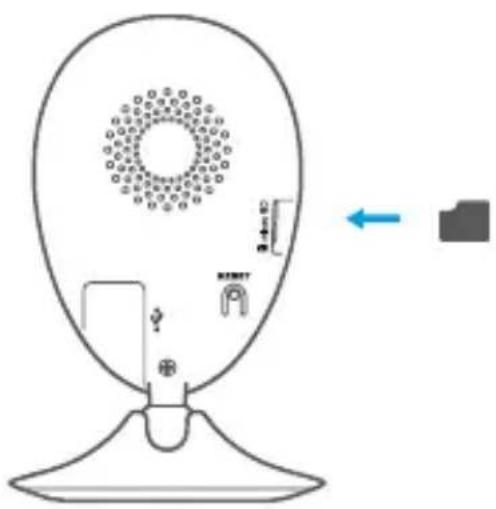
Installing Memory Card
Insert a microSD card into the slot until you hear a click.
Troubleshooting
Q: "The device is offline." or "The device is not registered." prompts appear when adding the camera using the Alula App.
A: 1. Make sure the network, which the camera is connected to, is working properly and the router's DHCP is enabled.
2. Hold down the RESET button for 10s to reset the settings if you change the network parameters.
Q: The mobile phone cannot receive alarm prompts when the camera is online.
A: 1. Make sure the Alula app is running on your mobile phone.
2. For Android OS mobile phone, make sure the app is running in the background; and for iOS mobile phones, enable the message push function in "Settings > Notification".
Q: Does the camera support power via USB devices or a portable battery.
A: It's advised to use the Alula standard power adapter to provide a stable voltage supply.