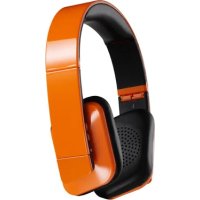
Pulse - Headphones ANTEC - Free user manual and instructions
Find the device manual for free Pulse ANTEC in PDF.



| Product Type | Bluetooth stereo headset |
| Brand | Antec |
| Model | Pulse |
| Wireless technology | Bluetooth with apt-X and SBC codec support |
| Bluetooth range | Approximately 10 meters (open field) |
| Wired connectivity | 3.5 mm stereo audio input and micro USB port for charging |
| Battery type | High-capacity rechargeable lithium |
| Battery life | Approximately 20 hours (estimated) |
| Charging time | Approximately 2-3 hours (estimated) |
| Weight | Approximately 200 g (estimated) |
| Dimensions | Approximately 18 x 15 x 8 cm (folded, estimated) |
| Built-in microphone | Yes, for hands-free phone functions |
| Phone functions | Answer/end call, reject call, voice dial, audio switching |
| Controls | MFB button (on/off/pairing), volume +/-, PHONE button, previous/next buttons |
| Design | Foldable with adjustable headband and padded cushions |
| Included accessories | Micro USB cable, 3.5 mm audio cable, airplane adapter, carrying case, manual |
| Care | Clean with a soft, dry cloth; avoid moisture and shocks |
| Safety | Do not use while driving; observe sound levels to preserve hearing |
| Compliance | FCC Part 15, IC CNR-210, RF exposure |
Frequently Asked Questions - Pulse ANTEC
User questions about Pulse ANTEC
0 question about this device. Answer the ones you know or ask your own.
Ask a new question about this device
Download the instructions for your Headphones in PDF format for free! Find your manual Pulse - ANTEC and take your electronic device back in hand. On this page are published all the documents necessary for the use of your device. Pulse by ANTEC.
USER MANUAL Pulse ANTEC
antec mobile products
pulse: Bluetooth-enabled Stereo Headphones
Thank you for purchasing the pulse Bluetooth™ Stereo Headset from a.m.p - Antec Mobile Products. Pulse is an audio receiver/headset combination that supports both wireless music streaming and mobile phone functions. By featuring apt-x, loss-less, digital audio technology and SBC audio software CODEs, pulse provides an unparalleled listening experience and is the perfect addition to your home entertainment system. At the same time, its lightweight and foldable design makes pulse the ideal travel companion.
Safety Information
a.m.p - Antec Mobile Products strongly recommends that you use good judgment and moderation when using the pulse. If you don't have good judgment, please read and follow the instructions and warnings contained in this product manual to ensure a safe and enjoyable pulse experience.
Noise-Induced Hearing Loss
Listening to music at high volumes for extended periods of time might be fun, but it can lead to permanent hearing loss, which is not fun. Sounds above 85 decibels (dBs) can cause permanent hearing damage while the pain threshold for noise is 125 dB. This means you can damage your hearing even though you aren't feeling any discomfort. Also, the damage caused from loud noises increases over time, so the louder the sounds, the less time it takes to damage your hearing. To avoid sudden shocks to your ears, each time you use the pulse, begin on low volume settings then gradually increase the volume to a comfortable level. Antec Mobile Products understands that good music often sounds better loud, but please take precautions to ensure that your hearing survives for many years to come.
| NOISE LEVEL (dB) EFFECT | |
| 140 dB Pistol fire from 25 feet away | |
| 120-130 dBs Pain threshold | |
| 90-110 dbs Train or subway | |
| 85 dBs PERMANENT DAMAGE | |
| 70-80 dBs Hi-Fi home theater | |
| 60-70 dBS Industrial factory | |
| 50-60 dBs Normal conversation | |
| 40-50 dBs Average office | |
| 30-40 dBS Ambient noise in a home | |
| 0-25 dbS Silent to whisper |
Be Aware of Your Surroundings!
Do not use the pulse headphones while operating machinery or motor vehicles as the pulse will impair your ability to hear important safety signals and therefore present a danger to you and others. We also ask that you please be considerate to others when listening to your music in places like libraries or on public transit. Finally, even if you are an Electrical Engineer, please do not attempt to repair, disassemble or modify the pulse in any way.
Product Images with Button and Accessory Descriptions
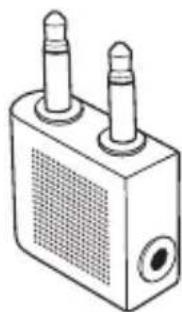
1. Airline adapter
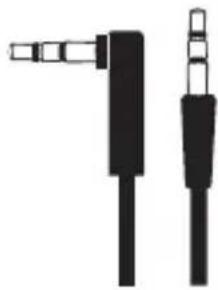
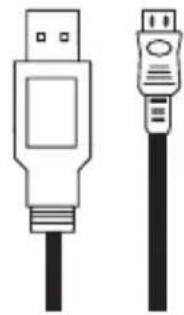
2. AUX In cable 3. Micro USB to USB charging cable
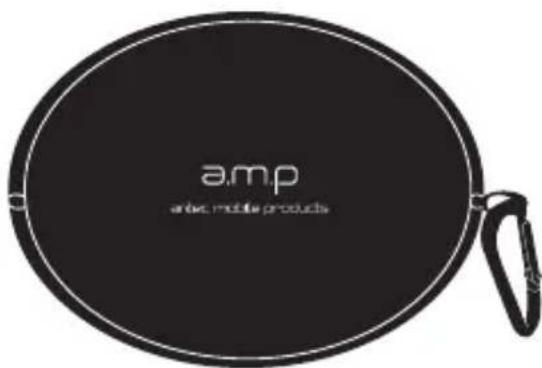
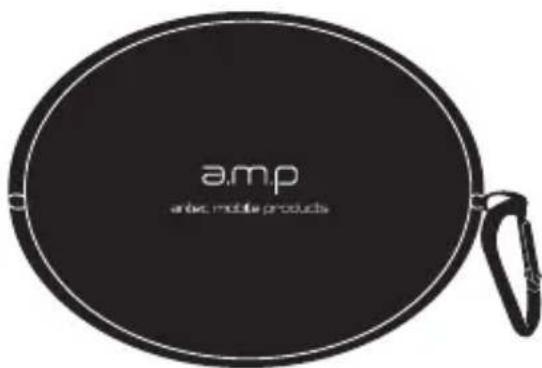
4. Carrying case 5. User manual
Headset Parts
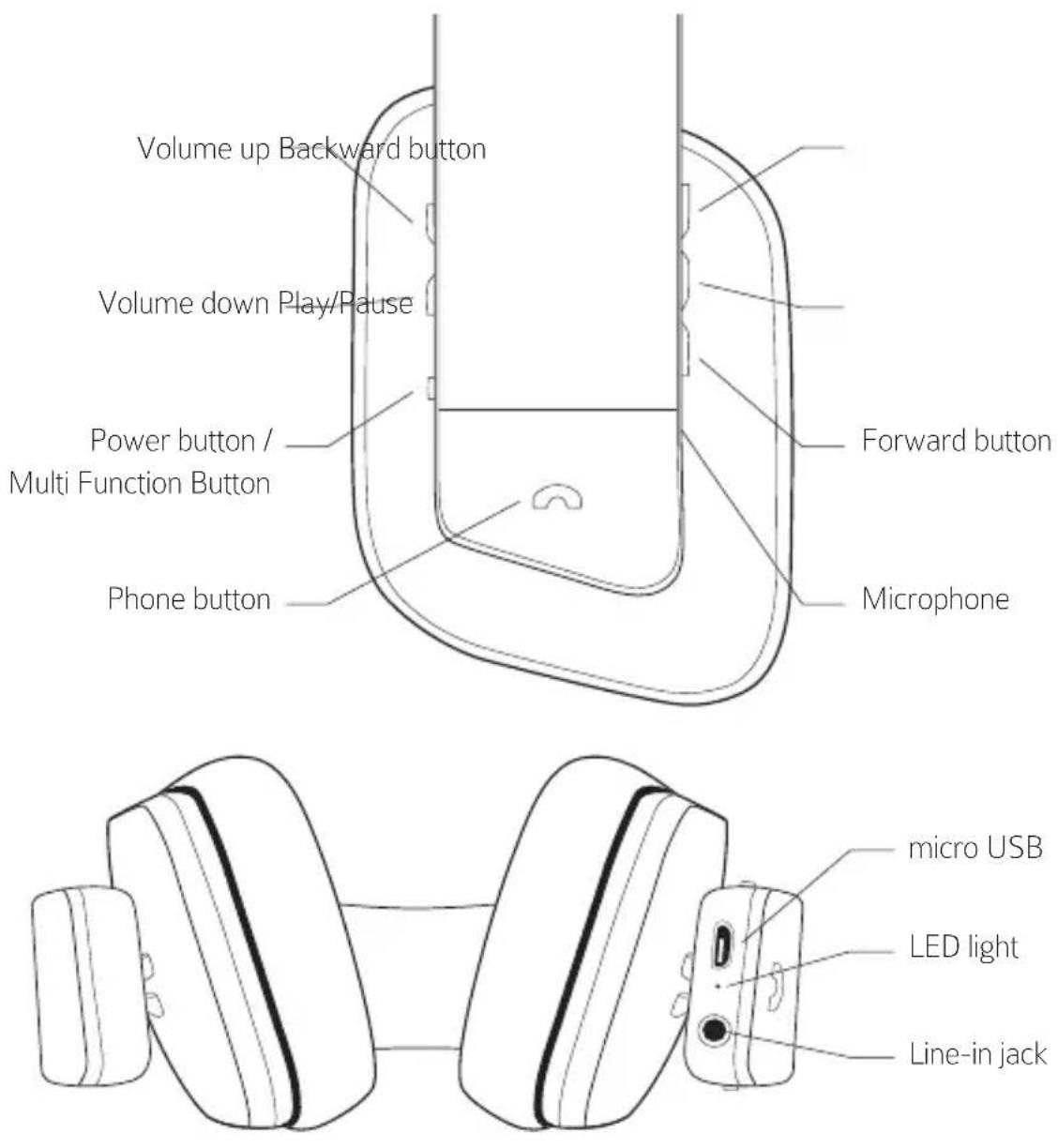
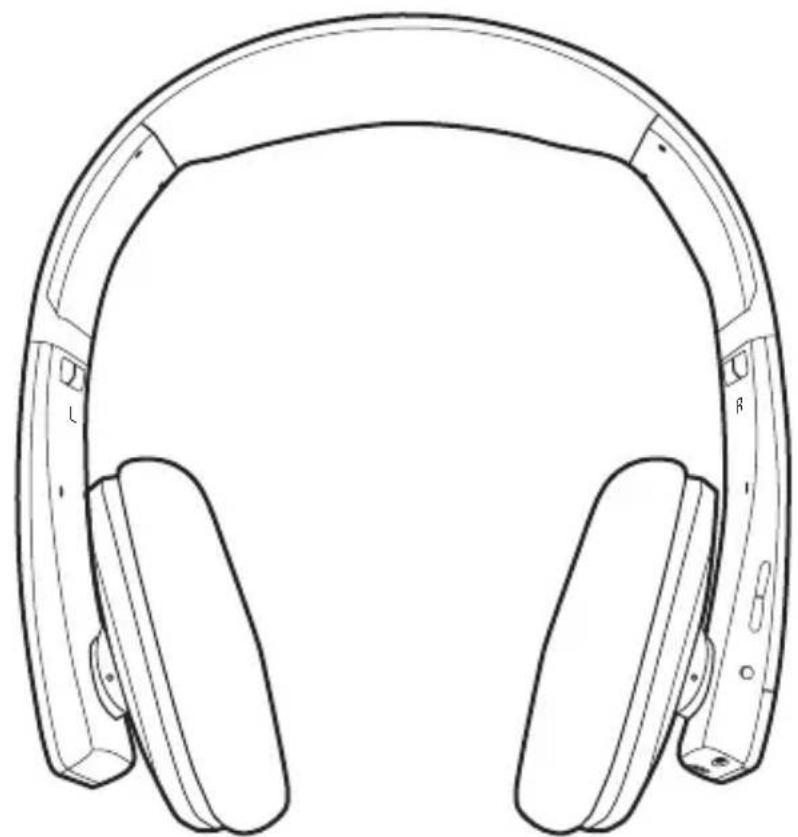
Getting Started
Charging the Battery
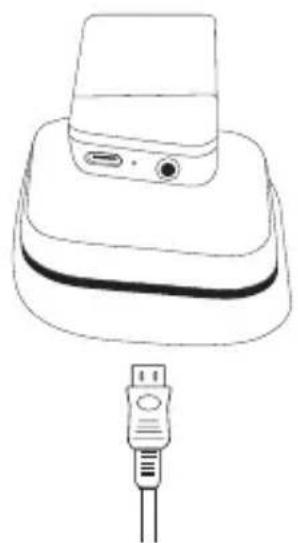
Pulse contains a high-capacity Lithium battery that should be fully-charged before using. Please use the included micro USB cable to charge the pulse by connecting the smaller end of the cable to the pulse and then connecting the larger end to the USB slot of any PC, Mac or charging station. The LED status indicator will be RED while charging. When fully charged, the LED will goes out and then the pulse will automatically turn off when fully charged.
Note: You can still use the pulse while charging.
Turning the pulse On and Off
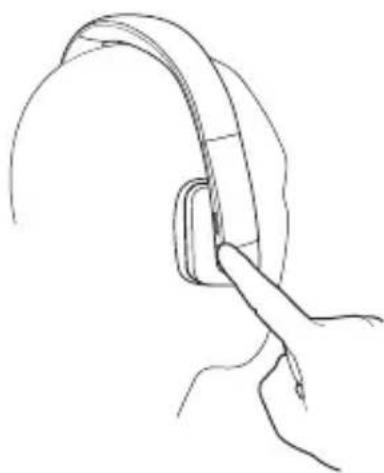
Before using the pulse, please note the left (L) and right (R) ear cushions and adjust the pulse's headband so that it fits securely atop your head and the ear cushions comfortably cover your ears. To switch on the pulse, press and hold the MFB button for about three seconds, the pulse will emit a rising tone and the Blue LED light will flash three times. To power off the pulse, press the MFB button again. The pulse will emit a falling tone and the Red LED will flash three times. The pulse will auto shut off if it remains on and unpaired for Five minutes.
Pairing the pulse with a Bluetooth-enabled Device for the First Time
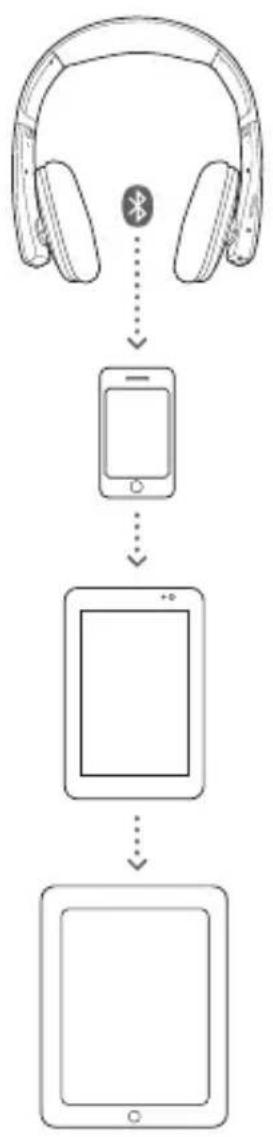
You can wirelessly connect the pulse with any Bluetooth-enabled device such as a mobile phone, PC, laptop or tablet, but first you must "pair" the pulse with your Bluetooth-enabled device by following these steps. First, turn on the pulse and then press and hold the MFB button for 6-8 seconds until the STATUS light alternates RED and BLUE. Congratulations, you are now in pair mode. Next, using your audio devices controls, find the Bluetooth settings and select the "pulse" headset connection. Depending on your device, you might have to enter a paring code. If so, use "0000". When successfully connected, the pulse's LED light will flash BLUE. The pulse's range is approximately 10 meters (33 feet) but range and functions vary according to device, so be sure to be near the Bluetooth-enabled device when paring and check your mobile or audio device's instruction manual for more details.
Note: You don't need to pair the devices each time you use the pulse. After pairing, the pulse will remember the most recently paired device and will always connect automatically until you un-pair the connection or pair the pulse with a different device.
To Un-pair the pulse
There are two ways to un-pair, or disconnect the pulse from the Bluetooth device. First, you can disconnect the pulse from paired mode by simply disabling the connection using the Bluetooth settings in your audio device. Or you can cancel the connection by pressing and holding the pulse's Volume up & Backward button for 3 seconds.
"Passive Mode"-Connecting using the 3.5mm or USB cable
If you don't have a Bluetooth-enabled device or simply do not want to use the pulse in pair mode, you can still connect the pulse to your audio device using cables just as you would with normal headphones. To do so, simply connect the pulse to your device using the included 3.5mms stereo input cable. Actually, this is method recommended, as it will save battery charge and still provide the same listening experience. We highly recommend you can use this mode when traveling on the aircraft. Absolutely, we have already prepared the Airline adapter for you in the box.
Using the pulse mobile phone functions:
With its integrated microphone, the pulse also supports full mobile phone functions. By using the controls you can pick up and place calls and switch between mobile phone and audio functions. To toggle between audio headset and cellular phone settings, simply press and hold the PHONE button on the side of the pulse. Then use your mobile phone as you normally would to make your call. When receiving an incoming call, the pulse will emit the incoming tone to alert you. Pick up the call by pressing the PHONE button once. If you don't want to be bothered, just press and hold the PHONE button to reject the call. During the call you can use the Vol+ or Vol- to adjust volume or mute the caller. If your mobile device has a hands free function or supports voice dial then you can use the pulse to perform those actions.
Care and Maintenance
- Keep the pulse dry and do not store in a damp place or submerge it in water.
- Do not expose the pulse to extreme temperatures or direct sunlight for extended periods of time.
- High temperatures can shorten the life of the pulse, damage the battery and potentially distort certain parts of the pulse.
- Do not attempt to repair, disassemble or modify the pulse in any way.
- Do not drop or expose the pulse intense shock.
- Do not use chemicals or harsh detergents to clean the product.
Troubleshooting
| PROBLEM SOLUTION | |
| The device is malfunctioning or not turning on | ·Check for a good connection to the audio device ·Ensure that both the pulse and the audio device are fully charged |
| Distortion or poor sound quality | ·Increase the volume on your phone or device ·Reconnect the pulse to your device using the provided 3.5 mm cable |
| The pulse is not emitting any sound | ·Increase the volume on the pulse ·Increase the volume on the audio device ·Make sure neither device has been muted ·Check the charge of the pulse and the audio device ·Re-pair the device |
| The pulse is not pairing with the Bluetooth-enabled device | ·Make sure both devices are on and fully charged ·Re-pair the pulse or move closer to the Bluetooth device and attempt to re-pair |
| Voice dial does not work | Please check that your mobile device supports hands-free or voice dial functions |
- Visit http://www.antec.com/?page=support# for technical support
LED Indication
| Power On LED flashed BLUE three times |
| Power Off LED flashed RED three times |
| Pairing mode LED alternates RED and BLUE |
| Standby mode LED is solid BLUE |
| AV Active mode LED flashes BLUE twice every two seconds |
| Headset active mode LED flashed BLUE once every second |
| Low battery LED flashed RED every two seconds |
| Auto Shutdown Red led flash 3 times and power off (5 minutes no any connection) |
Button Functions
| Volume up Increase volume | |
| Volume down Decrease volume | |
| Forward button Play next song | |
| Backward button Play previous song | |
| Play/Pause button Play or pause tracks | |
| Multi Function Button Power on | / off and three-way call function / Active Siri function (Press One time) / Redial last call(Press twice) |
| Phone button Multiple phone functions |
pulse : Casque stéreo Bluetooth
Listening to music at high volumes for extended periods of time might be fun, but it can lead to permanent hearing loss, which is not fun. Sounds above 85 decibels (dBs) can cause permanent hearing damage while the pain threshold for noise is 125 dB. This means you can damage your hearing even though you aren't feeling any discomfort. Also, the damage caused from loud noises increases over time, so the louder the sounds, the less time it takes to damage your hearing. To avoid sudden shocks to your ears, each time you use the pulse, begin on low volume settings then gradually increase the volume to a comfortable level. Antec Mobile Products understands that good music often sounds better loud, but please take precautions to ensure that your hearing survives for many years to come.
| NOISE LEVEL (dB) EFFECT | |
| 140 dB Pistol fire from 25 feet away | |
| 120-130 dBs Pain threshold | |
| 90-110 dbs Train or subway | |
| 85 dBs PERMANENT DAMAGE | |
| 70-80 dBs Hi-Fi home theater | |
| 60-70 dBS Industrial factory | |
| 50-60 dBs Normal conversation | |
| 40-50 dBs Average office | |
| 30-40 dBS Ambient noise in a home | |
| 0-25 dbS Silent to whisper |
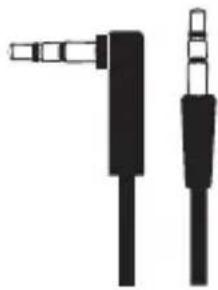
2. Cable AUX In 3. Cable charge Micro
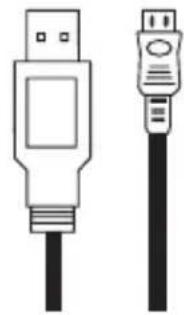
USB vers USB
| PROBLEM SOLUTION | |
| The device is malfunctioning or not turning on | ·Check for a good connection to the audio device ·Ensure that both the pulse and the audio device are fully charged |
| Distortion or poor sound quality | ·Increase the volume on your phone or device ·Reconnect the pulse to your device using the provided 3.5 mm cable |
| The pulse is not emitting any sound | ·Increase the volume on the pulse ·Increase the volume on the audio device ·Make sure neither device has been muted ·Check the charge of the pulse and the audio device ·Re-pair the device |
| The pulse is not pairing with the Bluetooth-enabled device | ·Make sure both devices are on and fully charged ·Re-pair the pulse or move closer to the Bluetooth device and attempt to re-pair |
| Voice dial does not work | Please check that your mobile device supports hands-free or voice dial functions |
- Visitez http://www.antec.com/?page=support# pour le support technique
Indications LED
| Power On LED flashed BLUE three times |
| Power Off LED flashed RED three times |
| Pairing mode LED alternates RED and BLUE |
| Standby mode LED is solid BLUE |
| AV Active mode LED flashes BLUE twice every two seconds |
| Headset active mode LED flashed BLUE once every second |
| Low battery LED flashed RED every two seconds |
| Auto Shutdown Red led flash 3 times and power off (5 minutes no any connection) |
| Volume up Increase volume | |
| Volume down Decrease volume | |
| Forward button Play next song | |
| Backward button Play previous song | |
| Play/Pause button Play or pause tracks | |
| Multi Function Button Power on | / off and three-way call function / Active Siri function (Press One time) / Redial last call(Press twice) |
| Phone button Multiple phone functions |
pulse: Auriculares Bluetooth stereo
- Visit http://www.antec.com/?page=support# for technical support
Indicación LED
Noise-Induced Hearing Loss
Button Functions (JP?)
·訪問技術支援網址 http://www.antec.com/?page=support# for technical support
燈號指示
Federal Communication Commission Interference Statement
This device complies with Part 15 of the FCC Rules. Operation is subject to the following two conditions: (1) This device may not cause harmful interference, and (2) this device must accept any interference received, including interference that may cause undesired operation.
This equipment has been tested and found to comply with the limits for a Class B digital device, pursuant to Part 15 of the FCC Rules. These limits are designed to provide reasonable protection against harmful interference in a residential installation. This equipment generates, uses and can radiate radio frequency energy and, if not installed and used in accordance with the instructions, may cause harmful interference to radio communications. However, there is no guarantee that interference will not occur in a particular installation. If this equipment does cause harmful interference to radio or television reception, which can be determined by turning the equipment off and on, the user is encouraged to try to correct the interference by one of the following measures:
- Reorient or relocate the receiving antenna.
- Increase the separation between the equipment and receiver.
- Connect the equipment into an outlet on a circuit different from that to which the receiver is connected.
- Consult the dealer or an experienced radio/TV technician for help.
FCC Caution: Any changes or modifications not expressly approved by the party responsible for compliance could void the user's authority to operate this equipment.
This transmitter must not be co-located or operating in conjunction with any other antenna or transmitter.
Radiation Exposure Statement:
This product complies with the Canada portable RF exposure limit set forth for an uncontrolled environment and is safe for intended
operation as described in this manual. Further RF exposure reduction can be achieved if the product is kept as far away as possible from the user body or by selecting a lower output power if such a function is available on the device.
Industry Canada statement:
This device complies with RSS-210 of the Industry Canada Rules. Operation is subject to the following two conditions: (1) This device may not cause harmful interference, and (2) this device must accept any interference received, including interference that may cause undesired operation.
Radiation Exposure Statement:
This product complies with the Canada portable RF exposure limit set forth for an uncontrolled environment and is safe for intended operation as described in this manual. Further RF exposure reduction can be achieved if the product is kept as far away as possible from the user body or by selecting a lower output power if such a function is available on the device.
© 2013 Antec, Inc. All rights reserved.
All trademarks are the property of their respective owners.
Reproduction in whole or in part without written permission is prohibited.
Printed in China.
- PULSE: BLUETOOTH-ENABLED STEREO HEADPHONES
- SAFETY INFORMATION
- NOISE-INDUCED HEARING LOSS
- BE AWARE OF YOUR SURROUNDINGS
- PRODUCT IMAGES WITH BUTTON AND ACCESSORY DESCRIPTIONS
- HEADSET PARTS
- GETTING STARTED
- CHARGING THE BATTERY
- TURNING THE PULSE ON AND OFF
- PAIRING THE PULSE WITH A BLUETOOTH-ENABLED DEVICE FOR THE FIRST TIME
- TO UN-PAIR THE PULSE
- PASSIVE MODE"-CONNECTING USING THE 3.5MM OR USB CABLE
- USING THE PULSE MOBILE PHONE FUNCTIONS
- CARE AND MAINTENANCE
- TROUBLESHOOTING
- LED INDICATION
- BUTTON FUNCTIONS
- PULSE : CASQUE STÉREO BLUETOOTH
- INDICATIONS LED
- PULSE: AURICULARES BLUETOOTH STEREO
- INDICACIÓN LED
- BUTTON FUNCTIONS (JP?)
- 燈號指示
- FEDERAL COMMUNICATION COMMISSION INTERFERENCE STATEMENT
- RADIATION EXPOSURE STATEMENT
- INDUSTRY CANADA STATEMENT
Brand : ANTEC
Model : Pulse
Category : Headphones